CS-Cart Image Background Remover effortlessly erases unwanted backgrounds from product photos, category visuals, and logos while keeping the image quality intact.
This AI-powered tool works with popular formats like JPG, JPEG, and PNG, allowing you to edit single or multiple images at once.
Whether you want a transparent background or a clean white one, this tool makes the process quick and seamless.
Features
- Removes background from category and product images, including product variations.
- Edit single or multiple images at once for faster processing.
- Background removal for website theme logos.
- Removes background from vendor logos.
- Eliminates background from invoice and shipping logos for consistent branding.
- AI-powered background removal for fast and accurate results.
- Supports Local Setup for self-hosted background removal services.
- Supports Gemini API for AI-based image processing.
- Allows admins to choose and switch providers (Local Setup or Gemini API) from the add-on settings.
- Simple and user-friendly configuration from the CS-Cart admin panel.
- No manual image editing required, saving time and effort.
- Ensures clean, professional, and consistent branding across the storefront and documents.
Add minimum server requirements to set up python API as mentioned here.
Note: To access the module’s live demo, please contact the Webkul support team.
Note: Server should not be shared-hosted.
Explore our CS-Cart Vendor Order Accept add-on that allows admin and vendors review customer orders and accept or cancel them.
Here is the installation guide to set up api installation.
Minimum System Requirement (API Setup)
The following minimum system requirements are needed for this extension,
- Python Version – 3.10
- Space (4 GB)
- RAM (2 GB)
- Server key and cert files (for Flask API)
- Port (5000)
To install AI module, we need SSH access. You can also check the AI Models Server Installation
Installation
When you download the add-on, you get one zip file and the install.txt file. Please read it carefully and follow it.
Firstly click on the icon and select Manual Installation to upload the zip file as per the below screenshot.
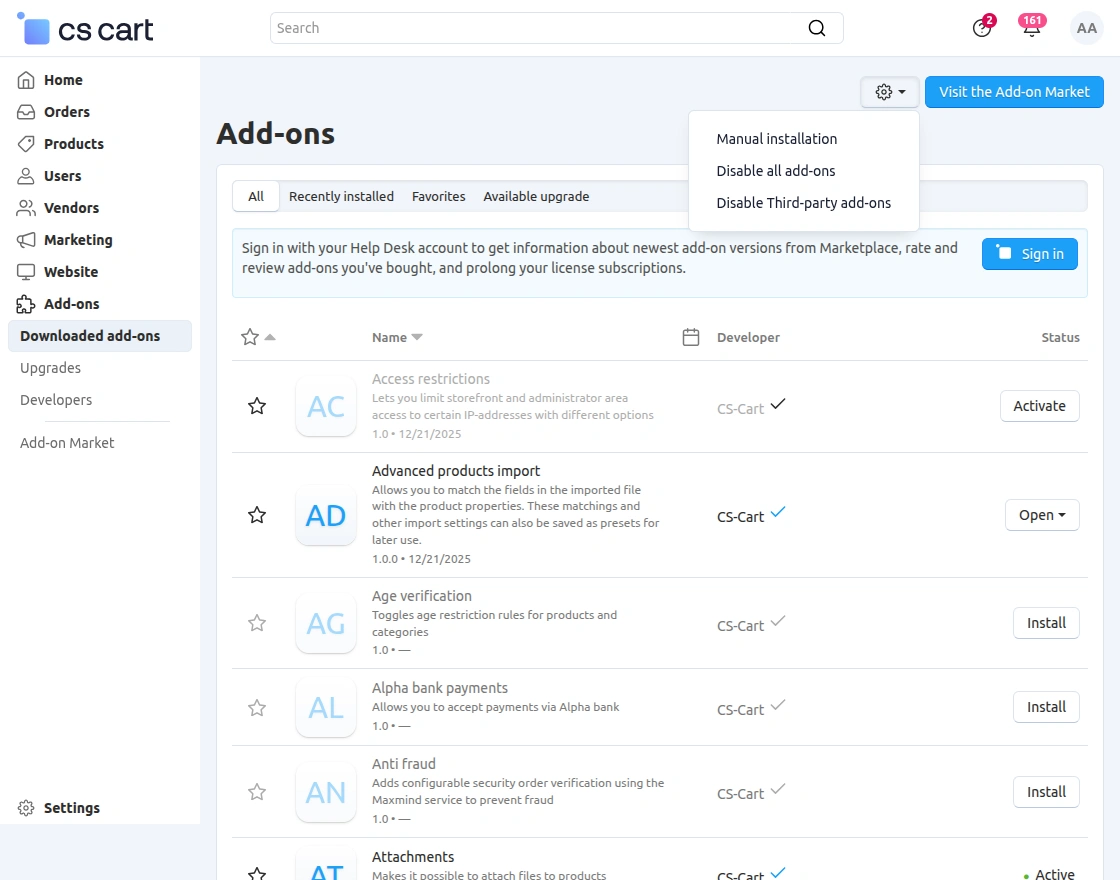
Click on “Local” to browse the zip file and then click on “Upload & Install” as shown below in the snapshot.

Background Removal API
This project provides an API for background removal from images. It allows you to remove image backgrounds and optionally replace them with a custom background or a specified CMYK color.
Prerequisites
- Python 3.9 or above
- `virtualenv` (for creating a virtual environment)
- Postman (optional, for testing API)
Note: You can either complete the API installation yourself or request assistance from our team.
Setup Instructions
1. Create a Virtual Environment
You need to create a virtual environment to manage the project’s dependencies.
Option 1:Using `virtualenv`:
- virtualenv myenv
Option 2:Using`venv` (comes with Python):
- python3 -m venv myenv
2. Activate the Virtual Environment
On Windows:
- myenv\Scripts\activate
On macOS/Linux:
- source myenv/bin/activate
3. Install Required Packages
Once the virtual environment is activated, install the project dependencies:
- pip install -r requirements.txt
4. Configure Environment Variables
Create a `.env` file in the root of your project (if it doesn’t already exist) and add the following configuration:
- TOKEN = ‘j6v…clZB’ Replace with your API token.
- HOST = ‘localhost’ Replace with your desired host
- PORT = ‘5000’ Replace with the port number you want to run the server on
Note: You can generate a API token by running the following command in your terminal
- openssl rand -base64 48
Make sure that the `.env` file is properly configured with the correct values.
This configuration will be used by Flask to run the application.
5. Run the Flask Application
After configuring your environment variables, you can run the Flask API server:
- nohup python app.py &
Add-on Configuration
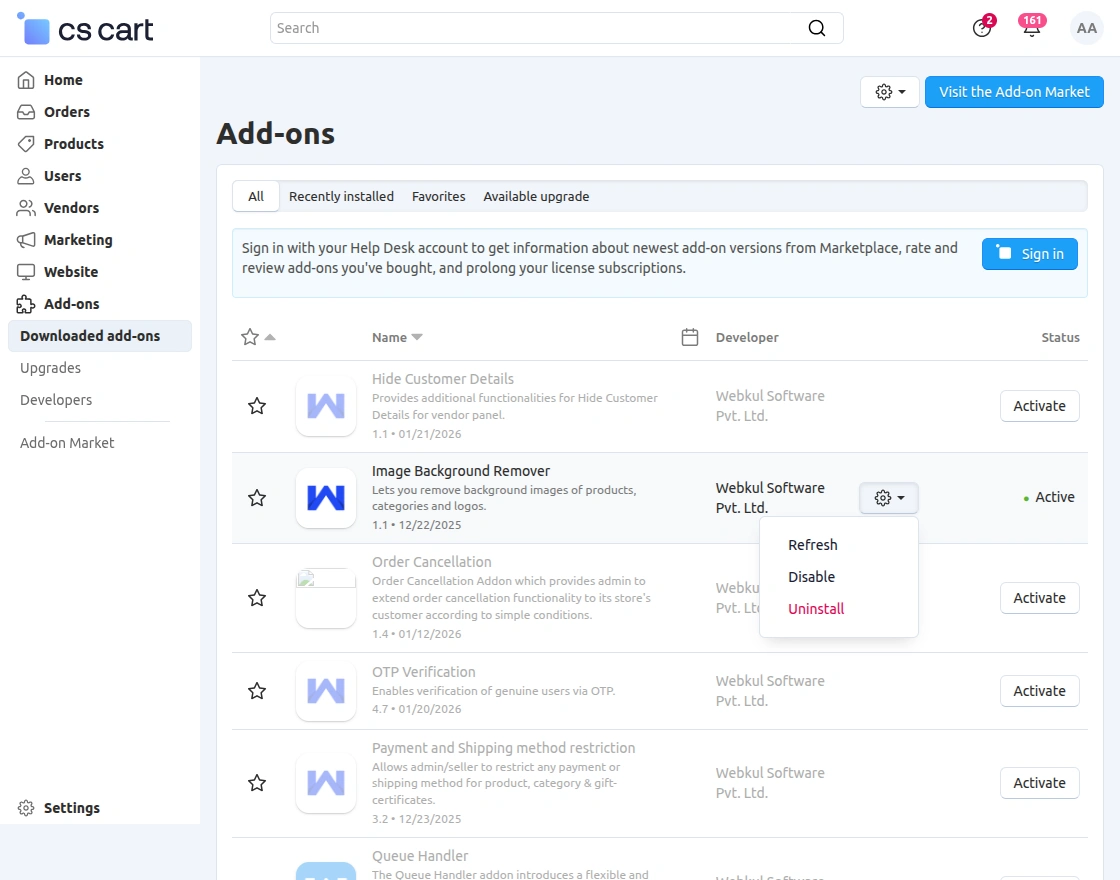
After installation of the add-on, you will find Image Background Remover in the list of the available add-ons, we will then configure the settings.
Click on “settings” to Enable, Disable, Install or Refresh. Make sure, the add-on is activated as shown in the below snapshot.
CS-Cart Image Background Remover – Workflow
After the installation of the Addon, you have to open the settings of the module. Shown as below:
Under the General tab, the admin can now configure the Image Background Remover add-on using two different providers, based on the requirement.
Option 1: Gemini API
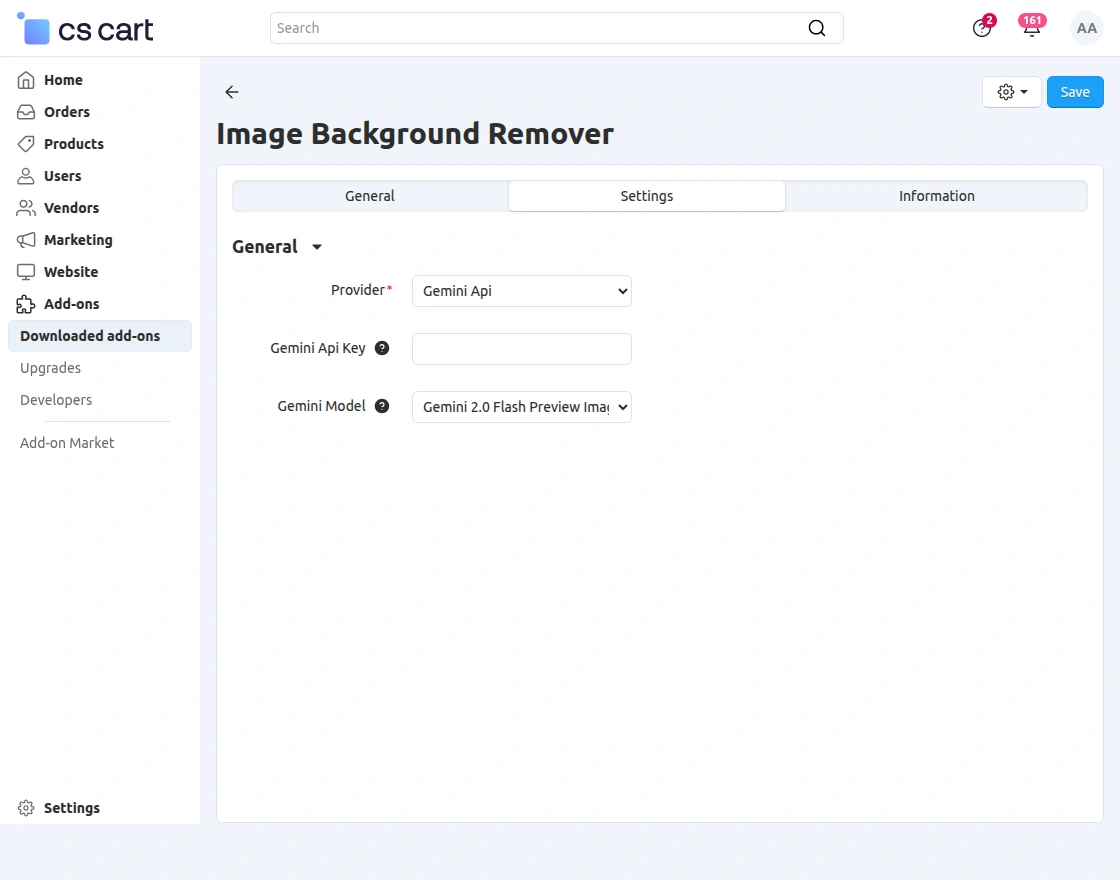
If the admin selects Gemini API as the provider, the following details need to be configured:
- Gemini API Key – Enter a valid Gemini API key
- Gemini Model – Select the required Gemini model from the dropdown
Once the details are added, click on the Save button to activate the add-on.
This setup allows the admin to use AI-powered background removal through Gemini models.
Option 2: Local Setup
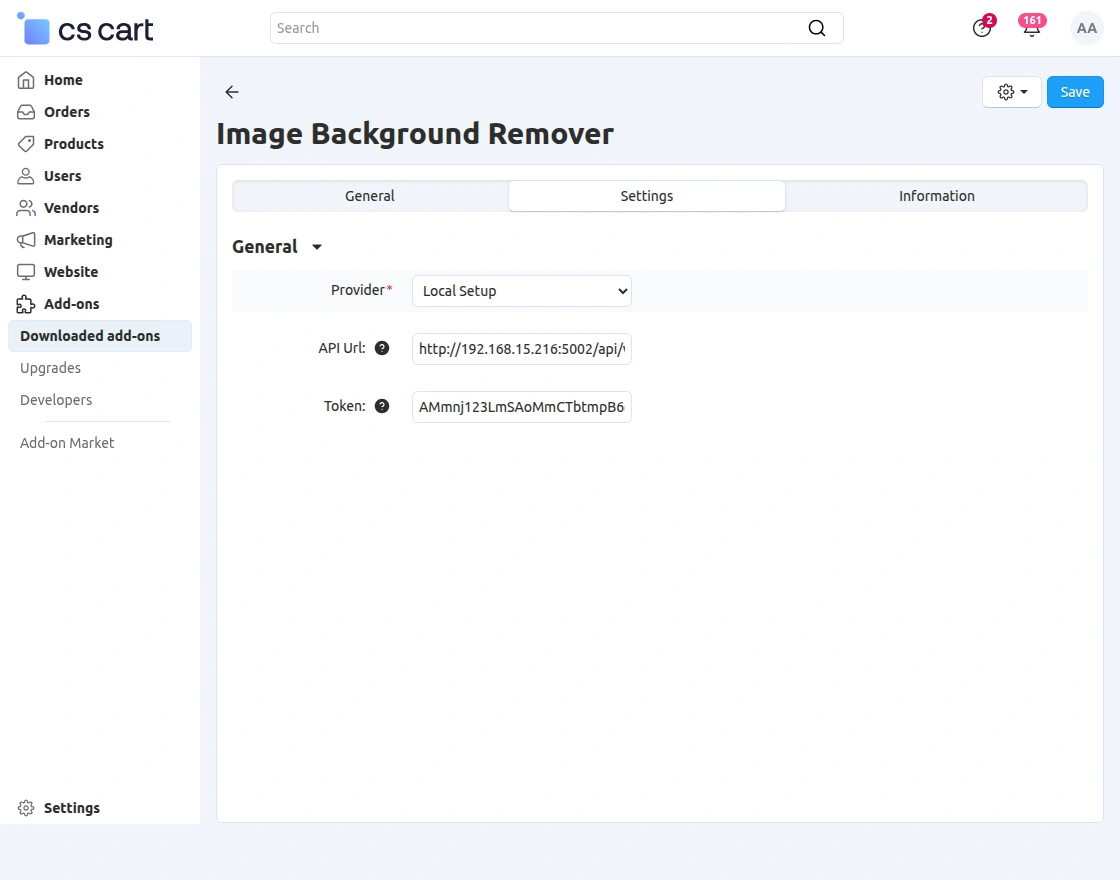
If the admin selects Local Setup as the provider, the following details need to be added:
- API URL – Enter the URL of the locally hosted background removal service
- Token – Enter the authentication token for API access
After adding the required details, click on the Save button to enable the module.
This option is useful when the background removal service is hosted on a local server or private network.
Product Image Background Removal
Admin will navigate to the product create or edit page and from there the admin will see the option of removing background from images under the product images section.

As shown in the above image, the admin can also bulk remove the background of all images.
Category Image Background Removal
After the product image background is removed, the admin can also remove the category image background as shown below image.

Remove Website Logo Background
Admin gets the option to remove the website logo background by navigating to Website > Themes > Site Logo.

Also, the admin can remove the vendor and invoice logo background as shown below image:

Customer View – Product Image Without Background
Now, when the customer comes on the product page, they will see the product images without background which will give them a good visual appeal.

Website Logo – Frontend View
Once the admin removes the background from the website logo. This is how it will reflect on the storefront –

Support
That’s all for the CS-Cart Image Background Remover.
If you have any questions, suggestions, or customization requests, feel free to contact us at [email protected] or submit a ticket at webkul.uvdesk.com.
You may also check our quality CS Cart Extensions.
Current Product Version - 1.1
Supported Framework Version - 4.16.x, 4.18.x, 4.19.x


Be the first to comment.