CS-Cart AI Image Search allows customers to quickly find products by uploading an image, ensuring a seamless and efficient shopping experience.
It leverages AI technology to enable image-based product searches, enhancing the user experience by making product discovery effortless.
Customers can easily upload an image of the desired item, and the AI algorithm will analyze it using an embedding similarity search technique to find matching products.
It analyzes product features and finds similar items in the CS-Cart store, displaying accurate or relevant results based on availability.
This innovative technique enhances the search experience for website users.
Explore the CS-Cart Product Search By Barcode add-on to easily scan and find products using barcodes, making inventory and checkout faster.
Features
- The admin can define the number of matched product results.
- Users can search for products using related images.
- Customers can search via the search bar or advanced search on the Front-End.
- The system delivers accurate or relevant results by matching the image.
Minimum System Requirement (API Setup)
The following minimum system requirements are needed for this extension,
- Python Version – 3.10
- Space (1 GB)
- RAM (1 GB)
- API Key (Gemini, OpenAI)
- Server key and cert files (for Flask API)
- An Active Port (5000)
To install AI module, we need SSH access. You can also check the AI Models Server Installation Guide.
Installation
After downloading the CS-Cart AI Image add-on, you will receive a zip file, an install.txt file, and a User Guide manual. Please read the manual carefully for proper setup.
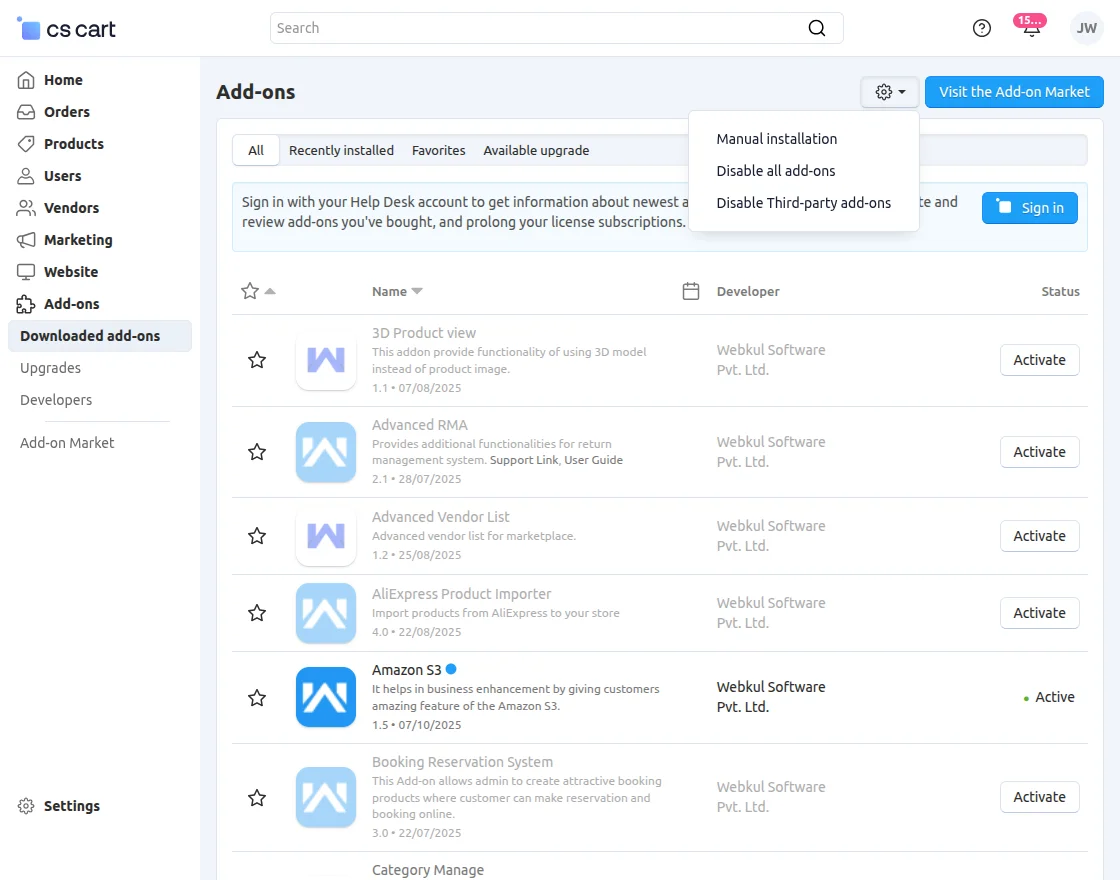
Next, navigate to Manage Add-ons, click on Manual Installation, and follow the steps shown in the snapshot.
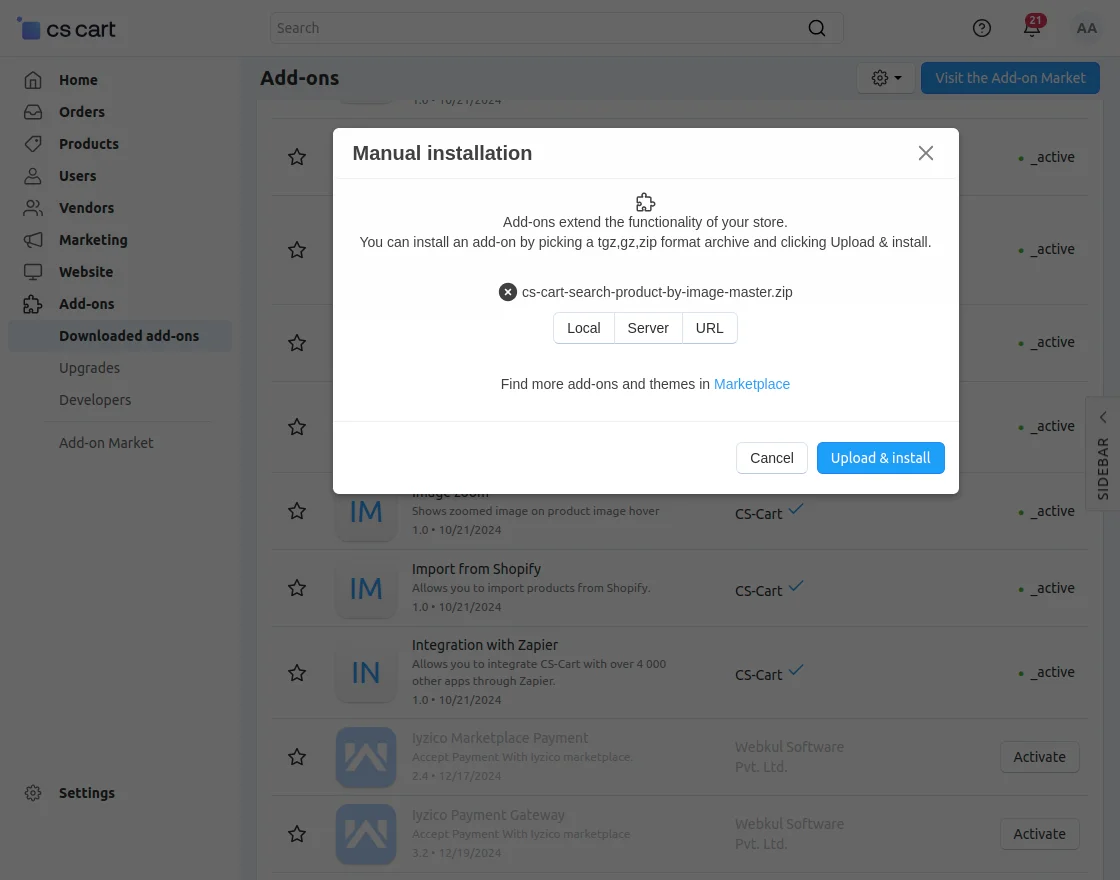
Click on Local to select the zip file, then click Upload & Install as shown in the snapshot.
Add-On Configuration
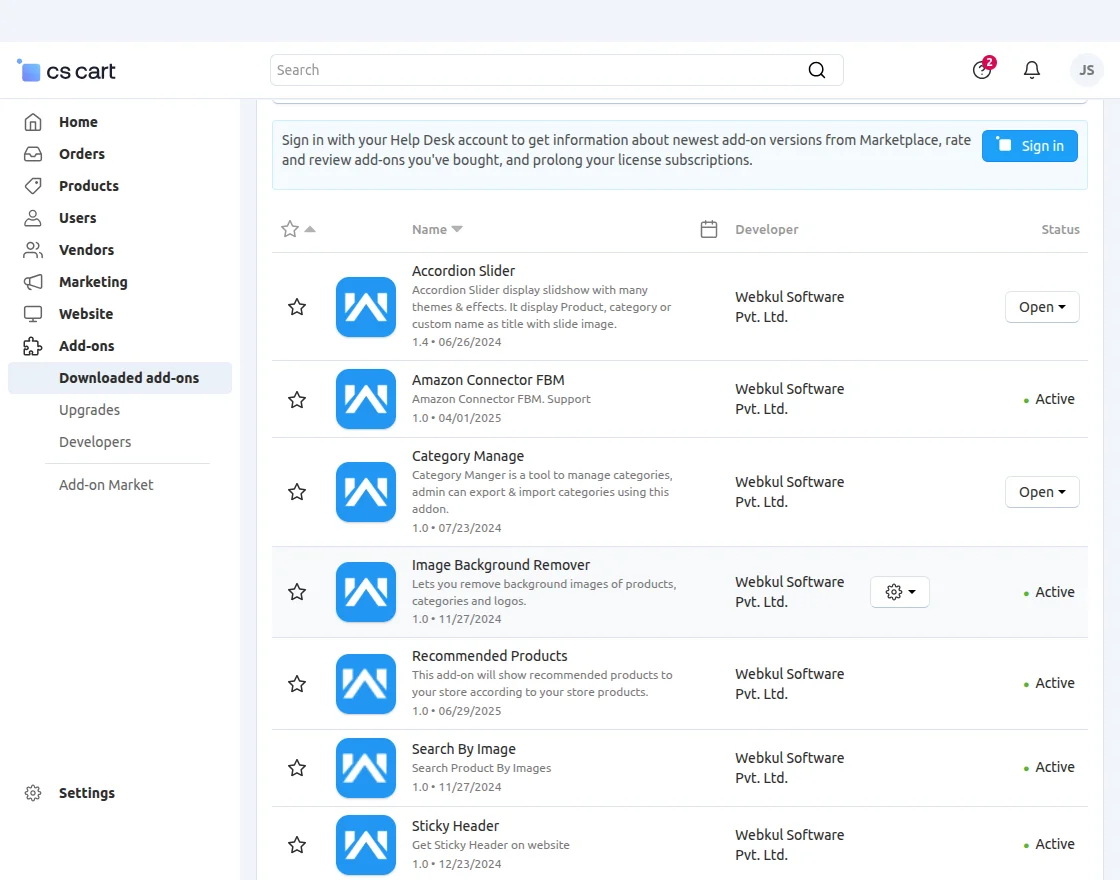
After installing the add-on, Search By Image will appear in the list of available add-ons. Next, configure the settings.
Click on Settings to Enable, Disable, Install, or Refresh. Ensure the add-on is activated, as shown in the snapshot below.
Embeddings server setup
Learn how to set up the Embeddings server in our detailed AI Models Server Installation Guide.
Follow this resource to learn how to install and set up Chroma DB.
CS-Cart AI Image Search – Configuration
To set up the module, navigate to Admin Dashboard >> Add-Ons >> Downloaded add-ons>>Search By Image.

- Go to Settings.
- Embedding URL: Provide an embedding URL to create an embedding.
- Query URL: Under query URL, provide API Collection URL.
- Collection Name: Under Collection Name, enter the name.
- Token: Provide Token creating embedding.
- Sync All Images: Click on Bulk Sync.
Front-End View
On the Front-End, the customer needs to add the images by clicking on the Camera icon.

When the customer clicks the Camera icon, a pop-up will appear, allowing them to upload the image they want to search.
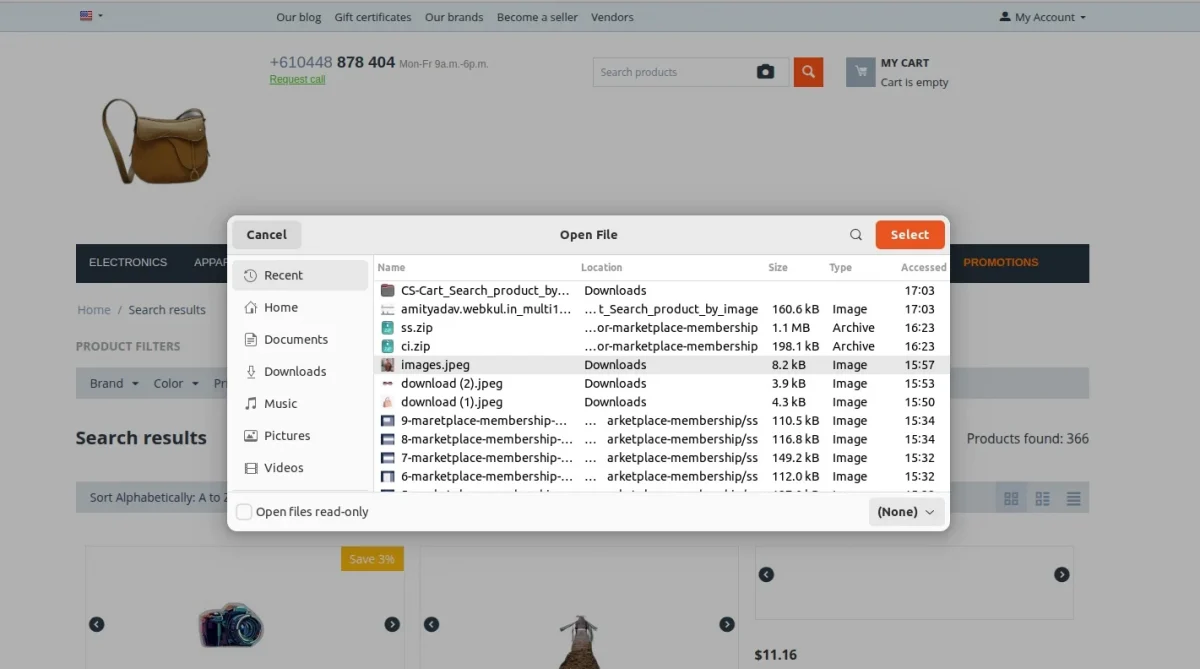
The search results will appear on the customer’s screen, showing either the exact matching product or relevant suggestions from the store’s inventory.
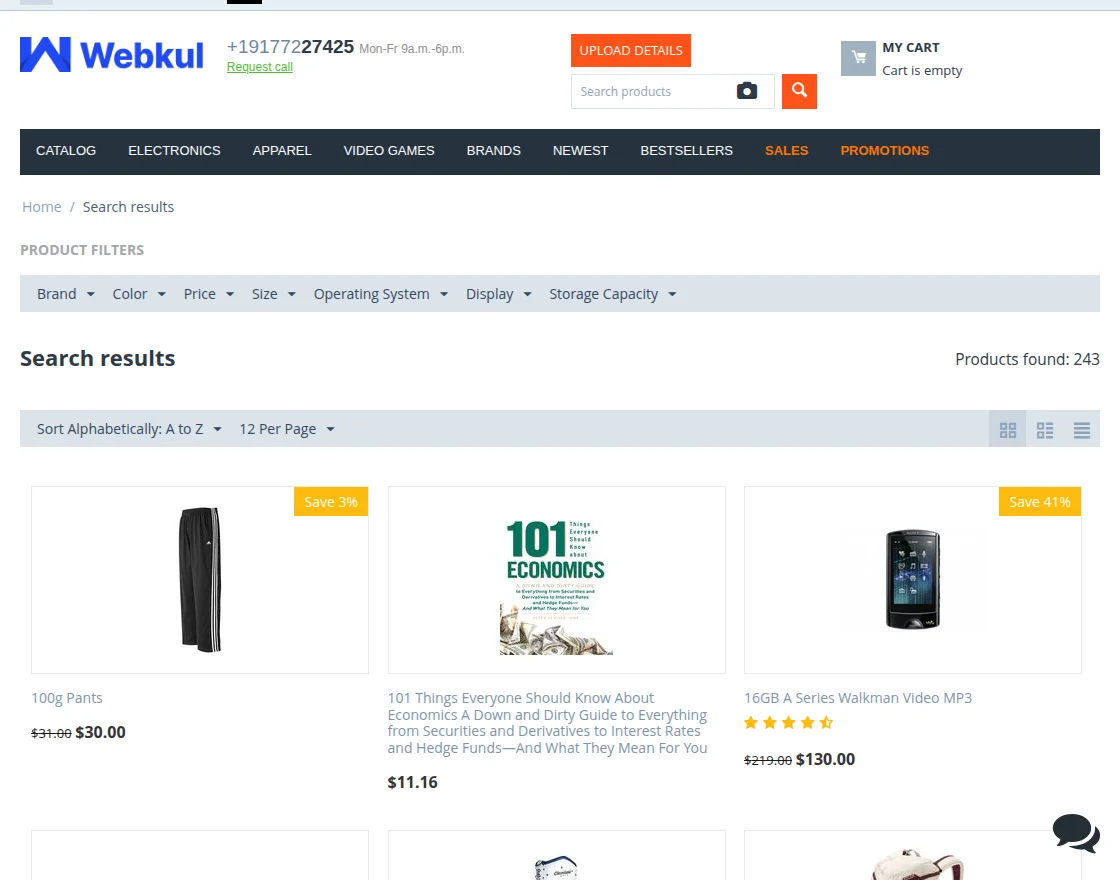
From here, the customer can choose a product and proceed to add it to the cart.
AI Image Search Vendor configuration
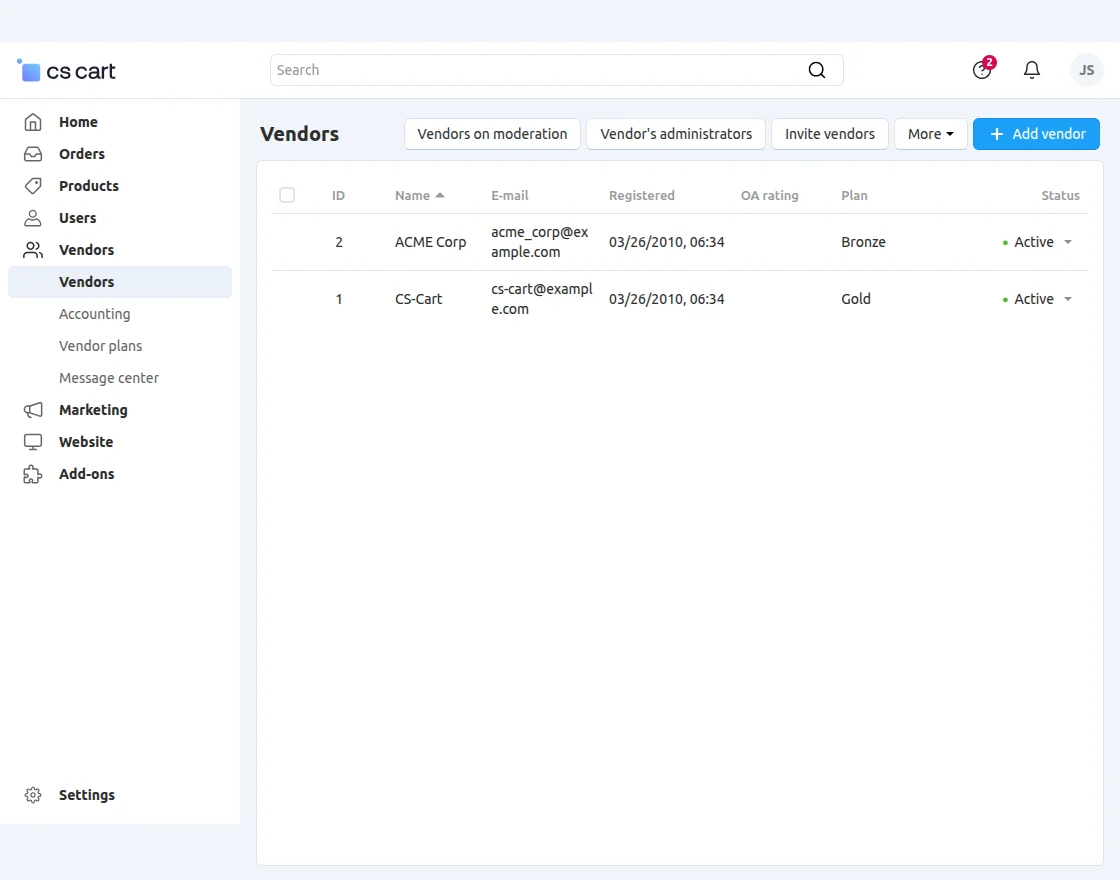
CS-Cart AI Image Search is designed to accommodate multiple vendors.
The image below displays the list of vendors, and administrators can easily add new vendors using the “+Add vendor” button.
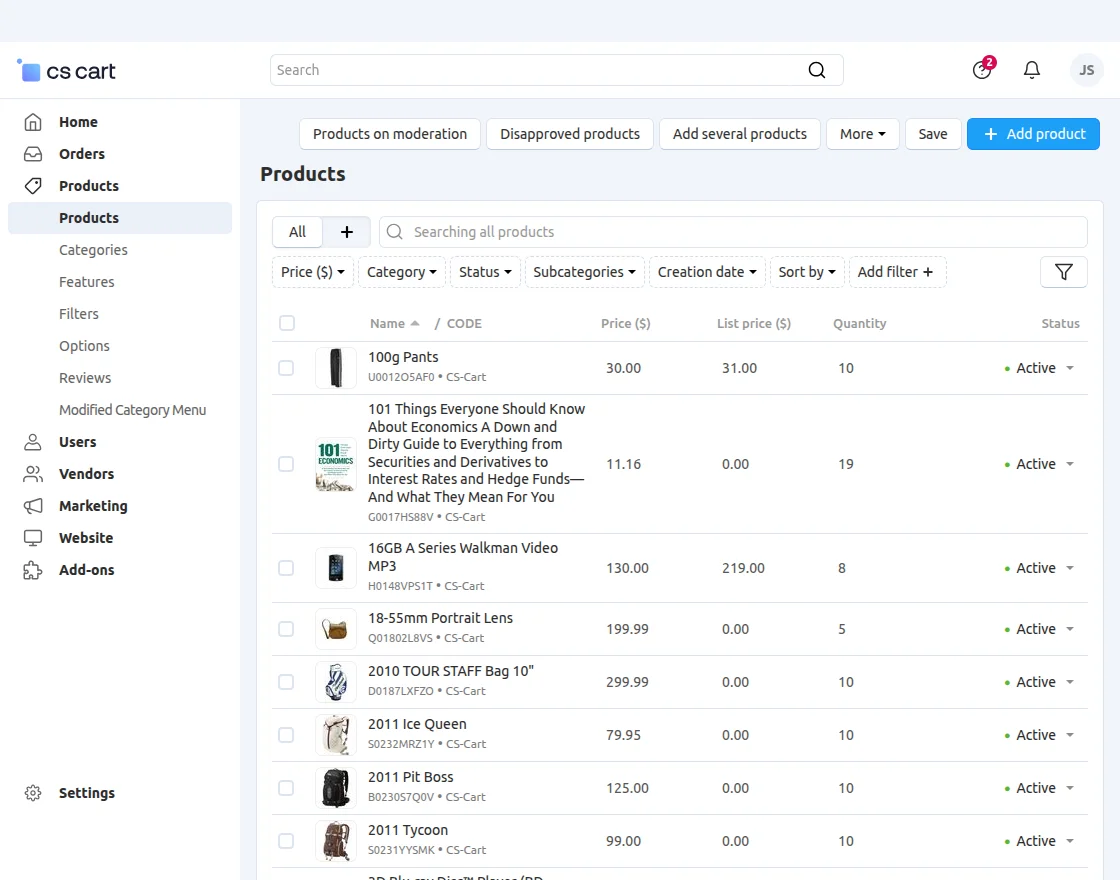
The vendor’s products are listed and displayed in the screenshots below.
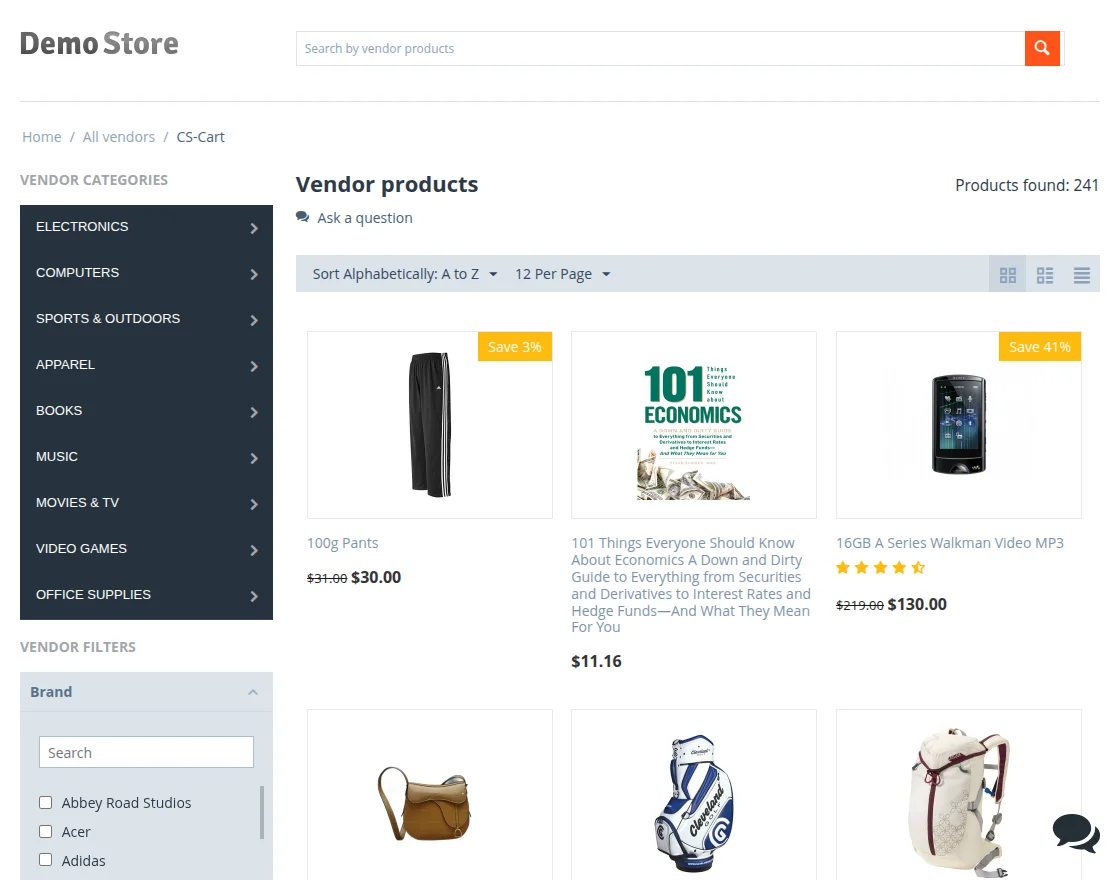
The search results for vendor products are displayed in the screenshots below.
Support
For any questions, suggestions, or customization requests, contact us at [email protected] or submit a ticket at webkul.uvdesk.com.
Explore our premium CS-Cart extensions as well!
Current Product Version - 1.0
Supported Framework Version - 4.16.x to 4.18.x


Be the first to comment.