For creating Multiple website the following step which you need to follow:
1. Create new directory let say “webkul1” and move it parallel to your base directory.
2. Copy .htaccess and index.php from your root directory in your new directory “webkul1” .
3. Open .htaccess of your directory.
4. In .htaccess search the line for “RewriteBase /magento/” and replace it with “RewriteBase /webkul1/”
5. Open index.php of your directory.
6. In index.php follow following steps:
- replace $compilerConfig = ‘includes/config.php’ to $compilerConfig = ‘../includes/config.php’
- Replace $mageFilename = ‘app/Mage.php’ to $mageFilename = ‘../app/Mage.php’
- edit Mage::run() according to website let say for “webkul1” Mage::run(‘webkul1’, ‘website’);
7. Now, In admin panel, go to System->Configuration->Manage Stores
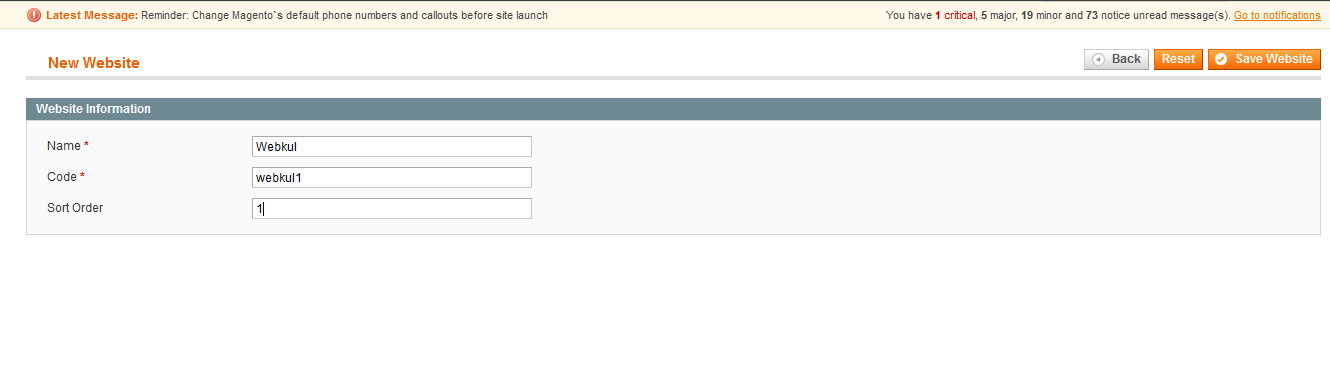
- Click on Create Website. Enter name, code and sort order of website let say “Webkul” , “webkul1″ ,”1” respectively and save the details.
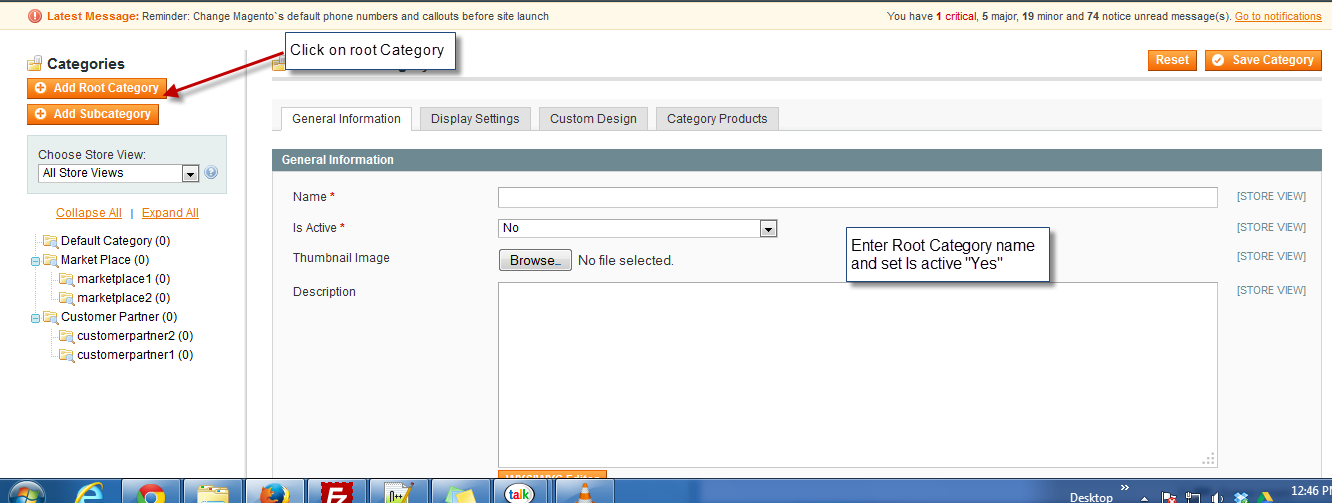
- Click on Create Store. Select website and root category. Enter name of your store let say i select website “webkul1”, name as “webkul store”
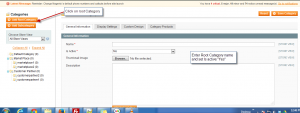
Note: root category is the categories which you create from “catalog->Manage Categories-> add root category”
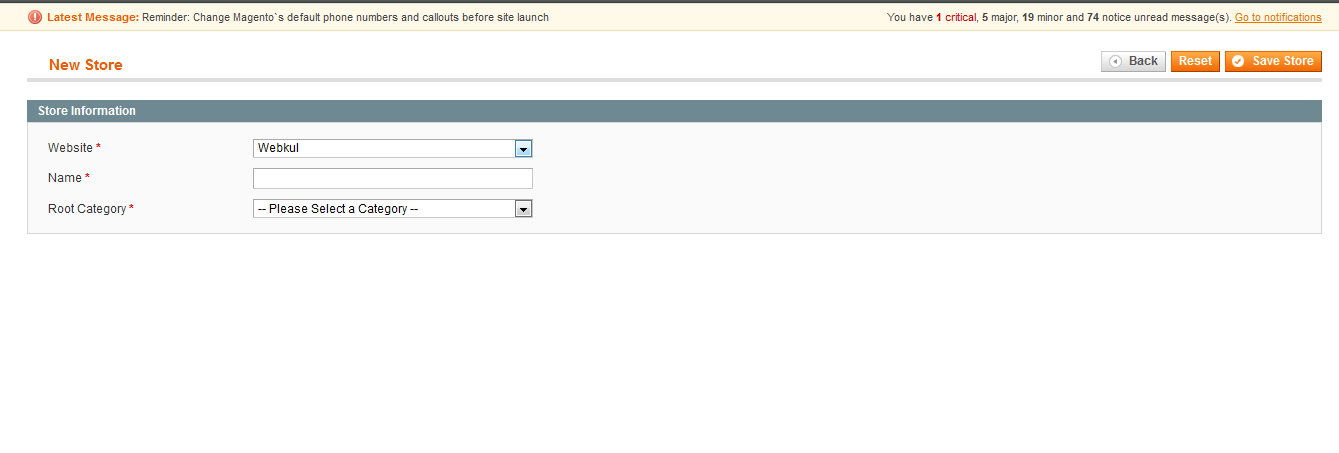
- Click on Create Store View. Select Store. Enter Store view name, Code, sort order. Select status of store. let say i select store “webkul1” , store view name as “English Store View”, code as “webkul_english_view” and status “enable”

8. Next, go to system->configuration
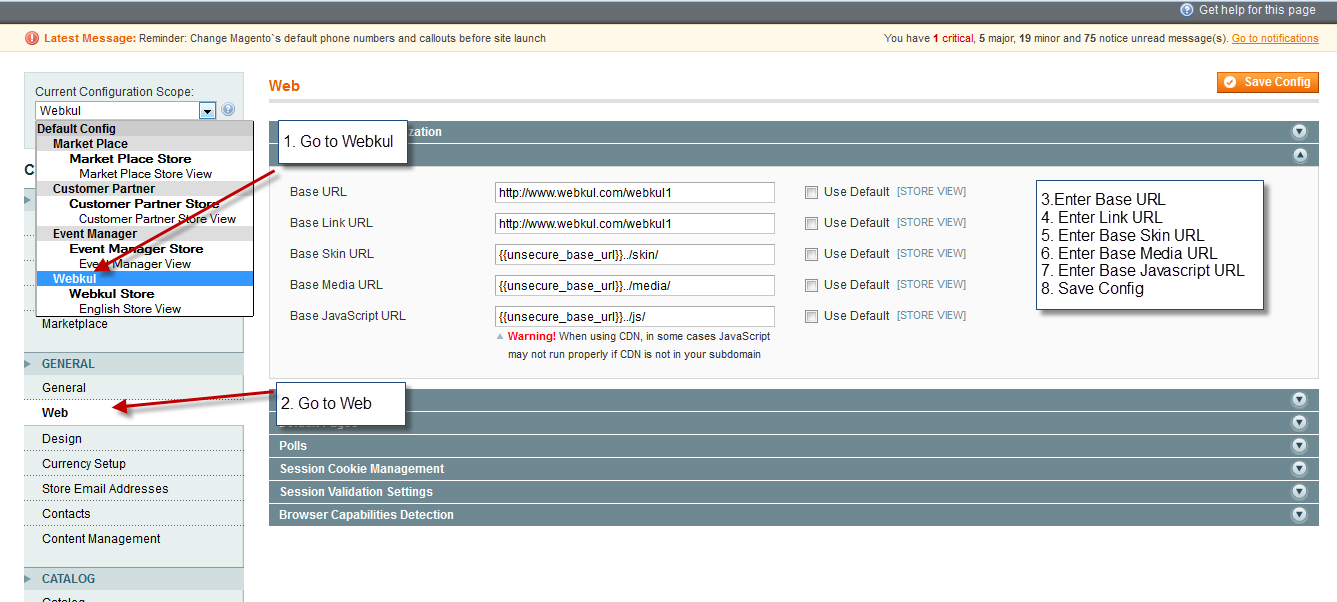
- In this go to Current Configuration Scope at the left top of the page.
- Select “webkul1”
- now go to GENERAL->web.
- Enter Base URL as http://www.yourdomain.com/webkul1
- Enter Base link URL as http://www.yourdomain.com/website_1
- Enter Skin URL as {{unsecure_base_url}}../skin/
- Enter Media URL as {{unsecure_base_url}}../media/
- Enter JavaScript URL as {{unsecure_base_url}}../js/


Be the first to comment.