Bagisto Delivery Boy App is a complete delivery management system that streamlines order assignment, live tracking, real-time chat, commission calculation, and delivery workflows—all within your Bagisto store.
This blog provides a complete step-by-step installation guide, configuration process, workflow explanation, and detailed feature breakdown—without missing any important point.
System Requirements
Before installing the module, make sure your environment meets the following requirements:
- Bagisto Version: v2.3.6
- Node Version: 18
- NPM Modules: Must be installed at the root directory
- WebSocket Server: Required for real-time chat
Bagisto Delivery Boy App – Installation
Follow each step carefully to ensure proper installation.
Step 1: Update composer.json
In your composer.json, under autoload -> psr-4, add the following path:
"Webkul\\DeliveryBoy\\": "packages/Webkul/DeliveryBoy/src"
Step 2: Register Service Provider
In bootstrap/providers.php Add the DeliveryBoy service provider:
In bootstrap/providers.php add the DeliveryBoy service provider:
Webkul\DeliveryBoy\Providers\DeliveryBoyServiceProvider::class,
After adding, run:
composer dump-autoload
Step 3: Run the following Artisan command to publish the package’s publishable files:
Now publish all required assets, configurations, and migrations:
php artisan deliveryboy:install
This command:
1. Publishes configuration files
2. Publishes views
3. Runs necessary migrations
4. Prepares the module for use
Step 4: Install NPM Dependencies
From your project root directory, make sure NPM dependencies are installed:
npm install
This is necessary for real-time features and the chat system.
Step 5: Configure WebSocket Server (Real-Time Features)
The DeliveryBoy module uses WebSocket for:
1. Live tracking
2. Real-time chat
3. Instant notifications
Add the following to your .env file:
WEBSOCKET_PUBLIC_URL=ws://localhost:3000
WEBSOCKET_SERVER_PORT=3000
Now start the WebSocket server from the root directory:
node server.cjs
This will activate real-time communication features.
Additional Configuration (Important)
Add Logos
Upload branding logos for:
- Delivery Boy Panel
- Delivery Admin Panel
This ensures a professional UI presentation.
Turn the status on to use the Delivery Boy Module. Upload a logo for the delivery boy/admin panel. Upload the logo on the delivery boy sign-in and sign-up pages.
Define the file upload size. At registration, the user needs to upload a file, so here we can manage the limit of the file size (kb).

Map API Configuration
Add your Map API key inside the configuration section.
This enables:
- Real-time location tracking
- Route visibility
- Map-based delivery monitoring
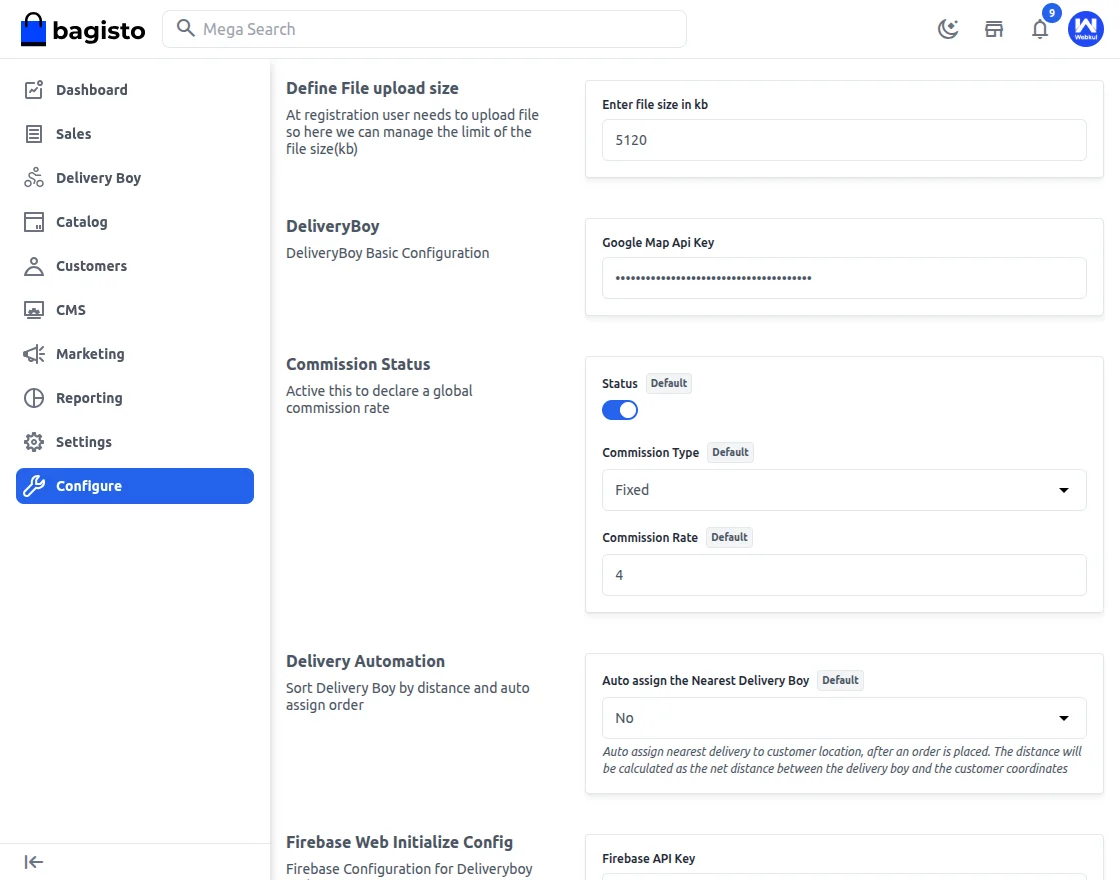
Commission Status & Global Commission Setup
The module provides a flexible commission management system to control delivery earnings efficiently.
Commission Status
- Enable Commission Status to activate the global commission system.
- When activated, a global commission rate is applied to delivery orders.
- If disabled, no commission will be calculated for delivery boys.
This allows the admin to control whether commission calculation is active across the system.
Global Commission Rate
Once Commission Status is enabled, the admin can:
- Set a global commission rate
- Choose commission type:
- Percentage-based
- Fixed amount-based
The configured rate will automatically apply to all delivery boys unless specifically overridden.
This ensures transparent earnings calculation and simplifies financial management within the Bagisto delivery system.
Delivery Automation – Smart Order Assignment
To improve delivery efficiency and reduce manual effort, the module provides an advanced Delivery Automation system.
This feature ensures that orders are assigned quickly and accurately based on delivery boy proximity.
Sort Delivery Boy by Distance
The system can automatically sort delivery boys based on their distance from the customer’s location.
- The distance is calculated using the customer’s coordinates and the delivery boy’s live location.
- The system identifies the nearest available delivery boy.
- Sorting happens automatically when auto-assignment is enabled.
This helps in reducing delivery time and improving operational efficiency.
Auto Assign Nearest Delivery Boy
Admin can enable the option:
Auto Assign Nearest Delivery Boy
Default Setting: No
When enabled:
- As soon as a customer places an order,
- The system automatically assigns the nearest available delivery boy.
- The distance is calculated as the net distance between:
- Delivery boy coordinates
- Customer delivery location coordinates
If disabled:
- Orders remain unassigned.
- Admin can manually assign delivery boys.
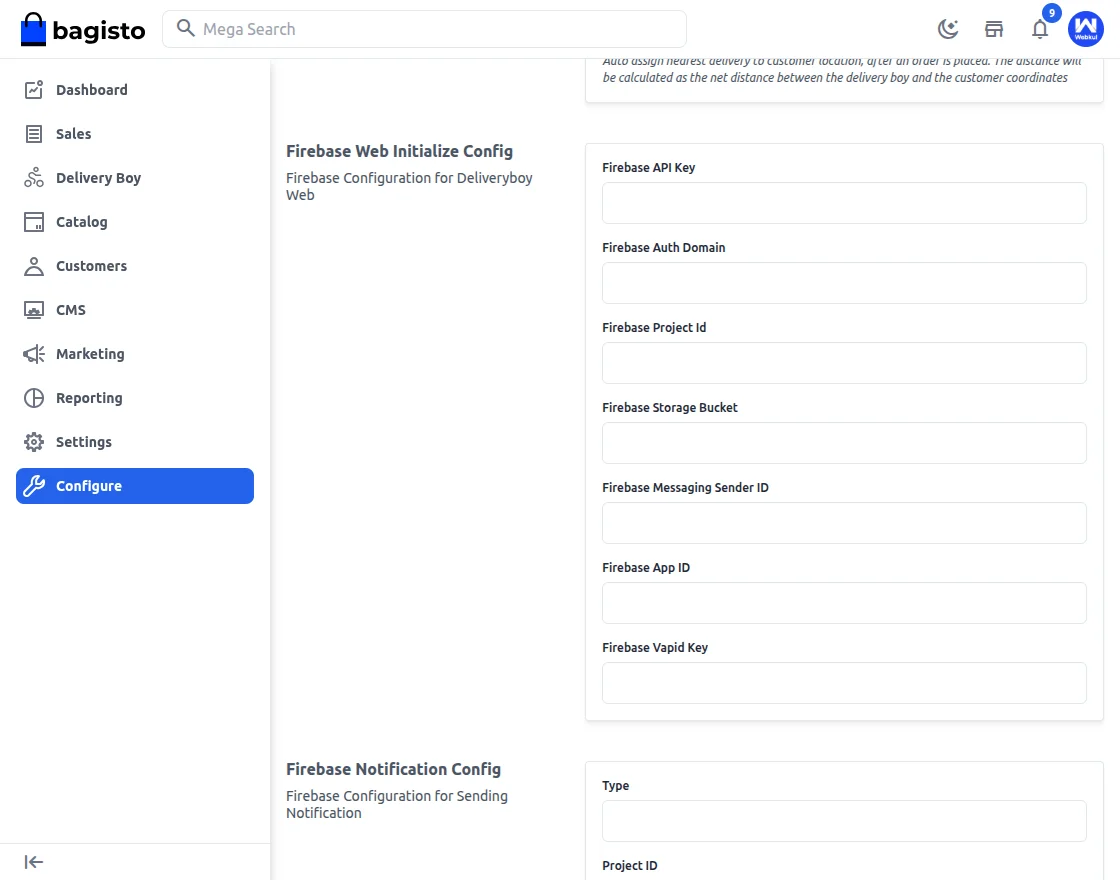
Firebase Web Initialization Configuration –
Overview
Below is a concise explanation of each configuration parameter used in the Delivery Boy. Web application:
1. Firebase API Key
Authorizes the web application to access Firebase services and is used during SDK initialization. Should be restricted to approved domains.
2. Firebase Auth Domain
Manages authentication processes and OAuth redirects, supporting secure login methods like email, OTP, and social sign-in.
3. Firebase Project ID
A unique project identifier that connects the web application to the correct Firebase backend services.
4. Firebase Storage Bucket
Cloud storage location for uploading and managing files such as documents and delivery images.
5. Firebase Messaging Sender ID
Enables Firebase Cloud Messaging (FCM) for sending push notifications to web or mobile devices.
6. Firebase App ID
Unique identifier for the specific web application, required for proper Firebase SDK configuration.
7. Firebase VAPID Key
Used to enable secure web push notifications through browser-based subscription authentication.
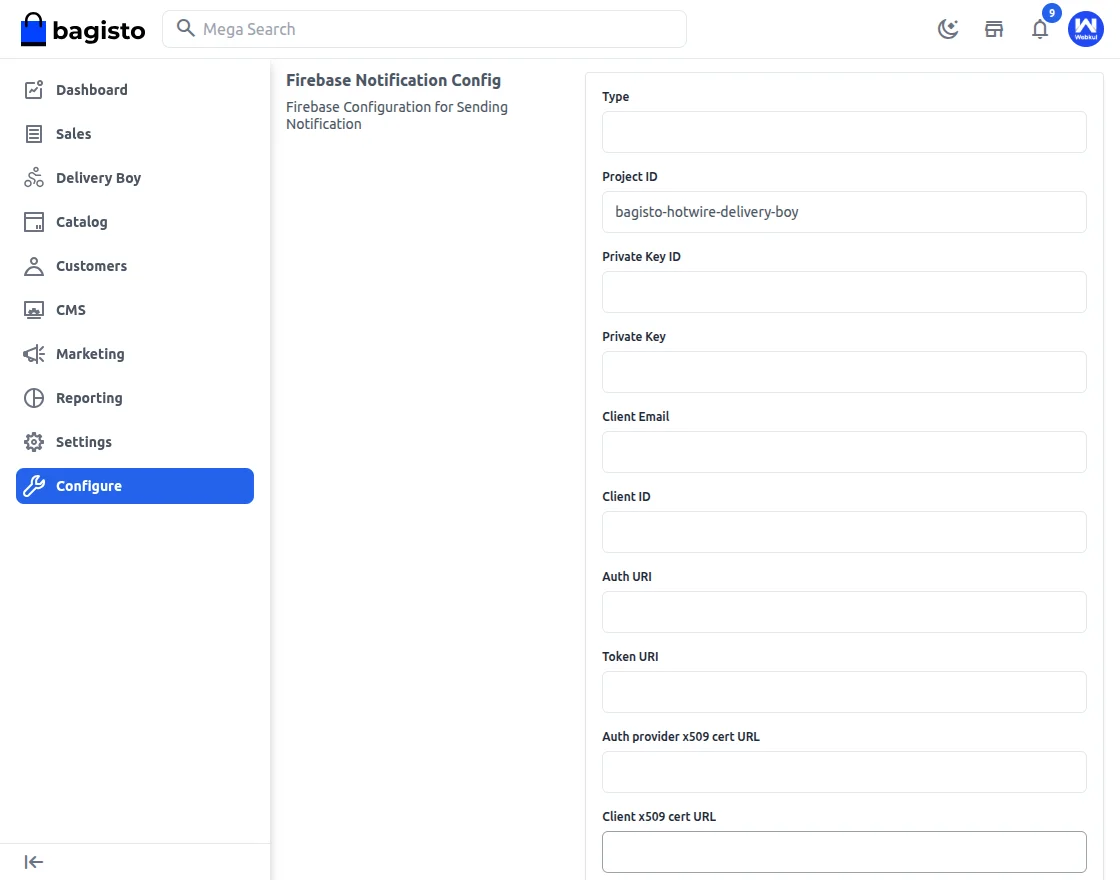
Firebase Notification Configuration – Overview
This configuration is used for server-side push notification services using Firebase Cloud Messaging (FCM). It enables secure communication between your backend system and Firebase.
1. Type
Defines the credential type.
For Firebase notifications, this is typically set to service_account, indicating server-to-server authentication.
2. Project ID
Unique identifier of the Firebase project.
Ensures notifications are sent from the correct Firebase environment.
3. Private Key ID
Unique identifier for the generated private key.
Used internally by Google to manage and validate the service account key.
4. Private Key
Cryptographic key used to authenticate your backend server with Firebase.
Must be securely stored on the server and never exposed in frontend code or public repositories.
5. Client Email
Service account email address used for authentication.
Identifies the backend service that is authorized to send notifications.
6. Client ID
Unique identifier linked to the service account.
Used internally for authentication and permission management.
7. Auth URI
Google authorization endpoint used during the OAuth 2.0 authentication flow.
8. Token URI
Endpoint used to generate access tokens for secure API communication with Firebase services.
9. Auth Provider X509 Cert URL
URL containing public certificates used to verify Google’s authentication server.
10. Client X509 Cert URL
Public certificate URL associated with the service account.
Used for validating secure communication between services.
11. Universal Domain
Specifies the base Google API domain used for service communication.
Lastly, save the complete configuration.
Configurations: Delivery Boy
So, under the Delivery Boy tab, the admin can set the permissions for the Delivery Boy. The Delivery Boy tab has the following sub-menu options:-
- Dashboard
- Delivery Boy Vehicle Type
- Manage Delivery Boys
- Delivery Boy Earning
- Customer Rating
- Manage Delivery Boy’s orders
- Chat
DeliveryBoy Dashboard
However, under the Dashboard sub-menu option. Thus, the admin has to configure the tabs, such as Order Graph, Sales Graph, and Delivery Boy Location.
Order Graph
This section displays the total number of orders within a selected date range. It helps monitor order trends, identify peak days, and compare performance across different periods.
1. Daily Analysis
View order activity for a specific day to monitor short-term performance and daily workload.
2. Monthly Analysis
Analyze order trends for an entire month to identify peak days and seasonal patterns.
3. Yearly Analysis
Evaluate long-term growth and overall delivery performance across the year.
4. Custom Date Range
Select a specific start and end date to generate tailored reports. This is useful for campaign analysis, festive sales tracking, or performance comparison between two periods.
This date filtering functionality enables precise, time-based performance evaluation and supports data-driven decision-making for delivery operations.
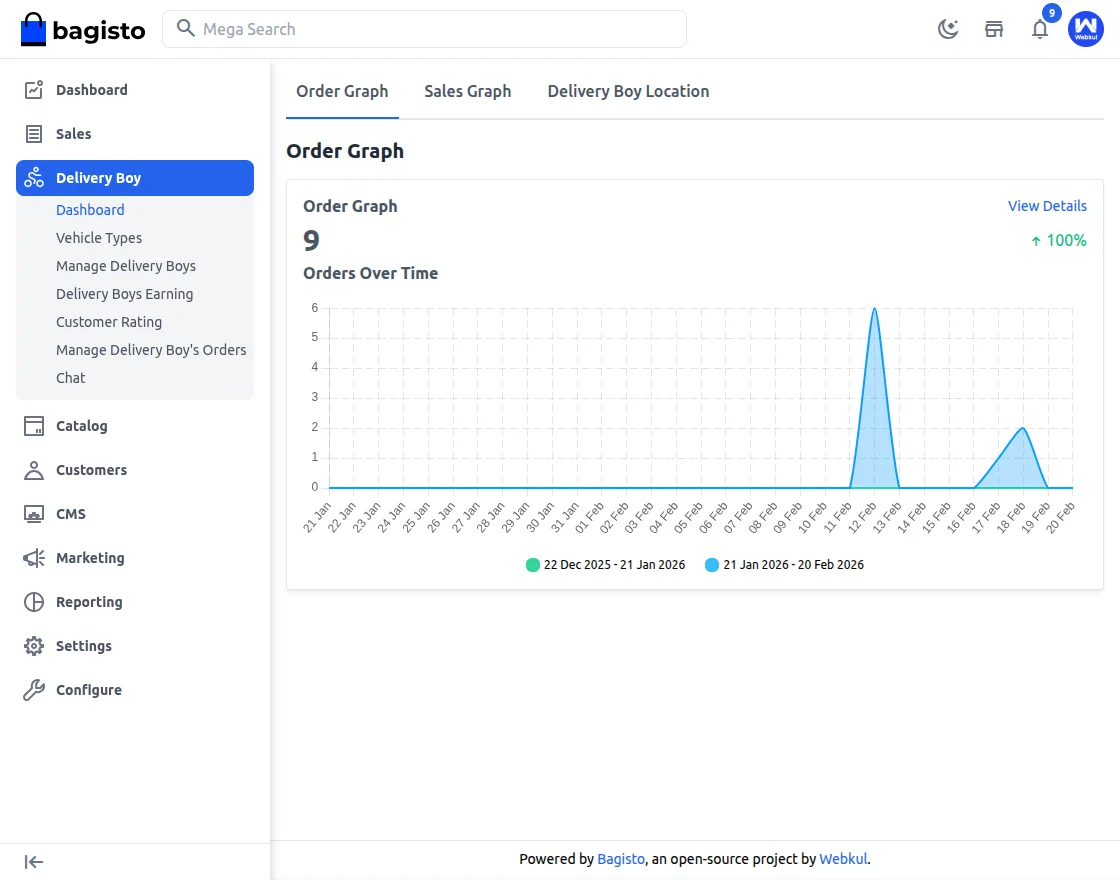
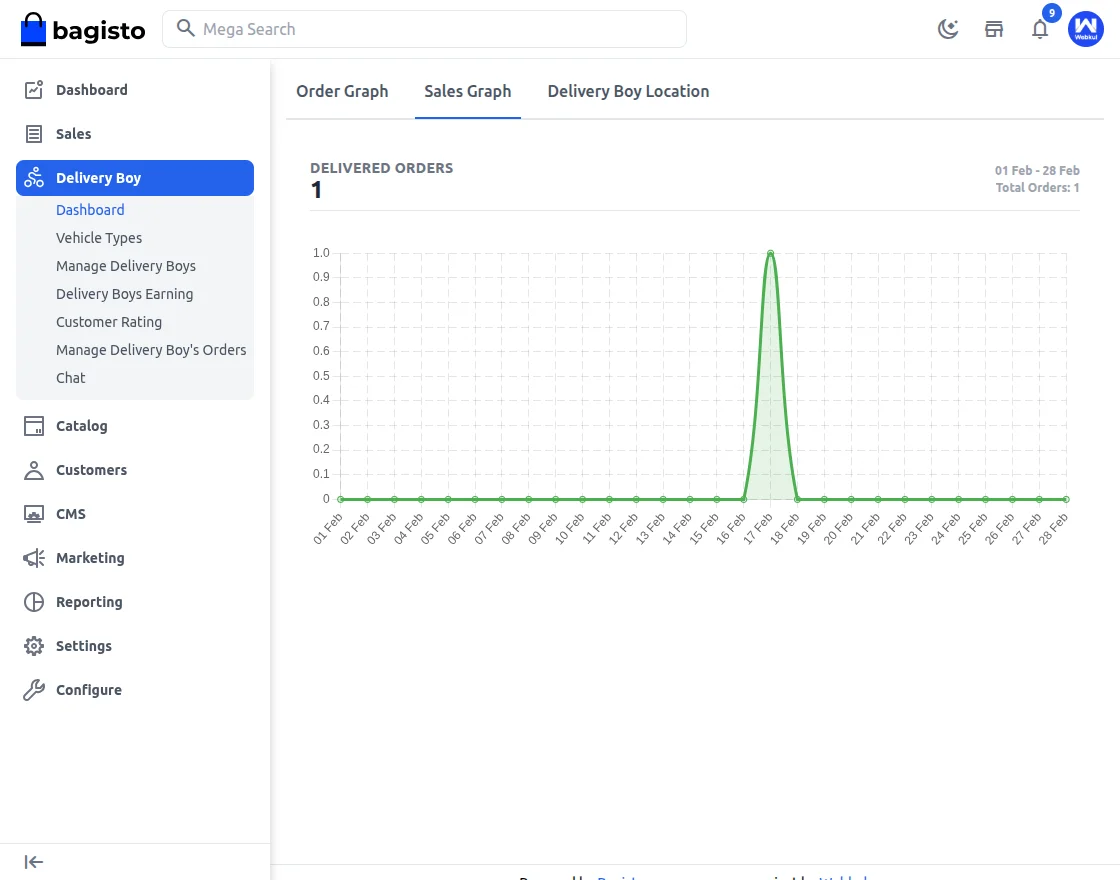
2. Sales Graph
The Sales Graph provides a visual representation of delivered orders.
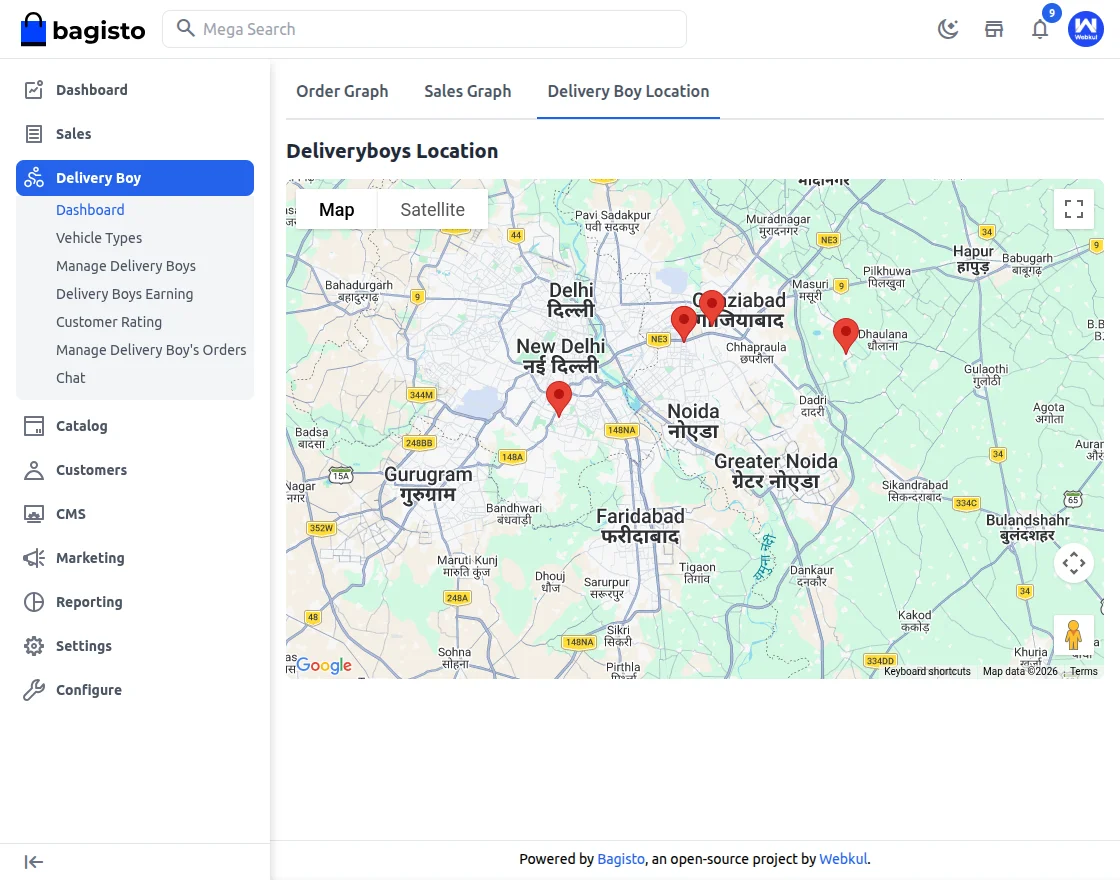
3. Delivery Boy Location
This feature allows real-time tracking of delivery personnel locations. It helps improve route management, monitor active deliveries, and ensure efficient order fulfillment.
Together, these sections provide a complete overview of delivery operations, performance analytics, and real-time monitoring.
Delivery Boy Vehicle Type
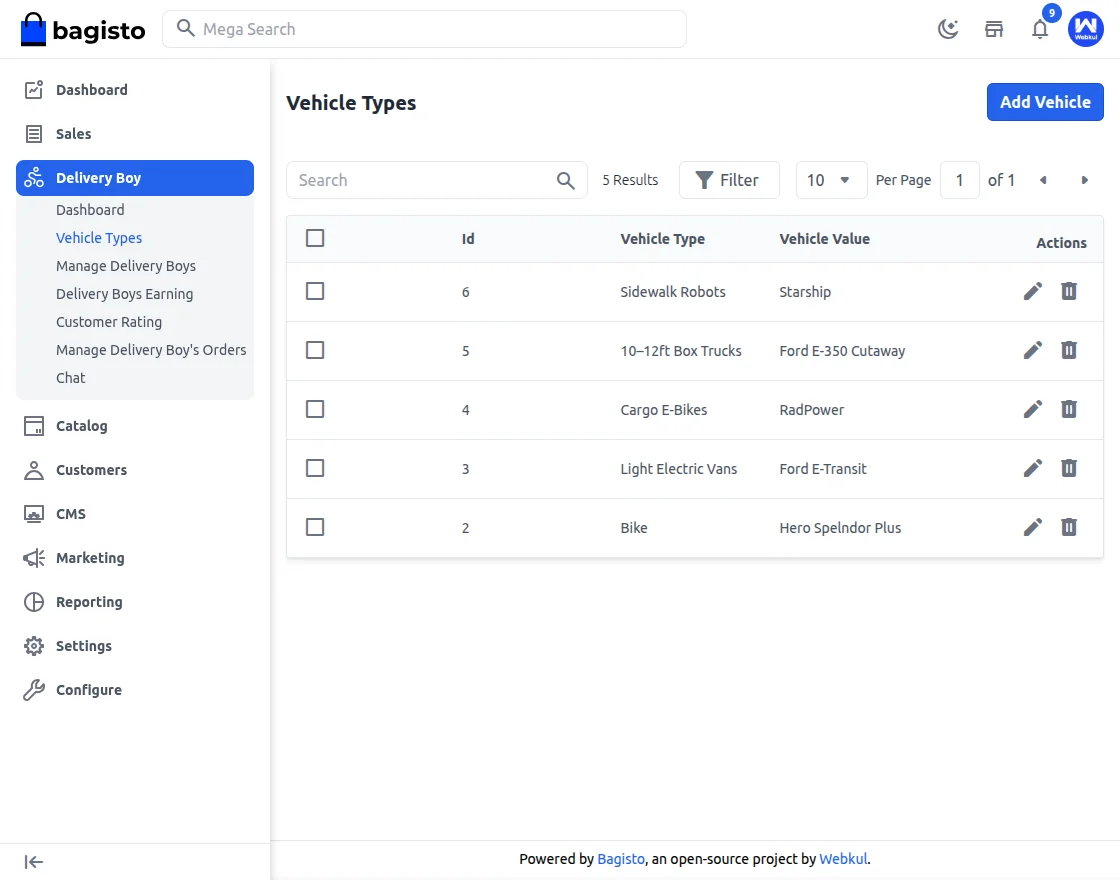
Here, the admin can create and manage the delivery boy vehicle type as required and can see the created vehicle types.
Here, for the new vehicle type, the admin will enter—
- The label for the vehicle type.
- The value of the vehicle like car, scooter, moped, etc.
Lastly, tap the Save Vehicle Type button to save the new vehicle type.
Manage Delivery Boys
However, the admin will manage the delivery boy from the admin backend. So here, the admin will add or edit the details of a delivery boy.
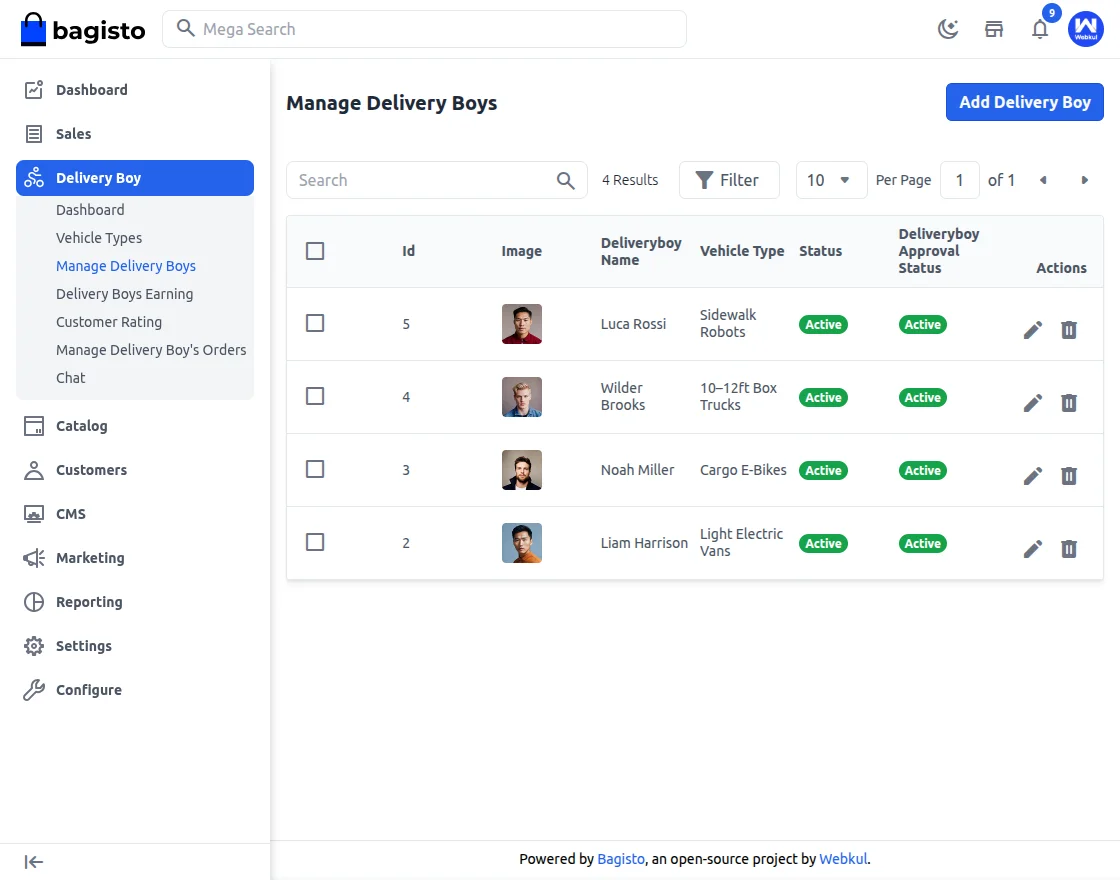
Hence, here the admin will be able to edit the detail of the Pre-Registred delivery boy or add new delivery to the system.
Add New Delivery Boy—
So, the admin will add the delivery boy’s details to register them for the application.
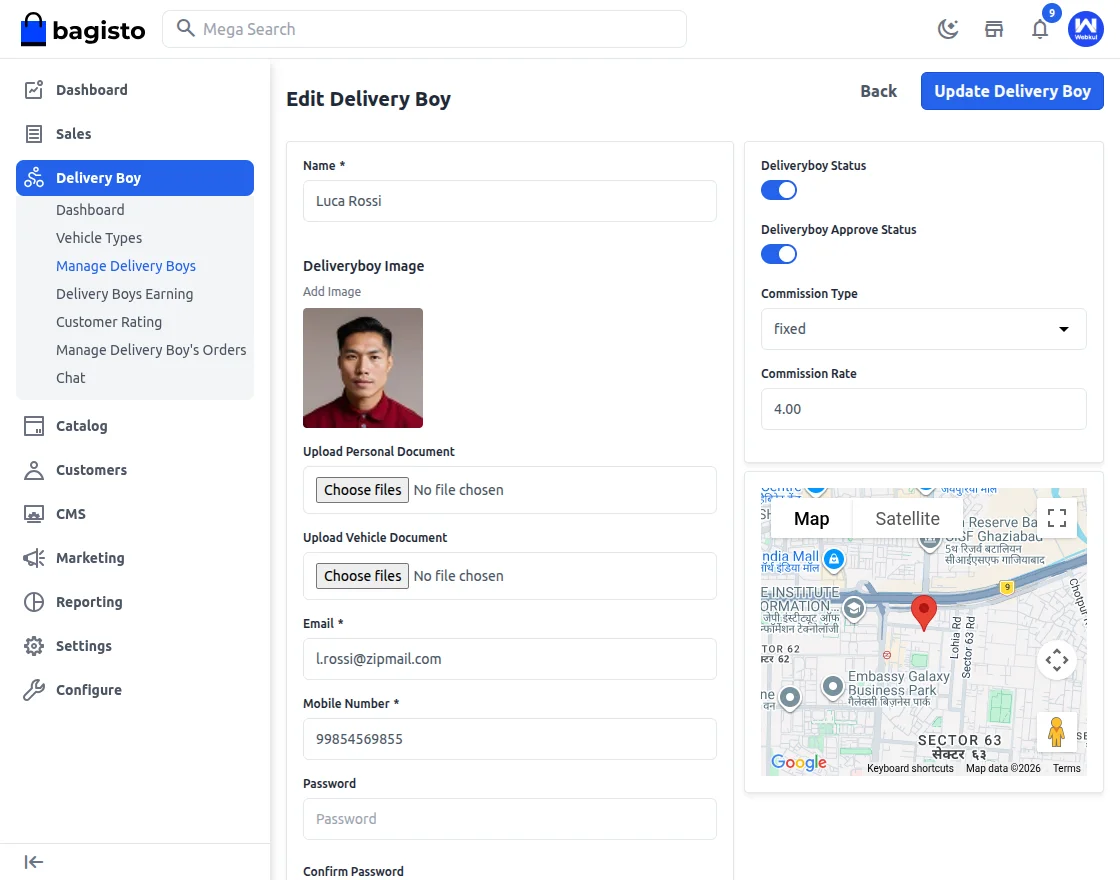
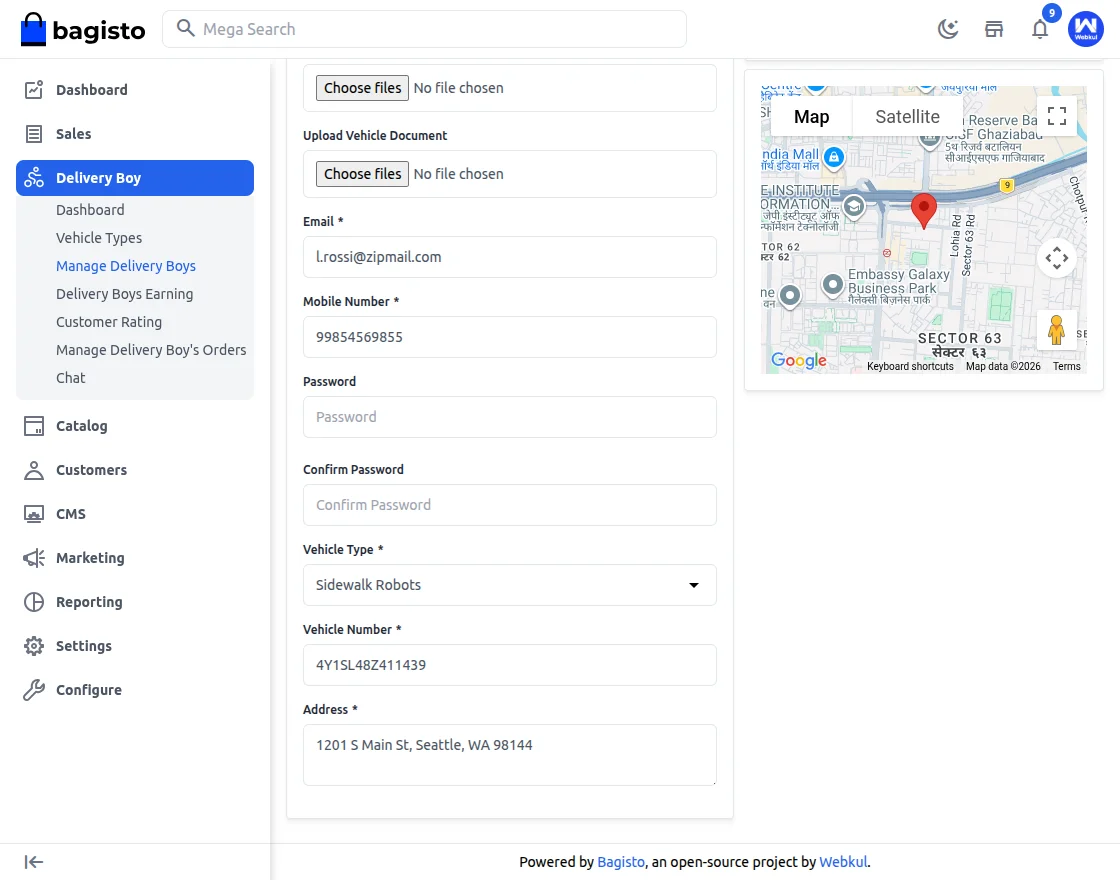
Thus, the required details are
Name—Enter the name of the delivery boy for identification and record purposes.
Delivery Boy Image—Upload the display image of the delivery boy for easy recognition.
Upload Personal Document—Upload personal identification documents for verification.
Upload Vehicle Document – Upload the vehicle-related documents for validation.
Email—Enter the email address of the delivery boy. This will be used for login and communication.
Mobile Number – Provide the contact number of the delivery boy for communication purposes.
Password—Set a secure password for login access to the delivery application.
Confirm Password—Re-enter the password to confirm and verify it.
Vehicle Type – The admin selects the type of vehicle used by the delivery boy (e.g., bike, car, etc.).
Vehicle Number—Enter the registered vehicle number for identification.
Full Address—Provide the complete residential address of the delivery boy.
Delivery Boy Status – Enable or disable the delivery boy for order assignments.
Delivery Boy Approval Status – The admin can approve or change the approval status of the delivery boy.
Commission Type—Choose the commission structure: fixed or percentage-based.
Commission Rate – Enter the commission amount according to the selected type (fixed value or percentage).
Map—Select or mark the delivery boy’s location on the map for accurate tracking and assignment.
Manage Delivery Boy – Custom Filters
To simplify administration and improve search accuracy, the Manage Delivery Boy section provides custom filter options.
These filters help the admin quickly find and manage specific delivery boy records.
The available custom filters are –
ID—Search delivery boys using their unique system ID.
Delivery Boy Name – Filter records based on the name of the delivery boy.
Vehicle Type—View delivery boys according to the selected vehicle type (Bike, Car, etc.).
Status – Filter delivery boys based on their current status (enabled or disabled).
Delivery Boy Approval Status – Sort delivery boys according to their approval status (Approved or Pending).
Using these filters, the admin can efficiently manage large numbers of delivery personnel, track approvals, verify vehicle types, and control assignment eligibility with ease.
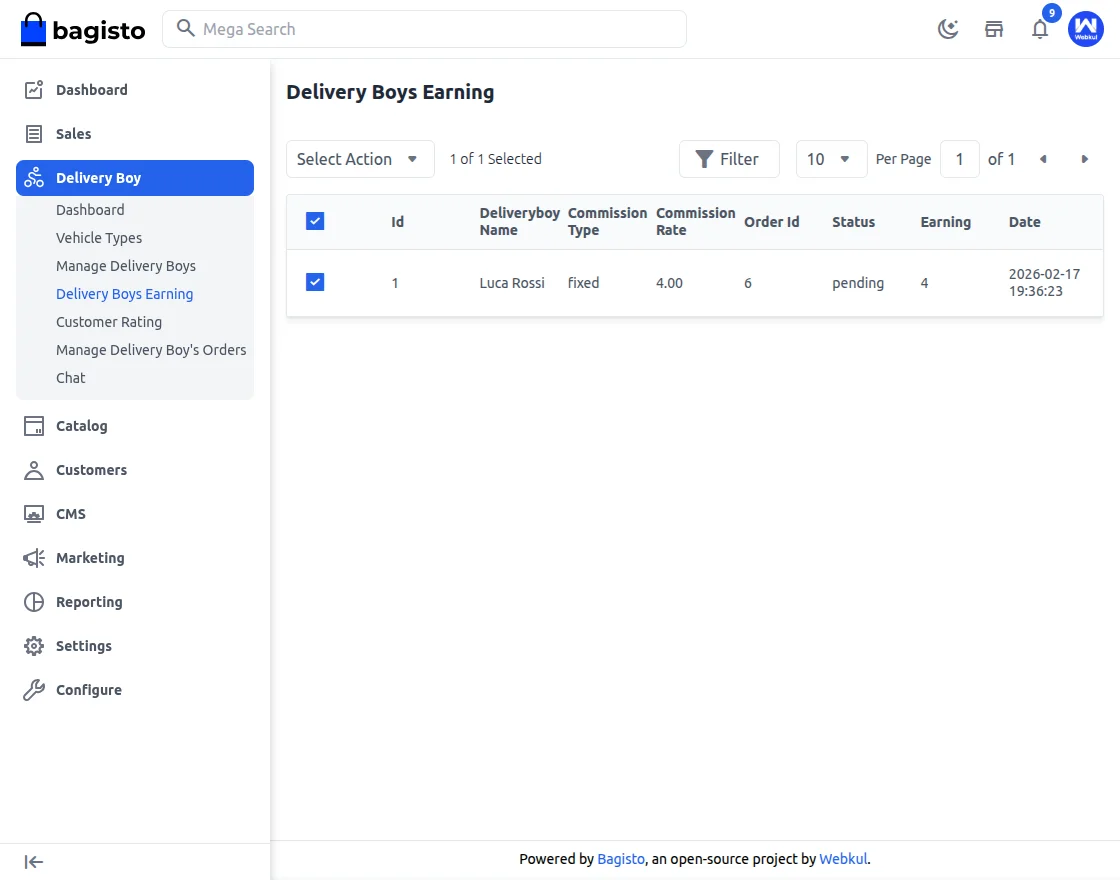
Delivery Boys Earning
The Delivery Boys Earning section allows the admin to manage and monitor the earnings of delivery personnel efficiently.
In this section, the admin can select multiple records and perform bulk actions on earnings marked as Pending or Paid. This makes commission management faster and more organized.
Custom Filter Options
To simplify tracking and reporting, the following custom filters are available:
ID – Search earnings using the unique record ID.
Delivery Boy Name – Filter earnings based on a specific delivery boy.
Commission Type – View records according to the commission structure (Fixed or Percentage).
Commission Rate – Filter earnings based on the defined commission rate.
Order ID – Search earnings linked to a particular order.
Status – Sort earnings by status (Pending or Paid).
Earning – Filter records based on the earning amount.
With these filter options and bulk actions, the admin can efficiently manage payouts, track pending commissions, and maintain clear financial records within the Delivery Boy system.
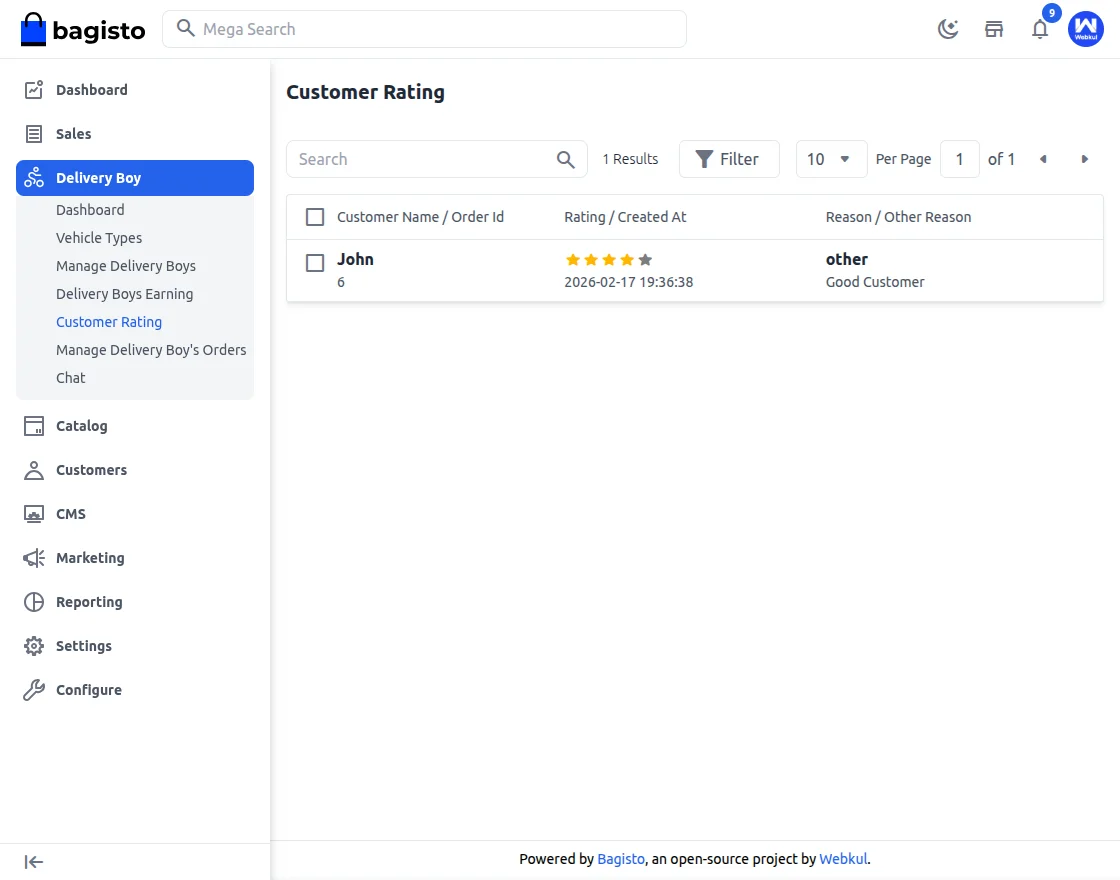
Customer Rating
The Customer Rating section allows the admin to review the ratings given by the delivery boy after completing an order.
Once the order is delivered, the delivery boy can rate the customer based on their delivery experience. The rating system is based on 1 to 5 stars, where 1 indicates the lowest rating, and 5 indicates the highest. A comment section is also available to provide additional feedback or remarks.
This feature helps maintain service quality and track customer behavior during deliveries.
Custom Filter Options
To manage and review ratings efficiently, the following custom filters are available:
Customer Name – Filter ratings based on the customer’s name.
Order ID – Search ratings linked to a specific order.
Rating – Filter records according to the star rating (1 to 5).
Reason – View ratings based on the selected reason.
Other Reason – Filter records where additional custom reasons were provided.
Using these filter options, the admin can easily monitor customer feedback, identify issues, and improve the overall delivery process.
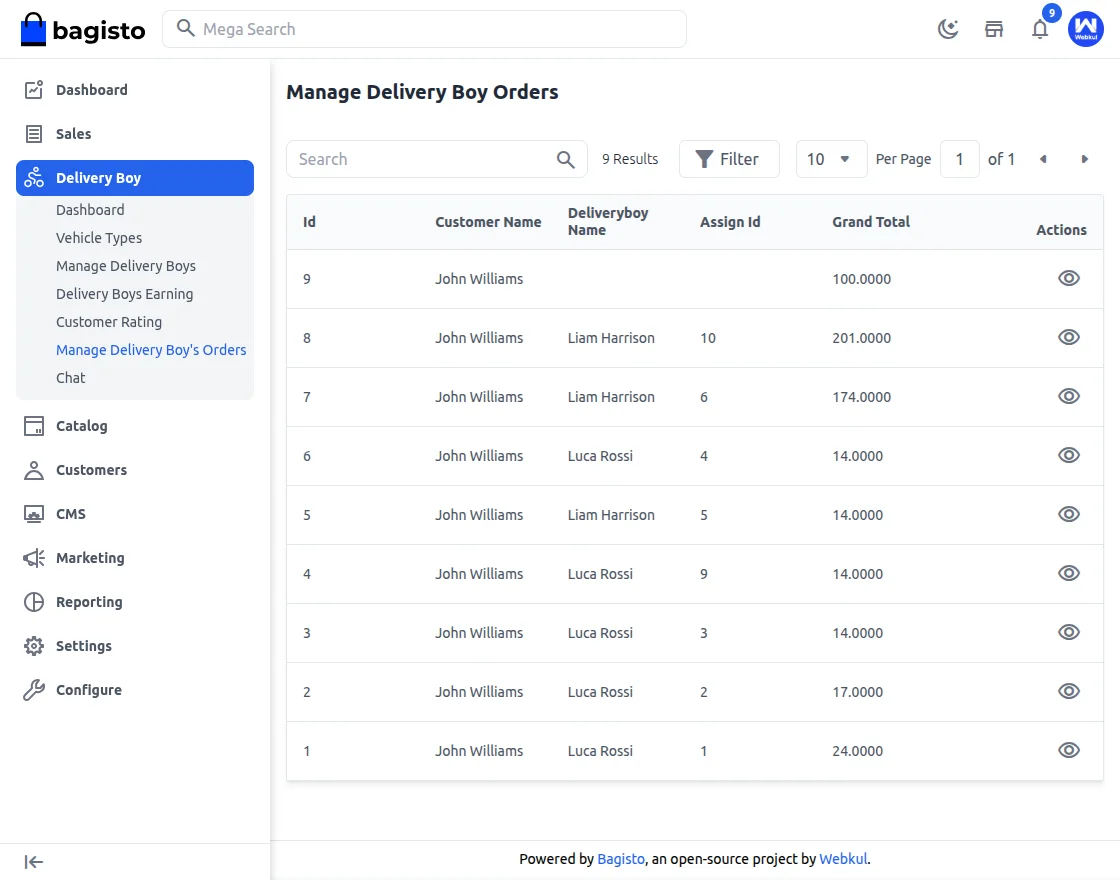
Manage Delivery Boy Orders
The Manage Delivery Boy Orders section allows the admin to efficiently manage and monitor all delivery-related orders.
In this section, the admin can search for specific orders and take necessary actions based on operational requirements.
The order listing displays the following details:
ID – Unique order identification number.
Customer Name – Name of the customer who placed the order.
Delivery Boy Name – Assigned delivery personnel.
Assign ID – Assignment reference ID.
Grand Total – Total order amount.
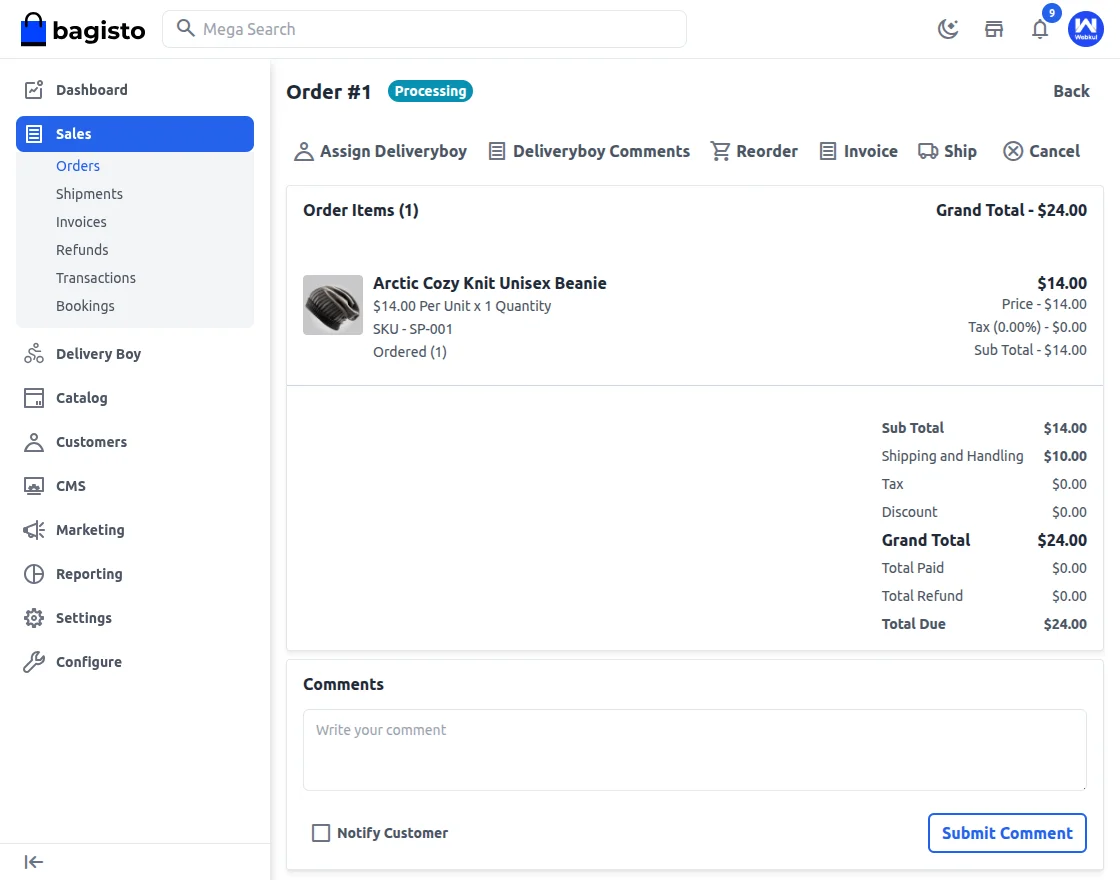
Available Actions
The admin can perform the following actions directly from this section:
- Assign / Reassign – Assign or change the delivery boy for the order.
- Delivery Boy Comments – View comments added by the delivery boy.
- Reorder – Create a new order based on the existing one.
- Invoice – Generate the invoice for the order.
- Ship – Mark the order as shipped.
- Cancel – Cancel the order if required.
Custom Filter Options
To quickly locate specific orders, the following custom filters are available:
ID – Search orders by order ID.
Customer Name – Filter orders by customer name.
Delivery Boy Name – View orders assigned to a particular delivery boy.
This section ensures smooth order handling, proper assignment management, and better control over the delivery workflow.
Chat
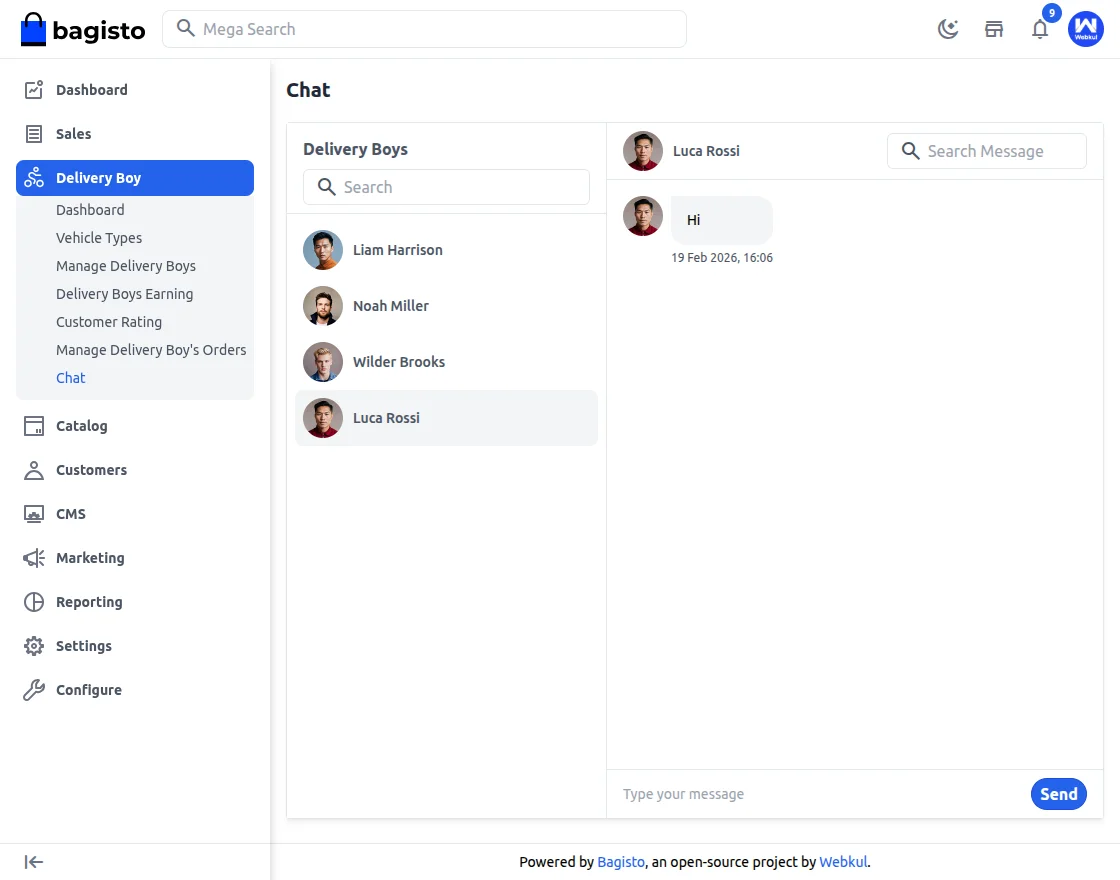
The Chat section enables direct communication between the admin and delivery boys.
In this section, the admin can view the list of all registered delivery boys. A search option is available to quickly find a specific delivery boy by name.
The admin can select any delivery boy from the list and start a conversation instantly. This feature helps in sharing order updates, resolving delivery issues, and providing real-time instructions.
The chat system ensures smooth coordination and better communication within the delivery management process.
The Bagisto Delivery Boy Mobile App Solution is designed to create a complete delivery ecosystem for stores running on Bagisto.
This system includes:
- Admin Mobile App
- Delivery Boy Mobile App
- Customer Side Features
Each panel is designed with a market-standard delivery workflow, real-time communication, tracking, and order transparency.
Below is a point-to-point, step-by-step explanation of all features.
Admin Mobile App – Complete Control Over Deliveries
The Admin Mobile App gives store owners and managers complete visibility and control over delivery operations from anywhere.
1. Dashboard & Monitoring
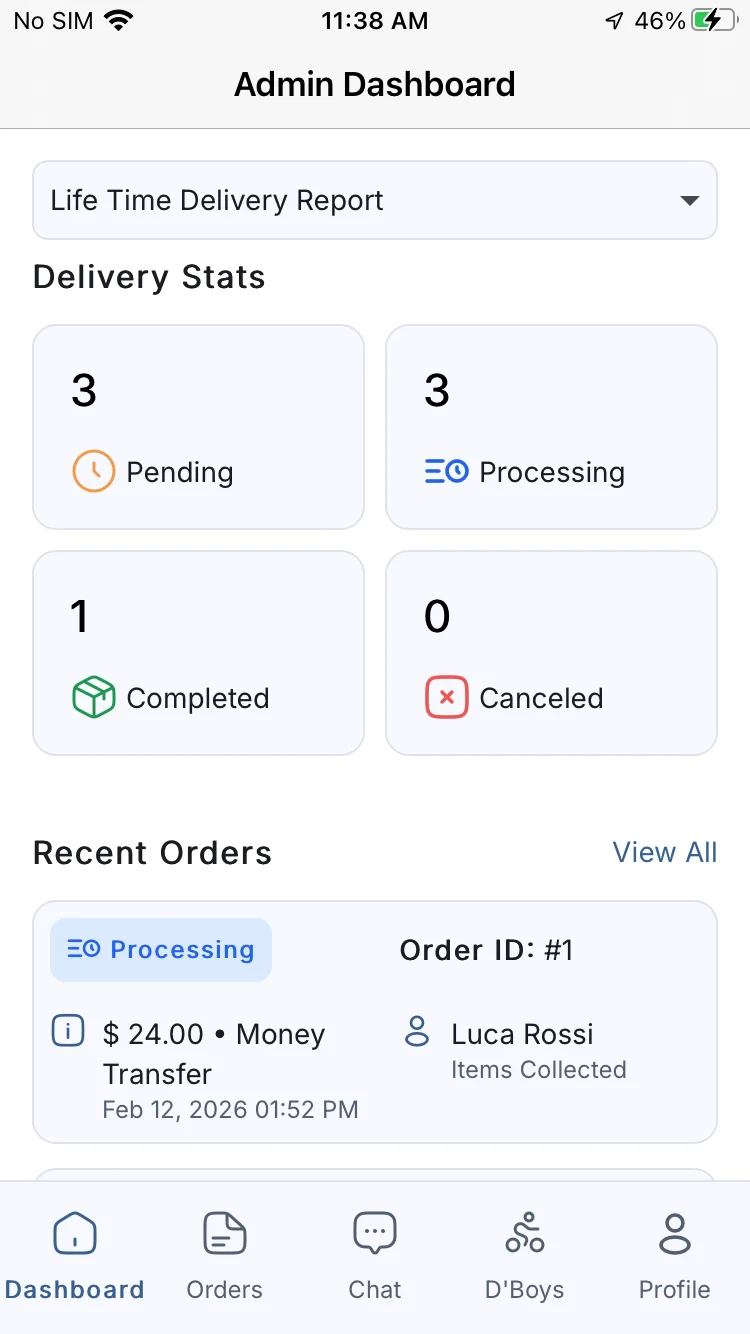
The Admin dashboard is designed to provide a quick overview of all delivery activities.
With this dashboard, the admin can:
- View all order statuses at a glance
- Monitor assigned and unassigned orders
- Track delivery progress in real-time
- Check the availability status of delivery boys
- View delivery summaries for each delivery boy
This helps the admin make fast decisions and manage deliveries efficiently.
Track delivery progress in real-time
View all order statuses at a glance
2. Order Management
Order handling is one of the most important parts of the delivery system.
The Admin App allows:
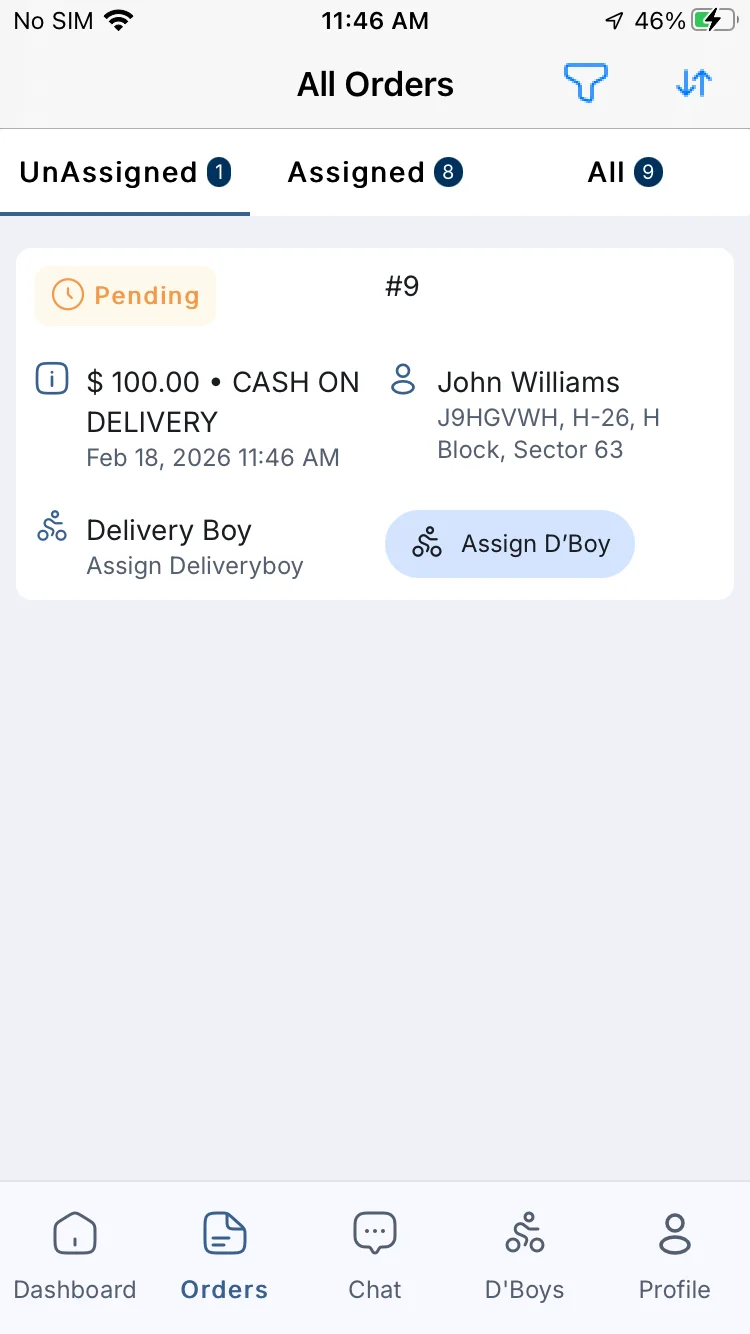
Order Assignment
- Assign delivery boys only to unassigned orders
- Reassign orders to another available delivery boy if required
Order Communication
- Add comments to orders
- View and manage the complete order comment history
- Interact directly with delivery boys regarding specific orders
This ensures structured order flow management.
Order Assignment
Orders categorized under assigned/unassigned/total orders
3. Delivery Boy Management
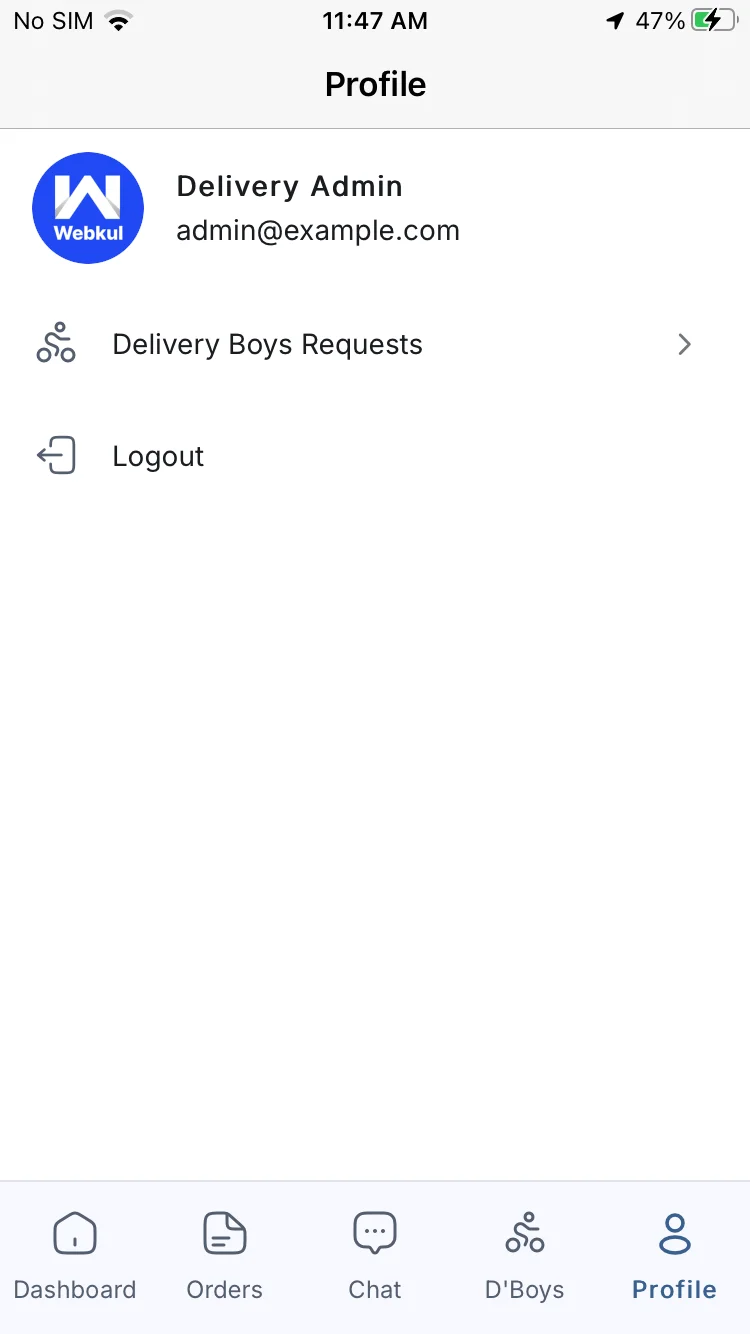
The admin has full control over the delivery boy registration and access.
The admin can:
- View new delivery boy registration requests
- Accept or reject applications
- View complete registration details
- Manage login permissions
- Activate or deactivate delivery boy access
This ensures only authorized delivery boys handle deliveries.
View new delivery boy registration requests
4. Real-Time Communication
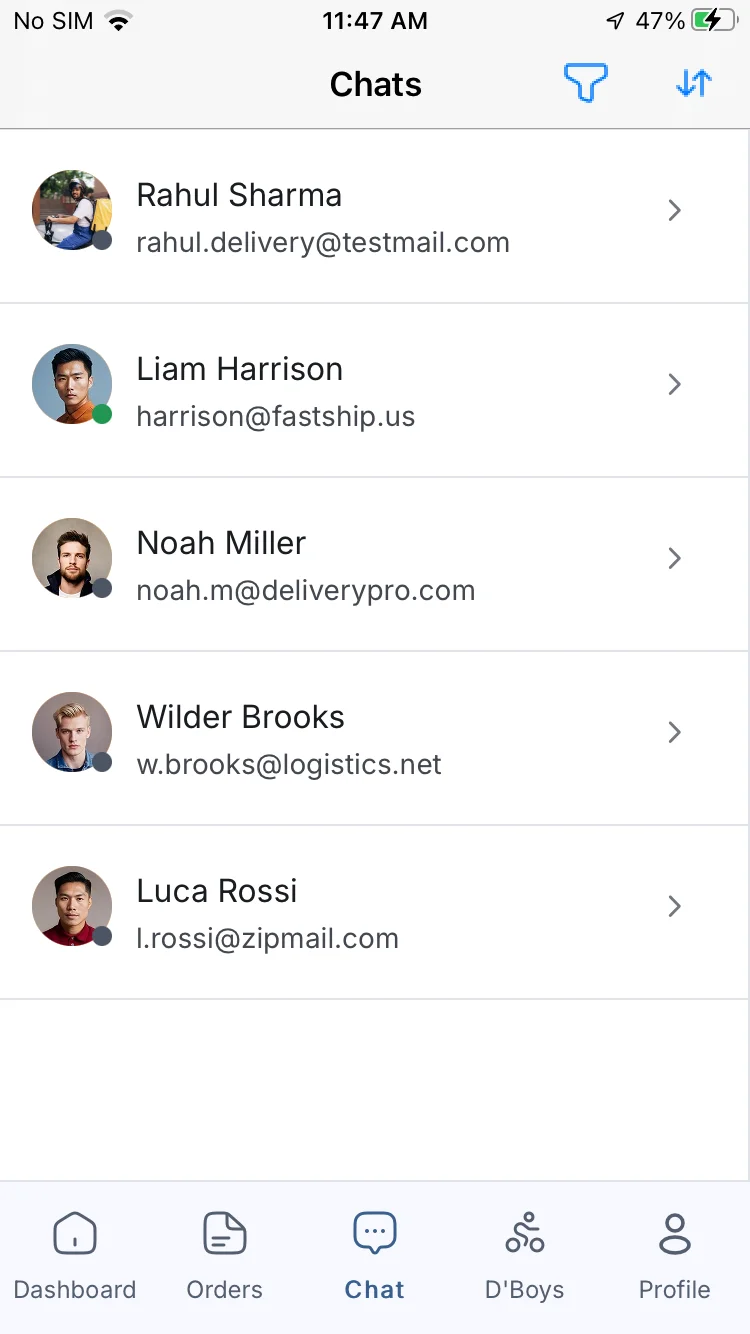
Smooth communication reduces delivery issues.
The Admin App includes:
- Real-time chat with customers
- Real-time chat with delivery boys
- Direct calling functionality
This helps resolve issues quickly and improve customer satisfaction.
Smooth communication reduces delivery issues.
Real-time chat with delivery boys
5. Location Services
Location tracking ensures transparency and efficiency.
The admin can:
- View customer delivery locations
- View delivery boy locations
- Track delivery movement live on the map
This helps prevent delays and manage operations effectively.
Note: App Admin credentials will be the same as the Bagisto credentials.
Delivery Boy Mobile App – Efficient & Easy Delivery Handling
The Delivery Boy App is designed to simplify delivery tasks and improve performance.
1. Authentication & Registration
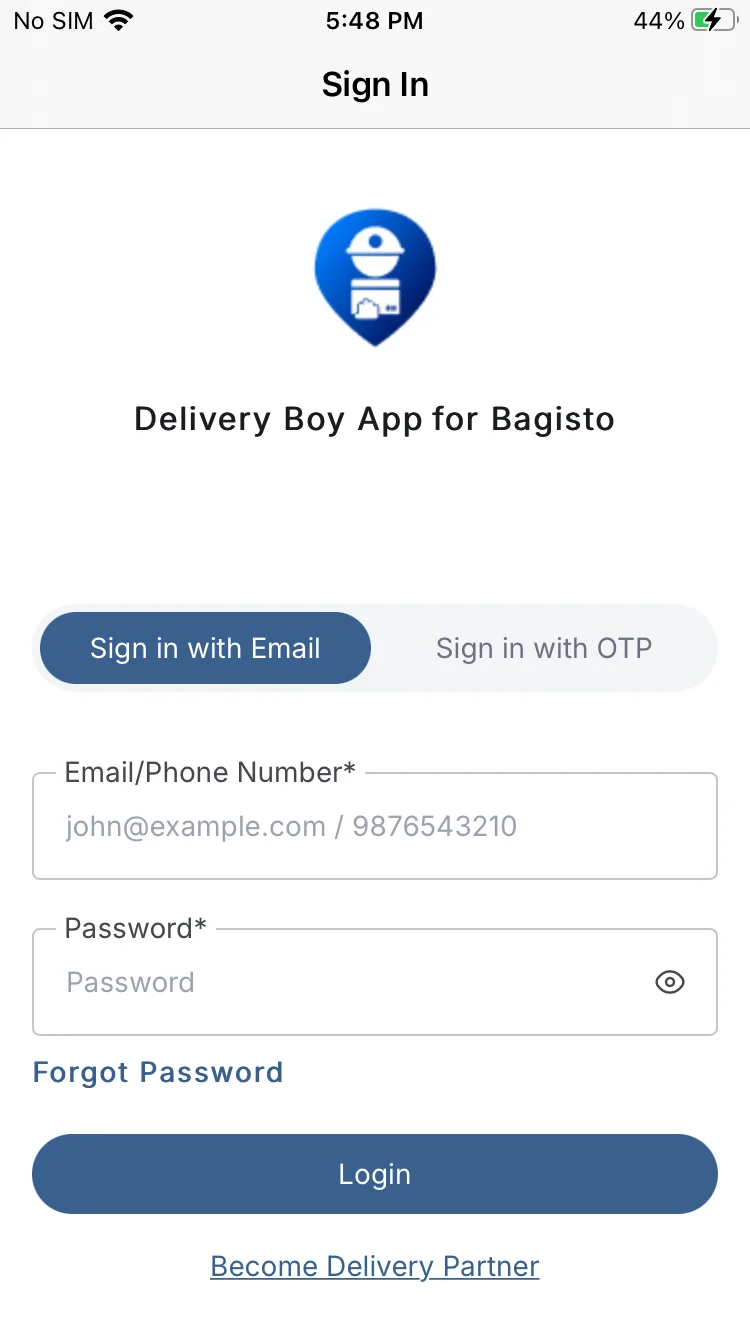
The app supports secure and flexible login methods.
Delivery boys can:
- Self-register through the app
- Log in using email and password
- Log in using phone number and password
- Log in usingyour phone number with OTP
They can also reset passwords using the forgot password option with email notification.
Self-register through the app
Become a Delivery Partner
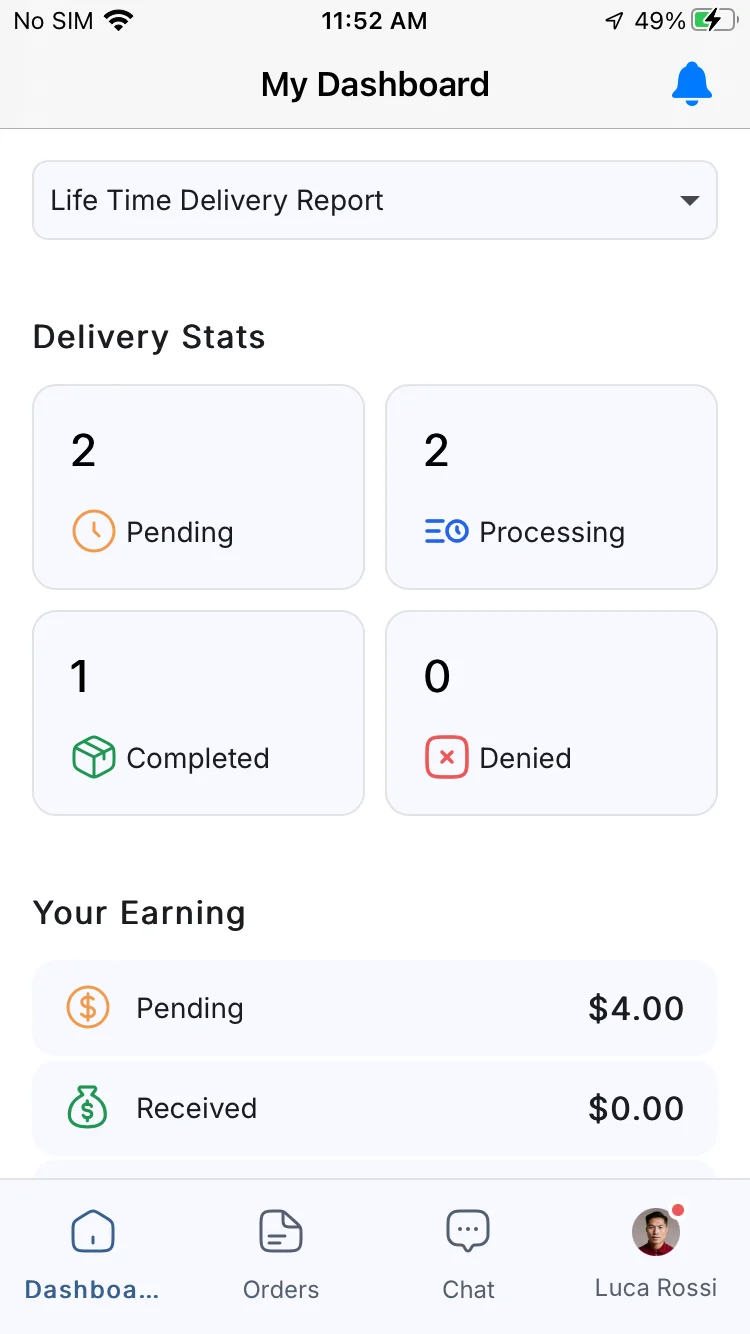
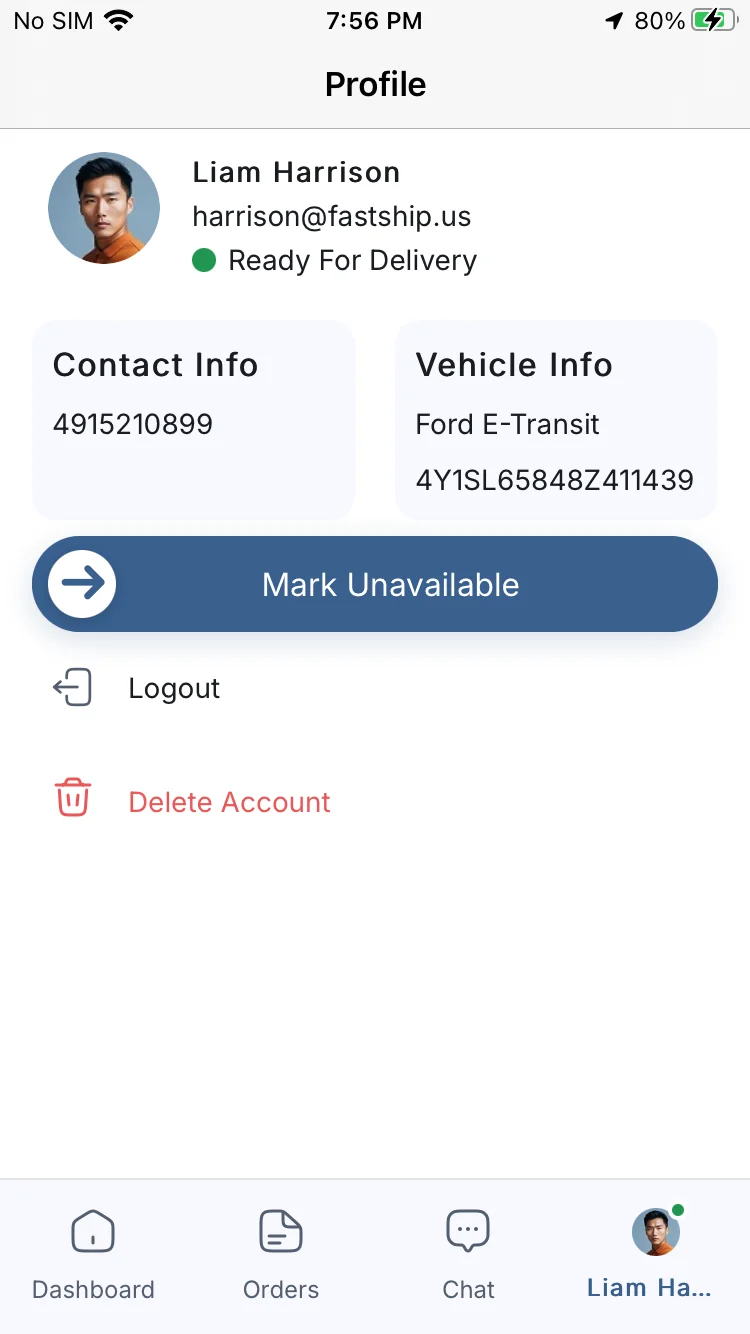
2. Dashboard & Availability Management
After login, delivery boys can:
- View their earnings dashboard
- Apply filters to track performance
- Toggle availability status (Available / Unavailable)
This ensures orders are assigned only when they are ready to deliver.
3. Order Management – Step-by-Step Working
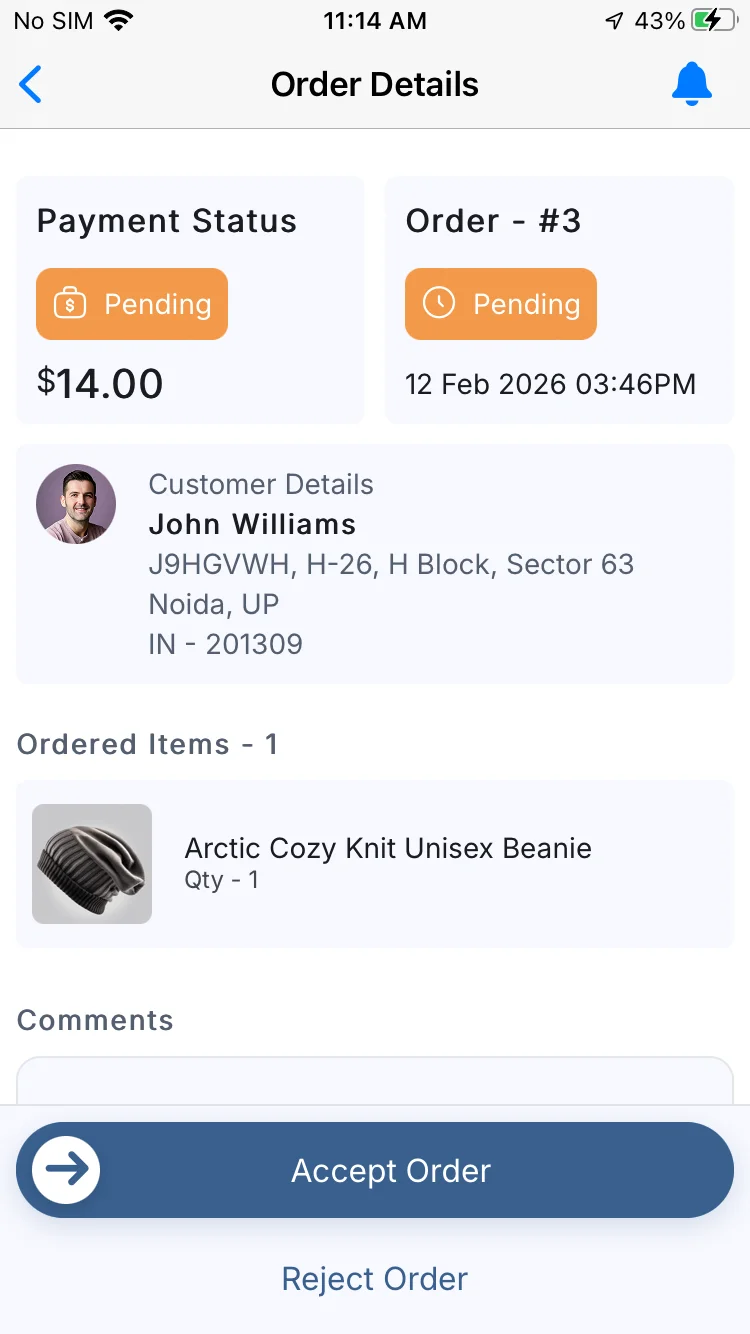
When an order is assigned:
1. Delivery boy receives a real-time notification.
2. He can accept or reject the order.
3. After accepting, the full order details become visible.
From the order view page, the delivery boy can:
- View payment and order status
- Add comments (visible to admin)
- View comment history
- Select payment mode (Cash or UPI)
- Confirm delivery using OTP
When an order is assigned
Accept or Reject the order
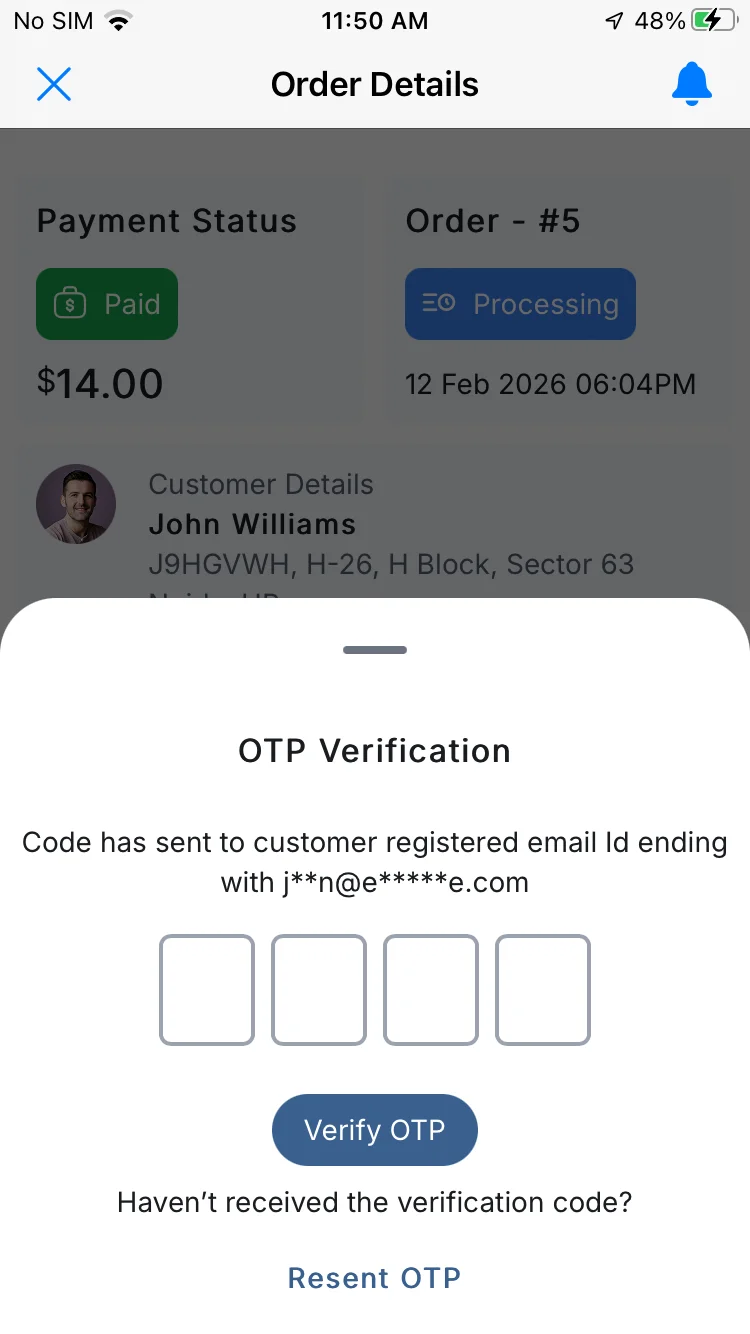
OTP-Based Delivery Confirmation
- Customer receives a unique OTP via email.
- Delivery boy asks for the OTP at the delivery time.
- Order is marked delivered only after OTP verification.
This ensures secure and verified delivery.
OTP-Based Delivery Confirmation
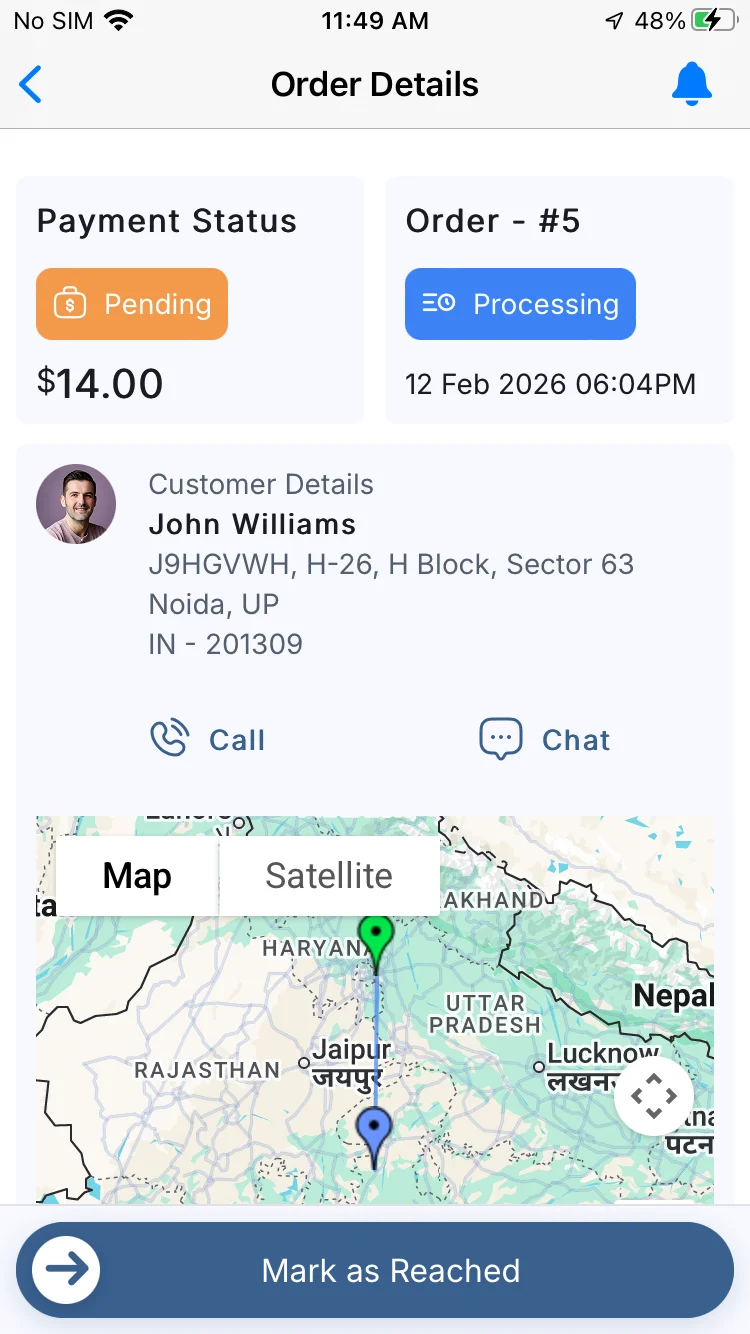
4. Customer Interaction
To ensure smooth communication, the delivery boy can:
- View customer address details
- Check distance and estimated time
- Call the customer directly
- Chat with customers in real time
This reduces delivery confusion and improves service quality.
Customer Interaction
View customer address details, Distance,call and chat
5. Navigation Support
The app integrates with Google Maps.
Delivery boys can:
- Tap the “Go to Map” button
- Get navigation directions instantly
This ensures faster and more accurate deliveries.
6. Communication with Admin
The delivery boy can:
- Chat with all admins in real-time
- View admin comments on orders
- Respond directly from order page
This keeps coordination smooth between the admin and delivery staff.
Customer Side Features – Transparency & Convenience
Customers benefit from complete visibility and communication.
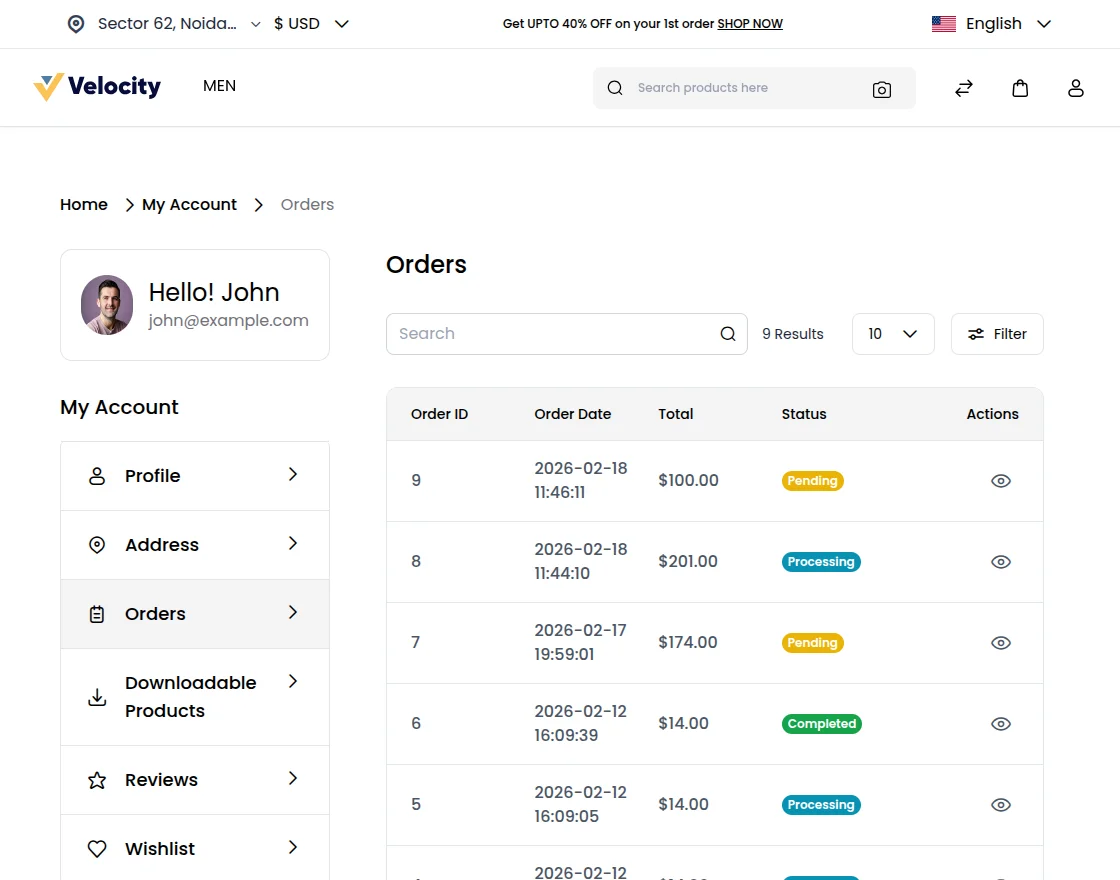
1. Real-Time Order Tracking
Customers can:
- Track the current order location live
- Use the “Track Order” button
- View delivery progress step-by-step
This builds trust and reduces support inquiries.
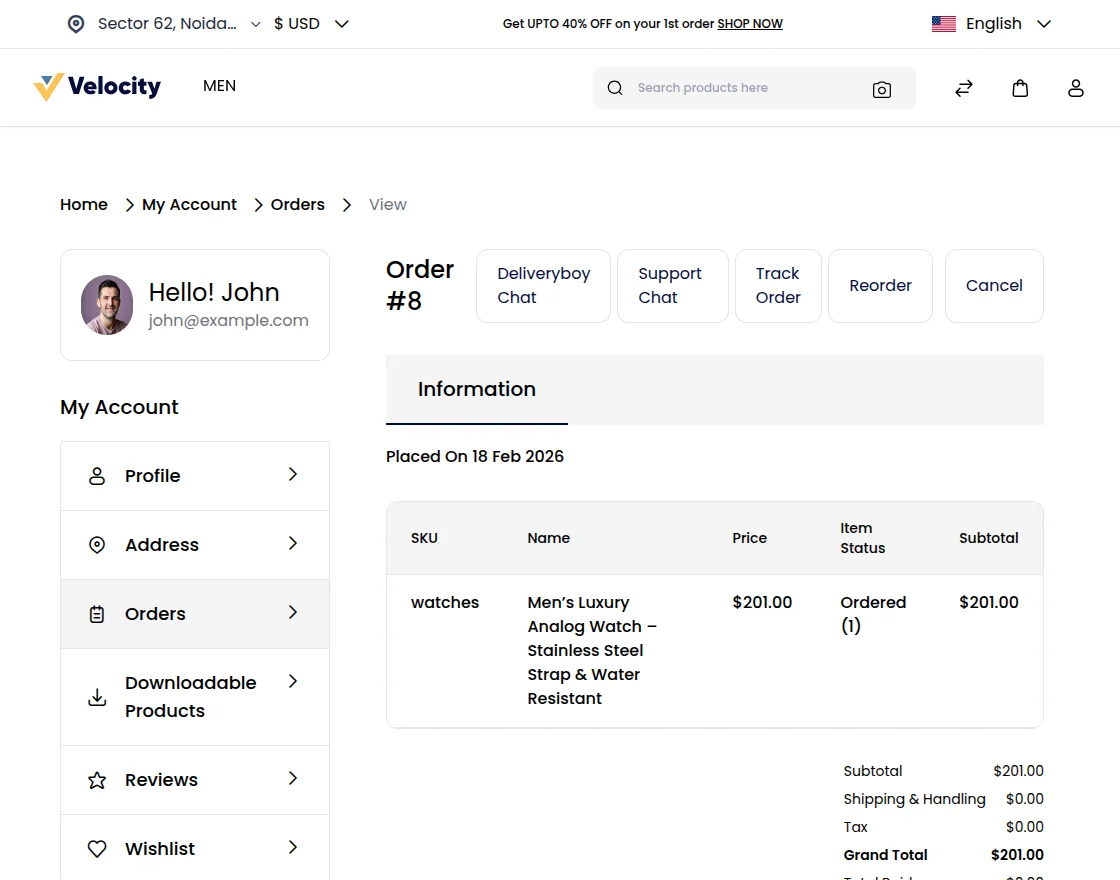
2. Real-Time Communication
Customers can:
- Chat with the assigned delivery boy
- Contact admin support
- Get real-time responses
This improves the overall delivery experience.
3. Secure Delivery Verification
Security is enhanced with OTP verification:
- Customer receives a unique OTP via email
- Shares OTP with the delivery boy
- Delivery is confirmed only after OTP validation
This prevents false delivery marking and ensures authenticity.
How the Complete System Works
Here is the simplified workflow:
1. Customer places an order.
2. Admin views the order in the dashboard.
3. Admin assigns the order to a delivery boy.
4. Delivery boy receives notification and accepts the order.
5. Admin tracks live location.
6. Customer tracks order in real-time.
7. Communication happens if needed.
8. Delivery boy confirms delivery using OTP.
9. Commission and earnings are updated.
Why This Delivery App Is Beneficial?
1. Real-time tracking and transparency
2. Secure OTP-based delivery
3. Flexible commission management
4. Structured order assignment
5. Seamless communication system
6. Easy-to-use mobile interface
7. Complete delivery ecosystem
Conclusion
Bagisto Delivery Boy Mobile App Solution delivers a complete and well-structured delivery management system for stores powered by Bagisto.
By connecting the Admin, Delivery Boy, and Customer within a single ecosystem, the module ensures smooth coordination, real-time tracking, secure OTP-based delivery confirmation, structured order assignment, commission management, and seamless communication.
With live monitoring, instant chat, navigation support, and transparent order updates, the system helps:
- Improve operational efficiency
- Reduce delivery errors
- Enhance customer satisfaction
- Maintain full administrative control
This solution is designed to meet modern market standards while remaining user-friendly and scalable for growing businesses.
If you still have any questions or face any issues, please feel free to raise a support ticket at our official helpdesk: UVdesk – https://bagisto.uvdesk.com/en/
We also welcome your valuable feedback and suggestions to help us continuously improve the module and deliver an even better experience to the Bagisto community.
Current Product Version - 1.0.0
Supported Framework Version - Bagisto: v2.3.6


Be the first to comment.