Prestashop Advanced Product Sorting: Product sorting is essential for e-commerce stores with many products, as it decides which items appear first and which appear last on the listing page.
When a product list contains many items, finding the right one can be difficult. If users can’t quickly find what they need, they may leave your store and look elsewhere.
Default PrestaShop offers limited sorting options and does not let shoppers sort products easily. With PrestaShop Advanced Product Sorting, shoppers can find the right products faster and more easily.
Along with default sorting options like relevance, name, price, reference, etc., this extension facilitates your shoppers to sort products by stock, discount, image, pack products, and new products.
Enhance product findability, improve the online shopping experience, and boost conversions by adding flexible sorting options on the product listing pages.
NOTE: Prestashop Advanced Product Sorting is compatible with the PrestaShop Multi-store feature.
Check the overview of the plugin in the video mentioned below :–
Features
- Sort products by stock, discount, image, pack products, and new products.
- Add sorting options on category, best sale, manufacturer, new products, price drop, search, and supplier page.
- List combination products based on the default combination quantity or the total quantity of all combinations in case the stock sorting option is selected.
How to Install Prestashop Advanced Product Sorting
- Firstly, go to the module manager in the back office and click on ‘upload a module’.
- After that, drag and drop the module file or select the file from the system.
- In this way, the module installation will be successful.


Note: Add custom code in the core module
On the category page, Prestashop version 1.7 & above uses the Faceted Search module.
If this module is enabled and the version of this module is equal to or higher than 3.0.0, then you have to add a hook and import 2 classes in this file:
/modules/ps_facetedsearch/src/Adapter/MySQL.php
Add below lines above “use Doctrine\Common\Collections\ArrayCollection;”
use Hook;
use Module;

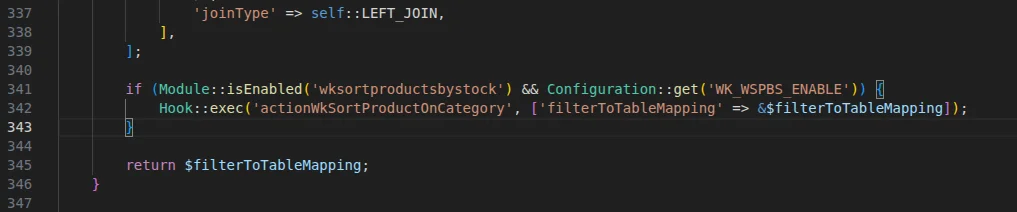
In function “getFieldMapping()” above “return $filterToTableMapping;”
Add this hook
if (Module::isEnabled('wksortproductsbystock') && Configuration::get('WK_WSPBS_ENABLE')) {
    Hook::exec('actionWkSortProductOnCategory', ['filterToTableMapping' => &$filterToTableMapping]);
}
Prestashop Advanced Product Sorting Configuration
After the installation of the module, you need to configure it. In the configuration settings, you can choose the product sorting options and pages where you wish to apply them.
You can choose to apply sorting on category, best sale, manufacturer, new products, price drop, search, and supplier pages.

This module provides five additional sorting options which help customers to easily filter the products. Customers can sort products by:
- Stock: ‘high to low’ or ‘low to high’
- Image first or last
- Discount: ‘high to low’ or ‘low to high’
- Pack products first or last
- New products first or last
List combination products based on the quantity of the default combination
If the admin enables this field, then the combination products are listed on the page based on the quantity of their default combination.
If disabled, then the combination products will be listed based on the total quantity of all the combinations of a product.
Let me explain this with the help of an example.
Suppose there is a product X and it has 3 combinations: A, B, and C. The available quantities of the combinations are 30, 40, 50, and A is the default combination.
This means the total quantity of all the product combinations is 120. Let’s say the customer has applied the stock (high to low) sorting option on the category page.
If the quantity of the default combination is higher than the default combination quantity of the other products. Then, product A will appear at the top of the listing page.
Front End Workflow
When a customer visits the product listing page and clicks on the dropdown above the product list, they can view all the sorting options you have enabled from the back office.
Category Page

Manufacturer Page

Now, let’s discuss the sorting options one by one and how the customers can use them to filter their desired products.
Sort By Stock
With this sorting option, a customer can choose to view the products with the highest or lowest quantity first on the product listing pages.


Sort by Image First/Last
If a customer selects “Having Image First,” products with images appear first. If “Having Image Last” is selected, products without images are shown first.

Sort By Discount
This sorting option enables the customers to view the products with the highest to lowest or lowest to highest discount rate.


Sort By Pack Products
This sorting option enables customers to view pack products at the top or end of a product listing page.


Sort By New Products
With this sorting option, customers can choose whether they want to see new products first or last.


Support
For any kind of technical assistance or query, please raise a ticket or send us a mail at [email protected]
Also, please explore our Prestashop development services and vast range of quality Prestashop addons.
Current Product Version - 4.0.3
Supported Framework Version - 9.x.x, 8.x.x, 1.7.x.x


Be the first to comment.