Magento 2 AI Image Search extension is a feature for the Magento 2 e-commerce platform. It uses artificial intelligence (AI) to let users search for products by using images.
It enhances the user experience where customers can effortlessly find products in the store. Customers can simply upload the image of the item they want.
The AI algorithm will recognize the uploaded images. Hence, it uses an embedding similarity search technique.
It will identify the characteristics and match the product with similar products in the Magento store.
After that, it will display the accurate or relevant search results according to the availability in-store.
Hence, this technique is quite innovative for the search activity of website users.
Check the video below to get to know the working of the extension,
You can also check Product Search via an Image extension where a customer can search products through suggesting keywords.
Additionally, if you want to add the functionality of removing Image Background, you can check Magento 2 Image Background Removal.
Similar functionality can be seen in work for the Magento 2 Mobile App –
Features
- The admin can set the number of results for the matched product.
- Allows the user to select the Pre-Configured Model, MobileNet Model, and Cloud LLMs Model for processing and generating image embeddings.
- The admin can set the AI model dimension based on the model’s embedding dimension to define the vector size used for storing image embeddings.
- Admin can set the minimum image score for the lowest confidence score for accepting an image match.
- The admin can set HNSW Index M Value to define how many connections each node will have higher values mean better accuracy.
- The admin can set HNSW Index EF Construction Quality to control the neighbor search list size higher values improve recall.
- Allows the users to search the products using the related images of the product.
- Customers can search using the search bar and advanced search on the front end.
- Allows users to search products using the GraphQL product API.
- It provides the accurate result or the relevant result by matching the image.
- This module supports jpg, jpeg, png, and gif only.
Minimum System Requirement (API Setup)
The following minimum system requirements are needed for this extension,
- Python Version – 3.10
- RAM (4 GB)
- Space (8 GB)
- Server key and cert files (for Flask API)
- Docker (Optional)
- One port (8000)
Note: The minimum system requirements may vary based on the data.
To install AI module, we need SSH access. You can also check the AI Models Server Installation Guide for reference.
Installation
The installation is quite simple just like the standard Magento 2 extensions.
#Download Module
Firstly, you need to log in to the Webkul Store, go to My Account>My Purchased Products section, verify, and then download and extract the contents of this zip folder on the system.
#Upload Folder
Once the module zip extracts, follow path src>app and then copy the app folder into the Magento 2 root directory on the server as shown below:

# Run Commands
You need to run the following commands:
php bin/magento setup:upgrade
php bin/magento setup:di:compile
php bin/magento setup:static-content:deploy
php bin/magento indexer:reindex
php bin/magento cache:flush
# Additional Commands
You need to run the following commands to create the embeddings:
Create/update existing product image embeddings via terminal.
php bin/magento generate:image:embeddings
Create/update selected product image embeddings via the terminal.
php bin/magento generate:image:embeddings -p 1,2,3
Language Translation
For translating the module language, navigate through the app/code/Webkul/AIImageSearch/i18n and edit the en_US.csv file.
Thereafter, rename the CSV as “en_SA.csv” and translate all right side content after the comma in the Arabic language. After editing the CSV, save it.

Now, upload it to the path app/code/Webkul/AIImageSearch/i18n where the installation of Magento 2 is on the server.
The Magento 2 AI Image Search will be translated into the Arabic Language. It supports both RTL and LTR languages.
The user can edit the CSV like the image below.

Initial Configuration Settings
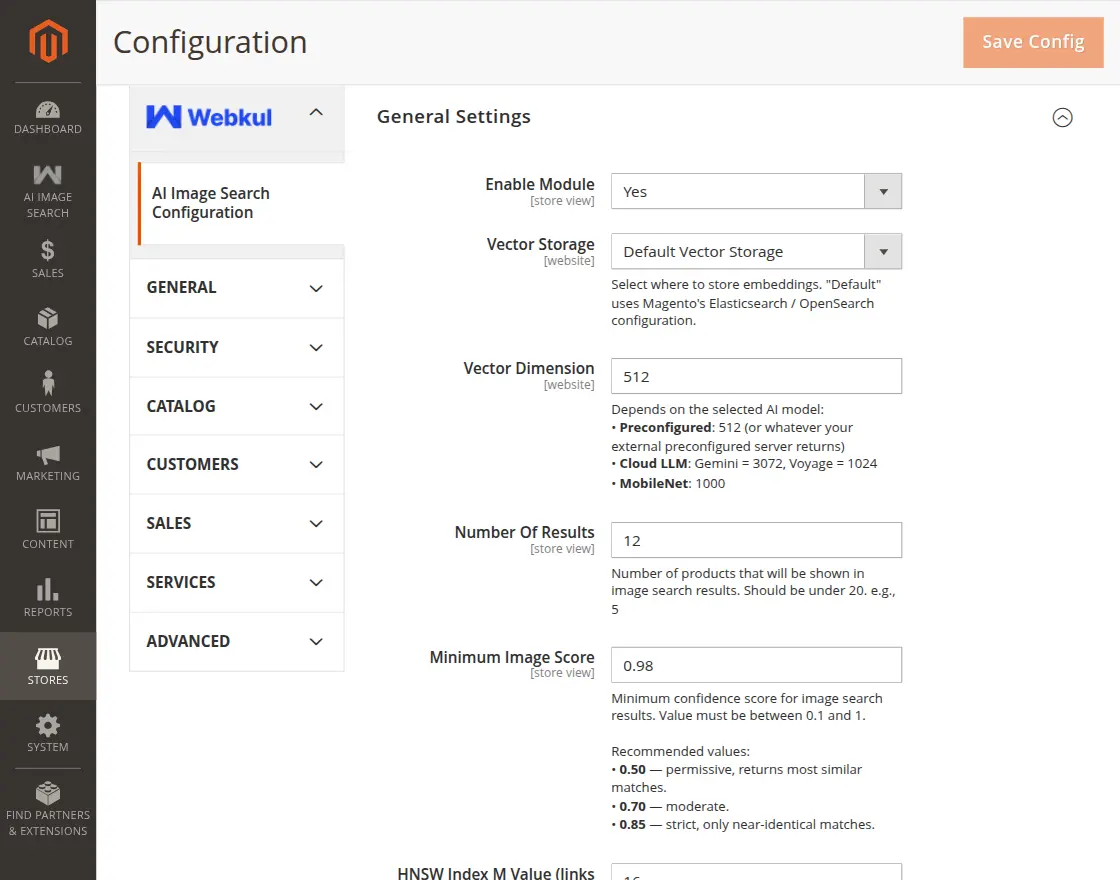
After the successful installation of the module, the admin will navigate the Stores->Configuration->AI Image Search Configuration->General
AI Image Search Settings:
1. Enable AI Image Search: Allows the admin to enable/disable the module.
2. Vector Storage: You can select the vector storage from either the Default Vector Store or ChromaDB Storage.
3. Vector Dimension: Set the embedding vector size used for image matching. the value depends on the selected AI model:
- Preconfigured: Usually 512 (or the dimension returned by the configured external server)
- Gemini: 3072
- Voyage: 1024
- MobileNet: 1000
4. Number Of Results: Define how many matching products will appear in the image search results on the storefront.
Recommended to keep the value under 20 for better performance.
5. Minimum Image Score: Set the minimum confidence score required for displaying image search results.
The value must be between 0.1 and 1. Recommended values:
- 0.85 — Strict matching, returns near-identical results only
- 0.50 — Permissive, returns more similar matches
- 0.70 — Moderate filtering
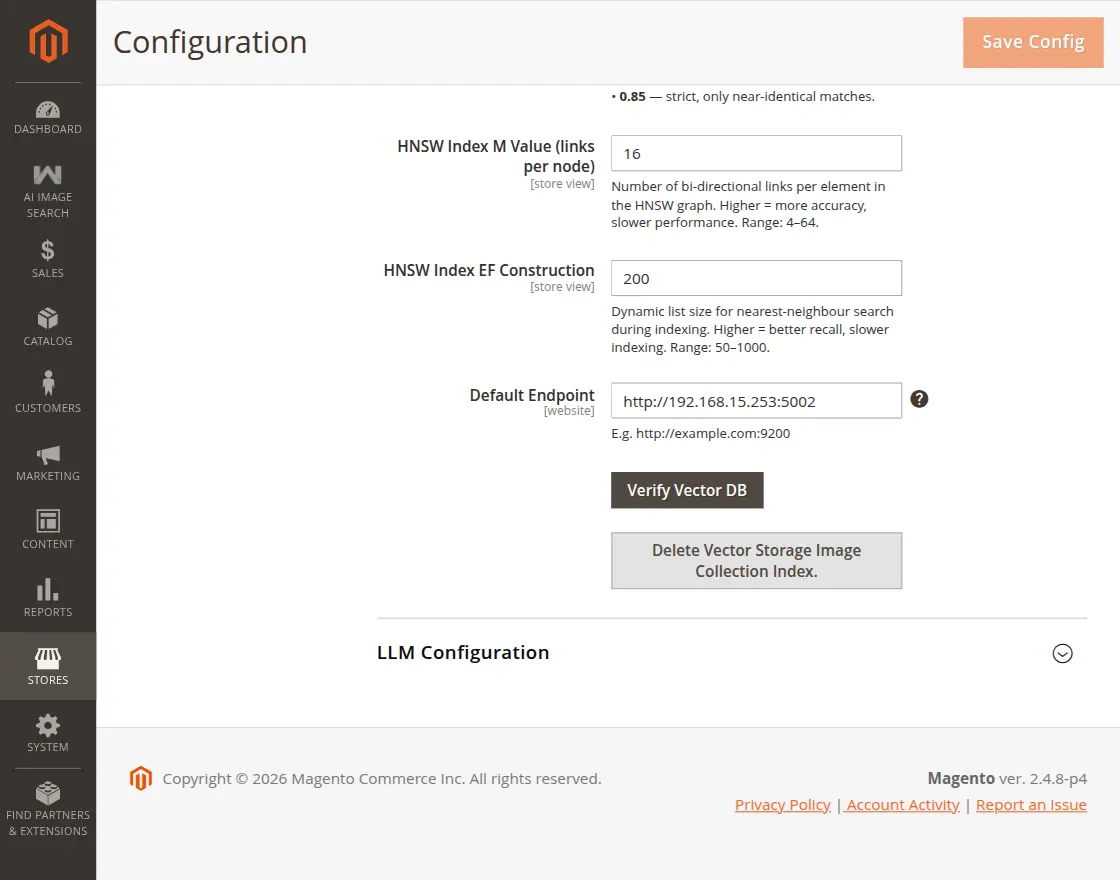
6. HNSW Index M Value: Configure the number of links created for each node in the HNSW index.
Higher values improve search accuracy but increase memory usage and indexing time.
7. HNSW EF Construction: Set the size of the dynamic candidate list during index creation.
Higher values improve indexing quality and search precision but require more processing time.
8. Server Endpoint (visible only when Default Vector Storage is selected): Enter your Server Endpoint.
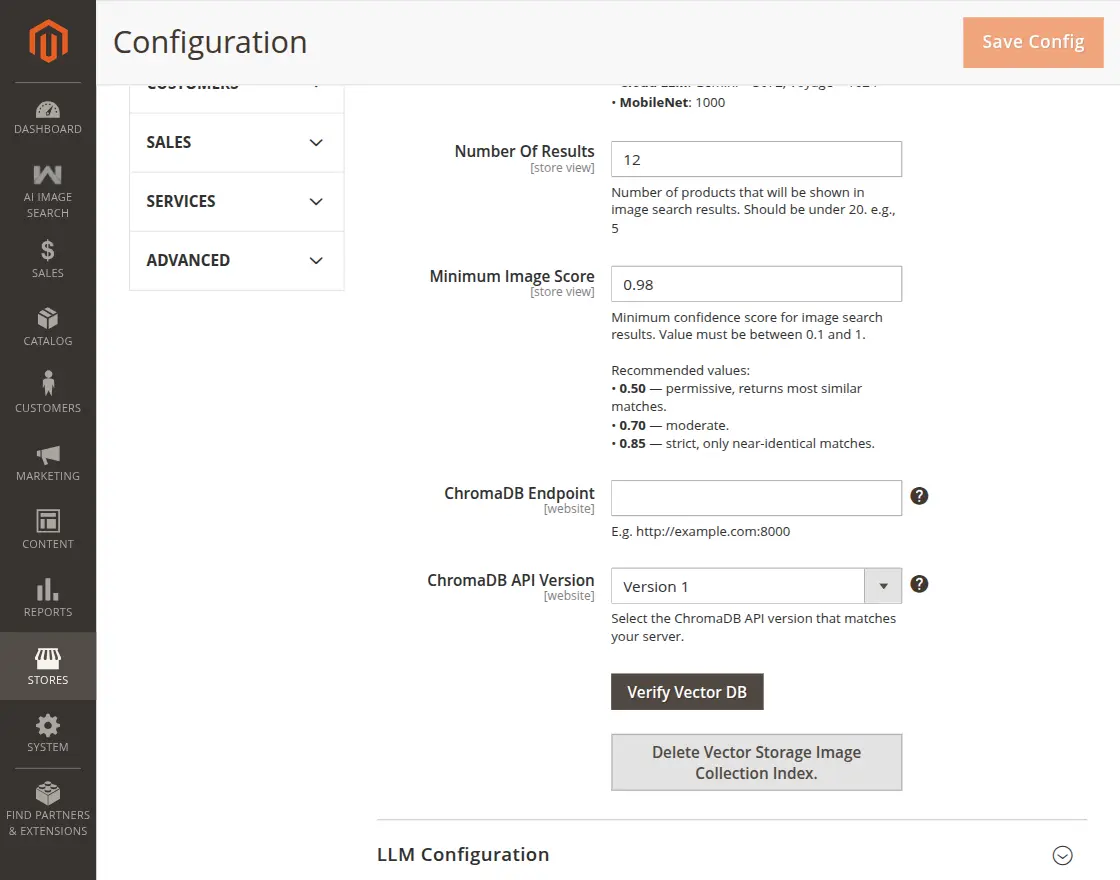
9. Verify Vector DB: Click this button to verify the vector database connection.
10. Delete Vector Storage Image Collection Index: Click this button to delete the image collection index from the vector storage.
Note: If you select ChromaDB Storage as the vector storage, you must configure the ChromaDB Endpoint and ChromaDB API Version.
LLM Configuration
The module allows the admin to configure the AI model settings for image search functionality under the LLM Configuration section.
AI Model Type: The module provides three AI model options:
- Pre-configured Model
- Cloud LLMs
- MobileNet Model
1. Pre-configured Model Configuration:- If you select the Pre-configured Model, you need to configure the following details:
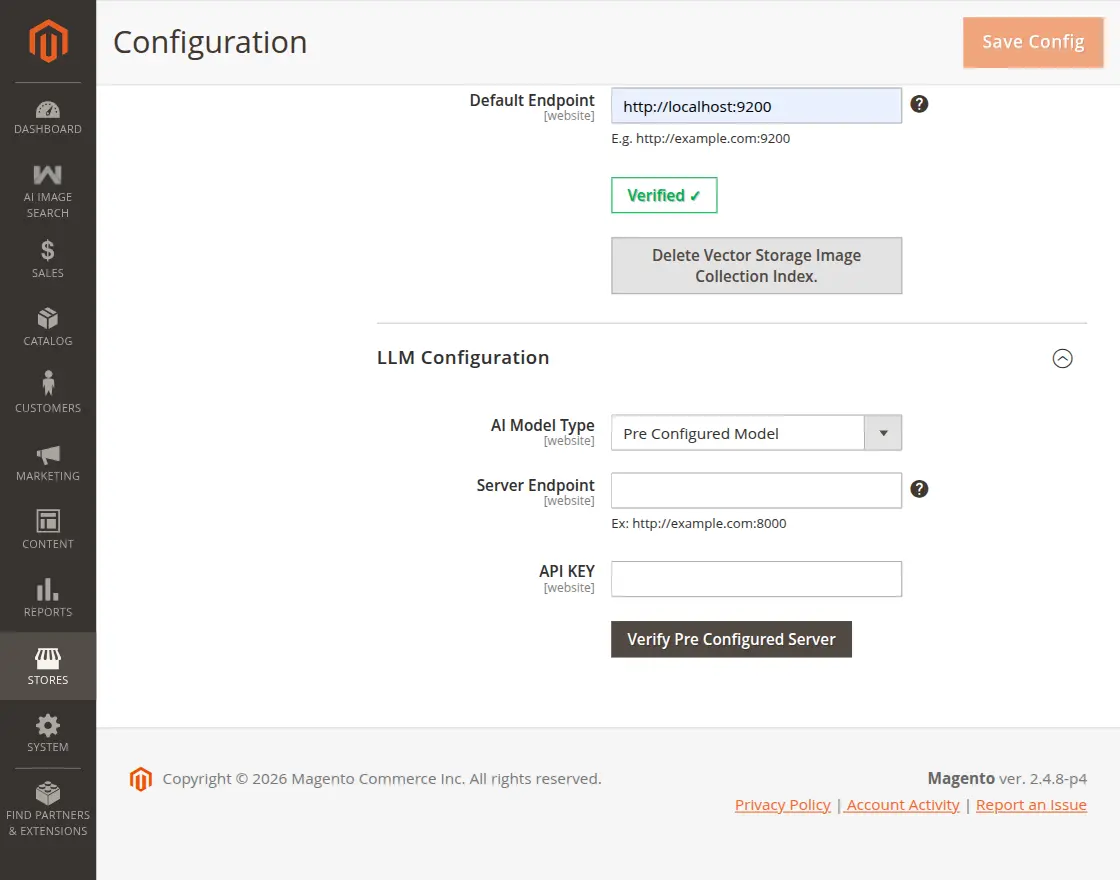
- Server Endpoint: Enter the server endpoint URL for the pre-configured AI model server.
Example:http://example.com:8000 - API Key: Enter the API key required to authenticate the AI model server.
- Verify Pre-configured Server: Click this button to verify the server connection and validate the configuration settings.
2. Cloud LLMs Configuration:- If you select Cloud LLMs as the AI Model Type, the module allows you to configure cloud-based embedding providers for AI image search.
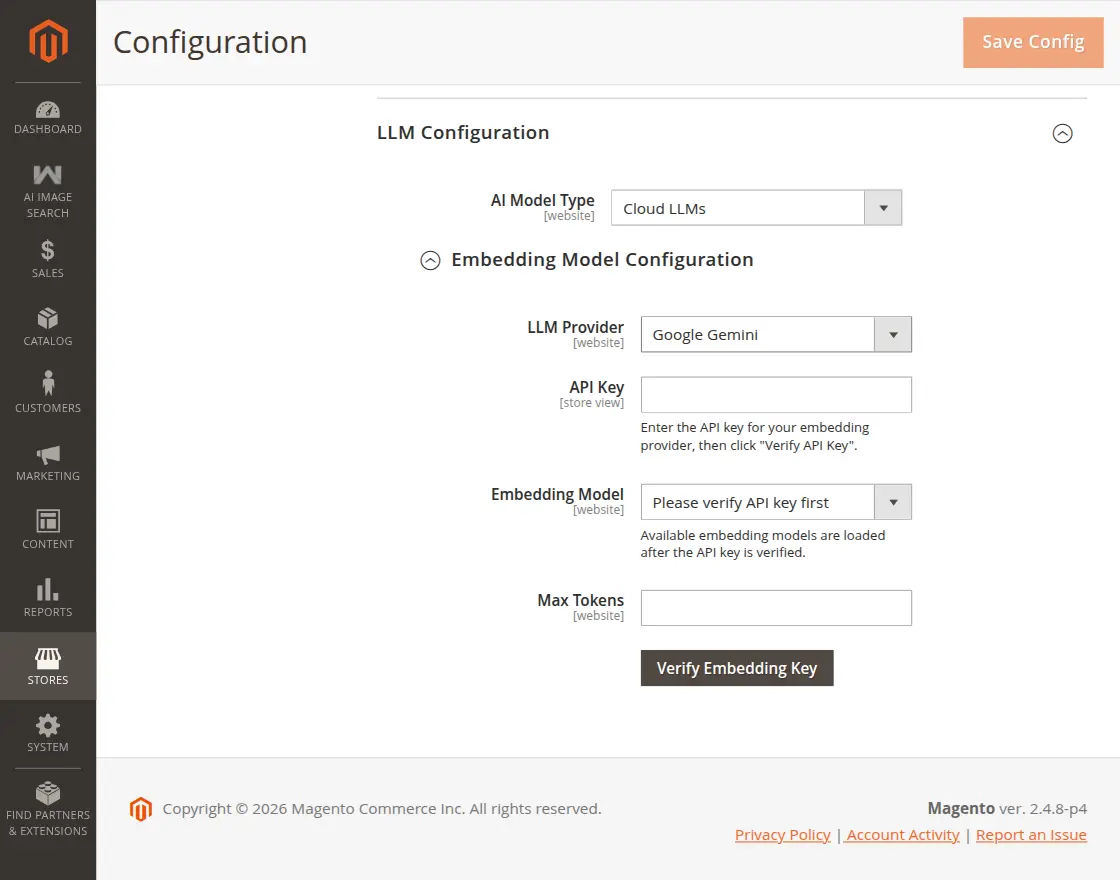
Under the Embedding Model Configuration section, configure the following settings:
- LLM Provider: Select the required LLM provider from the dropdown list. Currently, the module supports: Google Gemini, Voyage.
- API Key: Enter the API key of the selected embedding provider.
- Embedding Model: The embedding models will load after the API key is verified.
- Max Tokens: Enter the maximum token limit for the embedding request.
- Verify Embedding Key: Click this button to verify the API key.
3. MobileNet Model Configuration:- If you select MobileNet Model as the AI Model Type, the module allows you to configure the AI Node Server settings for image search functionality.
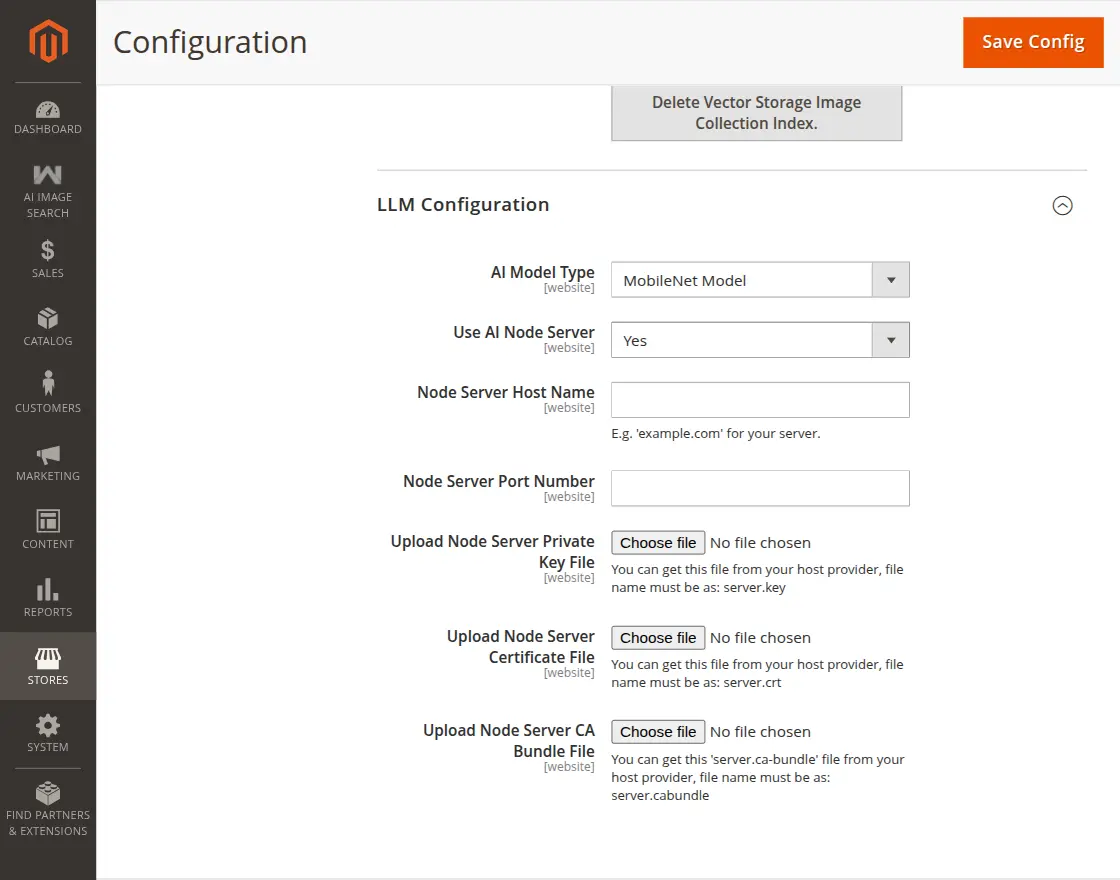
Under the LLM Configuration section, configure the following settings:
- Use AI Node Server: Select Yes to enable the AI Node Server configuration.
Node Server Host Name: Enter the hostname of your AI Node Server. - Node Server Port Number: Enter the port number of the AI Node Server.
- Upload Node Server Private Key File: Upload the private key file provided by your hosting provider.
The file name must beserver.key. - Upload Node Server Certificate File: Upload the certificate file provided by your hosting provider.
The file name must beserver.crt. - Upload Node Server CA Bundle File: Upload the CA bundle file provided by your hosting provider.
The file name must beserver.cabundle.
After completing the configuration, click the Save Config button to save the settings successfully.
Run Embedding Profiler:
The MobileNetV3 Embedding Profiler shows the process of generating image embeddings using the MobileNetV3 model.
It loads the model, validates the vector storage connection, and processes all product images.
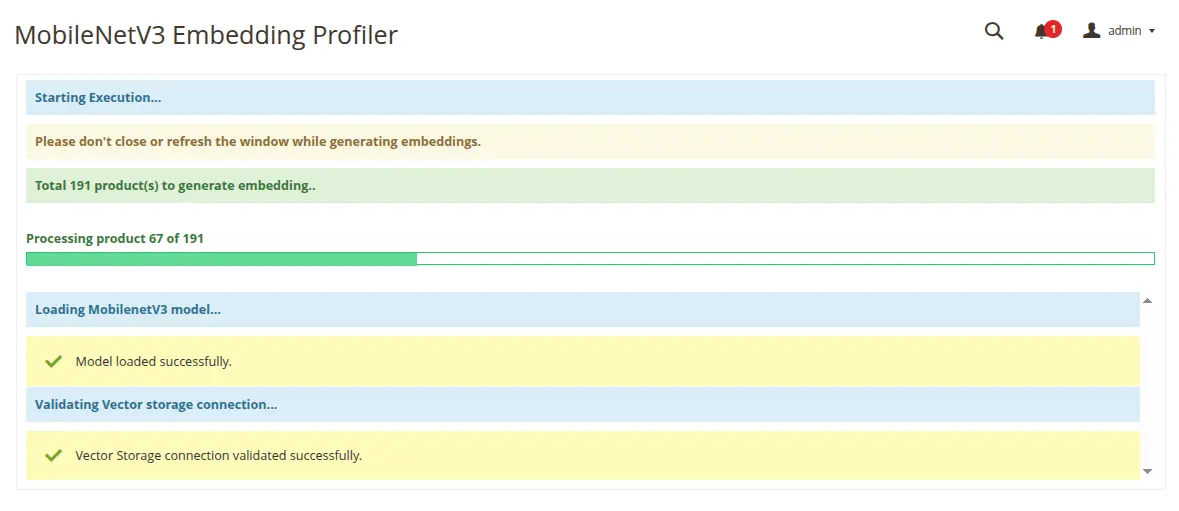
The progress bar displays real-time status, and users should avoid closing or refreshing the window until the process is complete.
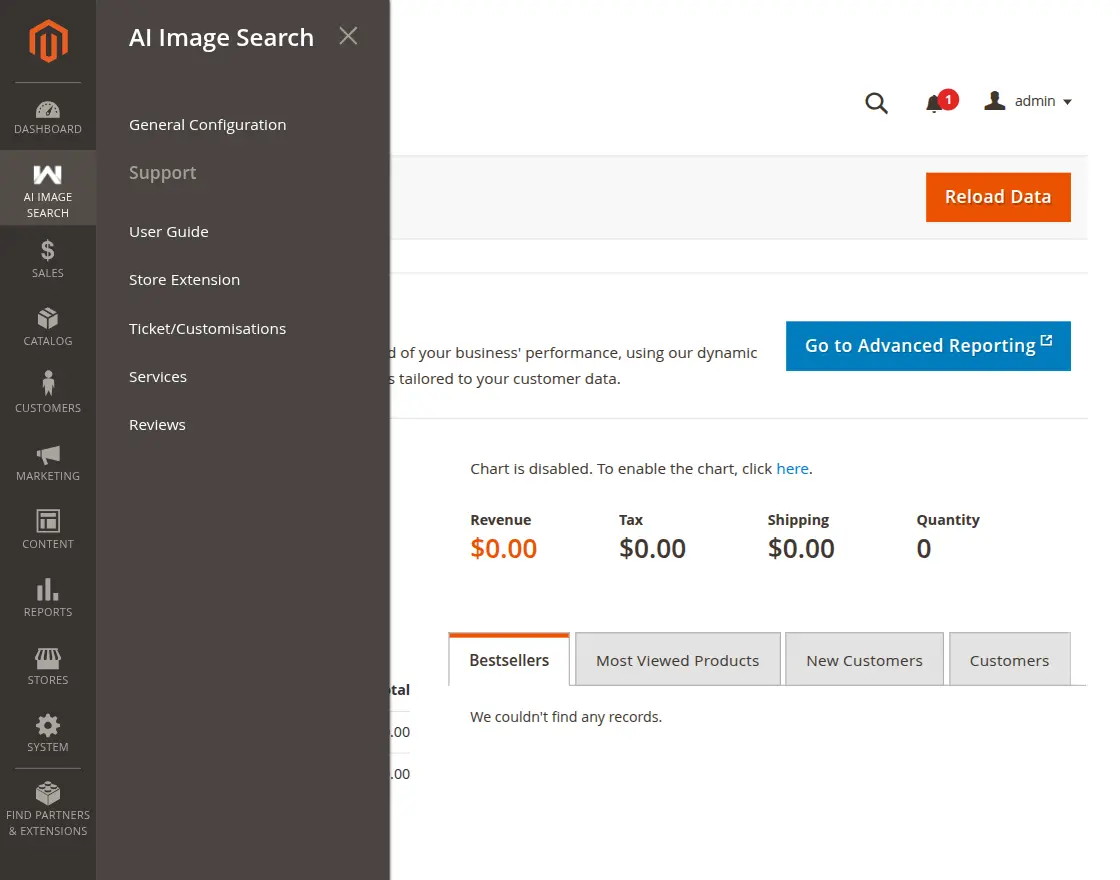
You can also access the initial configuration by navigating the AI Image Search->General Configuration.
Storefront – Workflow AI Image Search
After the successful configuration of the module, on the front end, a camera icon will be shown in the search bar.

The customers will upload the image to search for the related product by clicking the camera icon.

After uploading the image, the customer can also make changes to the image and now click on the save changes as per the below snapshot.

Now, the accurate product or the relevant products related to the uploaded image will be displayed.
Also, the name of the uploaded image will be displayed in the search bar as shown in the below snapshot.

Also, customers can use the advanced search option available in the footer section.

After that, customers can search by filter available or image in the advanced search form.

When customers use the AI image search by clicking on “Browse Image,” they can search directly with an image.

After uploading the image, the customer can click on Save Changes. The product will then appear based on the image search results.

Support
That’s all for the Magento 2 AI Image Search Extension. You may also check our top-quality Magento AI 2 Extensions.
Boost your store’s functionality with Magento 2 AI Content Generator extension for automatic, smart content creation and SEO optimization.
If you still have any issues feel free to add a ticket and let us know your views to make the module better at webkul.uvdesk.com.
Current Product Version - 4.0.4
Supported Framework Version - Magento 2.0.x, 2.1.x, 2.2.x,2.3.x, 2.4.x

Be the first to comment.