CS-Cart PayU (Europe) Payment Gateway extension allows the site owner to integrate PayU with CS-Cart/Multivendor store.
Integrating PayU opens up various options to receive payments from multiple channels, allowing you to take credit card and direct payments via PayU.
Note – This module will only work in Europe country. It will not work in any other country.
Features
- Well integrated with CS-Cart Multi-Vendor.
- In addition, Functionality to check all response information provided by PayU at the admin end.
- Provides better security management for safe and secure payment.
- Also, the option to pay via PayU is available to create orders at the admin end.
- Works with both Test and Live modes on the payment gateway.
- Moreover easy to use and configure at the admin end.
Video Tutorial
Installation
After downloading the CS-Cart PayU (Europe) Payment Gateway, you will get a zip file and install.txt.
Read the install.txt carefully and configure it accordingly.
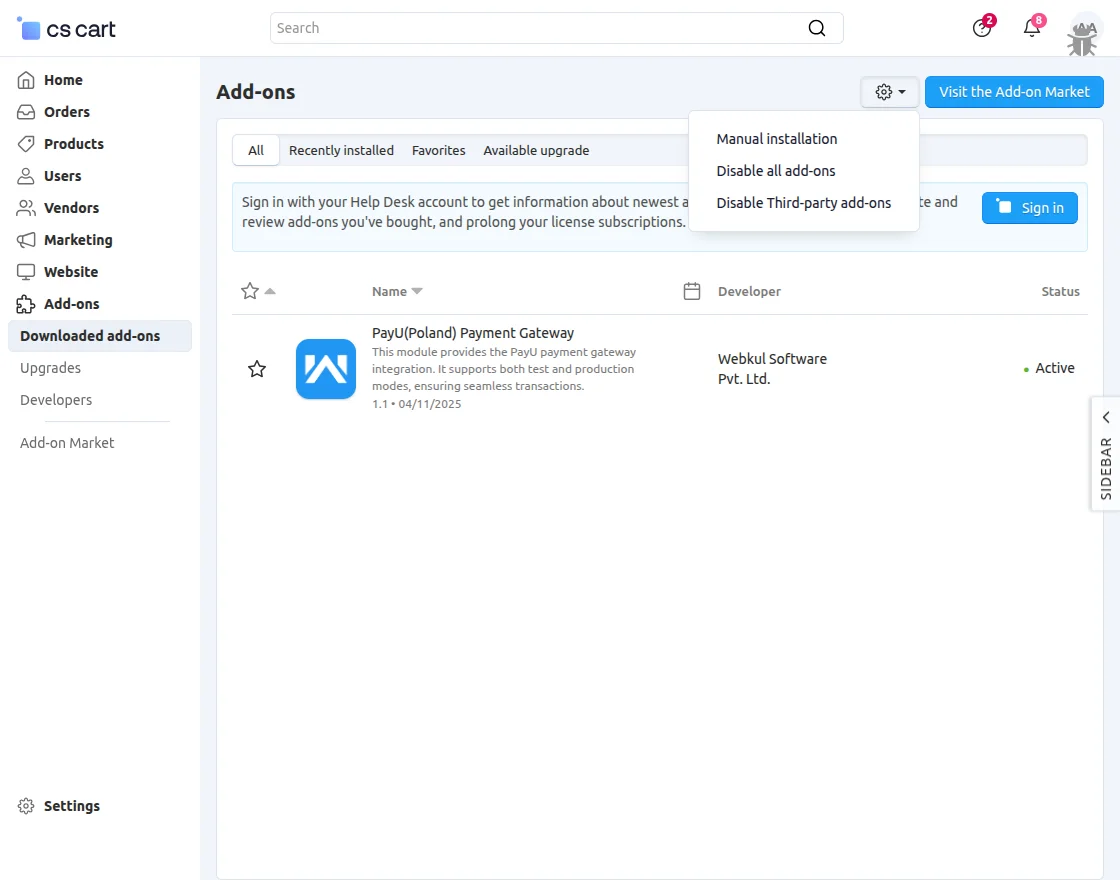
Firstly, click on the icon and select Manual Installation to upload the zip file as per the screenshot below.
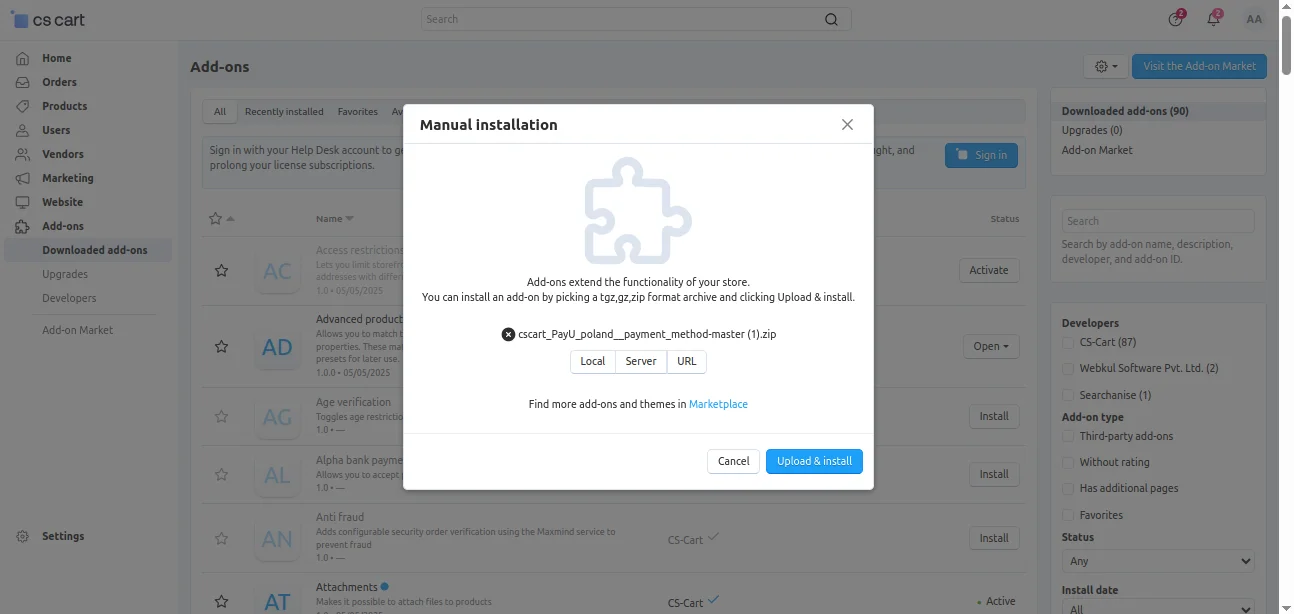
 Click on “Local” to browse the zip file, and then click on “Upload & Install” as shown below in the snapshot.
Add-on Configuration
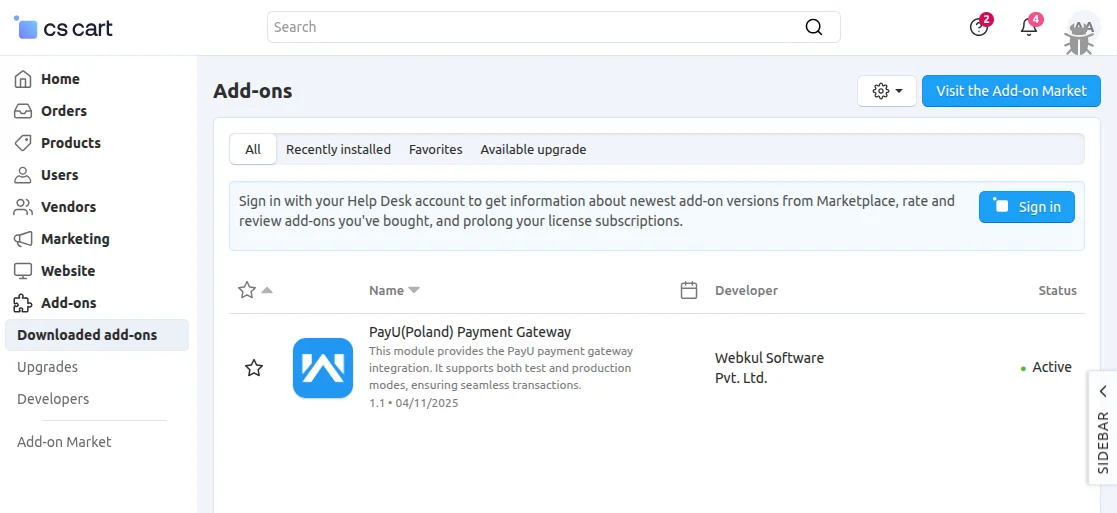
After installation of the add-on, you will find the add-on, and then we can configure the settings.
Click on “settings” to enable, disable, install, or refresh.
Make sure the add-on is activated as shown in the snapshot below.
CS-Cart PayU (Europe) Payment Gateway – Workflow
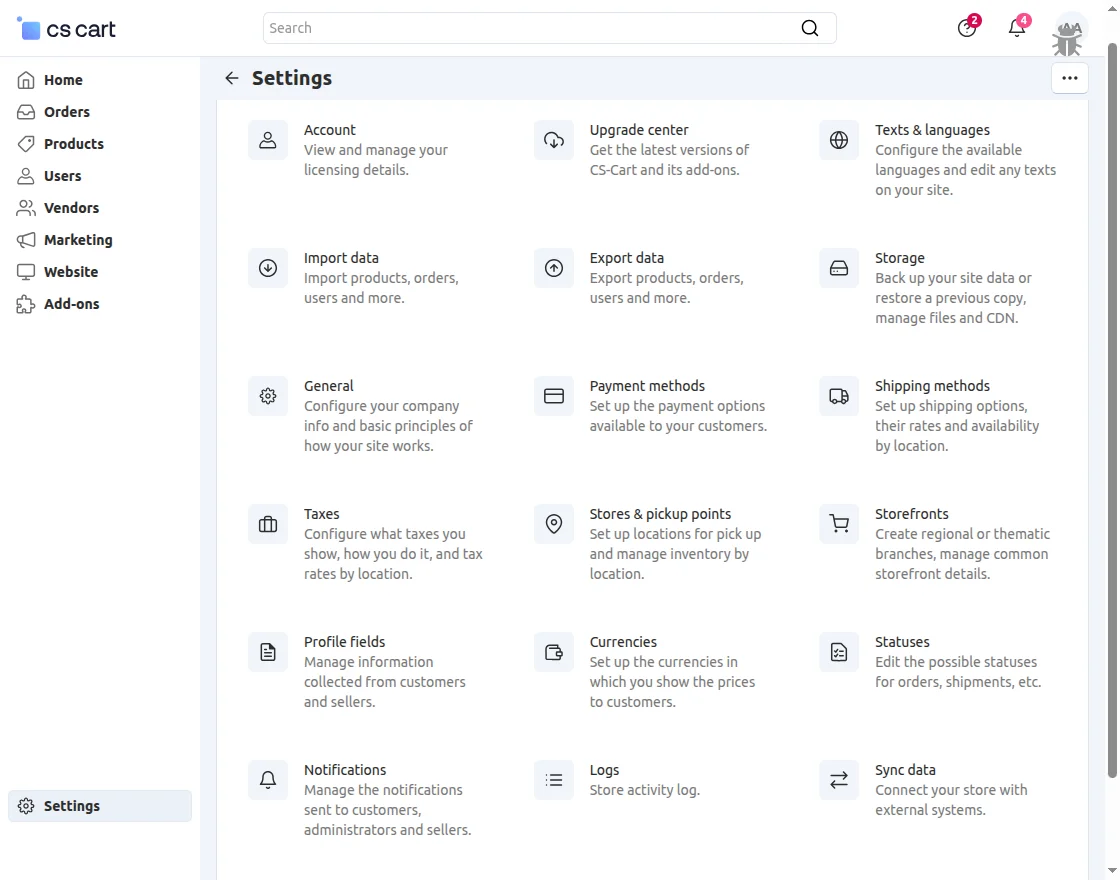
Go to the “Settings” tab and click on “Payment methods”.
Click on “+” to create a new payment method.
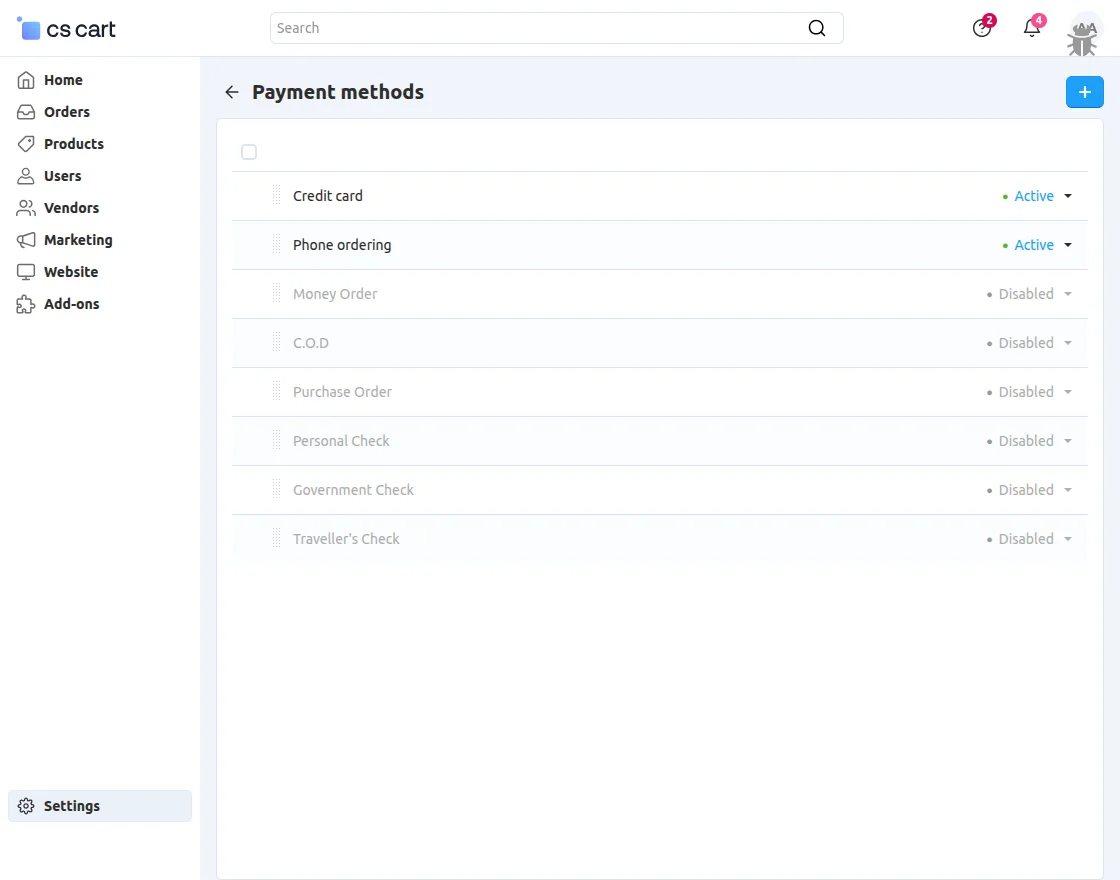
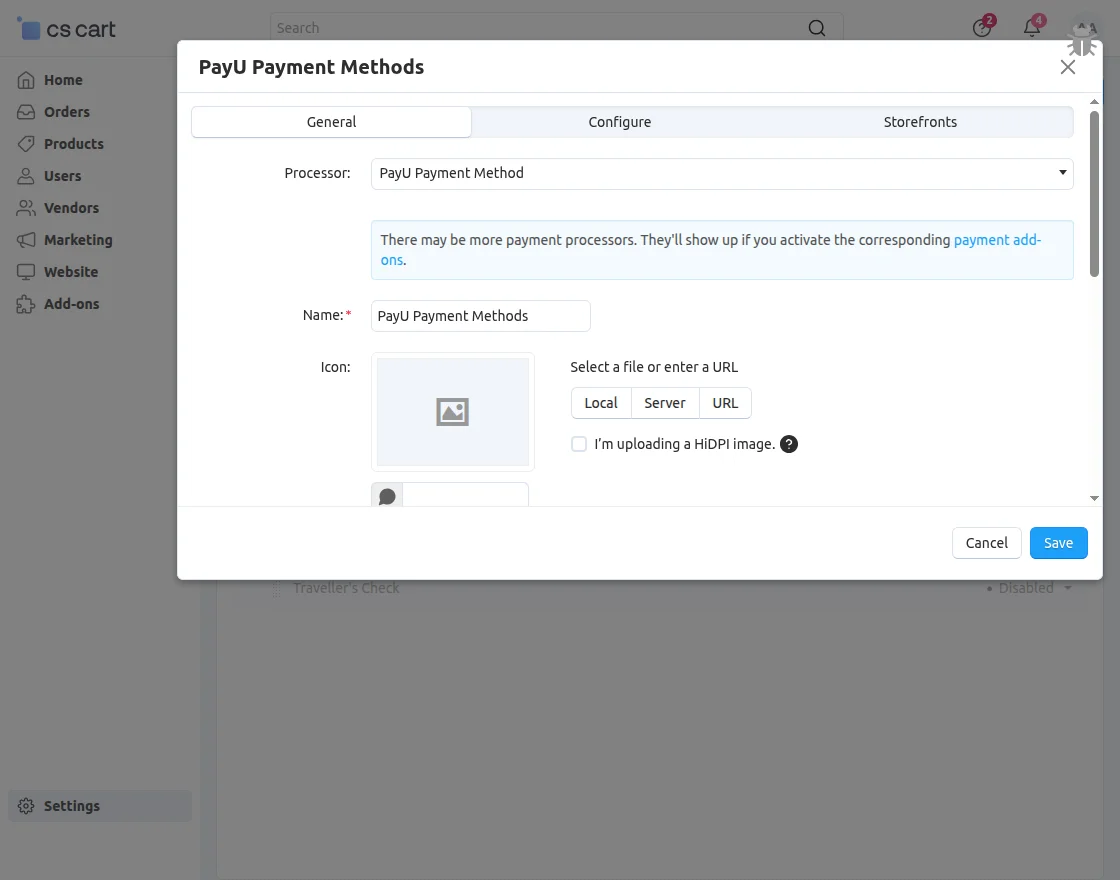
- Set the name of the payment method.
- For checkout, choose the processor as “PayU Payment Method”.
- Select the template from the dropdown.
- Configure the tabs accordingly, as shown in the snapshot below.
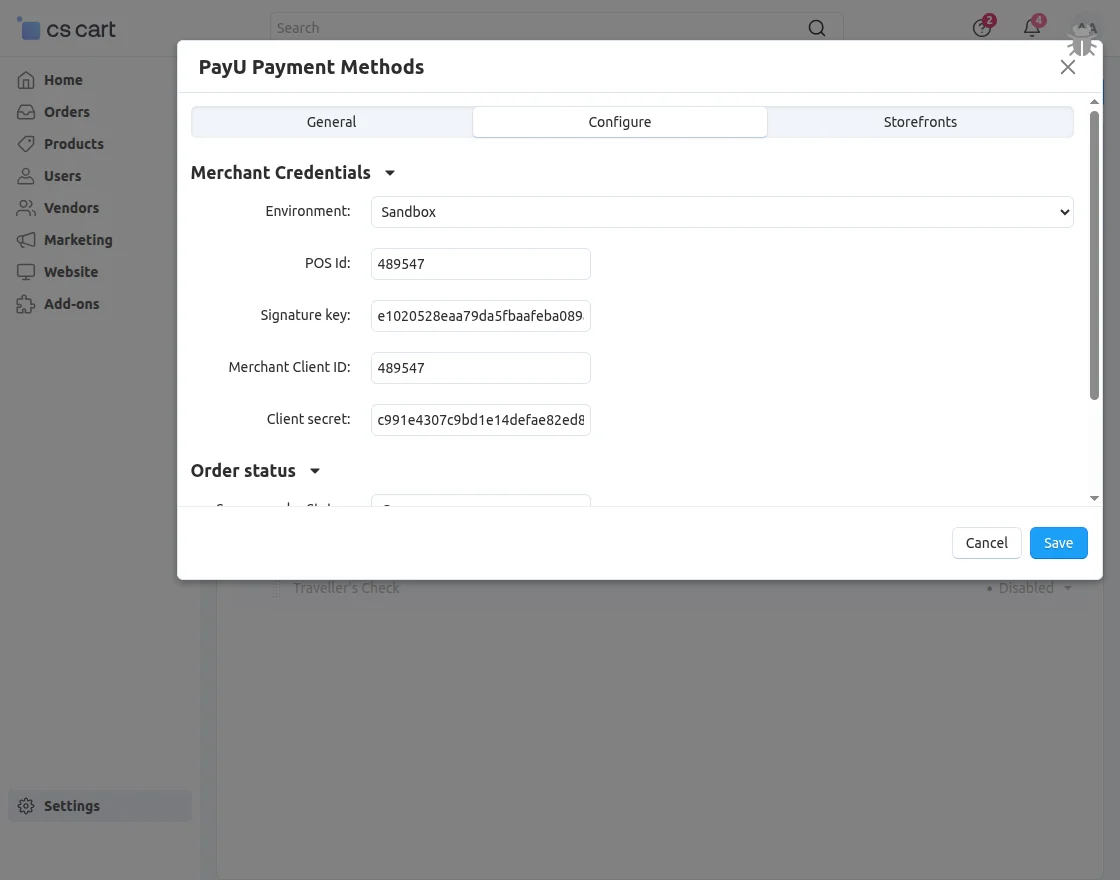
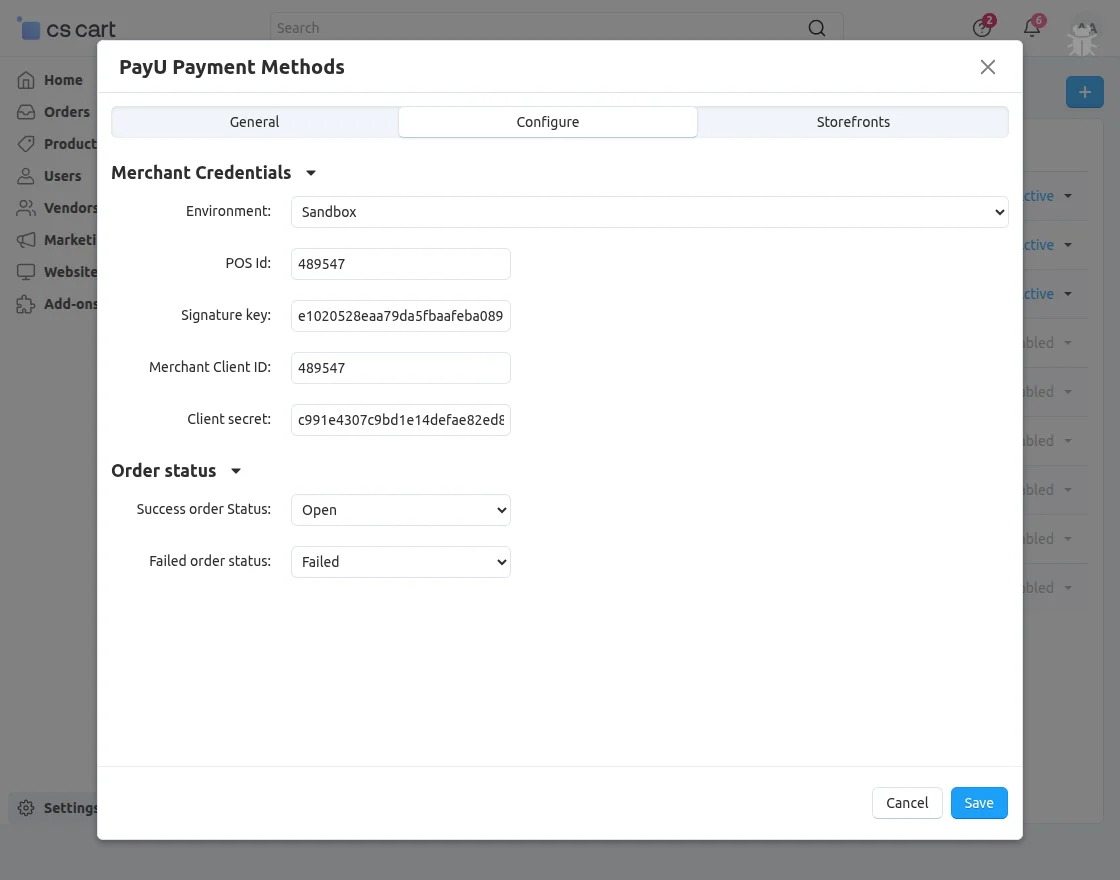
Click on “Configure” and set the parameters as shown in the snapshot below.
- Enter the gateway credentials.
- Set the order status for a successful transaction.
- Set the order status for failed transactions.
- Click on the Create button to create the payment method.
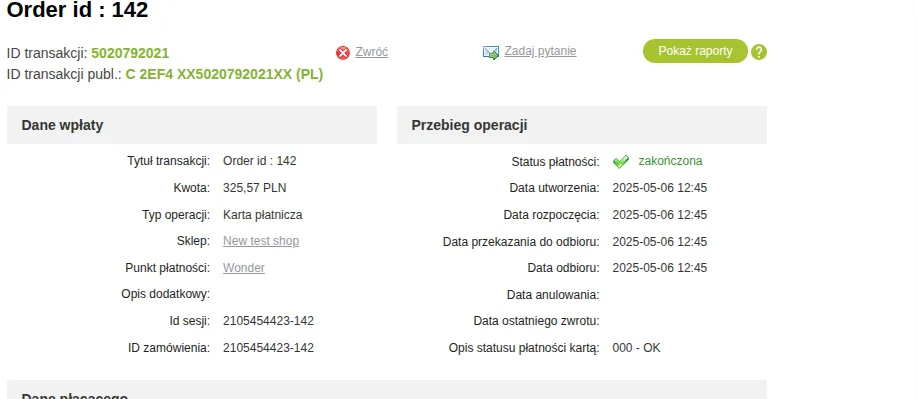
Note – The user must have a sandbox account and can create one with this link.
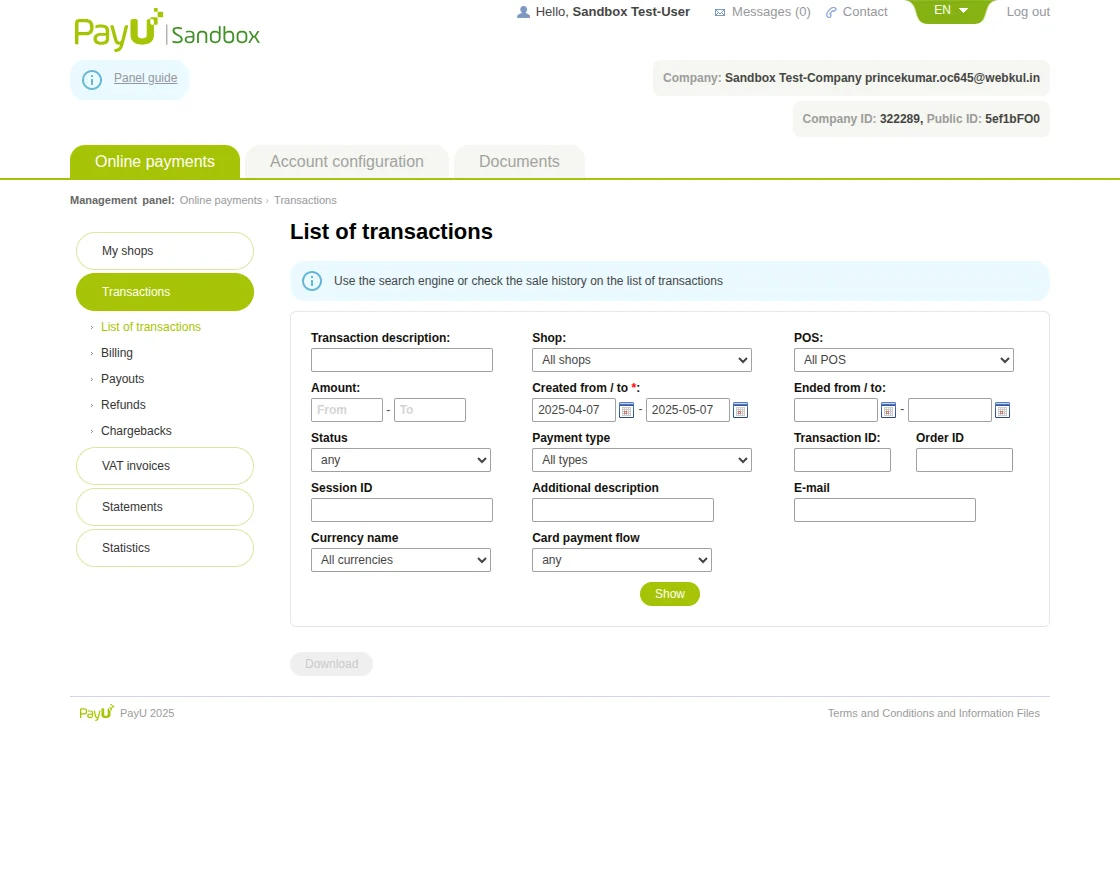
To fill in the credentials under the configure section, and view the transaction details from the Sandbox URL, as shown in the snapshot below.
The admin can also change the order status by navigating to the settings >> payment methods >> PayU payment methods >> configure >> save, as shown in the given snapshot below.
 Once the order has been placed by the customer, the admin can go to the orders section by navigating to the admin panel >> orders and can see the status of orders as shown in the snapshot below.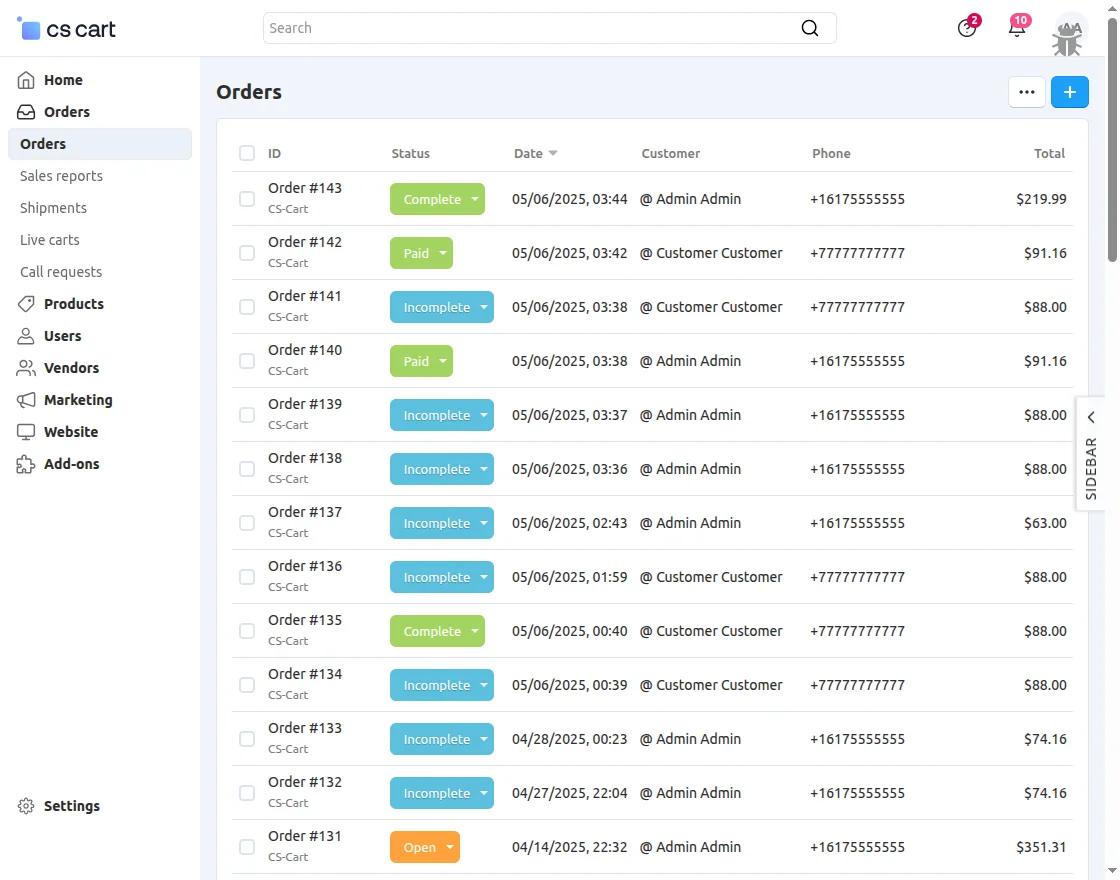
Front End View
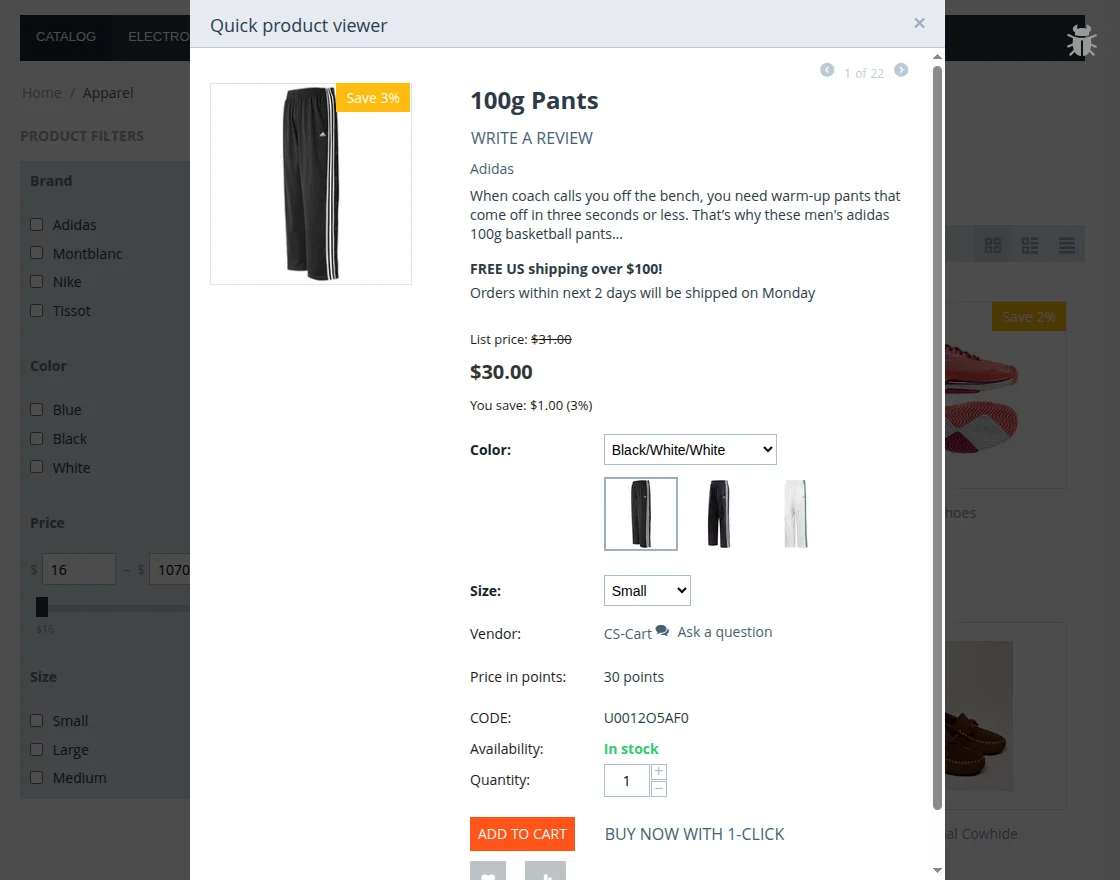
The customer can proceed to checkout with the PayU Payment Method as shown in the snapshot below.
Then, the customer needs to fill in the required details and lastly select the payment method as PayU Payment Method as shown in the snapshot below.
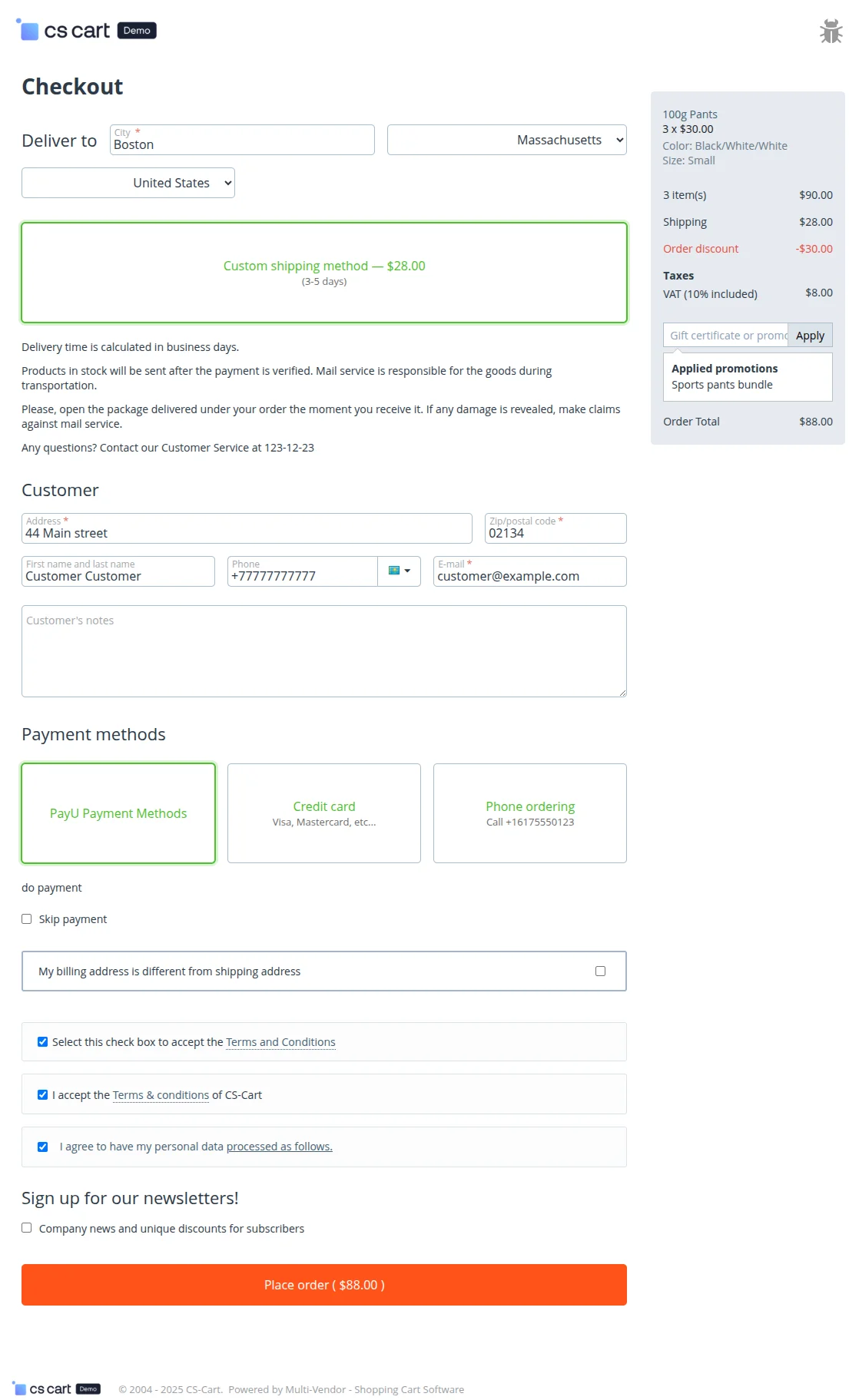
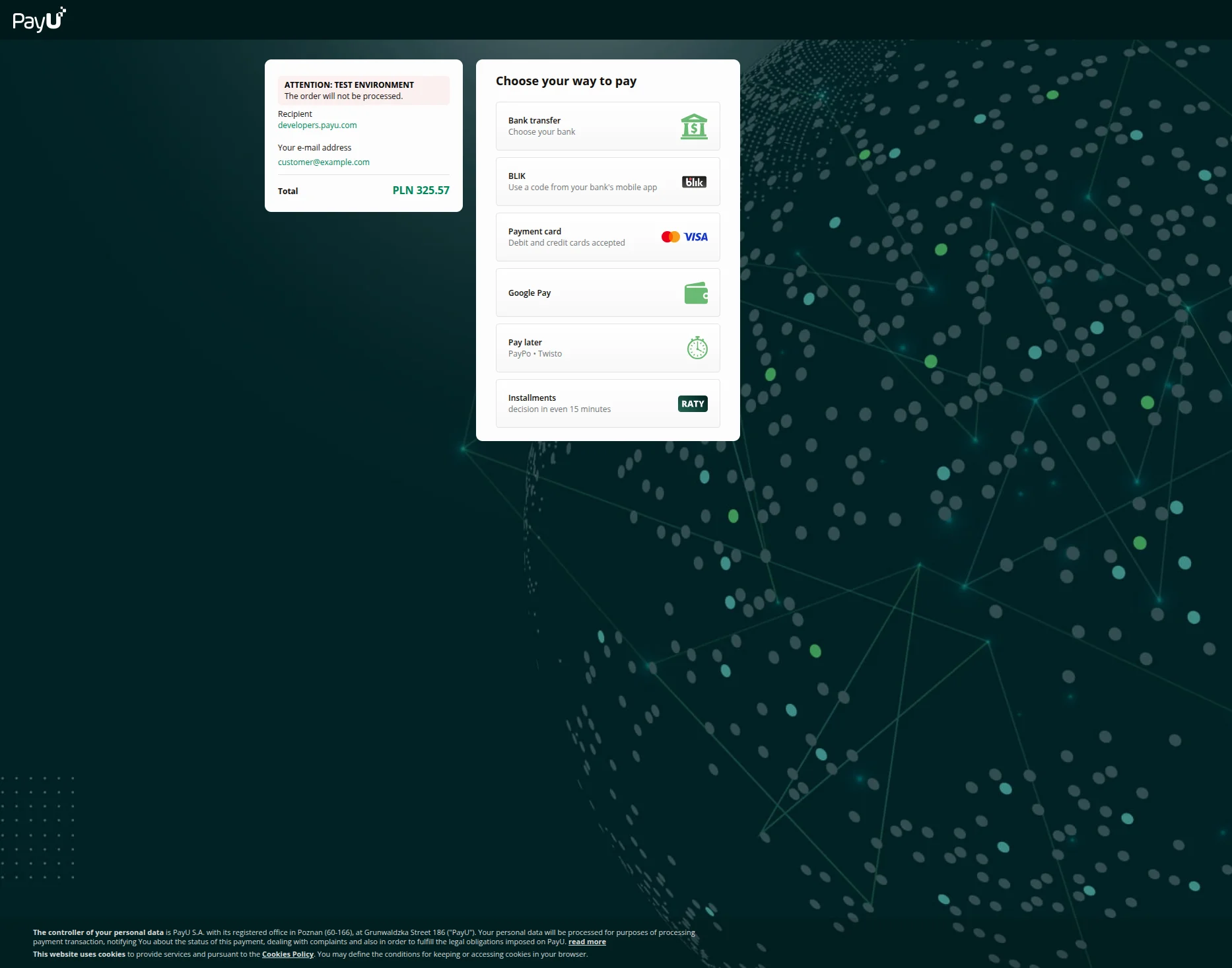
Once the order is placed, the user will get redirected to the PayU Payment Method.
Customer, then click on the payment card, as shown in the snapshot below –
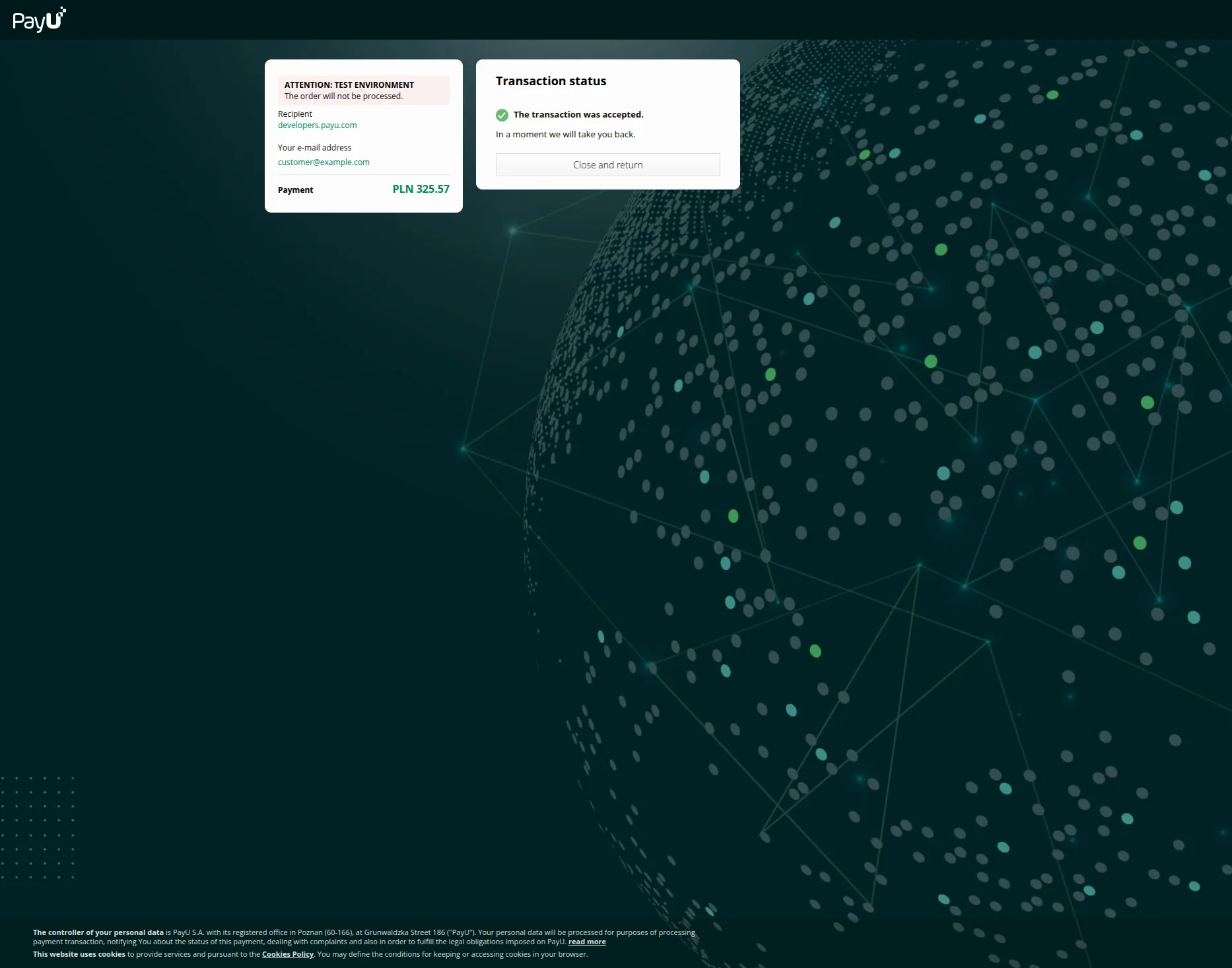
 The customer fills in the required card details, and after that, it receives a pop-up depicting that the transaction was accepted as its status, as illustrated in the snapshot below.
Note – Admin can see the transaction details from the Sandbox, as shown in the snapshot below.
Support
This is all about PayU (Europe) Payment Gateway. For any further query, feel free to contact us at http://webkul.uvdesk.com
Besides this, you can explore our CS-Cart Development Services and Quality CS-Cart add-ons.
Current Product Version - 1.1
Supported Framework Version - (4.16.x , 4.17.x, 4.18.x)


Be the first to comment.