


















Shopify Mobile app converts the Shopify webstore into a Flutter-based mobile app.
Starting an eCommerce store on Shopify is fairly easy. But as the sales are going multichannel adding a mobile sales channel is highly critical.
Key Requirements to have a Shopify-based mobile application
1 – Merchants must have a running website on the Shopify platform.
2 – Valid account on google play store and apple app store.
3 – The application must use Real-time API so that order synchronization must be there.
4 – Flutter based apps are critical for User Experience as well as for performance.
5 – Apple Still does not support hybrid/web apps in the app store. That’s why it is highly advisable to have a Flutter mobile app.
that’s it. All you need to run a Shopify Android/iOS app.
This App has now come up with an updated backend user interface which is much more convenient & concise.
Introduction to Mobikul
Give your customers an incredible mobile app experience by seamlessly converting your Shopify store into a flutter Mobile Application using Mobikul.
Trial: The app comes with a 30-days free trial period. Charges: $25/month (existing users will be charged with the old pricing only).
App: Built with Mobikul Shopify mobile app builder, the app follows a customer-centric approach and offers a complete online shopping experience on smartphones and tablets.
This app allows real-time synchronization of products, categories, orders, customers, and other relevant data.
Ahead of this document, we are going to discuss the installation and configuration of this app. Before that, let’s put highlight some of the features.
Highlights of the Mobikul app
- A flutter-based hybrid app designed to be customer-centric which enables shoppers to have a complete online shopping experience from their smartphone and tablet devices.
- Simple configuration with customizable home page and side panels of the mobile application.
- Moreover, real-time product and order synchronization between the Shopify store and the mobile application.
Note: We provide support to publish your mobile app on play store and app store.
Video Tutorial
Check the Shopify mobile app configuration of the home page from the admin SAAS store and how the changes reflect within the Shopify mobile app and how to view the changes made –
Check the Workflow at the mobile end for the Shopify mobile App –
How to Install Mobile App for Shopify?
After you logged into your Shopify account, on the left-hand side panel you have the APPS section Just open it up.
Now it will take you out on the Apps page.
STEP-1: Here on the top right corner you will have the SHOP FOR APPS button tap that up. It will bring you over the Shopify apps store itself.

STEP-2: Here you go to your Shopify app store and search Mobikul Mobile App in the search box.

STEP-3: After tapping that up you will see that particular page over here with the details of that Mobile App Builder,
Do install this app into your Shopify backend. Here you see that ADD APP button just click it up.

STEP-4: After this, you need to move to your Shopify store and just refresh it and then you will find Mobikul Mobile App under the Sales channel of your store.

Here you got Mobikul Mobile App under the Sales channel in your Store.
Shopify Mobile App Page Builder
Once you install the app, it will be listed as a sales channel. Clicking on it will drop you to the landing app of the app, i.e., the Page Builder:

The page builder section lets you drag and drop different cards and allows you to add items to them instantly.
On the left, you have the list of cards that you can drag onto the middle section, i.e., your mobile app widget, and drop.
You can change the positions of the added cards in the middle frame by dragging them & dropping them into the desired position.
Make sure to click on the save button as shown below to save the changes:

On the right, you have the option to add items to them.
The type of cards that you can add:
- Slider
- Simple Banner
- Grid
- Carousel
- List
- Product Carousel
To add an product to a card, simply click on the ‘Add Product’ button:

Further, select the product you want to add & then save the settings.

In case the product isn’t available in the listing below, you can type in the name of the product and then choose the option to select a product from the Shopify store:
This will display a complete list of products in your Shopify store. Select the product from this listing & add:

Further, if you want to edit the display image of the items added, click on edit:

The item can be edited by adding a Custom Name, Custom Link, and a new image before being saved as per the below image.

Mobile Drawer Menu
Moving on, we can add side panel menus to the mobile interface from here:

Click on ‘Add menu item to this’. Further, add a title to the side panel menu and click on add.

Further, you can either add a category or Sub-category or set a link for this menu & add. Moroever, you can add the image with a height width between 46px to 48px.
You can set the position of the cards by dragging & dropping them as per your choice. Refer:

Push Notification
Using the Push Notification featured app you can now send instant push notifications to customers and much more Know more.

Here, you can easily configure and manage your push notification messages as mentioned above.
Moroever, you can edit the Push Notification Details as per the below-attached screenshot.

Product Review
In this section, you allow your consumers to provide and get feedback on the particular product and view your customer’s product review data as per the below image.

You can also view your customer data by filtering up with the Ratings, Status, Type, and searching for a particular product mentioned above.
Shopify Mobile App Integrations
In the next tab, you will have different add-ons that you can use to enhance the functionalities.

Multivendor Marketplace :
You can integrate Multivendor Marketplace App for Shopify with Mobikul Mobile App using Mobikul Multivendor Connector.
This way your customers can easily filter products on a seller basis & shop from them.

Push Notification:
You can easily integrate Push Notification for Shopify with Mobikul Mobile App. This way your customer can easily Book the app.
The Push Notification & App Settings section will be activated when you will install add-ons.

Social Login :
Using Social Login featured app you can sign up on your Shopify store using their social media accounts.
Check out the complete information on Social login for shopify mobile app.
Social Login allows customers to sign in to your Shopify website using their Facebook, Twitter, or Google accounts, instead of creating a new account.

Booking App Connector :
You can integrate Booking App Connector App for Shopify with Mobikul Mobile App using Mobikul Booking App Connector. This way your customer can easily Book the app.

Wishlist Connector :
The Shopify Wishlist Connector allows you to add your loved products to the bucket and store them in your user account for future reference.
Therefore, Customers can add their favorites to the wishlist to keep track of the things they have in their eyes.

Likewise, you can have different add-ons that you can use to enhance the functionalities.
MySizeId Customer Measurements :
MySizeID app gives personalized size recommendations based on the shopper’s specific details, allowing the customer to have confidence they are buying the correct size the first time.

Multilingual Support :
Translate & manage easily store into multiple languages to reach multilingual markets and drive more sales.

Product Reviews :
Shopify Product reviews allow you to add a customer review feature to your products. This provides a way for your customers to engage with you, as well as each other to encourage sales.

Delivery Slot Management:
Customers can easily create a Delivery for all of the products they want to purchase from the Shopify Store.

Moroever, you can now deliver items to customers’ choices with the Delivery Slot Management App.
Product Filter:
Shopify Mobile App product filter allows shoppers to refine product searches based on multiple attributes like price, color, size, and reviews.

Product Auction For Seller:
Product Auction App for Shopify enables the bidding feature or auction on products of your eCommerce website.

Shopify Mobikul Mobile – General Configuration
Through the General configuration section, the client has full control over which type of checkout they want to have within their apps.

As mentioned above through General configuration you can manage your store to customize how your app looks and behavior.
You can also add an account login setting and the Number of digits after the decimal in the Price
Note: This configuration setting will not be effective until not configured as the same as the store.
Product Filter: Through the product filter section, you can manage your store to customize how your app looks and behavior as mentioned below.

Additionally, you can customize the price filter to fit your needs in the show price filter section. As shown below, you can set the starting price and ending price.

Push Notification: Here you need to enter your Firebase Sender ID, Server Key, Application Public Server Key, and Application Private Server Key as per the below image.

Theme: Using the Theme setting you can manage your theme to customize how your app looks by just Navigate to Mobikul MobileApp <Configuration < Theme Settings.

Google Maps: Here, you can manage your google maps settings to integrate with maps as shown below.
Google Maps API key: The google API key is a unique identifier that authenticates requests associated with your project.

Auto-Publish Product: If you want to do your Shopify product auto-publish on the mobikul sales channel then this setting is activated.

Product Reviews & Ratings: You can manage your product review app settings to integrate with your Shopify store as mentioned below.

Multilingual Support: By using this feature you can translate your store content across multiple languages on the mobile app as shown below.

Gorgias chat: Gorgias chat configuration allows to integration of Gorgias chat into Mobikul Mobile App as mentioned below.

CMS Pages
Now, you can add CMS pages that allow store owners to manage goods, variants, collections, tags, and shipping models in a user-friendly admin interface, all while keeping security in mind.
Add CMS pages by just navigating to Mobikul Mobile App> CMS Pages as mentioned below.

Take an example, such as the contact us and privacy policy mentioned before. You can add any specific page that you wish to build by simply navigating to Add CMS Page as mentioned below.

You can add CMS pages by entering the Page Name and Page URL as mentioned above. Likewise, you can have different add-ons that you can use to enhance the functionalities.
How to Connect Demo App With Shopify Store?
Visit this section to get an Android or iOS demo:

Note: Enter the shop name & token provided on the mobile demo page as shown in the image above.

To have the demo, you need to scan the following code and enter your Unique App ID.
Plans
Here, you can buy a subscription plan as per the below image.

Need Help
Use the help section to contact us regarding Mobile App, Configuration, or any other issue. All you’ll need to do is mention your name, email ID, request, and a message.
Click on send message & we’ll get back to you as soon as possible.

Frontend Of Shopify Mobile App
Splash
The launching screen of the app is can be amended from the code end will appear to the users as they open up the app. Thus, helping the app owner to introduce the app or organization in a better way.
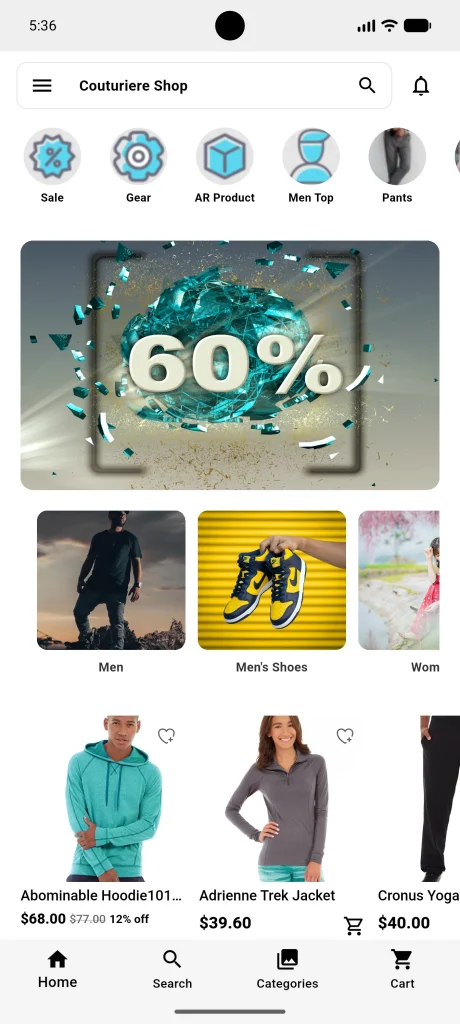
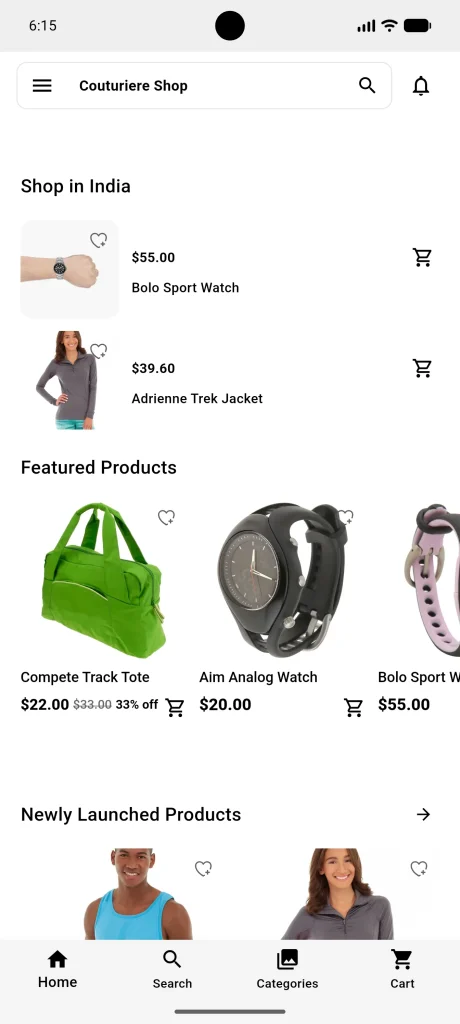
Homepage
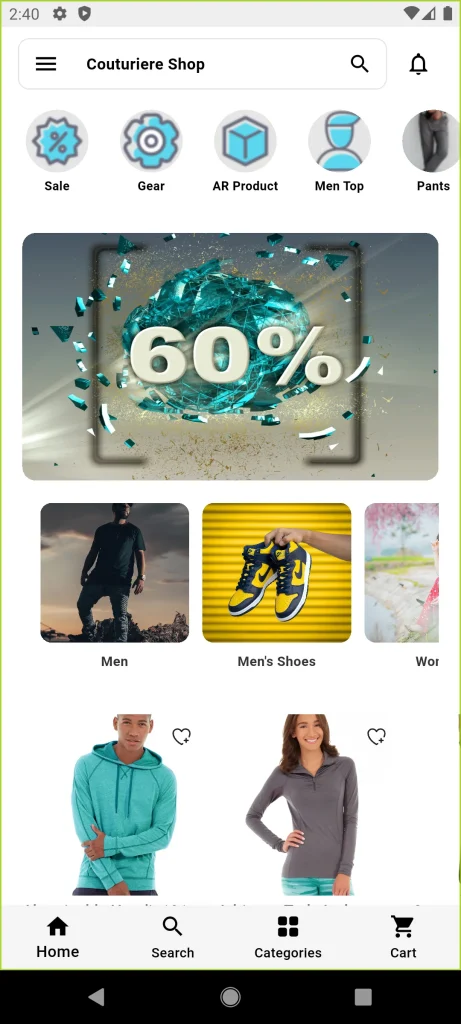
The homepage of the app is having multiple sections to divide it into usable sections. The
- Category carousel(Featured Category) – It is situated on the top of the homepage where the customer can find a product according to the categories.
Thus, on clicking on the particular category the user will go to the category collection page.
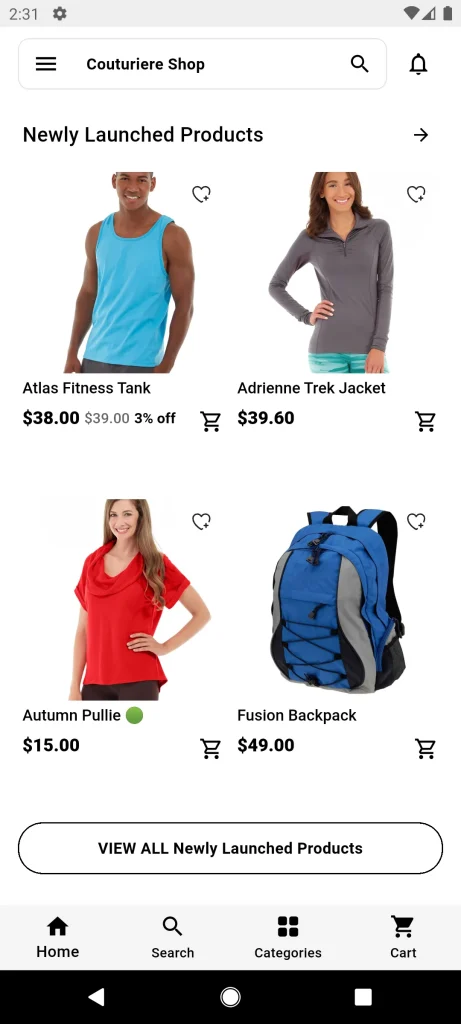
New Products- It beautifully displays all the new products added to the store which can be purchased by the customer.
- Other Carousel Sections- Appart from the above section multiple carousels can be added by the app owner for the user. Thus, the app owner can configure the backend for the same.
They can be of either Product type or Image Type. So, for better understanding, we have the following sections-
- Hot deals
- Trending now
- Best Offers
- Fashion accessories
- Daily Deals
- Offers For You(Banner)
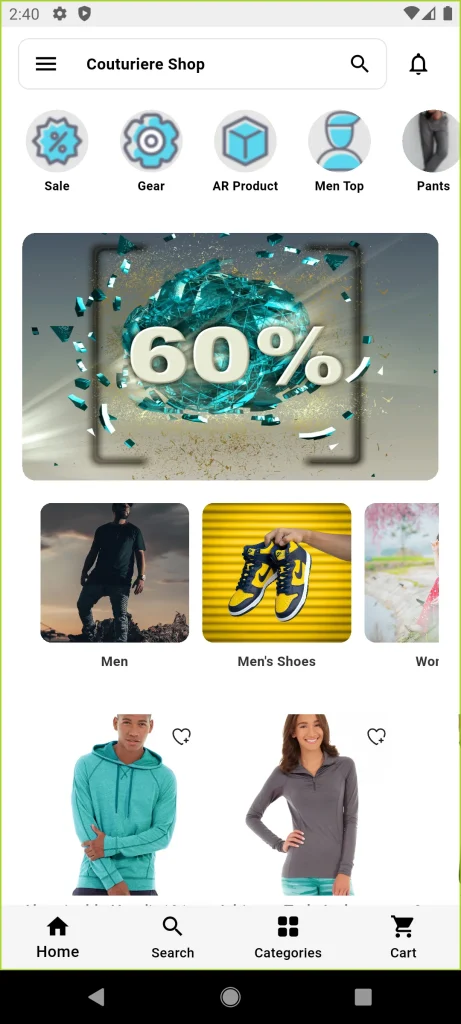
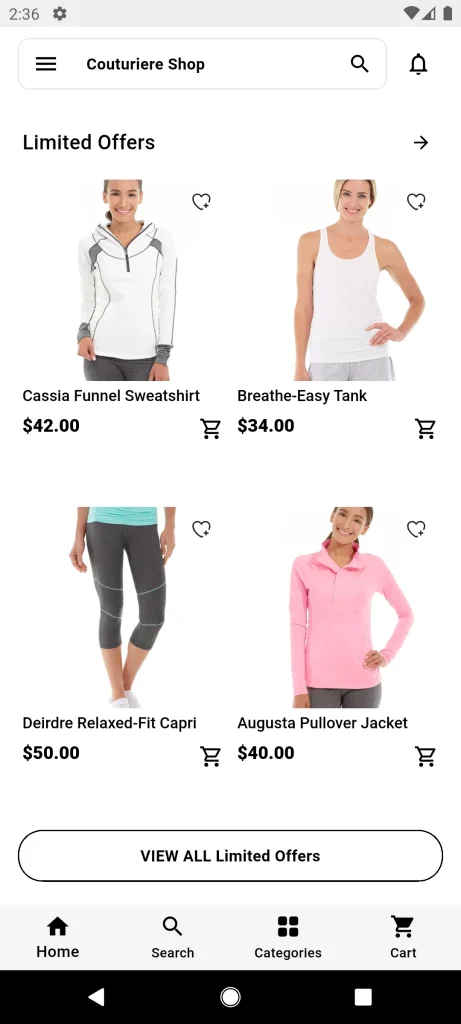
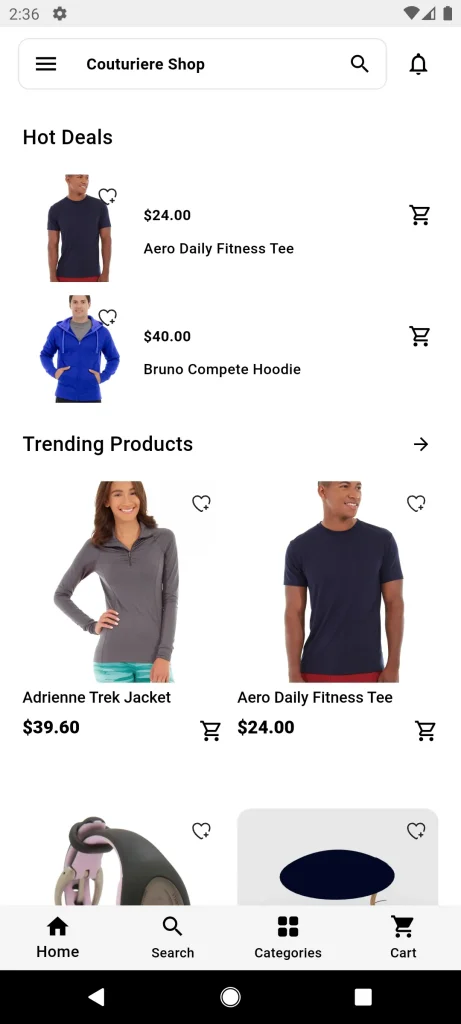
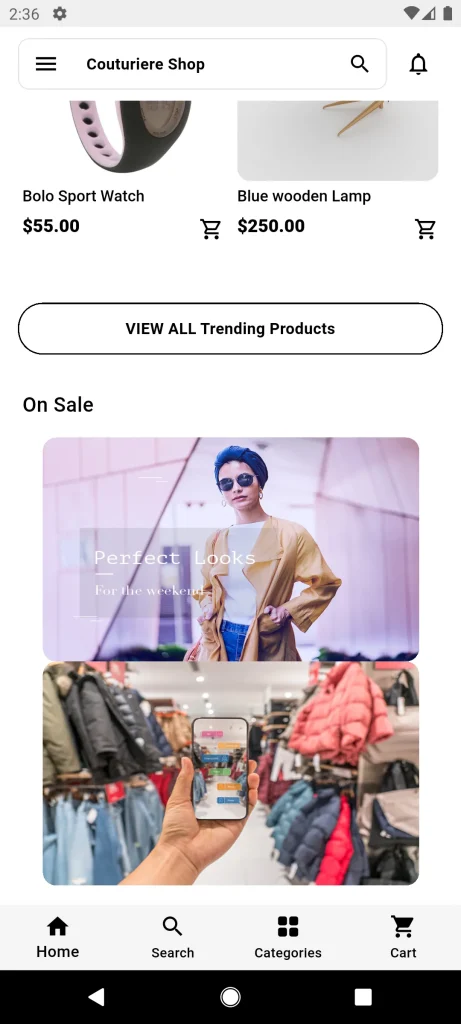
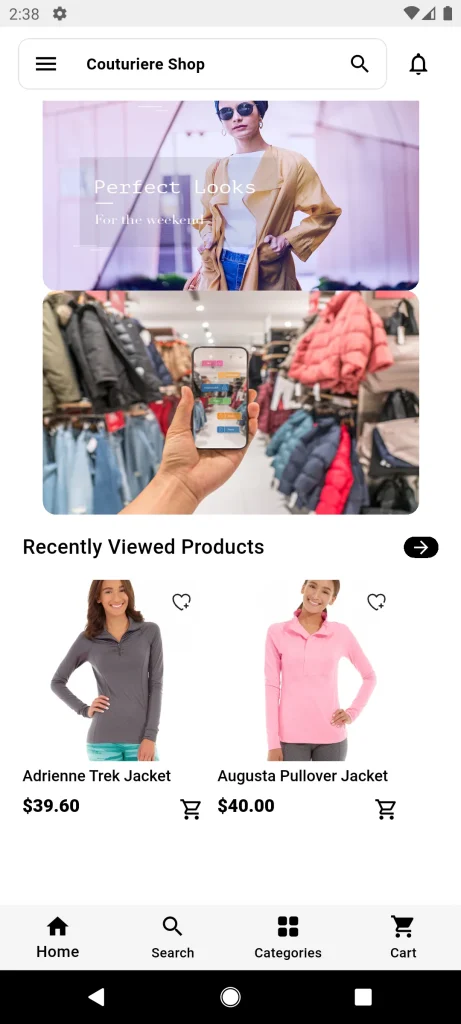
- Recently Viewed Products- The products which the user has viewed in near past will be displayed in this section.
Thus, allowing a higher rate of conversion by providing a repeated view of the product.
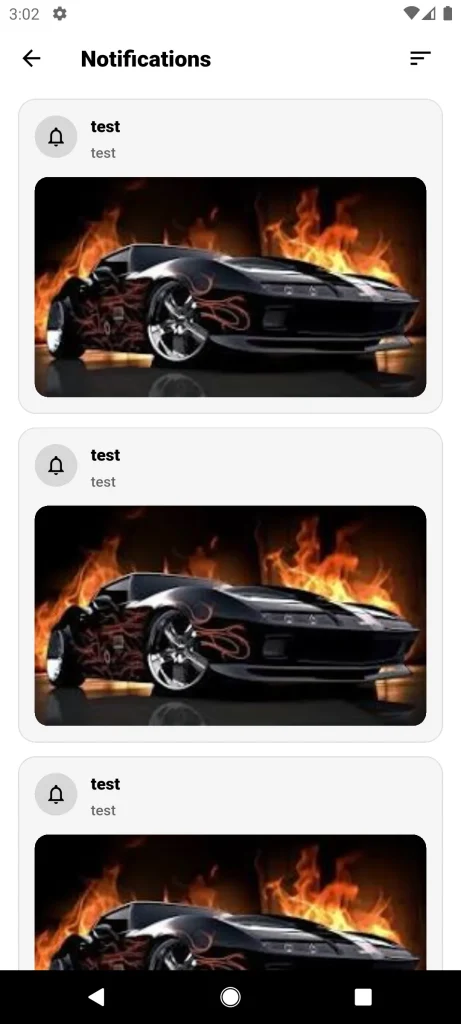
Notifications
The app user can receive Firebase push notifications for order updates, offers, schemes, and abandoned carts. These notifications are organized into two sections: Alerts and Offers.
Alerts display order-related updates with the order number, status, notification type, and time. Additionally, users can mark all notifications as read.
On the other hand, Offers highlight promotional content such as products and collections, along with relevant descriptions and images.
Finally, tapping a notification opens the associated order, product, category, or cart. Moreover, notification preferences can be managed from Settings.
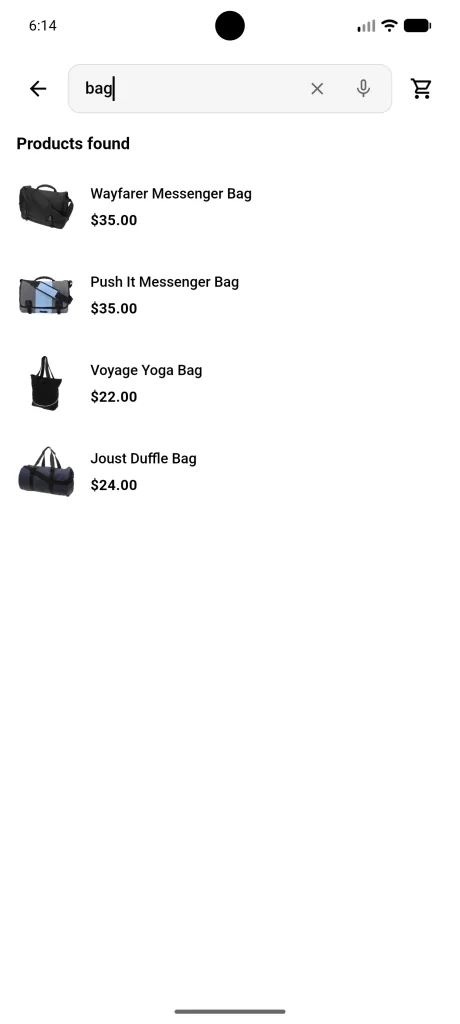
Search
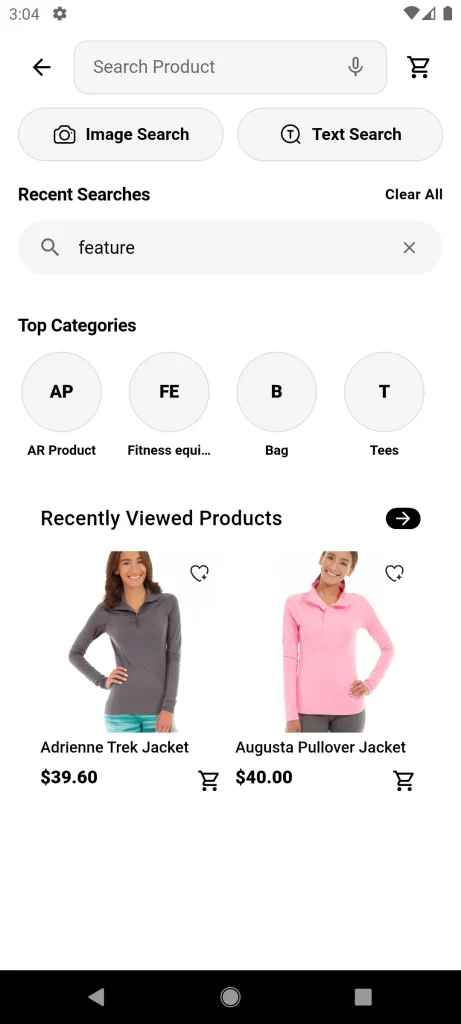
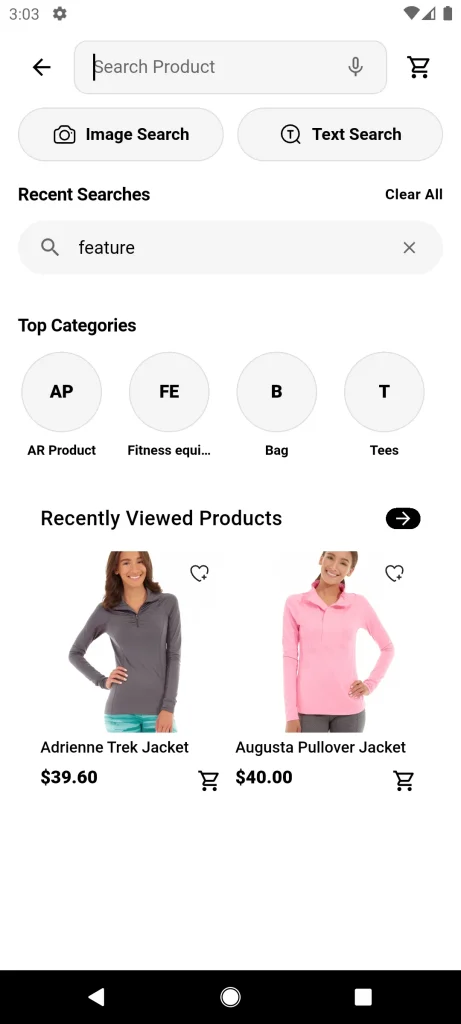
On clicking the search icon the app user can save themselves from scrolling effort. Further, this can be done in the following ways-
1-Search Via Term- The search feature operates in 3 ways- Like, Full Text, and Combine.
- ‘Like’ finds the similarity between the keywords matching with product titles,
- ‘Full Text’ exactly matches the keyword with the titles and
- ‘Combine’ is a mix of both.
Thus, allowing the customer to look for the desired product easily.
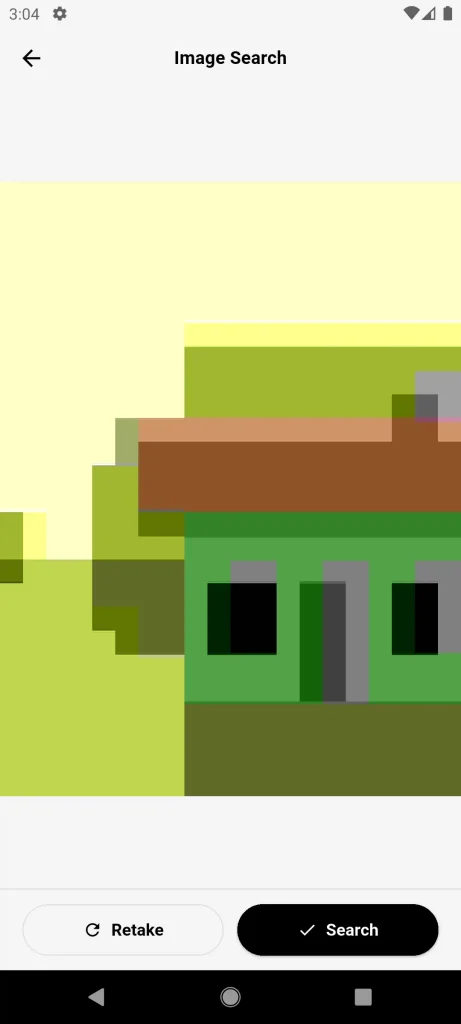
2- Search Via Image- Machine Learning-
This feature will allow the customer to look for the image via image scanning. The app uses Google Firebase’s ML kit- a ready to use API. The app will save the search time via two ways-
- Text Detection– Here the app user can search the product by allowing the scanning of the text in on an object. Currently, the text detection works for English language only.
- Product(Object) Detection– In this case, the app user can search the product via the real-time object. That is the app user can scan the product in reality which will open up the list of linked products.
Navigation Drawer
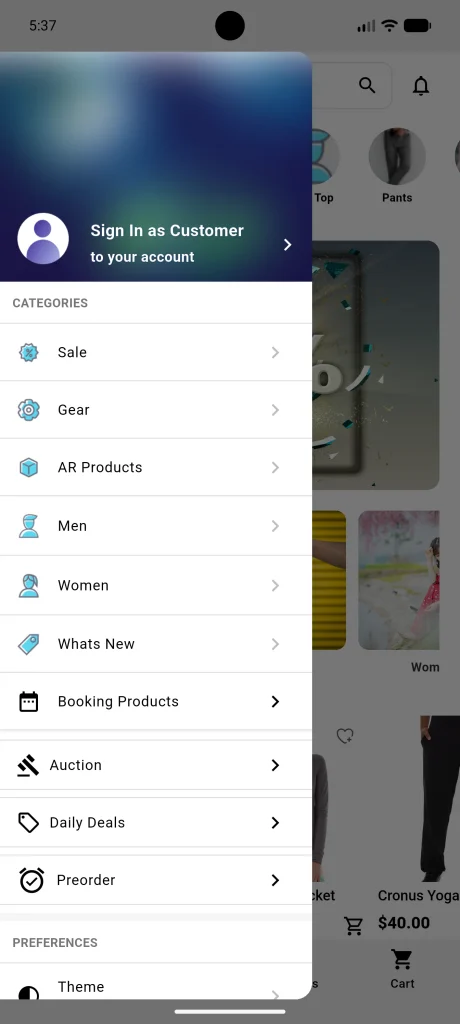
The navigation drawer has multiple options for the app user to use.
- Sign in/ Signup option
- Categories
- Language
- Currency
- Settings
- Privacy Policy
- About Us
- Customer Service
- Compare Products
- Orders and Returns
- Contact us
- App Version.
Sign In/ Sign Up
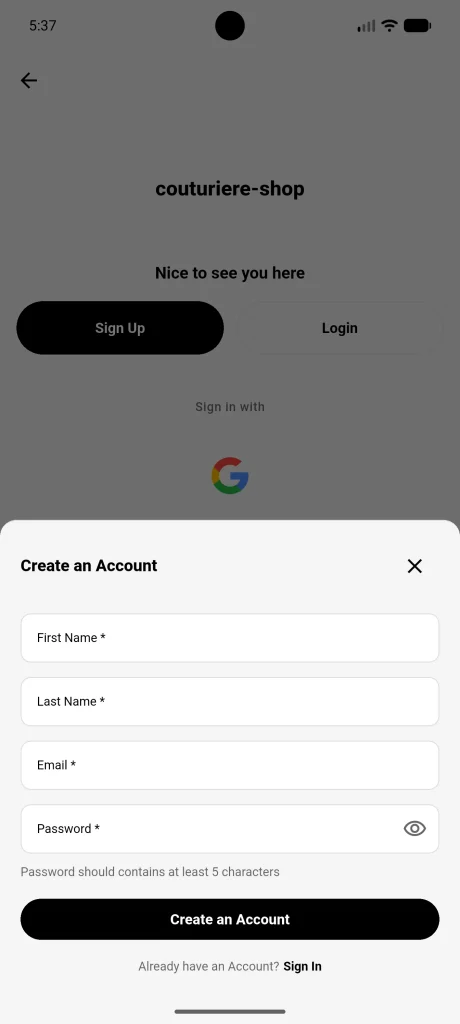
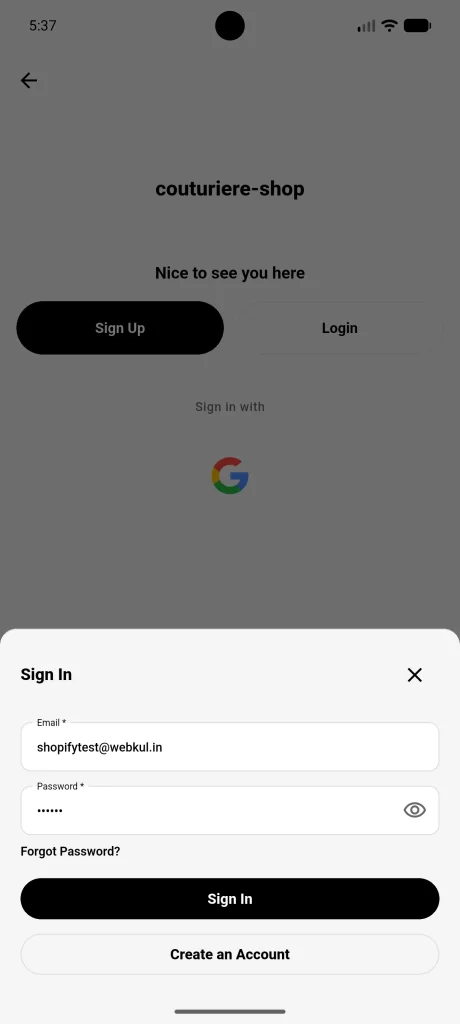
The customer can sign in and sign up for his accounts through the app. So, the Sign In/ Registration page can give the customer the options as-
- Sign in with the Email address
- Create An Account
- Options For Social Login(*paid)
Customers can easily sign in using their registered email ID and password.
New users can sign up directly in the app with their email and chosen password to create an account.
For quick account recovery, the Forgot Password option allows users to securely reset their password and regain access effortlessly.
Sign-in Via Social Login
The login can take place with the help of social media, to allow the customer to quickly login the app. Hence, this will save the customer from remembering any sort of extra login details.
Caution- However, this is a Paid Feature. So, if you want this feature in the Mobikul Mobile Application then it will be done through customization.
To know more details refer here- Sign-in via Social Accounts.
Thus, once Logged in the customer will be able to view an additional section that is- ‘Account‘. This section will be having the personal detail of customer which we discuss later.
Categories
The feature permits to display all the products of the store, with their assigned and associated Sub-categories and Parent category in the mobile application too.
Categories View-
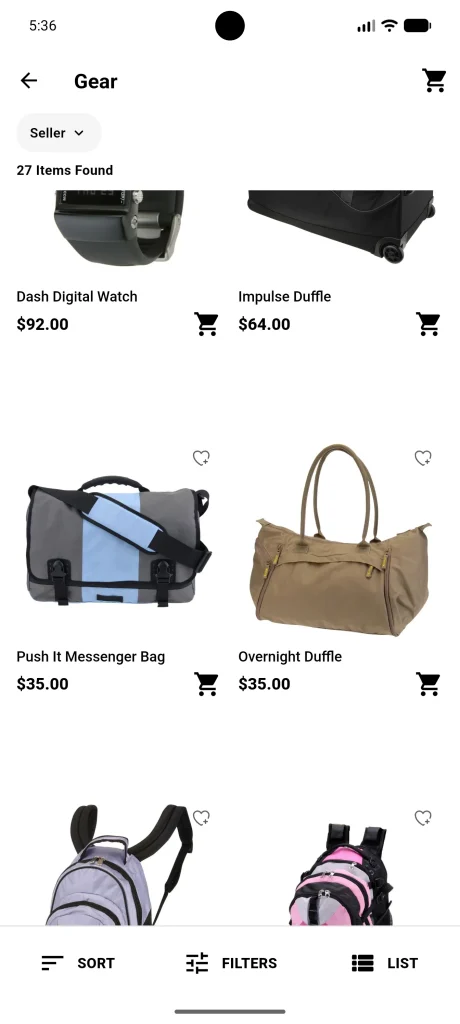
On clicking on a particular category the app user will be taken to a section where the list of sub-categories and product collection(only 3 products will be displayed) will be visible.
Thus, on clicking, particular sub-category the user will be directed to the collection page.
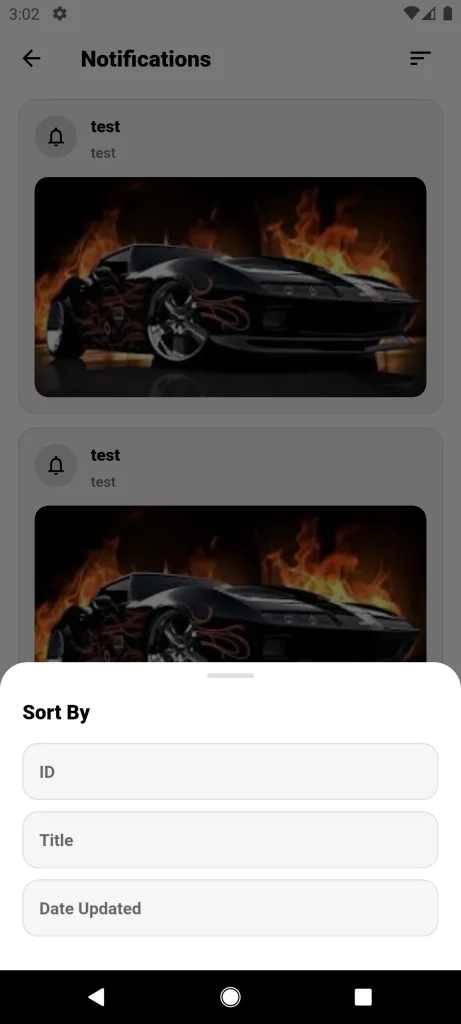
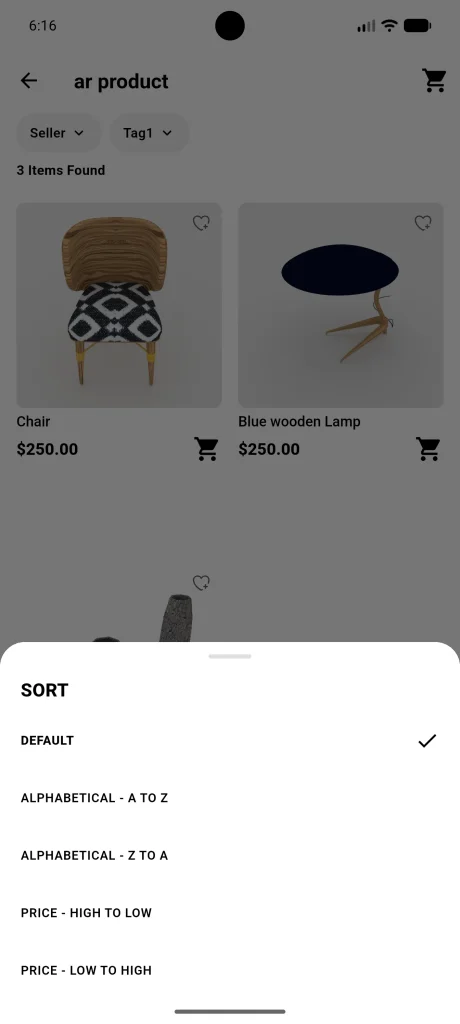
Sort- The app user can sort the order of the product appearing in the collection page to easily view the desired options.
So, the app user can click on Sort which opens a list of options to re-order the products.
Filter- This option is meant to attract customer by optimizing the search process wherein the app user could filter out non-desirable products.
Thus, the customer can click on the filter button and select the attributes of desirable products.
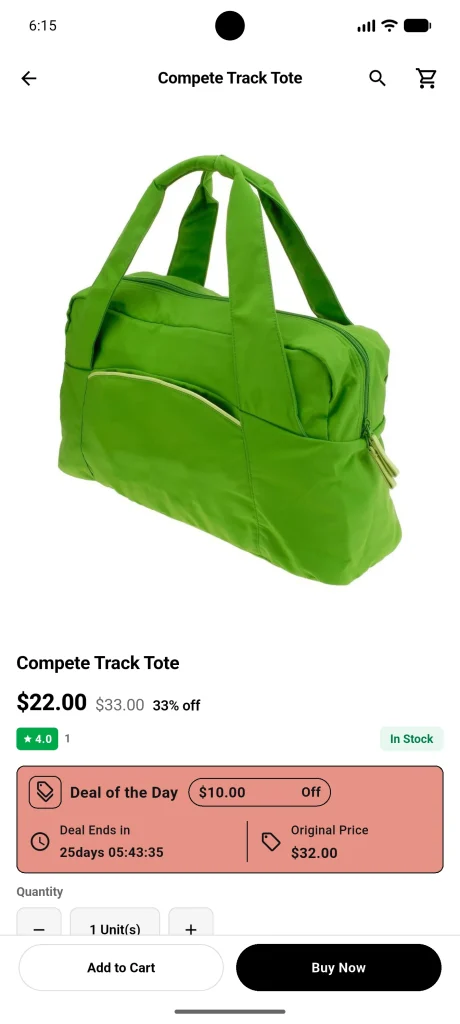
Product View-
The Page will display the details related to the products which the app user can scan through. Thus, the page has the following details-
Add your Review– Post purchase the app user can review the product by entering the rating, summary of the review and complete review-comment of the product.
Add to Wishlist- The app user can click on ‘Wishlist button‘ to add the product to the wishlist.
Compare- The app user can click on the Compare button to add the product to the comparison list.
Share Product option- The app user can even share the product on social media by clicking on the share button.
Edit quantity- The app user can append the quantity to purchase of the product from here.
Add to Cart- The app user can click on the Add To Cart button to add the product to the cart for checkout.
Buy Now- The customer can click on Buy Now Button in order to directly move to the checkout.
Choose Options- If the product has multiple options associated with it app user can select them and add the product to the cart.
Description/details of the product- The product complete details are also mention in this page for the app user to refer before purchase.
Reviews attached to products along with the ratings.
List/Grid View-
The customer can set the view of the product according to needs. They can see the product as a grid view or list view.
Account
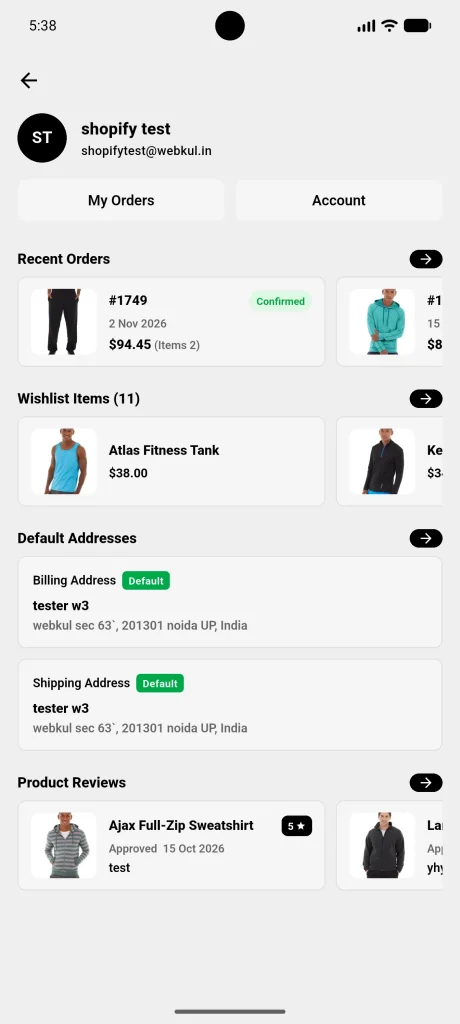
The account section will save the customer’s personal data, in multiple sub-sections. This section as mentioned above will only be displayed to logged in user.
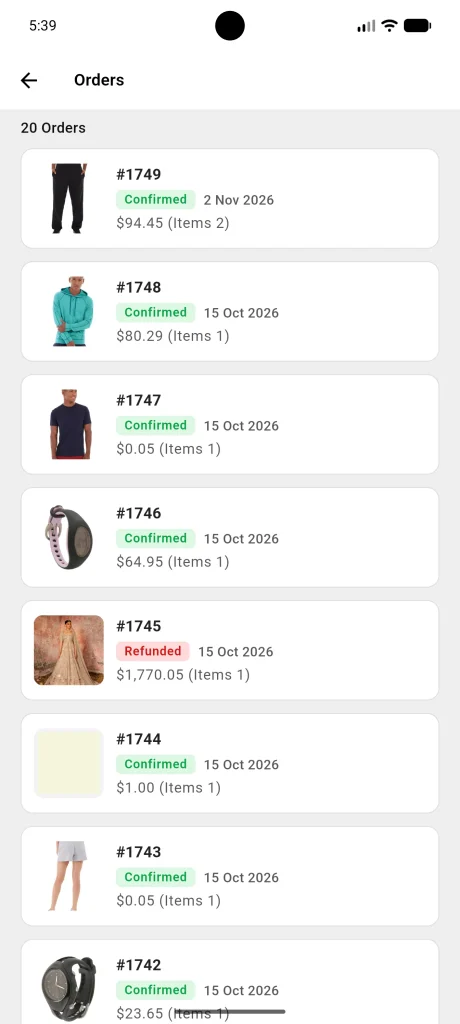
The dashboard will show the recent activities of the customer in 3 sections viz. My Address, My Order, and My Review.
Recent Orders- This section encompasses the information about the customer’s recent orders with details like, Order ID,
Total Amount, Status of The Order, and a ‘Details’ button through which other details of orders display.
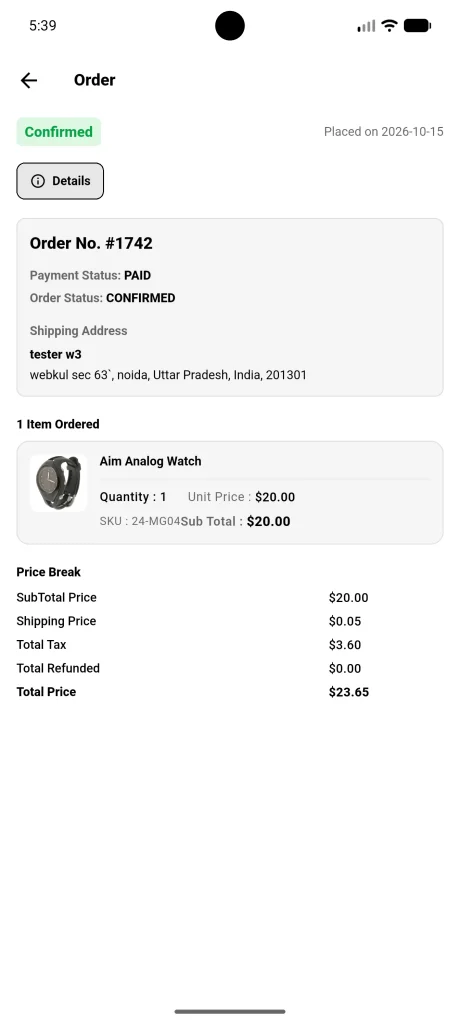
Thus, the app user can click on any corresponding order and get the details of the of complete order.
- Review- In this section, the Review which is submit by the customer on various products are visible here.
Thus, the app user can click on View All Product Reviews to view the list of complete reviews given by the customer.
Wishlist
It will contain the products added by customers which they want to purchase in the near future. This section will display a few of the product details in the form of a thumbnail.
Thus, allowing the customer to view the details and add the product to cart. The customer can even append the quantity of product from here or remove the product from wishlist.
Order
The app gives its user an easy way to view the orders from this section also. Thus, allowing a quick way to access orders.
The customer for this section examine the details of the order and perform the action on the orders like-
- Know details of the order
- Reorder the products in the order
- Review the products in the order.
My Downloadable Products
t will display the details of all the downloadable products of the customer with
- Order ID,
- Date,
- Title,
- Status and
- Remaining Downloads,
- along with a button to download the product.
Product Review
It will list up all the reviews made by the customer on different products of the store with the reviews and ratings for the product.
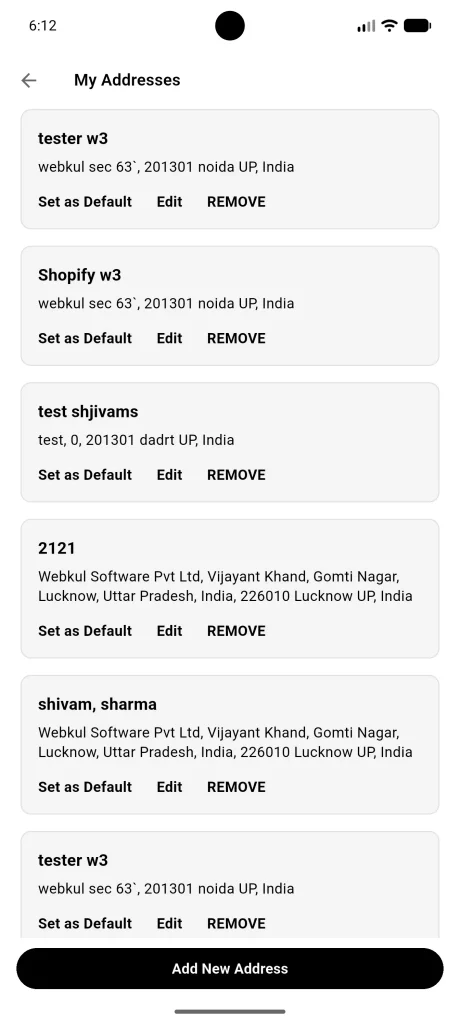
Address Book
It is just like a directory wherein we save all the addresses. Here, we will save the-
- Default addresses of Billing and Shipping.
- List of other addresses.
Thus, from this section, the customer can ‘Add New Address’, edit the present address or delete the addresses.
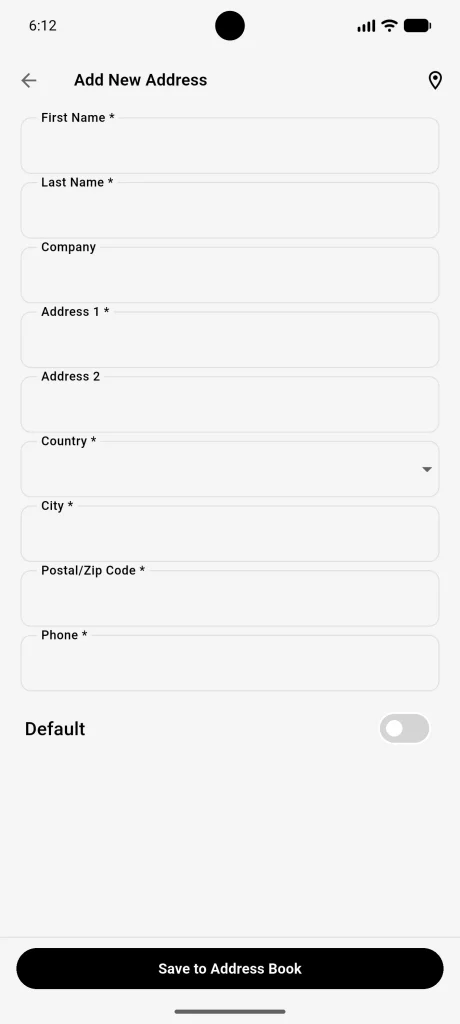
The customer can click on the button of ‘Add New Address’ to open a form asking the details of the address.
Here, the customer has got the location detection facility also wherein the customer can fill the details with the help of GRPS.
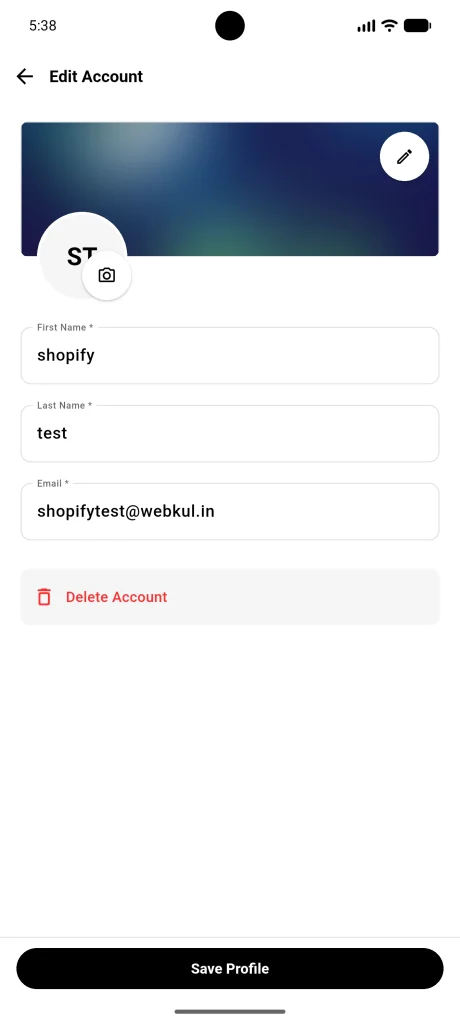
Account Information
This section is meant for the app user to save personal information relate to the account. For, this section the app user can update-
- Their first and last name,
- Registered mail address for the login purpose, and
- Password linked with the registered account.
Preferences
This section contains the details related to the app-
Language
It provides an option for Multiple Store views, that is the feature allows the user to customize the Store View in various languages right from English to Arabic, French, German and many other.
Note- The app also supports the RTL layout for the customer following languages like Arabic, Hebrew, Persian/Farsi, and many other languages of the same font style.
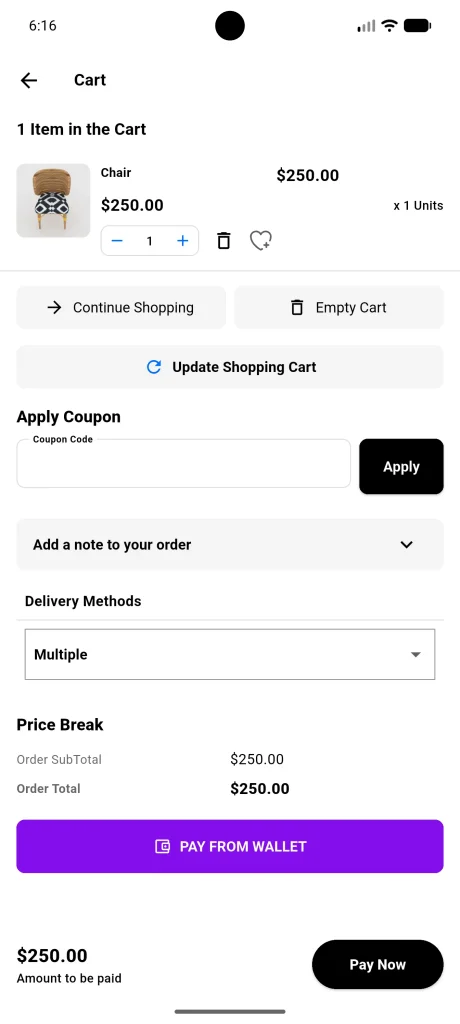
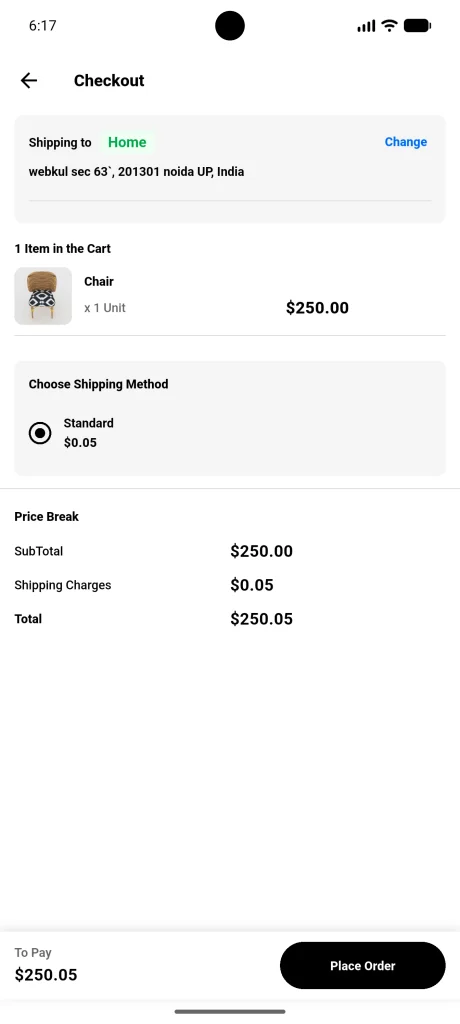
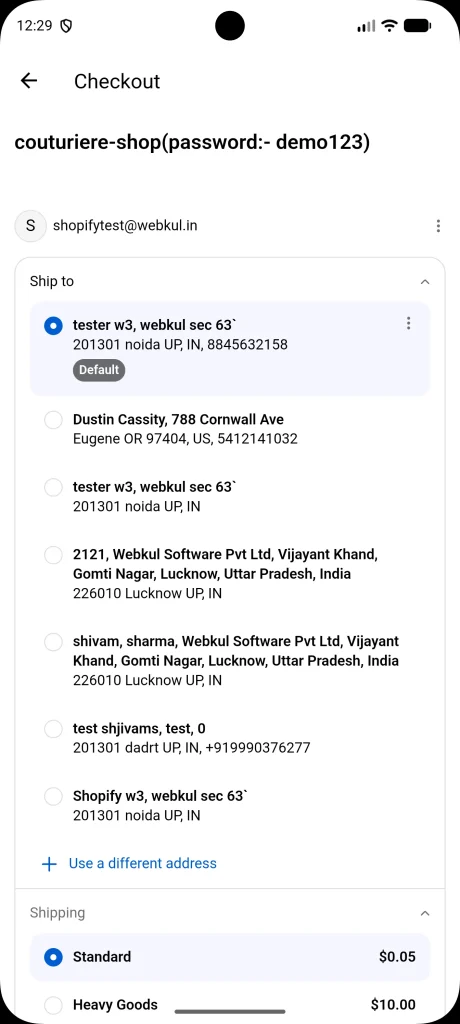
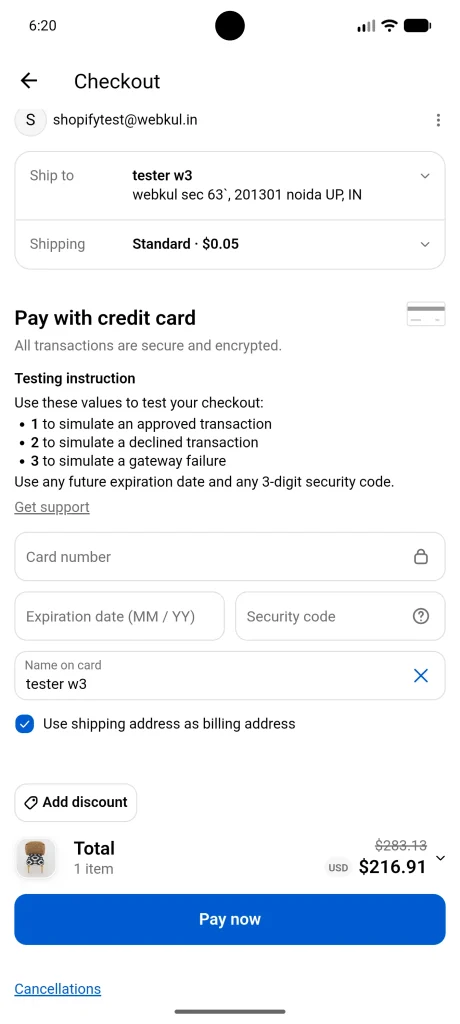
Shopify Mobile App Frontend Images
Get in touch
Drop your query/suggestion at [email protected] or create your ticket at Webkul UV Desk. As a leading Shopify Development Company, we understand complex and strategic business goals.

Be the first to comment.