Odoo Marketplace Vouchers User Guide
Note: The User Guide describes the workflow of Odoo Marketplace Vouchers.
To learn about the base modules: Odoo Multi-Vendor Marketplace, Odoo Marketplace Seller-wise Checkout, and Odoo Website Coupons & Vouchers please refer to their respective User Guides.
Introduction
Odoo Marketplace Vouchers enhances Odoo with a flexible voucher system for marketplace admins and sellers.
Admins and sellers can create vouchers, define their validity and usage limits, and restrict them to selected or all products.
Customers can view their available vouchers, apply voucher codes during checkout, and receive the applicable discount on their orders. The module also maintains voucher usage records for tracking.
Prerequisites for using Odoo Marketplace Vouchers
Odoo Marketplace Vouchers works in conjunction with the following modules:
You must install the required modules to use Odoo Marketplace Vouchers. The existing guide also references these base modules for the marketplace voucher workflow.
Features
- Admins and sellers can create vouchers for customers.
- Set voucher usage limits from the Odoo backend.
- Define voucher validity periods.
- Apply available vouchers during the checkout process.
- Restrict vouchers to selected or all products.
- Create voucher templates for faster voucher creation.
- Track created voucher and usage history.
- View detailed voucher activity and usage records..
Manage multi-vendor module with the Odoo Marketplace SMS Notification from getting notifications to viewing marketplace insights.
Installation
- Once you purchase the App from Webkul Store, you will receive a link to download the module’s zip file.
- Extract the file on your system after the download finishes. You will find a folder named marketplace_voucher.
- Copy and paste the folder inside your Odoo Add-Ons path.
- Open the Odoo App and go to Settings. Then, activate Developer Mode.
- Open the Apps menu and click Update Apps List.
- Remove all filters from the search bar and search for marketplace_voucher.
- The module will appear in the search results. Click Activate to install Odoo Marketplace Vouchers.
Workflow
Admin
Create a Voucher
1. After installing Odoo Marketplace Vouchers, go to Vouchers & Coupons > Vouchers from the Odoo backend.

2. Click New to create a new voucher.

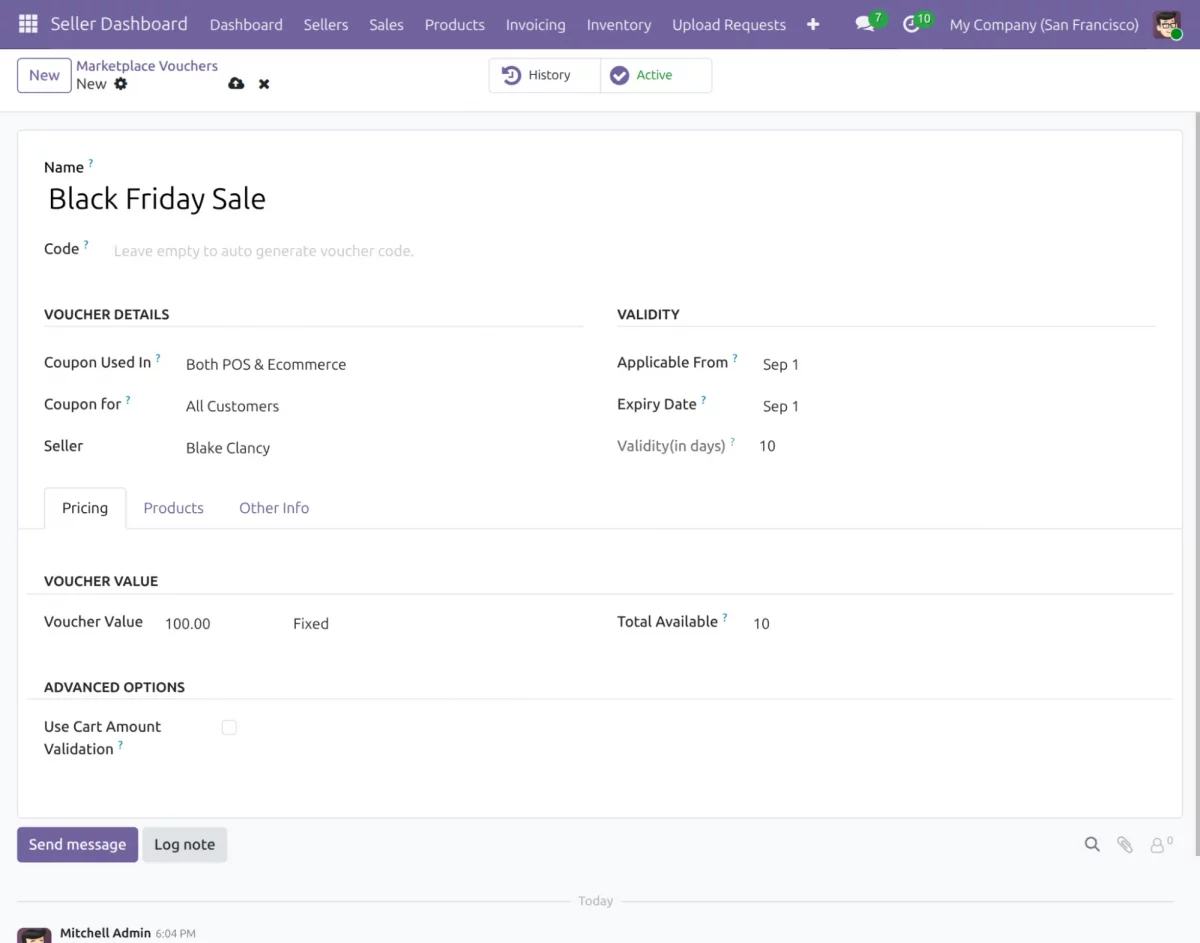
3. Enter the voucher name and configure its usage, eligibility, seller, validity, pricing, and availability. Set the applicable products and cart validation options as required.
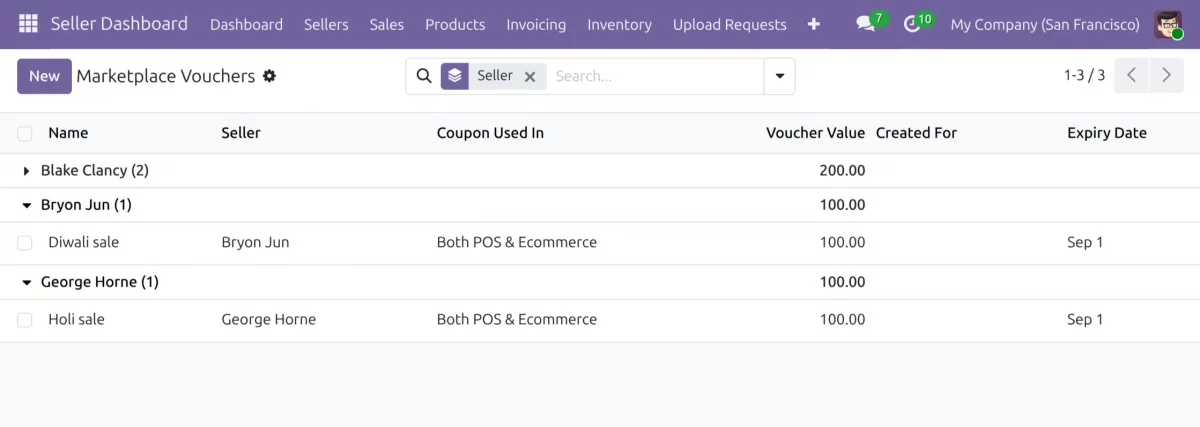
4. After saving, the created vouchers are displayed in the Vouchers section. Expired vouchers can be identified from the voucher listing.

View Voucher History
5. To view voucher usage records, go to Vouchers & Coupons > Voucher History.

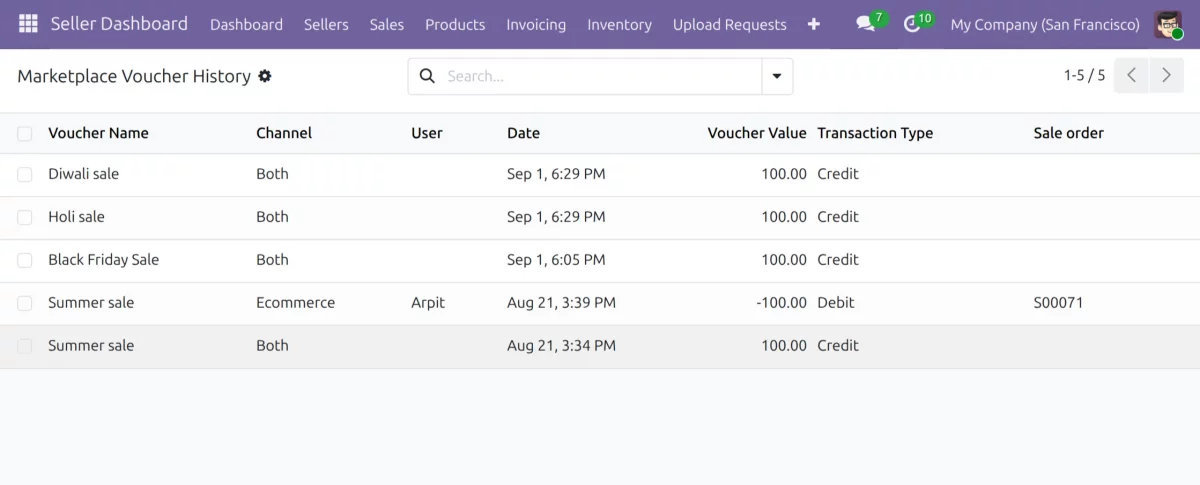
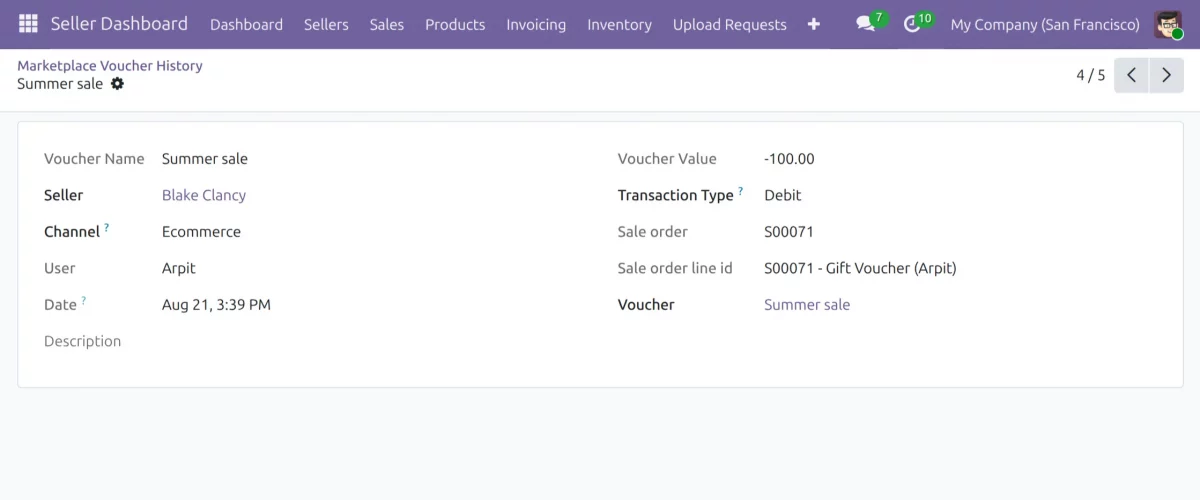
6. You can view the voucher activity and related usage details from the voucher history.

Seller view
Create Seller Vouchers
- Log in using seller credentials to access the Seller Dashboard.
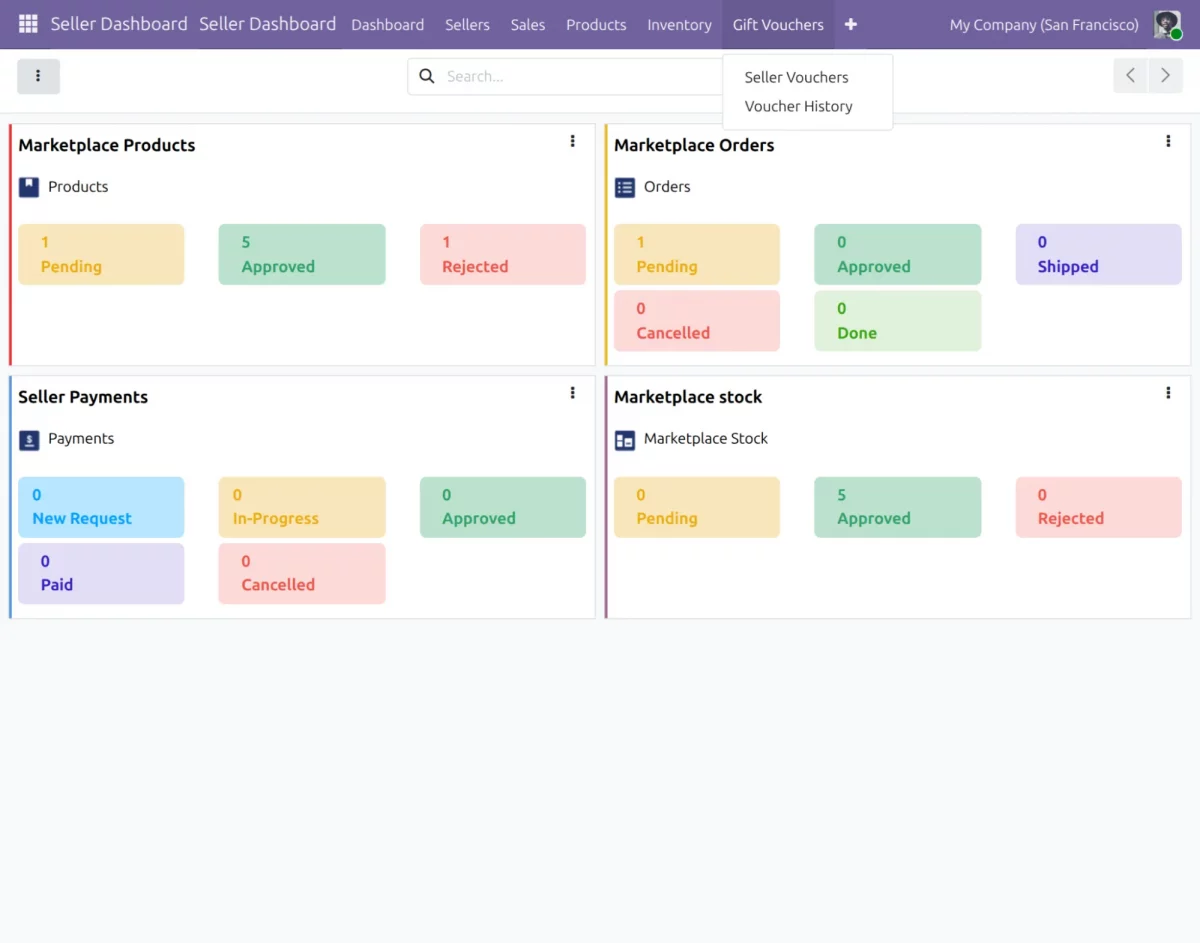
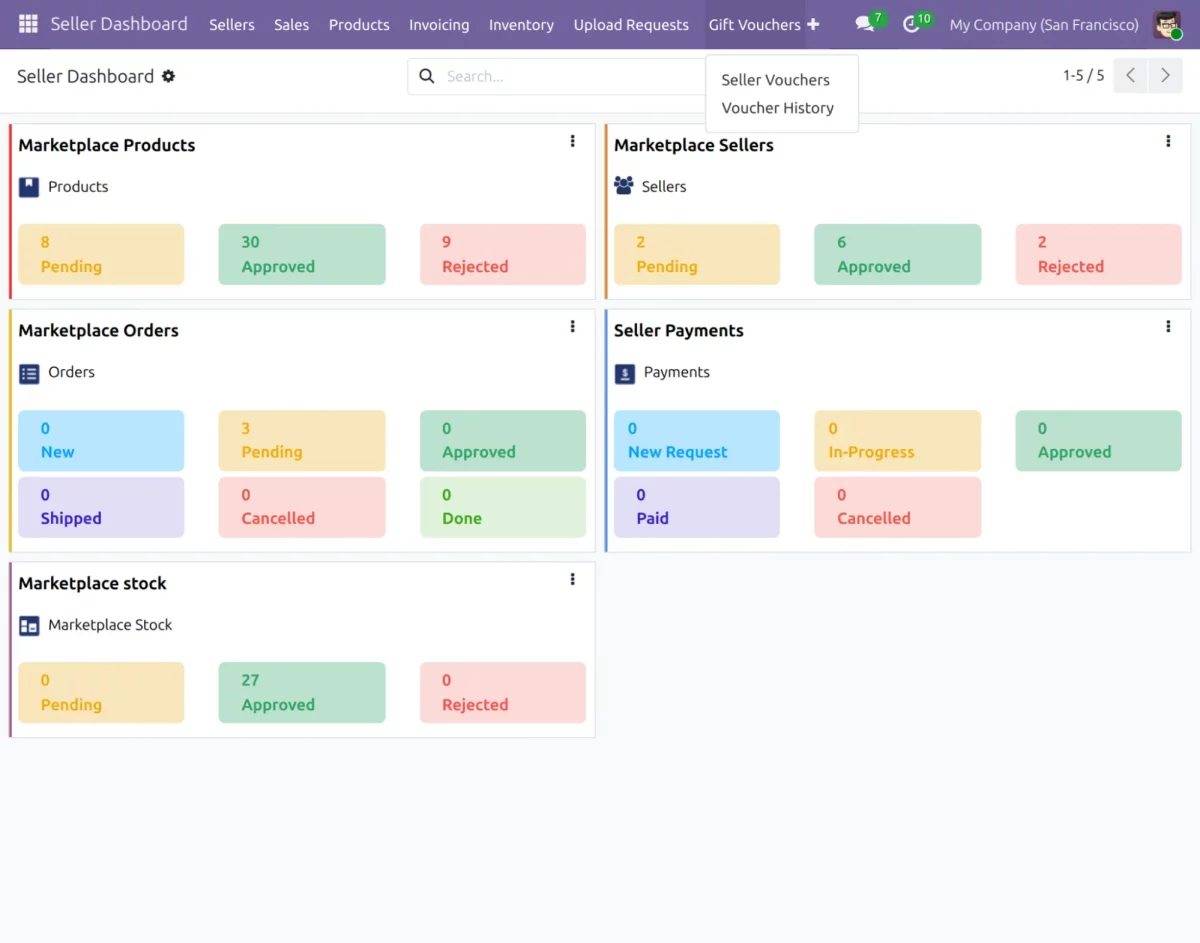
- From the Odoo navbar, open Gift Vouchers and select Sellers Vouchers.
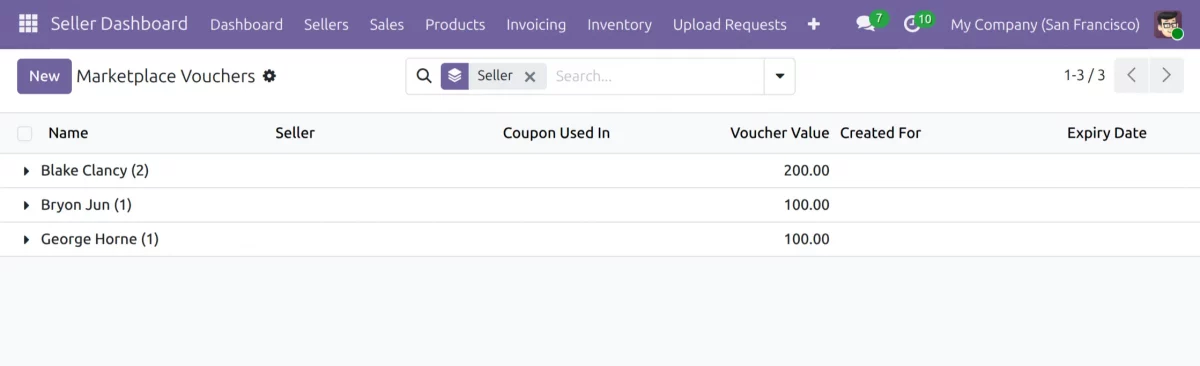
- Click New to create a voucher and configure the required voucher details.
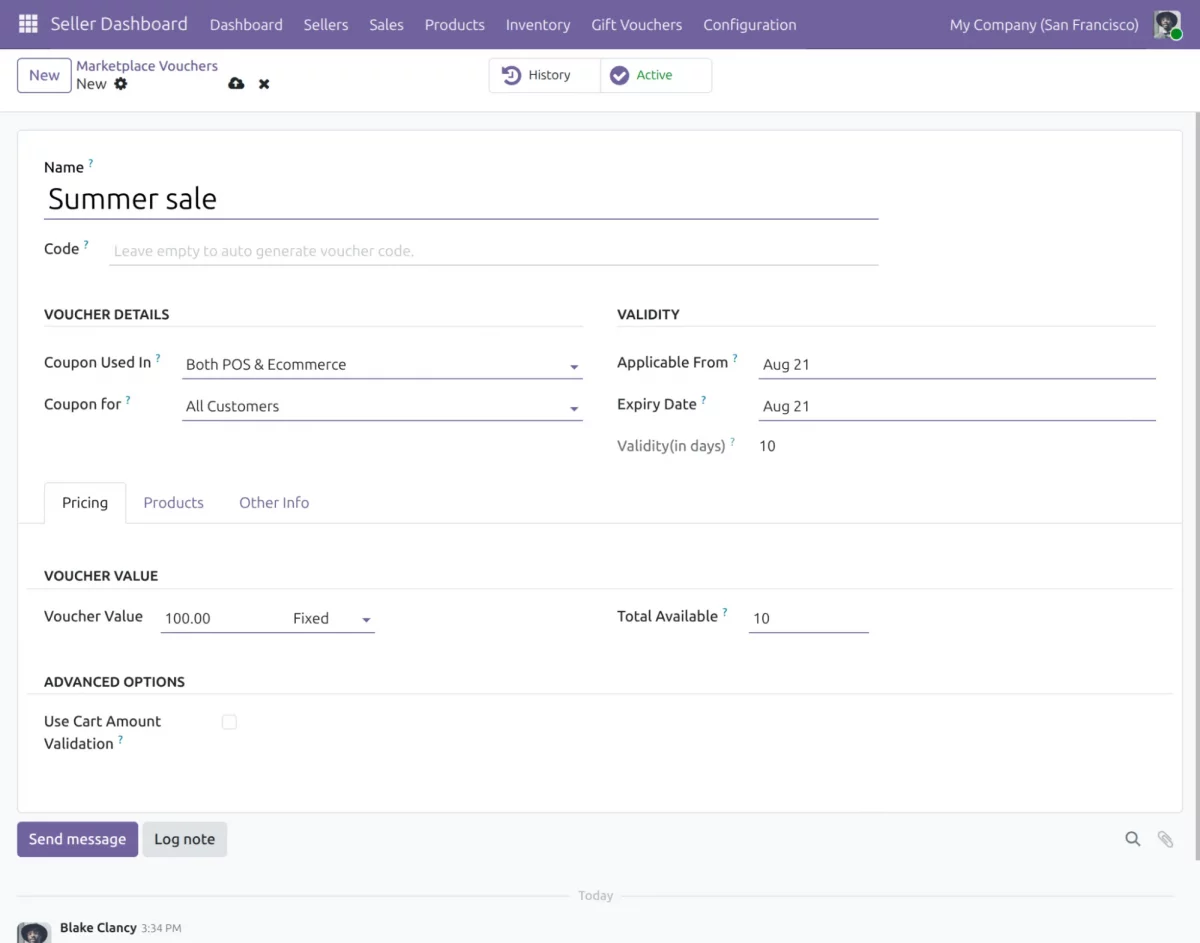
4. Click Save to create the seller voucher.
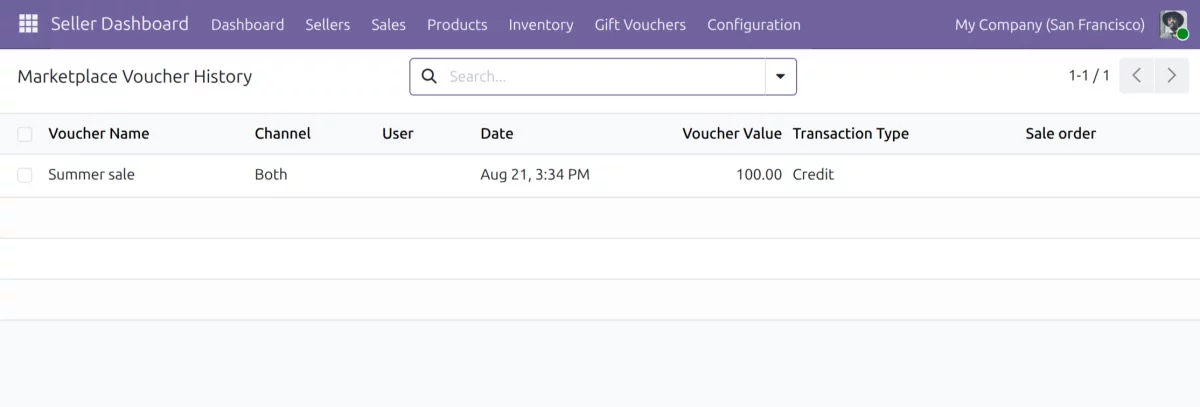
View Voucher History
- To view the voucher activities and records, go to Gift Vouchers > Voucher History. Sellers can view the history of the vouchers they have generated.

Website View
View Available Vouchers
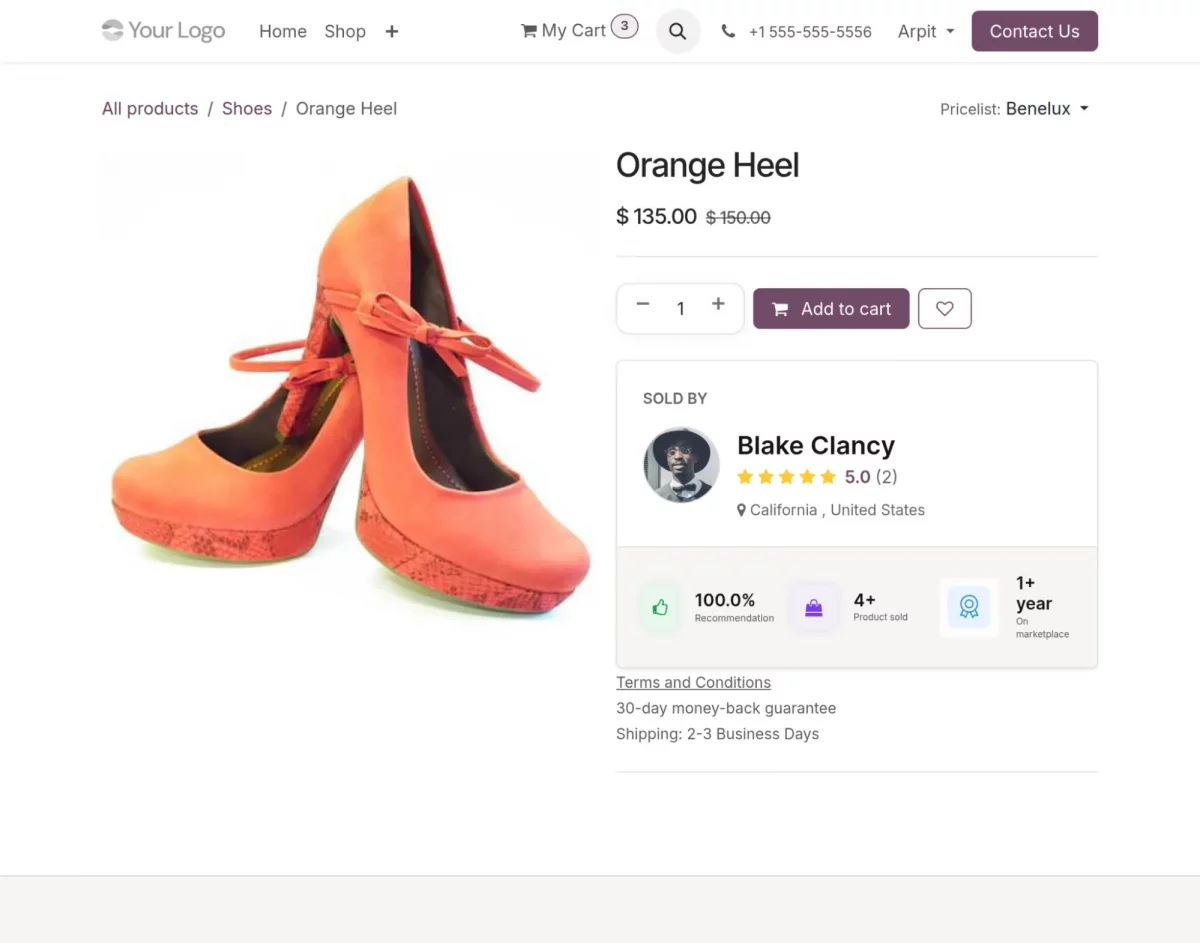
- Customers can visit the Odoo website and open the product page for the product they want to purchase.
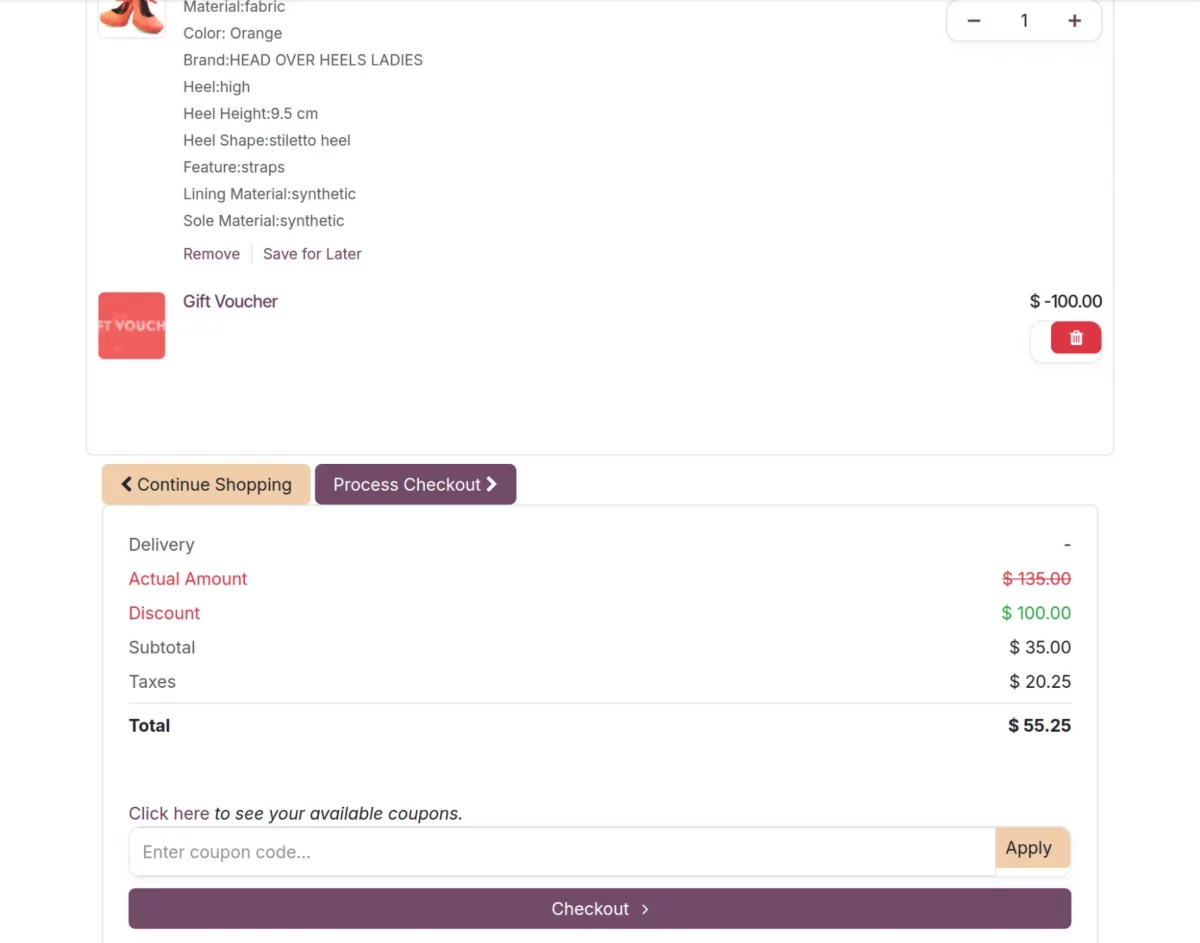
2. Add the product to the cart and proceed to the cart page to access the voucher options.
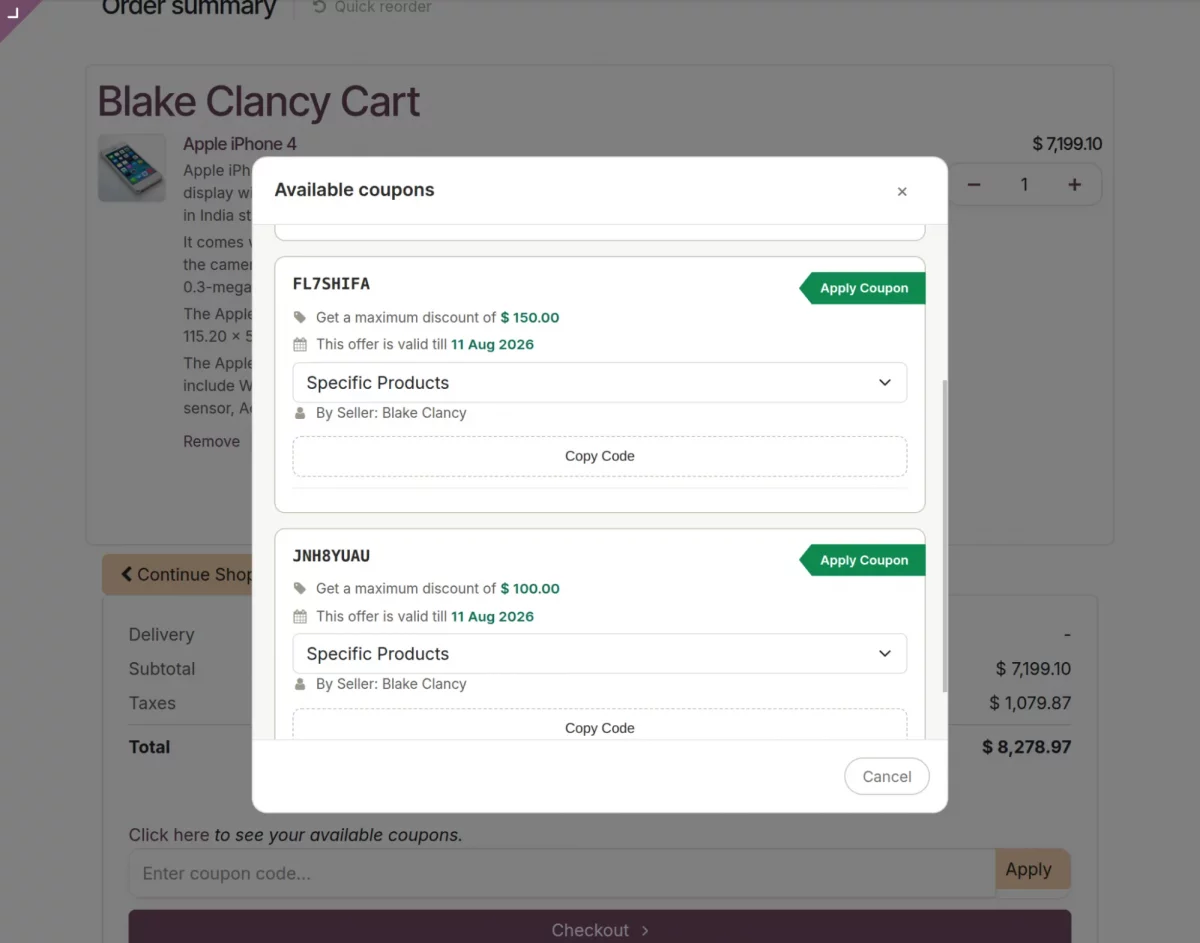
3.Click “Click here to see your available vouchers” to view the vouchers available for the customer.
Apply a Voucher
4.Copy the required voucher code and enter it in the Enter the coupon code field. Then, click Apply.
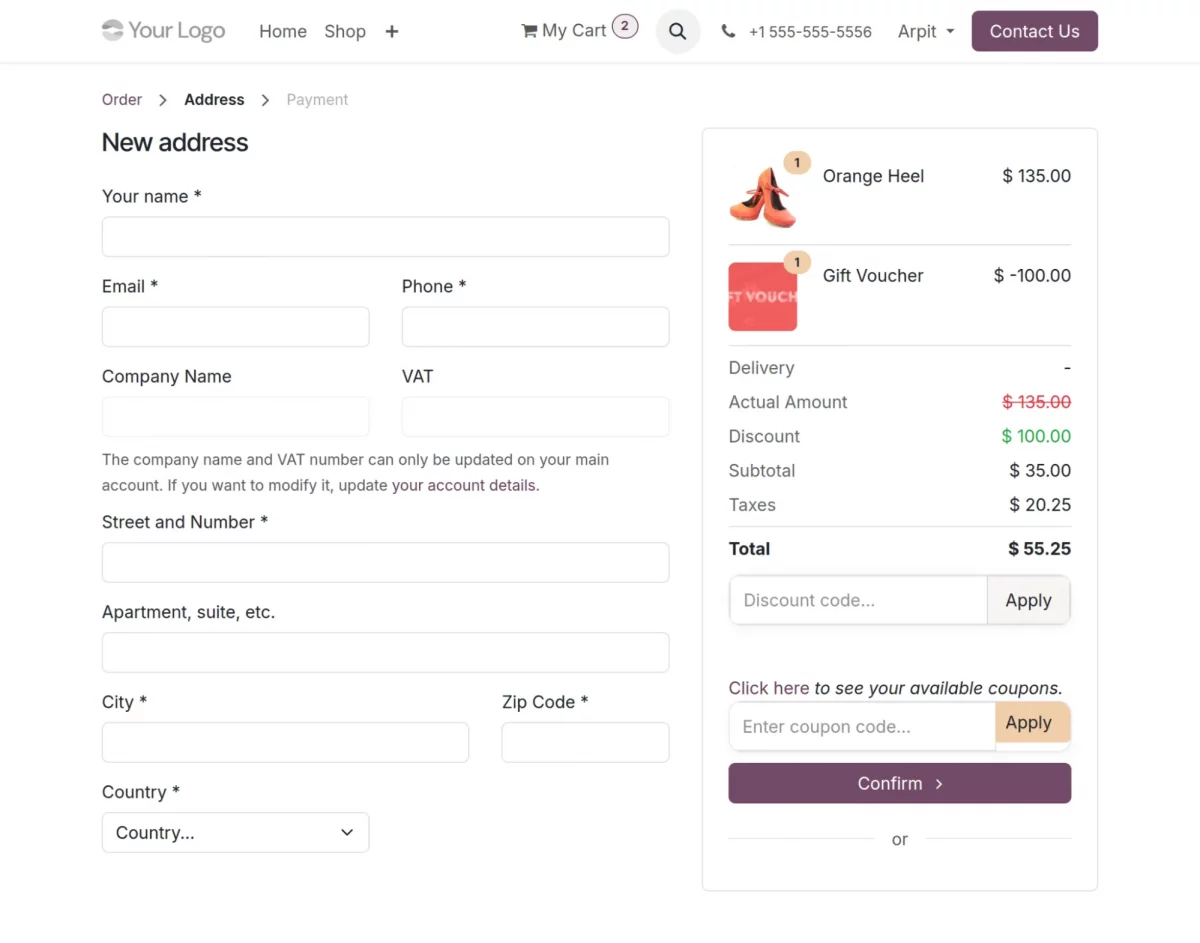
5. The applicable discount will be reflected in the cart. Click Checkout to proceed with the purchase.
Complete the Order
- On the checkout page, review the applied discount and total payable amount. Select the preferred payment method and click Pay Now.
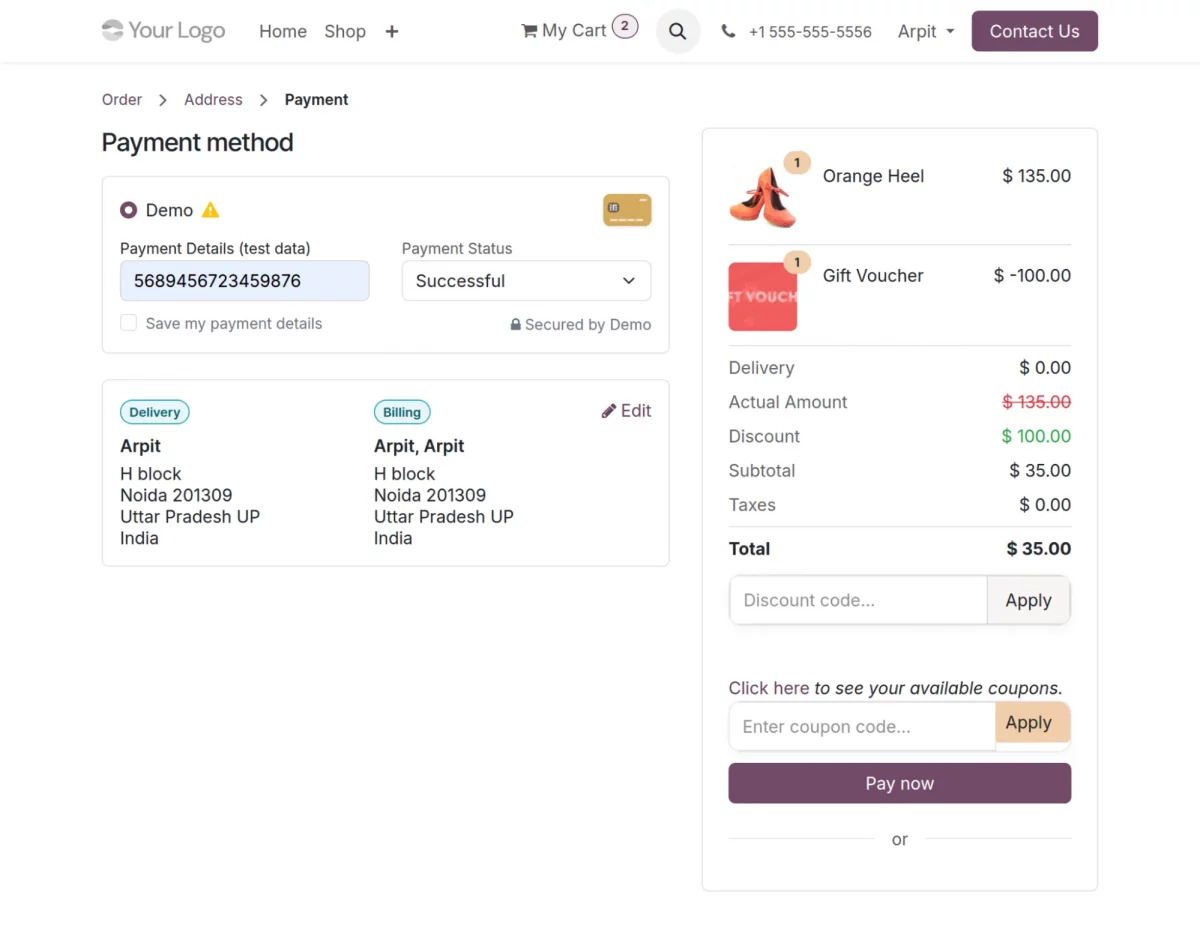
7. After successful payment, the payment confirmation page will be displayed.
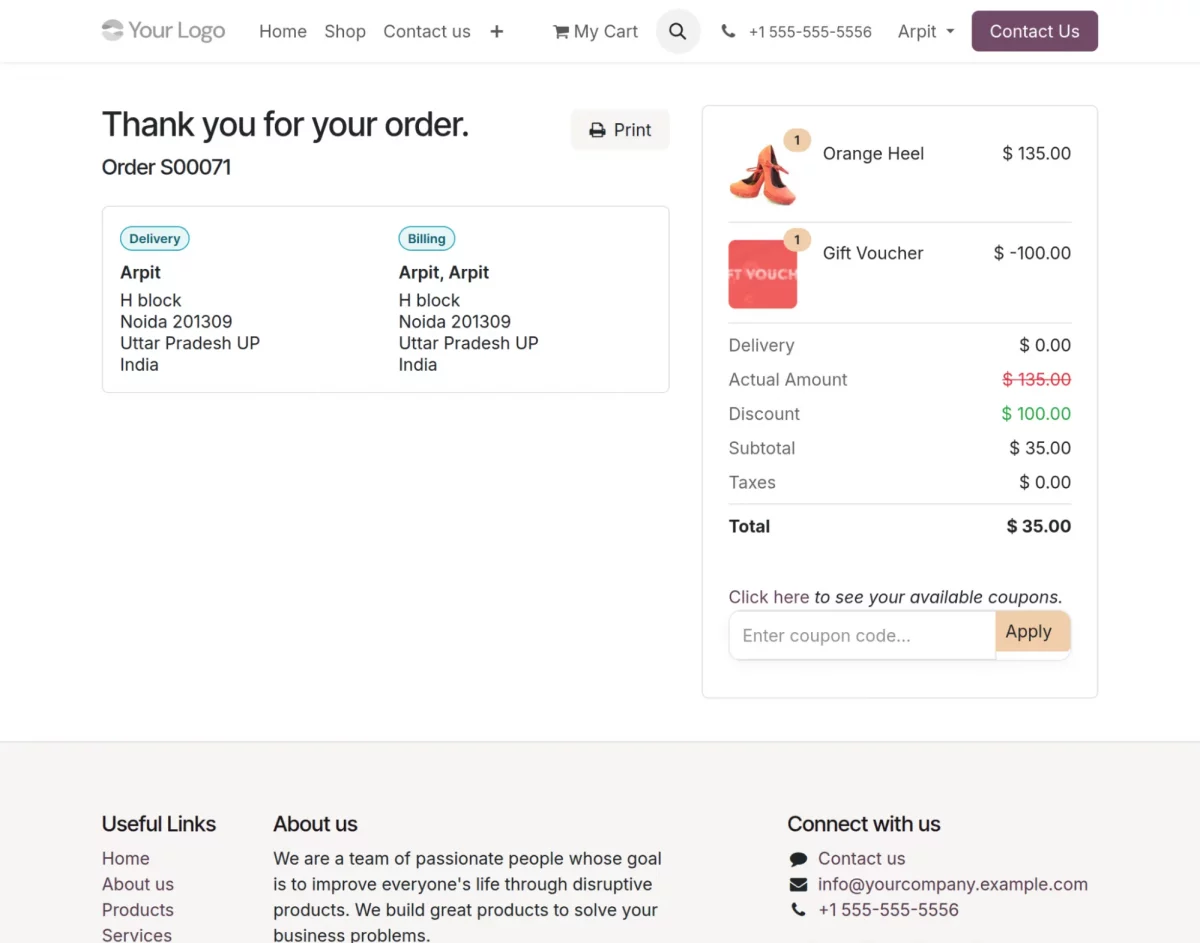
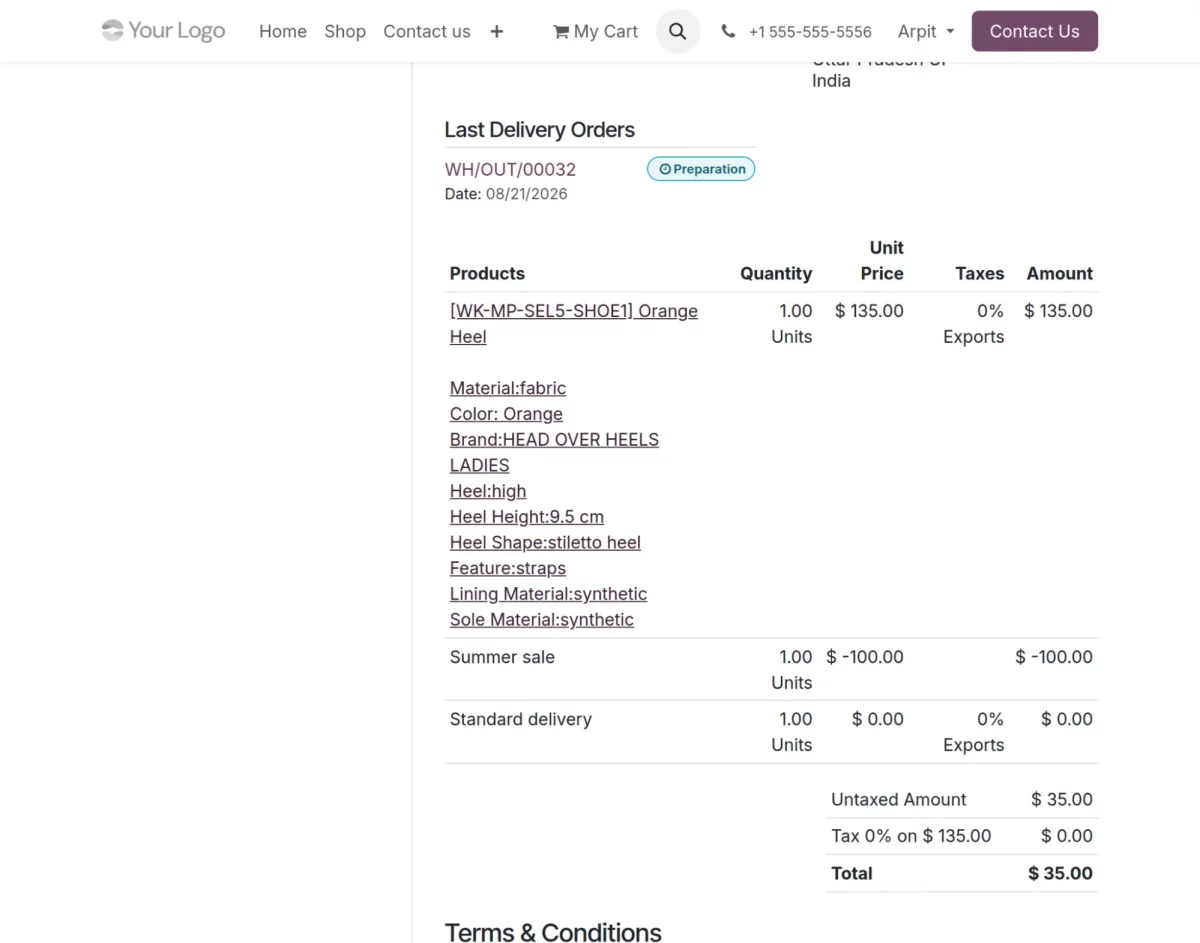
8. Customers can also view the applied discount in the order details under My Account > Orders.
NEED HELP?
Hope you find the guide helpful! Please feel free to share your feedback in the comments below.
If you still have any issues/queries regarding the same, please raise a ticket at the UV Desk.
I hope this helps. In case of any further queries, contact us at our support mail.
Thanks for paying attention!!