User Guide For Odoo Employee Profile Page
INTRODUCTION
Customize Employee Profile As You Want With Odoo Employee Profile Page!
Employee Profile Page is necessary for every organization whether it’s small or big. It allows you to get the complete information about the employees of your organization as it contains various fields like profile photos along with name, department etc.
Employee Profile Page not only helps you to get the information about the employees but also allows your employees to connect with other employees of the organization.
Odoo Employee Profile Page helps businesses showcase their employees directly on their Odoo website. It makes it easy for visitors to search for employees and view their profiles and relevant information.
Businesses can choose which employee details to display and organize them using custom profile tabs. They can also select Table or Tabs layouts and add custom cover images to employee profiles.
The module also lets visitors search employees, view attendance status, and explore the organization chart. Responsive employee cards make employee information easy to access across different screen sizes.
FEATURES
- Odoo Employee Profile Page displays employee profiles with images, names, positions, and selected details.
- Select employee fields and arrange their display order for clear and organized employee profiles.
- Create custom profile tabs to organize employee details with icons and configured tab order.
- Choose Table or Tabs layouts to display employee information according to website requirements.
- Add custom cover images to employee profiles for a personalized and organized profile presentation.
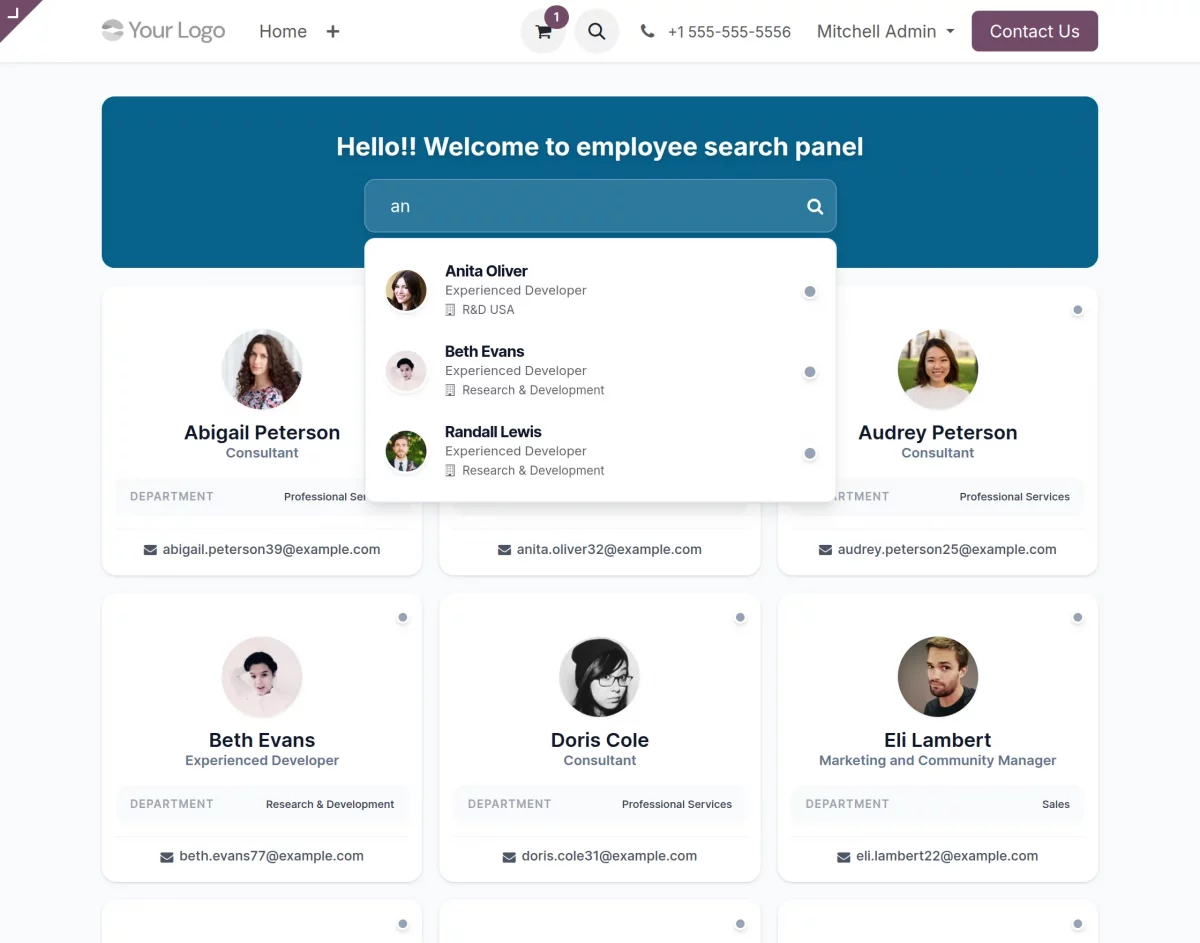
- Odoo Employee Profile Page lets visitors search employees by name with live profile suggestions.
- Display employee cards with images, names, positions, departments, and work emails when enabled.
- Show responsive employee cards and profiles across desktop, tablet, and mobile screen sizes.
- Display employee attendance status as Present or Absent across supported website profile views.
- View managers and subordinates through an interactive organization chart with configurable hierarchy levels.
- Control employee email visibility and display the Send Email option when email access is enabled.
- Configure website profiles with search settings, pagination, menus, default images, and Show All options.
INSTALLATION
- Once you purchase the App from the Webkul store, you will receive the link to download the zip file of the module.
- Extract the file from your system after the download finishes. As a result, you will be able to see a folder named- ‘employee_profile_page’.
- Copy and paste this folder inside your Odoo Add-Ons path.
- Now, open the Odoo Apps and then, click on the Settings menu. Here, click on Activate the Developer Mode.
- Then, open the Apps menu and click on the ‘Update Modules List’.
- In the search bar, remove all the filters and then, search ‘employee_profile_page’.
- As a result, you will be able to see the module in the search result. Click on ‘Install’ to install it.
WORKFLOW
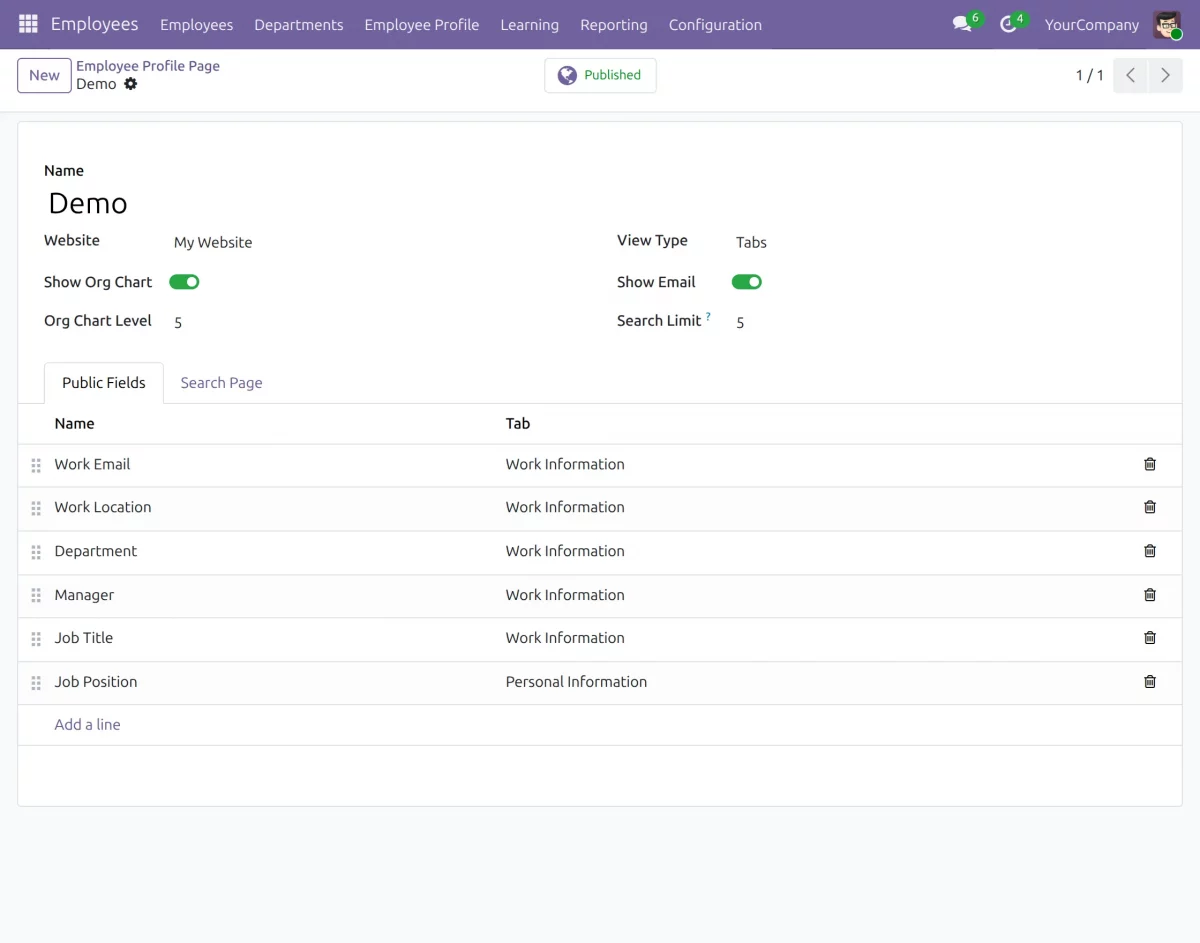
1. Create Employee Profile Page
- Go to Employees → Employee Profile and create a new profile page.
- Select the website and choose Table or Tabs as the view type.
- Configure the organization chart, hierarchy level, email visibility, and search limit.

2. Configure Profile Tabs
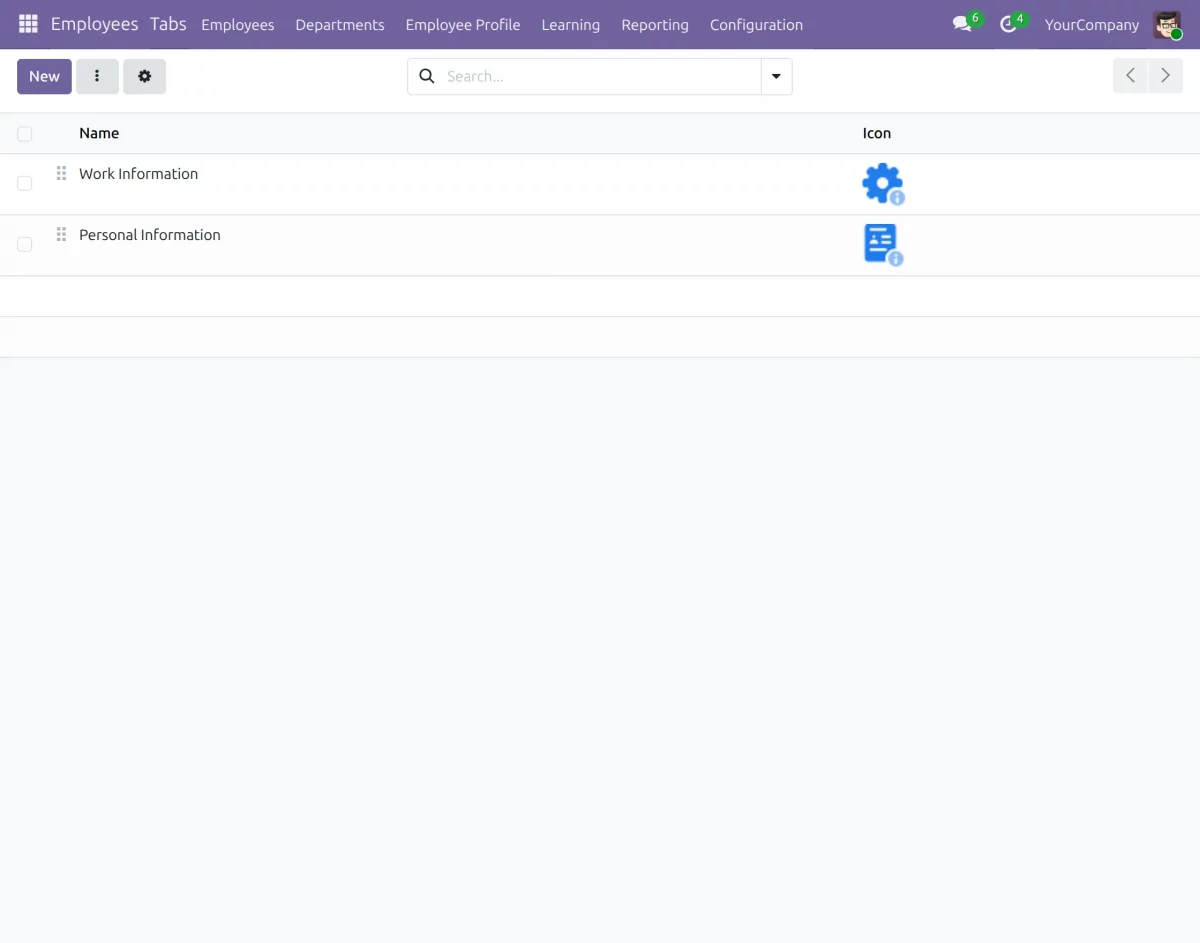
- Go to the Tabs menu to view the available profile tabs.
- Create tabs such as Work Information and Personal Information with custom icons.
- Assign employee fields to the required tabs and arrange their display order.
3. View Employee Profile
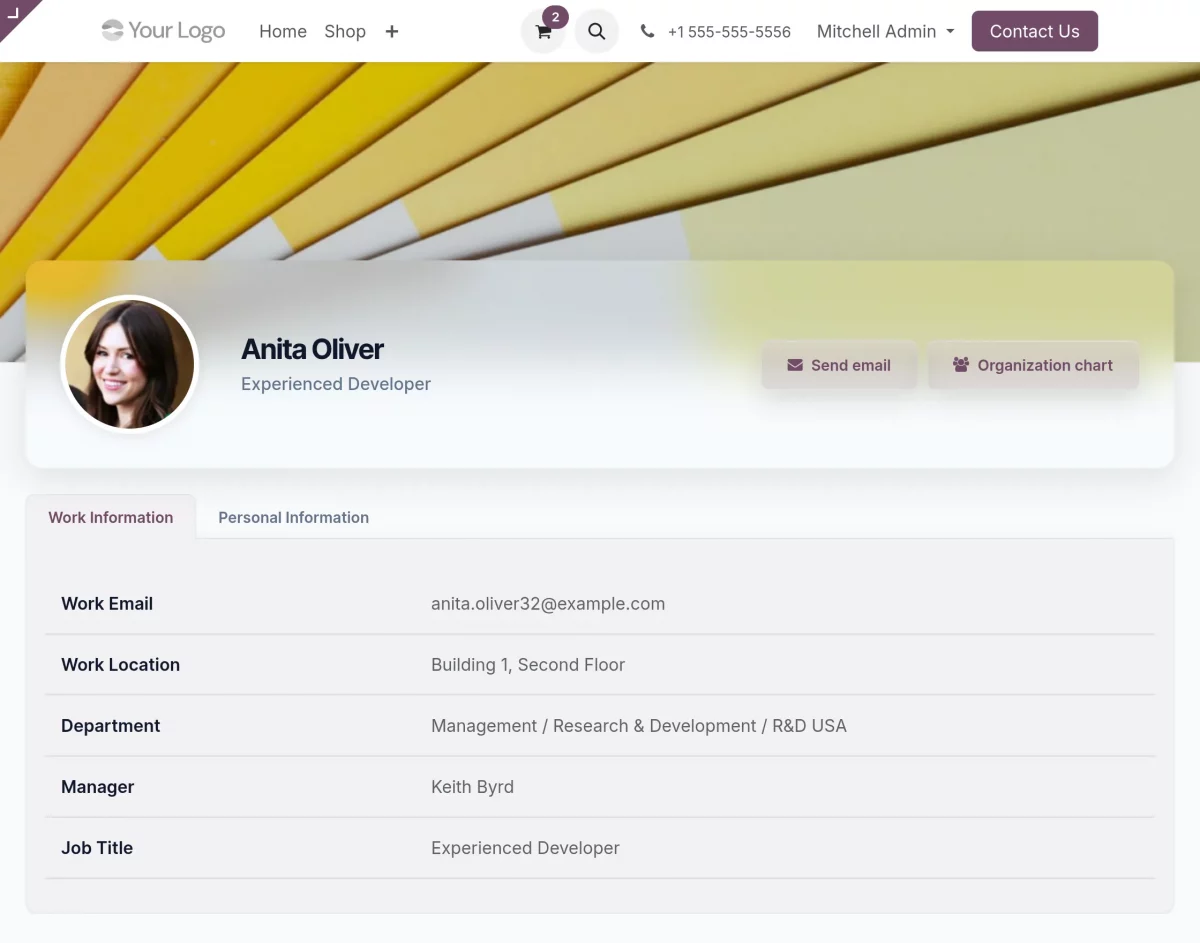
- View the employee profile image, name, and job position on the profile.
- View the configured employee details under the Work Information and Personal Information tabs.
- Use the Send Email and Organization Chart options when they are enabled.
4. View Employee Cards
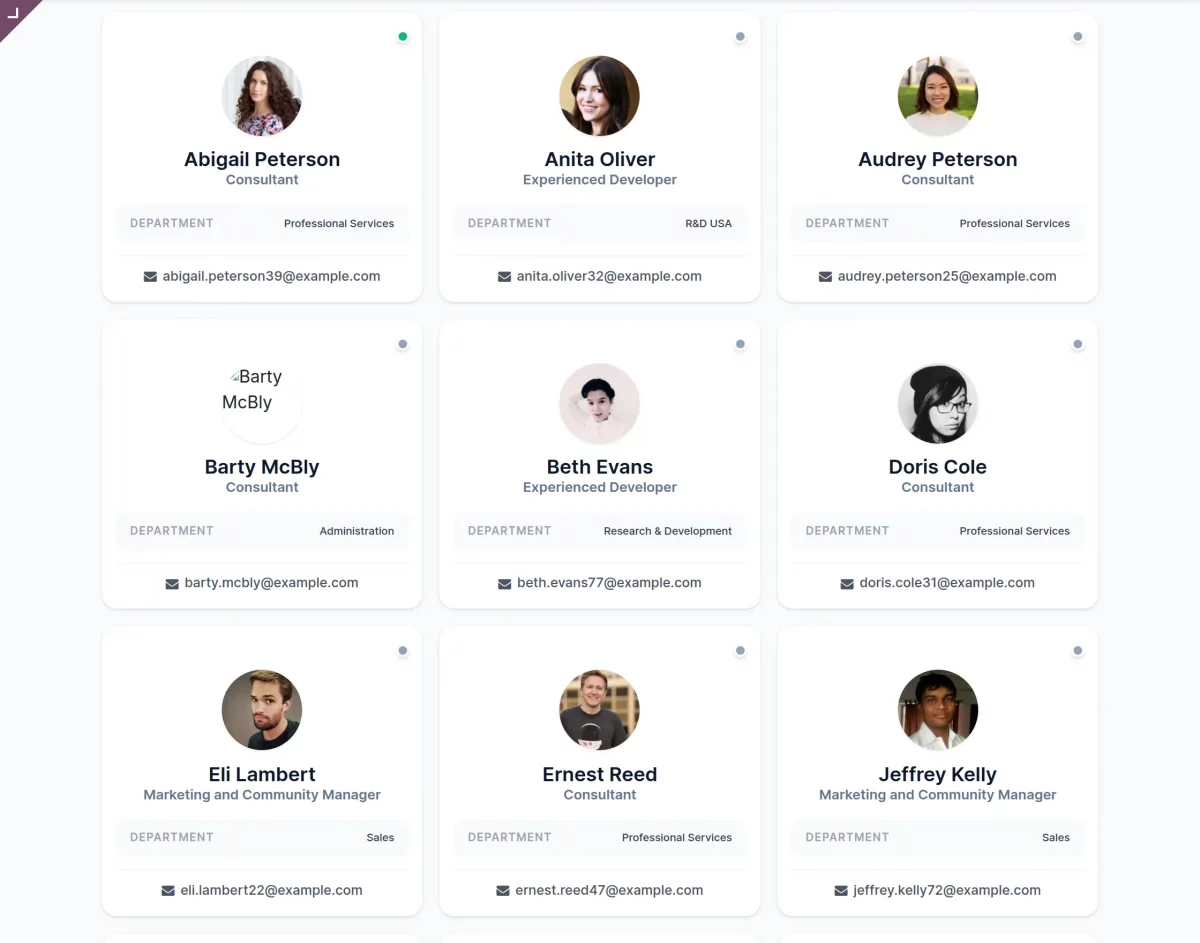
- View employee images, names, job positions, departments, and work emails on the cards.
- Click an employee card to open the corresponding employee profile.
- View the employee cards across desktop, tablet, and mobile screens.
5. Search Employees
- Enter an employee name in the search field to display matching employee suggestions.
- View employee images, names, job positions, departments, and attendance status in the suggestions.
- Select an employee from the search suggestions to open the corresponding profile.
6. View Organization Chart
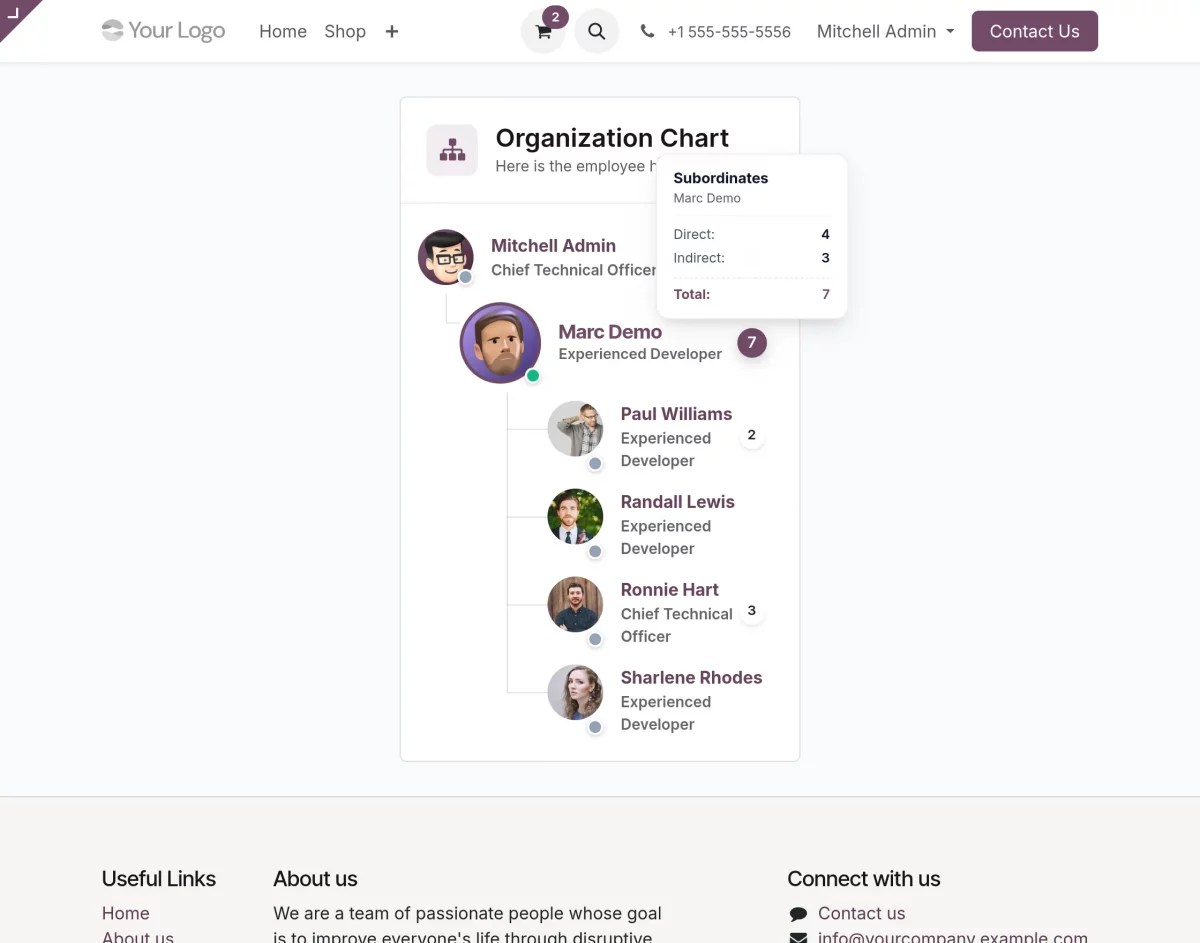
- Open the Organization Chart from the employee profile to view managers and subordinates.
- View employee attendance status and direct, indirect, and total subordinate counts.
- Navigate through the employee hierarchy according to the configured hierarchy levels.
Also, REFER THE USER GUIDES OF OTHER MODULES
NEED HELP?
Hope you find this guide helpful! Please feel free to share your feedback in the comments below.
If you still have any issues/queries, please create a ticket at the UV Desk.
I hope this helps. In case of any further queries, contact us at our support mail.
Thanks for paying attention!!