User Guide For Odoo Buy More Save More
INTRODUCTION
Attract Customers on Your Website With Odoo Buy More Save More!
To increase the sales and revenue on your website, it is necessary to offer deals and discounts to attract the customers and shop from your website.
It helps you to increase the conversion rate and also increases the traffic on your website which in turn directly increases the revenue.
Customers who have been enticed away by your competitors will return to your website if you provide them with a compelling cause with attractive discounts and Deals.
‘Odoo Buy More Save More’ helps you out in this, the module allows the user to create discount rules from the Odoo backend with minimum order value.
It encourages the customers to shop more from your website to avail the discount benefits.
A discount banner with banner text is also visible on the website home page to attract customers to shop more from the website.
Discount benefits can also be avail while creating the quotation from the backend with the help of ‘Odoo Buy More Save More’.
The discount rules are on the basis of Fixed Product, Fixed Rate and Percentage
FEATURES
- Admin can create and manage Website discounts from Odoo Backend.
- Create discount rules on the basis of Fixed Product, Fixed and Percentage Basis.
- Admin can add a minimum value of purchase above which customers can avail discounts on Odoo Website.
- The Admin can also add fixed delivery charges.
- Admin can add the discounted products from the website configuration and website page as well.
- Enable/Disable Cumulative discount from the Odoo Backend.
- Banner text can also be added by the admin which is visible on the website frontend.
- Discount can also be applied while creating the quotation from the Odoo Backend.
- The discount products will get automatically added to the sale order line after applying the discount.
INSTALLATION
- Once you purchase the App from the Webkul store, you will receive the link to download the zip file of the module.
- Extract the file from your system after the download finishes. As a result, you will be able to see a folder named- ‘module_technical_name’.
- Copy and paste this folder inside your Odoo Add-Ons path.
- Now, open the Odoo Apps and then, click on the Settings menu. Here, click on Activate the Developer Mode.
- Then, open the Apps menu and click on the ‘Update Modules List’.
- In the search bar, remove all the filters and then, search ‘module_technical_name’.
- As a result, you will be able to see the module in the search result. Click on ‘Install’ to install it.
WORKFLOW
- Firstly, login to the ‘Odoo Instance’ and go to the ‘Website’ module.

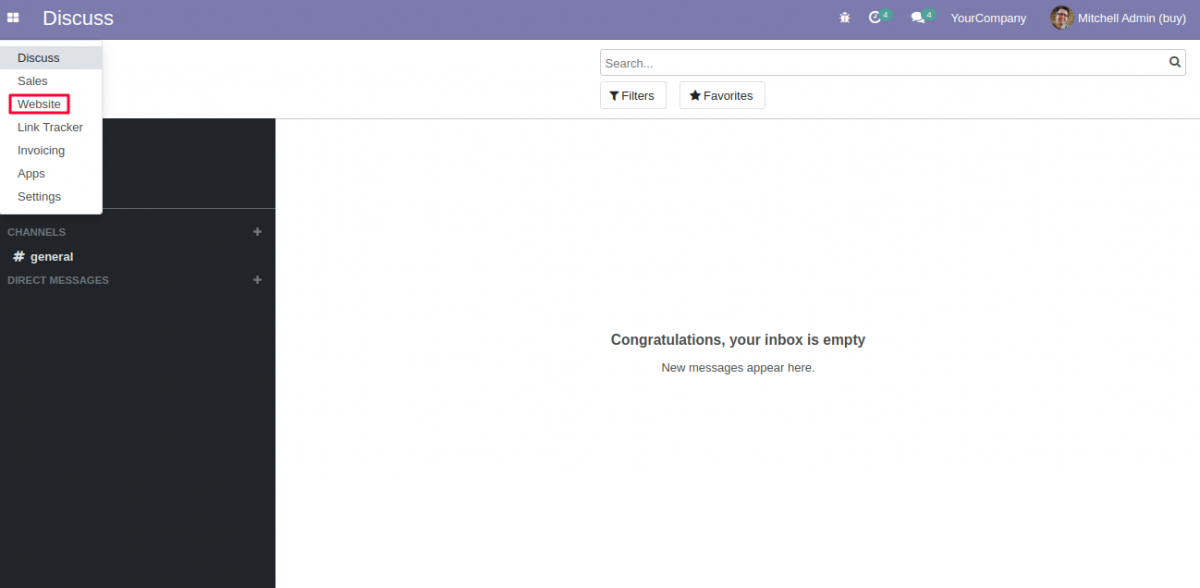
- Now, go to the ‘Buy More Save More’ under the ‘Configuration’ menu to create the discount rules

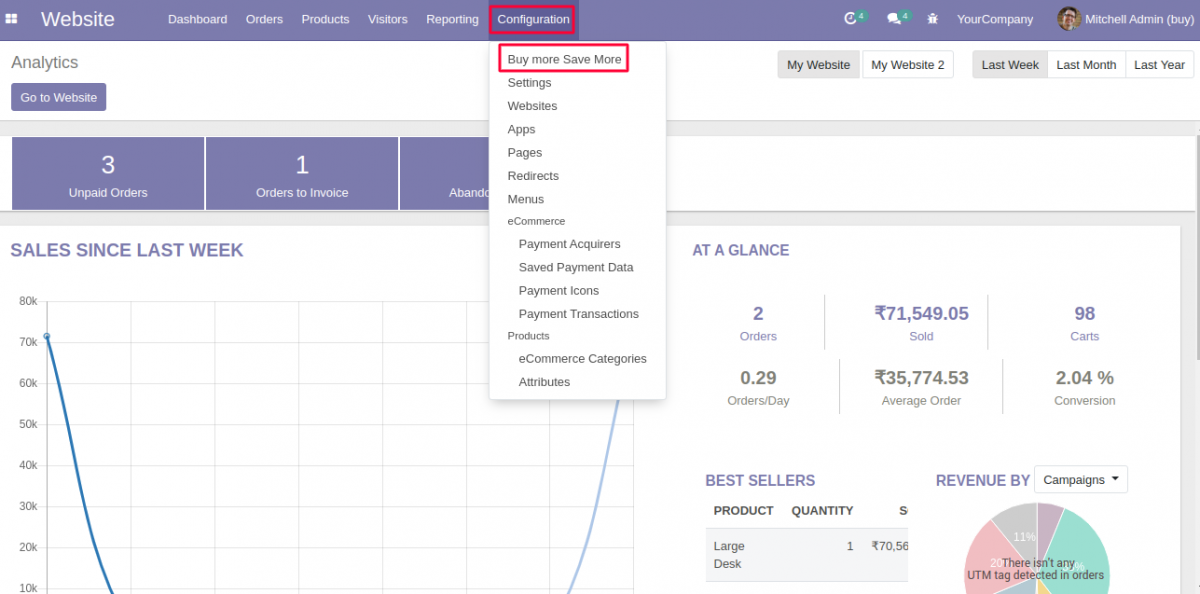
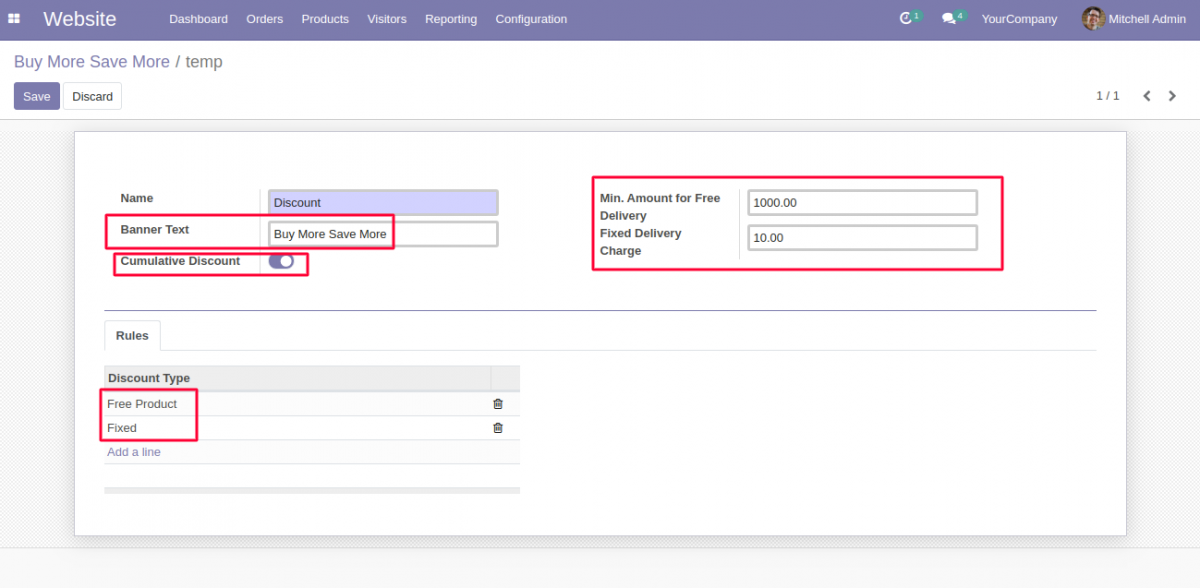
- Give the name to the discount rules, add banner text, admin can also add minimum amount for free delivery and the fixed delivery charges.
- Create Discount Rules under the Rules tab. There are 3 types of discount rules i.e., Fixed Product, Fixed and Percentage.
- Enable Cumulative Discount, which means if customer falls under the category of availing discount then they can get the benefits of all the discounts.
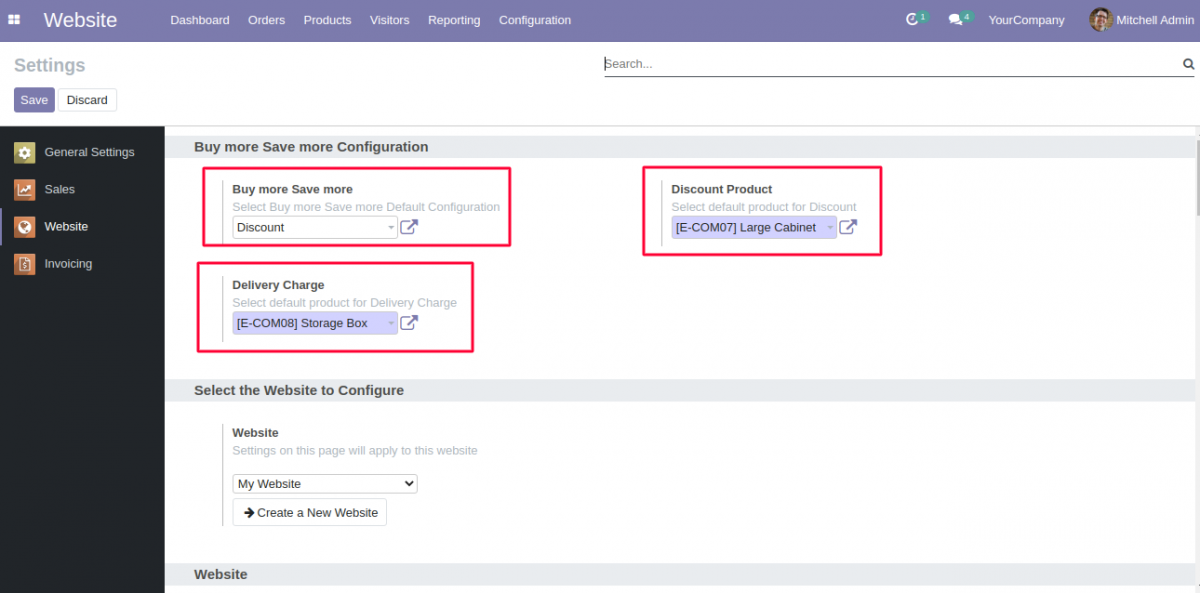
- Now, go to the Settings under the Configuration menu.
- Here, the admin can configure Odoo Buy More Save More.
- Select Buy More Save More Default Configuration.
- Select Default products for discount.
- Also, select default product for delivery charge.

- Admin can also manage default Buy More Save More Configuration from Website page as well. For this you need to go to the Website under the Configuration menu.
- Select default Buy More Save More configuration and default discount product and default delivery charge product.

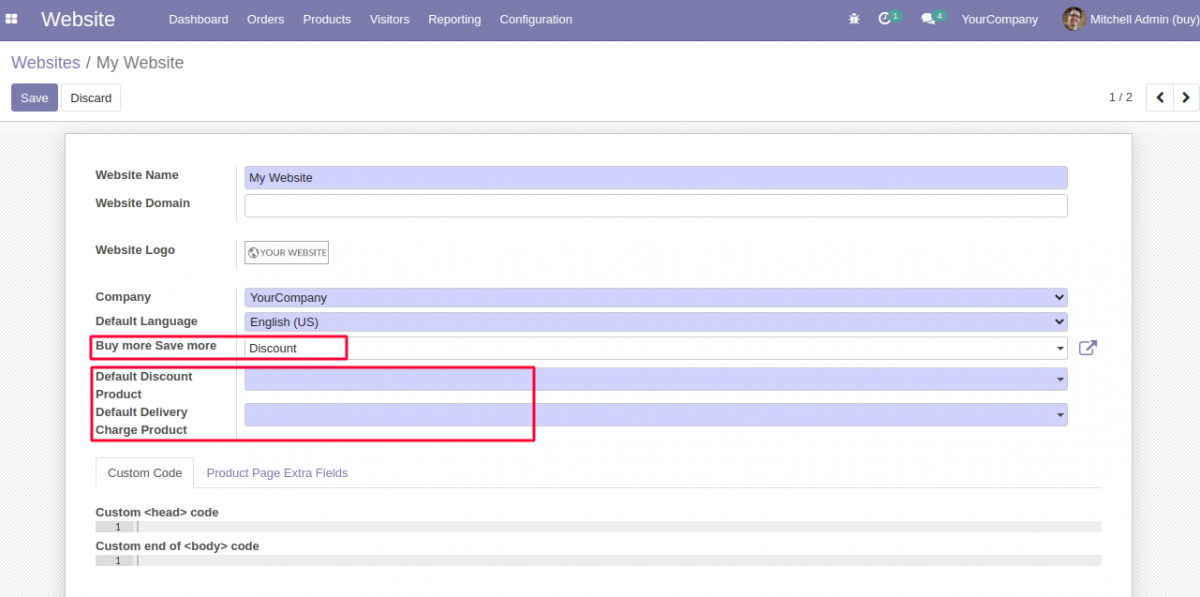
Website View
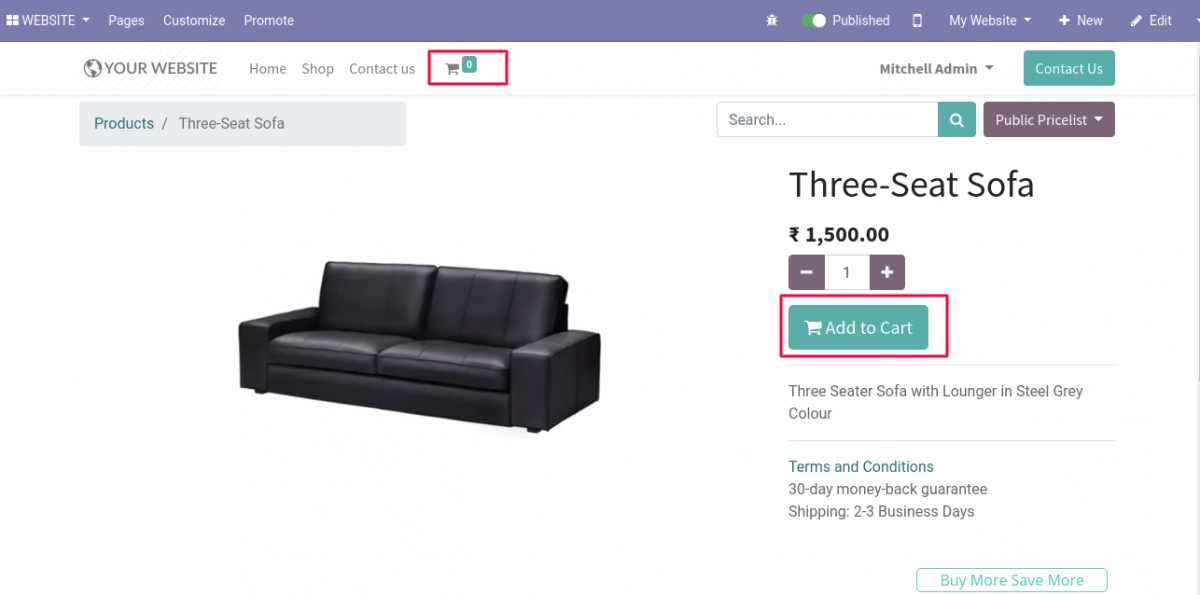
- Add the product to the cart, you can see that the cart is empty.

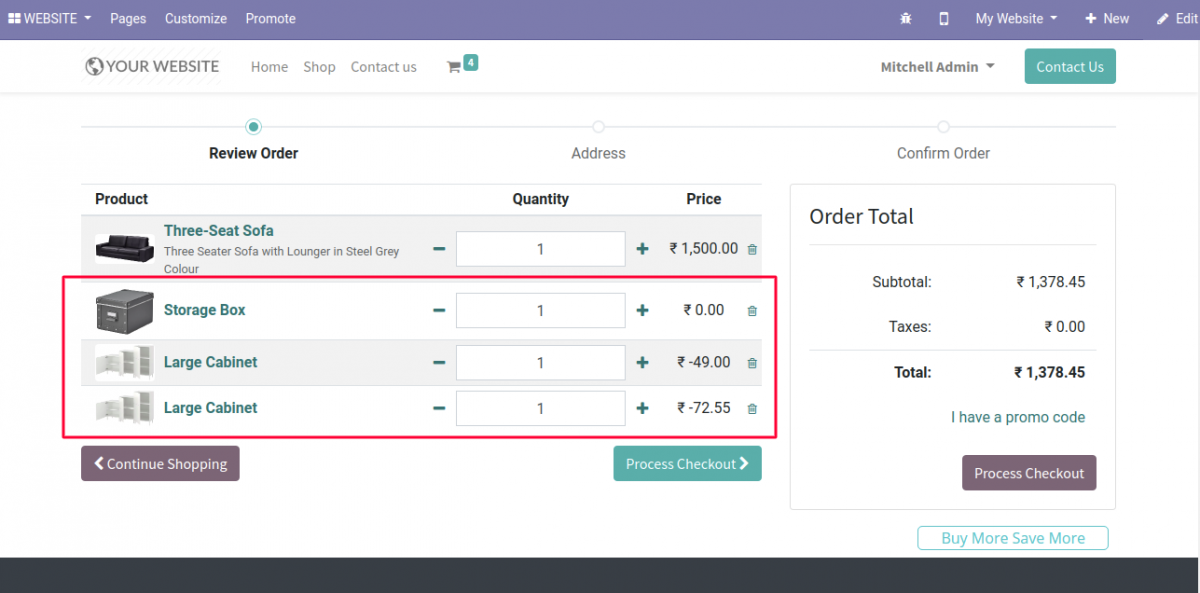
- After adding the product to the cart, you can see that the default prodcuts for buy more save more are automatically added to the cart.
- Buy More Save More can also be avail from the backend.
- While creating the quotation from the Odoo backend, user can click on the Apply Discount to avail the benefits of Buy More Save More.

- Default discount prodcuts and delivery charge products are automatically added to the order line after applying the discount.

ALSO, REFER THE USER GUIDES OF OTHER MODULES
NEED HELP?
Was this guide helpful? Please share your feedback in the comments below.
If you have any issues/queries regarding the module please raise a ticket at
https://webkul.uvdesk.com/en/customer/create-ticket/
Also, please explore our odoo development services & a large range of quality Odoo Apps.
For any doubt contact us at support@webkul.com.
Thanks for reading!!