Prestashop Quick Order {User-Guide}
Prestashop Quick Order facilitates customers to quickly order products in bulk without visiting numerous web store pages.
With this module, the shoppers can quickly search and add products to the cart by reference or name.
The module adds a dedicated quick order page on the store, allowing customers to easily search for the products, select their quantities, and add them to the cart in a single click.
Additionally, it also supports CSV/Excel files to let shoppers place bulk orders with ease.
Letting customers place bulk orders without the need to navigate through individual product pages enhance their shopping experience and boost sales.
Features of PrestaShop Quick Order
- Allows customers to place bulk orders easily and quickly.
- Customers can search and add products to the shopping cart using reference or name.
- Place orders in bulk via CSV or excel file.
- Allow customers to add customizable products for quick order.
- Configure unique identification parameters (ISBN code, EAN-13 or JAN barcode, UPC barcode, Reference, and Product ID) to be used for product search on quick order table.
- Add predefined filters such as new products, best selling products, discounted products, etc to narrow product searches.
- Allow quick order page access to specific user groups.
- Restrict quick order table access to specific products and categories.
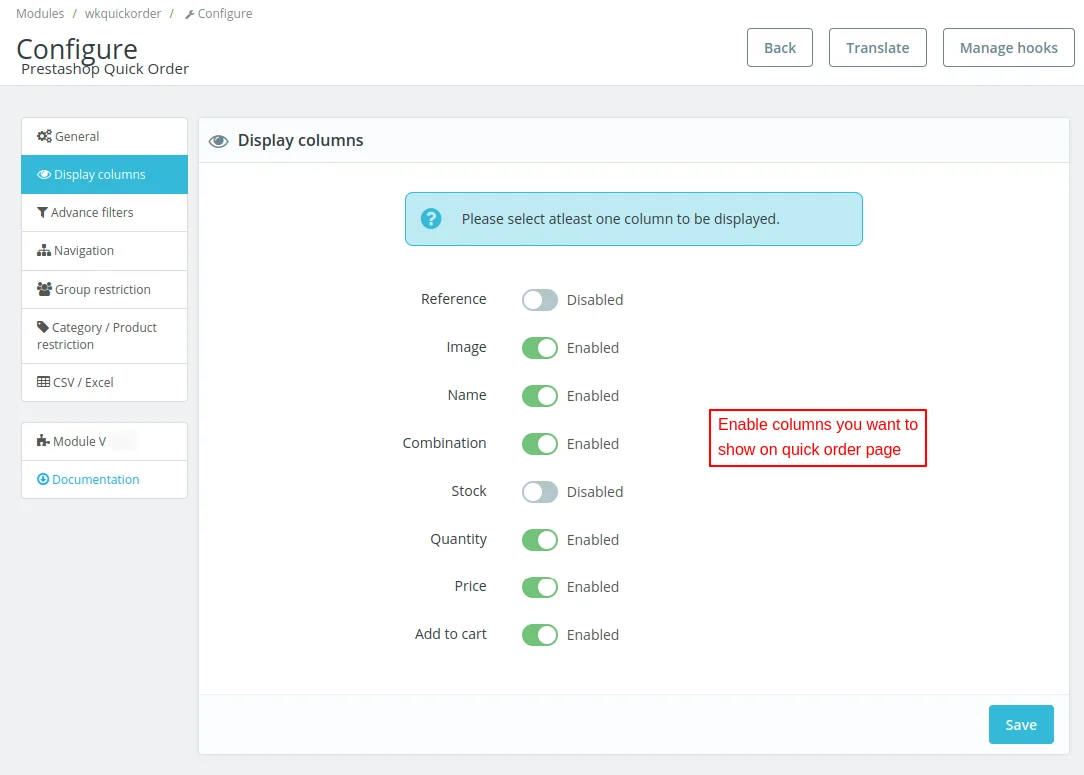
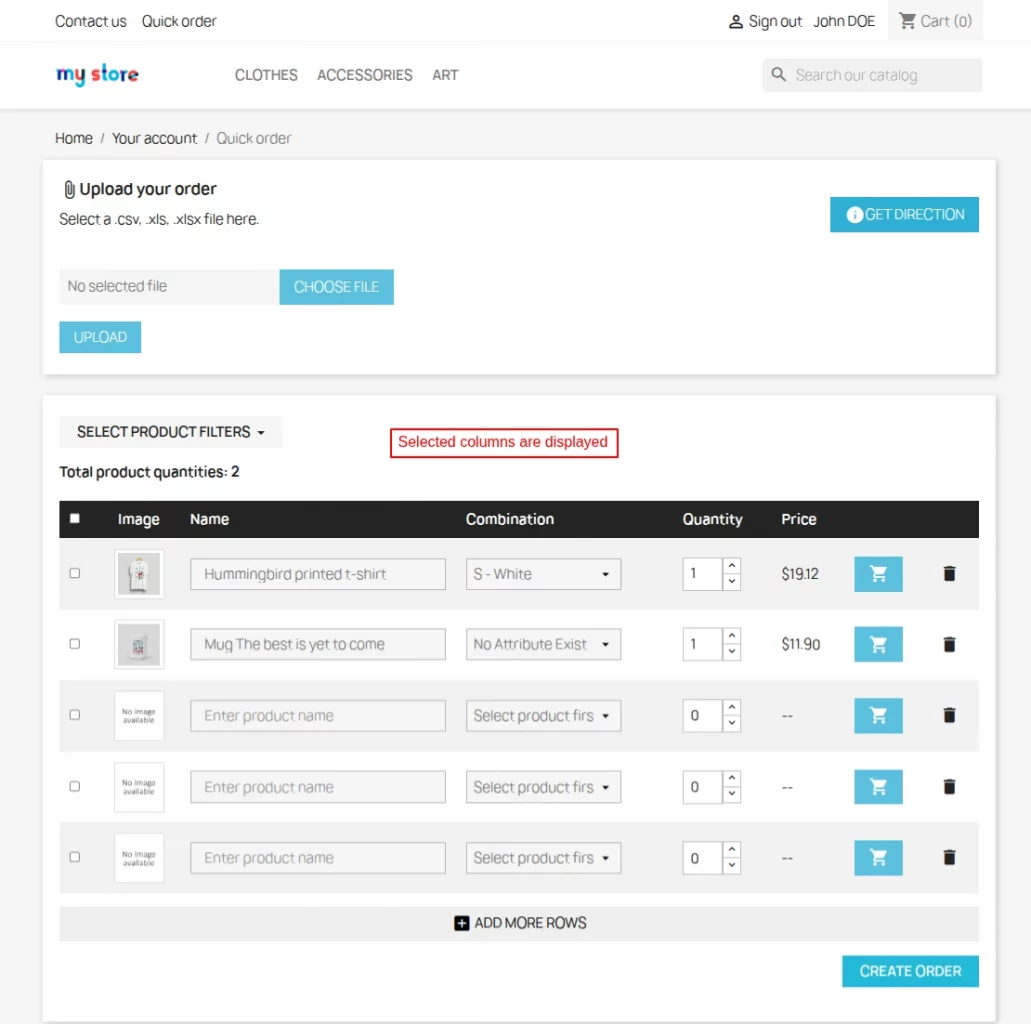
- Select columns (product reference, image, name, combination, stock, quantity, price, add to cart) you want to display in quick order table.
- Display all the combinations of a selected product in dropdown list on quick order table.
- Choose to show only the attribute value of combinations in dropdown list on quick order table.
- Show selected product quantities on quick order table.
- Set the number of rows to display by default on quick order table.
- Display quick order link on header, footer, right column, and left column.
- Add combination reference column in csv/excel file.
- Add only default combination or all combinations if combination reference column is not available or has no value.
- Skip product or add its minimal quantity for quick order if its quantity is 0 in csv/excel file.
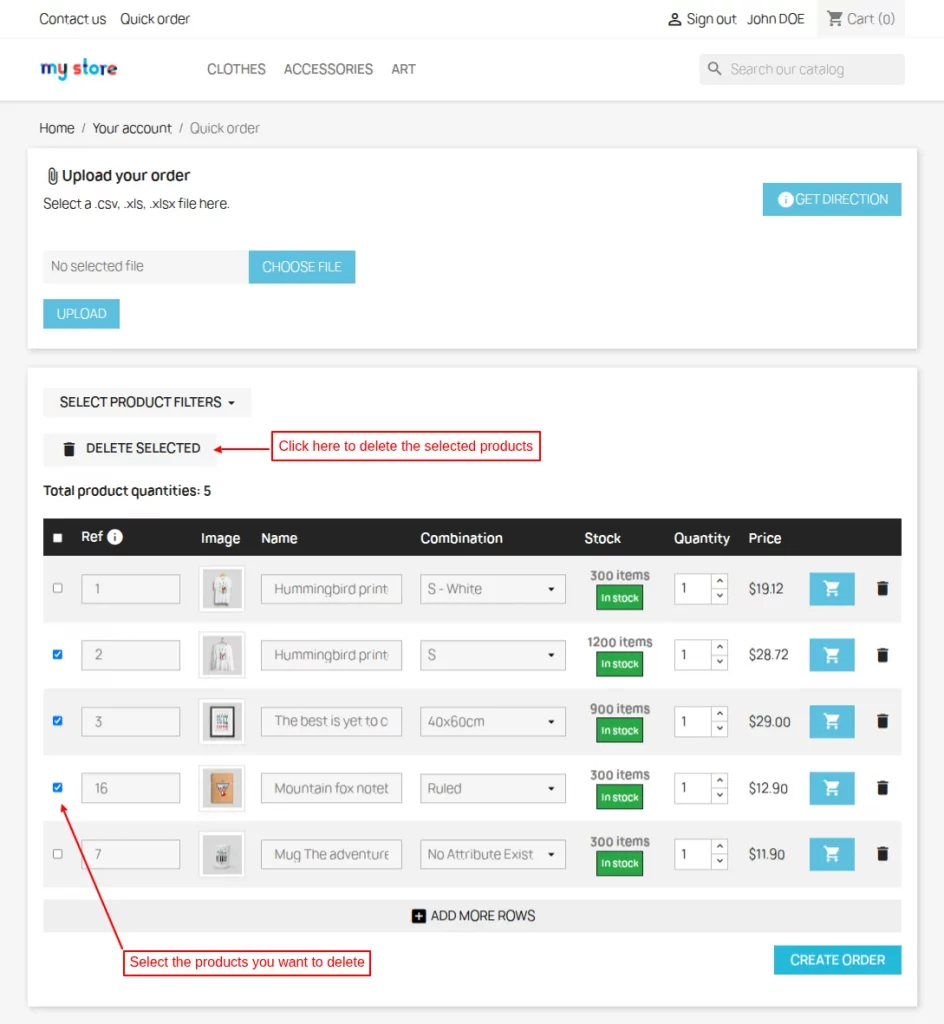
- Delete multiple products added to the quick order table at once.
How to Install PrestaShop Quick Order
- Firstly, go to the module manager in the back office and click on ‘upload a module’.
- After that, drag and drop the module file or select the file from the system.
- In this way, the module installation will be successful.


PrestaShop Quick Order Configuration
After the successful installation of the module, the admin needs to configure it.
General Settings

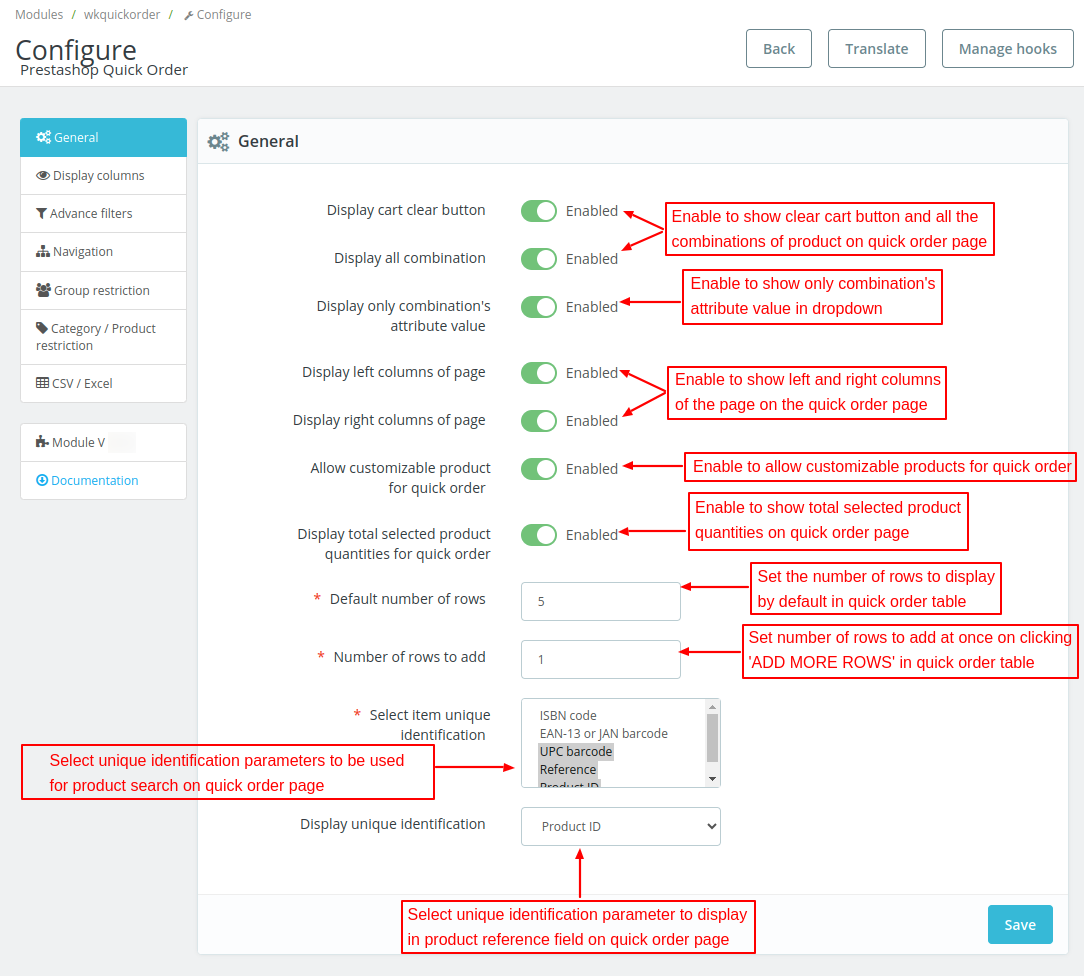
Cart Clear Button: Enable this option to display clear cart button on quick order page.
Display all combination: Enable this to display all the combinations of a product on quick order page. If disabled, then only one combination will display.
Display only combination’s attribute value: Enable this option to show only product combination’s attribute value in the dropdown list.
Show left/right columns of page: Choose to show left/right column of the page on quick order page.
Allow customizable product for quick order: Enable to allow customers to add customizable products in quick order table.
Display total selected product quantities for quick order: If enabled, then total quantities of products selected by customers will display on the quick order page.
Default number of rows: Here, the admin can set number of rows to display by default on the quick order table.
Number of rows to add: On clicking the “Add more rows” button, the specified number of rows will add in the quick order table.
Select item unique identification: Select the unique identification parameters (product reference, product ID, UPC barcode, ISBN, EAN-13 or JAN barcode) that can be used for product search.
Display unique identification: The unique identification parameter selected by admin here will display in product reference field on the quick order page.
Front View
After the successful installation of the module, a new tab “Quick Order” gets available in customers’ account.


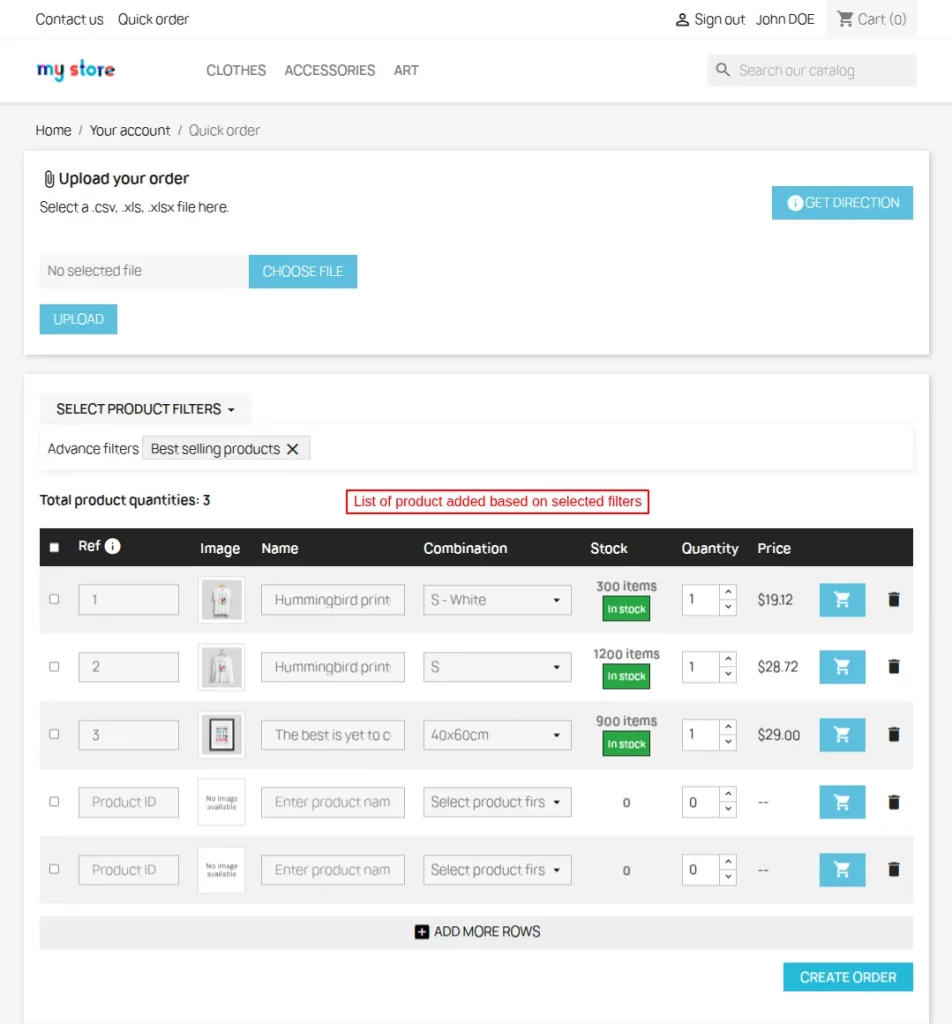
On clicking the tab, the customer gets redirected to the quick order page. Customer can add multiple products to the quick order table and place the order by clicking on create order button.

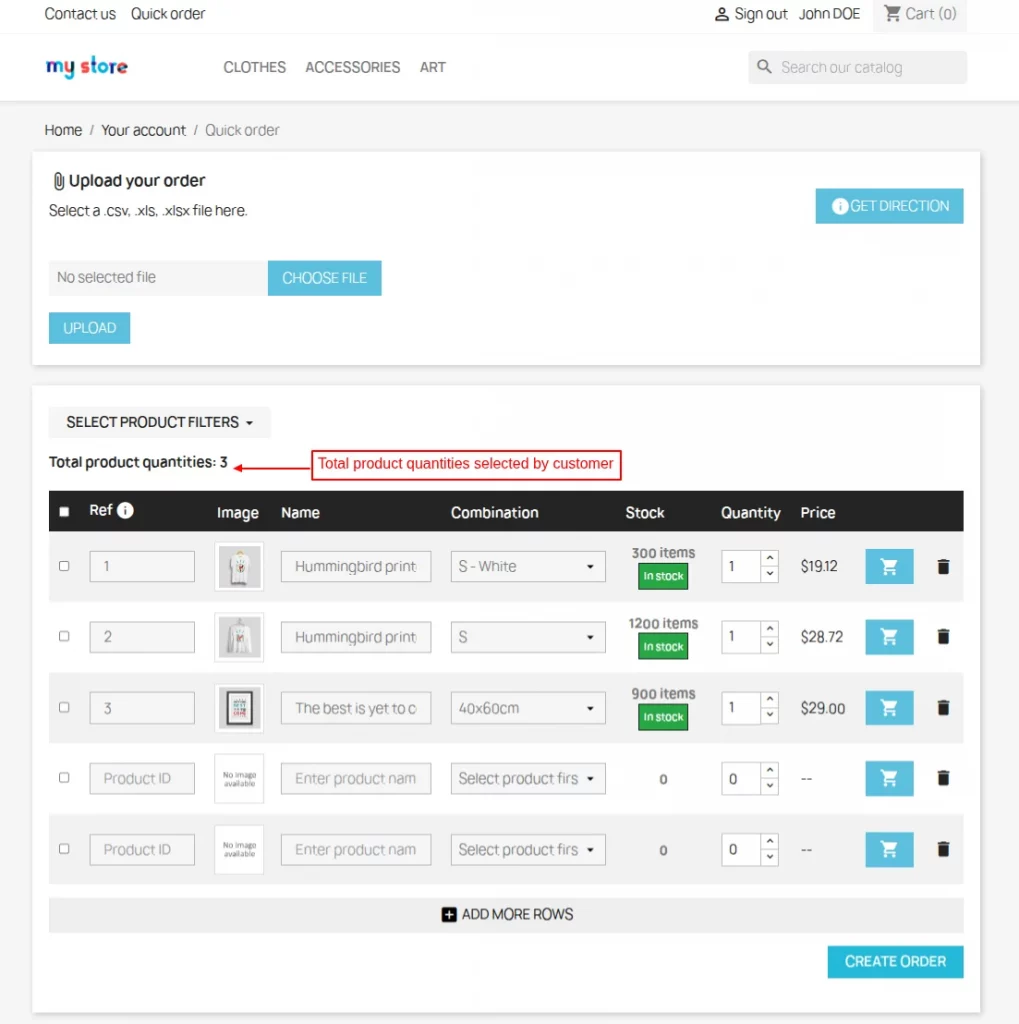
On clicking create order button, clear cart button gets available on the quick order page.

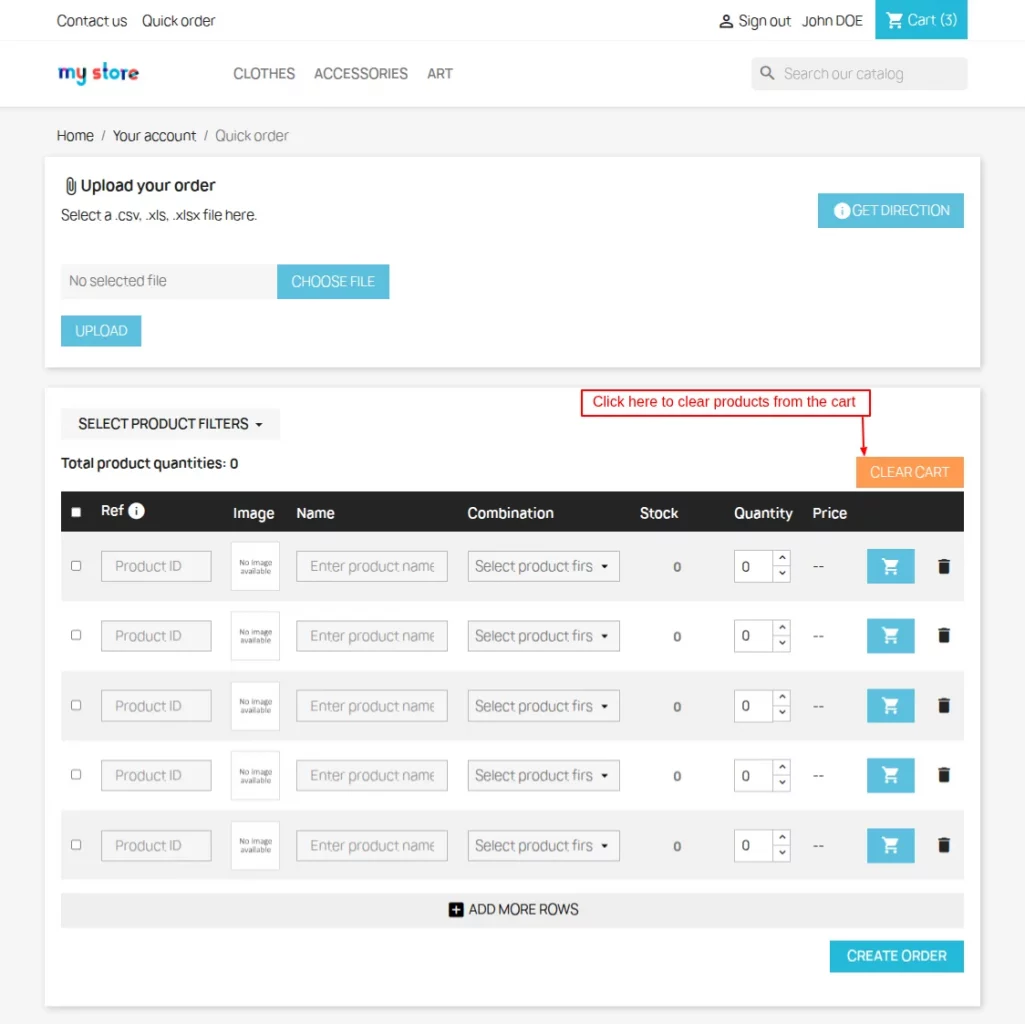
As configured by admin under General Settings, clear cart button, total quantities of products selected by customer, 5 rows by default are displayed on the quick order page.
On clicking the clear cart button, the products added to the cart get removed.

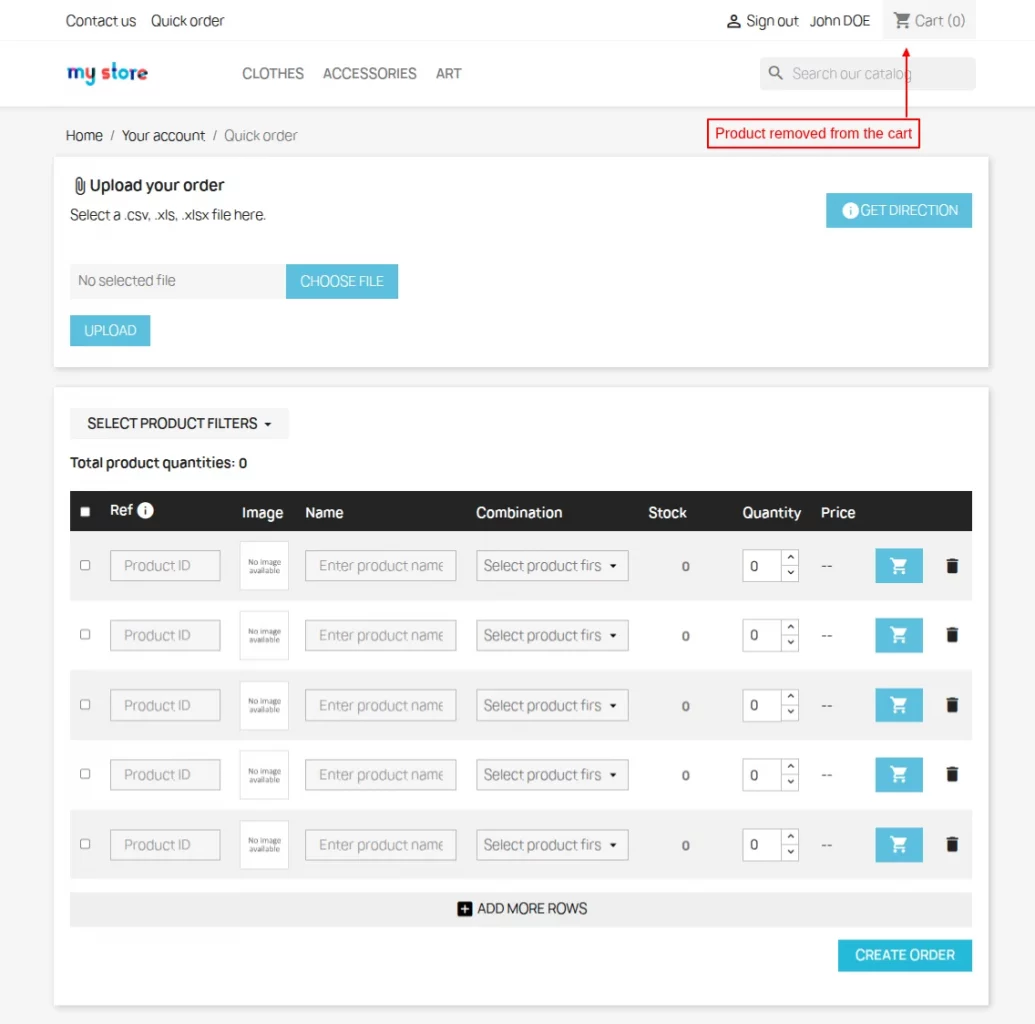
Customer can select the specific products that he wants to delete on the quick order table.

Display all combination
If enabled, then all the combinations of a product will display in a dropdown list on the quick order page.

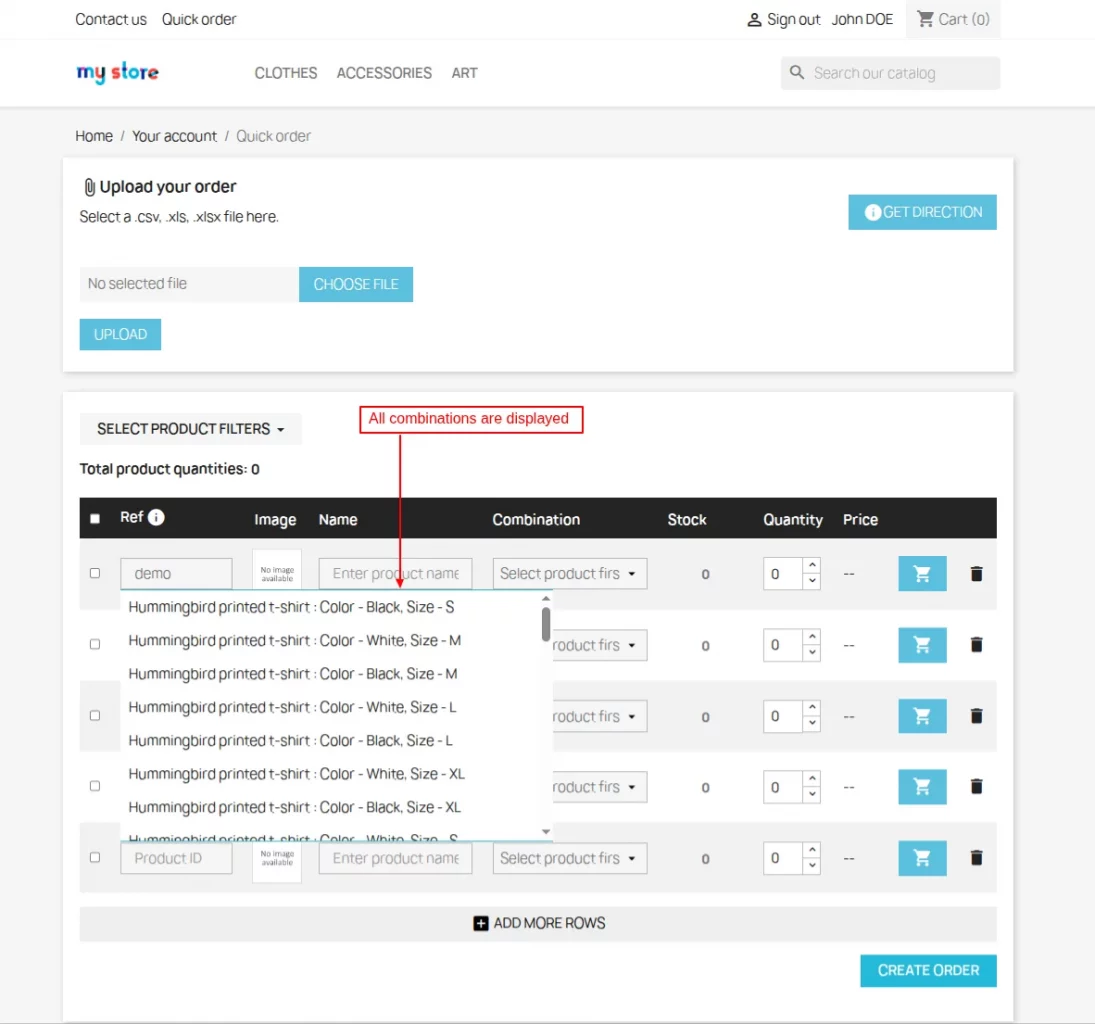
Please note that ‘Display all combination’ setting will work only when searched in ‘Ref’ column.
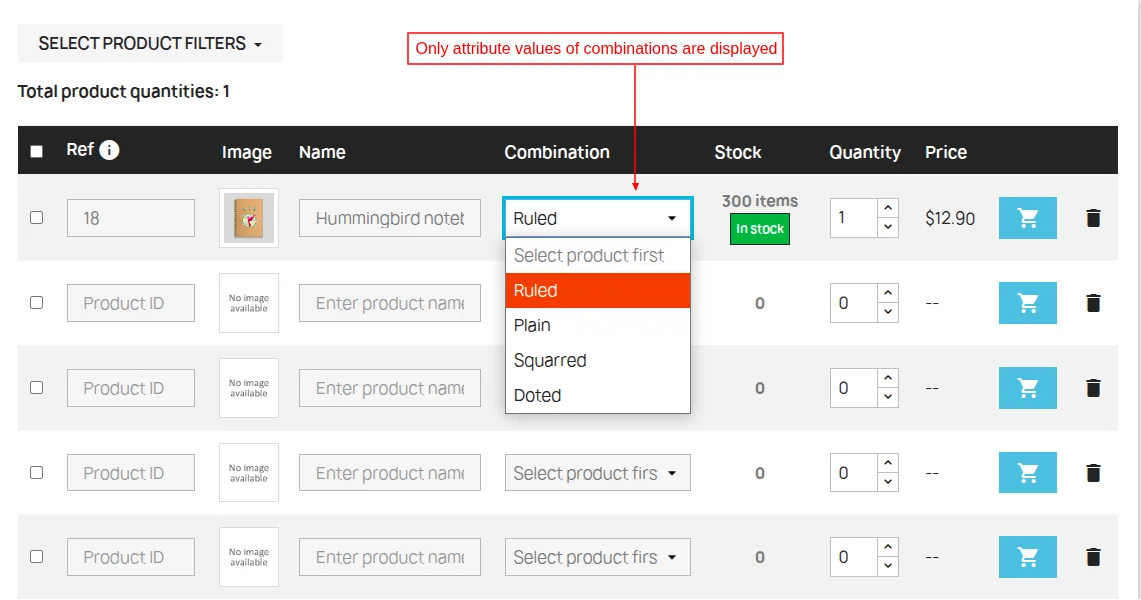
Display only combination’s attribute value
If enabled by admin, then only attribute values of product combinations will display on the quick order page.

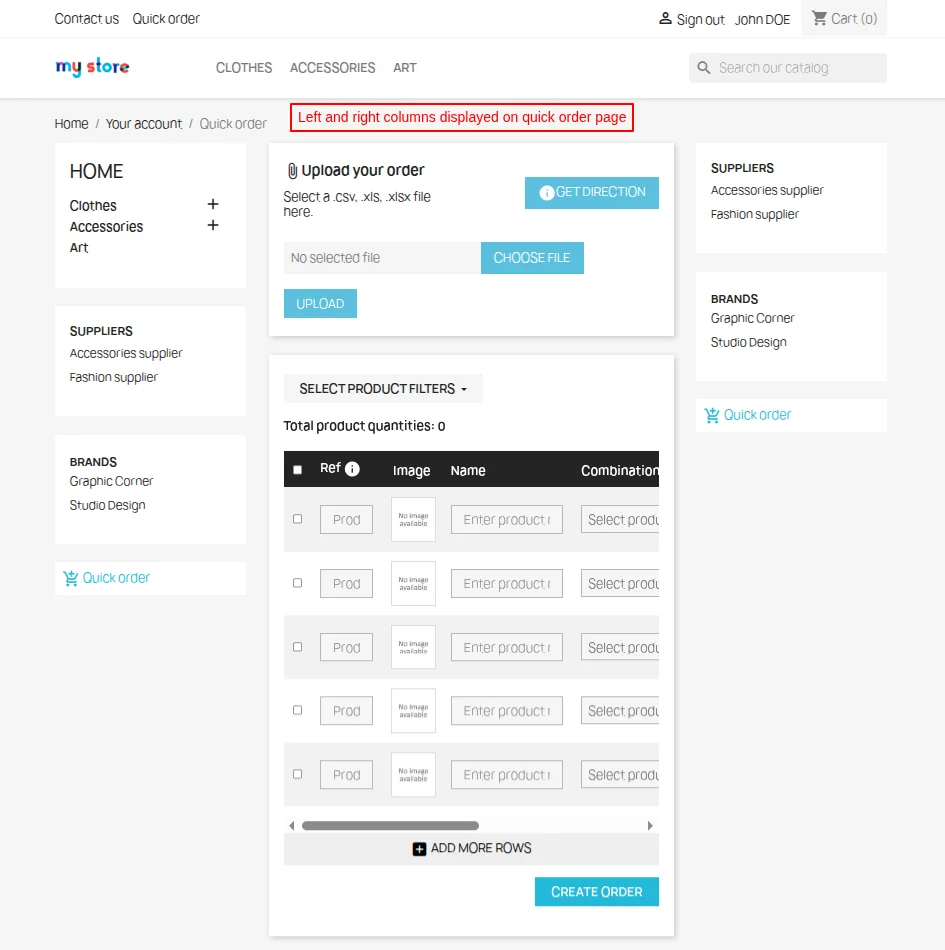
Show left/right columns of page
If enabled, then left and right columns will display on the quick order page as shown below.

Display Columns
Under the Display Columns tab, the admin can enable the columns that he wants to show on the quick order page.

Front End View

Advance Filters

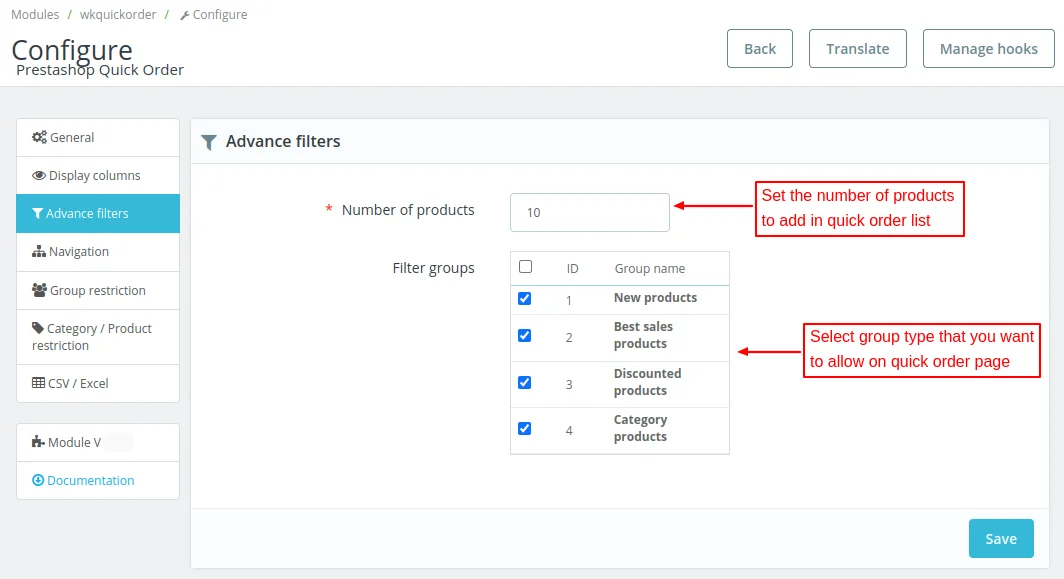
- Number of Products: Specify the number of products to be displayed from the selected groups.
- Filter groups: Select the groups you want to display on the quick order page. On selecting these groups, allowed number of products will add to the quick order page.
Front View

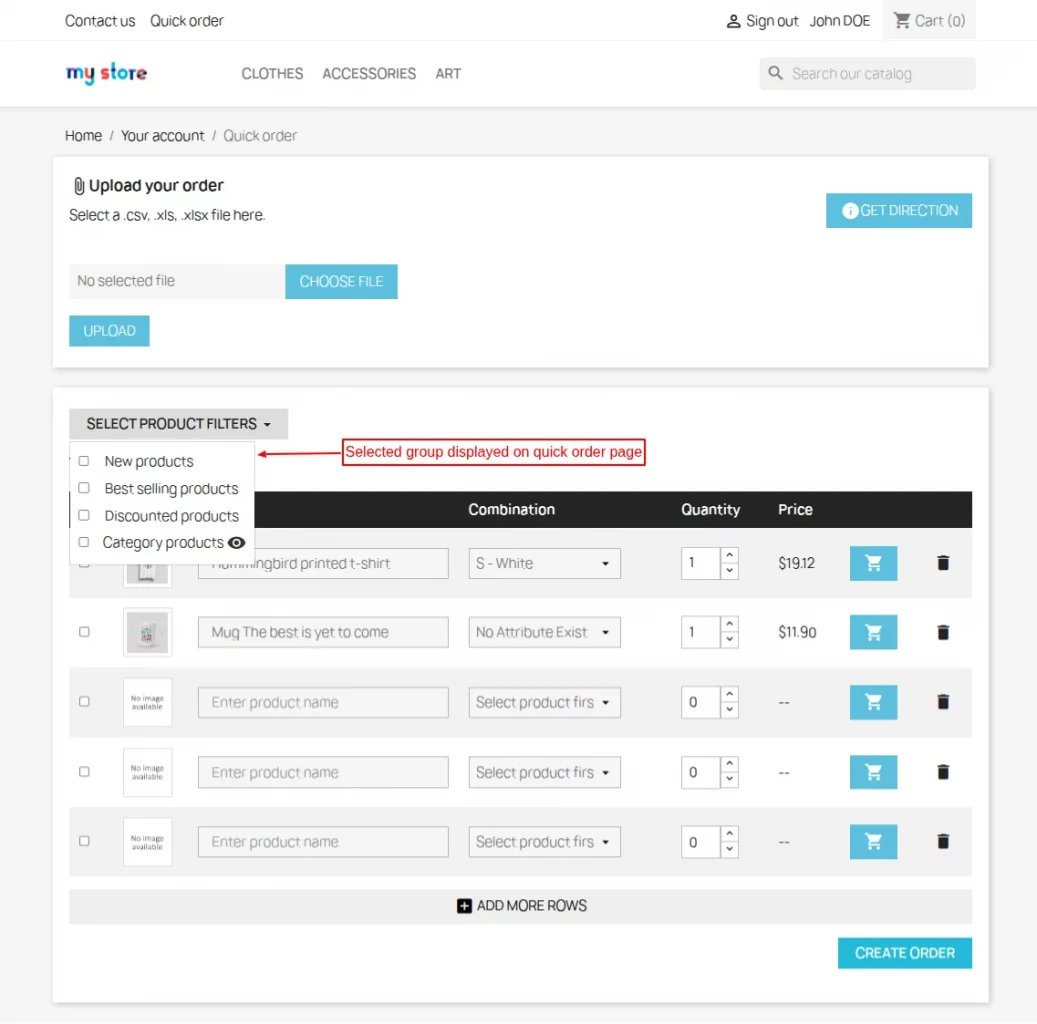
The products will add to the quick order table after selecting the filter.

Navigation Settings

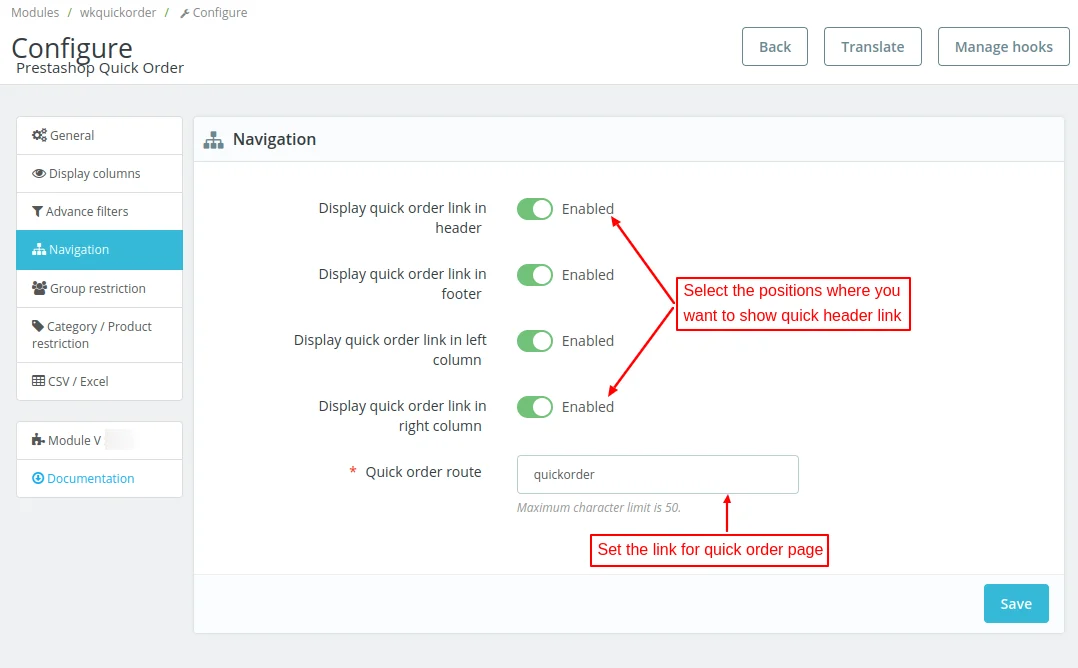
Under Navigation, the admin can configure the positions where he wants to display the quick order link.

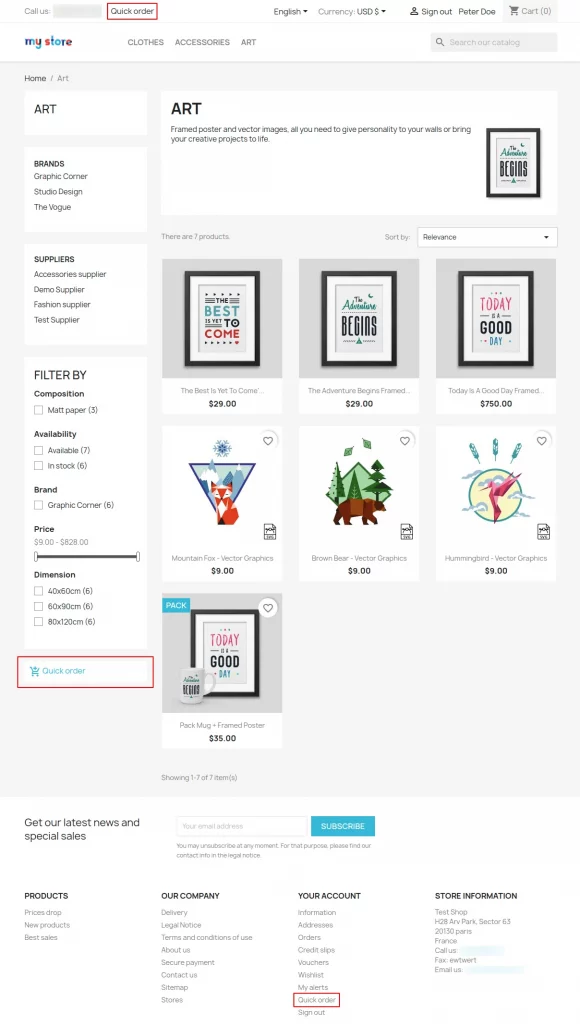
In the above image, it can be seen that the quick order link is displayed on header, footer, and left column.
Group Restriction
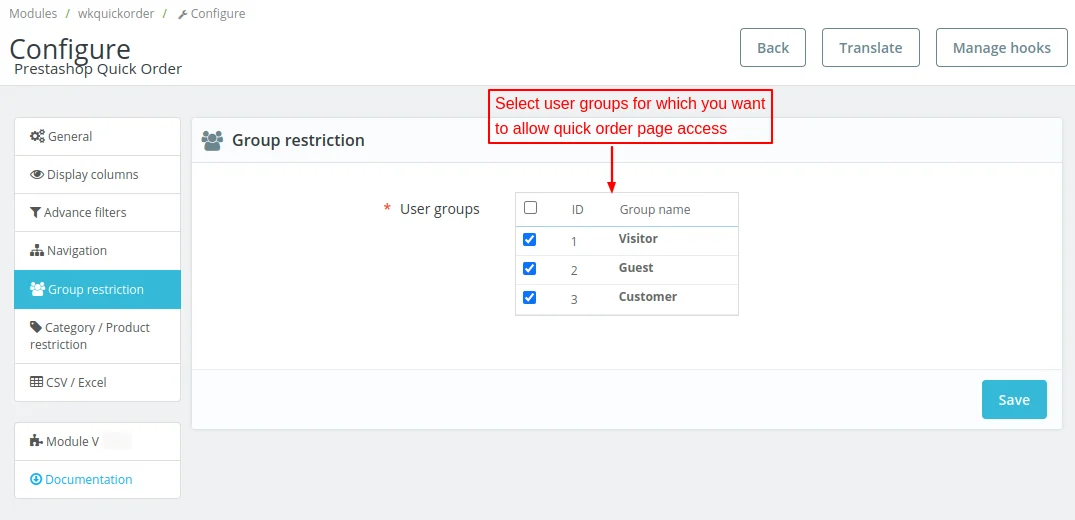
Under Group restriction, the admin can select groups whose users will have access to the quick order page.

Category/Product restriction
Under this tab, the admin can:
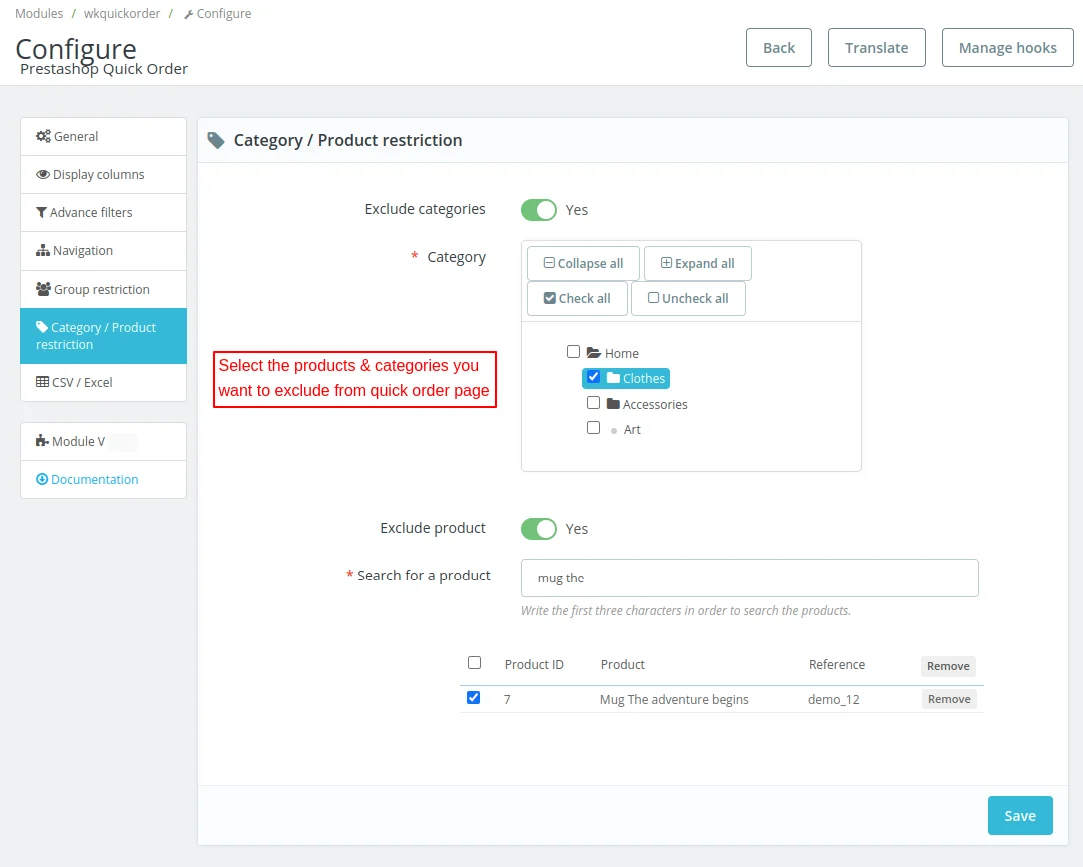
- Select the categories whose products will not display on the quick order page.
- Select the products he wants to exclude from the quick order page.

Front End View
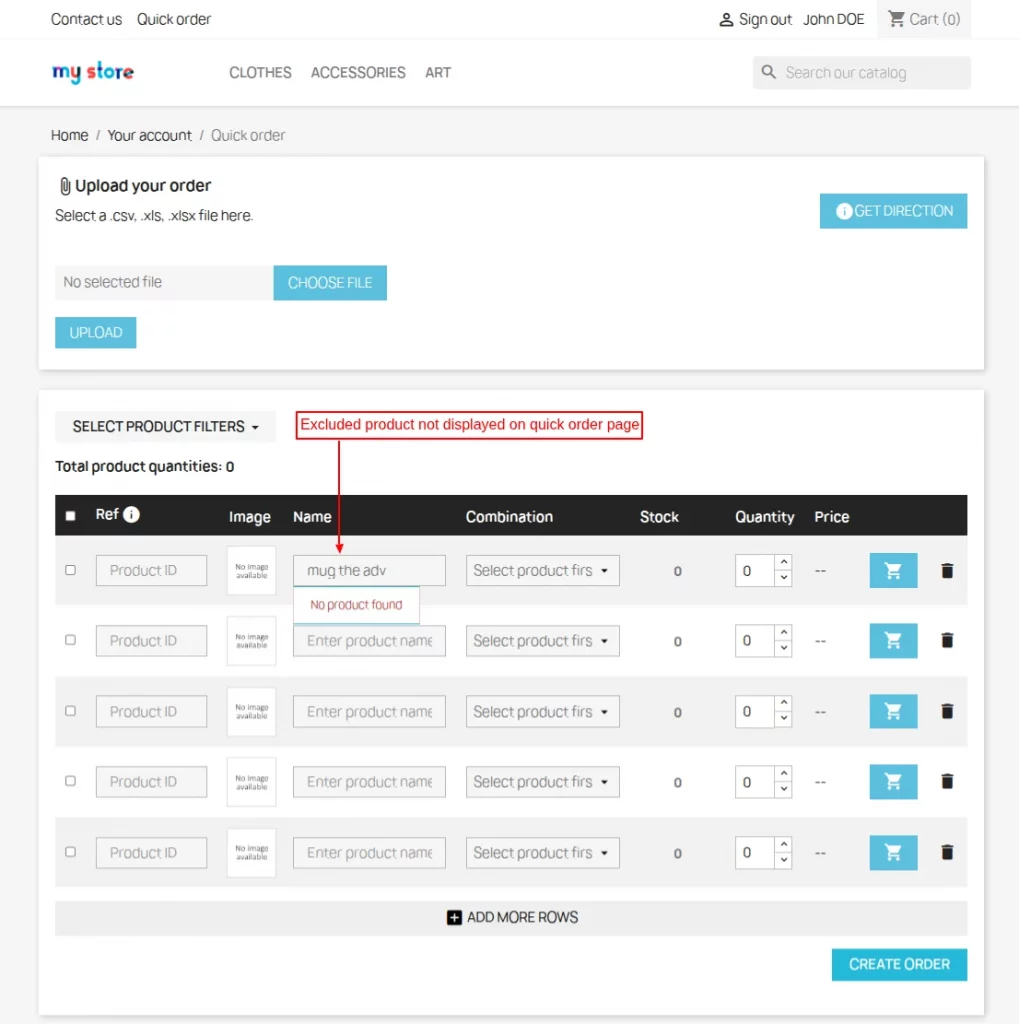
As selected by admin from the back office, the product “Mug The adventure begins” will not appear in the dropdown list on search.
CSV/Excel

Enable csv/excel file option
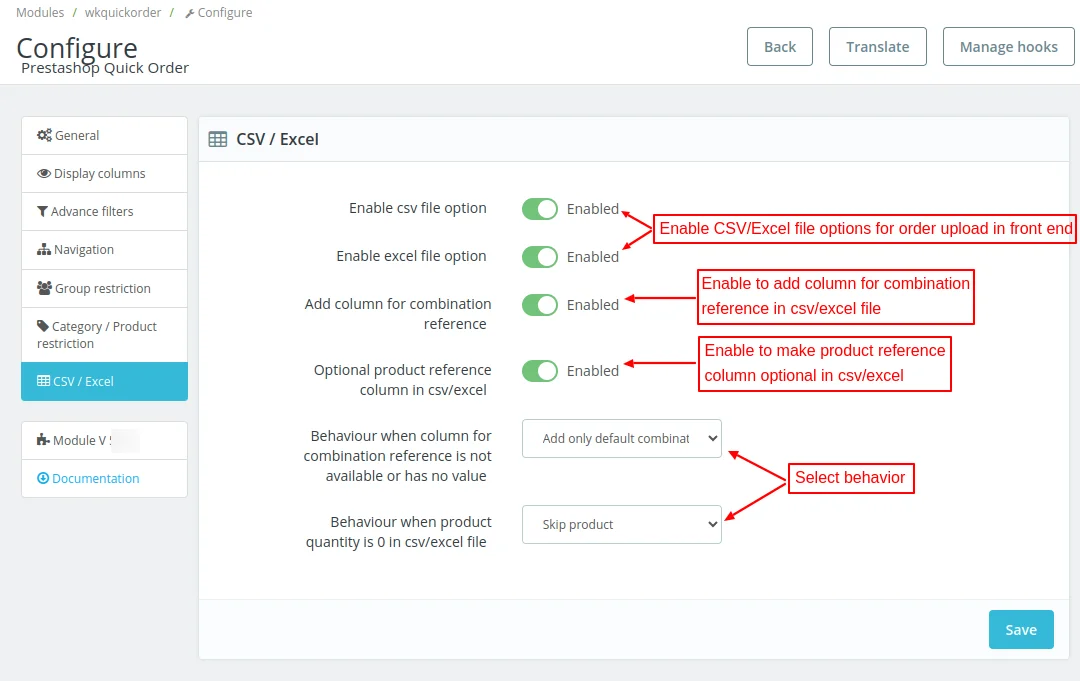
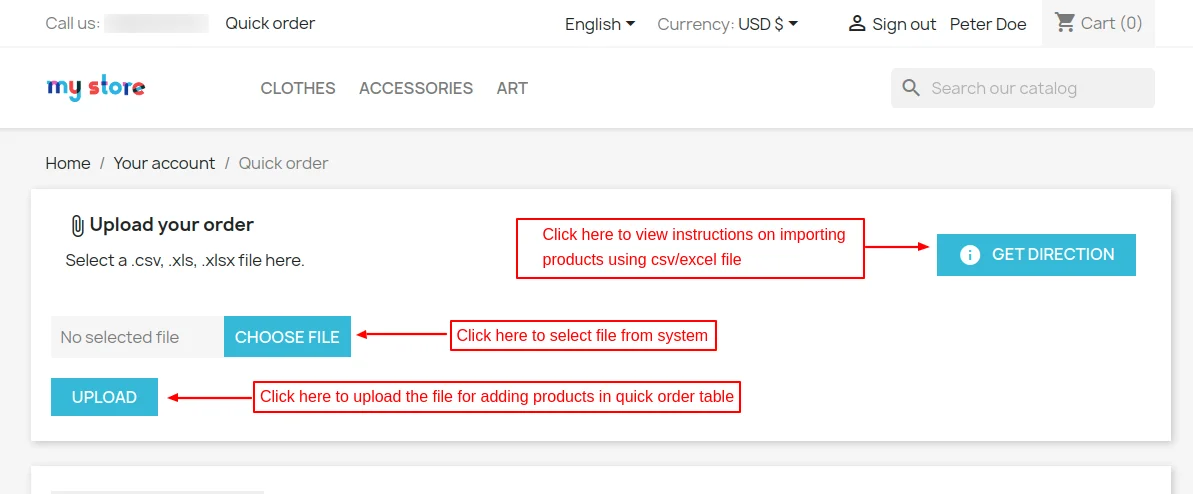
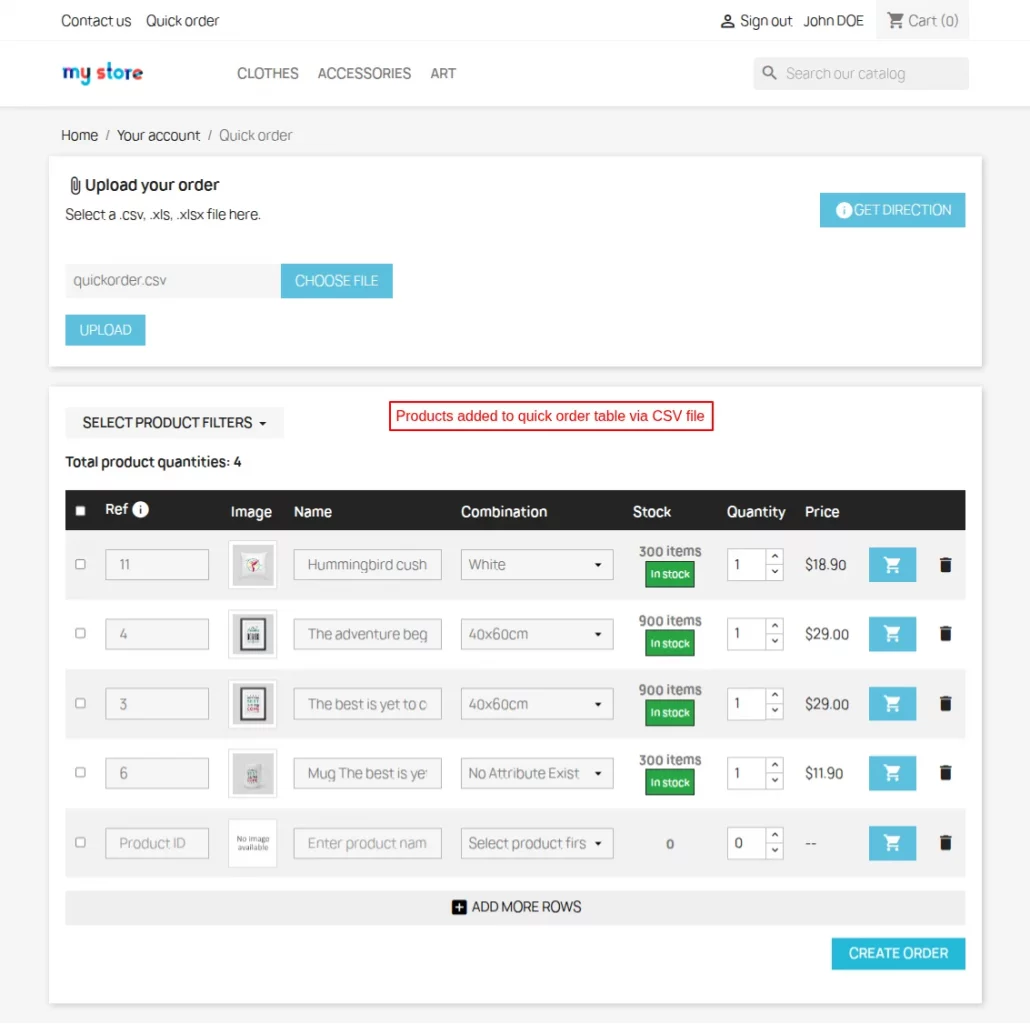
Enable these options to allow customers upload csv and excel files for adding products in bulk on the quick order page.
Front End View


Add column for combination reference
Enable this option to add column for combination reference in csv/excel file.

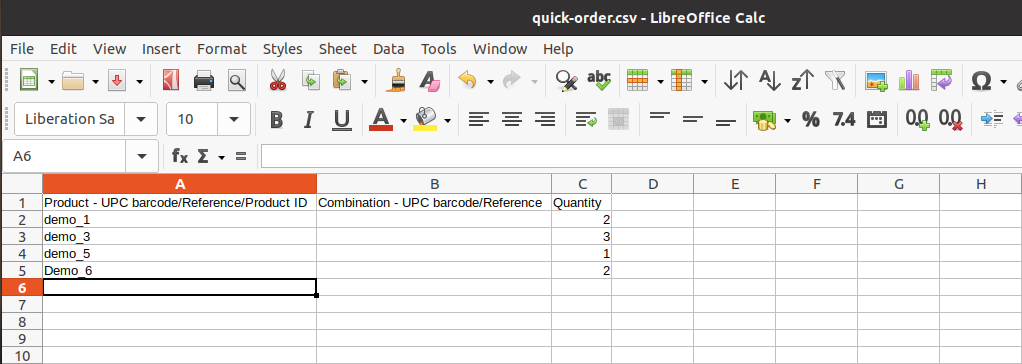
In the above screenshot, it can be seen that the column for combination reference is available in the CSV file.
Optional product reference column in csv/excel
Enable this field to make product reference column optional in csv/excel.
Behaviour when column for combination reference is not available or has no value

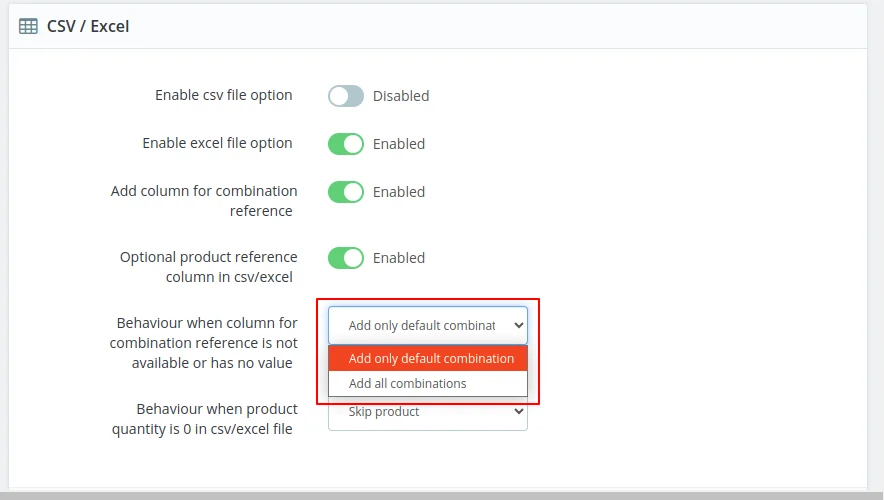
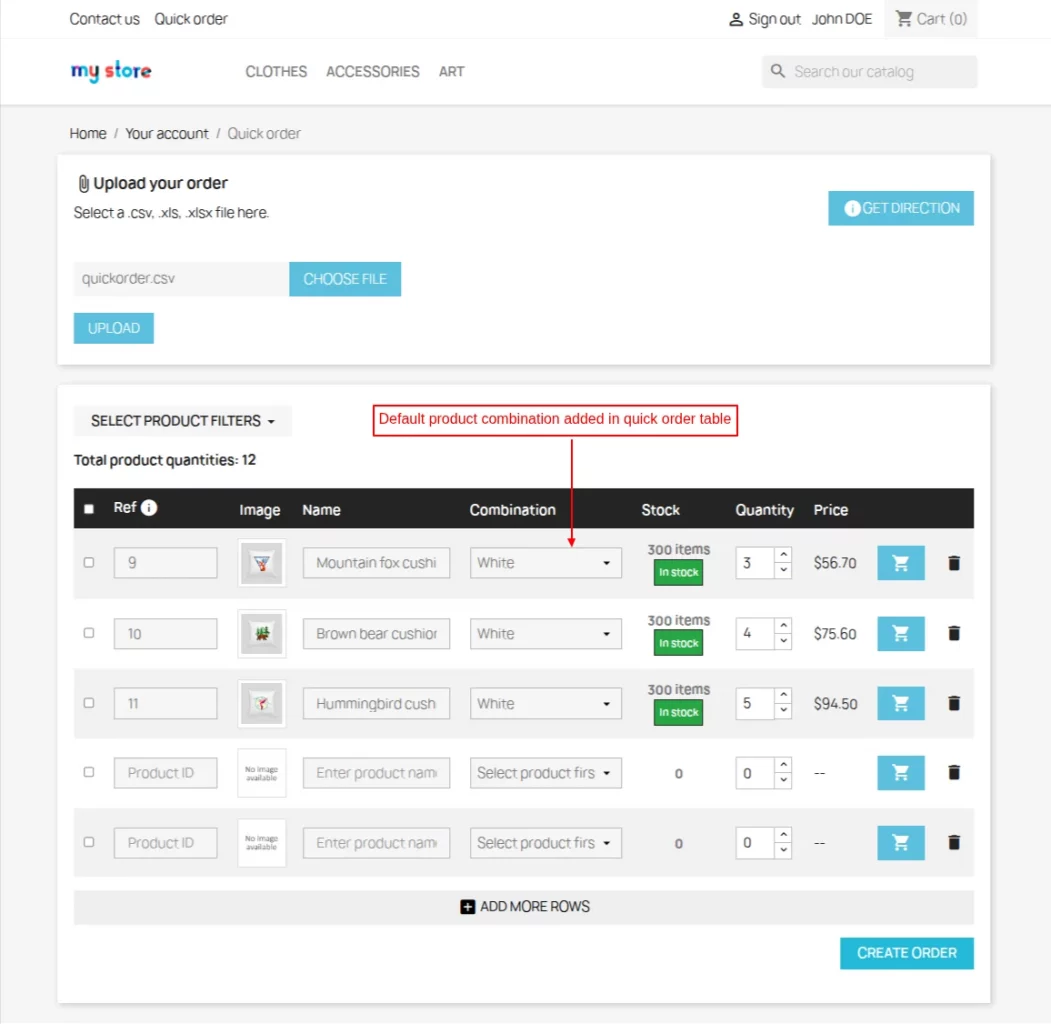
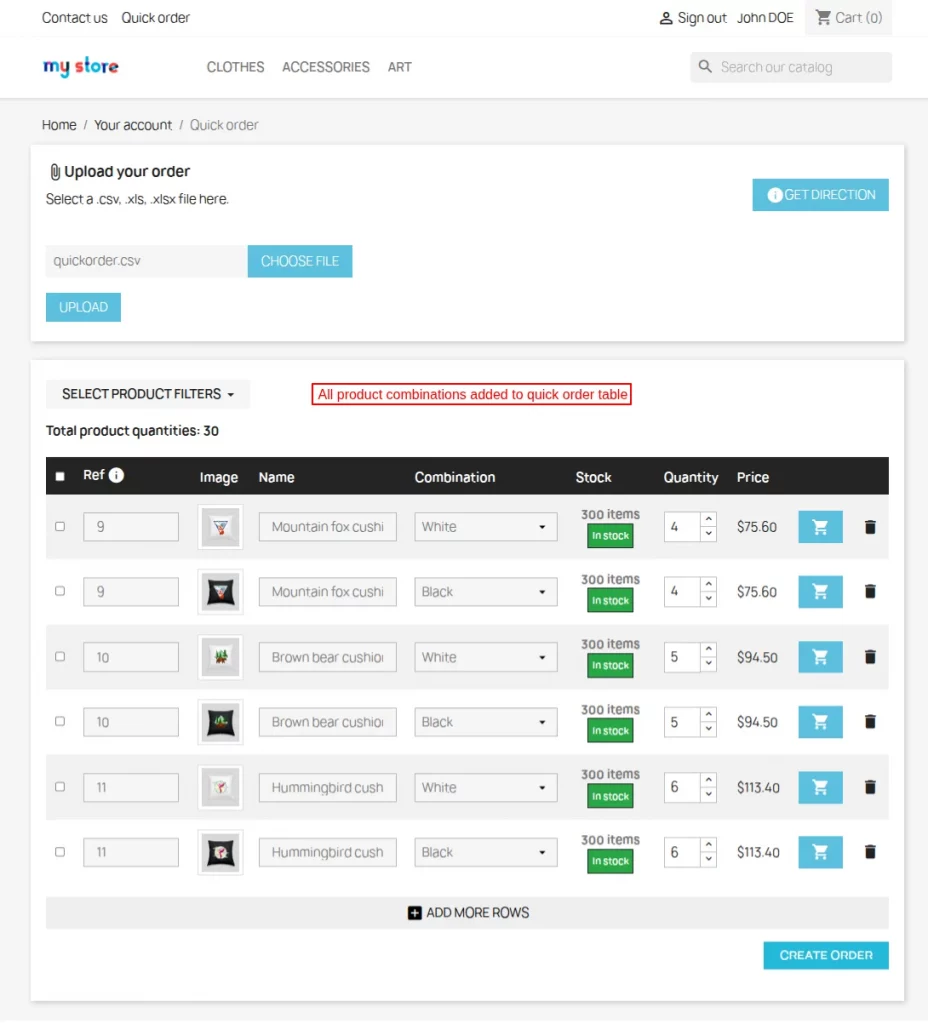
If the column for combination reference is not available or has no value, then the admin can choose to add only default combination or all the combinations of a product.

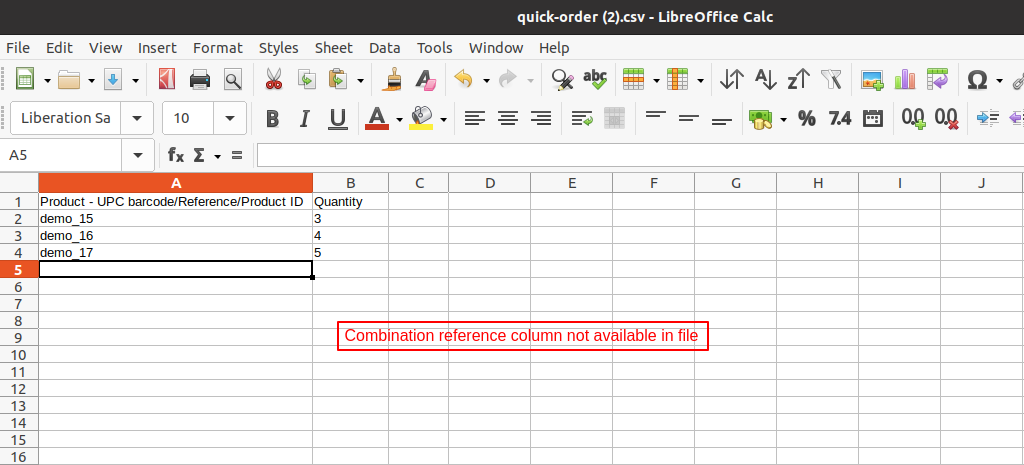
If selected “Add only default combination”

When selected “Add all combinations”

Behaviour when product quantity is 0 in csv/excel file

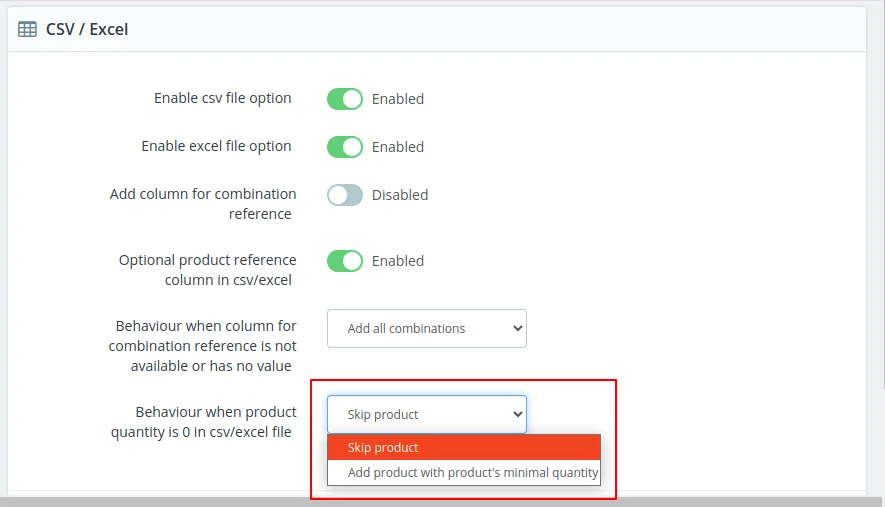

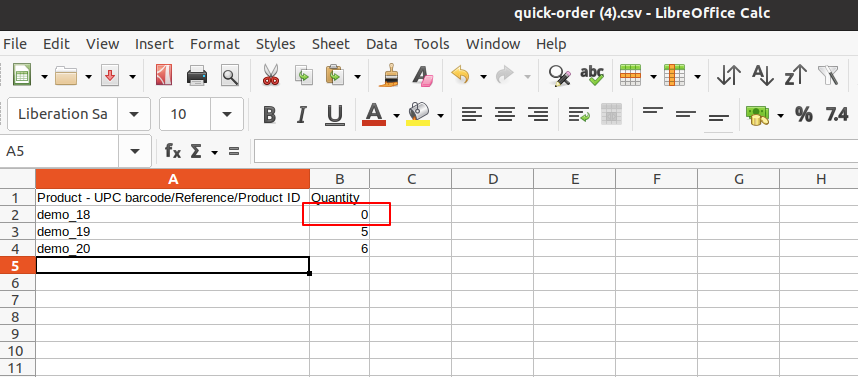
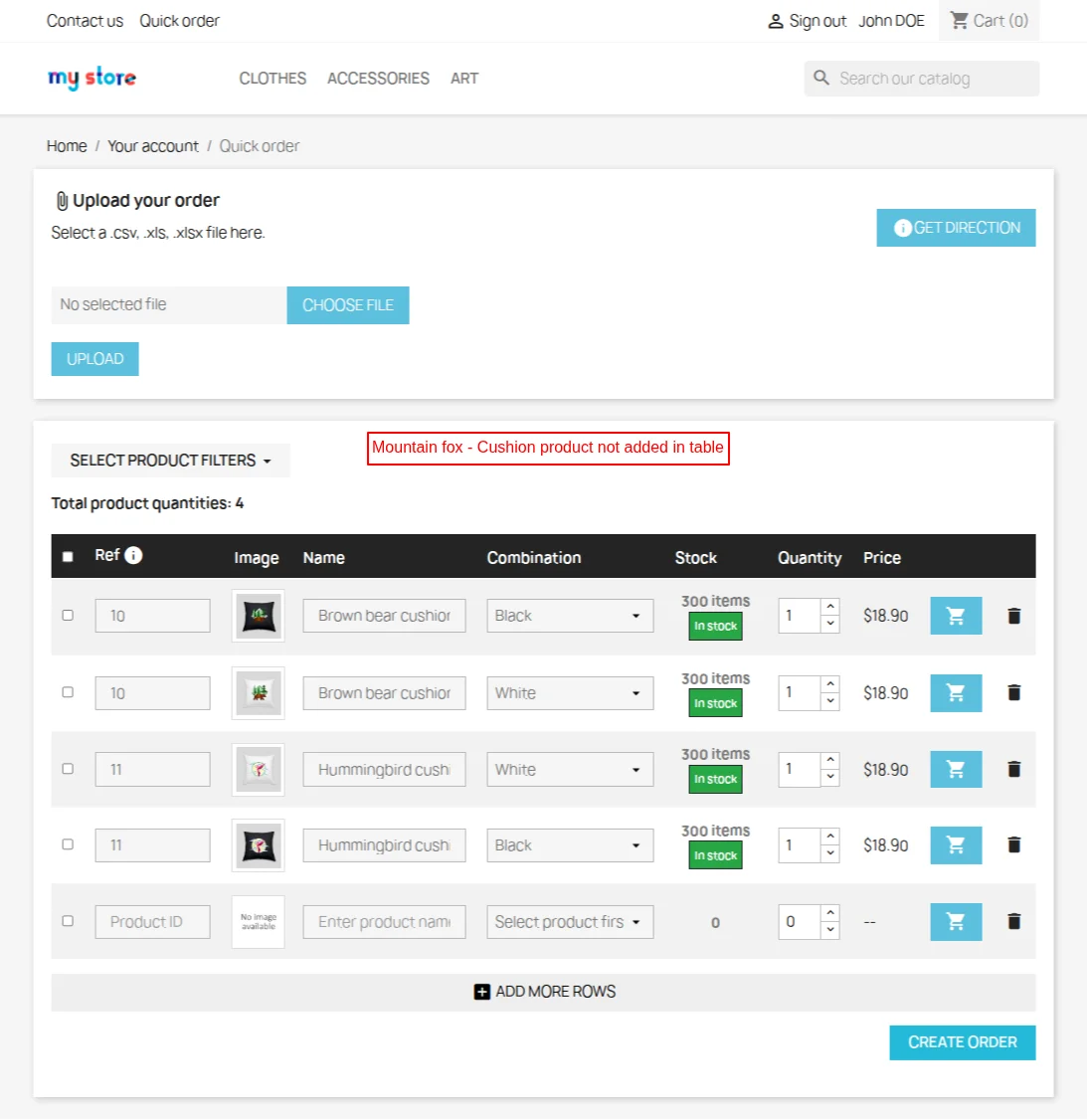
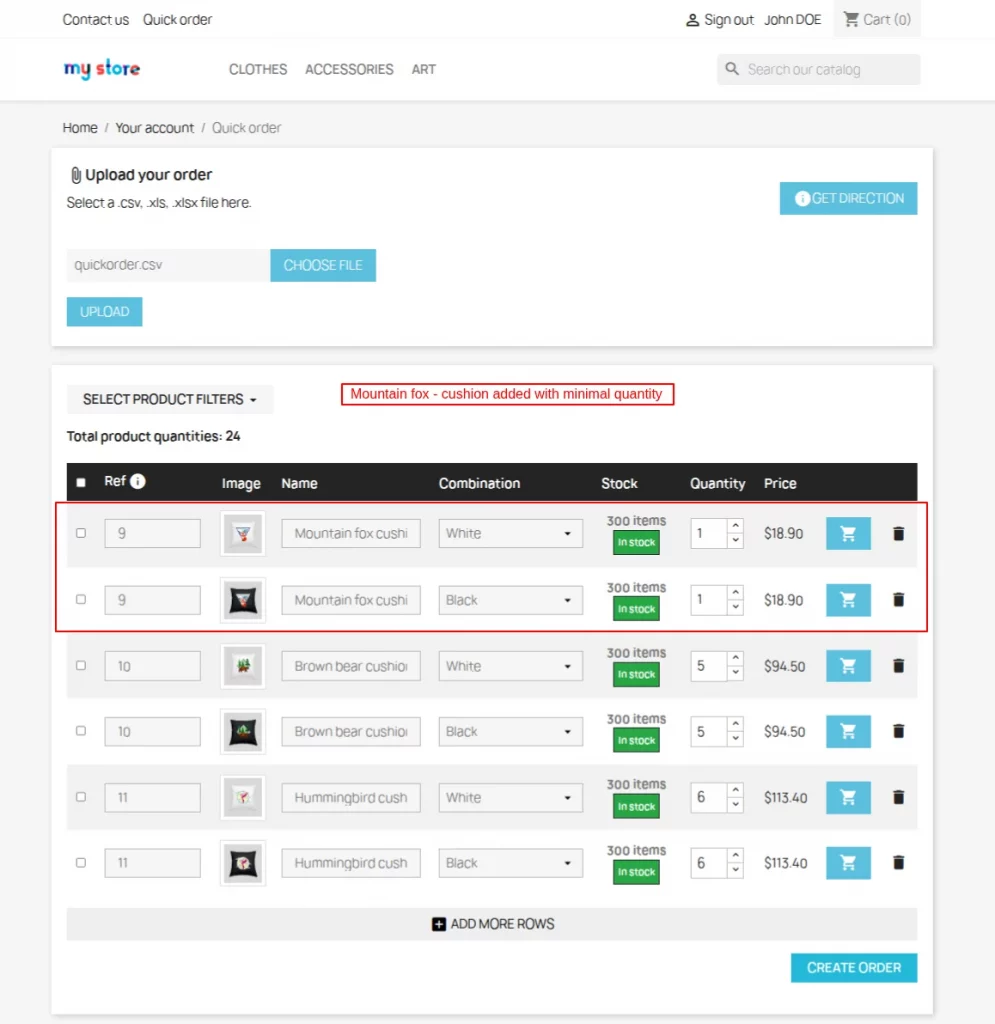
When product quantity value is 0 is csv/excel file, then the admin can choose to skip the product or add product with product’s minimal quantity in quick order table.
If selected “Skip product”, then product with zero quantity in the CSV file will not be added in quick order table.

If selected “add product with product’s minimal quantity”, then minimal quantity of the product will be added in quick order table.

Creating Quick Order
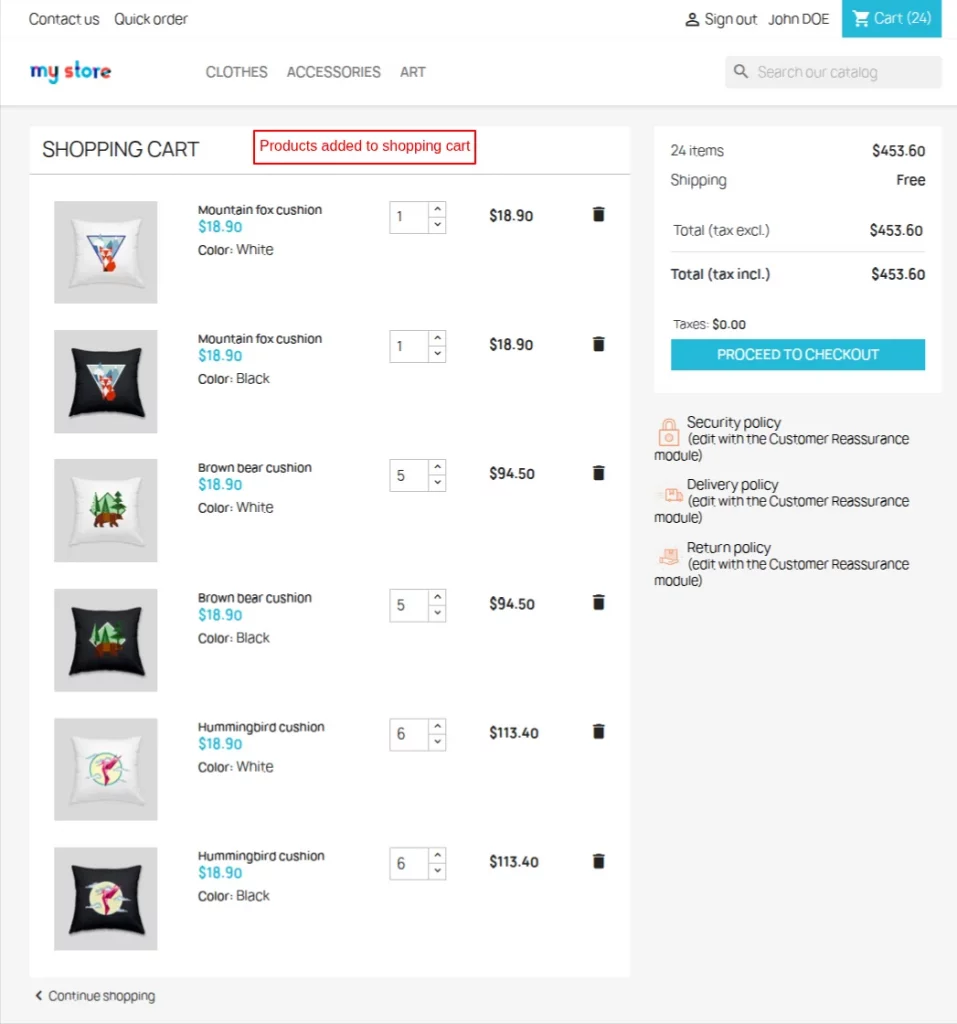
Once the customer has added products to the quick order table, he needs to click on the “Create Order” button given on the bottom of quick order table.
On clicking the button, all the products get added to the cart and customer can place order for all these products by following the standard PrestaShop procedure.

This was all about Prestashop Quick Order Module. I hope this document will help you in checking the functionality of the module in a better way.
Also, do let us know about your views in the comments.
Would you like another Prestashop extension that consolidates all the checkout process in one page? If yes, then do checkout the blog.
Support
For any kind of technical assistance or query, please raise a ticket at http://webkul.uvdesk.com or send us a mail at support@webkul.com
Also, please explore our PrestaShop development services & vast range of featureful PrestaShop Addons.