User Guide for Odoo Twilio SMS Gateway
Table of Content
This User Guide only describes the workflow of Odoo Twilio SMS Gateway. Read the User Guide for Odoo SMS Notification to know the workflow of Base Module: Odoo SMS Gateway.
INTRODUCTION
Odoo Twilio SMS Gateway helps you send instant SMS from Odoo using secure Twilio integration, enabling fast and reliable communication for any business.
It supports single and bulk SMS, automated event-based alerts, and reusable templates to simplify and standardize your messaging process.
With delivery tracking, workflow automation, and user-level access control, Odoo Twilio SMS Gateway ensures smooth, consistent, and scalable SMS communication across your operations.
Prerequisites for using Odoo Twilio SMS Gateway
Odoo Twilio SMS Gateway works in conjunction with the following module:
You must install the above-mentioned module to use Odoo Twilio SMS Gateway.
FEATURES
- Quick and secure Twilio SMS integration for seamless communication within Odoo.
- Supports sending both single SMS and bulk SMS to multiple recipients effortlessly.
- Enable/disable SMS Feature on User Basis
- Create and Save SMS templates to use later while sending the SMS.
- Smart workflow-based reusable SMS templates to standardize and speed up message creation.
- Conditions Based SMS Templates such as; order confirmed, invoice validated, order placed, etc
- Automated SMS alerts triggered instantly by defined events in your Odoo workflow.
- User-level permissions for sending SMS to maintain control and security across your system.
- Real-time SMS delivery status tracking to monitor message progress and completion.
- Enable/Disable checkboxes to Auto Delete the records
Installation
- Once you purchase the App from Webkul store, you will receive the link to download the zip file of the module.
- Extract the file on your system after the download finishes. You will be able to see a folder named- ‘twilio_gateway’.
- Copy and paste this folder inside your Odoo Add-Ons path.
- Now, open the Odoo App and click on the Settings menu. Here, click on Activate the Developer Mode.
- Then, open on Apps menu and click on ‘Update Modules List’.
- In the search bar, remove all the filters and search ‘twilio_gateway’.
- You will be able to see the module in the search result. Click on ‘Activate’ to install it.
Workflow
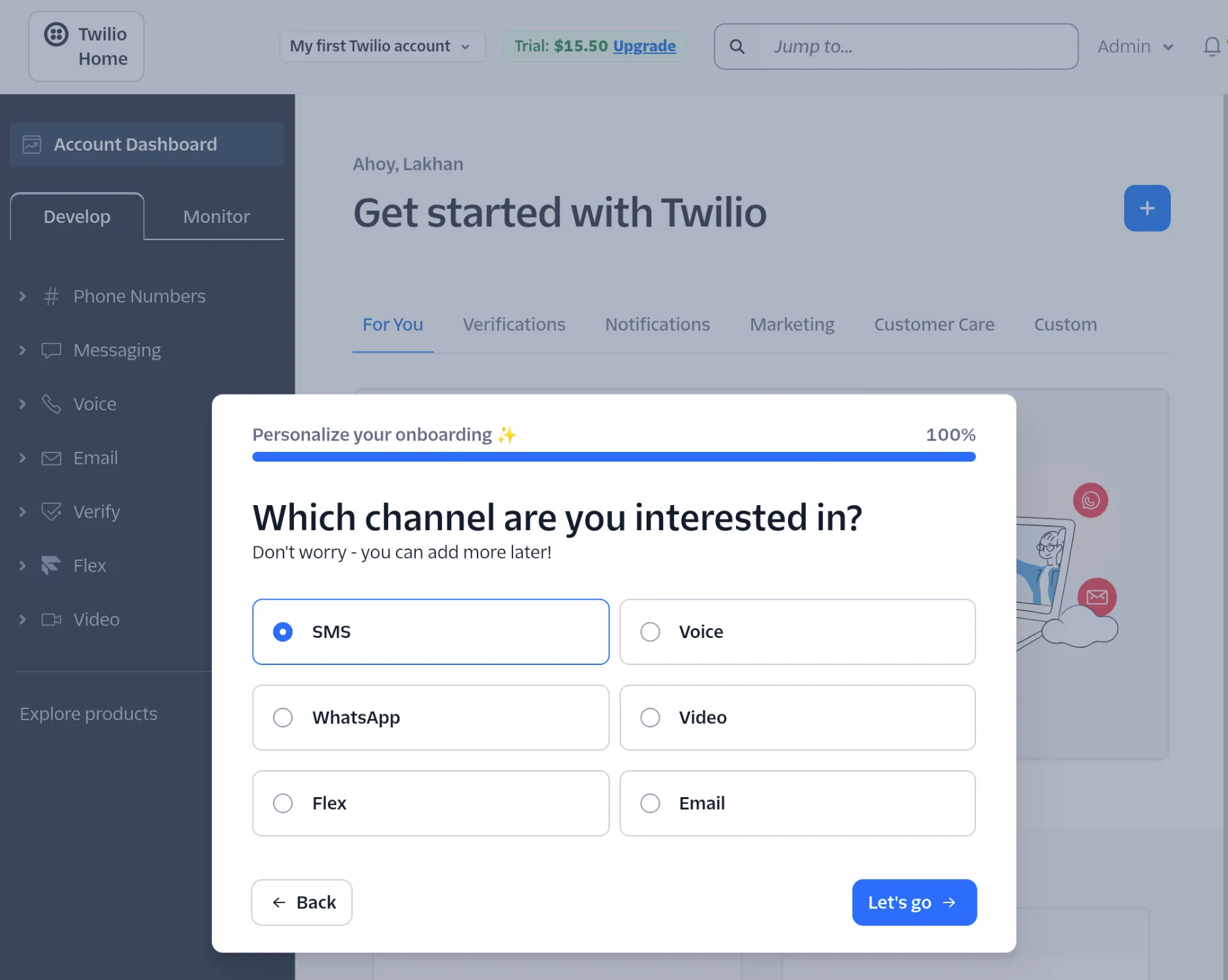
1. First, set up your external Twilio account:
Log in to your Twilio console, complete the onboarding screens (i.e., selecting your channel as SMS).
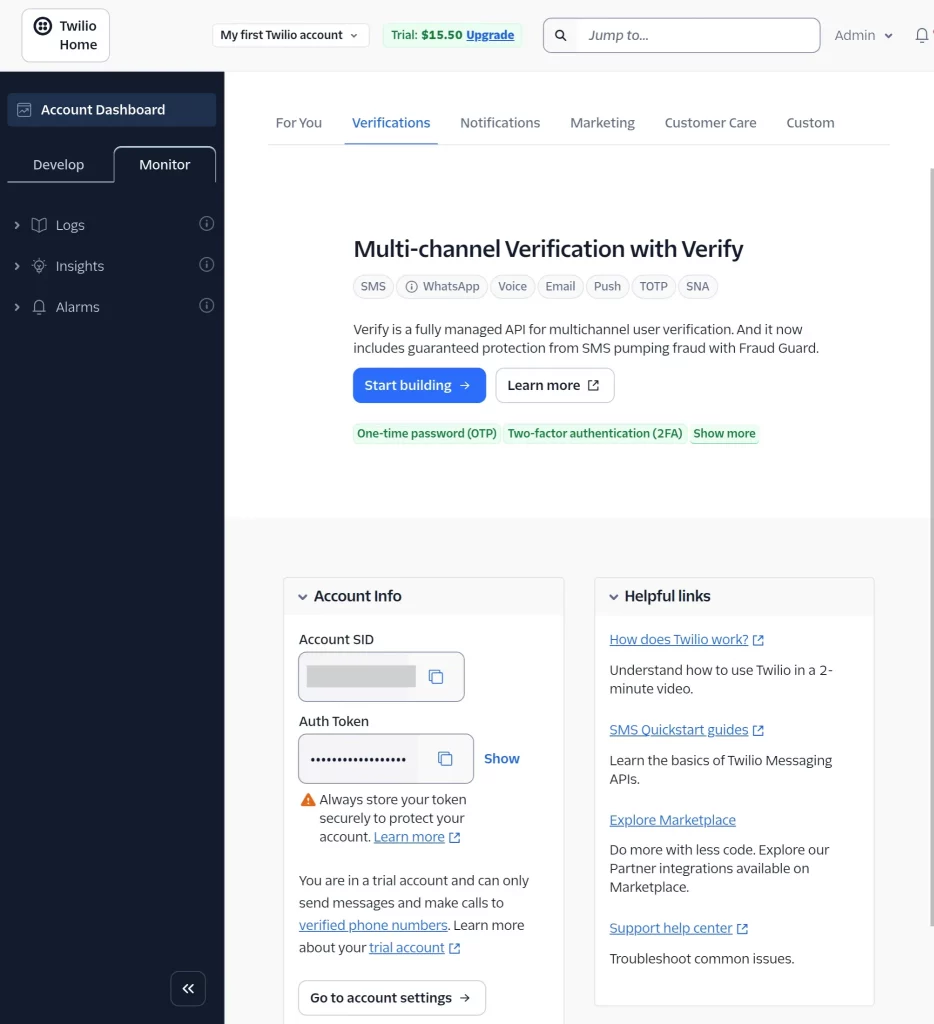
2. Then, locate your unique Account SID, Auth Token, and configured Twilio Phone Number from the Account Dashboard to use in Odoo.

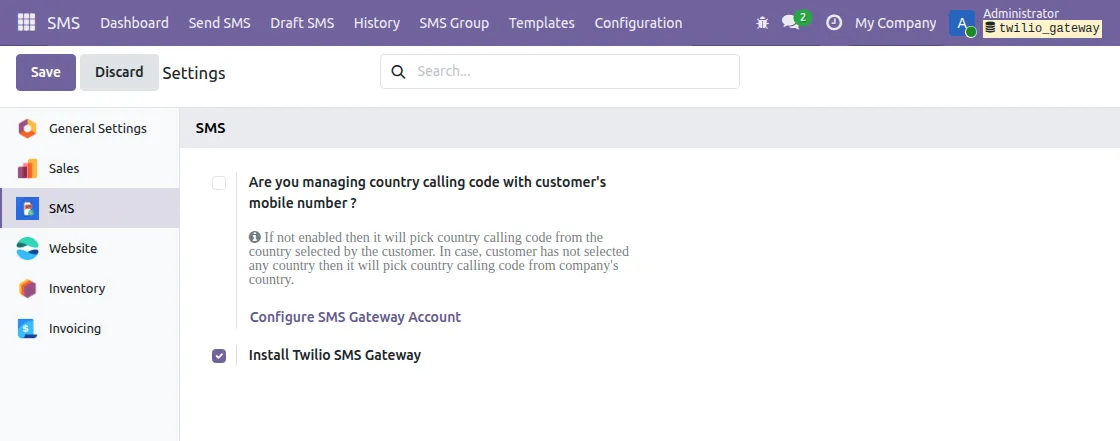
3. Configuration of Odoo Twilio SMS Gateway
Go to Settings → SMS, enable Install Twilio SMS Gateway, and click Configure SMS Gateway Account to begin setting up Odoo connection.

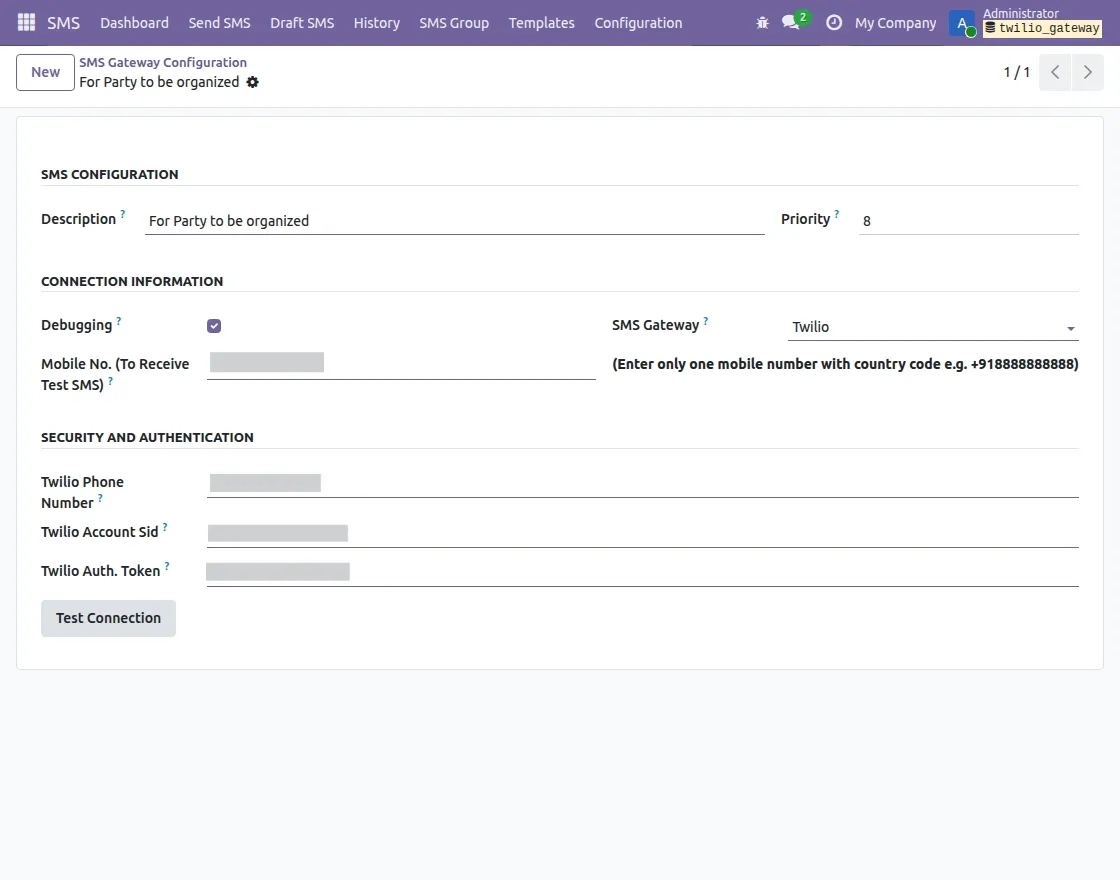
4. Enter your Twilio Phone Number, Twilio Account Sid, and Twilio Auth. Token (from Step 1), and click Test Connection to confirm everything is working.

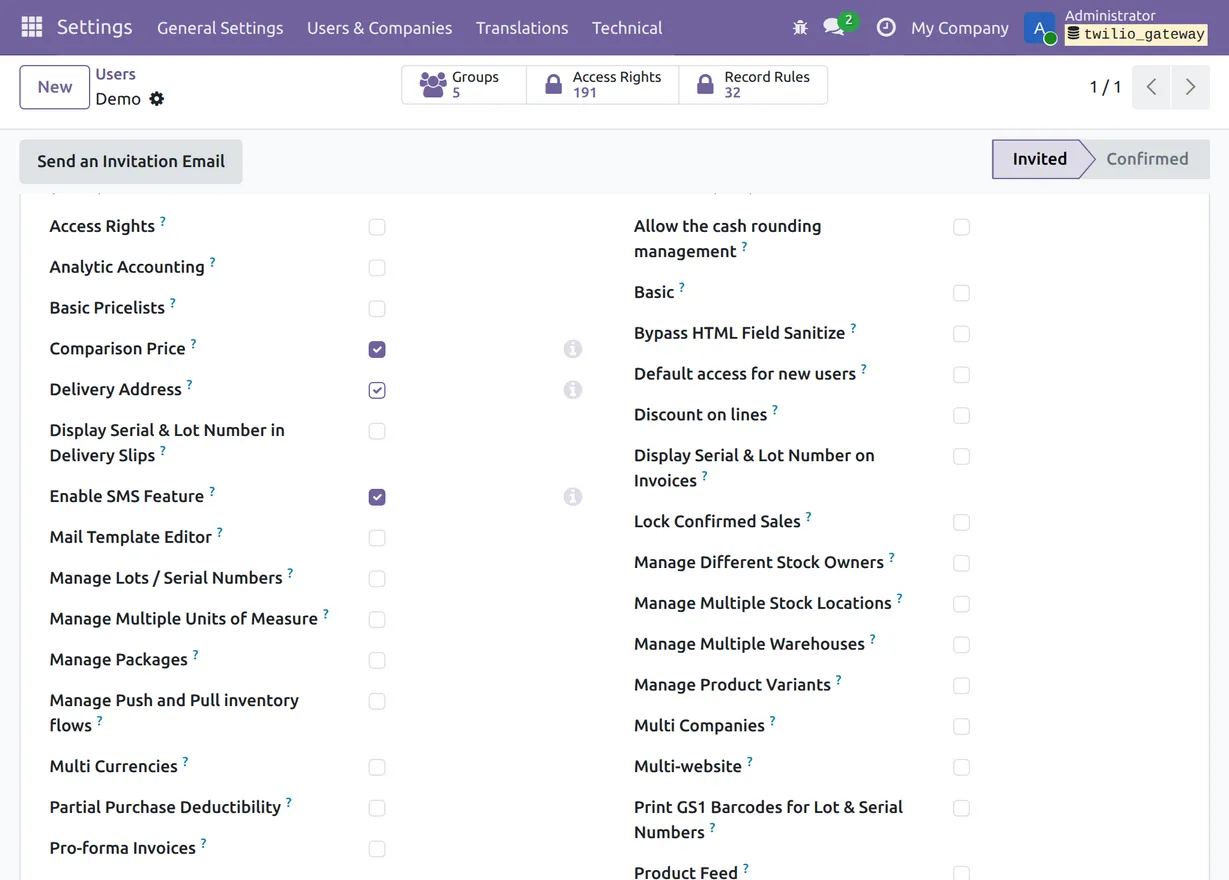
5. Navigate to Settings → Users & Companies → Users, select the relevant user, and ensure the Enable SMS Feature checkbox is checked under Access Rights to grant them permission to send messages.
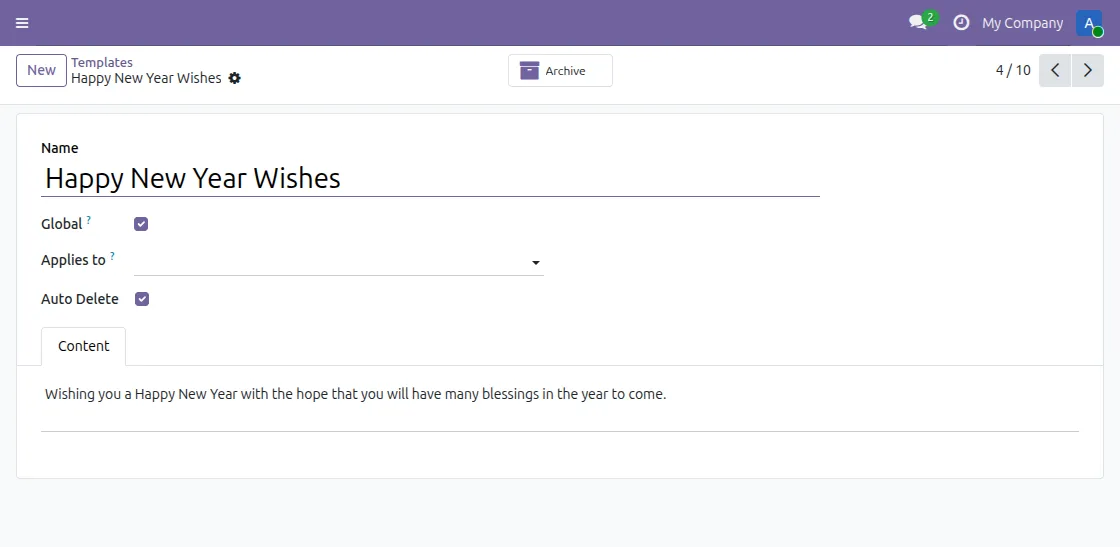
6. Navigate to SMS → Templates to create new reusable SMS content, set the Conditions and Odoo model it applies to (e.g., Sales Order) to define when the message is triggered.

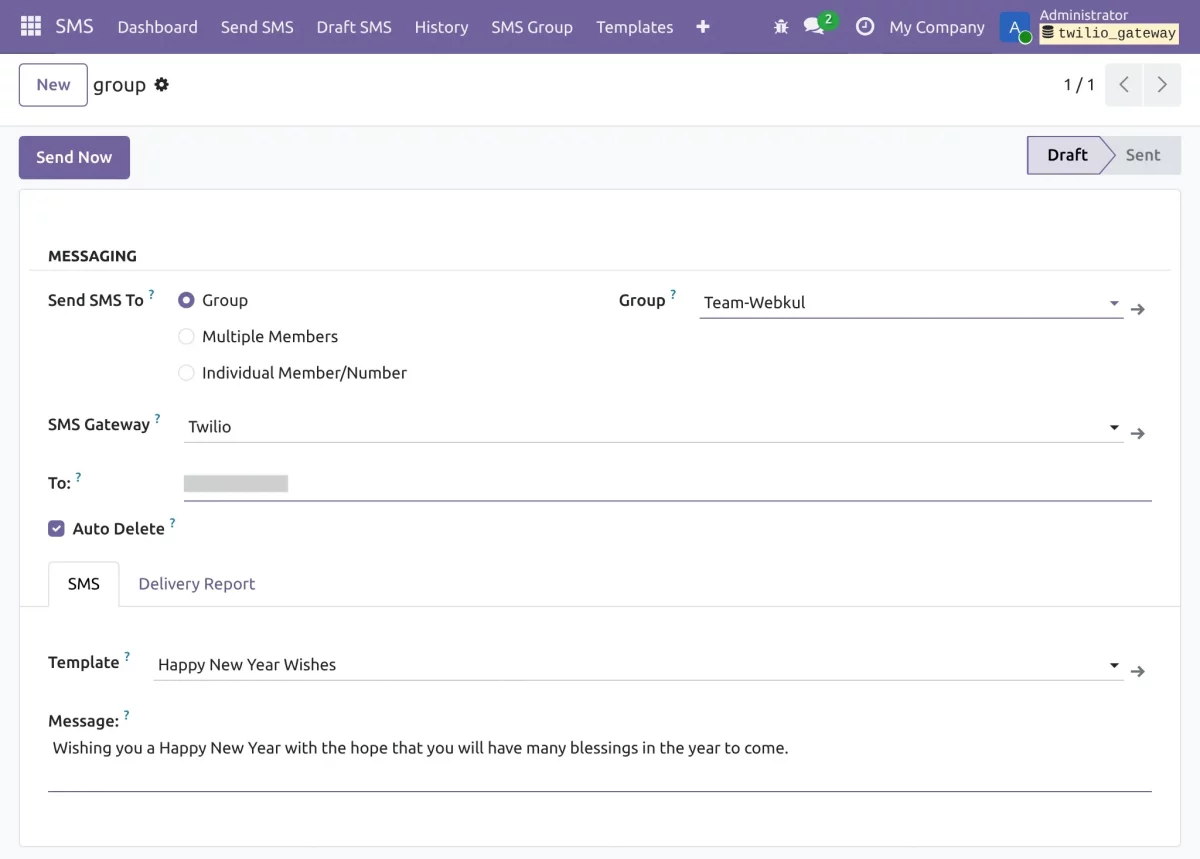
7. Go to SMS → Send SMS or SMS Group to select recipients (Group, Multiple Members, or Individual), choose the Twilio gateway, select a Template, and click Send Now to dispatch the message.

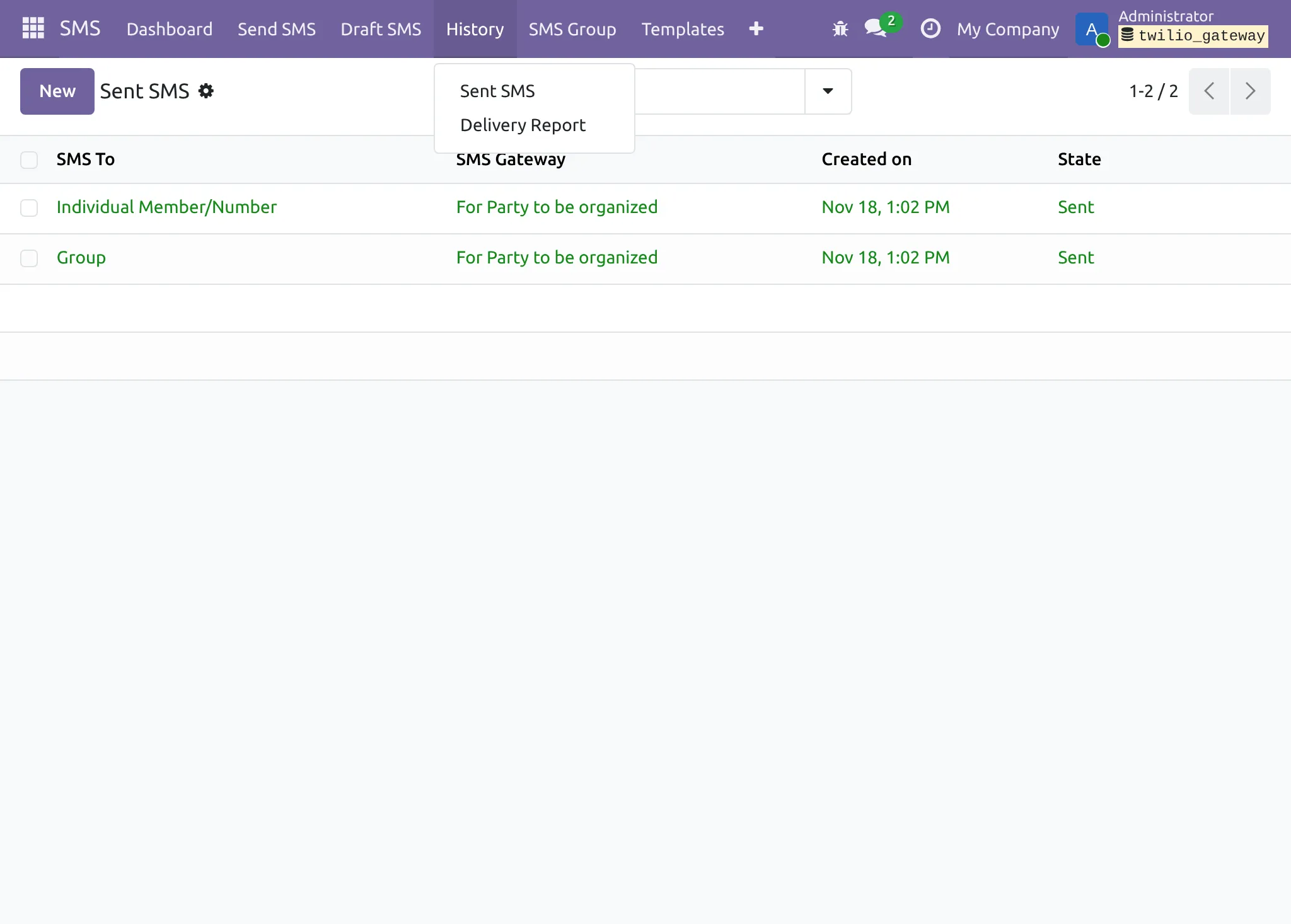
8. Navigate to SMS → History (or Sent SMS) to review a complete list of all dispatched messages, including the time they were sent and their current delivery State.
Need Help?
Hope you find guide helpful! Please feel free to share your feedback in the comments below.
If you still have any issues/queries, please create a ticket at the UV Desk.
I hope this helps. In case of any further queries, contact us at our support mail.
Thanks for paying attention!!
🙂 😊