No Contact Delivery For Magento 2
Magento 2 No Contact Delivery module allows you to inform your online customers about the contact-free delivery option directly on product pages as well as on cart pages.
It also enables customers to safely receive their orders.
It is an excellent way to keep the businesses running as well as to meet the customer’s demand for daily essentials in a safe manner.
As a result, it is critical to adhere to your safety of yours.
Check the plugin overview –
Features
- The admin can enable/disable the module functionality.
- The admin can also manage the title from the plugin’s configuration section.
- No contact delivery can be set for each category by the admin.
- The admin can also select allowed payment methods to be used by customers with no-contact delivery.
- The admin can also see no contact delivery opt-in in the order view section in the backend.
- The customer can see no contact delivery details in the order view section of their My Account.
- The customer can check product eligibility for non-contact delivery on the product and as well as on the cart page.
- The admin can set no contact Delivery for each product.
- The admin can assign or unassign the no-contact delivery option for all products.
- Magento 2 No Contact Delivery extension is compatible with the Hyva Theme.
*Note –
- This module does not work on virtual and downloadable products.
- For Bundle Product: If the main product is not a “no contact delivery product” and it’s sub product is no contact delivery product, then it will work as non-no contact delivery product.
- For Grouped Product: If the main product is not a “no contact delivery product” and it’s sub product is no contact delivery product, then it will work as non-no contact delivery product.
Installation
After getting the zip folder and you have to extract the contents of this zip folder on their system. The extracted folder has an src folder, inside the src folder you have the app folder.
However, you need to transfer this app folder into the Adobe Commerce root directory.


After the successful installation, you have to run these commands in the Adobe Commerce Cloud root directory.
php bin/magento setup:upgrade
php bin/magento setup:di:compile
php bin/magento setup:static-content:deploy
php bin/magento indexer:reindex
php bin/magento cache:flush
Multi-Lingual Configuration
So, for the Multilingual support navigate through Store>Configuration>General >Locale Options. Furthermore, select your desired language from the Locale option as required.


Translation
So, if a user wants to translate their module from English to German.
Henceforth, they need to follow the path app/code/Webkul/NoContactDelivery/i18n in their unzipped Adobe Commerce SMSA folder.
Therefore one can get a CSV file with the name “en_US.csv”.
So, now they will rename that CSV as “de_DE.csv” and translate all right side content after the comma in the German language.
So, after editing the CSV, save it and then upload it to the path app/code/Webkul/NoContactDelivery/i18n where they have installed Adobe Commerce Cloud on the server.
So, the module will get translated into the German Language. It supports both RTL and LTR languages.
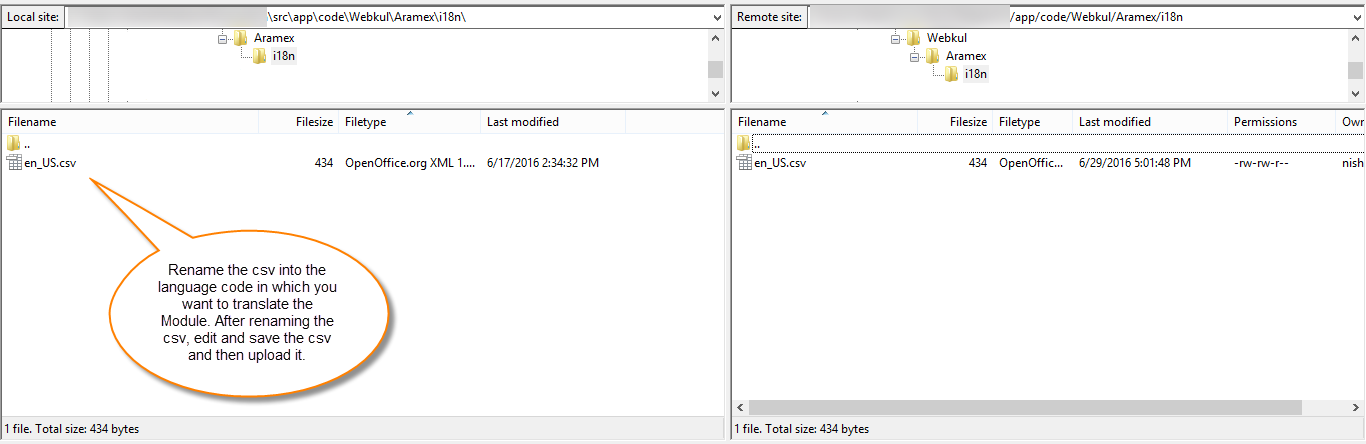

Thus, the user can edit the CSV like the image below.


Module Configuration
However, the module installation, the admin will find the configuration settings panel. So, the admin will navigate through Stores->Configuration->Webkul->No Contact Delivery


You can also access the initial configuration settings via No Contact Delivery->Configuration settings.


Furthermore, the admin will have to configure the plugin settings which include –
- Enable – Choose Yes to enable the plugin functionality for your website or select it as No to disable.
- Title – Enter the title that you want to display to the customers at the storefront on the product page or checkout page.
- Description – Enter the description that you want to display to the customers at the storefront on the product page or checkout page.
- URL – Enter the URL link that you want to display to your customers.
- Visibility – for visibility select the options given below that you want to display to your customers :
- Product page – The no contact delivery option visible on your product page.
- Cart page – The no contact delivery option visible as well on your cart page.
- Payment Methods – Select the payment methods that customers would be able to use if they want no contact delivery.
Admin End Management
Under Catalog -> Categories, the admin will set no contact delivery for each segment, and all products under the selected segment will work as no contact delivery products.
However, as seen in the screenshot given below.

The admin can assign or unassign contact-free delivery for all the products.
To do so, the admin will navigate through Catalog -> Products -> Actions as seen in the screenshot given below.


The admin can set contact-free delivery for each product. To do so, the admin will navigate through Catalog -> Products -> Edit Product -> No Contact Delivery as seen in the screenshot given below.

Furthermore, If the customer has opt-in for no contact delivery while placing the order, the admin can see it under Sales -> Order in the backend as seen in the screenshot given below.

Apart from this, the admin can also view the no-contact delivery option under the Shipping & Handling Information section.
Other related details are available under Sales → Orders → Order View, as shown in the screenshot below.

Storefront Working – No Contact Delivery
At the storefront, the customers can find the no contact delivery available on the product page so that they can opt it out on the checkout page as seen in the screenshot given below.


Now, the customer can, however, view the no contact delivery option at the time of checkout and choose it for safer delivery as seen in the screenshot given below.


After the order is successfully placed, the customer can view the no-contact delivery details along with any additional instructions in the Order View section of their My Account.
This is shown in the screenshot below.

Email Notification
Upon confirming an order, the customer will receive an email notification indicating whether the delivery will be contactless, marked as either “yes” or “no.”


Conclusion
At last, I will conclude that No Contact Delivery For Magento 2 could be the answer if you want to provide your customers with the safest takeout and delivery service possible.
However, It Eliminates face-to-face contact with your customers and also reduces the risk of contagious/infectious diseases.
Support
So, that was much about the No Contact Delivery for Adobe Commerce plugin for any query or doubts reach out to us at support@webkul.com .
You can also raise a ticket at our HelpDesk system webkul.uvdesk.com
Furthermore, you may also check out Magento 2 delivery date extension that allows customers to schedule their online order deliveries.