User Guide for Odoo Bridge for Magento
Introduction
Odoo Bridge For Magento connects your Magento store with Odoo to sync products, customers, orders, invoices, shipments, and stock between both systems.
You can manage your eCommerce and ERP operations together without manually updating data. This helps maintain consistency across platforms.
The module supports both manual and automatic synchronization, based on your configuration.
Features
- Sync Magento orders to Odoo for processing
- Sync products, categories, and attributes between Magento and Odoo
- Import customers and addresses from Magento to Odoo
- Sync invoices and shipments across both platforms
- Update stock from Odoo to Magento automatically
- Map taxes, payment methods, delivery methods, and currencies
- Prevent duplicate products, customers, and categories during sync
- Manage draft order states and Magento order sequence
Installation
1) Odoo Bridge for Magento is a package of two modules, one for Magento and another for Odoo.
2) Now, extract the file you received. You will get two folders: Inside the Magento folder, there is a base module.
Base module: It is the main module; generally, this module will contain two folders named as app and lib. Copy all folders/files of this folder into the main Magento directory.
3) After copying all files:
- Go to your Magento admin panel and Clear Cache and re-index Magento indexer.
- Simply re-login to Magento admin panel.
4) At Odoo End, follow the below-mentioned steps:
- You will be able to see the module in the search results. Click on ‘Activate’ to install it.
- Extract Odoo file on your system. As a result, you will be able to see a folder named ‘magento_bridge’.
- Copy and paste this folder inside your Odoo Add-Ons path.
- Now, open the Odoo App and click on the Settings menu. Here, click on Activate Developer Mode.
- Then, open the Apps menu and click on ‘Update Modules List.’
- In the search bar, remove all the filters and search ‘magento_bridge’.
- You will be able to see the module in the search results. Click on ‘Activate’ to install it.
Points To Take Into Consideration
If you are managing your complete data at Odoo end only then follow below-mentioned steps:
- Synchronize all attributes from Odoo to Magento
- You can create attribute sets at Magento End using multiple combinations of Odoo Multi Variant Products. For example, Odoo has Multi Variant Product named as T-shirt using a combination of Size and Color then you can create Apparel.
- If you are trying to export any Multi-variant product from Odoo to Magento then make sure that attribute set with current product combination should be there at Magento end.
- After that, sync all categories’ from Odoo to Magento and Vice Versa
- Now, you can synchronize all products from Odoo to Magento. (If there is any product in Magento End with Same SKU as Odoo then also there will be no duplicity.)
If you are managing your data at Magento end only then follow below-mentioned steps:
- Synchronize all Attributes Sets from Magento to Odoo
- Synchronize all Categories from Magento to Odoo
- Now, sync all products from Magento to Odoo (If there is any product in Odoo End with Same SKU as Magento then also there will be no duplicity. But in the case of Multi Variant Product, the module will also check the combination (attributes) of the products of both ends. If both combinations are same then it will map the same product.)
All the related customers, products, currency, delivery methods, payment methods and taxes will be automatically synced with the synchronization of the respective orders.
- To make the process faster, you need to synchronize order-related data before order synchronization
- In case, there are same payment methods, delivery methods and taxes at both ends then you need to map them manually before order synchronization. In case, it is not followed then Odoo throws an error.
Managing your data at both ends then follow the below-mentioned steps:
- Firstly, you can synchronize all the attribute sets from Magento to Odoo; after that, you can synchronize all attributes from Odoo to Magento.
- You can synchronize all the categories from Magento to Odoo as well as vice versa
- You can synchronize all products from Odoo to Magento; it will map the products with the same SKU at both ends along with the synchronization. Hence, it will not create duplicity if products have the same SKU.
- Combination of Variants should be the same at both ends for the synchronization of same configurable products to avoid duplicity
- You can manually map taxes, payment methods, shipping methods and currency from Magento, if presented at both ends.
Workflow
Configuration
To know the configuration of Odoo Bridge for Magento, visit here
You can also refer to the youtube video for the installation and configuration of Odoo Bridge for Magento
Dashboard:
1) Firstly login to your Odoo Database and go to the Ecommerce Odoo Bridge
2) Here, you will see a Dashboard where you can see useful buttons and data cards.

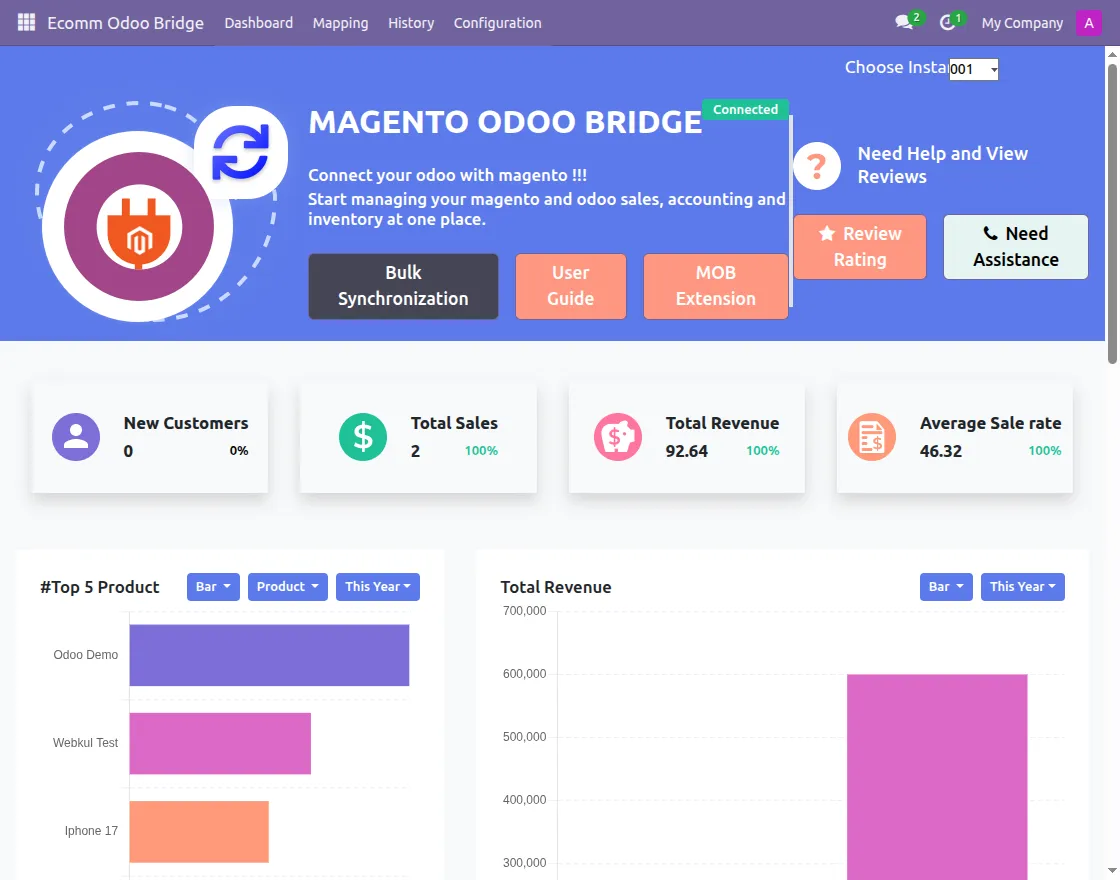
Bulk Synchronization
- Click on the Bulk Synchronization Button to sync the data in bulk from Odoo to Magento.

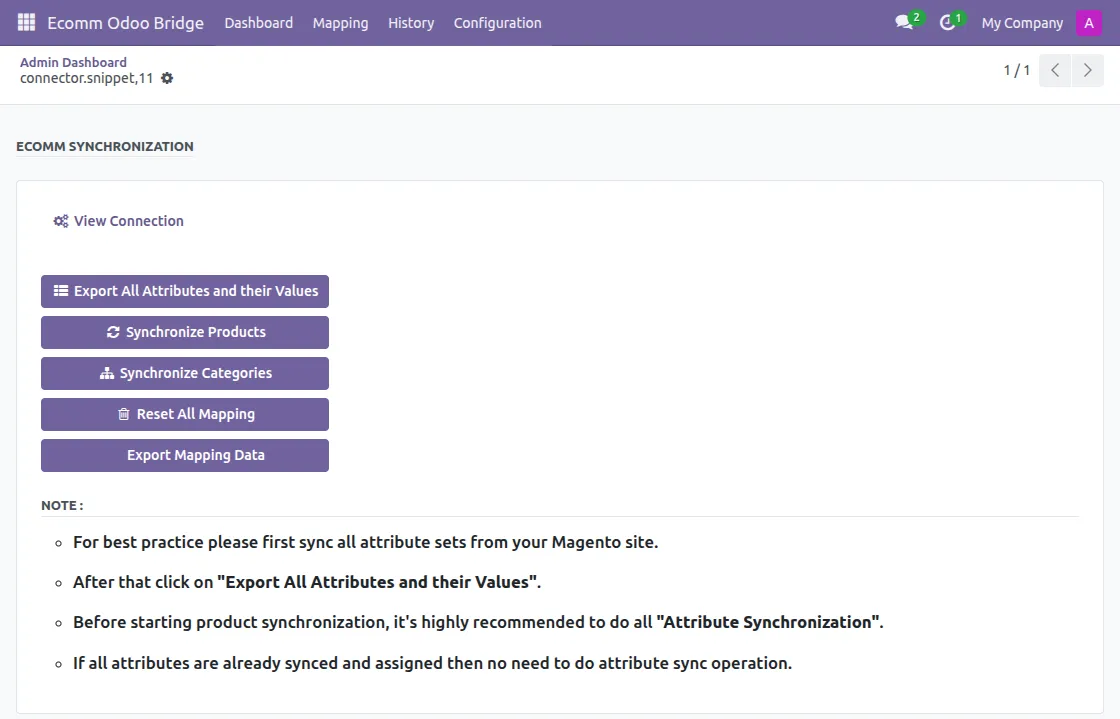
Attribute Synchronization
- You can sync all Attributes from Odoo to Magento.
- However, You can sync configurable type Attributes along with Attribute Sets from Magento to Odoo
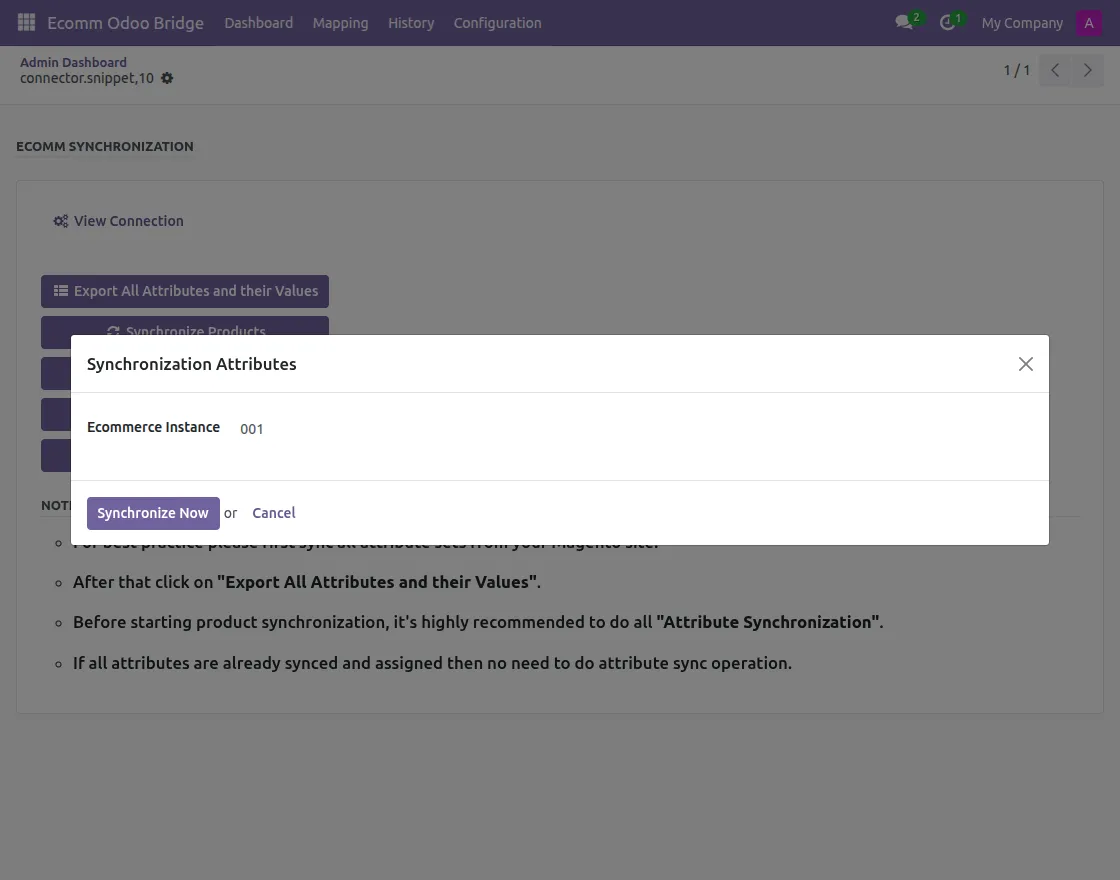
- Firstly, you need to sync the attributes from Odoo, so, click on ‘Export All Attributes and their values’
- After that click on the ‘Synchronize Now’ button; here, you can see the message of attribute synchronization.
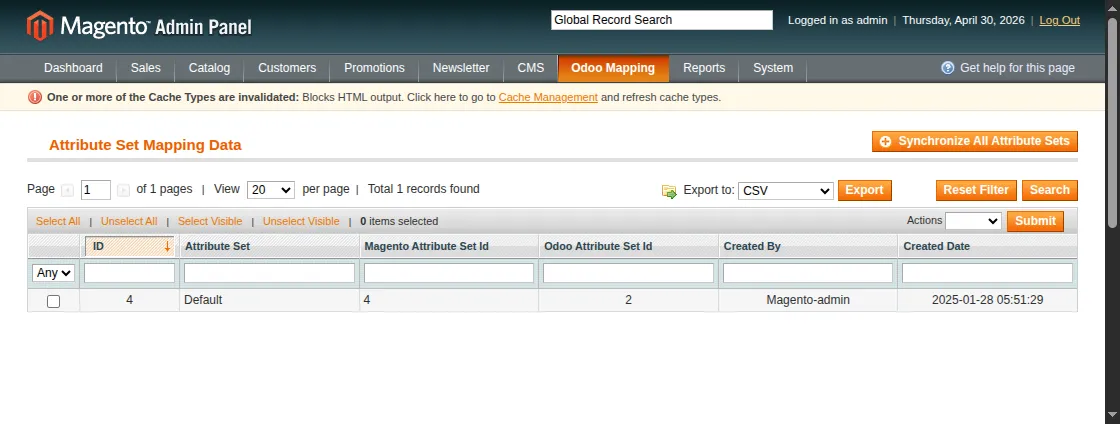
- In Magento, if you want to create addition attribute sets using new attributes which are synced from Odoo then hover on ‘Catalog’ tab to Manage Attribute Sets which is available under ‘Attribute’ Menu.
- If you are managing Odoo Multi Variant Products using these attributes then this step is required.
- Go to the Sets Menu under Odoo Mapping Attribute to synchronize attribute sets then click on ‘Synchronize All Attribute Sets’ Button

Category Synchronization
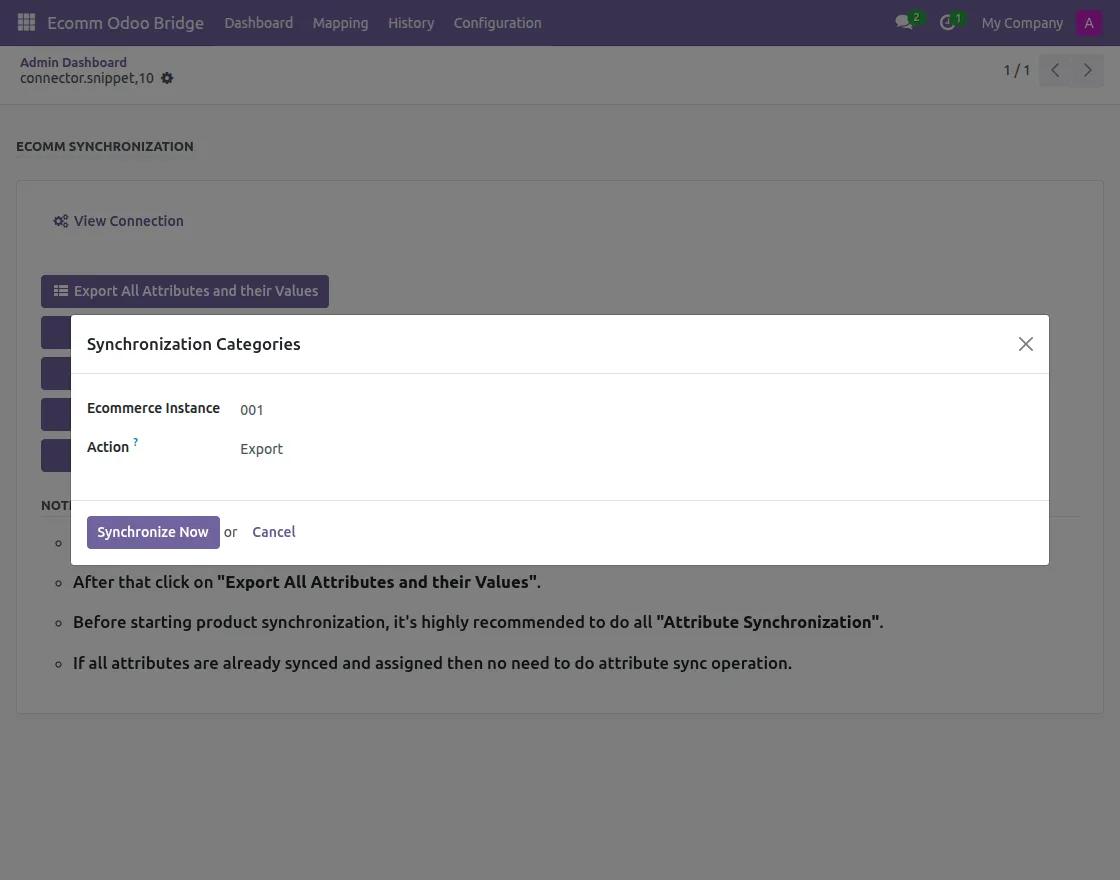
- To synchronize Categories from Odoo to Magento, click on ‘Synchronize Categories’ Button
- Select the action to export or update the data. After that click on the ‘Synchronize Now’ button; here, you can see the message of category synchronization.
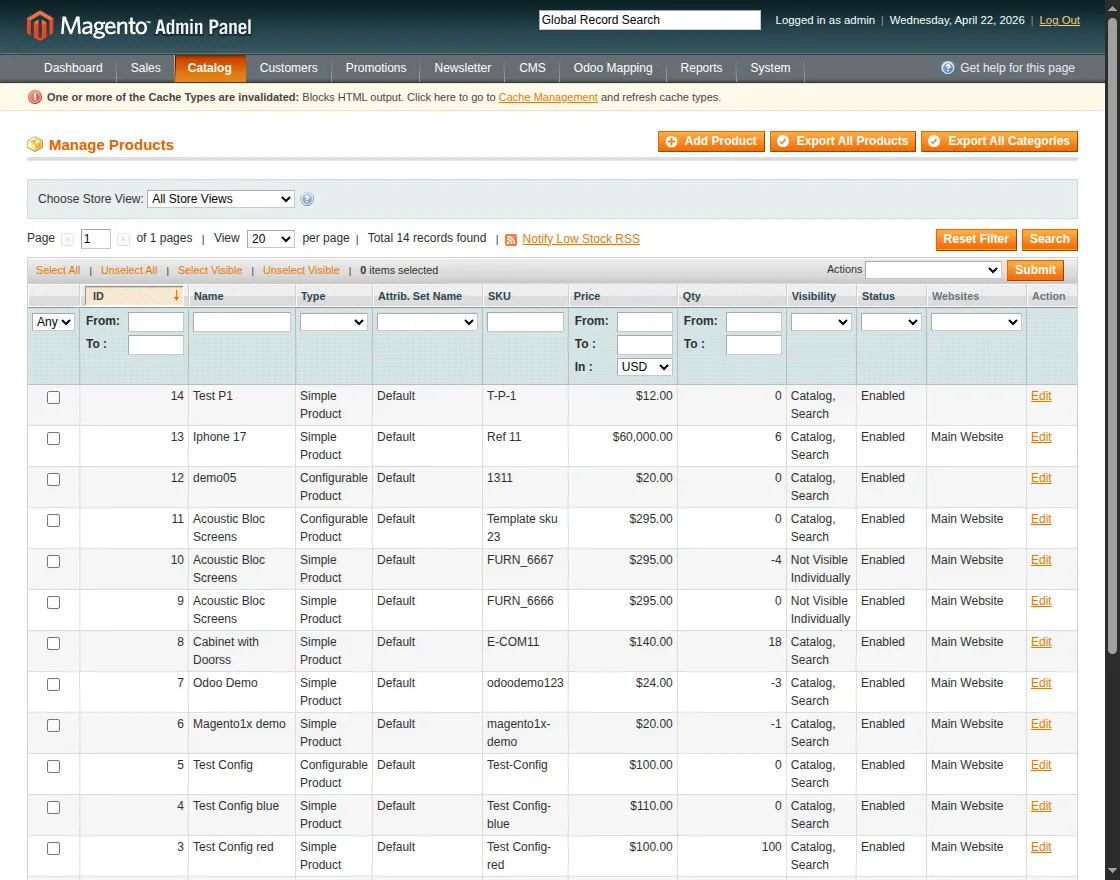
- In the Magento End, Click on ‘Manage Products’ Menu which is available under ‘Catalog’ tab. Here, click on ‘Export All Categories’ button to export categories from Magento to Odoo.
Product Synchronization
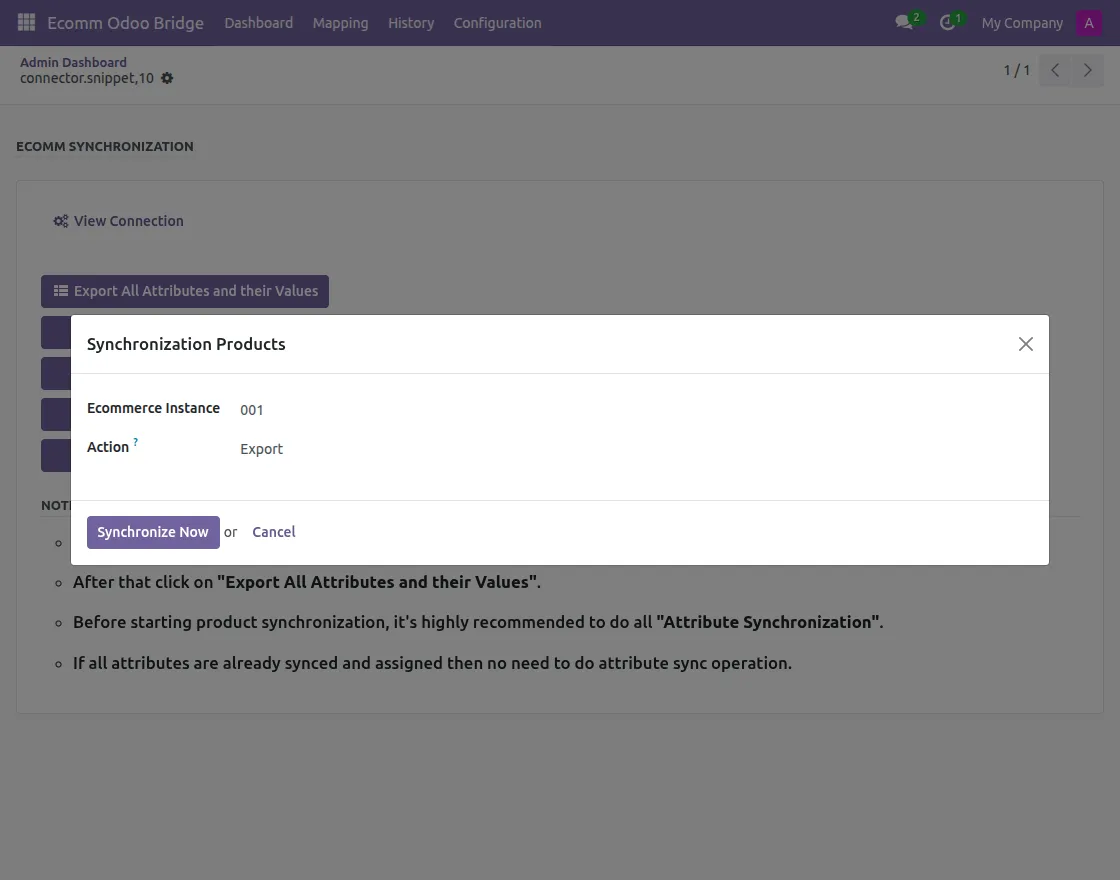
- To synchronize Products from Odoo to Magento, click on ‘Synchronize Products’ Button
- Select the action to export or update the data. After that click on the ‘Synchronize Now’ button; here, you can see the message of product synchronization.
To Sync Simple Products
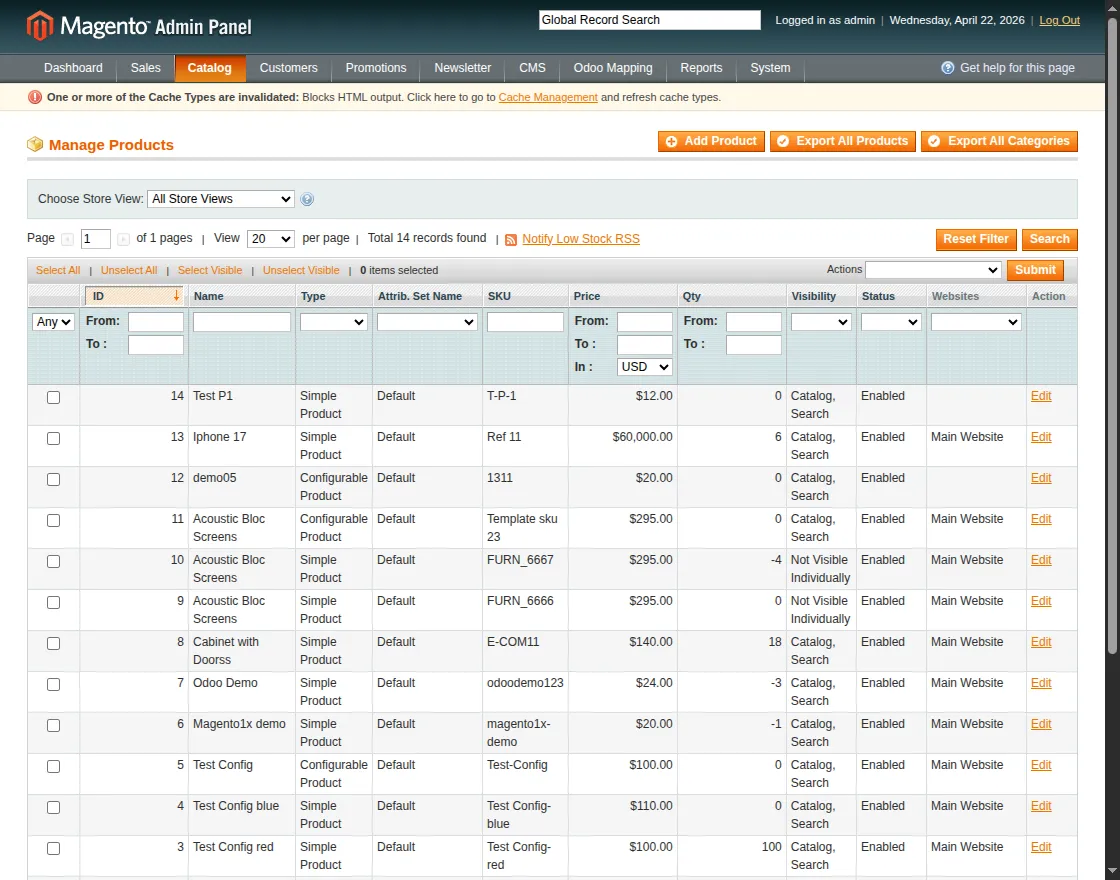
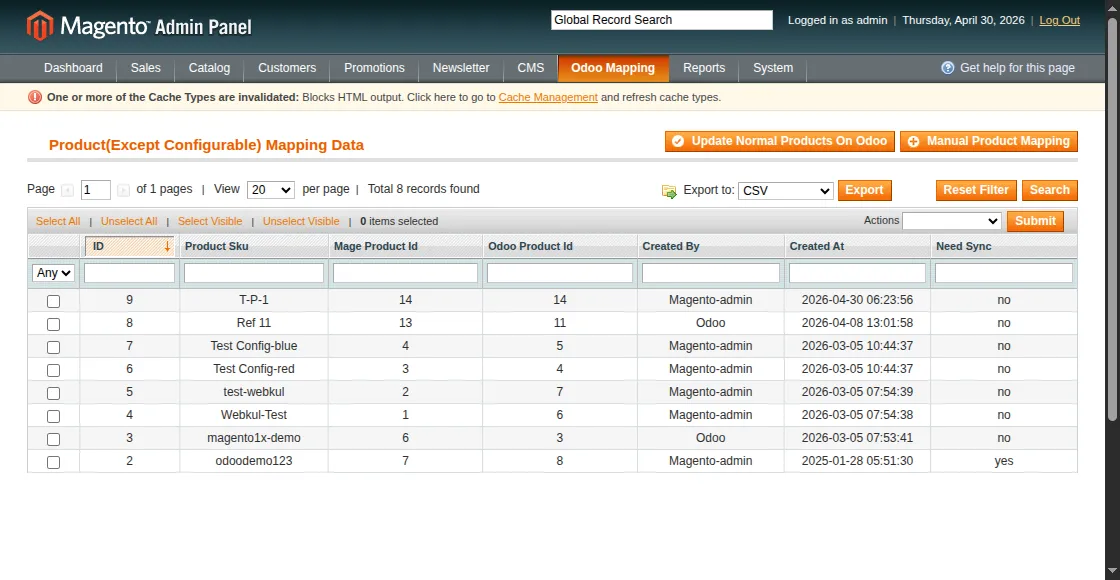
- In the Magento end, under the ‘Catalog’ tab go to the ‘Manage Product’ and click on ‘Export All Product’ Button.
- Now, go to Odoo Mapping tab and click on the ‘Product’ menu. Now to update simple products click on ‘Update Normal Products On Odoo’ button.

To Sync Configurable Products
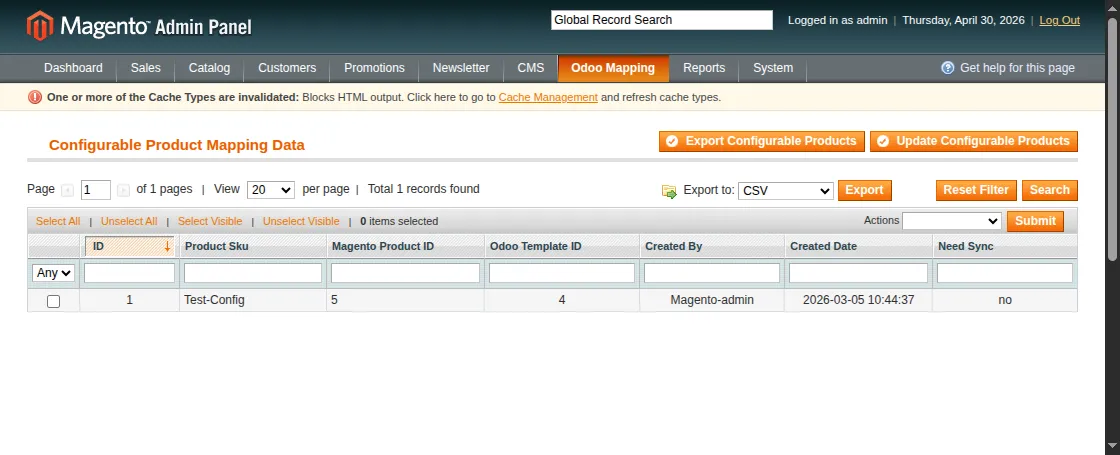
- In the Magento end, go to the Configurable products under Odoo Mapping to Export and Update configurable products.

Customer Synchronization
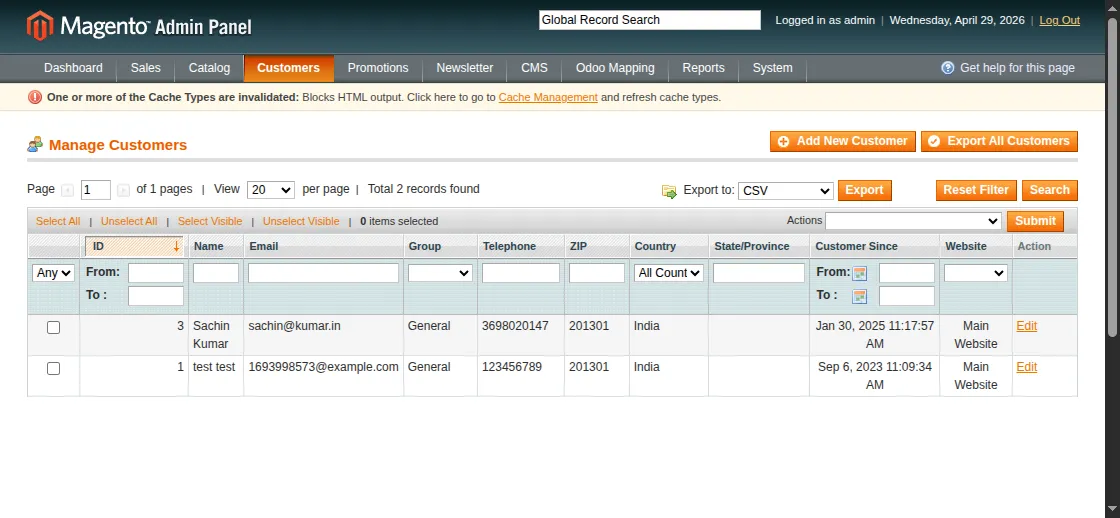
- In the Magento end, under the ‘Customers’ tab go to the ‘Manage Customers’ Menu. Here, click on the ‘Export All Customers’ button.

Order Synchronization
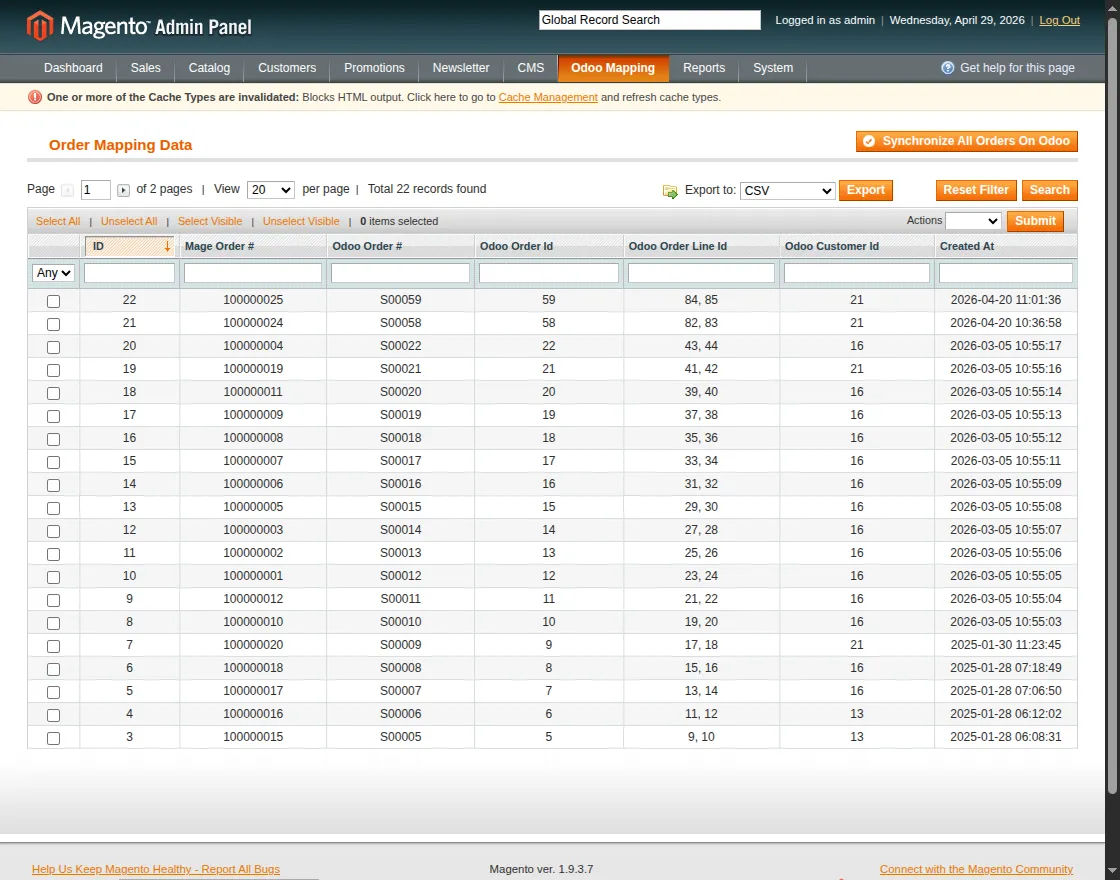
- In the Magento end, under ‘Odoo Mapping’ tab go to the Sales Order. Here, click on ‘Synchronize all orders on Odoo’ button.
- When you bulk synchronize orders from Magento to Odoo then the Order Status will be automatically synced.
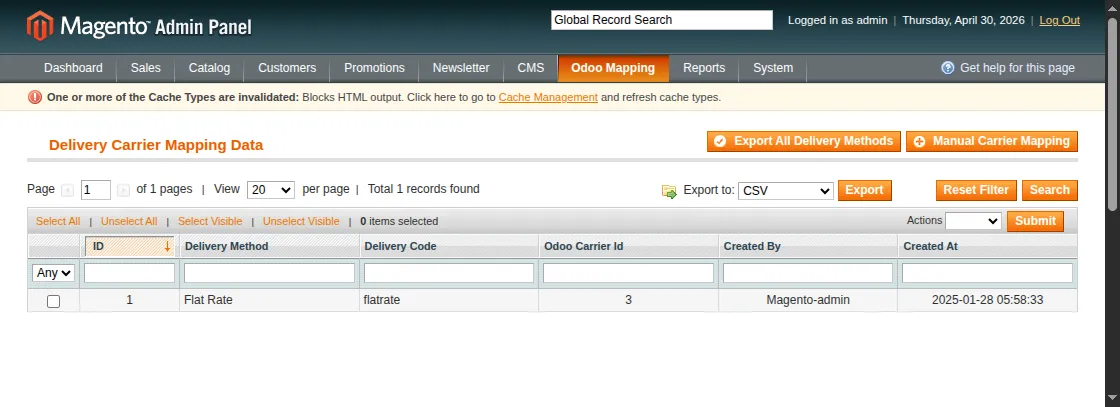
Delivery Method Synchronization
- In the Magento end, under ‘Odoo Mapping’ tab go to the Delivery Methods. Here, click on ‘Export All Delivery Methods’ button.

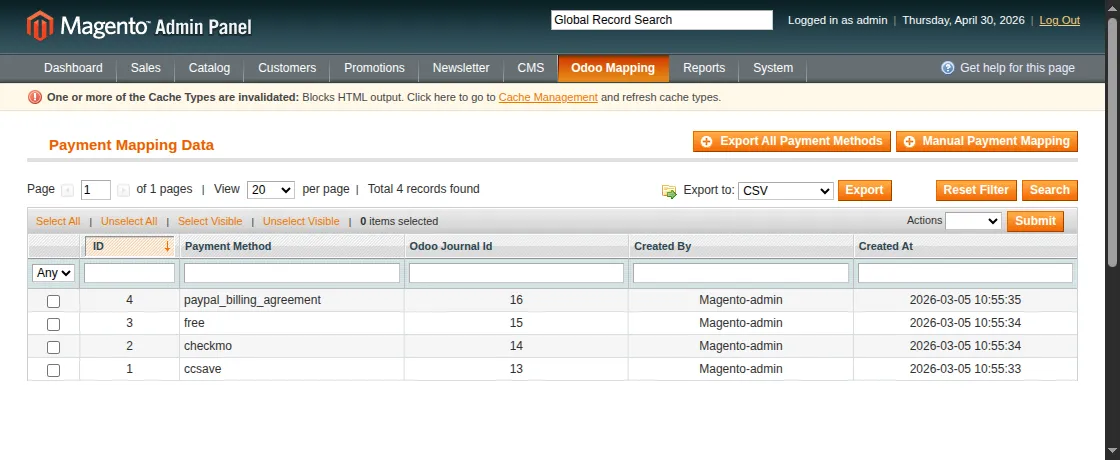
Payment Method Synchronization
- In the Magento end, under ‘Odoo Mapping’ tab go to the Payment Methods. Here, click on ‘Export All Payment Methods’ button.

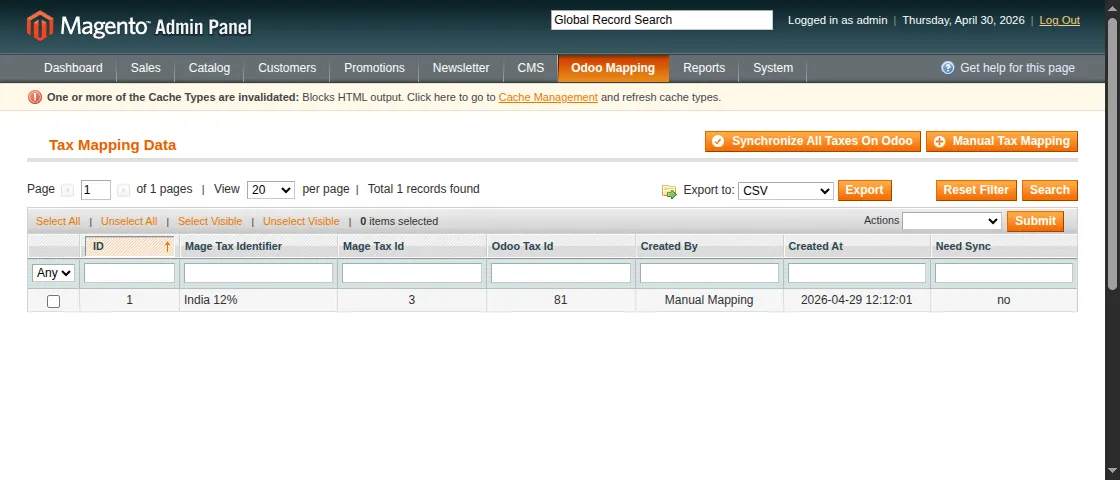
Tax Rates Synchronization
- In the Magento end, under ‘Odoo Mapping’ tab go to the Taxes Rates. Here, click on ‘Synchronize All Taxes On Odoo’ button.

Manual Synchronization
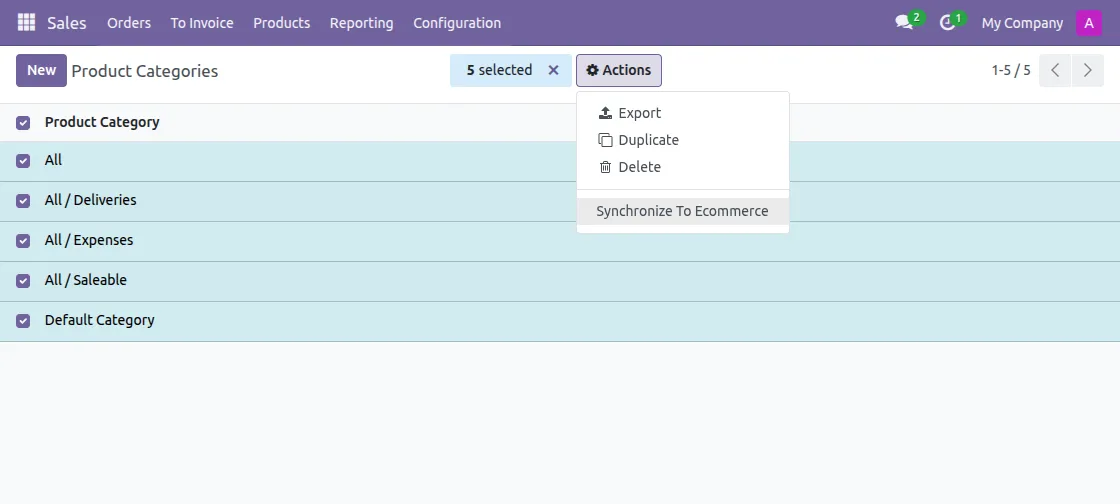
Category Synchronization
- Go to the Product Category records from the Sales app under Configuration; Select the category and click on the ‘Action’ button to synchronize the category to Magento

Product Synchronization
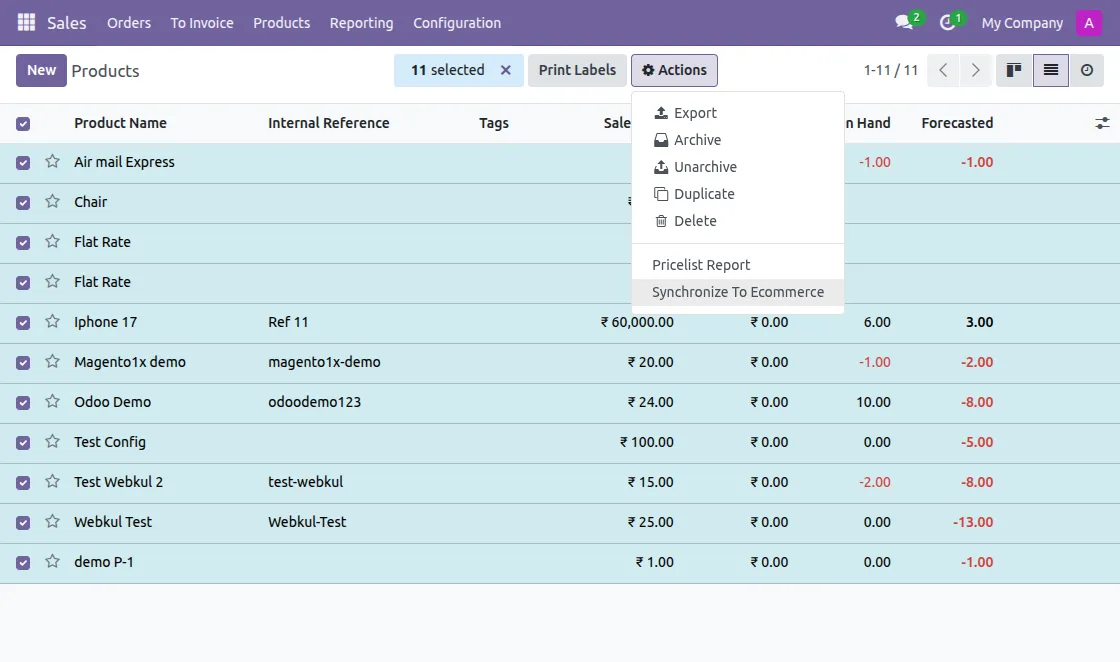
- Go to the Product records from Sales or Inventory; Select the products and click on the ‘Action’ button to synchronize the product to Magento

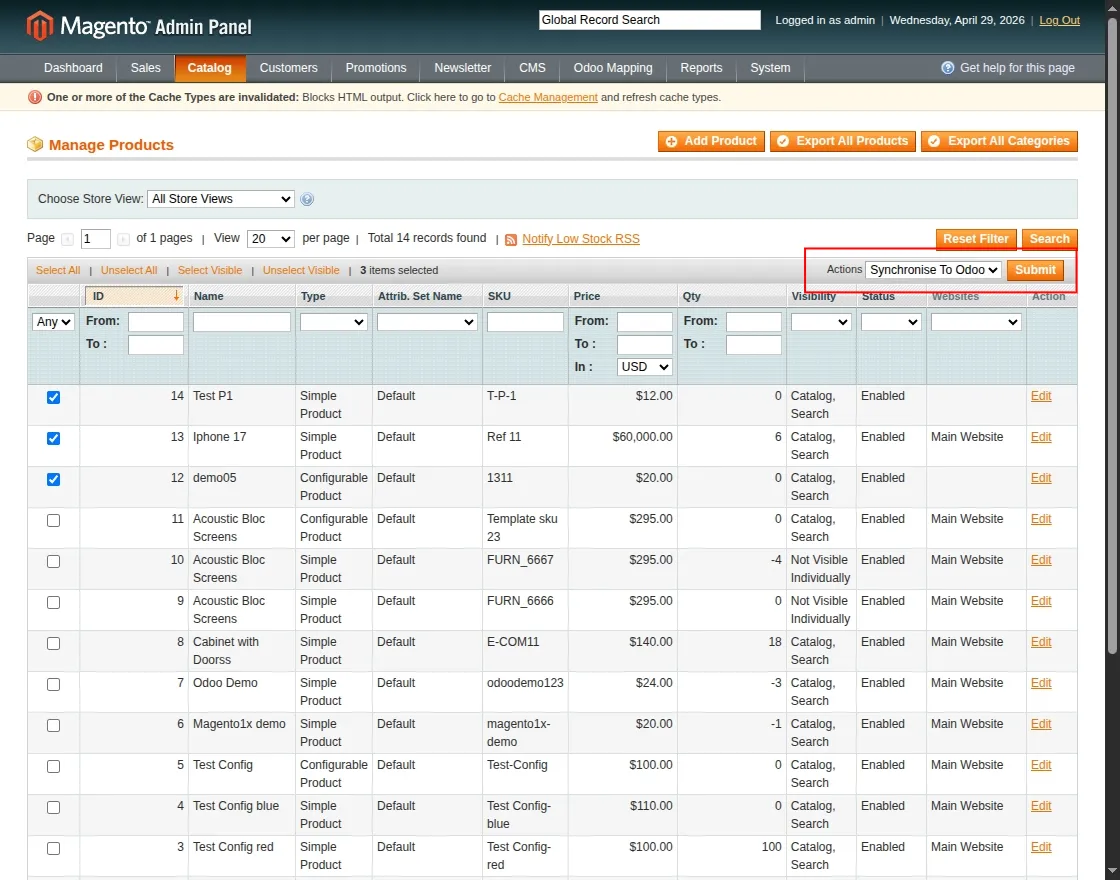
- In Magento End, under the ‘Catalog’ tab go to the ‘Manage Products’ menu. Select the product(s) you want to sync from Magento to Odoo and select Synchronize to Odoo in action dropdown.
Order Synchronization
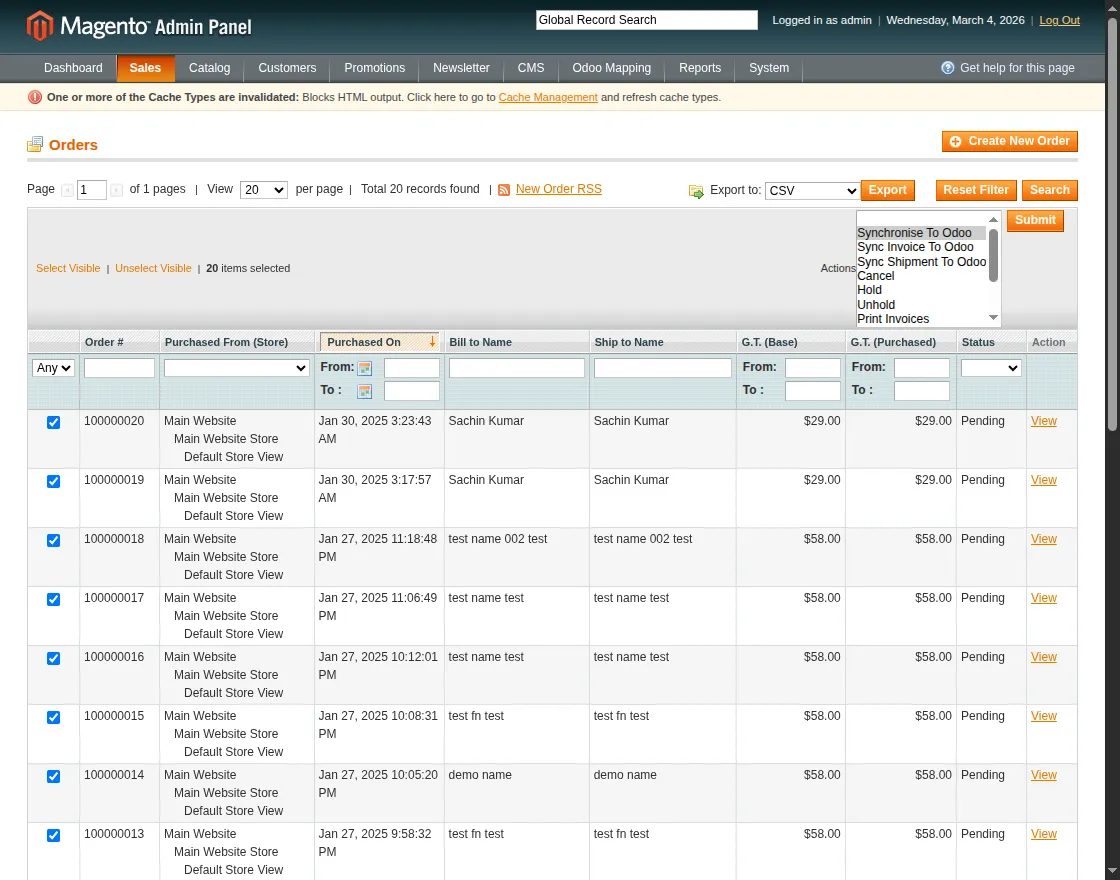
You can manually sync order, invoice and shipment status from Magento end.
- Under the ‘Sales’ Tab go to the ‘Orders’ menu. Here, select the sale order(s) you want to sync and click on the ‘Synchronize To Odoo’ button in Action dropdown.
- Click on the ‘Syn Invoice To Odoo’ and ‘Sync Shipment to Odoo’ button in Action dropdown for respective actions
Manual Mapping
Attribute Mapping
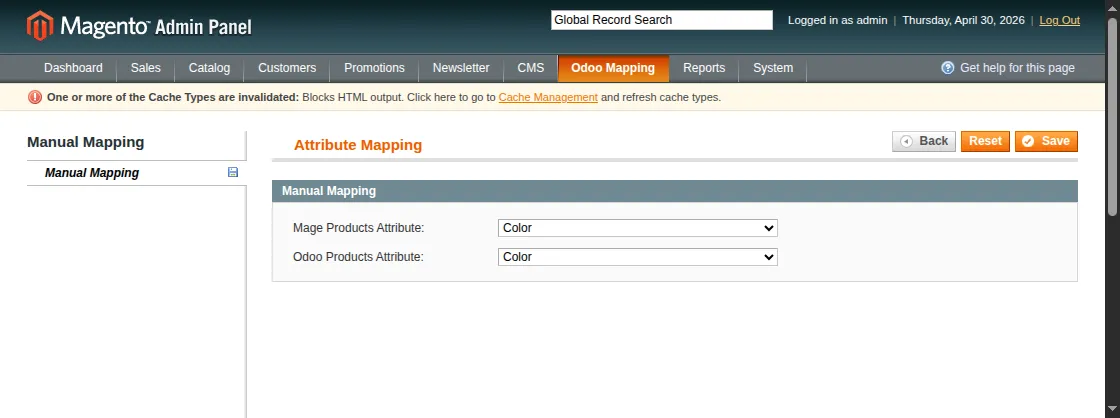
- At Magento end, click on the Odoo Mapping tab to reach ‘Attribute’ menu. Here, click on ‘Manual Attribute Mapping’ Button. Now, select the Magento as well as Odoo Attribute and save the item.

Attribute Label/Option Mapping
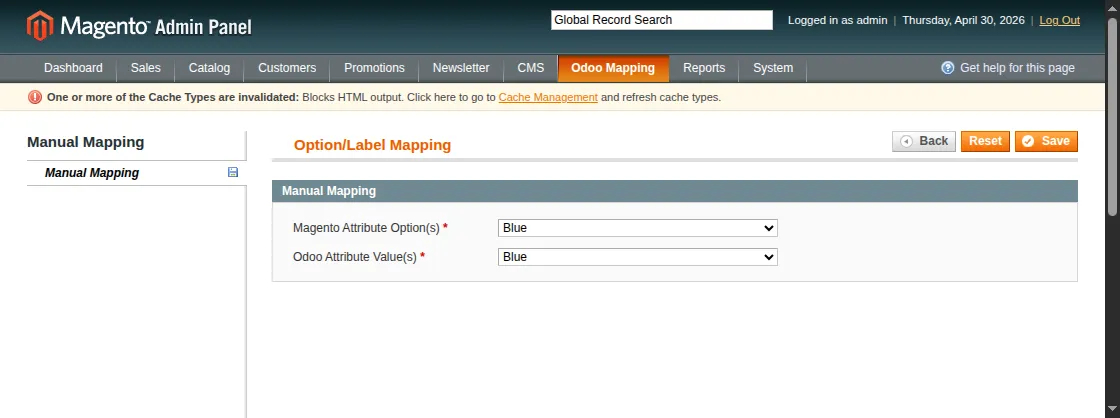
- At Magento end, click on the Odoo Mapping tab to reach the ‘Attribute Label/Option’ menu. Here, click on the ‘Manual Attribute Option Mapping’ Button. Now, select the Magento Attribute Options as well as Odoo Attribute Value and save the item.
Category Mapping
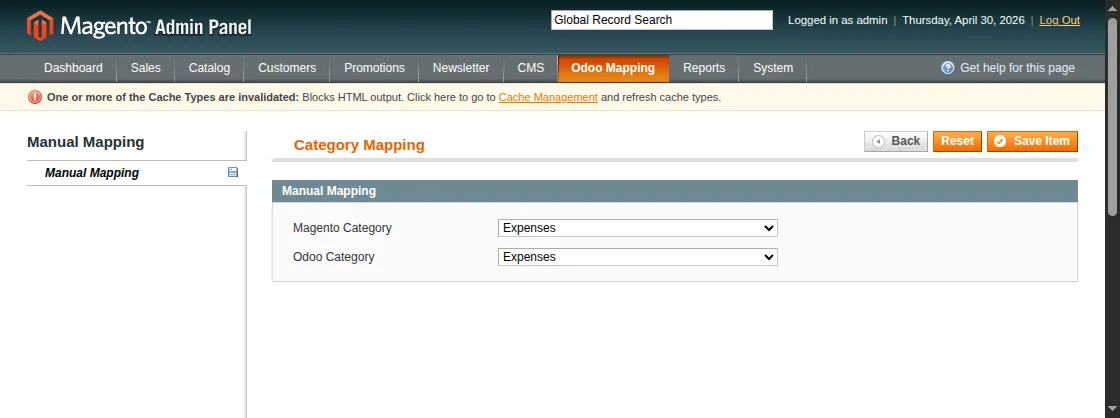
- At Magento end, click on the Odoo Mapping tab to reach the ‘Category’ menu. Here, click on ‘Manual Category Mapping’ Button. Now, select the Magento as well as Odoo Category and save the item.
Product Mapping
- At Magento end, click on the Odoo Mapping tab to reach the ‘Product’ menu. Here, click on ‘Manual Product Mapping’ Button. Now, select the Magento as well as Odoo Product and save the item.
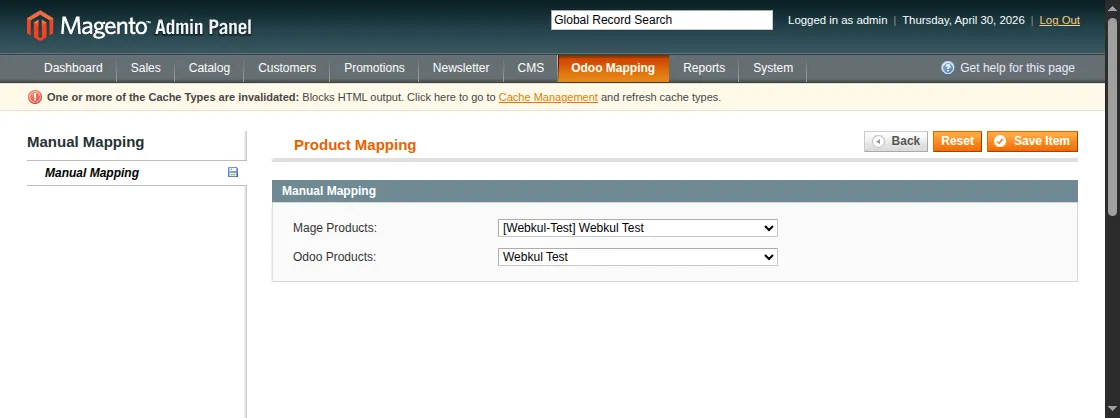
Note: Currently, you can manually map simple products only because configurable products have their own combinations. Hence, manual mapping for configurable products can cause mis-match.
Currency Mapping
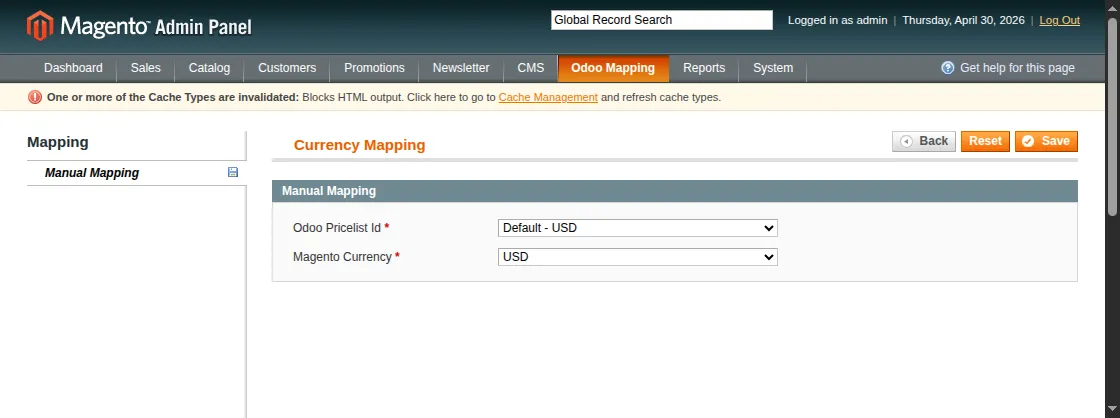
- At Magento end, click on the Odoo Mapping tab to reach the ‘Currency’ menu. Here, click on ‘Manual Currency Mapping’ Button. Now, select the Magento Currency as well as Odoo Pricelist and save the item.
Tax Rates Mapping
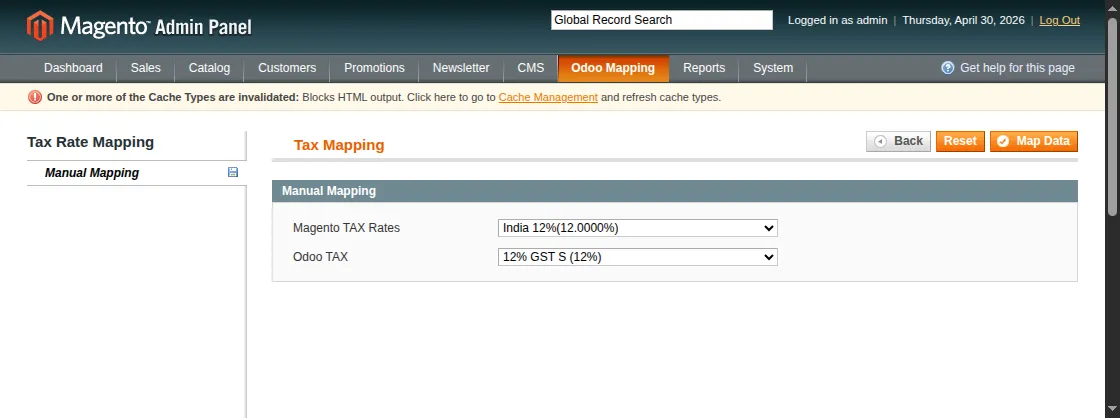
- At Magento end, click on the Odoo Mapping tab to reach The ‘Tax Rates’ menu. Here, click on ‘Manual Tax Mapping’ Button. Now, select the Magento Tax Rates as well as Odoo Tax and save the item.
Delivery Methods Mapping
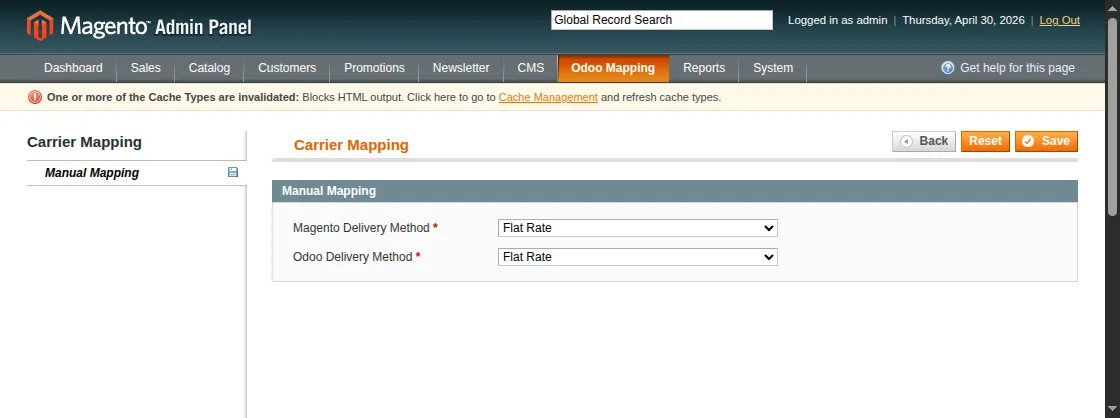
- At Magento end, click on the Odoo Mapping tab to reach the ‘Delivery Method’ menu. Here, click on ‘Manual Carrier Mapping’ Button. Now, select the Magento as well as Odoo Delivery Method and save the item.
Payment Method Mapping
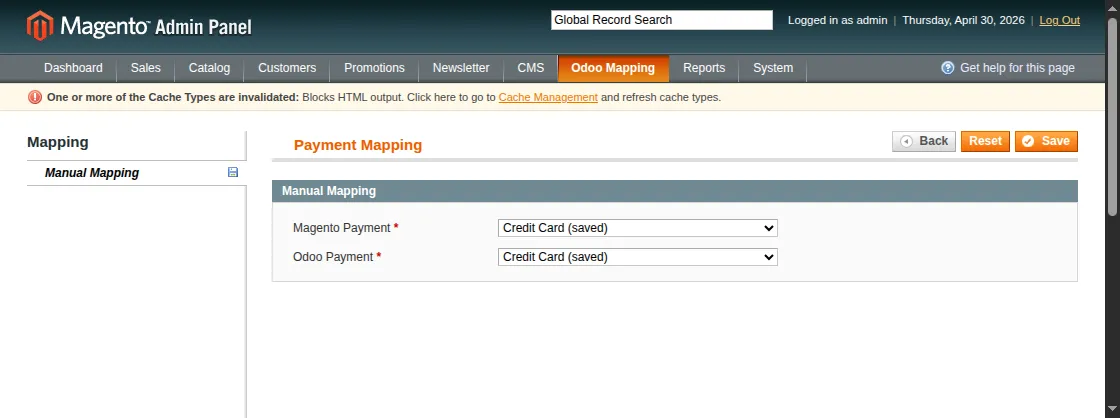
- At Magento end, click on the Odoo Mapping tab to reach the ‘Payment Method’ menu. Here, click on the ‘Manual Payment Mapping’ Button. Now, select the Magento as well as Odoo Payment and save the item.
NEED HELP?
Hope you find guide helpful! Please feel free to share your feedback in the comments below.
If you still have any issues/queries, please create a ticket at the UV Desk.
I hope this helps. In case of any further queries, contact us at our support mail.
Thanks for paying attention!!