CRM Stock Management
Table of Content
OpenERP CRM Stock Management adds product lines to CRM leads. It emails the customer and the manager when the lead products are in stock.
Default OpenERP CRM records a lead, but it has no place for the products and quantities a customer asks for.
It also cannot tell your sales team when those products are back in stock. So sales users check stock by hand for each lead.
This module keeps the product lines on the lead and checks stock on a schedule. When every product is available, the lead becomes an opportunity.
Prerequisite: the module works with OpenERP 6.x and 7.x. It depends on the OpenERP CRM module, so install CRM first.
After install, lead and opportunity forms get a Product Lines tab. The lead form also gets a Lead Type field.
Features of OpenERP CRM Stock Management
- Add product lines with expected quantities to every CRM lead.
- Set the Stock lead type to track product stock for a lead.
- Email the customer when the lead products are available in stock.
- Send the manager an email with the customer, products, and quantities.
- Convert the lead into an opportunity once every product line is available.
- Compute the expected revenue of a lead from its product lines.
- Turn the opportunity into a quotation with the same product lines.
- Check lead stock on a schedule with the CRM Lead Stock scheduler.
How to Install the CRM Stock Management Module
You install this module only on the OpenERP side. No other setup is needed.
- Copy the crm_lead_stock directory into your OpenERP addons folder.
- Update the modules list in OpenERP.
- Find CRM Stock Management and install it.
Configure the Stock Notification Email Templates
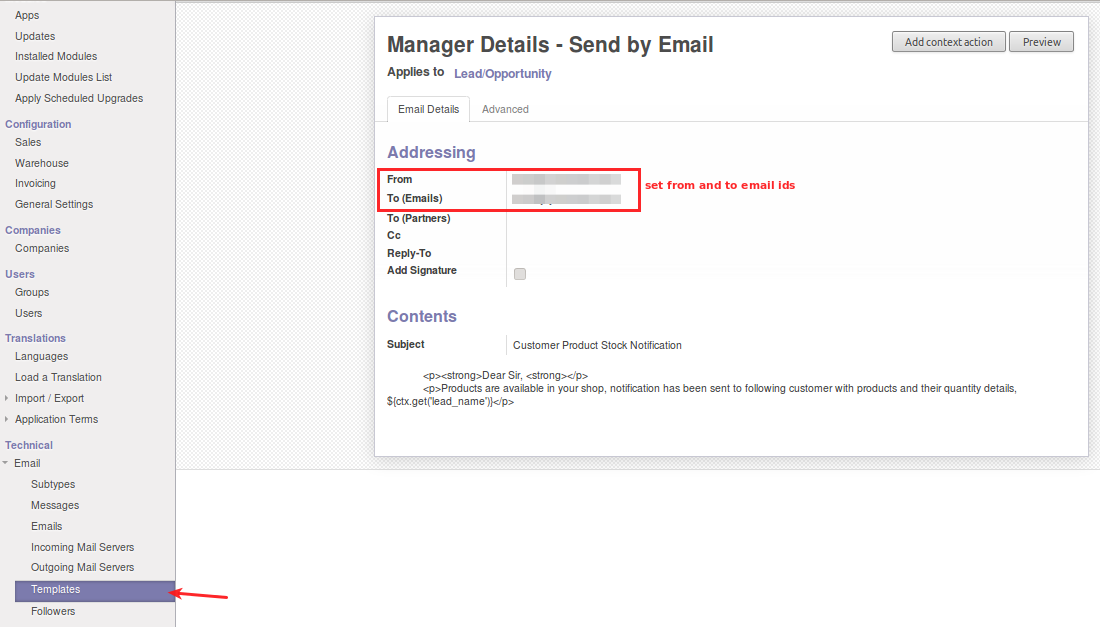
Two email templates control the stock messages. Open them from Settings > Technical > Email > Templates.
Look for Manager Details – Send by Email and Customer Details – Send by Email. Both apply to Lead/Opportunity records.

Manager Details – Send by Email Template
This template sends stock details to the manager. It lists the customer, the products, and their quantities.
- Set the From email address for the notification.
- Enter the manager address in To (Emails).
- The email uses the subject Customer Product Stock Notification.
Customer Details – Send by Email Template
This template tells the customer that the requested items are now in stock. The email names the products and their quantities.
- Set the From email address for customer emails.
- To (Emails) uses the lead email through ${object.email_from}.
- The email uses the subject Product Stock Notification.

Lead to Quotation Workflow in OpenERP CRM
Once the templates are set, the module follows each Stock lead from request to quotation.
Create a Stock Lead with Product Lines
Create a new lead for the customer from Sales > Leads. Select Stock in the Lead Type field.
In the Product Lines tab, add the products the customer needs. Enter the unit price, quantity, and unit of measure for each line.
The module compares each expected quantity with the product stock in OpenERP. When a product is available, the customer and manager get an email.

Automatic Lead to Opportunity Conversion
When every product line is in stock, the lead converts into an opportunity by itself. Find it under Sales > Opportunities.
The opportunity keeps the same product lines and lead type. Its expected revenue comes from the price and quantity of each line.
Note: with partial stock, the lead does not convert. Emails go out only for the products whose expected quantity is available.

Convert the Opportunity to a Quotation
Open the converted opportunity and click Convert to Quotation. In the Make Quotation window, select the customer and shop.
Tick Mark Won to close the opportunity as won, then click Create.

The new quotation carries the same product lines as the opportunity. Sales users do not need to enter the products or quantities again.

Set Up the CRM Lead Stock Scheduler
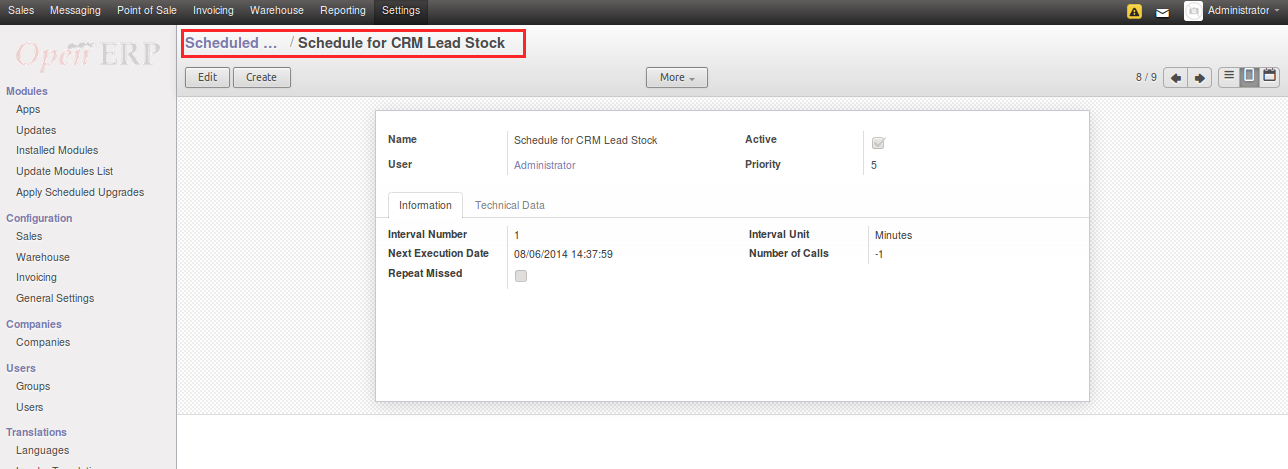
A scheduled action runs the stock check for Stock leads. Open Settings > Scheduler > Scheduled Actions.
Click Schedule for CRM Lead Stock. Set the Interval Number and Interval Unit to match how fast your stock changes.
You can also set the Next Execution Date, Number of Calls, and the user who runs it. Keep Active ticked.
Support
For any kind of technical assistance, just raise a ticket at: http://webkul.com/ticket/ and for any doubt contact us at support@webkul.com