BigCommerce Ask A Question
BigCommerce Ask A Question:
Customers can ask product-related questions directly to the admin through the BigCommerce Ask A Question app, helping resolve concerns and retain potential buyers.
This app allows customers to ask product-related questions and receive replies from the admin. It builds trust, improves the shopping experience, and encourages customer loyalty.
It helps admins communicate with customers easily. The app provides a mailbox where admins can view and manage all customer questions.
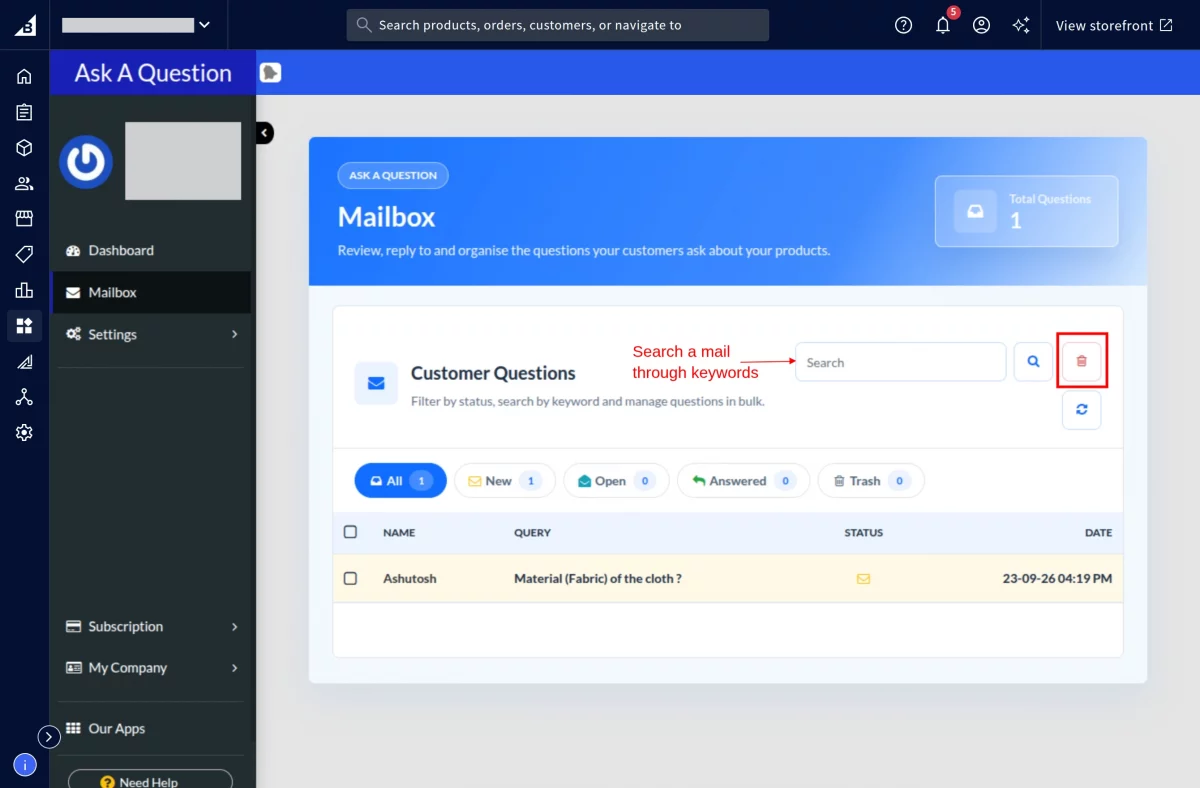
Admins can manage questions by status: New, Open, Answered, and Trash. They can search emails by keyword and customize the customer-facing Question Form fields.
Features of BigCommerce Ask A Question:
- Customers can easily communicate with an admin and vice versa.
- Admin can view the status of the question as “New”, “Open”, or “Answered”.
- Admin can create custom fields for “Question Form”.
- An email notification will be sent to an admin when a customer asks a Question.
- An email notification will be sent to customers when an admin replies.
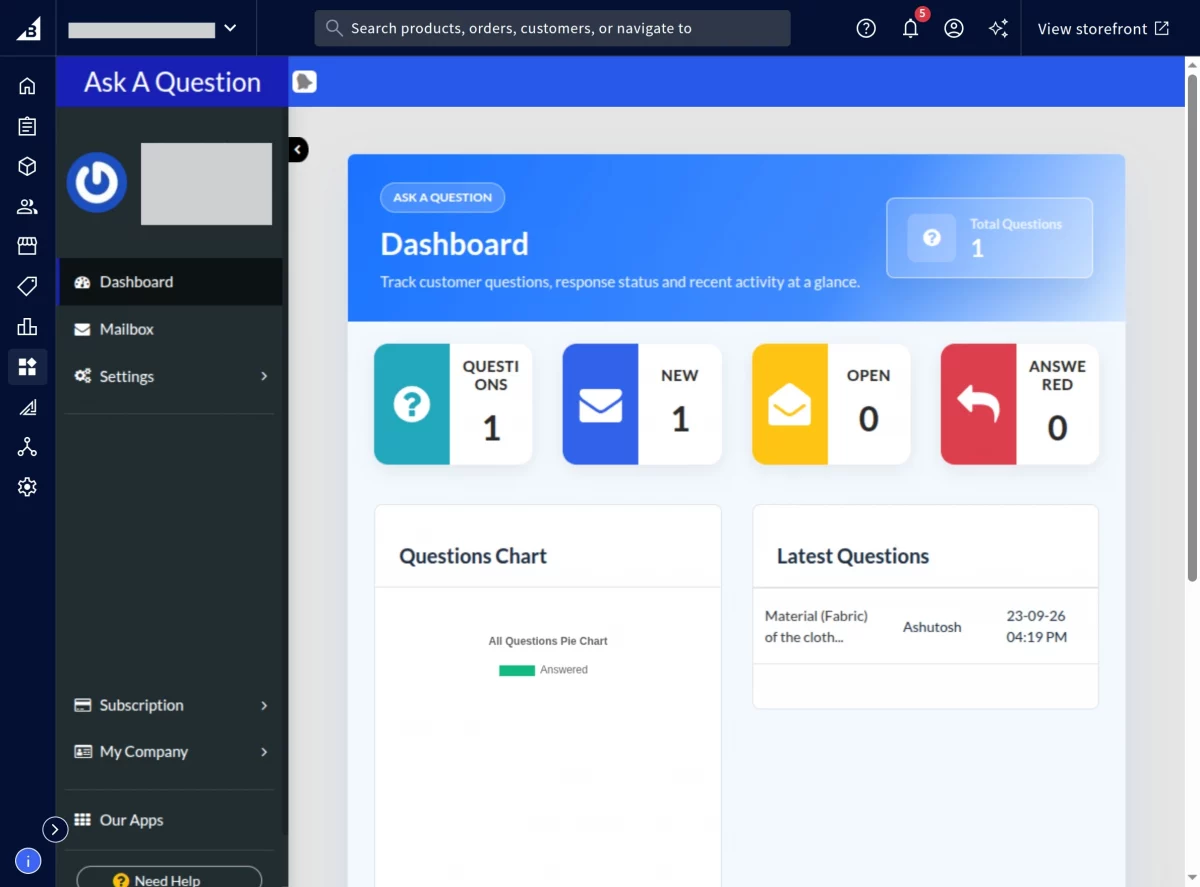
- An admin can view the top 8 latest Questions in the Dashboard.
- Easy to search for a “Question” in “Mailbox” through keywords.
- Easy to configure and manage at the admin end.
Video Tutorial:

Installation and configuration:

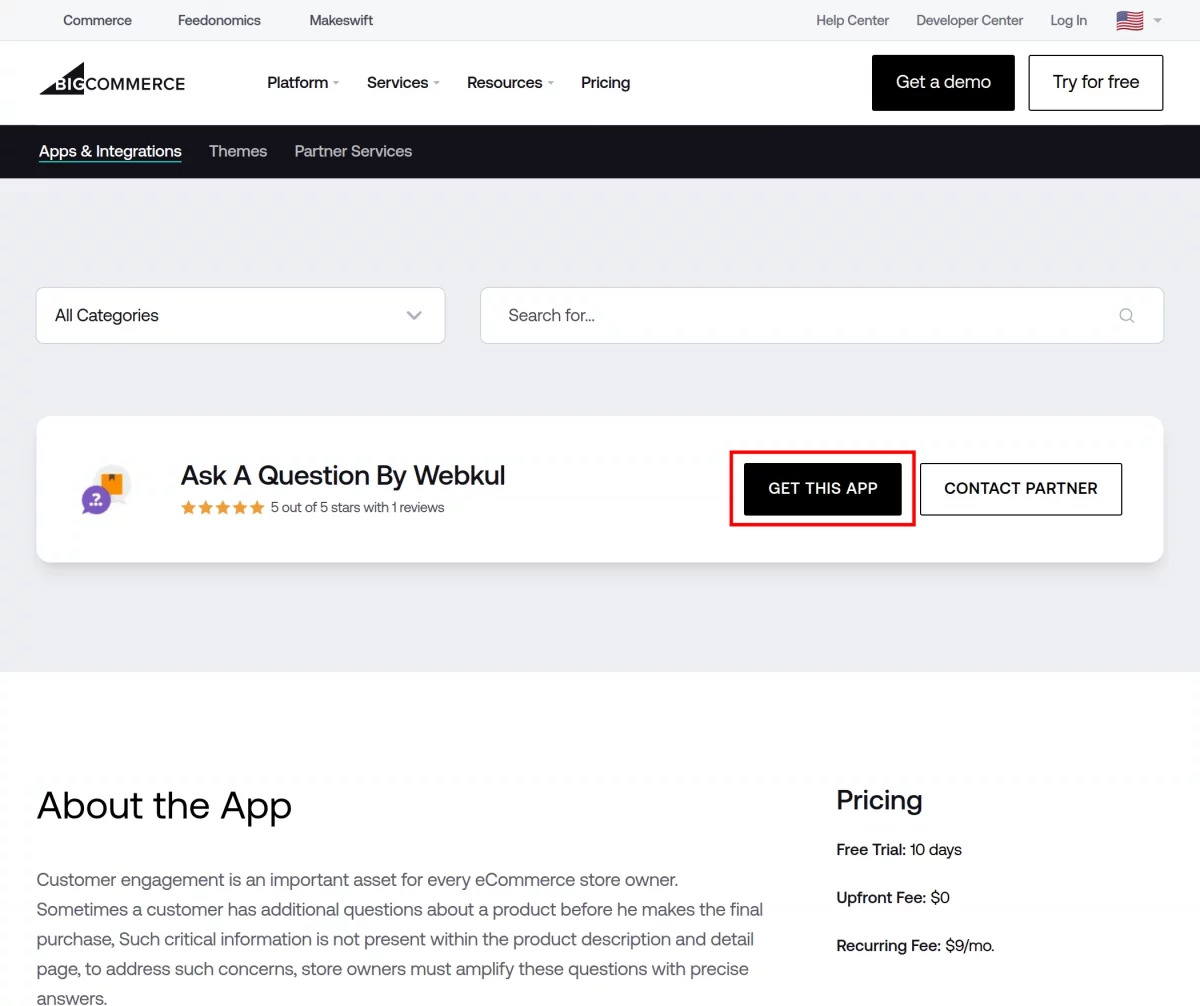

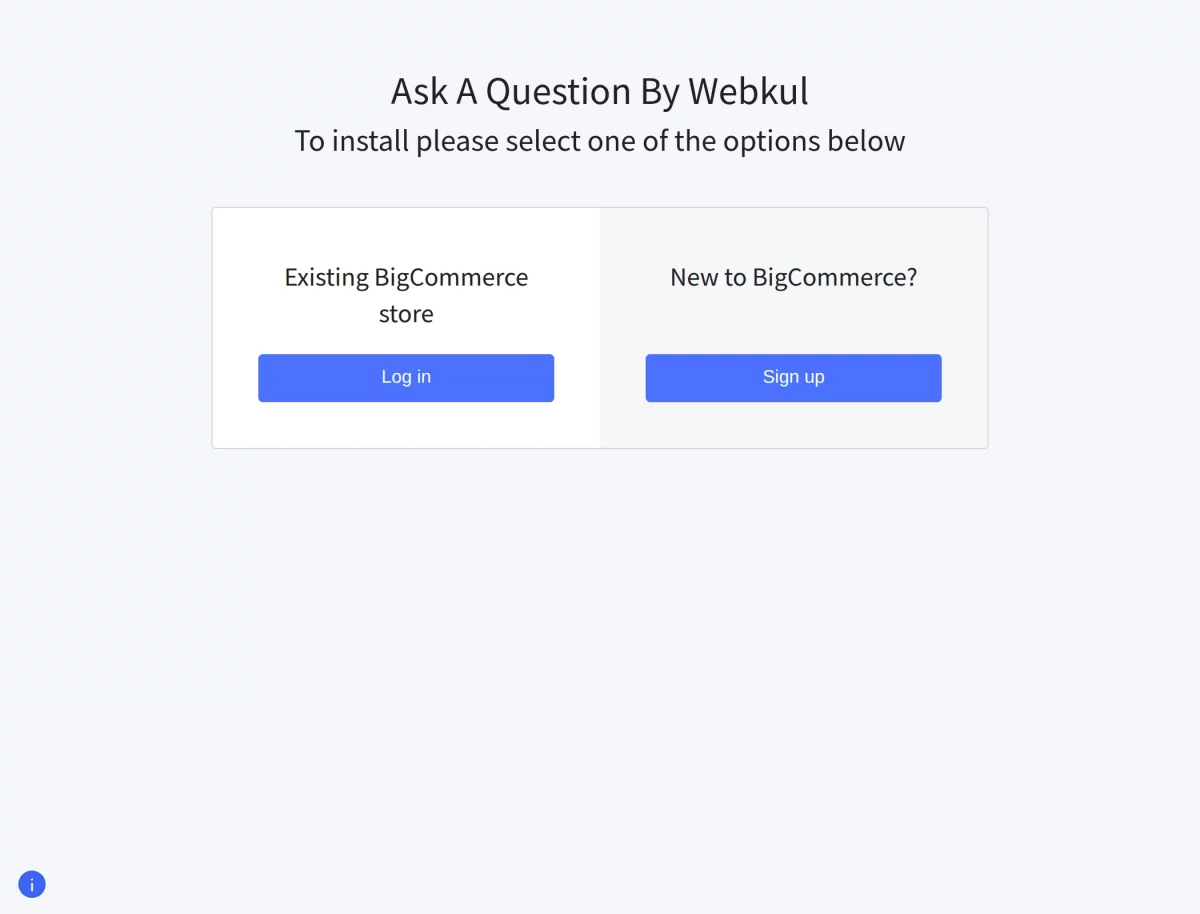
After purchasing the app, go to your BigCommerce store control panel and click Apps. Find and install BigCommerce Ask A Question, then click Launch to open the app.

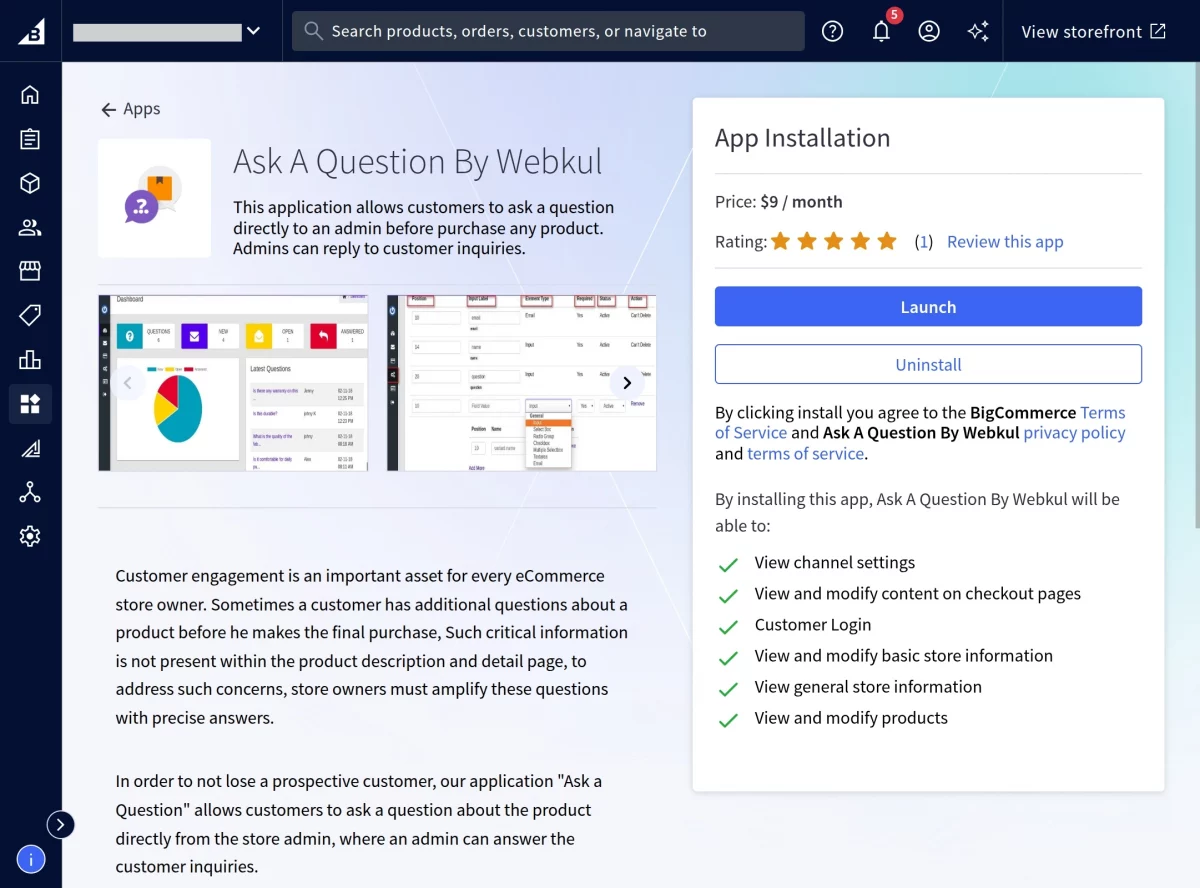
After click “Launch” of the application, You will see “BigCommerce Ask A Question” under “My App” section of the side menu bar. Now configure the settings of the application.
1- Settings:
- Setup: After the installation of this application, you just need to follow the given instruction and set up some codes at the backend of the store to display “Ask A Question” button at the storefront.

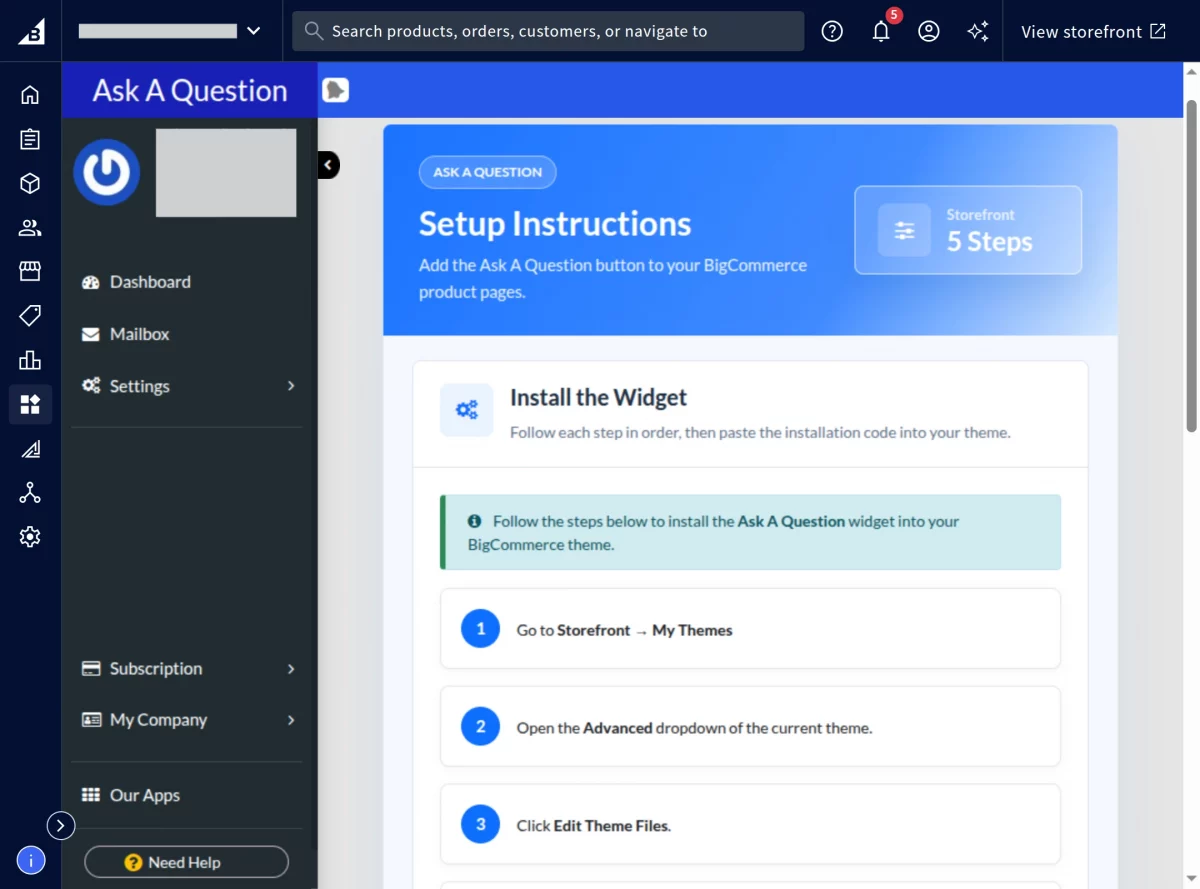
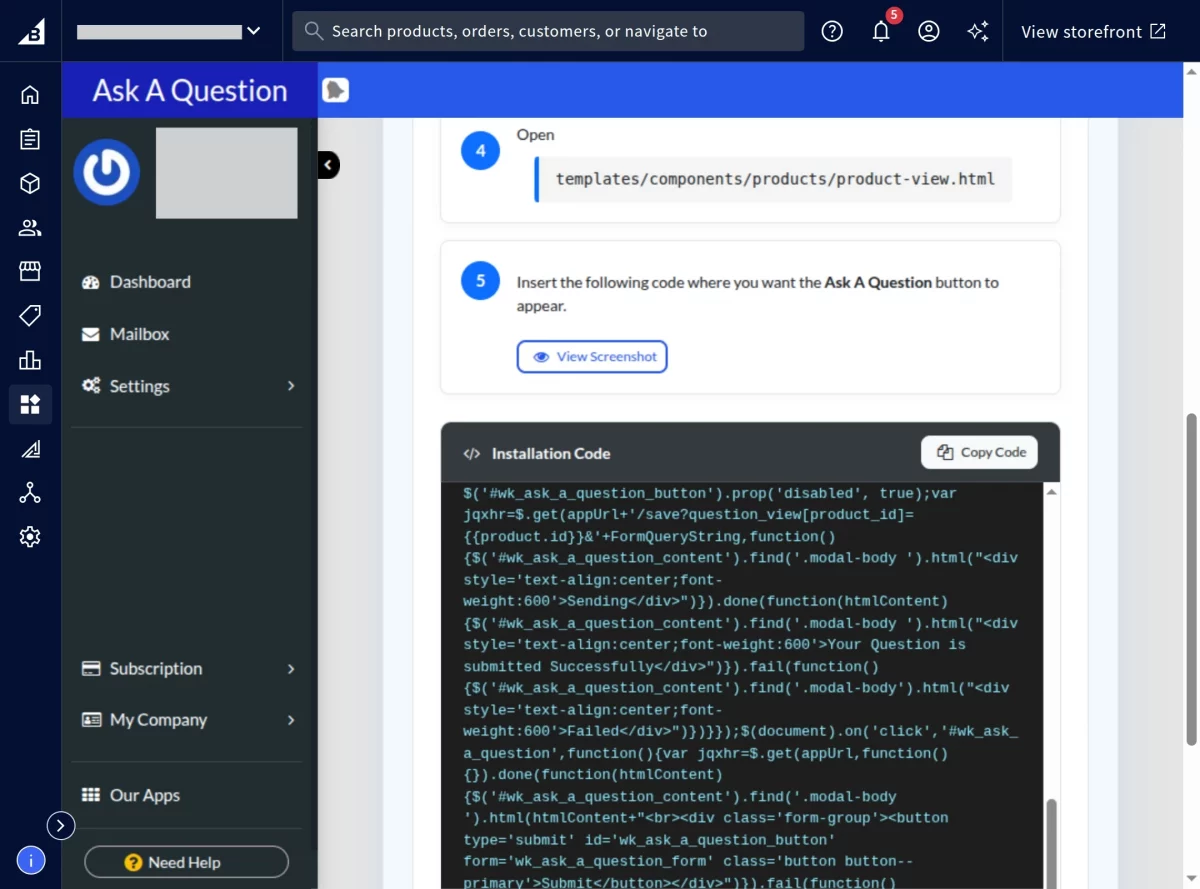
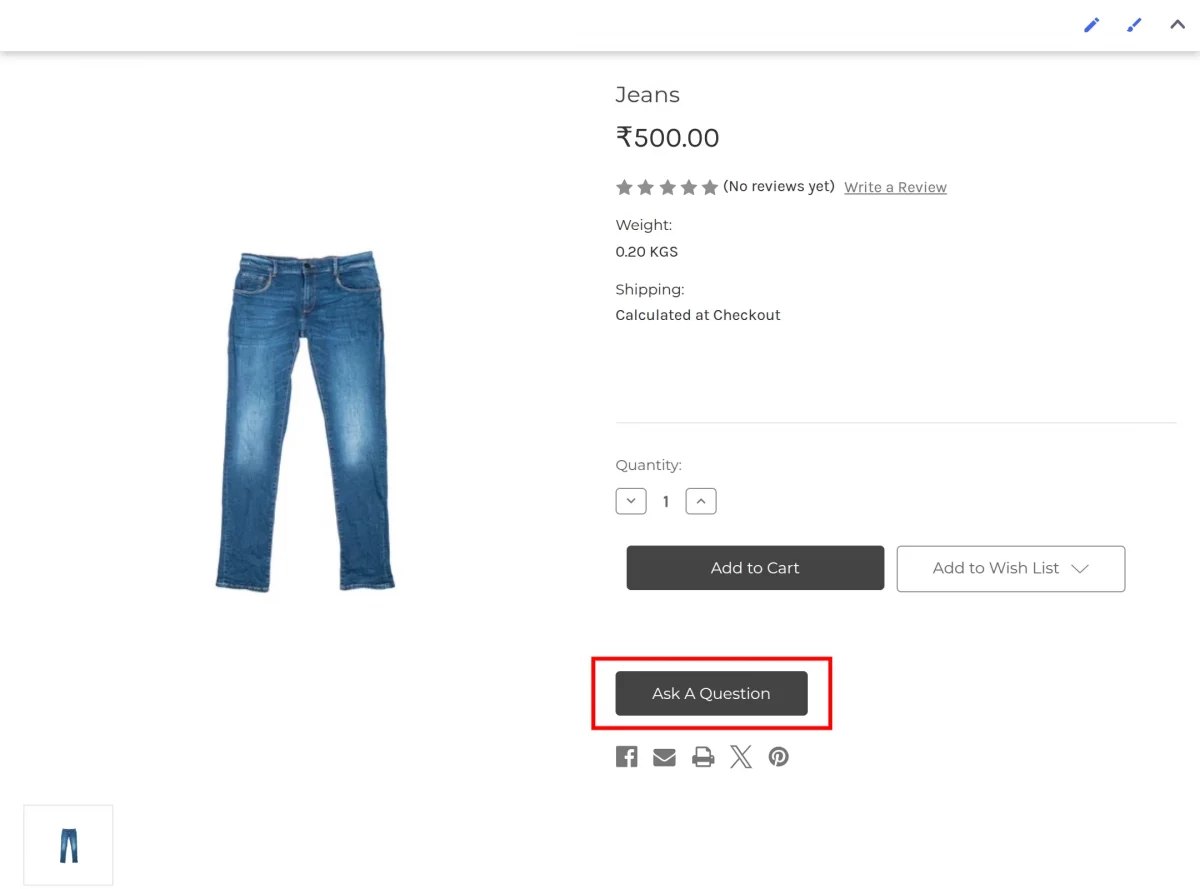
After setting up the codes at the backend of the store, the “Ask A Question” button is displayed at the storefront. On clicking this, a customer is able to ask their question to the admin.
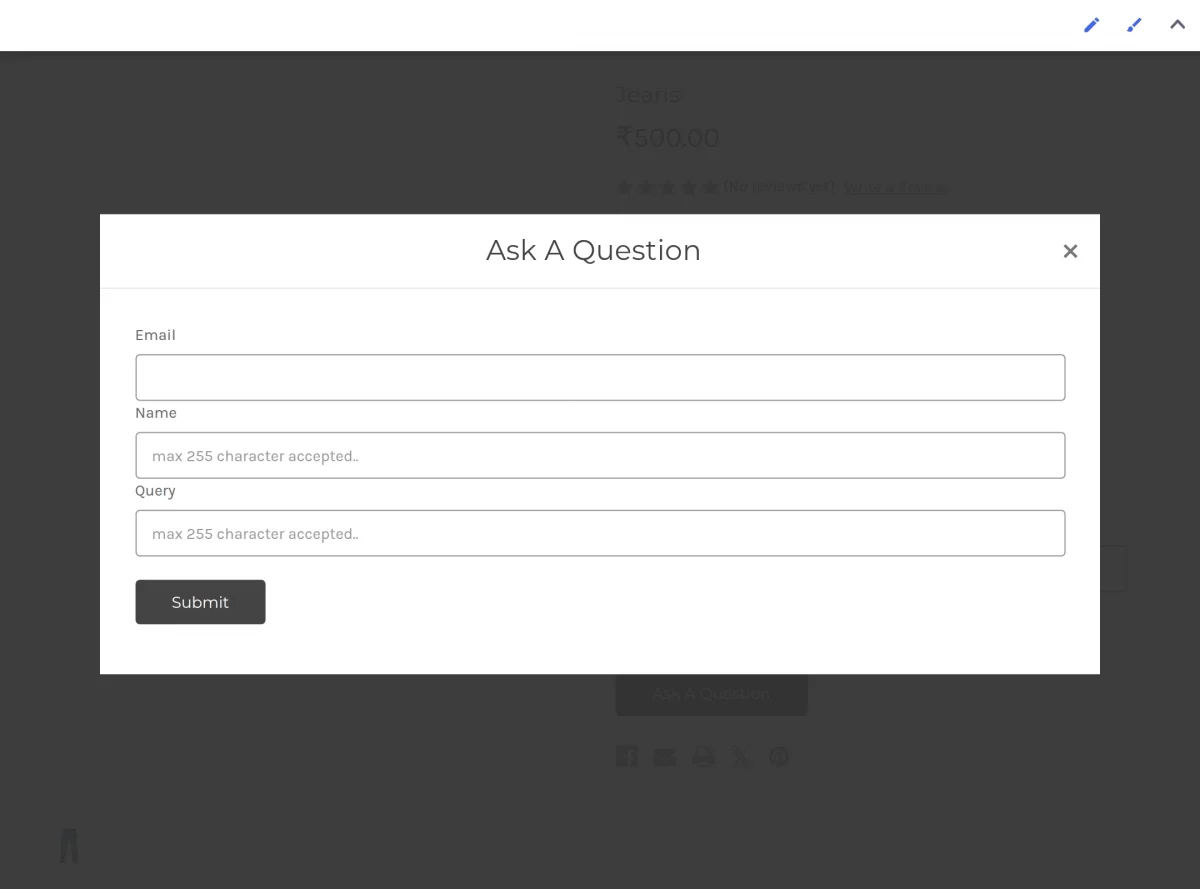
Once you click the “Ask A Question” button, a new pop-up window will open.
- Question Forms: This section covers the field that added to “Question Form”. An admin can create the custom fields which he wants to add to the “Question Form”. If an admin requires to get more details about the customer, he can add those fields to the form.

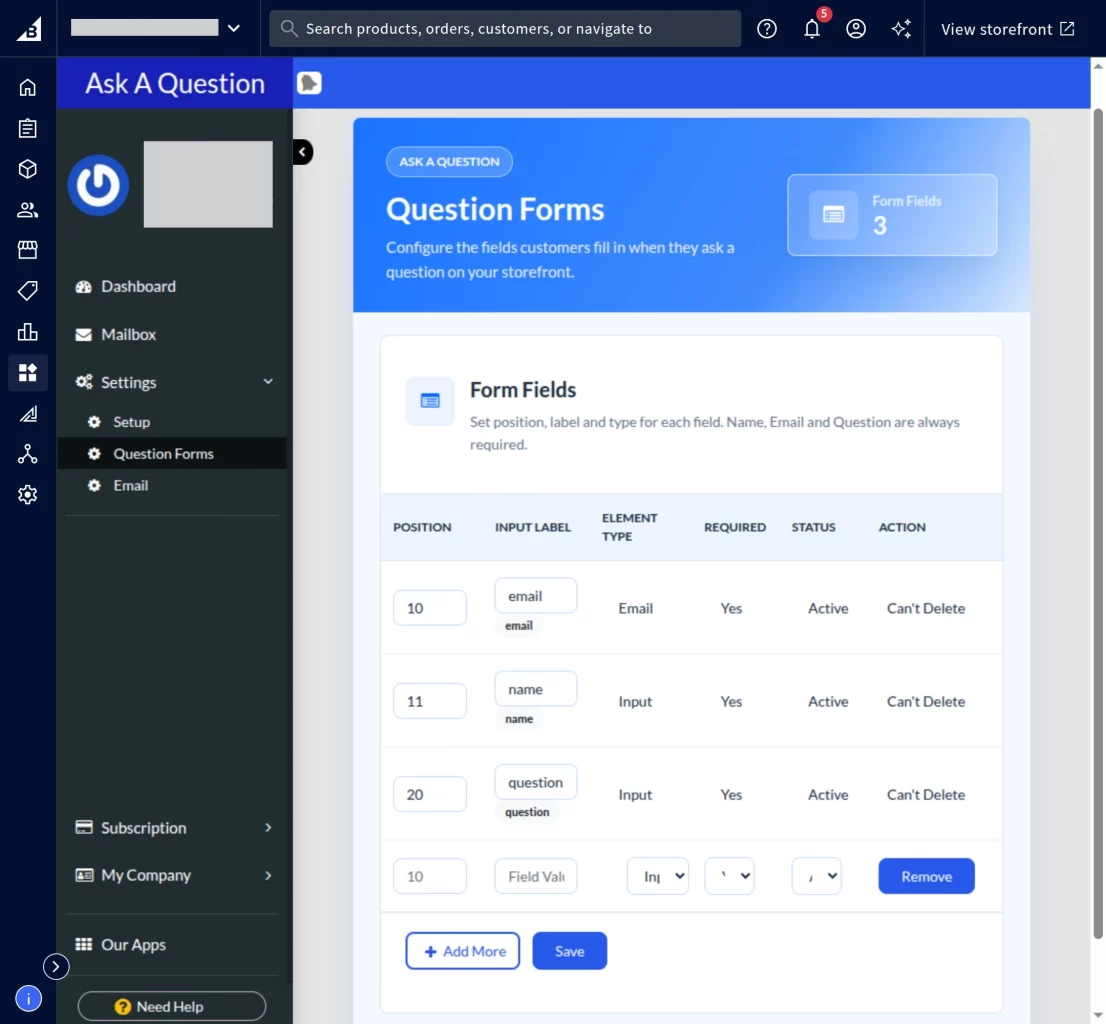
- Position: Assign a position of the field in the form.
- Input Label: Enter the “Name” of the field.
- Element Type: Select field type as “Input”, “Radio”, “Checkbox”, “Multiple Selectbox”, “Textarea”, “Email”.
- Required: Set this field to “Yes” or “No”.
- Status: Set the status of the field as “Active” or “Disabled”.
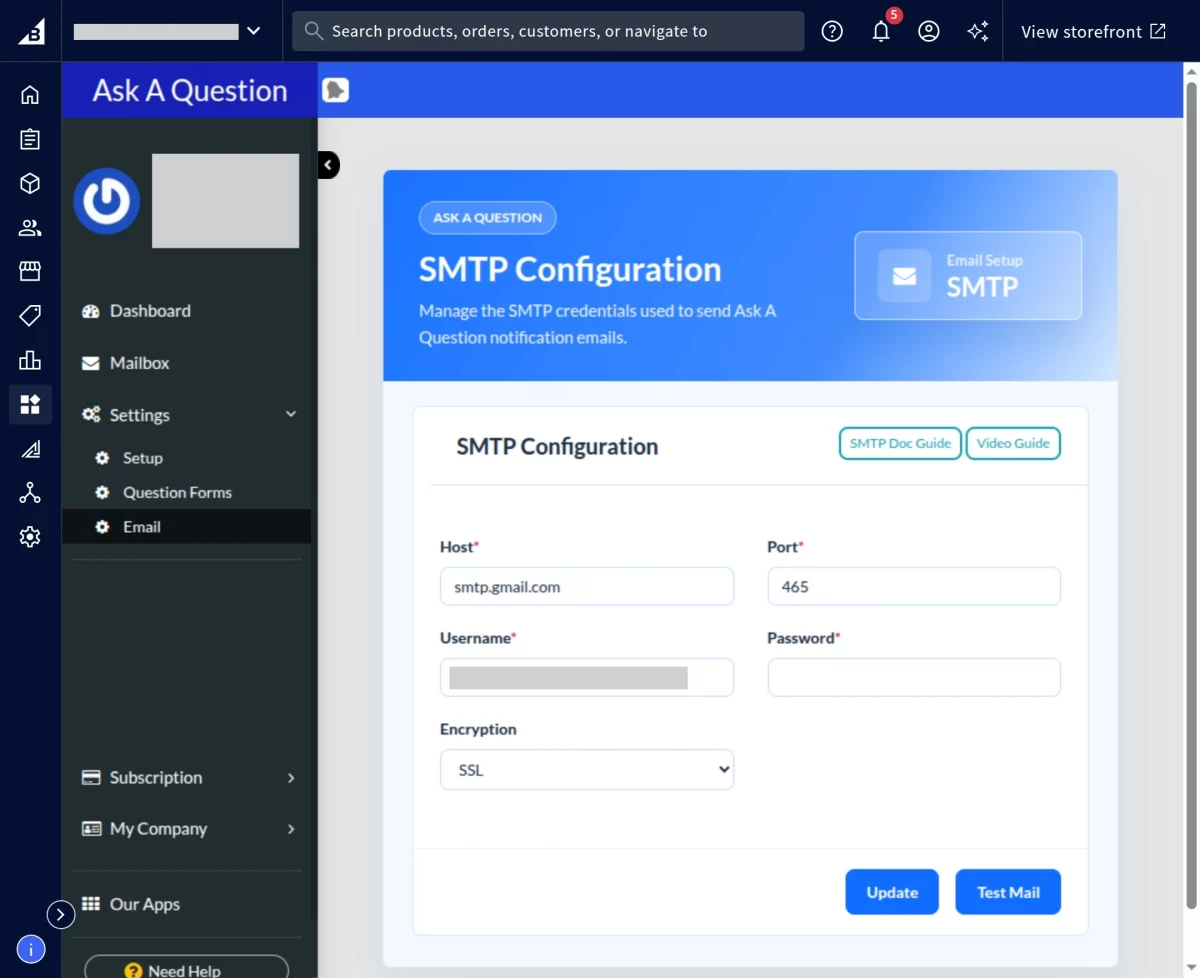
Email: To know how to configure email settings, please visit the user guide and follow the required steps.
Note – The above settings are for Gmail, in case you are using any other email service then contact your email service provider for the following details.

2- Dashboard:
Once you successfully install the application, you can check the Dashboard.

3- Mailbox:
The admin mailbox displays customer emails by status: New, Open, Answered, and Trash. Admins can also search for customer emails using keywords.

My Company:
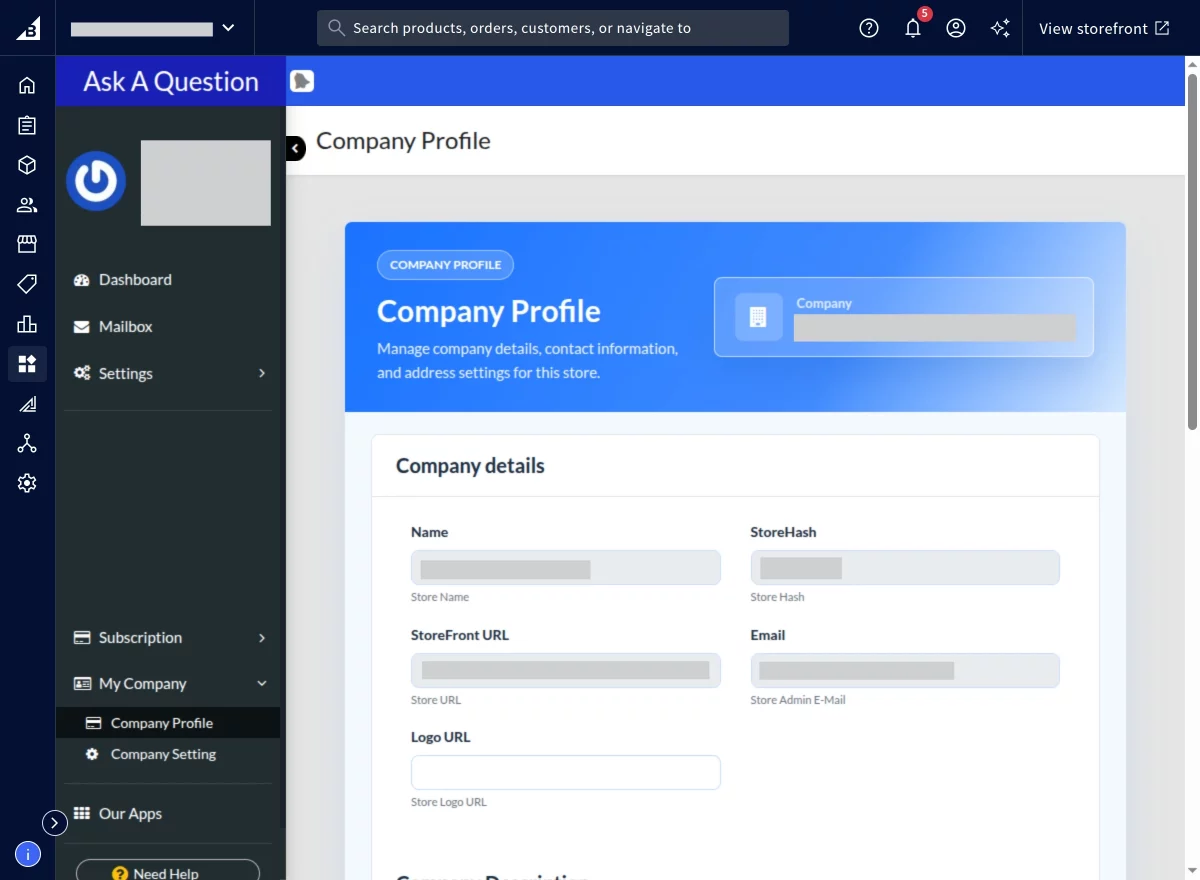
Company Profile: Here you can find the details about the company.

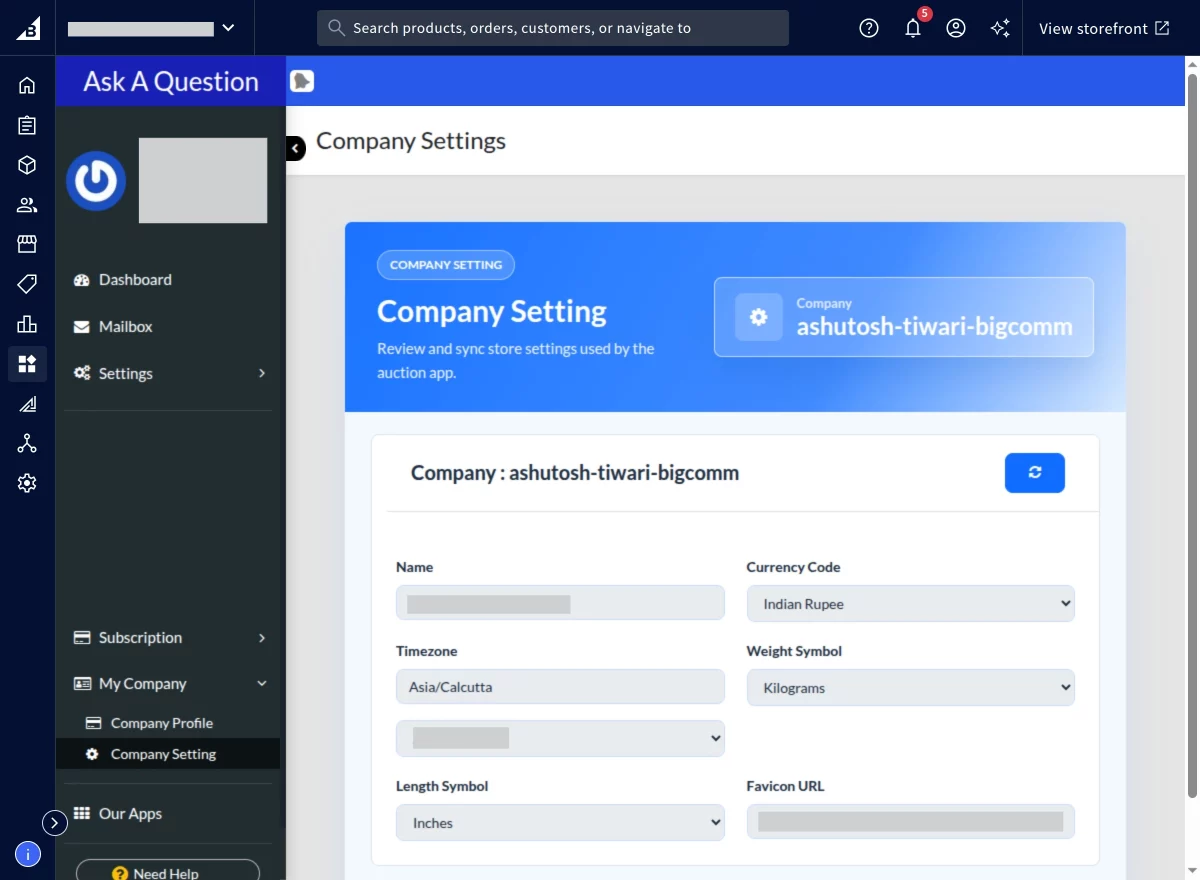
Company settings: In this section, you can synchronize the settings from BigCommerce store.
Support
That’s all for BigCommerce Ask A Question application Still have an issue feel free to add a ticket and let us know your views to make the application better. webkul.uvdesk.com