WordPress WooCommerce Marketplace Mass Upload
By using WordPress WooCommerce Marketplace Mass Upload the seller of the marketplace can bulk upload products.
The seller can upload the bulk products from his seller account using a CSV file.
Even the admin of the marketplace is able to bulk upload products into the seller accounts using CSV files.
It will support Simple Products, Grouped Products, Variable Products, Downloadable Products, and External Products as well.
It also displays an error message to the seller and admin if there is any error in the CSV or ZIP files.
Additionally, if you want to remove product images and media backgrounds through AI. For that, you can check the WordPress WooCommerce AI Image Background Remover plugin.
WordPress WooCommerce Marketplace Mass Upload Plugin is an add-on of WordPress WooCommerce Multi Vendor Marketplace Plugin.
To use this plugin you must have installed the first WordPress WooCommerce Multi Vendor Marketplace Plugin.
Note:
- This plugin is now compatible with WooCommerce’s latest High-Performance Order Storage (HPOS) and Cart and Checkout block.
- We provide a production version of the plugin. If you want a development version then you can get it at an additional cost. Please contact support@webkul.com for it.
Check a brief overview of the plugin showing the mass upload feature for simple products –
Support
Dear Customers, if you have a question/query, please raise a ticket at webkul.uvdesk.com. We will do our best to answer as quickly as it is possible.
Don’t give us a low rate without contacting support on the issue you’ve faced with. We are always happy to help you.
Features Of WooCommerce Marketplace Mass Upload
- The seller can add products in bulk.
- The admin of the marketplace is also able to add products in bulk.
- The admin can add products to the seller account.
- Products can be uploaded using a CSV file.
- Sample CSV files available to import products.
- Image attachment with the products within the zip file.
- If there is any error in the CSV file then, the products will not be uploaded.
- The plugin is fully dynamic.
- The code is fully open and you can customize it as per your requirements.
Installation of WooCommerce Marketplace Mass Upload
The user will get a zip file which he has to upload in the “Add New” menu option in the WordPress admin panel.
For this login to the WordPress Admin Panel and Under the Dashboard hover your mouse over the “Plugins” menu option which brings out a Sub-Menu and then select the “Add New” option.


After this, you will see an option on the top of your page that is “Upload Plugin”, click the option to upload the zip file.


By clicking on the “Upload Plugin” option, below you will see a button “Choose File” Click on the button to browse for the zip file as per the snapshot below.


After browsing the file, click the “Install Now” button to install the plugin as per the snapshot.


Now when the plugin is installed correctly, you will see the success message and an option to activate the plugin. Click on “Activate Plugin” to activate the installed plugin.


Plugin Activation
Check out how to Activate the WooCommerce Plugin through the purchase code and get updates on Webkul Modules directly on the Plugins page.
Seller end Workflow of WooCommerce Marketplace Mass Upload
When the plugin is installed successfully an option “Mass Upload” will be available for the sellers.
By clicking on “Mass Upload” the seller will be redirected to a new page as shown in the below image.
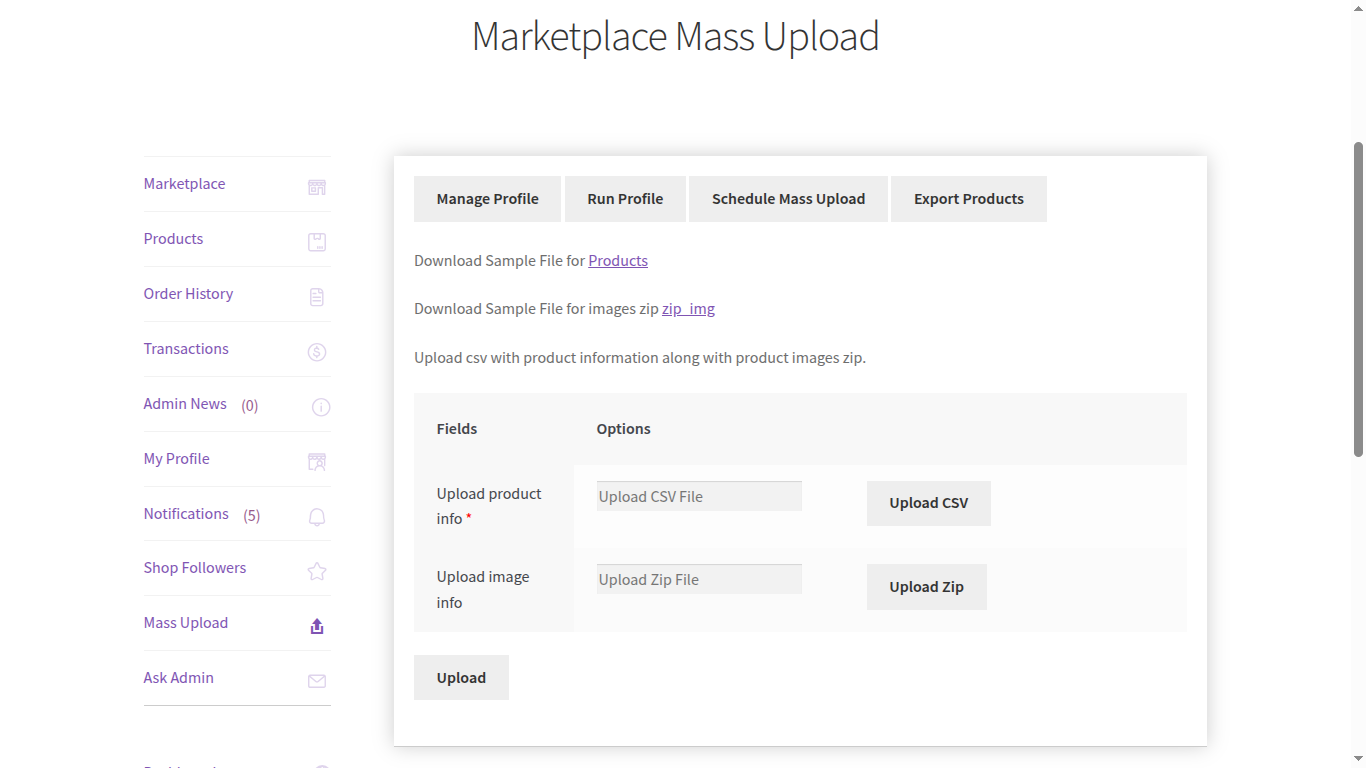

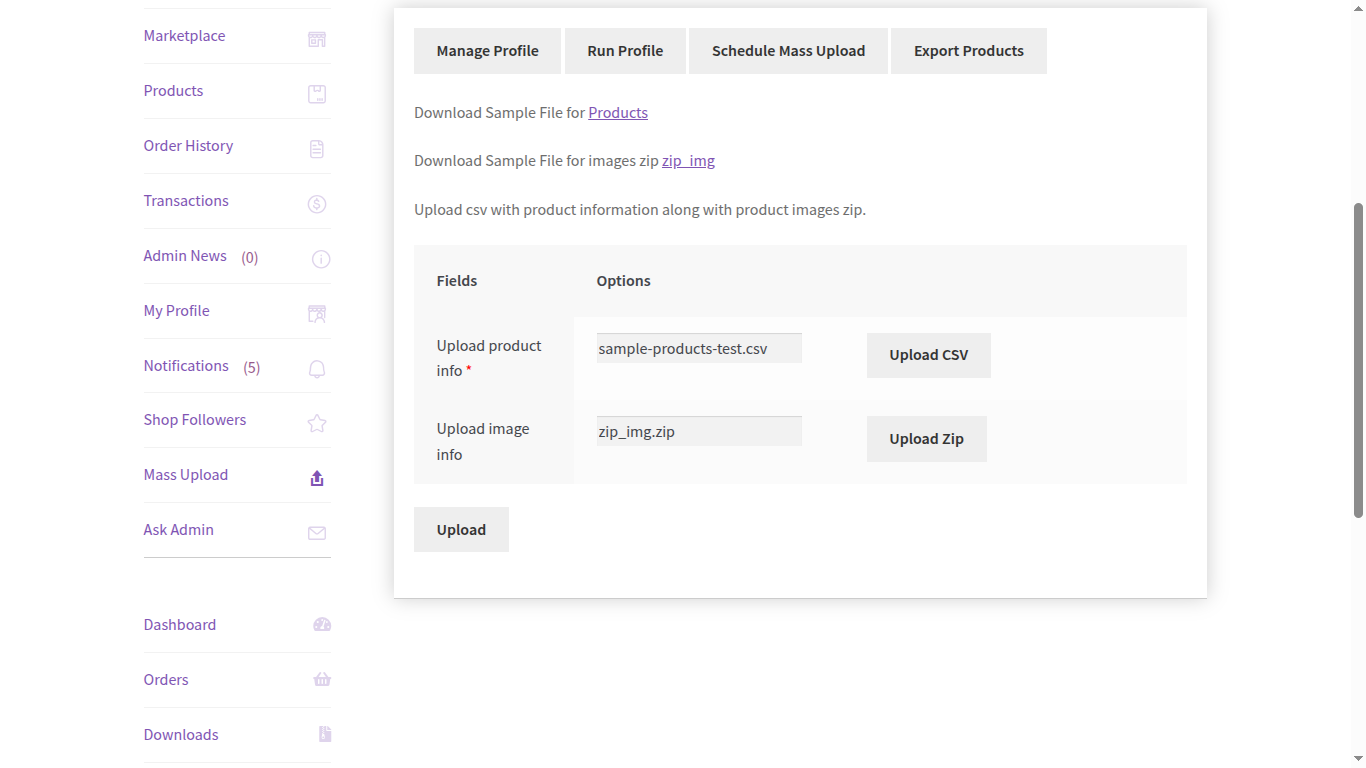
The seller can download the sample file from available files for products and their images. Now, the seller uploads the CSV file and the product image Zip file and clicks on the “Upload” button.
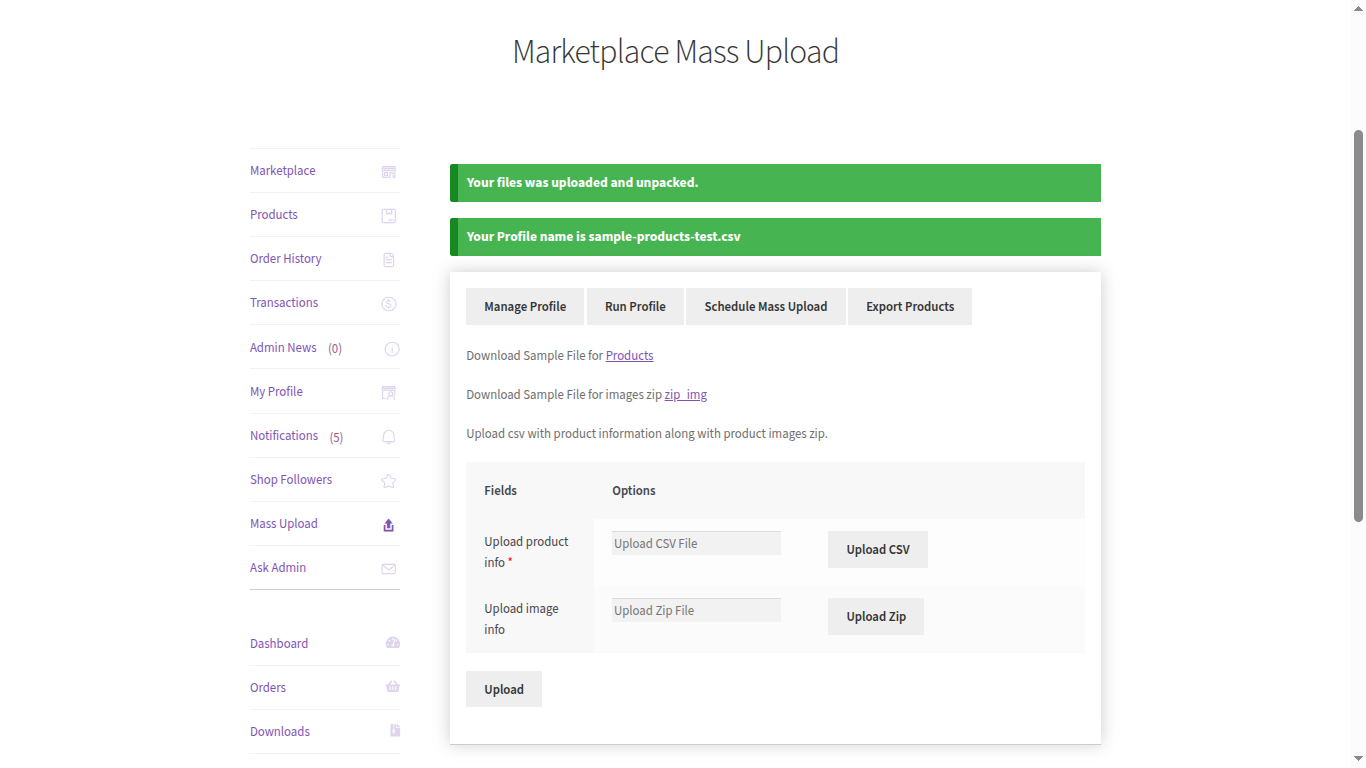
After uploading the file, a successful file was uploaded confirmation message is shown.It also displays the Profile that has been created after uploading the files.
Then, the seller needs to press “Run Profile” to run a profile as shown in the below image.
Here the seller selects the profile and runs the selected profile.


Now the profile will be executed and a success message displayed if the profile is executed successfully otherwise the error message will be displayed.

Further, the seller can click on Export Products to download the Product list in CSV as shown below,


After the successful execution of the profile, the products added and reflected in the product list of the seller.
Schedule Bulk Product Uploads with Ease
Managing a large catalog of products can be time-consuming, especially for marketplace sellers. With the Mass Upload & Schedule feature, sellers can now upload products in bulk using a CSV file for product information and a ZIP file for images, all in just a few clicks.
One of the most powerful aspects of this feature is the ability to schedule uploads at a specific date and time. This ensures that product data and images go live exactly when you want, without the need for manual intervention.
Upload Product Info (CSV): Add product details such as name, price, SKU, and description.
Upload Image Info (ZIP): Bulk upload product images and map them easily with product data.
Schedule Upload: Select your preferred date and time to automate the upload process.
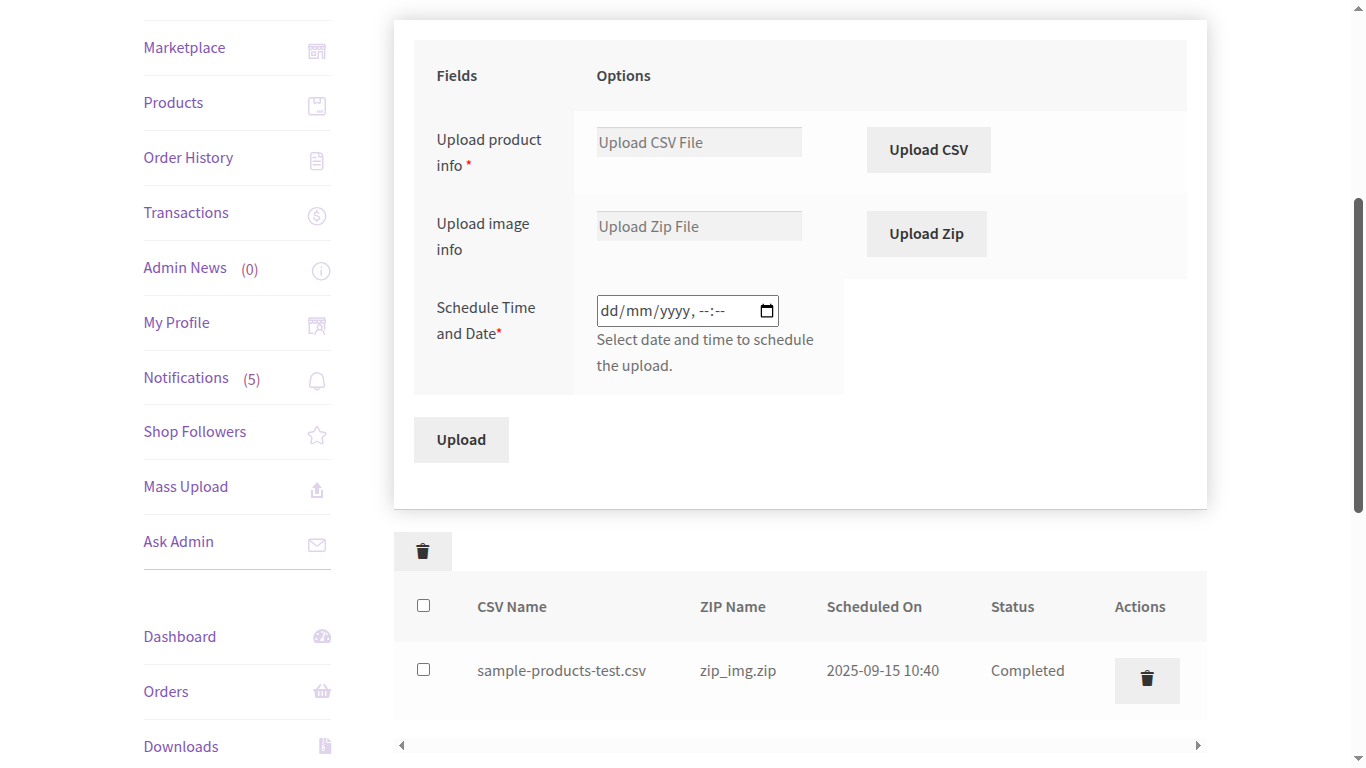
Once uploaded, you can also track the status of each batch, ensuring transparency and control over your product imports.
This functionality is ideal for vendors who want to save time, reduce errors, and launch seasonal or promotional products right on schedule.

Additionally, If a product already exists, then the profiler will not create those products again and display a message for the same as per the below image,

Admin end Workflow of WooCommerce Marketplace Mass Upload
The admin of the marketplace is also able to upload CSV and image zip files under “Mass Upload > General”.
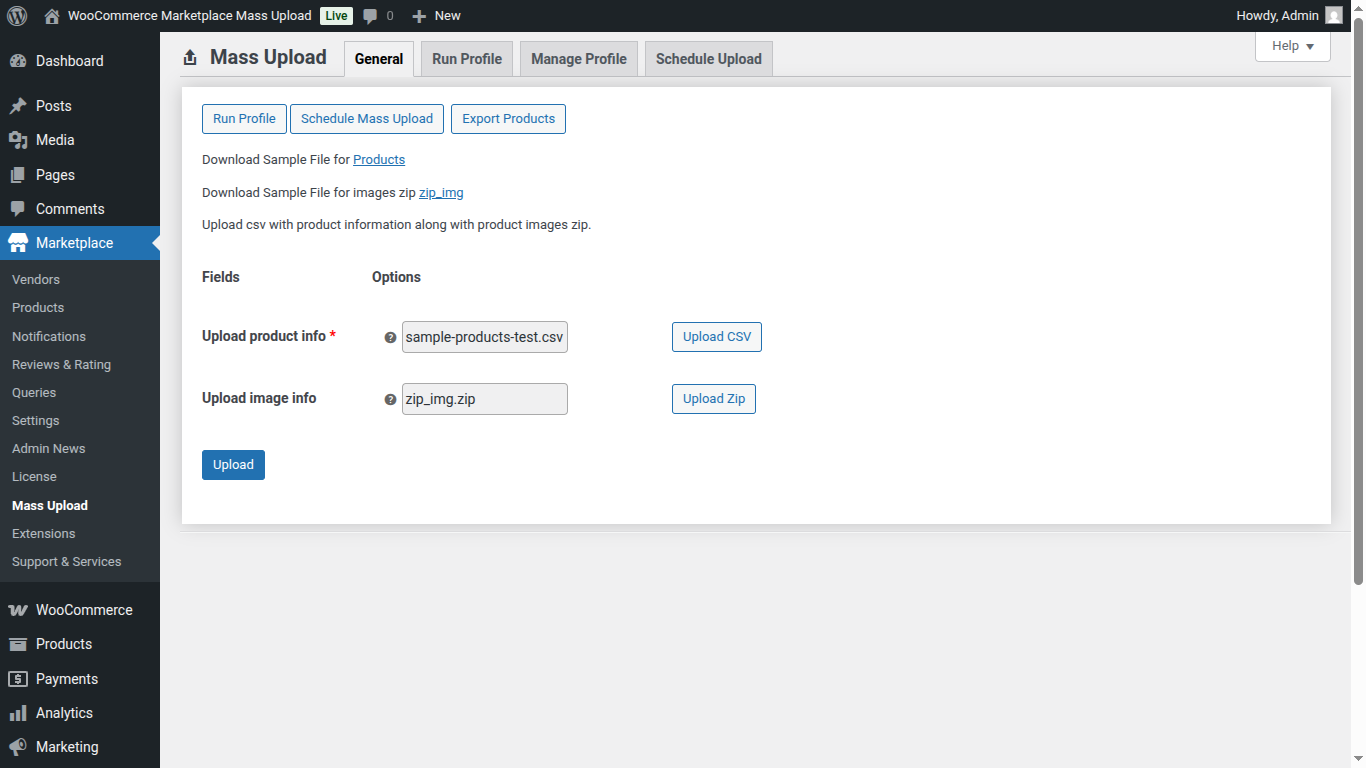
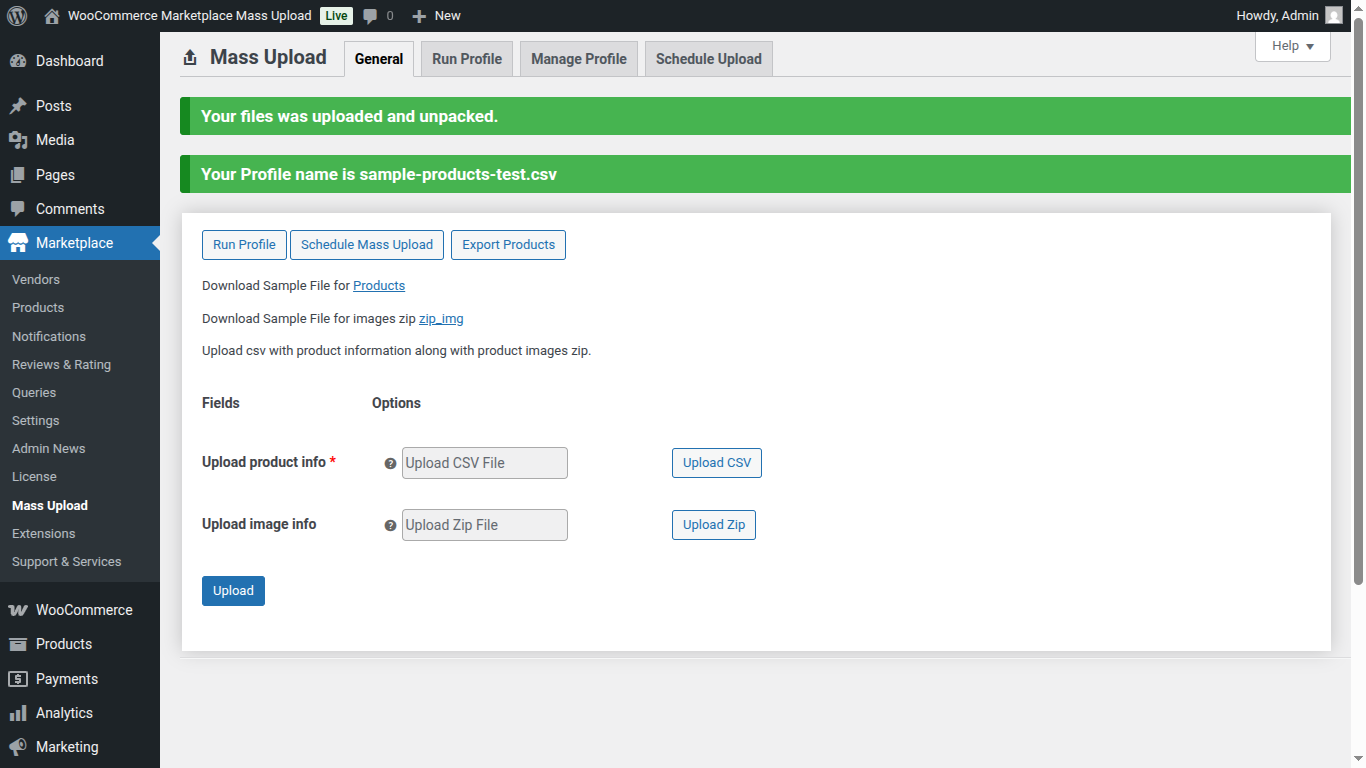
Next, the admin will tap on Upload to upload the respective files and a profile will be created. The successful creation message will be displayed as well.
Further, the admin taps on Run Profile to select a profile and run the selected profile to start the upload process,
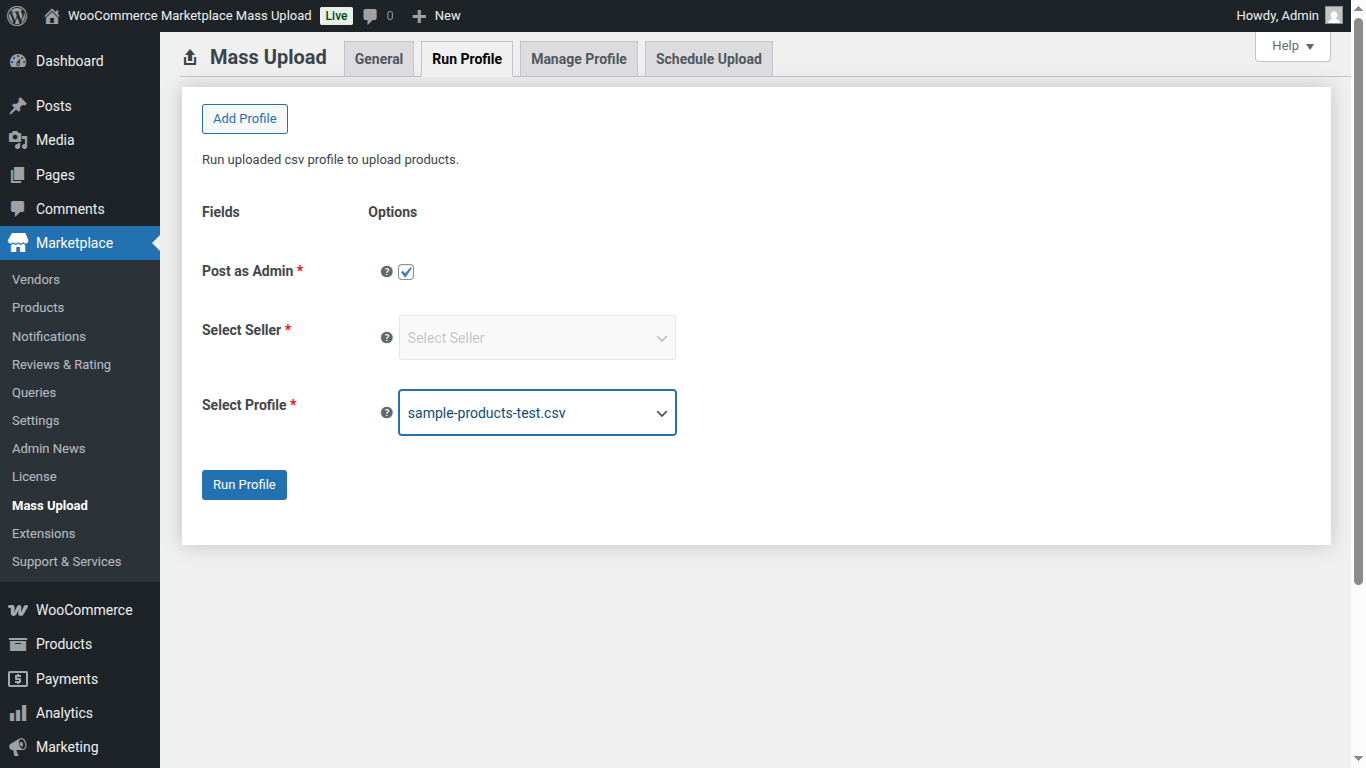
The below settings are available in the Run Profile section,
Post as admin – By checking this option the admin can run a profile for their own products.
Select Seller – Admin can also run a profile for a seller. For this, he just needs to select the seller from the available list.
Select Profile – Here admin selects a profile to execute.
After selecting a profile, admin clicks on Run Profile to execute that profile and create the products.
Afterwards, Admin can export the created product list in CSV format by tapping on Export Products.
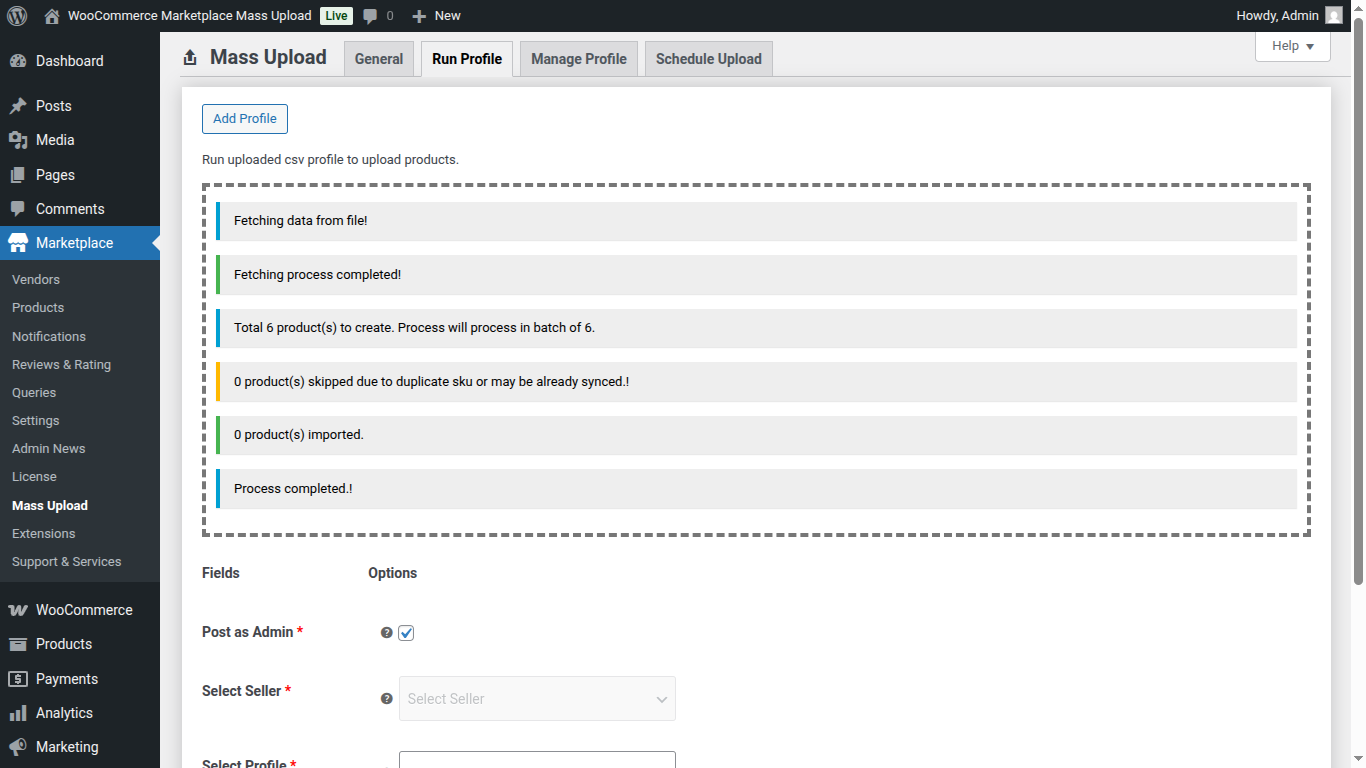
Further, If product(s) already exist, then the profiler will not create those products again and display a duplicacy message for the same as mentioned in the below image,
Also, the admin can manage the profile and delete the respective profile as shown below in the screenshot:
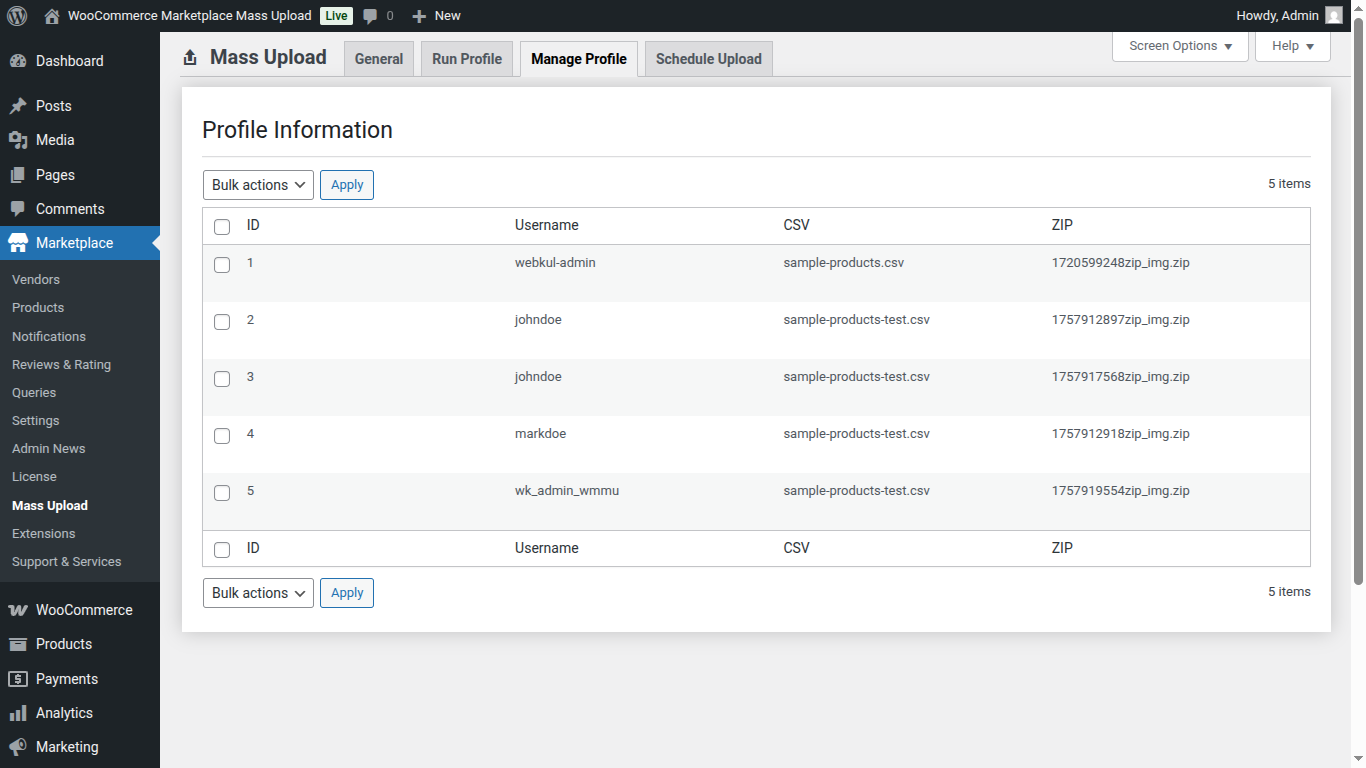
Admin Control Over Scheduled Mass Uploads
Not only sellers, but marketplace admins also get complete control over mass uploads through the Schedule Upload feature. From the backend, the admin can easily manage and monitor all scheduled product uploads across multiple sellers.
Here’s what the admin can do:
Upload Product Info (CSV): Add or manage product details via a CSV file.
Upload Image Info (ZIP): Upload product images in bulk and map them correctly.
Select Seller: Assign the uploaded products to a specific seller in the marketplace.
Schedule Upload: Choose the exact date and time to automate uploads for better coordination.
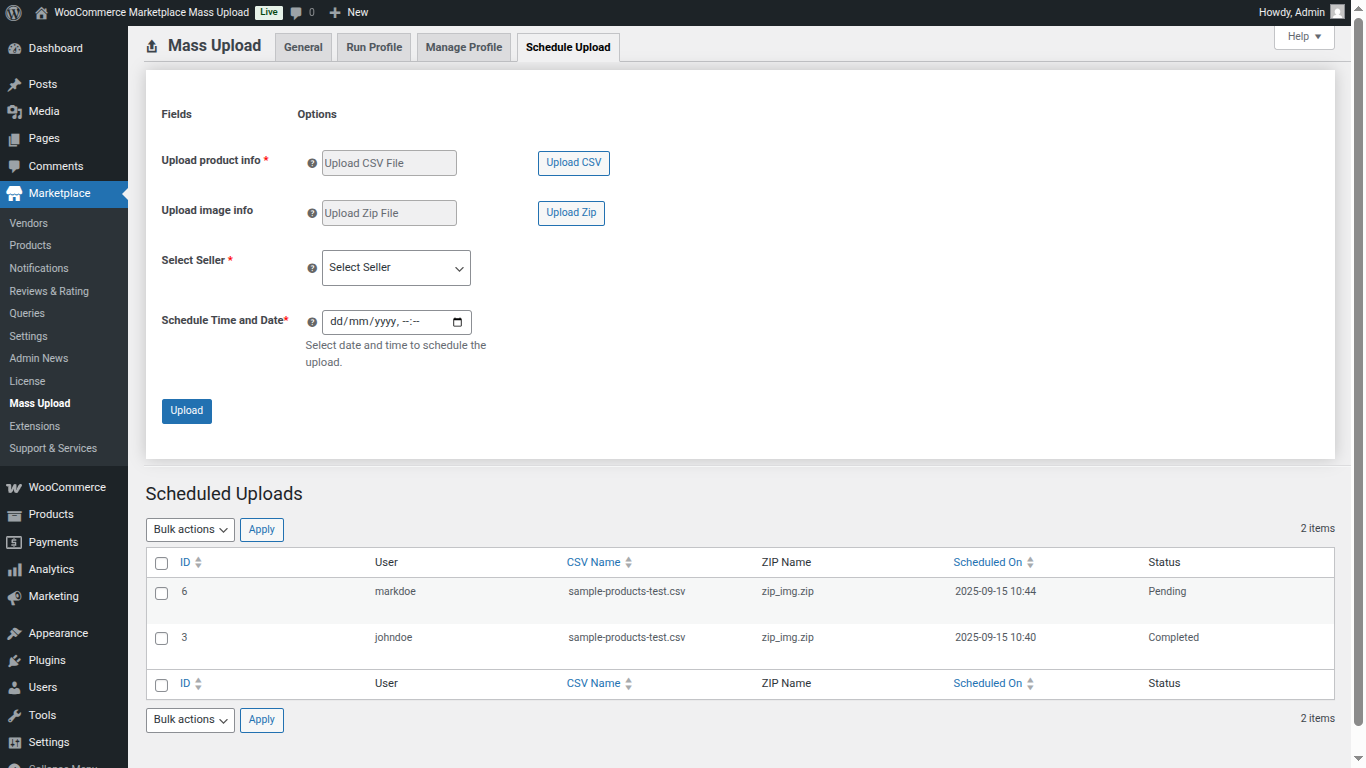
In the Scheduled Uploads section, the admin can view all scheduled tasks, including:
User (Seller) Name
CSV File Name
ZIP File Name
Scheduled Time
Status (Pending, Completed, etc.)
This feature ensures that admins can oversee, track, and control bulk uploads efficiently, making marketplace management smooth and error-free.
Support
That’s all for the WordPress WooCommerce Marketplace Mass Upload, still, have any issues feel free to add a ticket and let us know your views to make the plugin better at webkul.uvdesk.com