User Guide for Odoo Shipping Per Product
INTRODUCTION
Odoo Shipping Per Product allows customers to pick different delivery methods for each item, enabling faster delivery without placing separate orders.
Odoo Shipping Per Product lets you ship fragile items separately from other products for better handling and safety.
Customers can select a unique shipping method at checkout for each product, enabling split deliveries while maintaining a single order.
FEATURES
1- Admins can set specific delivery methods for each product.
2- Customers can choose their preferred delivery method for each product during checkout.
3- Delivery costs are calculated individually for every product based on selected methods.
4- A dynamic delivery method appears on sales order form for flexibility.
5- Admin can either waive off shipping charges or set it based on rules
6- Odoo Shipping Per Product enables separate delivery options for fragile items, ensuring careful handling
7- Customers can split delivery of items without needing multiple orders
8- Admin can access delivery order grouping and item grouping to get integrated shipment charges for same shipment method.
INSTALLATION
1- Once you have purchased the module from our Webkul store, you will receive a link to download the zip file of the module.
2- Extract the file on your system after the download finishes. You will be able to see a folder named- ‘shipping_per_product’.
3- Copy and paste this folder inside your Odoo Add-Ons path.
4- Now, open Odoo Apps and click on the Settings menu. Here, click on Activate the Developer Mode. You can activate the developer mode by typing ‘debug’ after ‘web?’ in the URL as well.
5- Now, open the Apps menu and click on ‘Update Modules List‘.
6- In the search bar, remove all the filters and search ‘shipping_per_product’.
7- You will be able to see the module in the search results. Click on ‘Install’ to install it.
WORKFLOW
BACKEND VIEW –
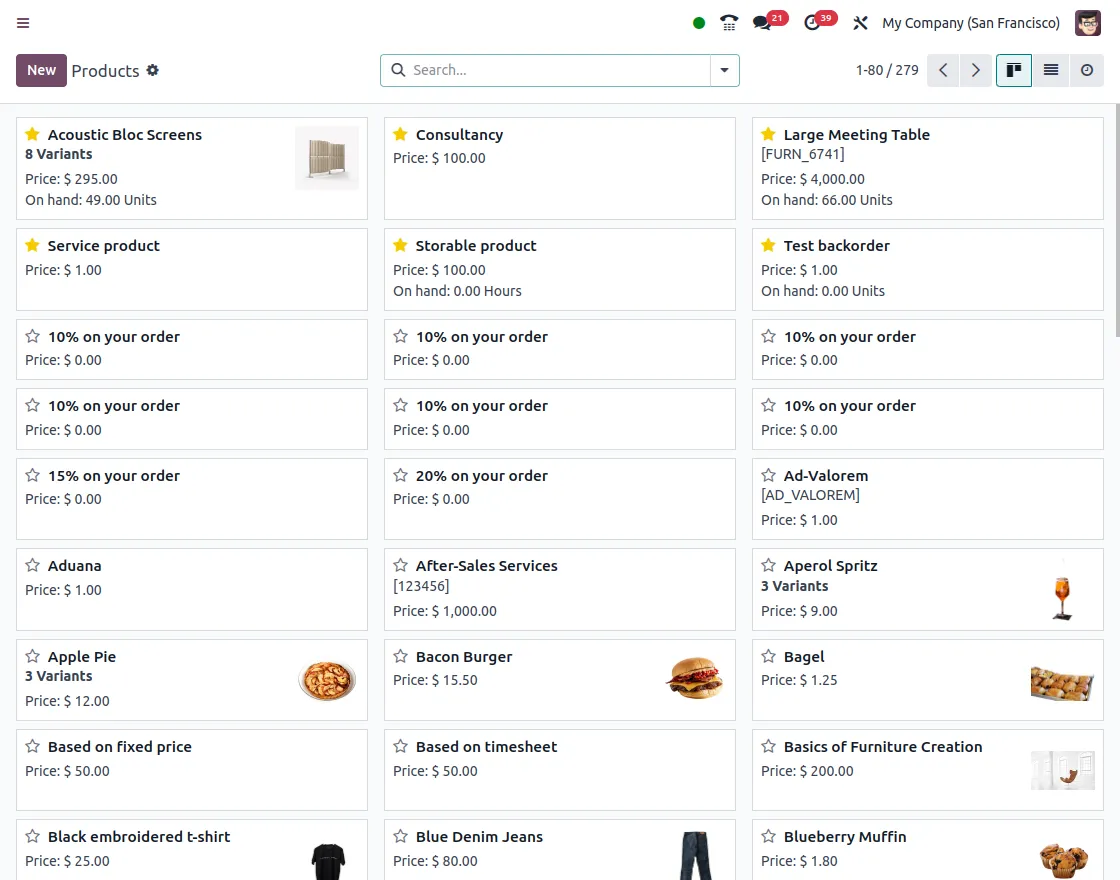
- Once the installation is complete, open Sales tab and follow the path Products>>Products >> Now, open any product from given list as shown.

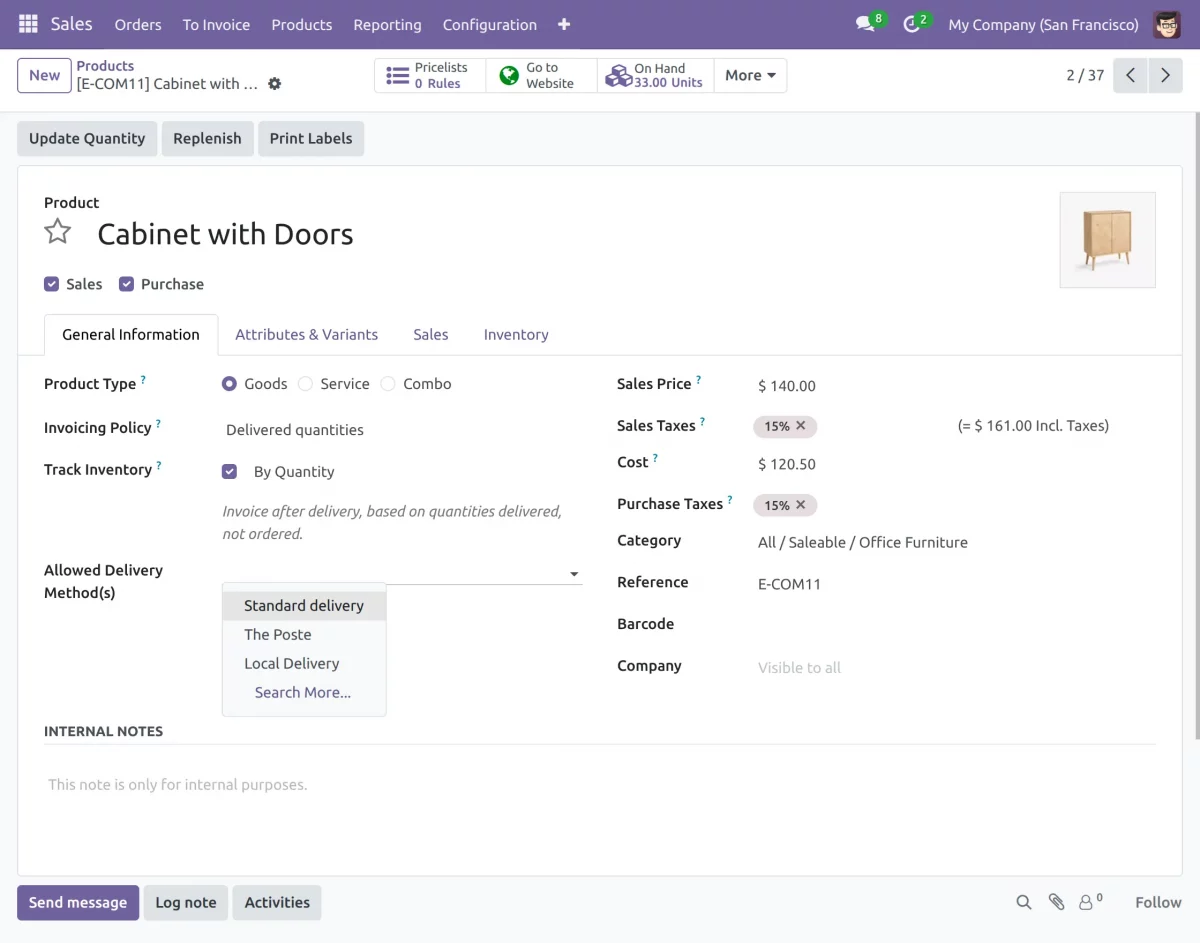
- Select General Information tab from product form view >> ‘Allowed Delivery Method >> add different delivery methods for any product.

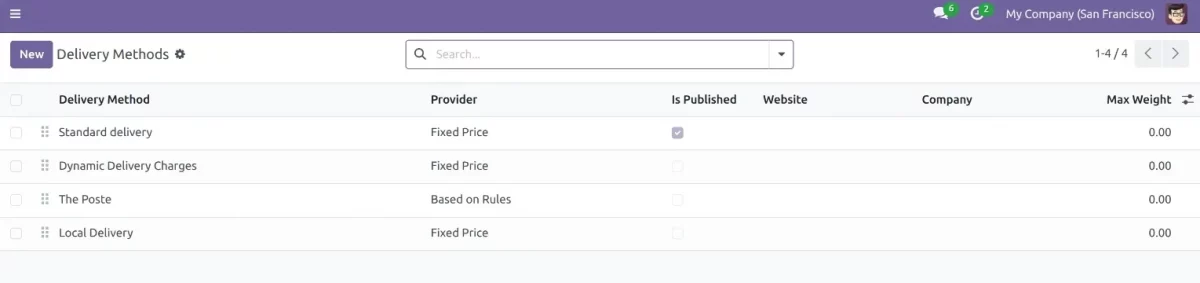
3. After that, navigate to Configuration >> Delivery methods.

4. Here, open any delivery method. Under ‘Delivery Product’ User can add the product(s) they wish to deliver through this method.
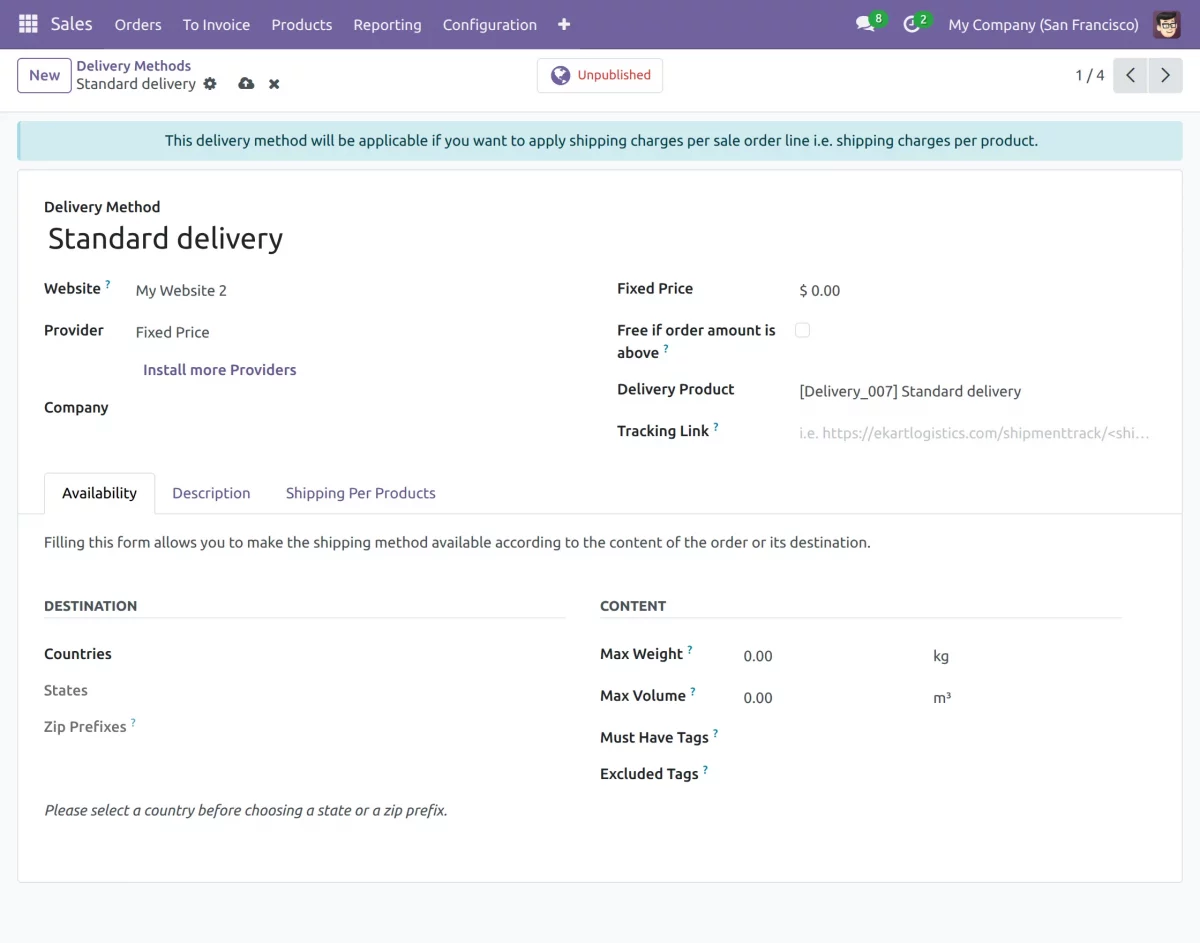
5. User can access the “Delivery Order Grouping” Configurations >> Delivery Methods >> Pick any Delivery Method>> Configurations

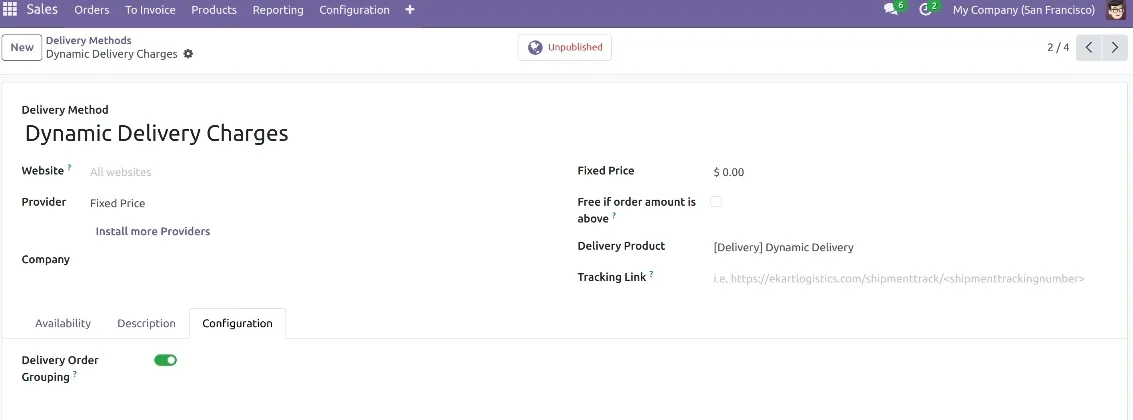
6. To place a sales order from the backend, go to Sales >> Order >> New Order.

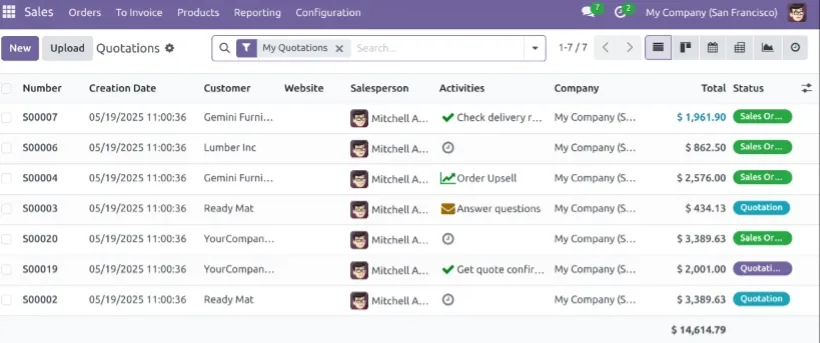
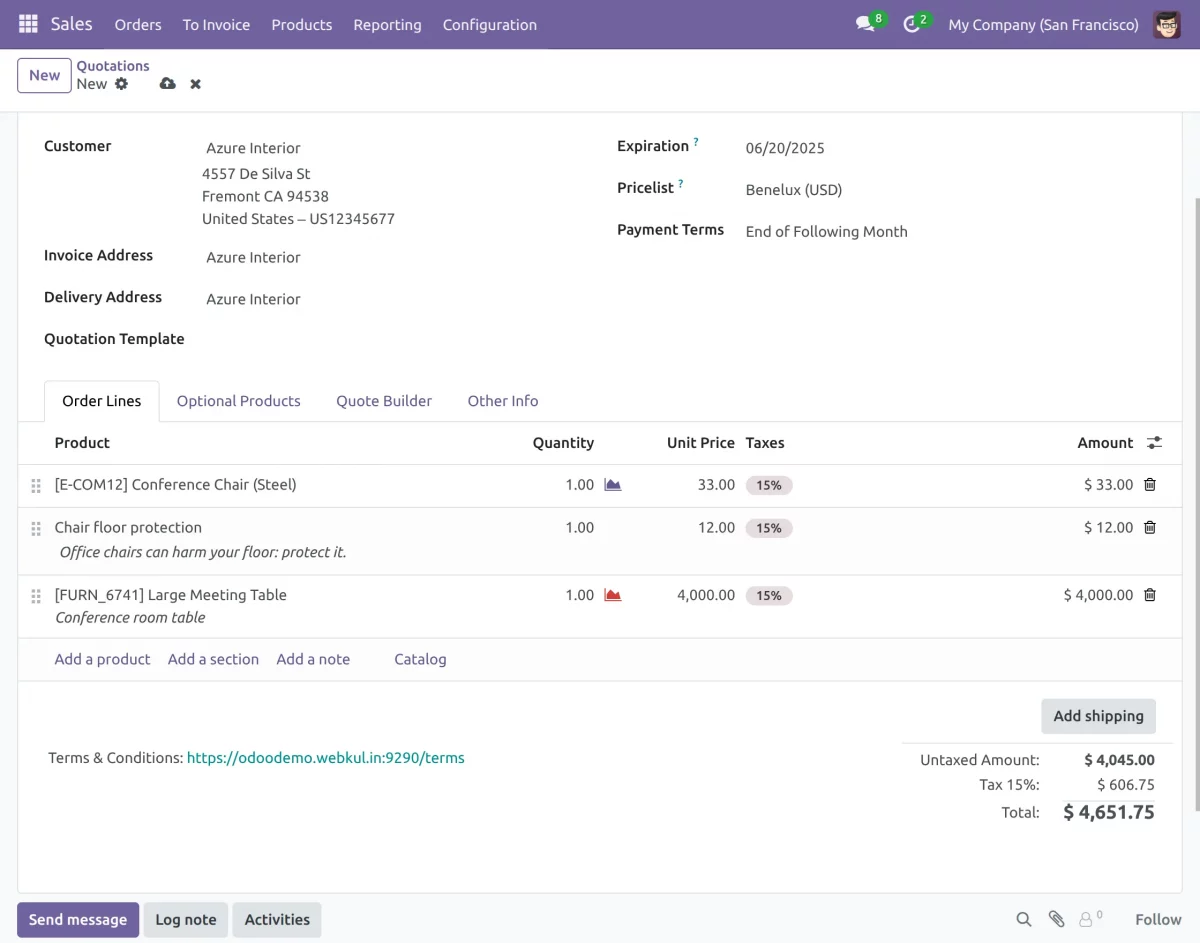
7.Add items to the order lines and add shipping methods for Add Shipping
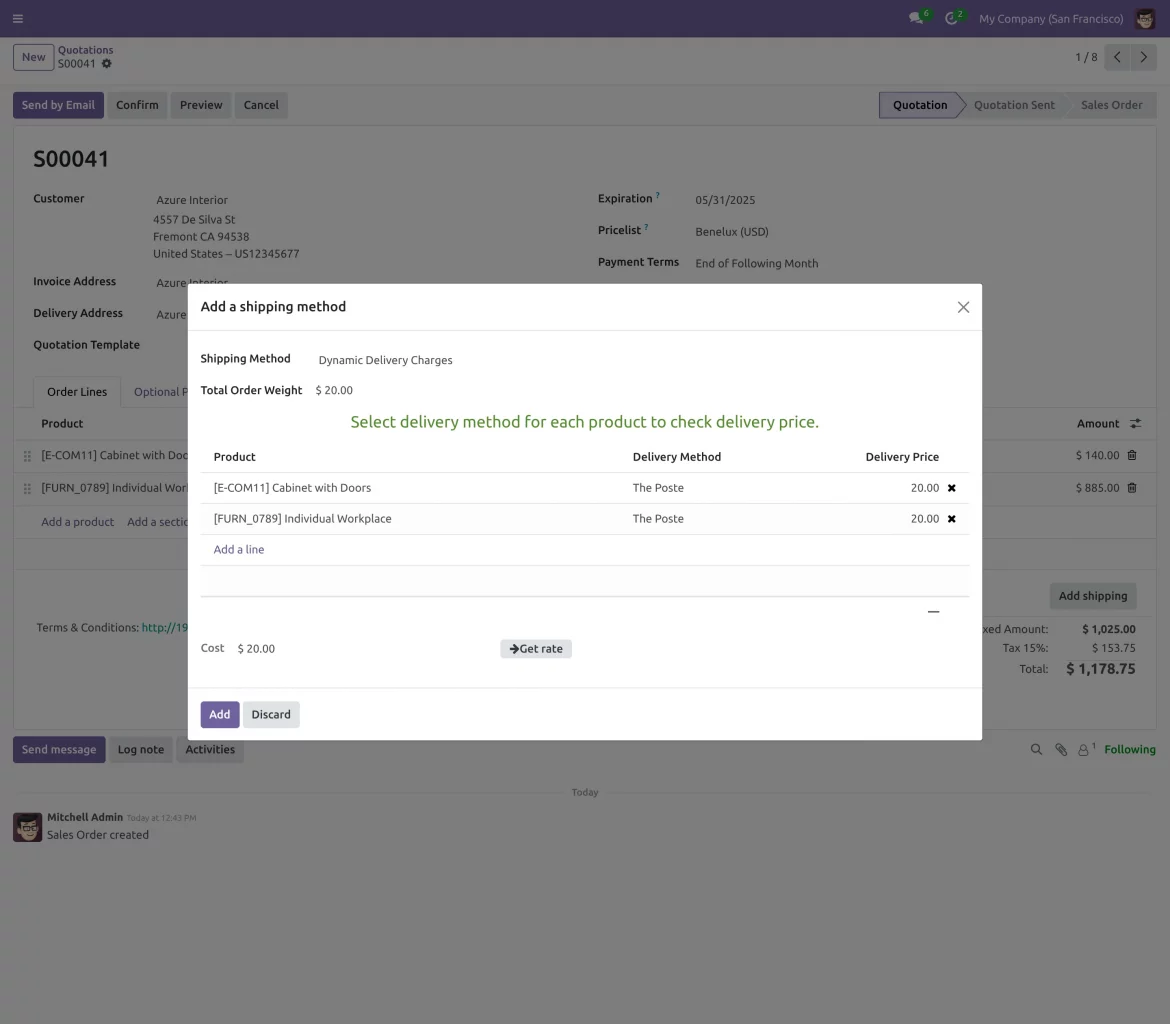
8. A pop-up will ask you to choose each product’s delivery method >> ‘dynamic delivery Charges’>> Select same or different delivery method for each product >> Get Rate.
NOTE: If the User has enabled the “Delivery Order Grouping” for the same Delivery method, “Get Rate” will show an integrated shipment cost.

WEBSITE VIEW-
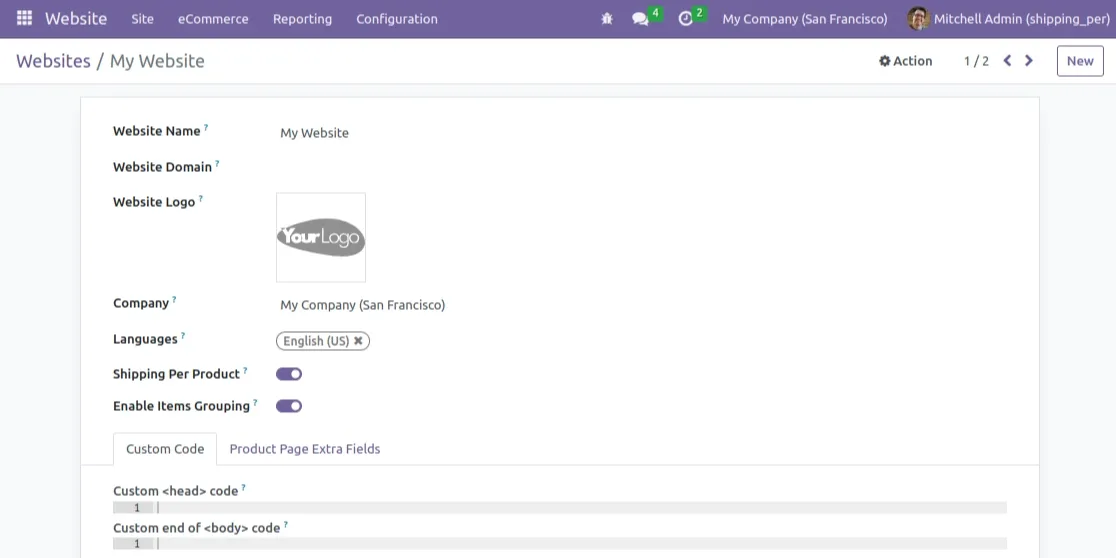
1. User can select Enable the item grouping by navigating to Website >> Configuration >> Websites

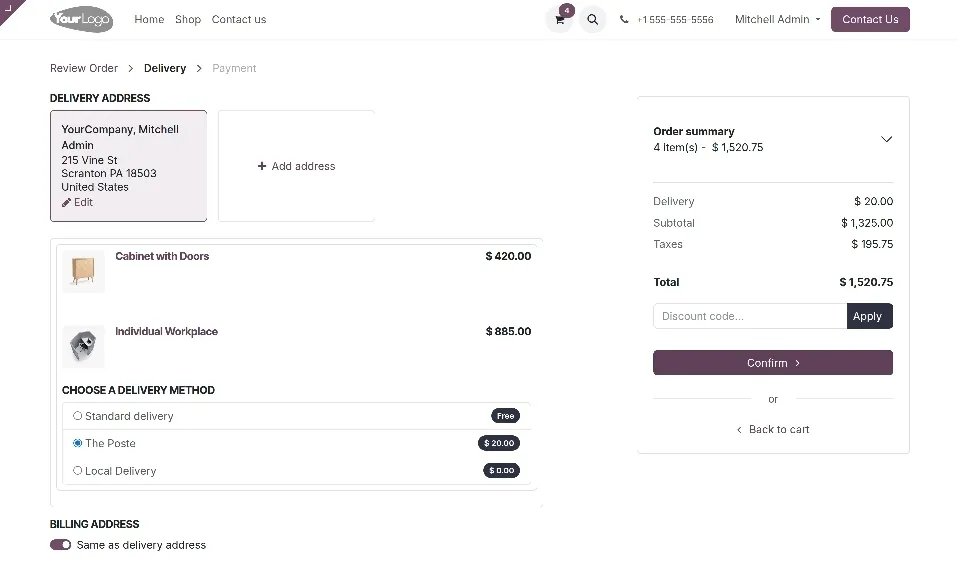
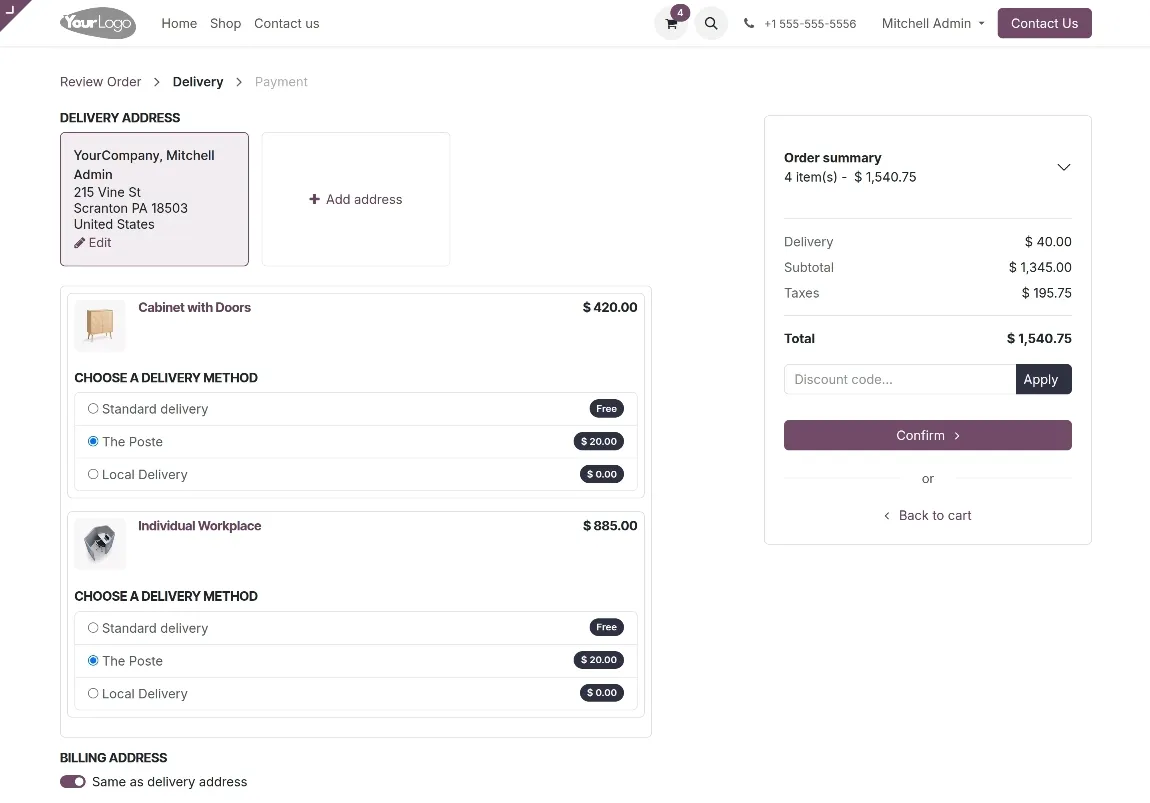
Pick products, add to cart, and on confirmation, see total shipping as the sum of each item’s delivery cost with options shown per product.
2. If a user had selected the “Enable Items Grouping”, shipping cost for the same delivery would be integrated into one

3. If the “Enable Items Grouping” is not opted different shipment cost would be added for same delivery.

NEED HELP?
We hope this guide has been helpful. Share your feedback in the comments section below.
For any issues or further inquiries, please raise a ticket on UV Desk or contact our support team via email.
Thank you for choosing us, and we’re here to assist you further!