User Guide For RFQ For Wix


Overview
Here comes the request for quotation(RFQ) for Wix stores, the most important and awaited feature for Wix Stores.
RFQ For Wix provides an option for customers to purchase in bulk with custom pricing on your store, using this application, your customers can negotiate with you for bulk order purchasing.
Features Of RFQ For Wix
- Customers can purchase in bulk with custom pricing.
- Store owners and customers can negotiate through email.
- You can get RFQ requests for out-of-stock products as well.
- The store owner will have 3 options for each RFQ: “Accept”, “Requote”, and “Decline”.
The Flow Of Installation And Configuration Of RFQ For Wix
To install the app, follow the following steps –
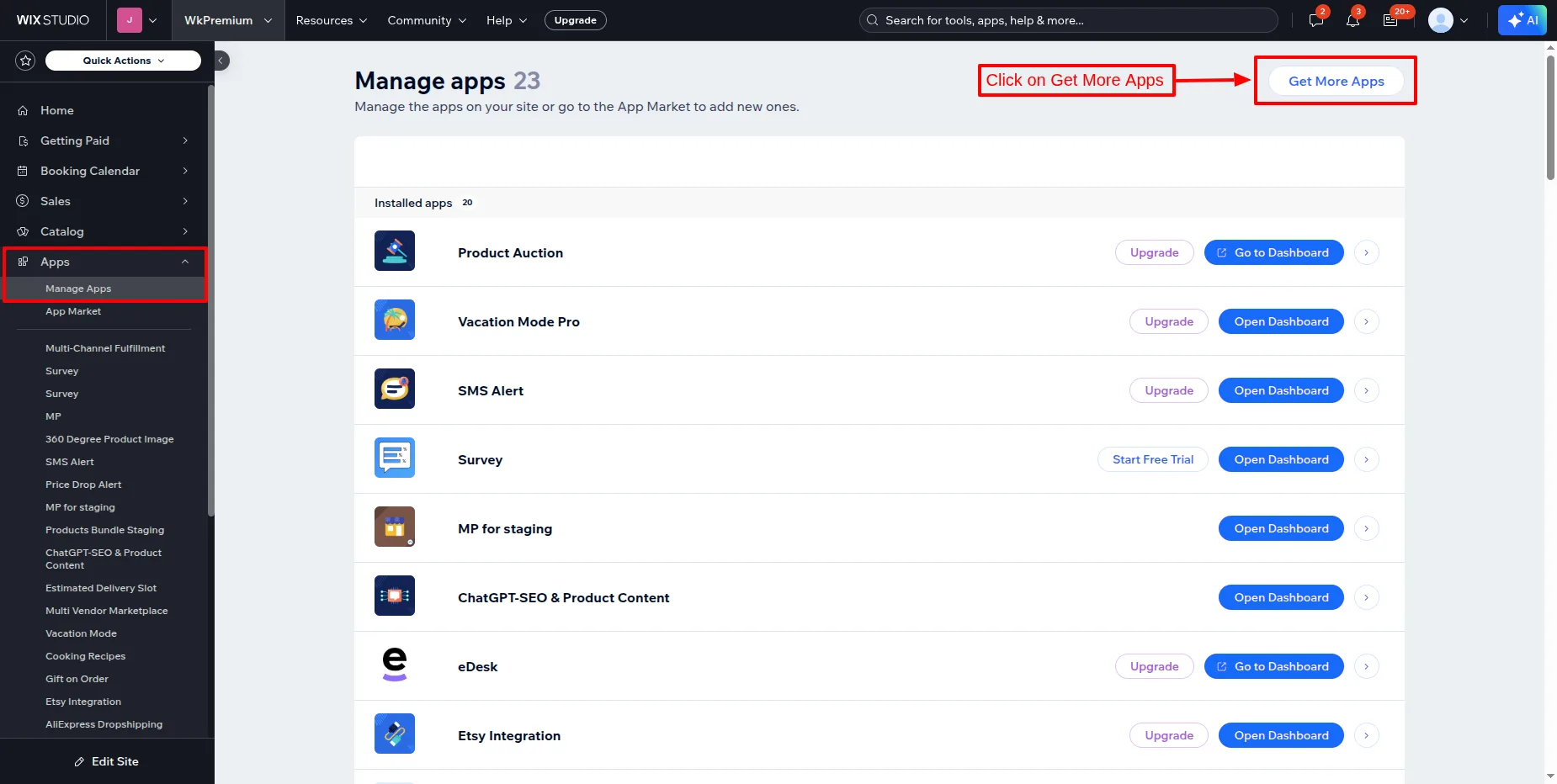
- Go to your Wix store, then click on Apps >> Manage Apps as shown.
- Now, click on Get More Apps.

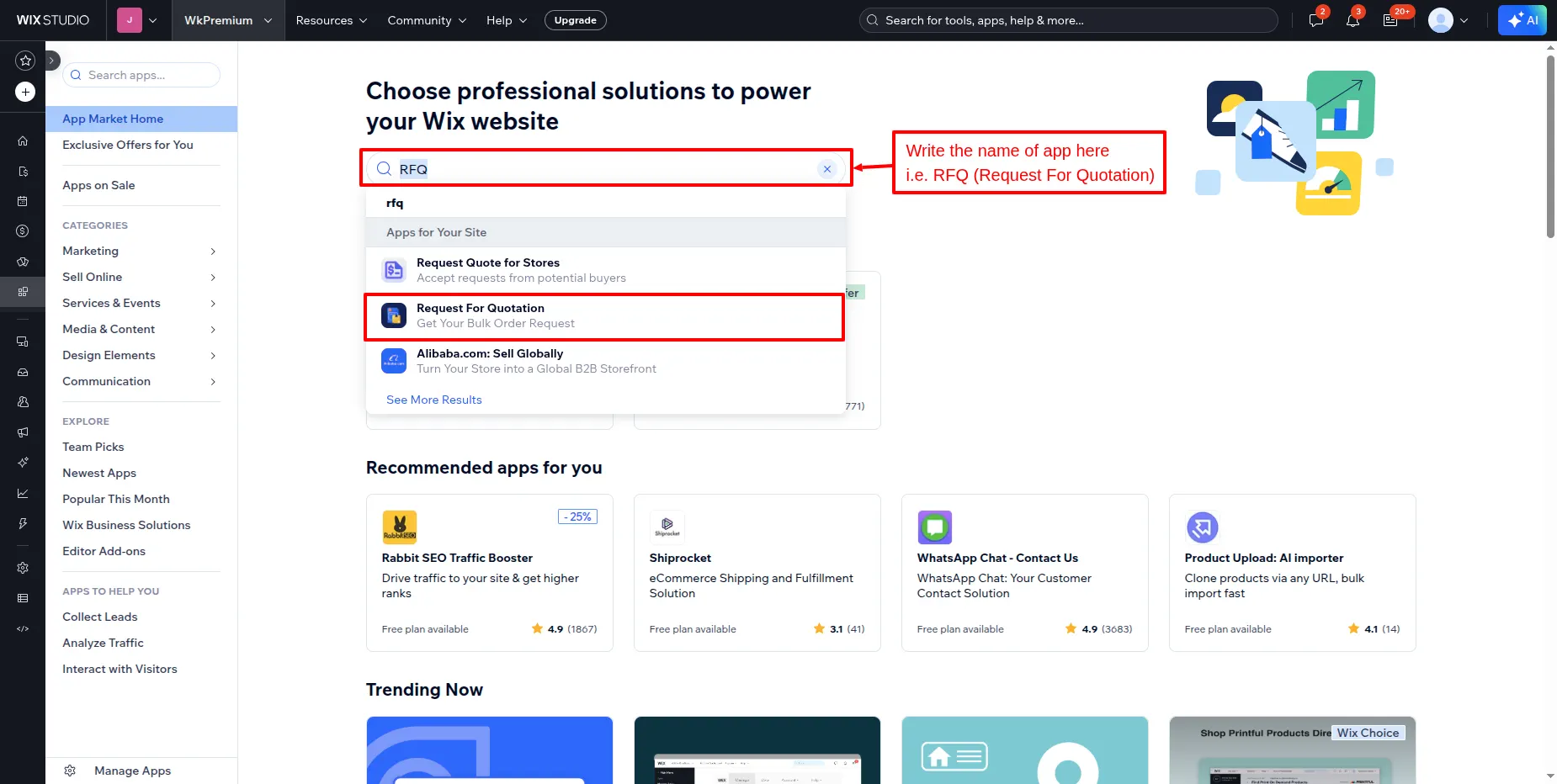
- Now, you’ll be redirected to the app market page from where you need to search for “RFQ or Request For Quote“.
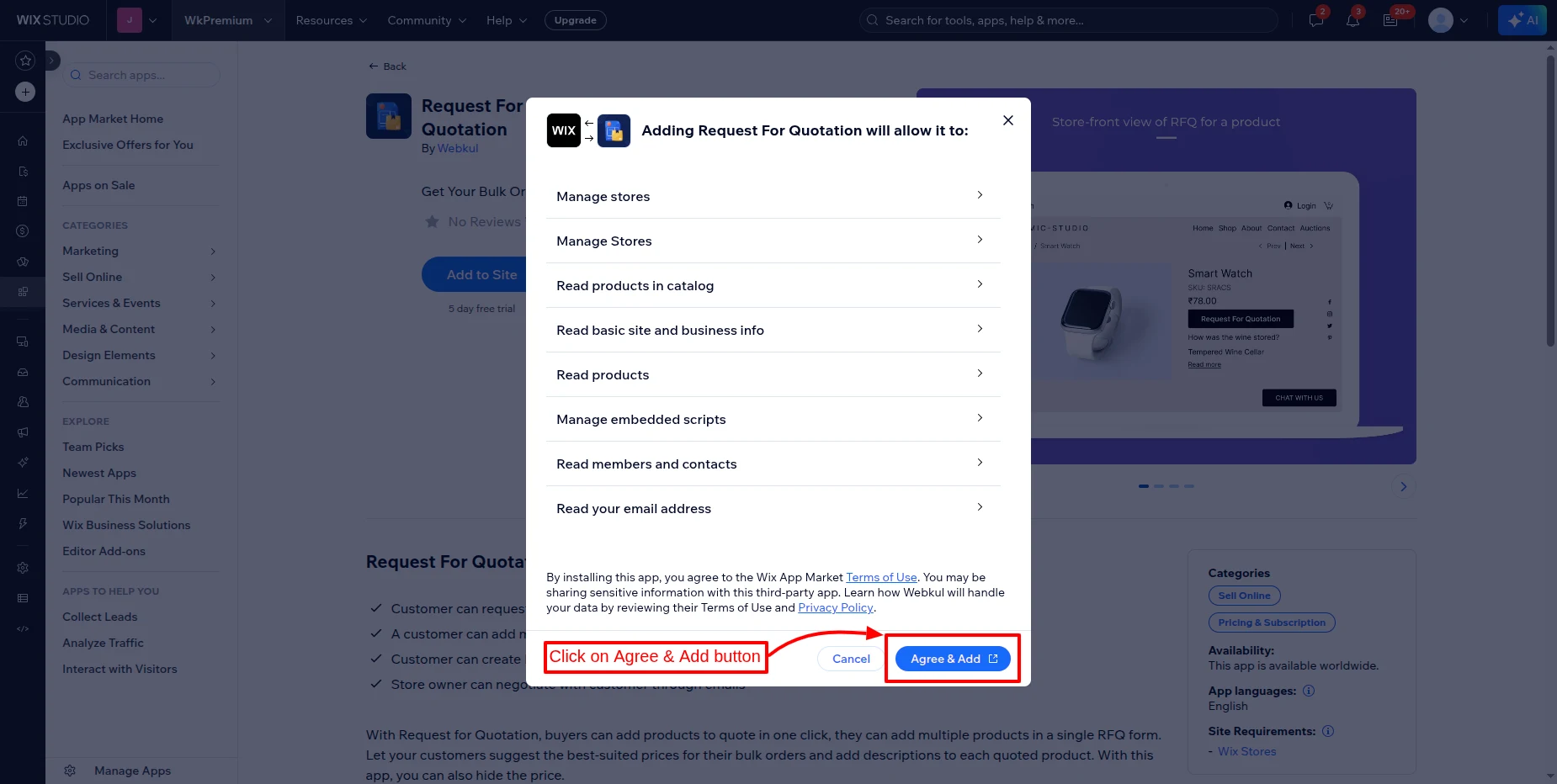
- Click on the “Agree & Add” button after reviewing all the terms of use and privacy policies.
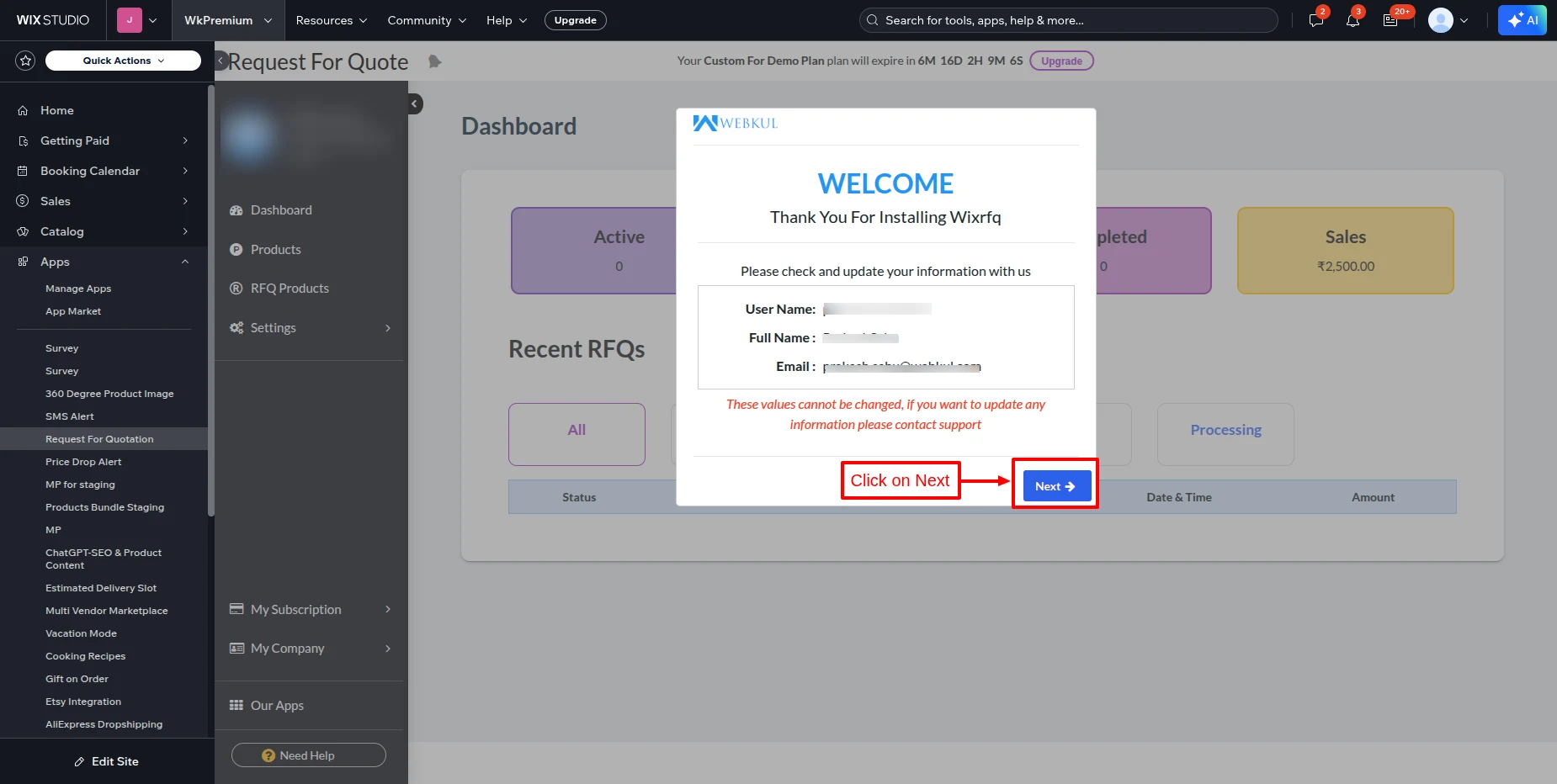
- Now, this button redirects you to the application dashboard, as shown in the screenshot below:
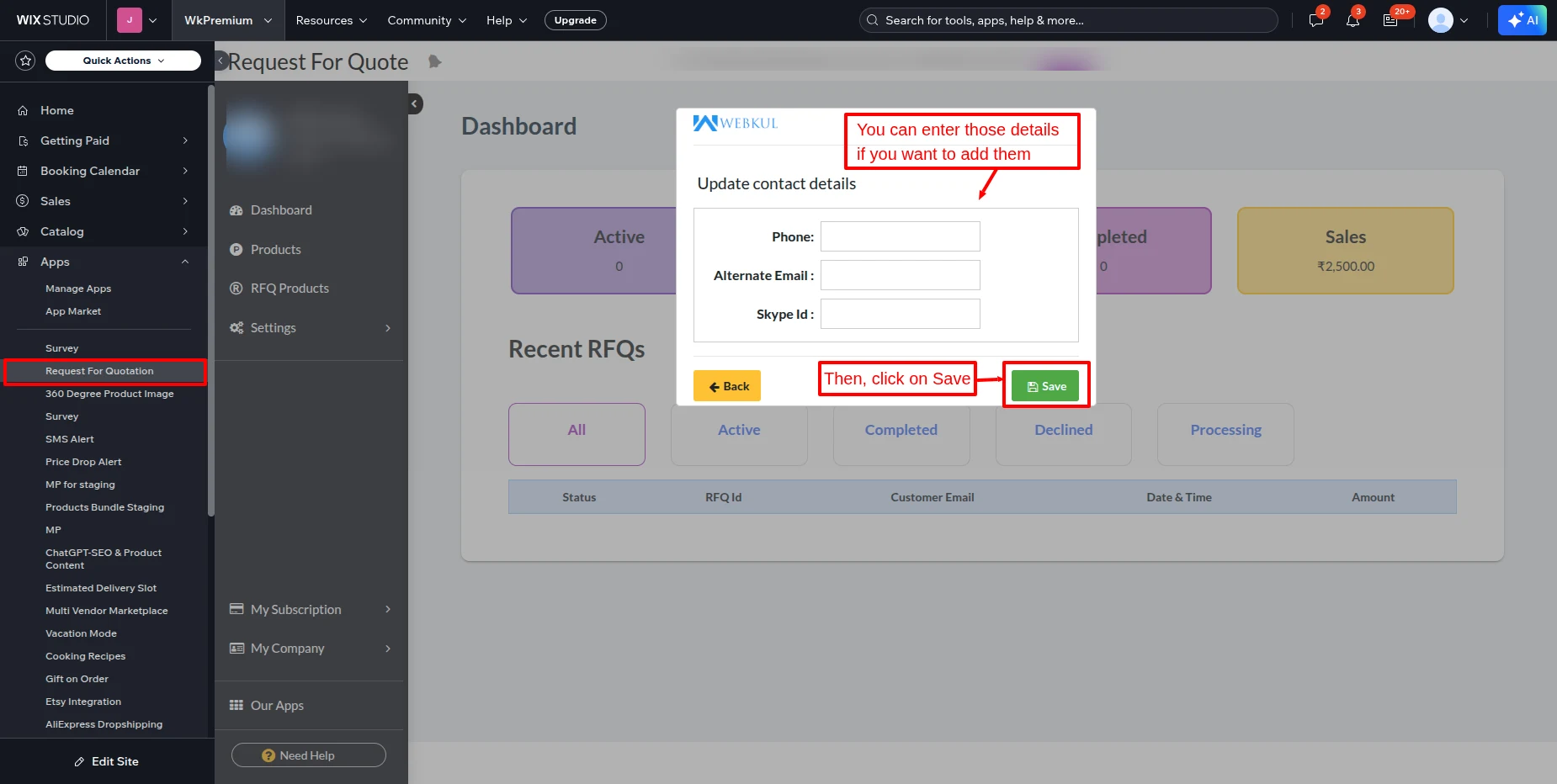
- Here, you can see your information.
- Click on Next.
- Here, you can add your Phone number, Alternative email, and Skype Id.
- Then, click on Save.
-
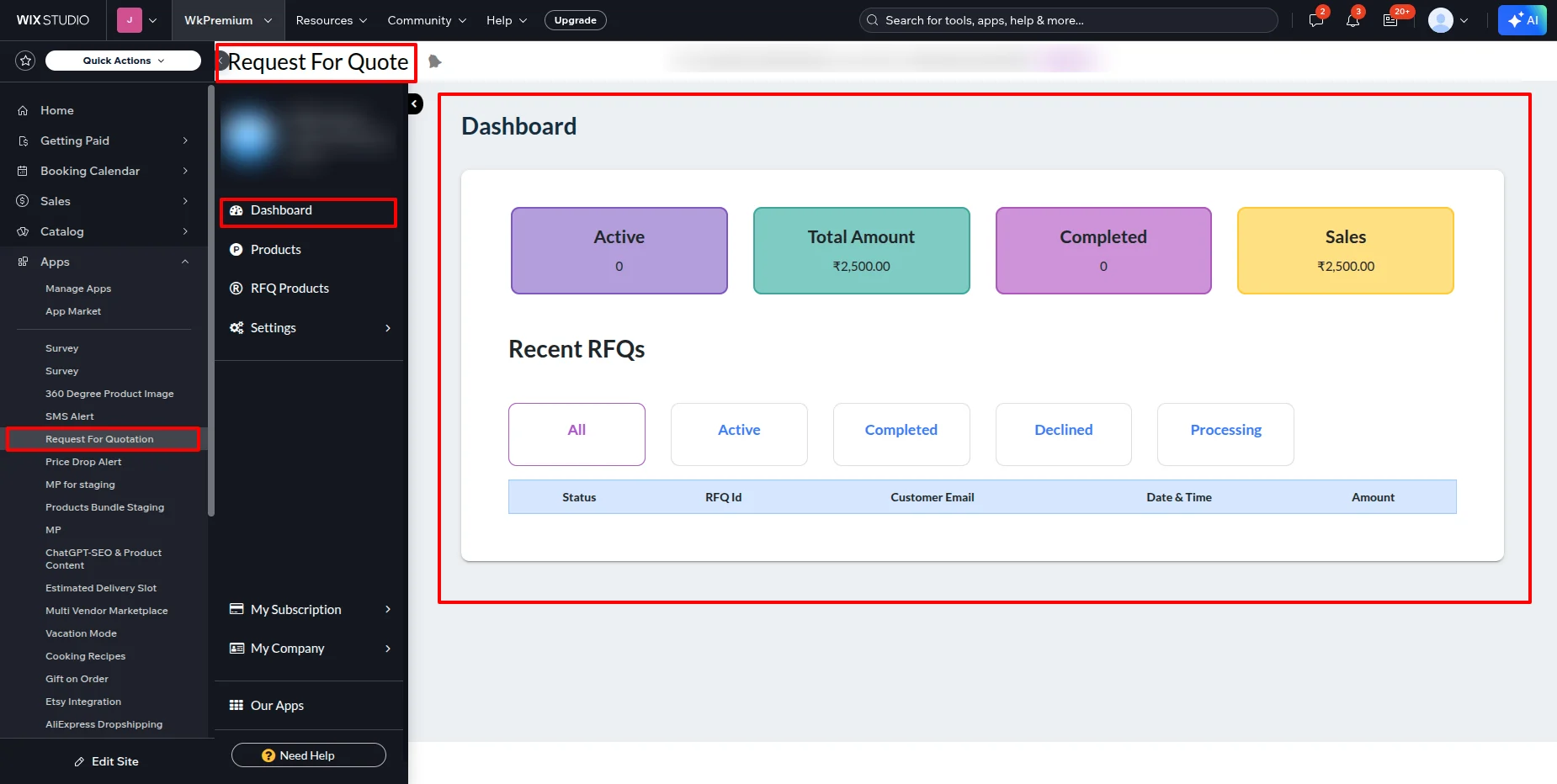
This is the dashboard of our application, where you can view all the information related to the app.
App Subscription :
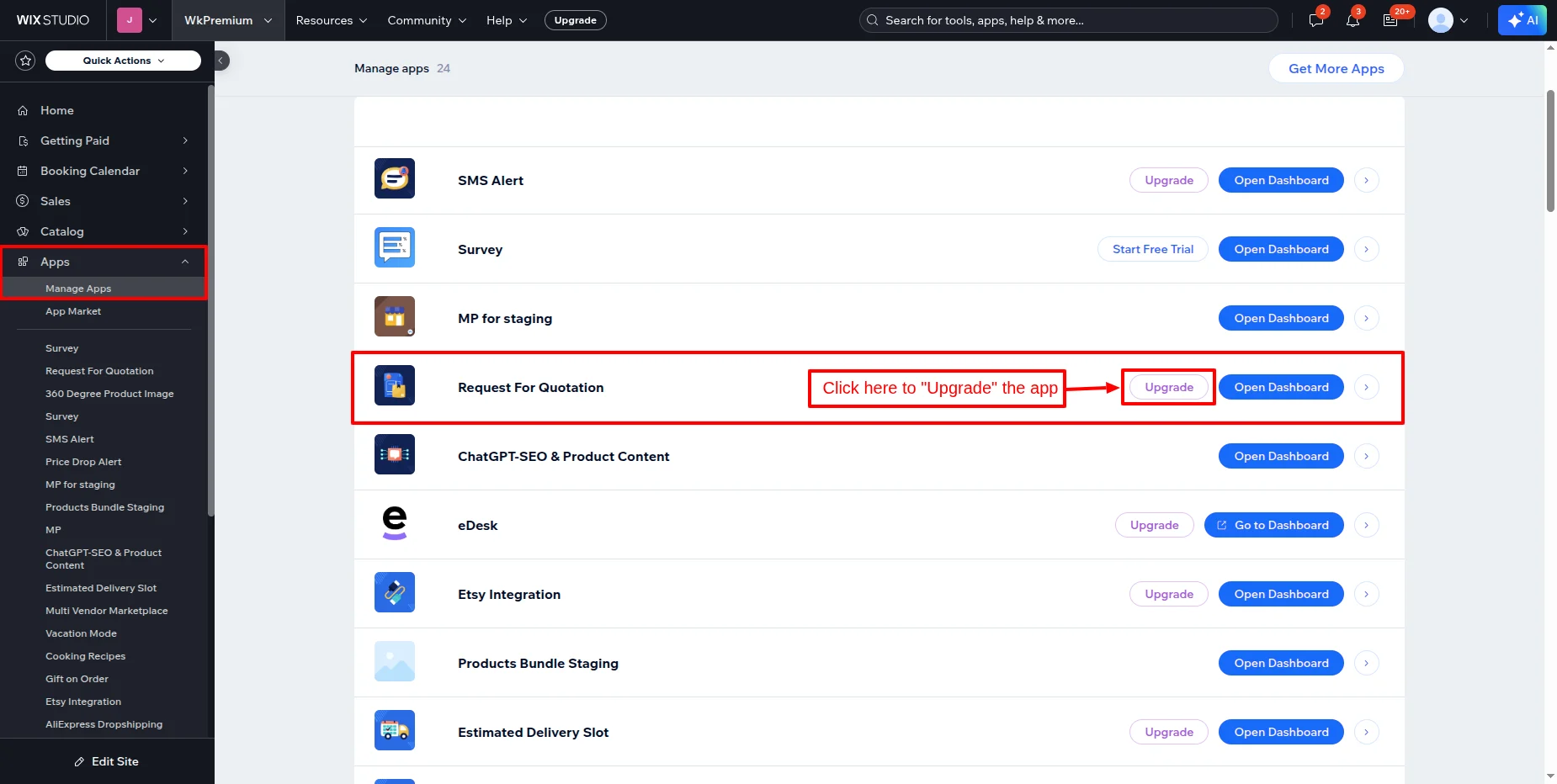
To subscribe to the app, you need to go to the Wix Dashboard, then Apps >> Manage Apps.
Here, in front of the app, there is an upgrade option.
Click on the upgrade button.
App Settings :
After installing the application, configure the App Settings >> General Settings as shown below.


Now, go to the email template menu and set-up the email template content on different events :


Next step is to sync products from your Wix store, for that go to the “Products” menu, and then start synchronizing.
After that, as a store owner, you have to decide on which product(s) you want to apply RFQs and then add “Minimum Quantity” below which a customer can’t create an RFQ for a corresponding product.


Here is the storefront view along with product listing having an RFQ label, i.e., a customer can apply for RFQ on those products.


Please note: Only registered customers can apply for an RFQ. 
Now a form view will be open where a customer can add their “Ask Price,” and its corresponding quantity.
Here, “Ask Price” stands for the offered per-unit price by the customer for the requested quantity.


Note: Multiple products can be added in a single RFQ form.


Once a customer submit RFQ form, then a notification will display as a pop-up.

Store owner’s view ( Back-end-view) :
Store owner can see stats of all RFQs on a single dashboard.

As a store owner you will receive an email notification also for a new RFQ request submitted by a customer, then you have to click on menu “RFQ Products”.


Detail view :
In this detail view of a RFQ request, now as a store owner you have 3 options i.e. “Accept”,”Requote” and “Decline”
Note: Store owner can perform only one action at a time, and that action can’t be revoke.


IF you want to accept the RFQ request then, click on “Accept” button. Then you will see RFQ status changes from active to completed.
An email notification will trigger to the respective customer to proceed to checkout.


IF you want to negotiate the rates with a customer then go with “Requote” :
Click on “Requote” button and enter your values in the form


The associated customer will receive the email notification regarding requote.


WEBKUL SUPPORT
I hope this blog will help you to understand the complete process involved in the RFQ for Wix. If in case you have any queries, please generate a ticket https://webkul.uvdesk.com