Shopify Marketing Cloud Connector
Live Demo
Introduction
Avail unified synchronization between Shopify & Marketing Cloud with Shopify Marketing Cloud Connector.
It is enhancing the features of e-commerce and CRM platforms with the concept of a service-first approach.
It enables you to sync categories, Products (not variants), abandoned carts, customers, Customers & Orders from Shopify to Marketing Cloud.
Features
- Sync Products(not variants), Abandoned Carts, Customers & Orders from Shopify to Marketing Cloud manually & in real-time.
- Products & orders synchronization with data extension.
- 100% accurate data is being synced with the marketing cloud.
- Very easy to integrate & manage at your store.
- ***Note***: Abandoned cart auto-sync is available with the Business Plan.
New Updates
- In our new update, a large amount of data can be synced partially, which saves your time. Now there is no need for you to sync all the data at once.
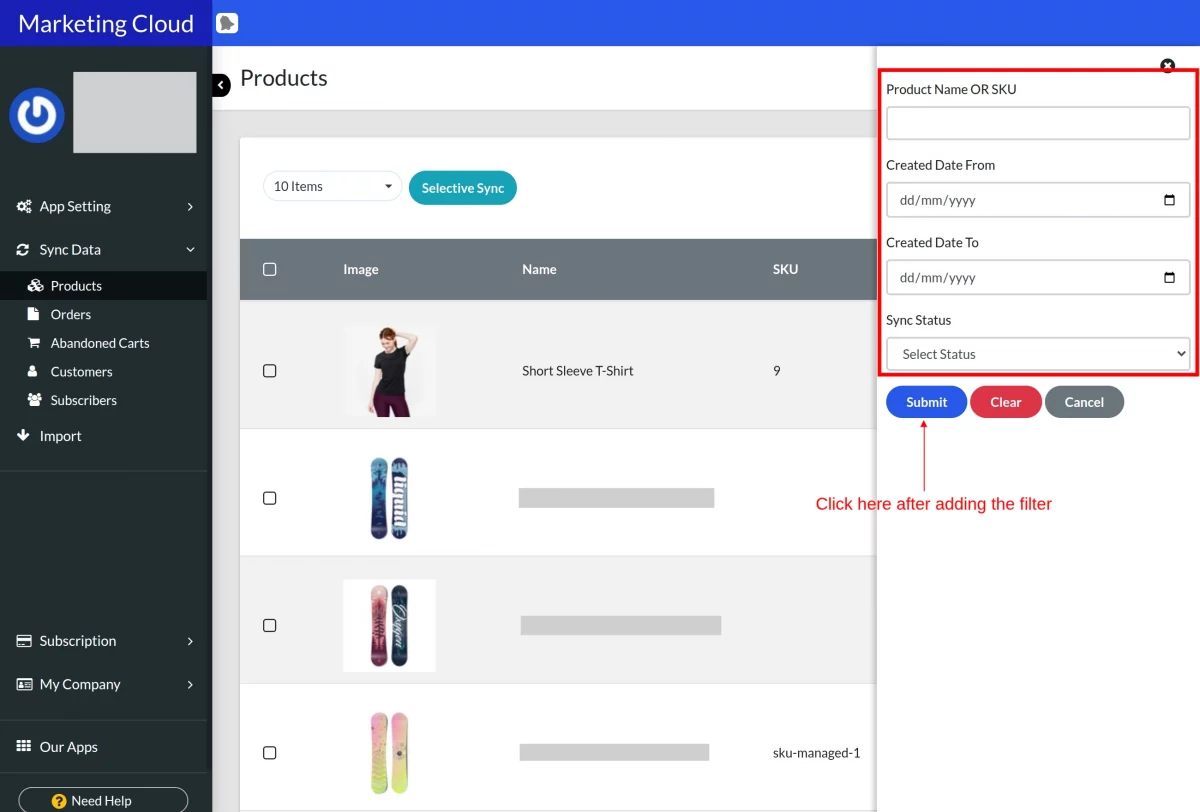
- The option to filter the product data has been provided through product name or SKU, sync status, or date.
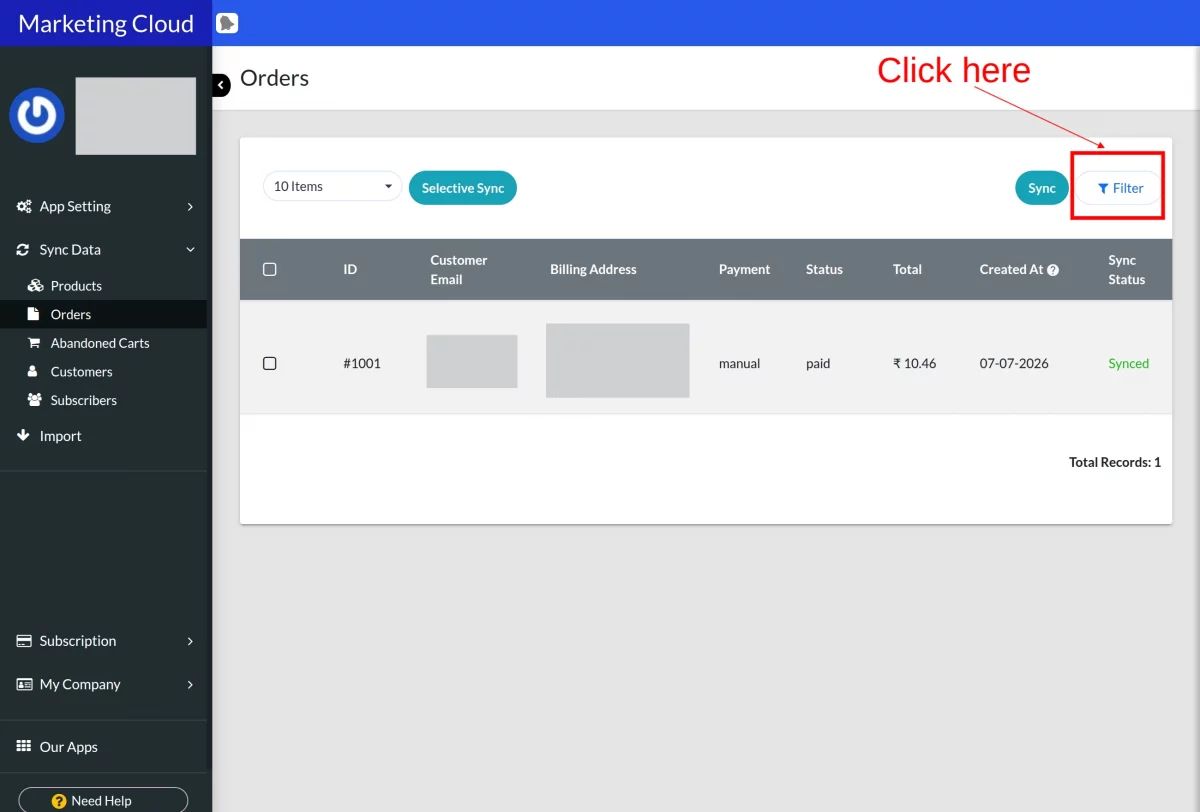
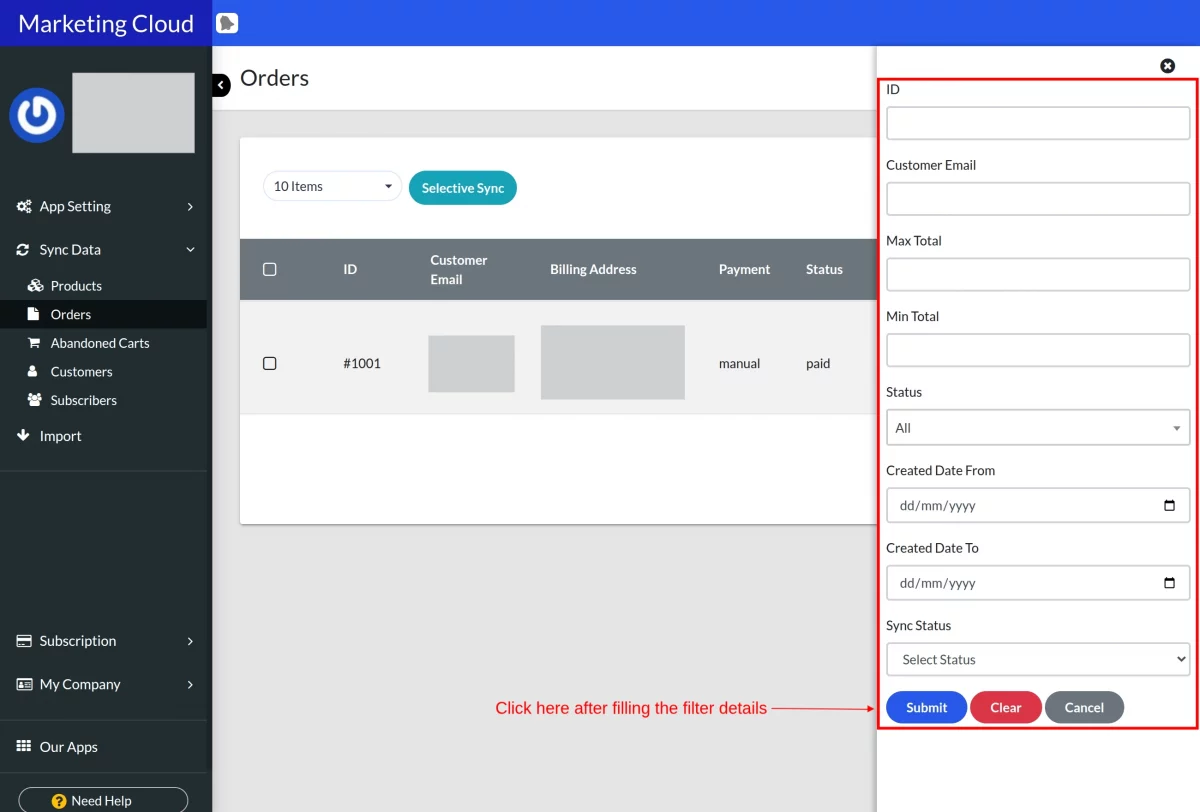
- The option to filter the order data has been provided through sync status, order status, subscriber email, max total, min total, or date.
- The option to filter the subscriber data has been provided through name, email, or sync status.
- Likewise, the filter option as above has been provided for Abandoned checkout and customer data.
Export Customers as Subscribers to Marketing Cloud In Real-Time
Now you can easily run email campaigns for the customers of your store by simply exporting the existing customers to the subscribers’ list of Marketing Cloud.
Export Product Catalog & Orders to Marketing Cloud Data Extension In Real-Time
If you want to send the particular products or order details in the email campaign from a single platform, then this feature will be really helpful.
You can get the catalog & orders details of your Shopify store on the Marketing Cloud itself by integrating this connector.
Export abandoned cart details to Marketing Cloud Data Extension In Real-Time
Now reach out to your abandoned carts and increase the conversion probability by fetching the abandoned cart data from Shopify to the marketing cloud data extension table for abandoned carts.
Simply sync the data and approach the target audience via various email campaigns.
***Note***: Abandoned cart auto-sync is available with the Business Plan.
How to Install The App
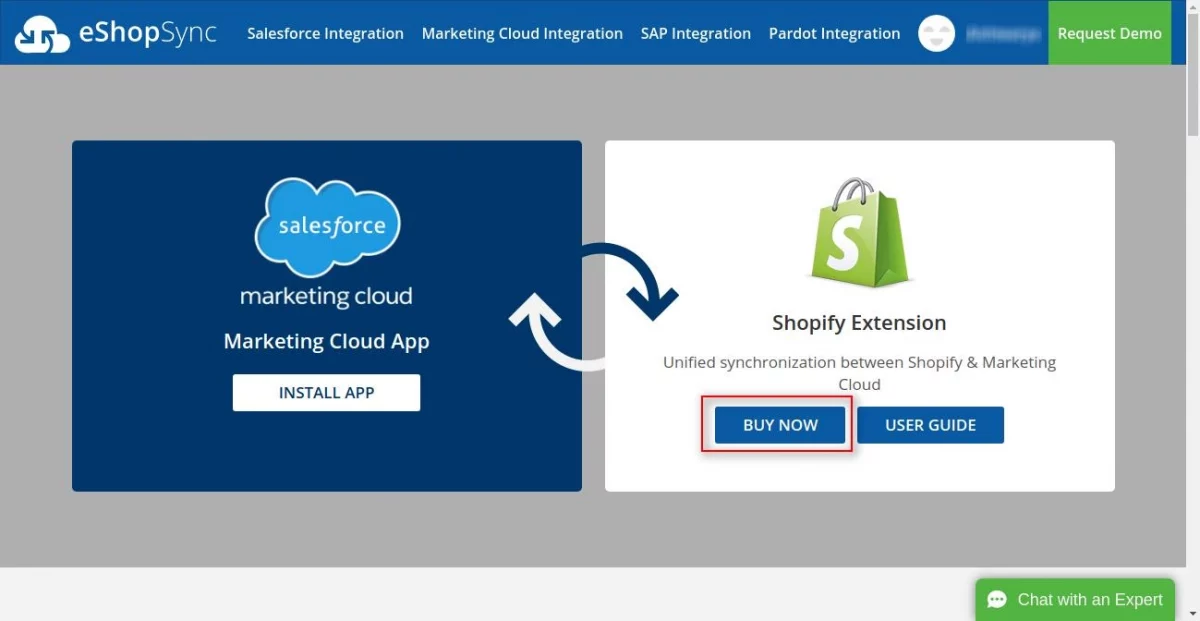
First, you need to go to this link https://eshopsync.com/marketing-cloud-integration/shopify/ and click on the Buy Now button as shown below.

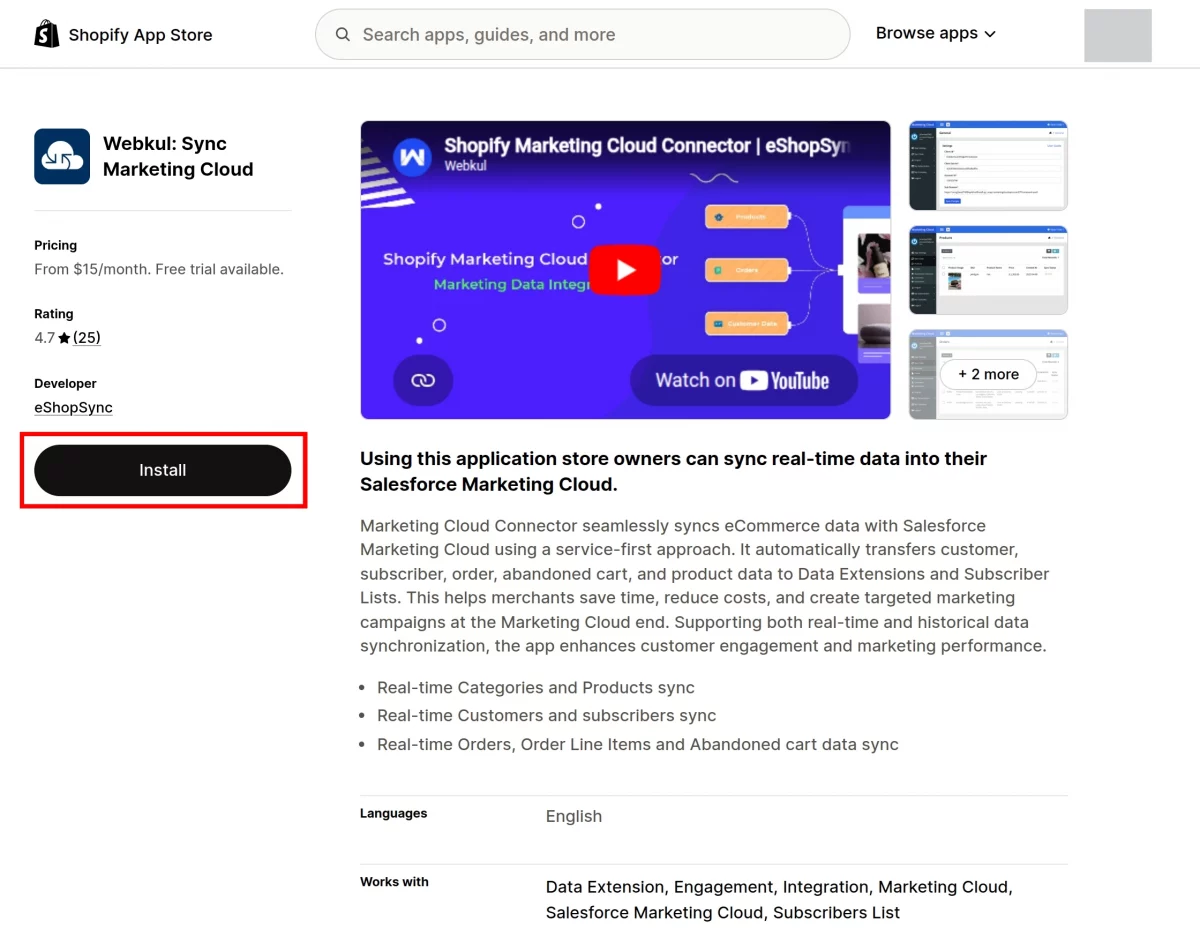
Secondly, click on the Add app as shown.

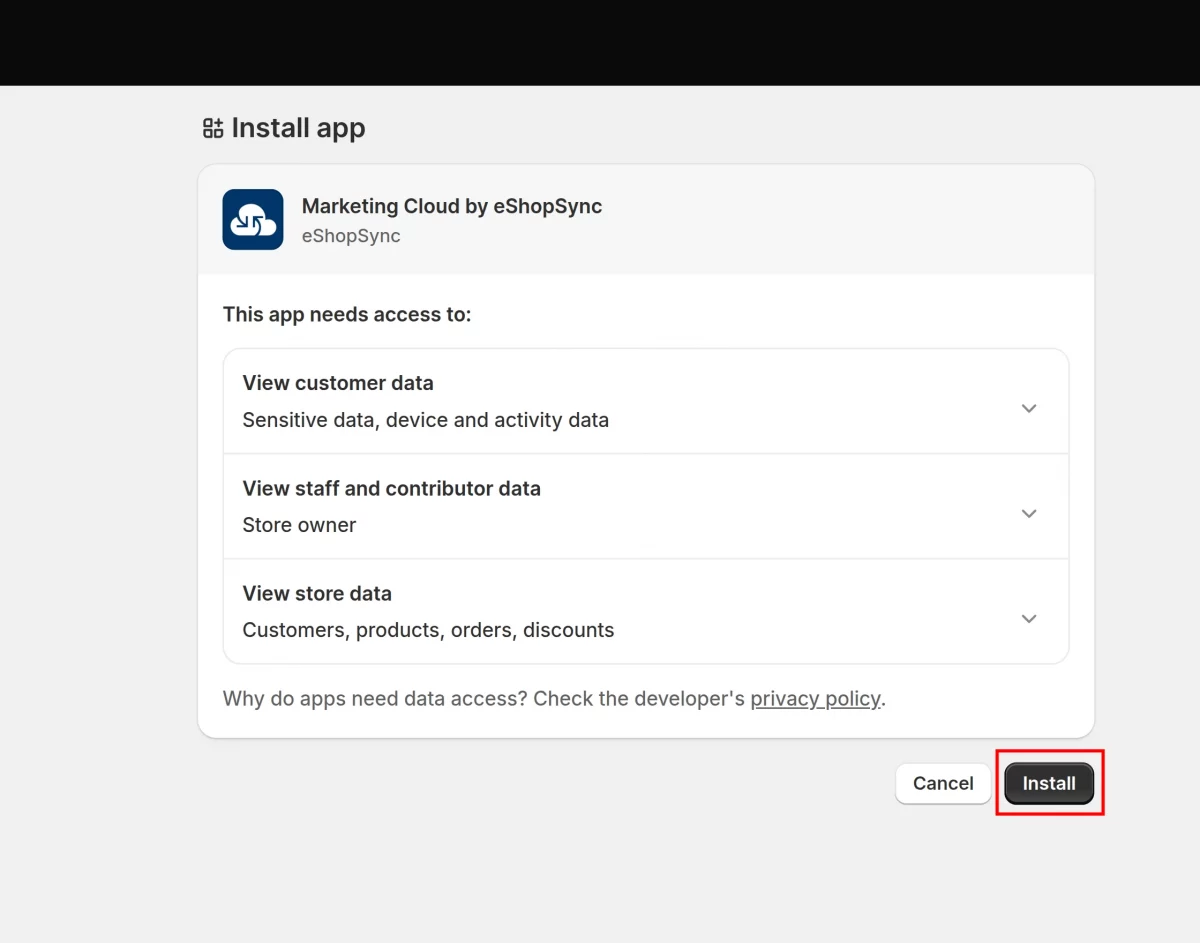
Thirdly, it will take you to the page listed below once you log in to your Shopify store. Install the app from here.
After successful installation, you will be redirected to the configuration page of the Marketing Cloud Connector as per the screenshot below.
In step 1, just enter the Salesforce Marketing Cloud Connector Client ID, Client Secret, Marketing Cloud Account ID, and Sub-Domain and save.
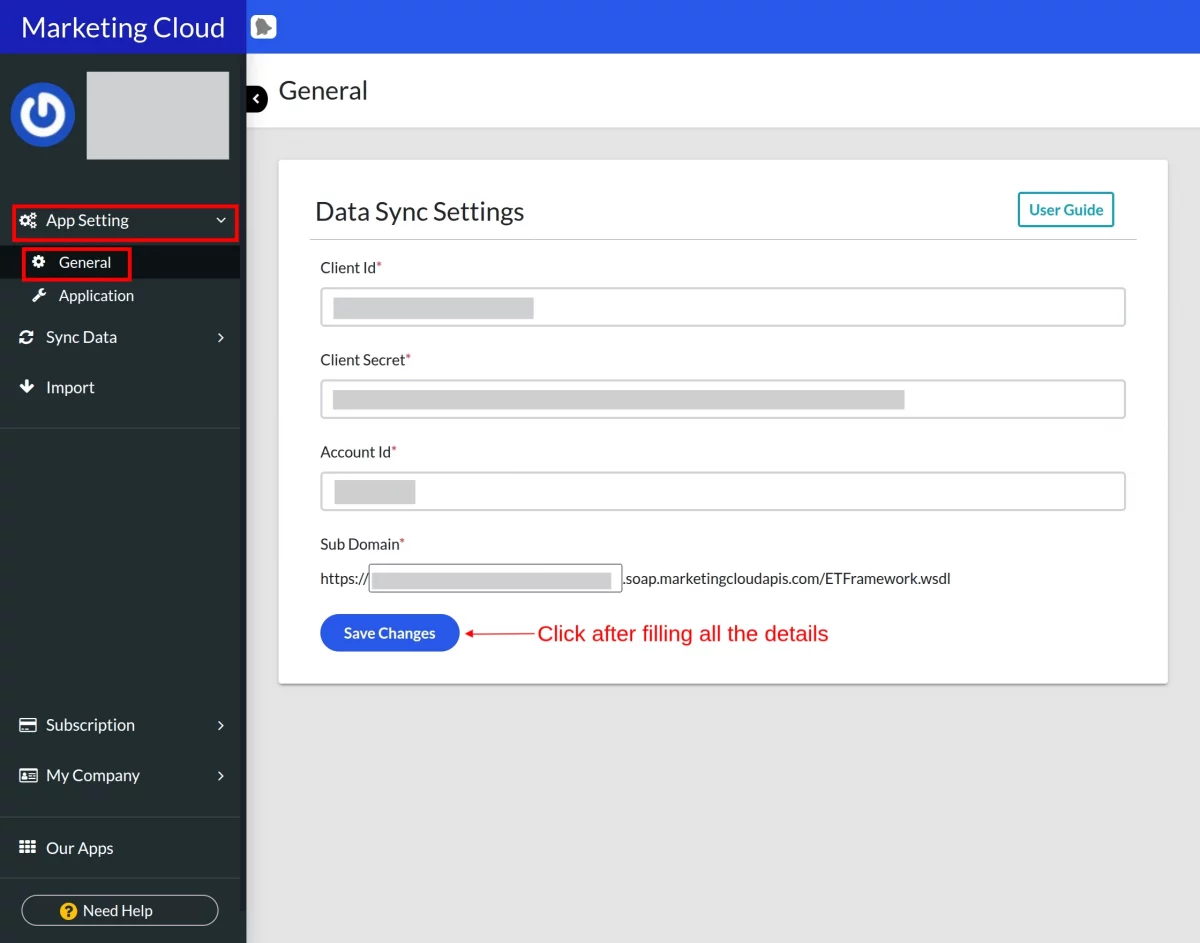
Now, to get the Client ID, client secret, and Account ID, visit this user guide and follow the given steps.
App Settings
At first, here is the view of the app settings –
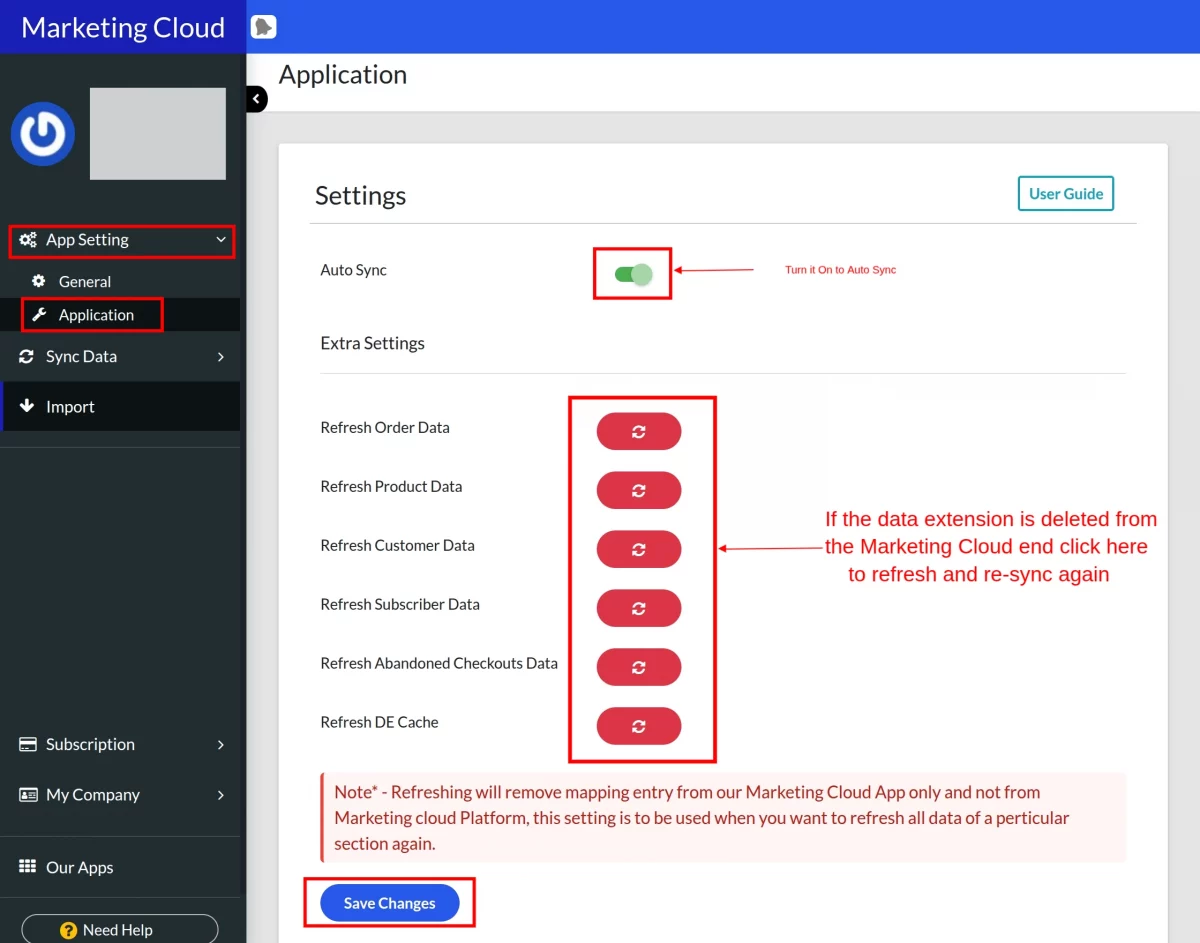
Second, there is also an option to sync the Shopify and Marketing Cloud data in real-time.
You can switch the button on to sync the data in real-time. Please note that it does not sync the abandoned cart data in real-time.
How To Export Products in Marketing Cloud
At first, just click on the Products tab. The products at your Shopify store will be listed here.
Click the export button (Product Data Extension) provided for exporting these products to the Marketing Cloud data extension.

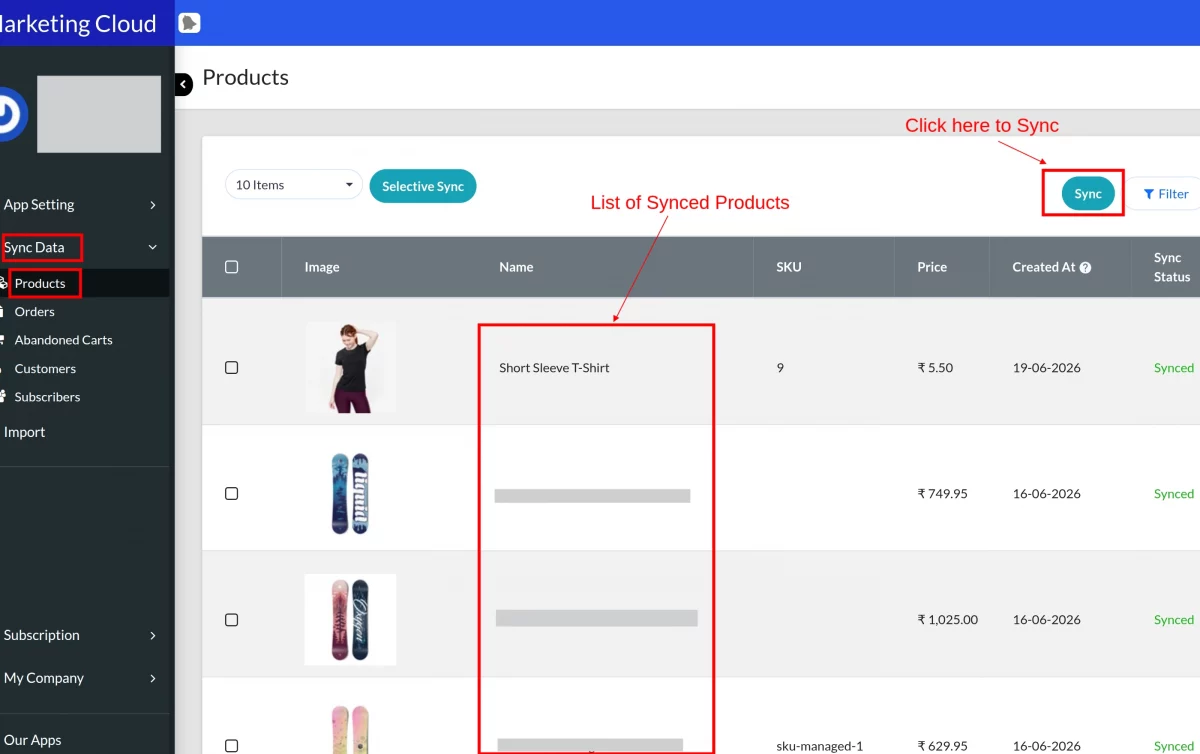
This is how you can export the products to the Marketing Cloud.
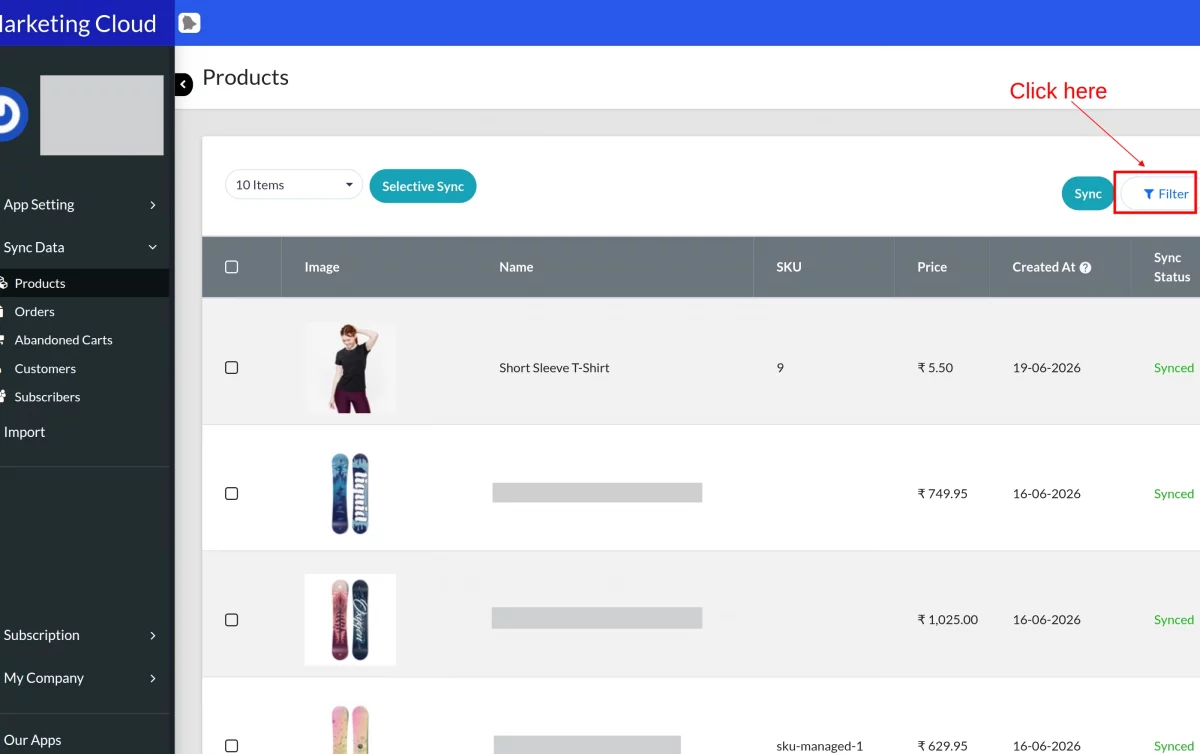
To filter the product data, click on the filter button as shown below.

How To Export Orders in Marketing Cloud
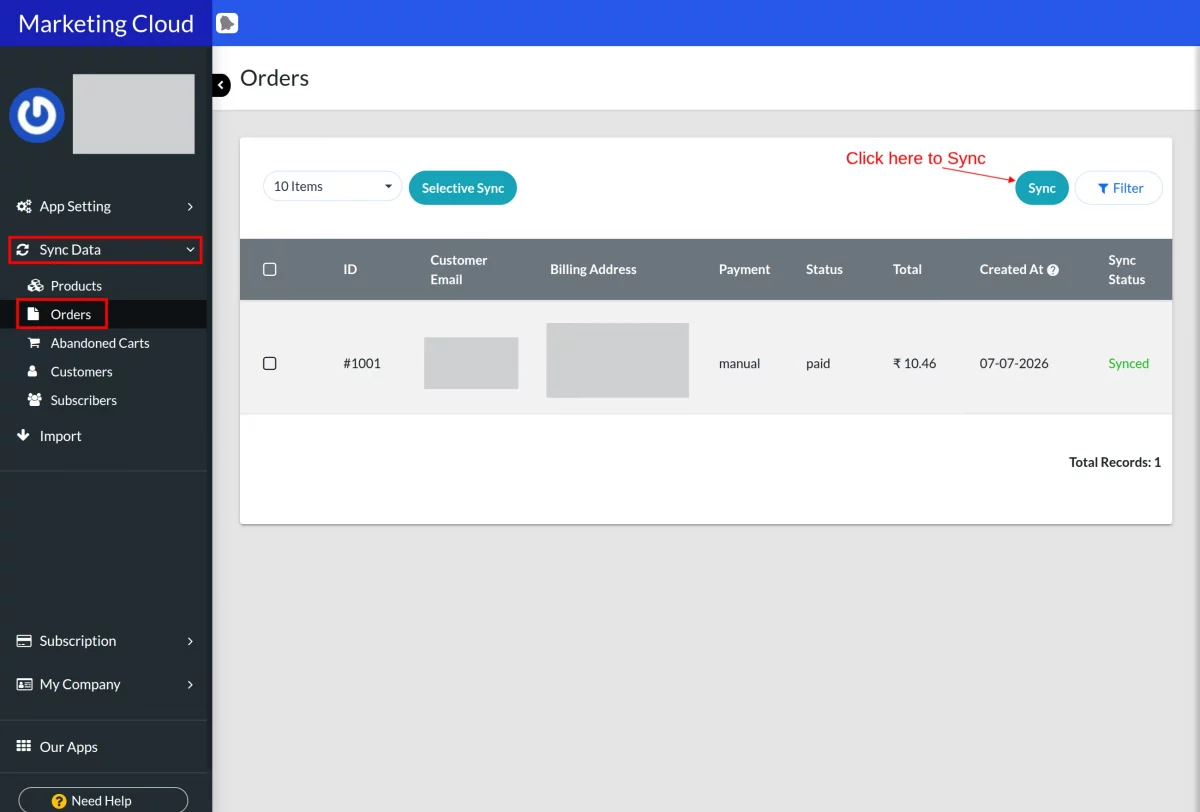
At first, you can view the orders list and abandoned carts list here. Click the export button provided for exporting these orders & abandoned carts to the Marketing Cloud Data Extension.
Export Orders:
To filter the order data, click on the filter button as shown below.
Subscribers List
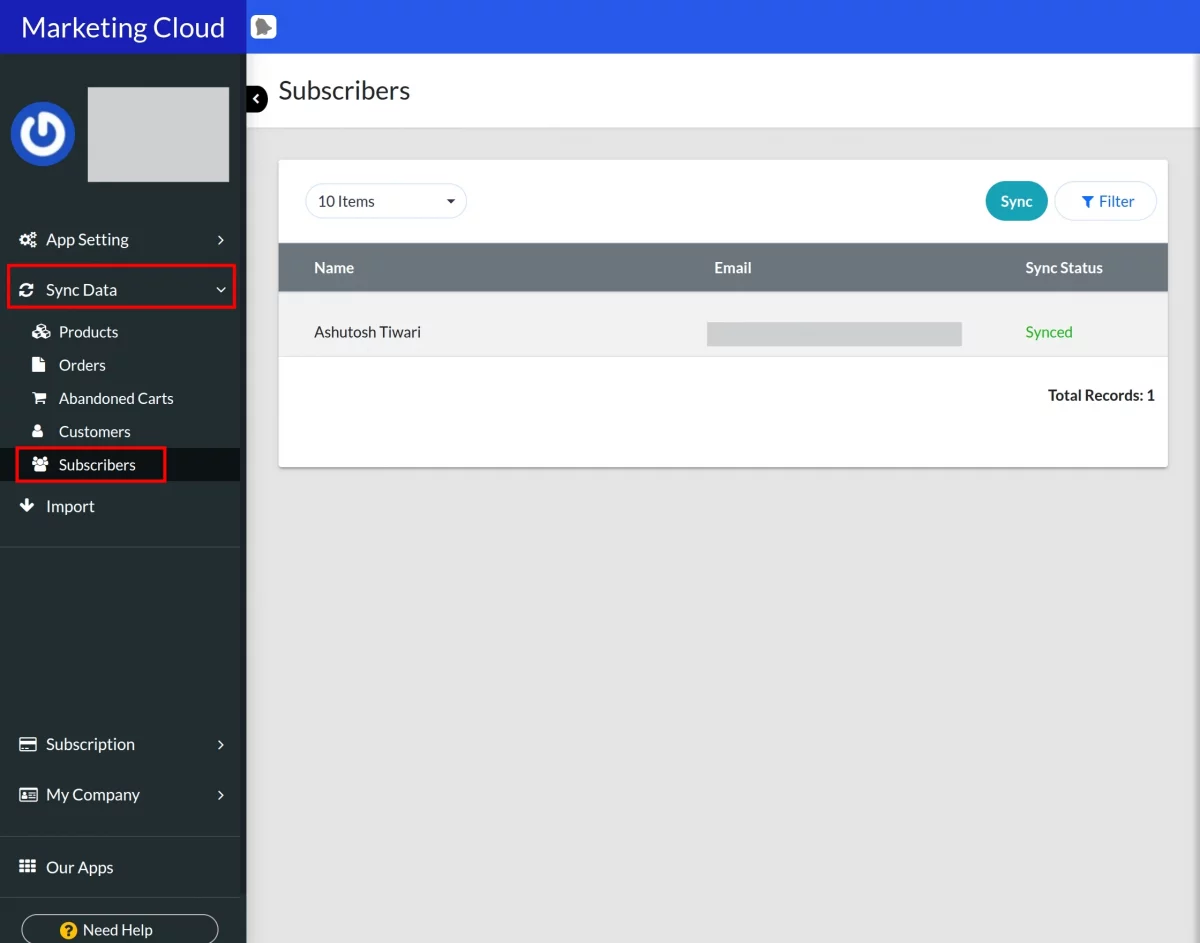
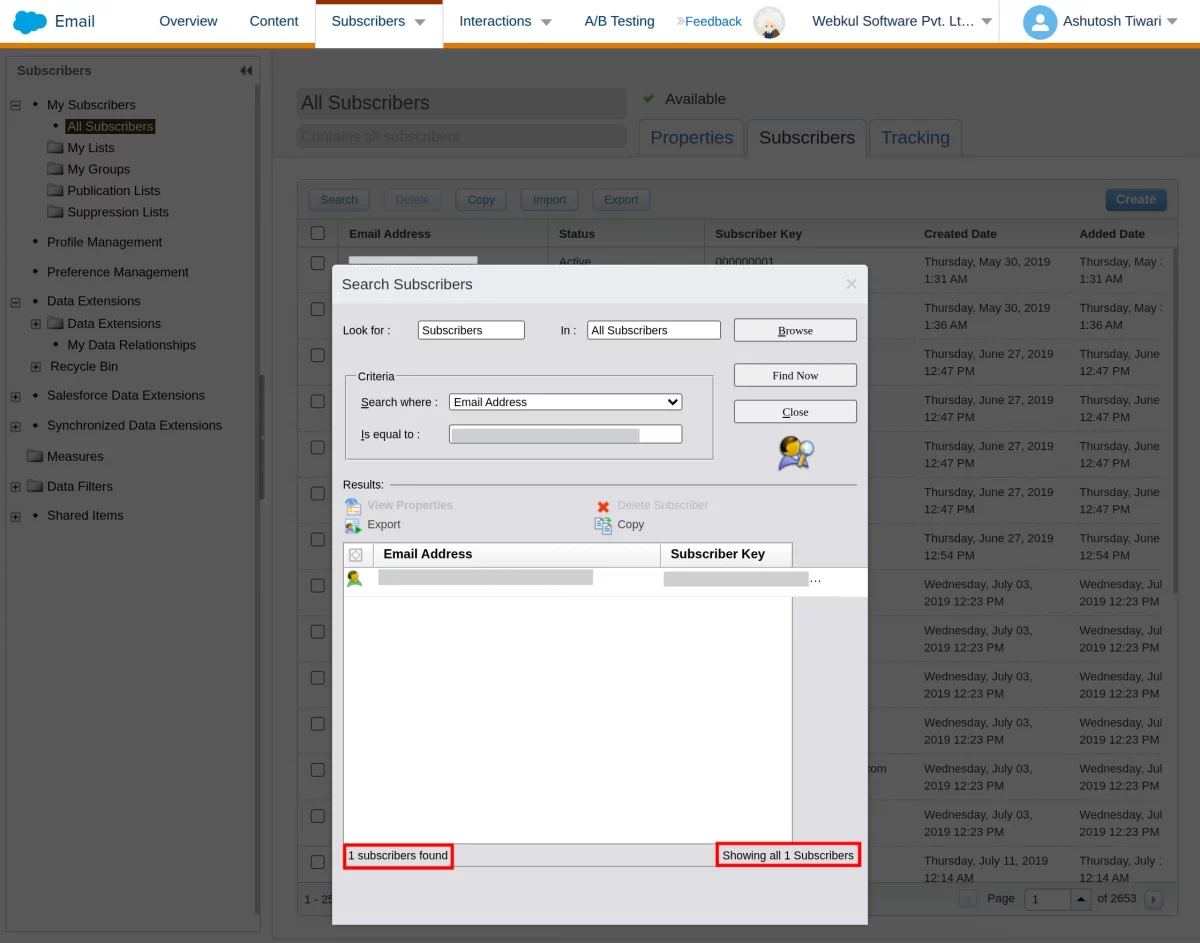
Here you can see that whenever a new subscriber subscribes to your Shopify store, the data of that subscriber will sync in real-time in the subscriber list.
To filter the subscriber data, click on the filter button as shown below.
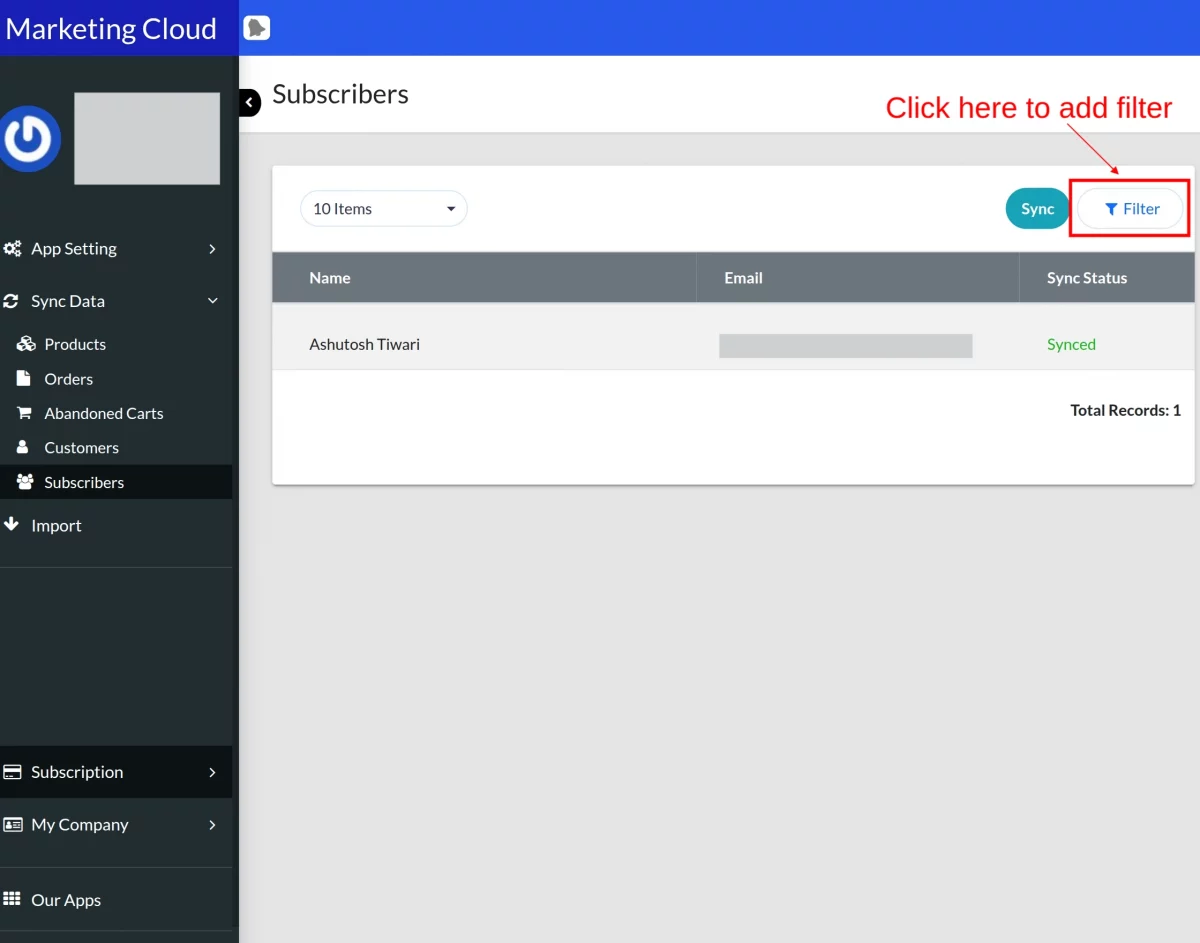
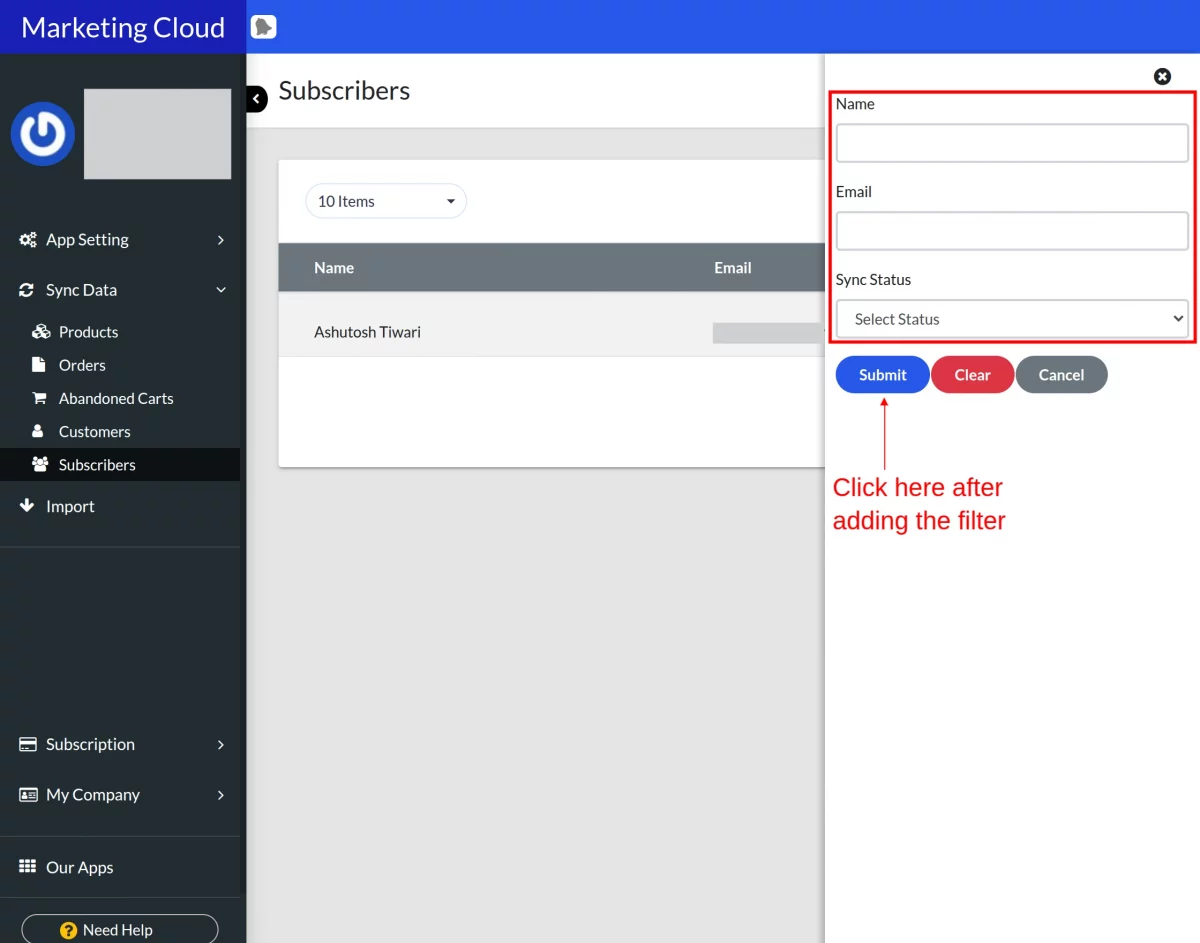
Similarly, you can filter the data for Customers and Abandoned Checkouts.
Plans
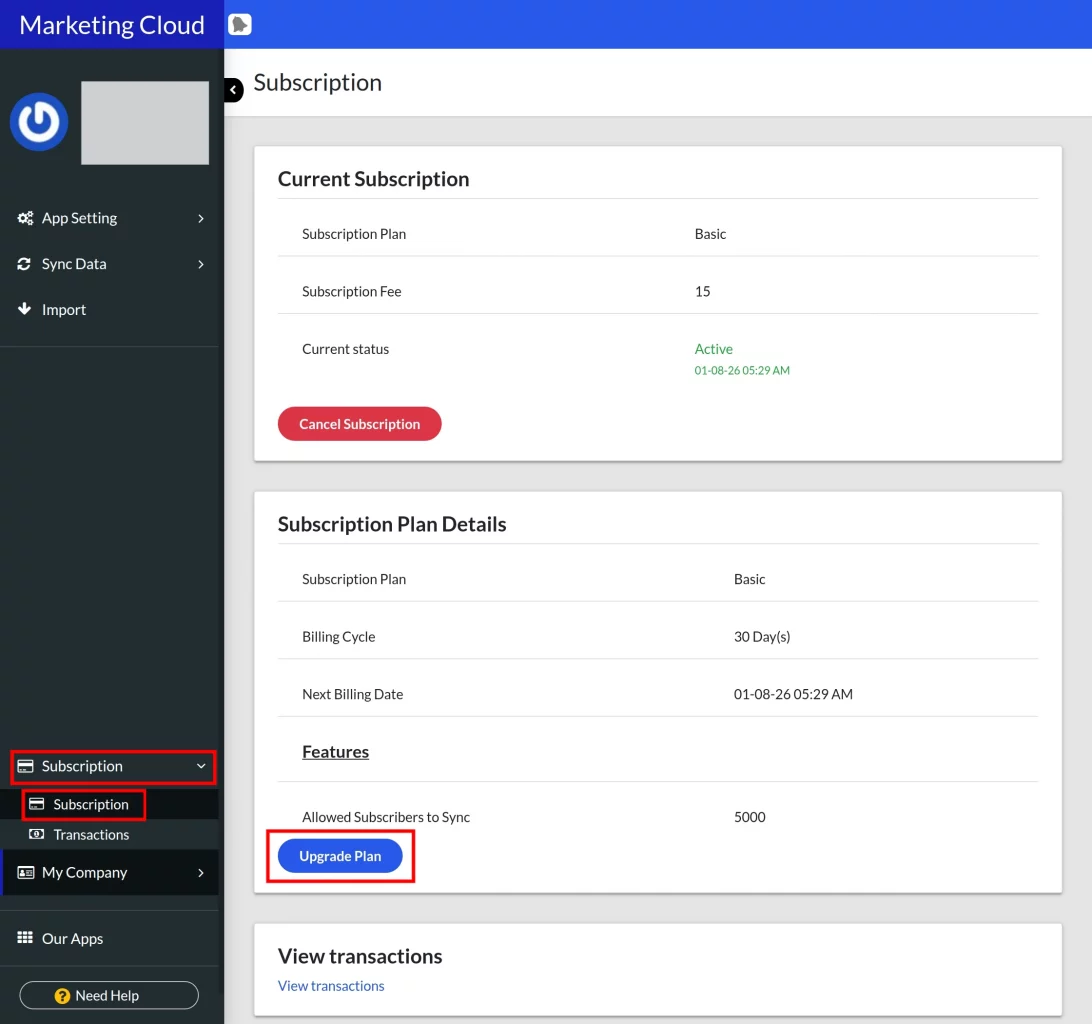
Here you can view the current plan & change your subscription to Shopify Marketing Cloud Connector anytime.

Exported Data At Marketing Cloud End
First, Navigate to Email Studio-> Emails-> Subscribers->Data Extensions. The data, i.e., products, customers, and orders, will be exported here in these data extensions.
Partial Data Sync at different times when auto-sync is disabled
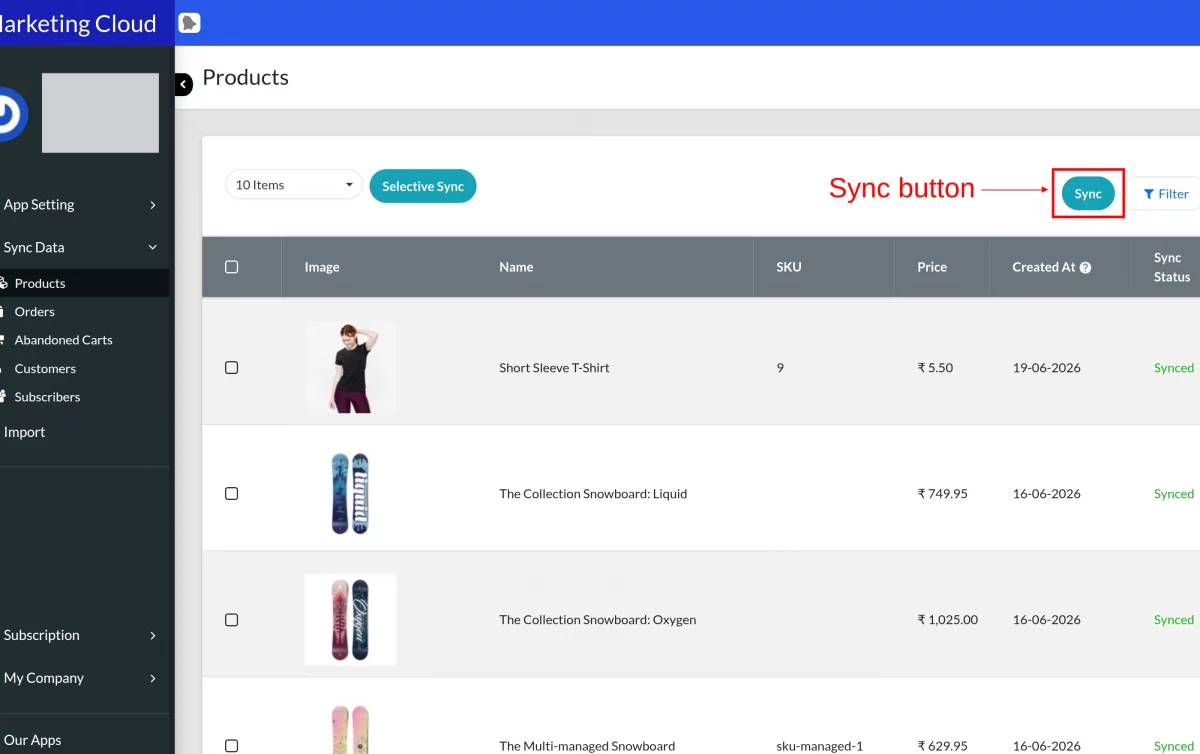
- If Auto-Sync is disabled, you need to sync data through the “Sync Icon” as shown in the image below. For example, you have 5000 customers, and in a day, you synced 2000 customers. Now you want to shut down your system, and the next day you want to sync the remaining 3000 customers. Then, when you click on the “Sync Icon”, the count will start from 2001. You don’t have to sync the data from the start. In this way, you can easily save time.
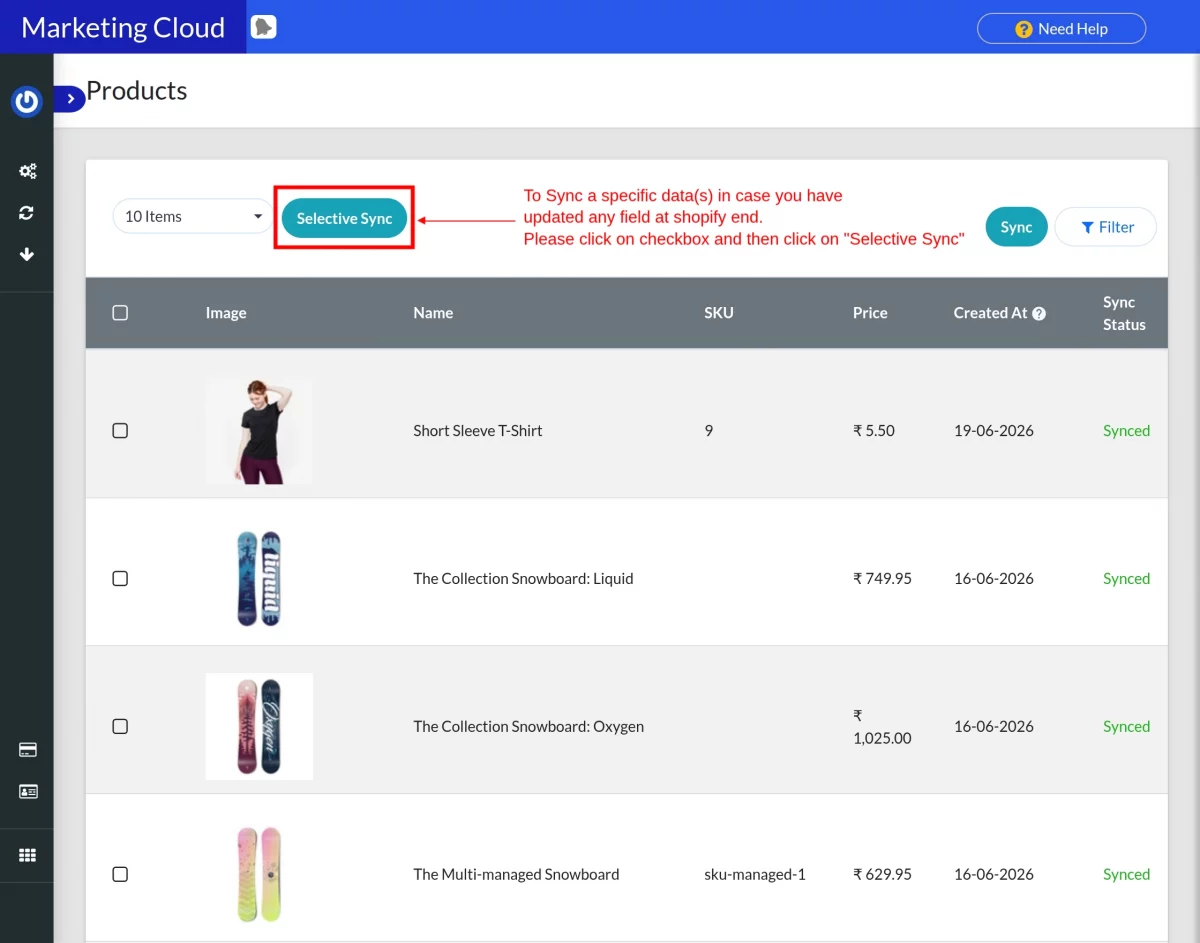
- Now, if you have to update any customer, product, or order details and you want to sync that data, then you need to select that particular customer, product, or order through the checkbox and click on the batch action button to sync that particular data as shown below.
If Auto-Sync is On: If Auto-Sync is On, then every time data sync starts from the initial count (this is a back-end process), it will not impact anything.
In the case of the auto-sync webhook trigger, if any data updates at the Shopify end, then the webhook will trigger and the data will get updated at the SFMC end too.
Support
That’s all for the Shopify Marketing Cloud Connector.
Still, if you have any issues, feel free to write us at support@webkul.com and let us know your views to make the app better.
For any kind of technical assistance, just raise a ticket at http://webkul.uvdesk.com