Quickbooks integration – Multivendor Marketplace app
Quickbooks integration is under review and currently not available for the merchants.
Quickbooks integration- The QuickBooks Integration addons help the admin to synchronize QuickBooks with the multivendor marketplace app.
Using the QuickBooks integration addon you will be able to create sales receipts, invoices, and estimates of the multivendor marketplace app orders on QuickBooks – Manually and Automatically.
It will synchronize all the information related to customers (such as customer name, email address, order items, billing address, etc), products, and orders with your QuickBooks account.
Features
- Generate sales receipts on QuickBooks for Multivendor app orders.
- Synchronize the Multivendor products to QuickBooks.
- Synchronize customers on Multivendor and Quickbooks app.
- Map taxes and payment methods on QuickBooks and multivendor.
- Synchronize Orders from the multivendor app to Quickbooks app
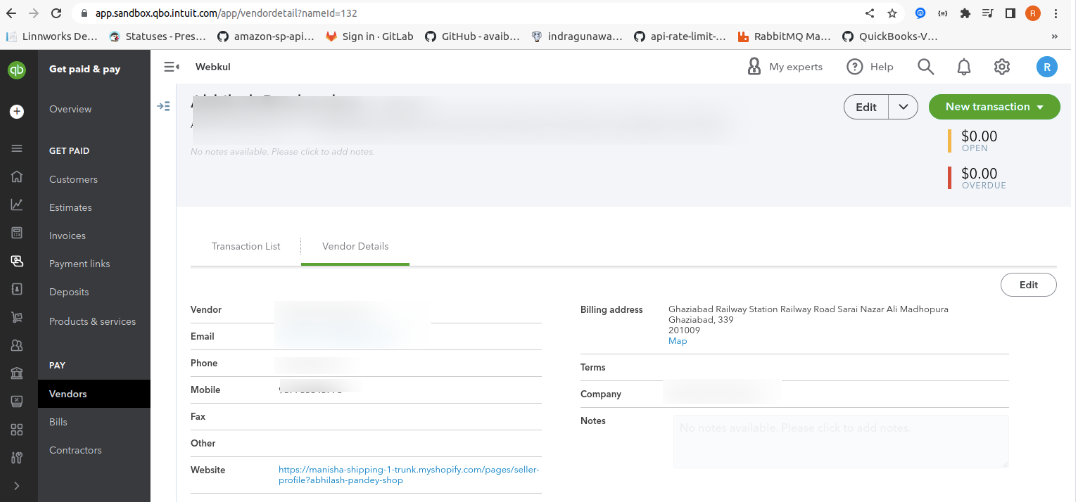
- Synchronize Vendor detail from the multivendor app to Quickbooks.
Installation
To get this addon, go to the Feature App section & get the “Quickbooks integration ” feature app.


Now once you have clicked on the “Enable” button then approve the charge & get this addon to your marketplace.


Now, as soon as the Quickbooks integration feature app is Active, the admin will get a new menu to the configuration menu i.e. Quickbooks configuration.
Go to configuration >> QuickBooks configuration >> Click the “Download Multivendor Quickbooks App” button.


After the QuickBooks app is installed successfully then you will see a popup successful notification and now you have to fill the other sections accordingly i.e.
Product sync configuration, order sync configuration, payment mapping, and tax mapping.


Product Sync Configuration
Through product sync configuration, you can sync your multivendor product to your QuickBooks app.
For this, you need to enter your QuickBooks income account, Expense account, and inventory account and click “SAVE” button below.


Order Sync configuration
The admin can sync their multivendor app’s order into their QuickBooks app.
For this, just select your default payment method, enter your default shipping method,
select your default customer account, select the default tax and click on “SAVE” button.
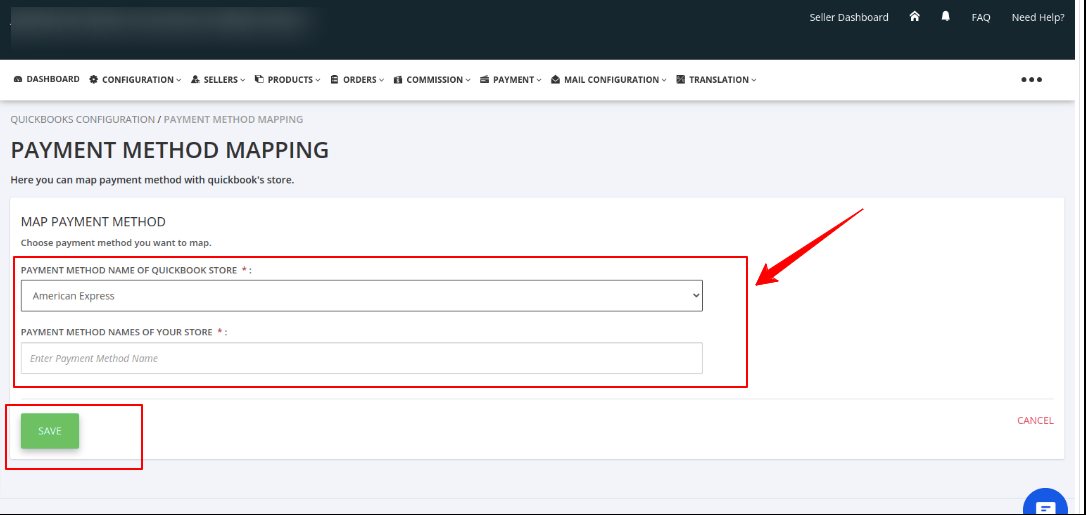
Payment mapping
Using payment mapping, the admin can map their multivendor app’s order to their QuickBooks app.
For this, just select the payment method name of the QuickBooks store, write the payment method names of your store, and click “SAVE” button below.

Tax mapping
Using tax mapping, the admin can map their multivendor app’s order to their QuickBooks app.
For this, select the tax name of the QuickBooks store, select the tax names of your store, and click “SAVE” button below.


Now, the admin can see all the synced details of products, vendors, orders, and customers in their QuickBooks app.


Need Help?
If you need any kind of support, just raise a ticket at https://webkul.uvdesk.com/en/.
You can also contact support@webkul.com to get proper assistance.
Thank You for reading this Blog!