Quick Order for Magento 2
Quick Order allows the buyers to quickly purchase a bulk number of different products without visiting every product page.
Further, Magento 2 Quick Order module will reduce the number of clicks and reduces the time for the buyers. From a quick order form, a buyer can search and add a product using its SKU or product name.
If you want to convert your Magento 2 store into the marketplace like Amazon, Flipkart etc. We provide Magento 2 Marketplace module.
If you want to convert your Magento 2 store into B2B Marketplace like Alibaba, Indiamart, ThomasNet, etc. We also provide Magento 2 B2B Marketplace.
Watch the video tutorial below to understand the module workflow:
Features
- Allow customers to purchase products from a single page.
- Customers can search the product using SKU or Name. Supports all product types – simple, virtual, configurable, downloadable, bundle and grouped product.
- Select variable product options such as color, size — all inline on the row, no popups.
- The customers can add product to the cart in bulk by uploading the CSV or XML file.
- Save Quick Order lists as reusable named templates and reload them in one click.
- Rebuild any past order into the Quick Order form instantly using the Re-order tab.
- Category Quick Order View mode on category and catalog search pages for bulk-adding products.
- Sticky Floating Widget button visible on every storefront page for quick access.
- Restrict Quick Order access to specific customer groups using the B2B Customer-Group Whitelist.
- Check discount deducted, tier price, tax calculated, sub-total, and order total value.
- Admin Analytics Dashboard with KPI tiles, funnel view, top SKUs, and live event stream.
- Full Google Analytics 4 integration with per-event enable/disable toggles.
- Complete REST API and GraphQL support for headless integrations.
- Guest users also place a quick order when allowed by the admin.
- Multi-store, multi-currency, and multi-language support with full RTL layout compatibility.
- GraphQL has been implemented for the extension.
- The extension is fully compatible with the Hyva Theme.
Installation
The installation is quite simple just like the standard Magento 2 extensions.
Customers will get a zip folder and they have to extract the contents of this zip folder on their system. The extracted folder has an src folder, inside the src folder you have the app folder.
You need to transfer this app folder into the Magento2 root directory on the server as shown below.
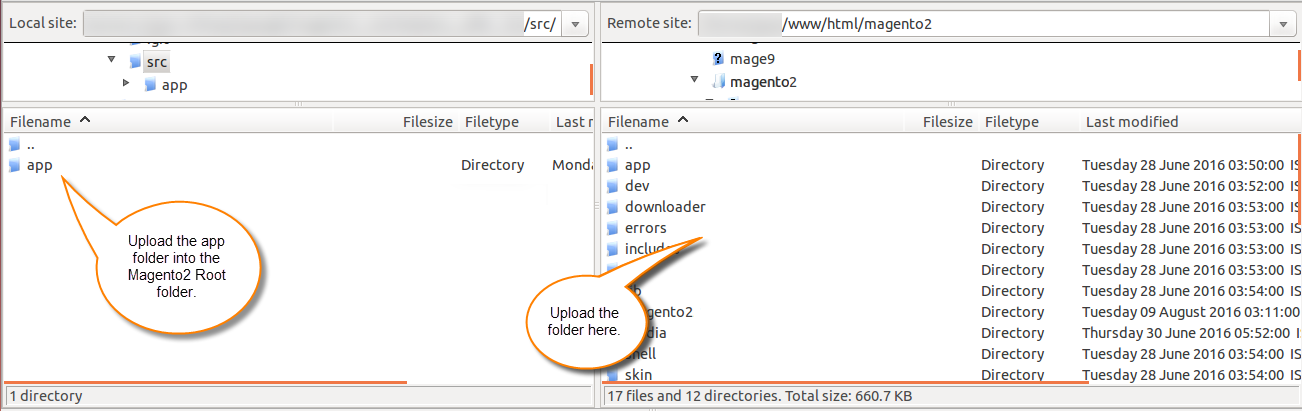
After the successful installation, you have to run these commands in the Magento2 root directory.
php bin/magento setup:upgrade
php bin/magento setup:di:compile
php bin/magento setup:static-content:deploy
php bin/magento indexer:reindex
php bin/magento cache:flush
Multilingual Support
For Multilingual support, please navigate to Store>Configuration>General>Locale. Then, select your desired language from the Locale option.
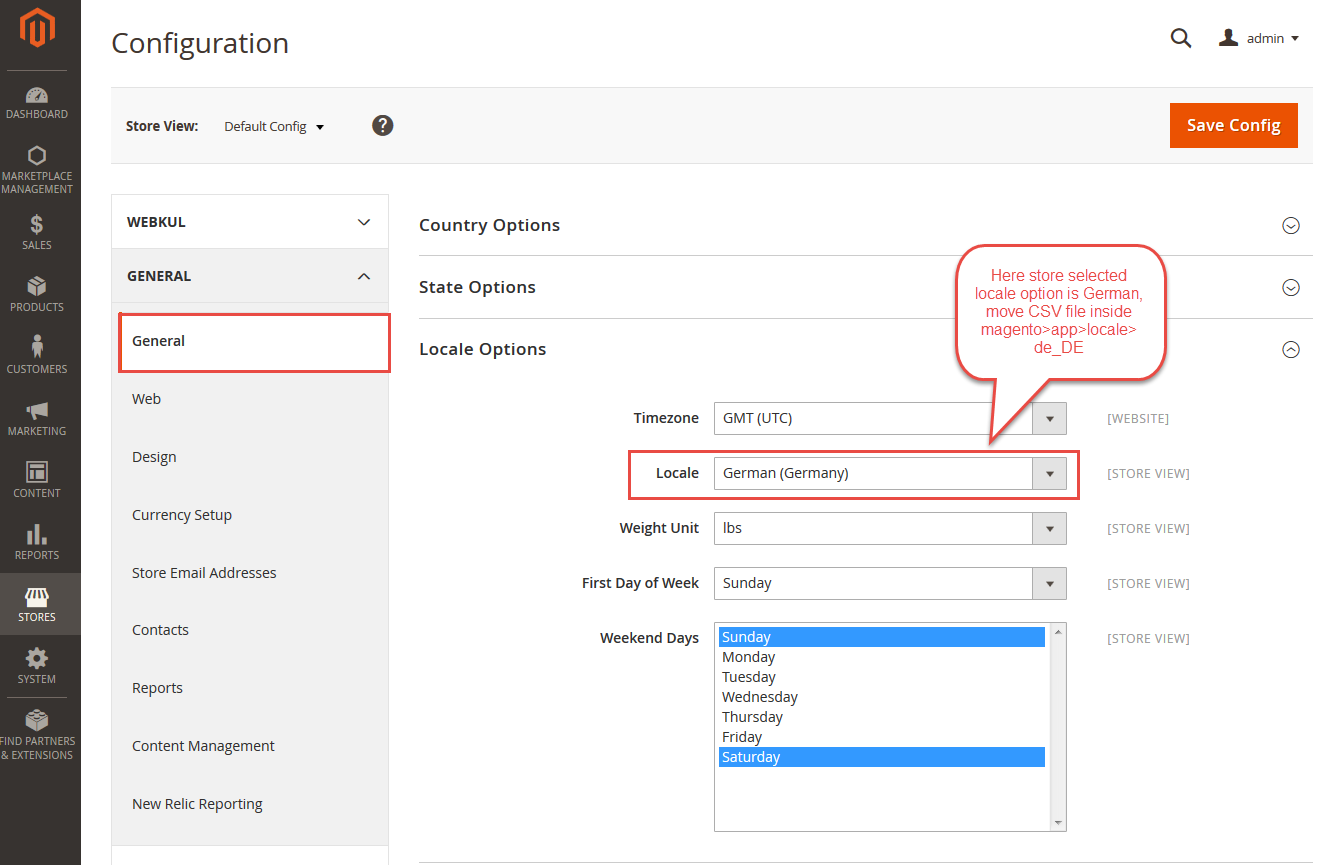
Language Translation
If you need to do the module translation, please navigate to the following path in your system app/code/Webkul/AILocaleTranslator/i18n.
Open the file named en_US.csv for editing as shown in the below screenshot.


Once you have opened the file for editing. Replace the words after the†comma(,)†on the right with your translated words.

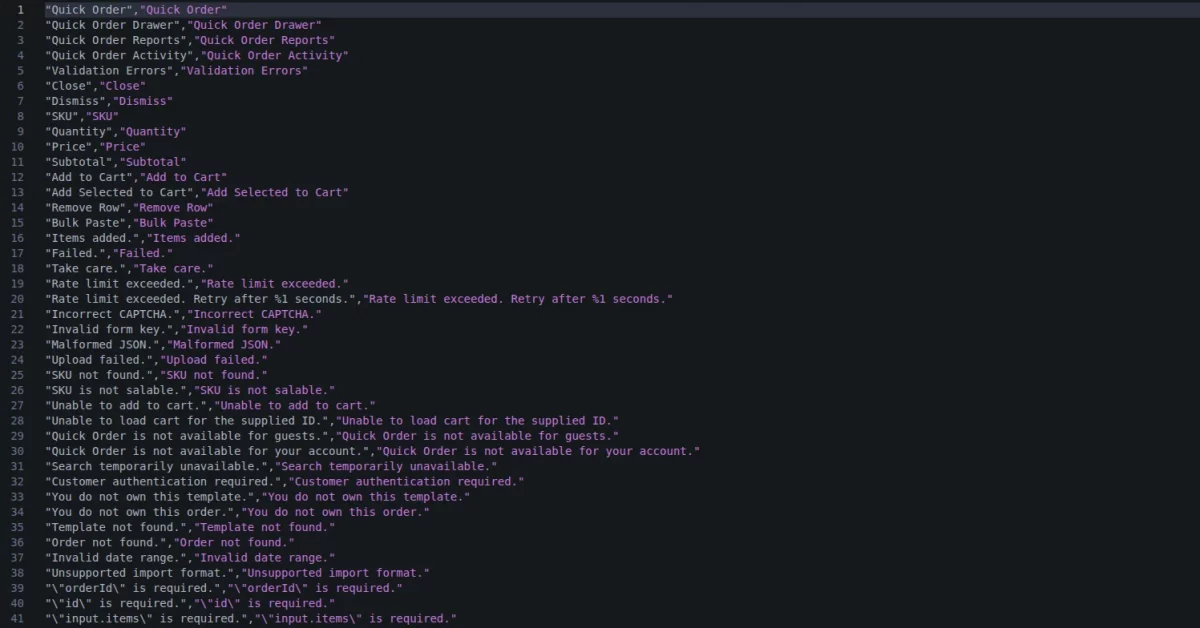
After editing and translating the CSV file, you need to save the translated file name according to your region language and country code such as – de_DE.csv.
Then upload the translated file to the same folder from where you obtained it. Now your module translation is complete.


How to Get GA4 Credentials
To enable Quick Order analytics and event tracking, configure the following settings from the Analytics section. For complete GA4 setup instructions, click here.
Admin Configuration
After the installation of the module, you will find the configuration settings panel by navigating through Stores->Configuration->Webkul>QuickOrder per the snapshot below.

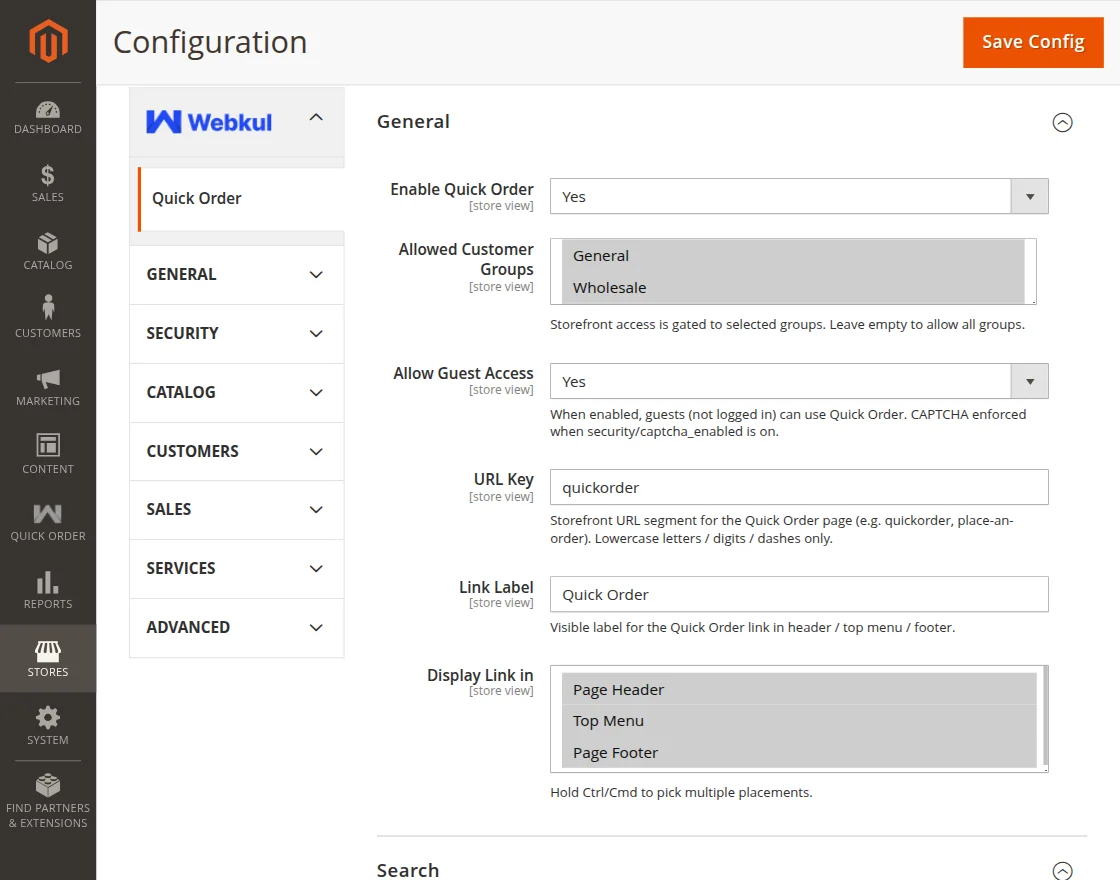
The following configuration options are available for the admin:
General
- Enable Quick Order: Enables or disables the Quick Order functionality on the storefront.
- Allowed Customer Groups: Select the customer groups that are allowed to access the Quick Order feature.
- Allow Guest Access: Allows non-logged-in users to use the Quick Order page.
- URL Key: Defines the storefront URL path for the Quick Order page.
- Display Link In: Selects the location where the Quick Order link will be displayed, such as the top menu or footer.
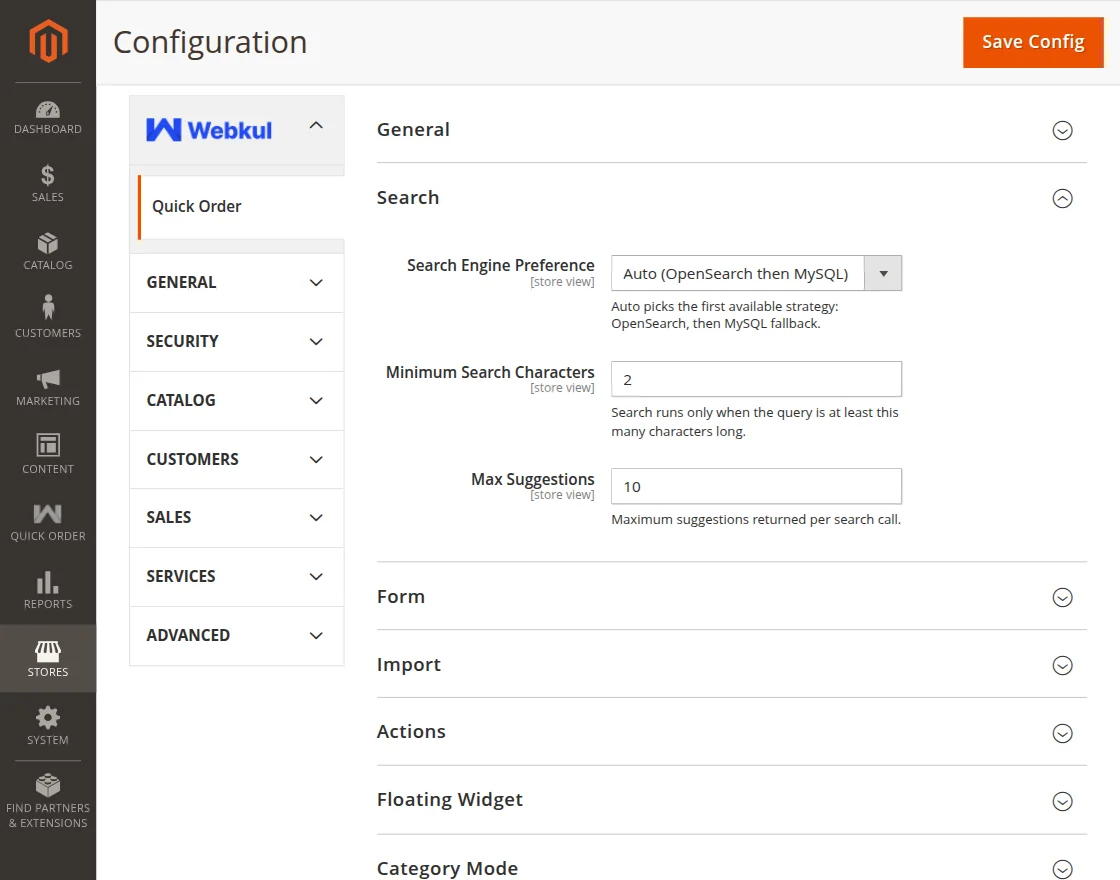
Search
- Search Engine Preference: Select the search engine used for product lookups.
- Minimum Search Characters: Defines the minimum number of characters required before product search is triggered.
- Max Suggestions: Specifies the maximum number of product suggestions displayed in search results.
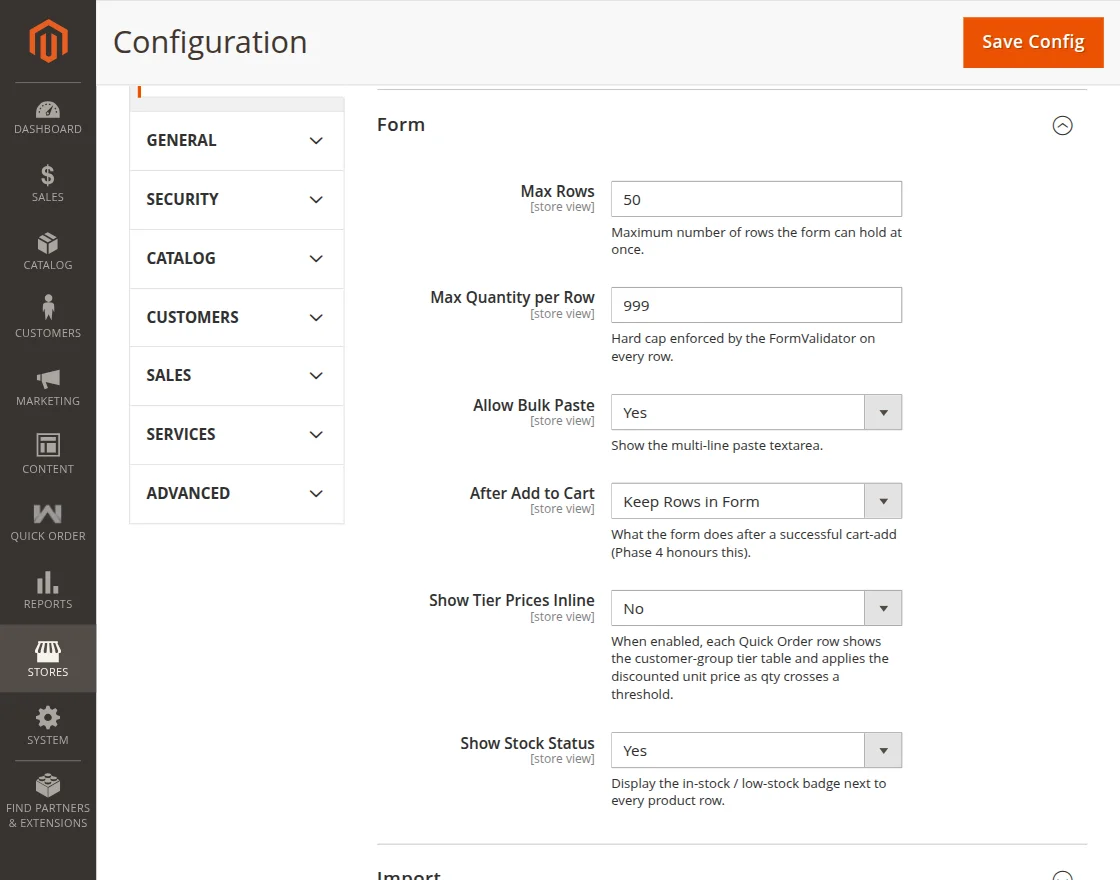
Form
- Max Rows: Sets the number of input rows displayed in the Quick Order form.
- Max Quantity per Row: Defines the maximum quantity allowed for a product entry.
- Allow Bulk Paste: Enables users to paste multiple SKUs and quantities at once.
- After Add to Cart: Determines the action performed after products are added to the cart.
- Show Tier Prices Inline: When enabled, the Quick Order form displays applicable tier pricing for each product directly within the order row.
- Show Stock Status: Displays product stock availability within search results and form entries.
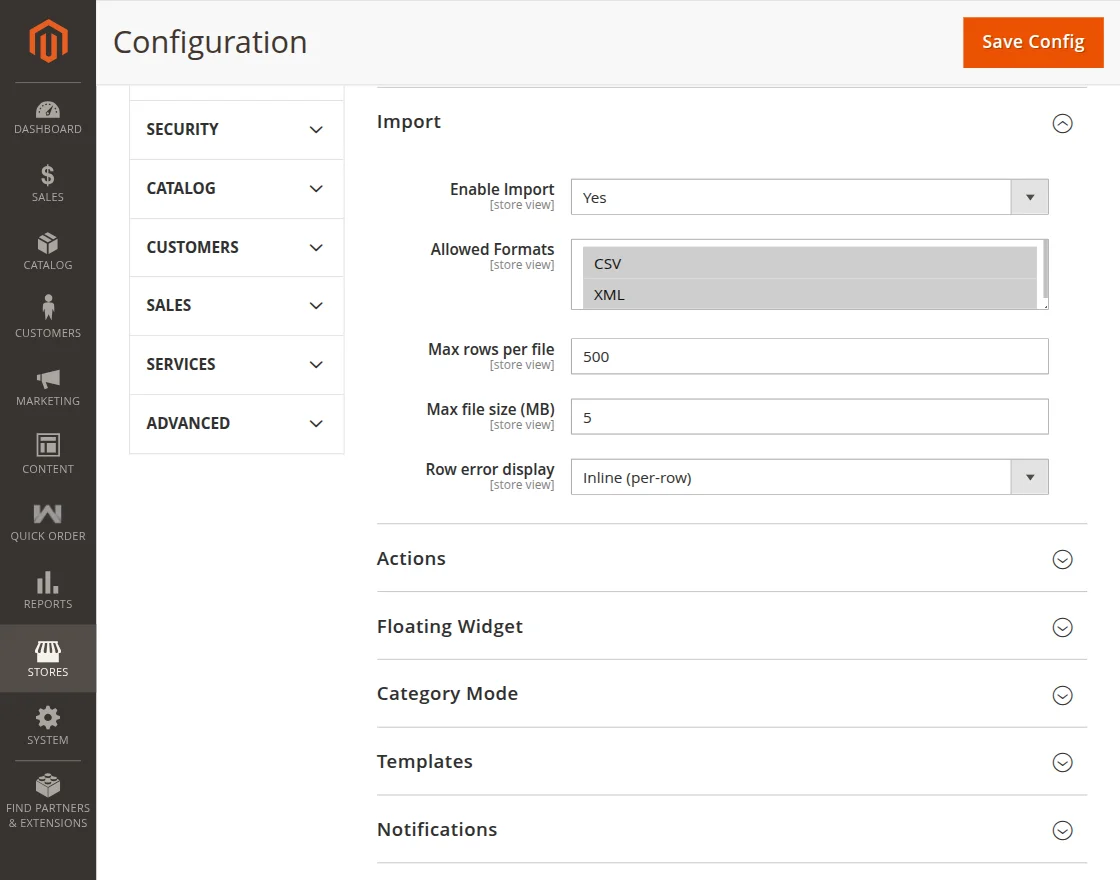
Import
- Enable Import: Enables product import functionality.
- Allowed Formats: Select the file formats allowed for importing products (CSV, XML).
- Max Rows per File: Defines the maximum number of rows allowed in an import file.
- Max File Size (MB): Sets the maximum upload file size.
- Row error display: Select the row error display message.
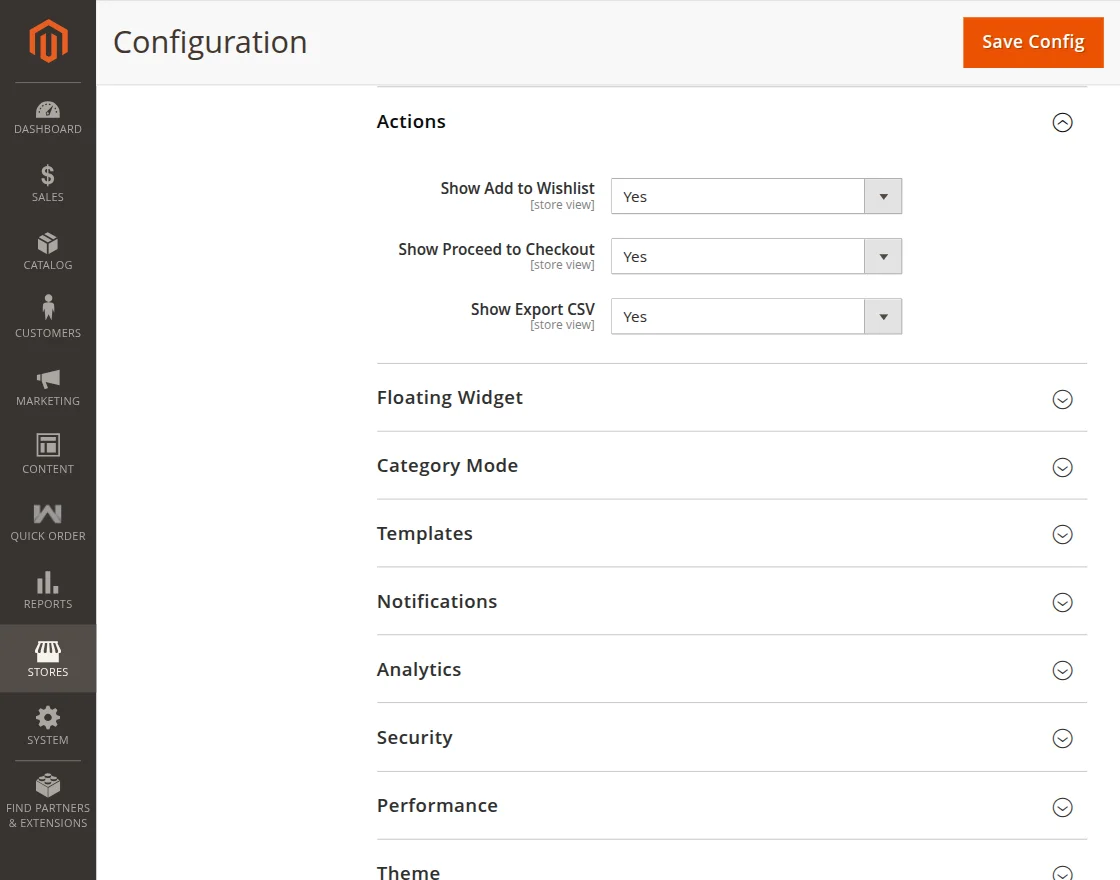
Actions
- Show Add to Wishlist: Displays an option to add products directly to the wishlist.
- Show Proceed to Checkout: Displays a shortcut button to proceed directly to checkout.
- Show Export CSV: Displays an option to export CSV.
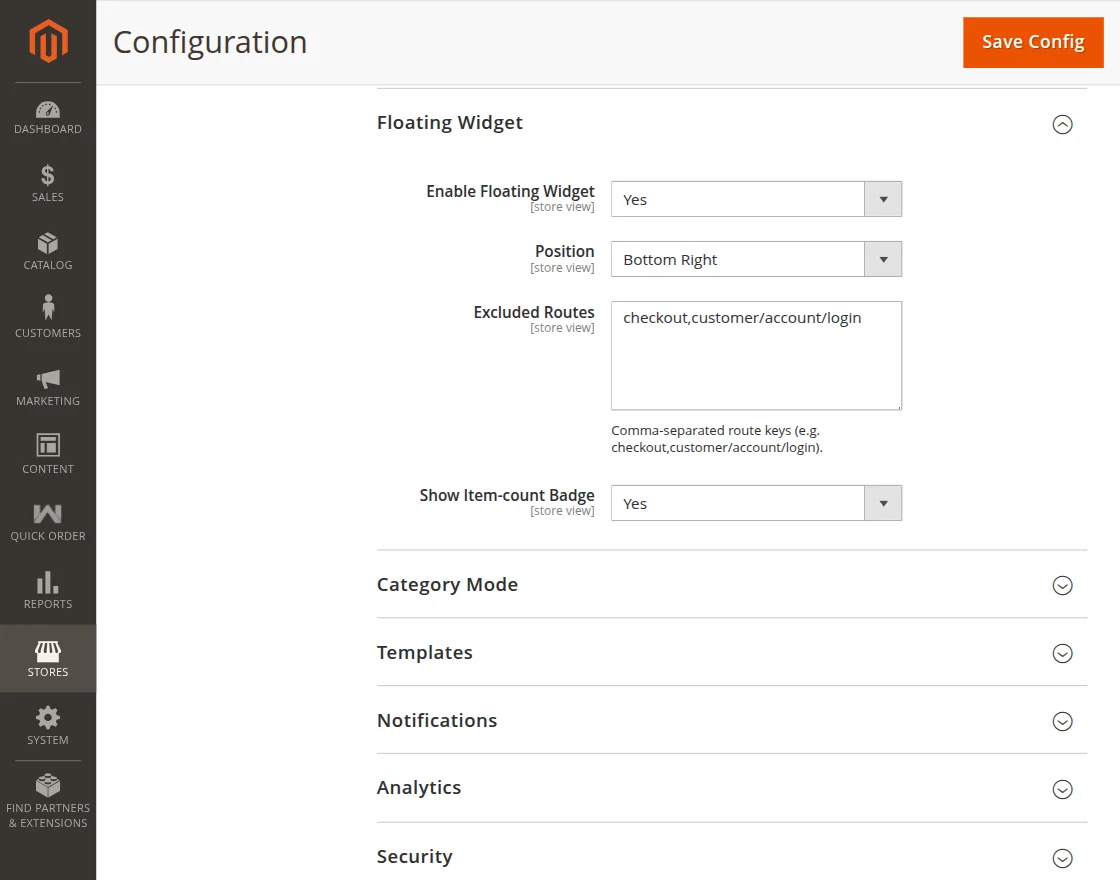
Floating Widget
- Enable Floating Widget: Enables a floating Quick Order button on storefront pages.
- Position: Selects where the floating widget appears on the screen.
- Excluded Routes: Defines pages where the floating widget should be hidden.
- Show Item-count Badge: Displays the current item count on the floating widget.
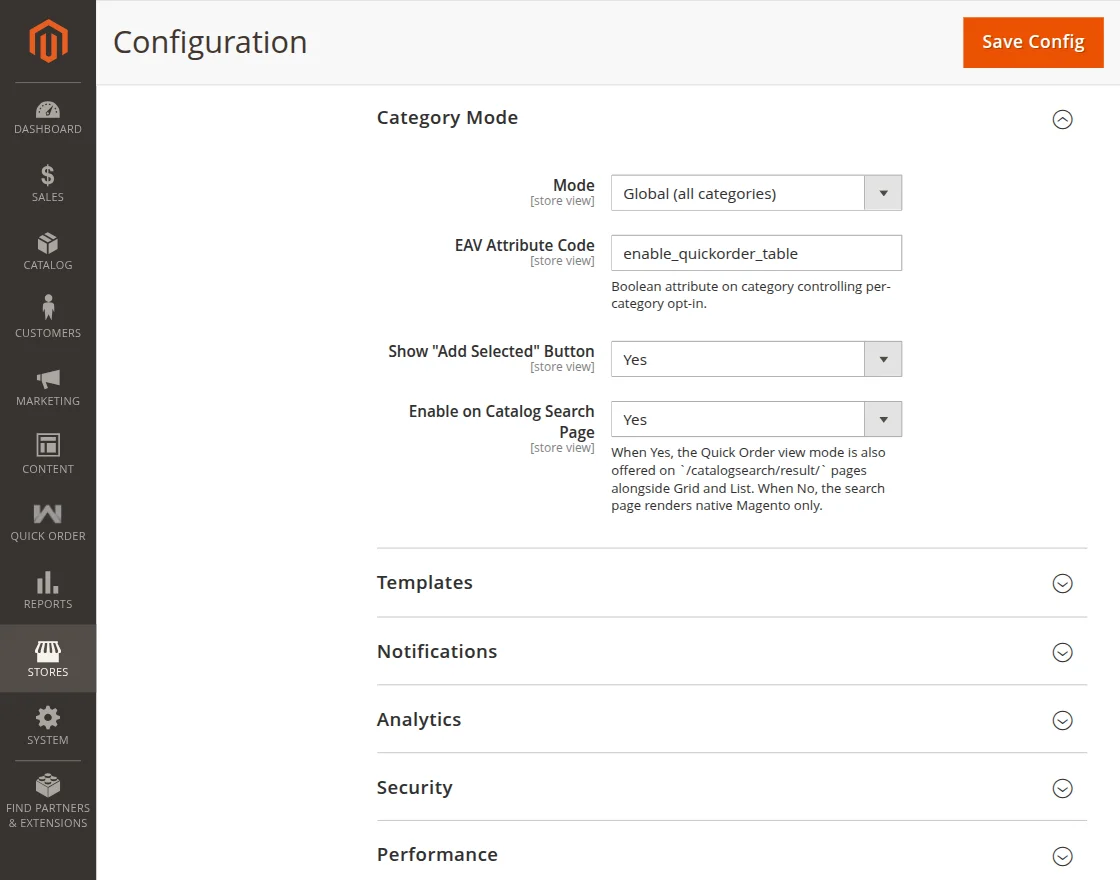
Category Mode
- Mode: Defines how category-based Quick Order functionality is applied.
- EAV Attribute Code: Specifies the category attribute used to enable or disable Quick Order per category.
- Show “Add Selected” Button: Displays a button to add multiple selected products to the cart at once.
- Enable on Catalog Search Page: Makes the Quick Order view available on catalog search result pages.
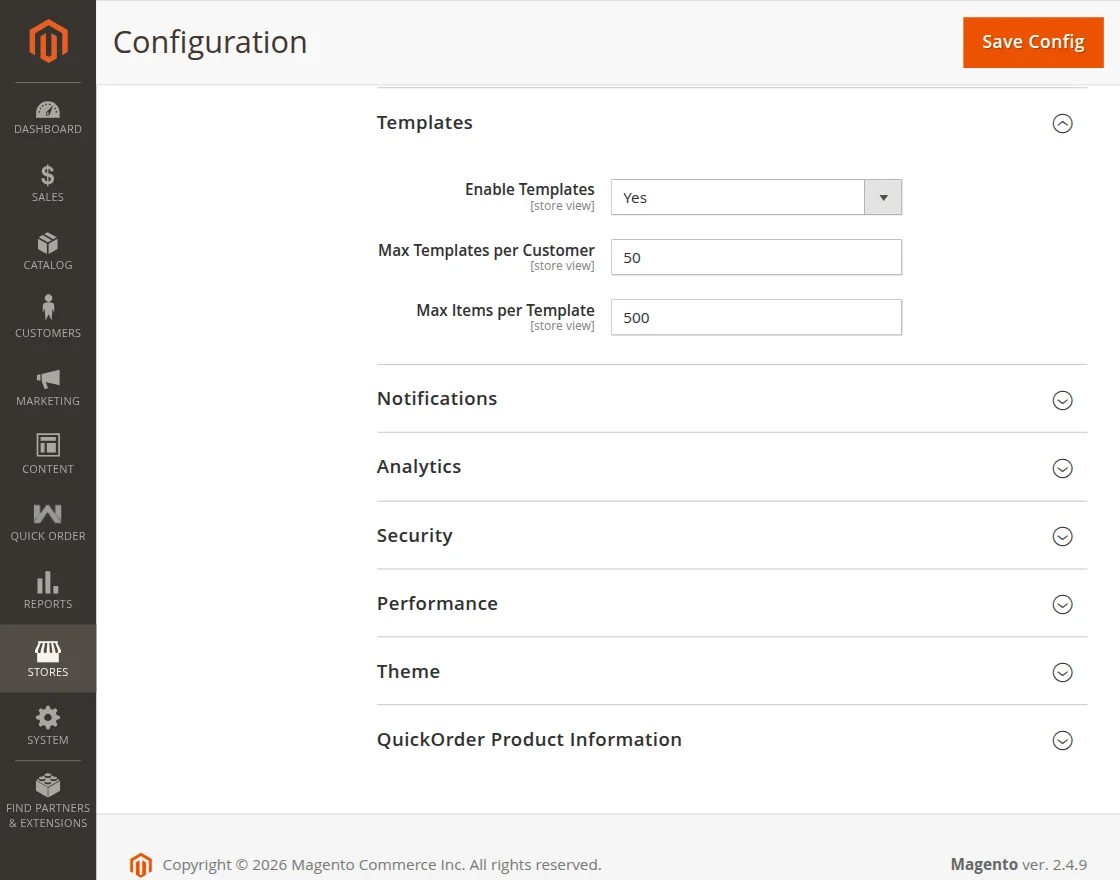
Templates
- Enable Templates: Allows customers to save and reuse Quick Order product lists.
- Max Templates per Customer: Defines the maximum number of templates a customer can save.
- Max Items per Template: Specifies the maximum number of products allowed in a single template.
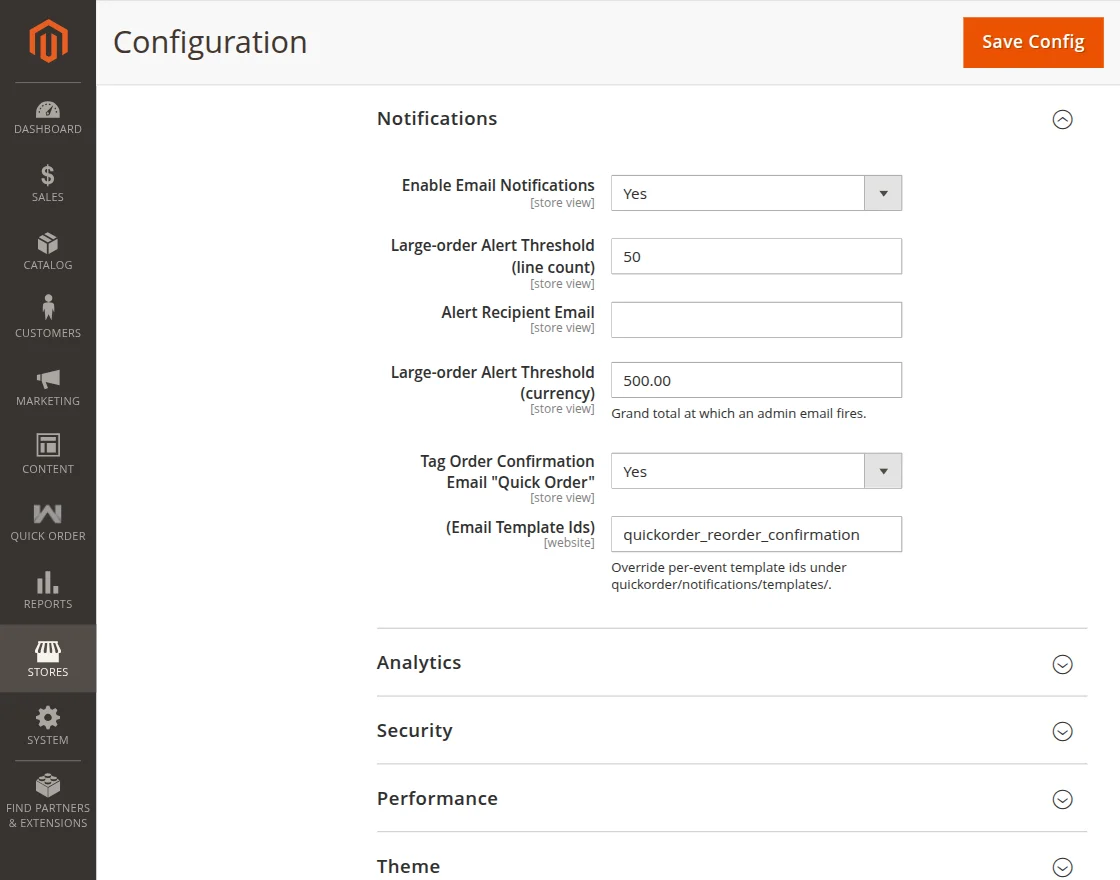
Notifications
- Enable Email Notifications: Enables email alerts for configured Quick Order events.
- Large-order Alert Threshold (Line Count): Sends an alert when an order contains the specified number of line items.
- Alert Recipient Email: Specifies the email address that receives Quick Order alert notifications.
- Large-order Alert Threshold (Currency): Sends an alert when the order grand total reaches or exceeds the specified amount.
- Tag Order Confirmation Email “Quick Order”: Adds a Quick Order identifier to order confirmation emails.
- Email Template IDs: Specifies the email templates used for Quick Order notification events and confirmations.
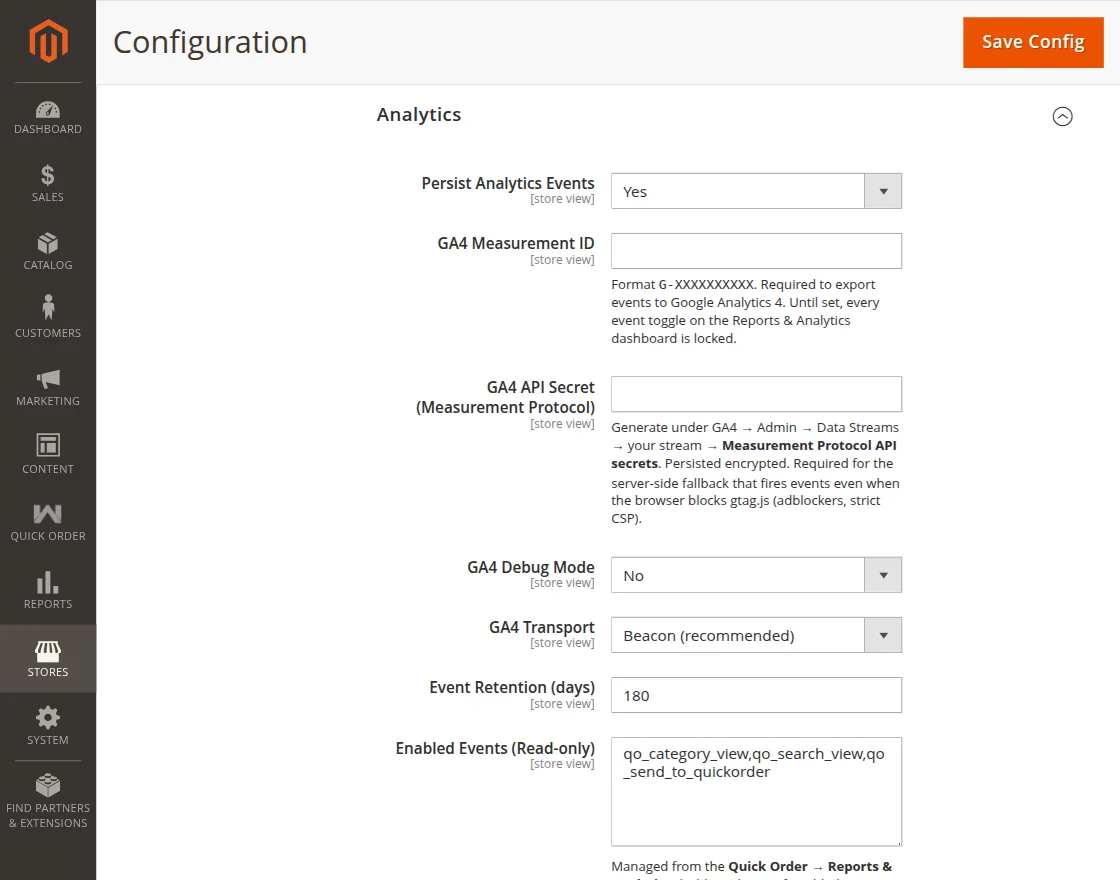
Analytics
- Persist Analytics Events: Stores Quick Order analytics events for reporting and analysis.
- GA4 Measurement ID: Specifies the Google Analytics 4 Measurement ID used to export events.
- GA4 API Secret (Measurement Protocol): Defines the API secret used for server-side GA4 event tracking.
- GA4 Debug Mode: Enables debug logging for Google Analytics 4 events.
- GA4 Transport: Selects the method used to send analytics events to GA4.
- Event Retention (Days): Defines how long analytics event data is stored.
- Enabled Events (Read-only): Displays the Quick Order analytics events currently enabled for tracking.
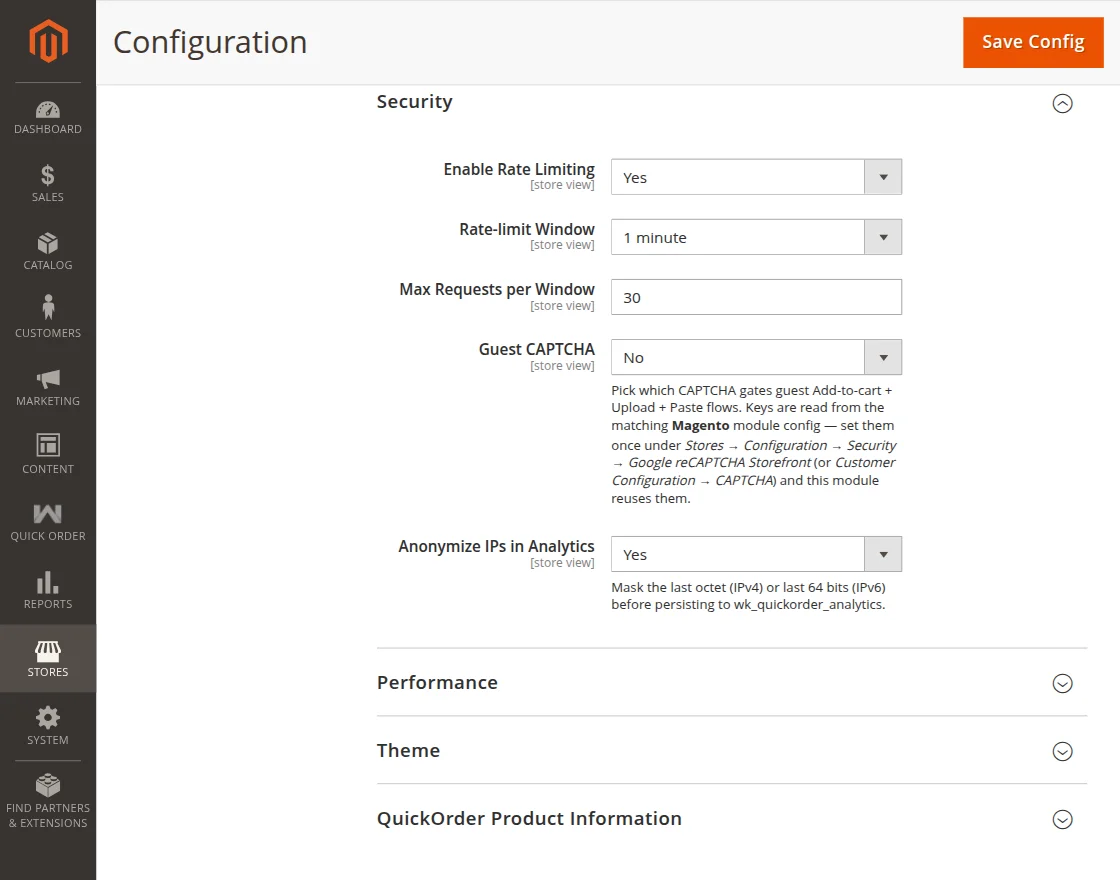
Security
- Enable Rate Limiting: Restricts excessive requests to help prevent abuse and server overload.
- Rate-limit Window: Defines the time period used for rate-limit calculations.
- Max Requests per Window: Specifies the maximum number of requests allowed within the rate-limit window.
- Guest CAPTCHA: Enables CAPTCHA verification for guest Quick Order actions such as add-to-cart, upload, and paste.
- Anonymize IPs in Analytics: Masks portions of customer IP addresses before storing analytics data.
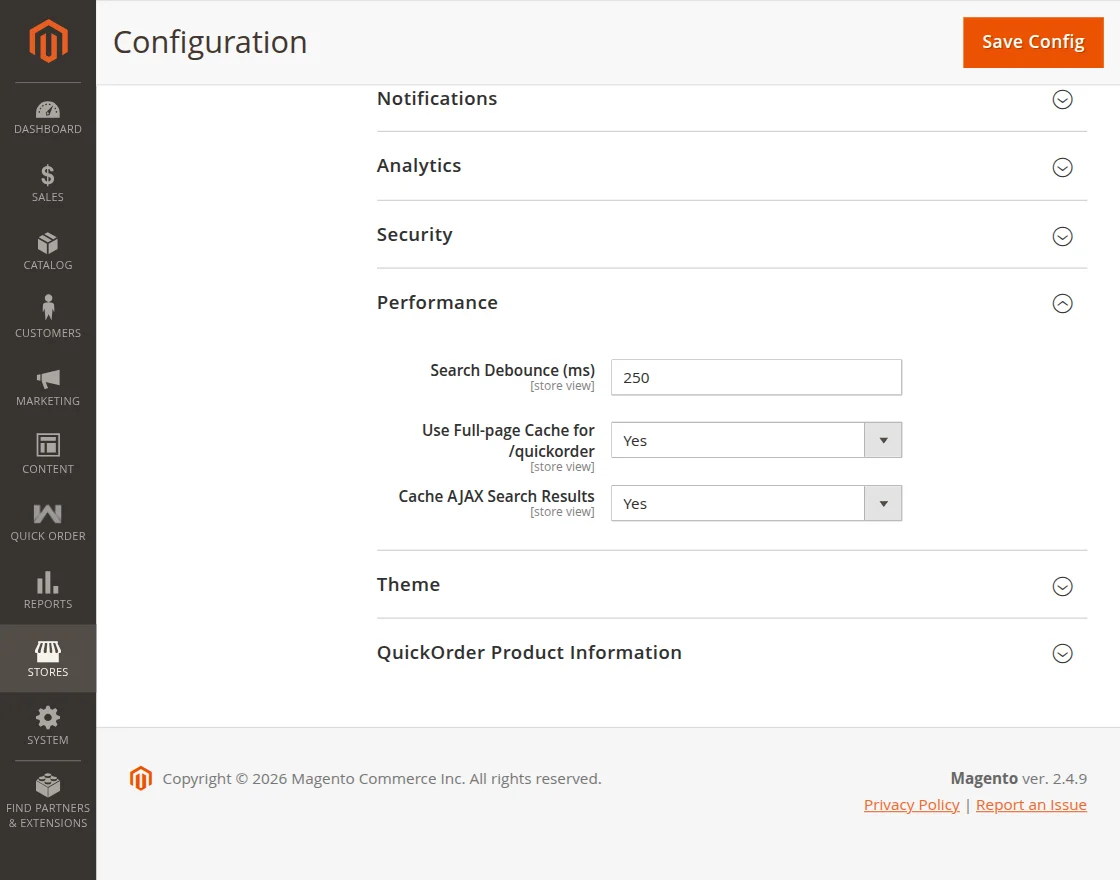
Performance
- Search Debounce (ms): Sets the delay before triggering product searches while the user is typing.
- Use Full-page Cache for /quickorder: Enables full-page caching for the Quick Order page to improve load times.
- Cache AJAX Search Results: Stores AJAX search responses to reduce server requests and improve search performance.
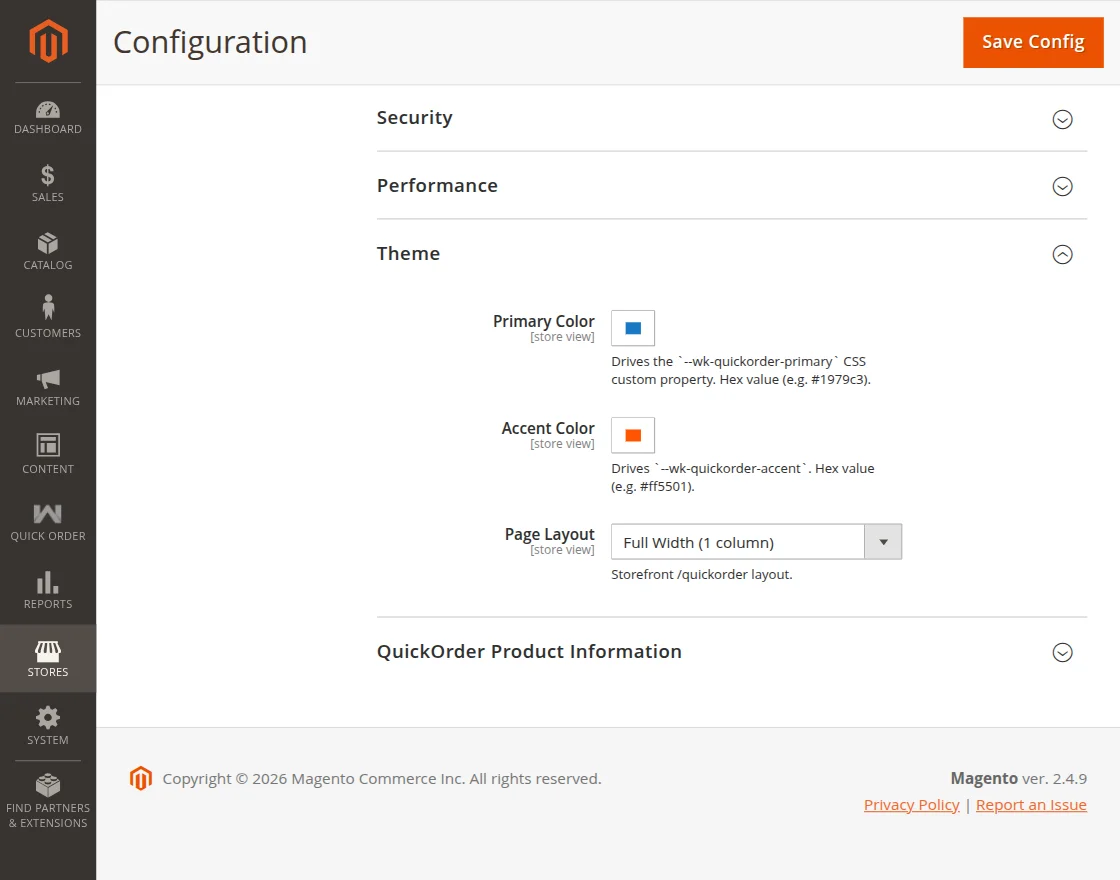
Theme
- Primary Color: Defines the primary color used throughout the Quick Order interface.
- Accent Color: Defines the accent color used for highlights, buttons, and interactive elements.
- Page Layout: Selects the storefront layout used for the Quick Order page.
Quick Order Workflow
To configure and manage the Quick Order, navigate to Quick Order from the admin sidebar menu.
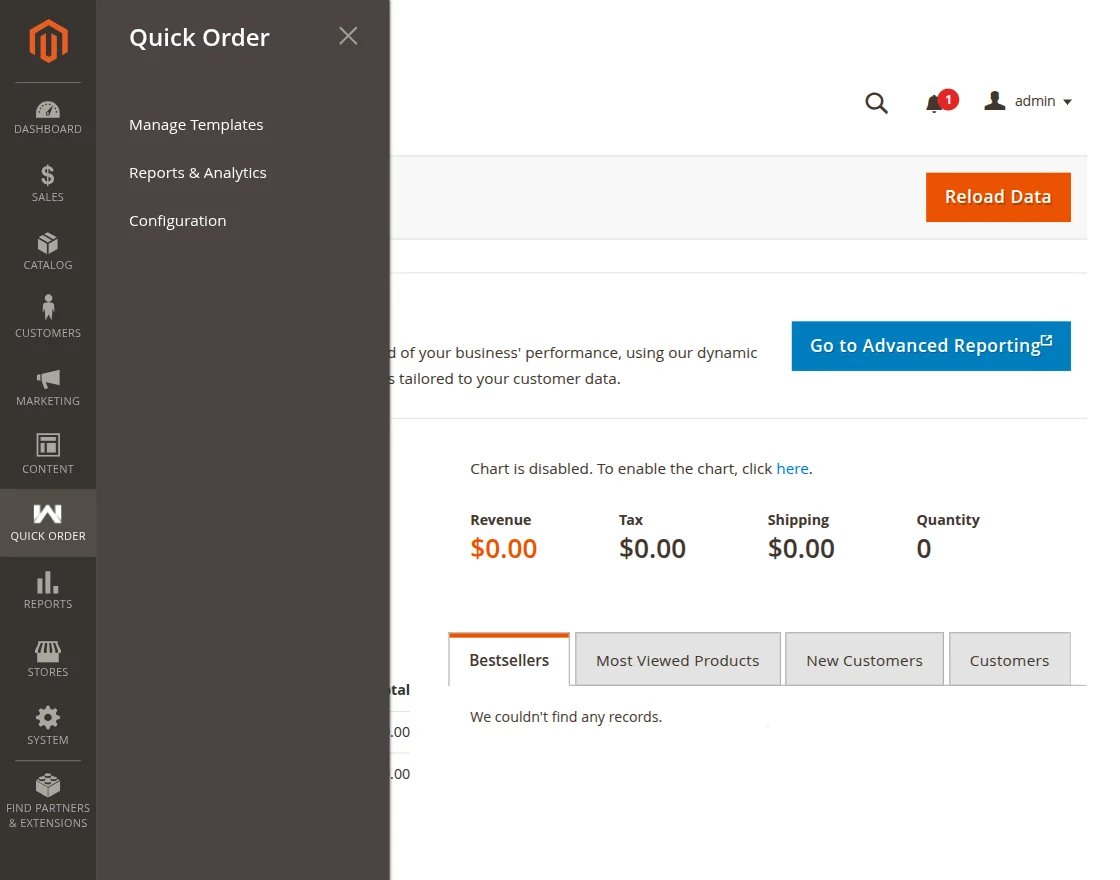
This has three sections:
- Manage Templates: Manage Quick Order templates for reusable product lists.
- Reports & Analytics: View Quick Order statistics.
- Configurations: Module configuration.
Manage Templates
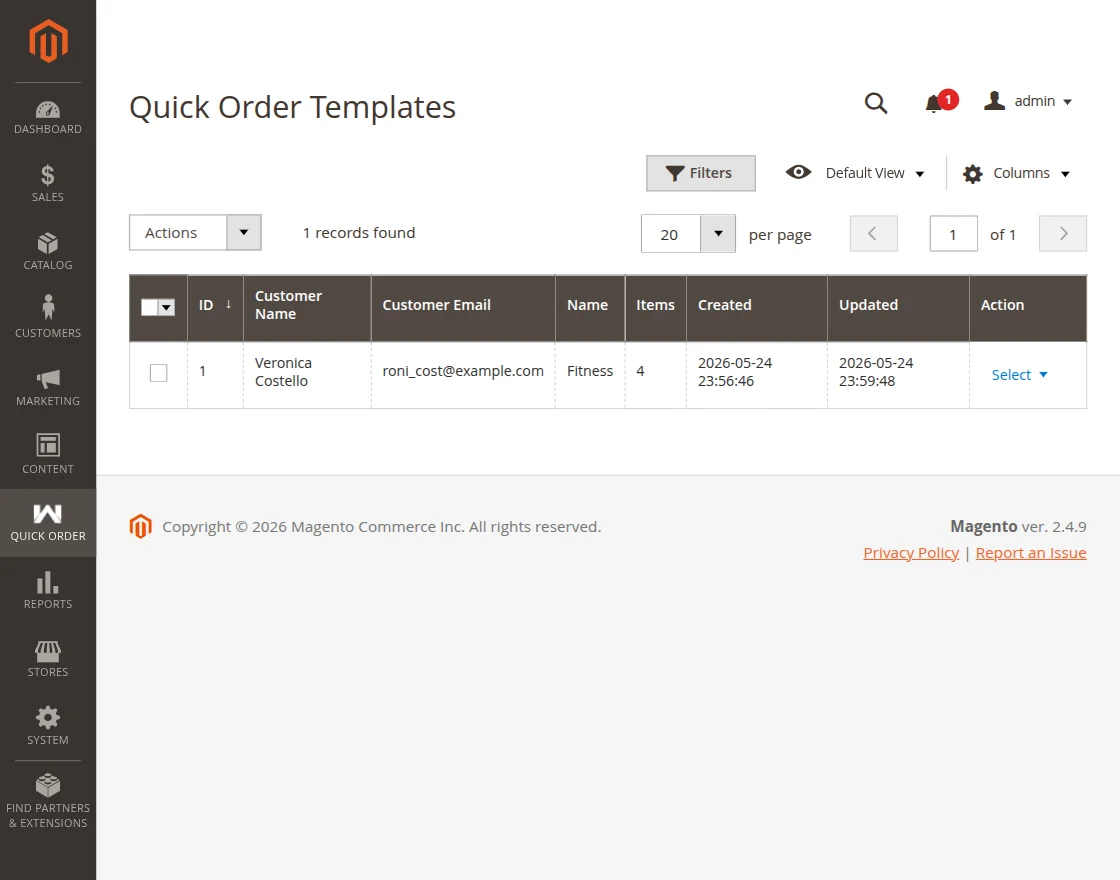
To Manage Quick Order templates, navigate to Quick Order → Manage Templates.
Here, all saved Quick Order templates are listed in one place for easy review and management. From this section, the admin can:
- View all available Quick Order templates.
- Check template details such as name, owner, item count, and creation date.
- Search and filter templates based on specific criteria.
- Delete templates that are no longer required.
- Bulk delete multiple templates using mass actions
- Review products associated with each template for quick reuse.
Reports & Analytics
To view Quick Order analytics and performance reports, navigate to Quick Order → Reports & Analytics.
This section provides detailed insights into customer interactions and Quick Order usage. From here, the admin can:
- Monitor Quick Order activity through interactive analytics dashboards.
- View key metrics such as searches, products added, conversions, and order submissions.
- Analyze the Quick Order funnel to identify customer drop-off points.
- Review the most frequently added products and top-performing SKUs.
- Track how customers interact with Quick Order using different entry methods.
- Monitor live Quick Order events and recent submissions in real time.
- Export analytics data in CSV format for further analysis.
- Send GA4 test events and validate Google Analytics integration.
- View and manage enabled GA4 event tracking configurations.
- Analyze customer behavior trends to optimize the Quick Order experience.

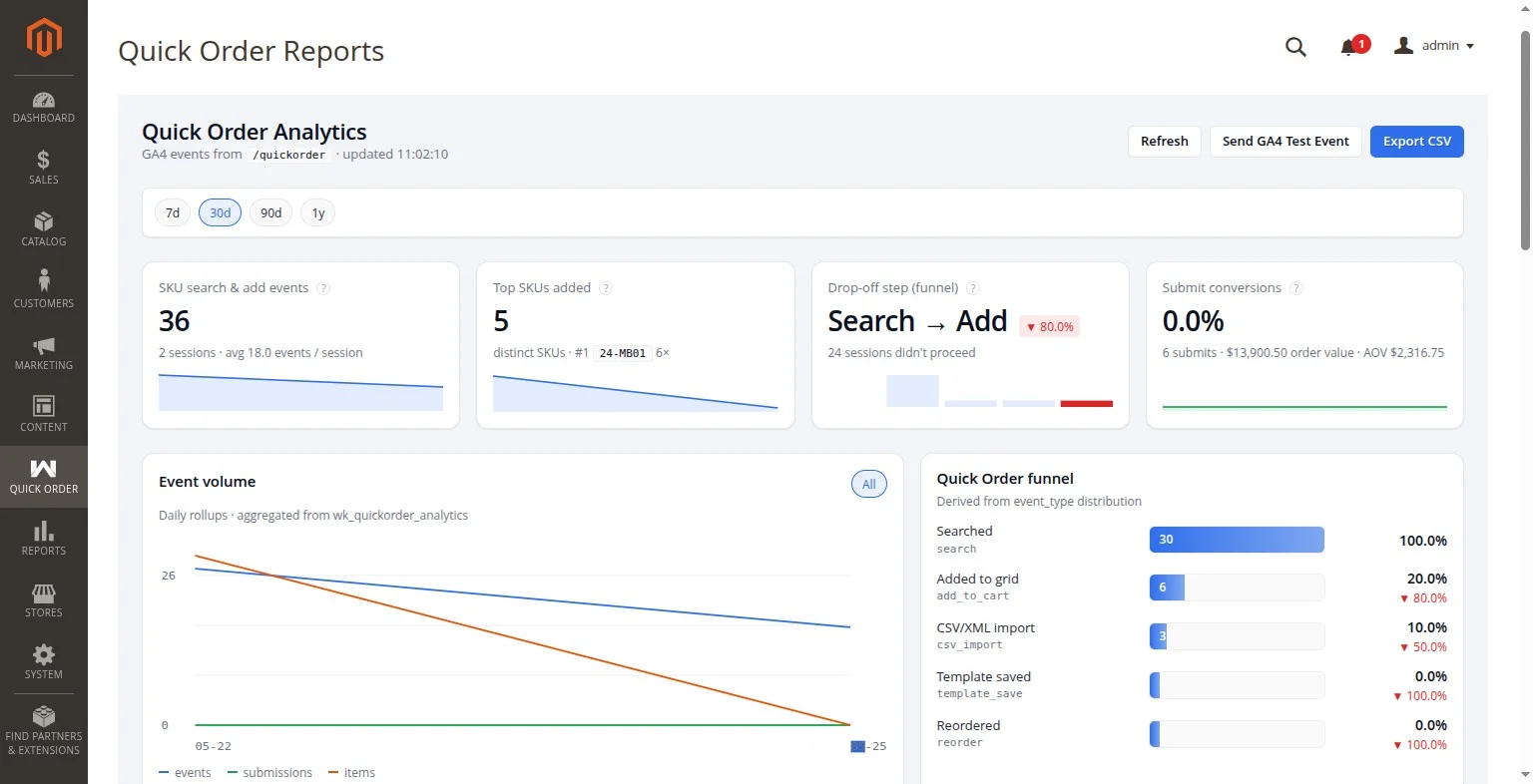
- Date Range Filters (7d, 30d, 90d, 1y): Allows administrators to view analytics data for different time periods.
- SKU Search & Add Events: Displays the total number of product search and add-to-cart events recorded through Quick Order.
- Top SKUs Added: Shows the most frequently added products and the number of times each SKU was added.
- Drop-off Step (Funnel): Highlights the stage where customers leave the Quick Order process and the associated drop-off percentage.
- Submit Conversions: Displays the conversion rate, total submissions, order value, and average order value generated through Quick Order.
- Event Volume: Provides a graphical overview of Quick Order events, submissions, and item activity over time.
- Quick Order Funnel: Visualizes customer progression through various Quick Order stages and identifies conversion trends.
- Refresh: Updates the dashboard with the latest analytics and event data.
- Send GA4 Test Event: Sends a test event to Google Analytics 4 to verify tracking functionality.
- Export CSV: Downloads the analytics data in CSV format for reporting and analysis.

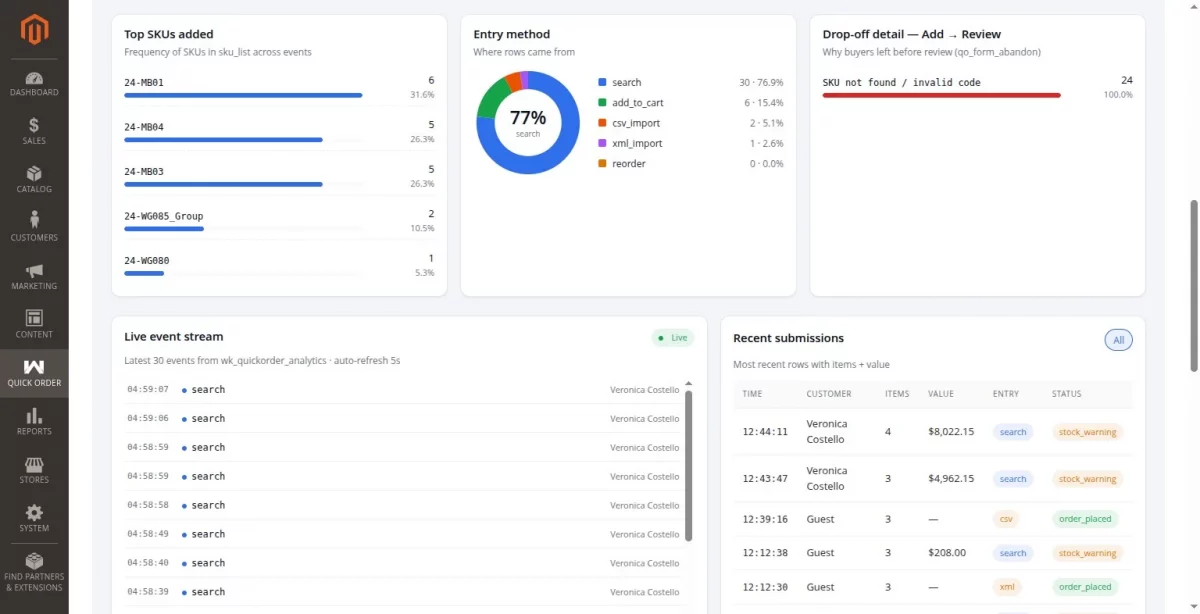
- Top SKUs Added: Displays the products most frequently added through Quick Order along with their contribution percentage.
- Entry Method: Shows how customers added products, such as through search, add-to-cart, CSV import, XML import, or reorder actions.
- Drop-off Detail – Add → Review: Identifies the reasons customers abandoned the Quick Order process before reaching the review stage.
- Live Event Stream: Provides a real-time feed of the latest Quick Order activities, including searches, imports, and product additions.
- Recent Submissions: Lists the most recent Quick Order submissions with customer details, item counts, order values, entry methods, and submission statuses.
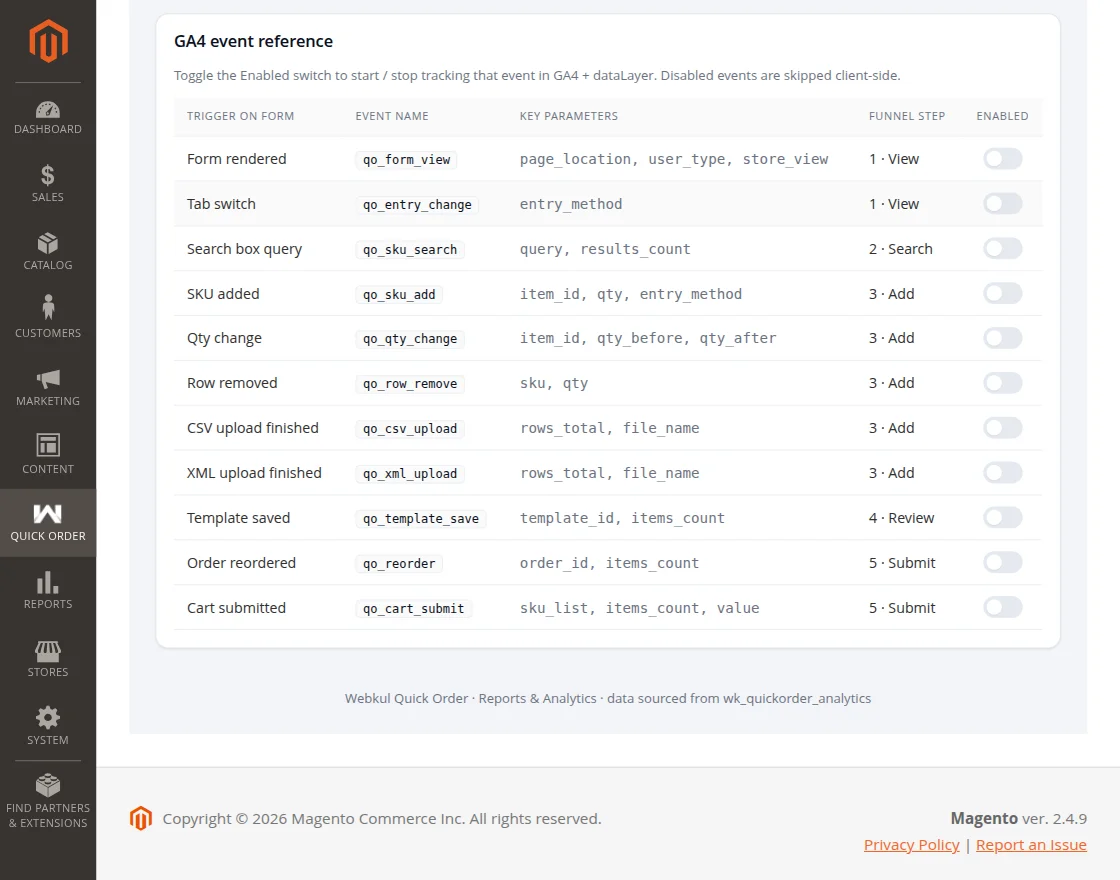
- GA4 Event Reference: Displays all supported Google Analytics 4 events available for Quick Order tracking.
- Trigger on Form: Identifies the customer action that triggers a specific analytics event.
- Event Name: Shows the GA4 event name sent to Google Analytics when the action occurs.
- Key Parameters: Lists the event parameters transmitted along with each analytics event.
- Funnel Step: Indicates the stage of the Quick Order journey associated with the event.
- Enabled: Allows administrators to enable or disable tracking for individual Quick Order events.
- GA4 Event Controls: Provides centralized management of analytics events for reporting and customer behavior analysis.
Customer’s End
Once the Quick Order has been installed and configured, it’ll be available for customer use on the storefront.
Customers can access the Quick Order page from multiple places on the storefront:
- Header — Quick Order link in the top navigation bar.
- Top Menu — Quick Order link in the main navigation menu.
- Floating Widget — A sticky Quick Order button visible on every storefront page at the bottom-right corner.
- Footer — Quick Order link in the page footer.
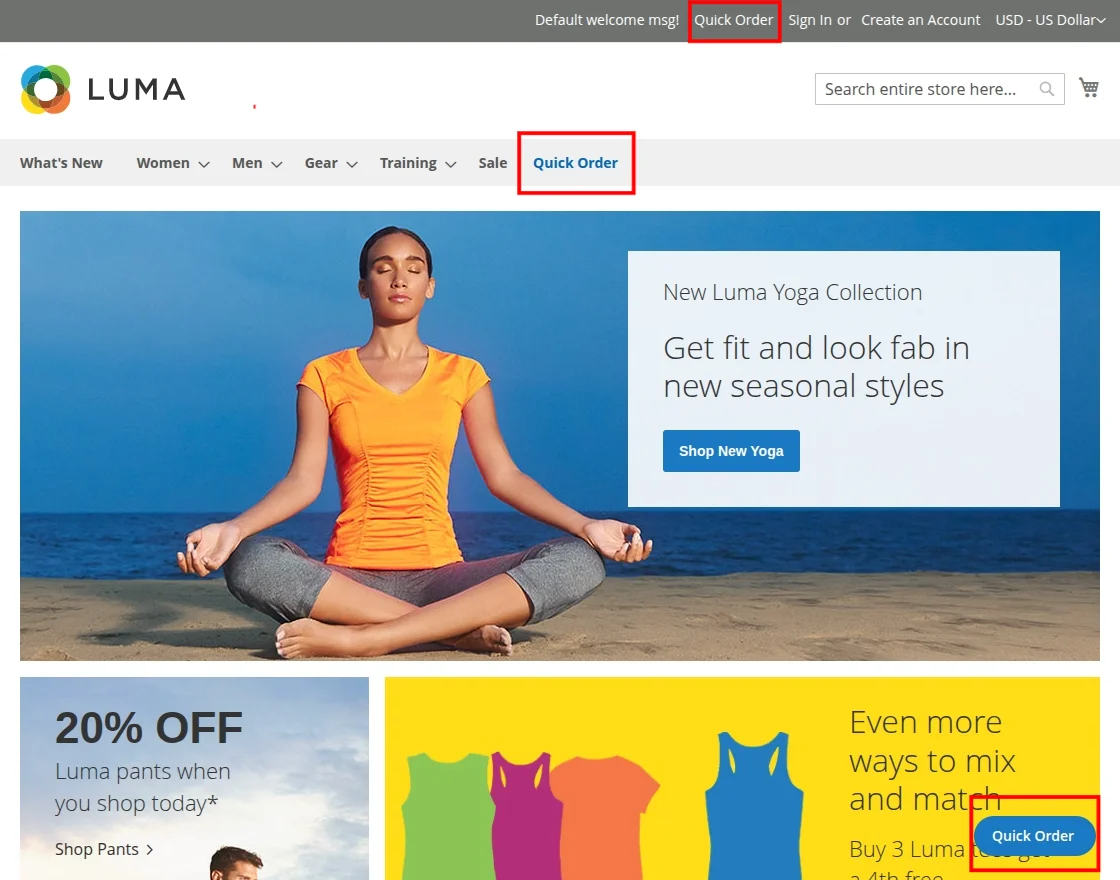
Customers can quickly order for every type of product -simple, virtual, downloadable, configurable, bundled, and grouped. The Customer can search the product with the help of Product Name or SKU.
Customers can add different type of products on a single page.
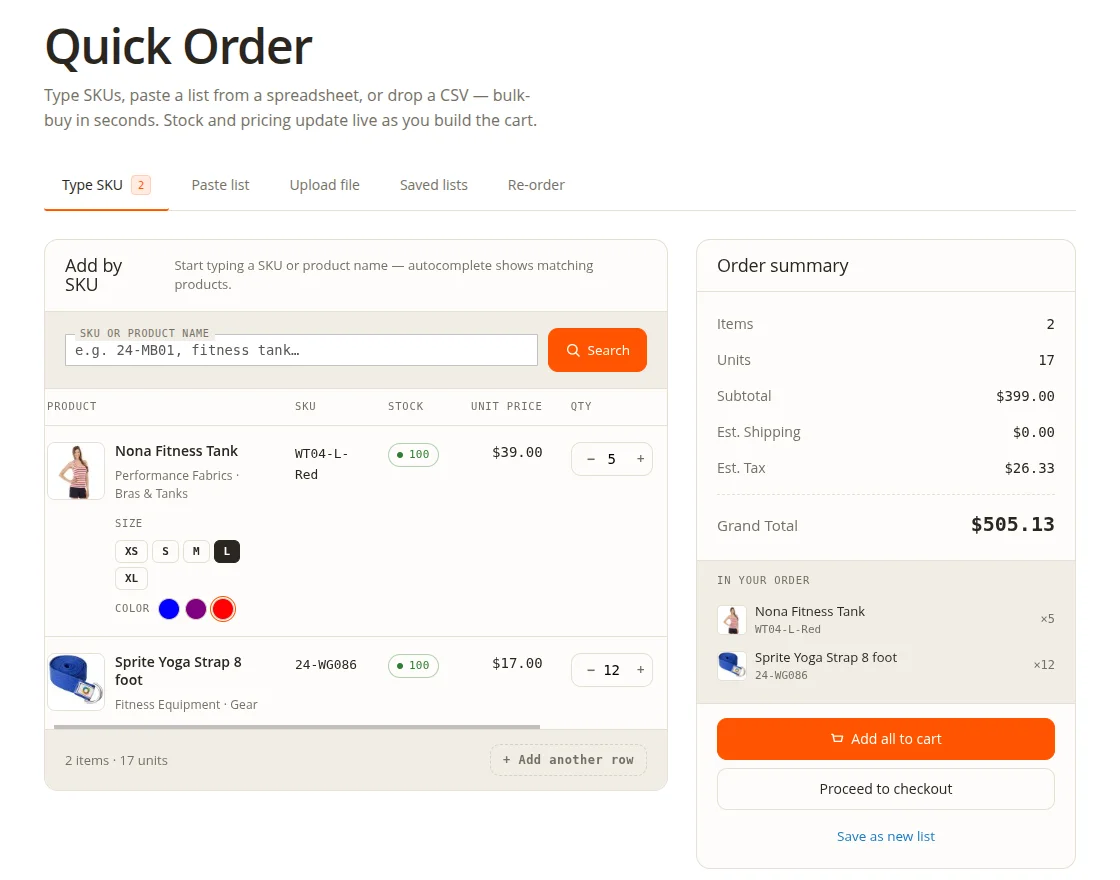
Customers able to see updates in real time of the subtotal, estimated shipping and tax, Discounts, special price and total order amount on a single quick order page.
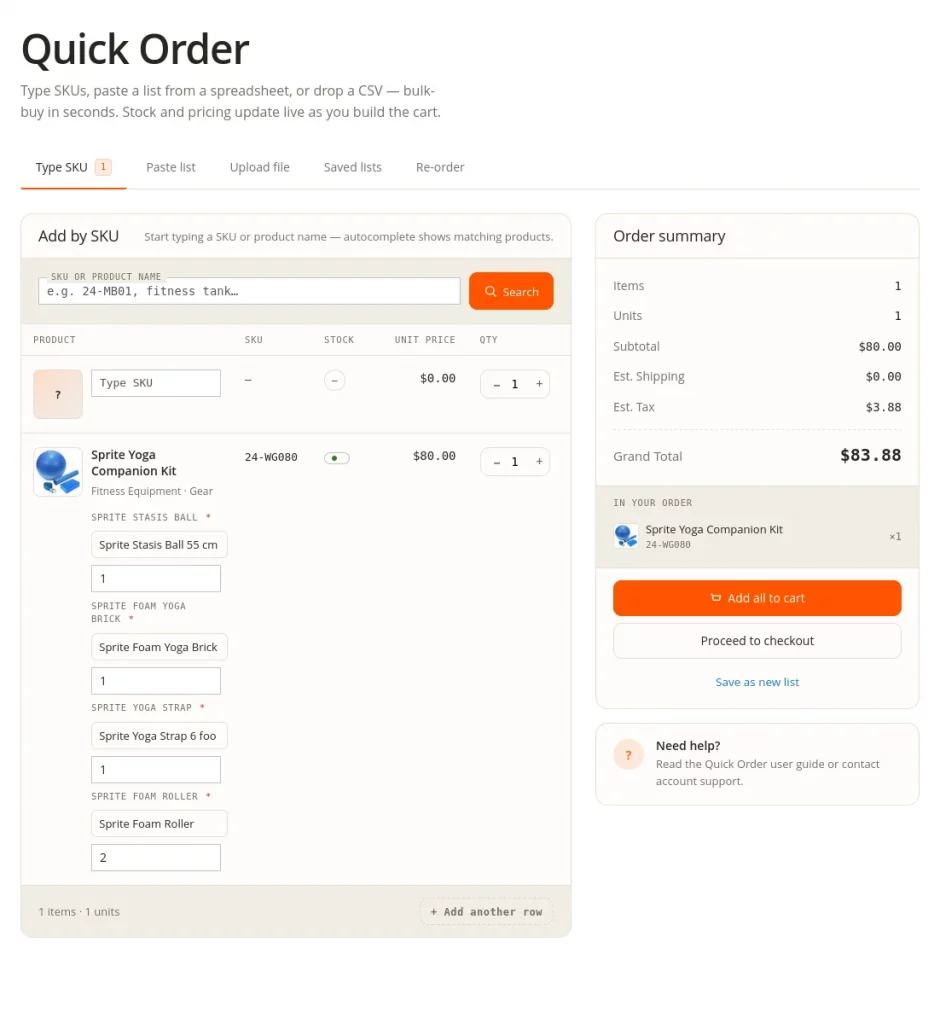
Three action buttons are always visible in the Order Summary panel:
- Save as new list — saves the current rows as a reusable named template.
- Add all to cart — adds all valid rows to the cart in one click.
- Proceed to checkout — adds items and goes directly to checkout, skipping the cart page.
The Quick Order page consists of 5 tabs, each offering a different method for customers to bulk-add products to their cart.
- Type SKU
- Paste List
- Upload File
- Saved Lists
- Re-order
Type SKU
The default landing tab. Customers type or paste a SKU or product name into the search field and the autocomplete dropdown shows matching results instantly.
- Each row shows the product thumbnail, name, SKU, stock badge, unit price, quantity stepper, and row subtotal.
- Customers can click + Add another row to add more products.
- The tab pill shows a live count of how many rows are currently filled.
- All product type options (color, size, custom options, bundle selections) resolve inline on the row — no popups.

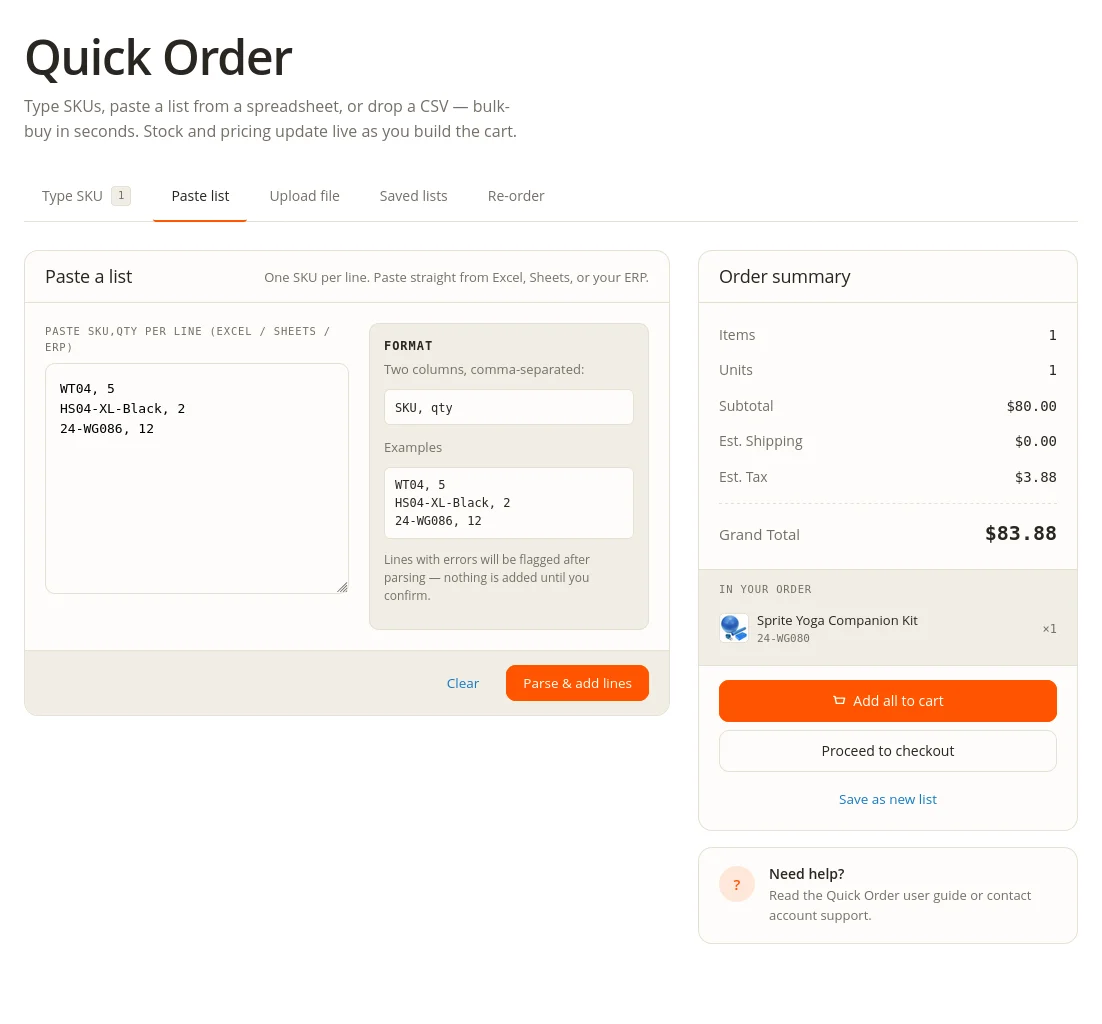
Paste List
Designed for customers who work with spreadsheets or ERP exports.
- Customers paste SKU and quantity pairs directly into a freeform textarea.
- The parser accepts three formats:
SKU, qty— comma separatedSKU qty— space separatedSKU— quantity defaults to 1
- After pasting, click Parse & add lines to process the list.
- After parsing, the form switches to the Type SKU tab with every valid pair pre-filled and ready to adjust.

Upload File
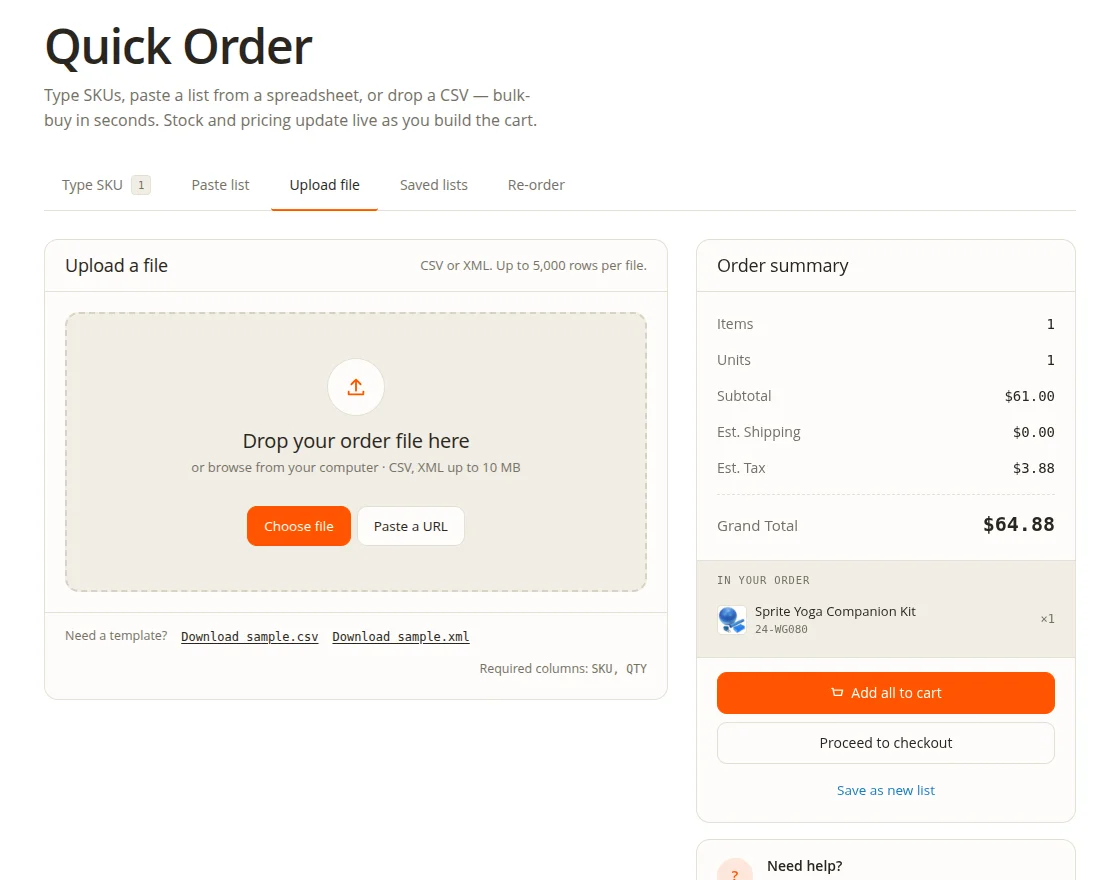
For procurement teams who export order files directly from their ERP or system.
- Customers drag and drop a file onto the upload zone or click Choose file to browse.
- Supported formats: CSV and XML (admin-configurable).
- A “Paste a URL” option allows uploading from a remote file link.
- After upload, valid rows populate the item table and invalid rows show inline errors with the row number and reason.
- Max rows per file and max file size are set by the admin (defaults: 500 rows, 5 MB).
Saved Lists
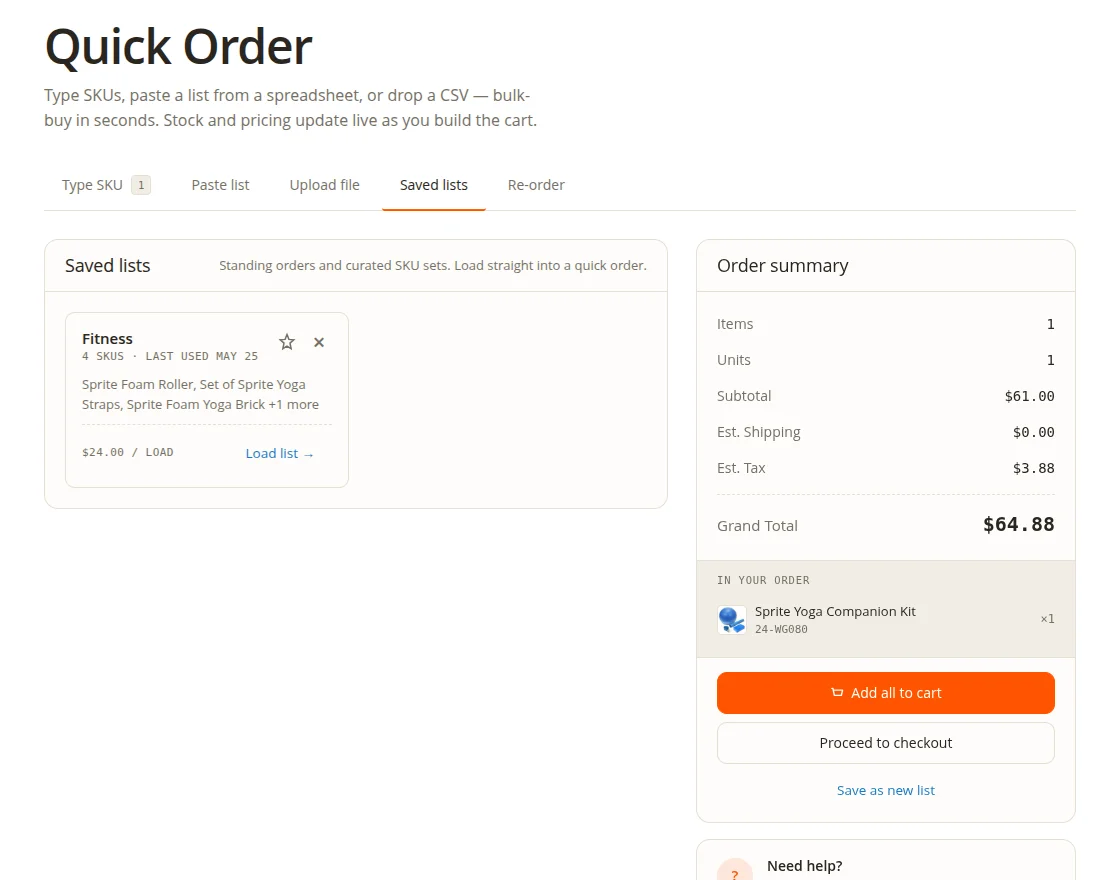
Customers who place repeat orders can save their Quick Order list as a named template and reload it on future visits.
- Saved templates appear as cards showing the template name, SKU count, last-used date, and a star-favorite toggle.
- Click Load list → on any card to instantly repopulate the Type SKU tab with all saved SKUs and quantities.
- New templates are created by clicking Save as new list in the Order Summary panel after building a list.
- Each customer can save up to 50 templates with up to 500 items per template (admin-configurable).
Re-order
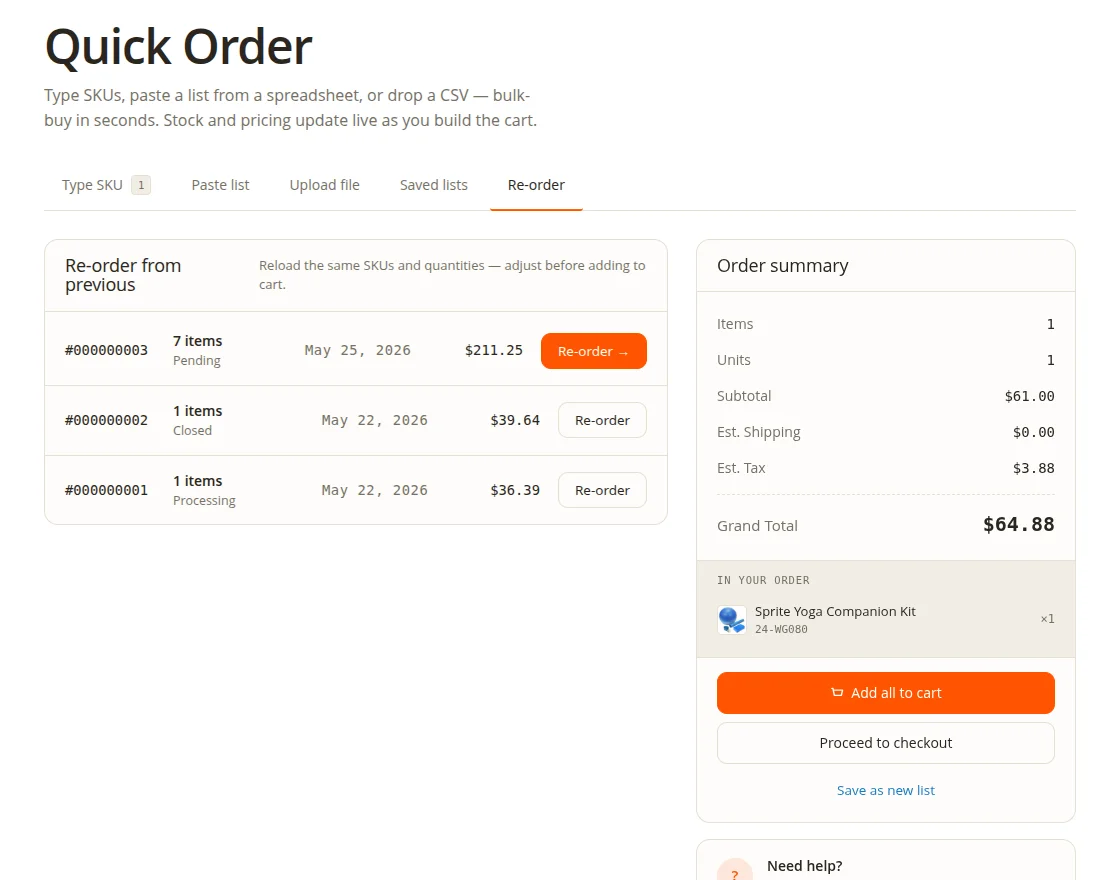
The fastest way to rebuild a past order.
- Login required — guests are redirected to login and returned to the Re-order tab after authentication.
- The tab shows a table of past orders sorted most-recent first, with columns for Order ID, Status, Date, Item count, and Order Total.
- Click Re-order → on any row to instantly load all items from that order into the Quick Order form.
- Customers can then adjust quantities or add more rows before adding everything to the cart.
Category Quick Order View
The Category Quick Order View adds a bulk-buy experience directly on the category page — no need to navigate to the Quick Order page separately.
Instead of the usual Grid or List view, customers can switch to the Quick Order view mode from the mode-switcher toolbar. Every product in the category renders as a Quick Order row showing:
- Product — thumbnail and product name.
- SKU — product SKU.
- Stock — Inventory status and available quantity.
- Tier Pricing — applicable tier prices displayed per row.
- Quantity — stepper to set the desired quantity.
- Subtotal — live row subtotal that updates as quantity changes.
- Action — individual Add button to add a single product to the cart
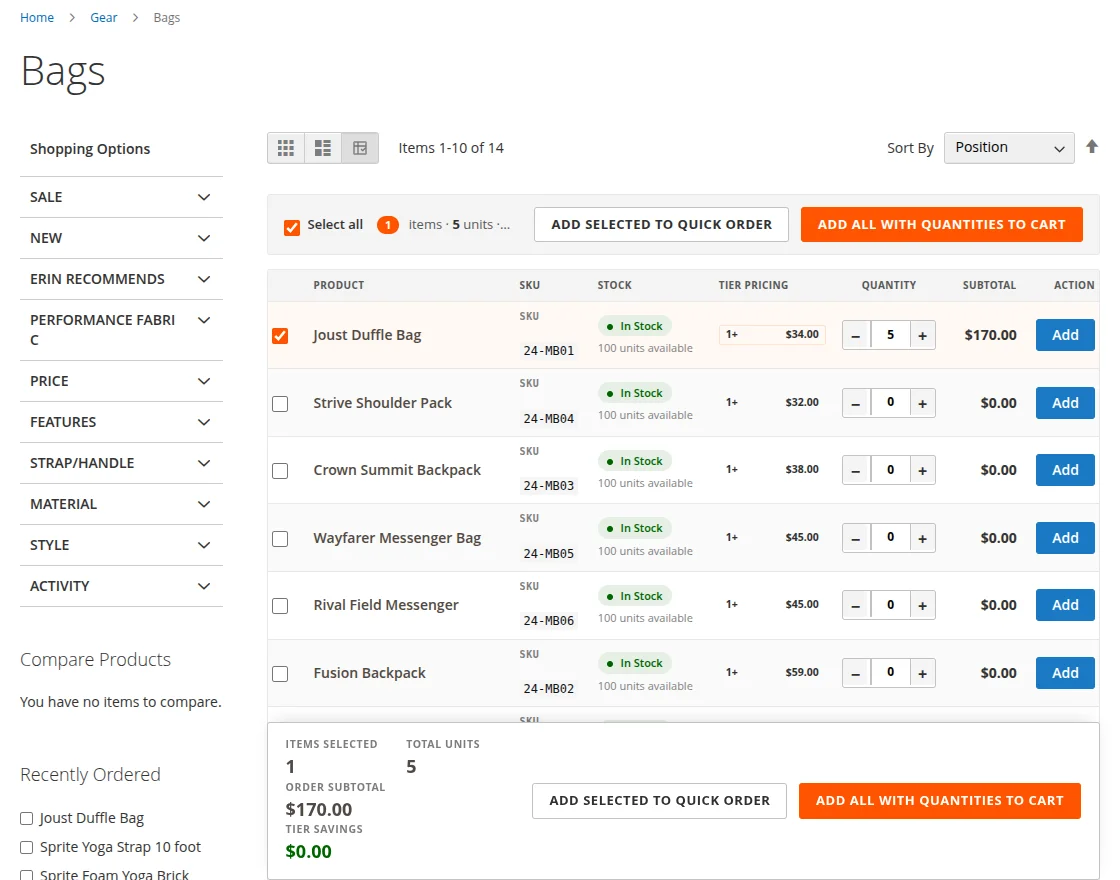
At the bottom of the page a sticky summary bar shows:
- Items Selected
- Total Units
- Order Subtotal
- Tier Savings
Two batch action buttons are available:
- Add Selected to Quick Order — transfers selected products to the Quick Order form.
- Add All with Quantities to Cart — adds all products with entered quantities directly to the cart in one click.
Catalog Search Page Quick Order View
The Search Results Quick Order View brings the Quick Order experience directly to Magento search results pages.
Customers can switch from the standard Grid or List view to Quick Order mode, allowing them to quickly order products matching their search query.
Each product row displays:
- Product — thumbnail and product name.
- SKU — product SKU.
- Stock — Inventory status and available quantity.
- Tier Pricing — applicable tier prices displayed per row.
- Quantity — stepper to set the desired quantity.
- Subtotal — live row subtotal that updates as quantity changes.
- Action — individual Add button to add a single product to the cart
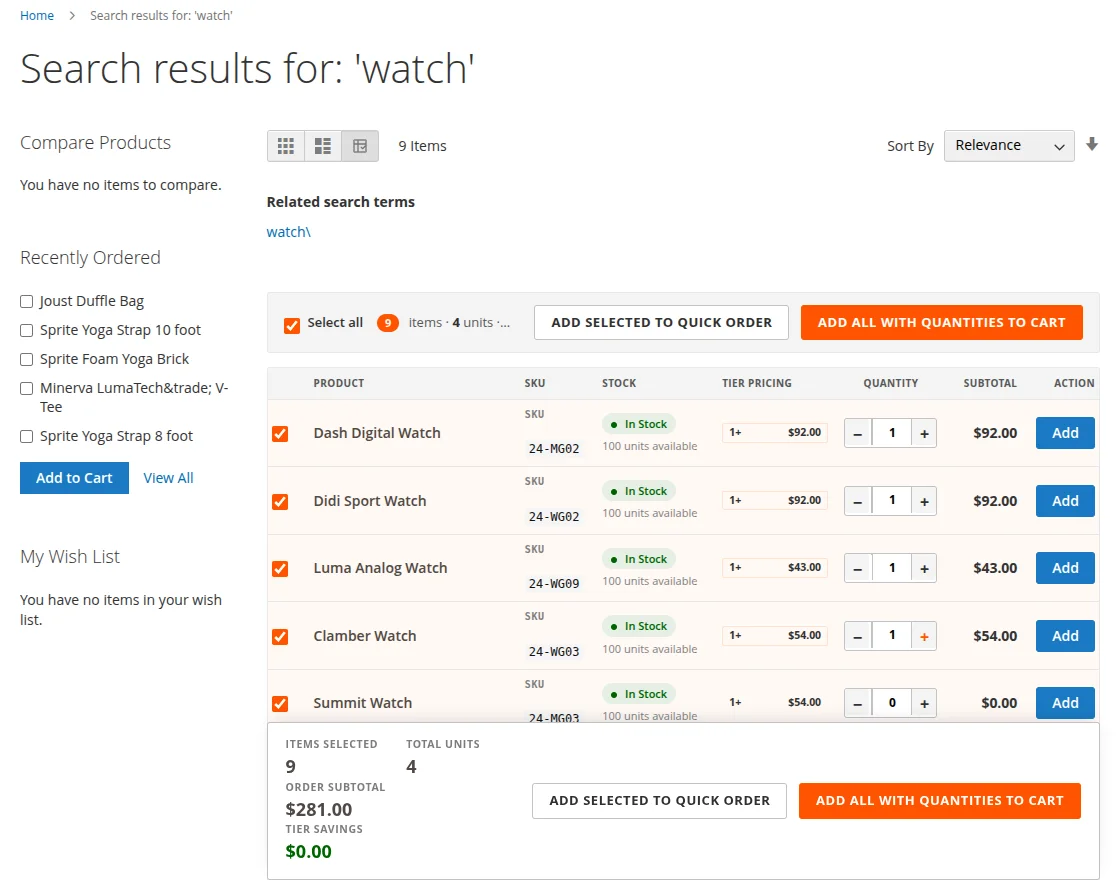
At the bottom of the page a sticky summary bar shows:
- Items Selected
- Total Units
- Order Subtotal
- Tier Savings
Two batch action buttons are available:
- Add Selected to Quick Order — transfers selected products to the Quick Order form.
- Add All with Quantities to Cart — adds all products with entered quantities directly to the cart in one click.
Adding to Cart
When the customer clicks Add all to cart:
- A toast notification confirms the successful add.
- All valid rows are dispatched to the cart and cleared from the form.
- Failed rows (out of stock, invalid SKU, missing options) stay visible with a per-row error message so the customer can fix and retry.
- The cart badge in the header re-syncs immediately.
Afterward, the customer will follow the regular checkout process as mentioned below in this guide..
Proceed to Checkout
When the customer clicks Proceed to Checkout:
- All valid rows are added to the cart instantly.
- The customer is redirected directly to the checkout page, skipping the cart page entirely.


Guest Users –
Guest users also can use quick order for the product.
After clicking on Proceed to checkout button, the customers directly redirect to the checkout page skipping the cart page. They can create an account after checkout.
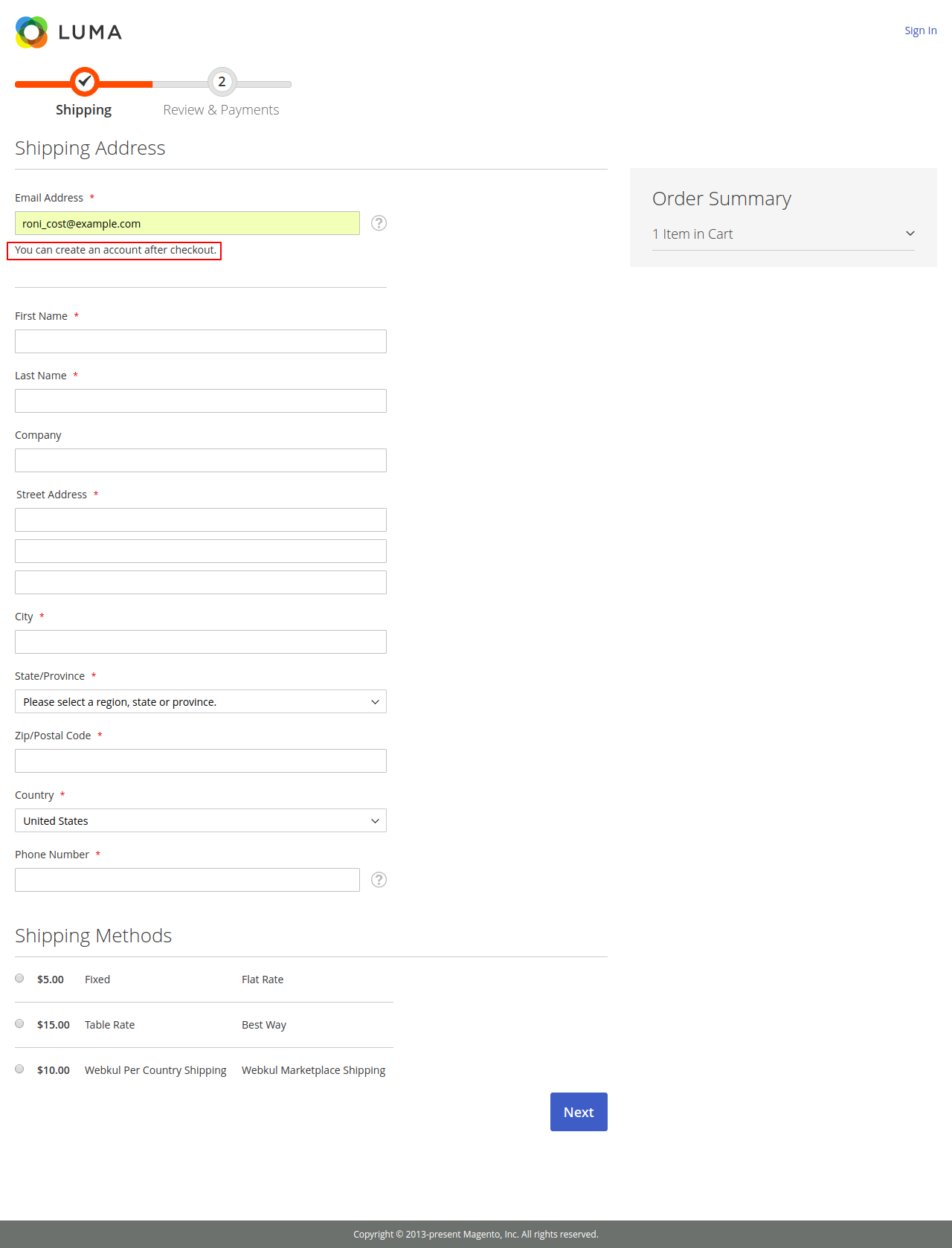
but here guest users have to provide the email address and billing address as per below snapshot –
That’s all for the Magento 2 Quick Order module still have any issue feel free to add a ticket and let us know your views to make the module better http://webkul.uvdesk.com/