User Guide of Prestashop Product Video
Prestashop Product Video – “The modern customer wants to see the Product in action”
By providing product videos, you give buyers quality information that doesn’t hide behind good angles and lighting.
They understand the products they’re ordering and are happier with their purchases. With every great transaction, you build more and more trust.
The Prestashop Product Video lets admin add videos with the product. This will help the buyer to understand the product well.
Admin can even add the video later after adding the product. The added video appears on the product detail page.
Features
- Admin can add videos to the product.
- Display videos on thumbnail, footer, or both thumbnail and footer on product details page.
- Show videos in a grid or slider view on footer position.
- Enable automatic sliding of videos on footer on product details page.
- Add Youtube, Vimeo, and Dailymotion embedded video links to the product to display it on product page for customers.
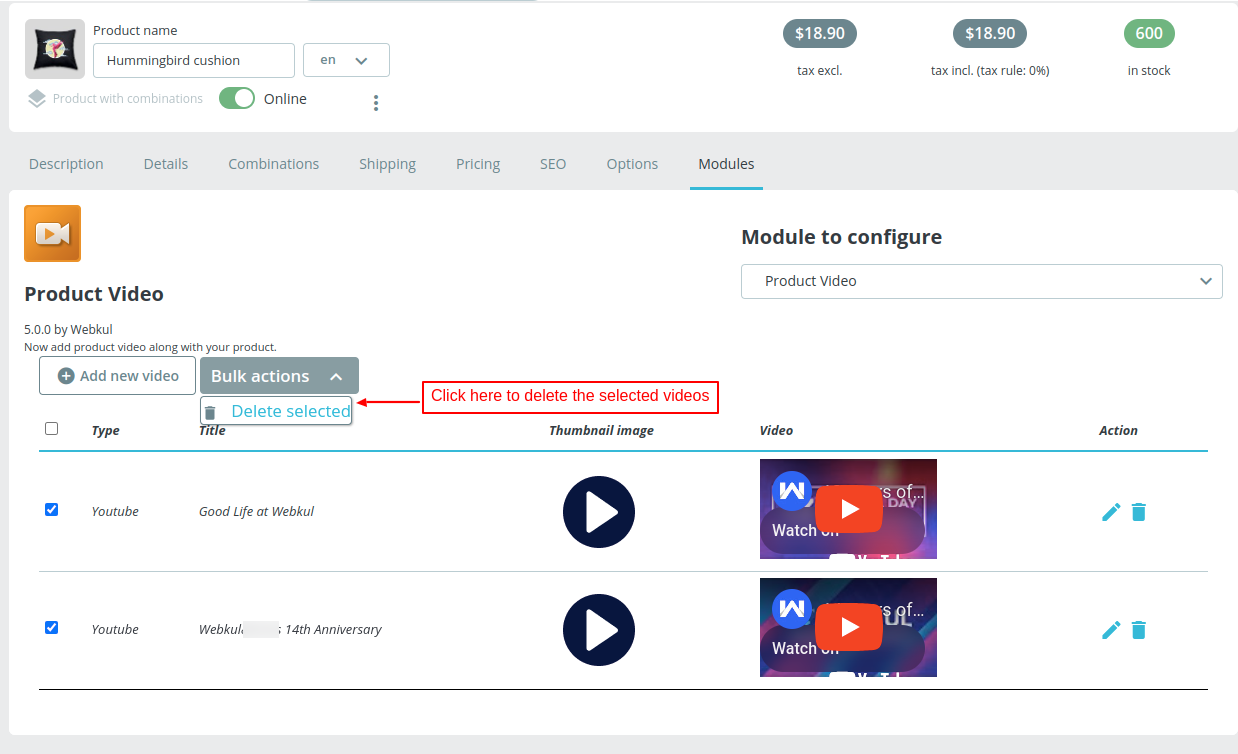
- Delete multiple videos at a time using bulk delete feature.
- Improves customer engagement as videos can be more captivating.
- Increases conversion rate by boosting customer’s trust and confidence.
- Prestashop Product Video module is MultiShop Compatible.
How to Install PrestaShop Product Video
- Firstly, go to the module manager in the back office and click on ‘upload a module’.
- After that, drag and drop the module file or select the file from the system.
- In this way, the module installation will be successful.


PrestaShop Product Video Configuration
After the successful installation of the module, admin needs to configure it.
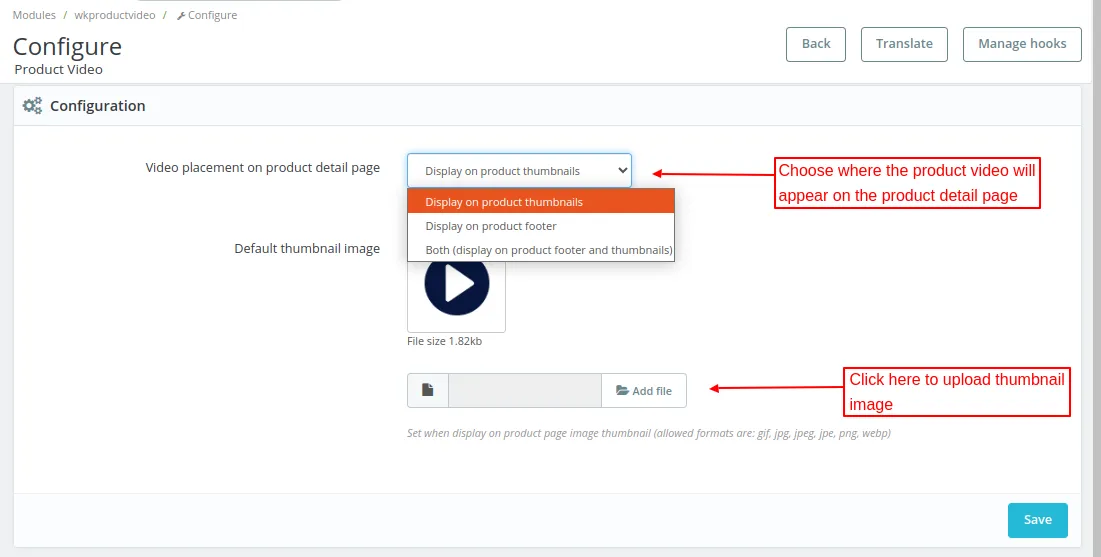

Video placement on product detail page
The admin can choose to show the video on:
- Product thumbnail
- Product footer
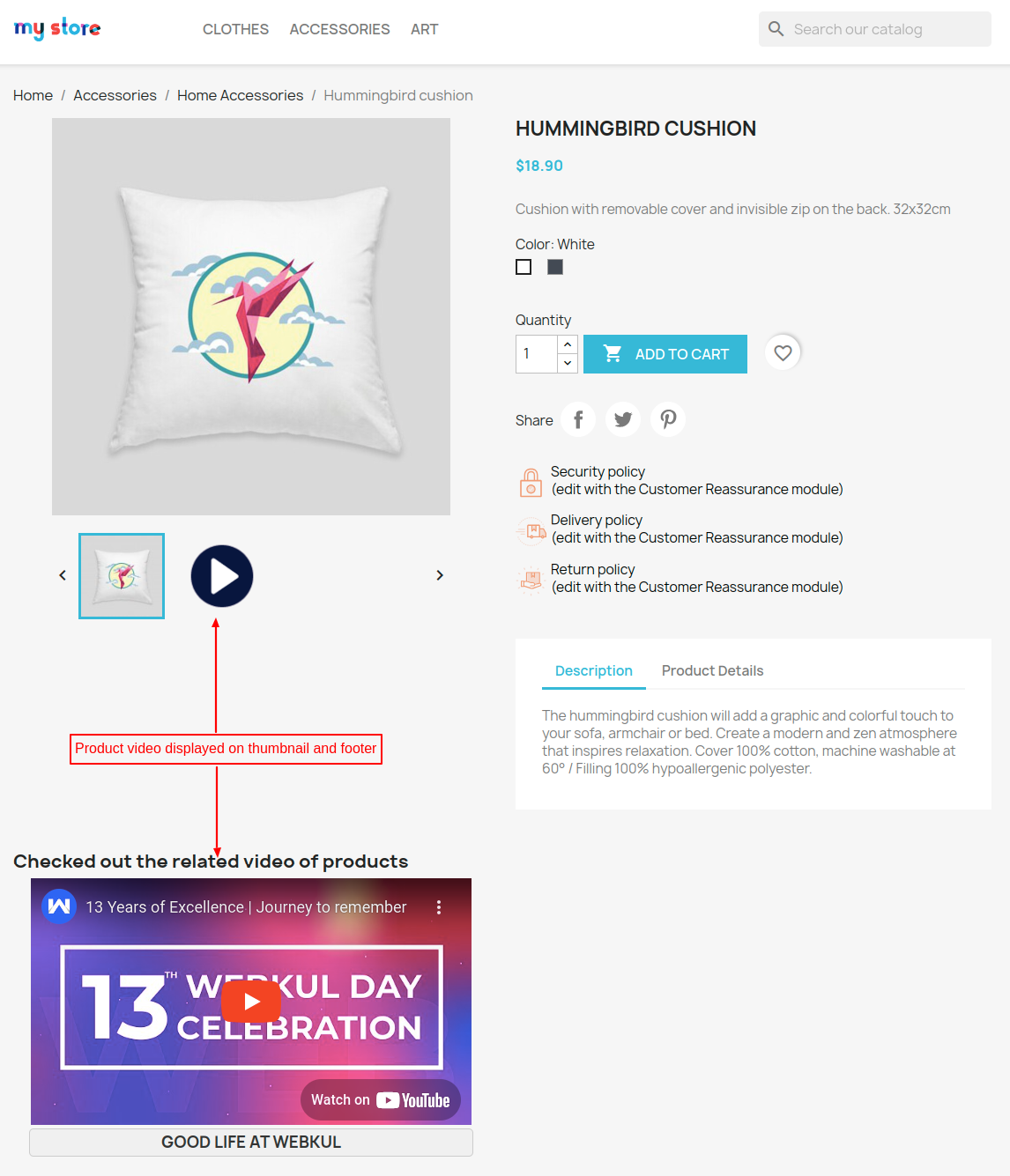
- Both product thumbnail and footer
Display on product footer
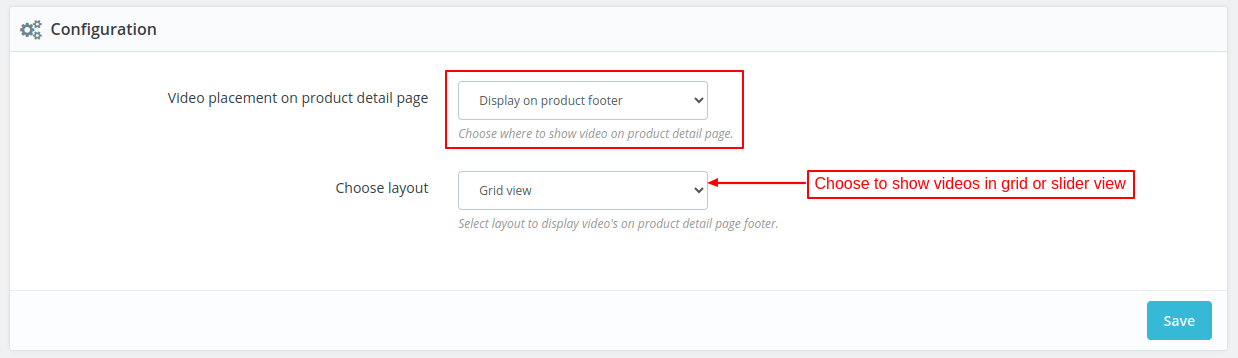

Choose layout
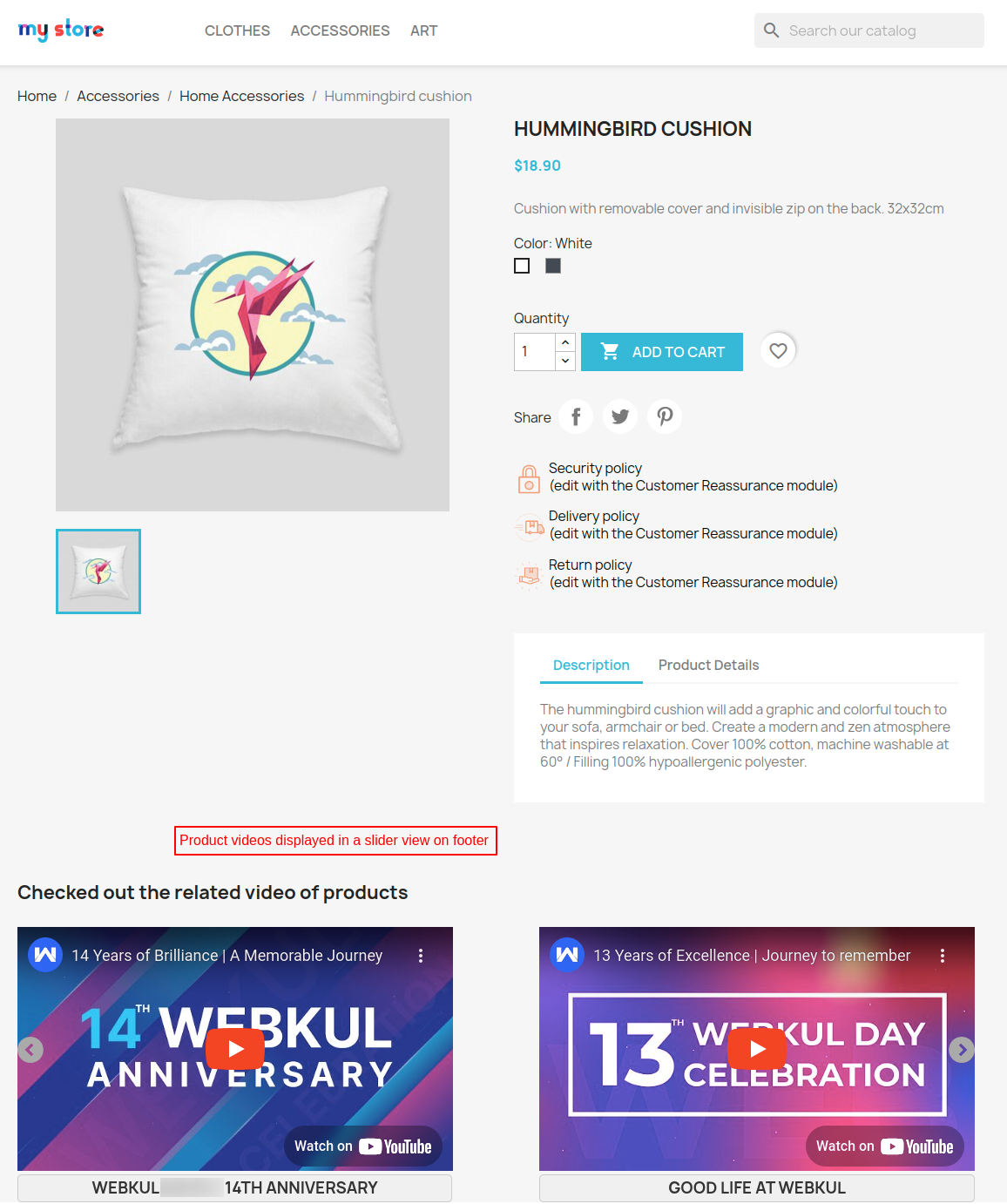
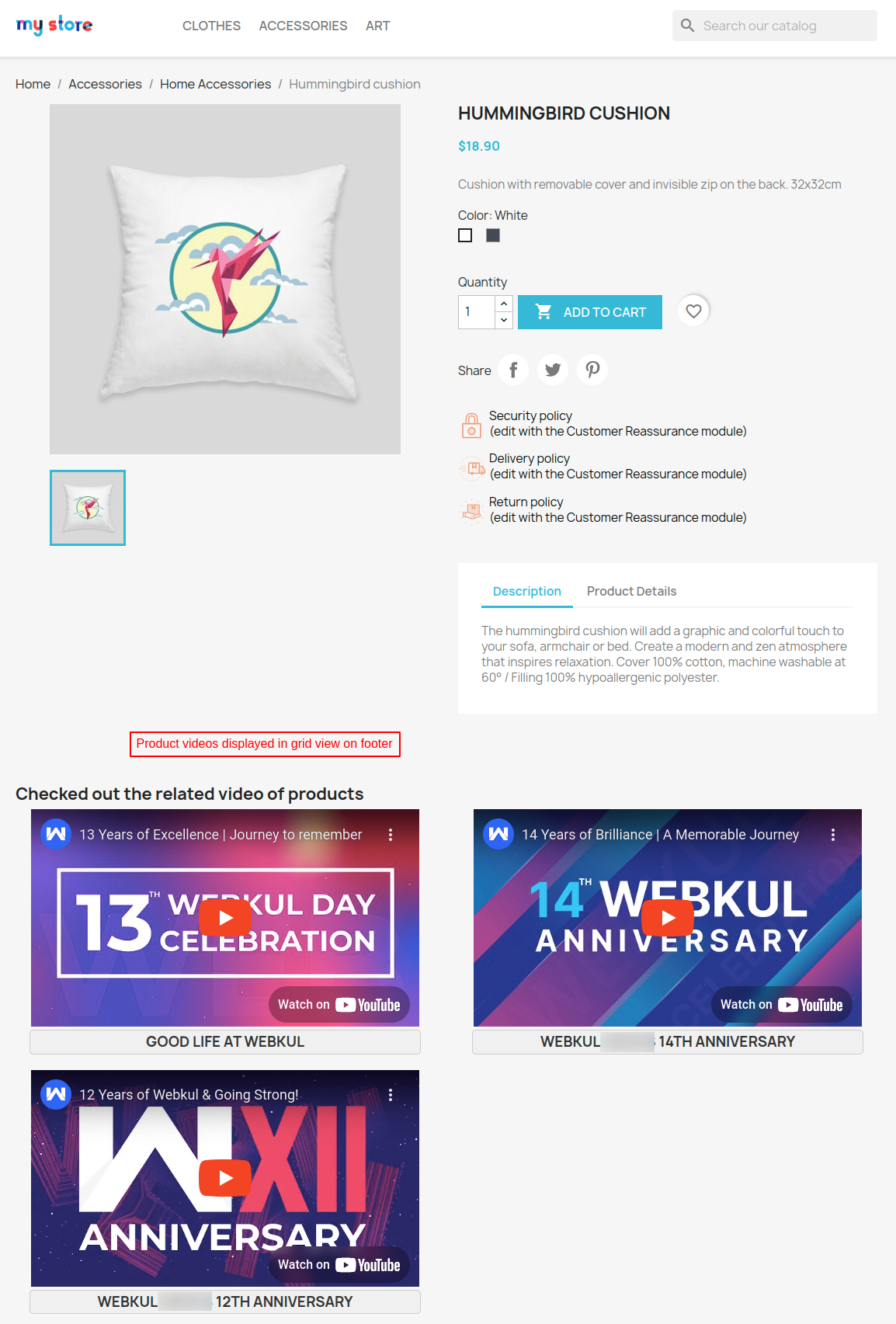
The admin can choose to show the product videos in a slider or grid view.
Slider View
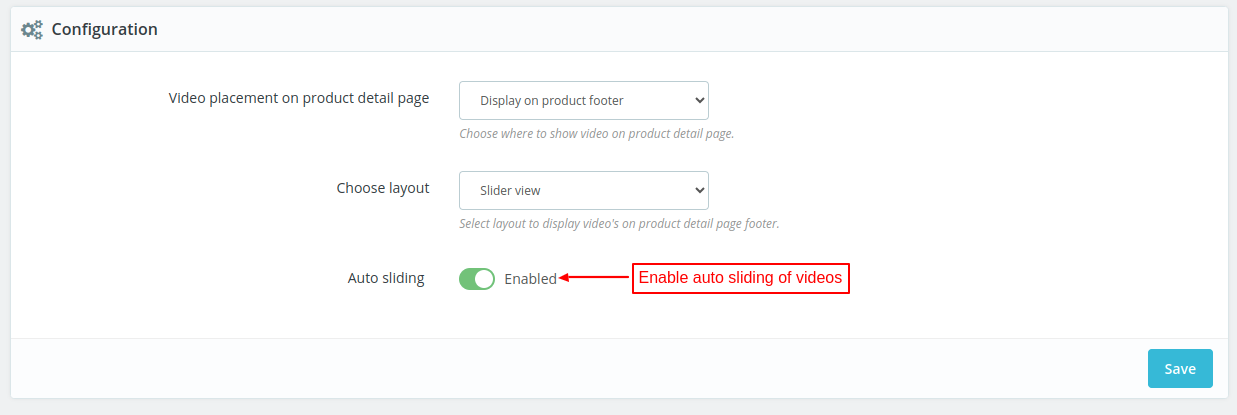

Enable auto sliding to automatically slide product videos.
Display on product footer and thumbnails
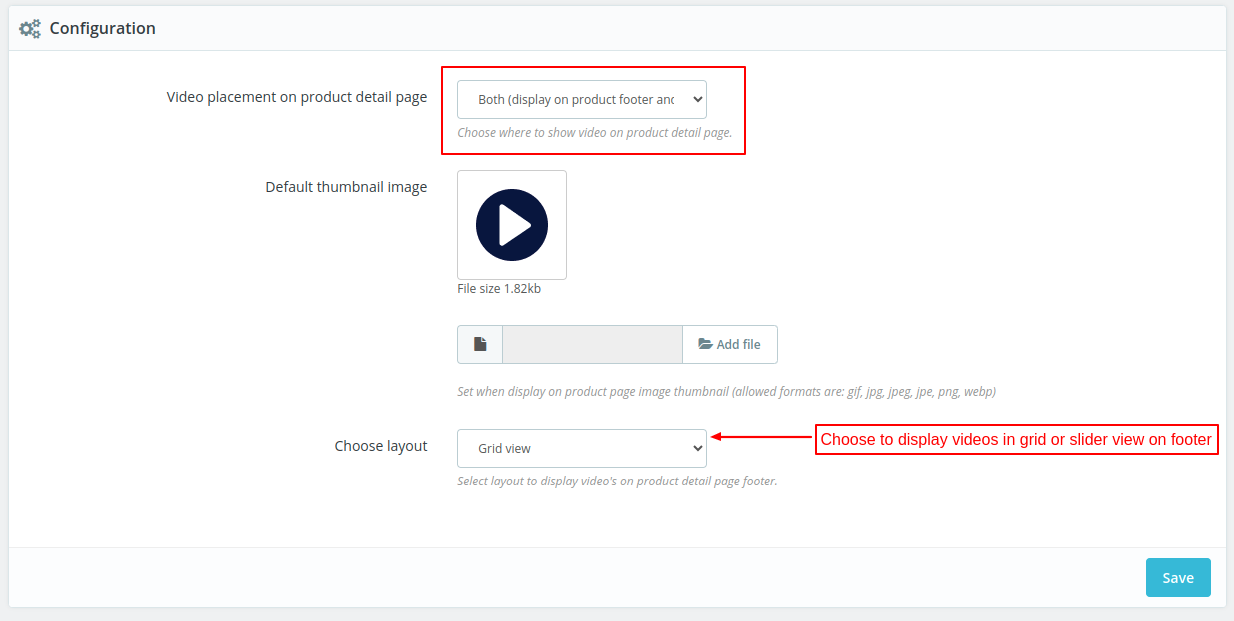

Add videos to product
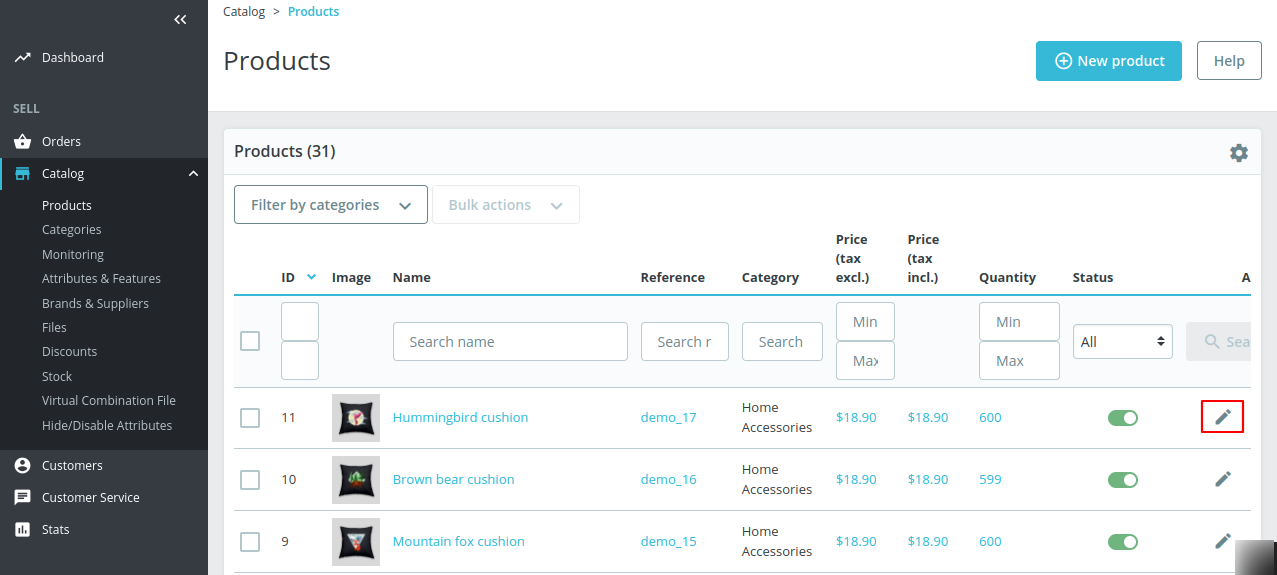
The admin can add videos to individual product by navigating through catalog > products > edit product.

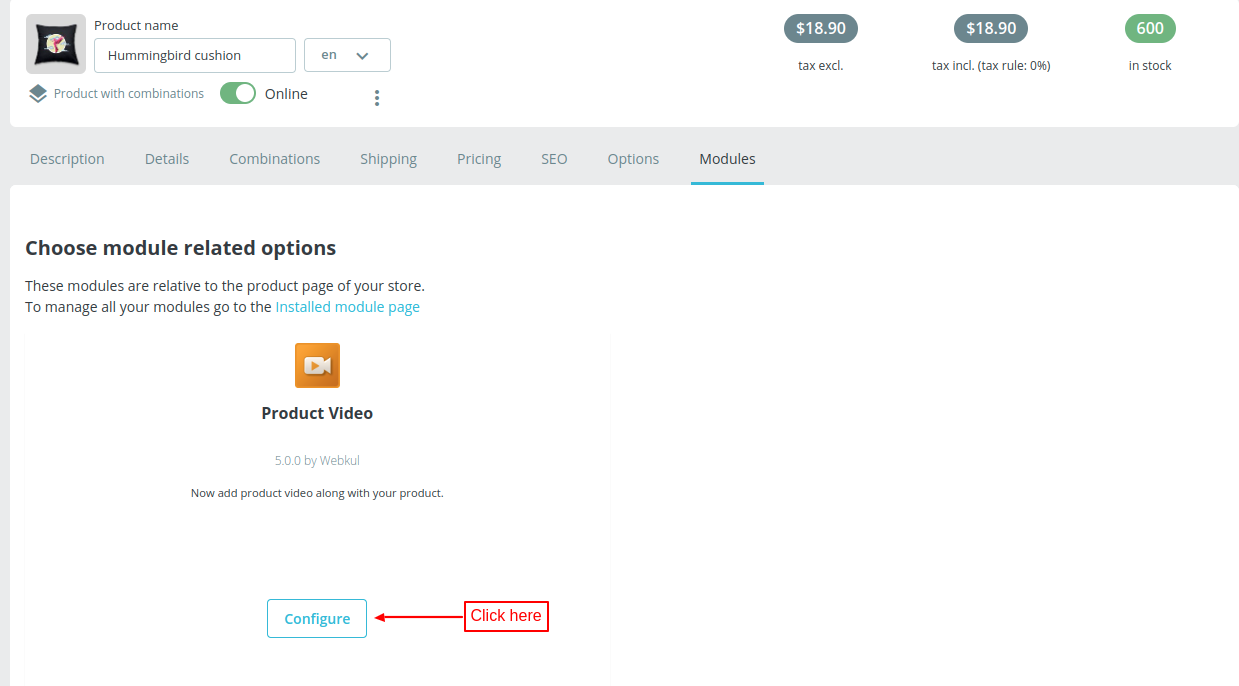
Under Modules tab, click on the configure button.

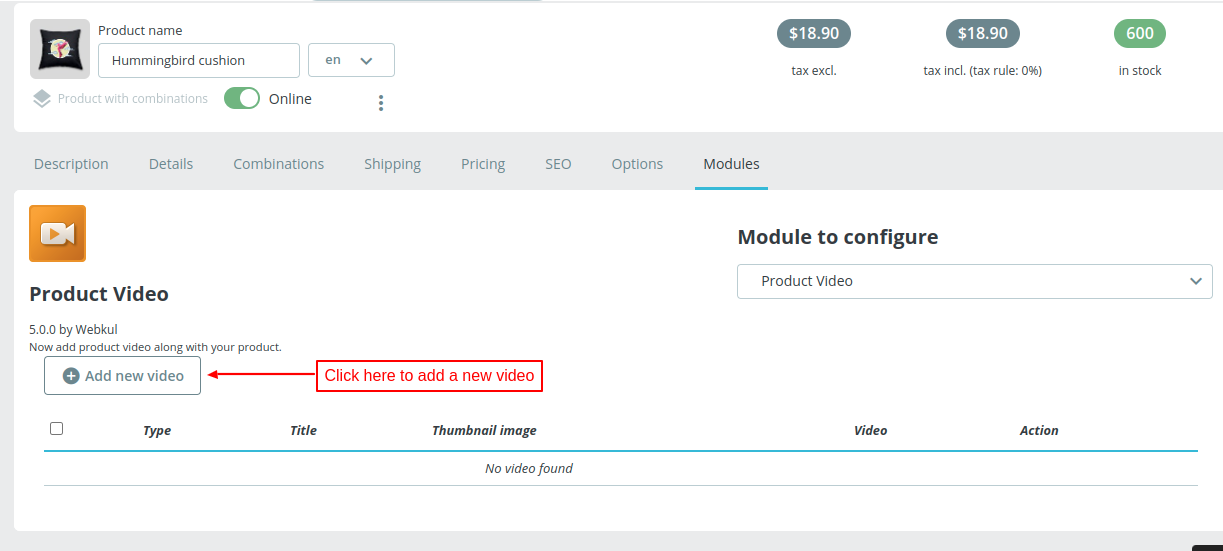
Now, click on ‘Add new video’ button.

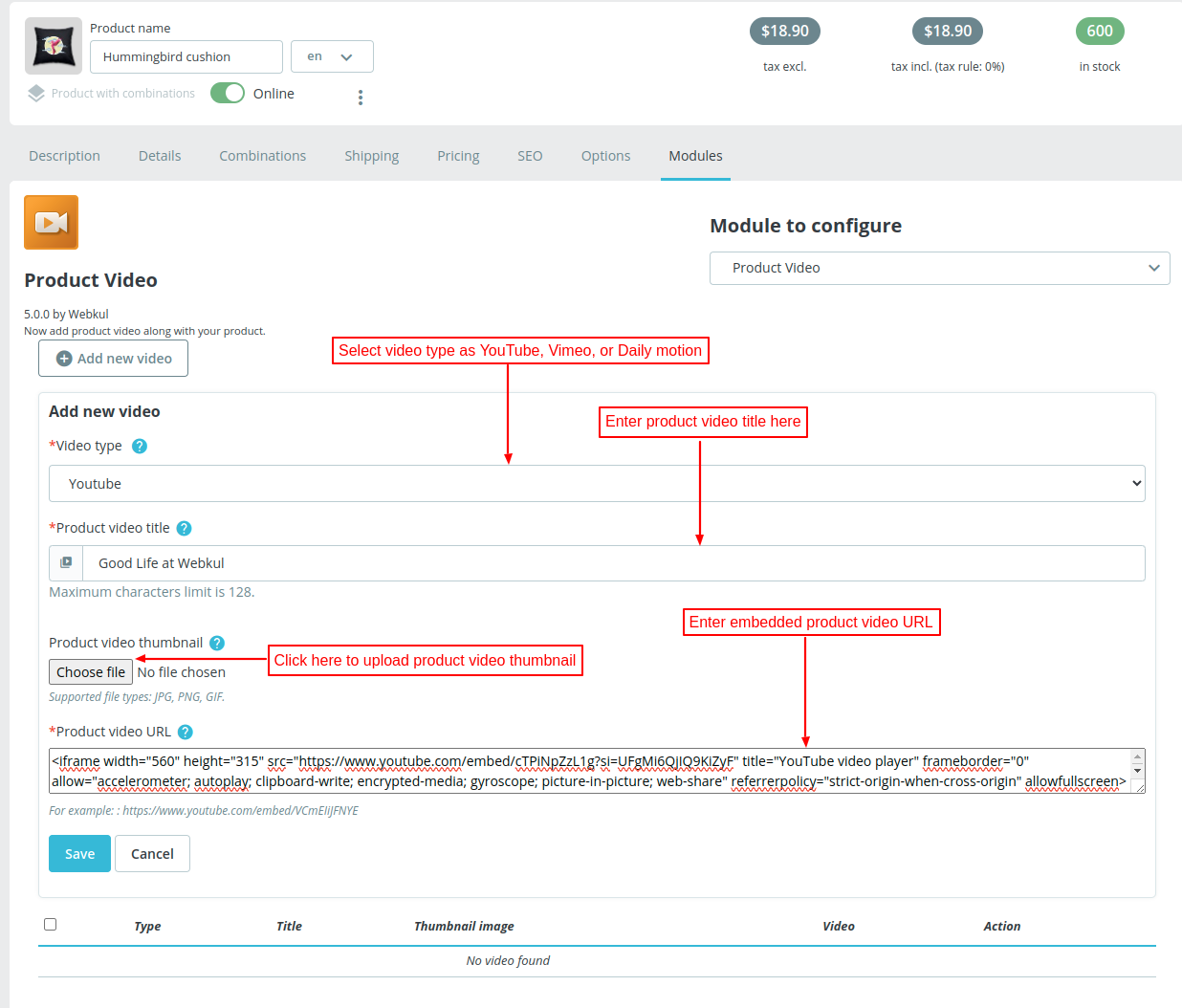
On clicking the button, a form appears with the following options:
- Video type: The admin can choose YouTube, Vimeo, or Daily motion here.
- Product video title: Set the title to be displayed along with the video on front end.
- Product video URL: Enter the embedded URL to show product video on the front end.

Once added, the admin can view it under modules.

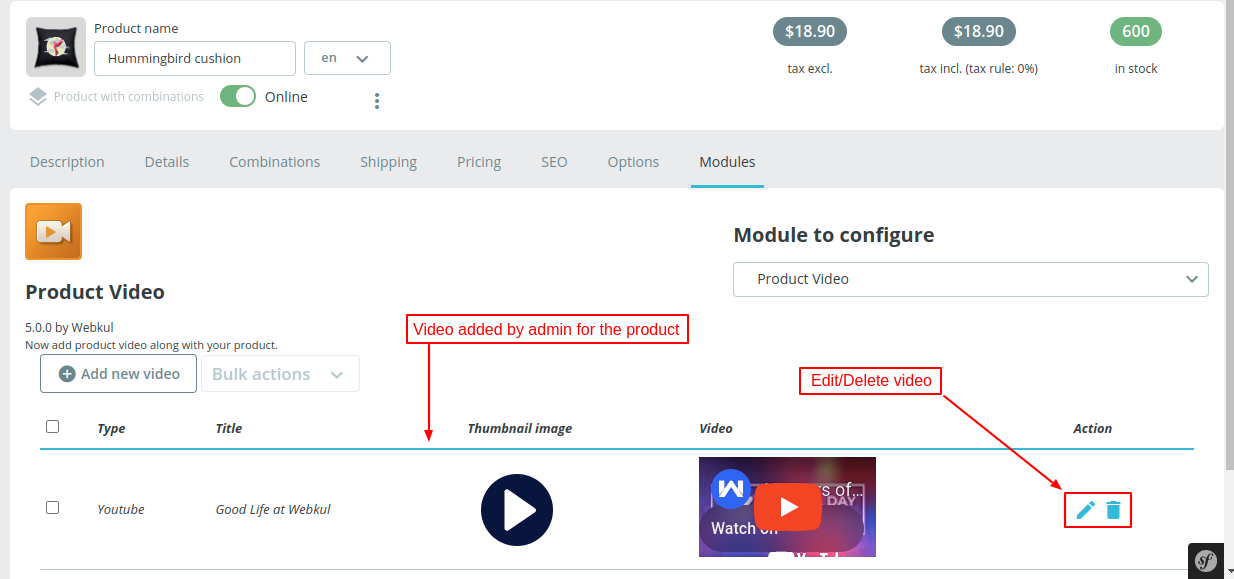
The admin can delete multiple videos at a time using the bulk delete feature.

Front End Flow
The video will display on the position selected by admin on the front end.
Product Thumbnail

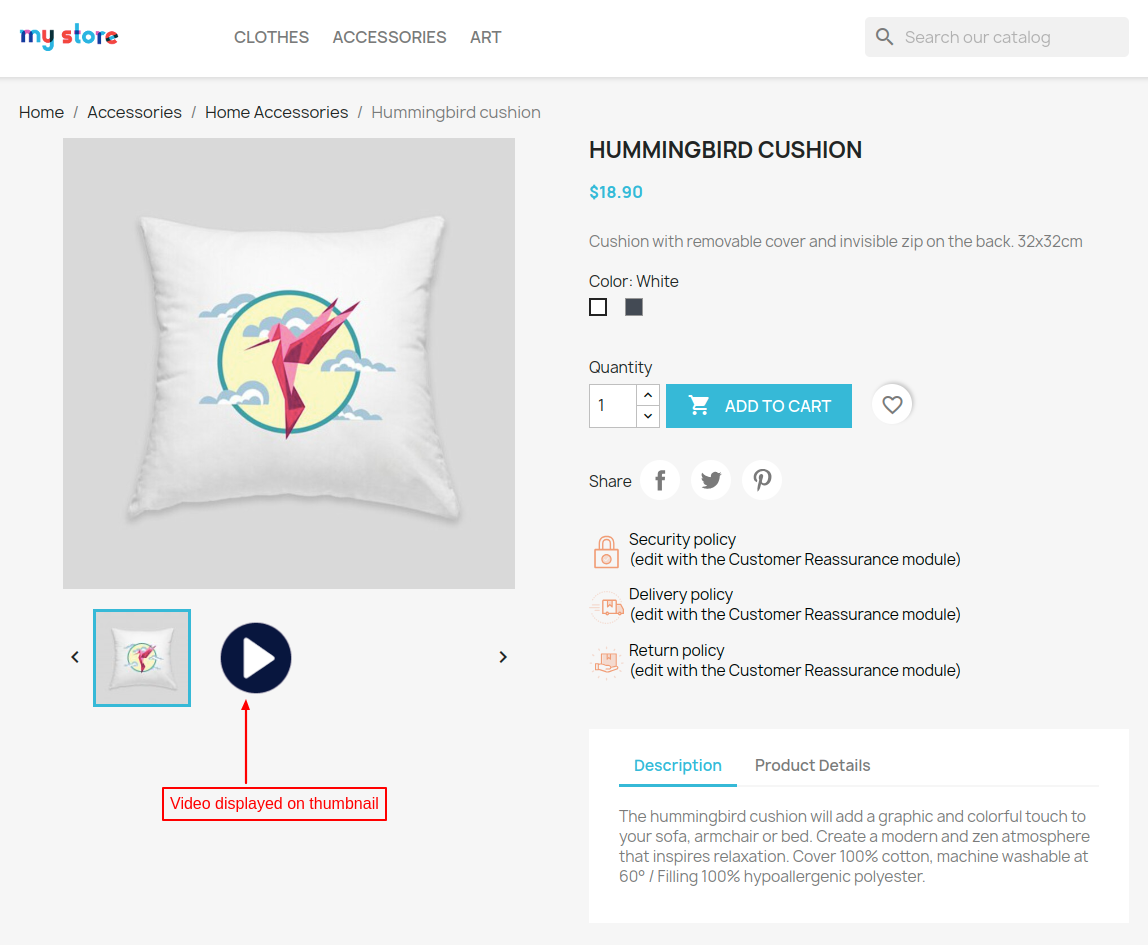
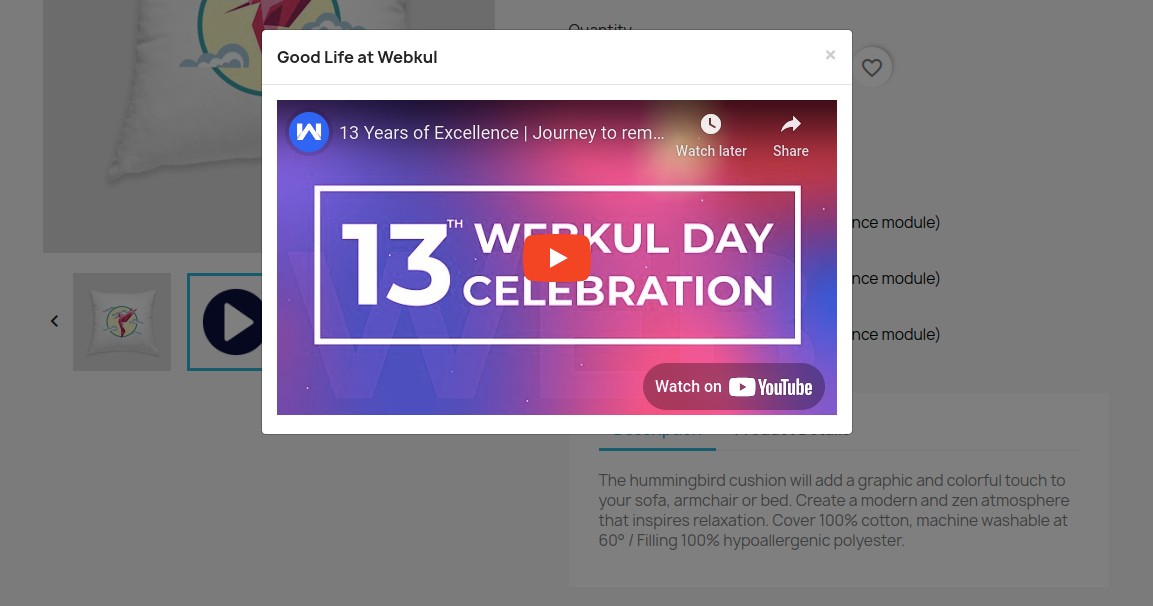
On clicking the thumbnail, a popup appears on the page where a user can view the product video.

Product Footer
In the footer position, the admin can choose to show the videos in a slider or grid view.
Slider View

Grid View

Product footer and thumbnails

Support
For any kind of technical assistance or query, please raise a ticket at http://webkul.uvdesk.com or send us a mail at support@webkul.com
Also, please explore our PrestaShop development services & vast range of featureful PrestaShop Addons.