PrestaShop Marketplace Make an Offer
Table of Content
PrestaShop Marketplace Make an Offer: Improve the online shopping experience and boost conversions by allowing the customers to purchase the products in bulk.
Place the “Make an Offer” button on the product page so your sellers can get offer requests from the customers.
- Customers can specify the desired quantity and price and submit their offer request to sellers.
- Sellers can accept or reject the customer’s offer requests.
- Customers can negotiate with the seller for better prices via a messaging system.
- Multi-Shop Compatible.
Features of the PrestaShop Marketplace Make an Offer module
- Buyer can send the request to buy the products in bulk.
- Seller can easily view the customers offer requests from the front-end.
- Seller can easily sent his quote to the buyer.
- The buyer will have the opportunity to negotiate with the seller.
- If the seller and the buyer has agreed upon, then the seller can easily create a voucher for the buyer.
- After accepting the Offer request, specific price get created for that product.
- The buyer can use the voucher and can avail the benefits.
- Select whether wholesaler request will be auto approved or not.
- Option to select whether admin can approve offer request or not.
- Option to select whether customer can apply offer at once only.
- The admin can view the conversation between the buyer and the seller at any point.
- Module translations available in these languages – Arabic(ar), German(de), Spanish(es), Italian(It), Japanese(ja), Dutch(nl), Russian(ru), French(fr), Portuguese(pt).
NOTE: PrestaShop Marketplace Make an Offer module is MultiShop Compatible with PrestaShop Advanced Multi-Vendor Marketplace version 5.4.0/3.4.0 and above.
How to install the PrestaShop Marketplace Make an Offer module
For installing this module, you need to install PrestaShop Advanced Multi-Vendor Marketplace module first.


After installing the marketplace module, you can install PrestaShop Marketplace Make an Offer module.
- Firstly, go to the module manager in the back office and click on ‘upload a module’.
- After that, drag and drop the module file or select the file from the system.
- In this way, the module installation will be successful.


Module Configuration
In the configuration settings, there are several options available. You will need to configure these options/settings as per your needs.


Wholesaler Request
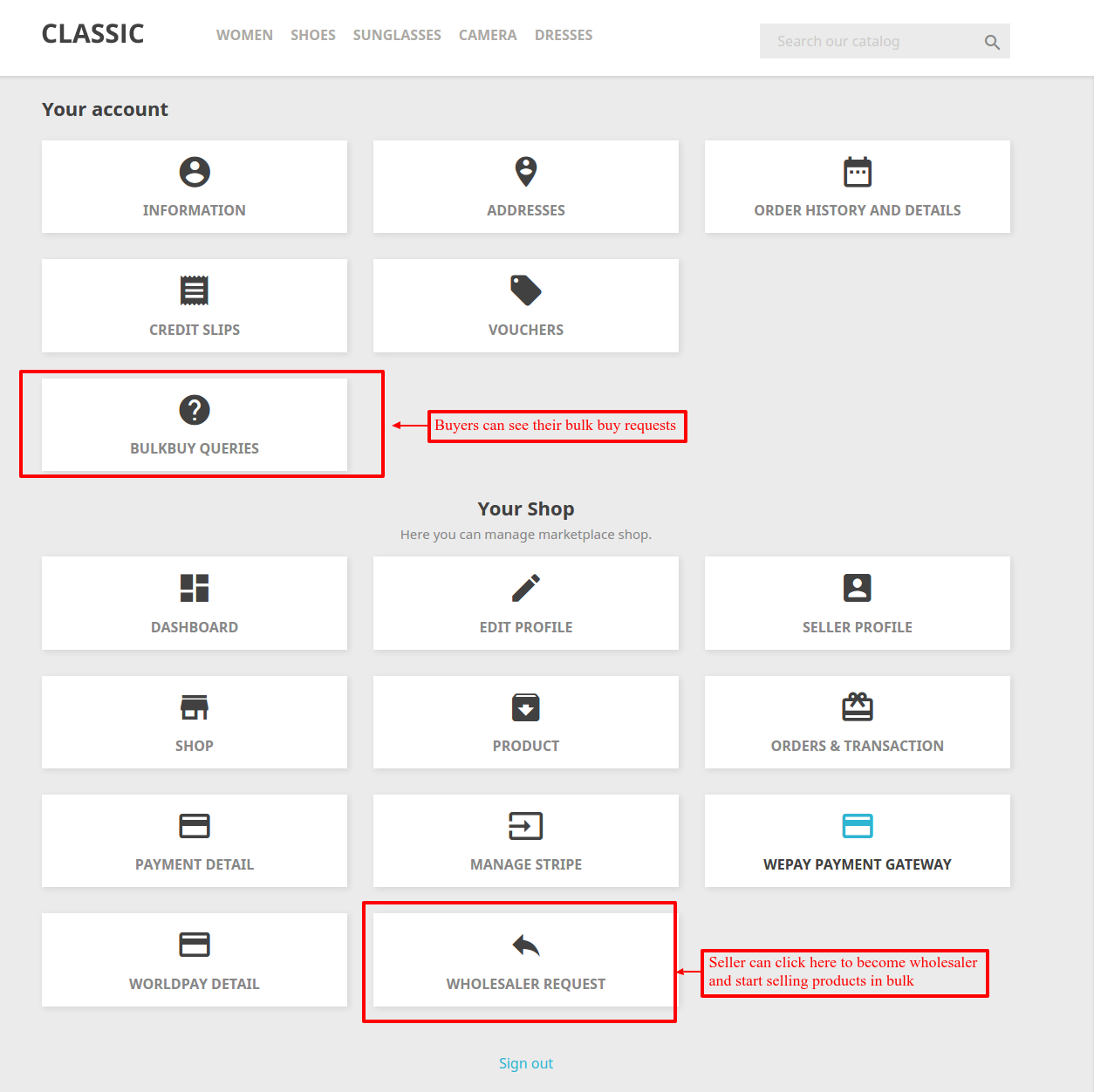
After the successful installation of the module, two new tabs add to the dashboard.
1) My Offer Requests : From here buyer can view the list of offer requests sent to wholesalers.
2) Wholesaler requests: If the seller wants to sell the products in bulk, then he/she needs to send the wholesaler request to admin.
After the admin approves the request, a new button of “Make an Offer” adds to the product page.
In order to become a wholesaler, sellers needs to fill the wholesaler request form.

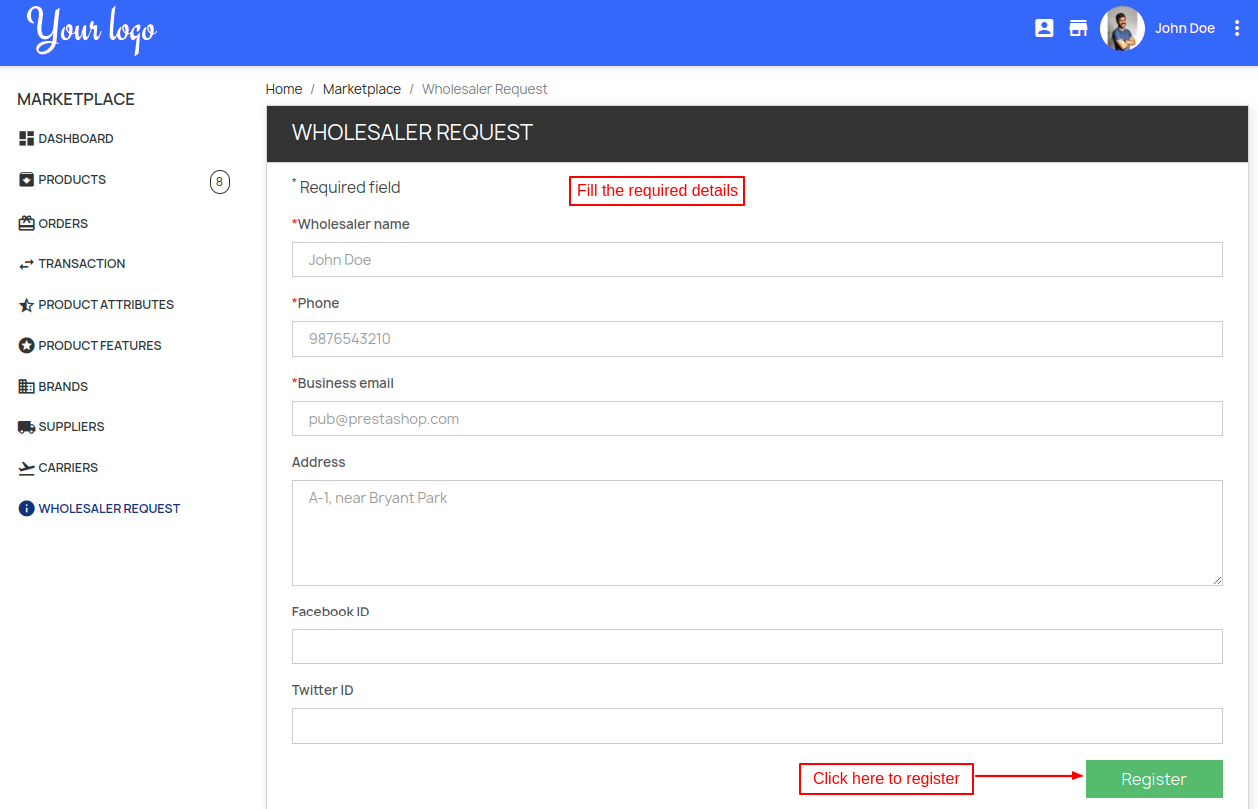
Admin can approve the wholesaler request under Wholesalers tab.
Admin can even edit or delete the wholesaler request. Also, the admin can add wholesaler.


Add Wholesaler form


Admin has approved the Seller Wholesaler request.


Front-end workflow
After the approval of the request, the buyer can see the “Make an Offer” button on the product page.


After clicking the button, a customer needs to fill the price (tax excluded) per unit and minimum quantity for the offer request. Click on the “Send” button to submit the request.


After submitting the offer request, seller will receive an email for the same.
A new tab “MY OFFER REQUEST” is added to the customer’s account. From this tab, he can view the requests created for offer.


In the above screenshot, we can see the offer request is placed for the product. In this offer, the customer has requested 10 products at $ 50 per unit.
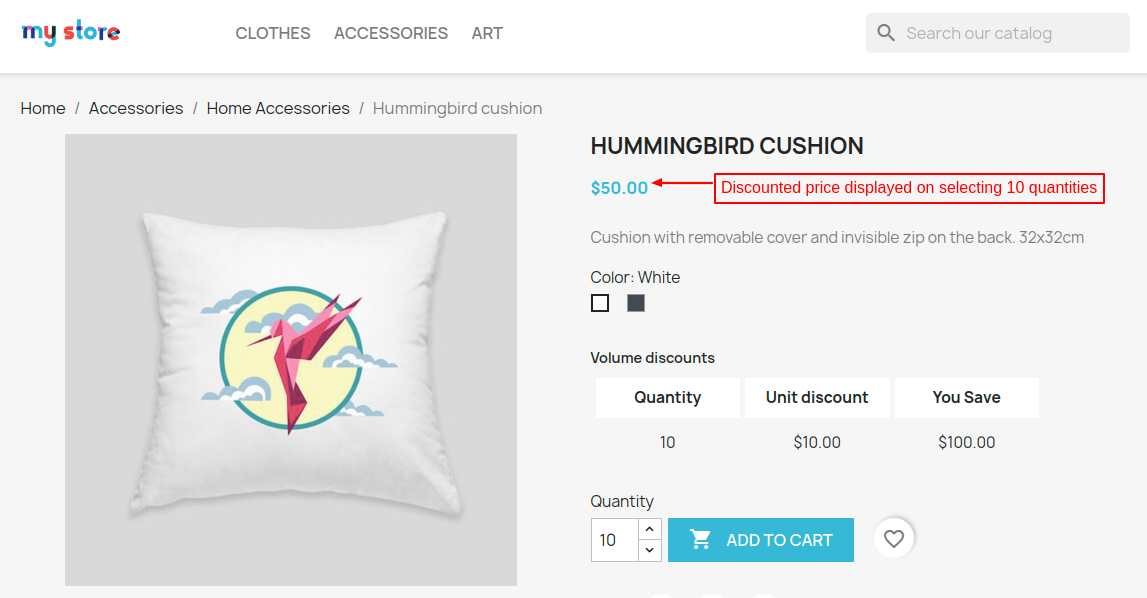
If seller accept this offer, then the customers can purchase 10 or more quantities at a specified price per unit.
Now, a seller can see all the requests under the “Customer Offers’ tab in seller’s panel.


Here, wholesalers can accept, reject, negotiate or reply to the buyers requests.

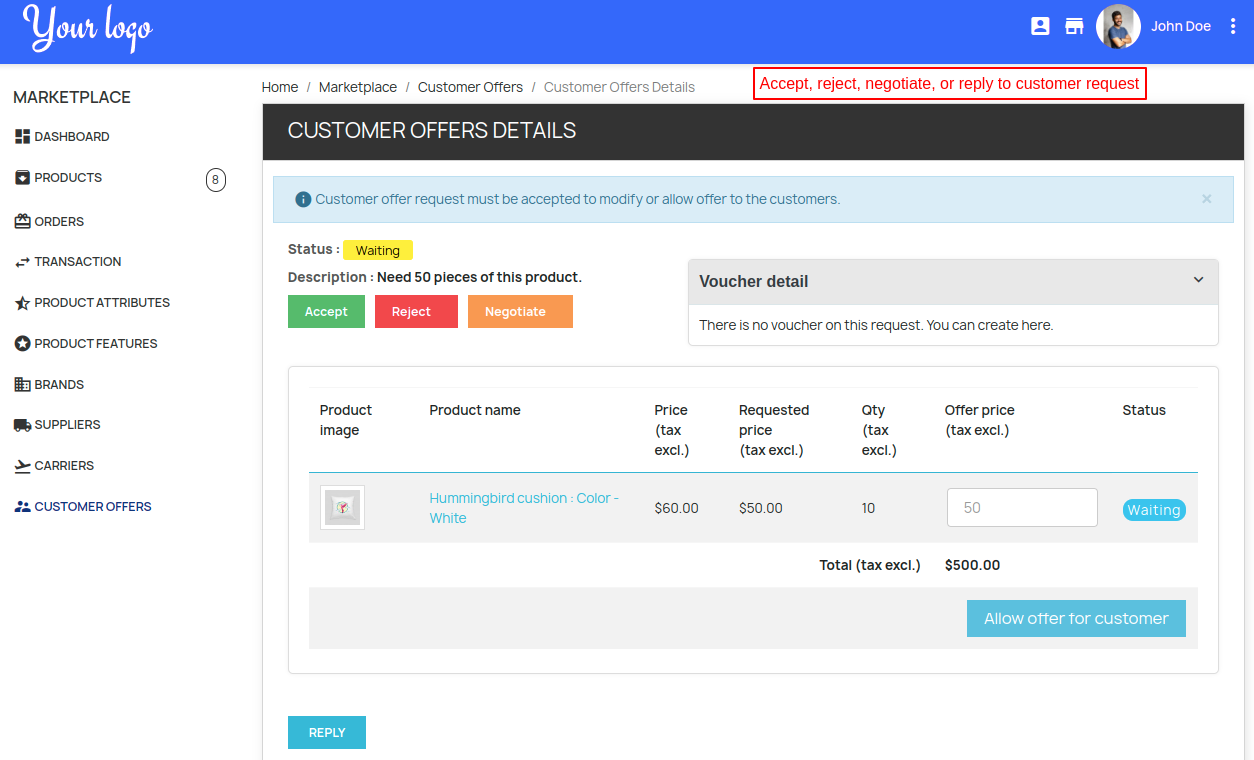
Case 1: Suppose the seller has accepted the customer offer request
The seller can further click on “Allow offer for customer” button in order to get agree on the offer.

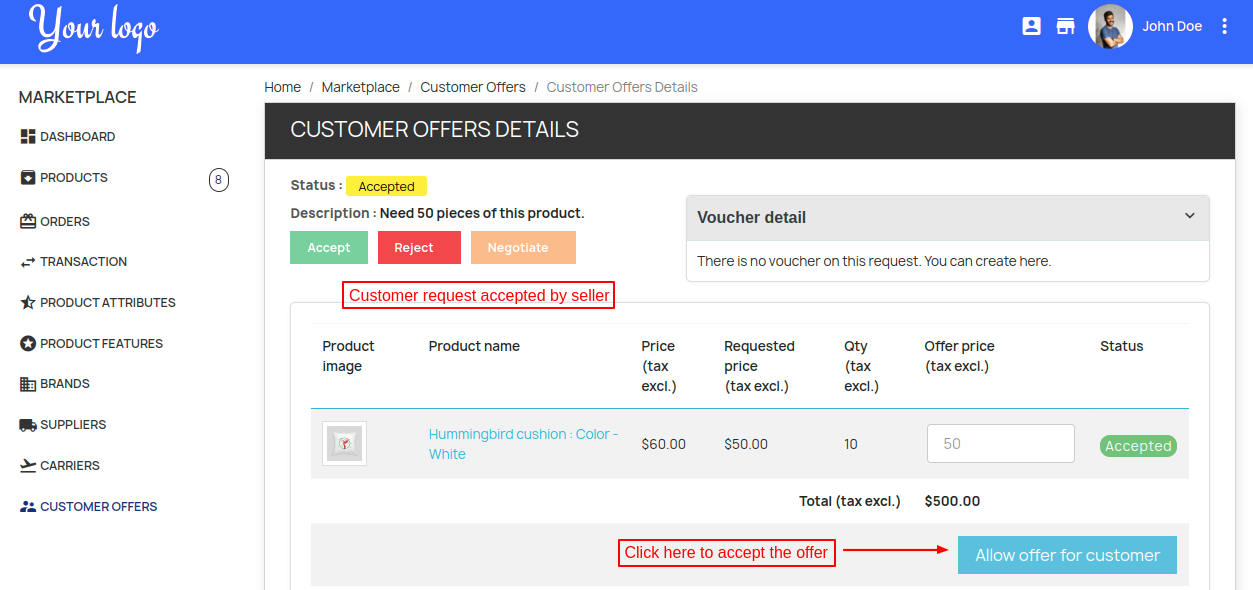
Once the seller clicks on “ALLOW OFFER FOR CUSTOMER” button, the offer request gets accepted and specific price for a customer gets automatically created.


Once admin has accepted the offer request, the customer can purchase the number of items he selected at a specified price per unit.
Also, an email notification for offer acceptance is send to the customer.


Click on the offer request to view offer details.


Case 2: The seller wants to Negotiate with customer.
Now, the seller clicks on the Negotiate button in order to negotiate with the customer.


Customer will view the message sent by the seller.


Whenever a customer sends the message, the seller will receive an email notification.
Thereafter, the seller can Accept the Customer’s Offer Request.
Product Page
Now, a customer can proceed to purchase the product. Kindly note that a customer has to purchase the minimum quantity he specified while submitting the offer request to avail the discount.

Voucher Creation for Offer Request
Admin can also create a voucher for the offer request under Customer Offer Request.


When a customer adds 10 units of product “Men White T-Shirt” in the cart, there he can view the voucher code and apply it to the cart to get the discount.


Offers Conversation
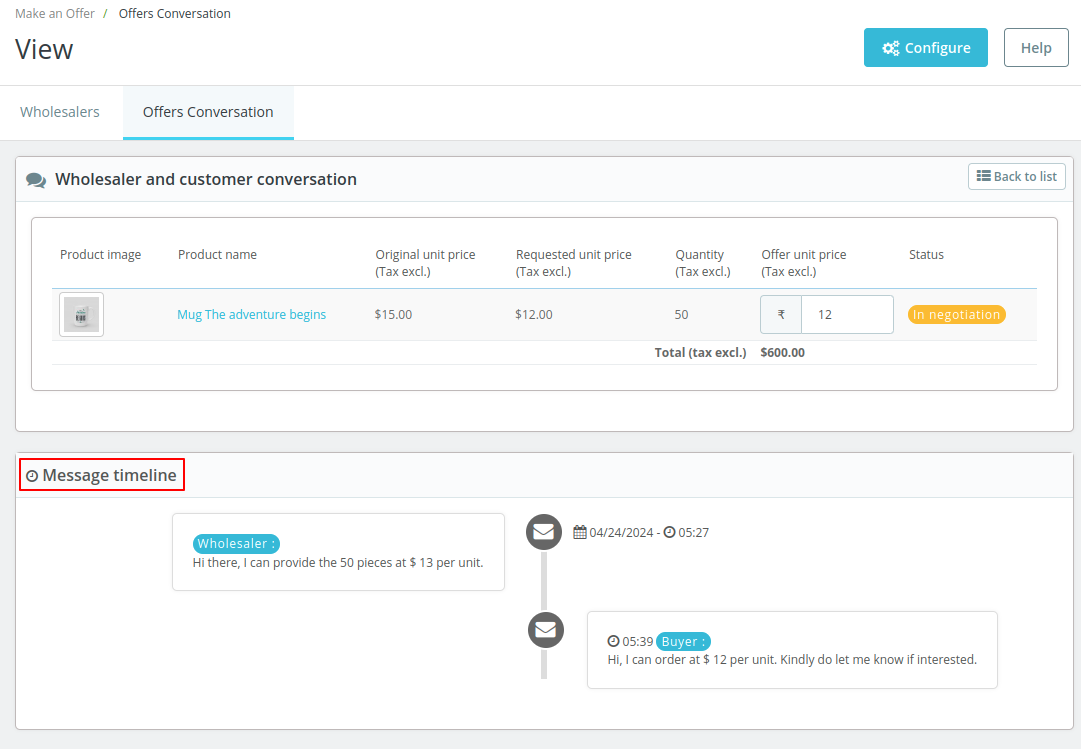
Admin can view conversations between wholesaler and buyer under ‘Offers Conversation” tab.

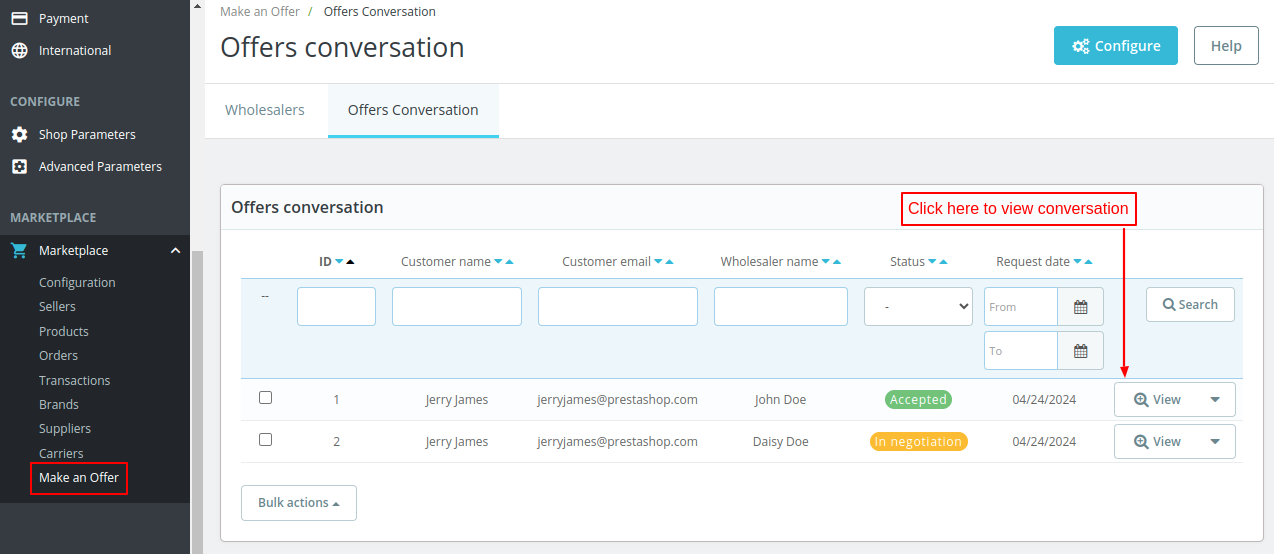
Click on ‘View’ button to view conversation between buyer and wholesaler.

This was all about the PrestaShop Marketplace Make an Offer Module. I hope this document will help you in checking the functionality of the module in a better way.
Also, do let us know about your views in the comments.
Support
For any kind of technical assistance or query, please raise a ticket or send us a mail at support@webkul.com
Also, please explore our PrestaShop development services and vast range of quality PrestaShop addons.