User Guide For Opencart Progressive Web Application
Table of Content
Live Demo
Opencart PWA Mobile App provides customers with a fast and engaging app-like shopping experience directly from the browser.
With the help of Progressive Web App technology, the store can be accessed from the mobile home screen and works smoothly even on slow internet connections.
Customers can browse products, receive push notifications, and interact with the store seamlessly without requiring any app store installation.
With the use of this feature, the website works faster on a slower internet connection. Due to the faster performance, user engagement increases on the website and results in a very high conversion rate.
Note: Your store must be served over a secure server (HTTPS) to enable and use the PWA Mobile App features properly.
What is the need for a Progressive Web Application?
The Progressive Web Application is recommended because it is more immersive and lightning-fast than a website or native application. Progressive Web Application also user-friendly if compared to the website and supports the push notification.
The best part of Progressive Web Application is that a user can use many of the features without an internet connection and once the mobile is connected to the internet the data gets synced.
In short, you can say that if you are providing a platform to your user which is userfriendly and faster then it will definitely increase the engagement of the users and increase in sale.
- The website becomes lightning fast.
- More user-friendly.
- Supports push notification.
- No need to download/install.
- Works fast even on a slow connection.
- Increases User engagement.
- Increase conversion rate.
I have developed a native application for my store, do I still need the Progressive Web Application?
For a native application, users first need to search the application in the relative store, download and install it, and then they can open and use the application.
According to a study, an application loses 20% of its users on every step, from search to start using the app feature. However, a user can start using a progressive web application as soon as they find the application.
There, is no need to search, download, and install the application. Also, you need to upgrade the native application with every version of Android or iOS.
You can check that many of the applications are not available for the most recent or past very old version of Android. However, the Progressive Web Application works with the browser and designed to enhance browser compatibility.
We are not at all saying that a native application is bad but these are few merits of the progressive web application in comparison to native applications. If you are running a business then you should reach to all type of users.
If you are using a well-designed native application like Mobikul then it will surely give you high performance and consume low data but if you want to reach all types of customers then you should definitely go for Progressive Web Application.
Features Of Opencart Progressive Web Application
- More user-friendly compared to traditional web applications
- Delivers faster performance than standard websites
- Supports real-time push notifications
- Fully responsive across all devices and platforms
- Works smoothly even on low or slow internet connections
- Provides a native app-like look and feel
- Allows users to add the store to the home screen
- No need for users to manually update the application
- Does not require app store installation or management
- Enhances user engagement on the store
- Helps improve store conversions through better engagement
- Admin can set the application name
- Admin can upload and update the application icon
- Admin can configure splash screen background color
- Admin can set page background color
- Admin can customize header and font colors
- Supports Firebase configuration for push notifications
- Provides easy PWA setup and configuration from the admin panel
Installation Of Opencart Progressive Web Application
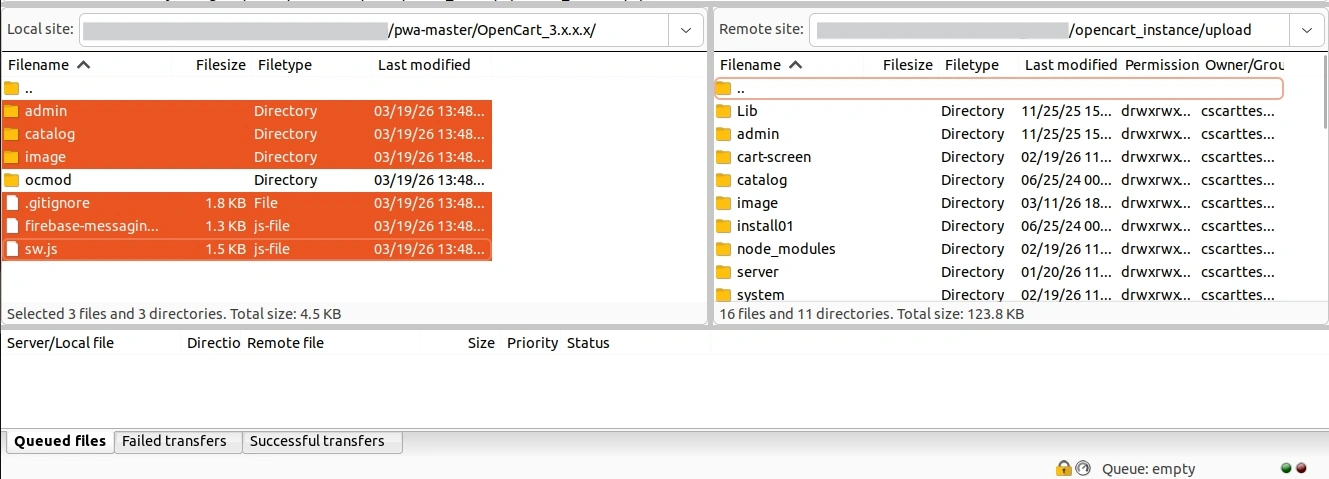
Installation of Opencart Progressive Web Application module is easy. In the zip file of the module, you will find 4 folders, namely admin, catalog, image, and ocmod with sw.js, firebase-messaging-sw.js files.
You just need to upload the admin, catalog and image folders with the sw.js, firebase-messaging-sw.js files to the root directory of your website.

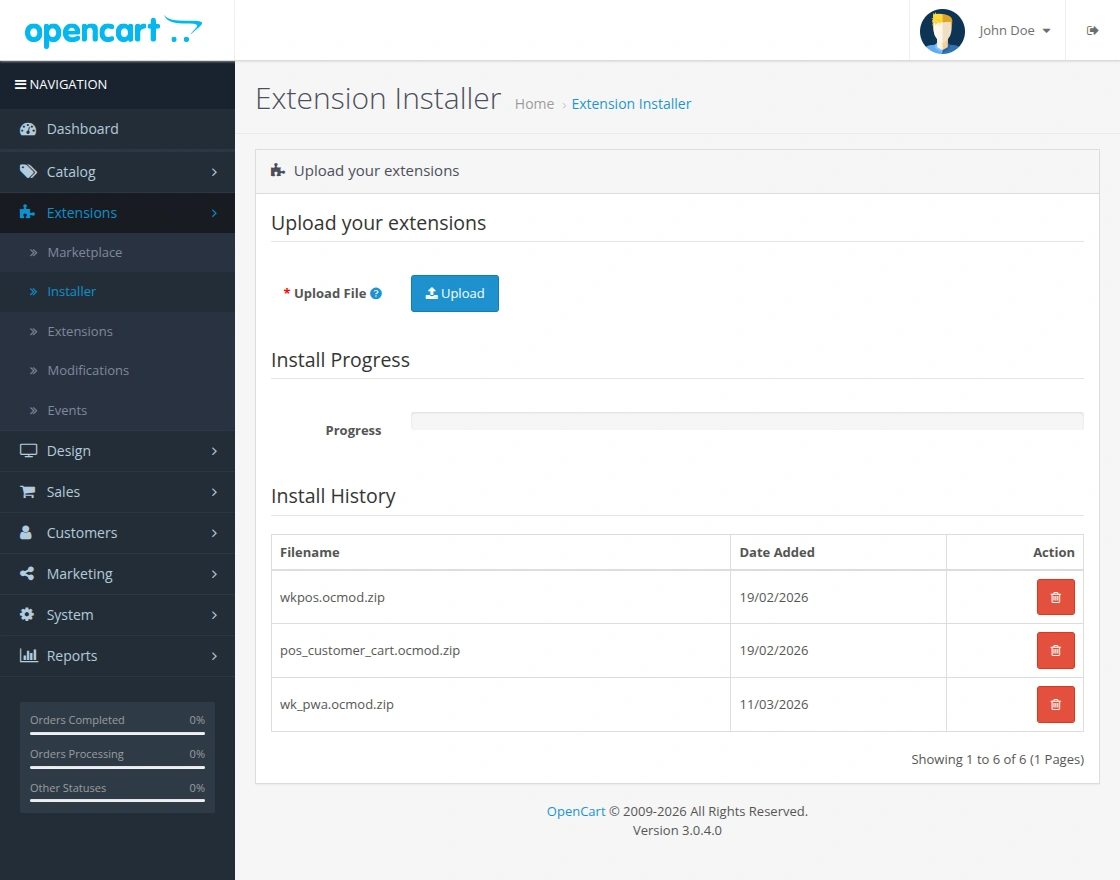
Once you have uploaded the file then login to admin and go to “Extensions > Extension Installer” and upload the ZIP file. The ZIP file can be found in the ‘ocmod’ folder.

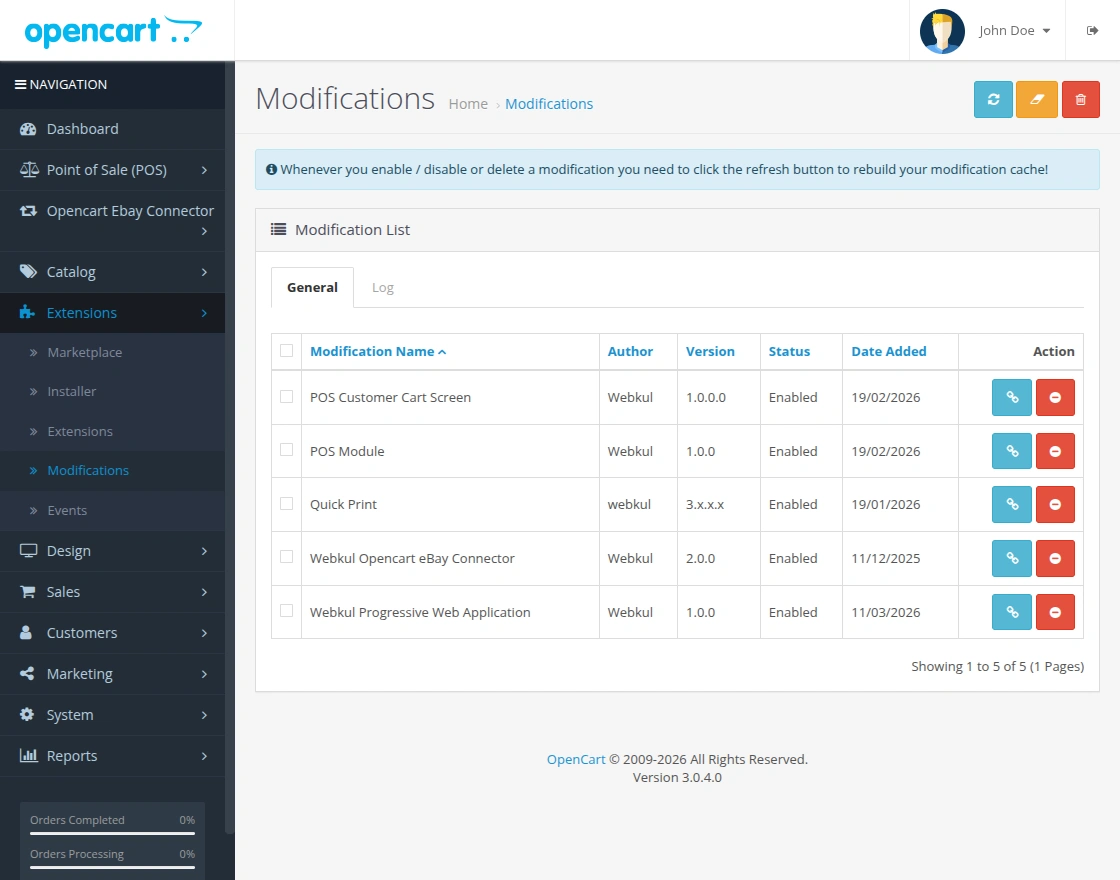
On uploading the ZIP file go to the “Extensions > Modifications” and click on the refresh button to rebuild the modification cache.
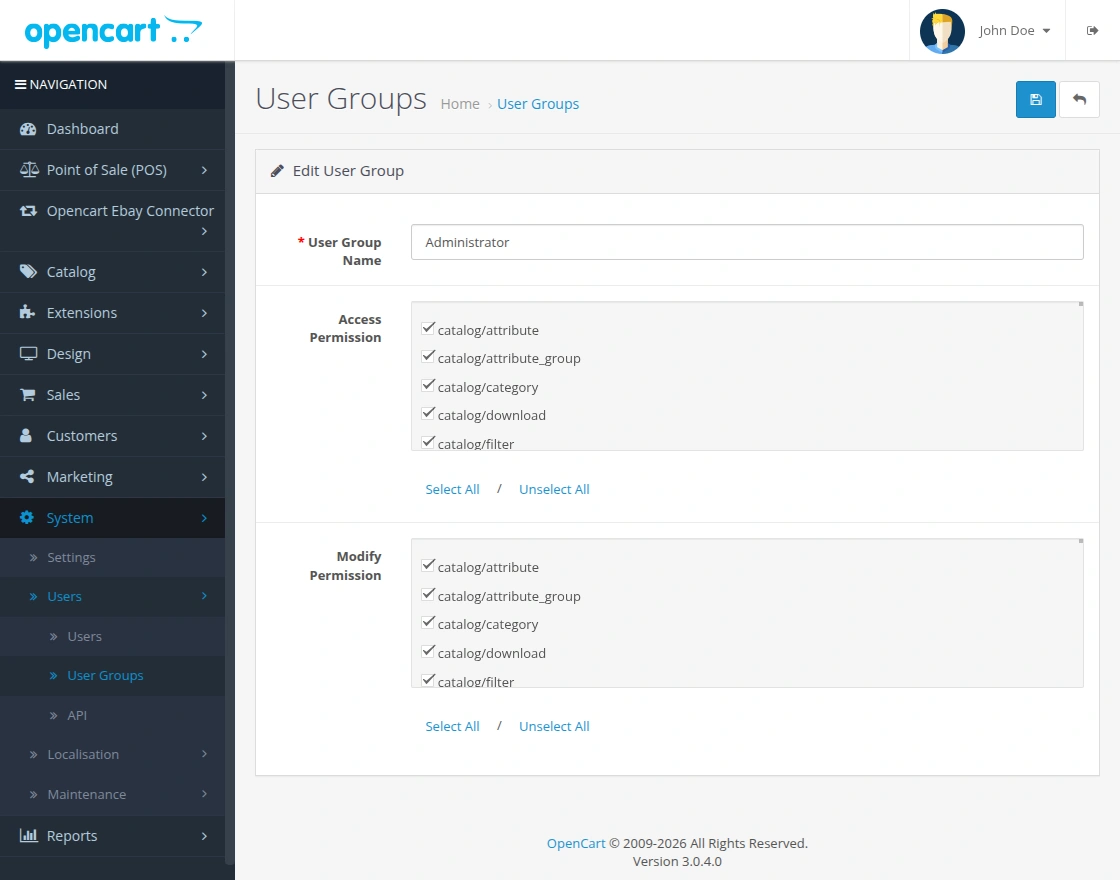
After that in the admin panel go to “System > Users > User Groups” and edit “Administrator” and select all for both ‘Access Permission’ and ‘Modify Permission’ then save it.
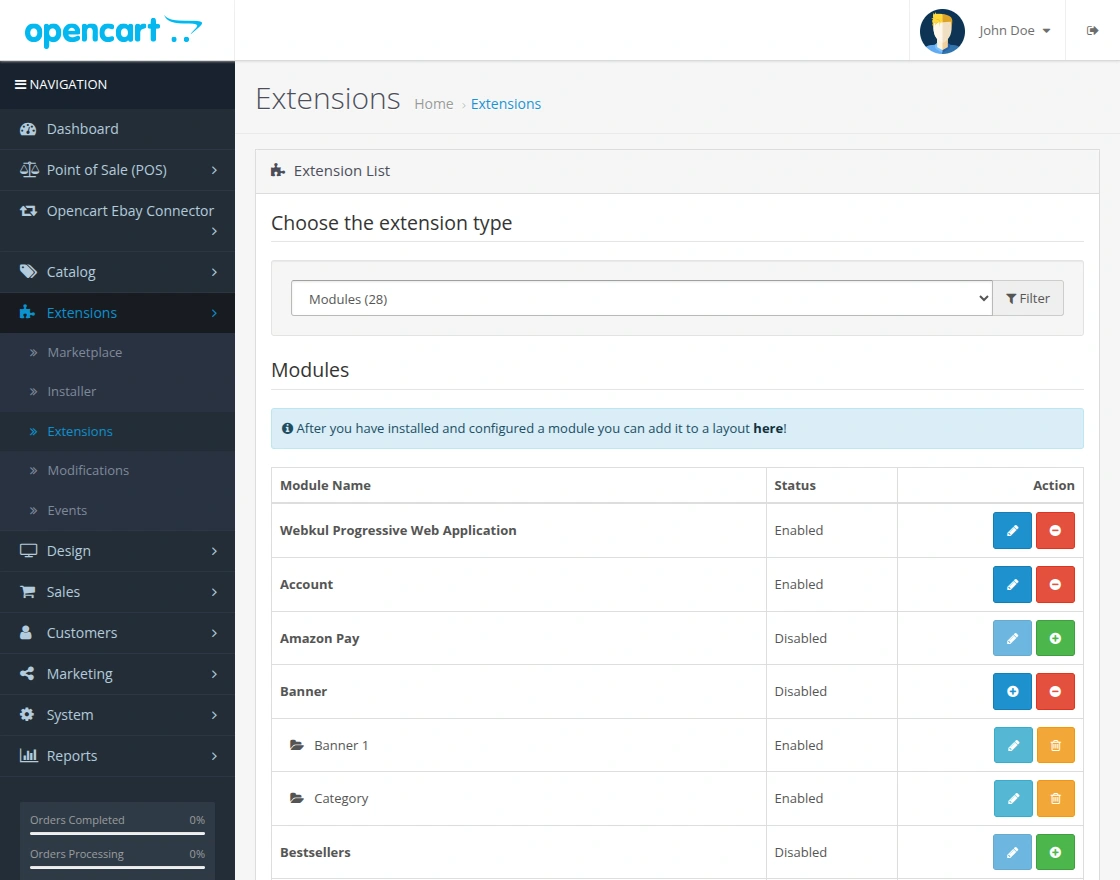
After that under “Extension > Extensions” select ‘Modules’ from the dropdown and install the ‘Opencart Progressive Web Application’ by clicking the install button.
Module Translation
As this Opencart Progressive Web Application module supports multiple languages so this section will describe how to make the module work in different languages.
Please check this link for language translation
How to create Firebase Project Credentials
To configure the Opencart PWA Mobile App, you need to generate Firebase project credentials. Follow the steps below:
Please visit this link and create a new project with your Gmail account.
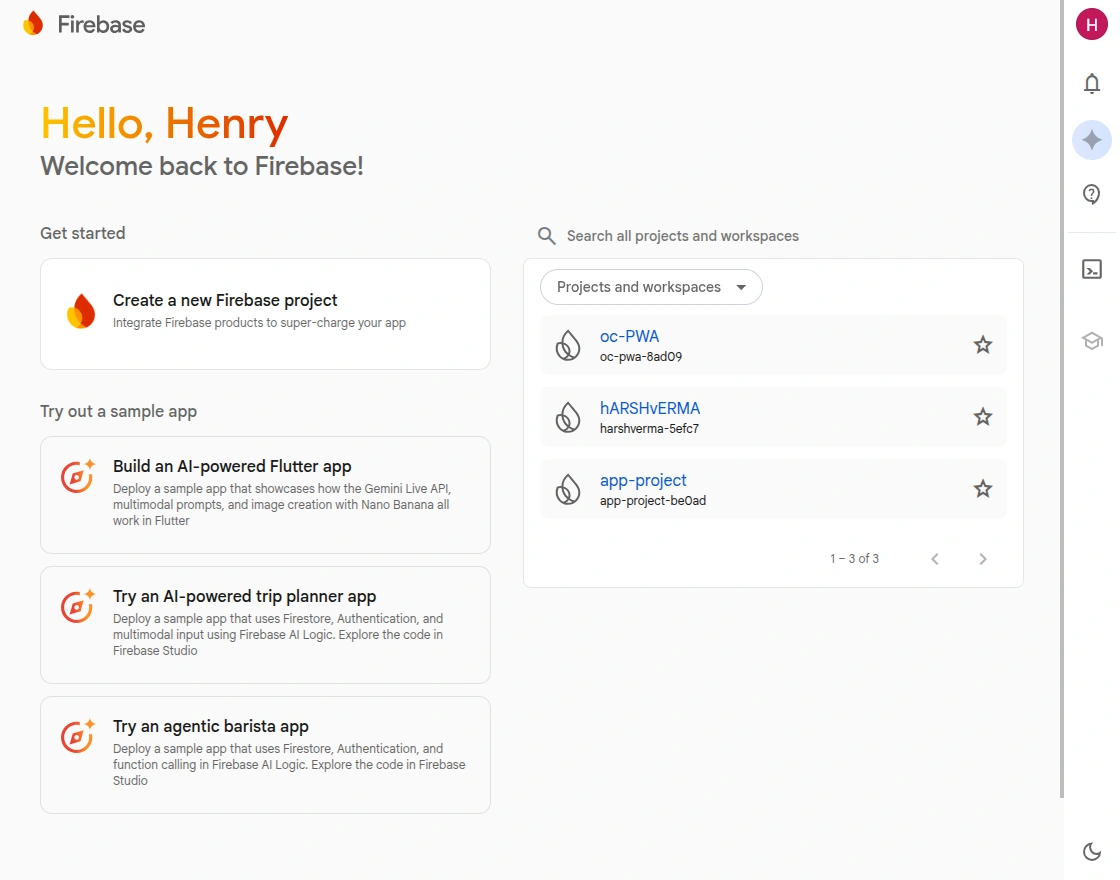
Step 1: Login to Firebase Console
First, visit the Firebase Console and log in using your Google account.
Here, you will see the dashboard with existing projects and an option to create a new project.
Step 2: Create a New Project
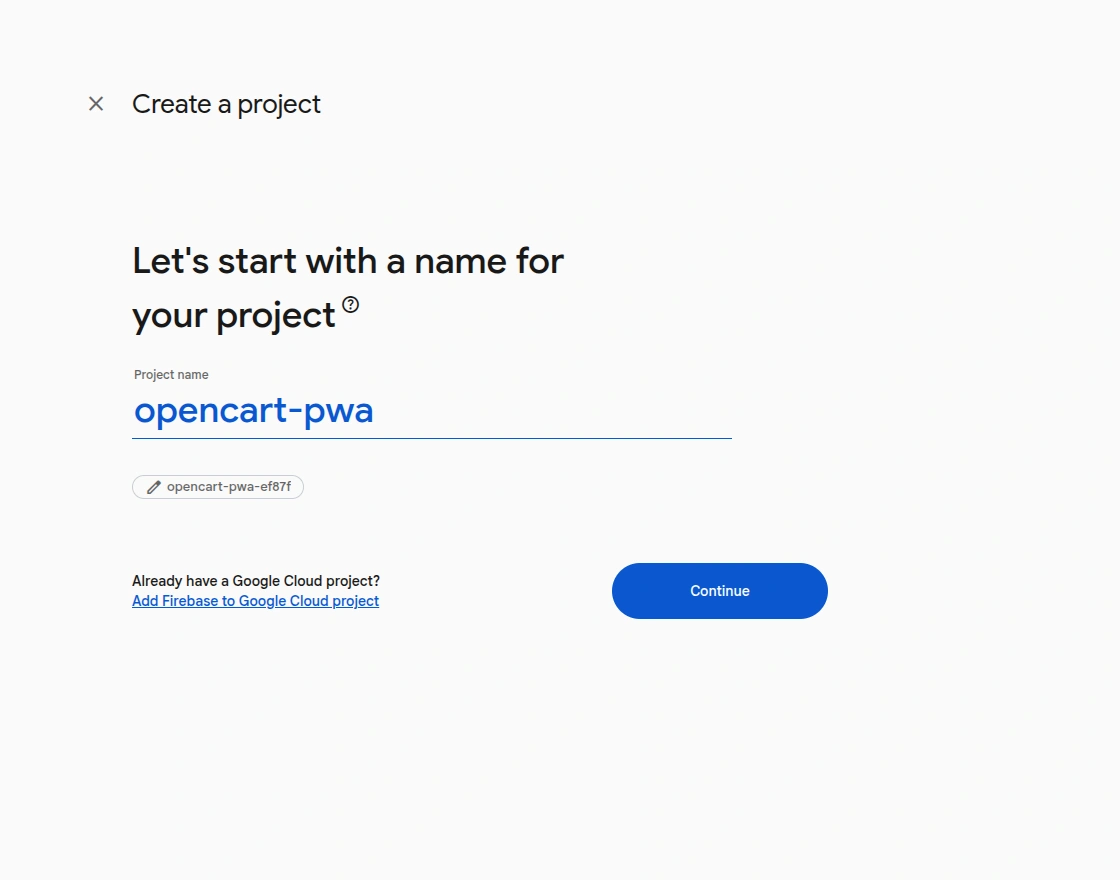
Click on “Create a new Firebase project”.
Enter your project name (e.g., opencart-pwa) and click on Continue.
Step 3: Project Setup Completion
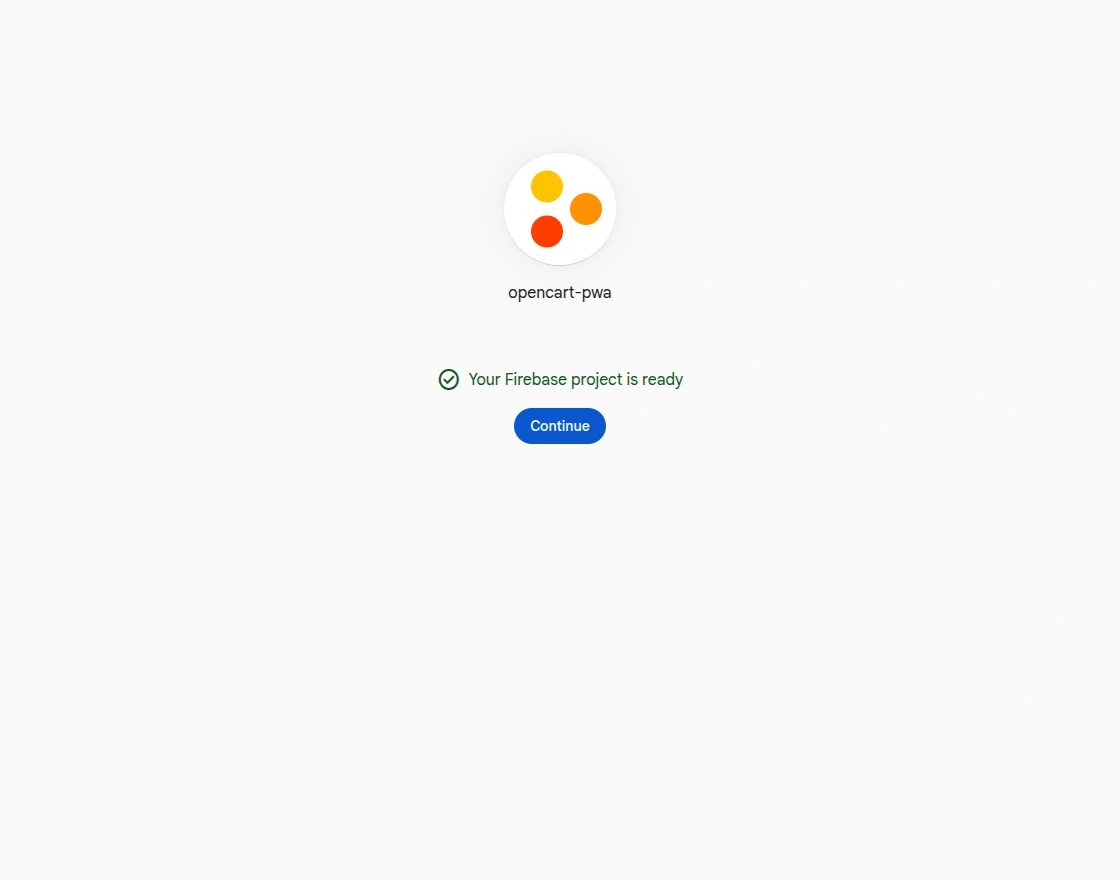
After entering the details, Firebase will create your project.
Once done, you will see a confirmation screen.
Click on Continue to proceed.
Step 4: Open Project Dashboard
Now, you will be redirected to the Firebase project dashboard.
From here, you can manage all Firebase services and settings.
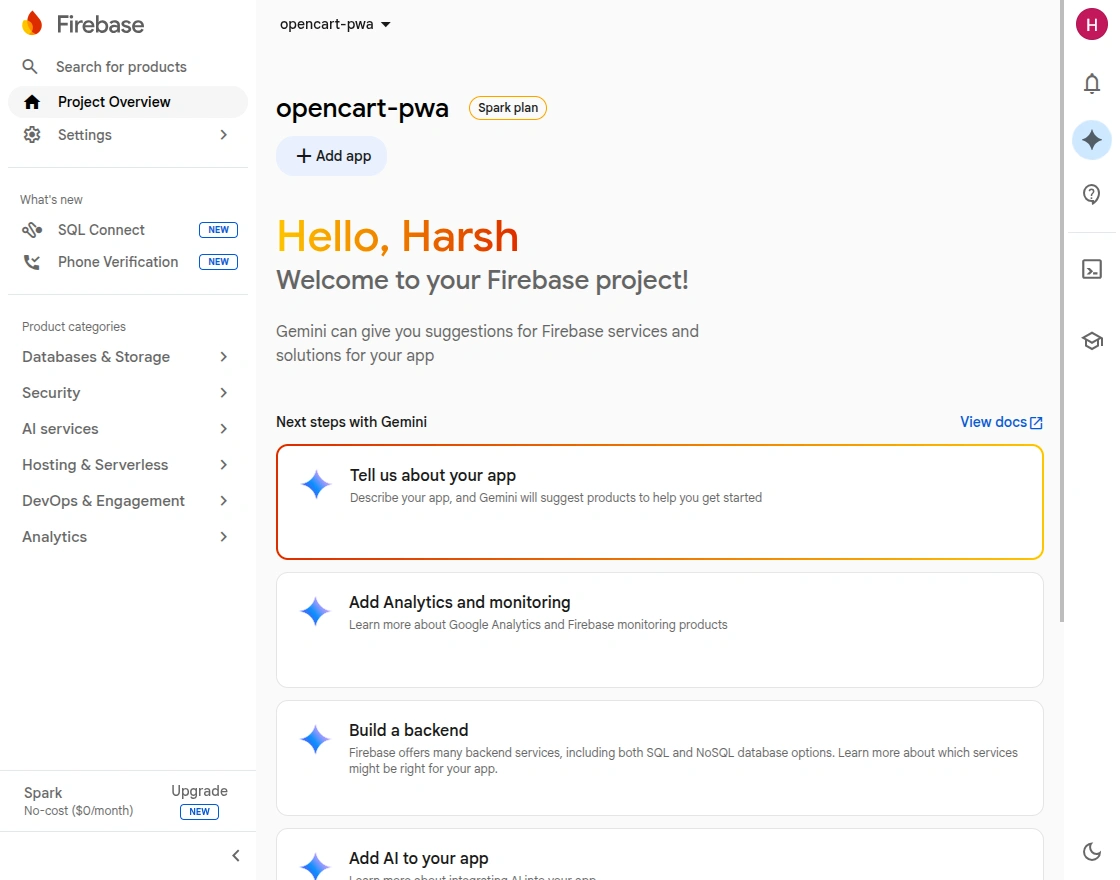
Step 5: Add Web App & Get Configuration Details
Click on the Web (</>) icon to add your web app.
After registering the app, Firebase will generate configuration details like:
- API Key
- Auth Domain
- Project ID
- Storage Bucket
- Messaging Sender ID
- App ID
Copy these credentials and paste them into the Opencart PWA module configuration.
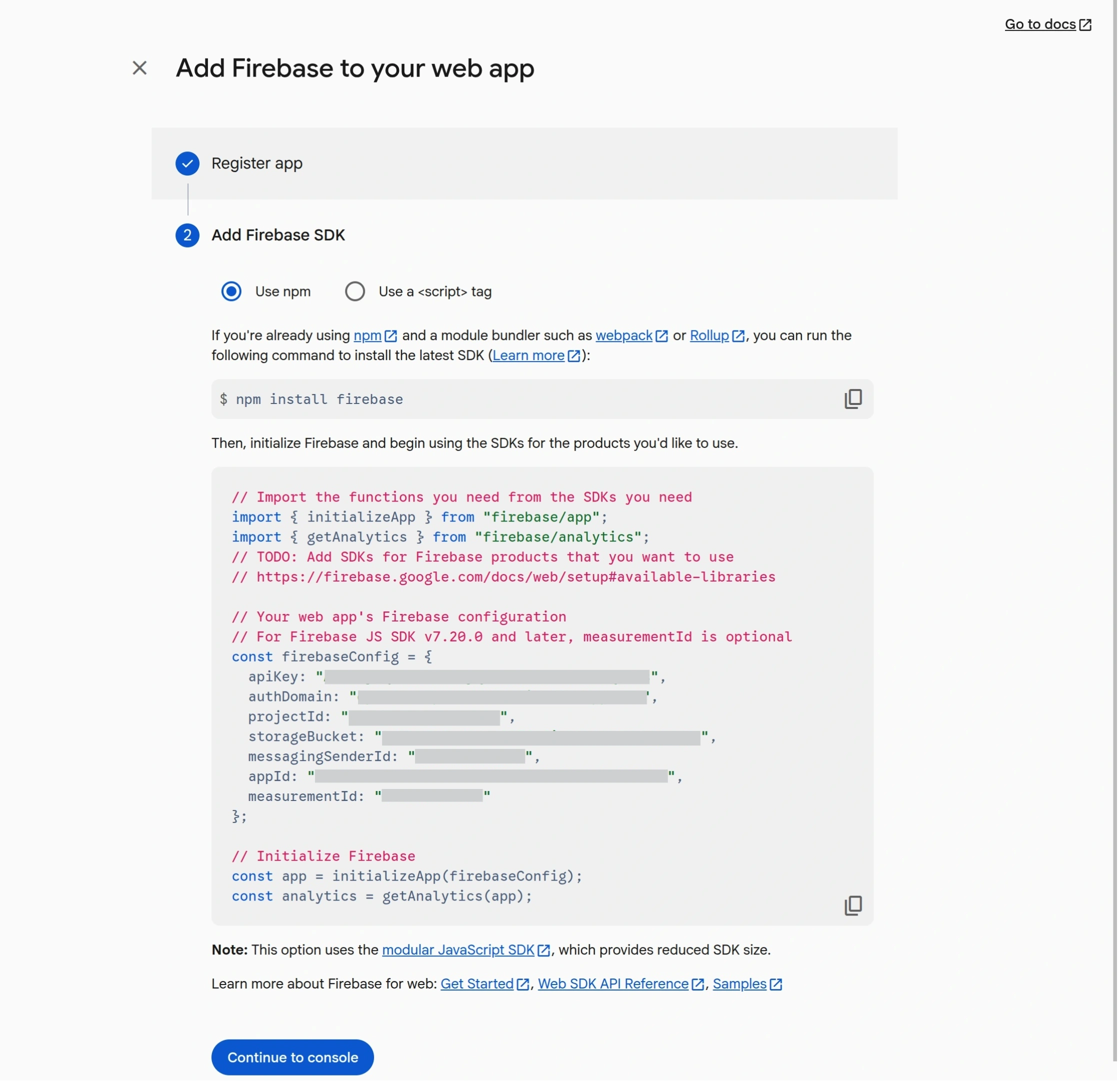

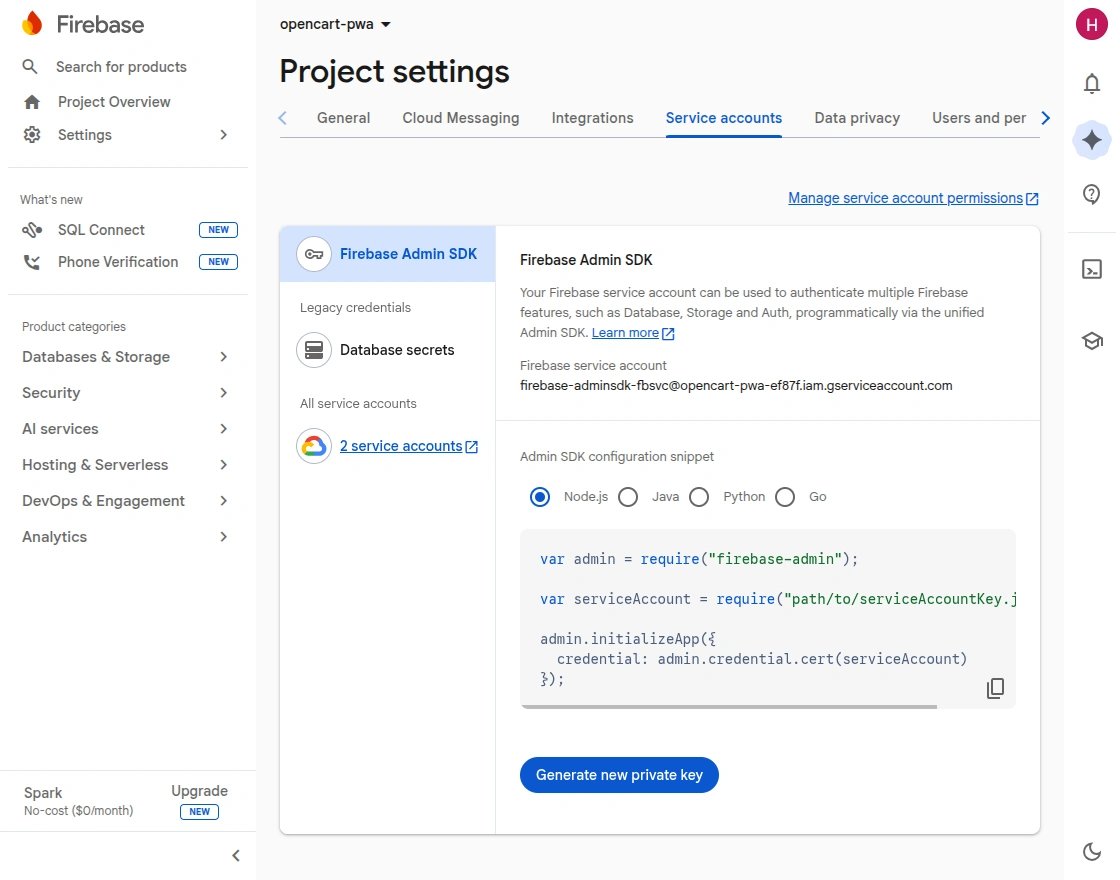
Step 6: Generate Firebase Private Key
Go to:
Project Settings > Service Accounts tab
Click on “Generate new private key” to download the JSON file.
Upload this file in the Firebase Private Key field in your module.
Configuration of Opencart Progressive Web Application
After successful installation under “Extension > Extensions” select ‘Modules’ from the drop-down and click the edit button of ‘Opencart Progressive Web Application’ for configuration.
Here the admin can configure all the required fields as below image.
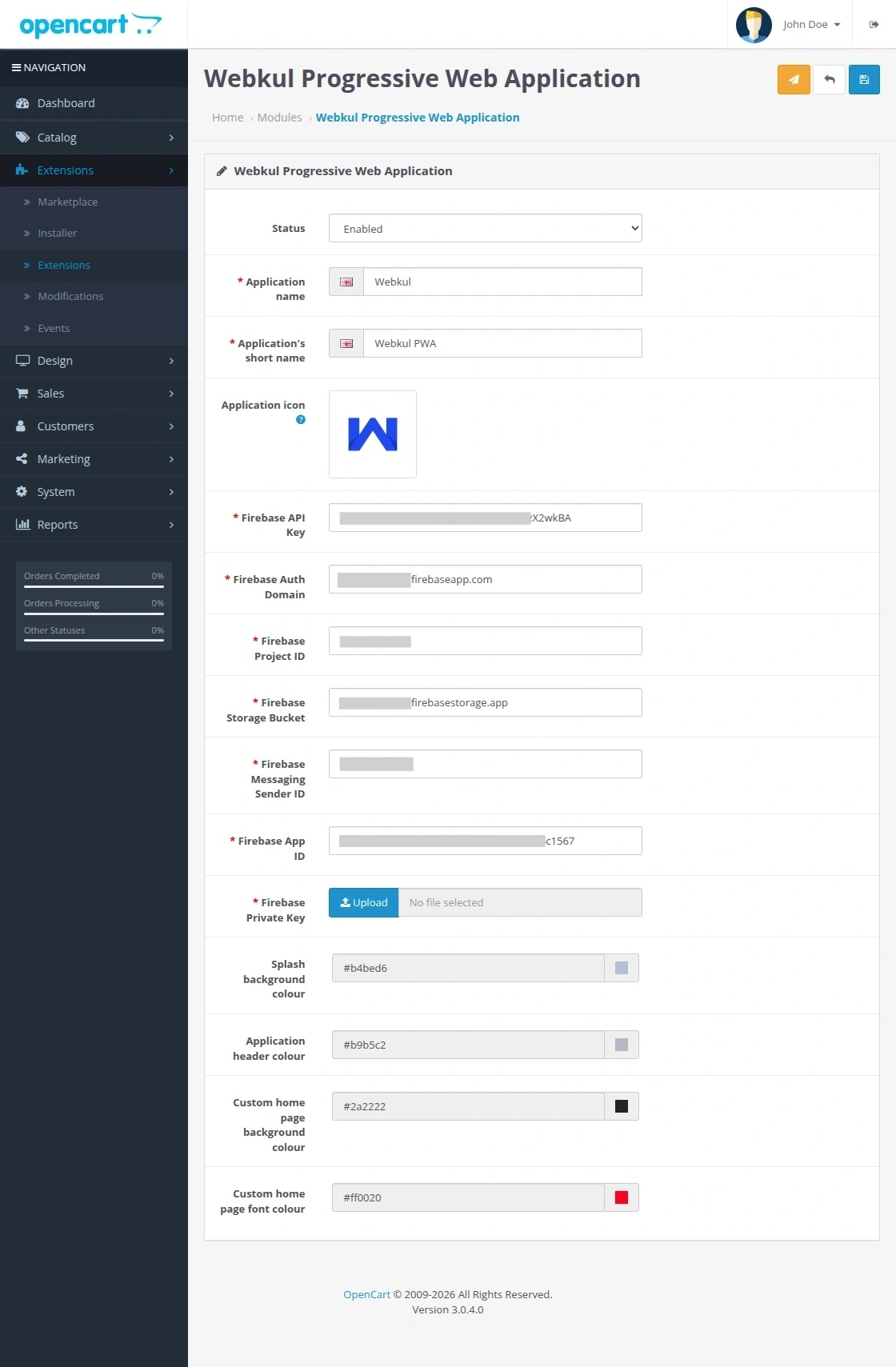

Configuration Settings
Status: Enable or disable the PWA module as per requirement.
Application Settings
Application Name
Enter the name of the application that will be displayed on the mobile home screen.
Application Short Name
Provide a short name for the application icon display.
Application Icon
Upload the icon that will represent the app on the user’s device.
Firebase Configuration
Firebase API Key
Enter the API key generated from your Firebase project.
Firebase Auth Domain
Provide the authentication domain from Firebase, which is required for authentication services.
Firebase Project ID
Enter the unique project ID associated with your Firebase setup.
Firebase Storage Bucket
Add the storage bucket URL to manage file storage within Firebase.
Firebase Messaging Sender ID
Enter the sender ID used for enabling push notifications.
Firebase App ID
Provide the app ID to connect your application with Firebase services.
Firebase Private Key
Upload the private key file to establish secure communication with Firebase.
Design Customization
Splash Background Color
Set the background color for the app splash screen.
Application Header Color
Customize the header color of the application.
Custom Home Page Background Color
Define the background color for the home page.
Custom Home Page Font Color
Set the font color for the home page content.
Push Notification
The admin can configure the push notification from the here to share the updates on store. For this the admin needs to click on push notification icon.
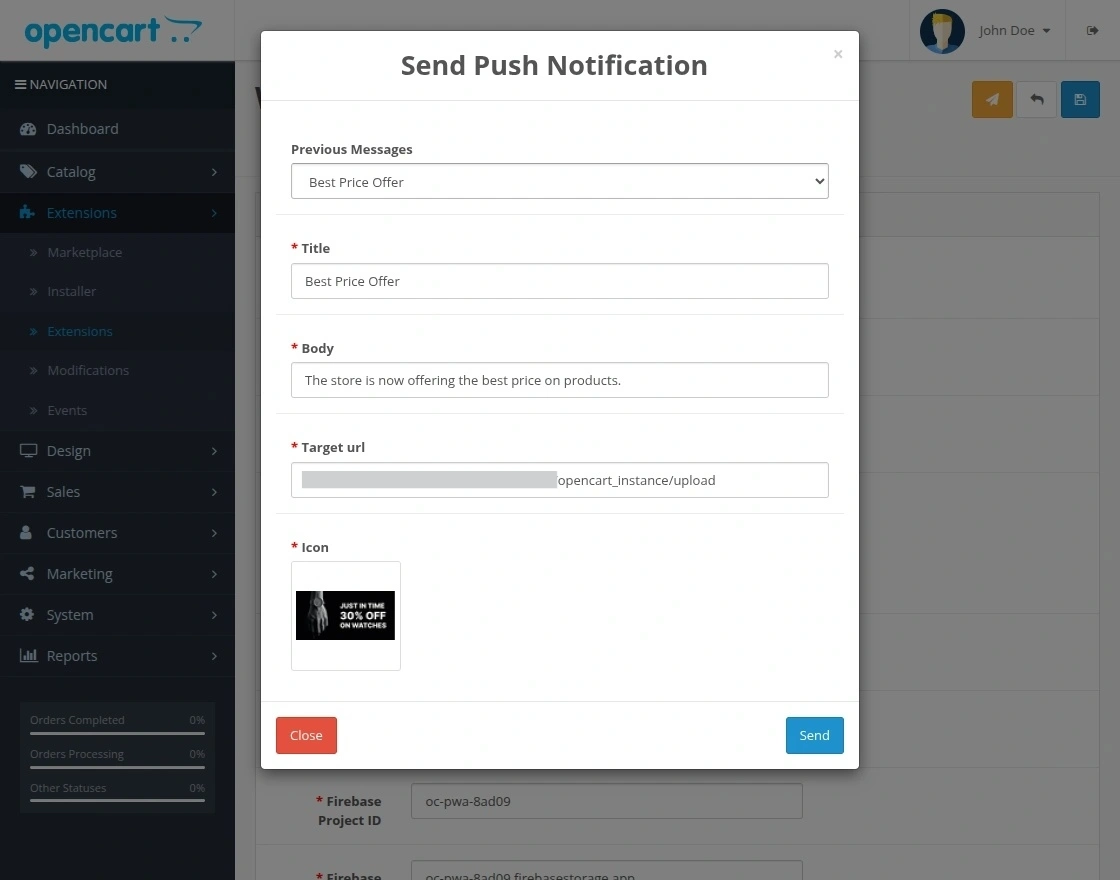
Here, the admin needs to enter the details that is meant to be shared in the notification.
- Previous Message- In case the admin wish to share any message shared earlier.
- Title- The intial title of the notification that admin needs to share.
- Body- The text of the notification that is to be shared by the admin.
- Traget URL- This url is where the customers will be redirected on clicking the Push Notification.
- Icon- The repersentative image related to the notification.
How a Customer can use Opencart Progressive Web Application
A customer can open the website on a browser of the mobile device. Here we have shown the working on chrome. From here customer can click on the menu icon of chrome to add the application to the home screen.
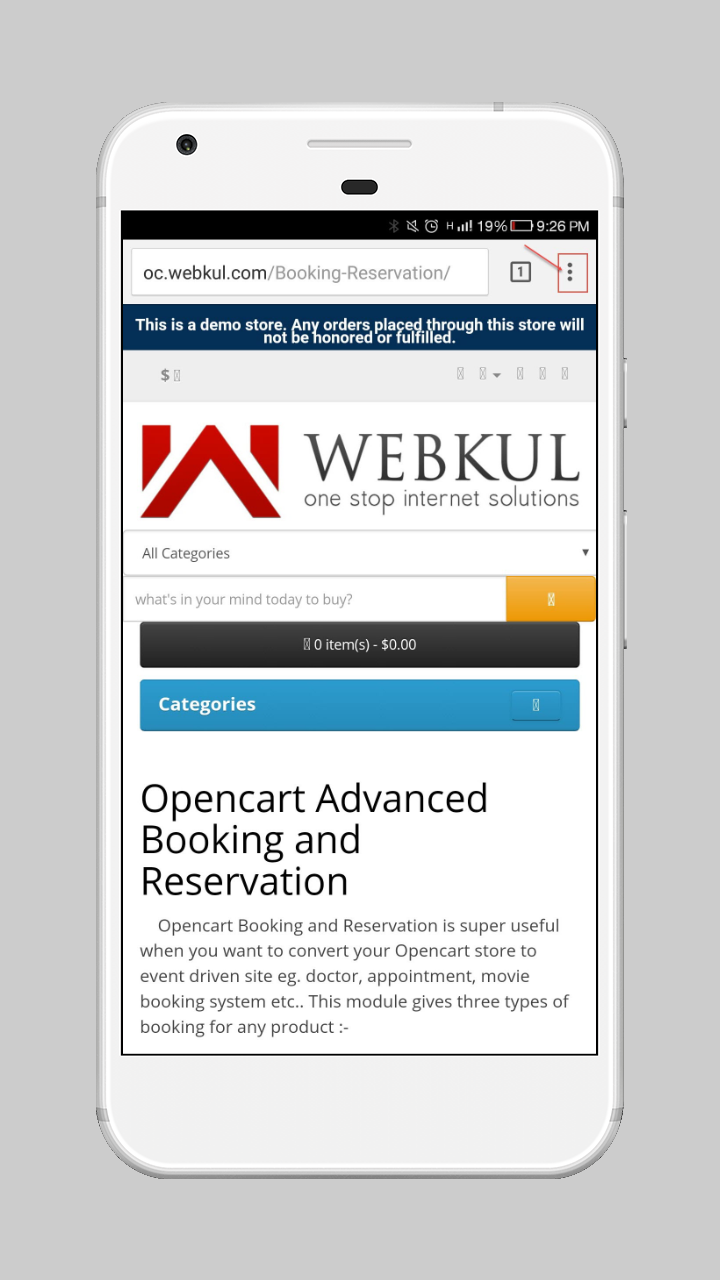
In the chrome menu, a user can select ‘Add to home screen’ option to add the progressive web application to the home screen.

Now a pop window will appear to add the name of the progressive web application like this.

Now the user can see the application icon on the home screen of the mobile like this. A user can click on the application to launch it.

After clicking on the application, the application launches with a splash screen. The splash screen shows the application name and icon. The application launches in the same way as the native app.

After the splash screen, a user can see the home screen of the application. From here a user can search product or browse categories.

If a user selects the option to browse categories then the category list will be displayed as below image.

Push Notification
The customer in addition can also visualize the notification in the frontend as in the below image.


Support
If you have any questions, suggestions, or customization requests, feel free to contact us at support@webkul.com or submit a ticket at webkul.uvdesk.com.
Explore our premium-quality Opencart Extensions to enhance your store functionality.