Odoo Website Product Pack
INTRODUCTION
Bundle the Products with Odoo Website Product Pack!
Odoo Website Product Pack helps businesses combine multiple related products into a single
bundle and offer them at a special selling price. The module allows users to create product
packs, add products with required quantities, and configure pack information and pricing from
the backend.
Businesses can publish product packs on their Odoo website like regular products. Customers
can view the products included in a pack, check their quantities and individual product details,
and access their respective product pages.
Customers can purchase the complete pack online. Product packs can also be added to sales
quotations and sales orders, allowing users to manage the packs along with other products.
FEATURES
- Users can create product packs by combining multiple related products and defining
their required quantities. - Users can configure the pack name, product image, selling price, and general product
information. - Users can select the appropriate pack stock management method.
- Users can publish configured product packs on the Odoo website like regular products.
- Customers can view the products included in a pack along with their quantities and
individual product details. - Customers can access the individual product pages included in a published pack.
- Users can add product packs to sales quotations and sales orders and specify the
required quantity. - Customers can add complete product packs directly to their cart from the website.
INSTALLATION
- Once you purchase the App from the Webkul store, you will receive the link to download the zip file of the module.
- Extract the file from your system after the download finishes. As a result, you will be able to see a folder named- ‘website_product_pack’.
- Copy and paste this folder inside your Odoo Add-Ons path.
- Now, open the Odoo Apps and then, click on the Settings menu. Here, click on Activate the Developer Mode.
- Then, open the Apps menu and click on the ‘Update Modules List’.
- In the search bar, remove all the filters and then, search ‘website_product_pack’.
- As a result, you will be able to see the module in the search result. Click on ‘Install’ to install it
WORKFLOW
Odoo Backend
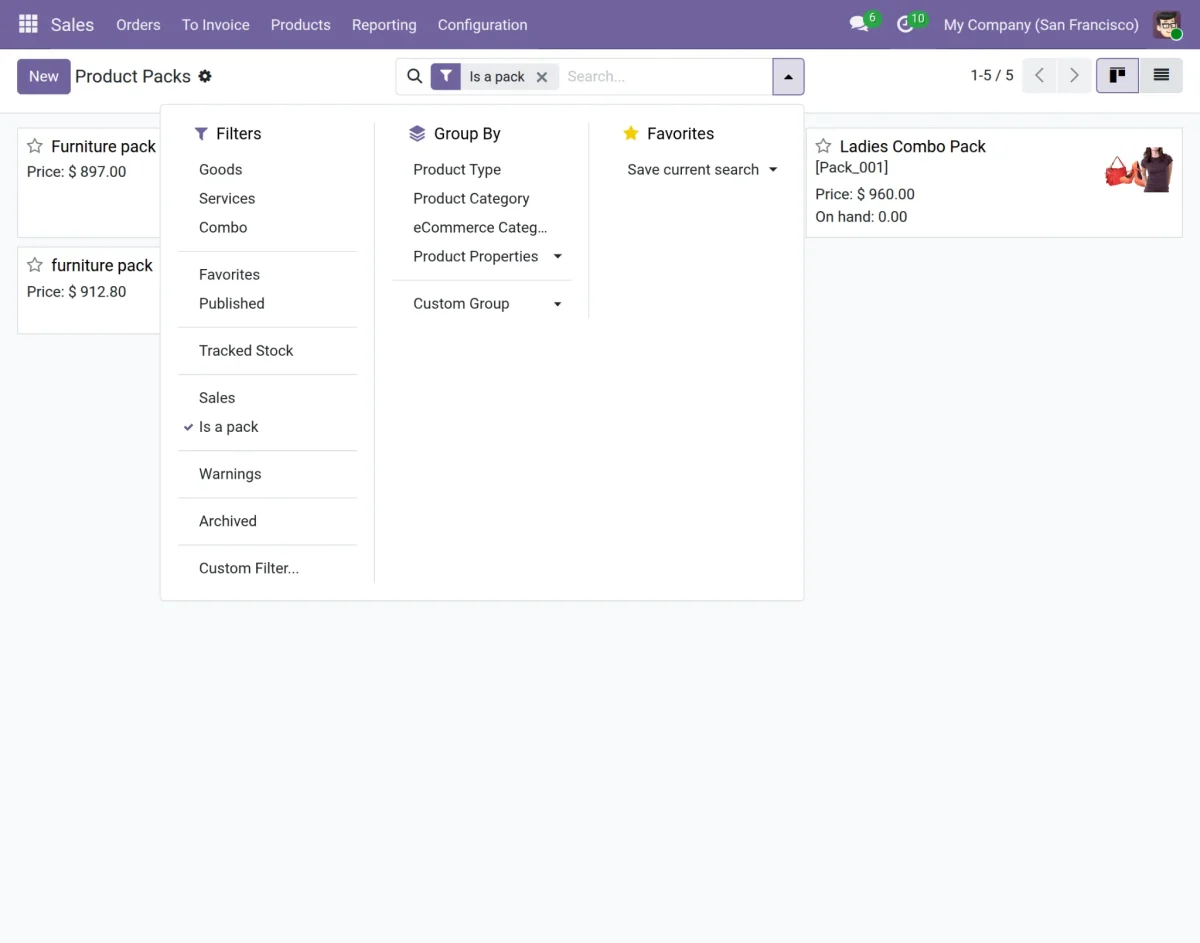
- Filter Product Packs
● Use the Is a pack filter to display product packs.
● View the available product packs with their price and stock information.

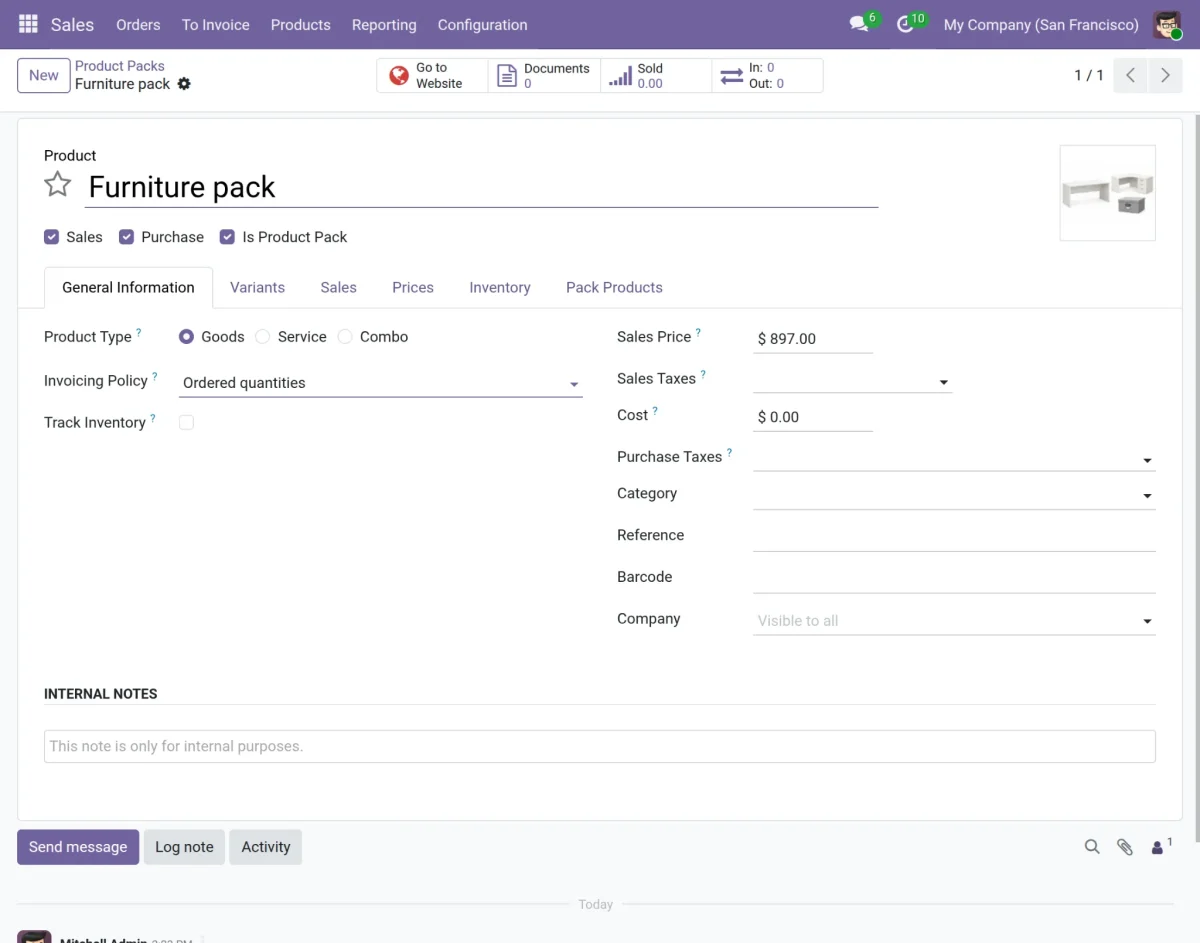
- Configure Product Pack Information
● Mark the product as Is Product Pack and configure its general information.
● Set the product type, sales price, invoicing policy, and inventory details.
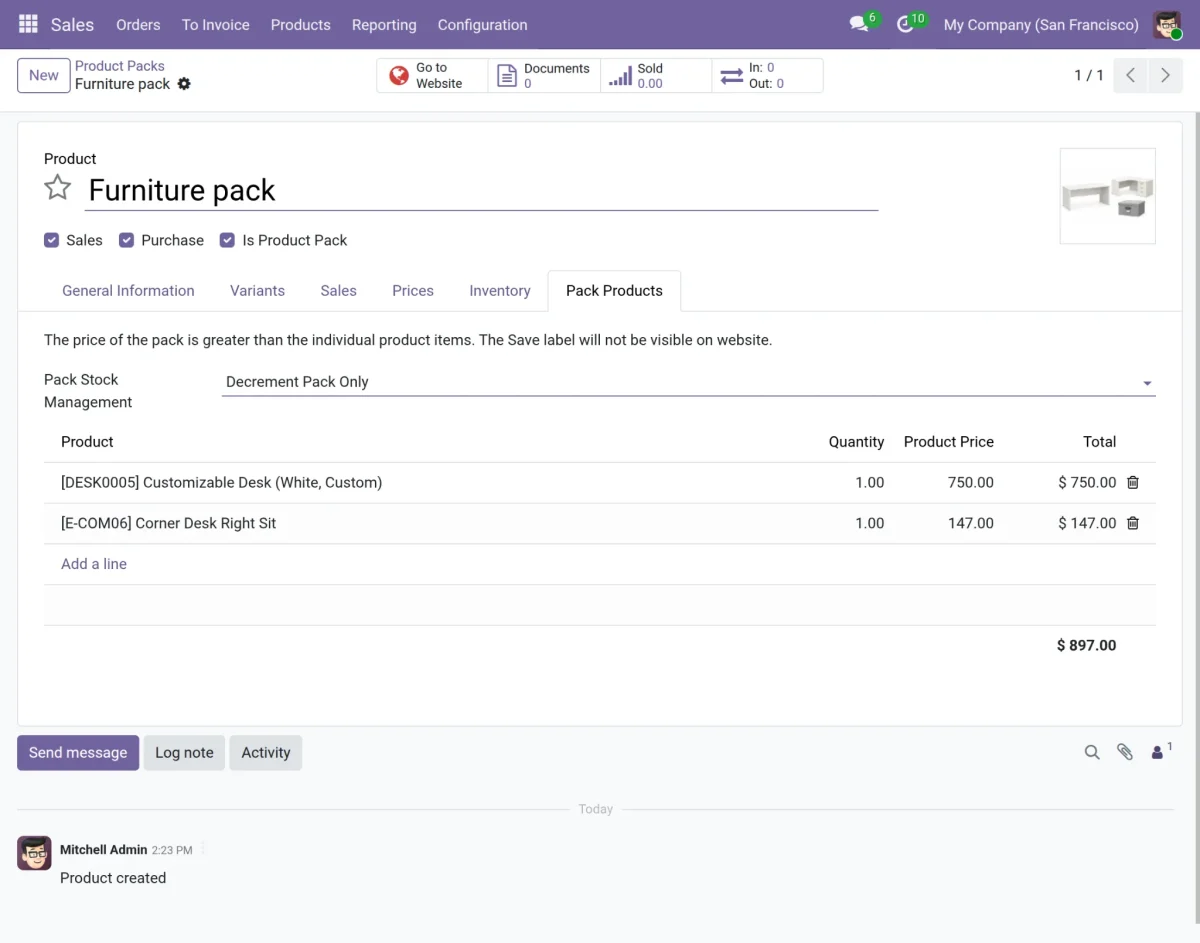
- Configure Pack Products
● Add products to the pack with their required quantities.
● View the product price and total amount for the included products
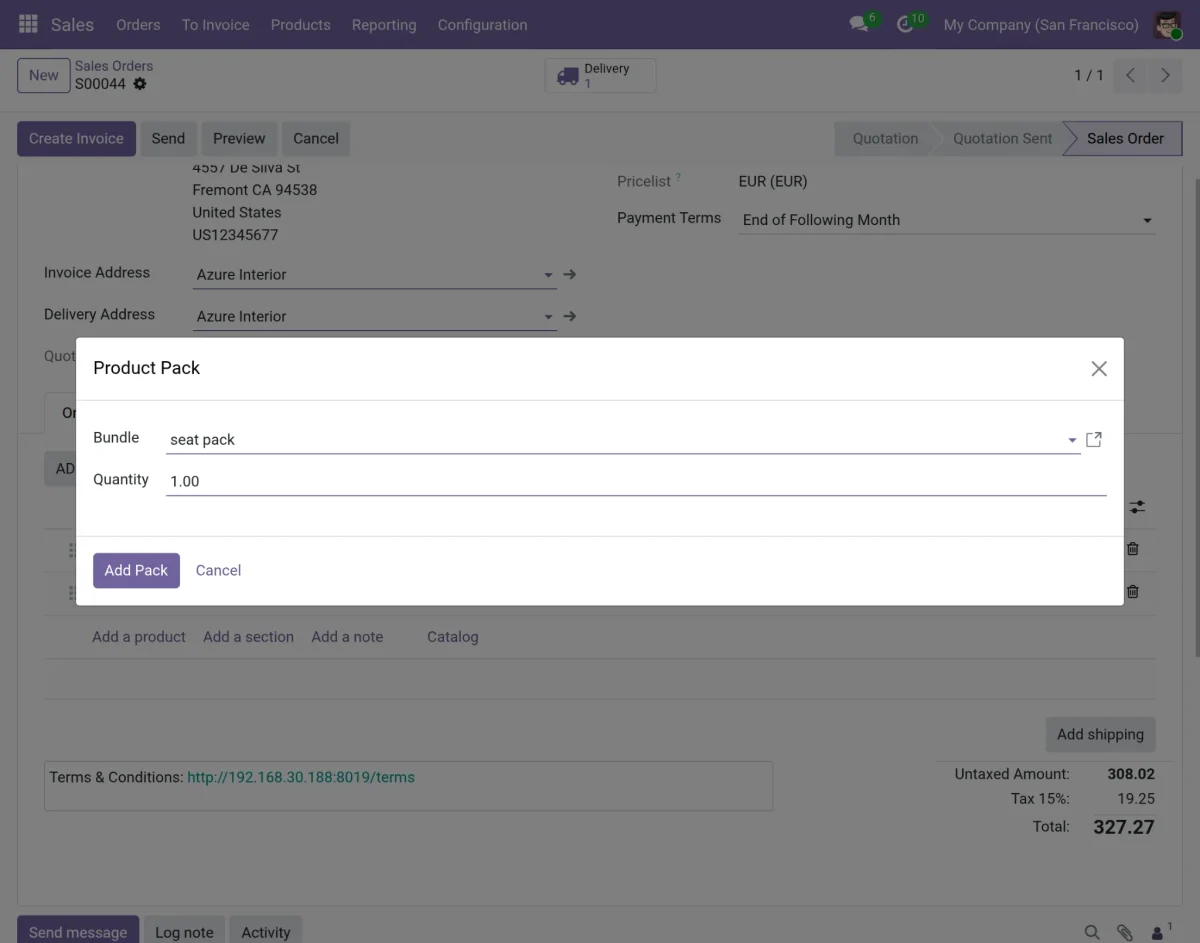
- Add Product Pack to Sales Order
● Click ADD PACK from the sales order to add a product pack.
● Select the pack and specify its quantity
- Add Pack to the Sales Order
● View the selected product pack in the Order Lines.
● Add the pack to the quotation using the Add Pack option.
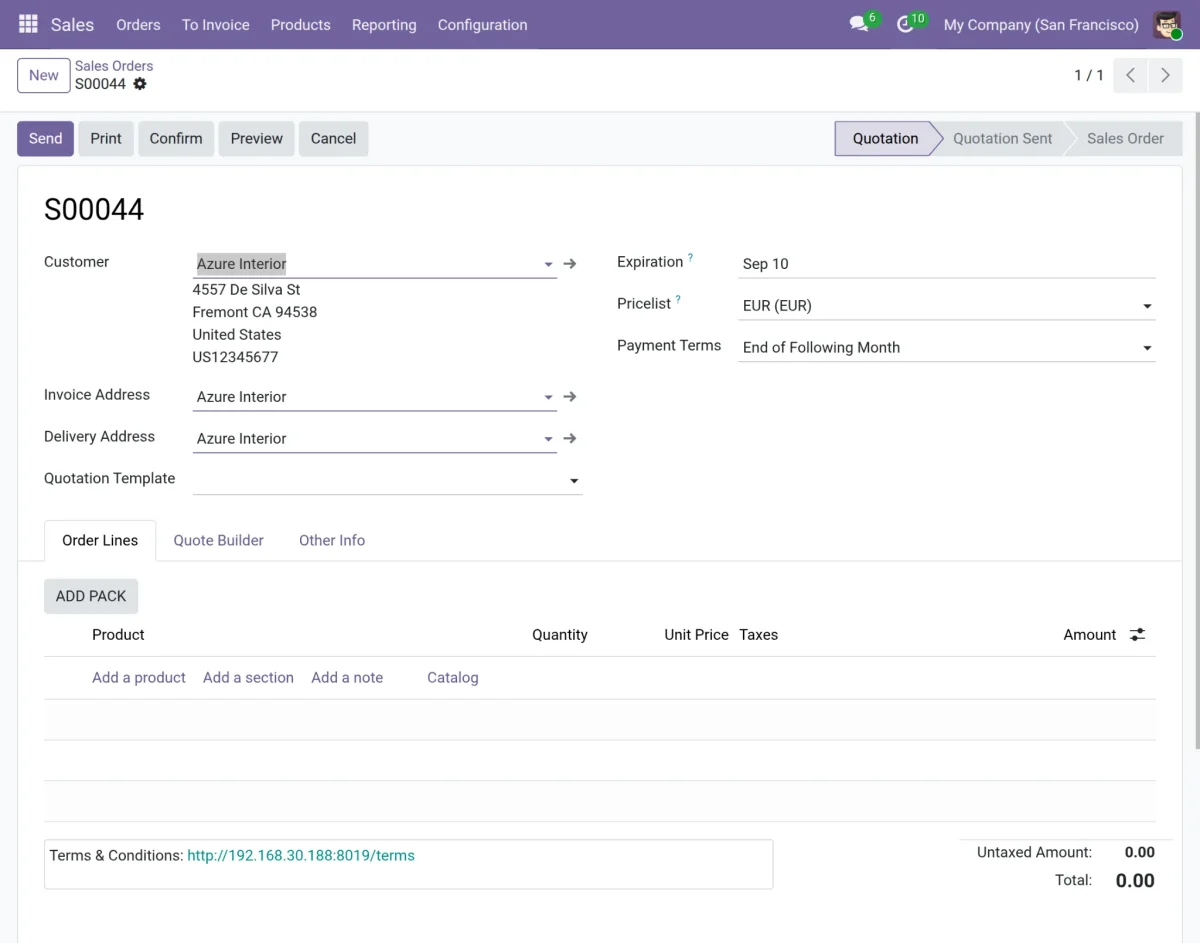
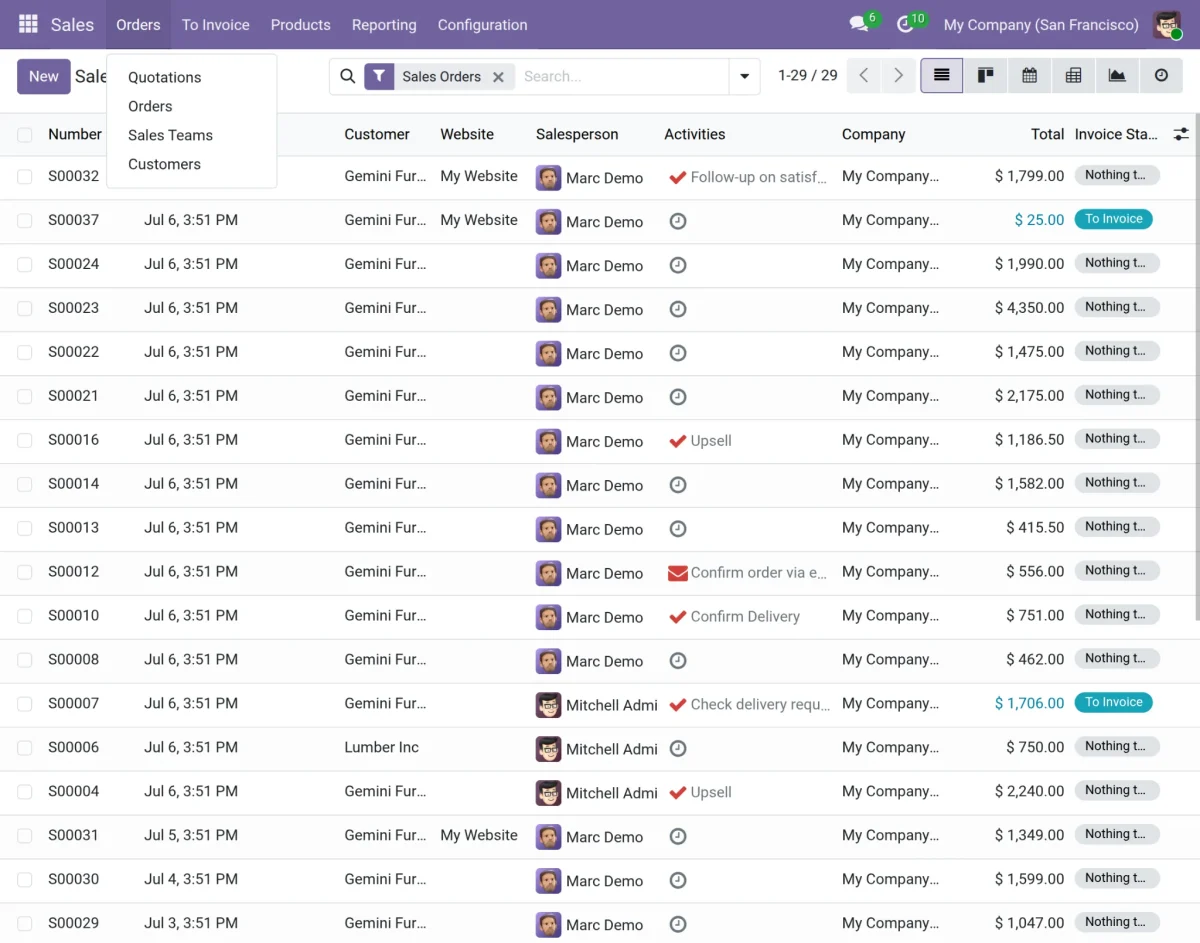
- View Sales Orders
● Access the Sales Orders list from the Orders menu.
● View the available sales orders along with their customer and order details.
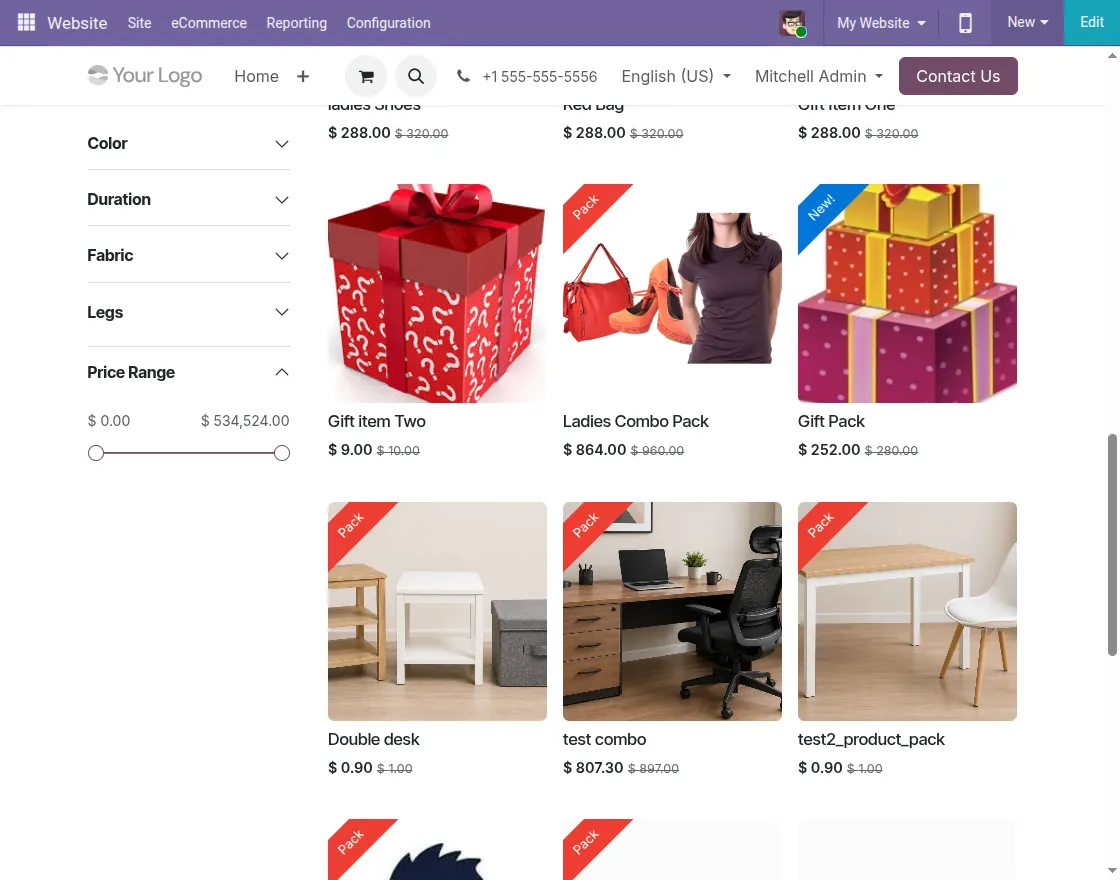
- View Product Packs on Website
● View product packs on the Odoo website alongside other products.
● Product packs are identified with the Pack label on the website.

USER GUIDES FOR OTHER MODULES
NEED HELP?
Hope you find the guide helpful! Please feel free to share your feedback in the comments below.
If you still have any issues/queries regarding the same, please raise a ticket at the Webkul Support System.
Thanks for paying attention!!