User Guide for Odoo SEO-URL Redirect/Rewrite For Brand
INTRODUCTION
Odoo SEO-URL Redirect/Rewrite For Brand lets you create clean, SEO-friendly URLs for brand pages on your Odoo website. You can remove default slugs like “/brand/brand-name” and replace them with keyword-rich, easy-to-read URLs. This helps improve your search visibility.
The module also supports 301/302 redirects to avoid broken links when brand URLs are updated or removed. With a dedicated configuration section for brand URL settings, managing SEO for brands becomes more structured and user-friendly.
Prerequisites for using Odoo SEO-URL Redirect/Rewrite For Brand
FEATURES
- Rewrite brand URLs using relevant keywords for better search visibility.
- Remove the default “/brand/” prefix to create cleaner brand URLs.
- Set 301 or 302 redirects to forward outdated brand URLs.
- Create clean, SEO-friendly slugs for brand pages easily.
- Automatically redirect old URLs to avoid 404 errors.
- Add suffixes like .html or .php for SEO consistency or URL customization.
- Manage SEO settings from a dedicated brand configuration section.
- Ensure SEO-friendly brand URLs across multiple languages.
- Structure brand URLs to improve both the user and search experience.
INSTALLATION
- Once you purchase the App from Webkul store, you will receive a link to download module’s zip file.
- Extract the file on your system after download finishes. As a result, you will be able to see a folder named- ‘seo_url_redirect_brand’
- Copy and paste this folder inside your Odoo Add-Ons path.
- Now, open Odoo apps and click on the Settings menu. Here, click on Activate Developer Mode.
- Then, open Apps menu and click on ‘Update Modules List.’
- In the search bar, remove all the filters and search ‘seo_url_redirect_brand’
- You will be able to see module in the search results. Click on ‘Install’ to install it.
WORKFLOW
- After installing Odoo SEO-URL Redirect/Rewrite For Brand, navigate to SEO Rewrite Configuration:
- Go to Website → SEO URL Rewrite → SEO-Rewrite Config to manage SEO settings

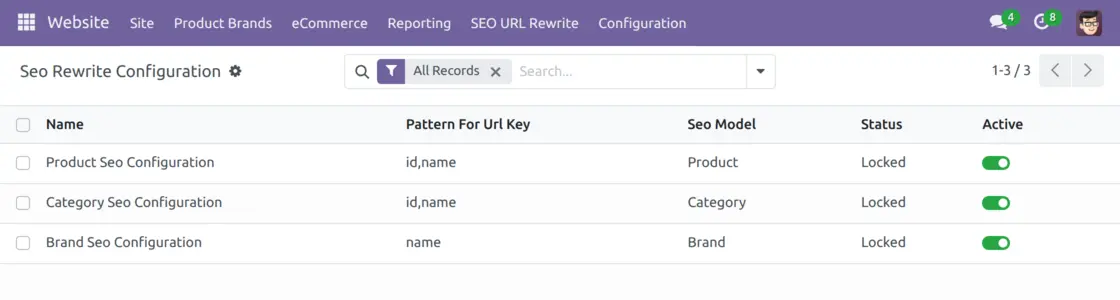
2. Open Brand SEO Configuration:
Click on Brand SEO Config to view and manage brand-specific URL rewrite settings.

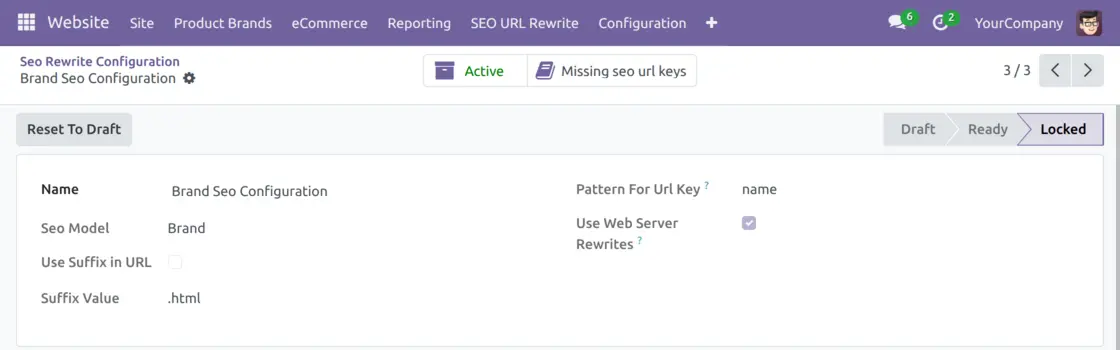
3. Access Website Redirects Section:
Head to SEO URL Rewrite → SEO Redirects → Website Redirects, then select the Brand section to view the redirects and also change them if needed.

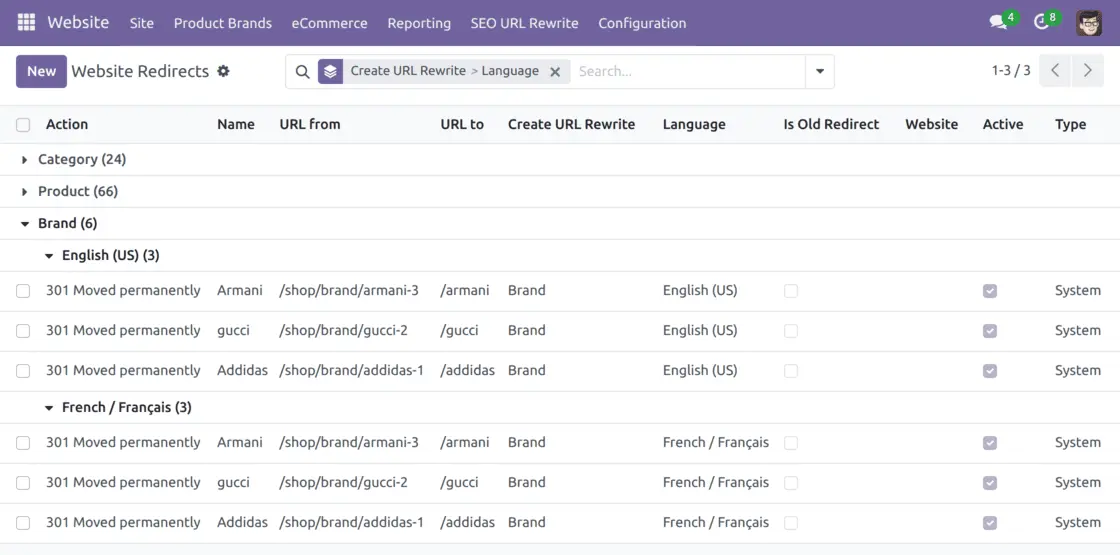
4. Configure the Brand Redirect Rule:
Select a brand to update, choose the redirect type (e.g., 301), and define the old and new URLs. This step ensures outdated links are automatically redirected to the correct, SEO-friendly brand URL.


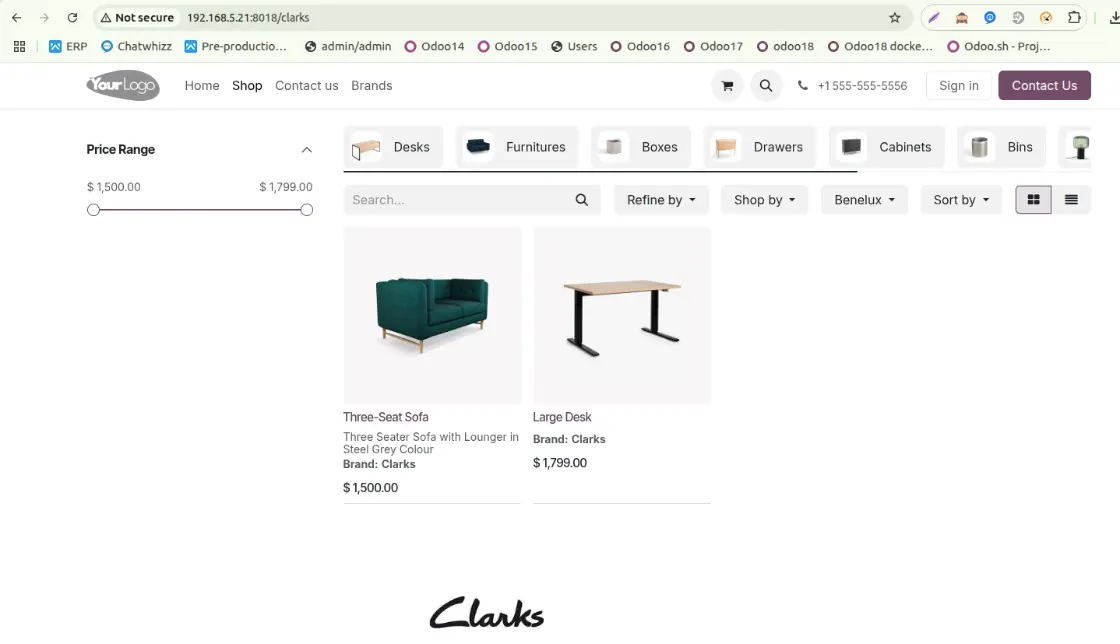
5. URL Successfully Updated:
Once the redirect is saved, the brand page URL is updated to a clean, keyword-rich version. Old URLs will now redirect automatically, avoiding 404 errors and improving SEO.

NEED HELP?
Hope you find the guide helpful! Please feel free to share your feedback in the comments below.
If you still have any issues/queries, please create a ticket at the UV Desk.
I hope this helps. In case of any further queries, contact us at our support mail.
Thanks for paying attention!!