Odoo Headless Momentum Theme: User Guide
Introduction
The Odoo Headless Momentum Theme is a ready-to-use storefront that runs on top of your existing Odoo backend. It talks to Odoo entirely over the Odoo Headless REST API.
Odoo still runs your catalog, pricing, stock, customers, carts and orders. Momentum simply renders all of it in a faster, more modern front end.
This user guide walks you through the features, the installation steps and the day-to-day management of the theme. So if you are evaluating it or setting it up for the first time, start here.
What Makes the Momentum Theme Different
Most storefront themes hard-code their colours, banners and menus. Momentum does the opposite.
Odoo publishes almost everything you see. That includes the brand palette, the logo, the announcement bar, the mega menu and all eleven homepage sections.
Because of that, a store owner can change the look of the storefront from the Odoo admin panel alone. No developer, no rebuild and no redeploy.
The theme is also built for speed. It renders pages on the server and caches the Odoo responses, so shoppers see content almost instantly.
Features of the Odoo Headless Momentum Theme
Here is a quick summary of what ships with the theme.
- Admin-driven-driven theming — 18 colour tokens, logo, favicon and store name come straight from Odoo.
- Dynamic home page — 11 sections that appear or hide based on what Odoo returns.
- Three-level mega menu — built from your Odoo category tree, with image tiles.
- Filters and sorting — a price range plus dynamic attribute filters such as colour, size and brand.
- Variant-aware product pages — swatches, buttons, radios or dropdowns, with unavailable options disabled.
- Guest and registered checkout — guest carts merge into the customer cart at login.
- Customer account — dashboard, order history, order tracker, address book and profile.
- Wishlist — a heart toggle on every product card and on the product page.
- Multi-currency — a header switcher that re-prices the whole storefront.
- CMS pages — Odoo pages rendered with sanitised, allow-listed HTML.
- Built-in caching — cached catalog reads, optimised images and route-level loading skeletons.
- Instant cache refresh — Odoo can call a webhook to update the storefront immediately.
Frameworks
The theme uses a current, well-supported stack. Nothing here is experimental.
- Next.js 16.3.0 (App Router)
- React 19.2.4
- TypeScript 5 in strict mode
- Tailwind CSS 4
- Redux Toolkit and TanStack React Query
- React Hook Form with Zod validation
- GSAP for motion and Swiper for carousels
- Node.js 20.9.0 or newer as the runtime
Header Request
You must allow the request origin and the request headers so the theme can talk to Odoo. Please follow the instructions below.
# For Apache
Header set Access-Control-Allow-Origin "https://your-storefront-domain.com"
Header set Access-Control-Allow-Headers "Accept, Content-Type, Authorization, Authenticate, cartId, currency, X-Odoo-Currency"

# For Nginx
add_header 'Access-Control-Allow-Origin' 'https://your-storefront-domain.com';
add_header 'Access-Control-Allow-Headers' 'Accept, Content-Type, Authorization, Authenticate, cartId, currency, X-Odoo-Currency';
This lets the browser and the server exchange cart, session and currency details without the browser blocking them.
Installation Procedure
Prerequisites
- A working Odoo instance with the Odoo Headless E-commerce app installed. Its user guide covers that step.
- A publicly reachable HTTPS Odoo URL, because the storefront calls Odoo over the network.
- Your Odoo client token from the Headless app settings.
- Node.js 20.9.0 or newer.
- A hosting environment where you can run the Next.js build.
Theme Installation
After you buy the theme from the Webkul Store, you get a zip file. Extract it, then move the folder wherever you want to install it.
Now install the locked dependency tree.
npm ci
Next, duplicate .env.example, rename the copy to .env.local and update the values below.
API_URL=https://your-odoo-domain.com/
API_VERSION=v1
CLIENT_TOKEN=your-odoo-client-token
NEXT_PUBLIC_DEFAULT_STORE=en_US
NEXT_PUBLIC_APP_URL=https://your-storefront-domain.com
NEXT_IMAGE_REMOTE_PATTERNS=your-odoo-domain.com
ODOO_REVALIDATE_SECRET=your-shared-secret
You must set the first four values. The theme checks them at startup, so a missing value fails loudly instead of silently.
Keep CLIENT_TOKEN on the server only. The theme never sends it to the browser.
Then run the development server and open the storefront in your browser.
npm run dev
# now open http://localhost:3000
If your Odoo data loads on the home page, the connection works correctly.
Storefront View
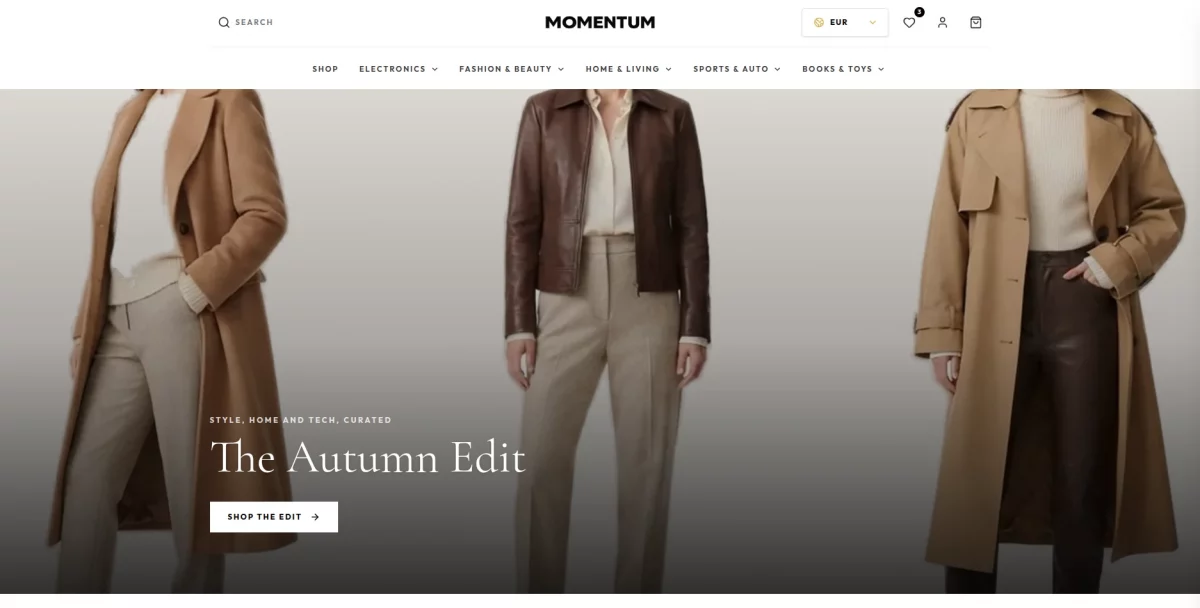
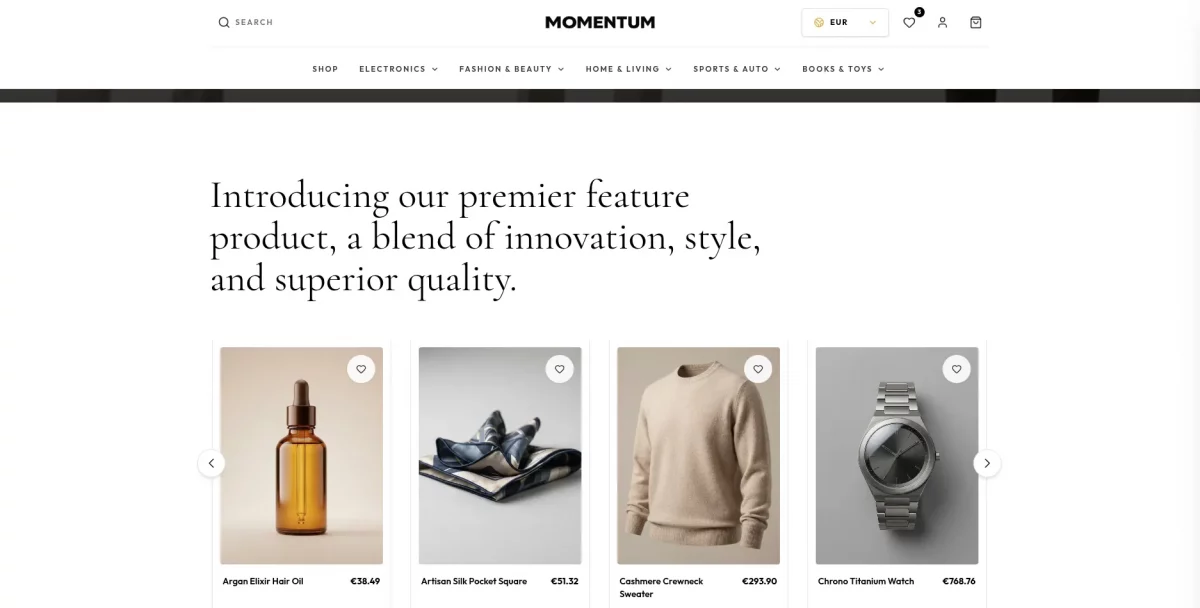
The Odoo Headless Momentum Theme looks as shown in the snapshots below. Now let us walk through what your customers actually see.
Home Page
The home page is made of 11 sections, and Odoo controls the content of each one.
You get a hero slider, featured and explore carousels, a promotion banner, brand and collection grids, corner offers, a benefits row and a recently viewed strip.
If Odoo returns no data for a section, that section simply does not render. As a result, a partly configured store still looks complete.

Navigation and Search
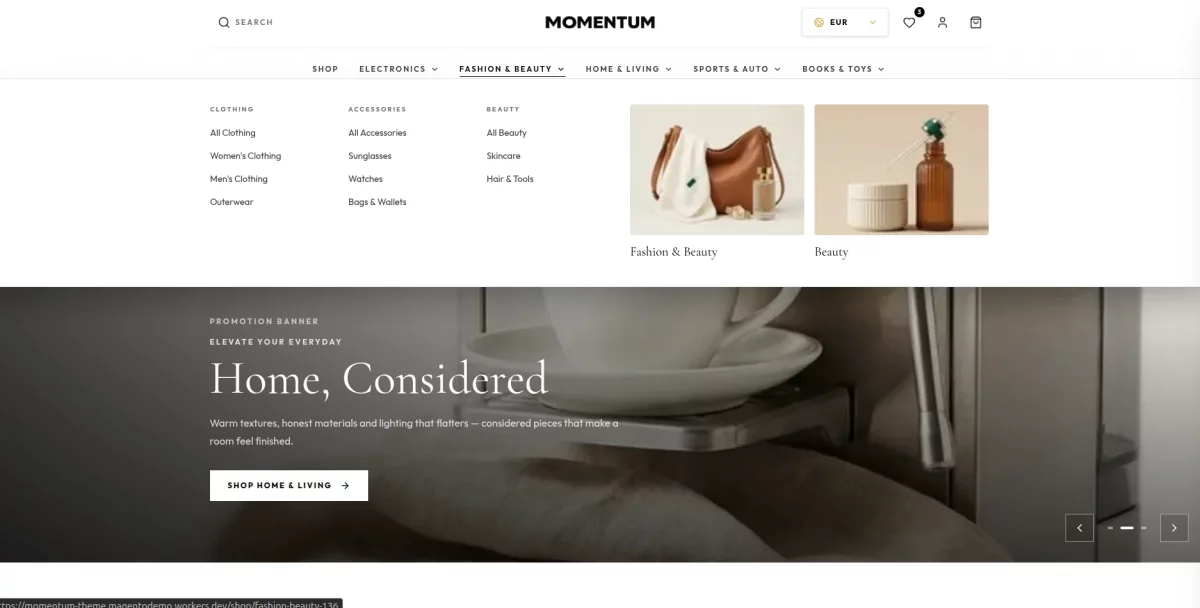
The header is sticky and holds the logo, search, currency switcher, wishlist, account and cart.
Hovering a top-level category opens a mega menu built from your Odoo category tree, three levels deep, with up to two image tiles.
On mobile, the same tree slides in as a drawer. Search opens as a focused overlay and sends the shopper to the results page.
Category Page
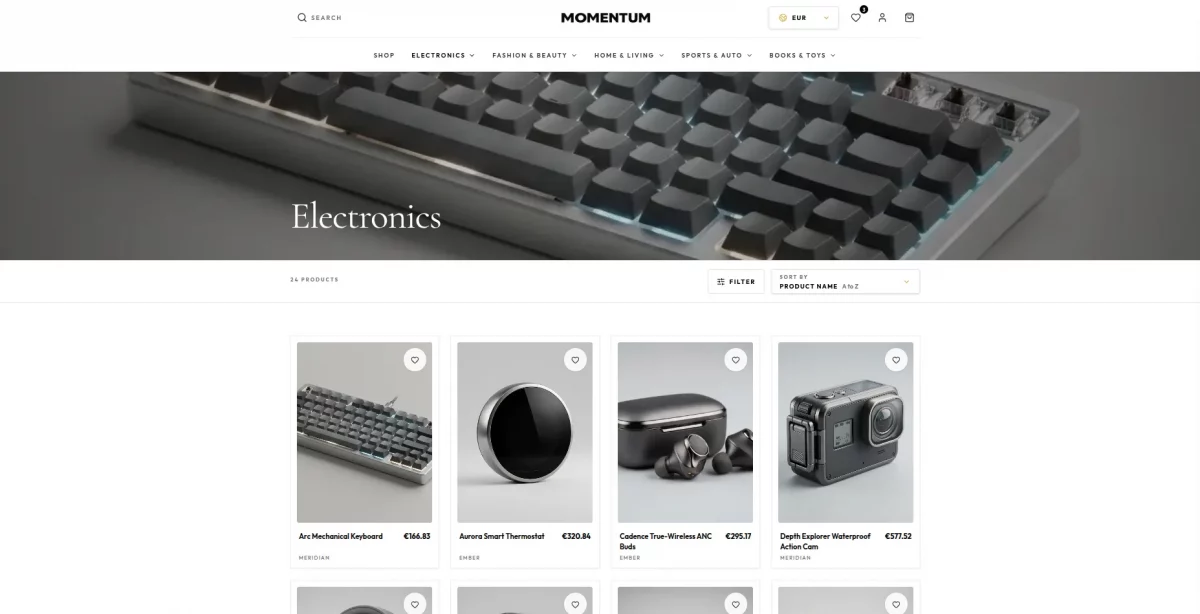
Category pages open with a hero band, a live product count and a sticky control bar.
The grid shows two products per row on mobile and four on desktop. Pagination shows 12 products per page and stays in sync with the URL.

Catalog Listing
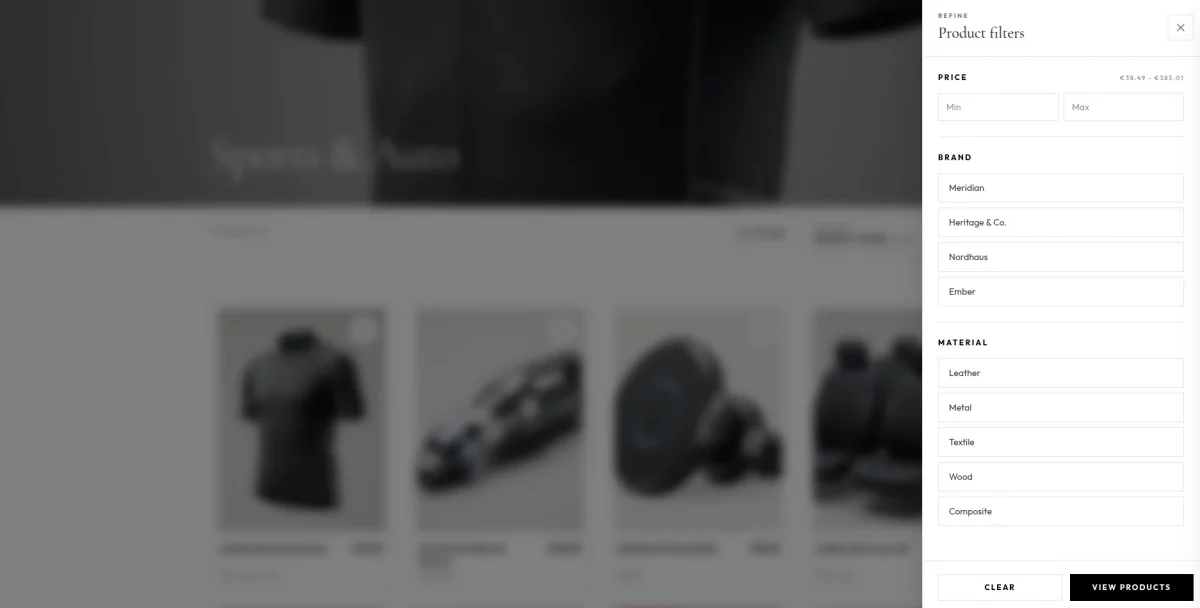
The filter drawer offers a price range plus attribute filters that Odoo generates, such as brand, material or category.
Filters only apply once the shopper taps View products. Each active filter then shows as a chip, and one click removes it.
Sorting comes from Odoo too, and every field appears in both ascending and descending order.
Product Page
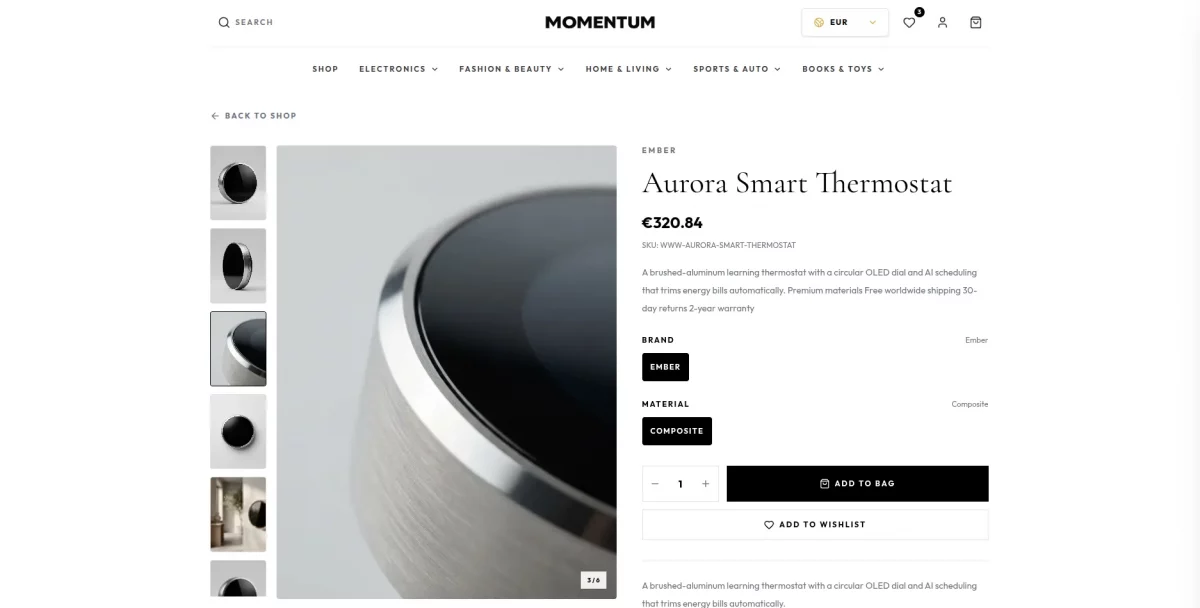
The product page pairs a gallery with a sticky buying panel on desktop.
Variant options render as swatches, pill buttons, radios or a dropdown, depending on how Odoo defines them.
The theme disables any value that has no matching variant. So once a shopper picks a colour, it reconciles the other attributes to a valid, in-stock combination and swaps the gallery image.
Below the fold you get the full description and up to four related products.
Cart Page
Adding a product slides open a cart drawer, so the shopper never loses their place.
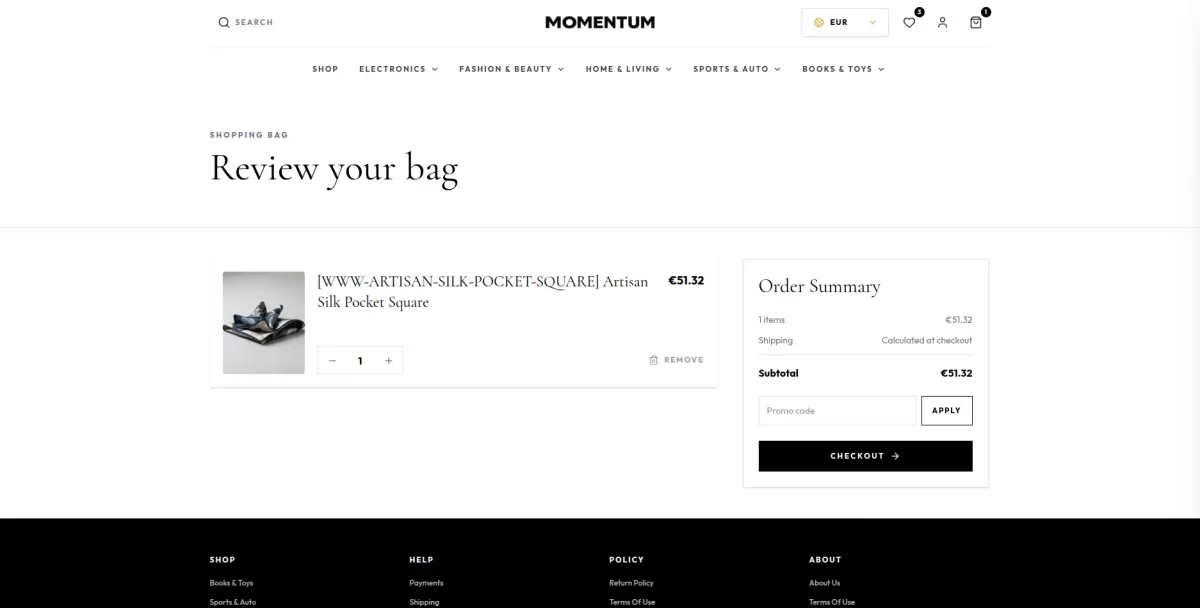
The full cart page adds a sticky order summary and a promo code field. Quantities update live, and totals come from Odoo whenever they are available.
The cart itself always lives in Odoo. The storefront only keeps a mirrored copy, which it repairs automatically if the Odoo cart expires.
Checkout Page
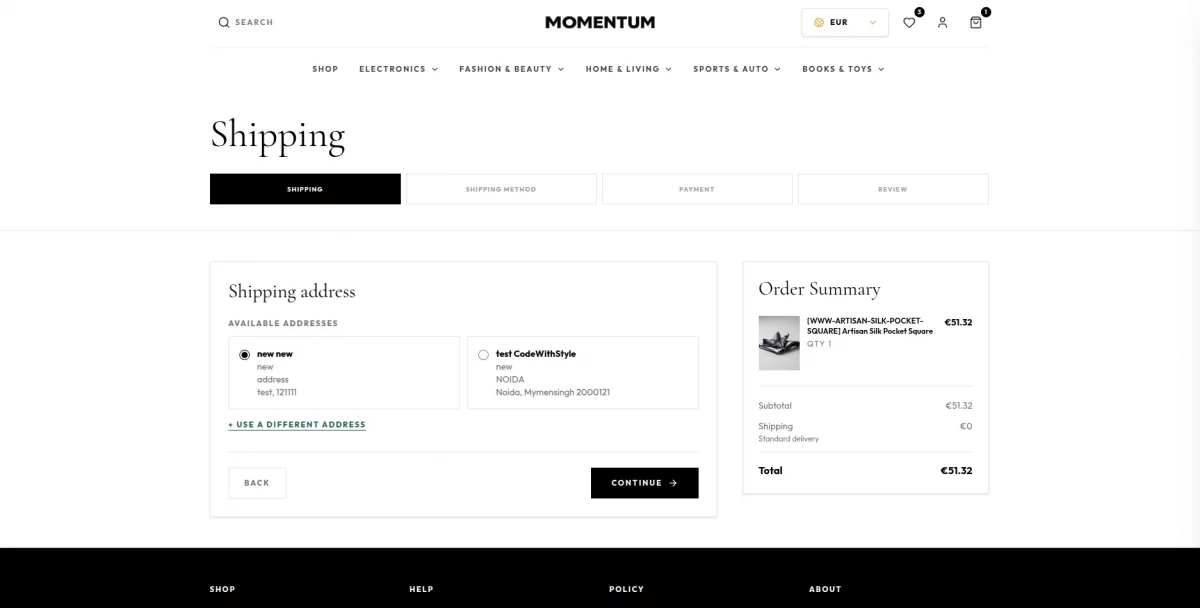
Checkout runs in five steps for guests and four for logged-in customers.
- Information — name, email and phone, for guests only
- Shipping address
- Shipping method
- Payment method
- Review and place order
The theme validates every step before it unlocks the next one, and Odoo has to confirm each step first.
Logged-in customers pick from their saved address book, while the country and region dropdowns cascade automatically.
Shipping and payment options come directly from Odoo, so whatever you configure in the Odoo is what the shopper sees.
The draft is also saved in the browser. If a shopper closes the tab, they return to the same step.
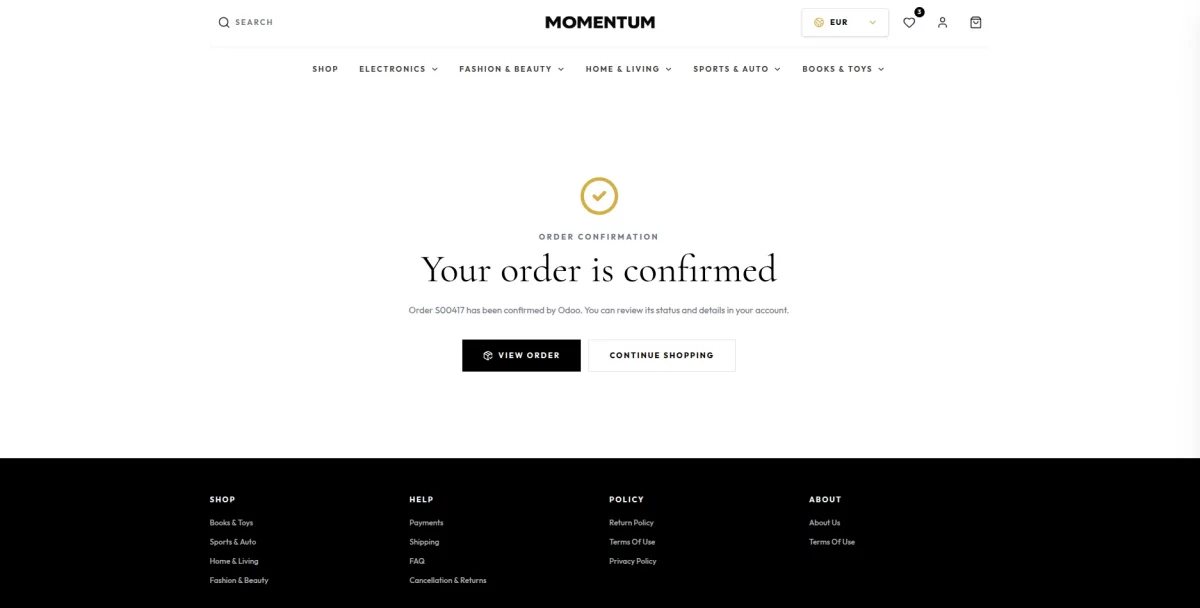
Order Success Page
Once the customer places the order, the theme clears the cart everywhere and shows the order number.
From there the customer can open the order detail or keep shopping.
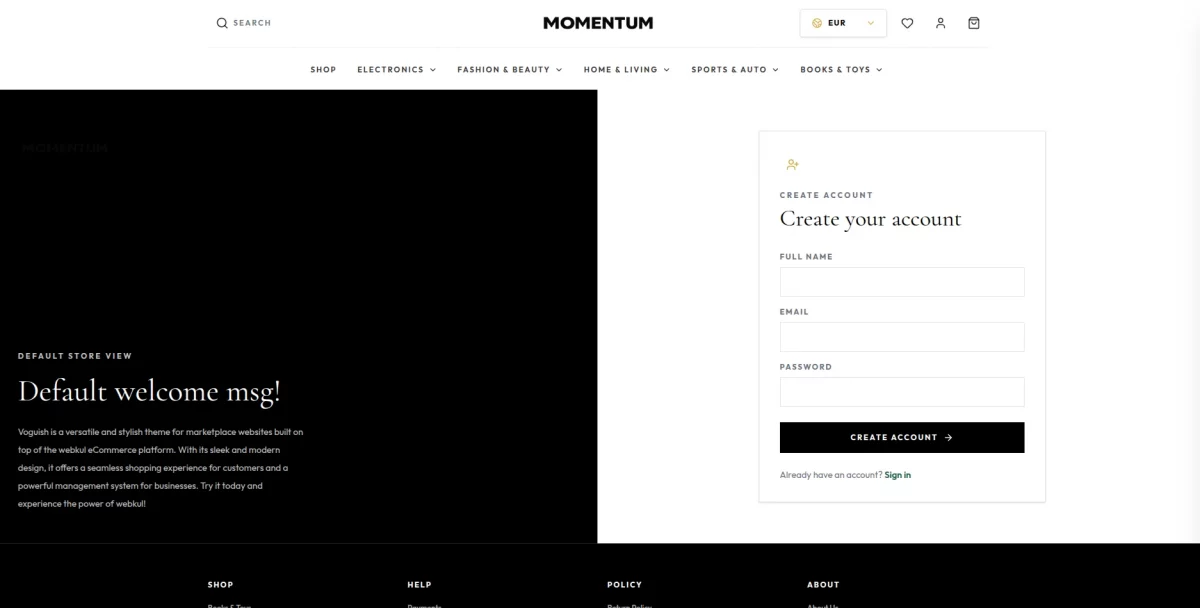
Login and Sign Up Page
Customers sign in with an email and password. If they had a guest cart, it merges into their account cart at login.
New shoppers can register from the sign up page, and the theme logs them in straight after registration.
The theme covers forgot password too. It asks Odoo to send the reset email, and Odoo’s own page then completes the reset.
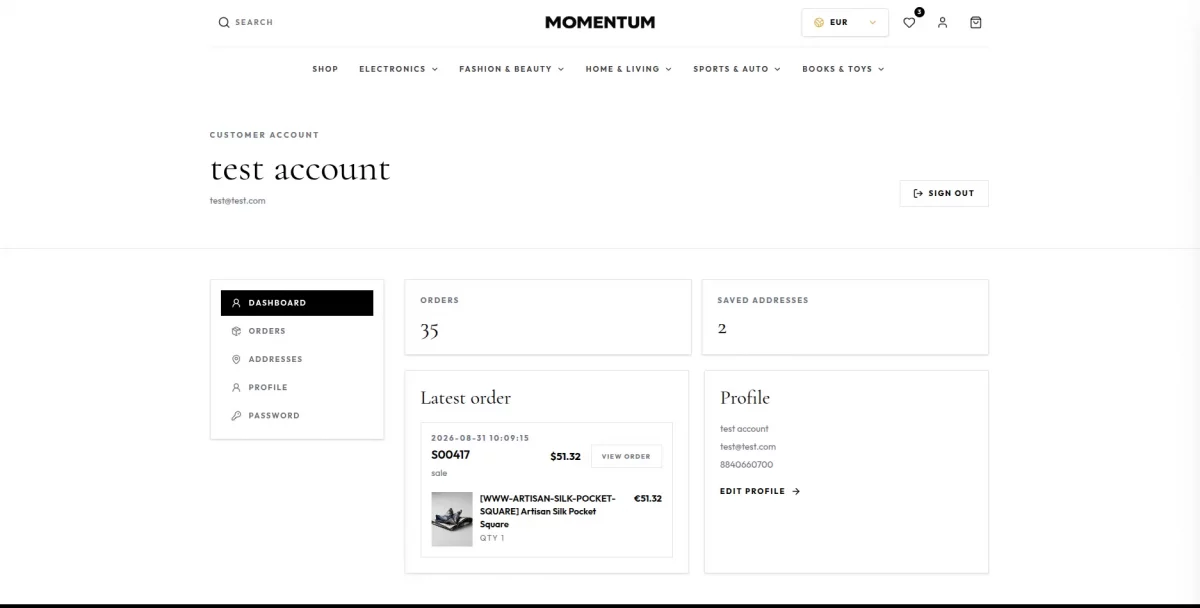
My Account
The account area holds a dashboard, order history, the address book and profile settings.
Order detail includes a four-stage tracker — Order Placed, Processing, Shipped and Delivered — mapped from the Odoo order state. Cancelled orders show a dedicated banner instead.
The theme keeps sessions in an HttpOnly cookie, so JavaScript can never read the customer token.
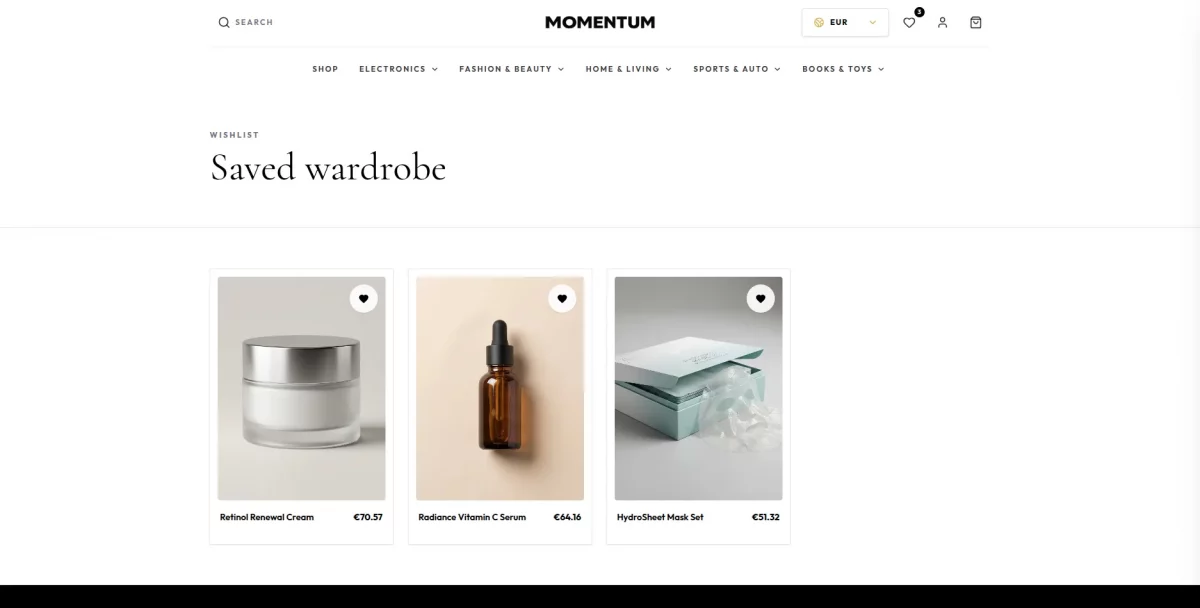
Wishlist and CMS Pages
A heart toggle sits on every product card and on the product page. The wishlist needs a login, and the header badge shows the live count.
CMS pages such as About Us or your policy pages come from Odoo as well. The theme renders only an allow-list of safe HTML tags, so a stray script can never reach your shoppers.
Multi-Currency Support
The currency list and the default currency come from your Odoo store configuration.
When a shopper switches currency, the theme re-fetches the home page, listings, product pages, cart and checkout. Consequently, every price on screen stays consistent.
The theme saves that choice in a cookie, so even the first server-rendered page uses the right currency.
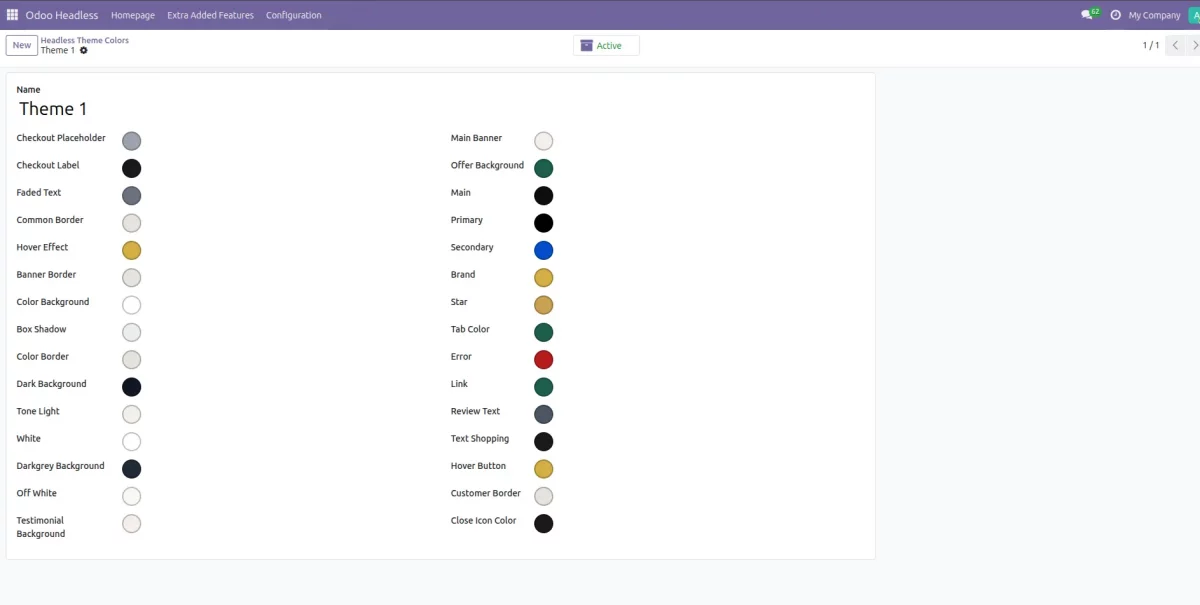
Theme Colours from the Odoo Admin Panel
This is the part store owners tend to like most.
Odoo publishes a palette of 18 colour tokens. The theme applies them during server rendering, so there is no flash of the old colours.
| Token | Controls | Token | Controls |
|---|---|---|---|
| background | Page background | card | Card surfaces |
| foreground | Base text | surfaceSubtle | Image placeholders |
| primary | Headings, buttons, footer | surfaceStrong | Dark surfaces |
| primaryForeground | Text on primary | danger | Errors |
| secondary | Secondary accent | dangerSurface | Error backgrounds |
| accent | Highlight accent | success | Success states |
| accentBlush | Badge background | star | Ratings |
| muted | Secondary text | link | Links |
| border | Borders and dividers | hoverAccent | Hover states |
The theme validates every value first. If someone types a broken colour in Odoo, it quietly falls back to the default instead of breaking the page.
Besides colours, Odoo also drives the store name, logo, favicons, announcement text, copyright line and the default SEO title and description.

Refreshing the Storefront Instantly
The theme caches Odoo data to stay fast. However, you sometimes need a change to appear right away.
For that, Odoo can call the revalidation webhook. The next visitor then sees fresh content immediately.
curl -X POST https://your-storefront-domain.com/api/revalidate \
  -H "Content-Type: application/json" \
  -H "x-revalidate-secret: your-shared-secret" \
  -d '{"tags":["homepage","store-config"],"path":"/"}'
Available tags include homepage, store-config, mega-menu, footer, cms-pages, catalog-products and catalog-categories.
SEO, Performance and Accessibility
Each route generates its own title, description, keywords, canonical URL and Open Graph tags from Odoo data.
Product and category pages redirect non-canonical slugs, while search, cart, checkout and login pages carry a noindex tag.
On the performance side, the theme uses server-side caching, lazy images, intent-based prefetching and deferred rendering for below-the-fold sections.
Accessibility gets the same attention. Drawers trap focus, Escape closes overlays, touch targets stay at 44 px and every animation respects the reduced-motion setting.
Security in the Odoo Headless Momentum Theme
We built security into the theme from the start rather than bolting it on later.
- The Odoo client token stays on the server, and browser traffic goes through a proxy route.
- The proxy forwards only to known Odoo endpoints, so anything else returns a 404.
- Mutating requests need a same-origin header, which blocks cross-site requests.
- Customer sessions live in HttpOnly, SameSite cookies.
- The theme sanitises CMS HTML and checks every link protocol.
- A build check blocks any deployment that would bundle the token into the worker.
- Profile changes require the current password.
Get the Odoo Headless Momentum Theme
Try the demo above, then grab the theme from the Webkul Store.
NEED HELP?
Hope you find the guide helpful! Please feel free to share your feedback in the comments below.
If you still have any issues or queries regarding the same, please raise a ticket at the UV Desk.
I hope this helps. In case of any further queries, contact us at our support mail.
Thanks for paying attention!!
Current Product Version – Odoo 19, 18
Supported Framework Version – 1.0.0