Odoo Marketplace Seller Vacation User Manual
INTRODUCTION
Odoo Marketplace Seller Vacation: Manage Time Off Without Pausing Your Marketplace!
Odoo Marketplace Seller Vacation module can easily manage seller vacations in advance, allowing them to handle their stores and products accordingly.
Now, sellers can plan their time without leaving their business unattended. Additionally, it allows you to add a customized message and control product visibility during the seller’s absence.
Odoo Marketplace Seller Vacation module displays a message on the seller’s profile, shop, and product pages, informing customers that the seller is on vacation, preventing disappointment.
FEATURES
- With Odoo Marketplace Seller Vacation, Sellers can schedule multiple vacations for specific periods.
- Sellers can add descriptions for their vacations before going offline.
- Manage seller vacations effortlessly from the backend.
- Sellers can either disable their ” Products” or ‘Add to Cart’ button or keep the products “Active” for sale during their vacation.
- Set a default message on the seller’s profile, shop, and product pages while they are on vacation.
INSTALLATION
- Once you have purchased the module from our Webkul store, you will receive a link to download the zip file of the module.
- Extract the file on your system after the download finishes. You will be able to see a folder named- ‘marketplace_seller_vacation’.
- Copy and paste this folder inside your Odoo Add-Ons path.
- Now, open the Odoo and click on the Settings menu. Here, click on Activate the Developer Mode. You can activate the developer mode by typing ‘debug=1’ after ‘web?’ in the URL as well.
- Now, open the Apps menu and click on the ‘Update Modules List’.
- In the search bar, remove all the filters and search ‘marketplace_seller_vacation’.
- You will be able to see the module in the search results. Click on ‘Install’ to install it.
WORKFLOW
Configuration
- After installing Odoo Marketplace Seller Vacation log in as an admin and navigate to the Seller Dashboard page in the backend.
- Configuration >> Settings, under Website, ‘Seller Vacation Message‘

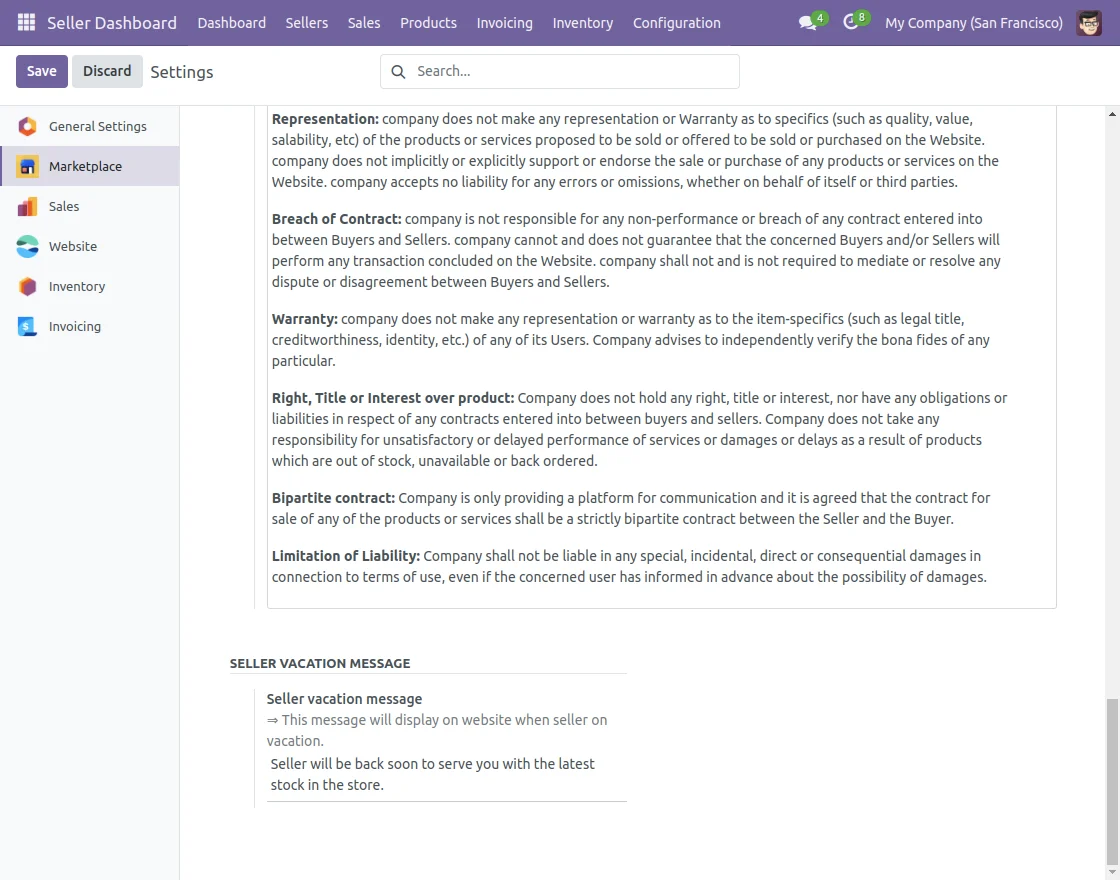
Admin View
2. Follow the path Sellers/Vendors >> Seller Vacation.
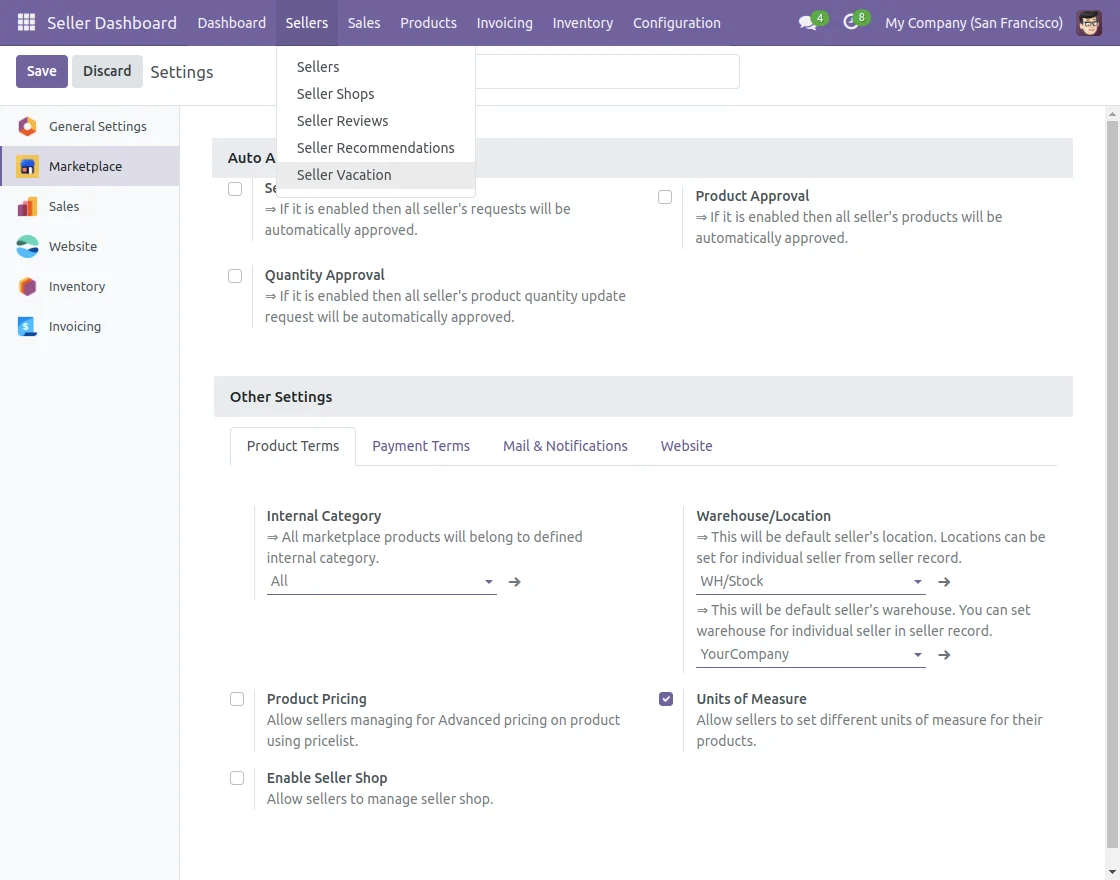
3. Inside Seller Vacation, you can see every seller vacation request. So, the admin can approve/reject a seller’s vacation request.
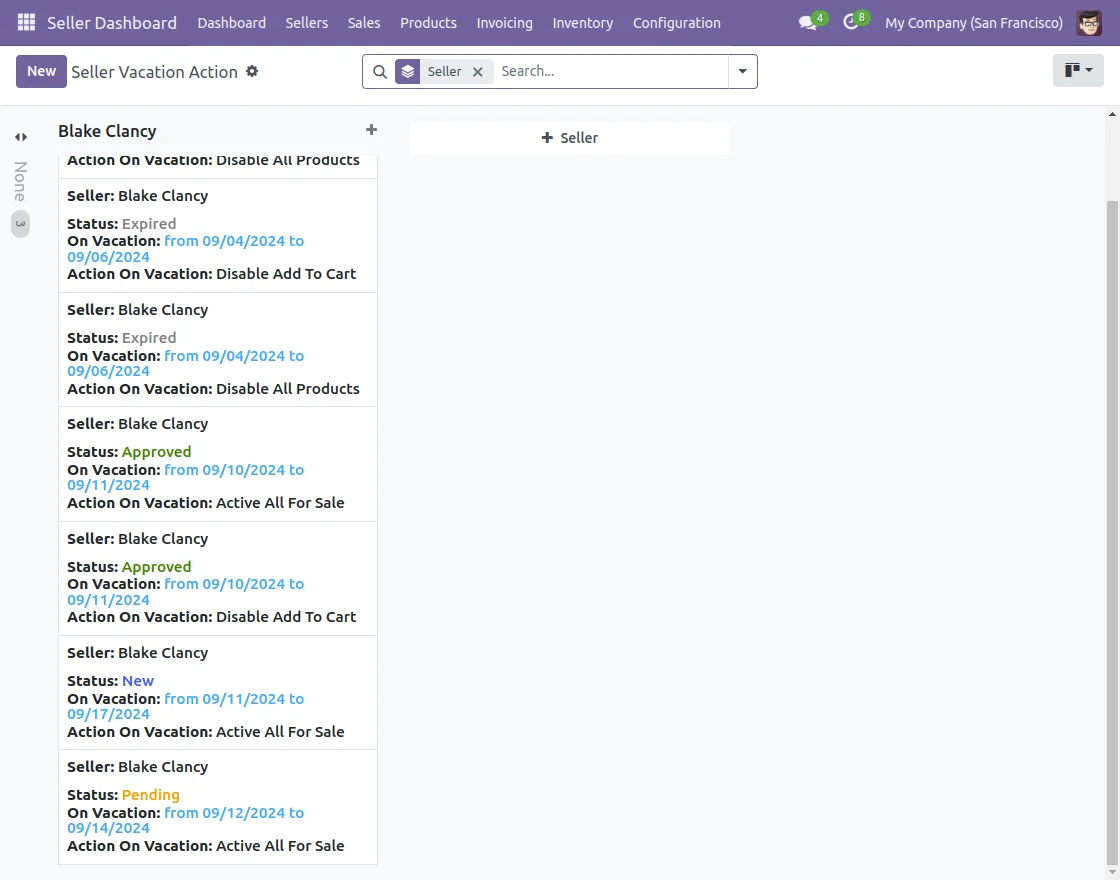
4. Vacation status auto-updates upon approval or rejection. you can create or edit vacation requests and assign them to specific sellers.

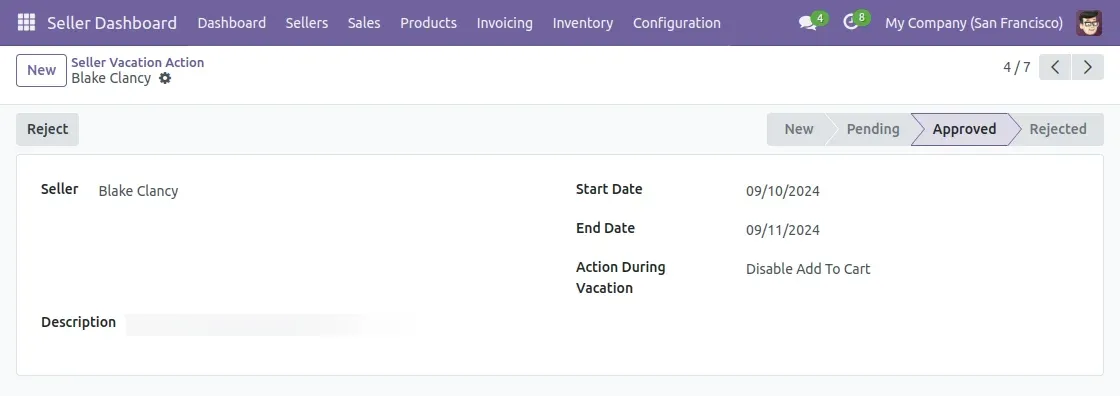
Seller View
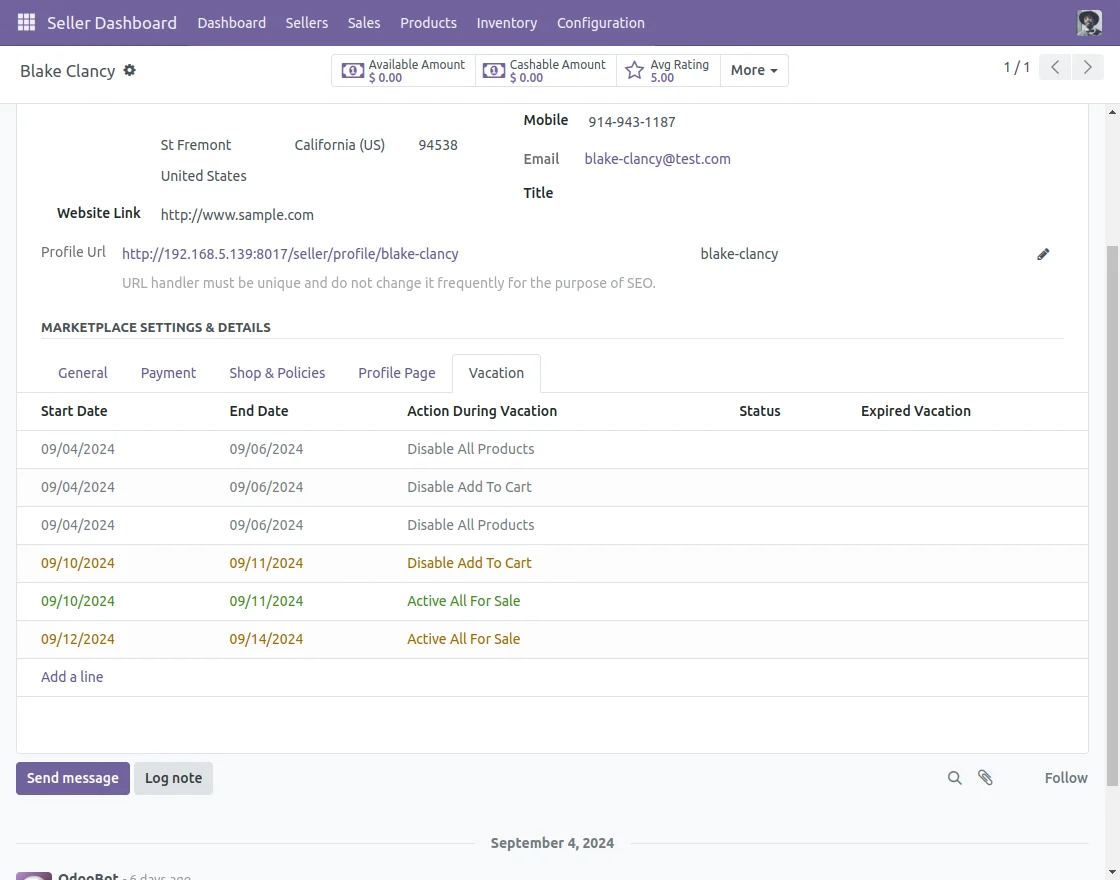
5. Sellers can now set vacation dates via a new tab in their profile. By logging into the Seller Dashboard and navigating to Sellers/Vendors >> My Profile.
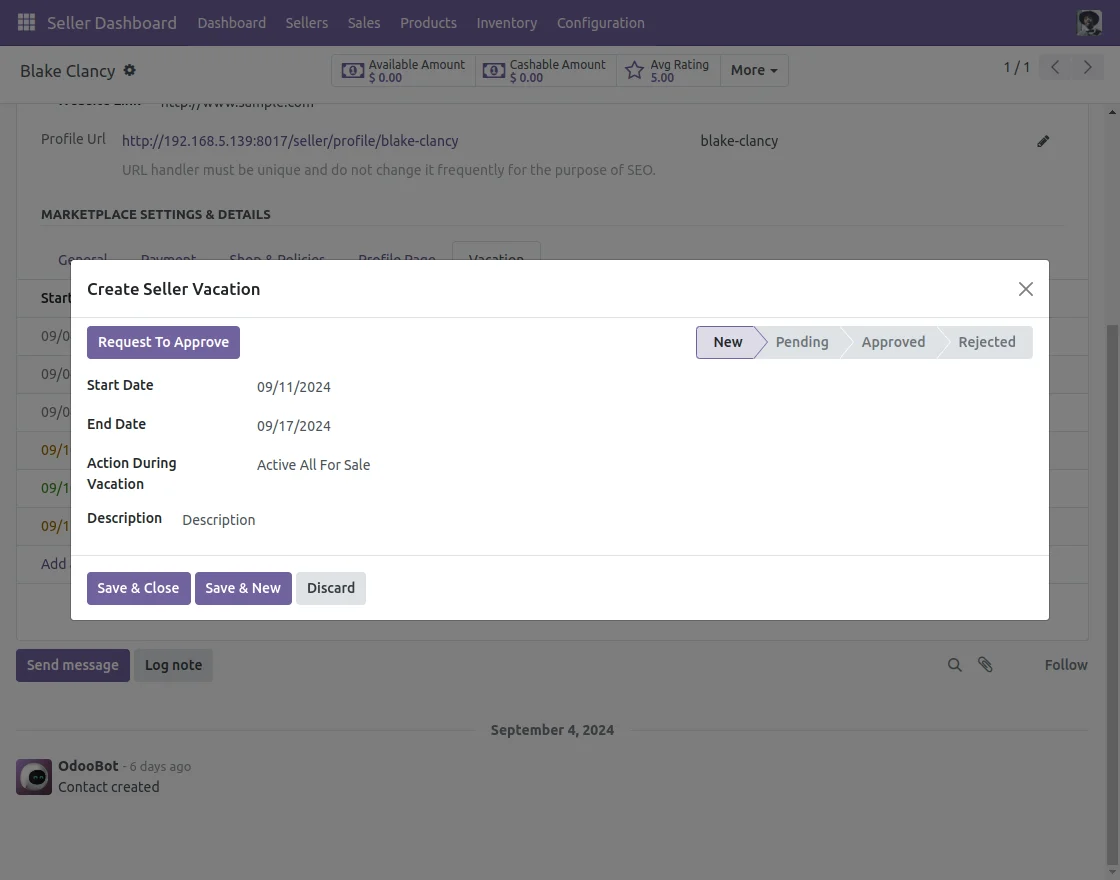
6. They can submit a vacation request by selecting ‘Add an Item’ entering dates, actions during absence, and a description.
7. After filling in all the details, the seller can click the ‘Request Approval’ button to submit the request for your review.
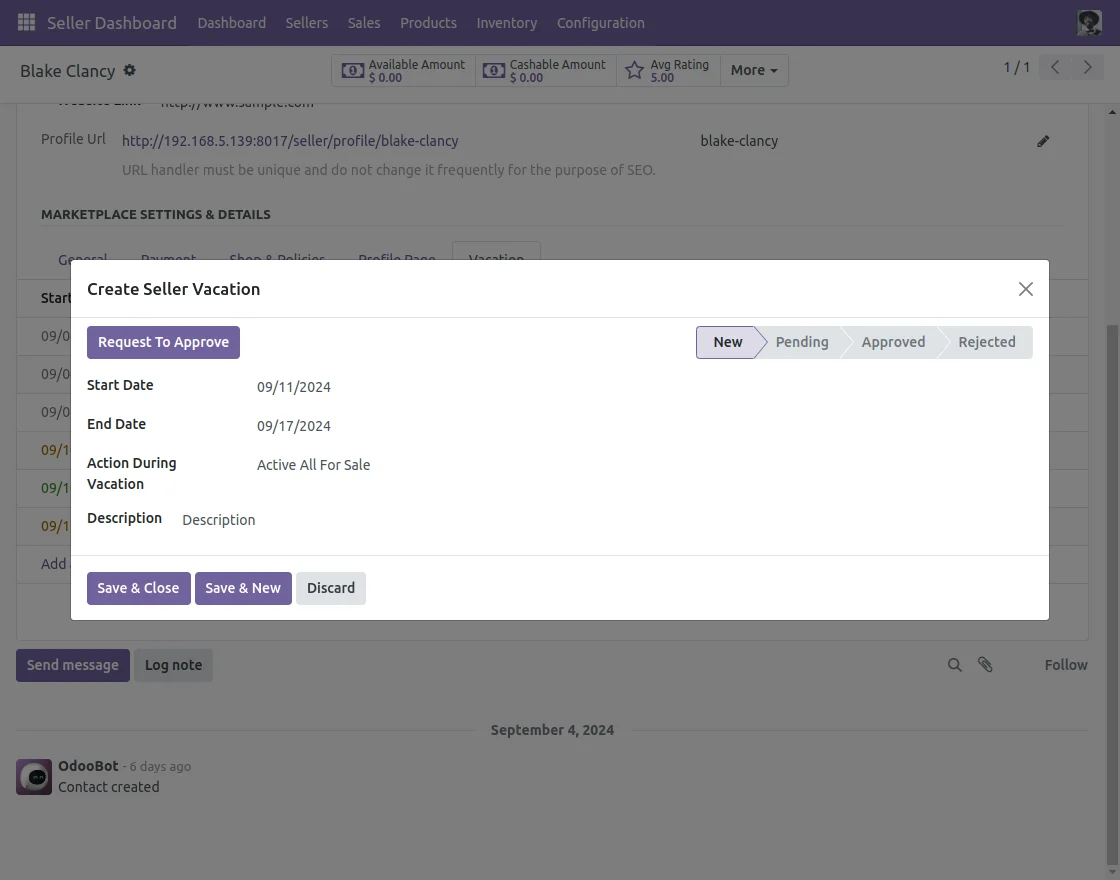
8. With Odoo Marketplace Seller Vacation a seller can choose the available actions to be applied during the vacation period; options are:
- Disable all products: None of the seller’s products will be visible on the website.
- Disable add to cart: Products will remain visible, but the “Add to Cart” button will be disabled.
- Active for sale: Buyers can continue to purchase the seller’s products even while the seller is on vacation.
Website View
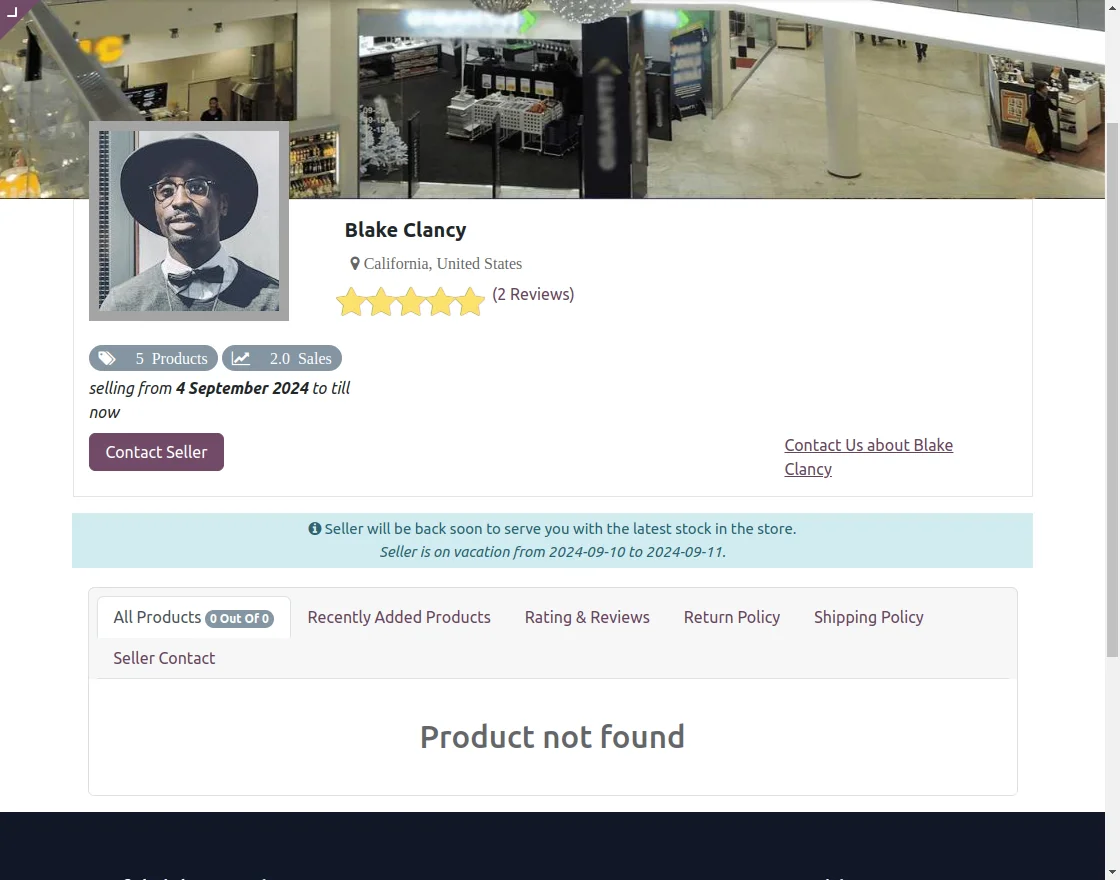
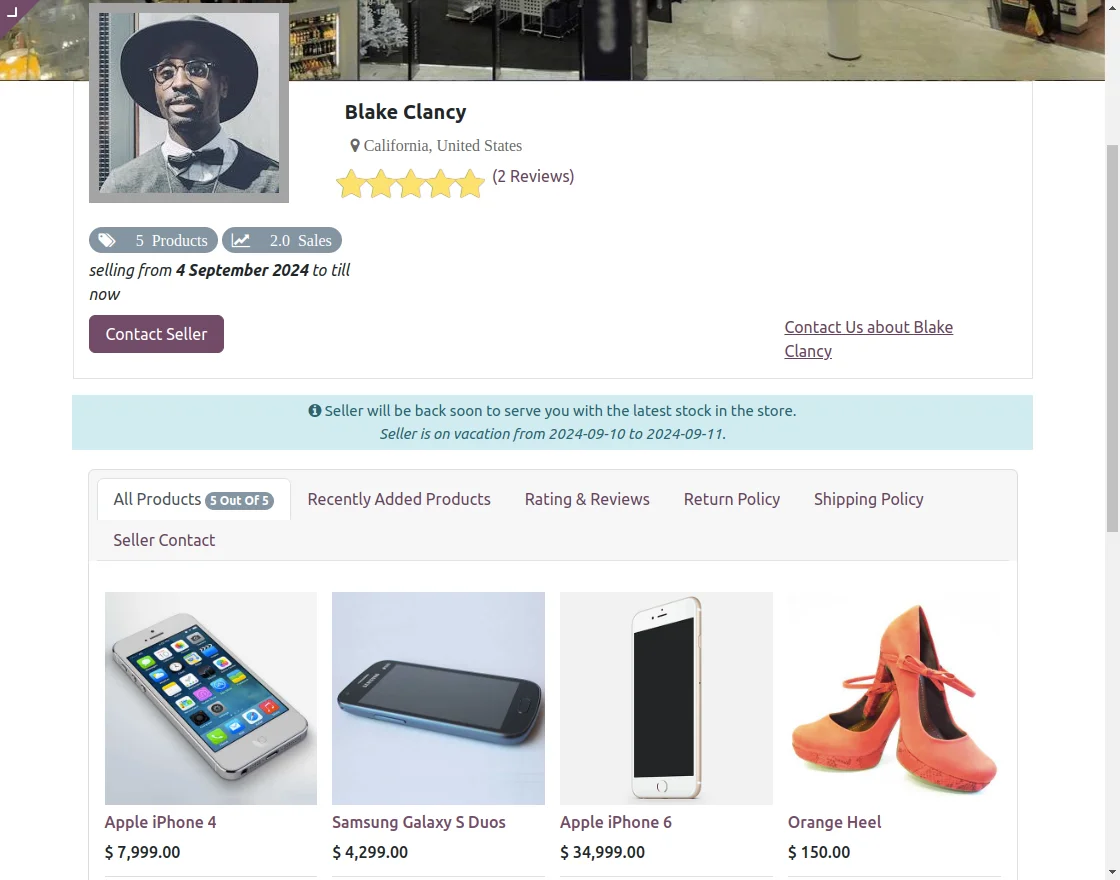
9. Here is how the Seller profile and Seller shop will appear when the seller is on vacation with the “Disable all products” action applied.
10. The Seller profile and shop pages will appear like this when the seller is on vacation with the “Disable add to cart” action applied.
11. Selecting “Disable add to cart” Disable the “Add to Cart” button, allowing buyers to view products without adding them to their cart.
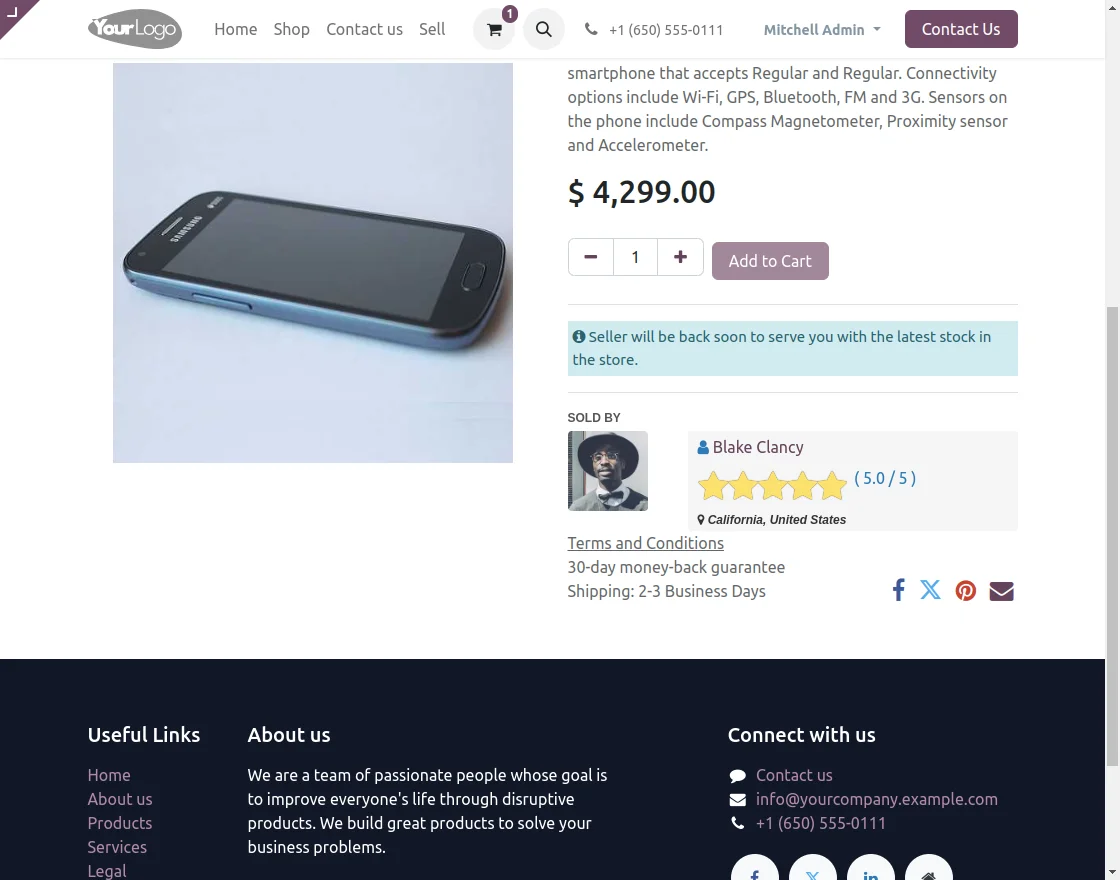
- When ‘Active all products‘ is selected, all products will appear in the seller’s profile and shop page in Odoo Marketplace Seller Vacation.
- Selecting the “Activate all products” option displays all products on the seller’s profile and shop pages, making them available for sale.
- The default message, along with the date until the seller returns from vacation, will be displayed on both the seller’s profile and shop pages.
15. Here is the product page when the seller’s products are set to be active, even while the seller is on vacation.

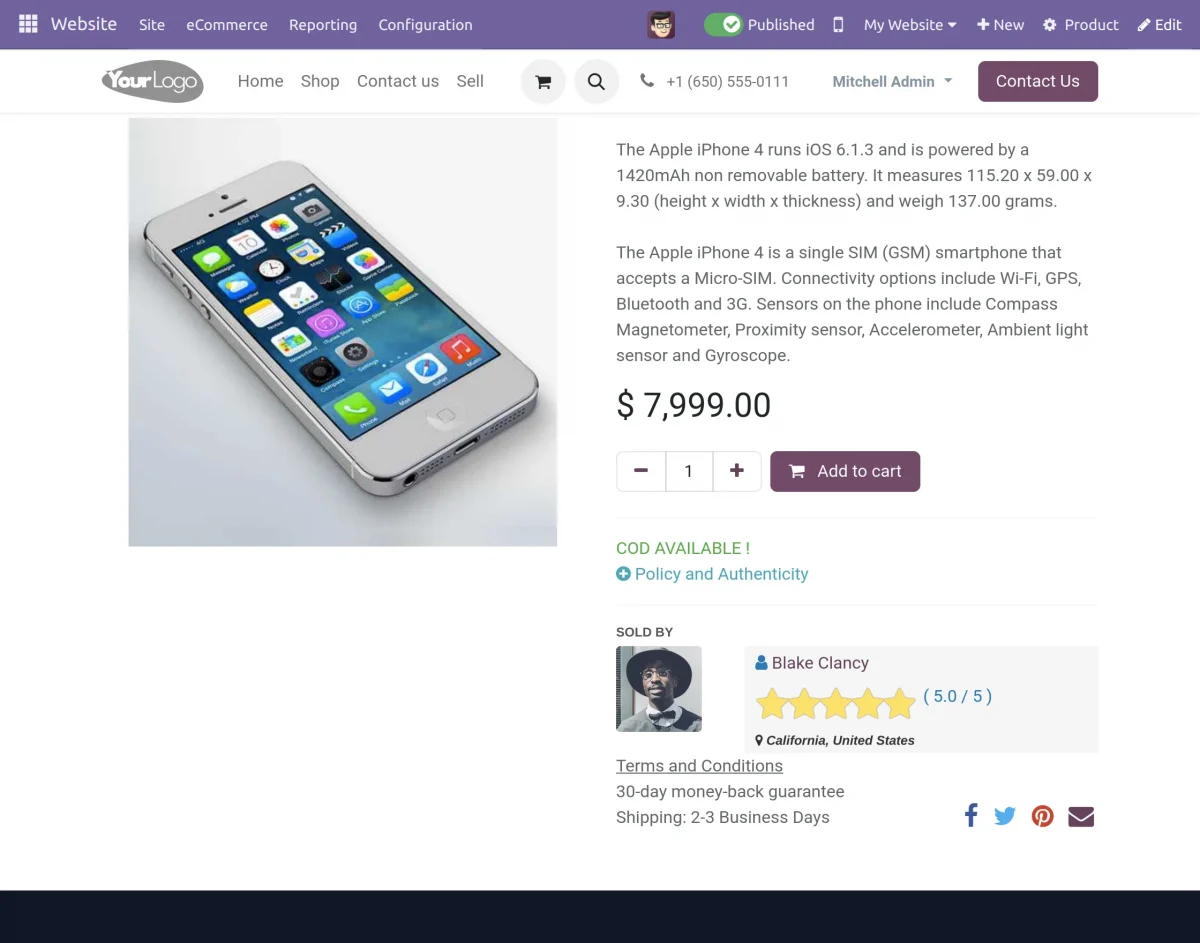
- Once the seller returns from vacation, their products will automatically become available again on the website.
NEED HELP?
Hope you find the guide helpful! Please feel free to share your feedback in the comments below.
If you still have any issues/queries regarding the same, please raise a ticket at the UV Desk.
I hope this helps. In case of any further queries, contact us at our support mail.
Thanks for paying attention!!