Odoo eLearning Marketplace’s User Manual
Introduction
Odoo eLearning Marketplace turns your website into a multi-vendor learning portal. It allows independent teachers to host, sell, and manage online courses through the marketplace.
The module provides seller dashboards for course creation and management. Administrators can review course requests, approve or reject submissions, publish slides, and manage courses in bulk.
It also supports interactive quizzes, reward points, course reviews, ratings, automatic email notifications, and course rejection reasons.
Prerequisites For Using Odoo eLearning Marketplace
The Odoo eLearning Marketplace Module works in conjunction with the following module:
To make the module work well, you’ll need to install this module first.
Features
- Allow independent teachers to register as sellers and create online courses.
- Link courses with service products and set custom course prices, taxes, and discounts.
- Submit seller courses for admin approval before publishing them on the marketplace.
- Send automatic email notifications for course requests, approvals, and rejections.
- Provide specific rejection reasons when administrators reject seller course submissions.
- Publish individual course slides directly from the backend.
- Publish or unpublish multiple courses at once using bulk actions.
- Create interactive quizzes to test student knowledge and provide reward points.
- Allow students to view and submit course ratings and reviews from the website.
- Track student rankings and achievements through the course leaderboard.
- Create and organize course tags and content tags from the seller dashboard.
- Allow sellers to upload and manage course content directly from their seller dashboard.
Installation
- Once you purchase the App from the Webkul store, you will receive the link to download the zip file of the module.
- Extract the file on your system after the download finishes. As a result, you will be able to see a folder named- ‘marketplace_elearning’
- Copy and paste this folder inside your Odoo Add-Ons path.
- Now, open the Odoo App and click on the Settings menu. Here, click on Activate Developer Mode.
- Then, open the Apps menu and click on ‘Update Modules List.’
- In the search bar, remove all the filters and search ‘marketplace_elearning’
- You will be able to see the module in the search results. Click on ‘Activate’ to install it.
Workflow
1. Configure the eLearning Marketplace
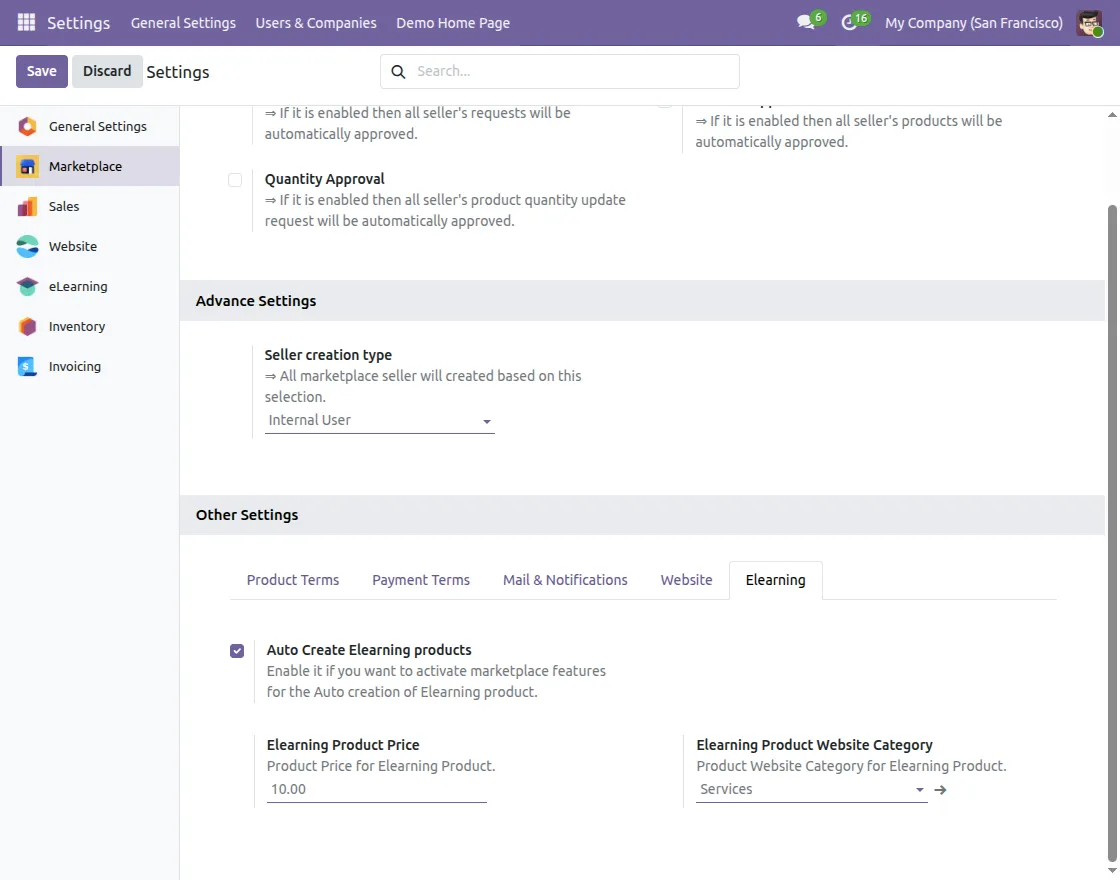
- Go to Settings > Marketplace and open the eLearning tab.
- Enable Auto Create Elearning products and configure the Elearning Product Price and Elearning Product Website Category.
2. Set Up Course and Content Tags
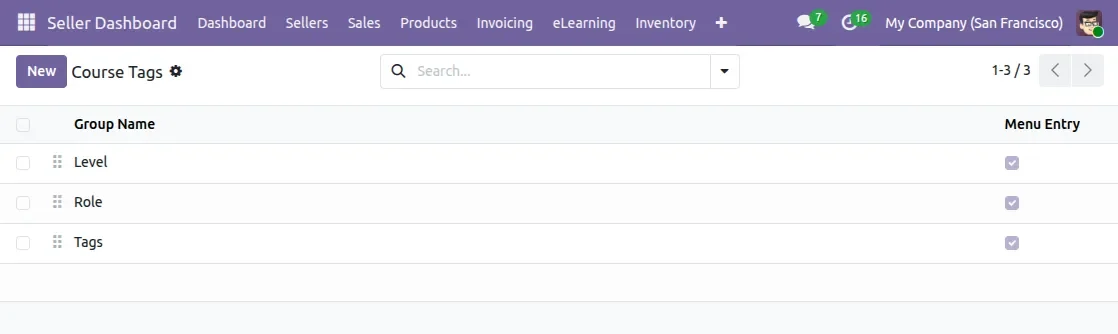
- Open the Course Tags section to manage groups such as Level, Role, and Tags.

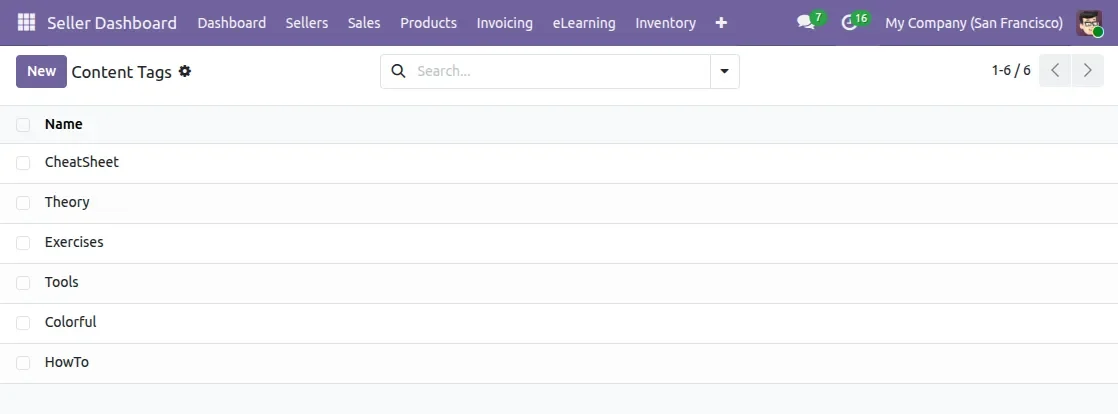
- Manage Content Tags such as CheatSheet, Theory, Exercises, Tools, Colorful, and HowTo to organize learning materials.

3. Create a Marketplace Course
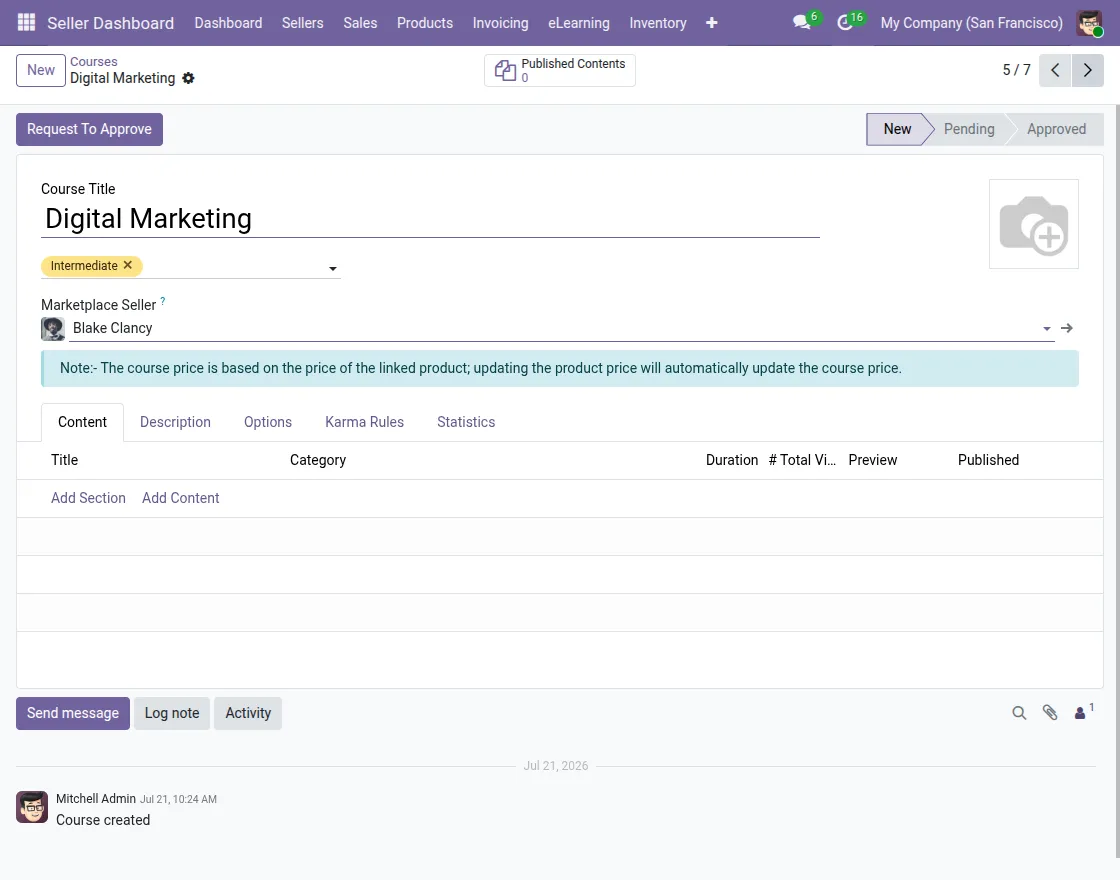
- Open the Seller Dashboard > Courses and create a new course by entering the course title and selecting the marketplace seller.
- Add the required course information and configure the available course options.
- The seller can use Request To Approve to submit the course for the approval process.

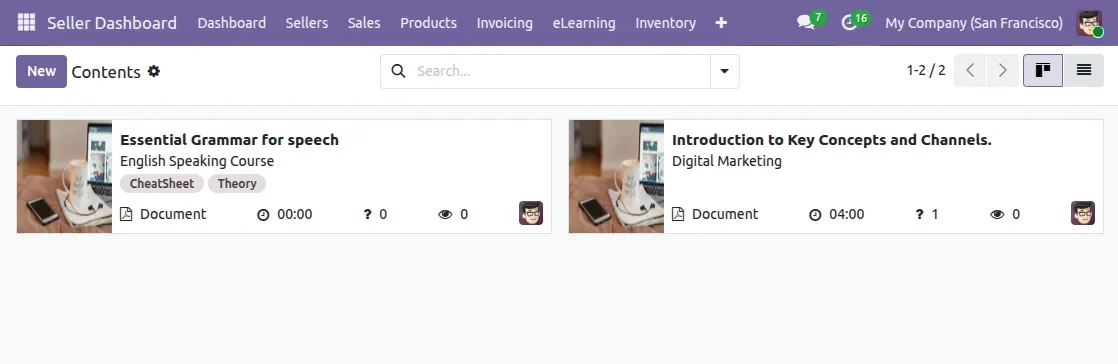
4. Manage Course Content
- Open the course content area to add and manage the learning material associated with the course.
- The content listing displays the course content along with its type, duration, questions, views, and related course.

5. Create Slides and Learning Content
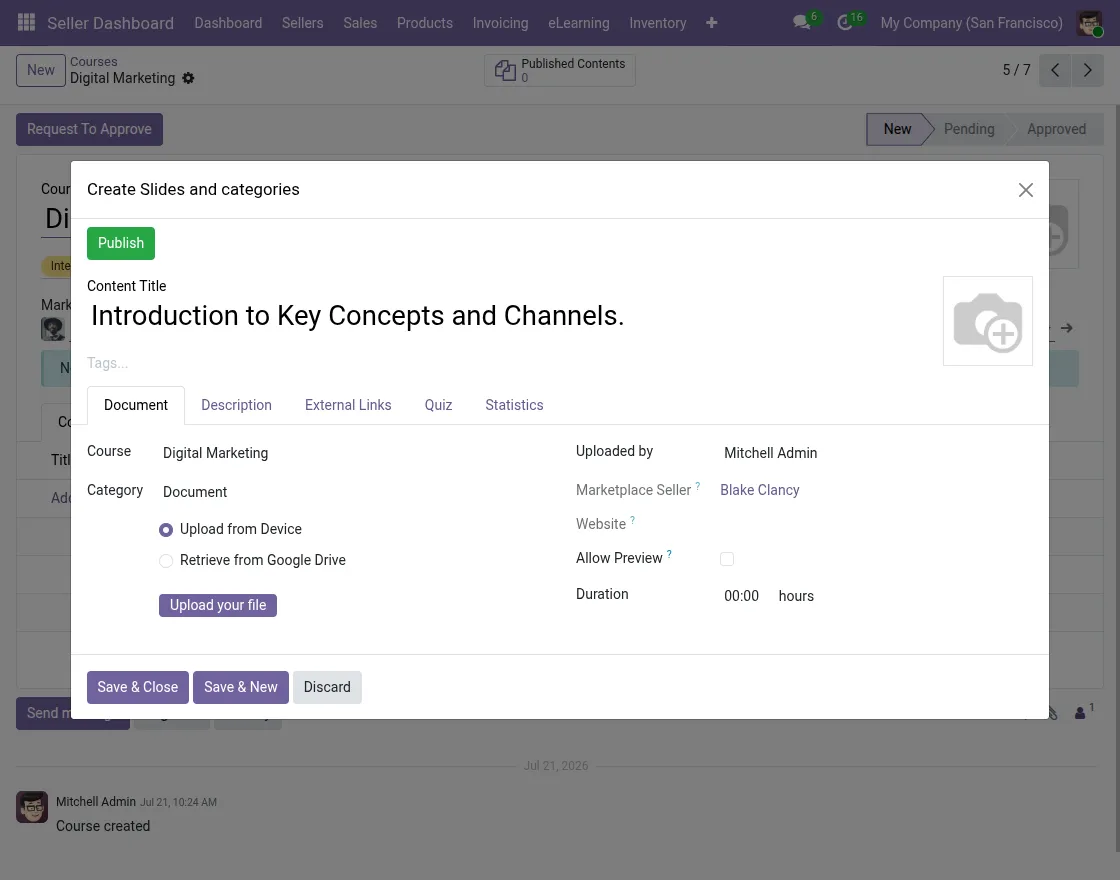
- Select Add Content to create a new slide or learning material.
- Enter the content title, select its category, and upload the required file from the device or retrieve it from Google Drive.
- The content can also be configured with options such as Allow Preview and Duration.
6. Add Interactive Quiz Questions
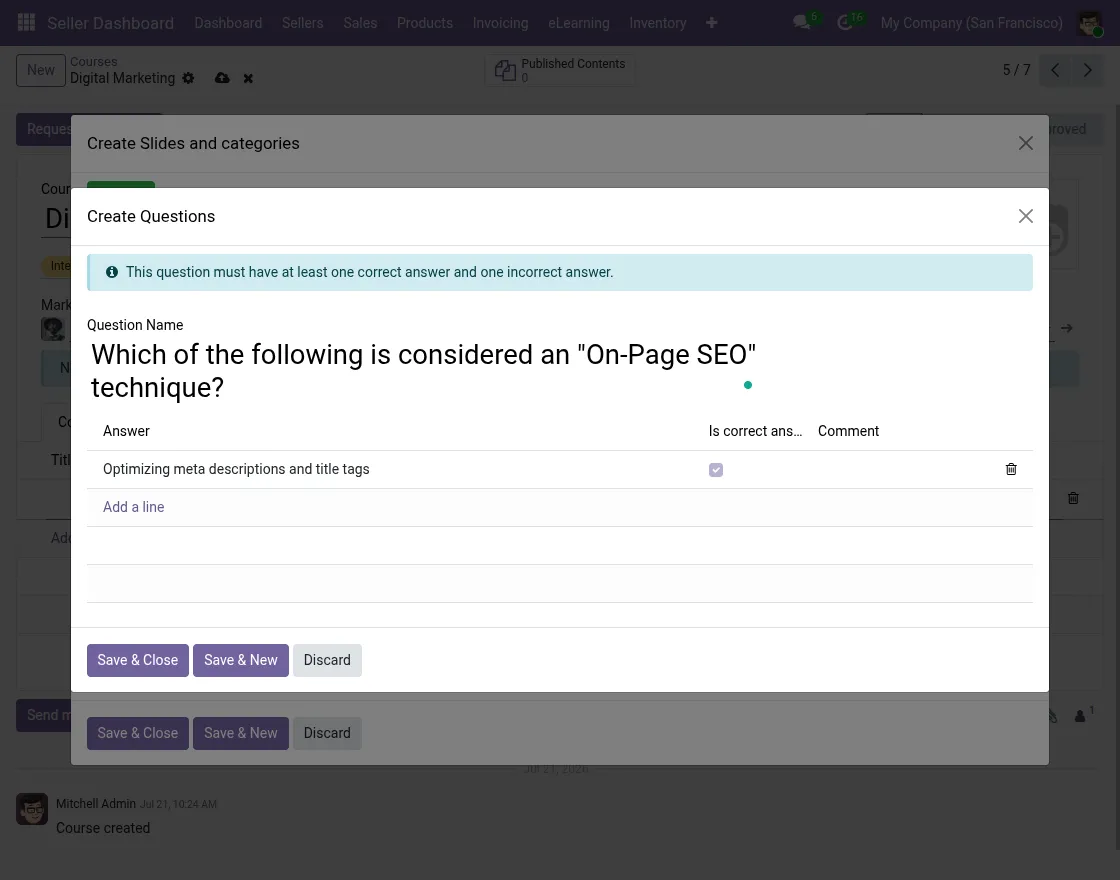
- Open the Quiz tab while creating course content and add the required question and answers.
- Mark the correct answer and add at least one incorrect answer for the quiz question.
7. Track Courses and Their Status
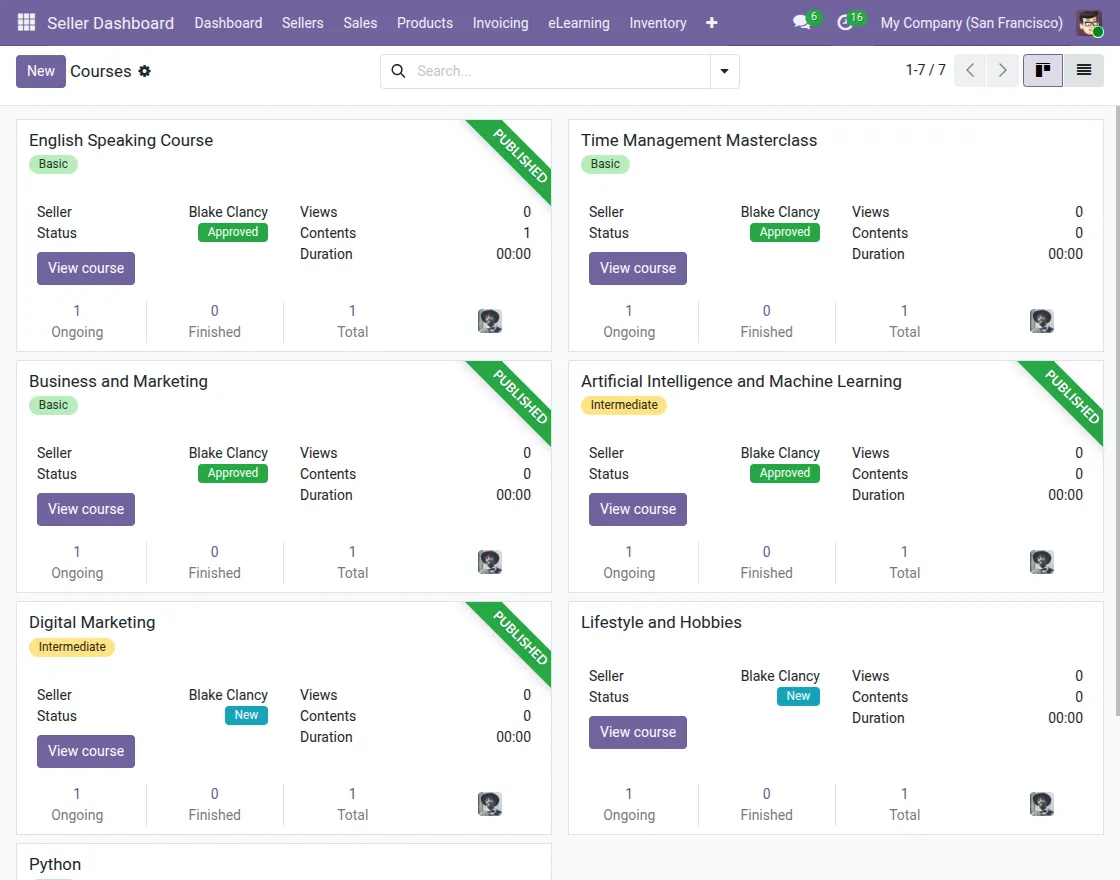
- Open the Courses section from the Seller Dashboard to view the created courses.
- The course cards show details such as the seller, approval status, views, content count, duration, and publication status.
8. Browse the Published Course Catalogue
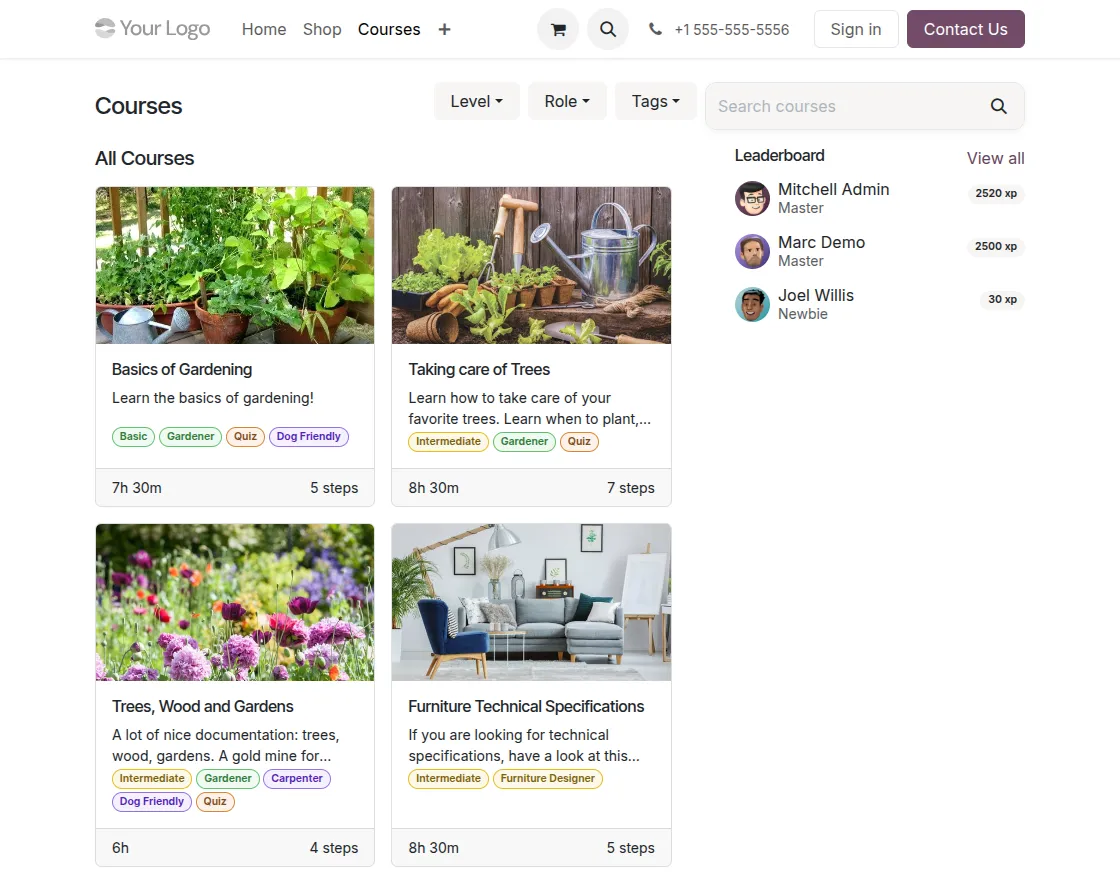
- Open the Courses page on the website to browse the available published courses.
- Students can filter courses by Level, Role, and Tags, or search for a course using the search bar.
- The catalogue also displays course duration, number of steps, tags, and the Leaderboard.
9. View Course Details and Lessons
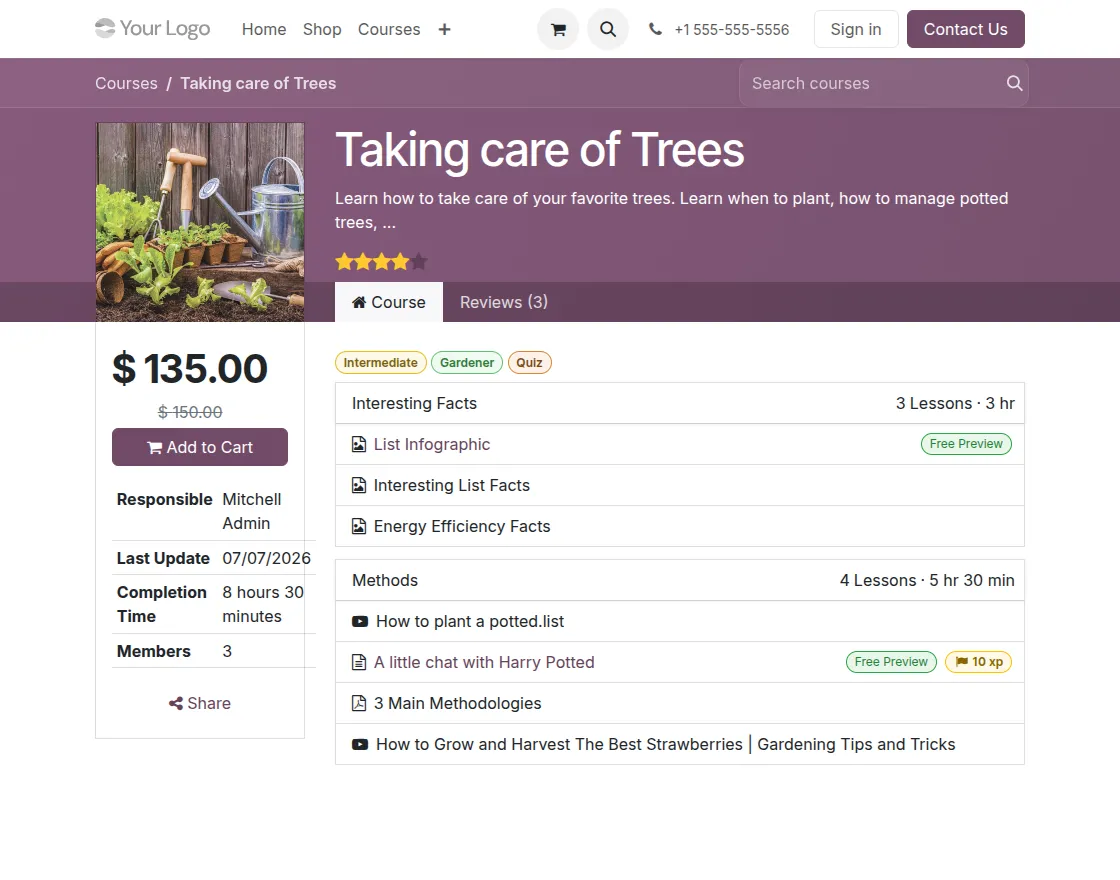
- Open a course from the catalogue to view its description, rating, price, responsible person, completion time, members, and other course information.
- Students can access the available lessons and identify content marked as Free Preview.
10. View Course Reviews and Ratings
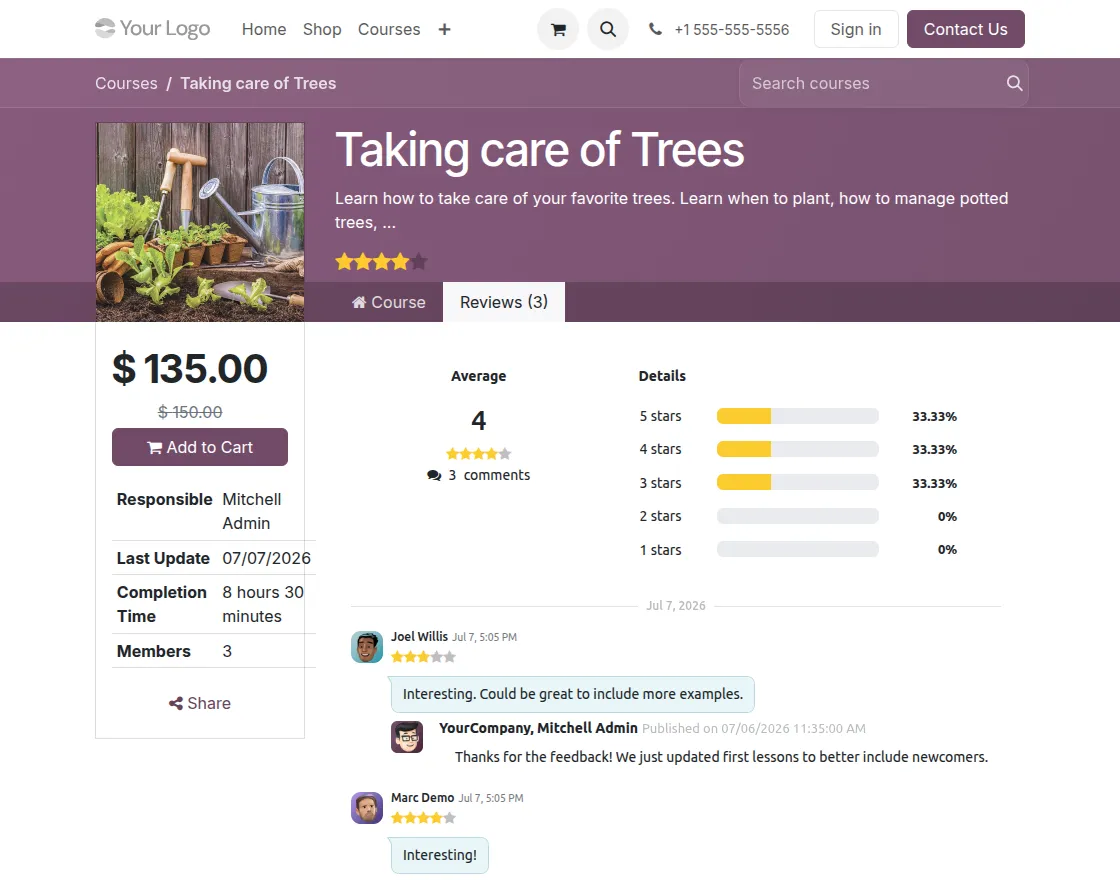
- Open the Reviews tab to view the course’s average rating, rating distribution, and submitted comments.
- Students can also submit their own ratings and feedback for the course.
11. Share the Course
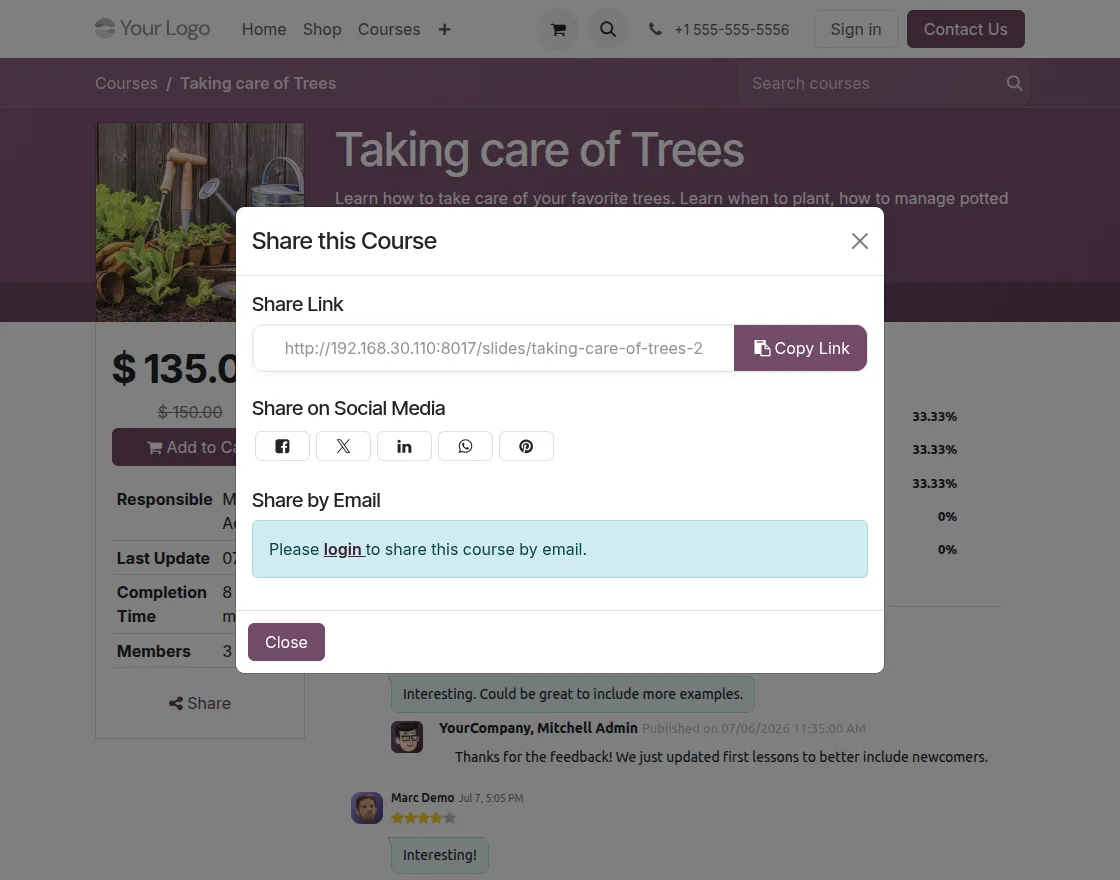
- Click Share on the course page to open the course sharing options.
- Users can copy the course link, share it through available social media options, or share it by email after logging in.
Need Help?
Hope you find the guide helpful! Please feel free to share your feedback in the comments below.
If you still have any issues/queries regarding the same, please raise a ticket at the UV Desk.
I hope this helps. In case of any further queries, contact us at our support mail.
Thanks for paying attention!!