Guide for Prestashop Multi UOM Product Sale
Prestashop Multi UOM product sale module helps to add measurement units with the product. As the units of measurement vary across the regions.
Hence, it becomes necessary to define the local units of measurement to their equivalent quantity in standard units.
The module provides to define measurement units for the following parameters
- Weight
- Length
- Area
- Volume
Now easily define quantity of products in measurement units of weight, length, area & volume. For example:
- Set the weight of product in kg, grams, ton etc.
- Define the length of products in metre, cm, inch, foot etc.
- Set the measurable volume of products in litre, mililitre etc.
- Set area of products in sq km, sq cm, sq mm etc.
The stores dealing with food items, carpentry items, apparels, furnitures etc can greatly benefit from it.
Showing the quantity of the product in their measurable unit will help customers to buy a definitive quantity of the product easily.
Store owners can also track their stocks by defining the measurable equivalent quantity of the product to the default quantity of Prestashop.
Let’s say if you have set 1 quantity = 1000g for any particular product.
Then, your customers can only buy this product in multiples of 1000g. And, the quantity of the stock in Prestashop would be updated accordingly.
Like, if some customer bought 3000g of the product & the total quantity of the product was 10000g.
Then stocks will update the quantity of the product from 10 to 7 because of quantity equivalent defined by admin i.e 1 quantity = 1000g
NOTE: This module is compatible with PrestaShop multi-store feature.
Check the overview of the plugin in the video mentioned-below –
Features of the Prestashop Multi UOM Product Sale
- Admin can add measurement units with the products.
- Set the equivalent quantity of the product in the selected measurement unit with a default quantity of Prestashop. (Like 1 quantity = 100g/1000ml/10cm etc.)
- Define measurement units of weight, length, area & volume in the module configuration.
- Define higher units of measurement of weight, length, area & volume in their equivalent lower units of measurement.
- Enable the unit of measurement for the product from the ‘Edit product’ page.
- Select measurement units for each product from the ‘Edit product’ page.
- Set the weight of product in kg, mg, gram, tonne etc.
- Add measurable units of volume like litre, millilitre etc to the product.
- Add measurement unit to bulk products via CSV file.
- Units of length like metre, centimetre, inch etc can also be assigned to the products.
- Size of products like floor carpets, window glass, yoga mats etc can be defined in terms of their area.
- Assign area of products in sq m, sq cm, sq mm etc.
- Display selected unit of measurement for the product alongside quantity.
- Choose to show the initial quantity of the product along with the price on the product listing pages.
- Provide discounts to customers on buying a certain quantity of product with ‘price offer’.
- Choose to add ‘Impact Price’ of each combination of the product in ‘price offer’ of the product.
- Display product price as retail price (based on initial quantity), unit price (per measurement unit), or both (retail and unit price).
- Set the product price per unit based on the selected measurement unit.
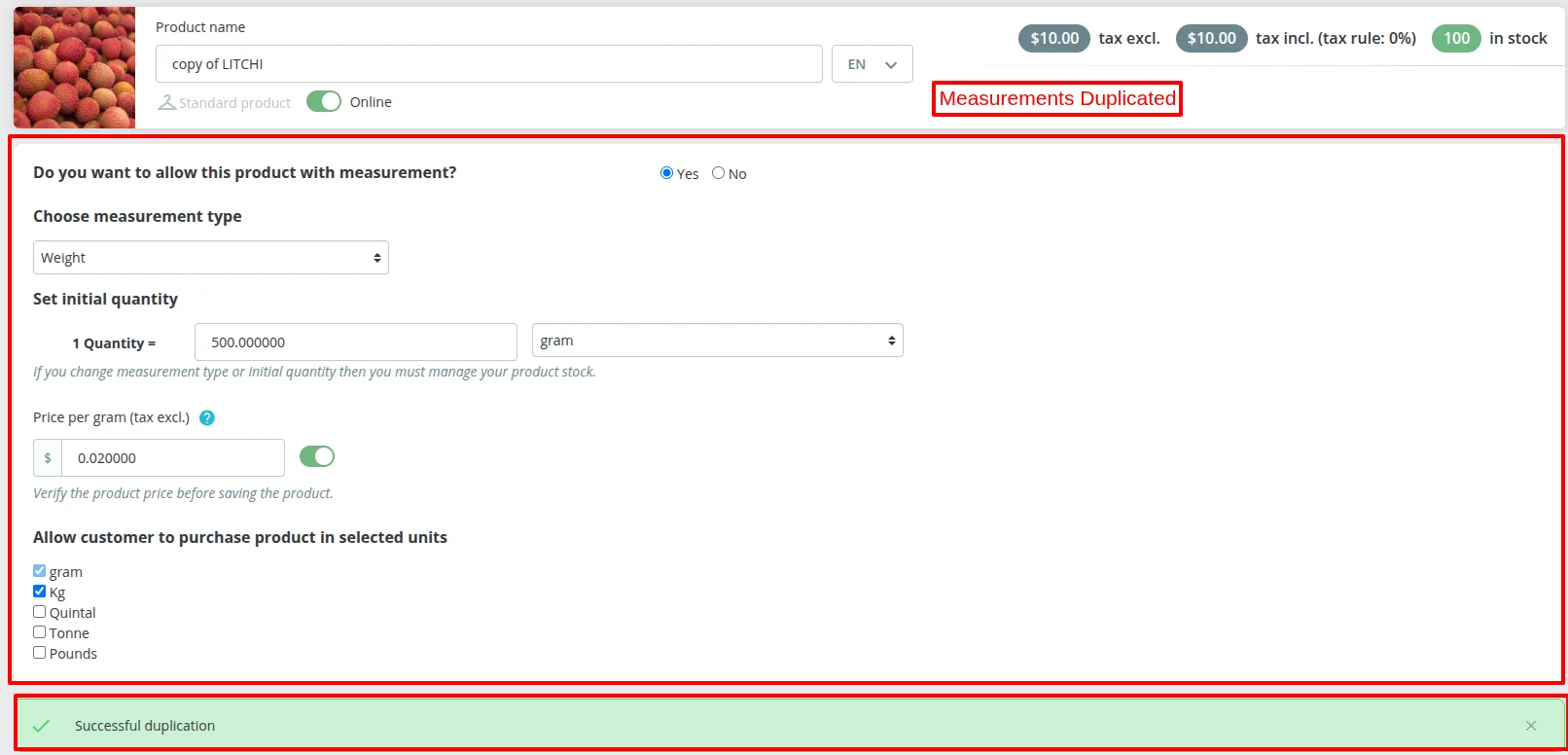
- Duplicates measurement units data when a product is duplicated.
- Module translation is available in following languages: French (fr), Arabic(ar), Spanish(es), German(de), Italian(It), Russian(ru), Japanese(ja), Dutch(nl), Bulgarian (bg), Portuguese (pt).
How to Install the Prestashop Multi UOM Product Sale
- Go to Module Manager in Back office and click on ‘upload a module’.
- Now, Drag and drop the module file or select the file from the system.
- In this way, the module installation will be successful.


Prestashop Multi UOM Product Sale Configuration
Approval Settings
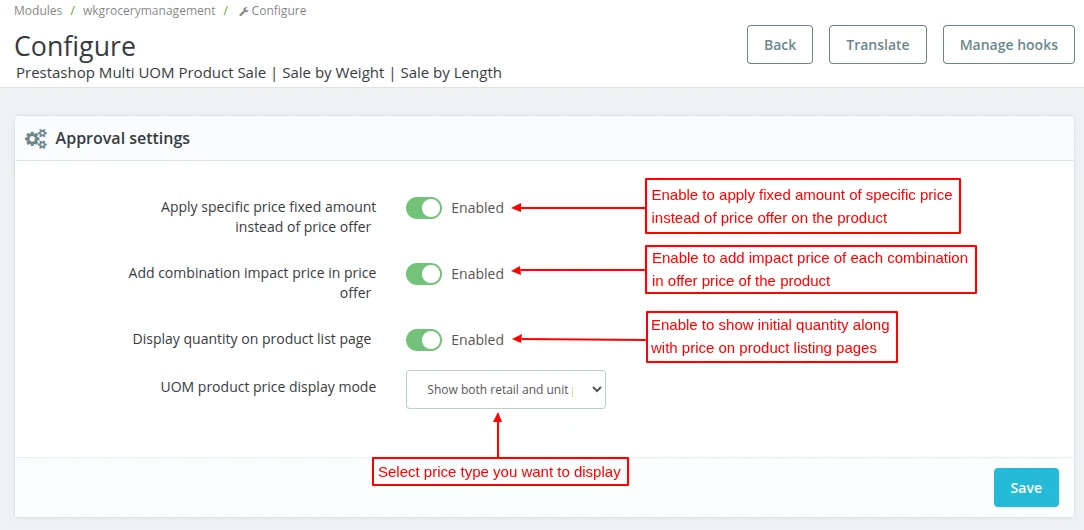
Under Approval Settings, the admin can:
- Choose to apply fixed amount of specific price instead of price offer on product.
- Choose to add impact price of each combination in office price of the product.
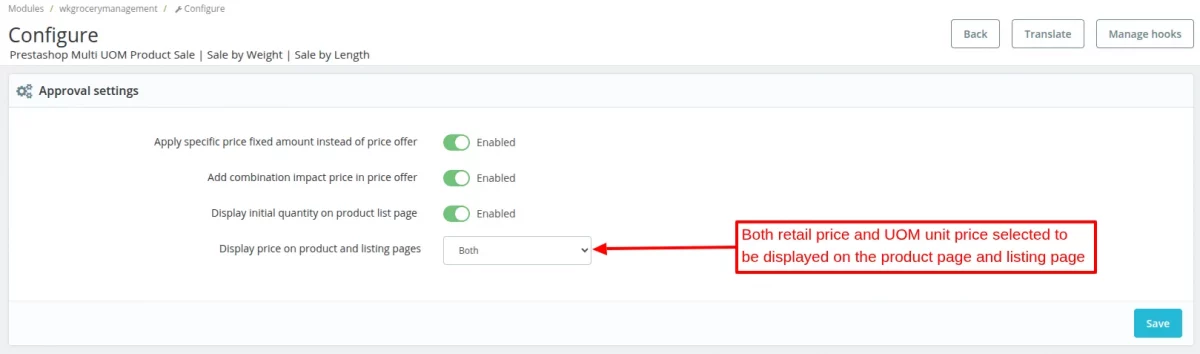
- Choose to display product price as retail price (based on initial quantity), unit price (per measurement unit), or both (retail and unit price).
- Choose to show initial quantity with measurement unit after price on product listing pages.

General Configuration
Under this tab, the admin can define multiple units for various parameters of measurements.


Show quantity on Product Listing Pages
In the configuration settings, we are enabling the option to show the quantity along with the price even on product listing pages.
Let’s just understand how this quantity will display along with the price.
Firstly, let me remind you that we are defining the equivalent quantity of each product for 1 default quantity of PrestaShop.
We are doing this process for each product separately to effectively manage the stocks in the PrestaShop.
So, let’s suppose that we define the equivalent quantity of product “Litchi” for 1 default quantity of PrestasShop something like this.
1 Quantity = 500gram of Product Litchi
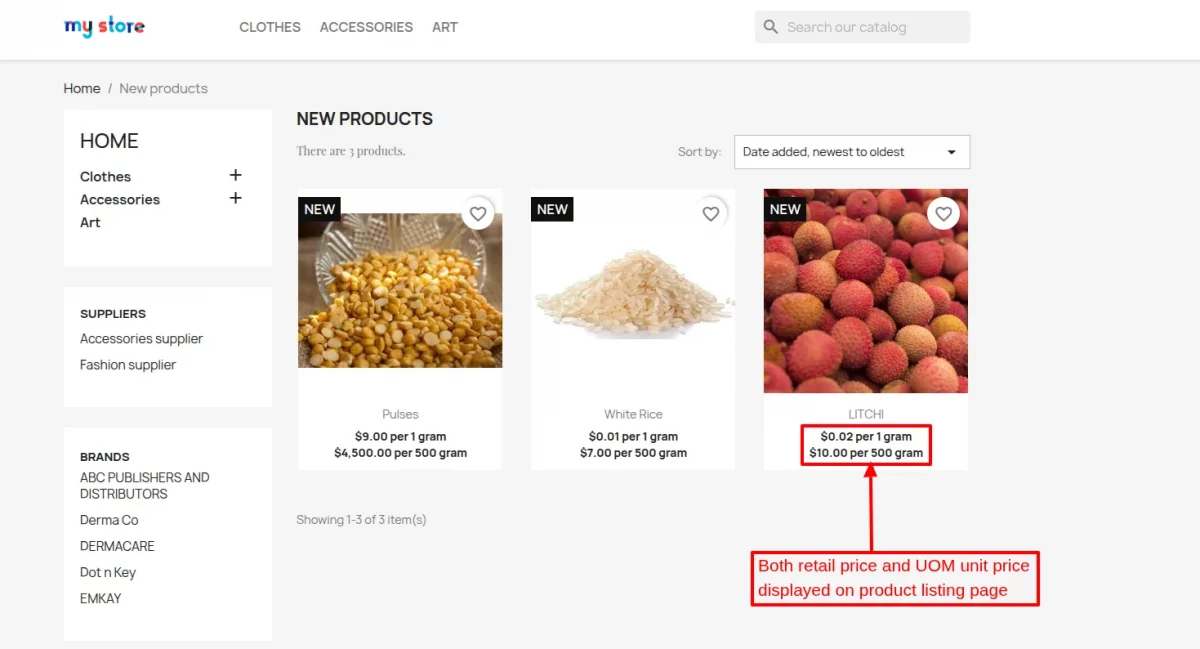
And, the price of Litchi is 10$. So, now on enabling the option to show initial quantity for product. The price of product will display in the following manner on the product listing pages.
“10$ per 500gram”

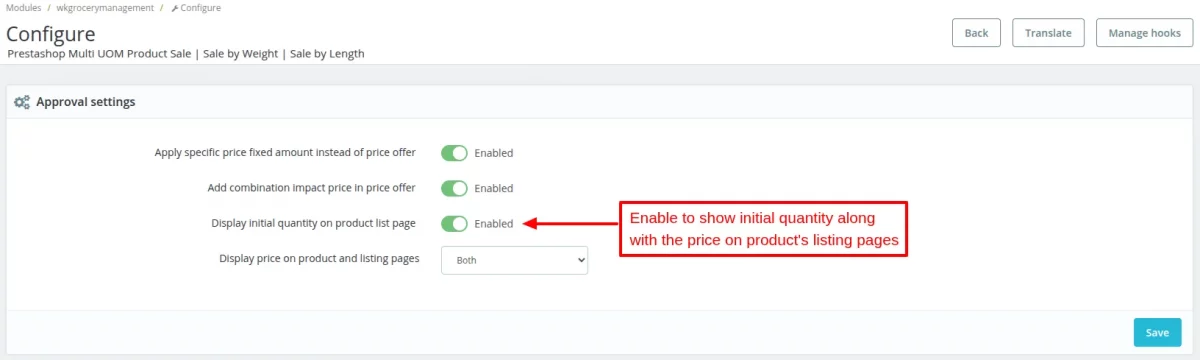
You can also observe the price written in the manner mentioned earlier on the following product listing page.


Module Workflow
Some new options are added on the product page at admin end after the successful installation of the module.
Only an integer value can be added as the quantity in Prestashop.
Hence, you need to define the quantity of the product in the selected unit equivalent to ‘1 quantity’ of the Prestashop.

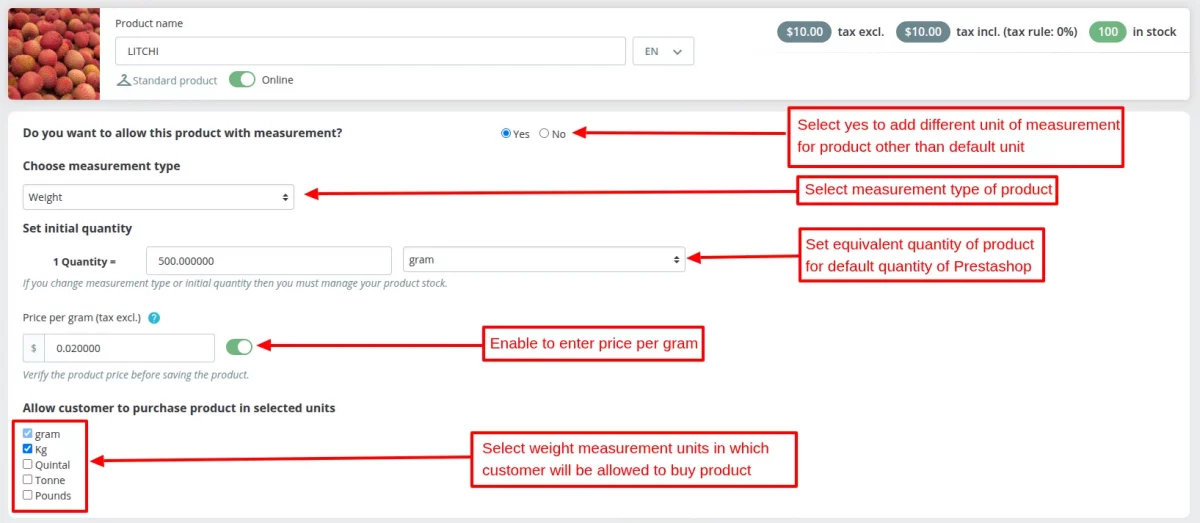
After adding the quantity of the product, you can view it under “Measurement Products” tab.

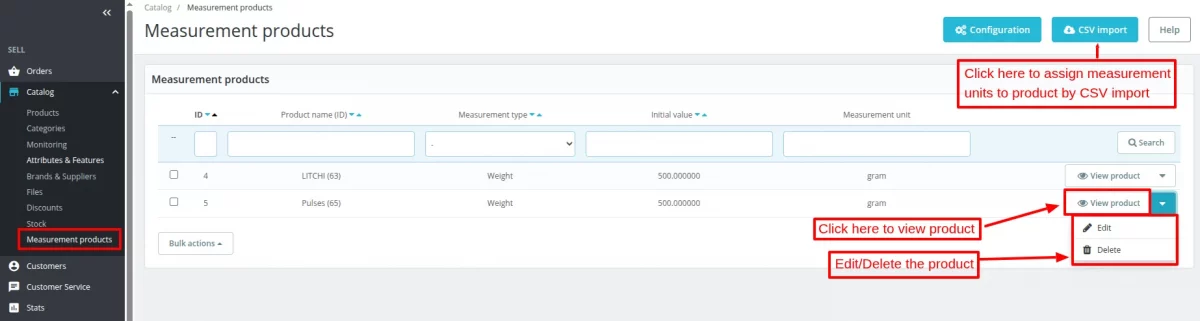
CSV Import
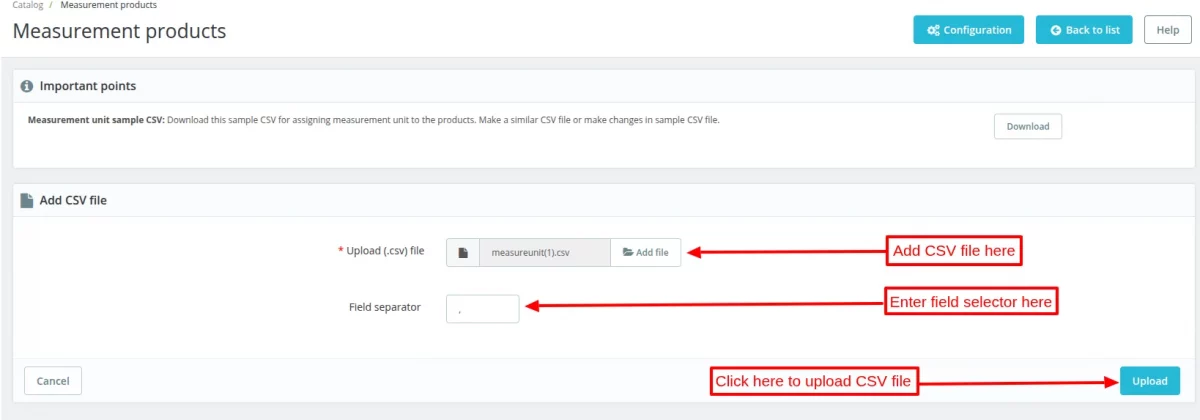
The admin can add measurement units for products in bulk by uploading a CSV file.
Click on the CSV Import button given on Meassurement products tab.
Click on Upload file field to add CSV file and specify the field separator.

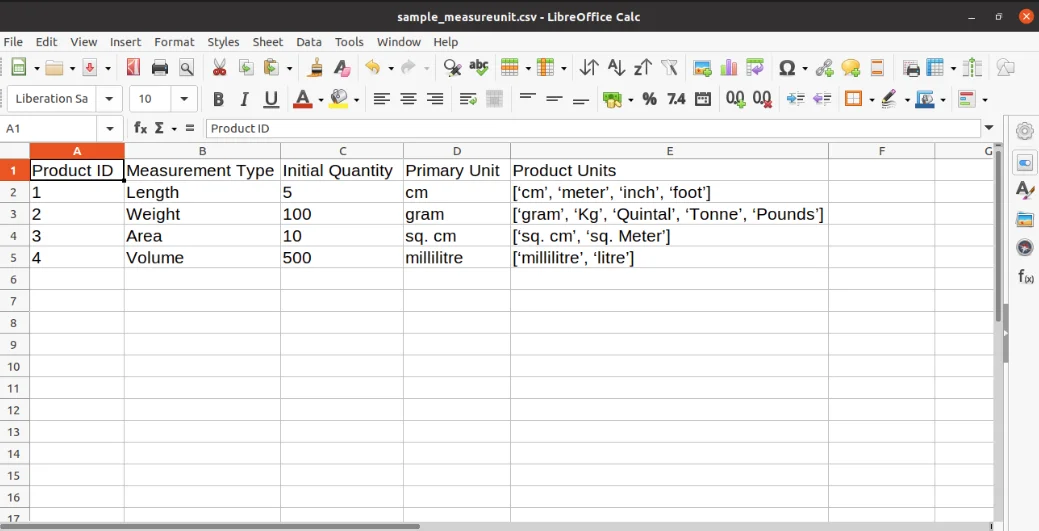
In the CSV file, the admin needs to specify measurement type, initial quantity, primary unit, product units, and ID of the product for which he intends to add the measurement units.

Product Duplication
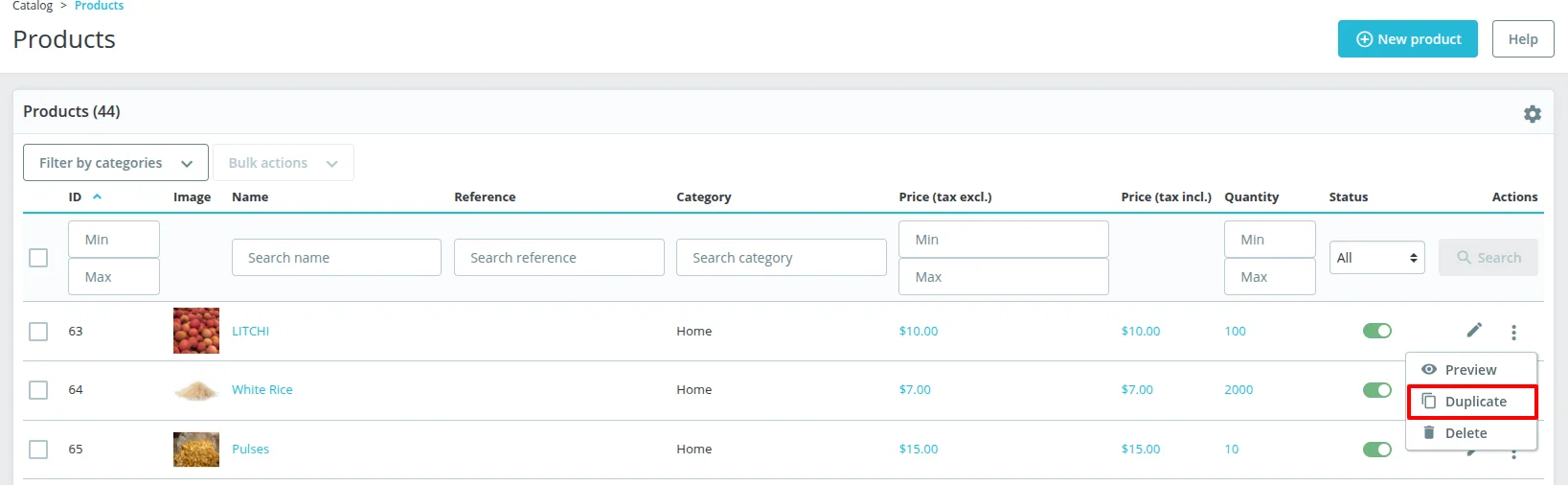
When a product is duplicated, its measurements are carried over, resulting in the duplicate having the same specifications as the original.


Front End Workflow
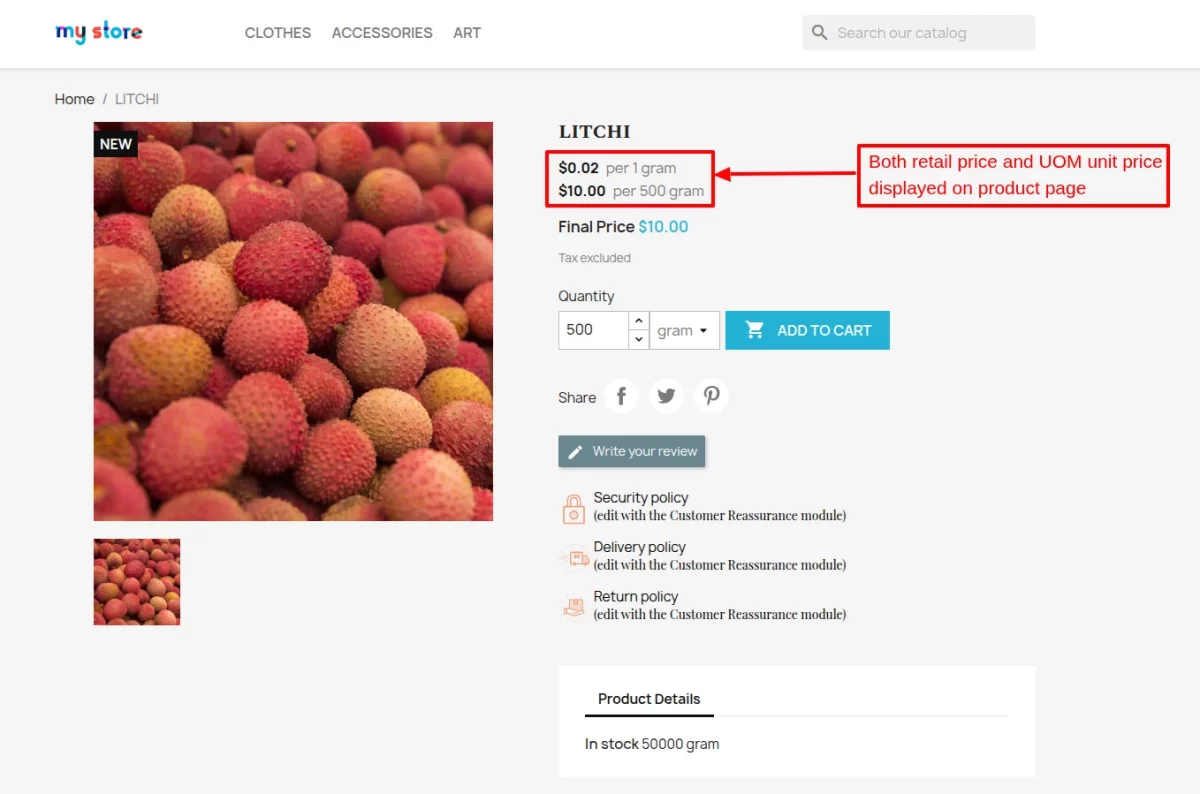
As per the above settings, a customer can now buy quantity equivalent to 500g or in multiples of it. Additionally, the price of the product is also displayed according to per 500g of the product.


Whenever a customer clicks on ‘add to cart’ button, a popup opens with details of added products of the cart. Cart popup also shows the quantity of the product in the selected unit of measurement.


View the quantity of the product in the selected unit of measurement at cart, checkout, order confirmation & order details page.
Cart Page:


Checkout Page:


Order Confirmation Page:


Order Details Page:


Details of Order at Admin-end


Invoice and delivery receipt of the order also contains the quantity of the product.
View quantity of the product in the selected unit of measurement on invoice & delivery receipt too.
Order Invoice:


Delivery Receipt:


Case 1
In this case, we have applied both i.e. specific price & price offer on the product.
The product will be available at $85 if the customer buys 5000g of the product according to the ‘price offer’ applied to the product.
Whereas, the specific price condition allows the product to be sold at $9 for per 500g.


The priority of both of the above conditions can be set from the configuration setting of the module.
Here, we have selected to apply ‘price offer’ of the product instead of the ‘specific price’.

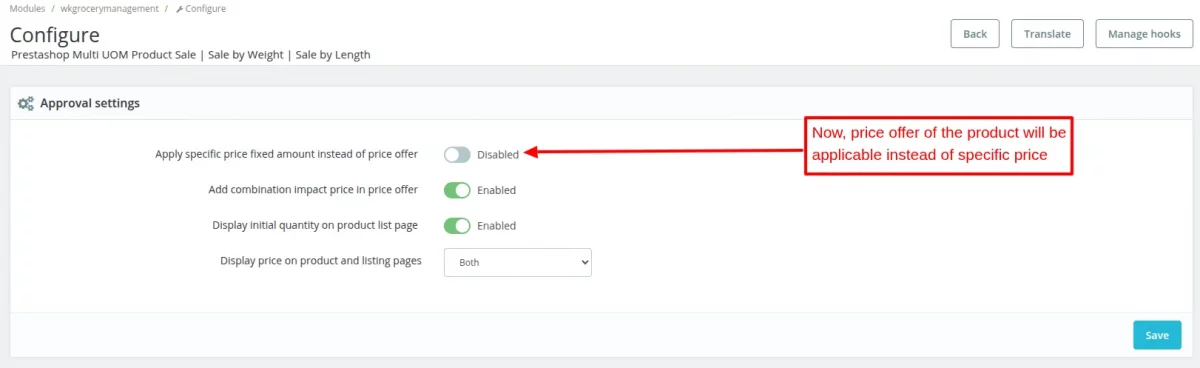
In this case, a customer can buy 5000 g of the product at $85.


However, if we choose to apply the specific price of the product for the same quantity instead of the price offer.
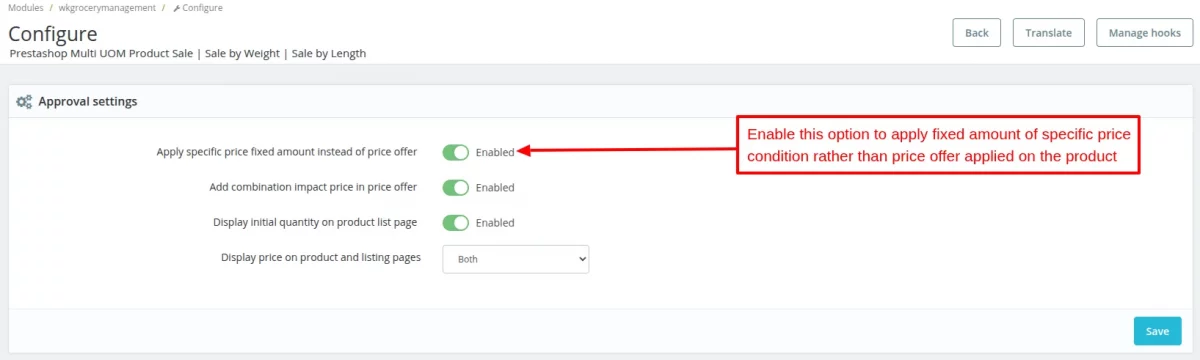
Then, the customer needs to pay $90 for the same 5000g of the product.
Let’s see how the price went from $85 to $90 for 5000g of the product.
The specific price is set to $9 for per 500g of the product.
500g—–>$9
500g*10—–>$9*10
=5000g—–>=$90


Case 2
Now, we will try to understand the significance of the 2nd option available in the module configuration.
This option lets you add the impact price of each combination in ‘price offer’ of the product.
Let’s see how?

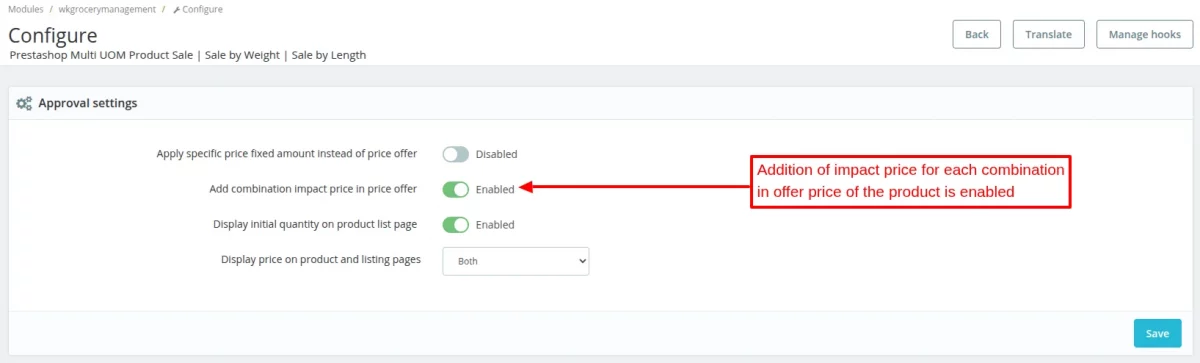
There were 3 combinations of the product i.e. lentils, chickpea & groundnut.
On all these combinations, there was an impact price of $5, $10 & $15 respectively.


Now, the price for every 100g of the product is set to $20.
Additionally, a ‘price offer’ is also applicable to the product. Due to which, a customer can buy 500g of any of the aforementioned combinations at $90.


Combination 1
Let’s see how 500g of the 1st combination i.e lentil costs $115 to the customer.
Due to the applicability of ‘Price Offer’ on the product; 500g is available at $90.
The impact price applied on 1st combination i.e lentil is $5 for per 100g or say 1 quantity.
Hence for 500g of the product, the total ‘Impact Price’ would cost around
100g—–>$5
100g*5—–>$5*5
=500g—–>$25
Total price of the product = ‘Price offer’ of the Product + Total ‘Impact Price’ of the Product
$115 = $90 + $25


Combination 2
Similarly, for 2nd combination that is chickpea, the price calculation would be same.
As per the ‘Price Offer’ of the product, 500g of the product is available to the customer at $90.
The ‘Impact Price’ applied on the product is $10 for per 100g or 1 quantity.
Hence for 500g of the product, the total ‘Impact Price’ would cost around
100g—–>$10
100g*5—–>$10*5
=500g—–>$50
Total price of the product = ‘Price offer’ of the Product + Total ‘Impact Price’ of the Product
$140 = $90 + $50


Combination 3
In the same way, let’s see how price would be calculated for the 3rd combination of the product.
According to the ‘Price Offer’ of the product, 500g of the product is available to the customer at $90.
The ‘Impact Price’ applied on the product is $15 for per 100g or 1 quantity.
Hence for 500g of the product, the total ‘Impact Price’ would cost around
100g—–>$15
100g*5—–>$15*5
=500g—–>$75
Total price of the product = ‘Price offer’ of the Product + Total ‘Impact Price’ of the Product
$165 = $90 + $75

Additional Case
In case, if any customer tries to buy 600g of the product.
Then, Let’s see how the price of the product would be calculated.
The 500g of the product is available at $90 due to price offer.
The ‘Impact Price’ applied on the product is $15 for per 100g or 1 quantity.
Hence for 500g of the product, the total ‘Impact Price’ would cost around
100g—–>$15
100g*5—–>$15*5
=500g—–>$75
Total price of the product = ‘Price offer’ of the Product + Total ‘Impact Price’ of the Product + Price of 100g of the product(inclusive of impact price)
$200= $90 + $75 +$35


Pricing Display Options for Admin
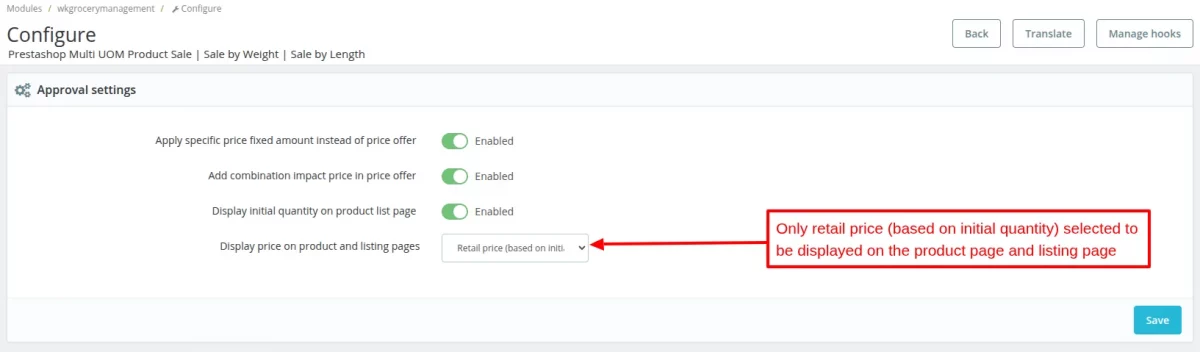
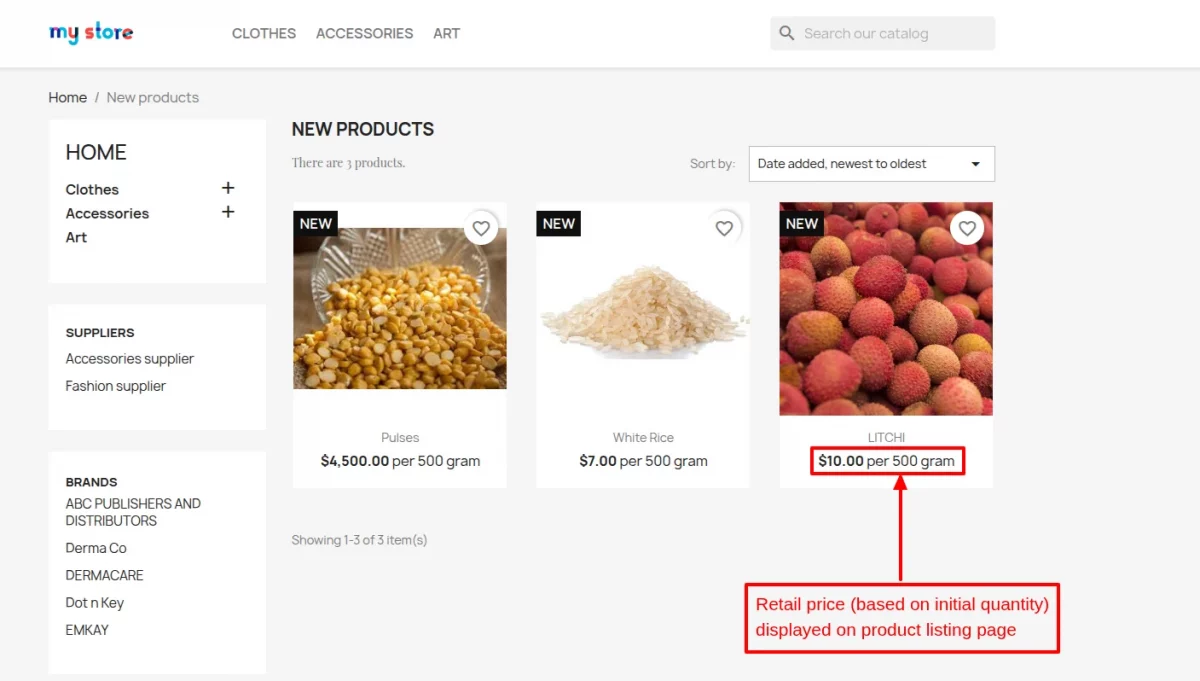
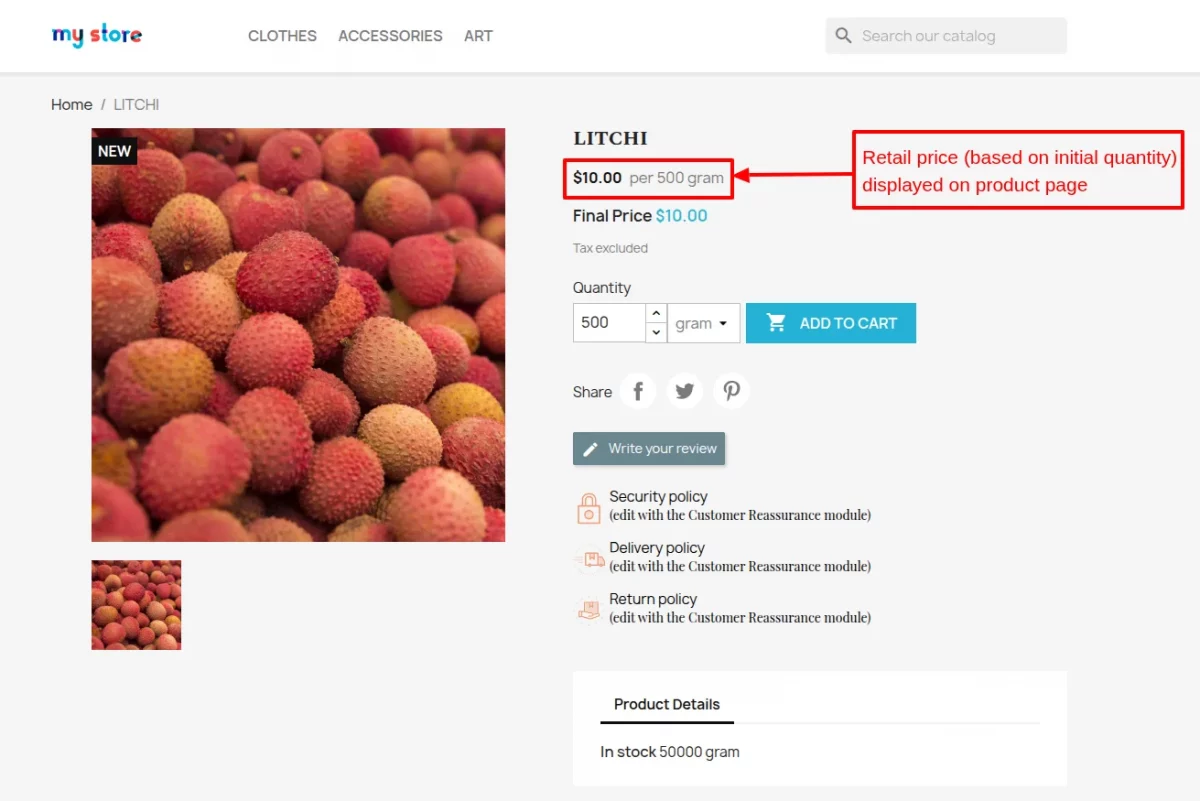
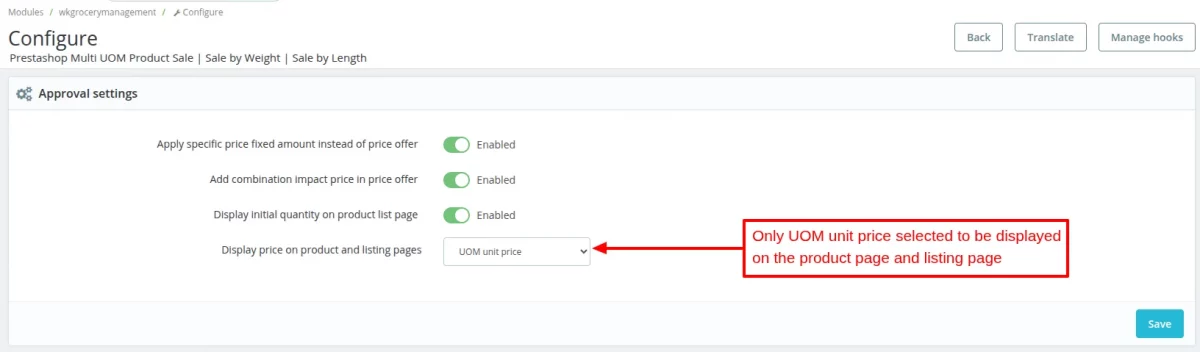
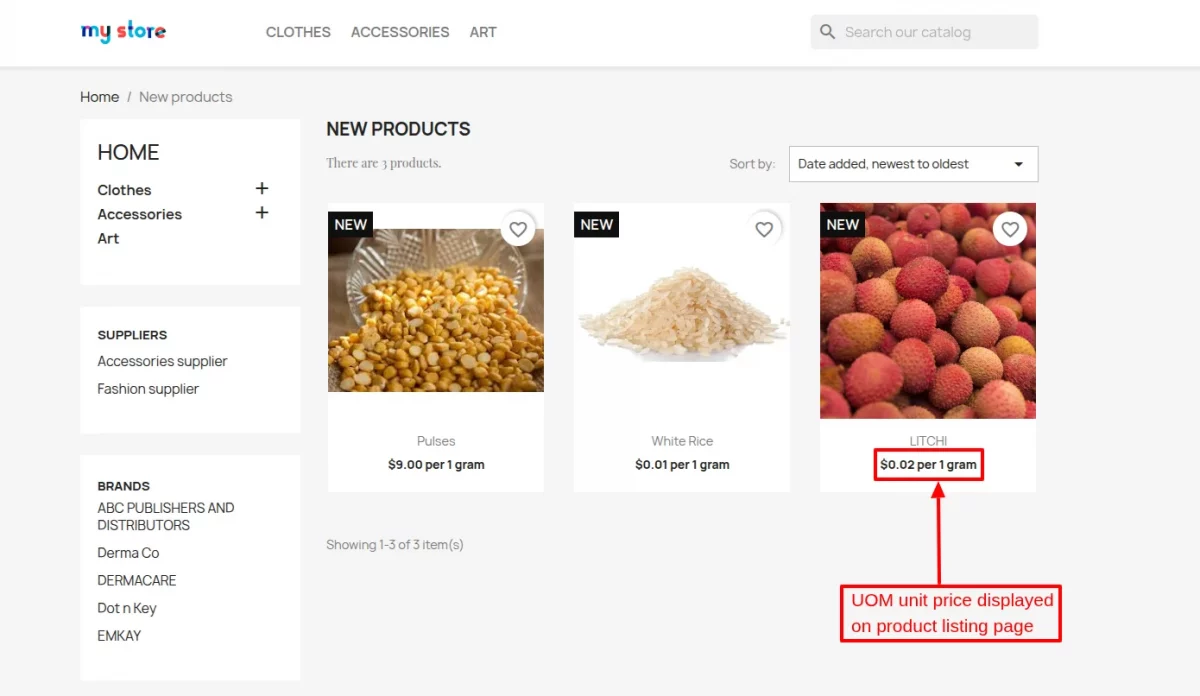
Admins can configure the display settings for product pricing, choosing between retail price, unit price (UOM), or both.
Display Retail price (based on initial quantity)



Show UOM unit price



Display Both retail price and UOM unit price



So, this was all about Prestashop Multi UOM Module. I hope this document will help you in checking the functionality of the module in a better way.
Also, do let us know about your views in the comments.
In case, if you are also looking to integrate POS functionality in PrestaShop. Then, do check out the blog.
Note: By default, the module will not be compatible with any 3rd party module.
Support
For any kind of technical assistance or query, please raise a ticket or send us a mail at support@webkul.com
Also, please explore our Prestashop development services and vast range of quality Prestashop addons.