Measurements In Akeneo
Introduction
The measurement family in Akeneo Measurements is used to group units that refer to the same product measurement, such as weight, length, frequency, and so on inside your PIM (Product Information Management). The Weight measurement family, for example, lets you store product weights in grams, kilograms, ounces, pounds, and other units.
How to Manage Measurements in Akeneo?
Create a Measurement Family in Akeneo Measurements
However, To create a new measurement family you have to navigate through Settings -> Measurements – > Create as seen in the screenshot given below.

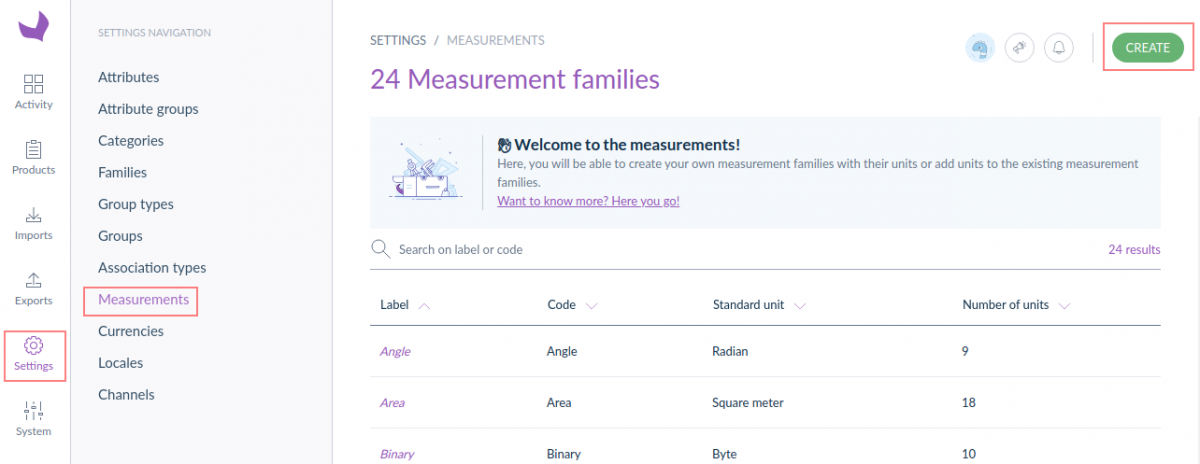
After that, The pop-up for creating a measurement family appears as given in the below image.


- Code – In this option, you need to enter the new measurement family code.
- Label – In this option, you need to enter the new measurement family label.
This measuring family’s standard unit is used to convert the other units.
- Code (required) – In this option, you need to enter the code of the standard unit. This code must be unique and must be necessary.
- Label – Enter the label in the current UI locale.
- Symbol – In this option, you need to enter the symbol of the standard unit.
After entering the details you have to click on the Save button.
However, The measurement family has now been formed, and the page for displaying and adding more units has shown as seen in the screenshot given below.


Edit Properties of Measurement Family in Akeneo Measurements
However, You can edit the properties of measurement family under Properties tab as seen in the screenshot given below.


Afterwards, Click Save button after translating the labels in the Properties tab.
Add a Unit to a Measurement Family
To add a unit to a measurement family you have to click on ADD UNIT button as seen in the screenshot given below.


Afterwards, The pop-up window for adding a new unit to a measuring family appears as seen in the screenshot given below.


- Code (required) – In this option, you need to enter the code of the standard unit. This code must be unique and must be necessary.
- Label – Enter the label in the current UI locale.
- Symbol – In this option, you need to enter the symbol of the standard unit.
- Conversion operation (required) – In this option, you have to enter the conversion operations to convert the unit to the standard unit.
Furthermore, To add multiple conversion operations with their values, click ADD NEW OPERATION.
When you click ADD, a screen with all of the units appears as given in the below image.


In the Label Translations section, translate the labels of the newly inserted unit and afterwards click on SAVE button.
Edit a Unit in Measurement family in Akeneo Measurements
However, To edit a unit in measurement family you have to click on the unit you want to edit in the list as seen in the screenshot given below.


A unit’s properties can be changed as follows:
- Symbol – In this option, you will edit the symbol of the standard unit.
- Conversion Operations – In this option, you will edit the conversion operations or add new operations to convert the unit to the standard unit.
- Labels Translations – In the Label translations section, translate the unit’s labels.
After Editing the details you have to click on the SAVE button.
*Note – Each unit must have at least one conversion operation, with a maximum of five conversion operations per unit.
Delete a Unit in a Measurement Family
To Delete a unit in a measurement family you have to click on Delete button as seen in the screenshot given below.


Afterwards, you have to Confirm the action taken as a result of the validation message.


Afterward, the unit is deleted.
Delete a Measurement Family
You can Delete a measurement family. to do so, you have to click on … for other actions, and afterward, click on Delete measurement family as seen in the screenshot given below.


At last, Confirm the action taken in response to the validation message.


Create Measurement Attribute
To add measurement in the product you have to create a measurement attribute to add a weight/size/length… for your products. to do so, you have to navigate through Settings -> Attribute -> Create Attribute as seen in the screenshot given below.


Select the Measurement Attribute Type as seen in the screenshot given below.


When the attribute edit form appears, fill in the following fields:
- Code – A code to identify the attribute (needed).
- Type – A type that is based on the attribute type that was chosen in the previous screen.
- Attribute Group – An attribute group to which the new attribute will be added (required).
- Unique Value – If the value of this attribute must be unique, enable this property. For the Identifier attribute type, it is set to yes by default.
- Value per Channel – If you want to have distinct product values per channel activate this parameter.
- Value Per Location – If you want to have distinct product values for each locale, activate this feature.
- Usable in Grid – If you want to utilize this property as a column or filter on it in the product grid.
- Locale Specific – Only some locales will be able to use this attribute.


- Measurement family – the measurement family that used to determine the attribute’s value (weight, length, area, etc. )
- The default Measurement Unit – By default, the unit is used to enter a value for the measurement characteristic.
- Negative Values Allowed – Allow the property to have negative values.
- Decimal Values allowed – Allow the property to have decimal values.
- Min Number – The lowest value that can be used.
- Max Number – The maximum value permissible.


Click on Save Button to save your Attribute.
Add Measurement Unit in Product
Afterward, you have to create a new product. to do so, you have to navigate through Products -> Create as seen in the screenshot given below.

furthermore, You’ll see two options after selecting the Create Product icon: Product and Product model. You must click on Product to create a simple product.


After selecting the product action, you must provide certain information.
SKU (Stock Keeping Unit) – A Stock Keeping Unit (SKU) is a unique identifier for a product that aids in inventory tracking.
Product Family – A product family is a collection of features that indicate products from the same line of business.


However, The product window will open once you click the save button, and you will need to fill in the measurement unit and product data here and save the product.

*Note – You will not be able to delete a measurement family in Akeneo Measurements if a product attribute is linked to it.
Support
That’s all for measurements in Akeneo. If you have any query please create a support ticket at https://webkul.uvdesk.com/en/customer/create-ticket.