Odoo Marketplace Quote System
INTRODUCTION
“Transforming Quotes into Customer Smiles!”
Odoo Marketplace Quote System is a helpful tool that makes it easier for businesses to create and manage quotes for their customers.
This module improves how companies interact with clients and helps increase sales efficiency.
With features that allow easy quote creation, customization, and tracking, the Odoo Marketplace Quote System helps businesses respond quickly to customer requests.
Prerequisites For Odoo Marketplace Quote System
The Odoo Marketplace Quote System Module works in conjunction with the following module:
You must install these modules first for the Odoo Marketplace Quote System to work.
FEATURES
1. Flexible quote system allows admins and sellers to enable quoting for their products.
2. Customers can submit their own prices for products, promoting personalized offers.
3. Customers have the option to order products in bulk, enhancing purchasing efficiency.
4. Both admins and sellers can change the status of customer quotes for better tracking.
5. Customers receive email alerts whenever there is a change in the status of their quotes.
6. Opening doors for high-volume sales and growing your business to new heights.
7. Ask questions, clarify details & get quick answers through built-in chat features
8. Approved quotes automatically populate your cart with the agreed quantity & price.
Looking to implement ERP in your system? Check out Odoo Implementation! It’s your go-to solution for seamless integration and enhanced efficiency.
INSTALLATION
- Once you have purchased the module from our Webkul store, you will receive a link to download the zip file of the module.
- Extract the file on your system after the download finishes. You will be able to see a folder named- ‘marketplace_quote_system’.
- Copy and paste this folder inside your Odoo Add-Ons path.
- Now, open the Odoo and click on the Settings menu. Here, click on Activate the Developer Mode. You can activate the developer mode by typing ‘debug’ after ‘web?’ in the URL as well.
- Now, open the Apps menu and click on ‘Update Modules List’.
- In the search bar, remove all the filters and search ‘marketplace_quote_system’.
- You will be able to see the module in the search result. Click on ‘Install’ to install it.
Before moving further, explore our Odoo development services & an extensive range of quality Odoo Apps.
WORKFLOW
Admin Settings
- Admins can view customer quote records in the dashboard by clicking on the sales < quote requests section and statuses for approved products under the “Customer Quotes” menu will appear.

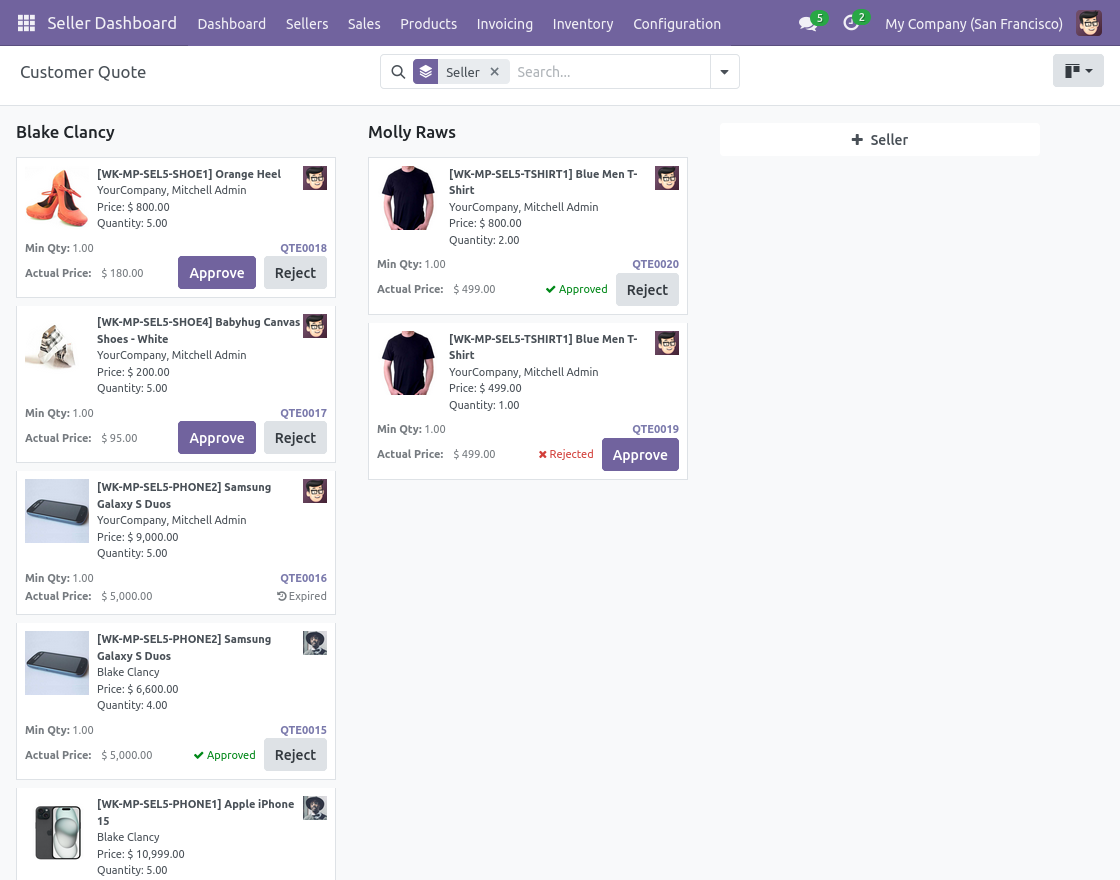
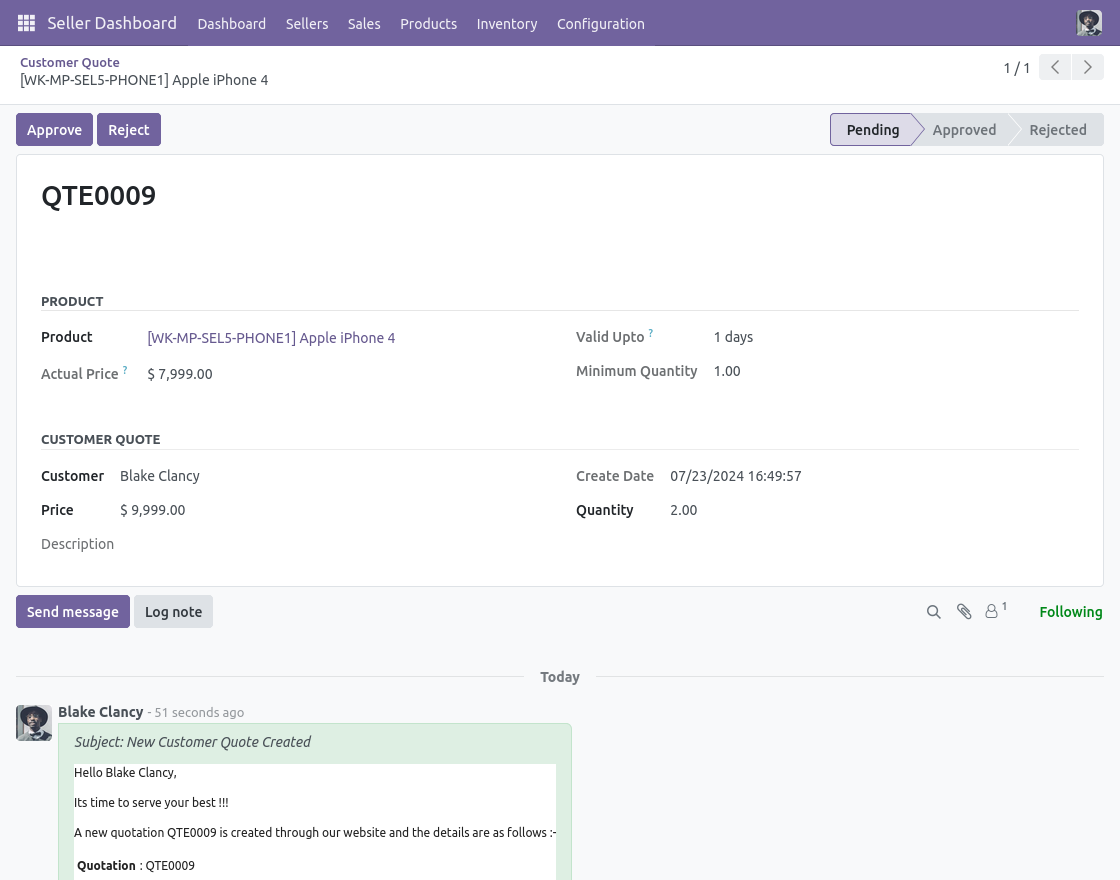
2. In the Seller Dashboard, admins can approve or reject customer quote requests for approved products using the Approve and Reject buttons.
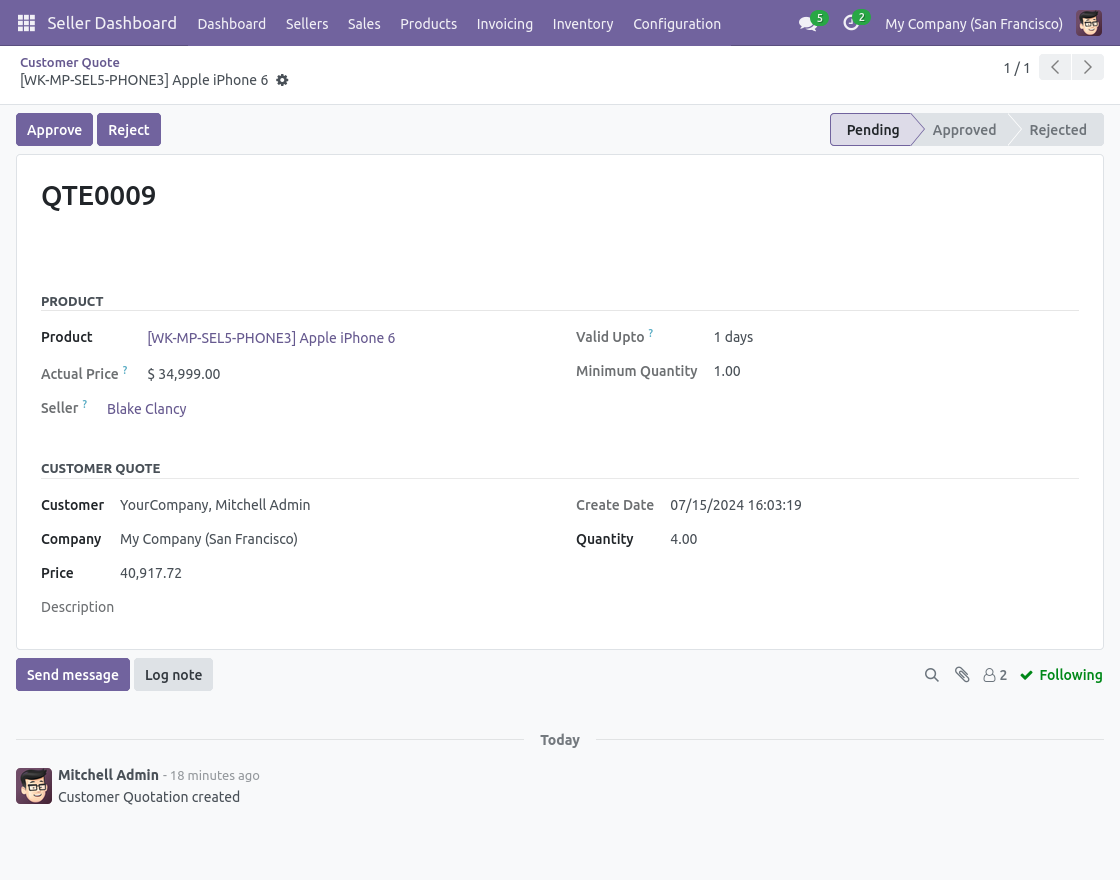
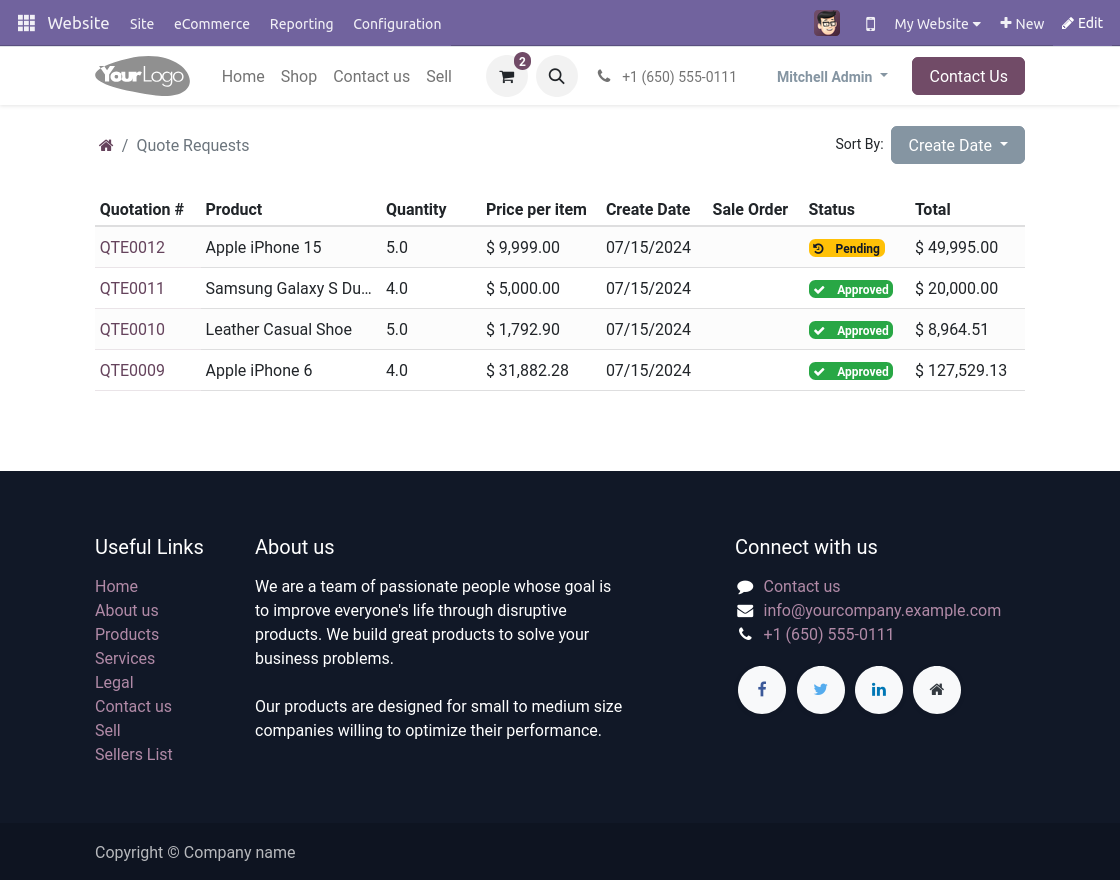
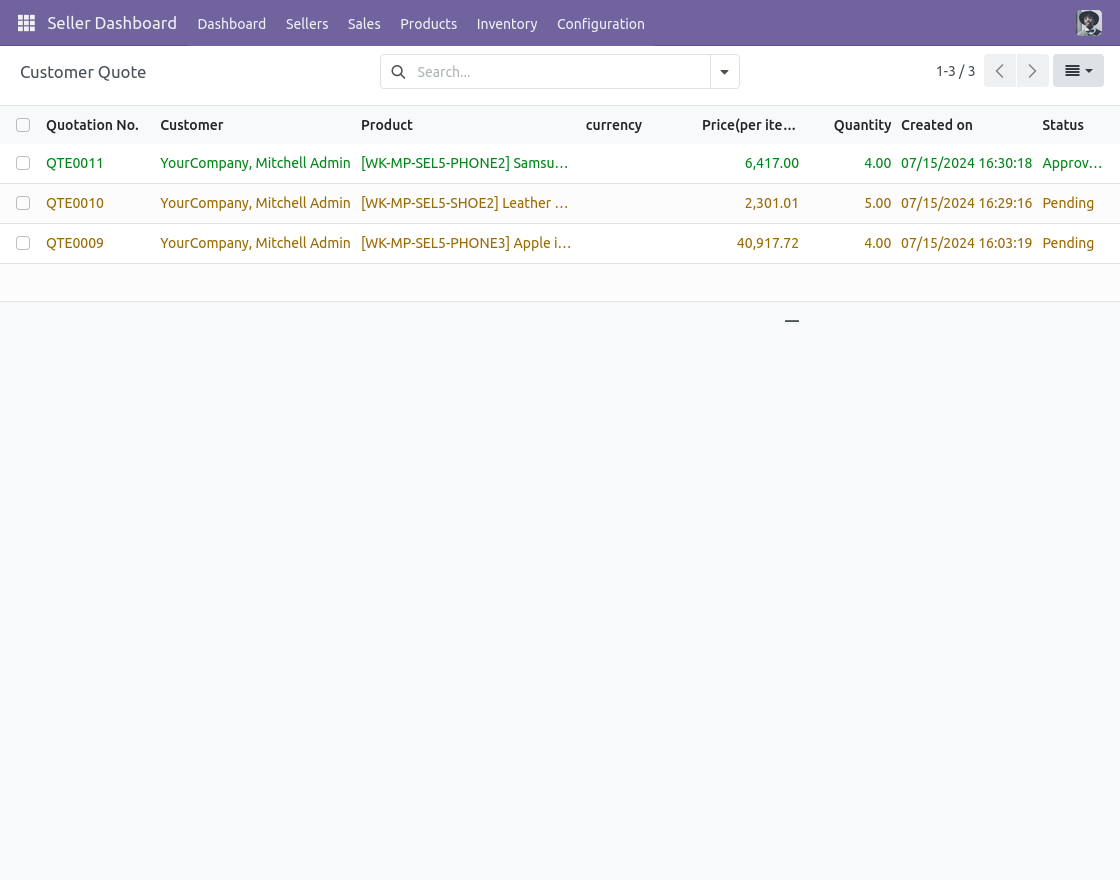
- List view of customers’ quotations requests, it shows the details of products on which quotes have been requested along with the current status of each quotation (Pending, Accepted, Rejected, etc.).
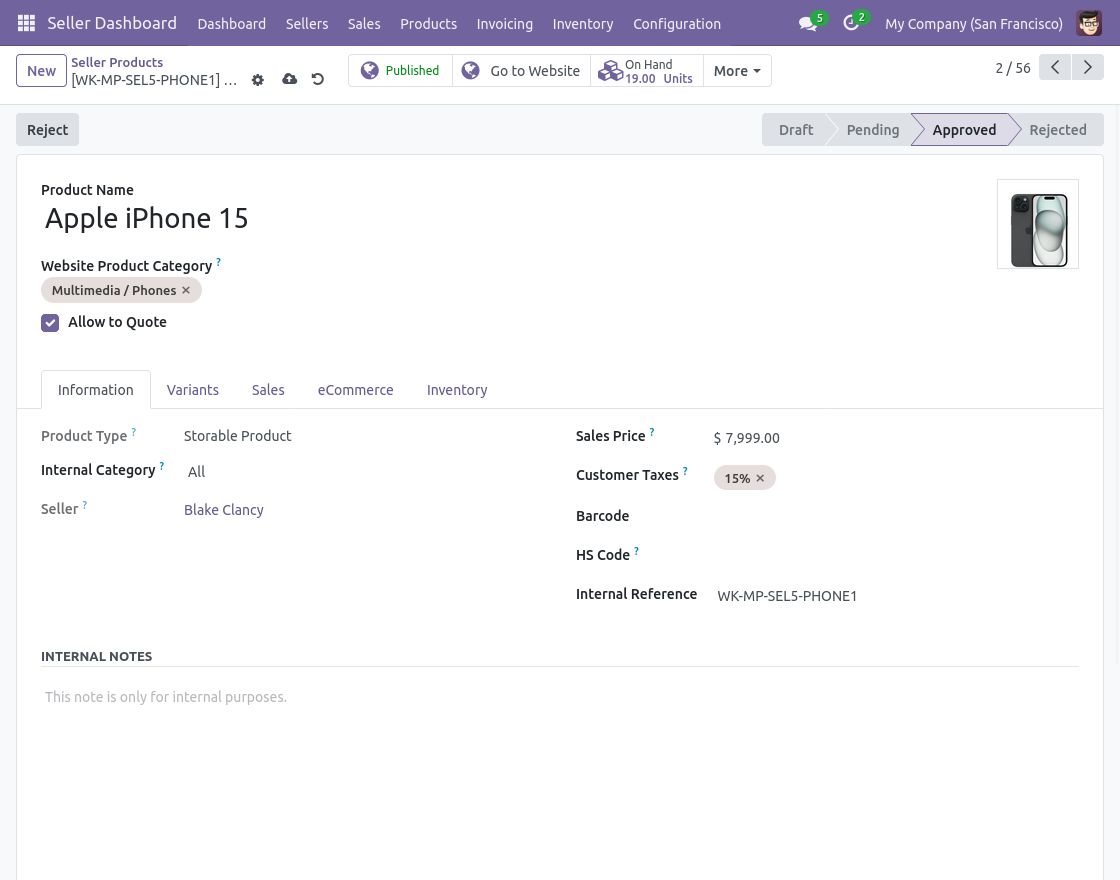
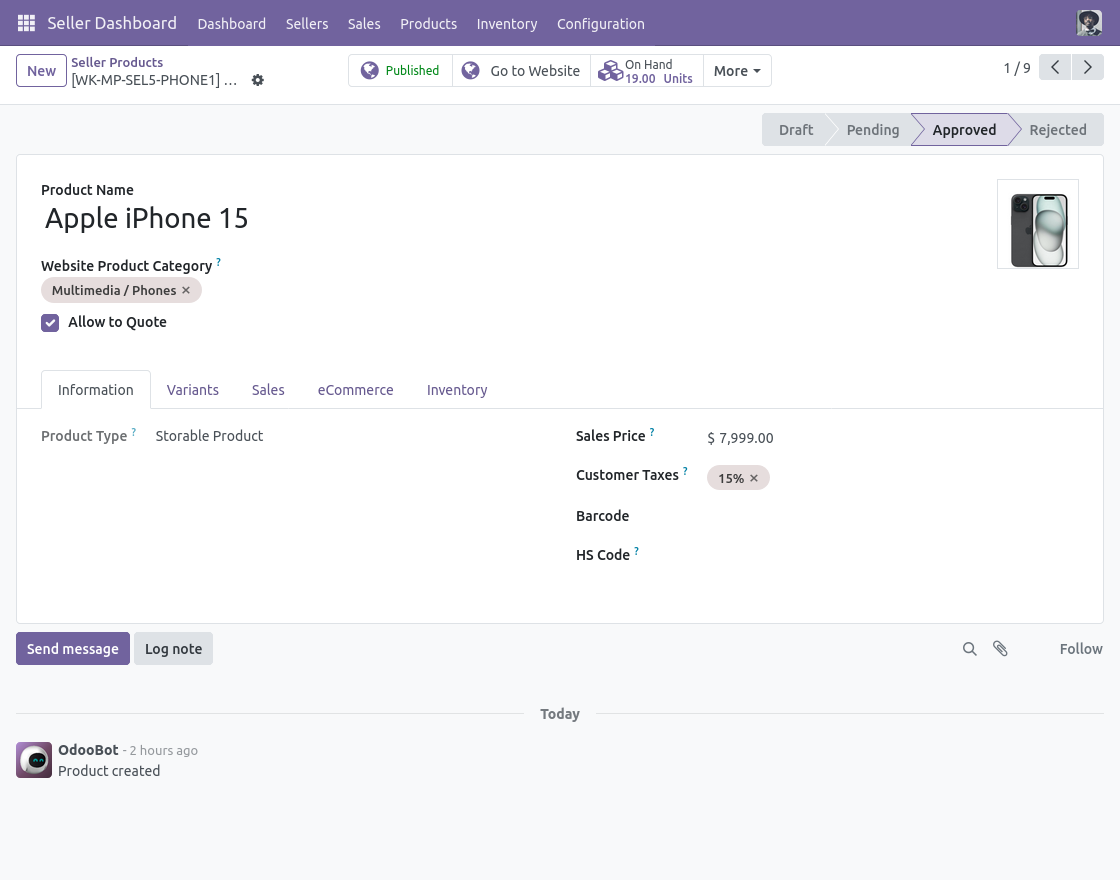
- In the Seller Dashboard, go to Approved Products and enable the “Allow to Quote” option to let customers request quotes for specific products.
Seller Settings
- The seller can view approved product quote records and their statuses under the Customers quote menu.
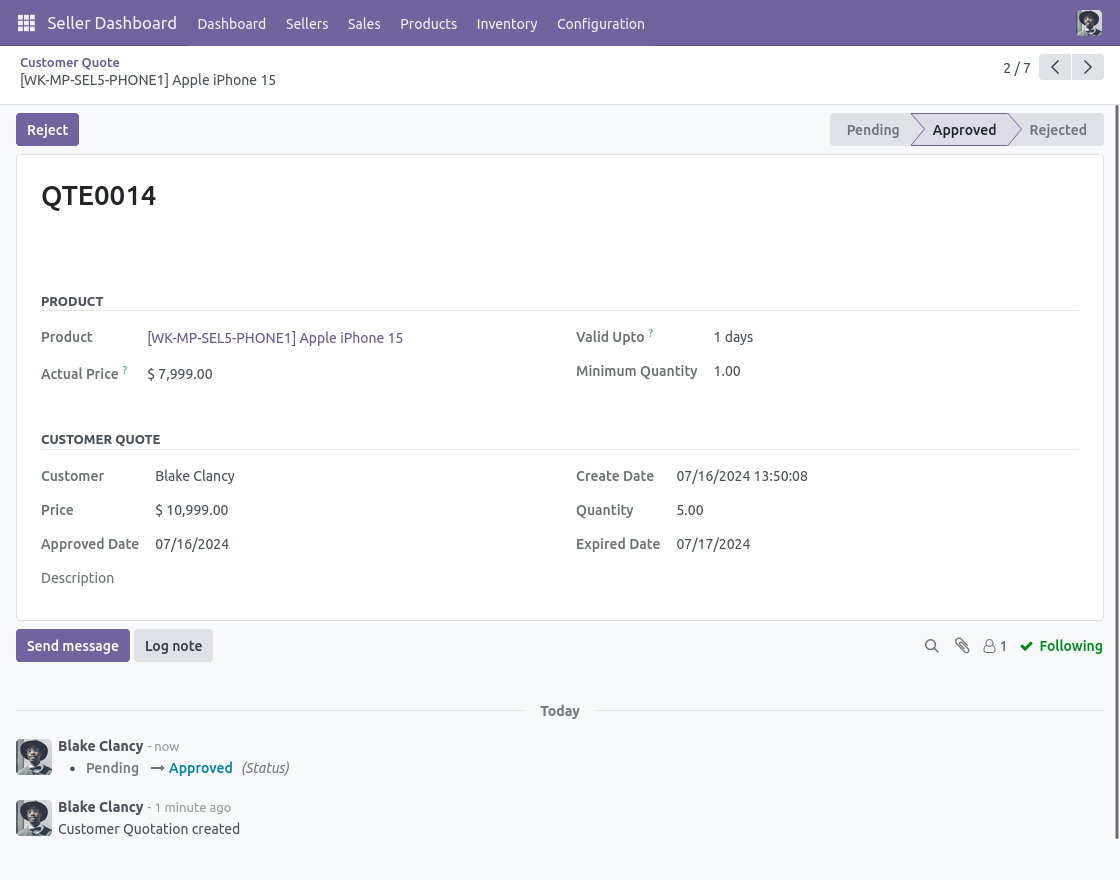
- In the Seller Dashboard menu, under “Customers Quotes,” sellers can approve or reject a customer’s quote request for approved products using the Approve or Reject buttons.
- The list view shows customers’ quotations for the seller’s products along with their statuses.
- To enable the “Allow to Quote” option for a product, go to the Seller Dashboard menu, select “Approved Products,” and create or edit a product.
After that, visit the Website Quote System module blog to understand the workflow of the dependency.
Frontend View
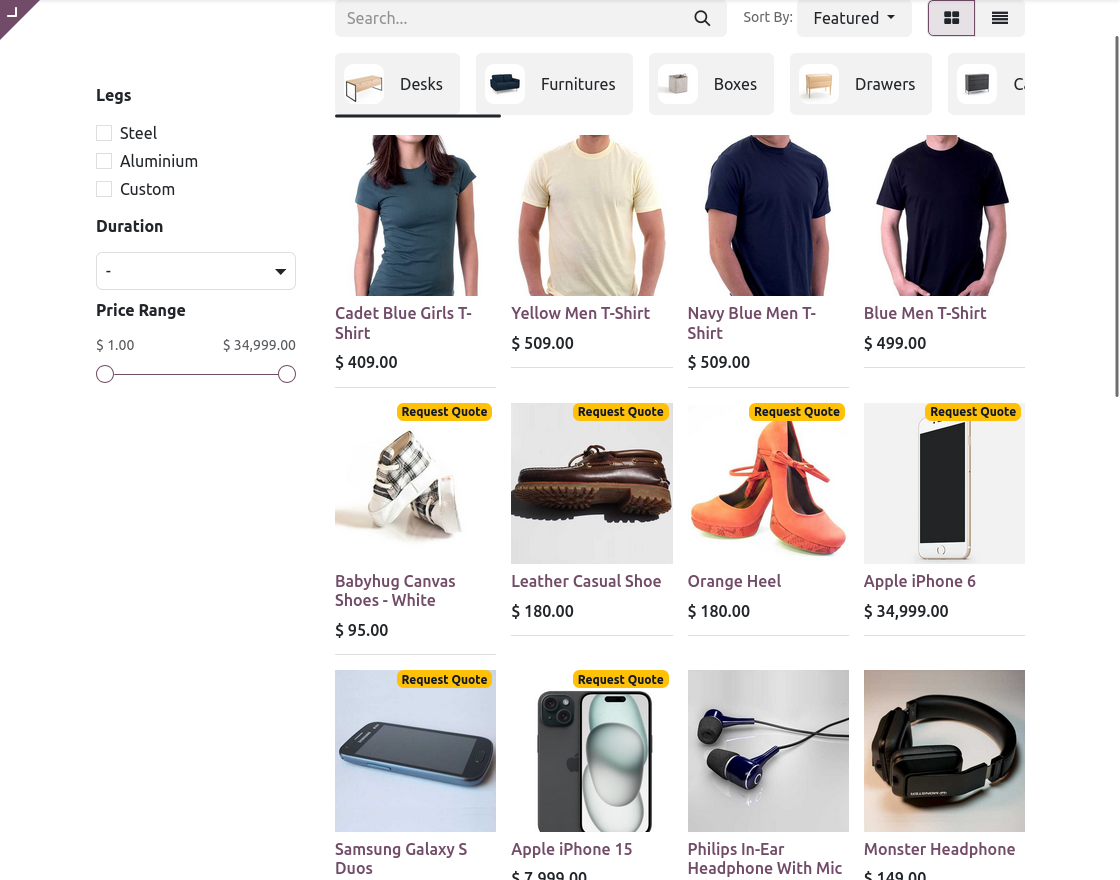
- On the shop page and product page, customers can see the ‘Request Quote’ option, which allows them to request a quotation for specific products they are interested in purchasing.
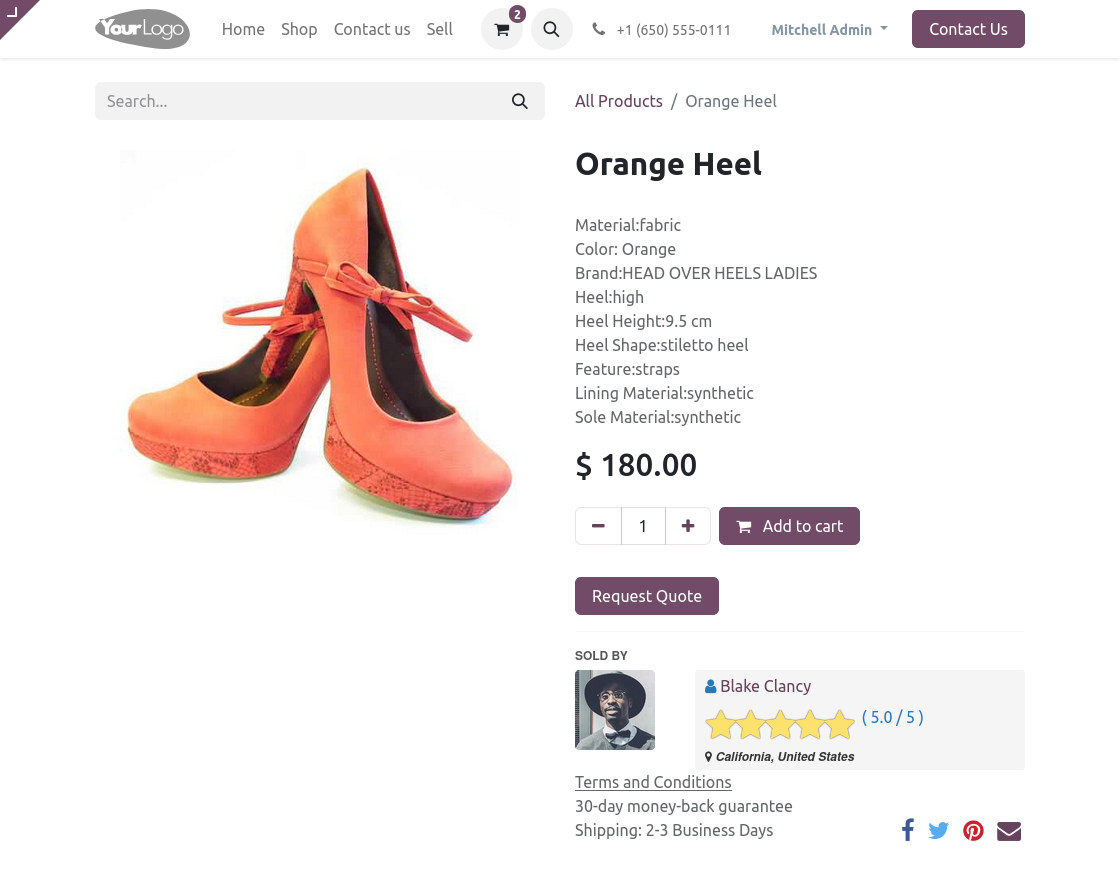
- After selecting the product, the ‘Request Quote’ button will be visible once you open the product.
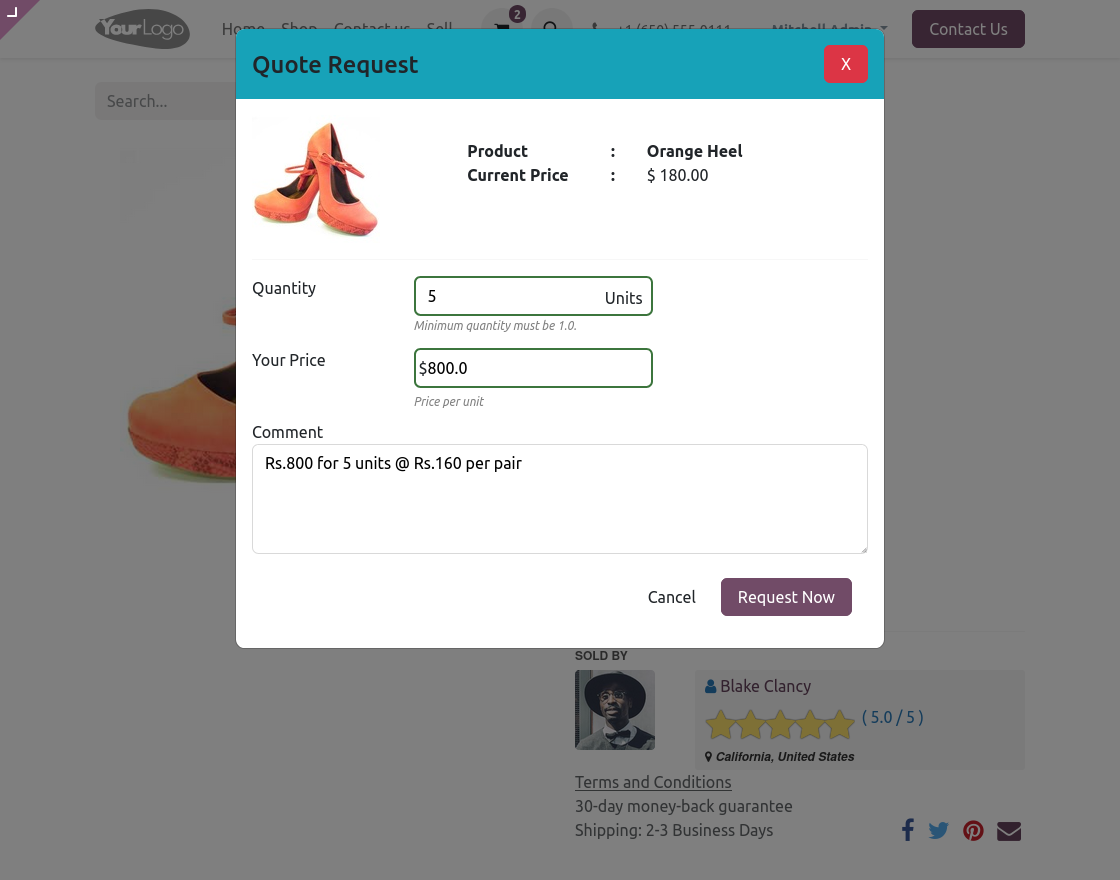
- This form enables customers to specify their needs clearly, helping sellers provide accurate quotations tailored to their requirements.
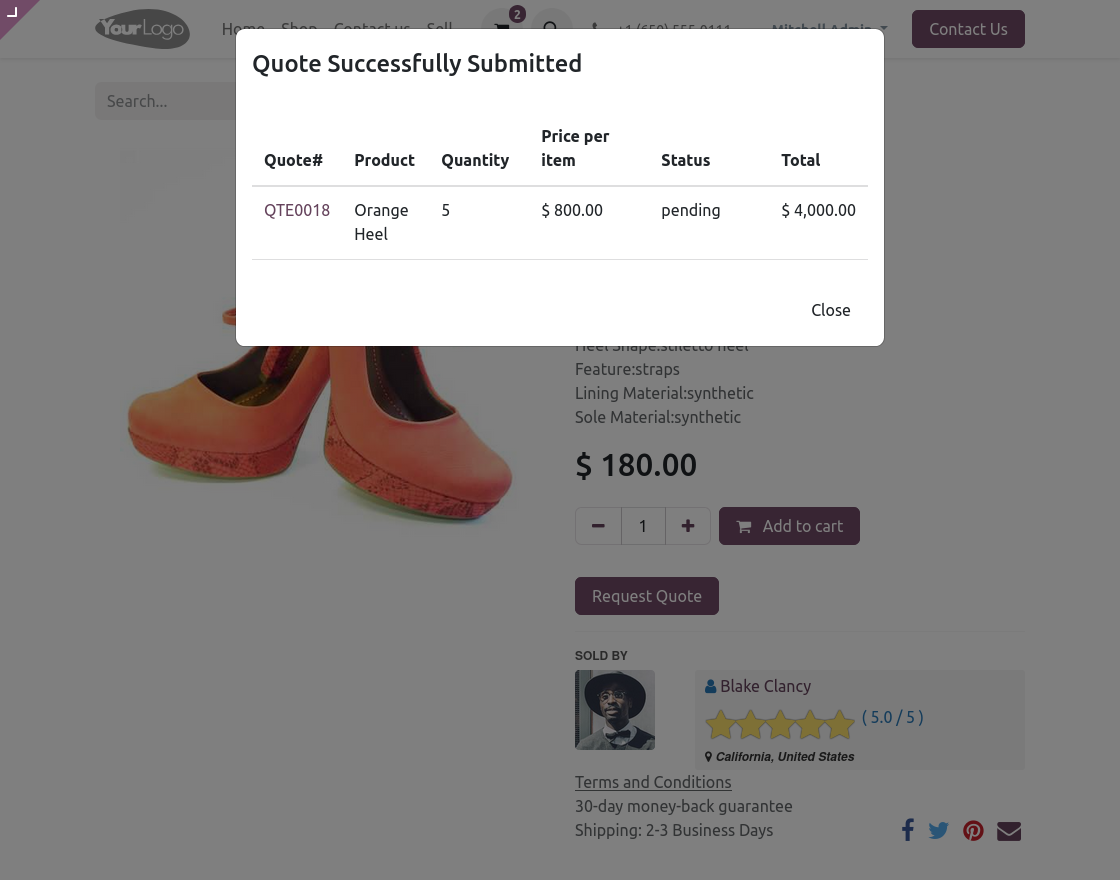
12. This form serves to confirm to the customer that their quote request has been successfully submitted and provides a detailed overview of the products they have requested, along with pricing and quantities.
NEED HELP?
Hope you find the guide helpful! Please feel free to share your feedback in the comments below.
If you still have any issues/queries regarding the same, please raise a ticket at the UV Desk.
I hope this helps. In case of any further queries, contact us at our support mail.
Thanks for paying attention!!