Guide of Magento 2 (Adobe Commerce) Quote System
Table of Content
Quote System for Magento 2 is very helpful in ordering the admin products in bulk. The buyers can communicate with the admin for any queries regarding the quoted products.
Also, to hide product prices from the users check Magento 2 Call for Price extension.
Watch the below video tutorial to understand the extension workflow:
Magento 2 Quote System Features
Installation
Customers will get a zip folder and they have to extract the contents of this zip folder on their system.
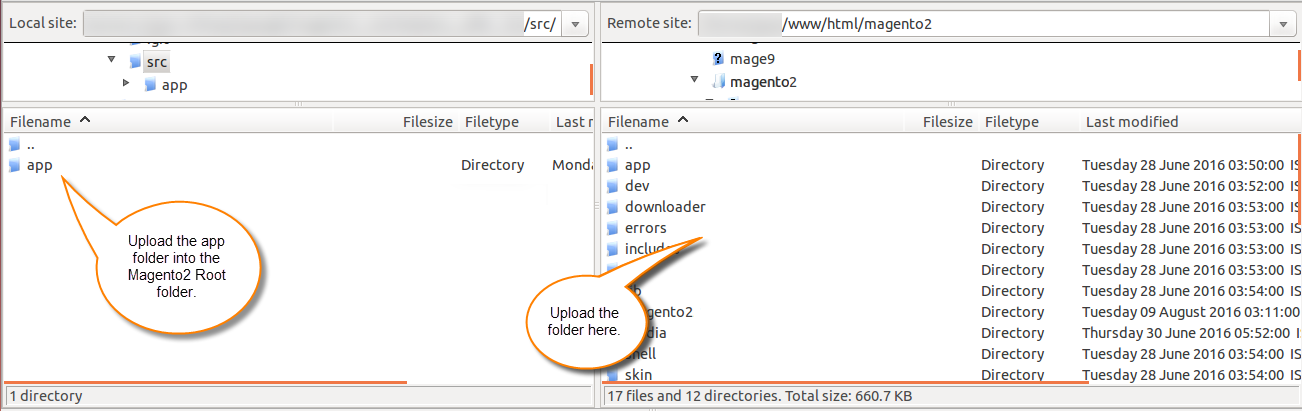
Moreover, the extracted folder has an src folder, inside the src folder you have the app folder.
Now, you need to transfer this app folder into the Magento2 root directory on the server as shown below.
Run Commands
After the successful installation, you have to run these commands in the Magento2 root directory:
php bin/magento setup:upgrade
php bin/magento setup:di:compile
php bin/magento setup:static-content:deploy
php bin/magento indexer:reindex
php bin/magento cache:flush
Configuration For Multi-lingual Support
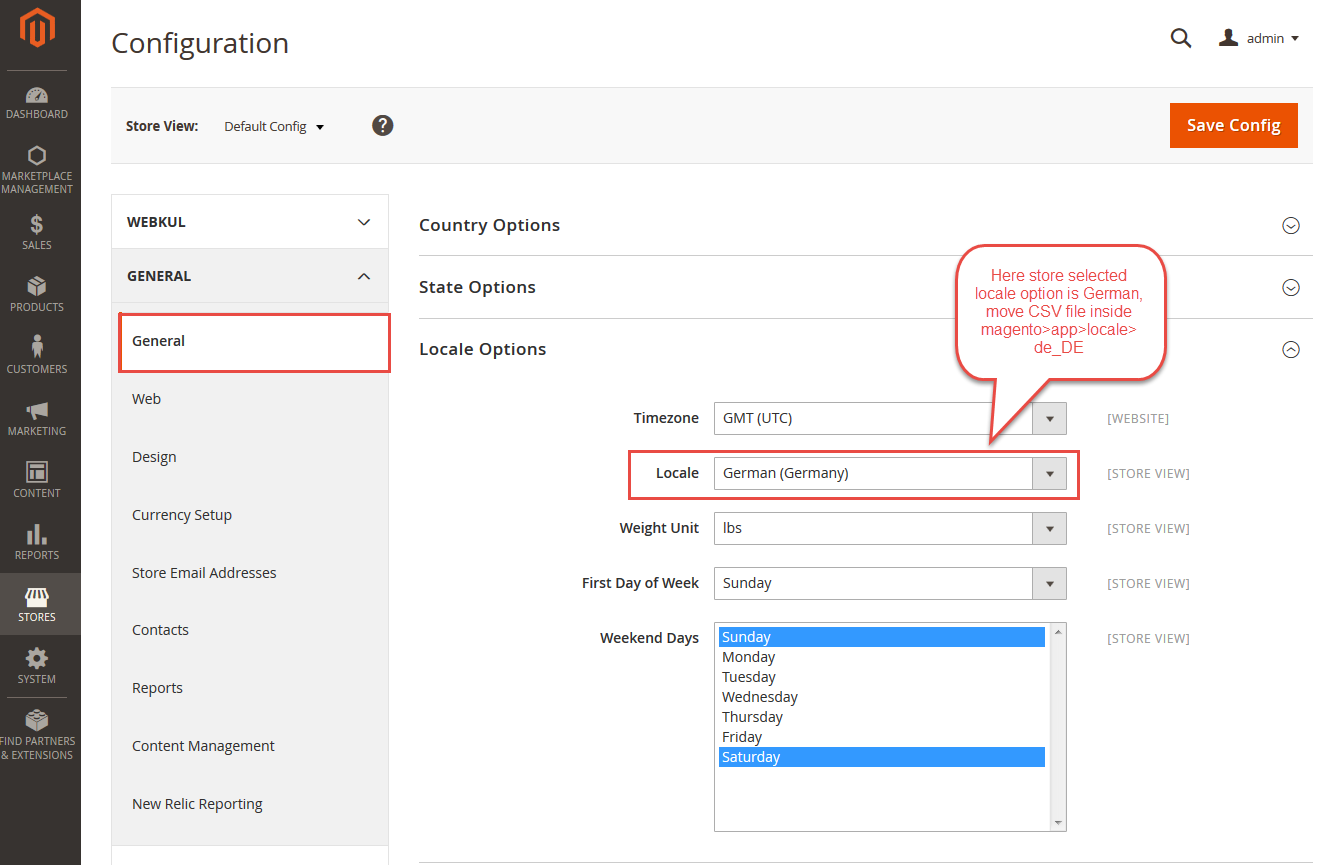
Consequently, for multilingual support, the admin will navigate through Store->Configuration->General ->Locale Options.
Select the locale as German (the language into which the admin wants to translate his store content).
Translation
If a user wants to translate their module from English to German then they need to follow the path app/code/Webkul/Quotesystem/i18n.
In their unzipped Magento2 (Adobe Commerce Cloud) Quote System folder will get a CSV file with the name “en_US.csv”.
Now they will rename that CSV as “de_DE.csv” and translate all right side content after the comma in the German language.
After editing the CSV, save it and then upload it to the path app/code/Webkul/Quotesystem/i18n where they have installed Magento 2 on the server.
The module will be translated into the German Language. It supports both RTL and LTR languages.


Forthwith, the user can edit the CSV like the image below.

Admin Configuration for Quote System for Magento 2
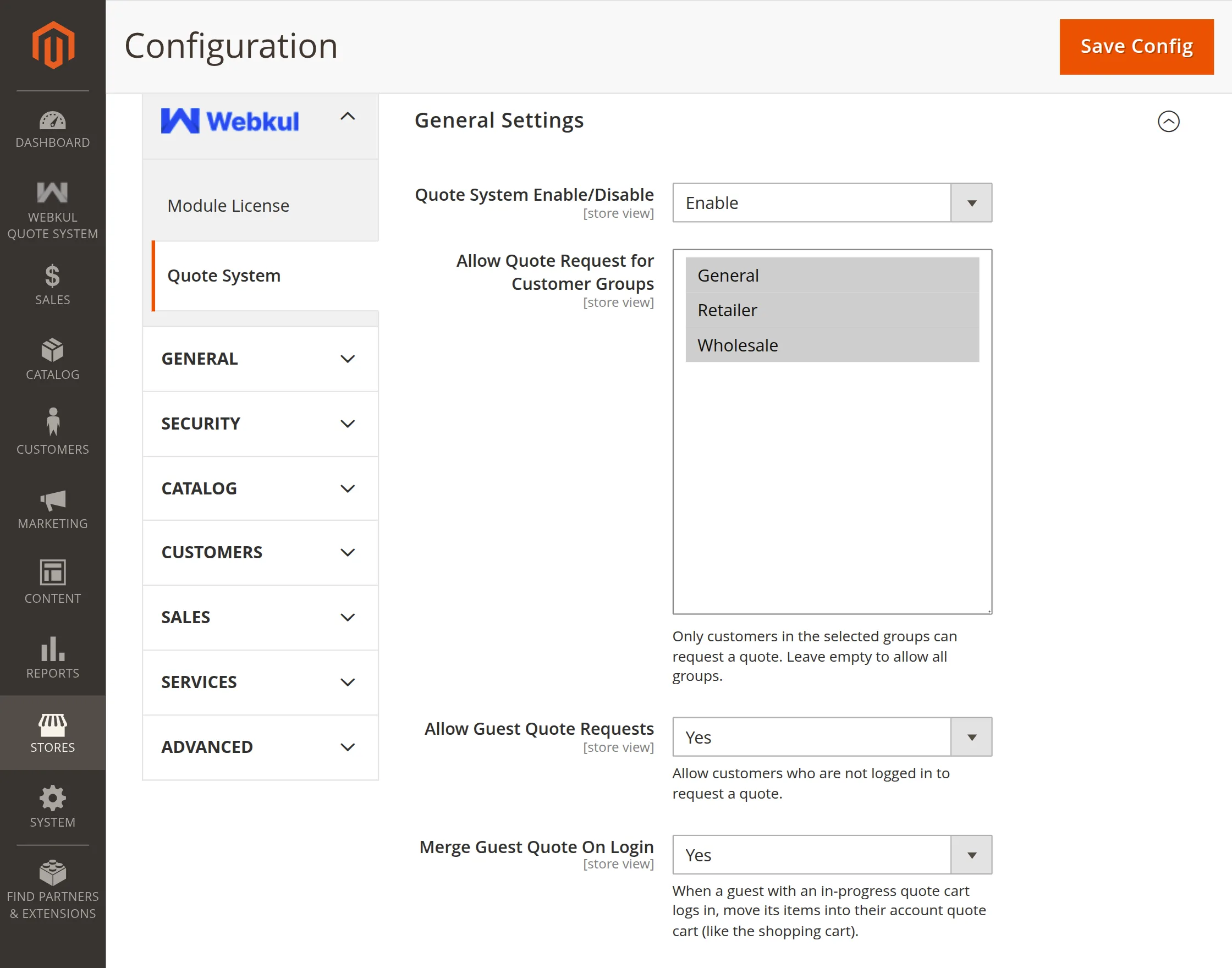
The admin can configure the module by following the navigation, Stores ->Configuration-> Quote System.

General Settings
- Quote System Enable/Disable- The module can be enabled or disabled from here.
- Allow Quote Request for Customer Groups- Select the customer groups that can submit quote requests. Leave it empty to allow all groups.
- Allow Guest Quote Requests- Allow guest users to submit quote requests without creating an account.
- Merge Guest Quote On Login- Merge the guest’s quote cart with their customer quote cart when they log in.
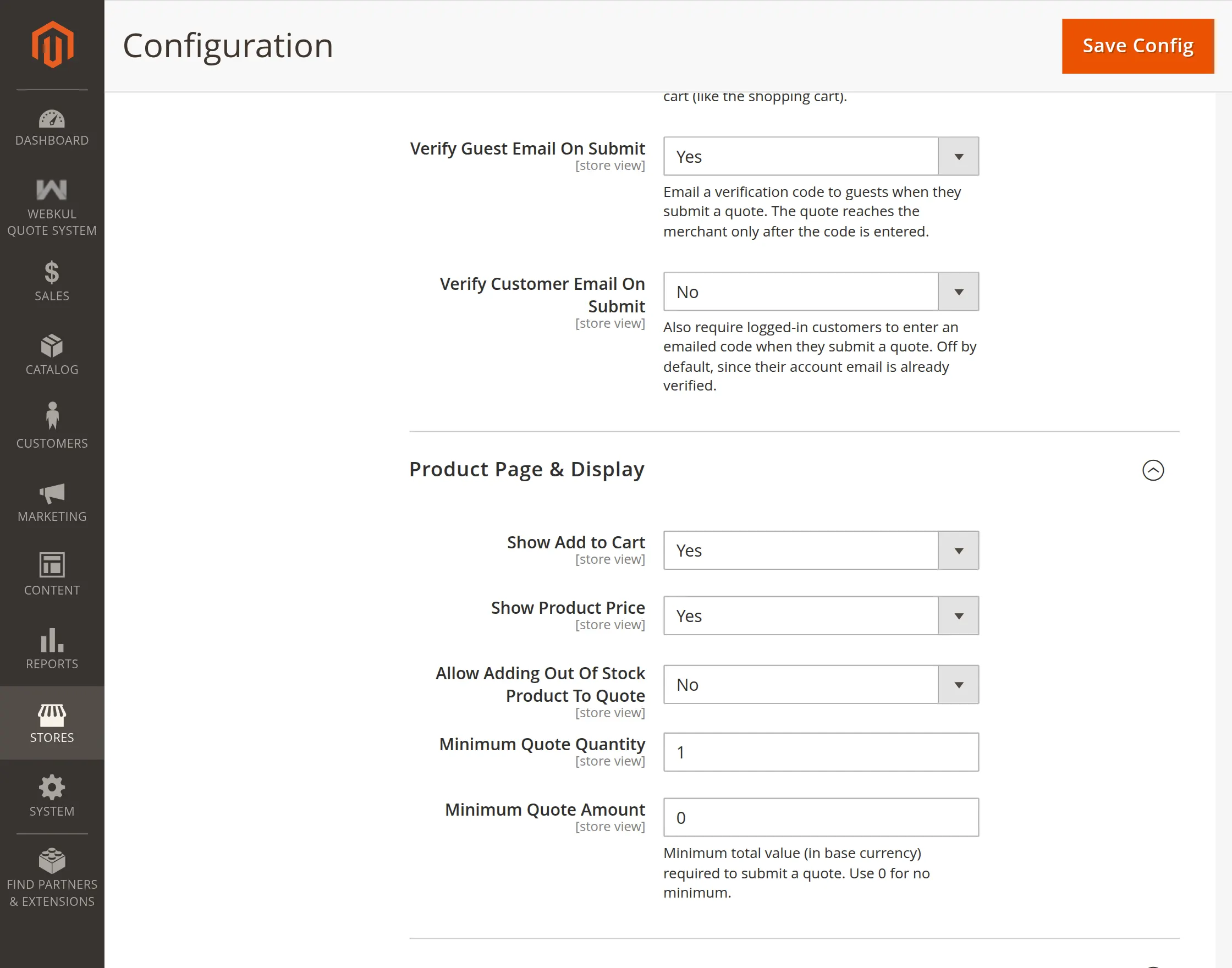
- Verify Guest Email On Submit- Send a verification code to guests and process their quote after they verify their email.
- Verify Customer Email On Submit- Require logged-in customers to verify their email with a code before submitting a quote.
Product Page & Display
- Show Add to Cart- The admin can show or hide the Add to Cart button for quote-eligible products.
- Show Product Price- The admin can show or hide the product price for quote-eligible products.
- Allow Adding Out Of Stock Product To Quote- The admin can allow or restrict customers from adding out-of-stock products to the quote.
- Minimum Quote Quantity- The admin can set the minimum quantity required for customers to submit a quote request.
- Minimum Quote Amount- The admin can set the minimum quote amount required to submit a quote. Use 0 to allow any amount
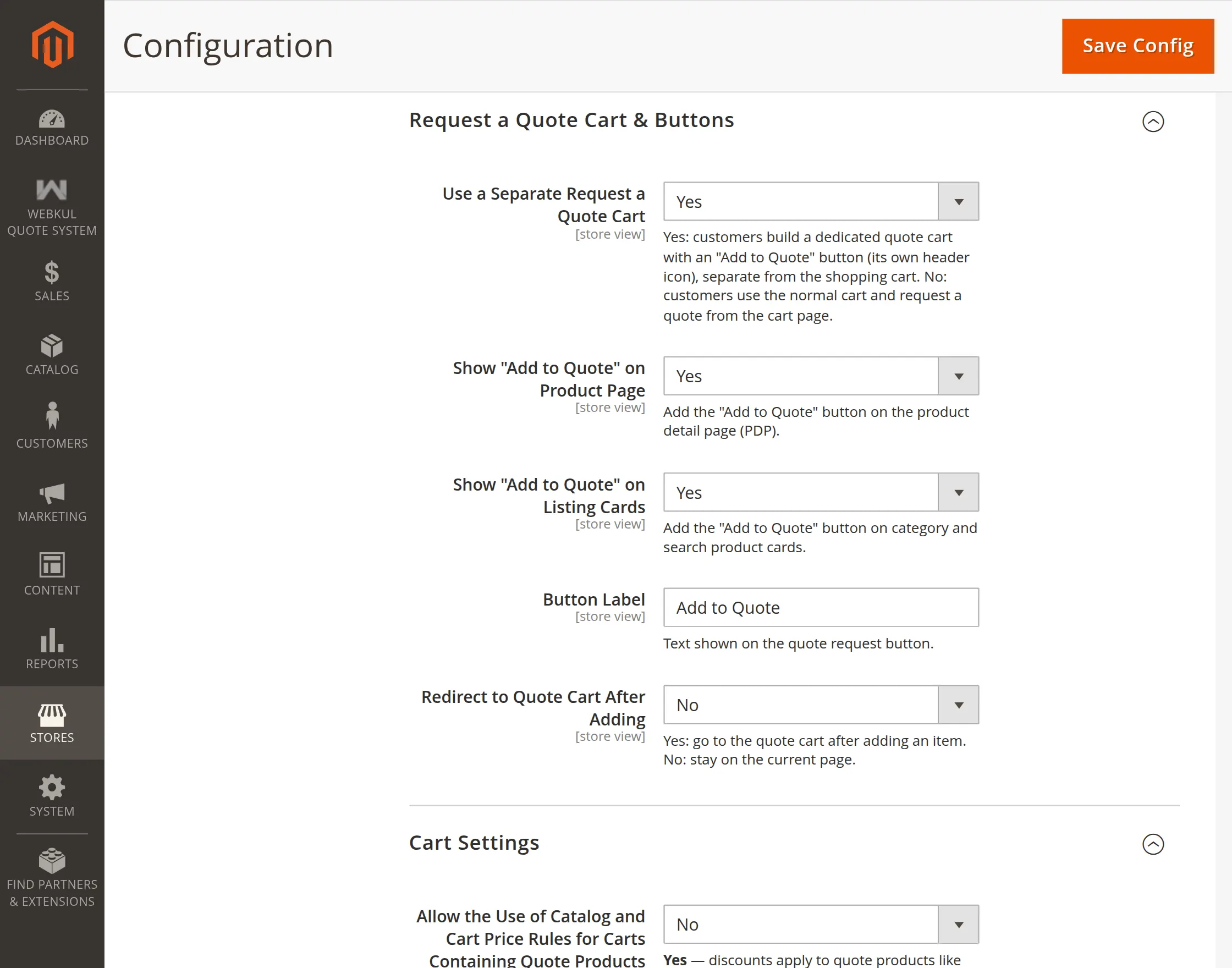
Request a Quote Cart & Buttons
- Use a Separate Request a Quote Cart- The admin can enable a dedicated quote cart with an Add to Quote button and separate header icon.
- Show “Add to Quote” on Product Page- The admin can show the Add to Quote button on the product detail page.
- Show “Add to Quote” on Listing Cards- The admin can show the Add to Quote button on category and search product cards.
- Button Label- The admin can customize the text displayed on the Add to Quote button.
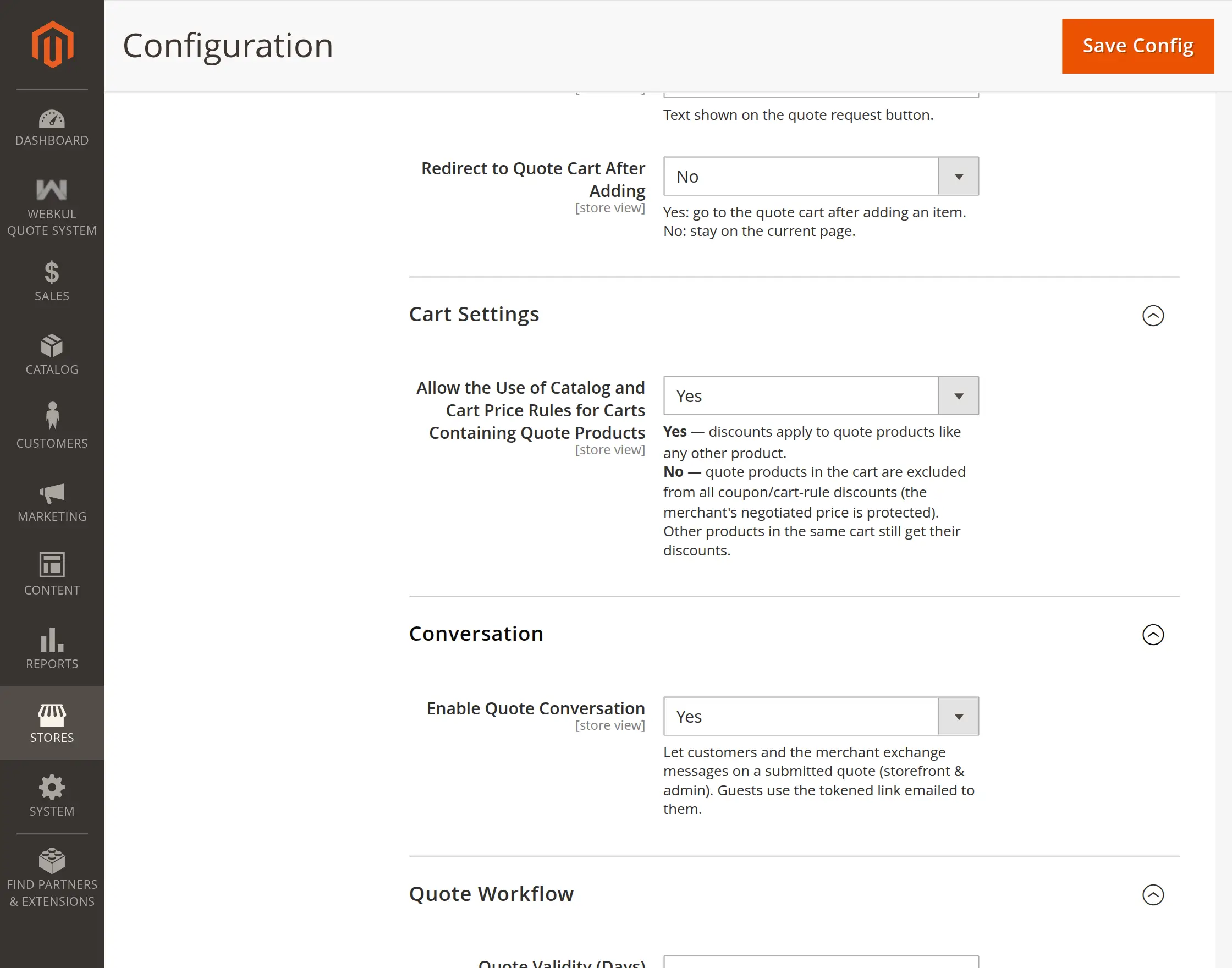
- Redirect to Quote Cart After Adding- The admin can redirect customers to the quote cart after adding a product or keep them on the current page.
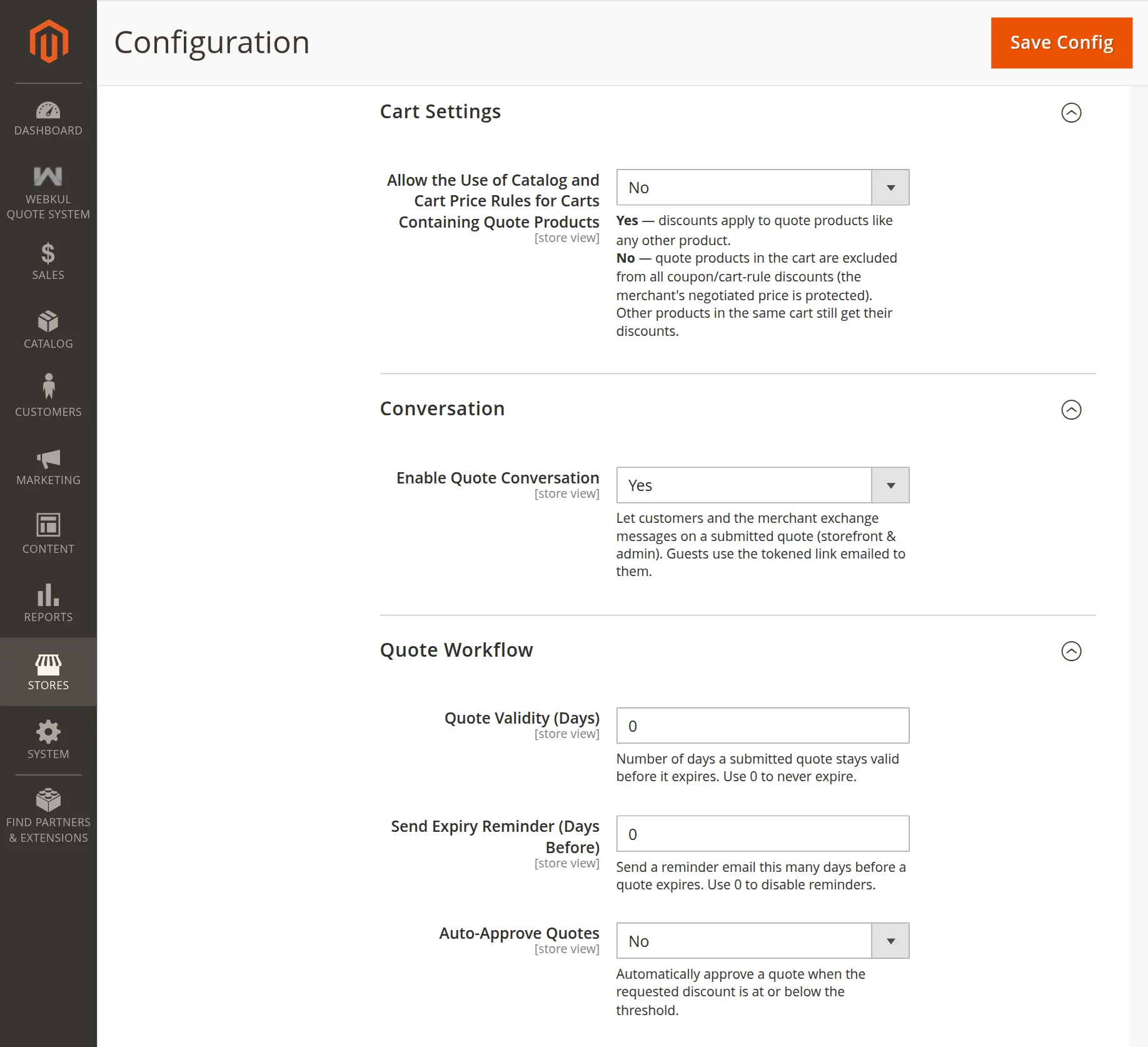

Cart Settings
- Allow the Use of Catalog and Cart Price Rules for Carts Containing Quote Products- The admin can allow or restrict catalog and cart price rule discounts for quote products in the cart.
Conversation
- Enable Quote Conversation- The admin can enable or disable conversations between customers and merchants for submitted quotes.
Quote Workflow
- Quote Validity (Days)- The admin can set the number of days a submitted quote remains valid. Use 0 for quotes that never expire.
- Send Expiry Reminder (Days Before)- The admin can set when to send a reminder before a quote expires. Use 0 to disable reminders.
- Auto-Approve Quotes- The admin can automatically approve quotes when the requested discount is within the configured threshold.
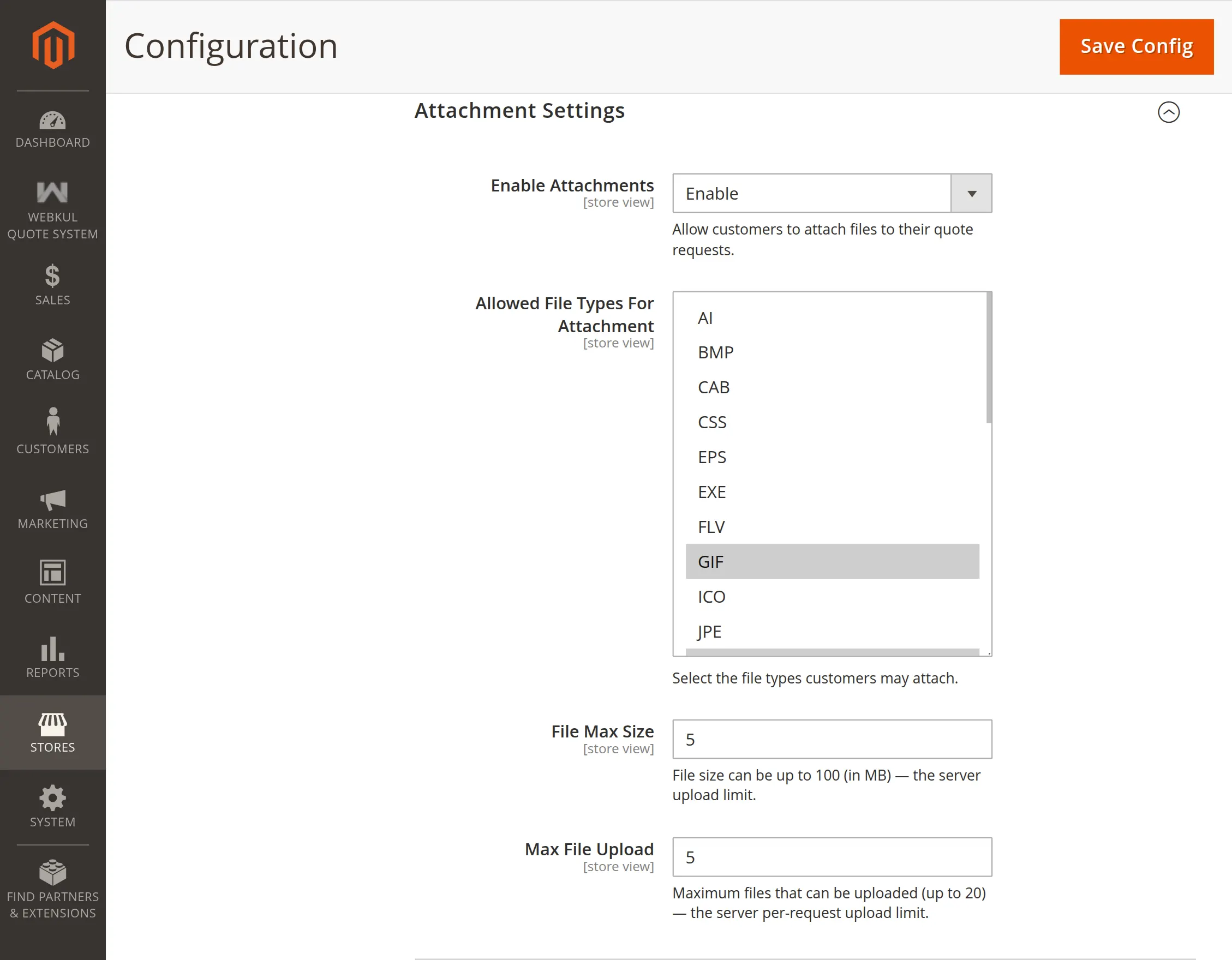


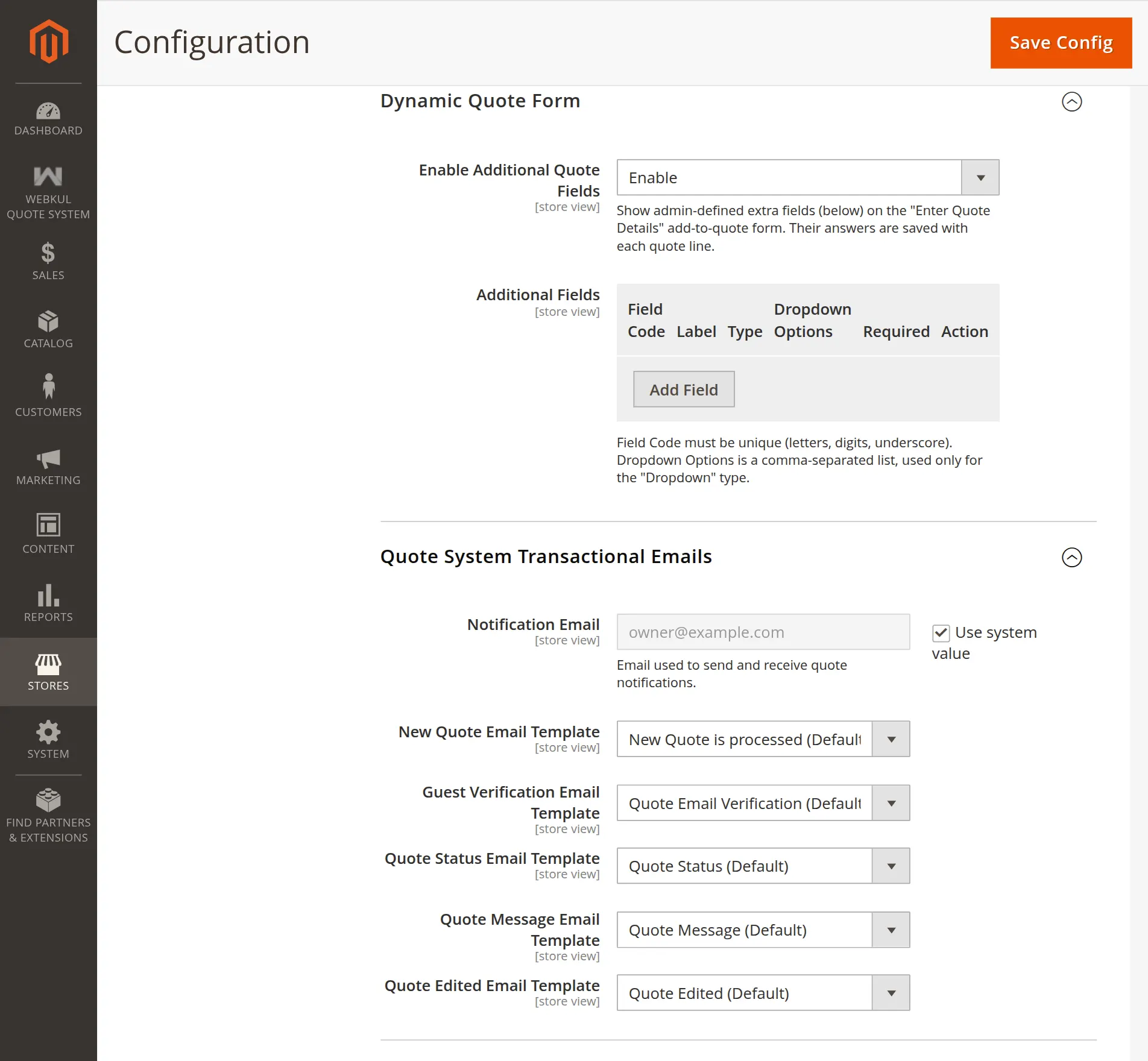
Admin Management for Quote System for Magento 2
The owner can navigate through the Products -> Catalog and select a product or create a new one to add the quotation request.
Quote Status
Store admin will have to set the Quote Status for the product as Yes and set Minimum Quote Quantity so that customers can quote for that product quantity.


Store Admin will find the quotes under Webkul Quote System->Manage Quotes as shown below:
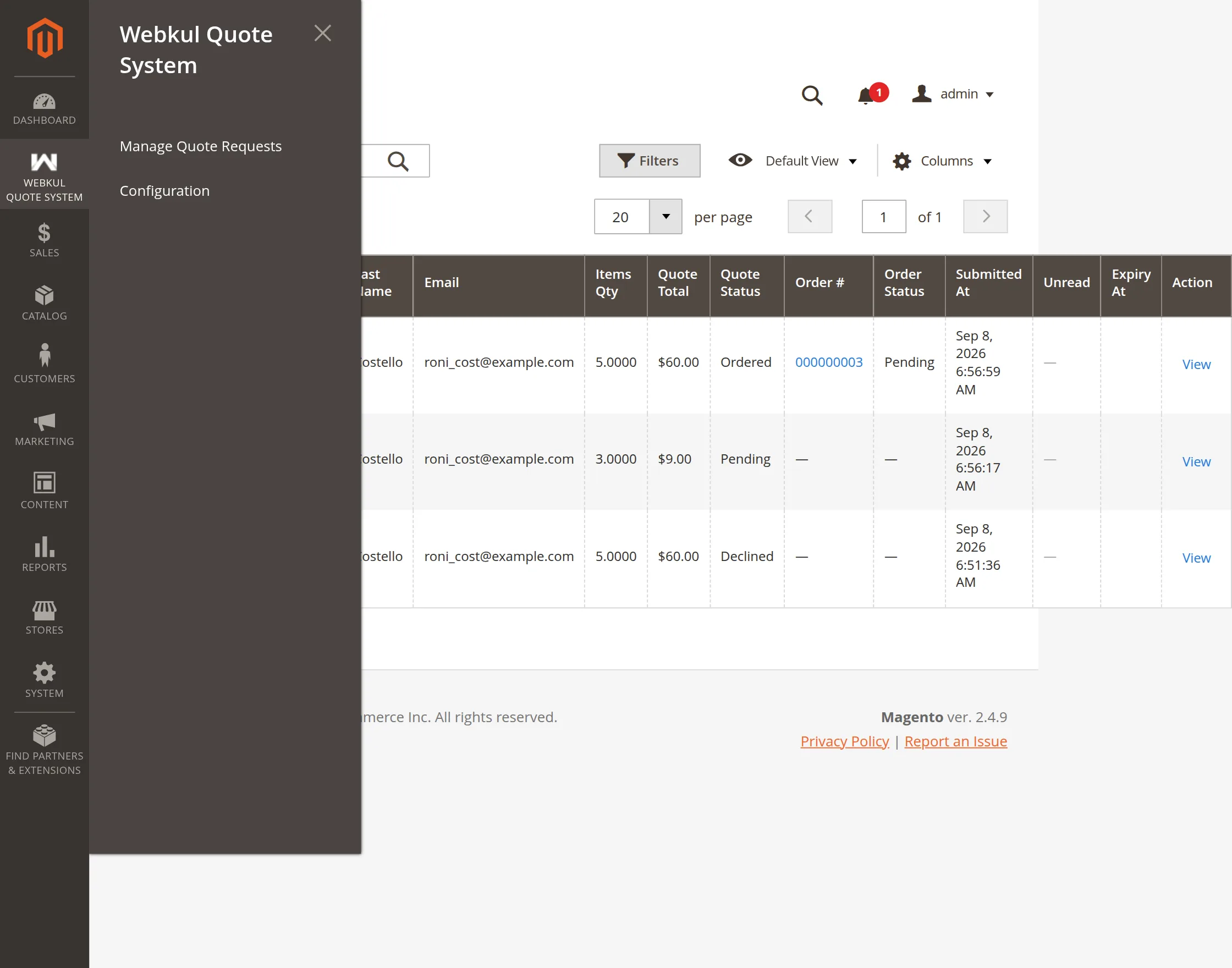
Here admin can manage as well as add a new quote for the product on behalf of the customer.
Add New Quote
The admin can also add a new quote for the products by clicking on the ” Add New Quote ” button:


To check the quote in detail admin can click on view quote.
Admin can Delete and update the quote requests as – Pending, Approved, and Declined for each request as required.

Post clicking on the ” Add New Quote ” button, the admin will get a new window showing the list of customers. From there the admin can easily select the customer.

After selecting the particular customer the next window will find the list of that customer’s requested products.
The admin will click on the “Add Quote” option for the requested product.


Now, this module allows the admin to Add Multiple Quotes in one go. Also, the admin can easily add a quote to the product by providing information in the fields.
Admin needs to define quantity, price per item, and description & also can attach the digital version of the quotation & will successfully Submit it.


Quote Product


Quote Manager
The admin from a single page can view all the requested quotes, and manage all the quote requests like Declined, unapproved, or approved.
If you want to enable customers to request quotes from all marketplace sellers, then you can make use of the Magento 2 Marketplace Request for Quotation(RFQ).


If a Quote order is completed then Quote status automatically becomes sold.
Admin changes the status of the requested Quote then the buyer will get a mail regarding the status change.

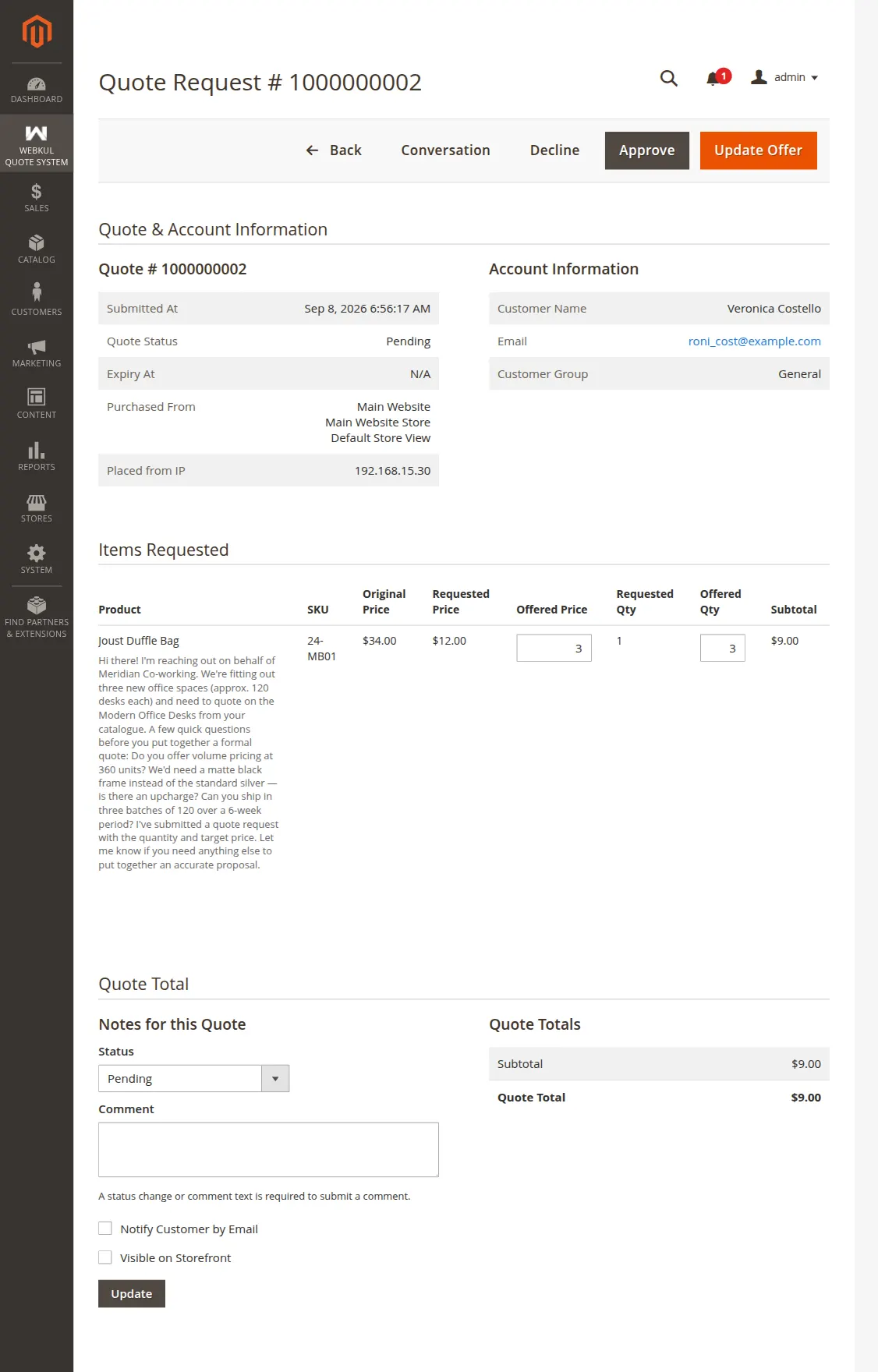
Print Quote
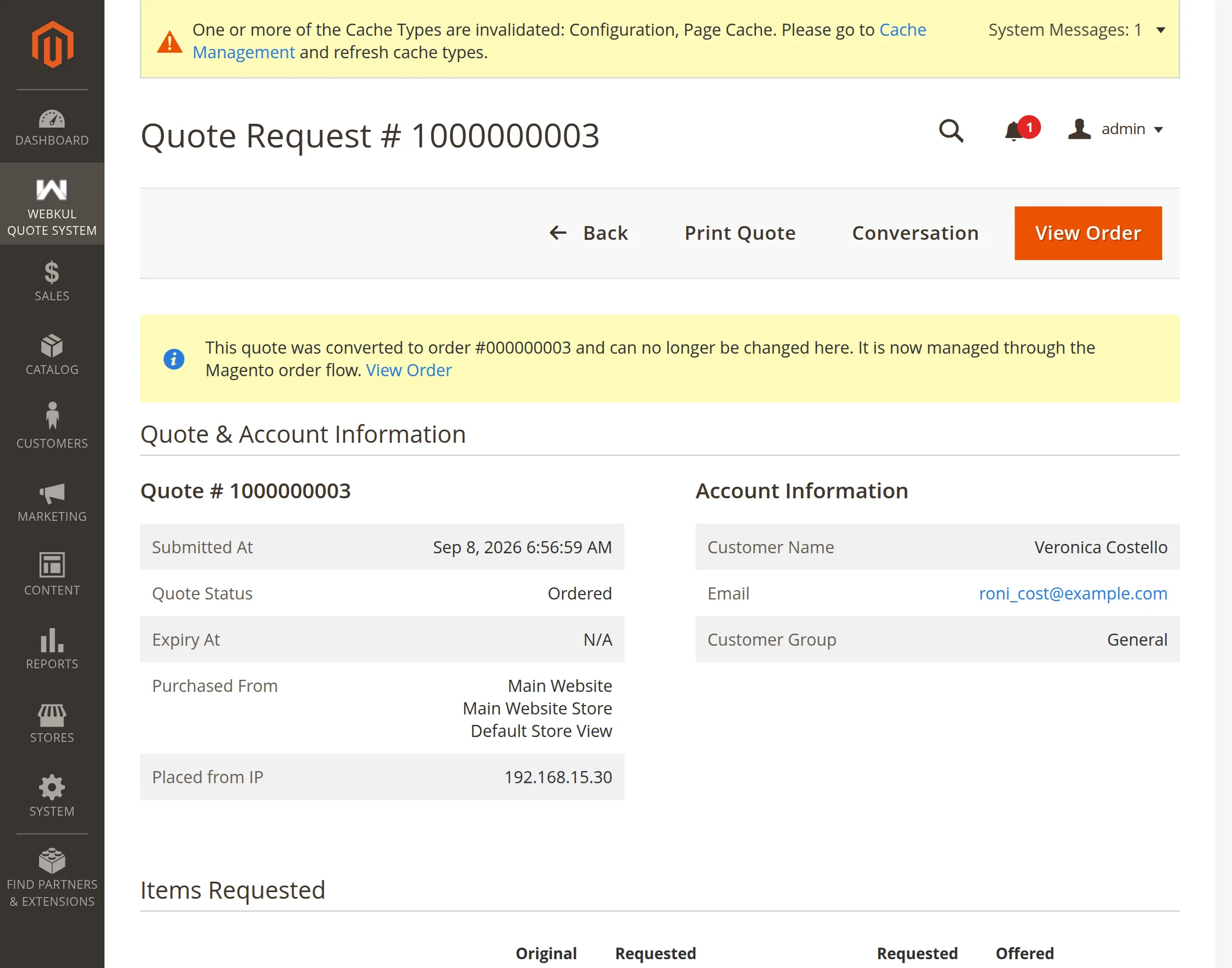
This module facilitates the store admin with a print quote feature, check the below image for more details:


Buyer Management for Quote System for Magento 2
On the front end, the Add Quote option is also available on the category page to let the customers Quote the products


The buyer can easily quote for the product by clicking on the ” Add to Quote ” button, A pop-up will appear when clicking on the Add Quote button as per the below image:
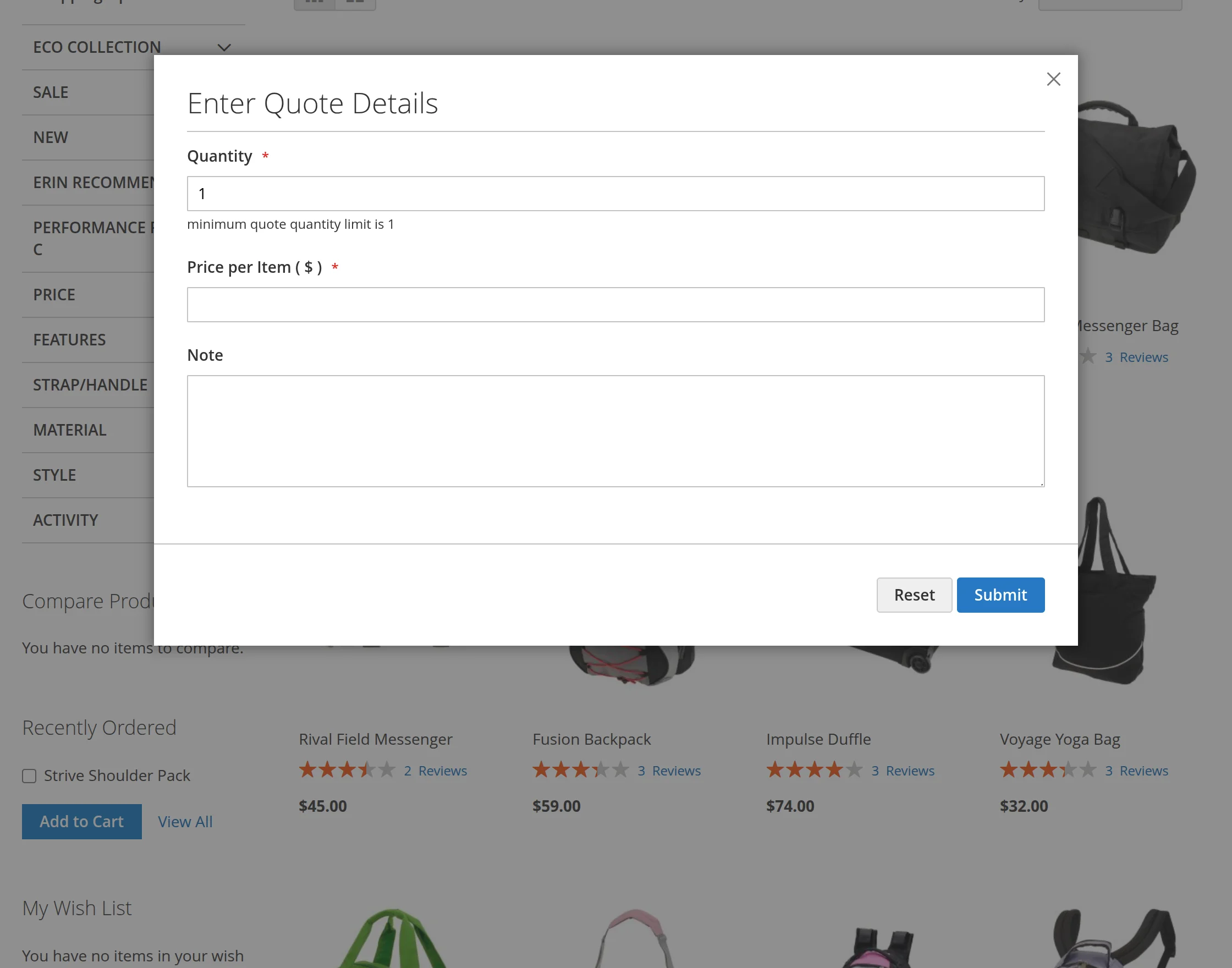
Here, the customer will-
- Quantity: Enter the product quantity the customer wants to quote for.
- The entered product quantity should be greater than the configured minimum product quantity applicable for requesting the quote.
- Price Per Item: define the product price the customer wants to pay for per quantity.
- Description: Add an additional message or quote details for the admin.
The customer can even submit a quote from the product page by clicking on the Quote This Product button:


The buyer can easily quote for the product by clicking on the ” Quote this product ” button.
A pop-up will appear & the rest process will be the same as we have seen above.
After entering all quote details, the customer clicks Submit on the popup.
The quoted product then appears in the Quote icon at the top of the page.
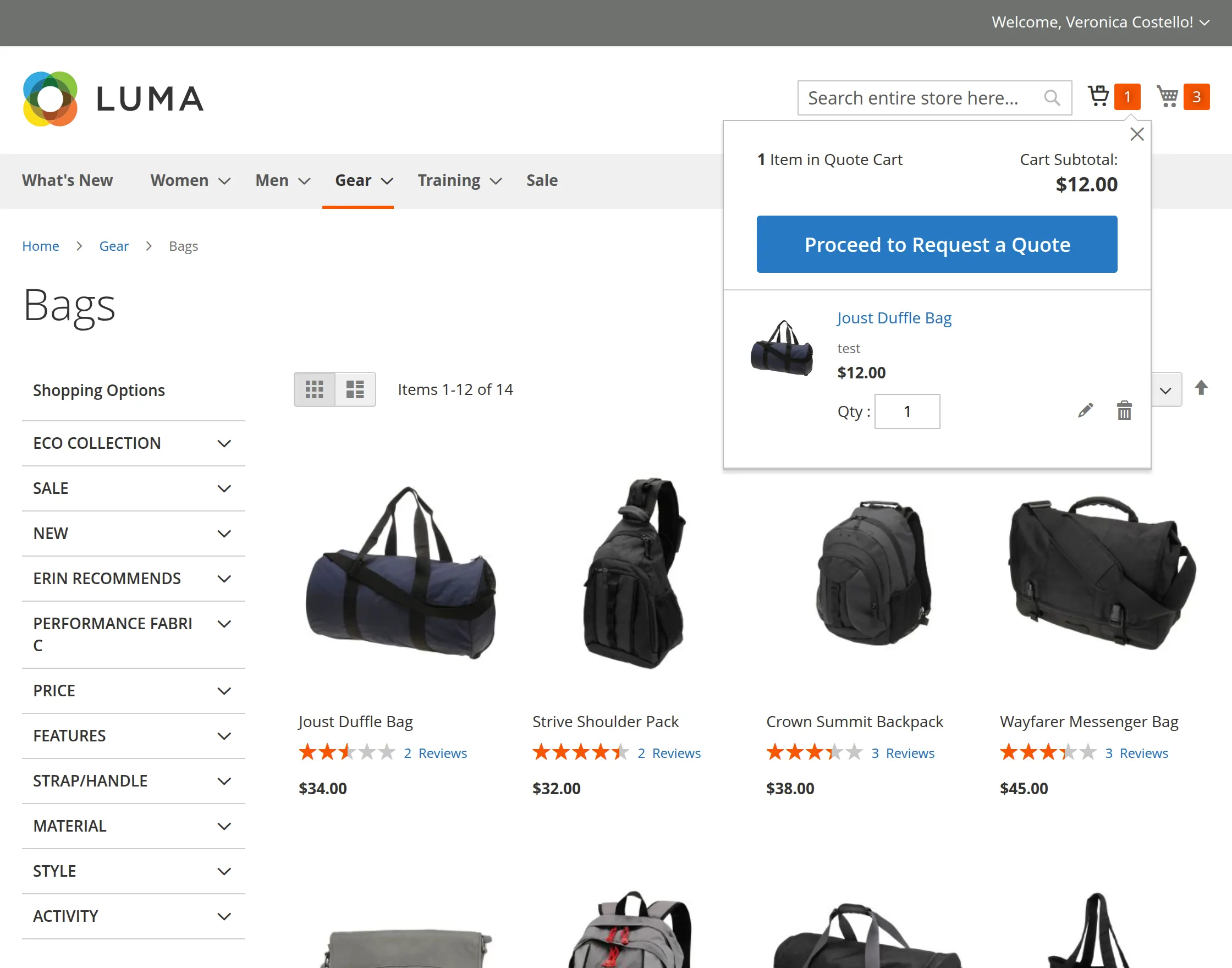
Manage the Quote Cart
The customer clicks the Quote icon and then selects Proceed to Request a Quote.
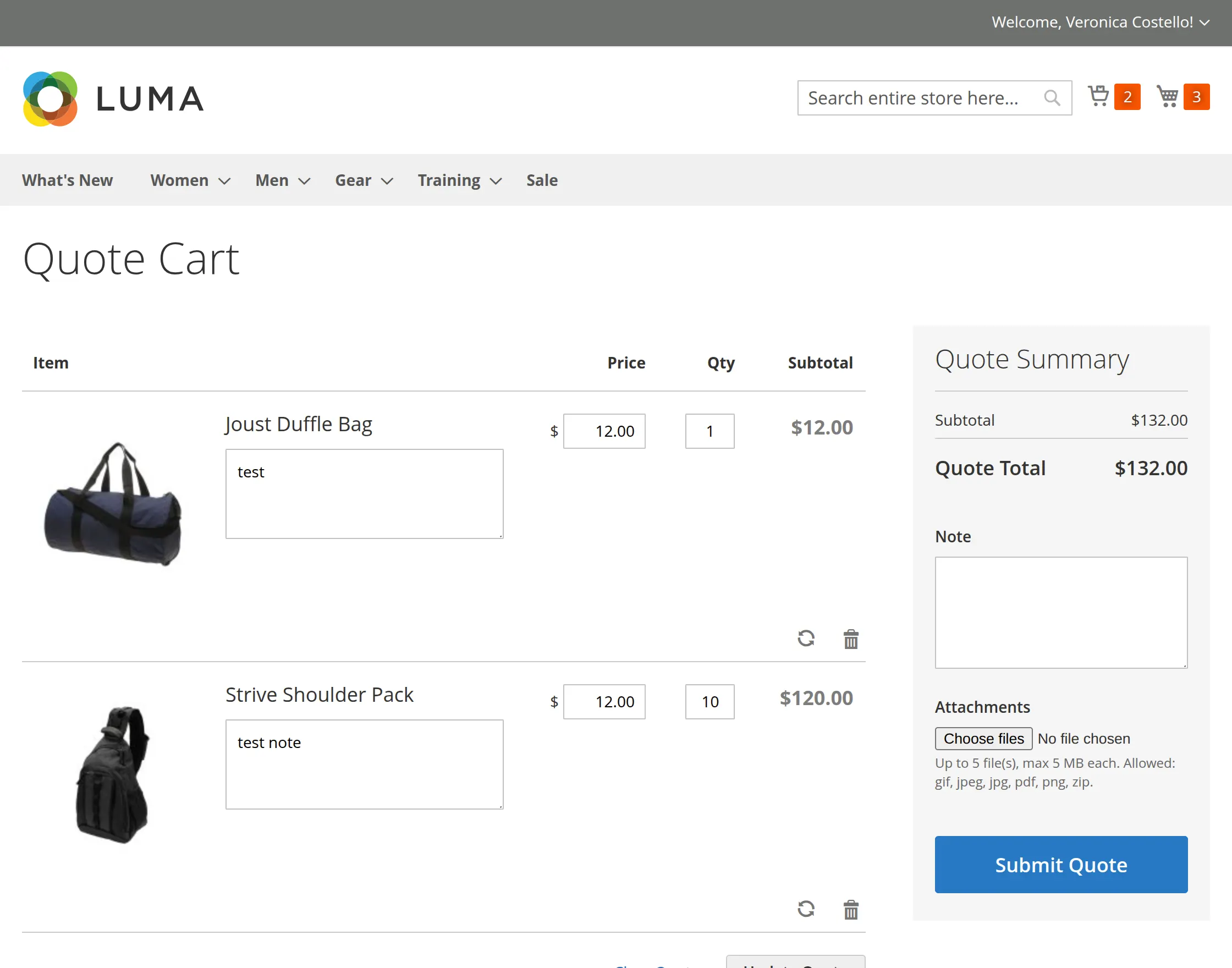
The customer can edit the quote cart, add attachments, and enter notes on the Quote Cart page.
After adding the required details, the customer clicks Submit Quotes to submit the quote request.
Add Multiple Quotes
Customers can also add multiple quotes to the Quote Cart and manage them from one place.
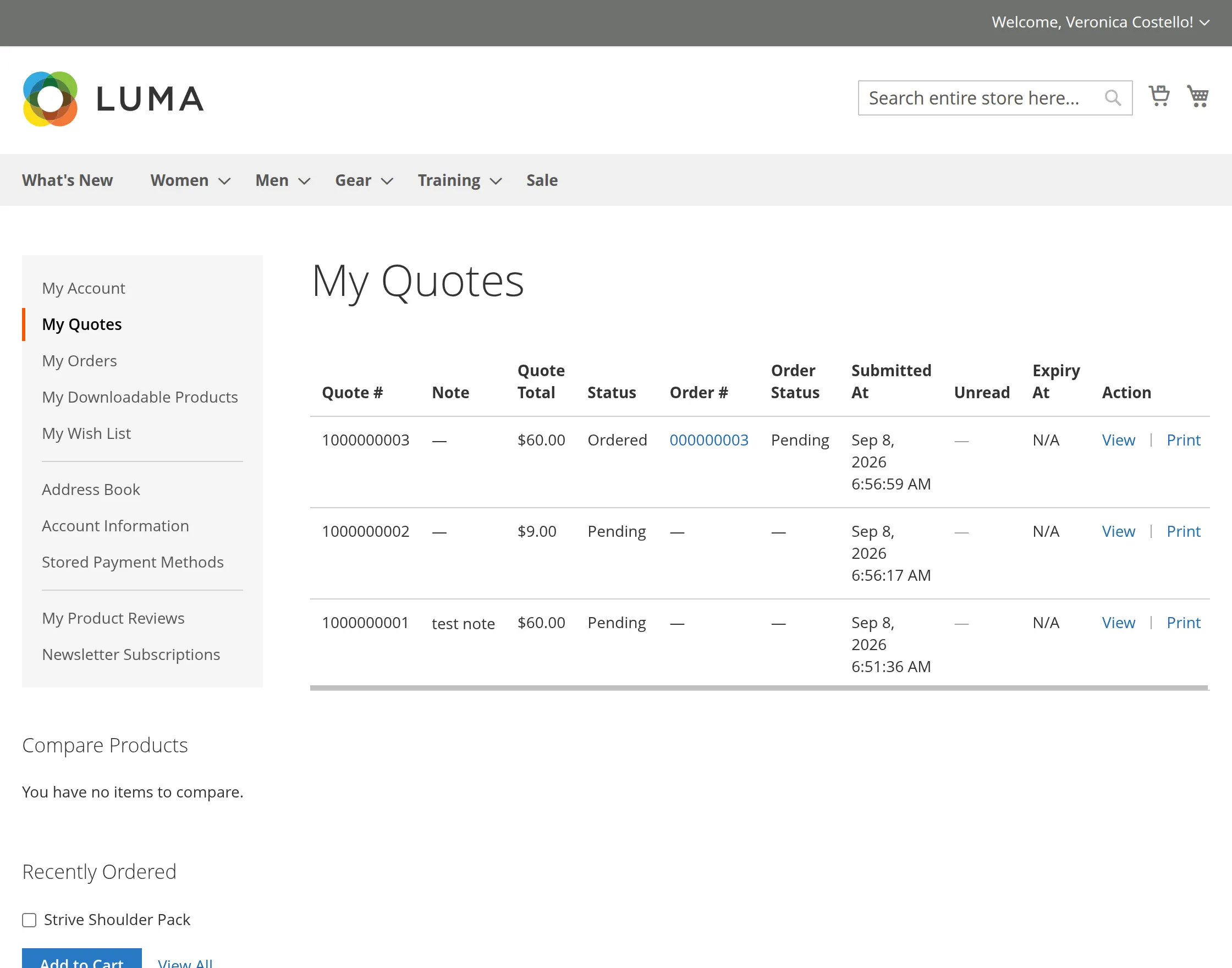
Buyer Can View The Quote
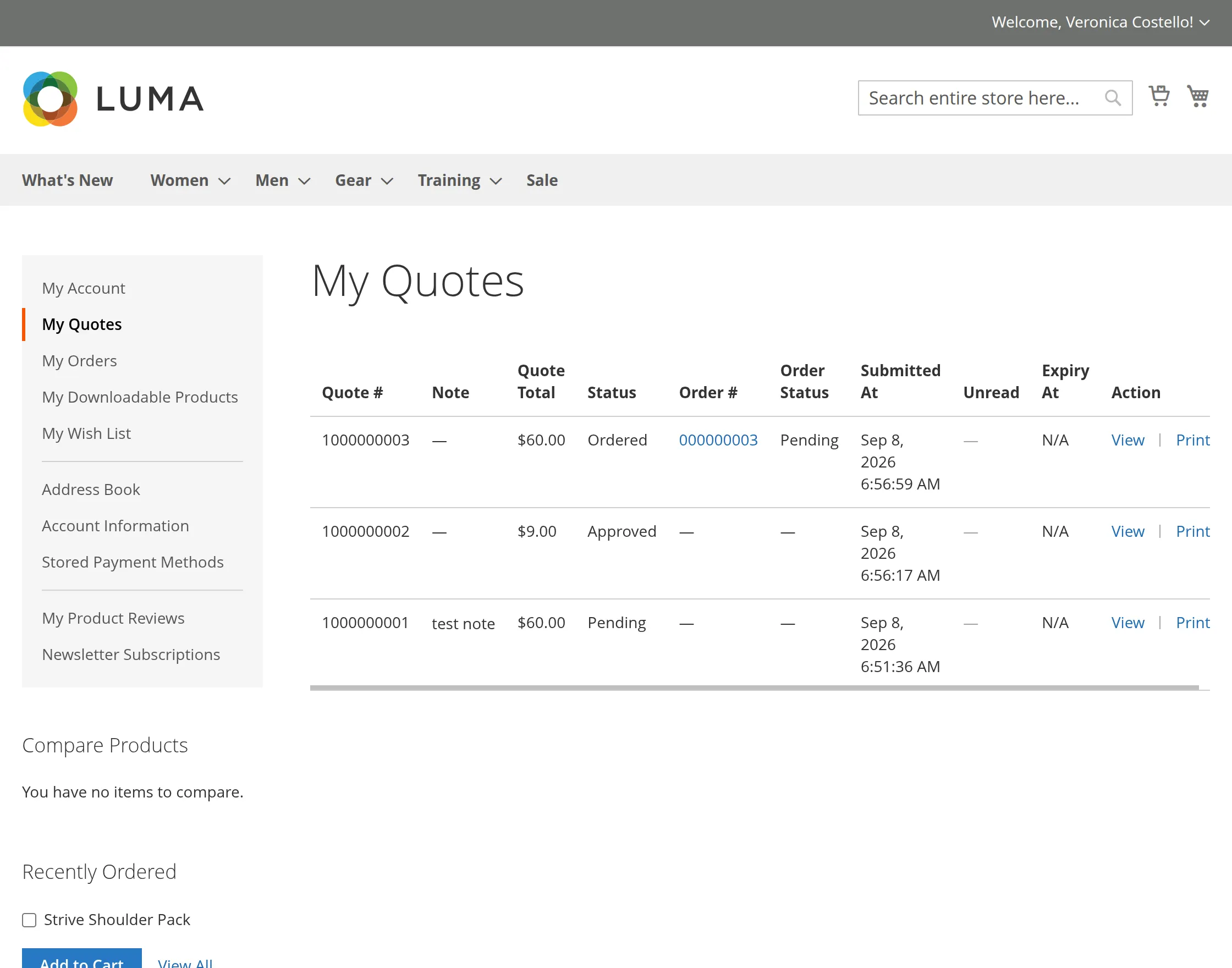
Customers can view their submitted quote details from their account.
Navigate to My Account → My Quotes and click View for the required quote. The quote details page displays the complete quote information.
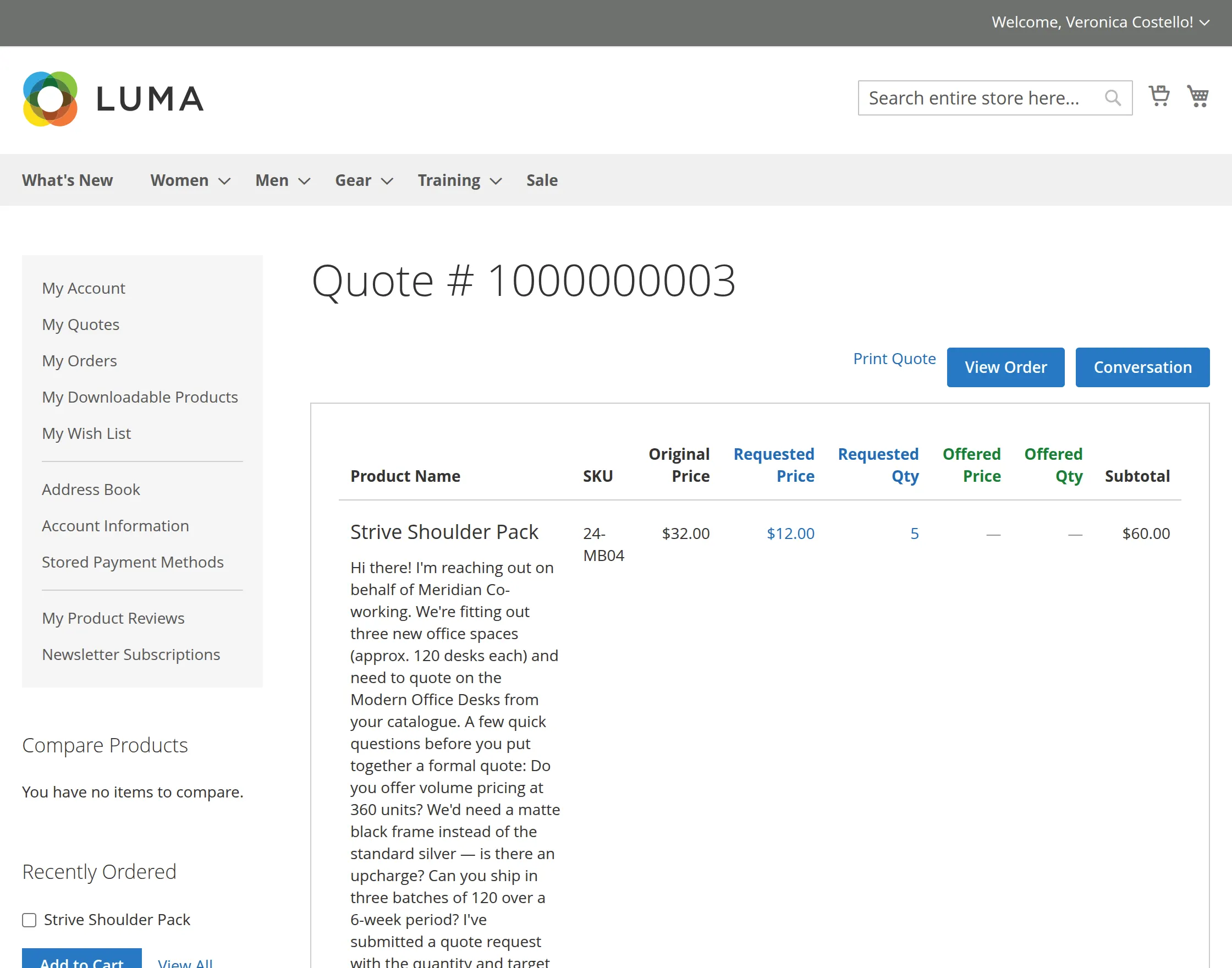
Quote Information
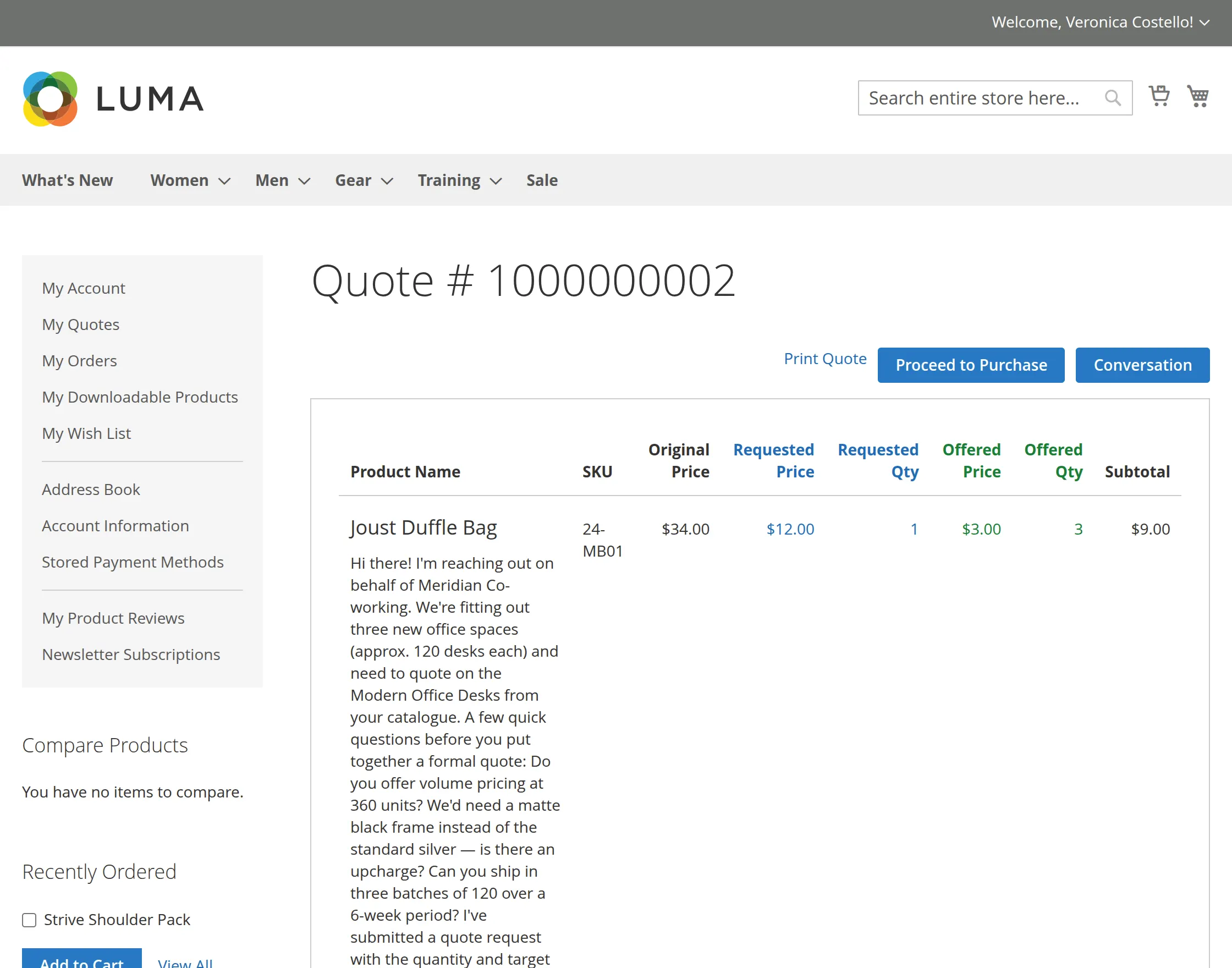
- Quote #- Displays the unique identification number of the quote.
- Product Name- Displays the products included in the quote.
- SKU- Displays the SKU of each quoted product.
- Original Price- Displays the original catalog price of the product.
- Requested Price- Displays the price requested by the customer.
- Requested Qty- Displays the quantity requested by the customer.
- Offered Price- Displays the price offered by the admin. It remains empty until an offer is provided.
- Offered Qty- Displays the quantity offered by the admin.
- Subtotal- Displays the calculated subtotal for each quote item.
- Quote Total- Displays the total amount of the quote based on the current offer.
Quote Actions
- Print Quote- Allows customers to print the quote details.
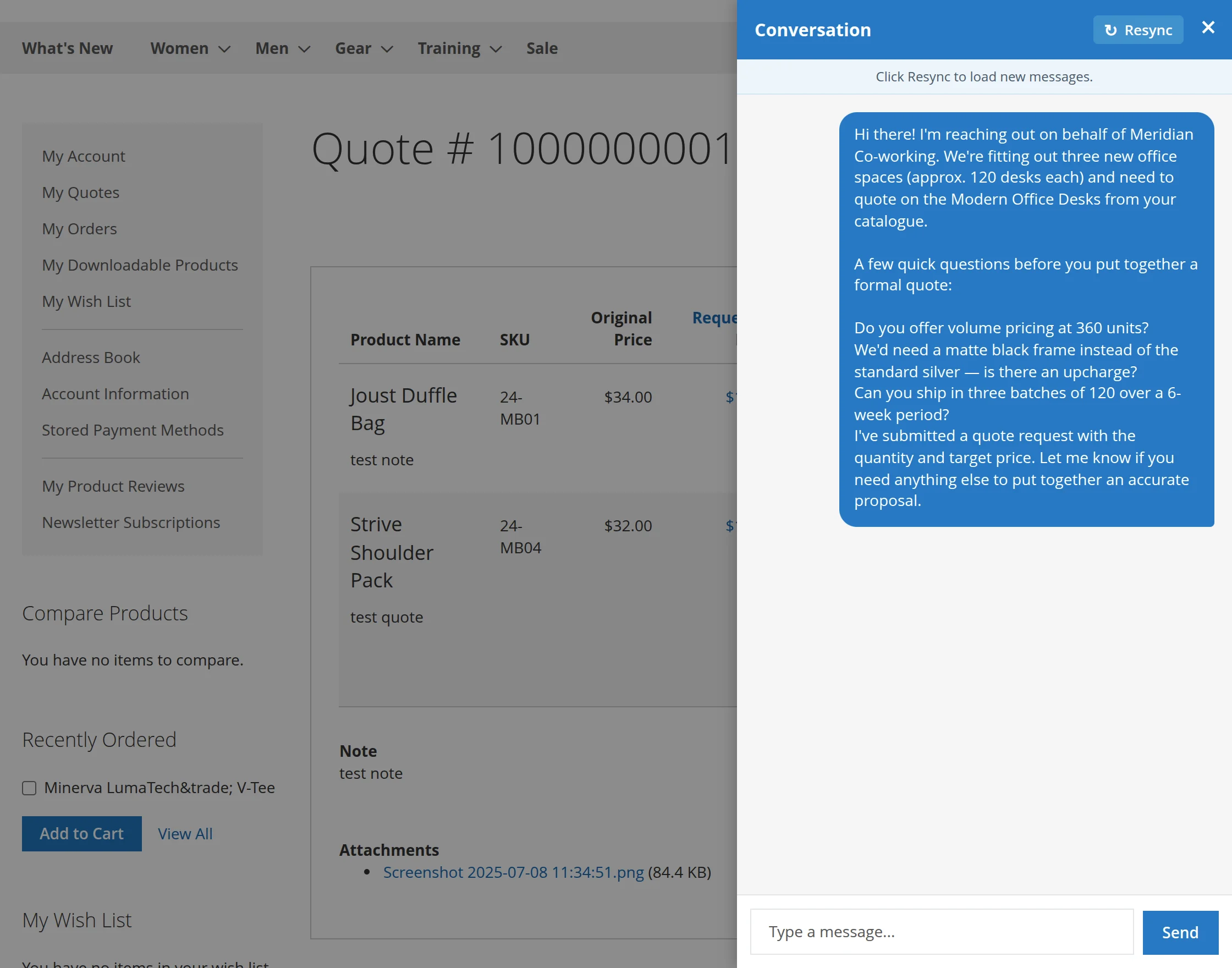
- Conversation- Allows customers to communicate with the admin regarding the quote.
The customer can use the Conversation option to discuss pricing, quantities, product requirements, or other quote-related details with the admin.
The buyers can view the quote by clicking on “View Quote”. & if in case the customer has generated multiple quotes then it will be shown as two separate as shown below:


Here, the customers can update their quotation requests by clicking the edit button next to the quoted item.


The shoppers can see the complete conversation had with the admin using the Quote System for Magento 2.
Also, for the record, the customer can easily print out the quote product data. By clicking on the “Print Quote” button.


Purchase of a Quote Product
After the admin approves a quote, the customer can open the approved quote from My Account → My Quotes.
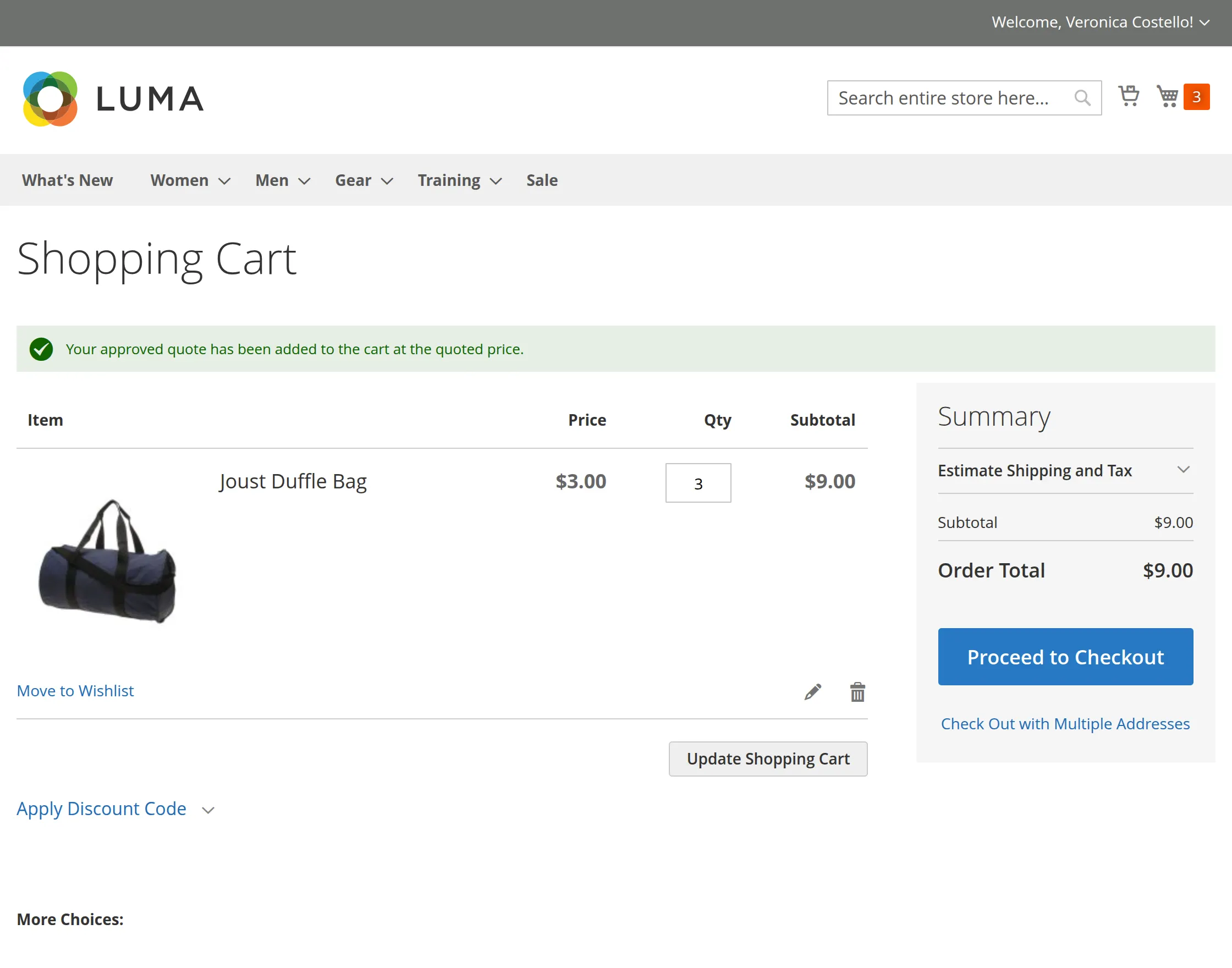
The quote details page displays the Proceed to Purchase option. When clicked, the quoted products are added to the shopping cart at the agreed price.
The customer is then redirected to the Shopping Cart page to review the products and continue with checkout.
Discount
The Quote System for Magento 2 allows the admin to set ‘Allow the Use of Catalog and Cart Price Rules for Carts Containing Quote Products‘ as Yes, to enable a discount on the quoted product.
Plus this will be reflected on the customer front at the time of checkout as in the below screenshot. The discount can be seen here on the cart:
If you want to enhance your store features by adding discounts to the bundle of products then you can check Magento 2 Product Bundle Discount.


Support
That’s all for the Magento 2 (Adobe Commerce) Quote System. Still, have any issues then feel free to add a ticket.
Let us know your views on making the module better at webkul.uvdesk.com