Magento 2 Invoice PDF Template
Magento 2 Invoice PDF Template helps store owners create and customize professional invoice PDFs for customer orders.
It is ideal for businesses that need branded invoices for order processing, shipping, accounting, and customer communication.
The extension lets admins design invoice templates with a drag-and-drop editor for quick customization.
Admins can also apply custom CSS to create invoice layouts that match their brand identity.
Customized invoices can be generated and downloaded as PDF files in a few simple steps.
The extension helps maintain consistent branding while delivering professional invoices for every order.
Also, if you want to print orders automatically whenever an order is placed in the store, check the Magento 2 Auto Print extension.
Apart from that, you can also extract the invoice PDF data and create the orders in the store using Magento 2 AI OCR extension.
Watch the below video tutorial to understand the extension workflow:
Features
- Admin has the leverage to create as many templates as needed.
- Admin can redesign invoice templates using a drag-and-drop editor.
- Custom CSS can be added to personalize the invoice design.
- Admin can select the paper size for invoice PDF generation.
- Also, the admin can choose from the given list of orientations, i.e. Portrait or Landscape.
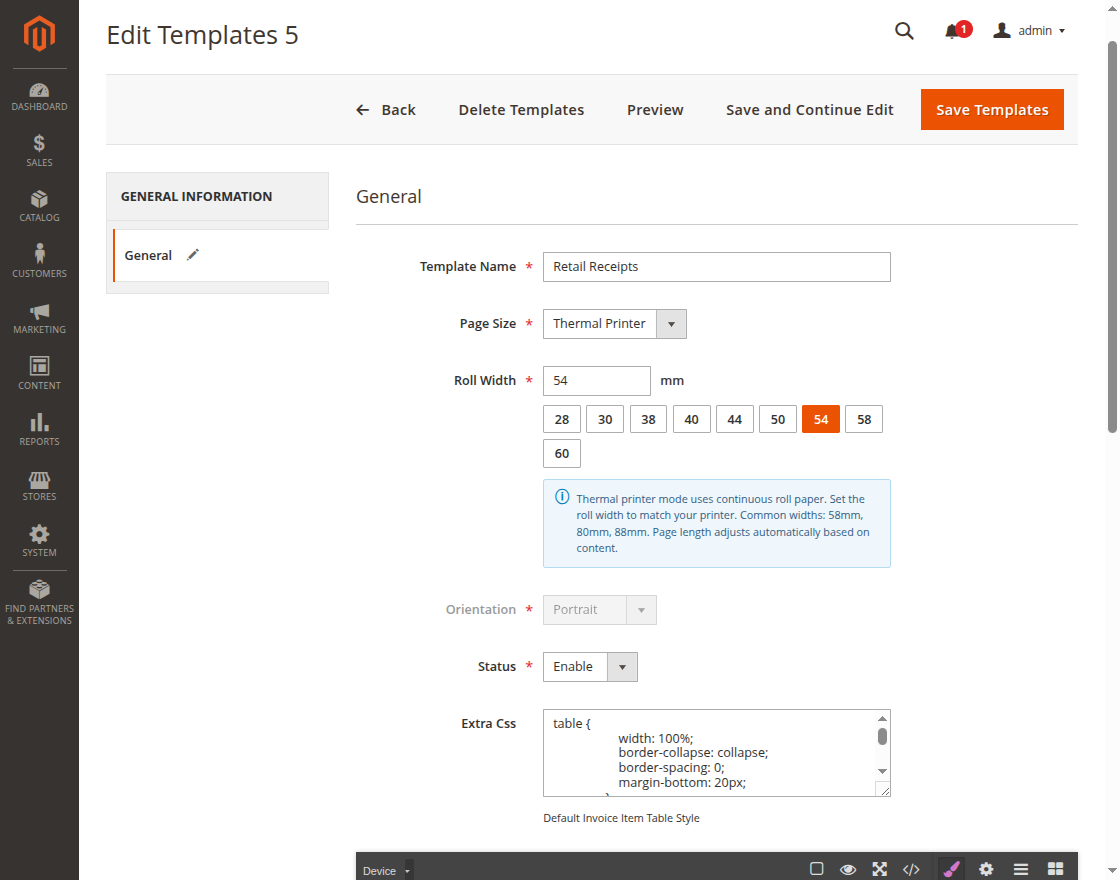
- Thermal printer templates can be configured for receipt-style invoice printing.
- Roll width presets such as 28mm, 30mm, 38mm etc are available for quick selection.
- Invoice Pdf Template preview automatically adjusts based on the selected roll width.
- Admin can print the customize PDF documents of the invoices.
Installation
Customers will get a zip folder. Then they have to extract the contents of this zip folder on their system. The extracted folder has an src folder, inside the src folder you have the app folder.
You need to transfer this app folder into the Magento 2 root directory on the server as shown below.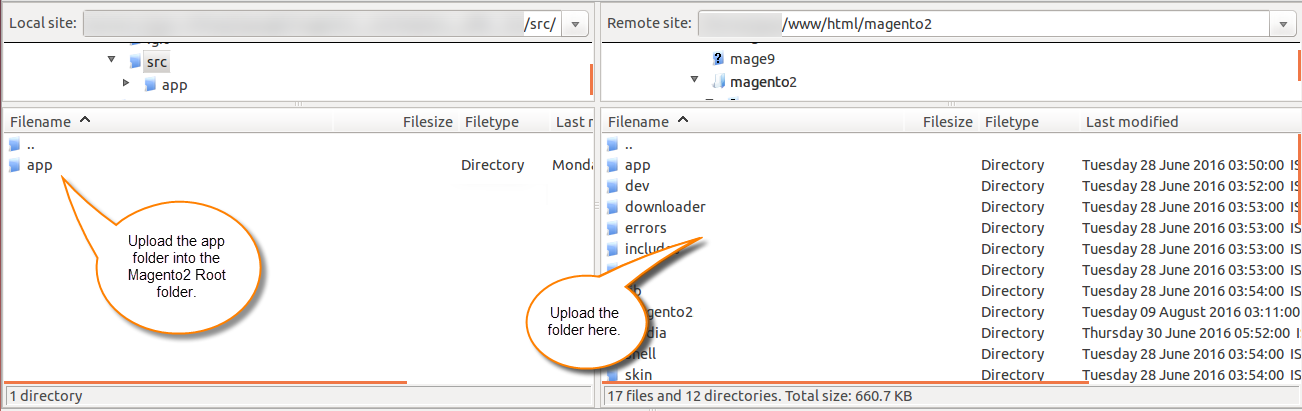
On successfully installing the module, you have to run these commands in the Magento2 root directory.
composer require dompdf/dompdf
composer require tijsverkoyen/css-to-inline-styles
composer require laminas/laminas-barcode
php bin/magento setup:upgrade
php bin/magento setup:di:compile
php bin/magento setup:static-content:deploy
php bin/magento indexer:reindex
php bin/magento cache:flush
Language Translation
For translating the module language, navigate through src/app/code/Webkul/InvoicePdfTemplate/i18n, and edit the en_US.csv file.
Thereafter, rename the CSV as “en_SA.csv” and translate all right side content after the comma in the Arabic language. After editing the CSV, save it.
Then upload it to the path src/app/code/Webkul/InvoicePdfTemplate/i18n where the Magento2 is installed on the server.
The module gets translated into the Arabic Language. It supports both RTL and LTR languages.
Admin Permissions: Invoice PDF Template
On successfully installing the module, the admin must navigate through Stores > Invoice Pdf Template section to set the configurations.
The admin will find two sub-sections under Invoice Pdf Template, i.e.-
- Pdf Templates
- Configuration, as shown in the image below.

On navigating through Stores > Invoice Pdf Template > Configuration, the admin of the store can configure the basic settings against the Invoice Pdf Template tab as shown in the image below.
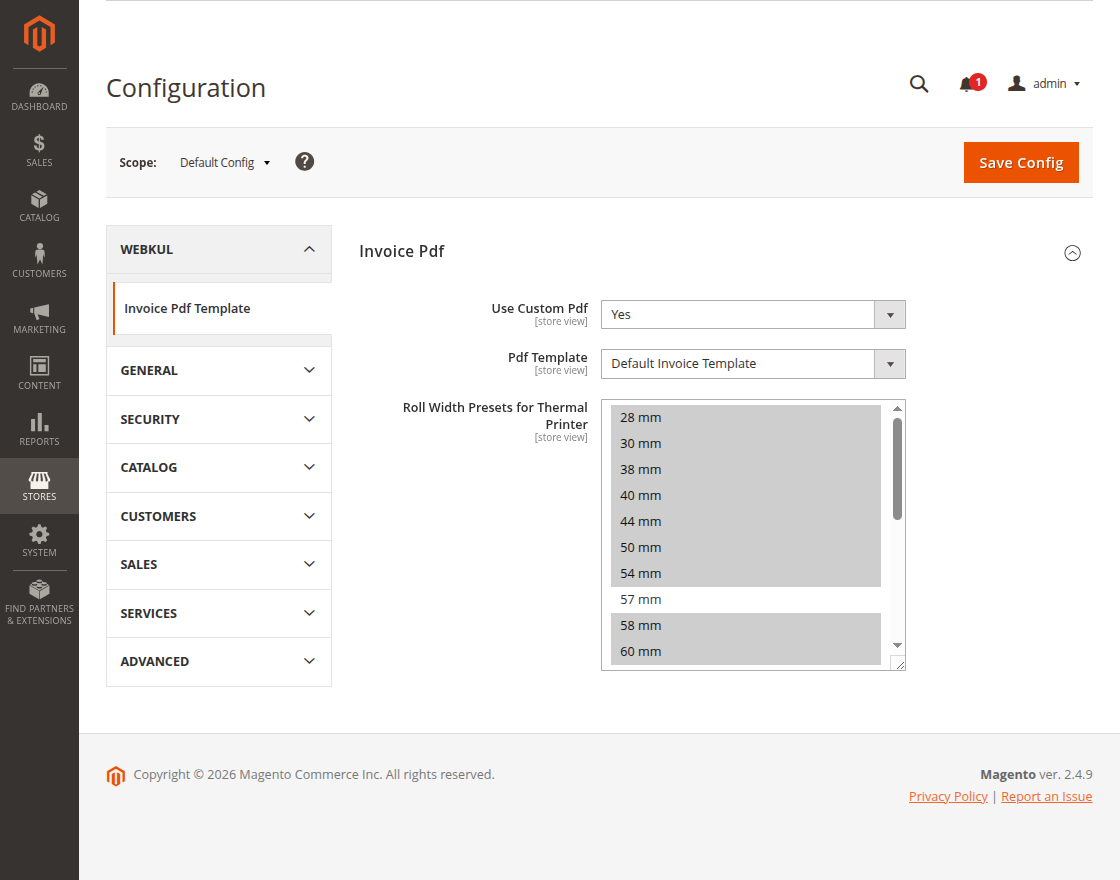

Use Custom Pdf: The admin can set this as Yes in order to use customized Pdf templates for invoices.
Pdf Template: The pdf templates for the invoices can be chosen against this field.
Roll Width Presets for Thermal Printer: Admin can select the default thermal printer width that will be used when creating thermal printer paper size templates.
Create Custom Templates: Invoice PDF Template
To create new pdf templates for invoices, the admin can navigate to Stores > Invoice Pdf Template > Pdf Templates and click on Add new template.
This will redirect the admin to the New Templates page as shown in the image below, where the admin can add the details of the given fields to create fresh templates.
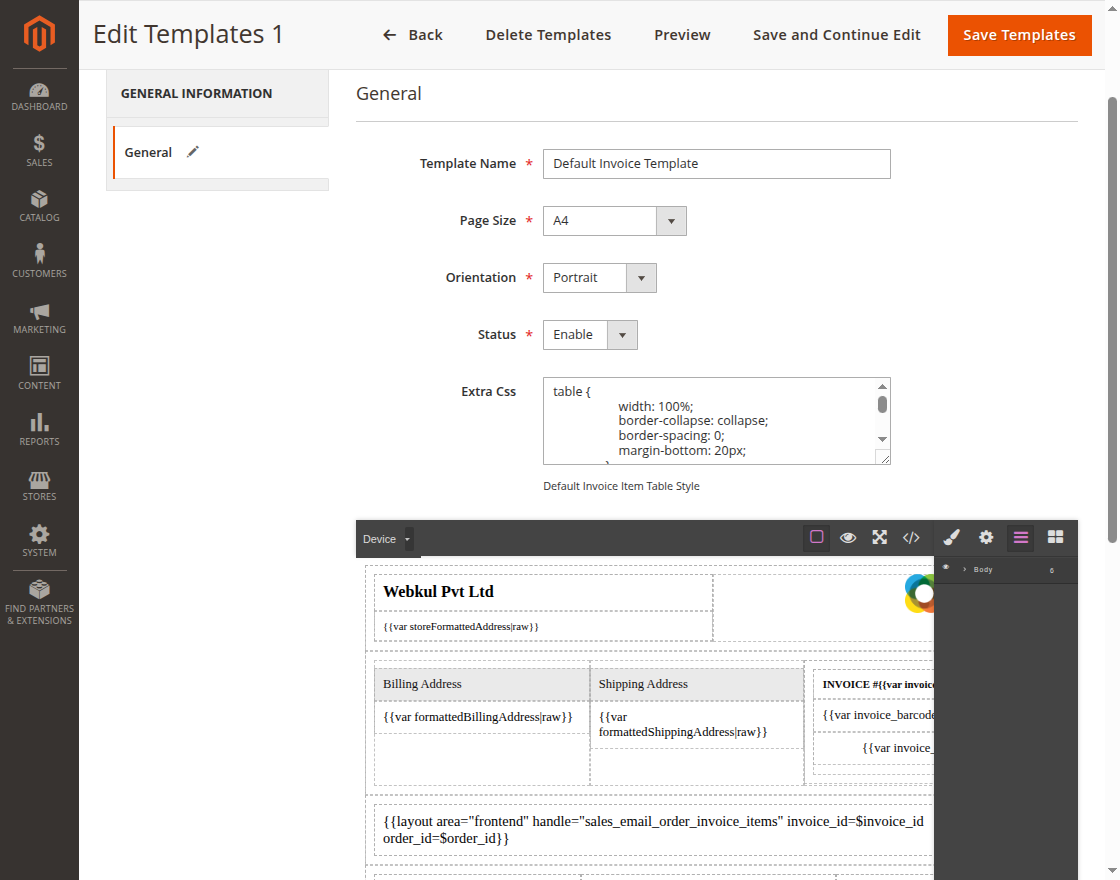
Subsequently, the admin can add the following details under the General section to add new templates-
Template Name: The admin can add a name for the new template.
Page Size: The admin can choose the page size as need be from the given list.
Orientation: The admin can choose from the given list of orientations, i.e. Portrait or Landscape.
Status: The admin can set the status of the respective template as enable or disable.
Extra CSS: If need be, an extra CSS can be added against this field.
Further, the admin can view the list of templates under the Templates page as shown in the image below. 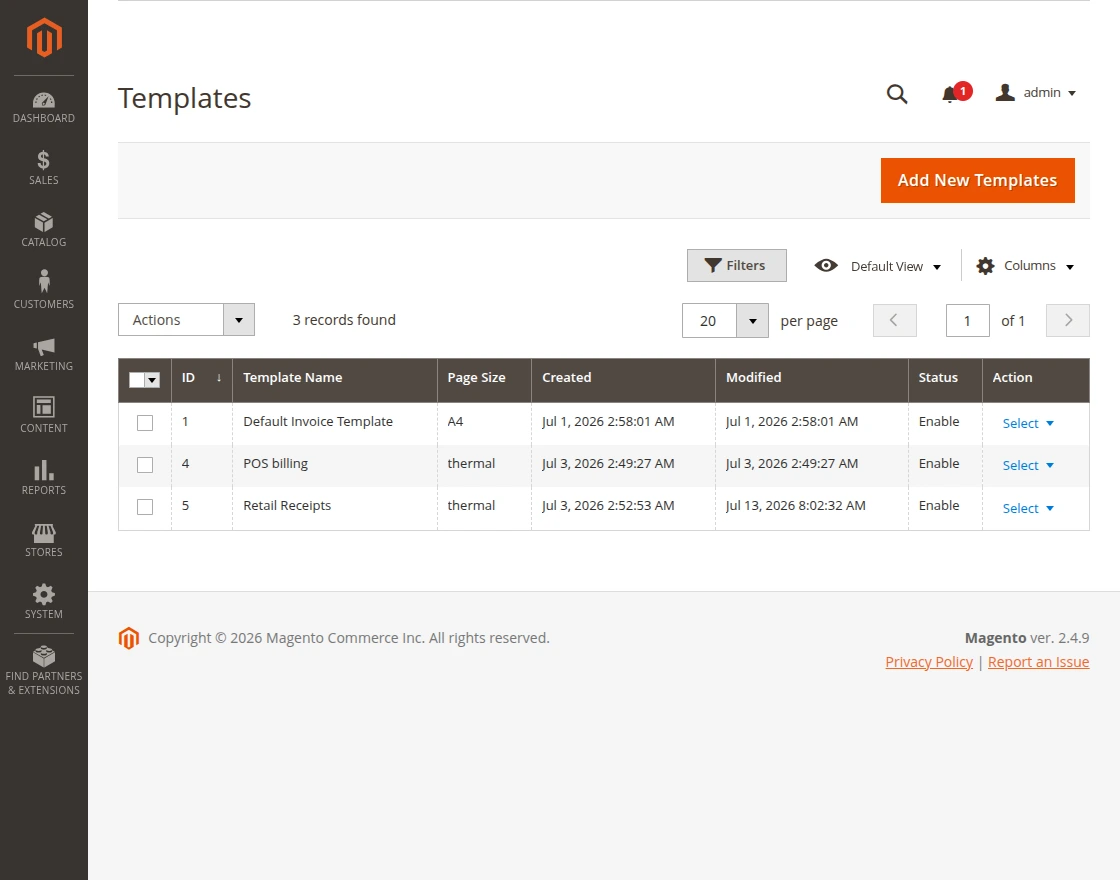
Furthermore, the admin has the leverage to Enable, Disable, or Delete any of the Templates present in the list.
For that, the admin needs to select the respective template(s) in the list, and in the Actions tab, choose the desired action.
Create Thermal Printer Invoice Templates
To create a thermal printer paper size invoice template, the admin selects Thermal Printer as the Page Size and chooses the Roll Width on the Add New Template page, as shown in the image below.
Customer End Workflow
The customer can place an order in the usual manner. On choosing the products the customer can add the products to cart as shown in the image below.

In the cart page, the customer can view the order details and edit, if need be, and proceed to checkout as shown in the image below.

On clicking the Proceed to Checkout button in the above image, it redirects to the Shipping page as shown in the image below.
The admin can choose the address and the shipping method and proceed to the Review and Payments steps.

Under the Review and Payments page, the admin can choose the Payment Method and proceed to Place the Order.

On successfully placing the order, a confirmation message shall display along with the order number as shown in the image below.

Admin End Orders: Invoice PDF Template
Thereafter, in the admin panel, the admin can view the list of orders that the customers place under Sales > Orders.

The admin can tap on the View link present under the Action column, to view the details of the respective order.
It redirects to the Order & Account Information page as shown in the image below.

As the admin creates the invoice for any order it shall display under Invoices tab as shown in the image below.
The admin must click on the View link under Action column to view its details and print the same.

The admin will find the invoice details and can even print the Invoice (in the pdf format) on clicking the Print option in the image below.
In doing so, the pdf format of the invoice is downloaded. One can find in the bottom-left part of the page as shown in the image below.

The pdf format of the invoice will be somewhat like as shown in the image below, displaying the order details.

That’s all for the Magento 2 Invoice PDF Template. If you still face any issues, feel free to add a ticket and let us know your views to make the module better at webkul.uvdesk.com.