After the module installation, the admin needs to go to Stores>Configuration>Webkul>Price Drop Alert.


The following page will open, the admin needs to do the following-
Price Drop Alert Setting:
Status – Select Enable, to show the price drop alert option on the front end. Else, select Disable to hide the price drop alert option.
Enable Price Drop On All Products:
Status- The admin can apply the price drop subscription on all products or on specific products as Visible on All or Select Manually.
Price Drop Alert Email:
Price Drop Subscription Email – The admin can select the email template for the customers, and it will be used when the customers will subscribe to the price drop alert.
Alert Notification Email – Select the email template for the customers, when the price is dropped.
Price Drop Alert Unsubscription Email- Select the email template for the customers, and it will be used when the customers will unsubscribe to the price drop alert.
Click Save Config to apply changes.
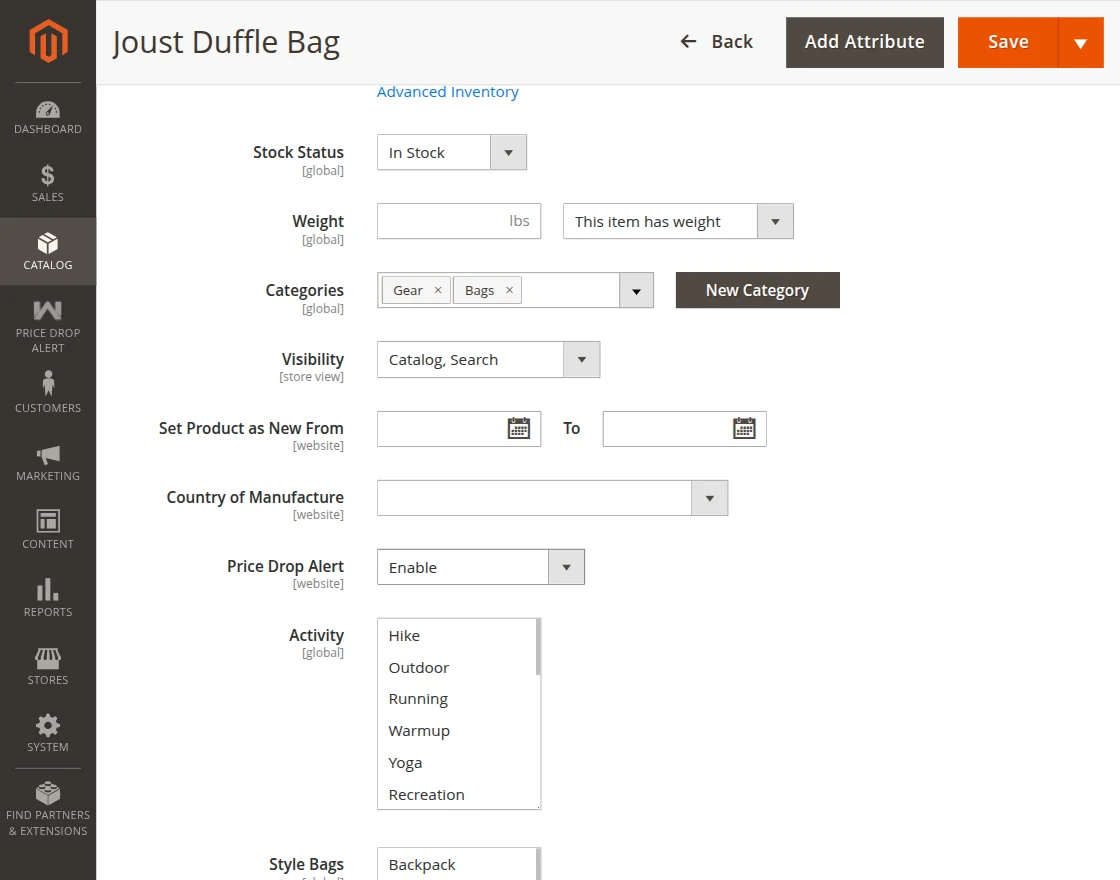
Note – However, if the admin set the status of Enable Price Drop On All Products as Select Manually then,
the admin needs to set the Price Drop Alert as Enable/Disable or,
Apply Default Config on the product edit page for the customer to able to apply price drop for the specific product.

Create Email Template
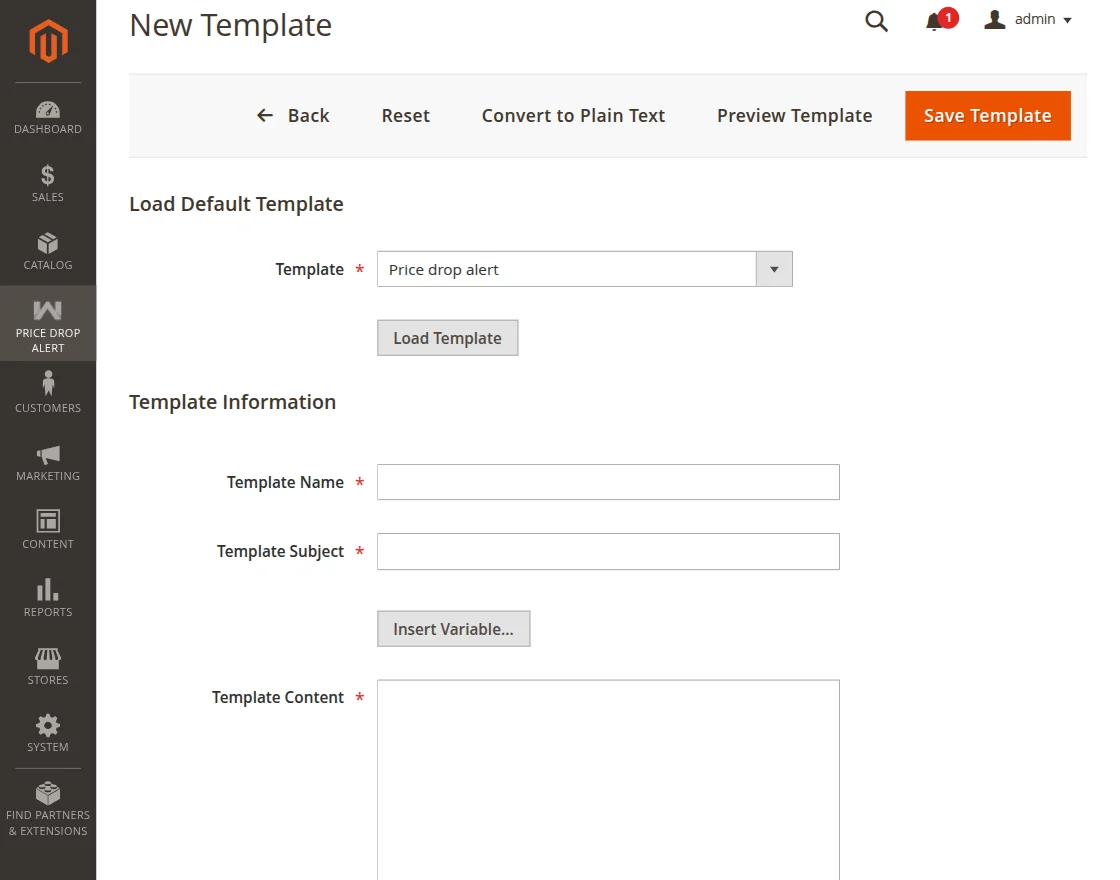
The admin can create new templates for the price drop alert subscription. To do that, please go to Marketing>Email Templates>New Template.
The following page will appear, select the Price Drop Alert option in Template and enter the content.