Laravel eCommerce Marketplace Hyperlocal Extension
Live Demo
This module is very beneficial for both sellers and buyers. The seller can easily add the location where the seller can ship the products. The customers can enter their location and can check the available sellers and products in that particular location.
This module connects the customers with local stores and also transforming the shopping experience of the customers.
Features of Laravel eCommerce Marketplace Hyperlocal Extension.
- Seller will be able to add multiple shop’s zipcodes.
- Products will be visible of seller’s which matches the customer’s location.
- Admin can set a single seller/multi-seller checkout.
- Customer will be able to view all sellers in its area.
- TheCustomer will be able to view all the products available in its area.
- Customer will be able to view all the products available of a particular seller
How to install the module?
Unzip the respective extension zip and then merge “packages” folder into project root directory.
Goto composer.json file and add following line under ‘psr-4’
"Webkul\\MarketplaceHyperlocal\\": "packages/Webkul/MarketplaceHyperlocal/src"
Goto bootstrap/providers.php file, add the following line under the ‘providers’ section
Webkul\MarketplaceHyperlocal\Providers\MarketplaceHyperlocalServiceProvider::class
Run these commands below to complete the setupsection
composer dump-autoload
php artisan marketplace-hyperlocal:install
php artisan optimize:clear
Admin Management:- Laravel eCommerce Marketplace Hyperlocal Extension
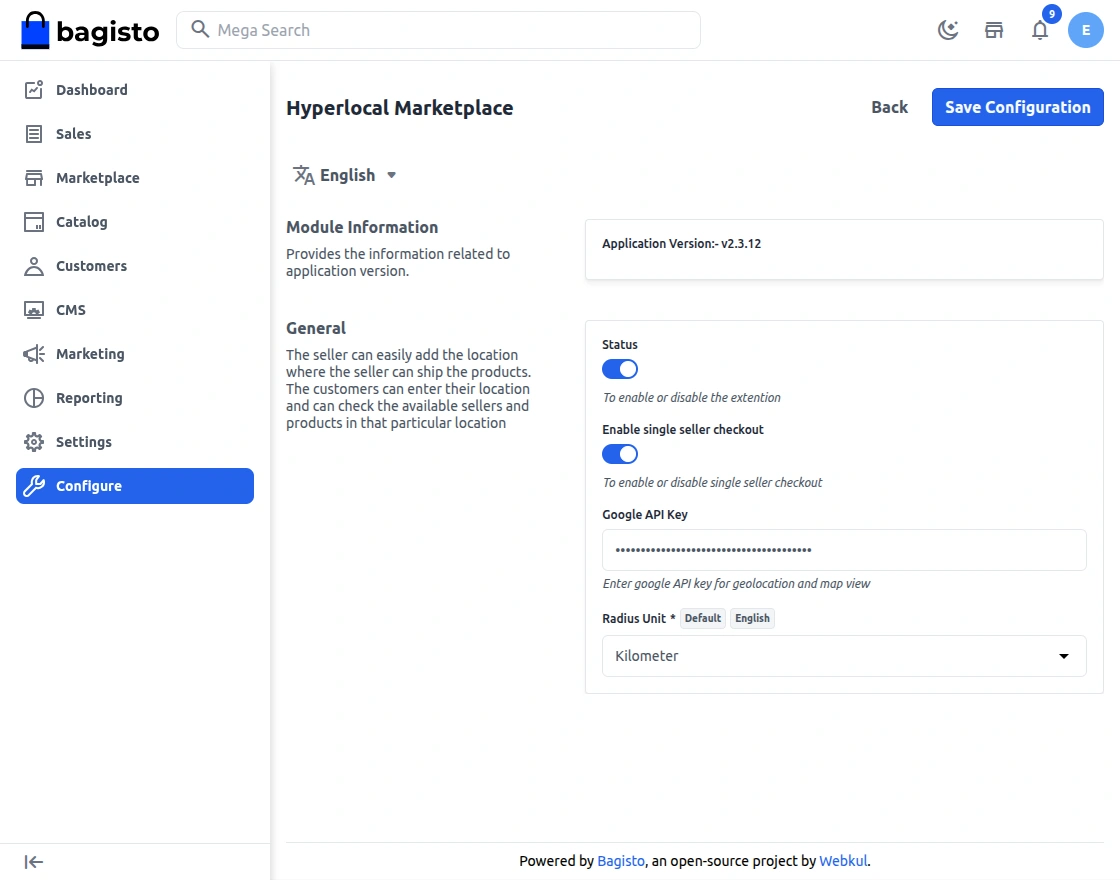
After installation of the module, admin can also configure the module by going to Configure->Hyperlocal Marketplace.

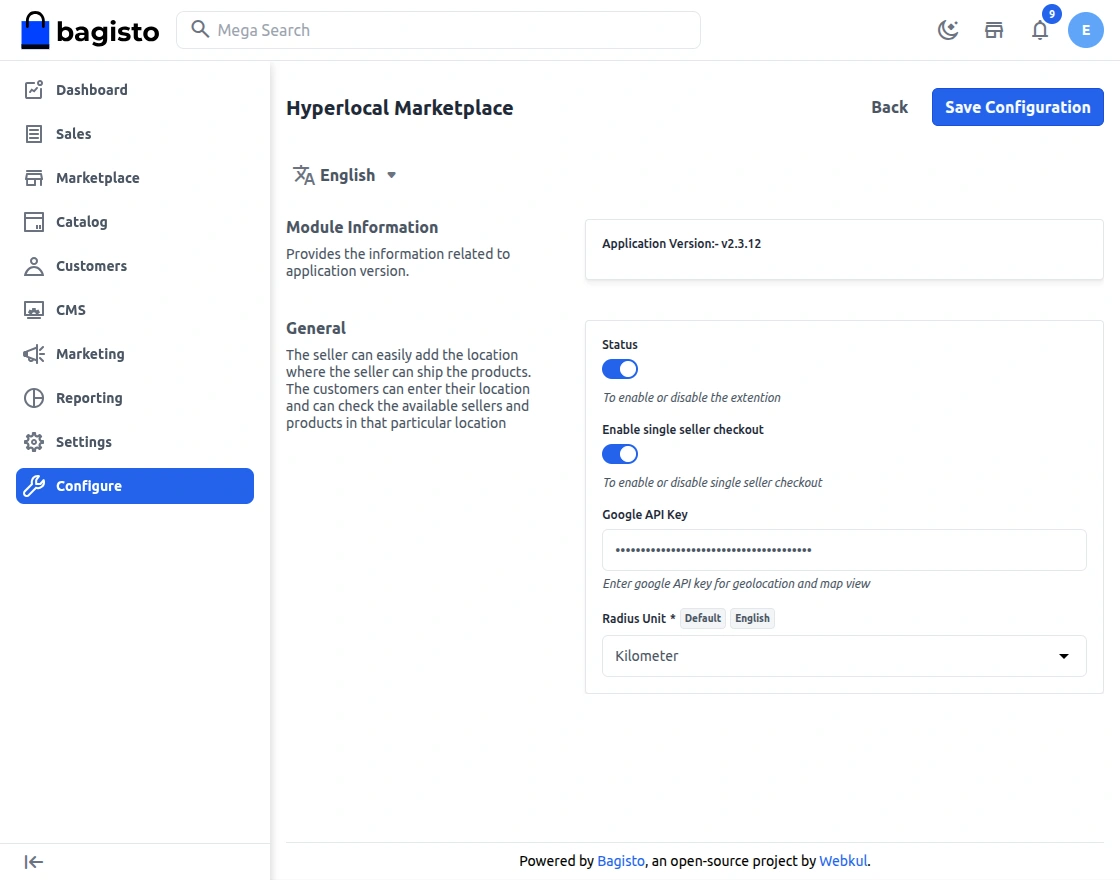
Here Admin needs to enter the following details-
- Google API Key– Admin has to provide the Google API Key so that Google search suggestion for the location will work.
- Radius Unit (km/mile):- The admin can set it’s radius config in kilometer or miles.
- Status:- To enable or disable the module.
- Enable single seller checkout:-If the admin wants to allow the customer to checkout with a single seller product then the admin needs to enable this toggle button. If checkout with more than one seller’s products then disables this toggle button.
Note: For Google API Key please visit https://developers.google.com/maps/documentation/javascript/get-api-key
The admin also needs to set the post code for the inventory also so that the product from that inventory will be visible according to the zip code entered by the customer:-
The admin needs to navigate to the settings>>inventory sources. In this page the admin can see all the created inventory as shown below:-
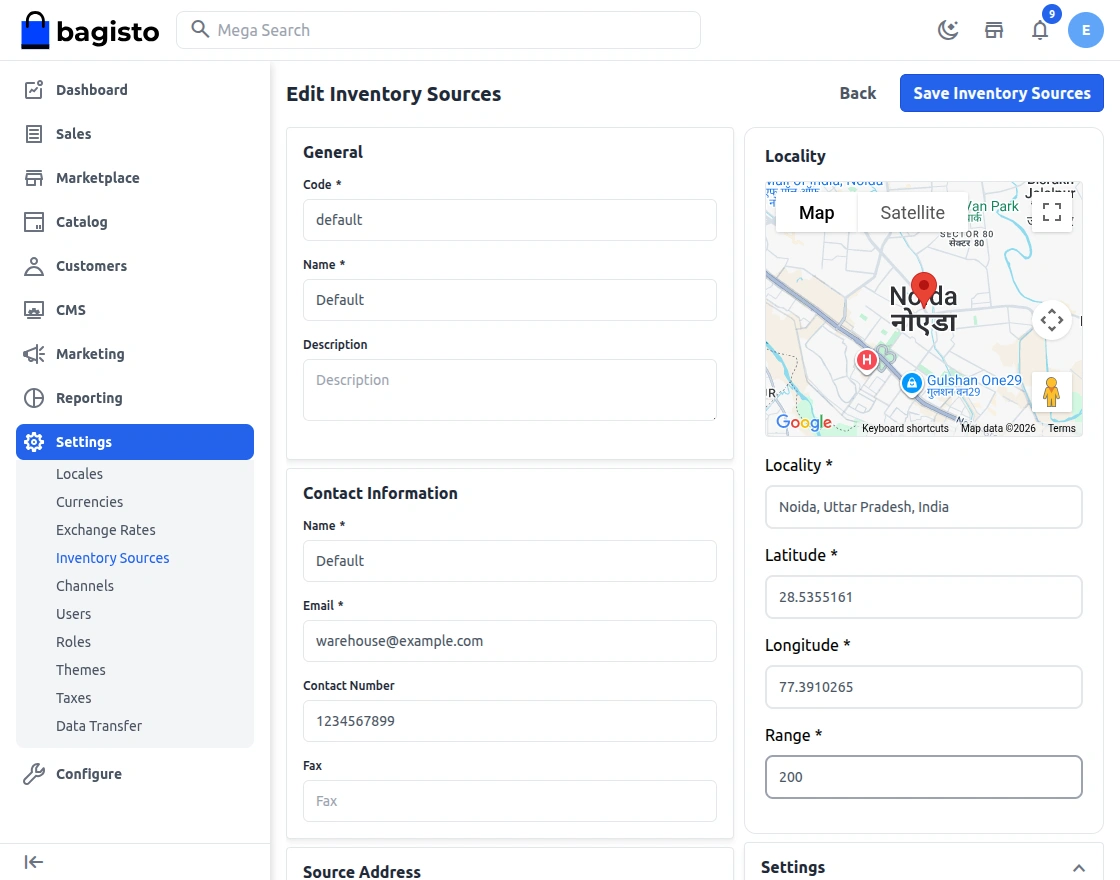
To add new inventory click on Add Inventory or to edit existing inventory click on edit button.
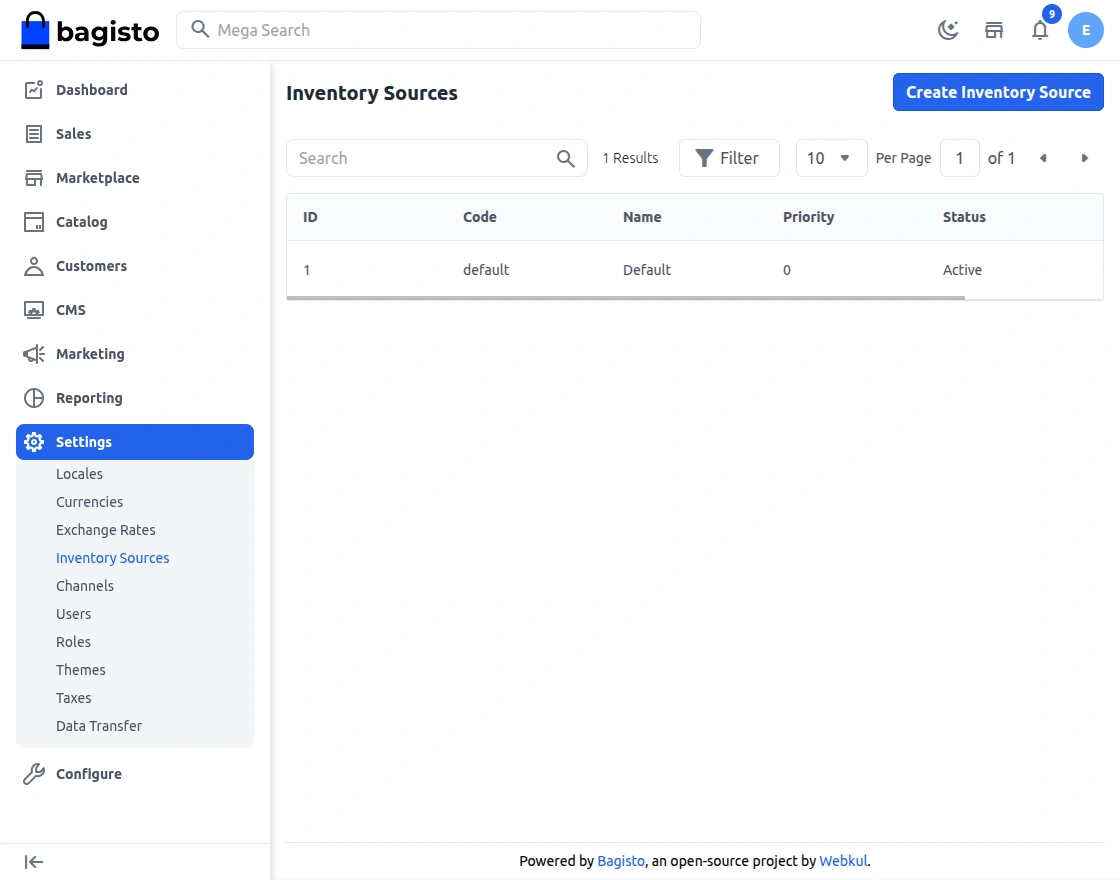
The admin needs to enter all the details regarding the Inventory including the Latitude, Longitude and Postcode as shown above.
Seller Dashboard
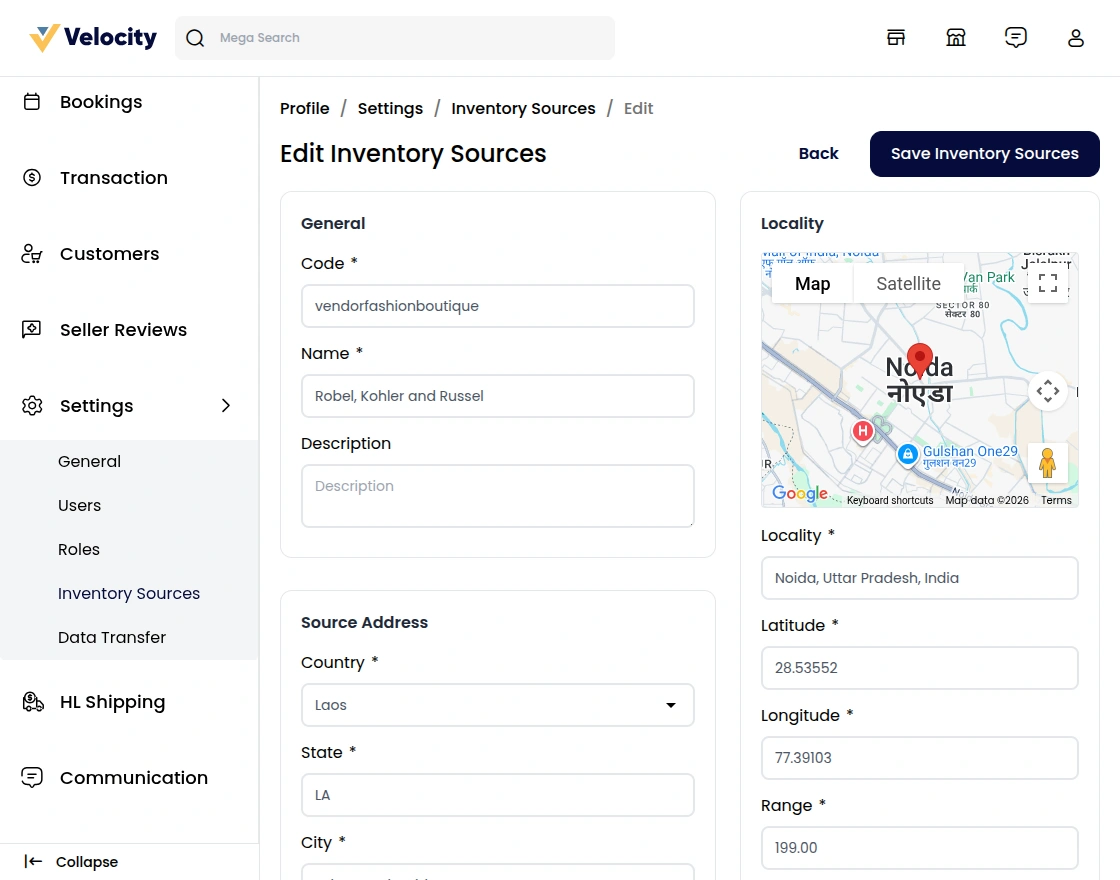
Sellers can define their inventory location, which ensures that their products are visible only to customers in nearby or selected areas, improving location-based accessibility and relevance.
Under the seller panel just need to navigate to settings-> Inventory sourcess a page will generate that will look like shown below:-
Customer Management
Enter your Location
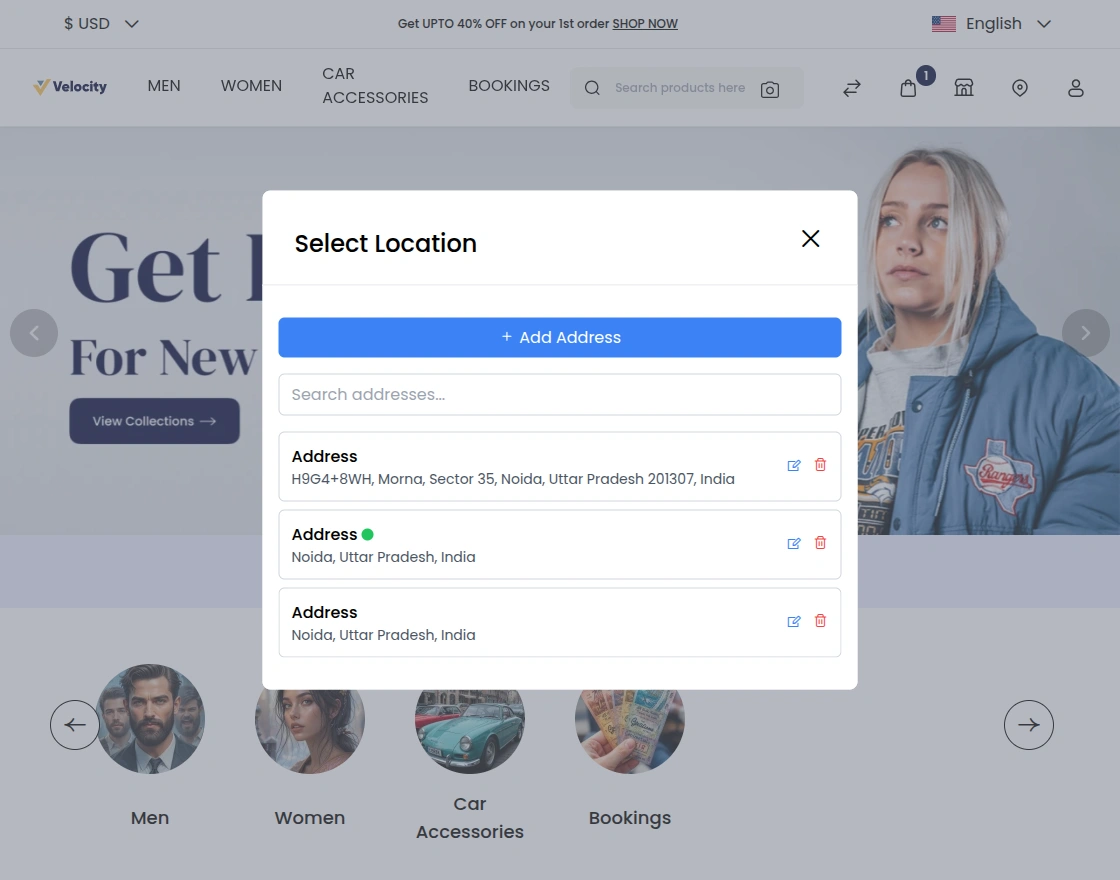
When a customer will visit the website then a pop-up will open asking to enter the location. The customers can enter their location or the zip code in the pop-up and click on the save button to save the location.
Products Available – Based On Customers’ Location
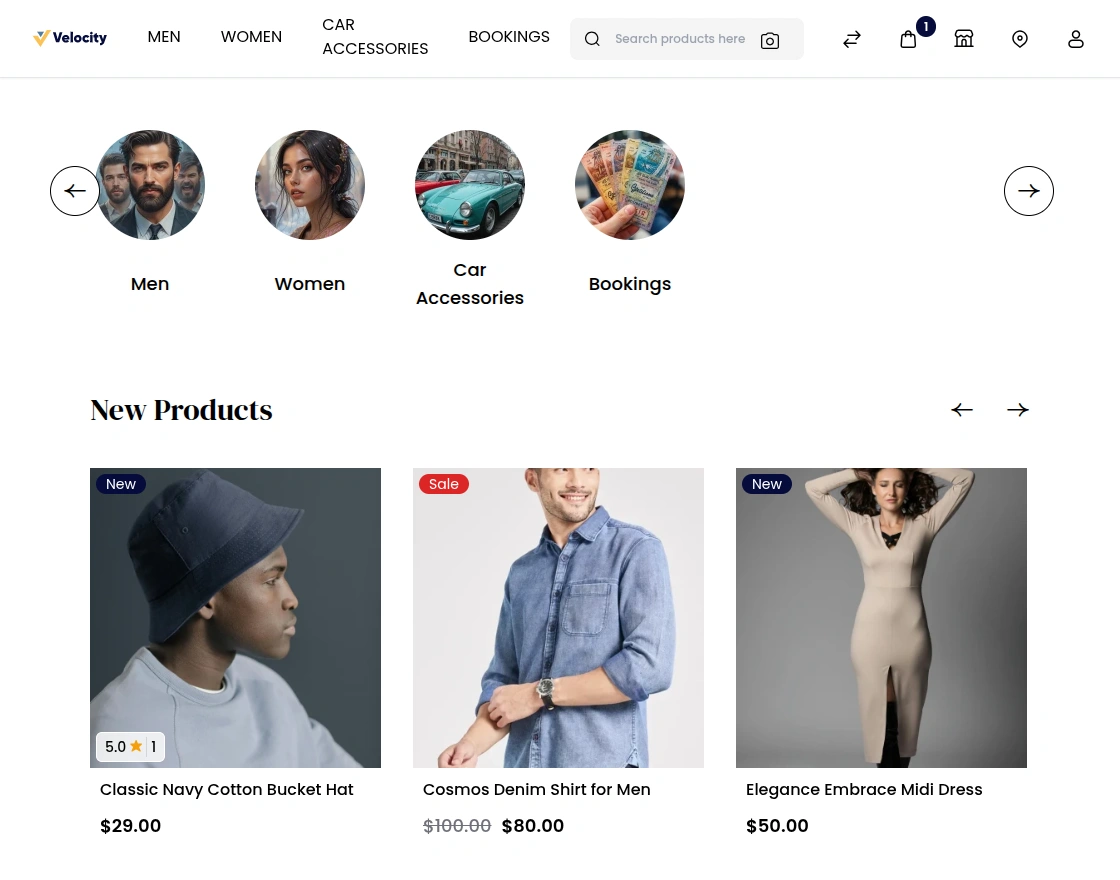
As soon as the customer enters the location, on the frontend of the customer will be able to see all the products who are available near the customer location.
To view the sellers available products, the customers needs to click on the set their location.
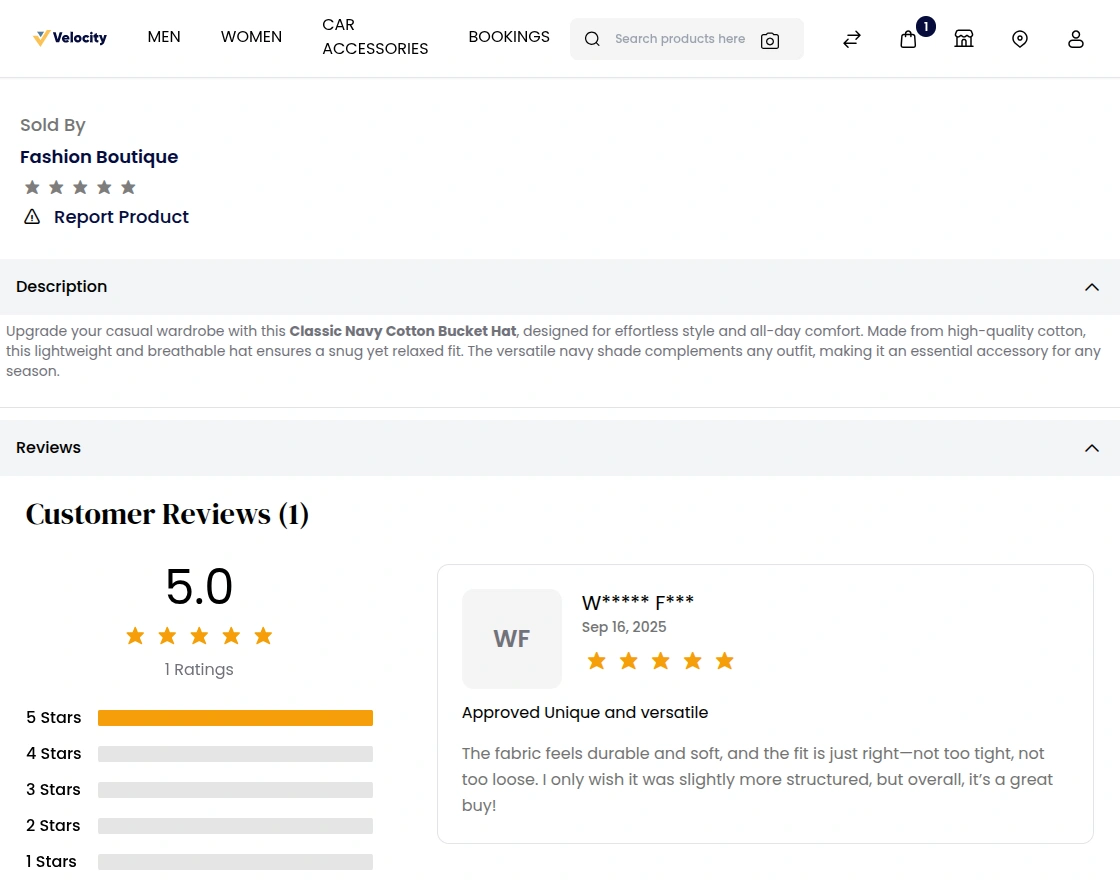
To View the products seller name the customer needs to click on the Product.
Location Change
On changes the location the customer will see a pop-up notification stating “On location address, change cart will empty”. So if there is any product in the cart then it will get removed from the cart and cart will become empty on location change.
If the admin has enable single seller checkout
When the admin has enable the single seller checkout, the customer will be able to purchase product from a single seller only.
The customer will not be able to purchase product from different sellers. The alert pop up will generate as shown in the image below:-
Hyperlocale Shipping
Marketplace Hyperlocal Shipping allows sellers to deliver products only within a specific geographic area based on their location and customer proximity.
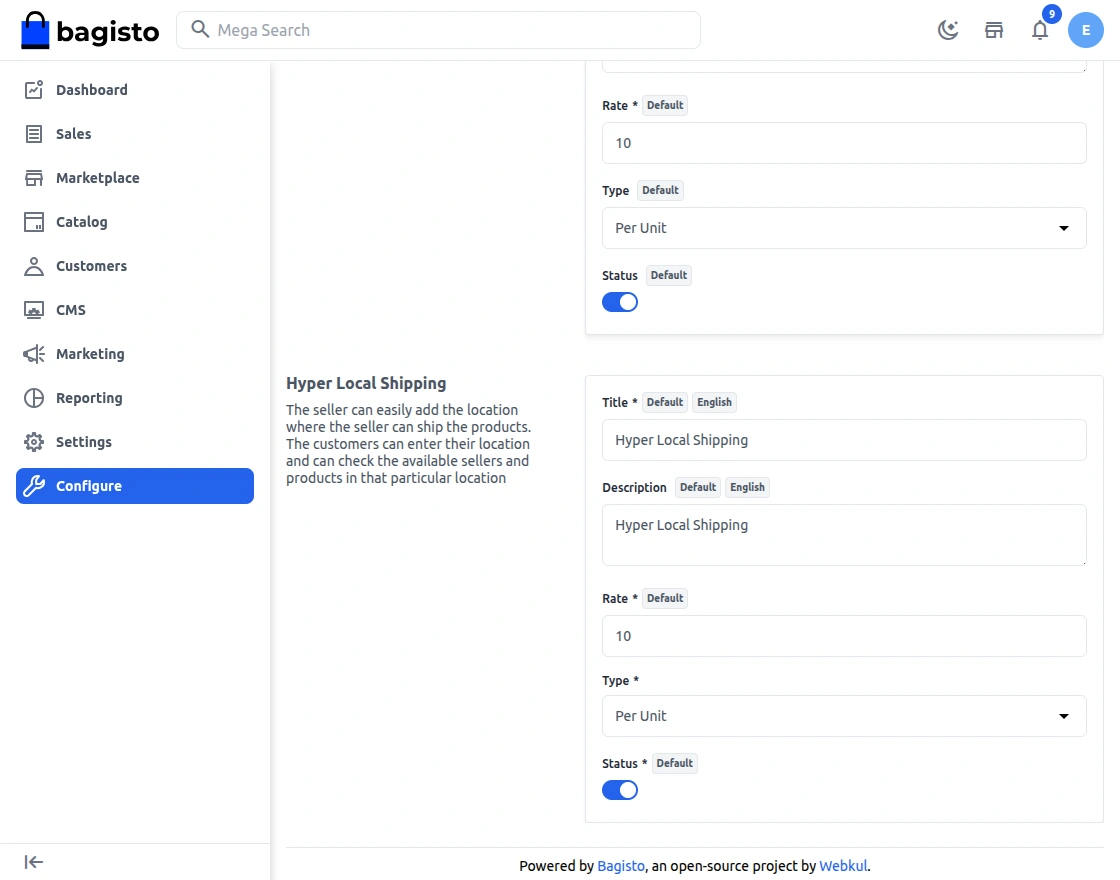
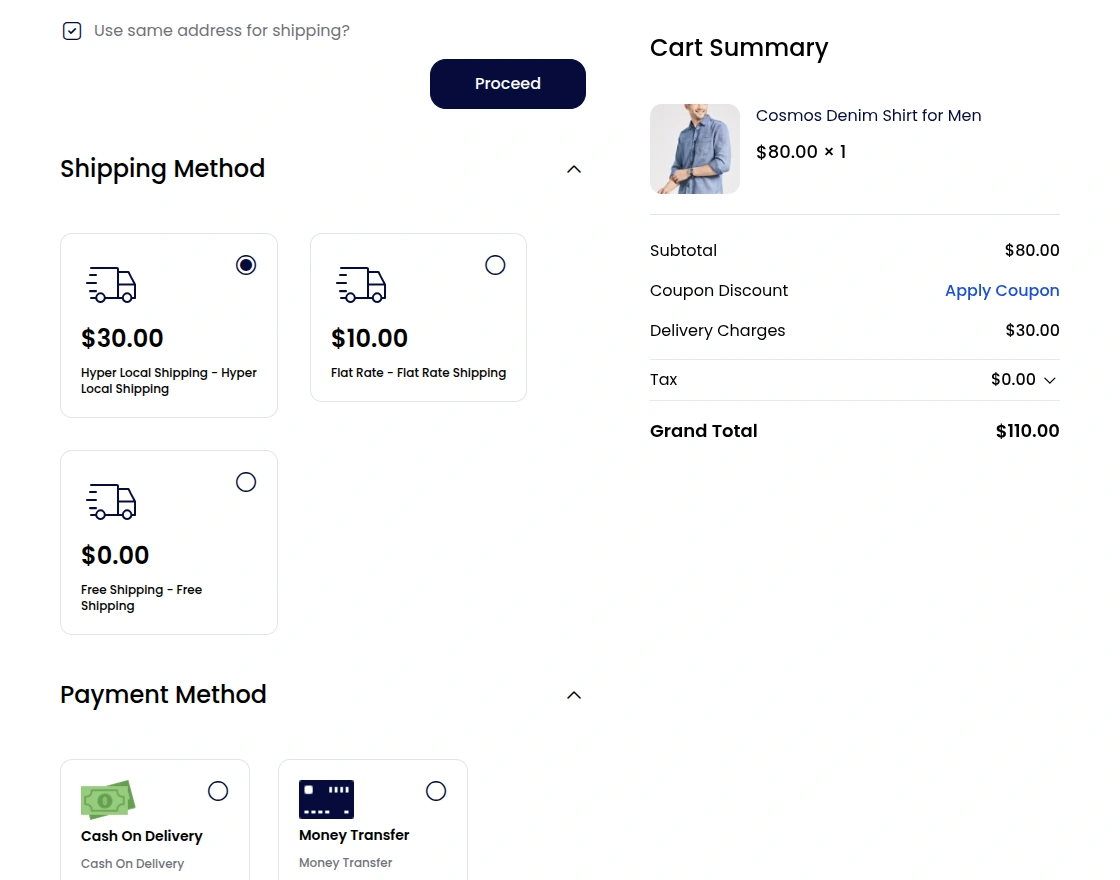
When a customer proceeds to checkout, they will see available hyperlocal shipping options based on their location.
Support
So, that was much about the User Guide of Laravel eCommerce Marketplace Hyperlocal Extension for any queries or doubts reach out to us at support@webkul.com. You can also raise a ticket at our HelpDesk System.
Please explore our Laravel Development Services and Quality Bagisto Extensions.