Laravel Marketplace DHL Shipping
Laravel Marketplace DHL Shipping brings live DHL Express rates to Bagisto Marketplace checkout. Also, each seller can ship on their own DHL account, and the admin buys DHL labels from the shipment page.
Note:- This module is an add-on of Bagisto Marketplace Module. To use this module you must have installed Bagisto Marketplace Module first.
Complete Features List
- The admin enables or disables the Marketplace DHL Shipping method for checkout.
- Admins also set the DHL shipping title and description that customers see.
- Sellers can save their own DHL account details when the admin allows it.
- DHL calculates each rate from the seller’s address, or from the store’s shipping origin.
- The module fetches live rates from the DHL Express MyDHL API at checkout.
- Checkout lists only the DHL services that every seller in the cart can offer.
- The admin buys a DHL shipping label from the shipment page and then prints it.
- A custom error message tells customers when DHL cannot ship their cart.
How to install the Laravel Marketplace DHL Shipping module?
Bagisto Version: v2.5.0
Marketplace Version: v2.5.0
Step 1: Extract Package
Unzip the extension package and merge the packages folder into your project root.
Step 2: Register Service Provider
- Go to the bootstrap/providers.php file and add the following line under ‘providers’
use Webkul\MpDHLShipping\Providers\MpDHLShippingServiceProvider;

return
[
 MpDHLShippingServiceProvider::class,
]
- Go to the composer.json file and add the following line under ‘psr-4’
"Webkul\\MpDHLShipping\\": "packages/Webkul/MpDHLShipping/src"
- Run the commands below to complete the setup. The install command runs the module migrations and clears the cache.
composer dump-autoload
php artisan mp-dhl-shipping:install
Laravel Marketplace DHL Shipping Admin Configuration
Next, configure the Laravel Marketplace DHL Shipping module. For this, the admin goes to Configure>>Sales>>Shipping Methods.
The Shipping Methods page lists every shipping method in the admin panel, including Marketplace DHL Shipping.
The admin enters the following details, as the image below shows:-

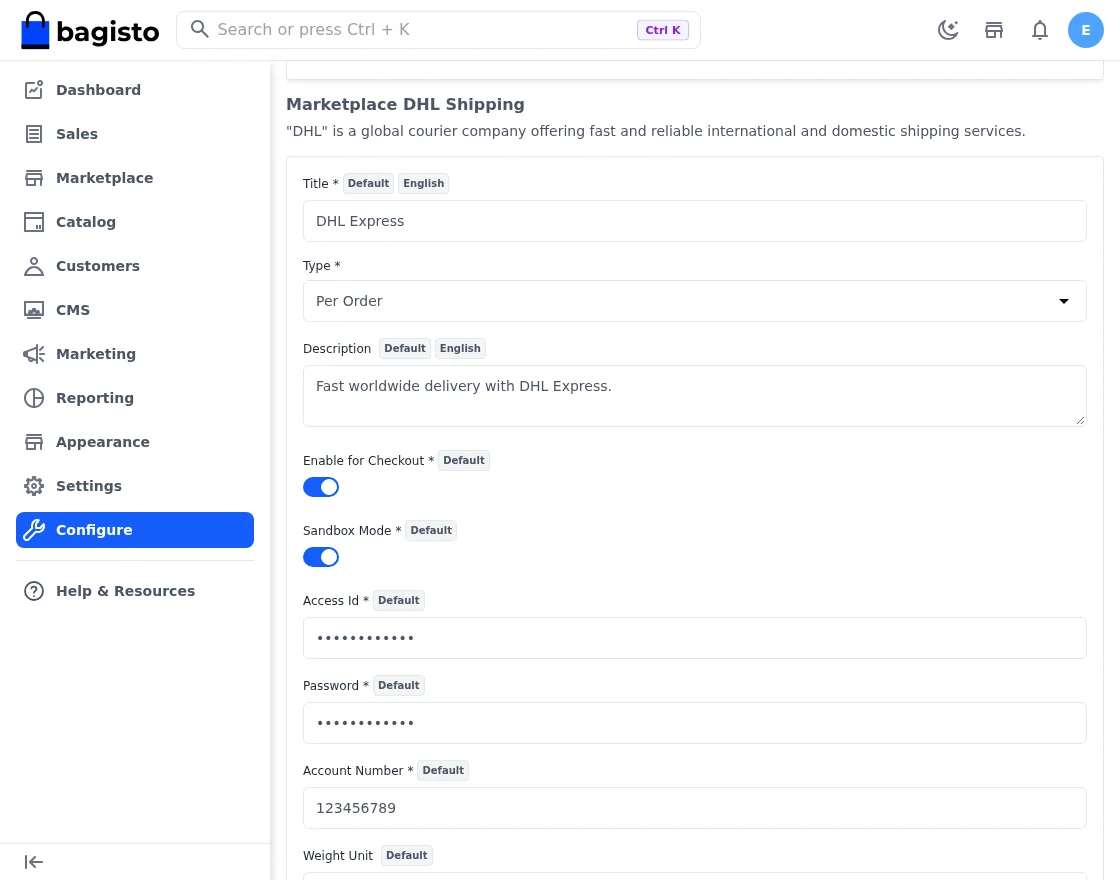
Title
Enter the method title that customers see at checkout.
Type
The admin chooses how the module prices each DHL rate. The available options are:
- Per Unit: Here, the module multiplies the DHL rate by each seller’s item quantity.
- Per Order: DHL’s rate applies once for each seller’s parcel.
Description
Add a short description of the shipping method in this field.
Enable for Checkout
This switch shows or hides the DHL shipping method at checkout.
Sandbox Mode
When enabled, the module calls the DHL Express test API instead of the live one. Use it with sandbox credentials while you test.
Access Id
The admin receives an API access ID after signing up for the MyDHL API on the DHL Developer Portal.
Password
DHL also gives the admin an API password. The module sends it together with the access ID.
Account Number
Enter the DHL Express account number that DHL bills for the shipments.
Weight Unit
Choose Kilograms or Pounds as the weight unit.
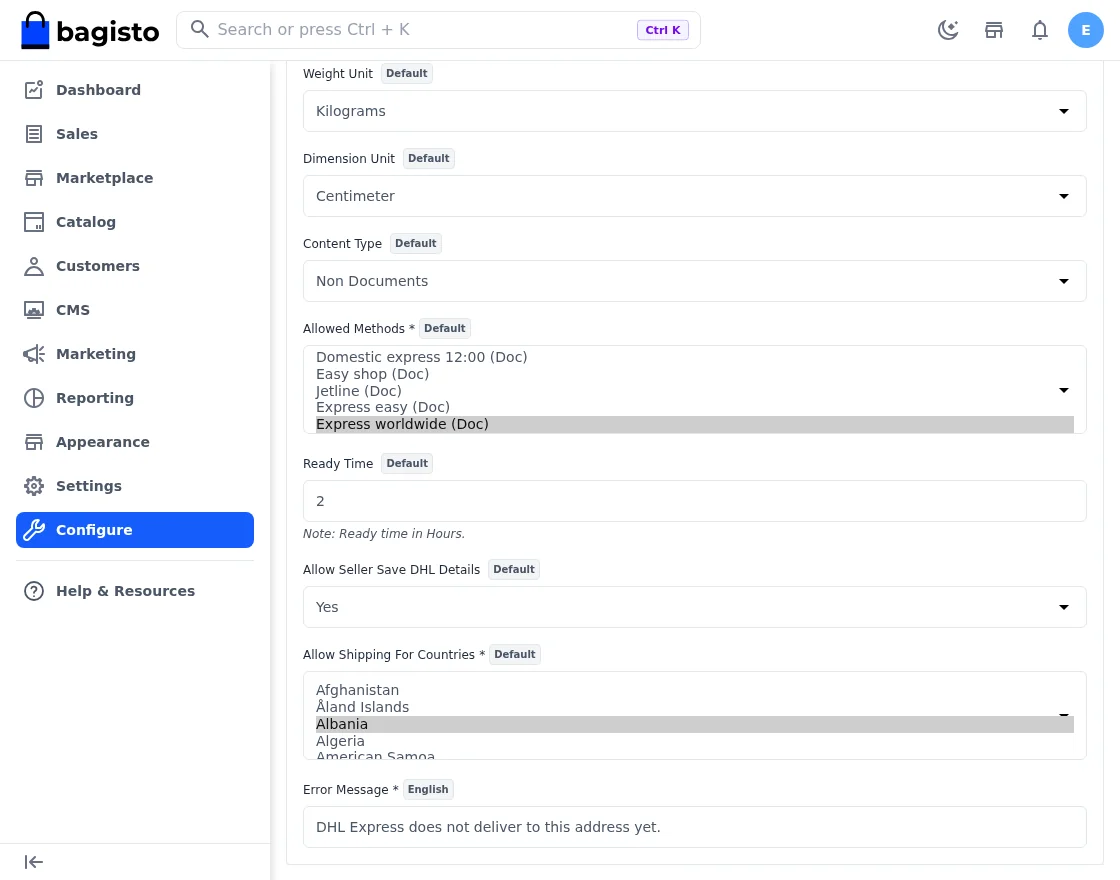
Dimension Unit
Choose Inches or Centimeter as the dimension unit. Pounds or Inches switch the DHL request to imperial units.
Content Type
There are two options: Documents and Non Documents. For Non Documents sent abroad, the module adds customs details for DHL.
Allowed Methods
The admin picks the DHL services that checkout may offer. The list changes with the chosen content type. Checkout hides every service the admin leaves out.
Ready Time
Enter the package ready time after order placement, in hours. DHL uses it to plan the shipping date.
Allow Shipping For Countries
The admin selects the countries where DHL delivers. Checkout offers DHL only when the shipping address is in one of them.
Allow Seller Save DHL Details: Choose Yes to let sellers save their own DHL account. Sellers then get a DHL Shipping Details page in their panel.
Error Message: Checkout shows this message whenever DHL is not available for the cart.
After filling in all these details, click the Save Configuration button.
Seller Front End Management
Once the admin sets Allow Seller Save DHL Details to Yes, each seller can ship on their own DHL account.
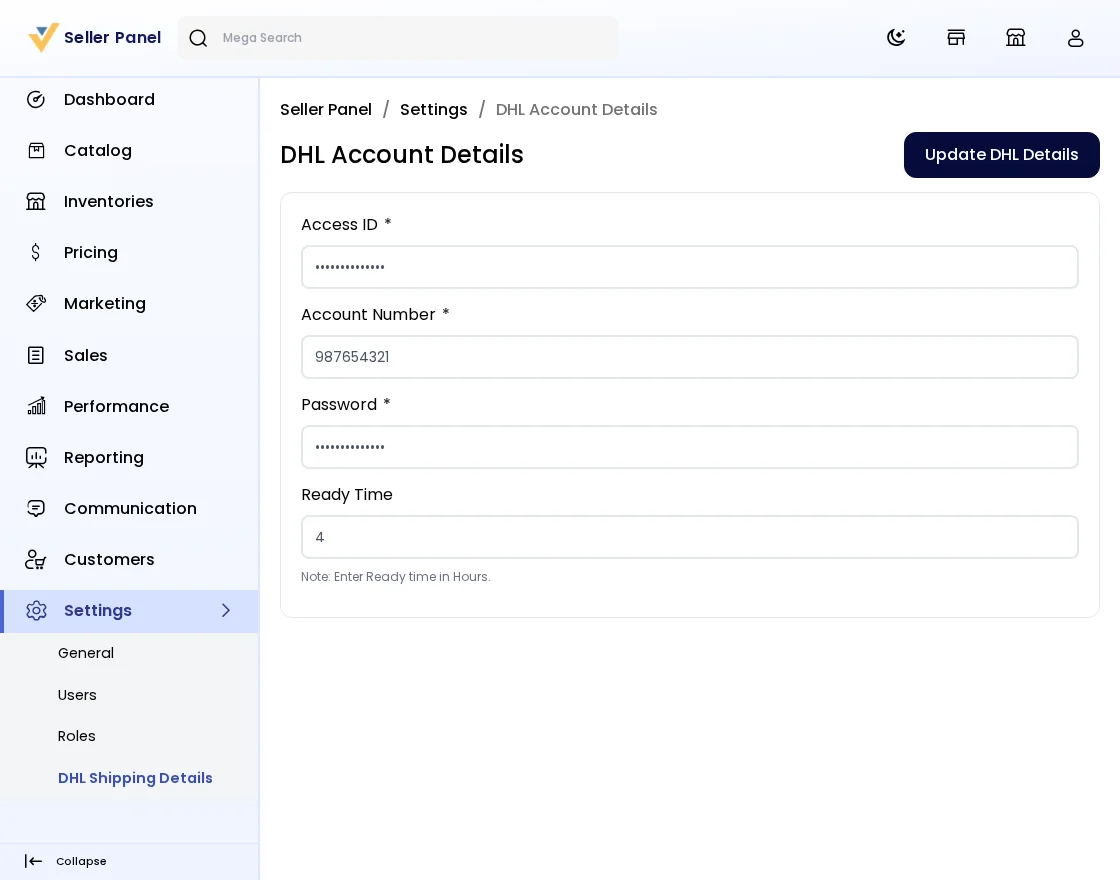
The seller opens Settings>>DHL Shipping Details in the Seller Panel. There, the DHL Account Details page opens.
The seller fills in these fields for Laravel Marketplace DHL Shipping:-
- Access ID:- The seller enters their DHL API access ID in this field.
- Account Number:- The seller enters their DHL Express account number in this field.
- Password:- The seller enters their DHL API password in this field.
- Ready Time:- An optional package ready time, in hours.
- Finally, the seller clicks Update DHL Details to save the account.
After that, DHL quotes this seller’s items on the seller’s own account. As a result, the seller order total includes the DHL shipping charge. Sellers without an account ship on the admin’s DHL account instead.
Customer Checkout with Laravel Marketplace DHL Shipping
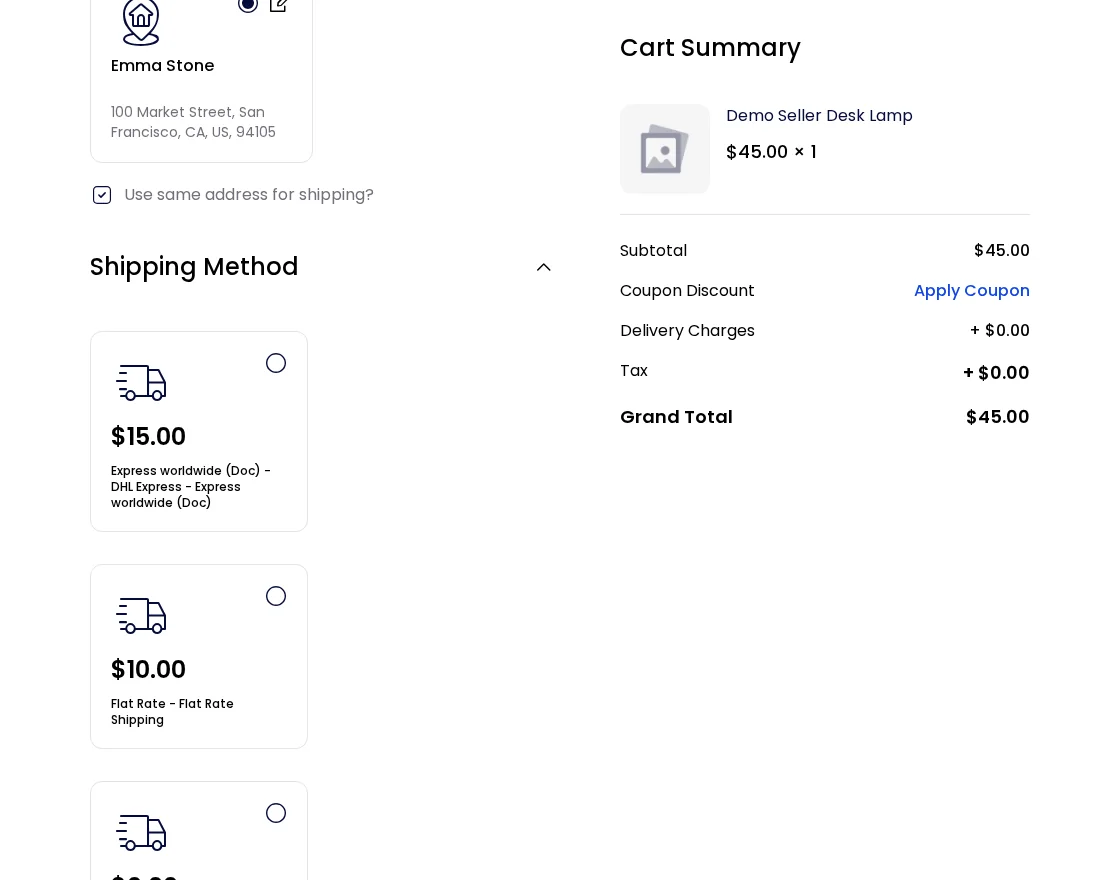
After this setup, customers choose Laravel Marketplace DHL Shipping for the delivery of their products.
The module asks DHL for a separate quote for each seller in the cart. Checkout then lists the DHL services all those sellers share, at their combined price.
DHL skips virtual, downloadable and booking products. If DHL returns no quote, checkout offers a fallback DHL rate instead. However, for an address outside the allowed countries, checkout shows the admin’s error message.
Shipping management by the seller
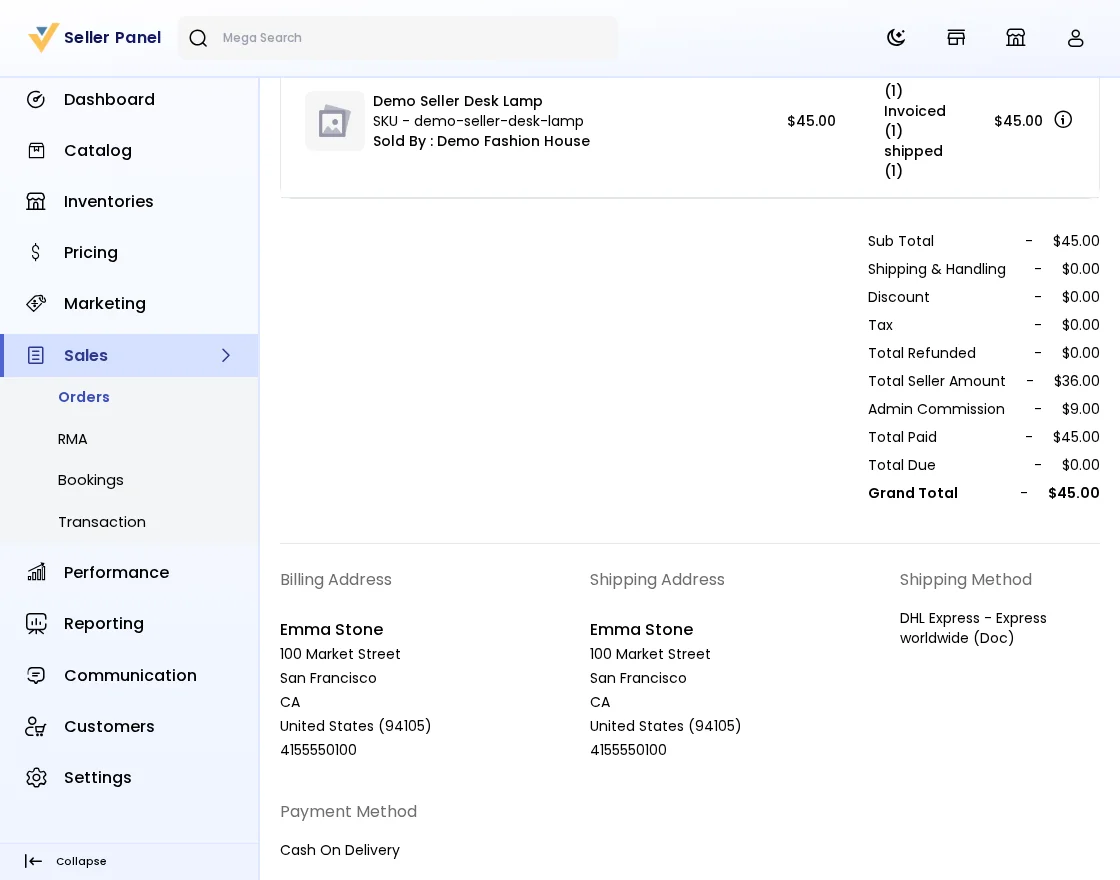
The seller sees customer orders under Sales>>Orders in the Seller Panel. The order page also shows the DHL shipping method, as below:-
If the admin allows sellers to create invoices, the seller clicks the Invoice button. Then the Create Invoice window opens, as shown below:-
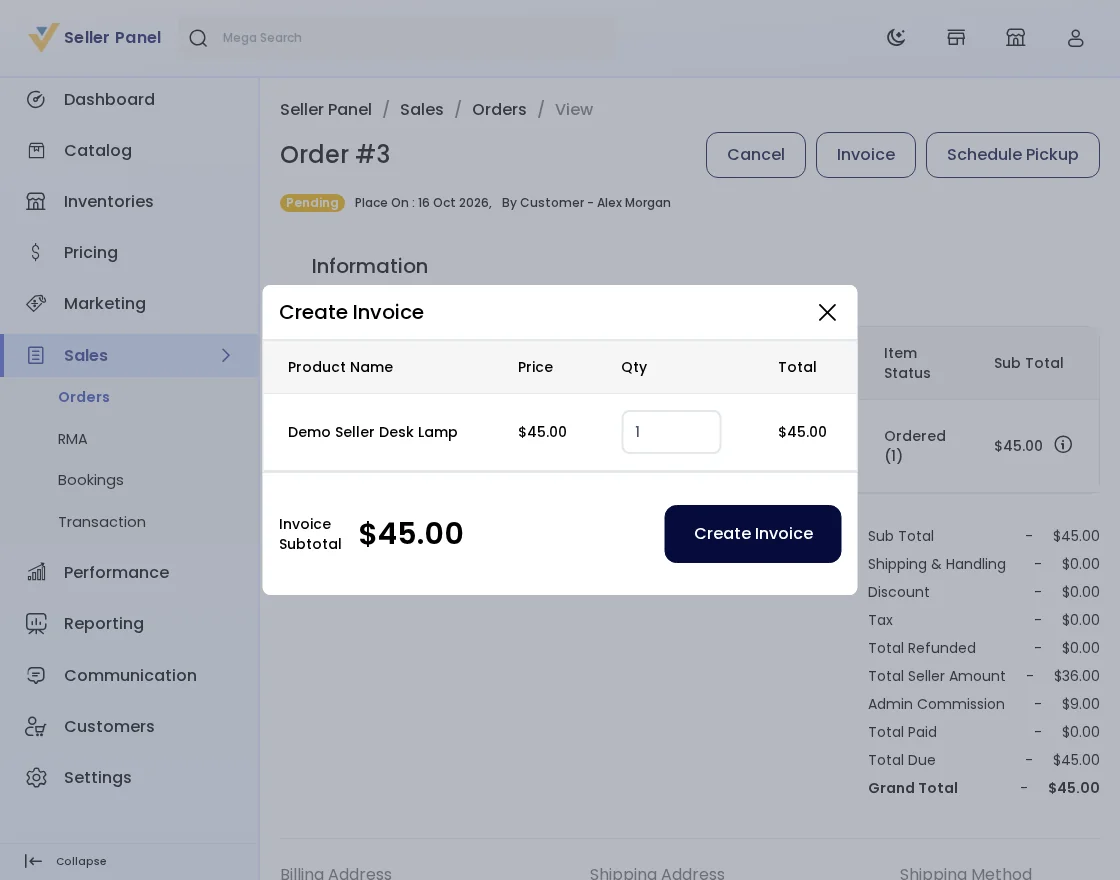
The seller enters the quantity to invoice and clicks the Create Invoice button.
Next, the seller clicks the Schedule Pickup button to create the shipment, as shown below:-
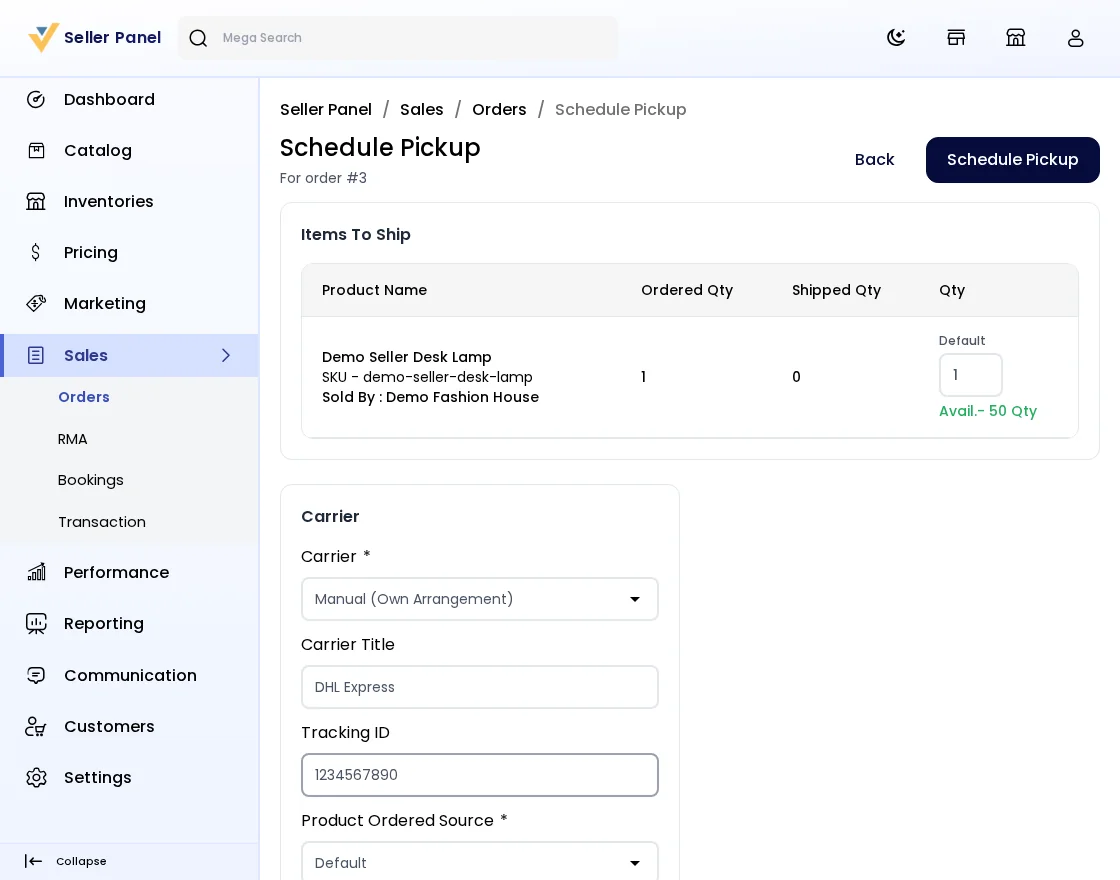
The seller enters the quantity to ship and picks the Carrier. Then the seller adds the Carrier Title and Tracking ID and selects the Product Ordered Source.
After this, click the Schedule Pickup button.
The admin can also create the shipment and invoice for the orders in the same way.
Next, the admin opens the shipment under Sales>>Shipments and clicks Buy DHL Label. The module then buys the label from DHL and stores it with the shipment.
Once the label exists, the button changes to Print Shipping Label. For this, the admin role needs the Print DHL Label permission.
Support
So, that was all about the user guide of Laravel Marketplace DHL Shipping. For any queries or doubts, reach out to us at support@webkul.com. You can also raise a ticket at our HelpDesk System.
Also, read our Laravel Multi Vendor Marketplace guide and the single-store Laravel eCommerce DHL Shipping guide. For another carrier, see Laravel Marketplace UPS Shipping.
Please explore our Laravel Development Services and Quality Bagisto Extensions.