Laravel eCommerce Search Suggestion
Table of Content
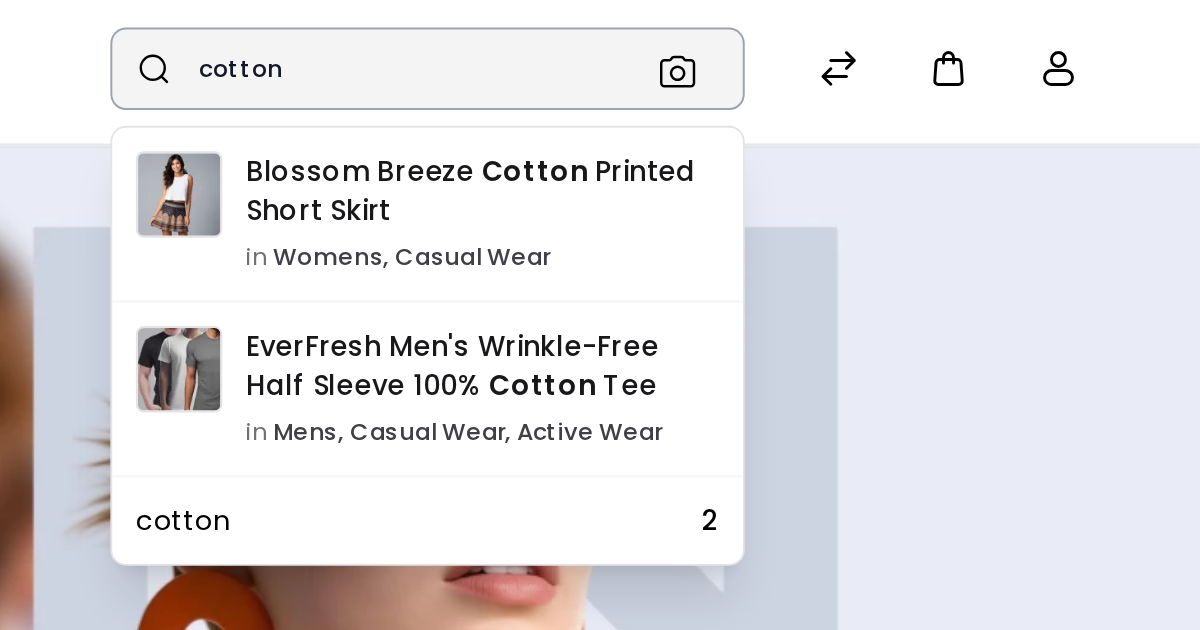
Laravel eCommerce Search Suggestion shows matching products in a dropdown as soon as a customer starts typing in your Bagisto store’s search bar. Shoppers see each product’s image, name and categories right under the search box, and open the product they want in one click instead of scanning a full results page.
This guide covers what the extension does, how to install it, how to configure it from the admin panel, and what your customers see on desktop and mobile.

Features
- Matching products appear in a dropdown while the customer types in the storefront search bar.
- Each suggestion shows the product image and name, with the letters the customer typed shown in bold.
- The categories each product belongs to can be shown under its name.
- The searched term can be shown with the total number of matching products, linking to the full search results page.
- You choose how many characters a customer types before suggestions appear, and how many products the dropdown lists.
- Works on desktop and mobile storefronts, alongside your theme’s header.
- Uses the same search engine as your storefront, whether that is the database or Elasticsearch.
- Settings apply per channel, and the dropdown text is translated into all 22 Bagisto languages, including right-to-left languages.
Installation
The extension supports Bagisto 2.4.x and has been tested on Bagisto 2.4.10.
Step 1: Unzip the extension and merge the Suggestion folder into the packages/Webkul folder of your Bagisto project.
Step 2: Open bootstrap/providers.php and add the following line to the list of providers.
Webkul\Suggestion\Providers\SuggestionServiceProvider::class,
Step 3: Open composer.json and add the following line under autoload >> psr-4.
"Webkul\\Suggestion\\": "packages/Webkul/Suggestion/src"
Step 4: Run the following commands to complete the setup.
composer dump-autoload

php artisan search-suggestion:install
The install command publishes the extension’s styles and clears the cache.
Configuration
After installing the extension, go to Configure in the admin panel. The Search Suggestion card appears at the top of the Configuration page.

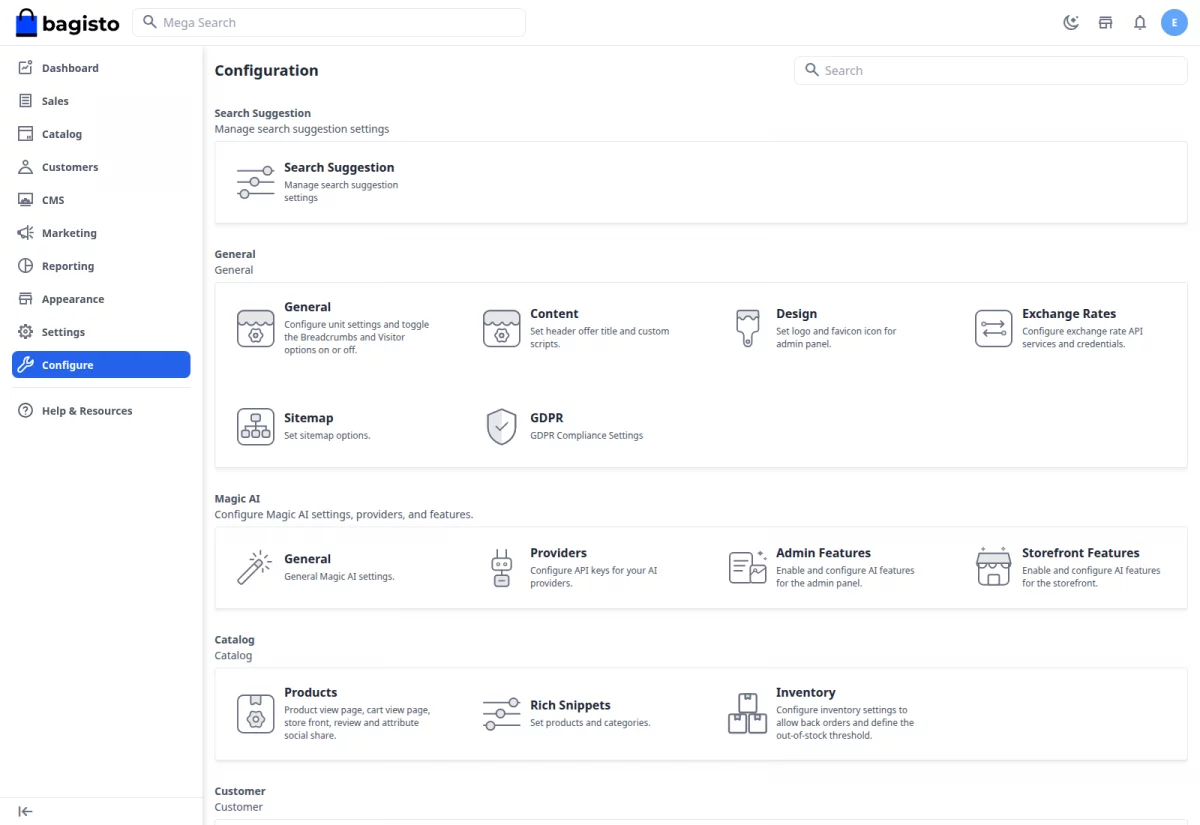
Click the Search Suggestion card to open its settings.
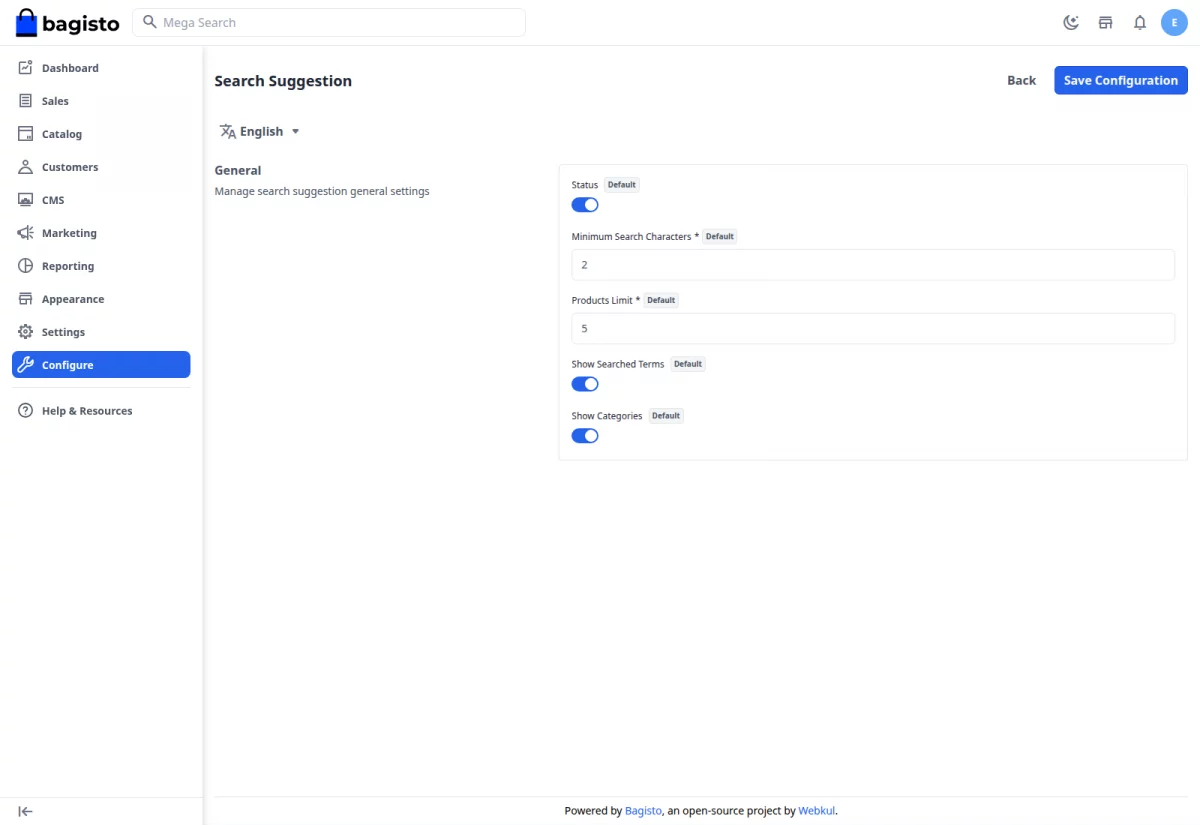
The settings appear under General:
- Status: Turns search suggestions on or off. While it is off, the storefront search bar works as it does without the extension.
- Minimum Search Characters: How many characters a customer types before suggestions appear. Enter a number from 1 to 5; it is 1 until you change it.
- Products Limit: How many products the dropdown lists. Enter a number from 1 to 10; it is 5 until you change it.
- Show Searched Terms: Adds a row at the bottom of the dropdown showing what the customer typed and how many products match. The row links to the full search results page.
- Show Categories: Shows the categories each product belongs to under its name, such as in Kids, Girls Clothing.
Click Save Configuration. Your storefront shows the new settings on the next page load.
The Default label beside each setting names the channel it applies to. If you run more than one channel, configure Search Suggestion for each one.
Front-End View
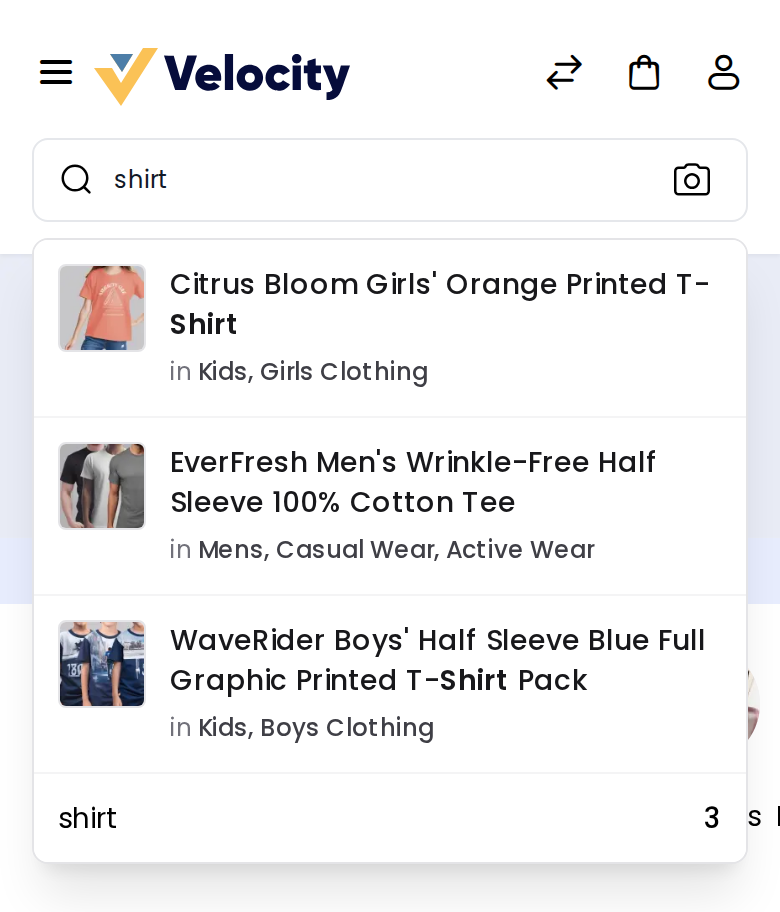
Once Status is on, suggestions appear as soon as a customer has typed at least the Minimum Search Characters in the storefront search bar. In the image below, the customer has typed shirt.

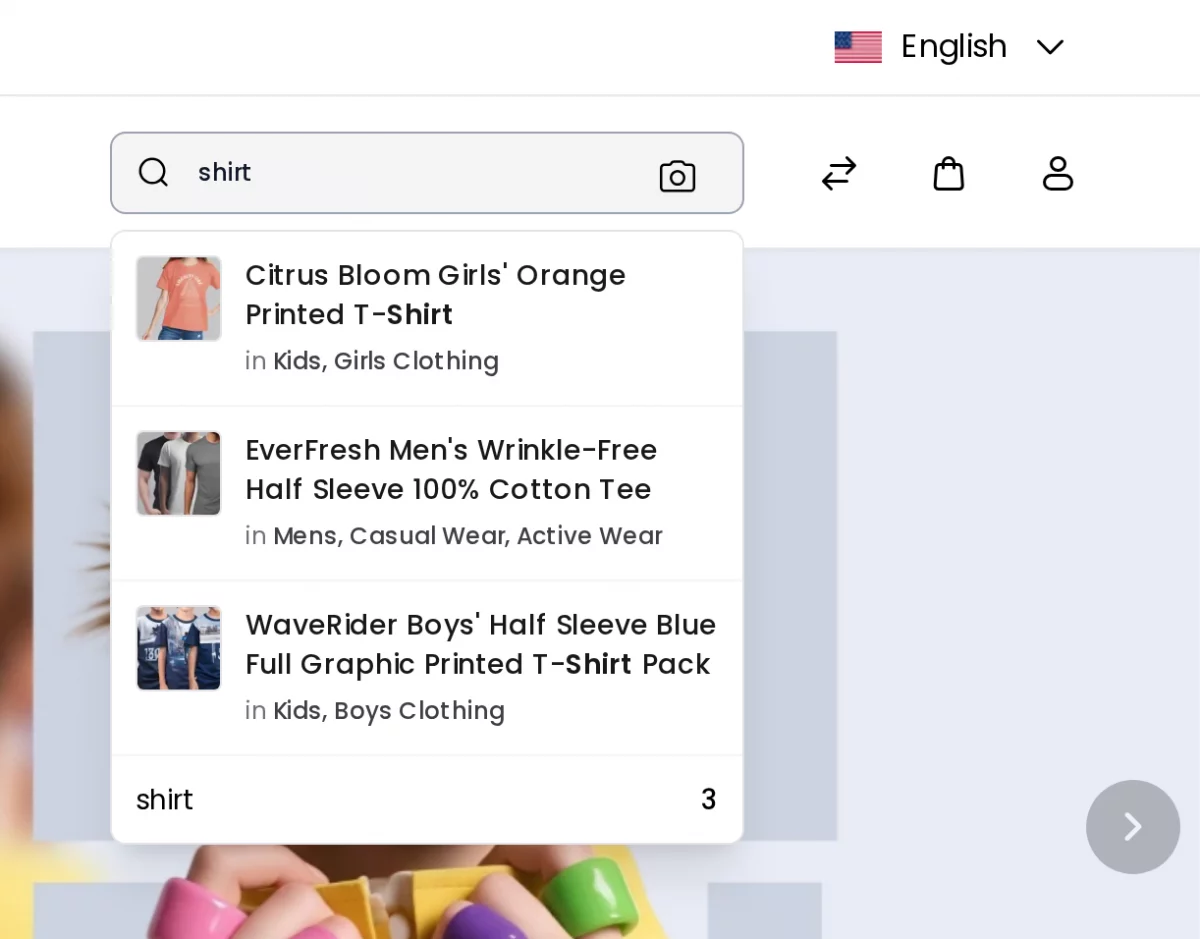
- Each row shows a matching product’s image and name, with the searched letters in bold. Clicking a row opens that product’s page.
- The line under each product name lists the categories it belongs to, when Show Categories is on.
- The last row shows the searched term and the total number of matching products, when Show Searched Terms is on. Clicking it opens the full search results page.
- Pressing Enter still runs the normal storefront search.
The same dropdown appears under the search bar on mobile.

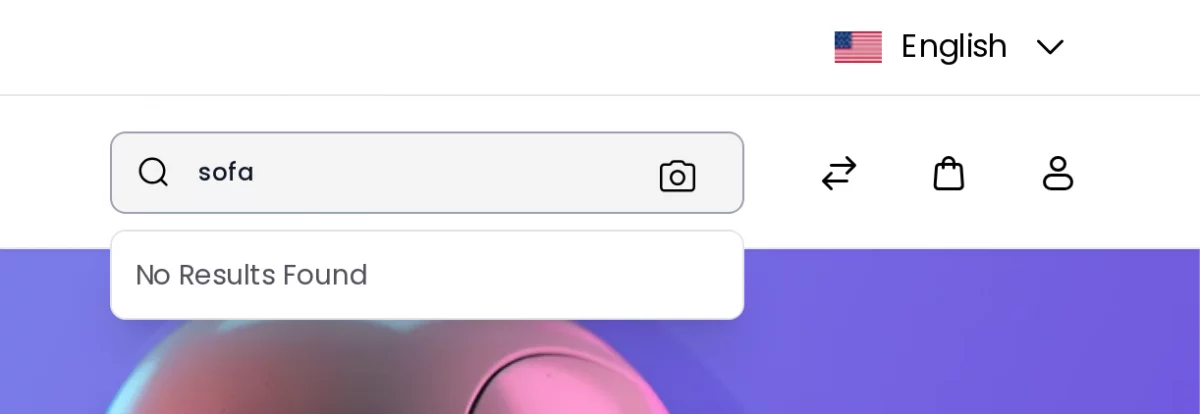
When no product matches, the dropdown shows No Results Found.

Which products appear
Suggestions list products whose Status is enabled, that are Visible Individually, and that are assigned to the channel the customer is shopping in. Products are listed alphabetically by name. The cart and checkout pages have no header search bar, so suggestions do not appear there.
Support
That covers the user guide for Laravel eCommerce Search Suggestion. For any questions, reach out to us at support@webkul.com or raise a ticket on our HelpDesk System.
Please explore our Laravel Development Services and quality Bagisto Extensions.