User Guide for Laravel eCommerce GST Extension
Table of Content
The Laravel eCommerce GST Extension adds the Indian Goods and Services Tax structure to your Bagisto store.
The store admin adds GST to the products. It also keeps your business in line with GST rules.
It finds the right product taxes from the production state of your store.
You can also explore the Laravel Customer Credit Extension. It lets customers earn credit points and use them on their purchases.
Features of Laravel eCommerce GST Extension
- The admin enters the preferred GSTIN number.
- The admin also chooses the state used for tax.
- IGST, CGST, or SGST gets picked by comparing the billing state with the home state.
- The admin sets the GST rates in the backend, and can enter many rates at once.
- Products carry GST in the price or on top, and the admin can choose this while adding or editing a product.
- A button shows or hides the GST details on the storefront.
- The admin enables or disables GST for each product.
- A field in the product settings holds the HSN code.
- The admin sets or changes the GST rate while adding or editing a product.
- The extension applies GST only when the billing address is in India, so other orders stay unchanged.
- A Settings>Goods and Services Tax page lists every product that has GST, with search, filter, sort, and export.
- The admin assigns the GST rate, HSN code, and GST type to many products with one CSV file. A sample CSV is ready to download.
- The admin removes GST from one product, or from many products with the mass action.
- An option prints the store GSTIN on the orders that customers place.
- The order, invoice, refund, PDF, and order emails show the HSN code and the SGST, CGST, and IGST split.
- Separate permissions control who views, imports, and deletes the GST records.
- The extension runs on MySQL, MariaDB, and PostgreSQL, and supports Bagisto v2.5.0.
Requirements of Laravel eCommerce GST Extension
- Bagisto: v2.5.0
- PHP: 8.4 or later
- Database: MySQL, MariaDB, or PostgreSQL
Installation of Laravel eCommerce GST Extension
Step 1: Extract the package
First, unzip the extension. Then merge the packages folder into your project root.
Step 2: Update composer.json
Next, open composer.json and add this line under ‘psr-4‘:
"Webkul\\GST\\": "packages/Webkul/GST/src",
Step 3: Register the service provider
After that, open bootstrap/providers.php and add this line under Provider:
Webkul\GST\Providers\GSTServiceProvider::class,
Then refresh the autoload files.
composer dump-autoload
Step 4: Complete the setup
Now run the install command.
php artisan gst:install
This command pulls the league/csv package and runs the migrations. It also publishes the sample CSV file for the bulk import.
Finally, clear the caches.
php artisan optimize:clear
Now the Laravel eCommerce GST Extension is ready to use in your Bagisto v2.5.0 store.
Configuration of Laravel eCommerce GST Extension
After the install, the admin goes to Configuration>Sales>Goods and Services Tax. The settings look like this:

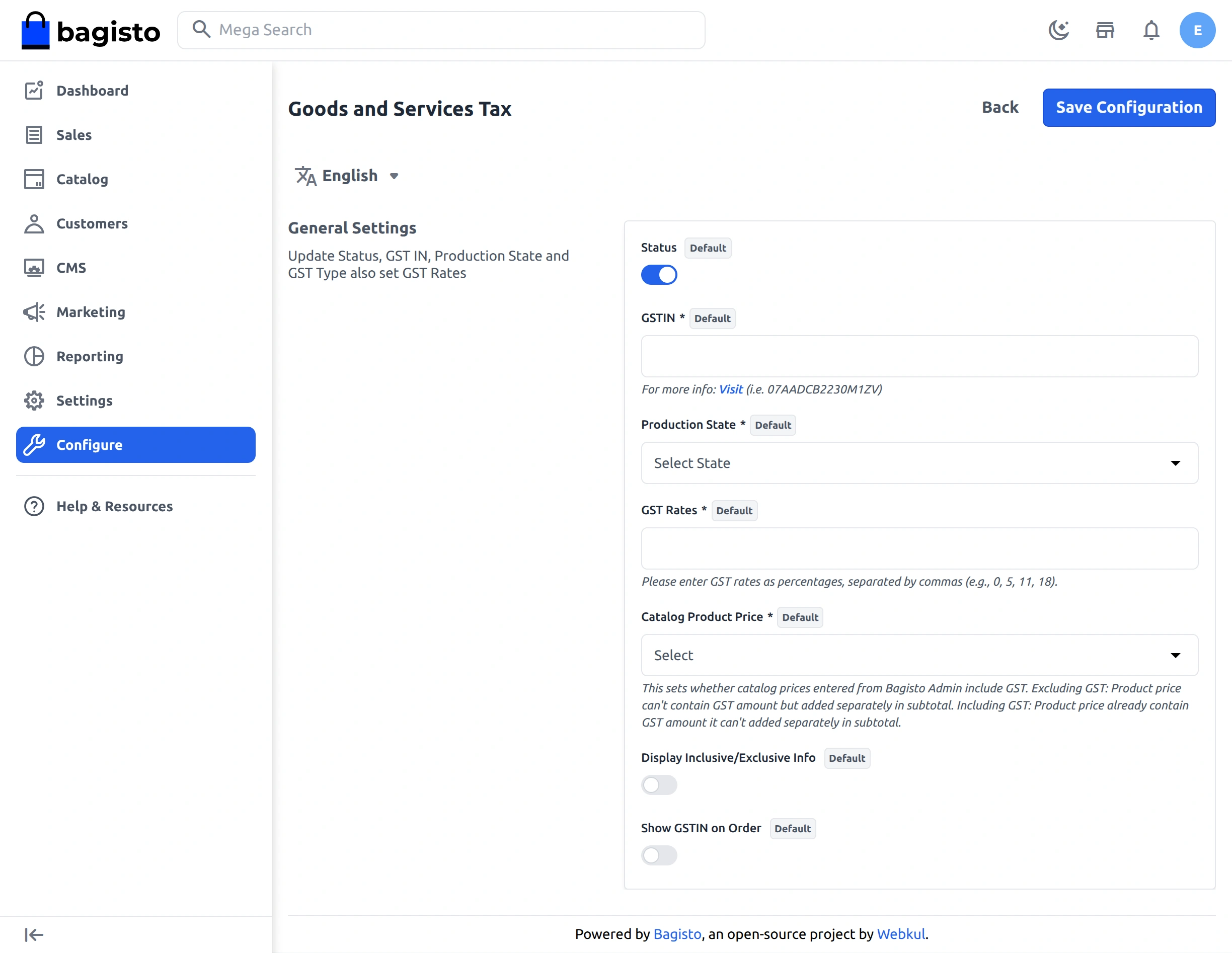
The admin sets these options:
- Status: turns the GST module on or off.
- GSTIN: holds the GSTIN number.
- Production State: sets the state of the store.
- GST Rates: lists the rates as percentages, separated by commas, for example 0, 5, 12, 18.
- Catalog Product Price: sets if the prices include GST, exclude it, or follow a choice per product.
- Display Inclusive/Exclusive Info: shows or hides the GST note on the storefront.
- Show GSTIN on Order: prints the store GSTIN on the orders.
These settings are channel based. So the admin can keep a different GST setup for every channel.
Add GST to Products
Next, the admin adds GST to the products one by one. First, go to Catalog>Products, then add or edit a product. The GST panel shows on the page.


The panel has these options:
- A switch turns GST on or off for the product.
- Product Price: chooses GST included or excluded. It shows only if you set Catalog Product Price to Select when initialize.
- GST Rate: picks one of the rates from the GST Rates setting.
- HSN Code: holds the HSN code of the product.
The panel shows for every product type except Grouped and Bundle. Those products bill through their associated products.
Manage and Import GST in Bulk
Setting GST product by product works for a few products. For a large catalog, go to Settings>Goods and Services Tax instead.
The page lists each product with its GST rate, HSN code, GST type, image, name, SKU, price, and creation date. The admin can search, filter, sort, and export the list.
To assign GST to many products, first click CSV Demo to download the sample. Then fill it in and upload it in the Import CSV file field. Finally, click Import.
The CSV file follows this format:
product_id,gst_rate,hsn_code,type
1,18,96081001,internal
2,5,96081001,external
- product_id: the ID of an existing product.
- gst_rate: one of the rates from the GST Rates setting.
- hsn_code: the HSN code of the product.
- type:
internalfor prices that include GST, orexternalfor prices that add GST.
The extension checks the whole file before it saves anything. If a row is wrong, the import stops and shows the error, so no half-imported file stays behind.
A product that already has GST gets the imported values in place of the old ones.
The admin removes GST with the delete action of a row. Or select many rows and use the mass delete action.
Roles control access to this page. Under Settings>Roles, the admin allows or blocks the GST, Import, and Delete permissions for sub admins.
GST Information on Storefront
The storefront shows the GST note when the admin turns on Display Inclusive/Exclusive Info. When it is off, the note stays hidden.
The note appears in two ways. First, the note when the price includes GST:


Second, the note when the price excludes GST:

GST Application on Checkout
The extension decides on its own whether to apply IGST, or SGST and CGST.
For an interstate order, it applies IGST:

For an intrastate order, it applies CGST and SGST:

The extension compares the state of the billing address with the Production State. It applies GST only to billing addresses in India. Other orders use the default tax setup of the store.
GST Details on Orders and Invoices
The extension saves the GST with the order once the customer places it. So the details stay the same even if the admin changes the GST setup later.
The SGST, CGST, and IGST split shows in the admin order, invoice, and refund. It also shows in the order of the customer account, in the PDF, and in the order emails.
Each ordered item shows its HSN code. The page also prints the store GSTIN as GST Registration No. when Show GSTIN on Order is on.
Support
So, that was the Laravel eCommerce GST Extension.
For more help, email us at support@webkul.com or raise a ticket.