How WordPress Multisite Shares Resources
Managing multiple WordPress websites can quickly become repetitive. Updating plugins, themes, and users on each site separately takes time and effort.
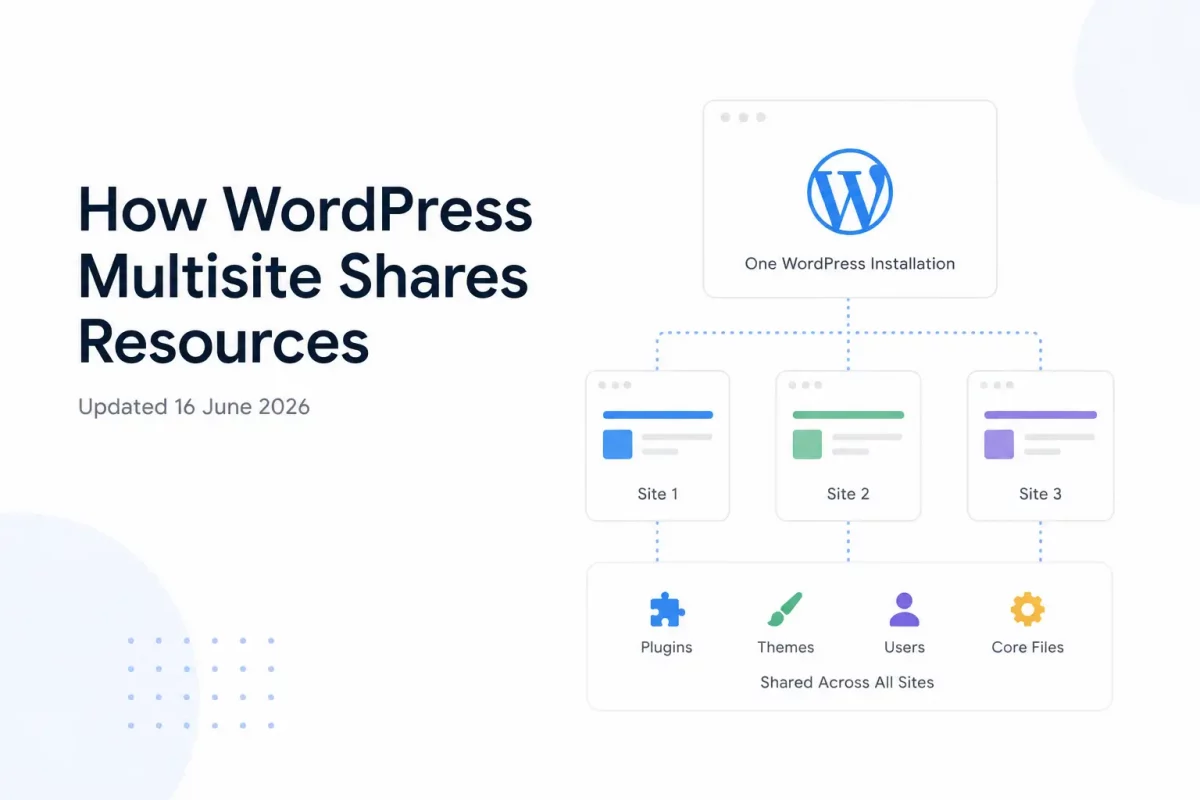
WordPress Multisite lets you manage multiple websites from one installation. Each site has its own content and settings while sharing the same WordPress core.
In this blog, we will break that down in simple terms, look at the actual database structure, and see some code that shows how WordPress switches between sites.
If you are new to Multisite, check out our guide on setting up a WordPress Multisite network before getting started.

What Is WordPress Multisite?
Multisite is a built-in WordPress feature that turns one installation into a network of sites.
All sites in the network run on the same WordPress core files. They also share the same database, but each site gets its own set of tables inside it.
You enable it by adding one line to your wp-config.php file:
/* Enable Multisite */
define( 'WP_ALLOW_MULTISITE', true );
This single line unlocks the “Network Setup” option in your WordPress dashboard.
After running the setup, WordPress asks you to add a few more constants:
define( 'MULTISITE', true );
define( 'SUBDOMAIN_INSTALL', false );      // true for site1.example.com style
define( 'DOMAIN_CURRENT_SITE', 'example.com' );
define( 'PATH_CURRENT_SITE', '/' );
define( 'SITE_ID_CURRENT_SITE', 1 );
define( 'BLOG_ID_CURRENT_SITE', 1 );
These constants tell WordPress that it is now running as a network, and how to structure the site URLs.
For the complete step-by-step process, you can also refer to the official Create a Network documentation on WordPress.org.
The Big Picture: Shared vs Isolated
Think of Multisite like an apartment building.
Everyone shares the building itself — walls, plumbing, electricity. But each apartment has its own rooms, furniture, and front-door key.
In Multisite, the “building” is the WordPress core, plugins, themes, and user accounts. The “apartments” are the individual sites with their own content, settings, and media.

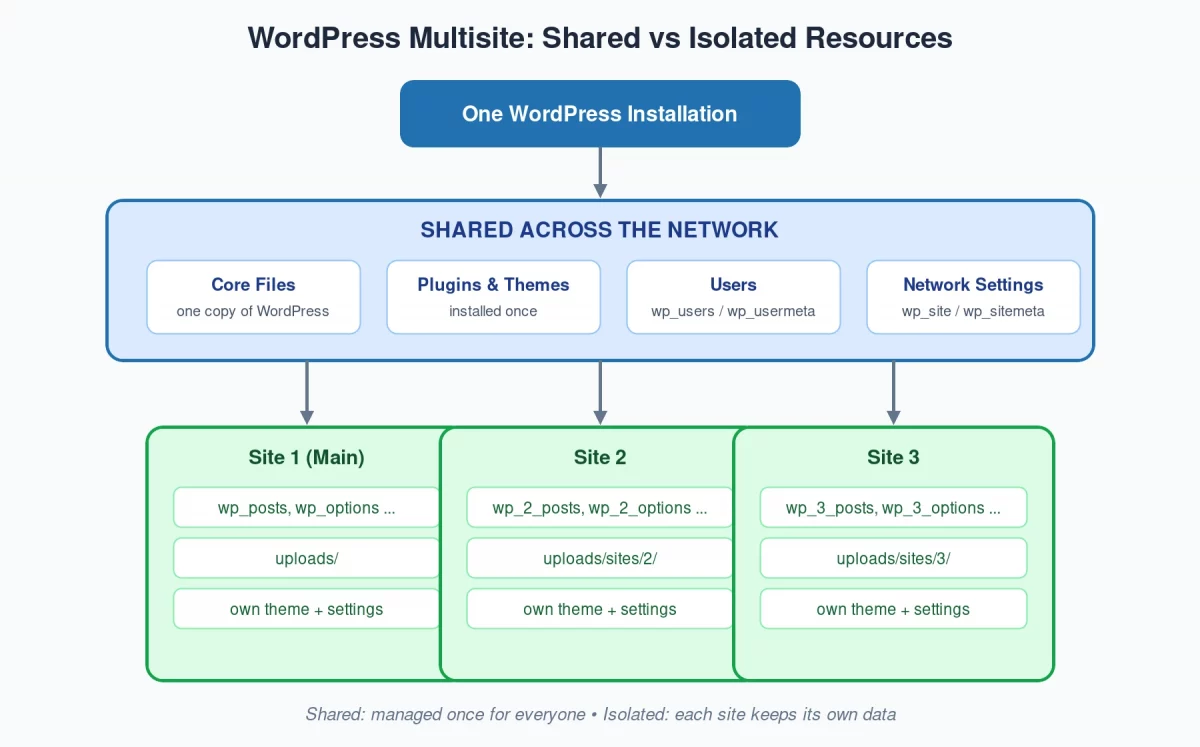
Here is a quick summary before we go deeper.
Shared across the network:
- WordPress core files
- Plugin and theme files
- User accounts (wp_users table)
- Network-wide settings
Isolated per site:
- Posts, pages, and comments
- Site settings and options
- Media uploads (separate folders)
- Active plugin/theme choices per site
What Is Shared Across the Network
1. Core Files
There is only one copy of WordPress on the server. Every site in the network runs on it.
In other words, one update to WordPress core updates every site at once. That is a huge time saver.
2. Plugins and Themes
Plugin and theme files live in one place: the wp-content folder.
Only the network admin (called the Super Admin) can install them. Site admins can only activate the ones the Super Admin has installed.
You can also “Network Activate” a plugin to turn it on for every site at once. In code, a plugin can check if it is network activated like this:
if ( is_plugin_active_for_network( 'my-plugin/my-plugin.php' ) ) {
    // This plugin is active on every site in the network.
}
3. Users
This is the part that surprises most people. In fact, all sites in the network share the same user accounts.
A person registers once, and after that, you can give them a role on any site. The same login works everywhere.
WordPress stores all users in two global tables: wp_users and wp_usermeta. Because of this, adding an existing user to another site takes just one function:
// Give user ID 5 the 'editor' role on site ID 3.
add_user_to_blog( 3, 5, 'editor' );
This adds the user to site 3 without creating a new account.
If you need more control over user permissions, learn how to create custom roles and users in WordPress Multisite.
4. Network Settings
Network-wide settings live in their own global tables, like wp_site and wp_sitemeta.
For example, these control allowed file types, upload limits, and registration rules for the entire network.
What Stays Isolated Per Site
1. Database Tables
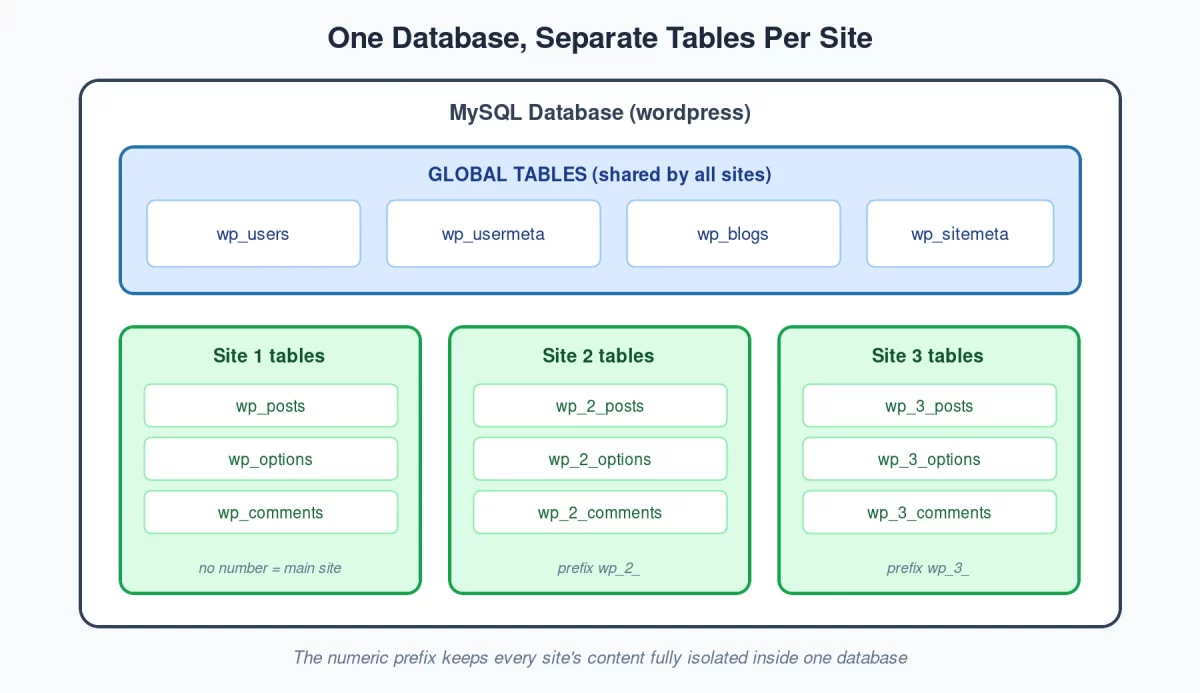
Here is where WordPress Multisite isolation really happens. Each site gets its own set of database tables, and a numeric prefix keeps them separate.
The first site uses the normal tables. Every new site gets numbered copies:
-- Site 1 (main site)
wp_posts
wp_options
wp_comments

-- Site 2
wp_2_posts
wp_2_options
wp_2_comments

-- Site 3
wp_3_posts
wp_3_options
wp_3_comments
So a post on Site 2 lives in wp_2_posts and can never mix with posts from Site 3.

2. Content
Each site stores its posts, pages, comments, categories, and menus in its own tables.
Editing content on one site has zero effect on the others. Each site is its own world.
3. Site Settings
Each site has its own wp_X_options table. As a result, things like site title, timezone, and homepage settings stay fully independent.
4. Media Uploads
Similarly, each site gets its own upload folder based on its site ID:
wp-content/uploads/             → Main site
wp-content/uploads/sites/2/     → Site 2
wp-content/uploads/sites/3/     → Site 3
As a result, an image you upload to Site 2 never appears in Site 3’s media library.
5. Plugin and Theme Activation
All sites share the same files, but each site decides which ones to use.
Site 2 can run a shop theme while Site 3 runs a blog theme — from the same installed files.
How WordPress Switches Between Sites
WordPress decides which site to load by looking at the URL of the request.
It matches the domain and path against the wp_blogs table, finds the site ID, and then uses that ID to pick the right table prefix.
In your own code, you can do the same thing with the switch_to_blog() function:
// We are on the main site right now.
switch_to_blog( 2 );

// Now every query runs against Site 2's tables.
$recent = get_posts( array( 'numberposts' => 3 ) );

// Always switch back when done.
restore_current_blog();
For example, this is how you can show “latest posts from all our sites” on a main landing page.
Here is a fuller example that loops through every site in the network:
$sites = get_sites();

foreach ( $sites as $site ) {
    switch_to_blog( $site->blog_id );

    echo get_bloginfo( 'name' ) . ' has ' .
         wp_count_posts()->publish . ' published posts.';

    restore_current_blog();
}
This code visits each site, reads from its isolated tables, and returns safely to the original site.
Most importantly, always call restore_current_blog() after switch_to_blog(). Otherwise, your code may keep reading the wrong site’s data.
Why This Design Works So Well
The shared parts remove repeated work. One core update, one plugin install, one user list — managed in a single place.
Meanwhile, the isolated parts keep sites safe from each other. One site’s content, settings, and uploads can never leak into another.
This balance is why WordPress Multisite powers things like university networks, news networks, and WordPress.com itself.
When Should You Use Multisite?
WordPress Multisite is a great fit when:
- You run many sites that need the same plugins and themes.
- The same team or users work across all the sites.
- You want one update process for everything.
It is not a good fit when:
- Each site needs different owners with full server control.
- One site needs very different plugins or heavy customization.
- You may need to move a single site to its own host later (it is possible, but takes work).
Wrapping Up
WordPress Multisite follows one simple principle: share the heavy things, isolate the personal things.
All sites share core files, plugins, themes, and users, so you manage them once. At the same time, each site keeps its own content, settings, and uploads, so everything stays independent.
Once you understand this split, Multisite stops feeling like magic and starts feeling like a very practical tool.
You can also learn more about creating and managing a WordPress Multisite network in our detailed setup guide.
So if you manage more than a couple of WordPress sites, it is well worth a try.