How to show the wishlist at Front end in shopware6?
In this blog we know about “How to show the wishlist at Front end in shopware6.”
Introduction
Shopware is a leading Germany based e-commerce platform. Till the date, the platform has received more than 80 thousand users. Shopware is an open-source eCommerce framework.
Meanwhile, the features which are taking this Plateform to prime levels are content management, Multi-warehouse system, and many more.
Shopware is now starting to enter new European nations and is making a big impact in the UK. You can check here other Shopware modules – https://store.webkul.com/Shopware.html
Overview
Here we know about How to show the wishlist at Front end in shopware6. we will see how admin can activate the wishlist and also will check at front end by adding product in wishlist.
Activatation of wishlist
Let us know how to activate the wishlist from admin page. First of all you have to log in to the admin page. And then go to the Shopware 6 Dashboard and click on Setting>Shop menu.

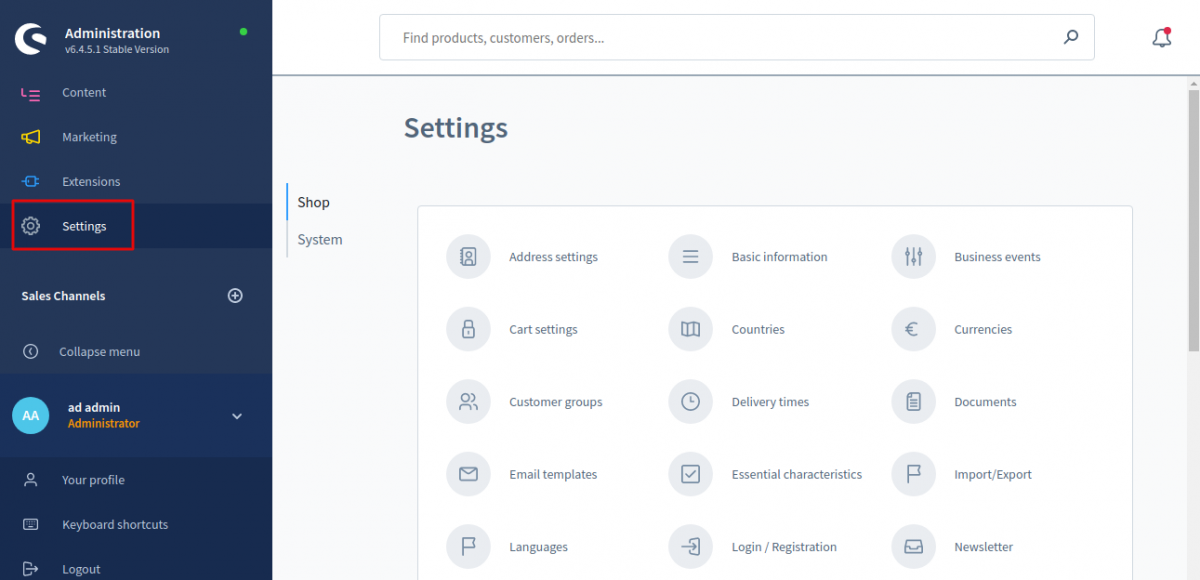
Here click on Menu cart setting. A new page will get open, Now scroll down the page in the bottom you can see the Wishlist field. Here admin can Enabled or Disabled the Wishlist. After implementing this changes click on save button.

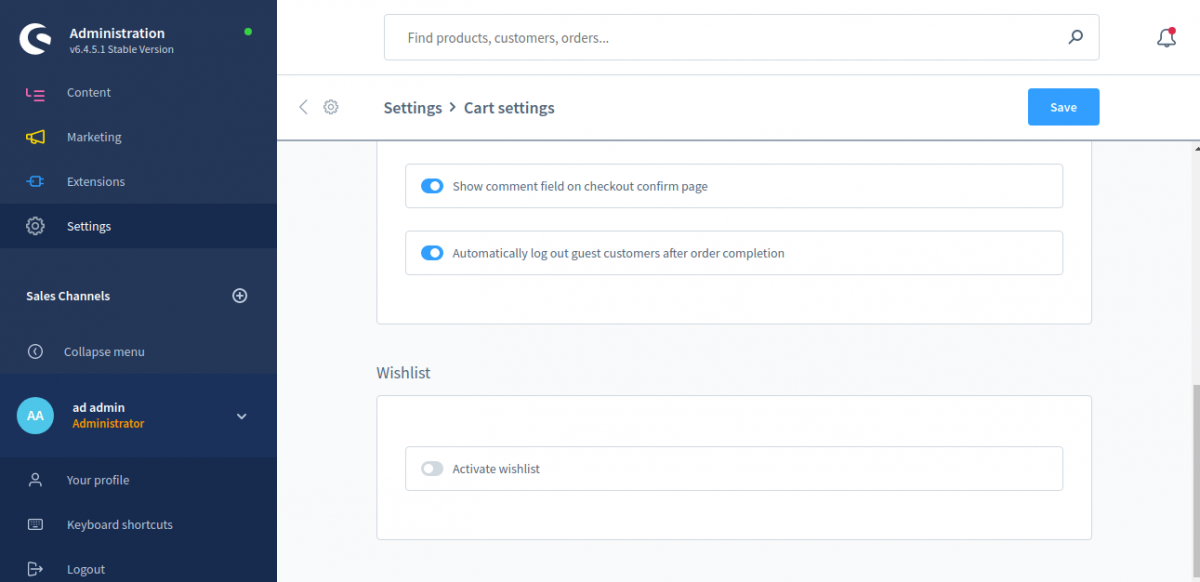
Now open the front page to check the changes After enabled the Wishlist.
Front end
Home page
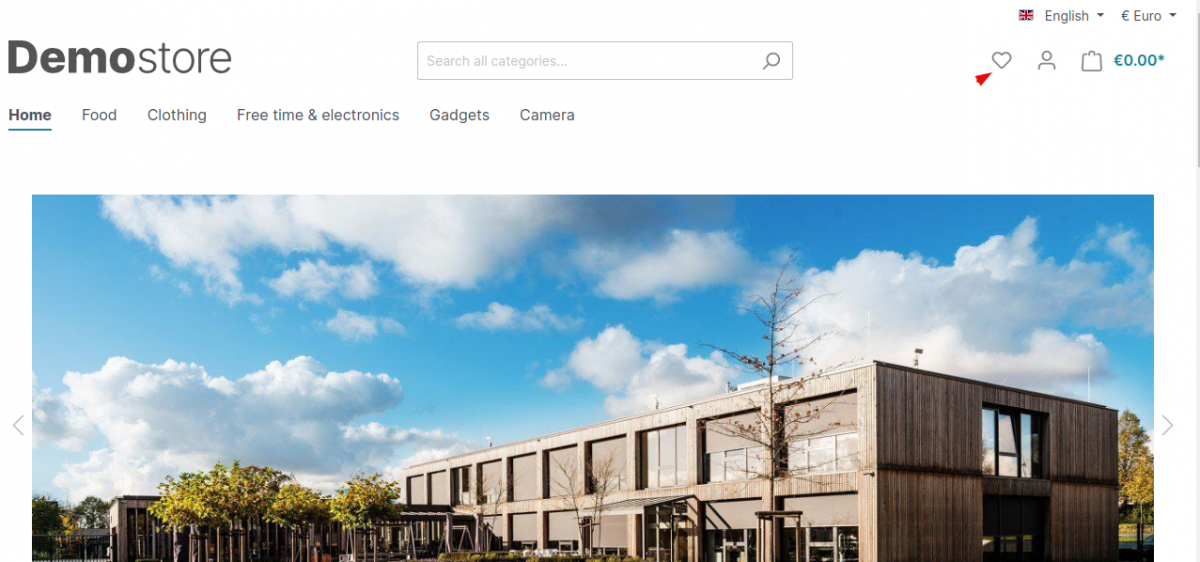
Wishlist icon is showing in the Right Side top corner

Category page
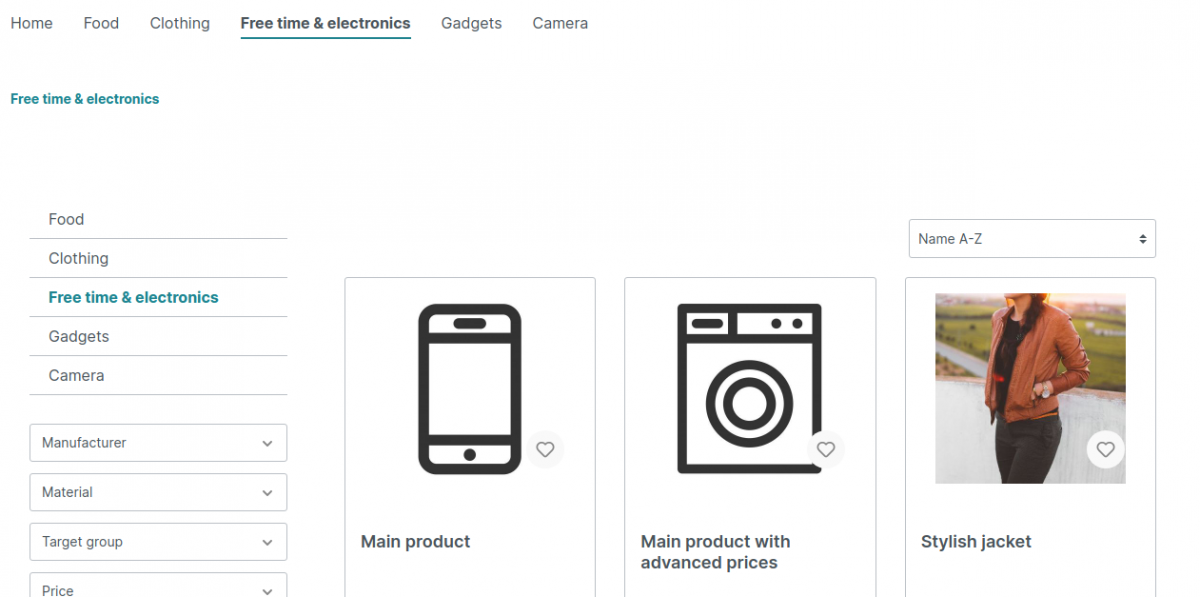
Wishlist icon also shows at category page. User can also add the product into wishlist from here.

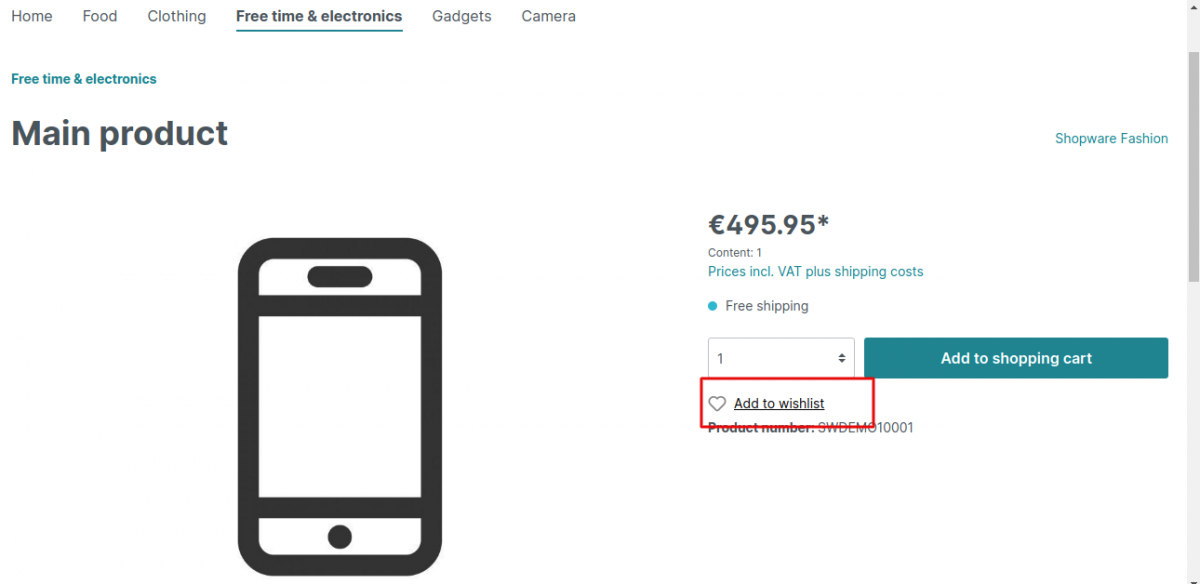
Product page
Wishlist Icon also shows at Product page. User can also add the product into Wishlist from here.

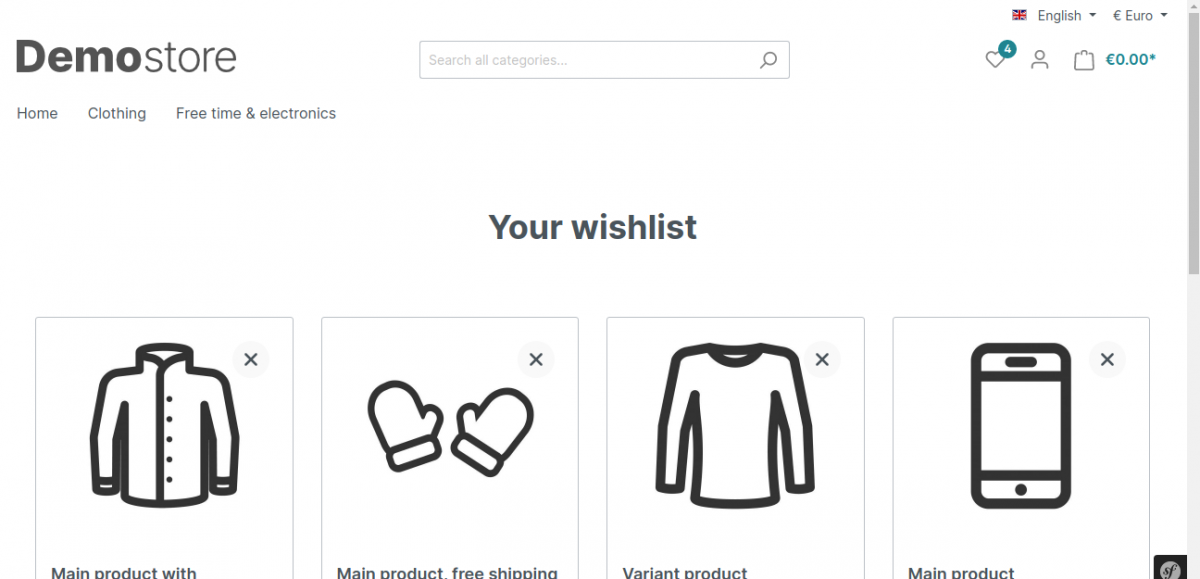
Wishlist Page
At the front end user can check Added product in the Wishlist. For this user must be logged in then customer can check the added product in Wishlist. After login click on Wishlisht icon. Now it will Navigate to Wishlist page here user can check the products. Also user can add the product in cart from here also.

That’s all about Wishlist. I hope it will help you.
Thanks for reading
If you face any issue, feel free to add a ticket at webkul.uvdesk.com