How to install the unpacked extension in Chrome
Sometimes, a Chrome extension isn’t available in the Chrome Web Store, but you have the unpacked extension. In such cases, you need to install it manually. Follow the steps below to install it.
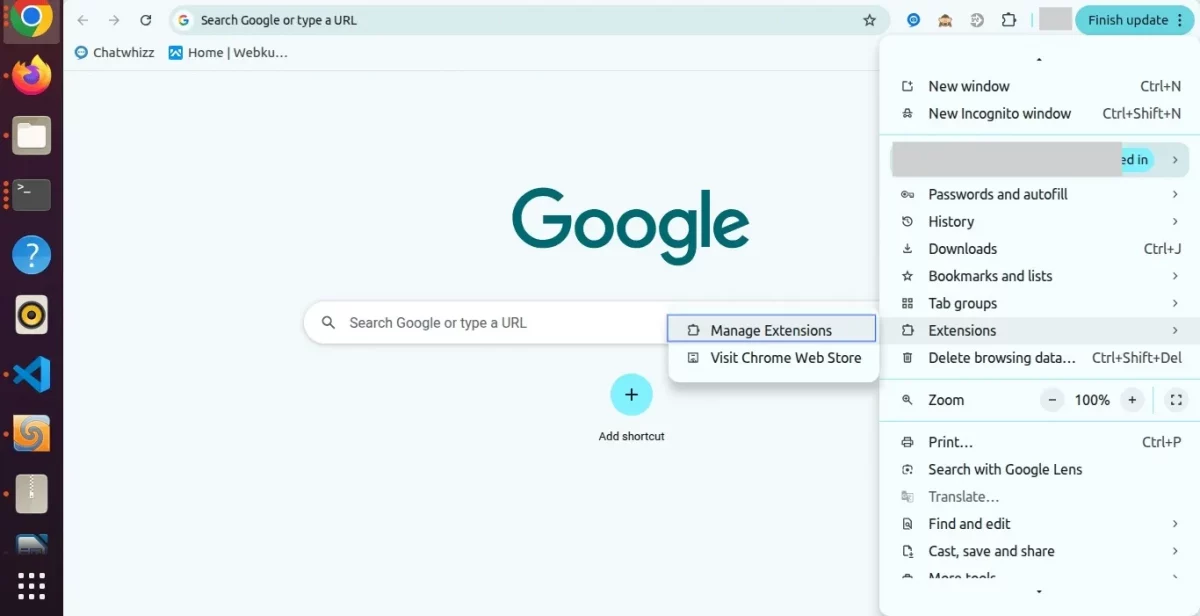
- Open Chrome Settings from the three dots in the top-right corner and select Manage Extensions, or type
chrome://extensions/in the address bar.

2. Enable Developer Mode using the toggle at the top-right of the page.

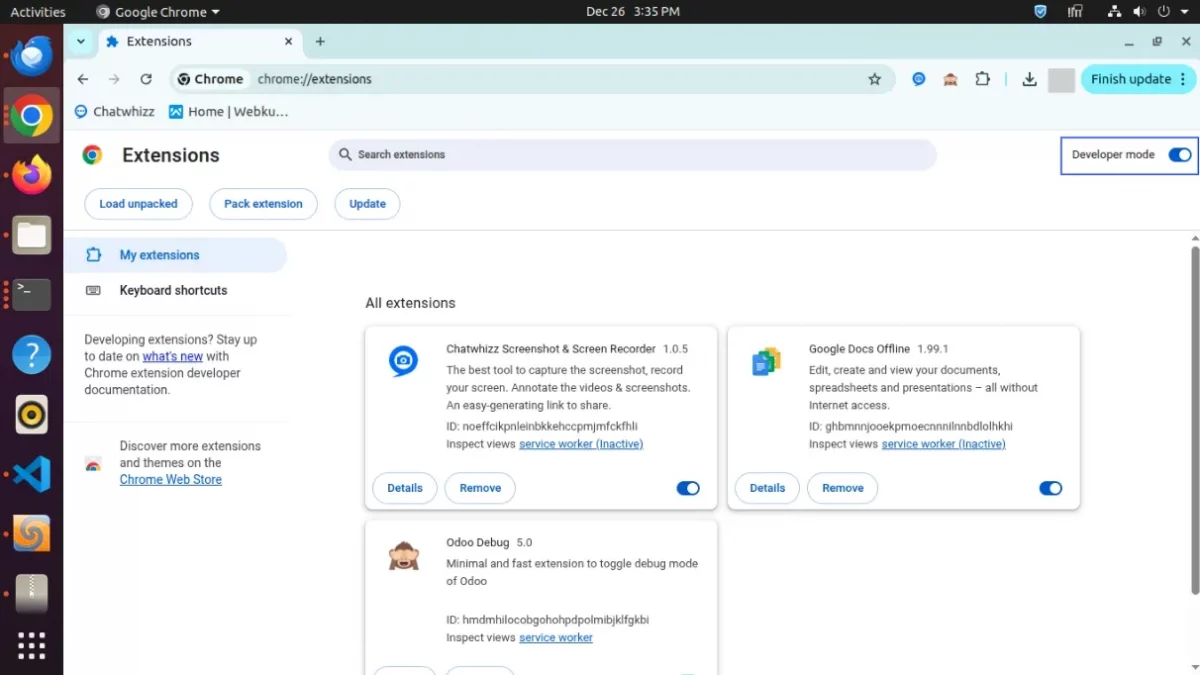
3. Click Load Unpacked and select the unzipped extension folder.


4. Navigate to the location on your system where the unpacked extension folder is located and open it.


Note: Select the folder that contains the manifest file. In the screenshot, the odoo_aliexpress_chrome_extension folder is selected because it contains the manifest.json
5. You can now see that the extension is installed in Chrome.

Sample Manifest File for extension :
{
  "name": "Sample Extension",
  "description": "It is used to describe manifest file",
  "version": "1.0",
  "manifest_version": 3,

  "content_scripts": [
    {
      "matches": ["*://*.webkul.com/*"],
      "js": ["resources/js/content.js"],
      "css": ["resources/style/style.css"],
      "all_frames": false
    }
  ],

  "permissions": ["activeTab"],

  "icons": {
    "128": "resources/image/icon.png"
  },

  "action": {
    "default_title": "Sample application",
    "default_icon": "resources/image/icon.png"
  },

  "web_accessible_resources": [
    {
      "resources": ["resources/image/*.png"],
      "matches": ["<all_urls>"]
    }
  ]
}
NEED HELP?
Hope you find the guide helpful! Please feel free to share your feedback in the comments below.
If you still have any issues/queries regarding the same, please raise a ticket at the UV Desk.
For any doubt, contact us at our support mail.
Thanks for paying attention!!