User Guide for CS-Cart Zoho Integration
Table of Content
CS-Cart Zoho Integration module enables the CS-Cart admin to import and export products and customers between the CS-Cart store and Zoho CRM.
Apart from that, the orders of the CS-Cart store can be exported to the Zoho CRM as required.
Zoho CRM is a cloud-based customer relationship management (CRM) software that helps businesses manage their customer interactions and relationships.
It is part of the Zoho suite of business applications. It is designed to streamline sales, marketing, customer support, and inventory management processes.
Features
- Import/export products between CS-Cart store and Zoho CRM.
- Import/Export customers between CS-Cart store and Zoho CRM.
- Import orders from Zoho CRM to CS-Cart.
- Export orders from the CS-Cart store to Zoho CRM.
- Add a Zoho CRM account in CS-Cart Store using the CS-Cart Zoho Integration plugin.
- Option to enable/disable auto sync of products and customers.
- Add multiple Zoho CRM accounts in the CS-Cart backend.
- Supports multiple Zoho CRM Data Centers (India, US, Europe, Australia, and Canada).
- Works with CS-Cart Ultimate and CS-Cart Multivendor as well.
Installation
After you download the add-on, you get one zip file and the install.txt file. Please read it carefully and follow it.
Now, navigate to the admin backend panel via Add-ons->Manage add-ons.
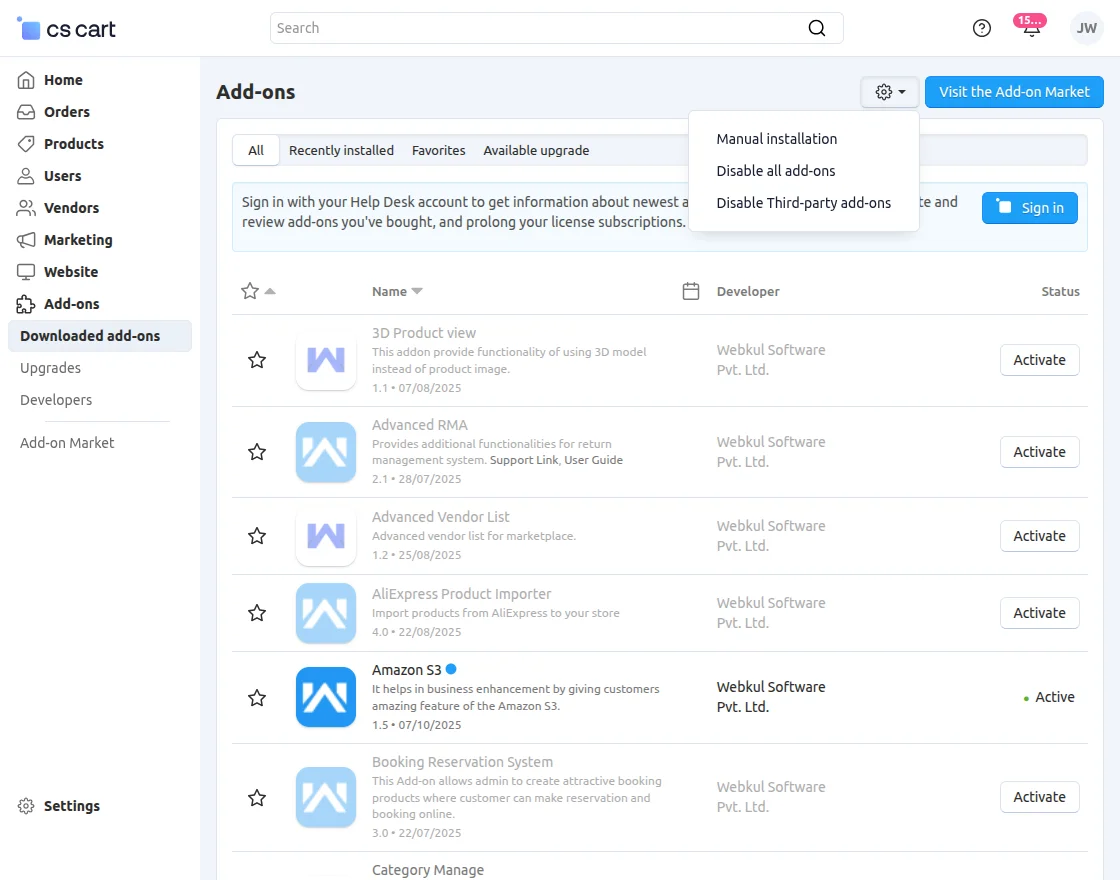
Tap on the cog icon, and then tap the Manual installation option.

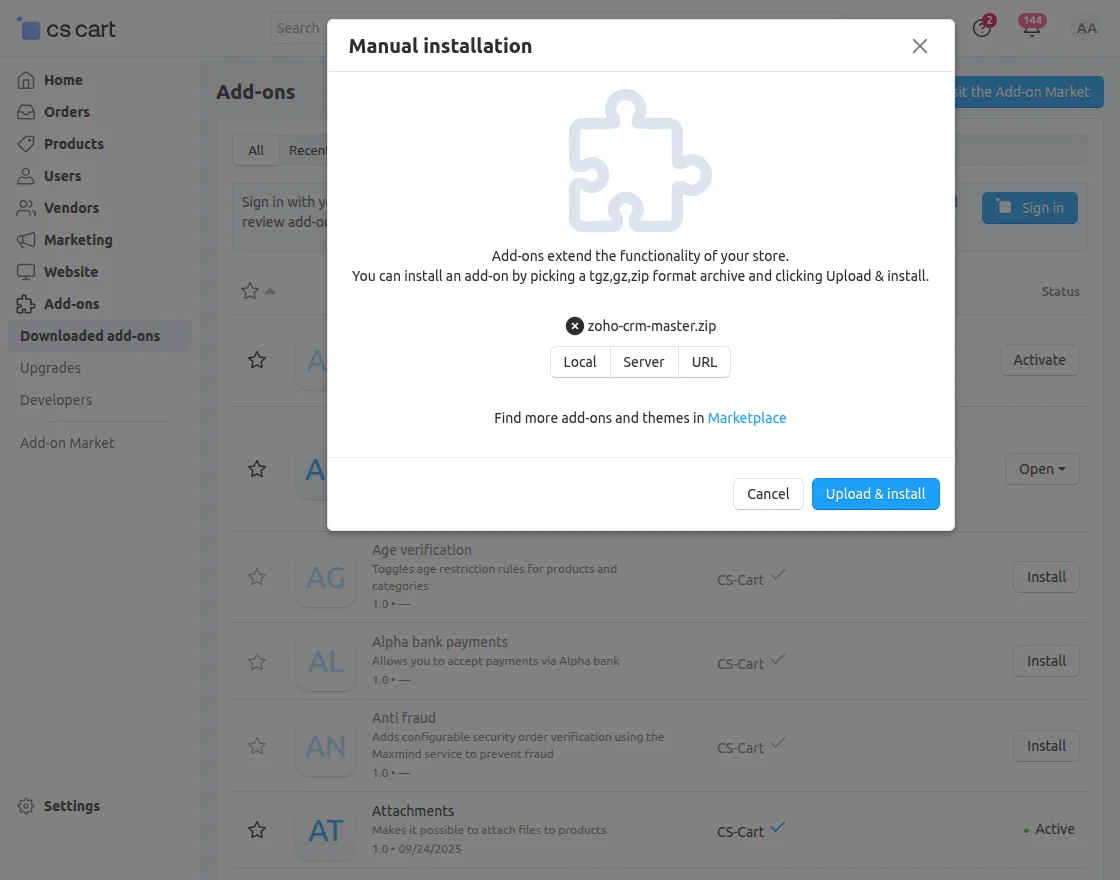
Thereafter, a pop-up appears. Click on “Local” to browse the zip file, and then click the “Upload & Install” button.
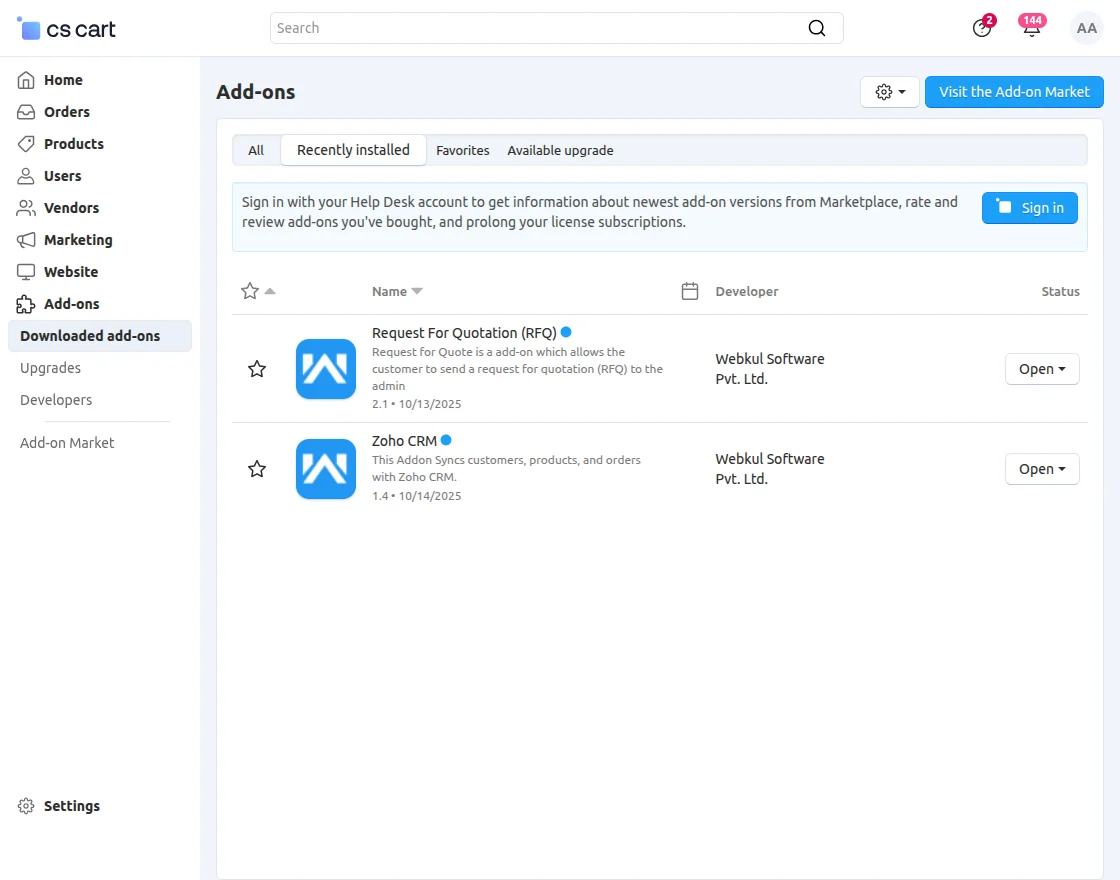
After installation of the add-on, you will find the “Zoho CRM” in the list of available add-ons.
Create a Zoho CRM Account
Step 1
Initially, the user needs to navigate to the Zoho registration page.
Here, create your Zoho account page opens up where the user needs to add details such as Name, Email Address, Password, Country, etc.
Then agree to the Terms of Service and Privacy Policy and proceed to Sign Up.


Step 2:
In the next step, the users will receive a confirmation mail on the mail Id they add while adding the details.


The email view that the user receives is shown in the image below. The user needs to click on the Confirm Your Account button.

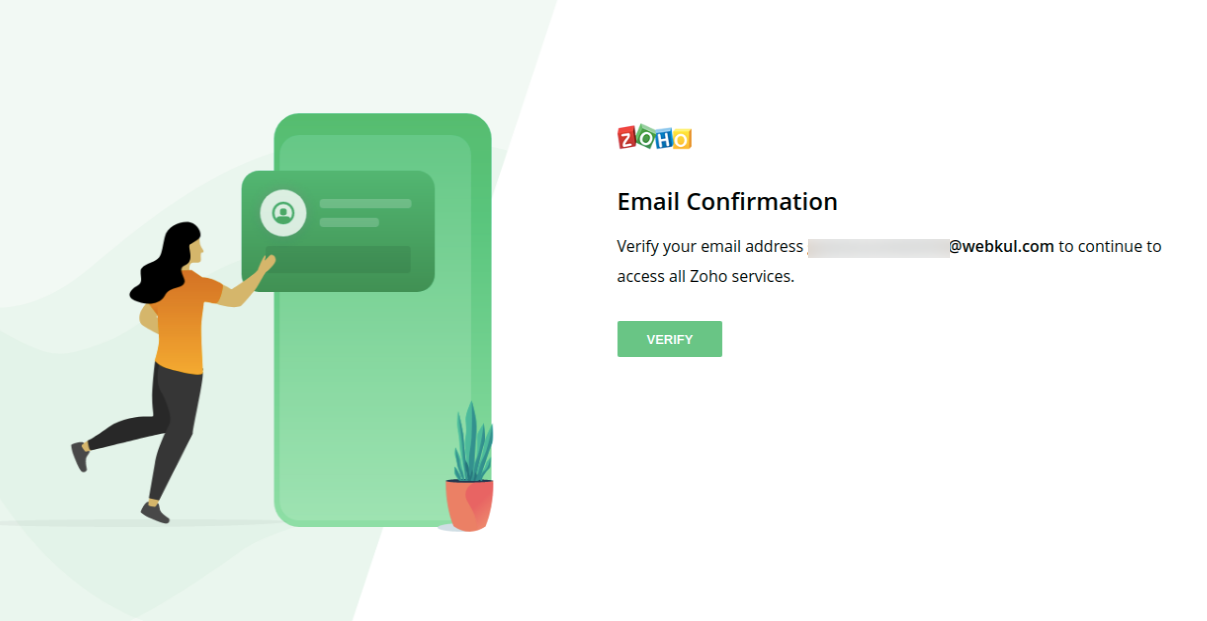
It redirects to the Email Confirmation page as shown in the image. The user needs to click on the Verify button.
This verifies the account and a success message pop-up displays as shown in the image.

Step 3:
Clicking the Access Your Account button redirects to the Zoho CRM page where the user needs to click on the Get Started for Free button.

Step 4:
In doing so, another page as shown in the image below opens up, where the user needs to add the Company Name and the Phone Number.
The user needs to click on the Get Started button.


This further navigate the user to the Zoho CRM Homepage as shown in the image below.


Creating Client Id and Secret Key | CS-Cart Zoho Integration
Step 1:
To create an app navigate to the accounts.zoho.com site.
Now login to your Zoho account using your Zoho credentials. After that, tap on the Add Client option in the top right-hand corner.

The image shown below appears.

Step 2:
The user needs to click on or select Server-Based Applications in the above image, which further opens up the Create New Client page as shown below.
The user needs to add the details such as Client Name, Homepage URL, and Authorized Redirect URIs and click on Create button.
Note- In the given scenario, we need to determine the appropriate URL based on whether the SEO (Search Engine Optimization) Add-on is activated or not.
If the SEO Add-on is activated, we will utilize the URL “baseurl/zoho-authenticate“.
On the other hand, if the SEO Add-on is not activated, we will use the URL “baseurl/index.php?dispatch=wk_zoho_crm.authenticate“.

Step 3:
As the user clicks on the Create button, it redirects to the Client Secret section, where the user can find the Client Id and Client Secret Key.

The Client ID and Client Secret retrieved will be required for configuring the module.
CS-Cart Zoho CRM Configuration
After successful installation, configure the Zoho inventory account with the CS-Cart store.
Click on the Zoho CRM, and it will navigate to the settings page of the Zoho CRM configuration.
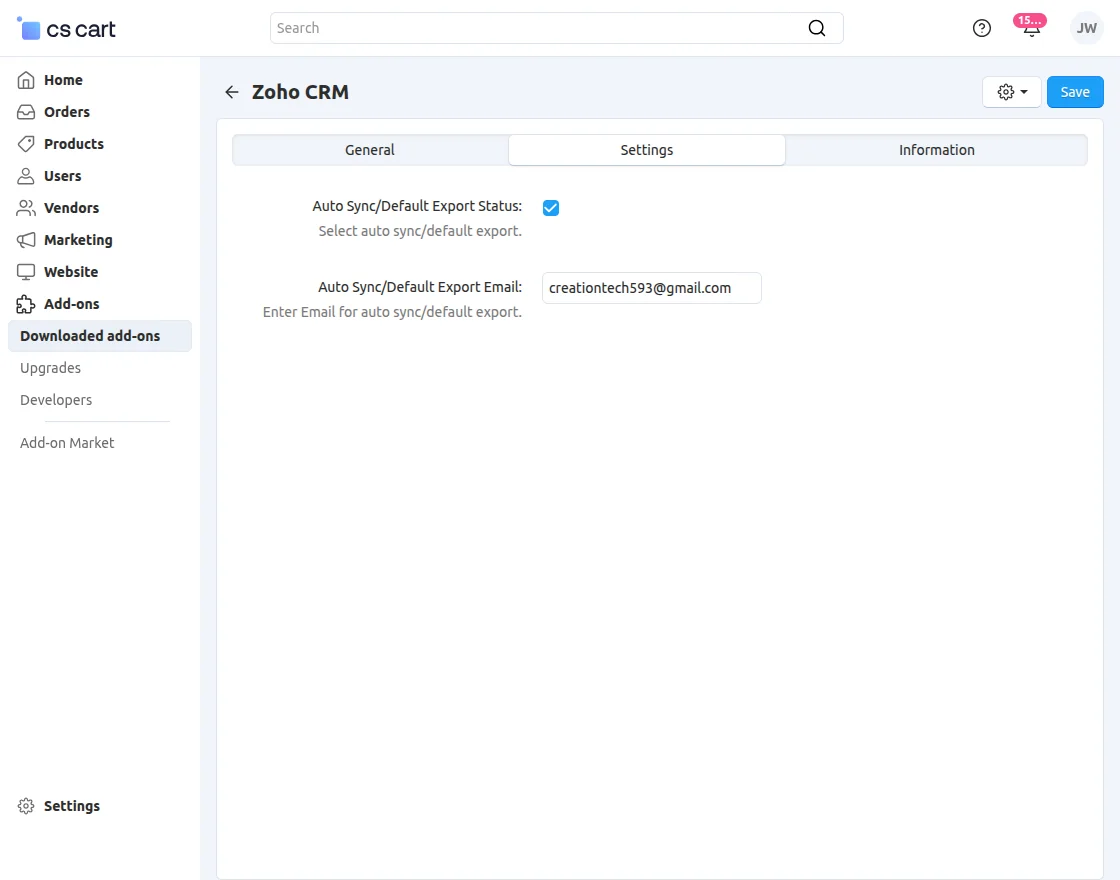
Here, the admin will –
- Enable or disable the Auto Sync/Default export status for the products and customers.
- If enabled, then products and customers will auto-sync from the CS-Cart store to Zoho CRM else you will have to manually export them.
- Enter the email for auto-synch export for the products, customers, and orders. The email id entered here is the one used for registering at the Zoho CRM.
Lastly, tap on the Save button to save the initial configuration settings.
Zoho CRM Integration
To add the Zoho CRM account in the CS-Cart backend, navigate through Websites>>Zoho CRM.
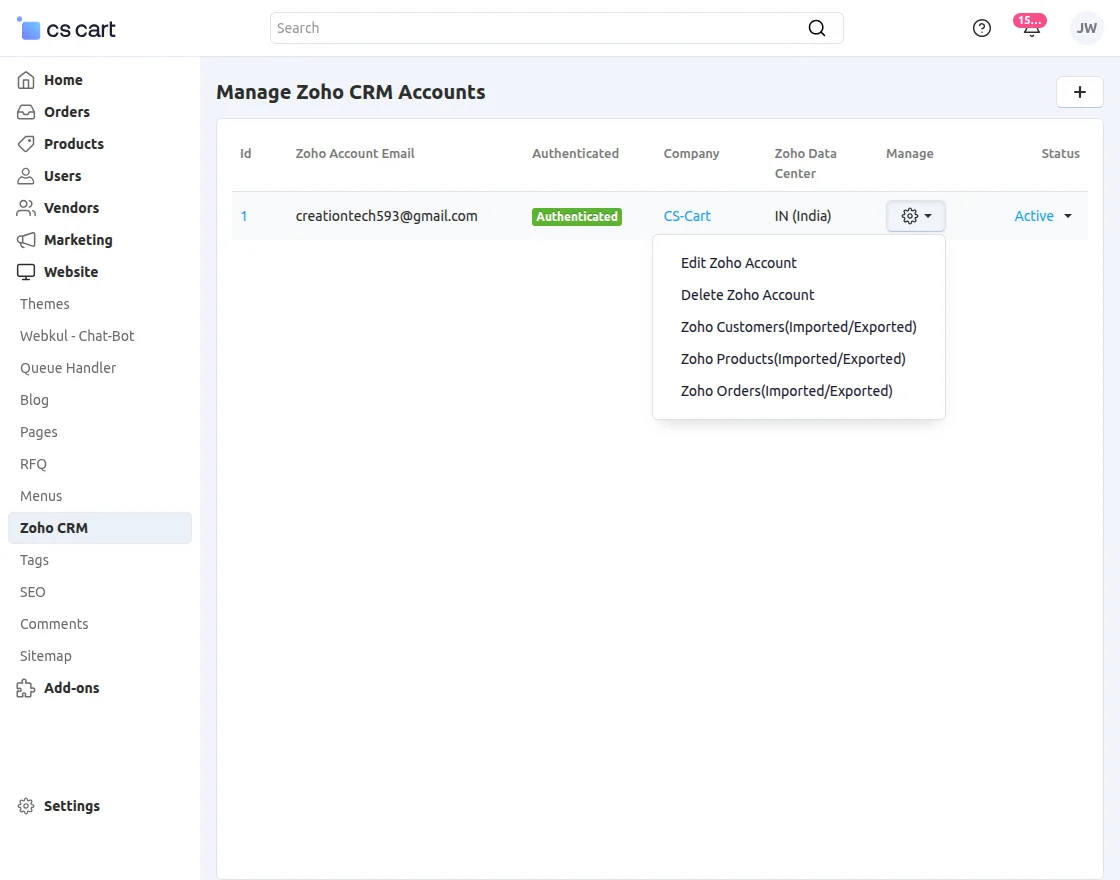
After tapping on the Zoho CRM, you will see a section listing all the added accounts as shown in the snapshot below.
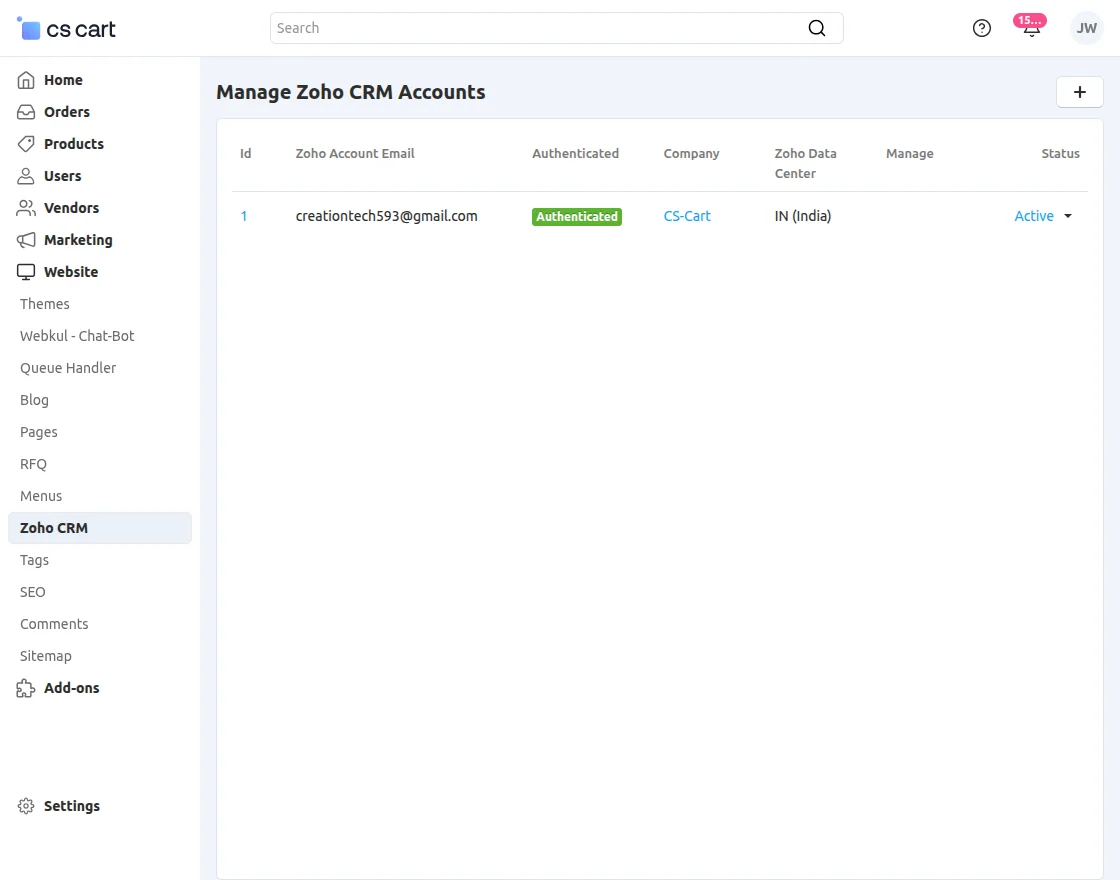
Click on the ‘+’ icon, and it will navigate to another page where you can add the Zoho account details.
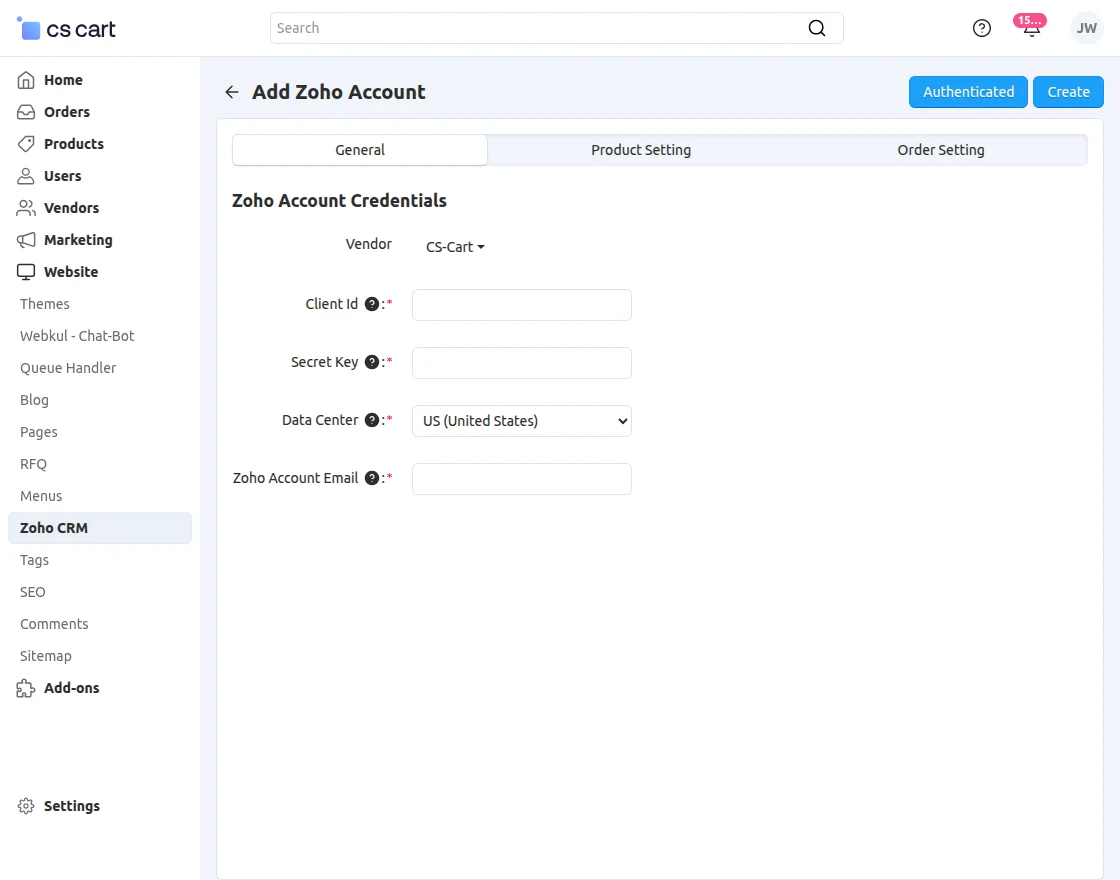
Here, the admin will –
- Select the Vendor as CS-Cart from the drop-down option.
- Enter the Client ID received after creating the app on the Zoho platform.
- Enter the Secret Key received after creating the app on the Zoho platform.
- Choose the same Data Center that you chose while creating the account at Zoho CRM.
- Enter the Zoho Account email address.
Afterward, the admin will add the product settings as shown in the snapshot below.
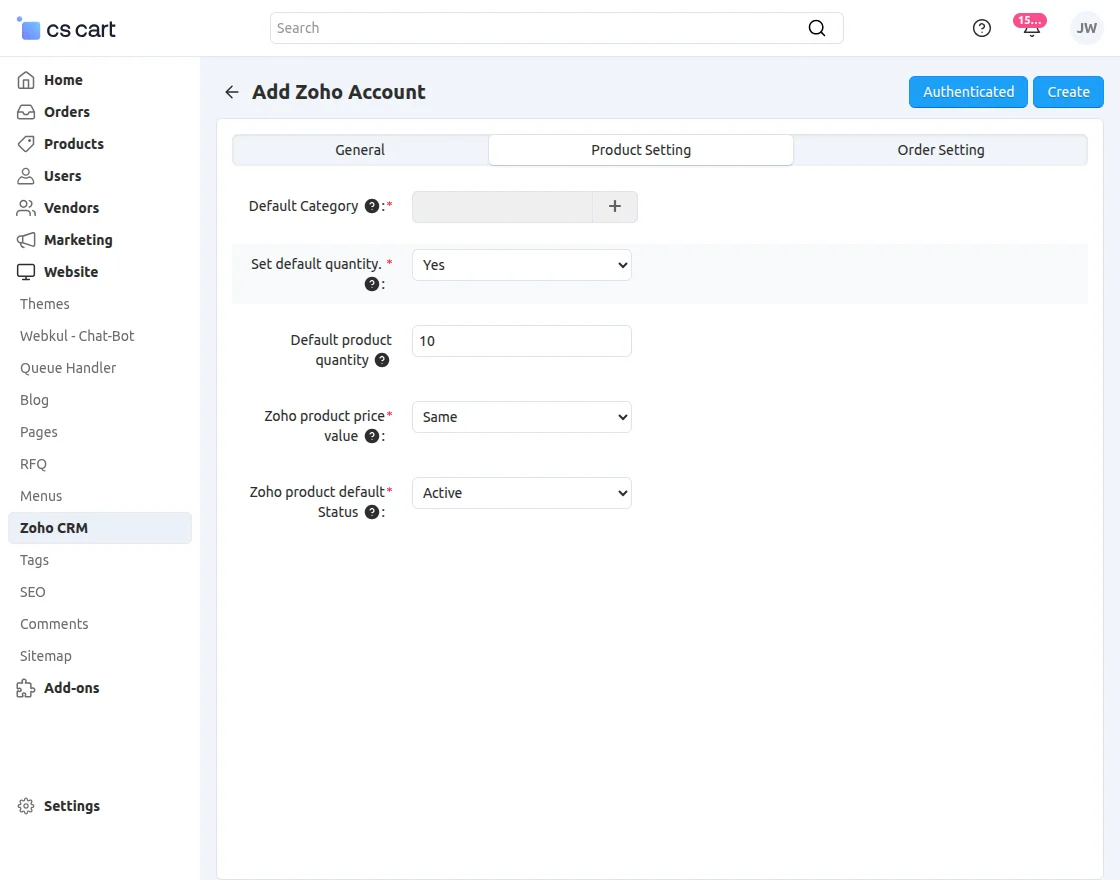
Afterward, the admin will add the order settings as shown in the snapshot below.
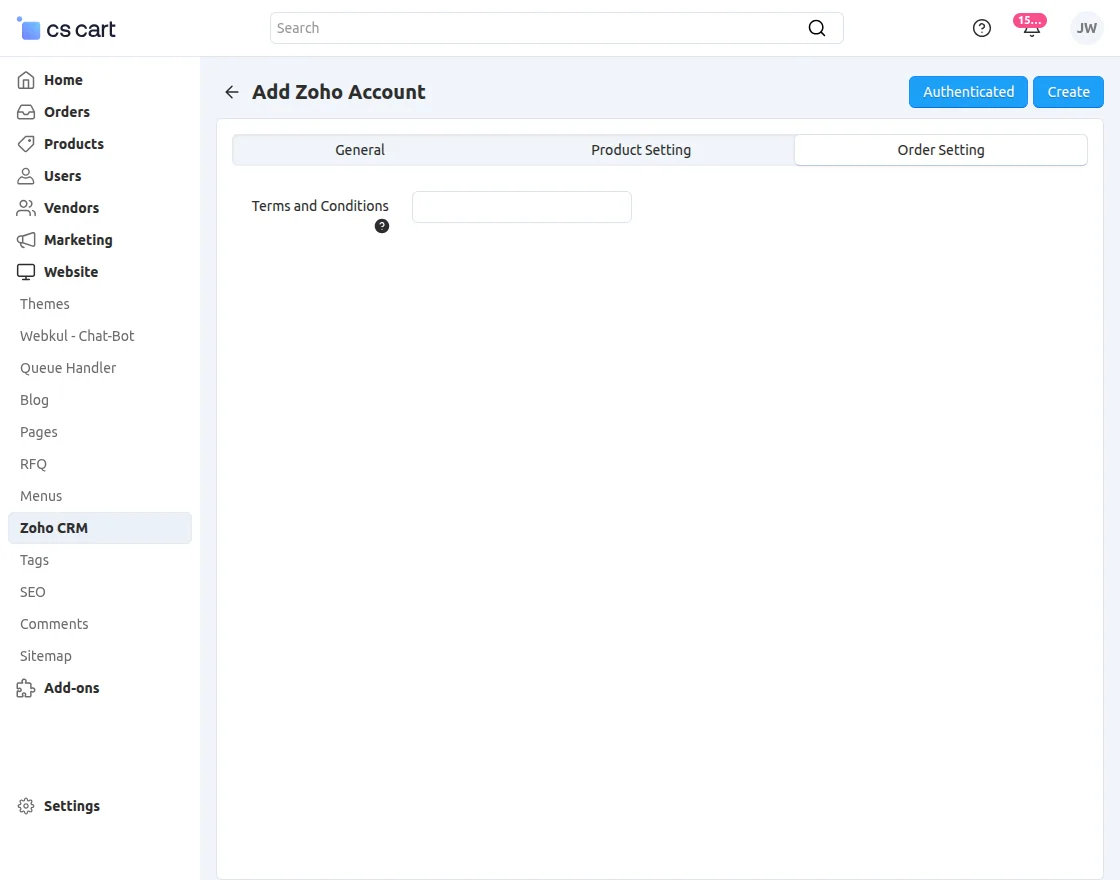
Note: The admin can edit and delete any Zoho account from CS-Cart.
Tapping on the authenticate button will redirect you to the Zoho CRM log in.


Now, give permission by accepting the same.


After accepting the same, the account access token and the refresh token will be generated.
After that, you can manage the account as required.
Also, if you are looking for an OpenSource CRM that can be easily customized as per your business requirements, then you can check out the Krayin CRM.
Import/Export Customers
If the auto-sync functionality in the initial configuration settings is enabled then whenever a customer is created at CS-Cart it will be auto-exported to Zoho CRM as a lead.
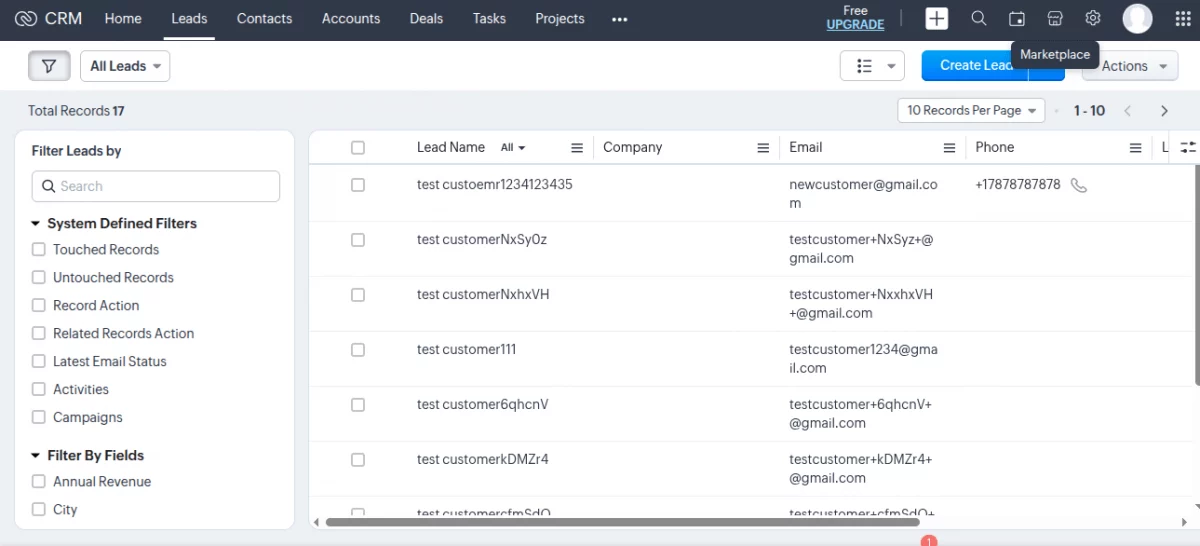
If New users register on CS-Cart, it will go to the lead section of Zoho CRM.
Apart from that, the admin can manually import and export the customers between the CS-Cart store and Zoho CRM as required.
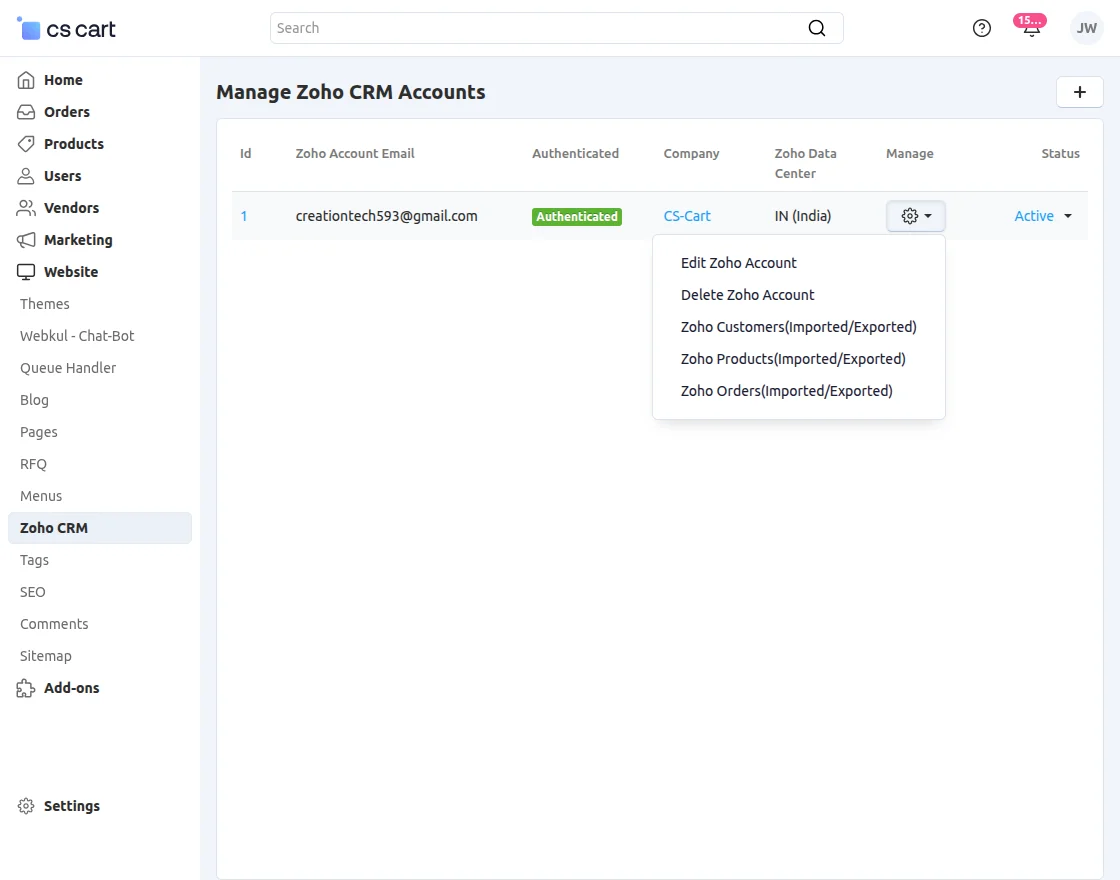
To do so, as per the image above, navigate to Zoho Customers(Imported/Exported).
That brings you to this page-
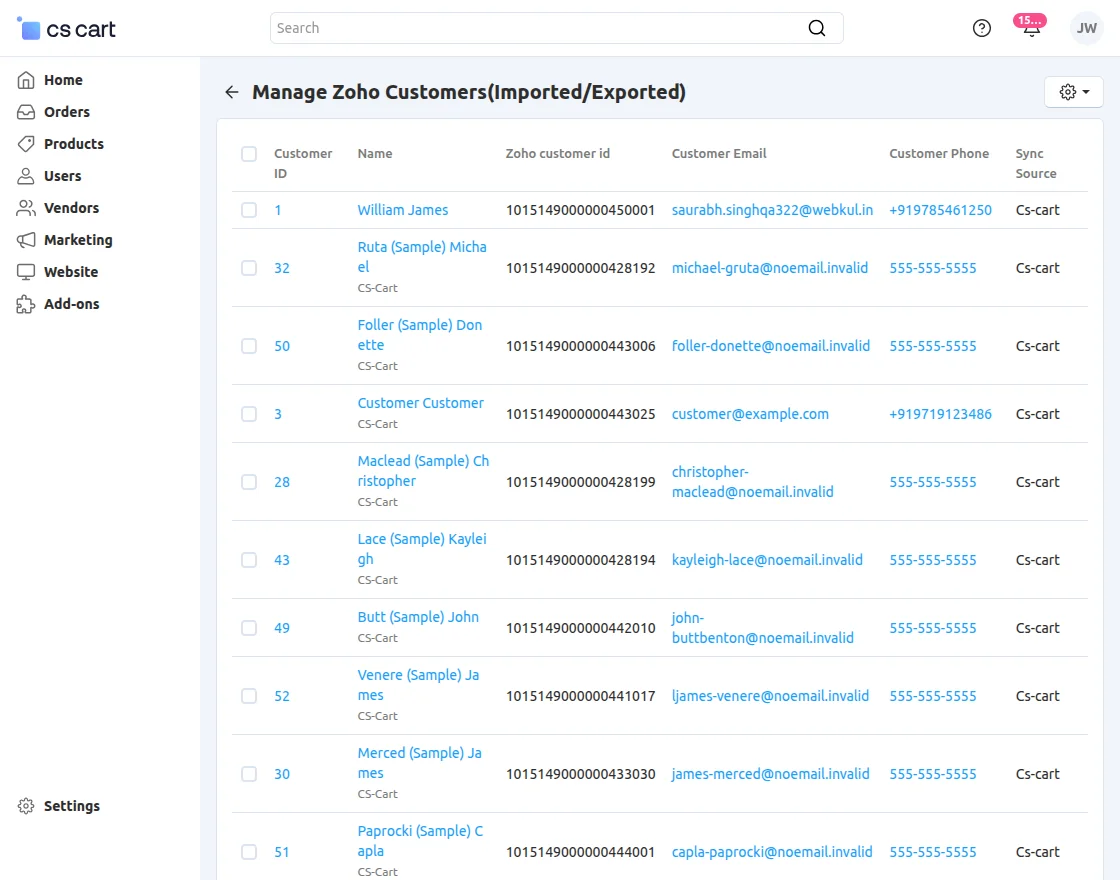
Here, you can see the sync source as CS-Cart and Zoho CRM for the customers.
In the top right-hand corner, tap the cog icon to bring up the options for importing and exporting customers between the platforms.
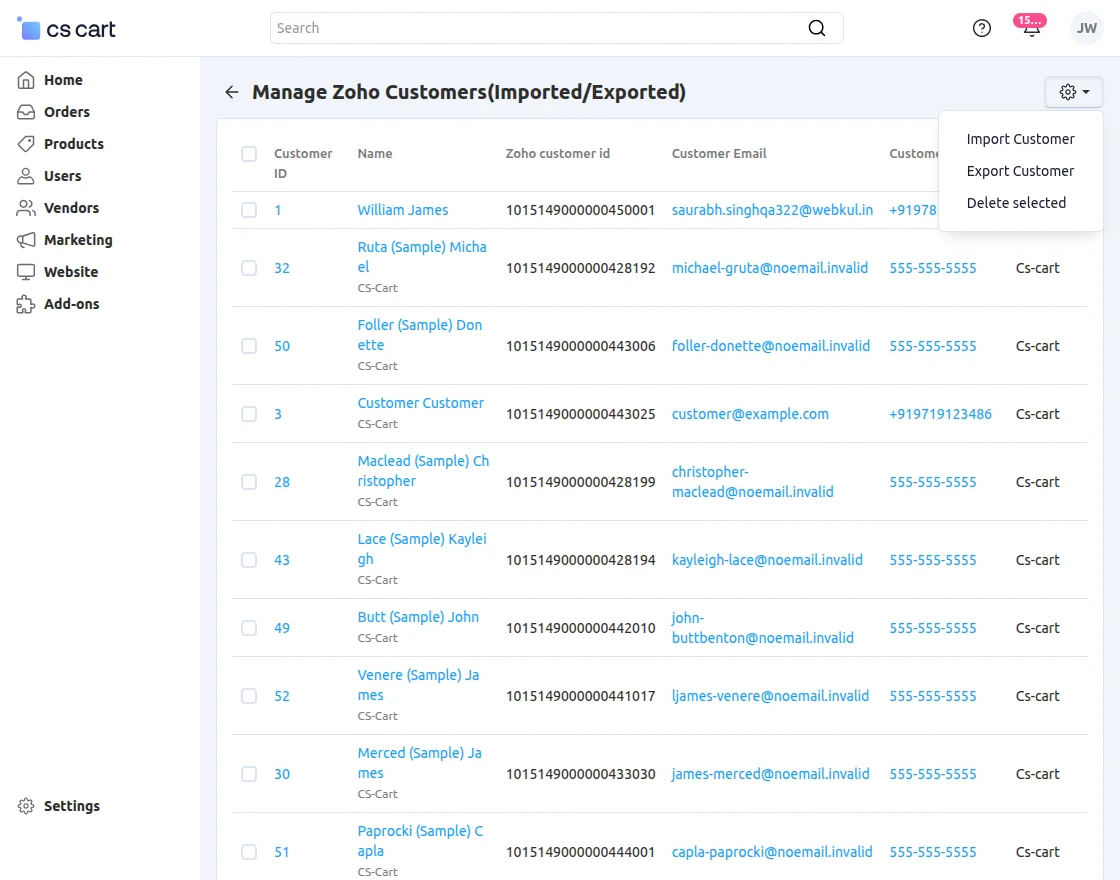
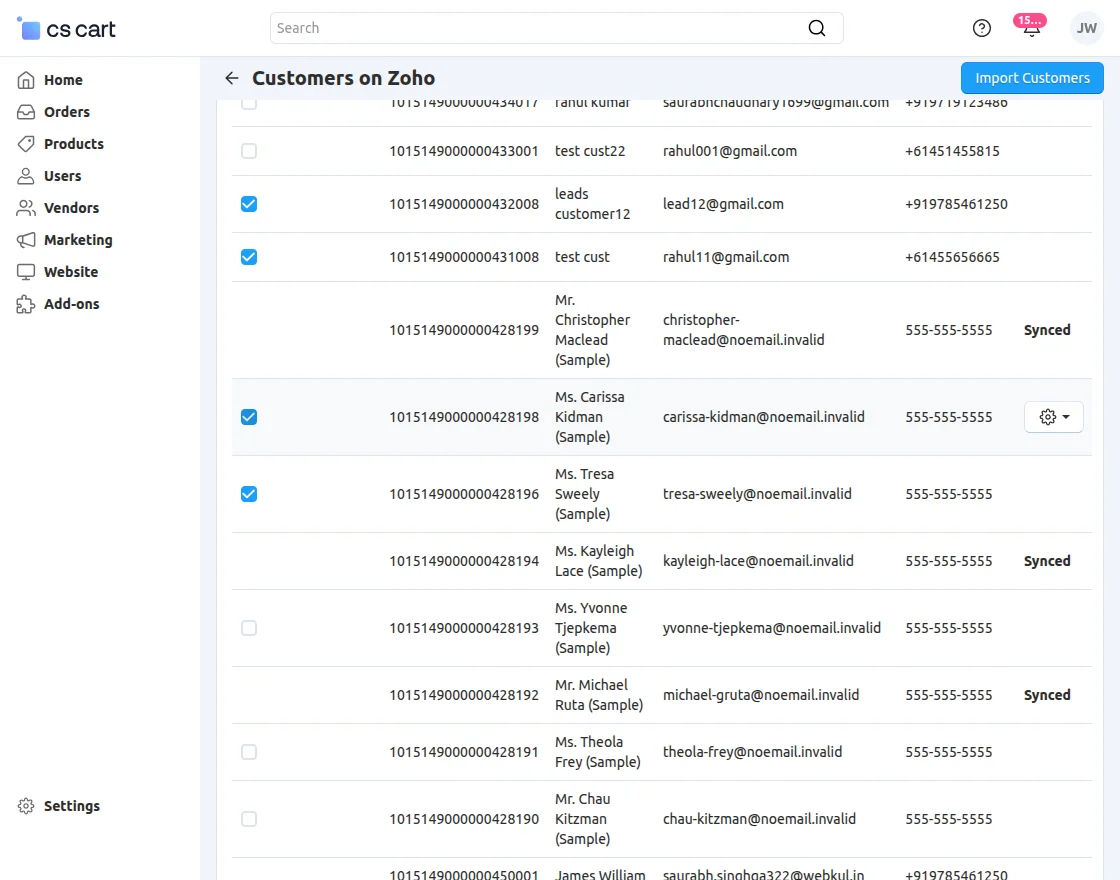
Tapping the import button will show the customers on Zoho CRM.
Here, first, select the customer to import and then tap the Import button to import the customer from Zoho CRM into the CS-Cart Store.
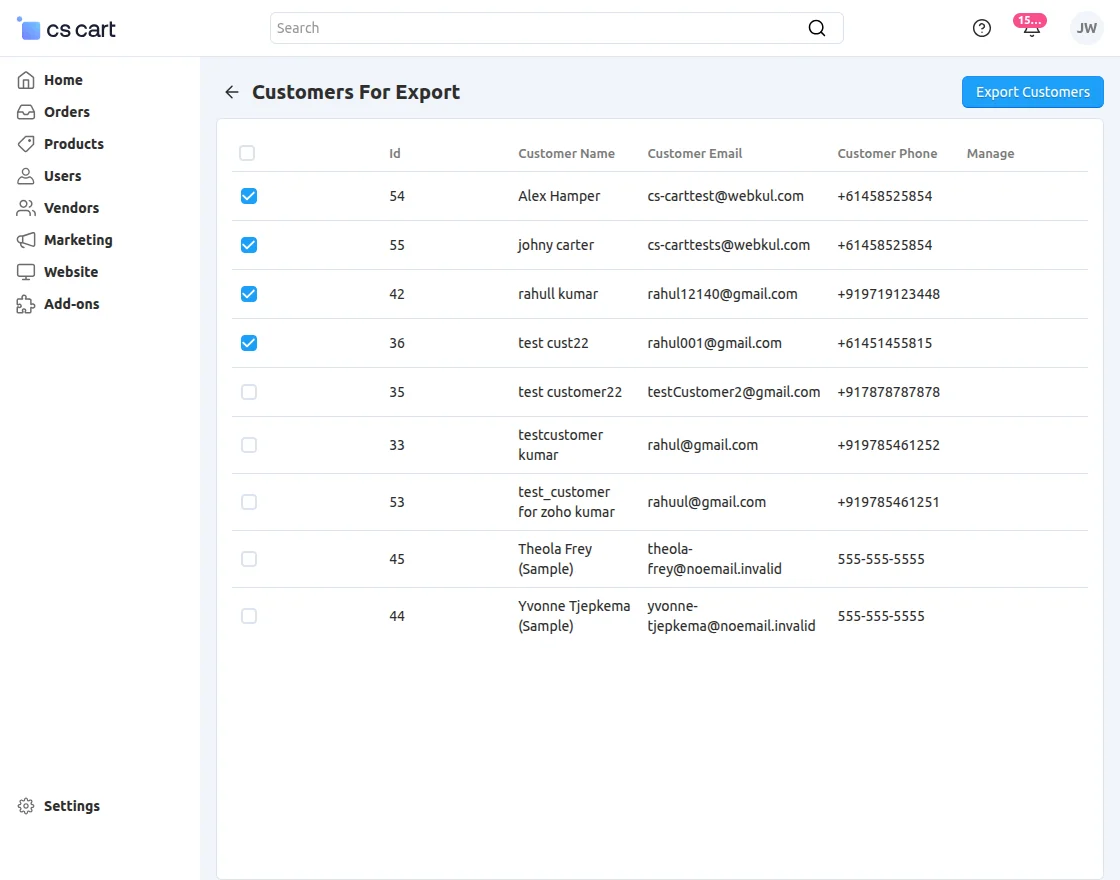
For exporting the customers from the CS-Cart store to the Zoho CRM, tap the Export Customer button on the Manage Zoho Customers(Imported/Exported) page. This brings up the below page.
Here, select the customer that you want to export from the CS-Cart store to Zoho CRM and tap the Export Customer button.
After export, you can see the respective details of the sync source for the customer.
The customer data is exported to the Zoho CRM leads section.

If a lead already exists in Zoho for the customer who placed the order, Zoho automatically converts the lead into a contact.

Import/Export Products
If the auto-sync functionality in the initial configuration settings is enabled, then whenever a product is created at CS-Cart, it will be auto-exported to Zoho CRM.
Apart from that, the admin can manually import and export the products between the CS-Cart store and Zoho CRM as required.
To do so, navigate to Zoho Products (Imported/Exported).
This brings up this section. Here, you can see the sync source as CS-Cart and Zoho CRM for the products.
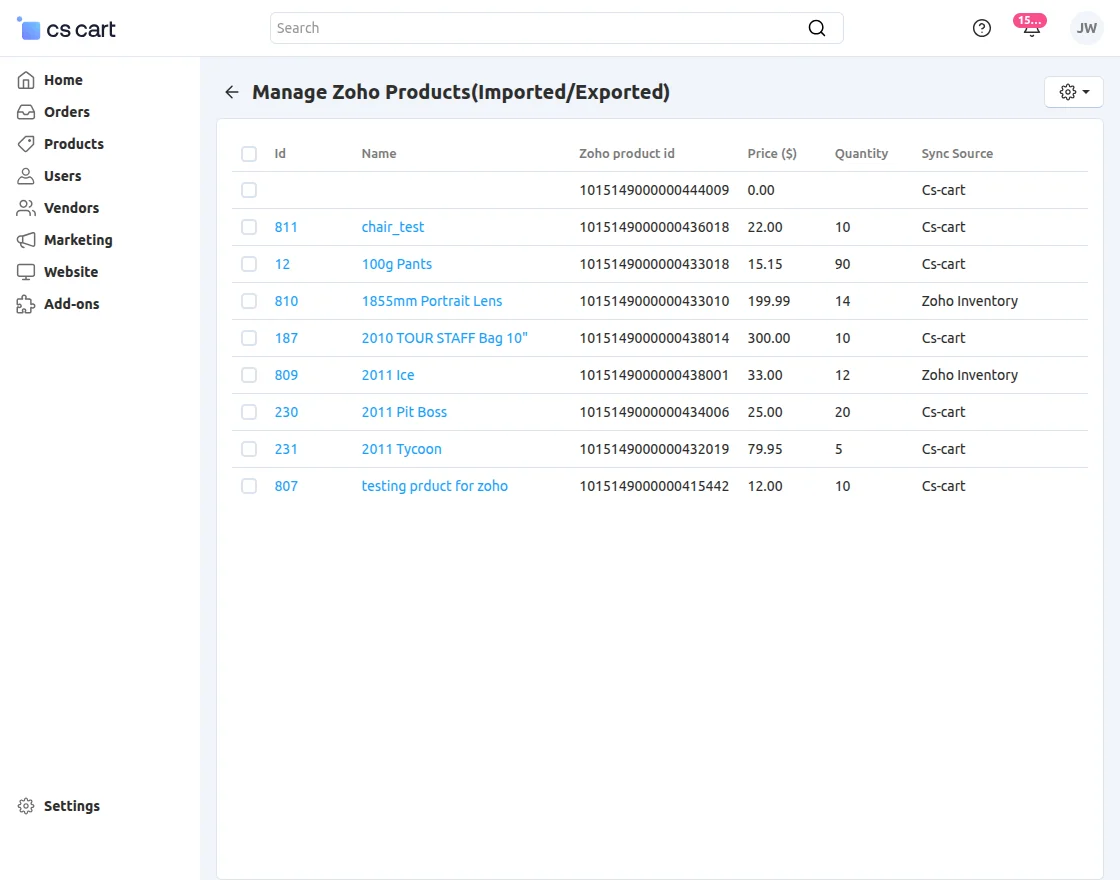
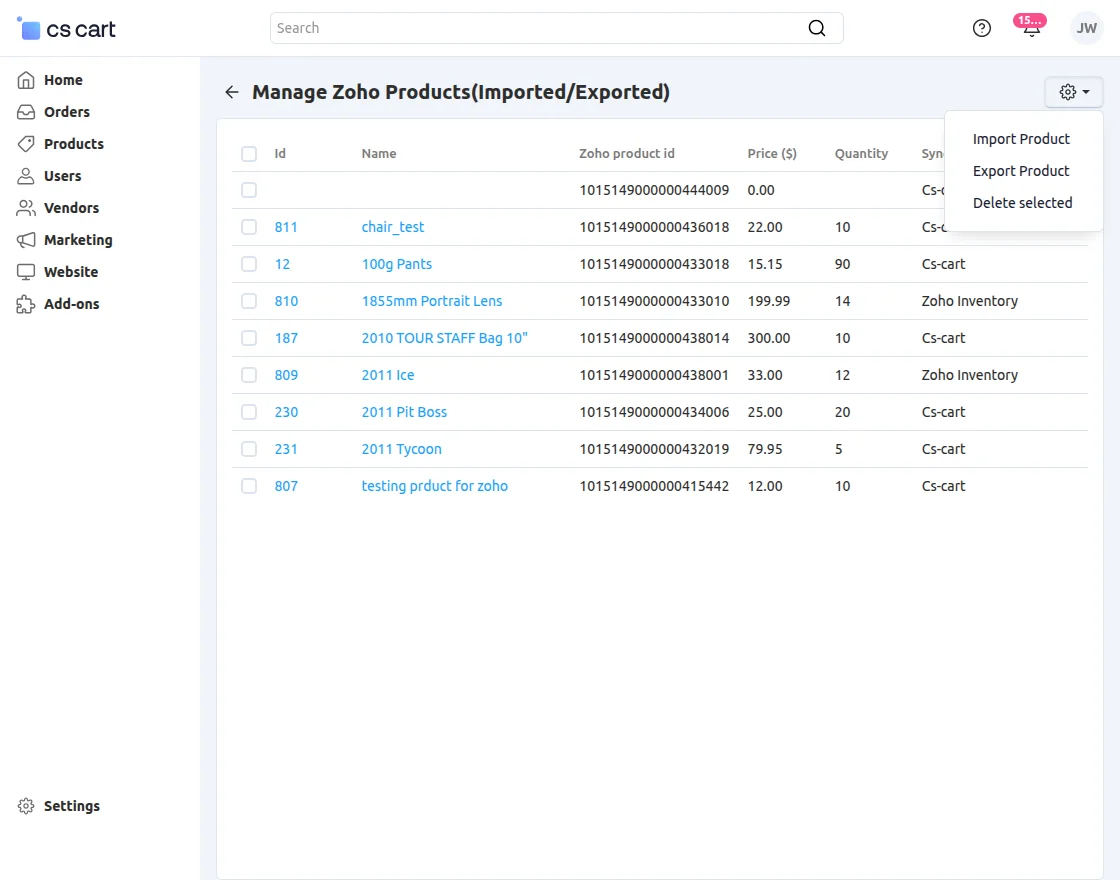
In the top right-hand corner, tap the cog icon to bring up the options for importing and exporting customers between the platforms.
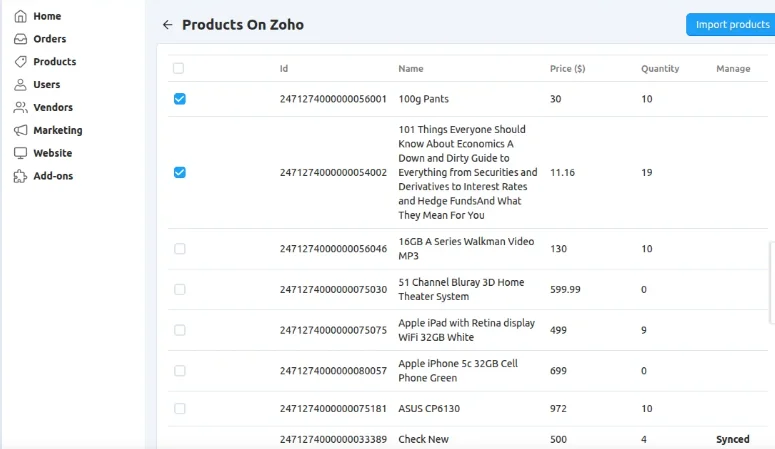
Tapping the import button will show the products on Zoho CRM. Here, first, select the product to import.
Then tap the Import button to import the products from Zoho CRM into the CS-Cart Store.

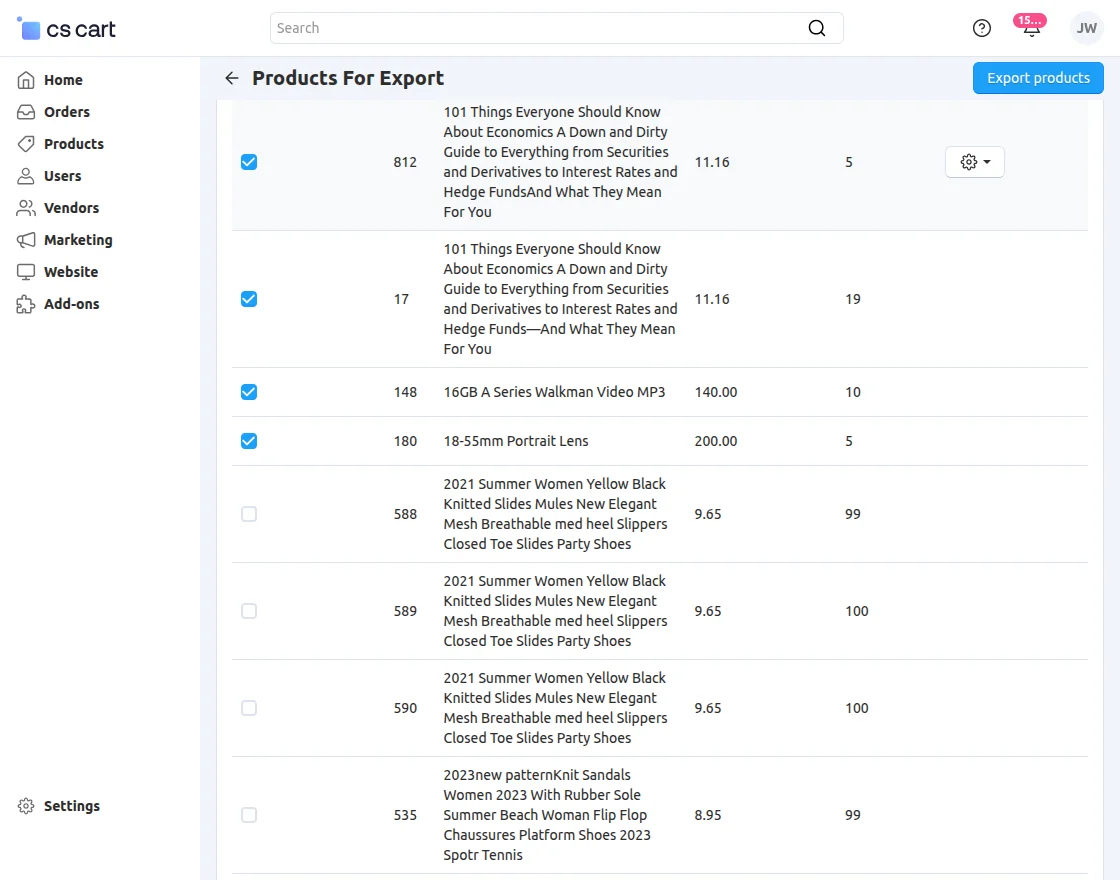
For exporting the products from the CS-Cart store to the Zoho CRM, tap the Export Product button on the Manage Zoho Products(Imported/Exported) page. This brings up the page below.
Here, select the product that you want to export from the CS-Cart store to Zoho CRM and tap the Export Product button.
After product export, the products are visible under the Products section in the Zoho CRM dashboard.

Export and import orders seamlessly between CS-Cart and Zoho CRM — all exported orders will appear directly on your Zoho CRM page.
The orders that have been placed at the CS-Cart store can be exported to the Zoho CRM.
The orders are auto-exported at the time of placing the order at the CS-Cart store if the respective auto-sync setting is enabled for the plugin.
If the customer who has placed the order already exists as a lead in Zoho, then it will be converted automatically into a contact at Zoho.
Otherwise, the admin can select the Export orders button to export the orders to Zoho CRM.
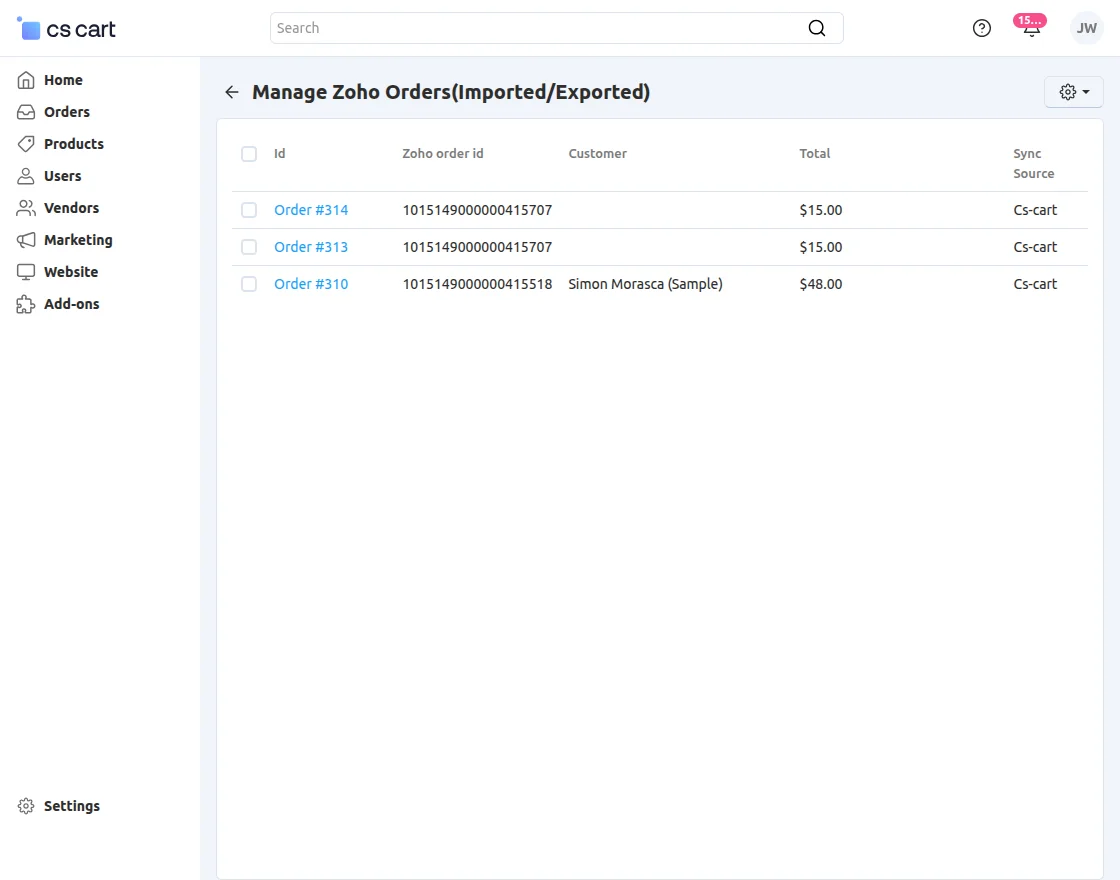
After export, the data is visible in the Zoho CRM dashboard Sales Order section.

That’s all about the CS-Cart Zoho Integration add-on.
Support
However, if you still have any questions regarding the CS-Cart extensions or if you have any CS-Cart customization.
Please create a support ticket by clicking Webkul Support System or send an email to support@webkul.com