Cs-Cart Wallet System
Table of Content
Cs-Cart Wallet System extension adds a built-in wallet system in your store in which the Customer/User has a Wallet.
In this Add-on Customers/Users can use Wallet Cash during checkout and money will be deducted from their Wallet Cash. Customers/Users can easily add cash to their wallets.
Also, Admin can also add cash to the Customer/User Wallet by refunding the product. Both Admin and Customer/User can view the transaction details.
Check a brief overview of the add-on –
Features
- Fully compatible with CS-Cart, CS-Cart Multivendor, and CS-Cart Multivendor Ultimate.
- Built-in wallet system that allows customers to securely store, manage, and use wallet balance.
- Customers can recharge their wallet anytime using supported online and offline payment methods.
- Admin can define minimum and maximum limits for wallet recharge, refund, and money transfer.
- Wallet balance can be used as a payment method at checkout for purchasing products.
- Supports partial wallet payment, allowing customers to pay a portion via wallet and the remaining amount via other payment gateways.
- Admin can refund order amounts directly to the customer’s wallet, including full and partial refunds.
- Compatible with CS-Cart RMA refunds, enabling smooth wallet-based refund processing.
- Admin can manually credit or debit wallet balance for any user from the backend.
- Secure wallet-to-wallet money transfer between registered users with OTP-based verification.
- Customers can transfer wallet balance to their linked bank accounts.
- Customers can add, view, and manage multiple bank accounts from their wallet dashboard.
- Admin can enable cashback or wallet rewards for new user registration, with configurable reward amounts.
- Reward points and cashback functionality can be configured and redeemed via the wallet.
- Detailed wallet transaction history is available for both Admin and Customers, including credit, debit, refunds, and transfers.
- Admin can send monthly wallet transaction reports to customers directly via email.
- Admin can create and customize separate email notification templates for wallet recharge, debit, credit, cashback, refund, and money transfer events from the module configuration.
- Admin can configure different email notification templates for Admin and Customers to ensure proper communication for every wallet transaction.
- Admin can manage and customize wallet notification email templates from the module configuration for both Admin and Customers.
- Clean, interactive, and user-friendly interface for managing wallet configuration, notifications, and transactions from the admin panel.
Installation
After downloading the CS-Cart Wallet System add-on, you’ll get one zip file, one install.txt file, and a relevant User Guide manual doc.
Read it carefully for proper configuration.
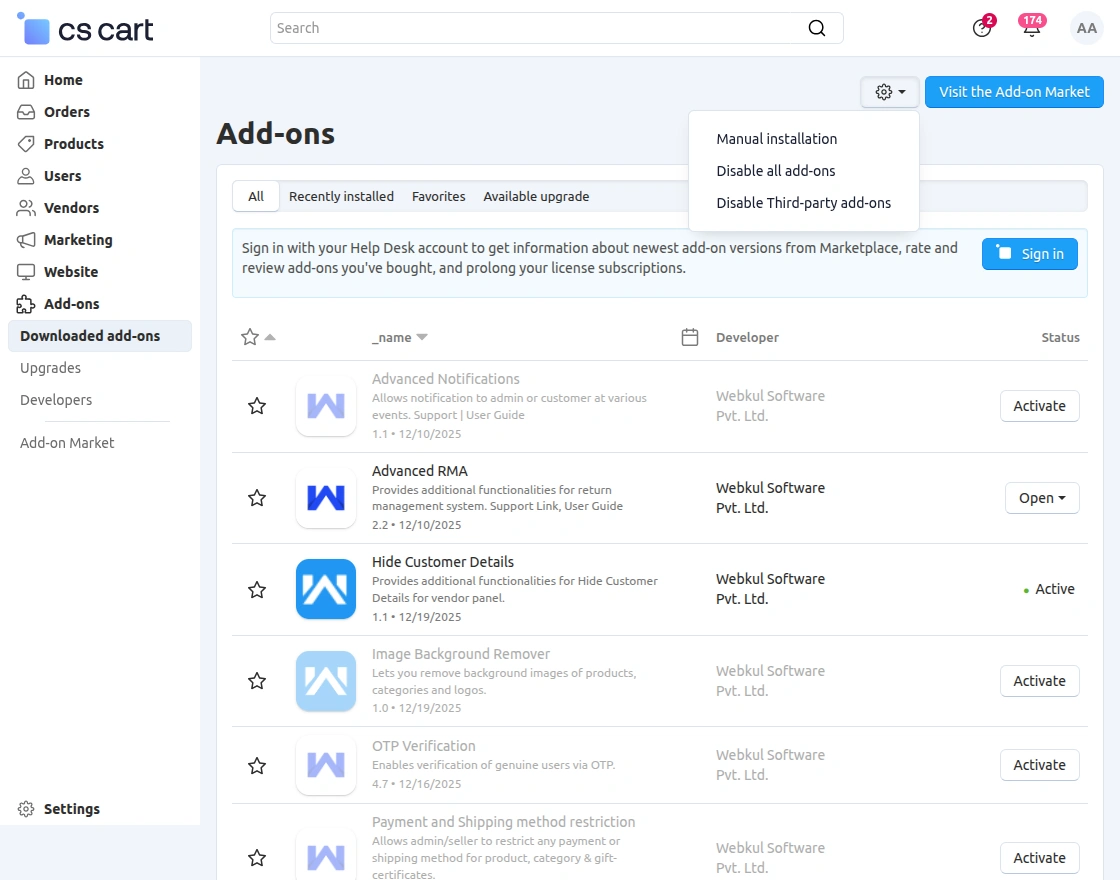
Go to Manage Add-ons, and click on “Manual Installation” as shown below in the snapshot.
Click on “Local” to browse the zip file and then click on “Upload & Install” as shown below in the snapshot.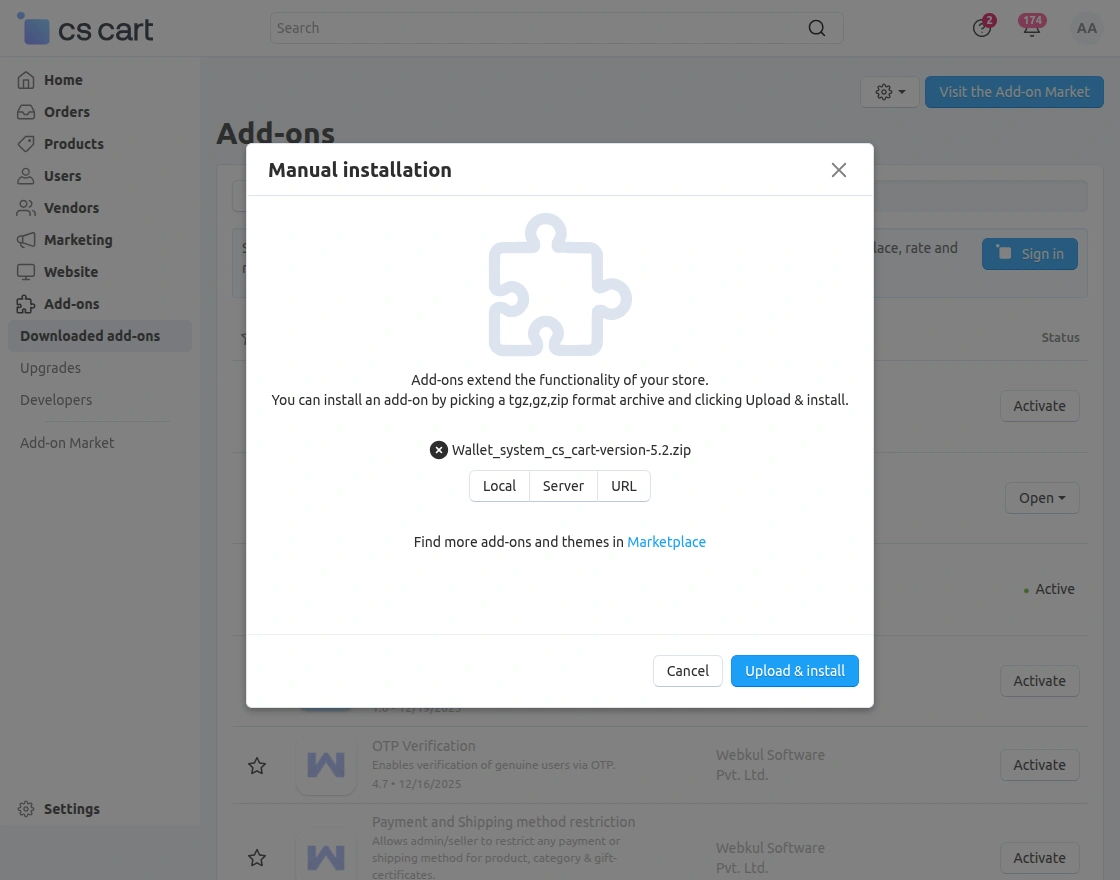

Please Note: In order to make the add-on compatible with Paypal payment, please copy the paypal.php file to the path app/payments of your root directory manually.
You can get this paypal.php file in a folder viz; Paypal-payment-cs-cart-(version)* by extracting the installer zip file (corresponding to your CS-Cart edition).
Add-On Configuration
After installing the add-on, you will find CS-Cart Wallet System in the list of available add-ons. We will then configure the settings.
Click on “settings” to enable, disable, install, or refresh.
Make sure the add-on is activated, as shown in the snapshot below.
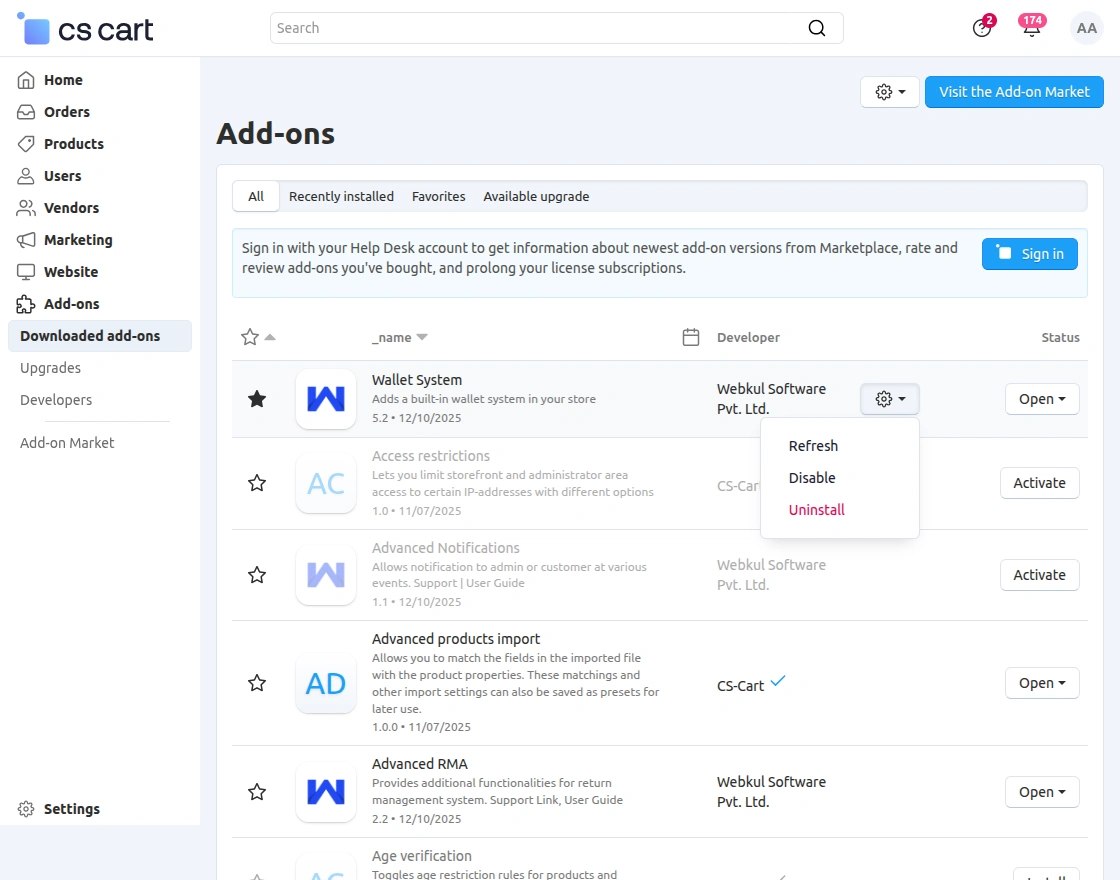
Once the add-on gets installed admin needs to do some wallet settings from the setting tab.
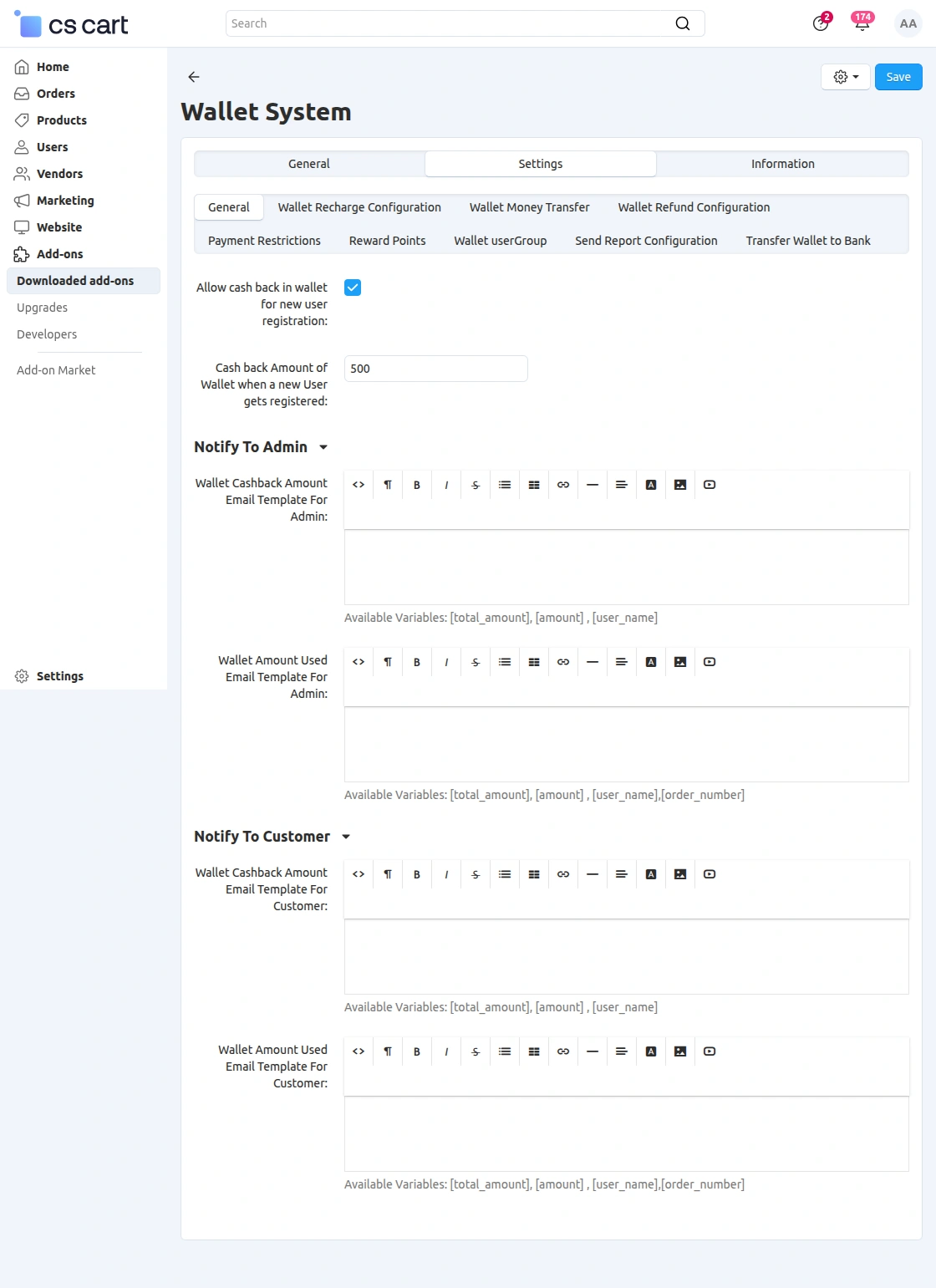
General Settings
Click to enable the cashback/discount option for newly registered users. Set the cashback amount as shown below.

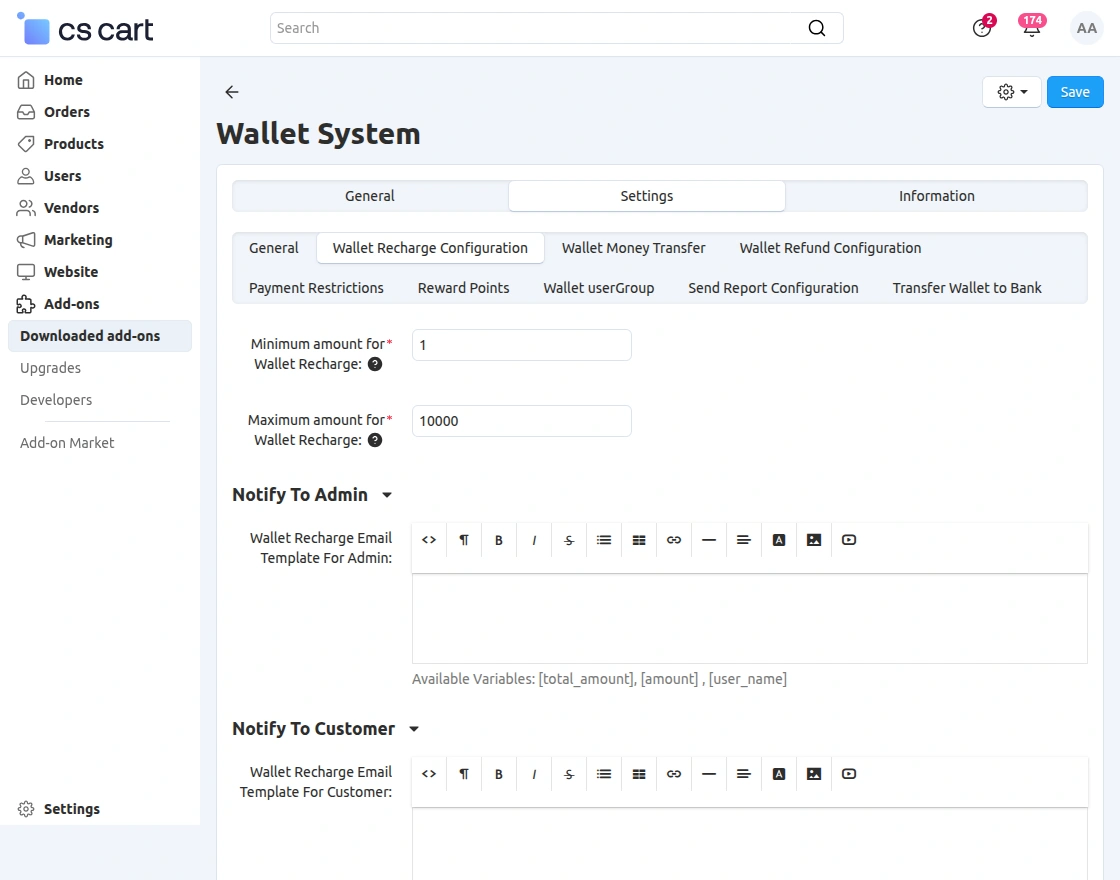
Wallet Recharge Configuration
Here, the admin needs to set the minimum and maximum recharge amount.
This ensures that customers meet the defined limits to avail the wallet facility while purchasing from the store.
Wallet Money Transfer
Here, the admin needs to select the cash transfer option and set the limit for the fund transfer.
When the customer will transfer the amount an OTP will send it to their mail and once they enter that amount will transfer to the wallet.
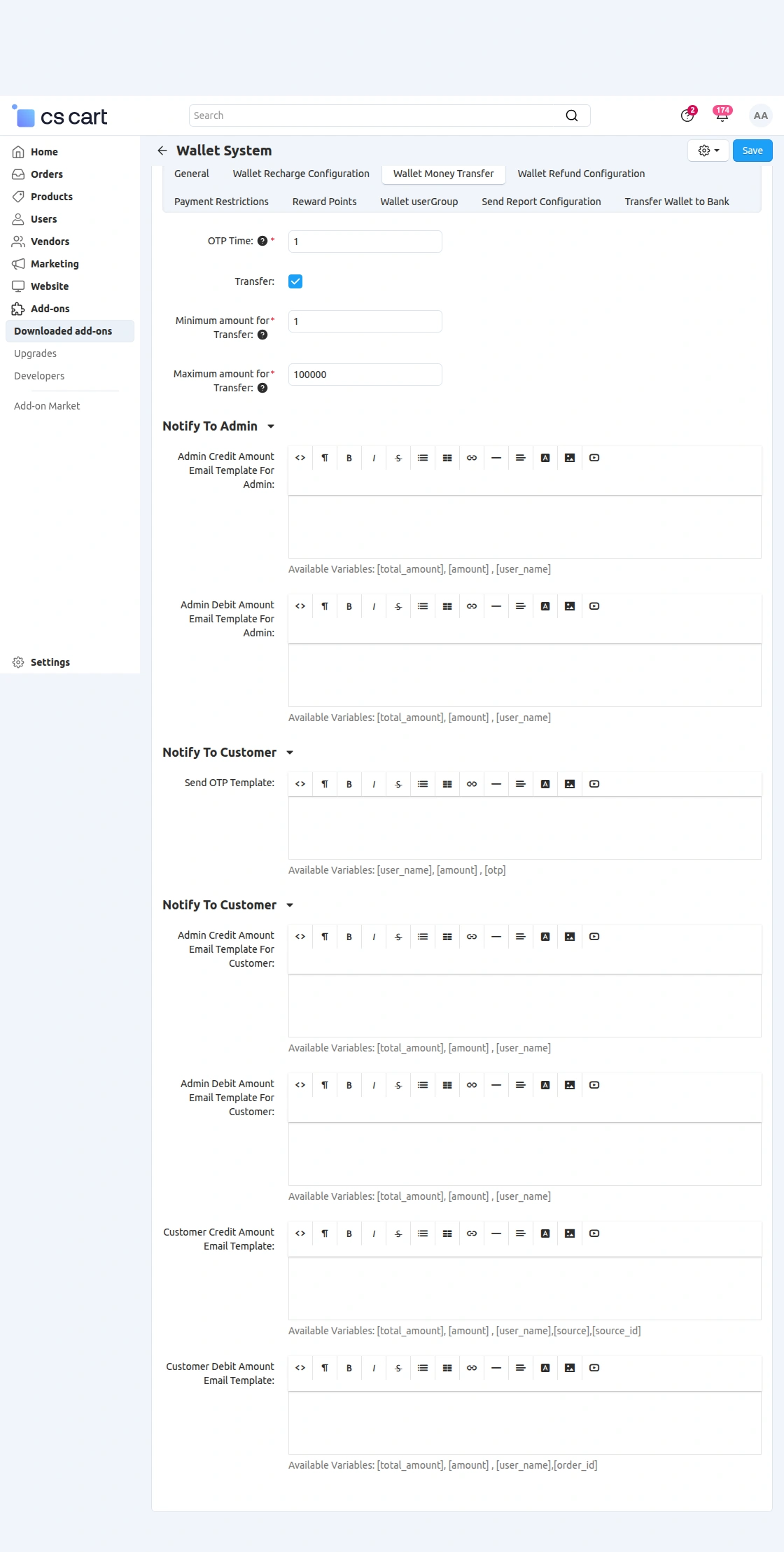

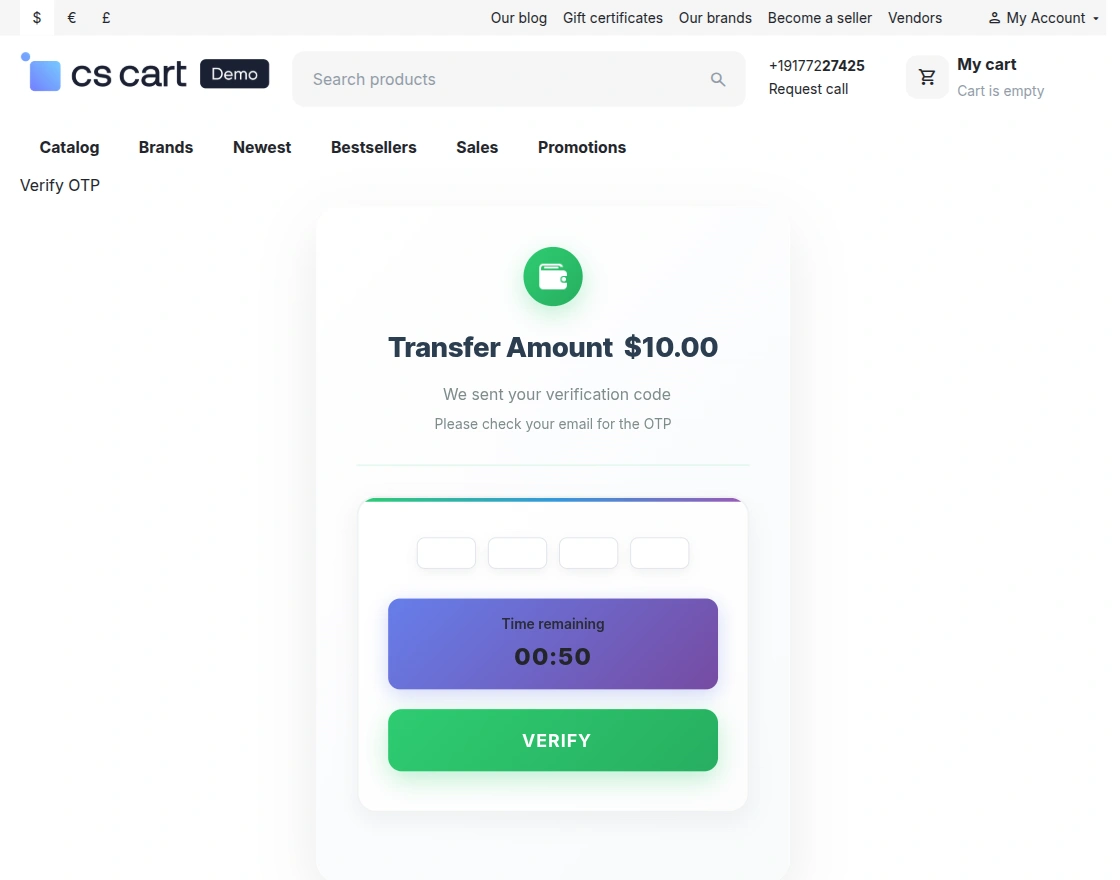
Note: Only four-digit OTP can be shared in the add-on that is valid for 5min only.
Customer end –
Once the user will receive the OTP they will enter it here and proceed with the transfer.
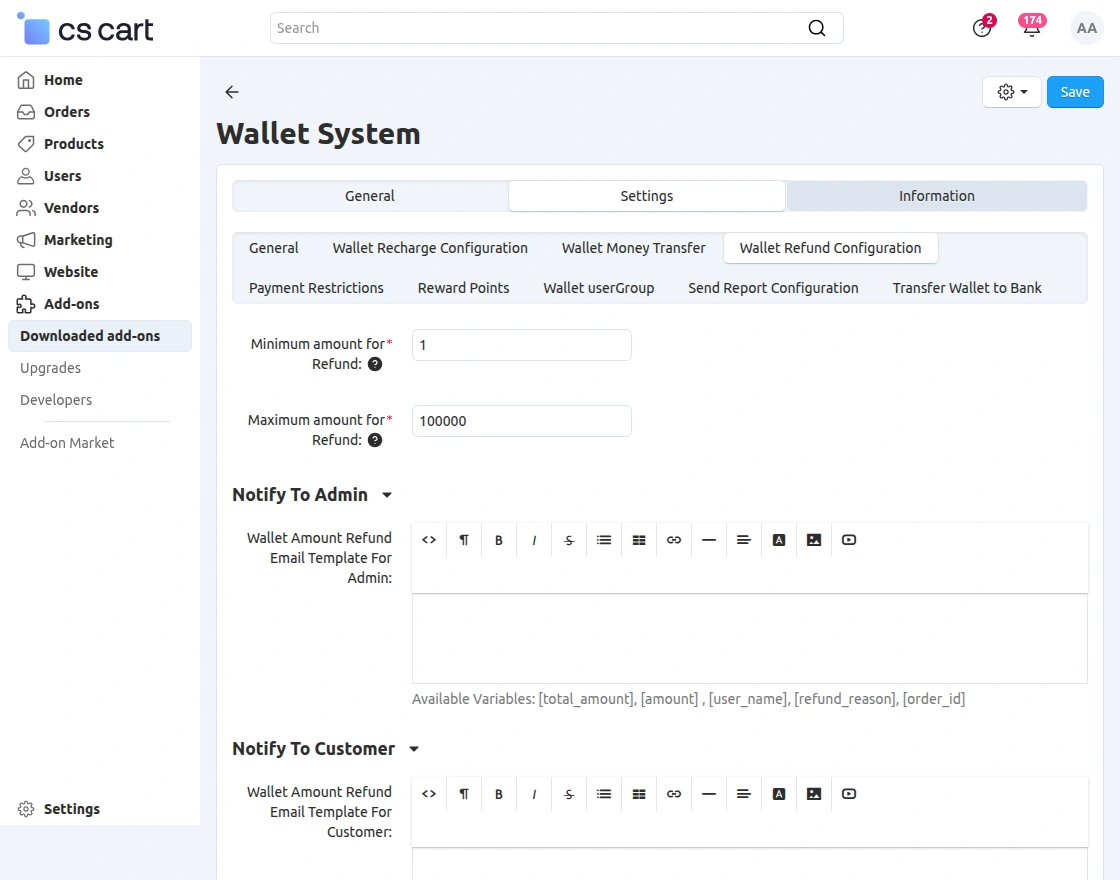
Wallet Refund Configuration
Here, the admin needs to define the minimum and maximum refund amount.
This refund limit will be applicable to all customers purchasing from the admin store.
Note: The shipping cost is not refundable.
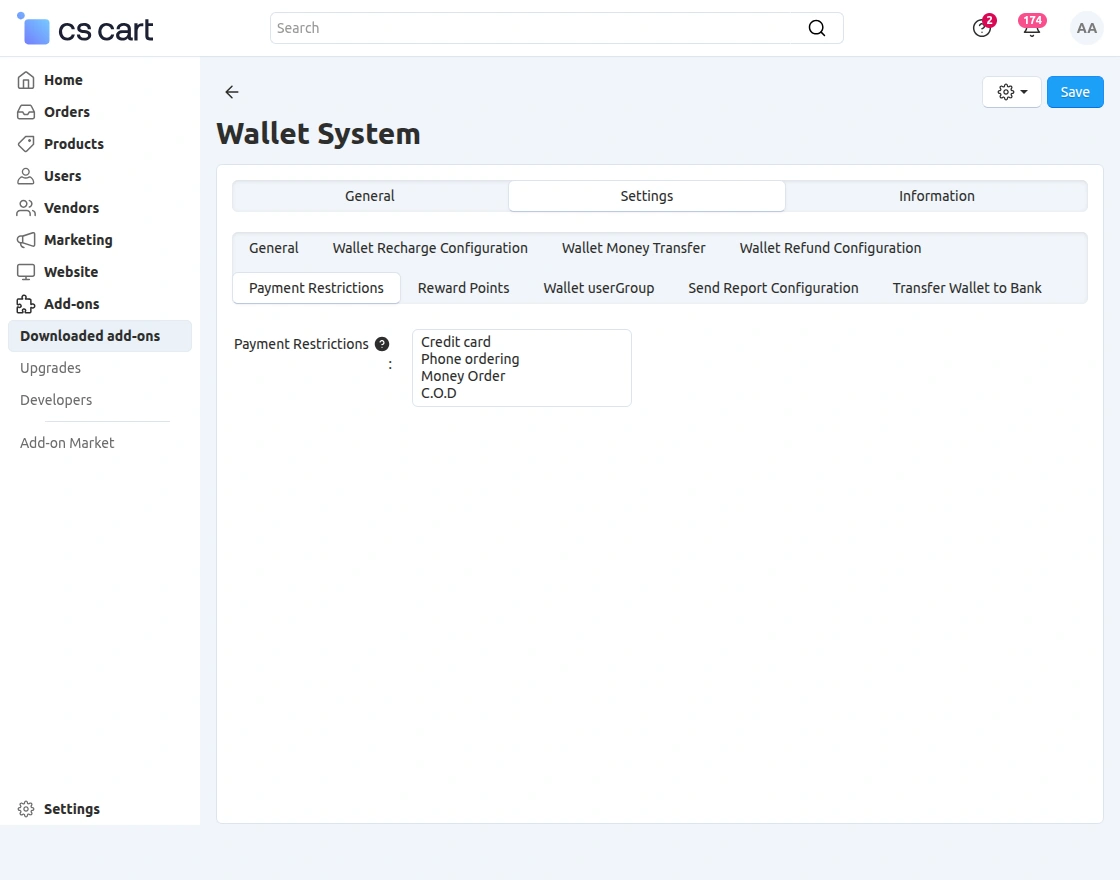
Payment Restrictions
Admin can restrict the payment type as PayU money, credit card, and phone ordering or available option.
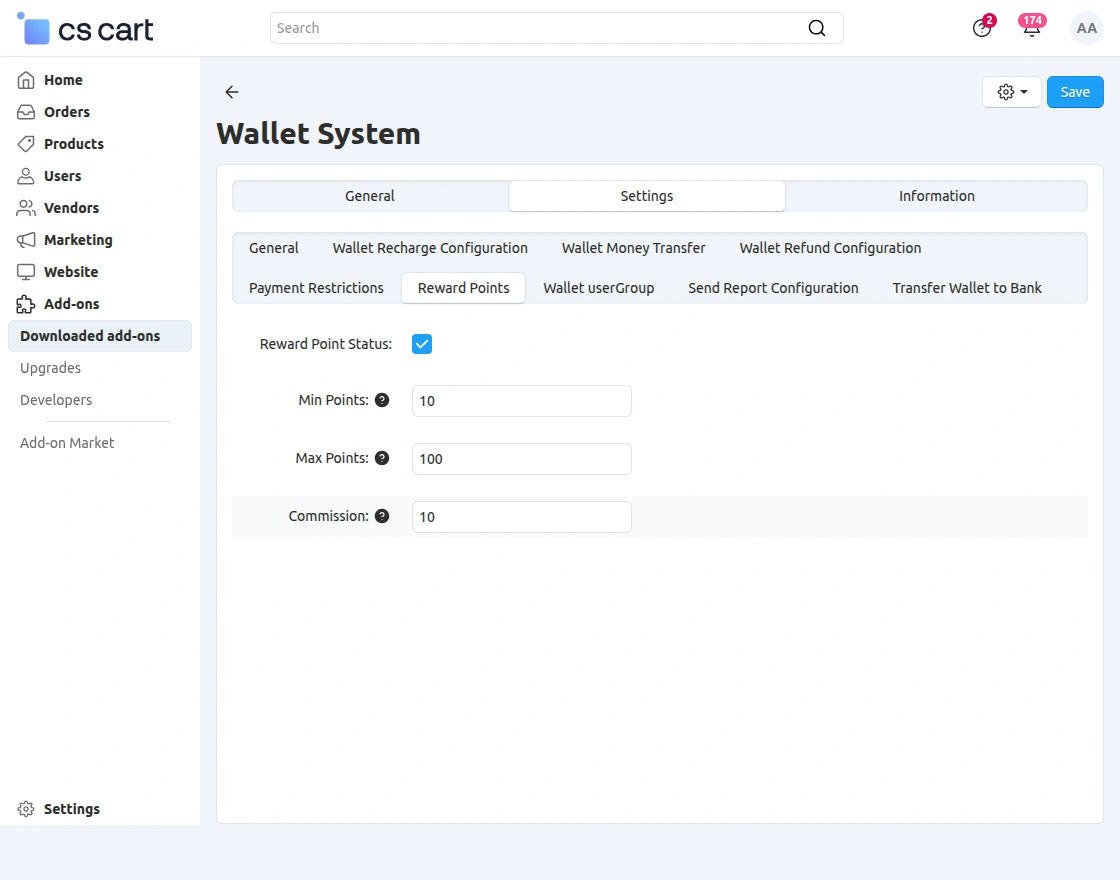
Reward Points
Here admin needs to set the minimum and maximum Points of reward to the customers and set the commission value.
This reward point will be applicable for any product or category selected by admin store.
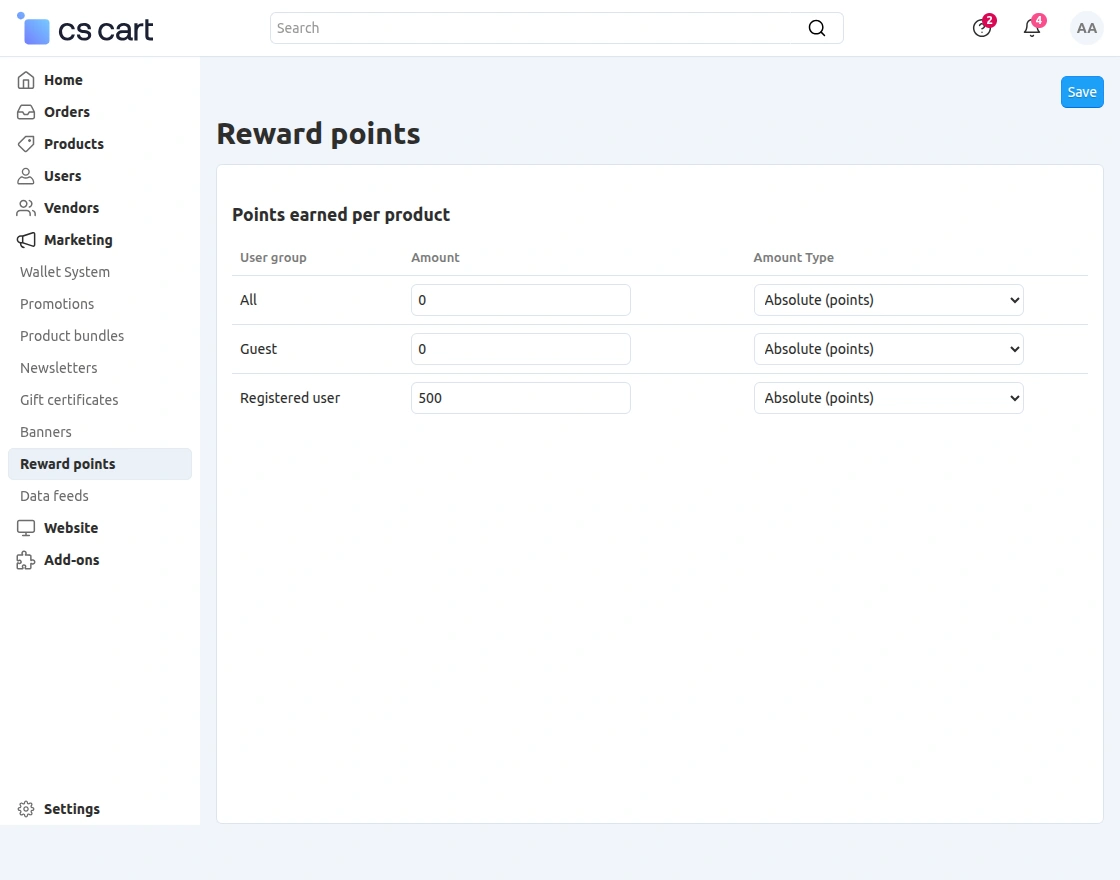
Reward Points Configuration from Backend-
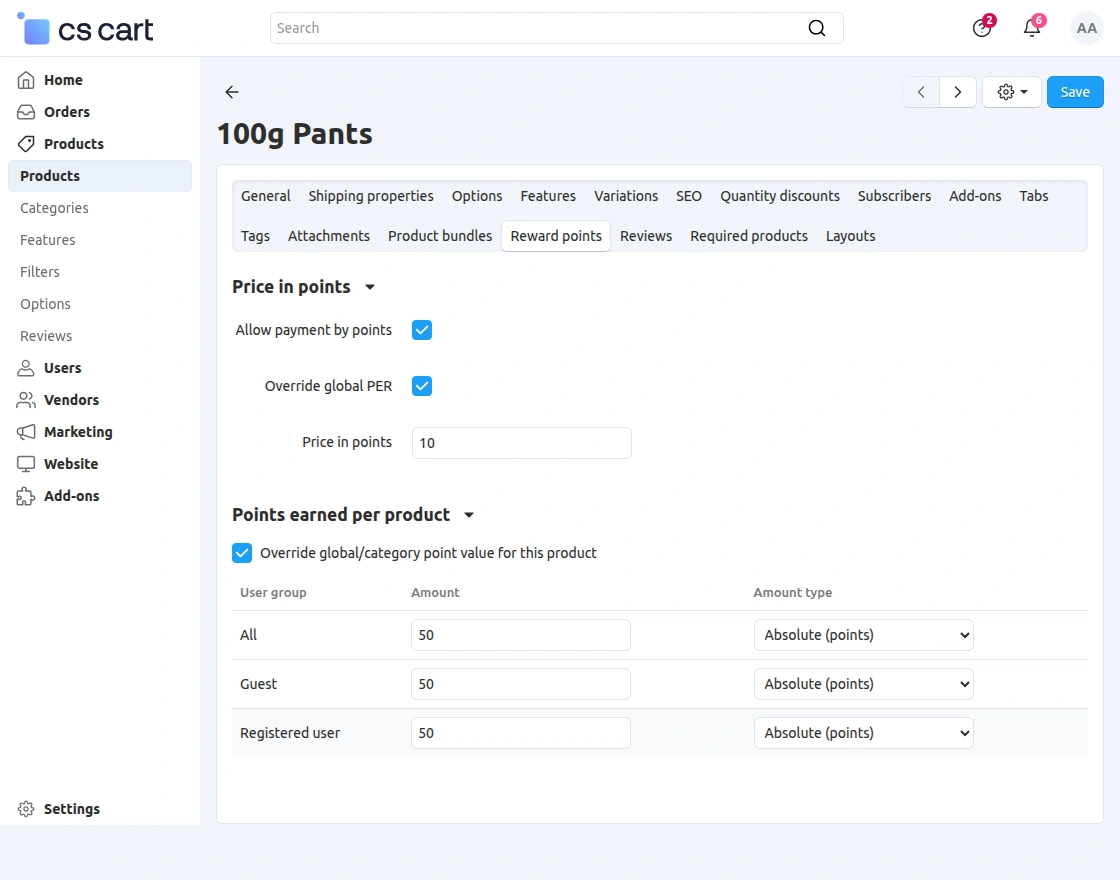
Admin can add reward point feature in Product page under in Add/edit category and product.
Here admin can enable to allow payment by point and then admin set earned reward point in per product or category for customer/users.
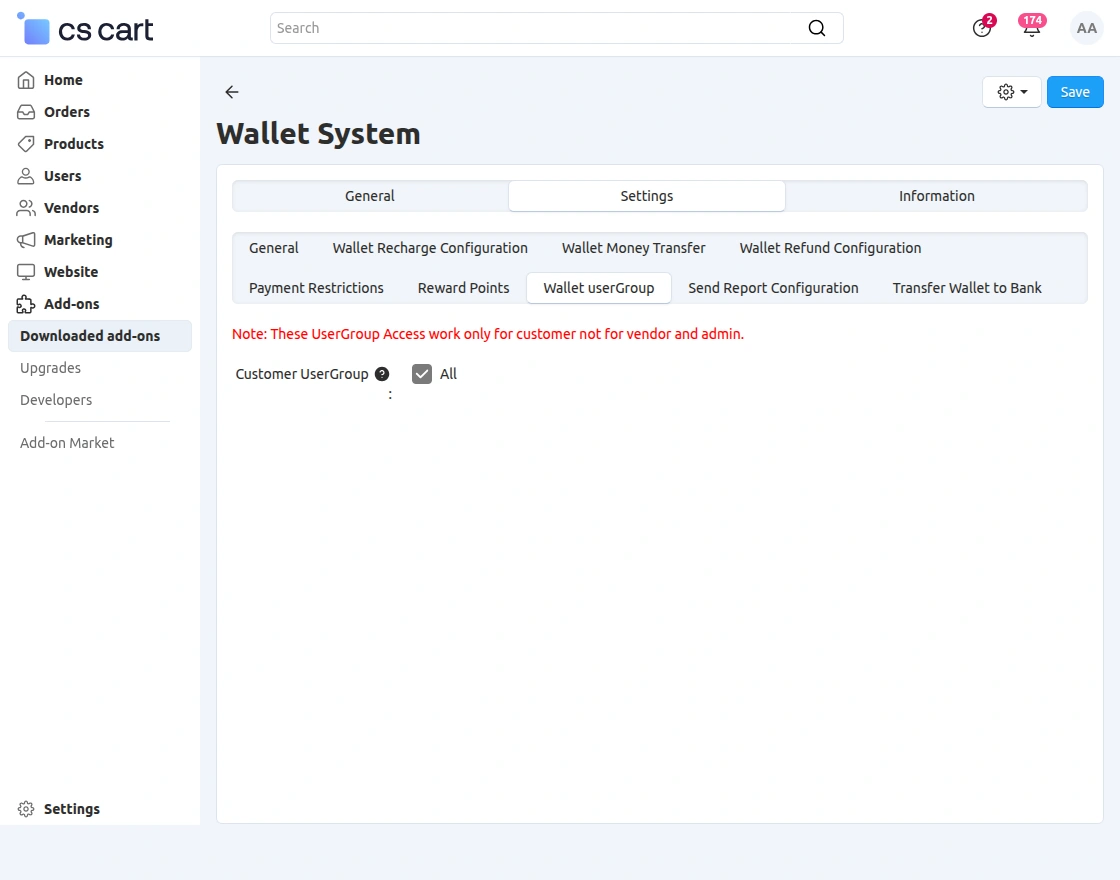
Wallet UserGroup.
The admin can enable the user groups for the customers to use the wallet system.
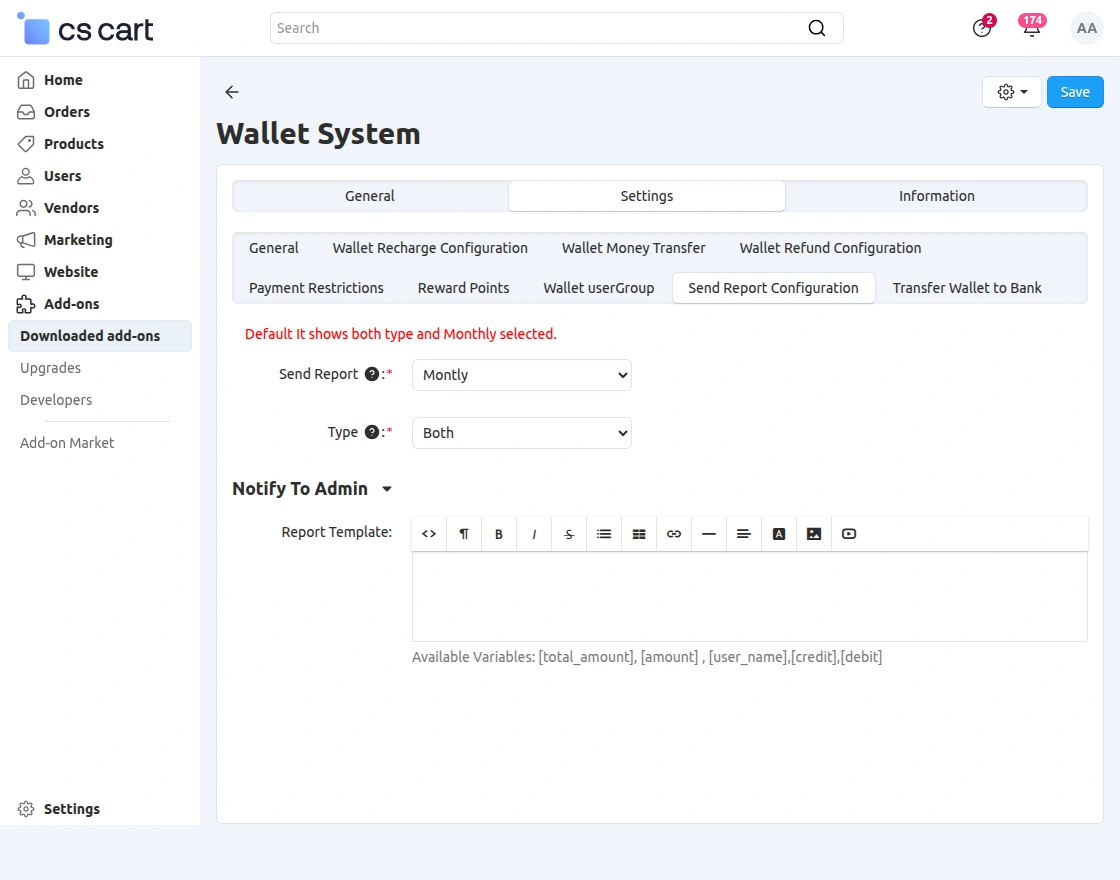
Send Report Configuration
The admin can set the report type as both, credit and debit separately along with the report period as monthly, quarterly, half-yearly, and yearly.
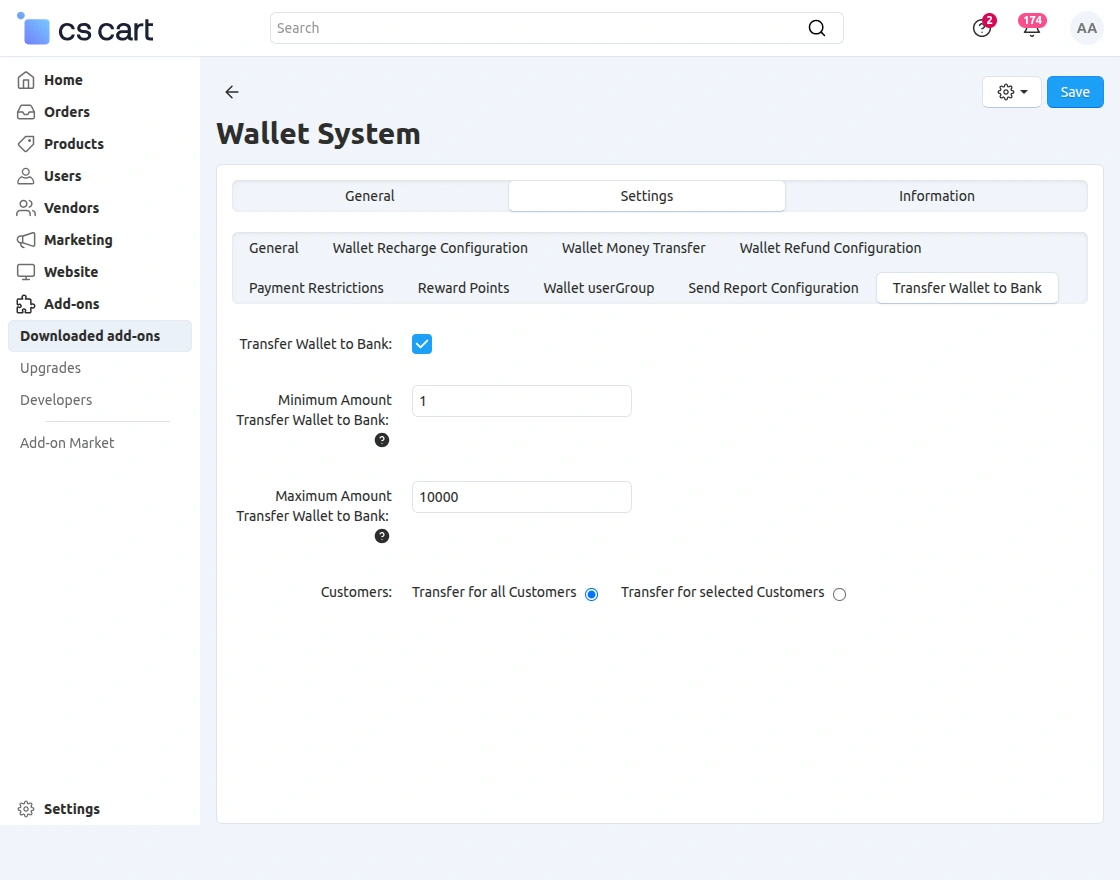
Transfer Wallet to Bank
The admin can enable wallet-to-bank transfers and set the minimum and maximum transferable amount.
Additionally, the admin can control which types of customers are allowed to use this feature.
Maintaining the Wallet System from the Backend
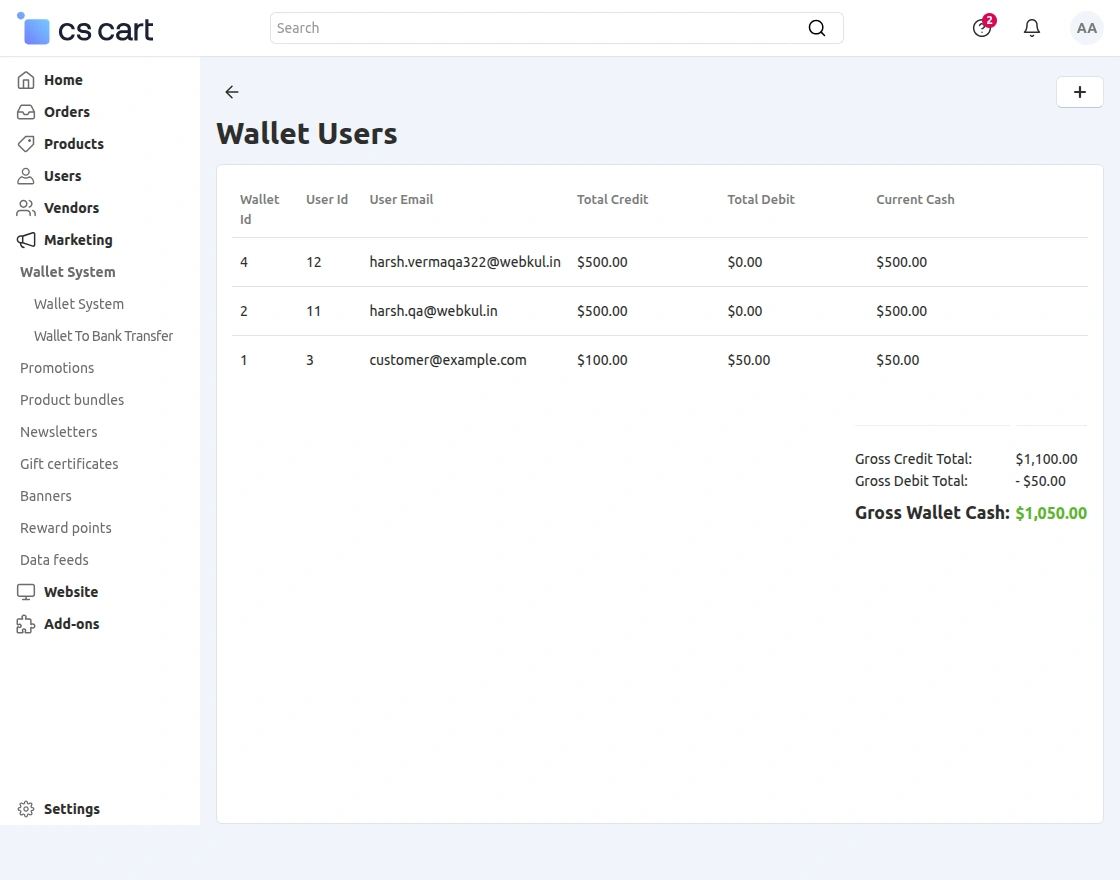
Admin can also view the transaction details of individual users, on the basis of credit type and period
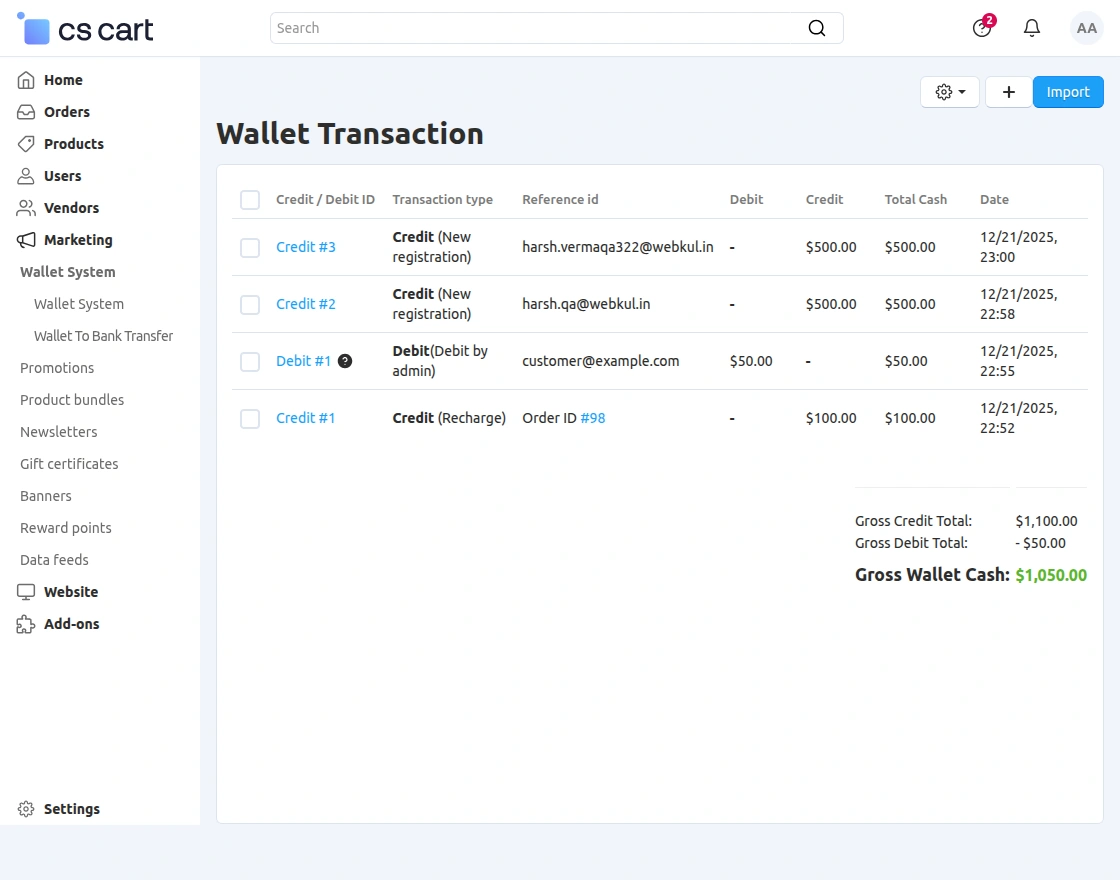
List of Wallet users as shown in the snapshot below-
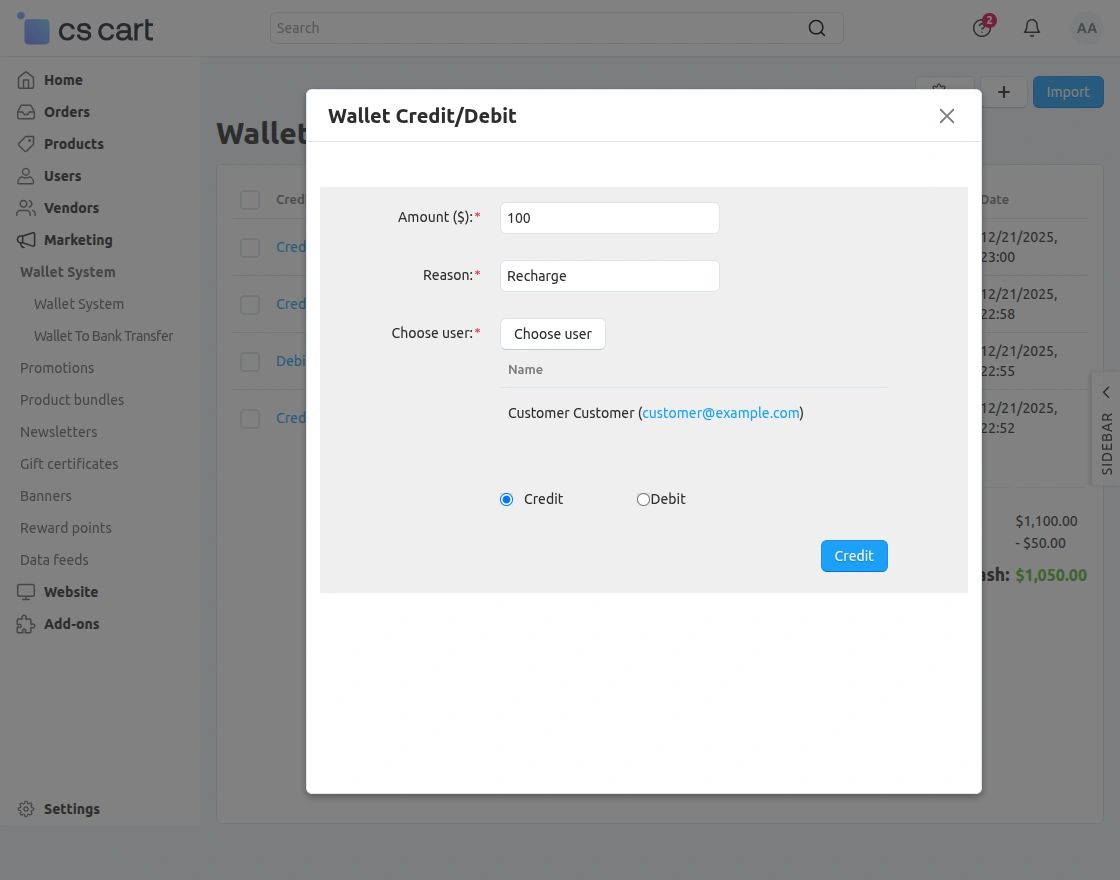
Enter the amount to be Credit/Debited and select the customers of the site. Select the option of transaction and click on “credit” to proceed.
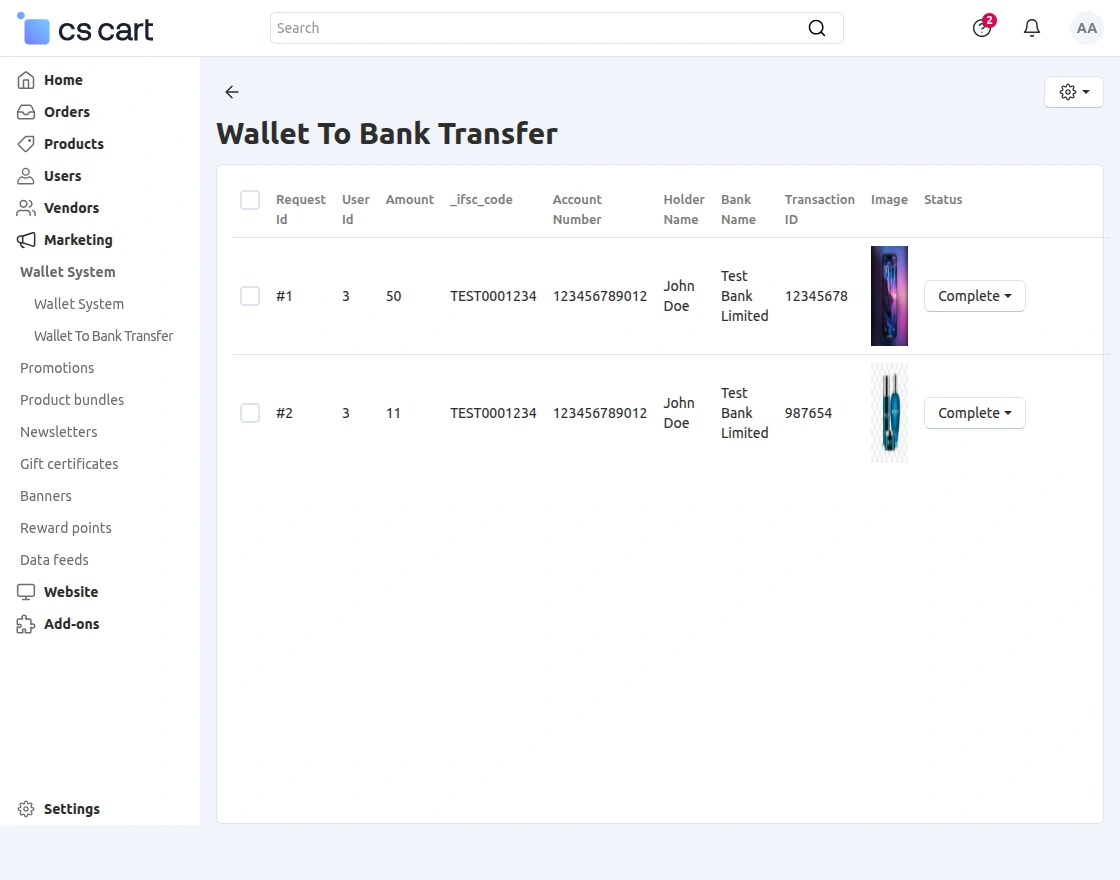
Under the “Wallet System,” there is an option for “Wallet to Bank Transfer”.
Here the admin can view bank details added for wallet-to-bank transfers, including Request ID, User ID, amount, IFSC code, account number, bank holder name, and bank name.
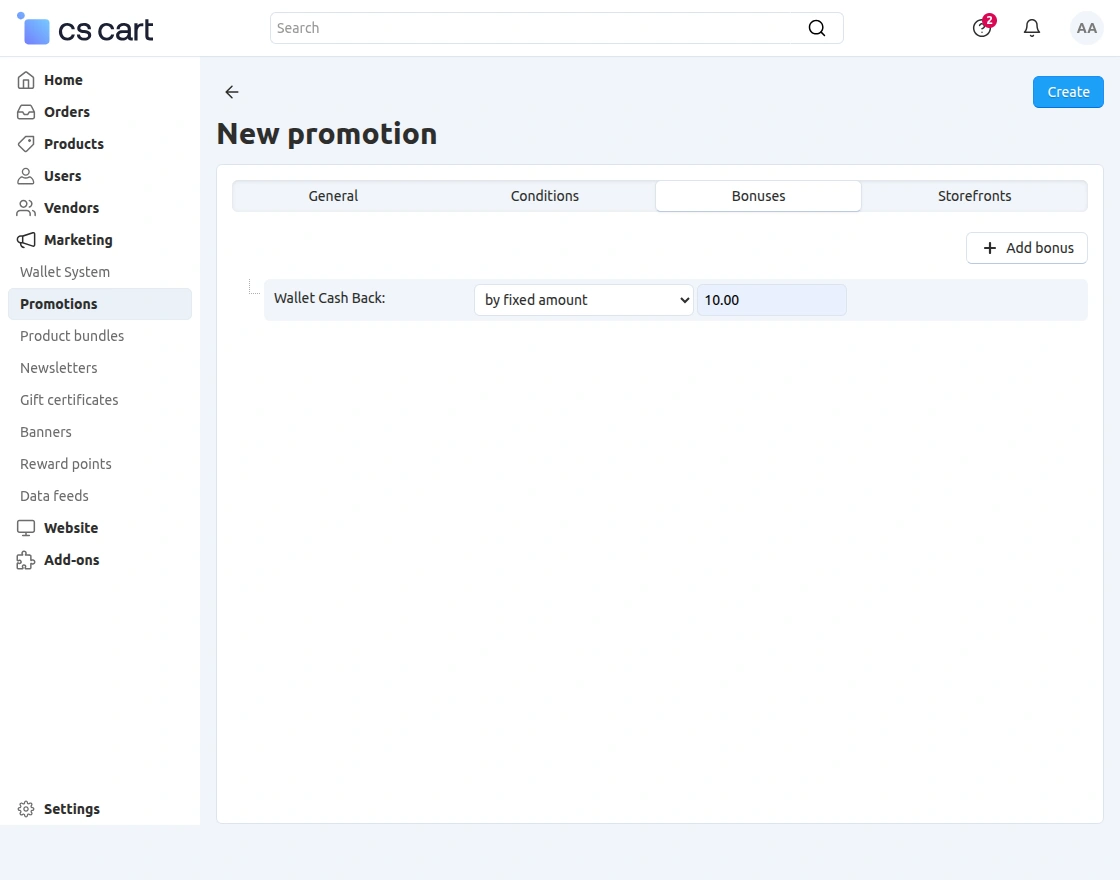
For promotions, go to Marketing → Promotions and add a new promotion.
In the Bonus tab, create a bonus, select Wallet Cash Back, then set the bonus as a percentage or a fixed amount and enter the value as shown below.
Adding Wallet option from Backend-
To add the Wallet option on the front end, the admin needs to add the Wallet block in the checkout page layout settings.
Once added, the Wallet option will be available on the checkout page, as shown in the snapshots below.
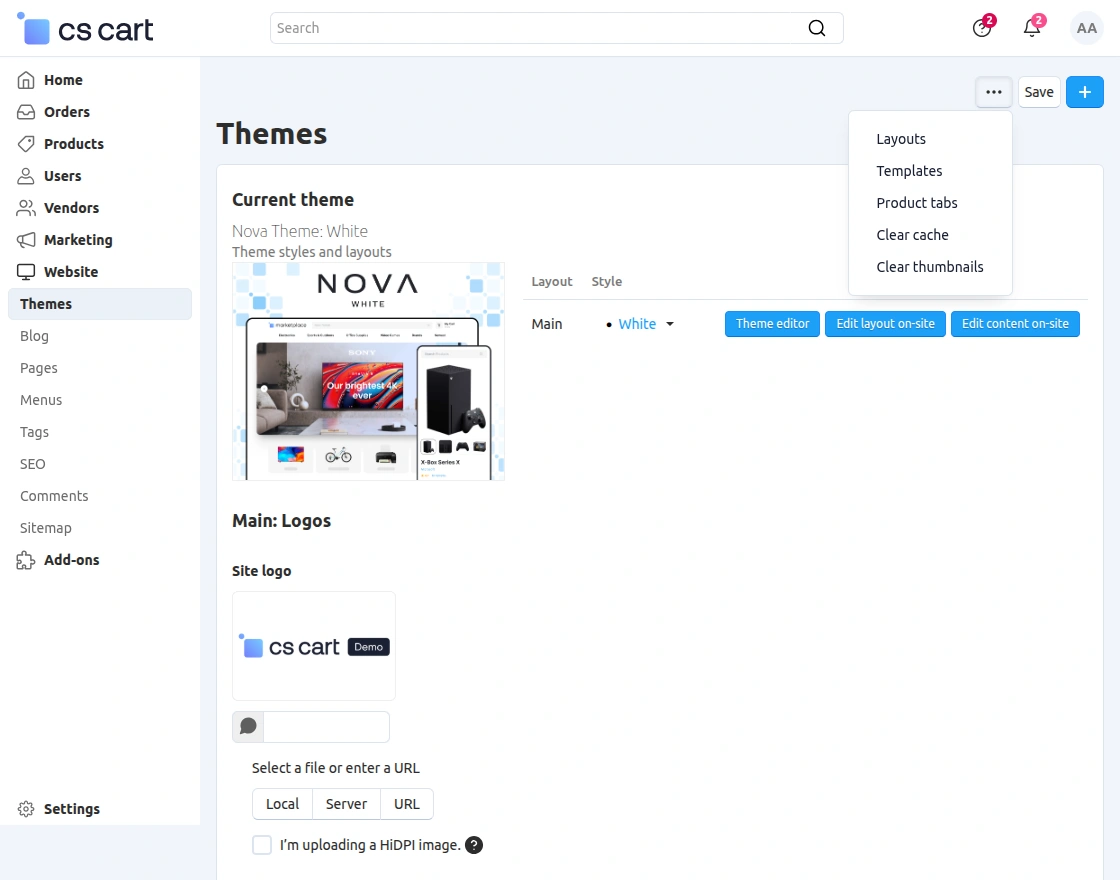
Now from the Header section you need to add a block as shown in the below snapshots –
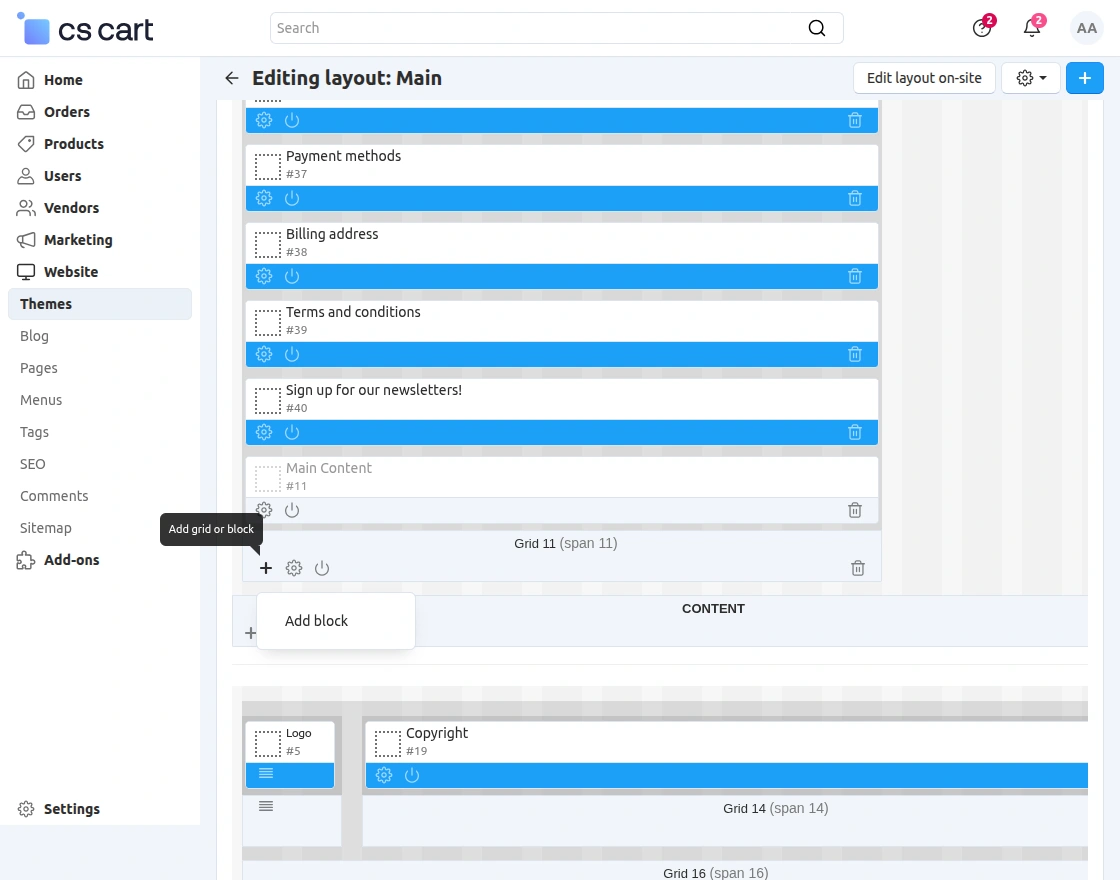
After Clicking on Add Blockoption you need to click on Create New Block option –
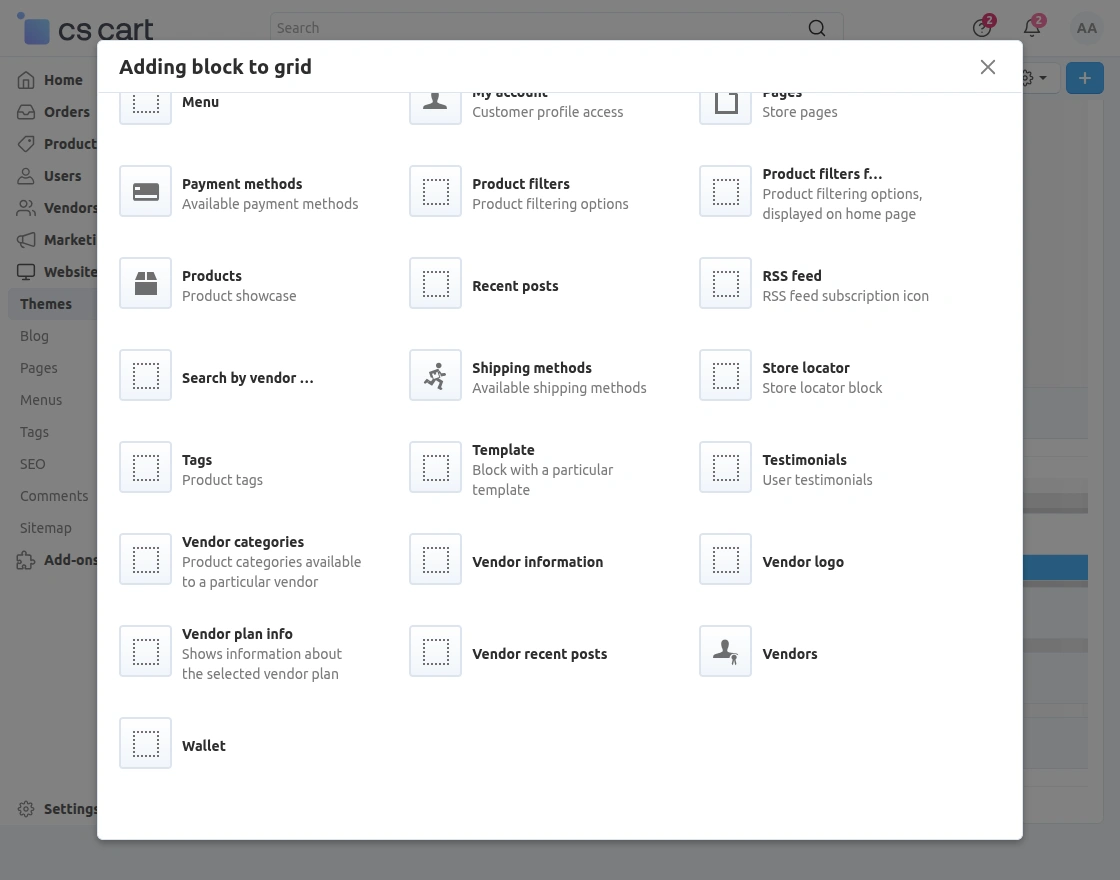
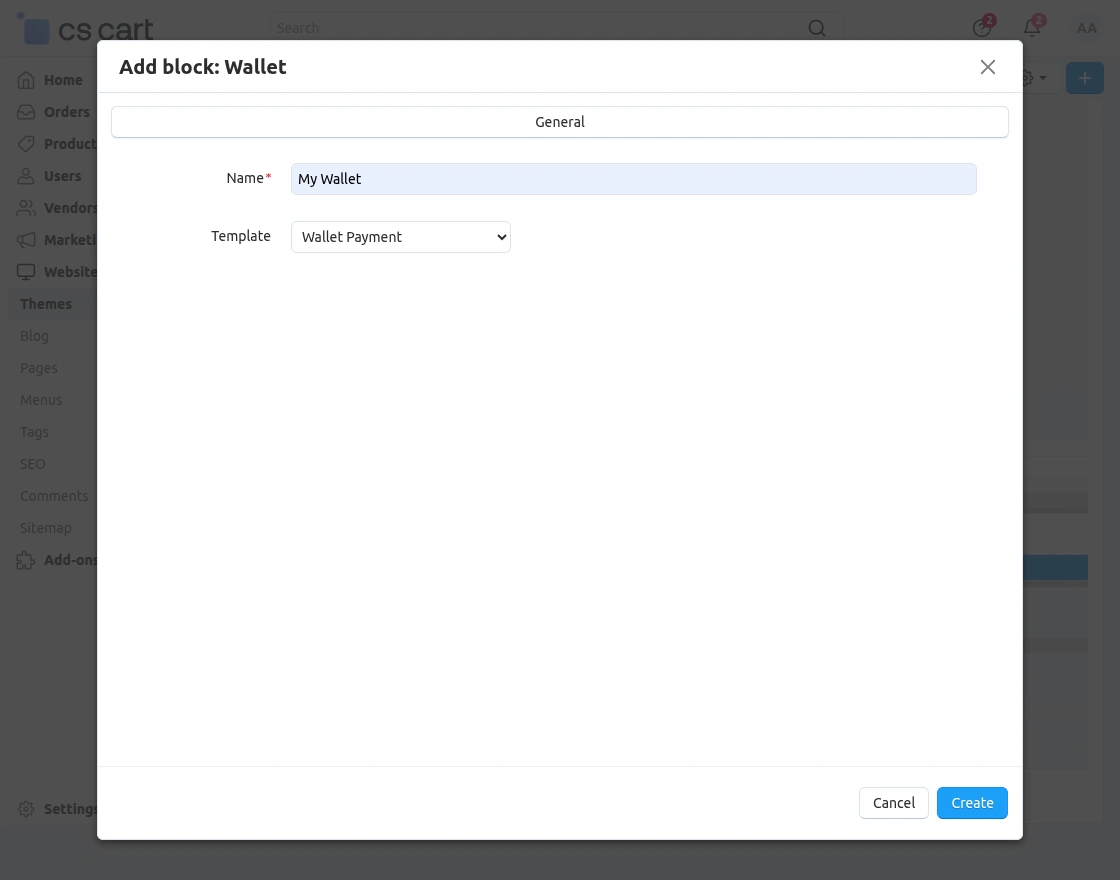
Front-End View
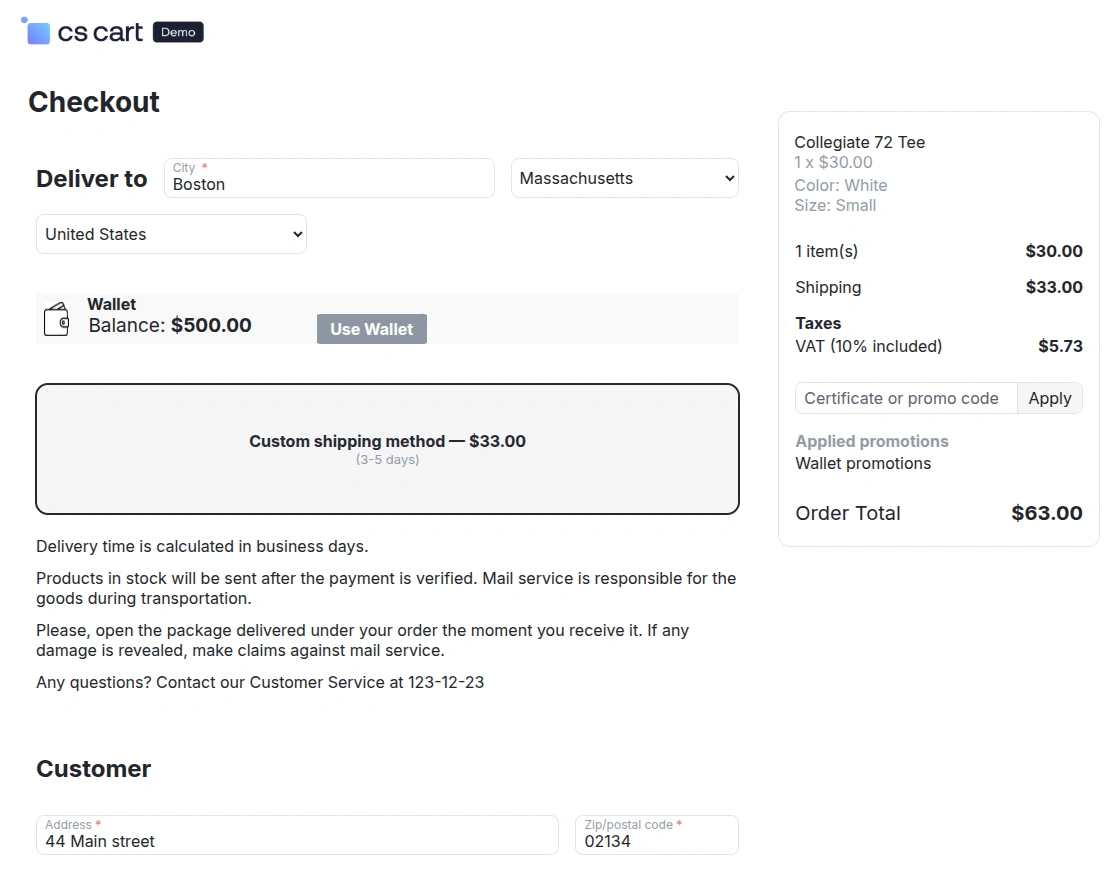
After creating the Wallet block, it will appear on the checkout page as shown.
Customers can use their wallet balance by clicking the Use Wallet option.
Adding Wallet Cash
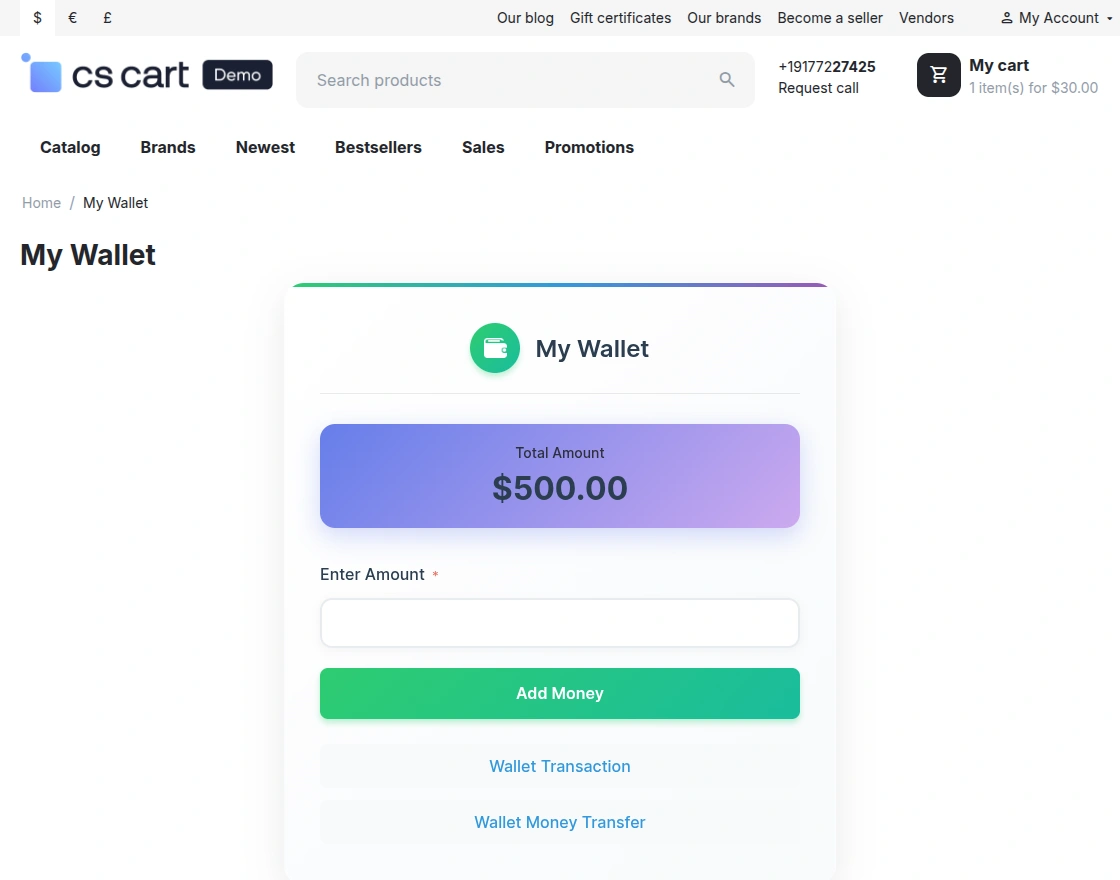
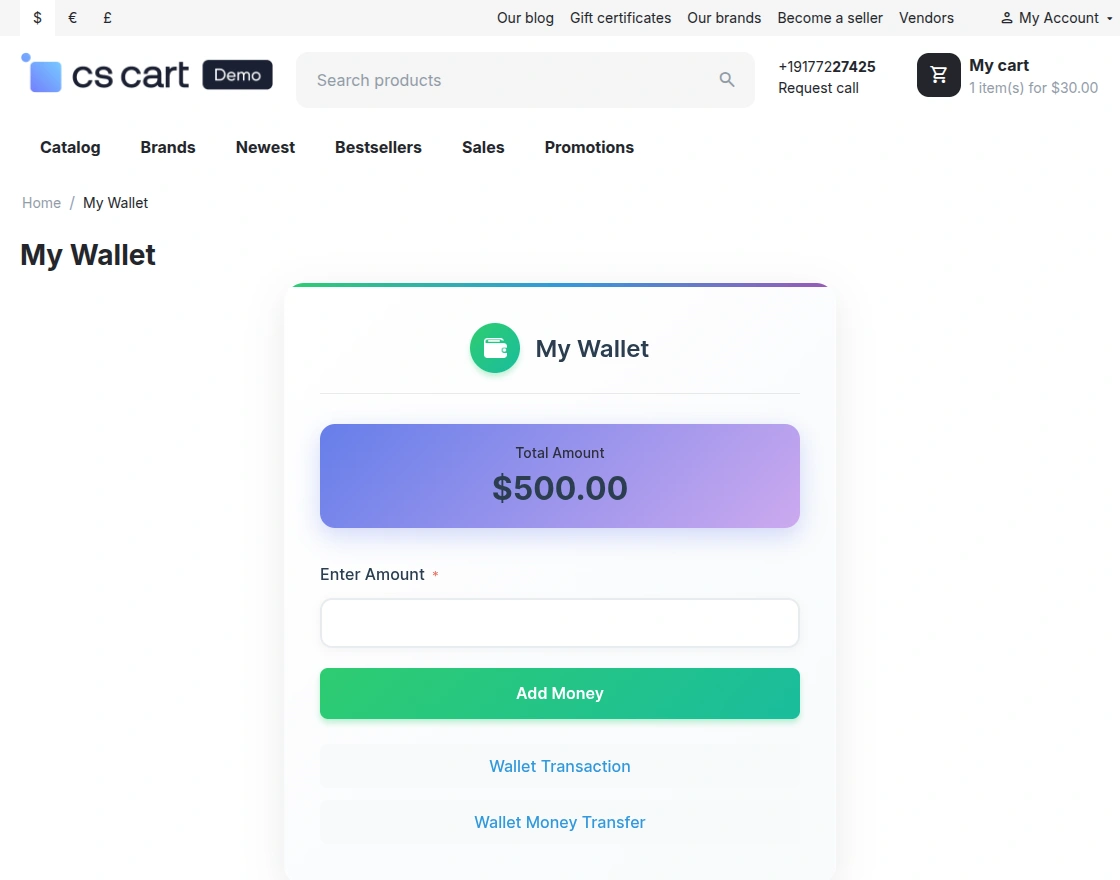
To add the amount to the wallet customers need to log in from their individual accounts. Then click on my wallet as shown below.
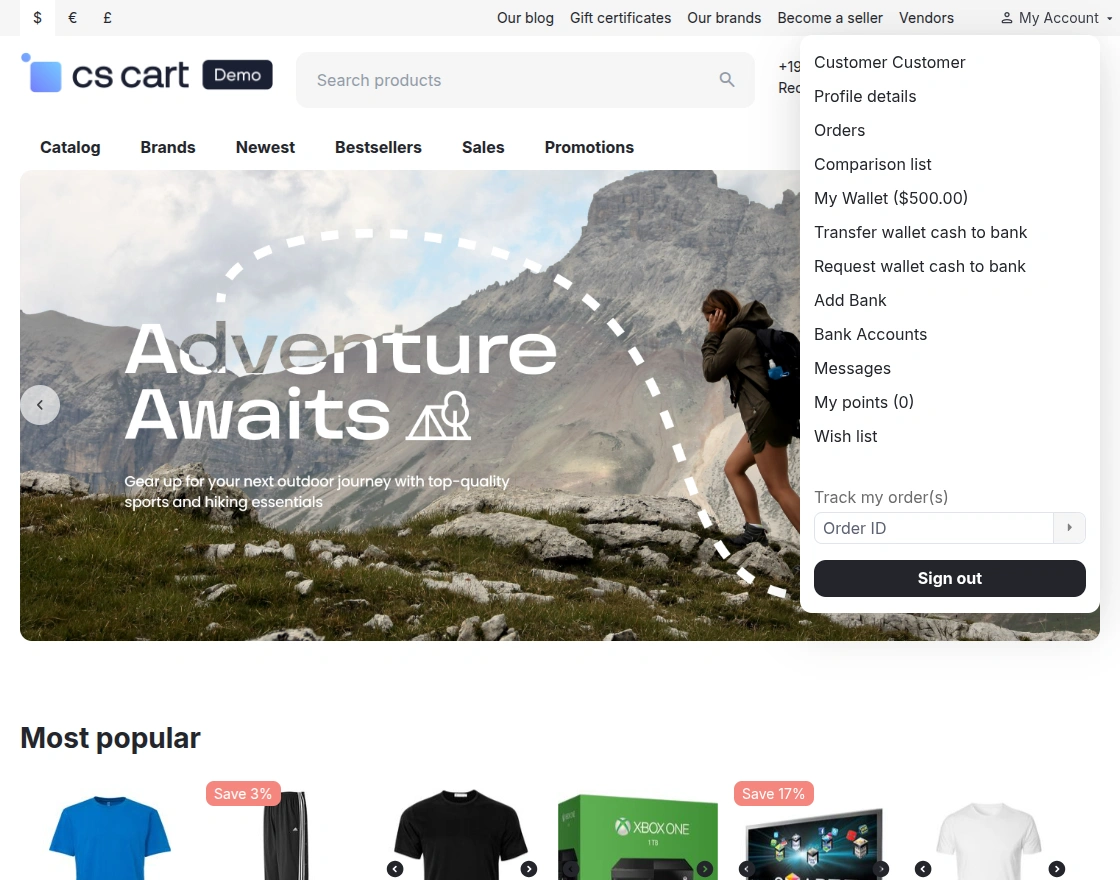
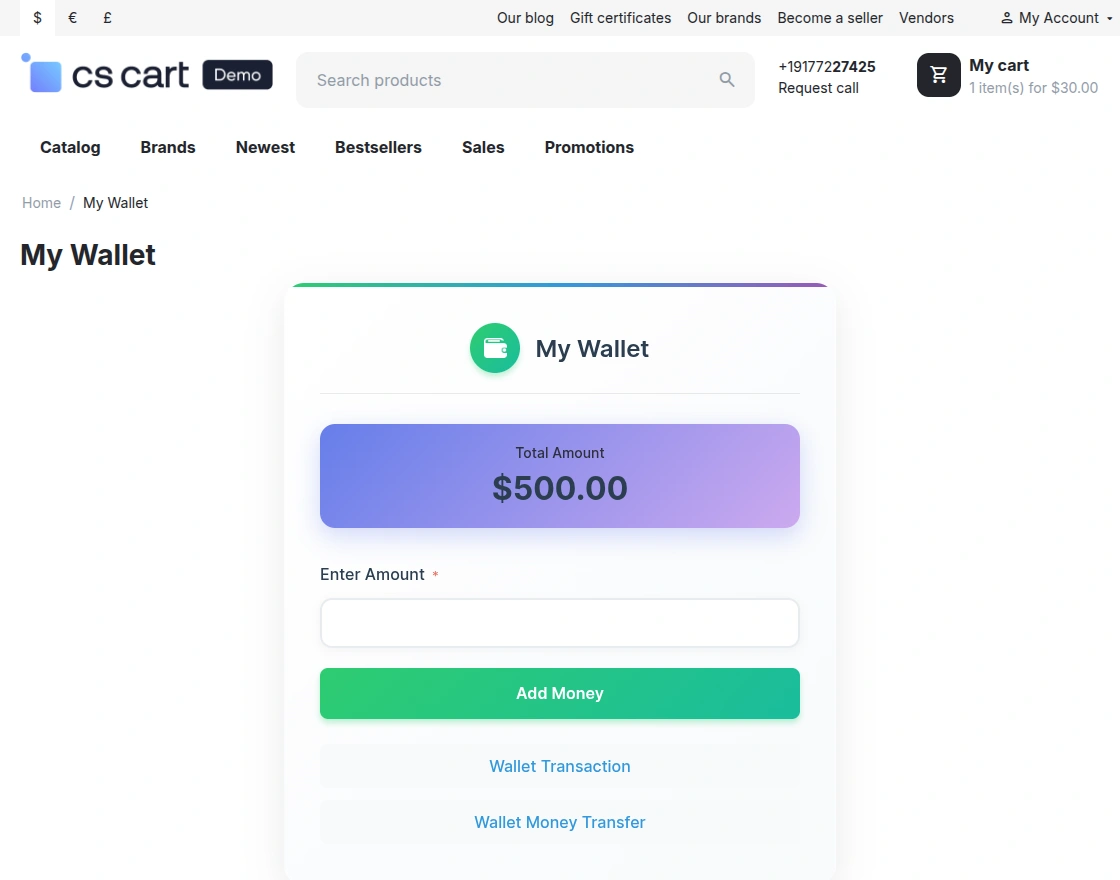
Here, the customer needs to enter the amount they want to recharge.
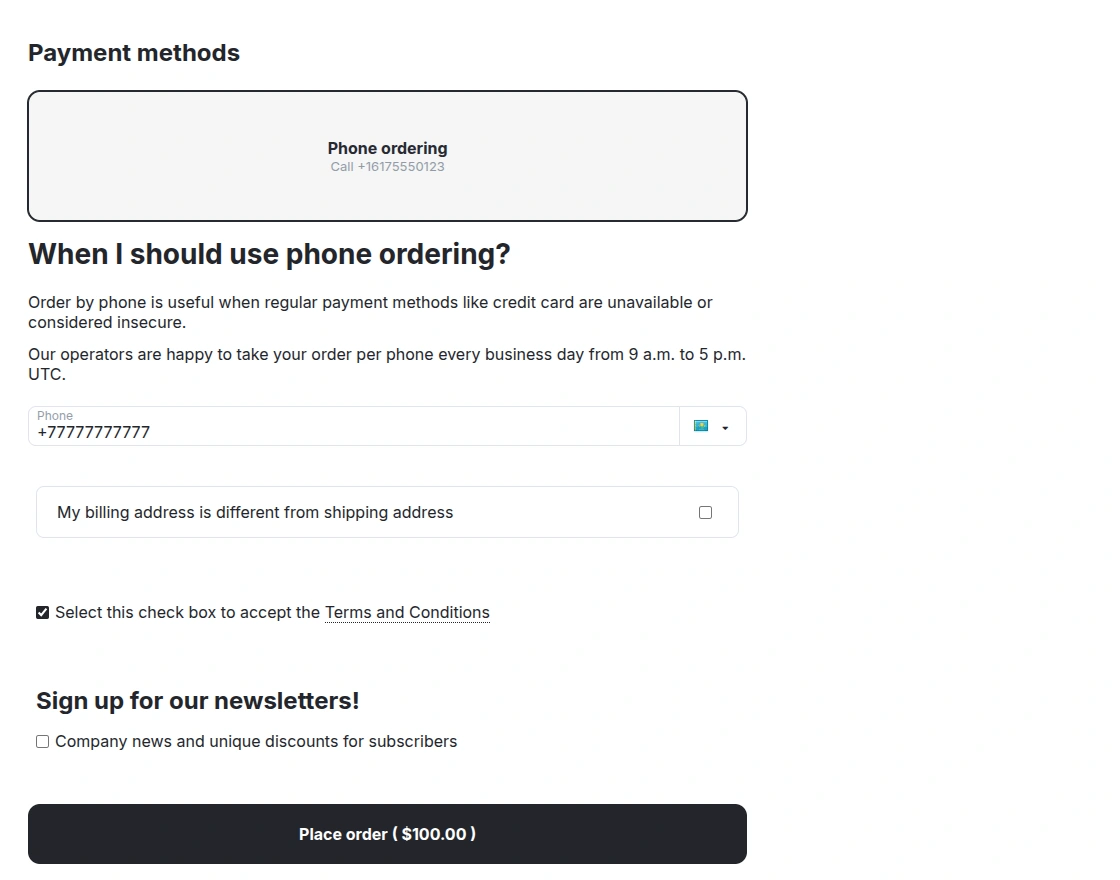
Simply enter the amount and click Add Money. For better understanding, please refer to the snapshot.
View of Cart.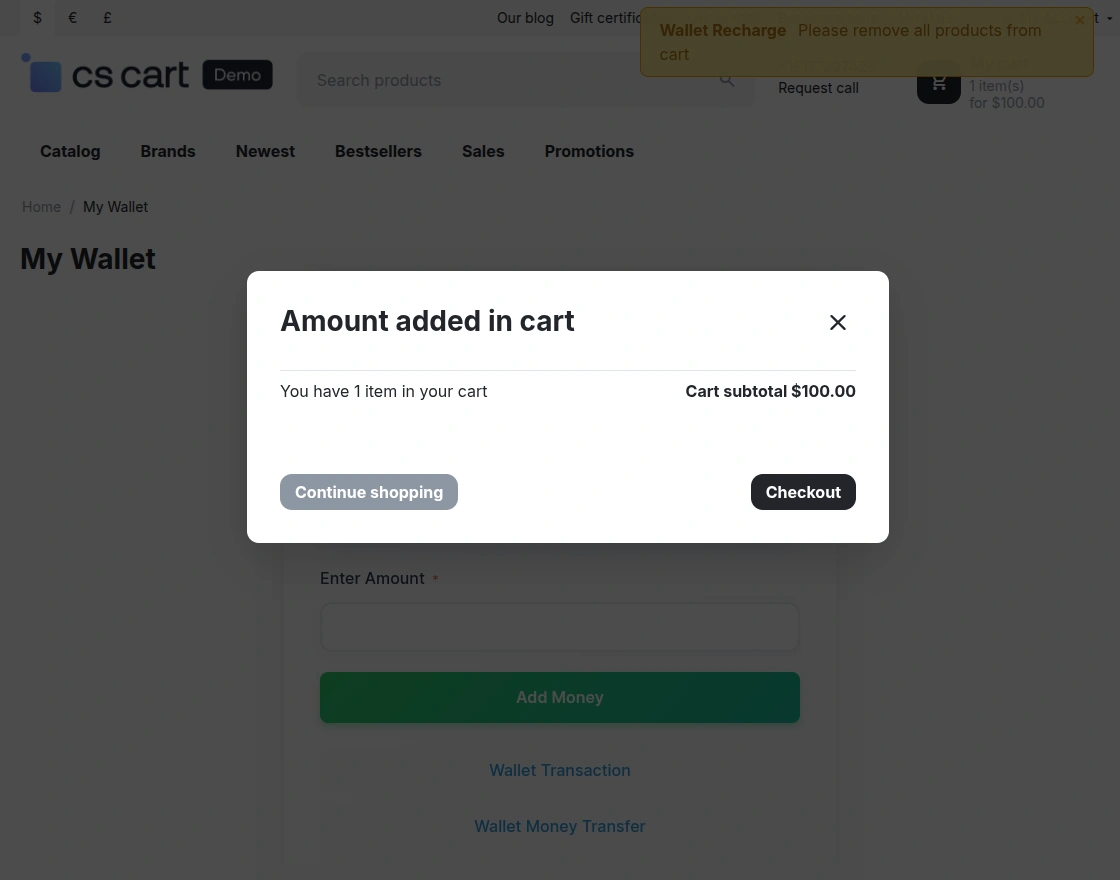
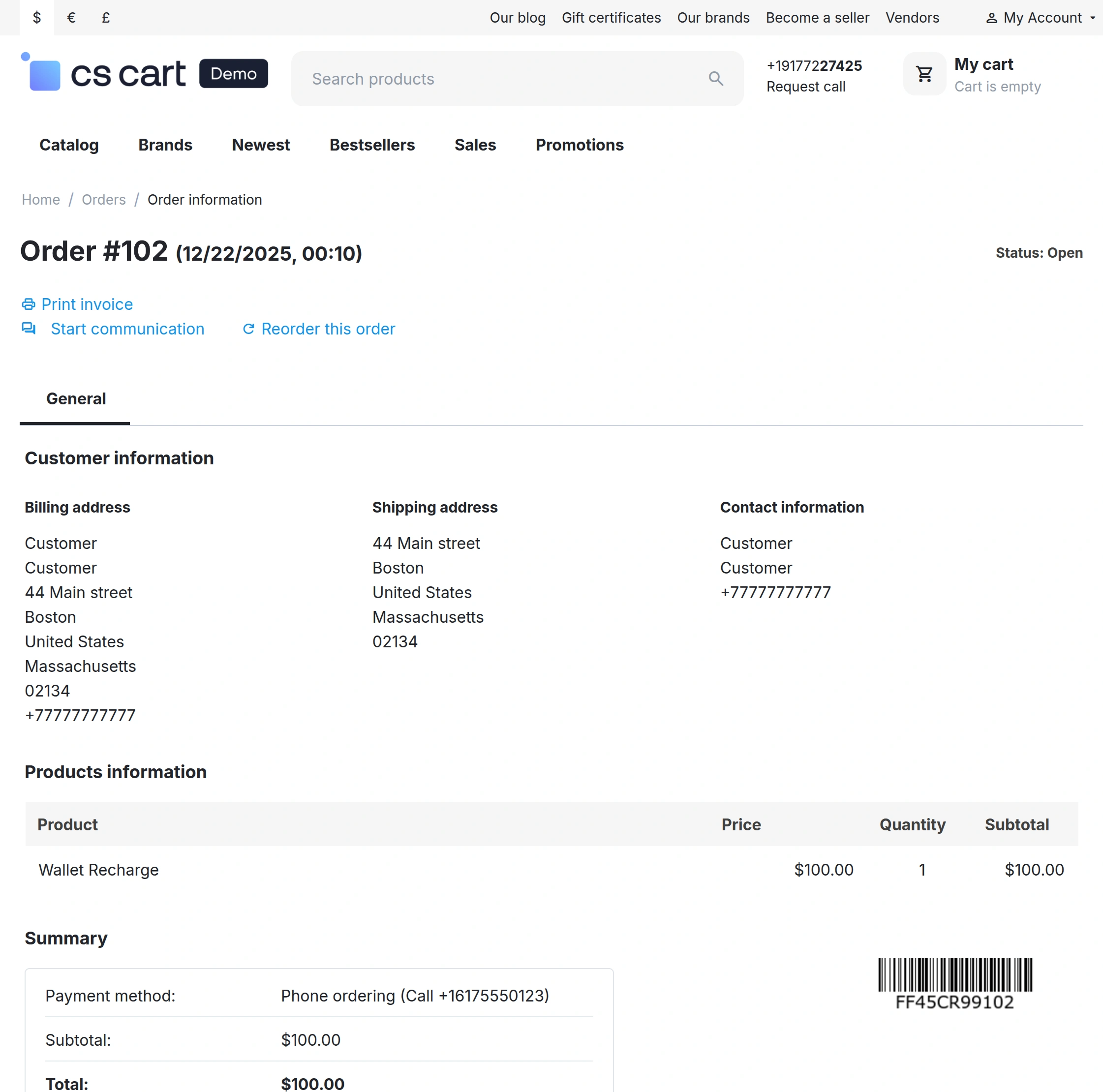
Click “Order Details” to view the details of Wallet Recharge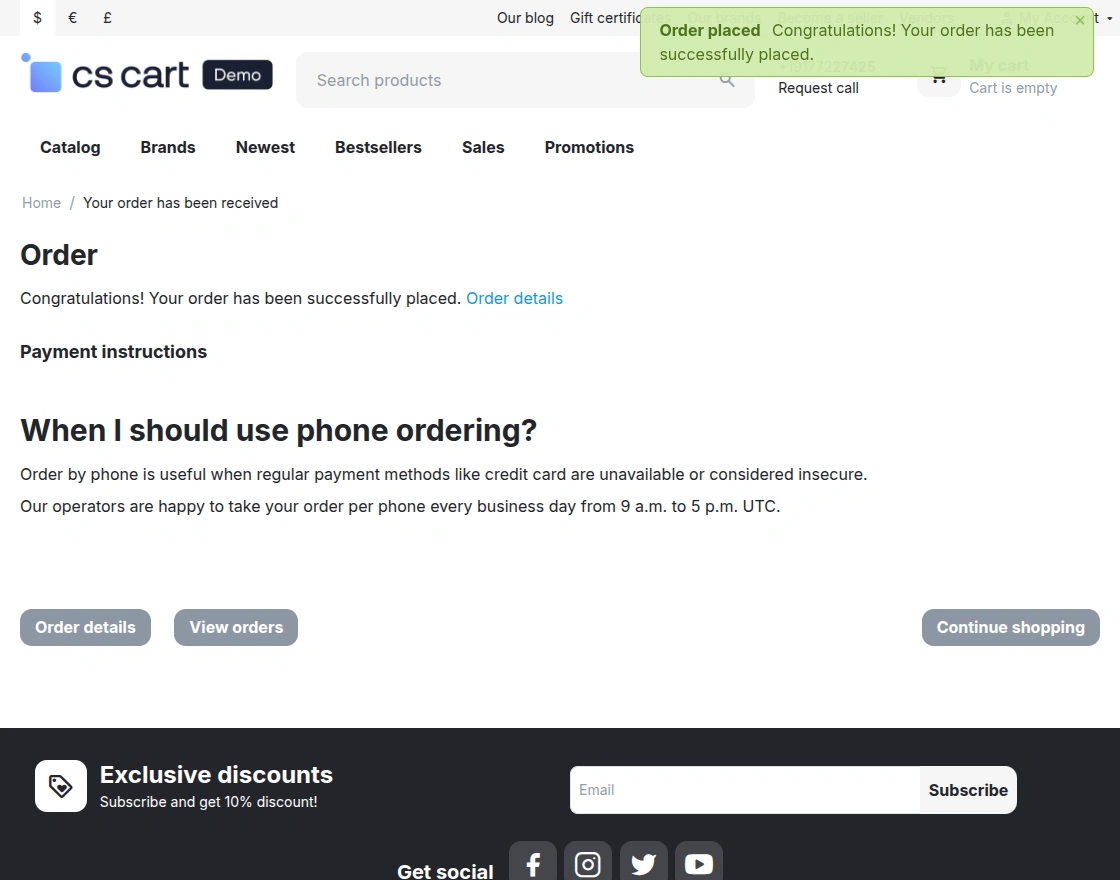

View Of Wallet Transaction
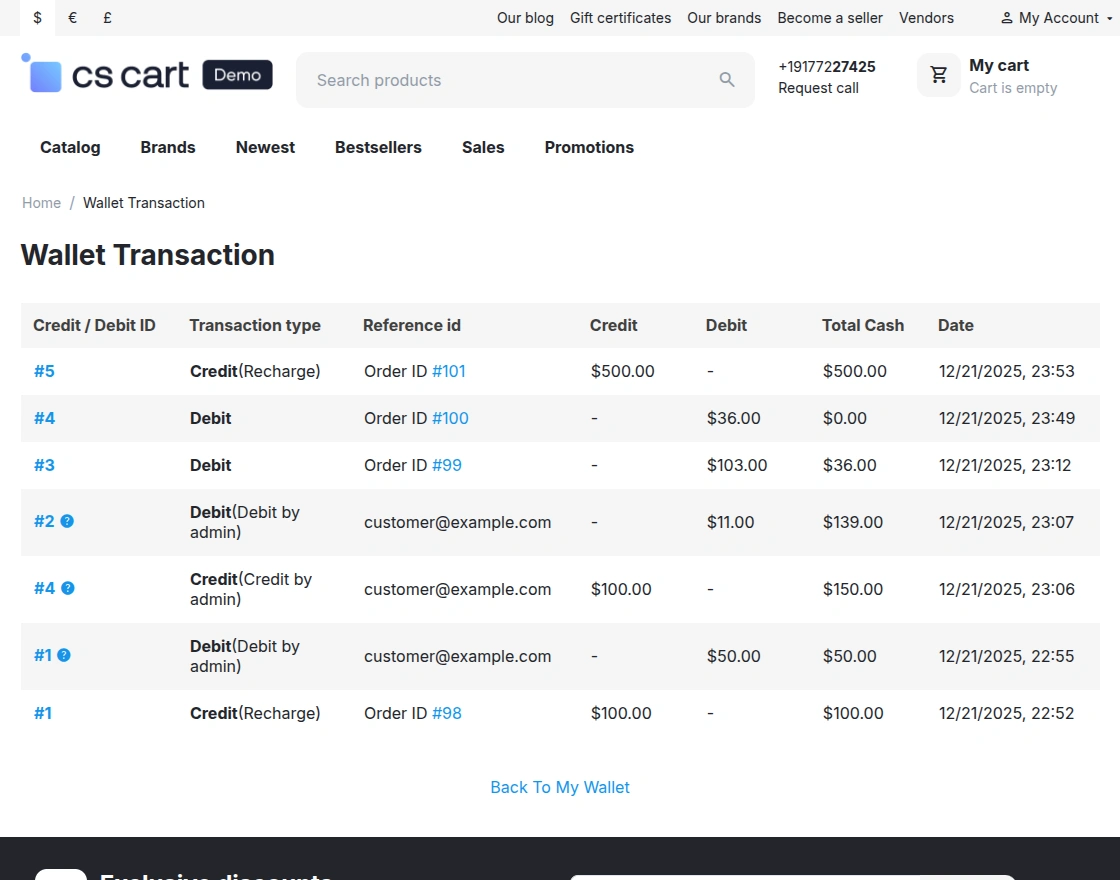
Click on “Wallet Transaction” to view the list of transactions done by the wallet.
Here you can check the “Wallet Transaction”-
Using Wallet To Transfer Amount
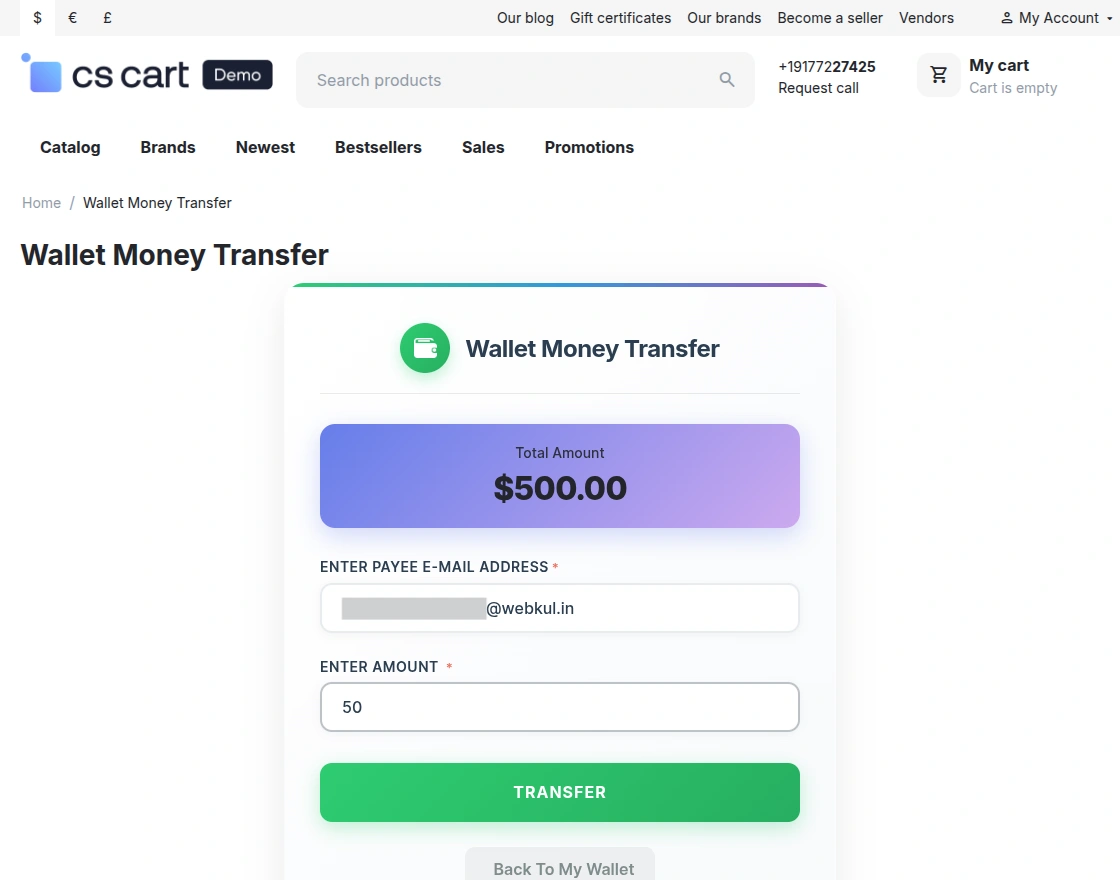
Click on “Wallet Money Transfer” to transfer the amount to the registered user’s wallet account
Type down the email id of the registered user and the amount to be transferred
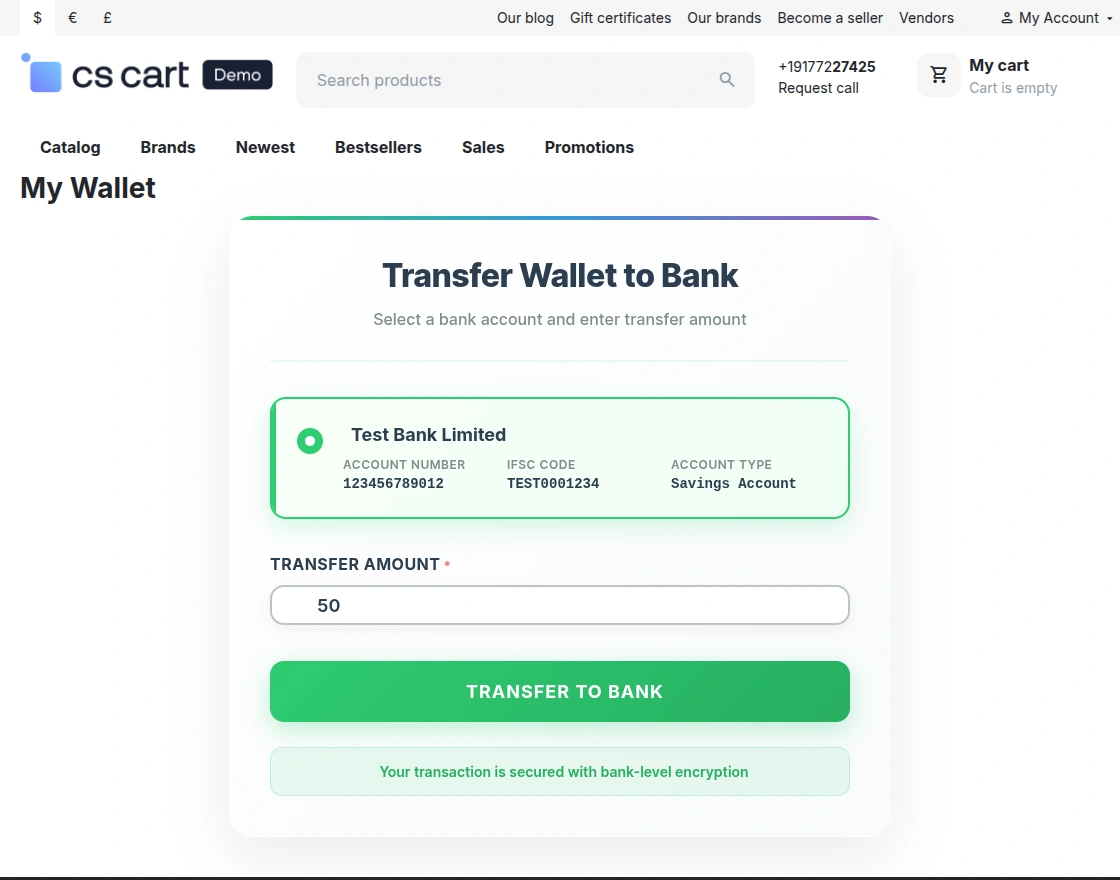
Frontend View of Transfer wallet cast to the bank
The customer can transfer wallet cash to the bank-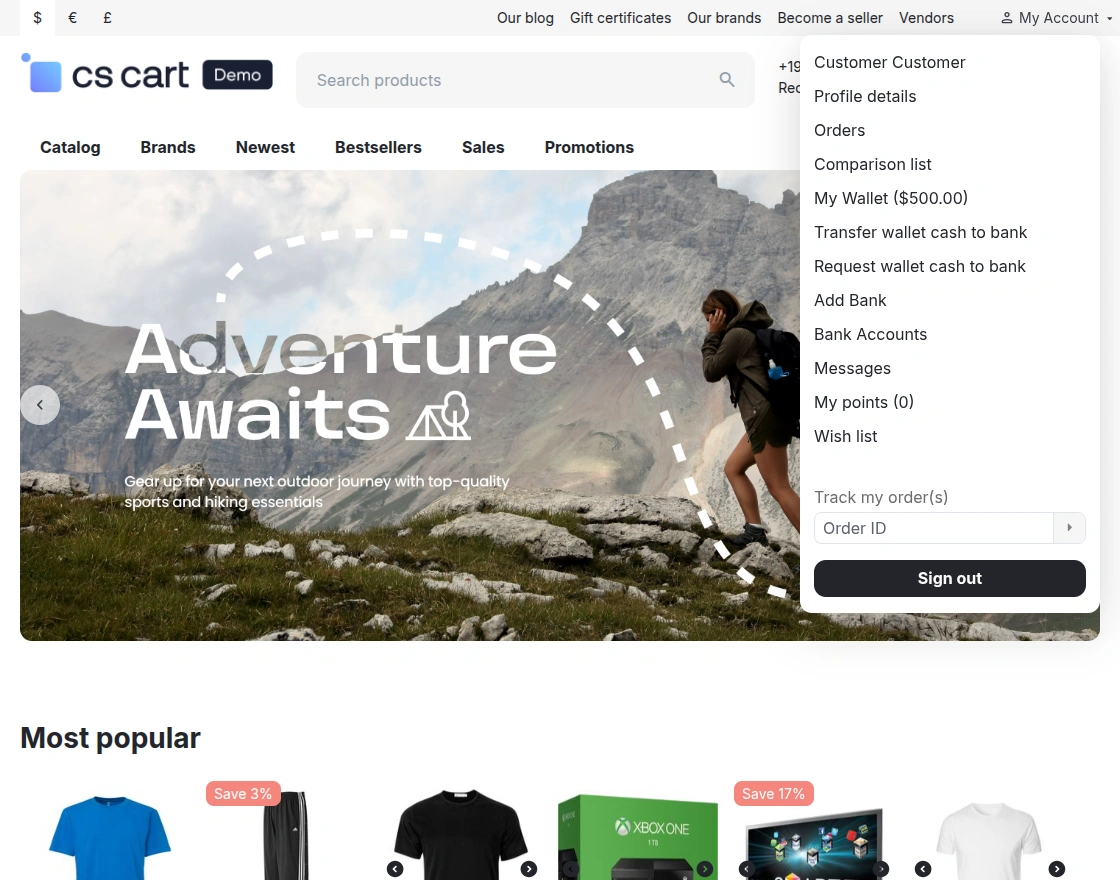
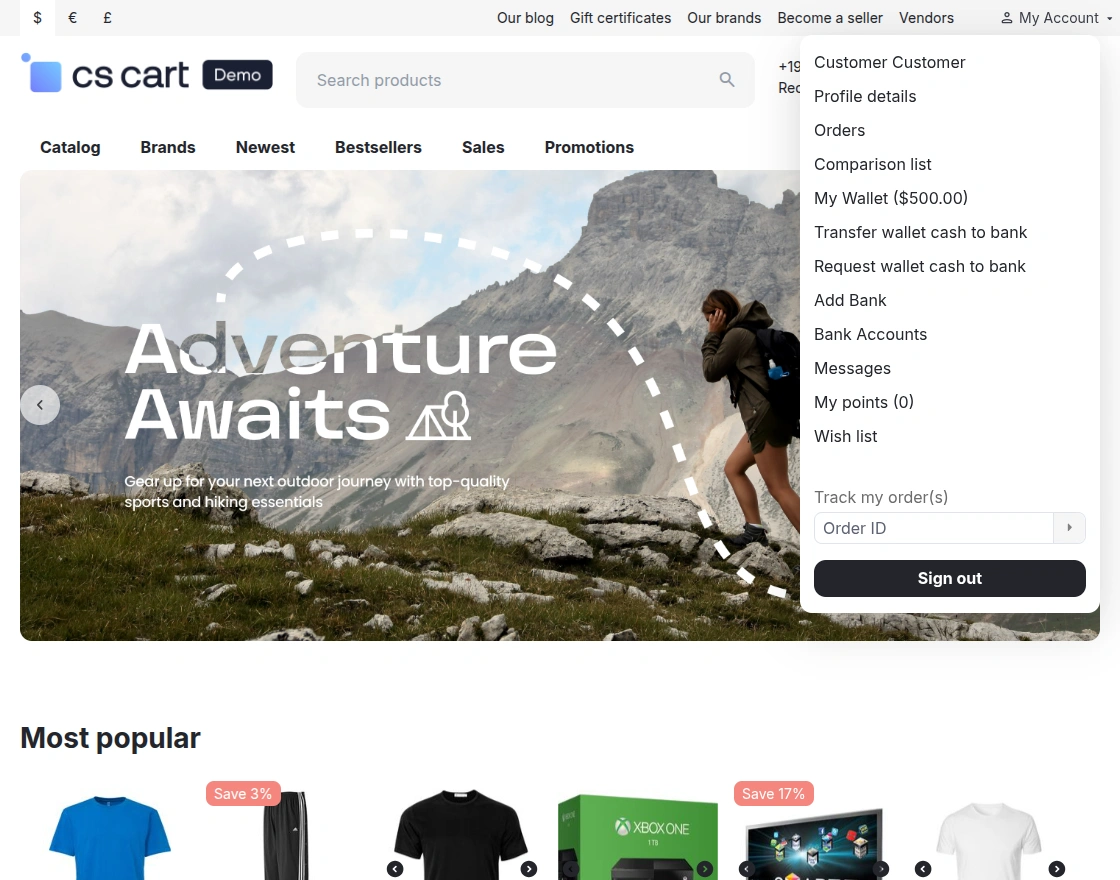
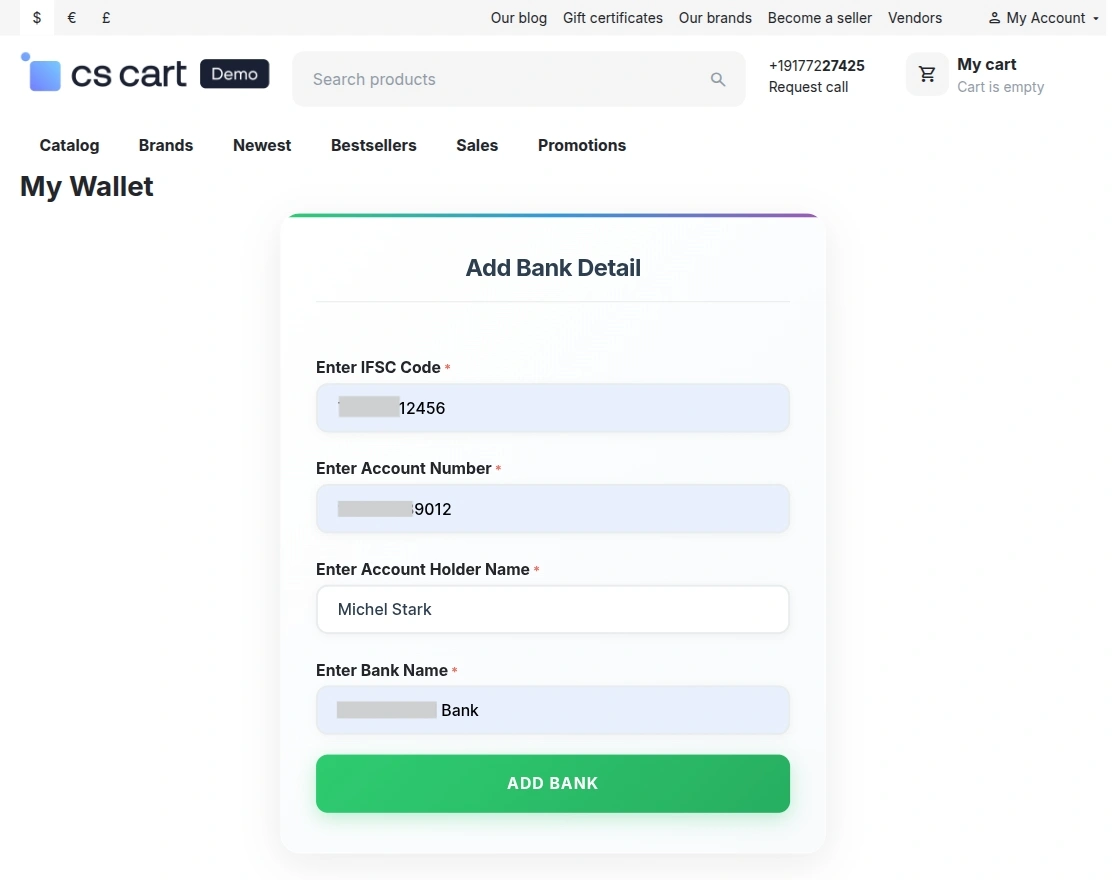
Frontend View of Add Bank
Frontend View of Bank Accounts
By clicking on the “Bank Account” option customer/user can view the number of bank accounts added to the panel-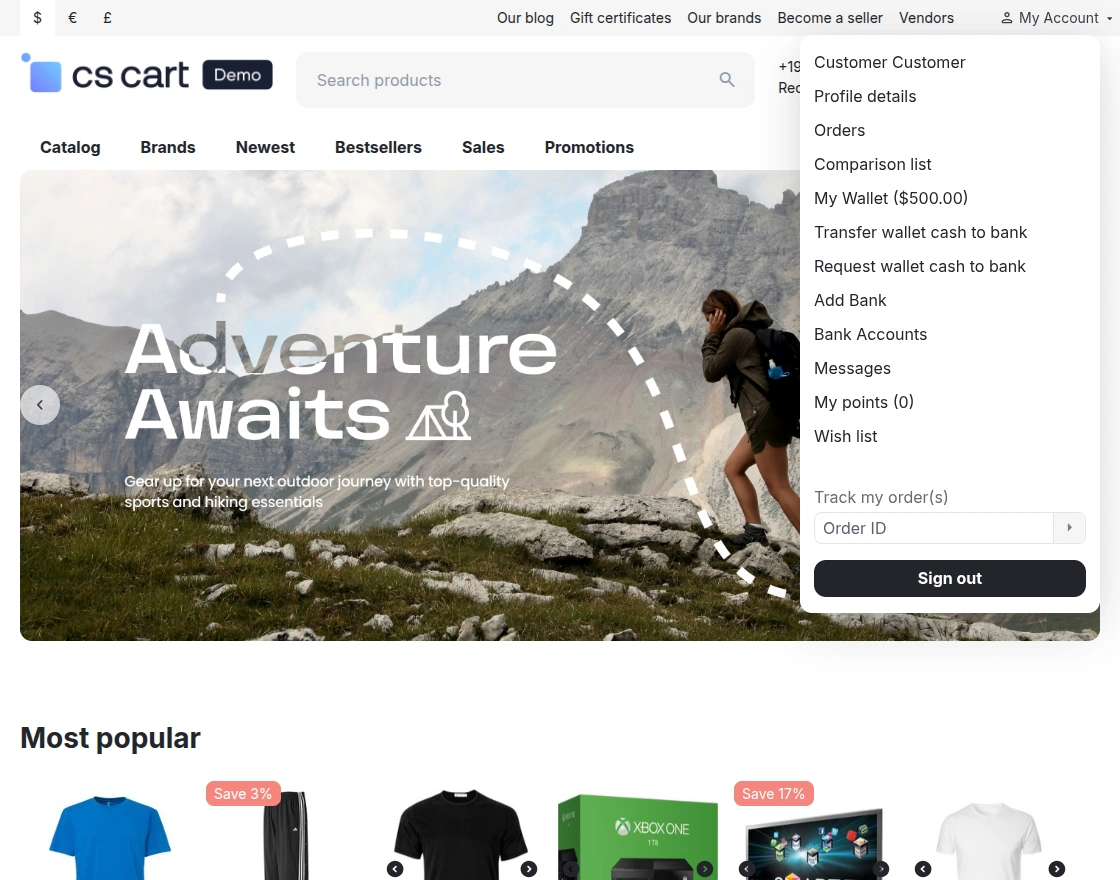
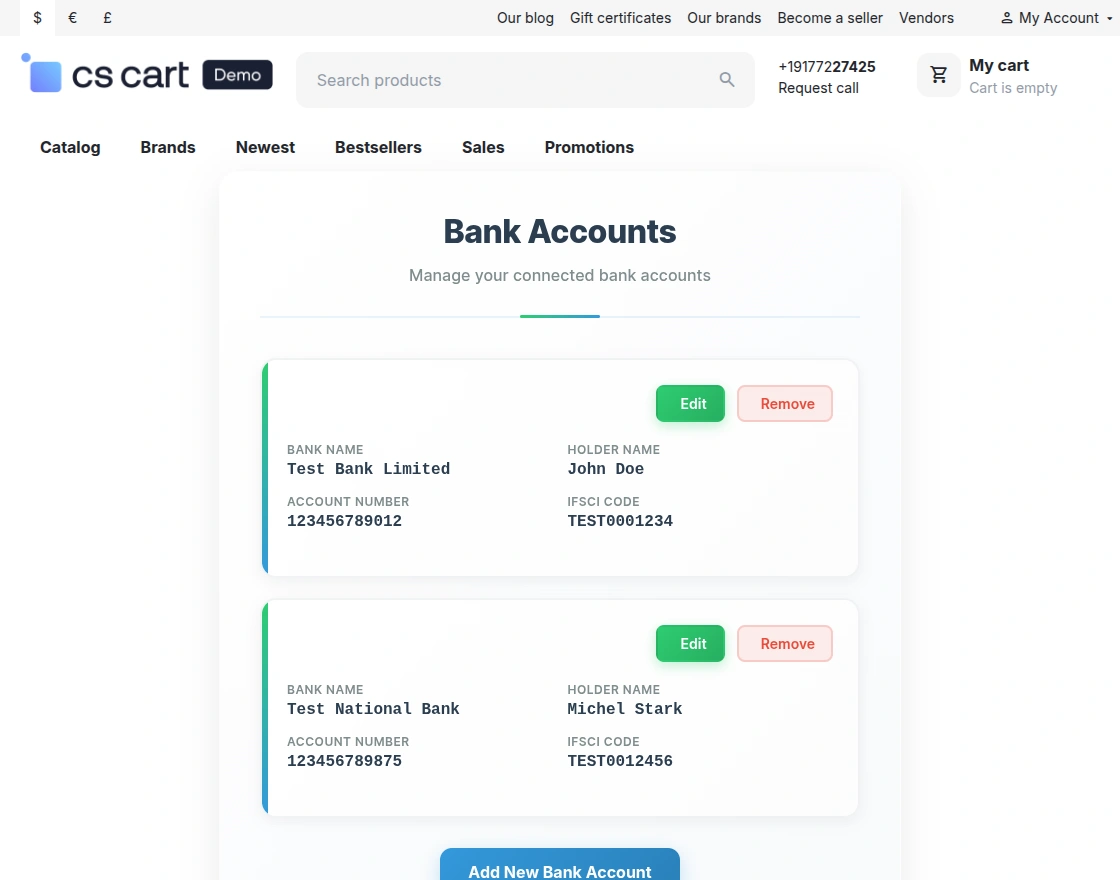
Frontend View of Reward Points Features
To Transfer the Reward points to the wallet customers need to log in from their individual accounts.Then click on My points as shown below.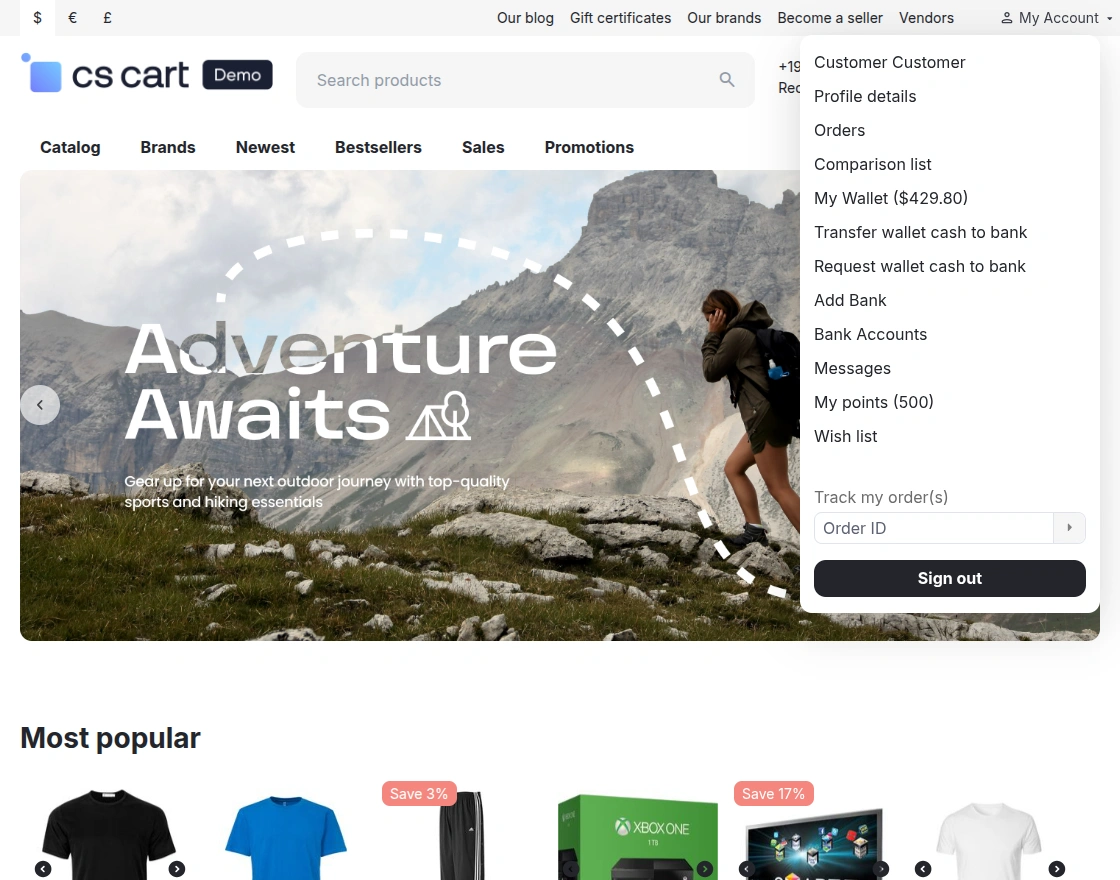
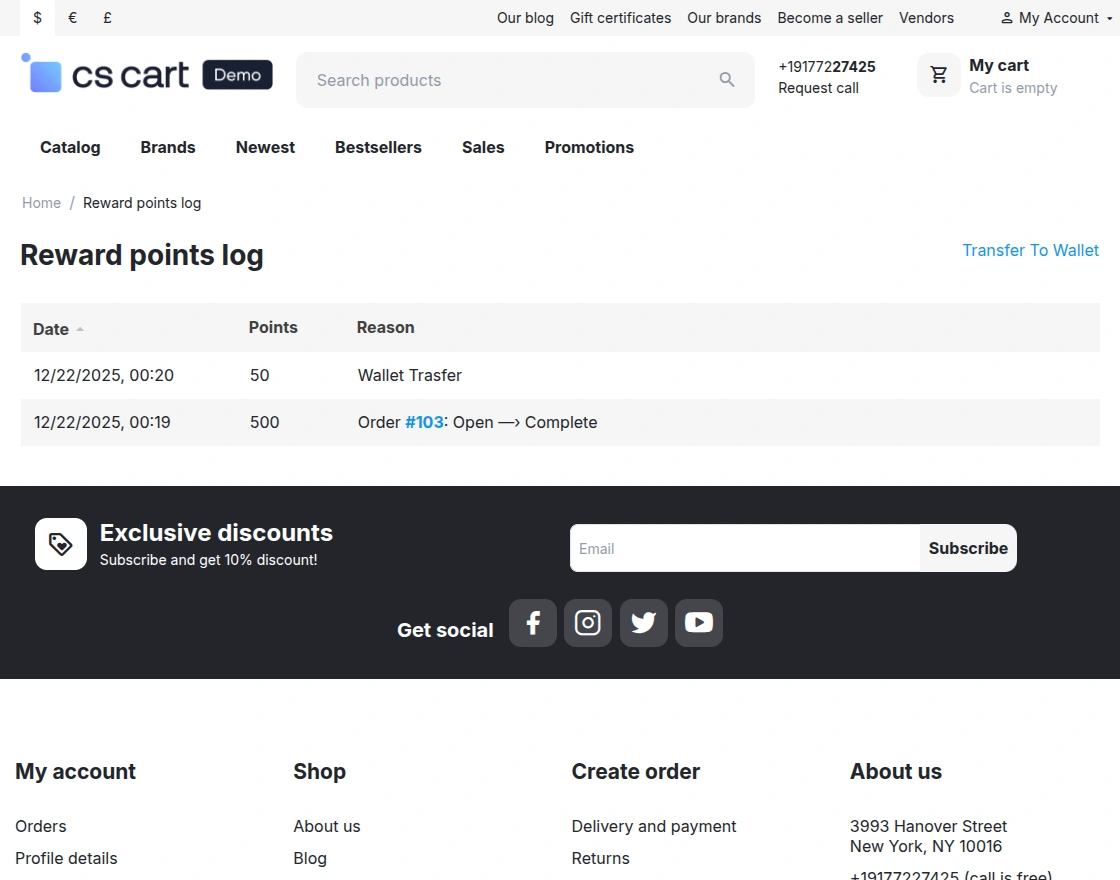
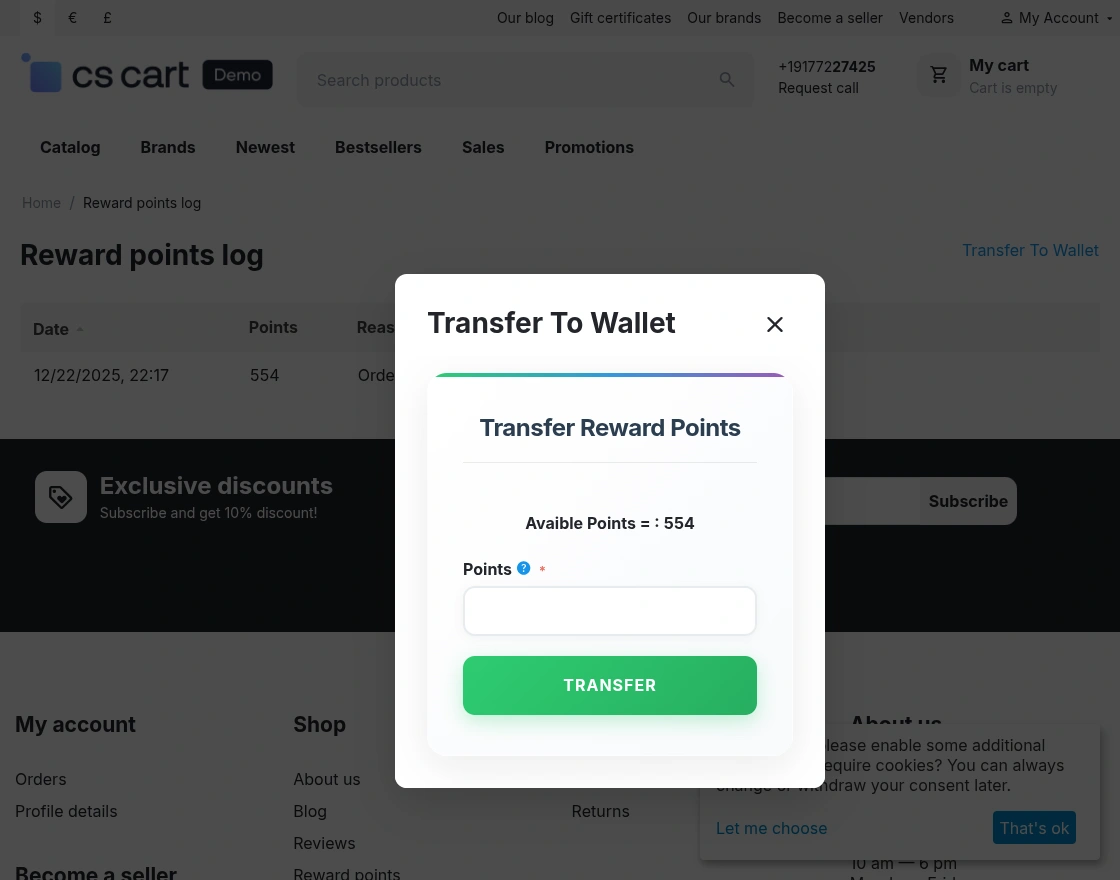
Simply enter the amount and click Transfer. For better understanding, please refer to the snapshot.
Frontend View of Checkout Page
Use Wallet for the payment as mentioned below in the snapshot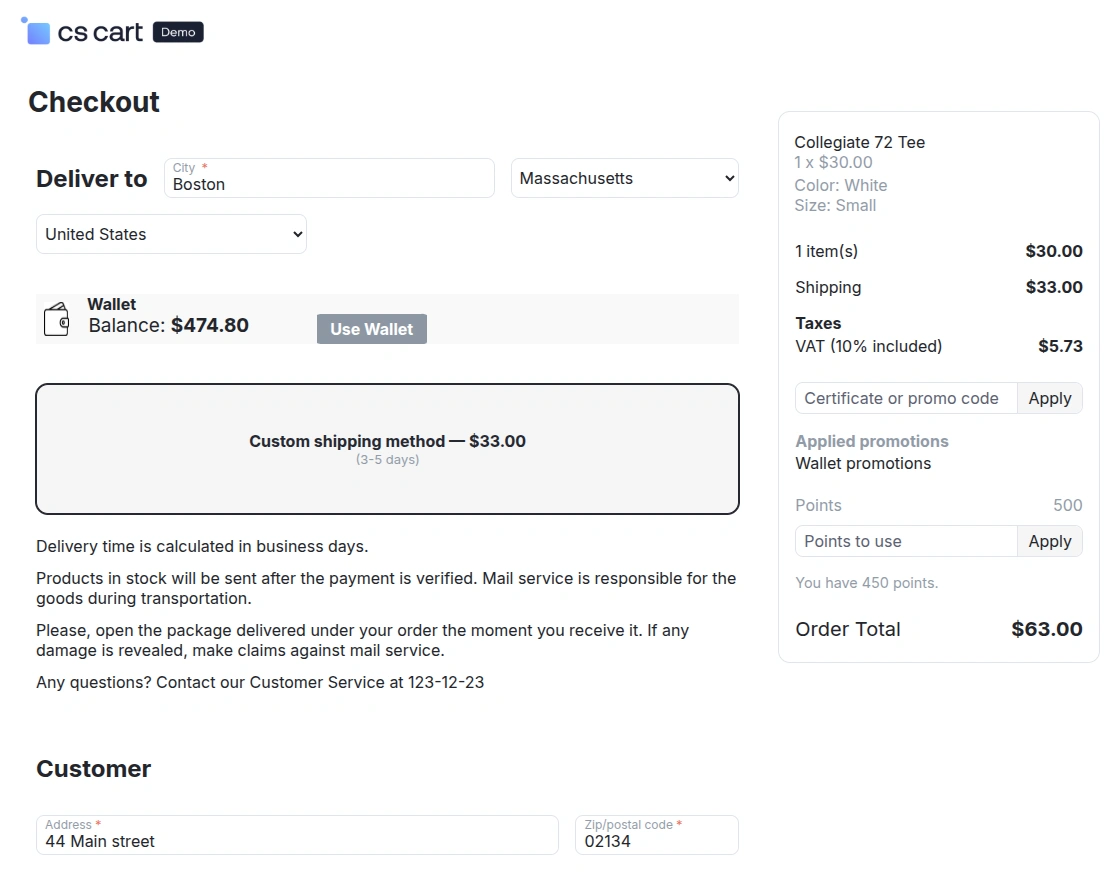
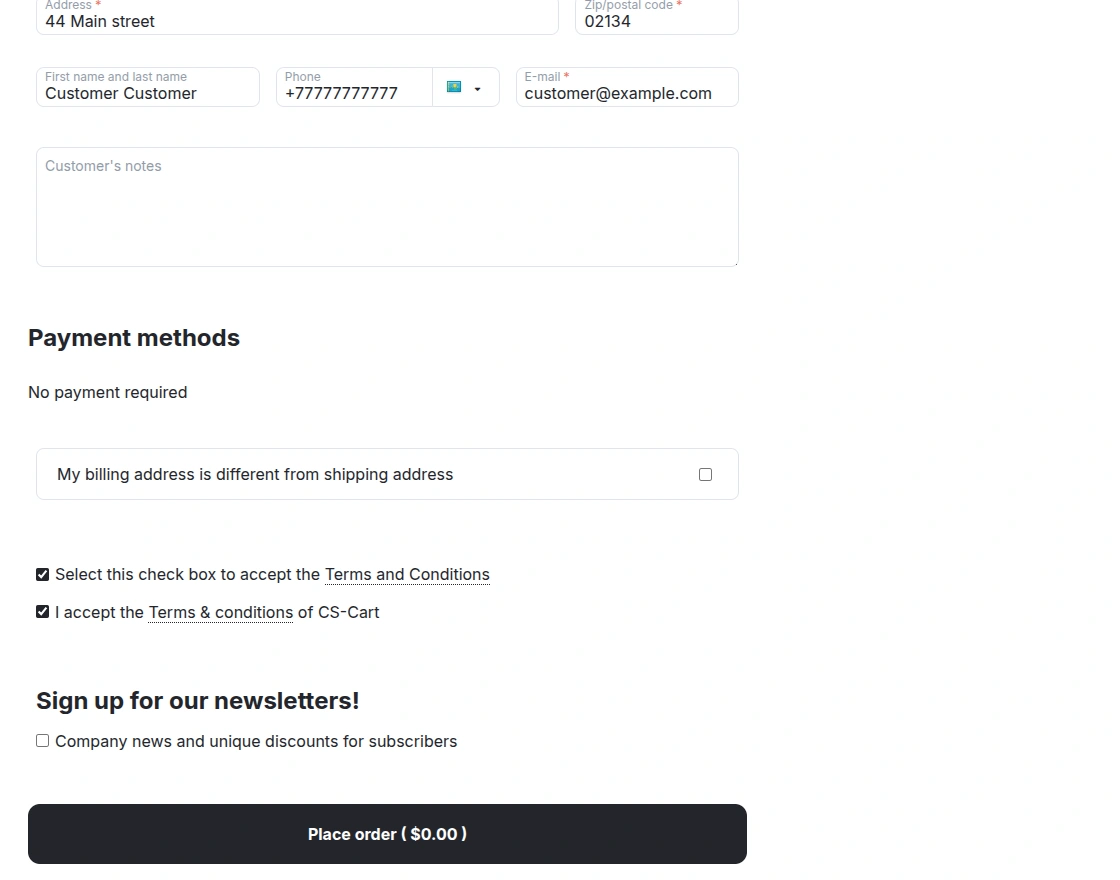
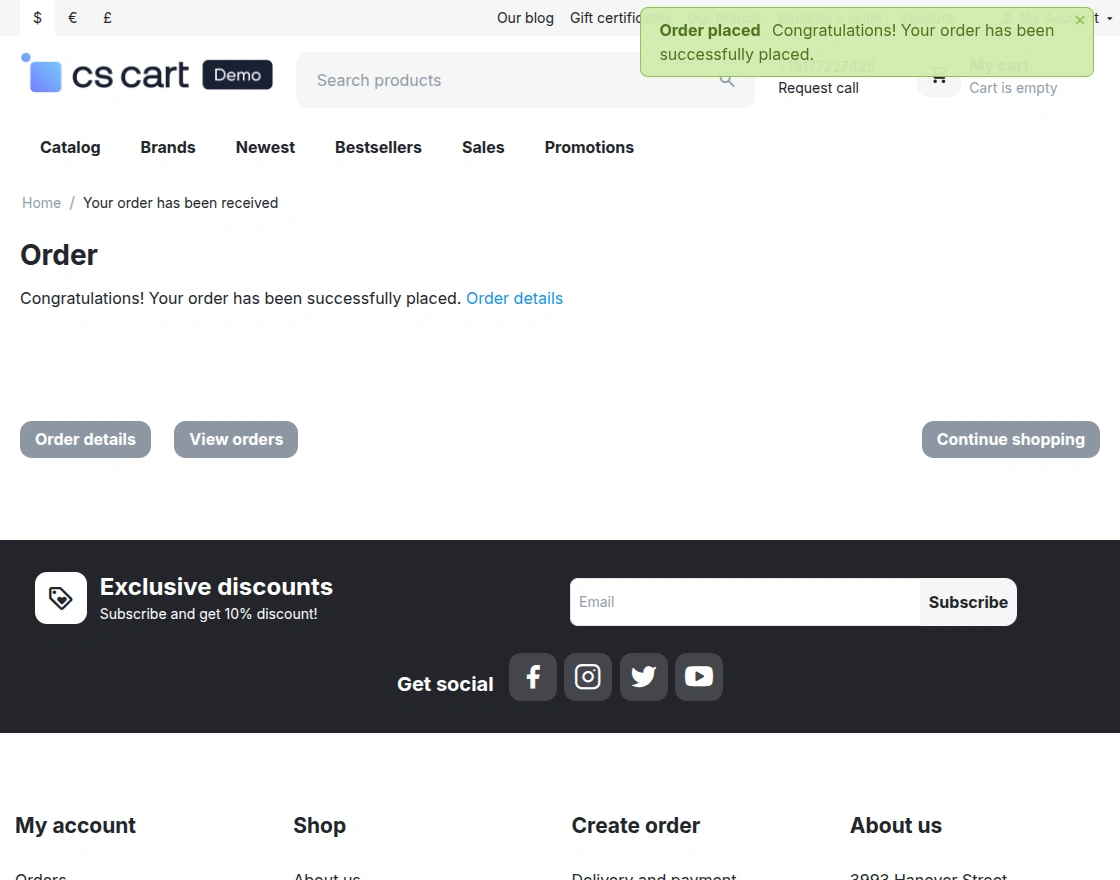
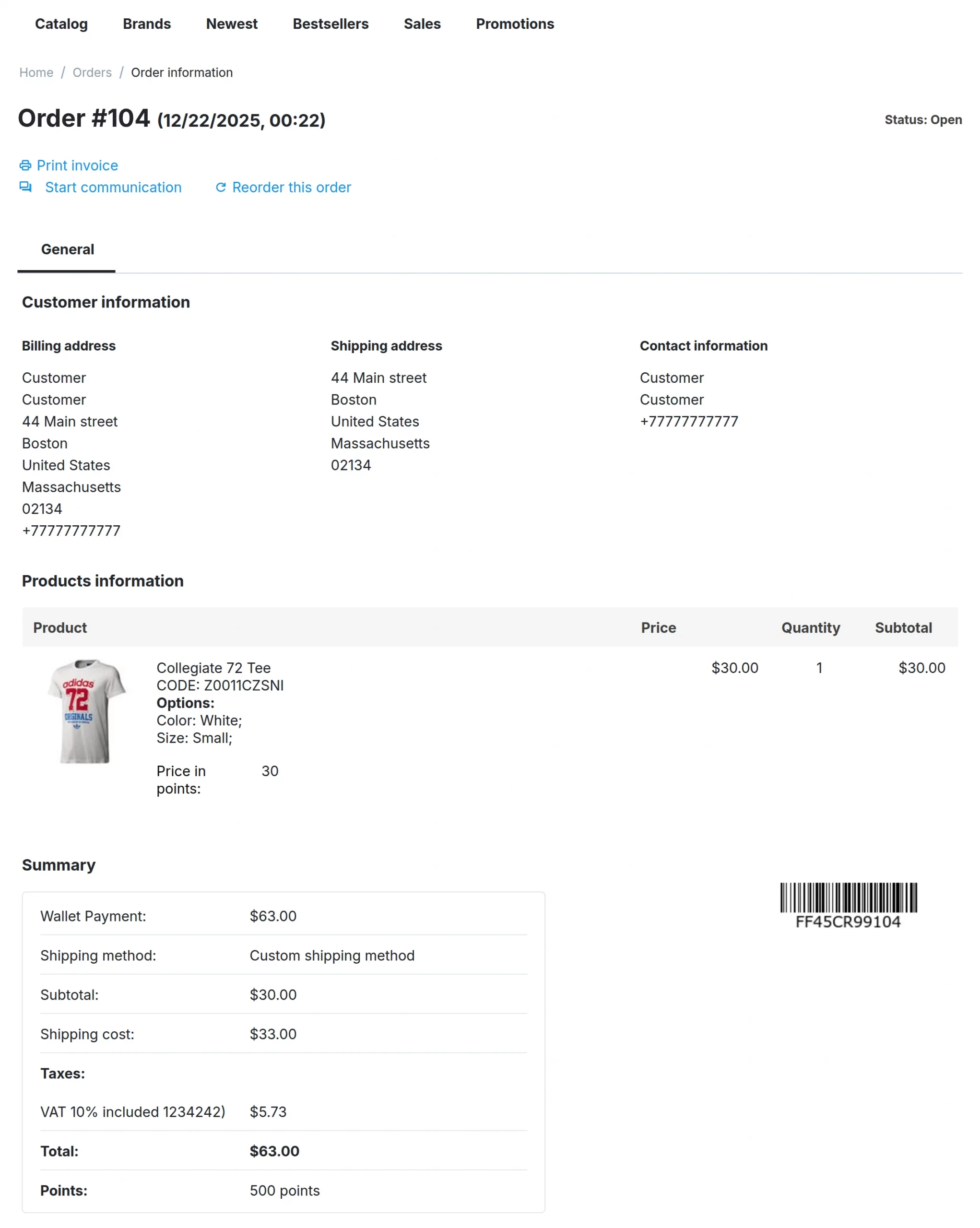

View Of Partial Payment
Add product to the cart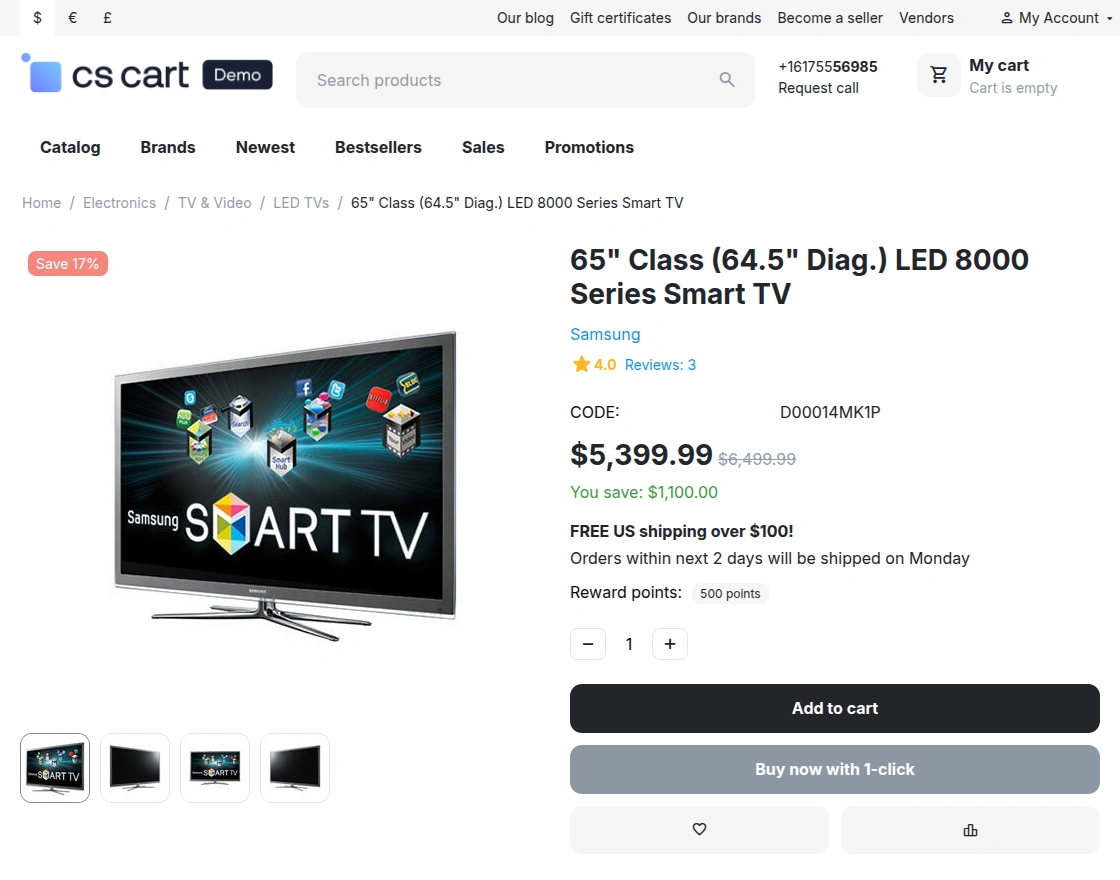
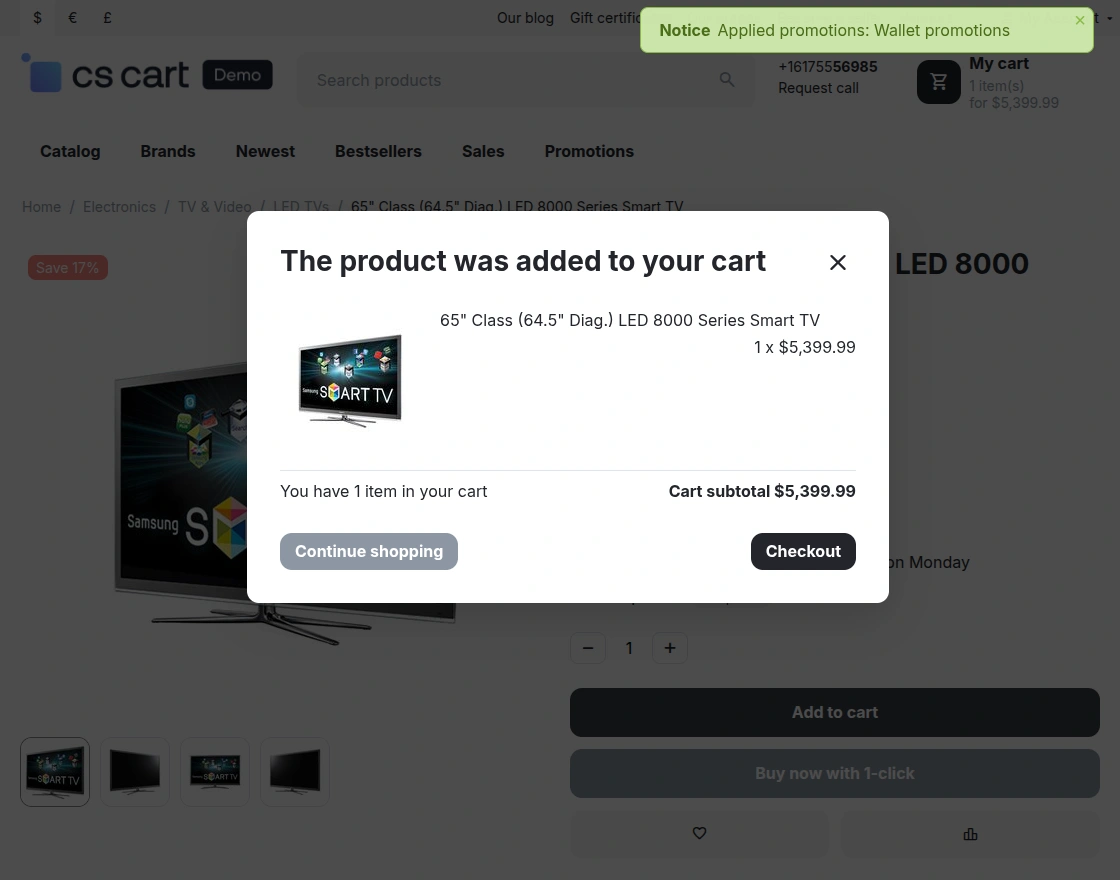
First, select a payment method other than Wallet before opting for partial payment through the Wallet.
After that, the remaining order balance will be shown and can be paid using the selected payment method.
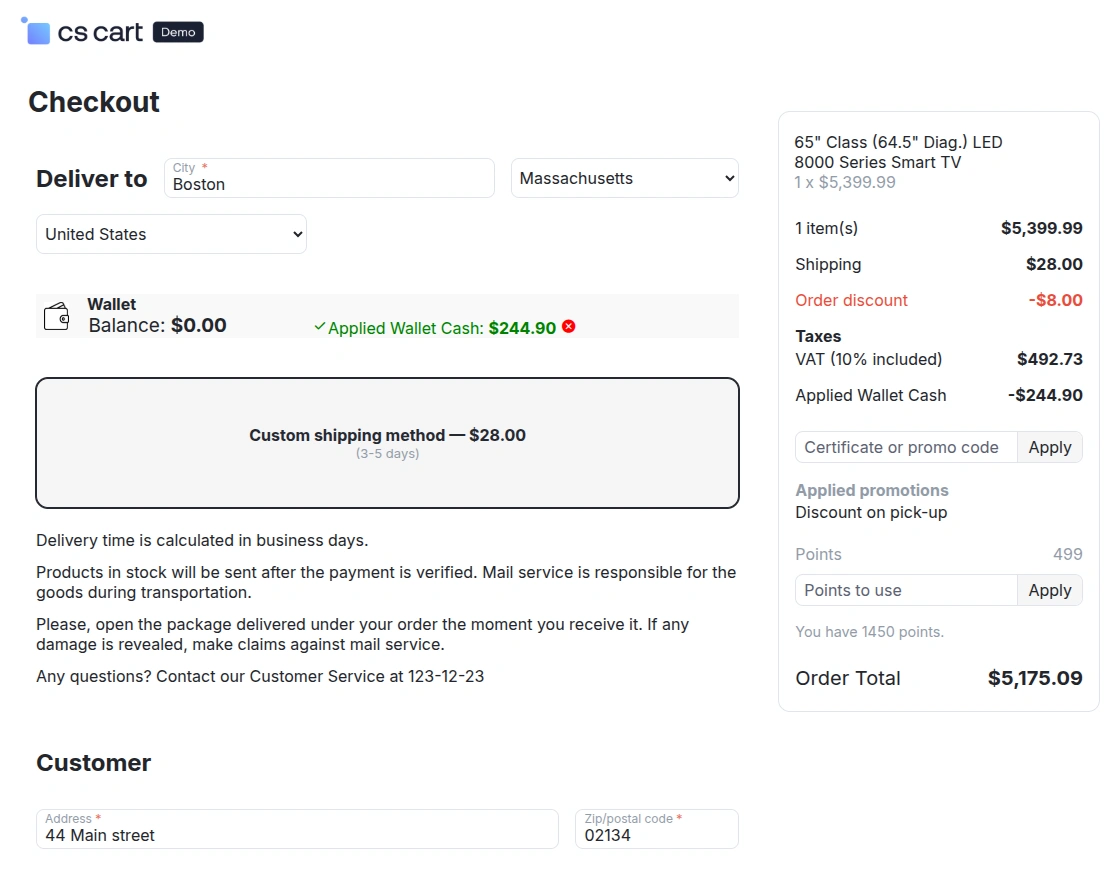
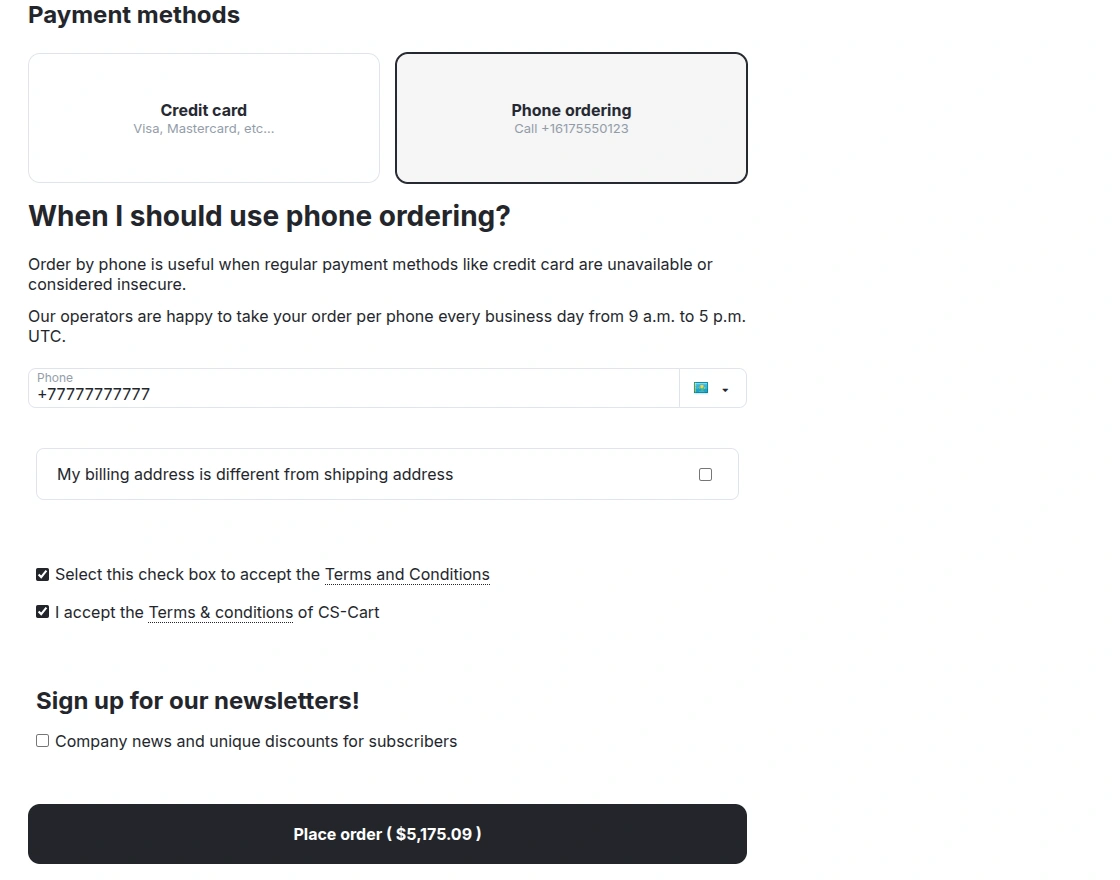
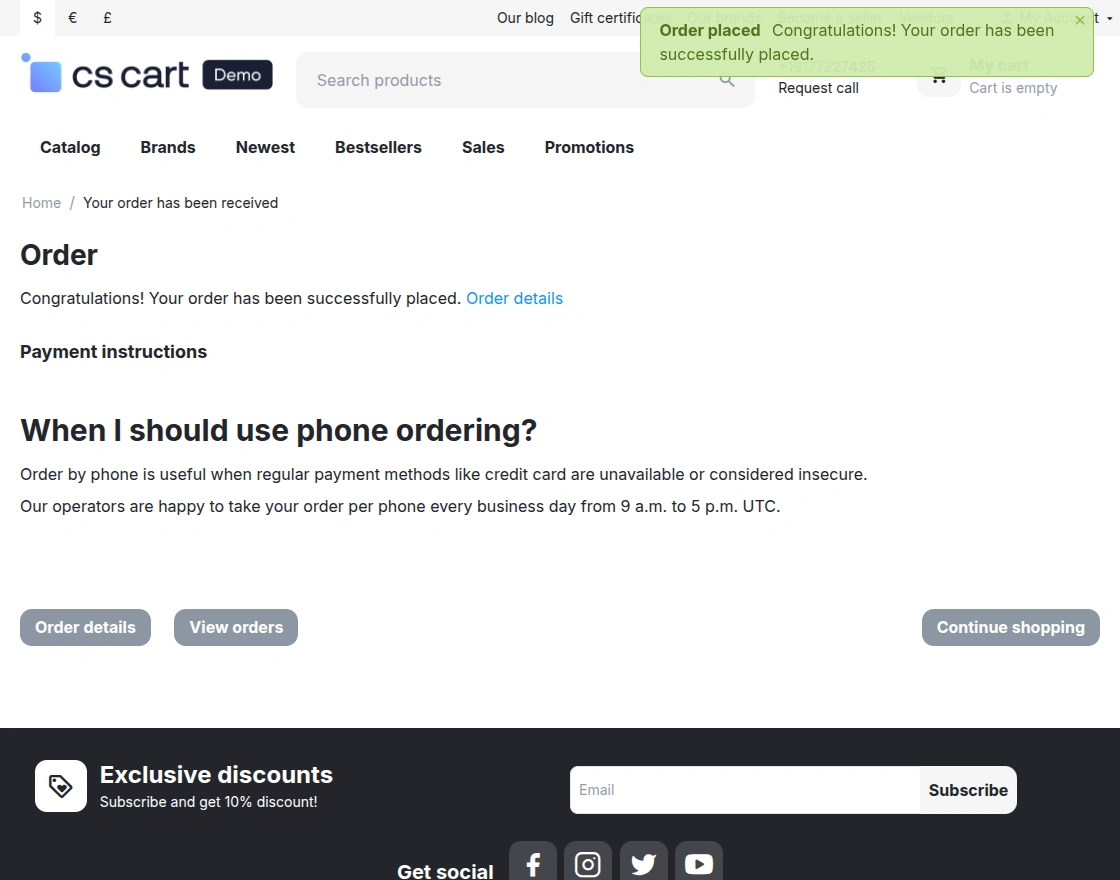
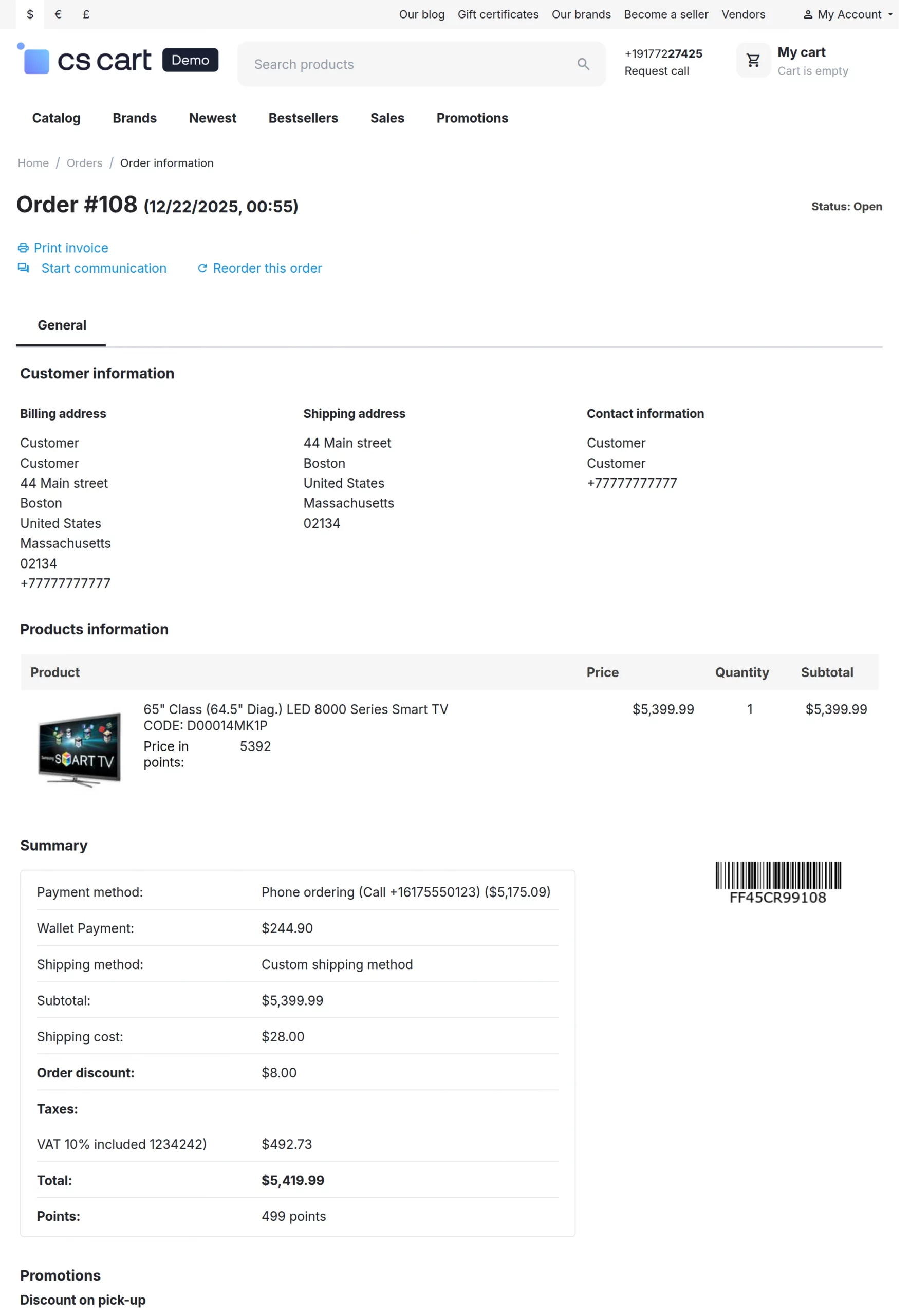

When a wallet recharge is made using an offline payment method, an order is automatically created for the transaction.
Once the admin marks the order status as Completed, the recharge amount is credited to the customer’s wallet balance.
NOTE: Explore cs-cart payment methods like CS-Cart Mangopay Payment Gateway, and Cs-Cart Braintree Payment Gateway.
SUPPORT :
If you have any questions, suggestions, or customization requests, feel free to contact us at support@webkul.com or submit a ticket at webkul.uvdesk.com.
Explore our premium-quality CS Cart Extensions to enhance your store functionality.
You can also explore our CS-Cart Development Services and Quality CS-Cart add-ons.