CS-Cart SalesforceIQ Connector
CS-Cart SalesforceIQ Connector integrates your CS-Cart store with SalesforceIQ, allowing you to synchronize customer information and manage Salesforce Contacts directly from your CS-Cart admin panel.
This extension allows administrators to export and synchronize CS-Cart customers with Salesforce as Contacts, while also supporting existing Contact updates and Contact ID mapping for easier customer management.
It also provides an easy way to manage synchronized customers, add contacts to Salesforce lists, search contact records, and reset Contact mappings from the CS-Cart admin panel.
Note:
- Install the add-on.
- Enter the license key.
- Follow the license activation steps.
Features
- Acts as a bridge between CS-Cart and SalesforceIQ.
- Allows the admin to easily connect the CS-Cart store with SalesforceIQ.
- Synchronizes customer information from CS-Cart with Salesforce Contacts.
- Allows the admin to export customers from CS-Cart to SalesforceIQ.
- Automatically synchronizes customer details whenever a customer is created or updated.
- Checks for existing Salesforce Contacts using the customer’s email address to avoid duplicate Contacts.
- Updates existing Salesforce Contacts with the latest customer information.
- Creates new Salesforce Contacts for customers who are not already available in Salesforce.
- Synchronizes customer details such as name, email, phone number, and address information.
- Maintains Contact mapping between CS-Cart customers and Salesforce Contacts.
- Allows the admin to add synchronized contacts to SalesforceIQ lists.
- Provides an option to search synchronized customers using Salesforce Contact ID.
- Allows the admin to reset Contact mapping whenever required.
- Supports synchronization of multiple customers for easy customer data management.
- Provides an easy-to-use and interactive interface for managing SalesforceIQ settings and contacts.
- Helps the admin manage synchronized customer information efficiently from the CS-Cart backend.
- Compatible with both CS-Cart and CS-Cart Multi-Vendor.
Installation
After downloading the CS-Cart SalesforceIQ add-on, you’ll get one zip file, one install.txt file, and a relevant User Guide manual doc. Read it carefully for proper configuration.
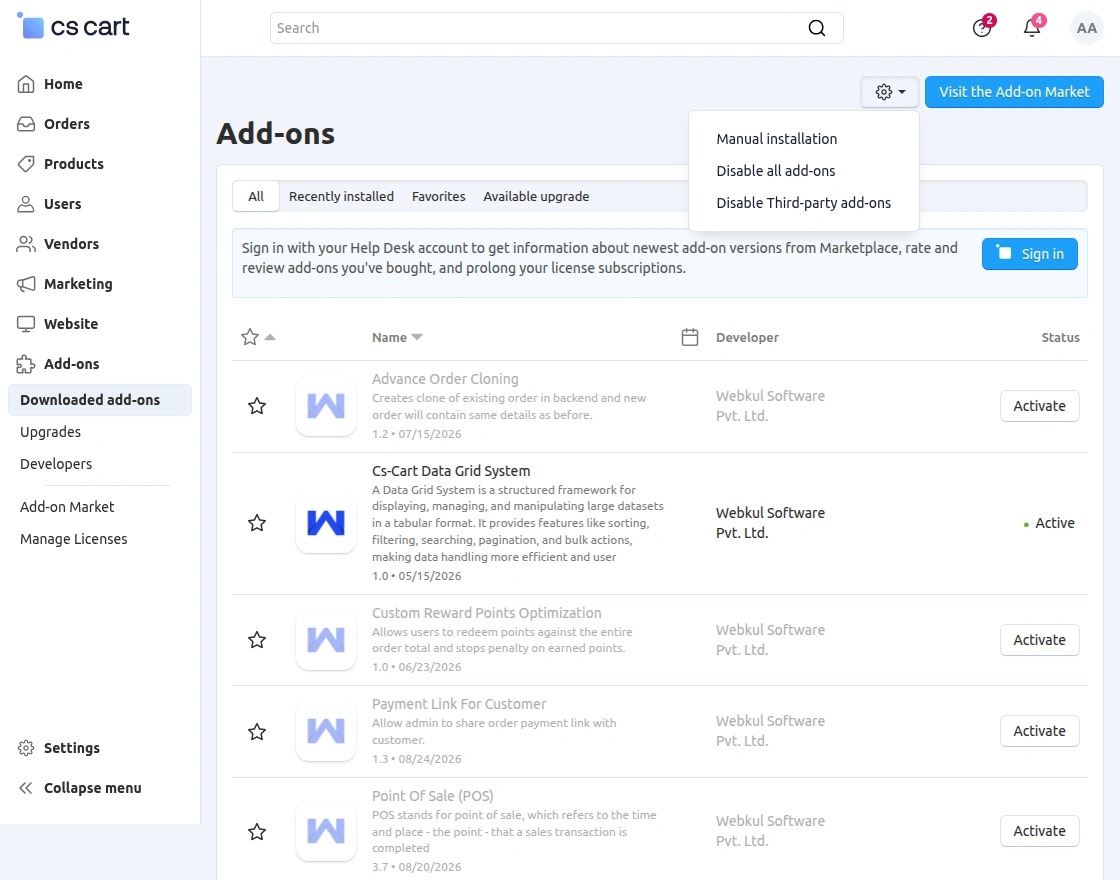
Go to Manage Add-ons, and click on “Manual Installation” as shown below in the snapshot.

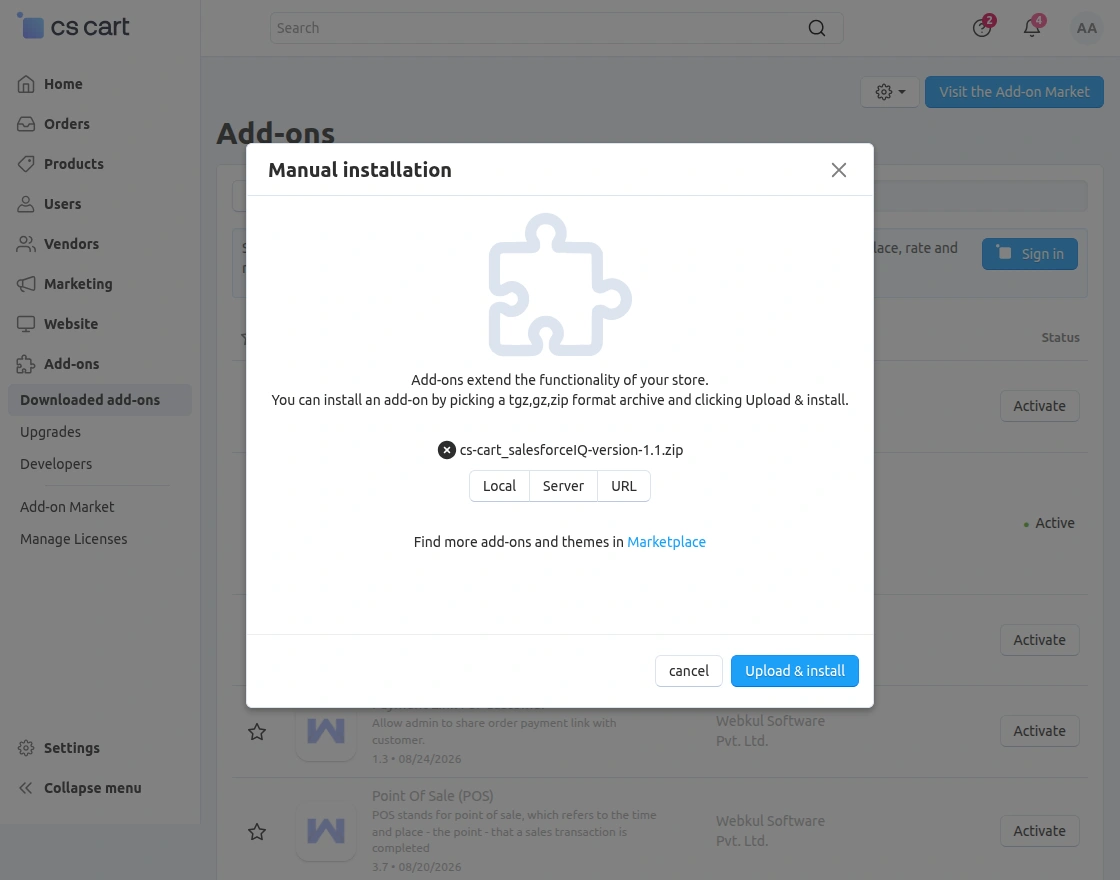
Click on “Local” to browse the zip file, and then click on “Upload & Install” as shown below in the snapshot.
Add-on Configuration
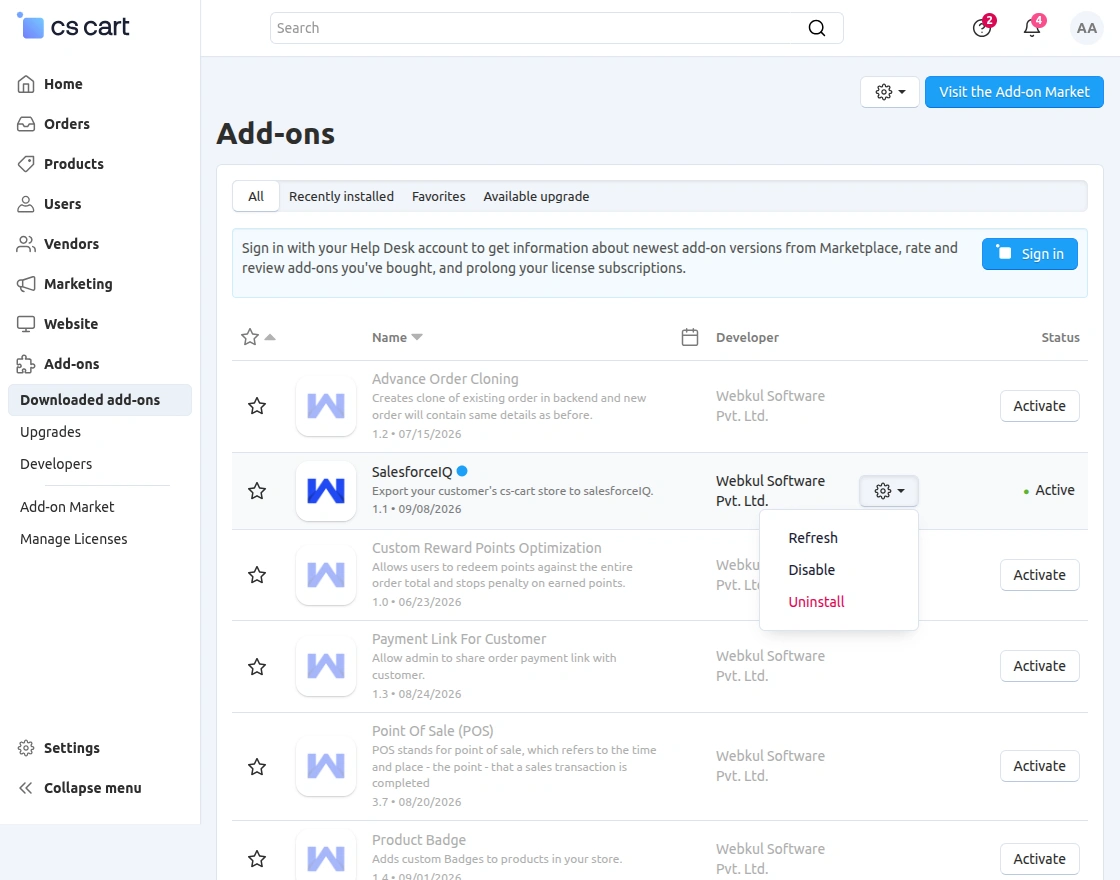
After installing the add-on, you will find CS-Cart SalesforceIQ in the list of available add-ons.
Click on “Settings” to enable, disable, install, or refresh. Ensure you activate the add-on, as shown in the snapshot below.
Module Configuration | Admin End
After successfully installing the add-on, the admin can configure the CS-Cart SalesforceIQ module from the CS-Cart admin panel.
To configure the module, navigate to:
Add-ons > Downloaded Add-ons > SalesforceIQ > Settings
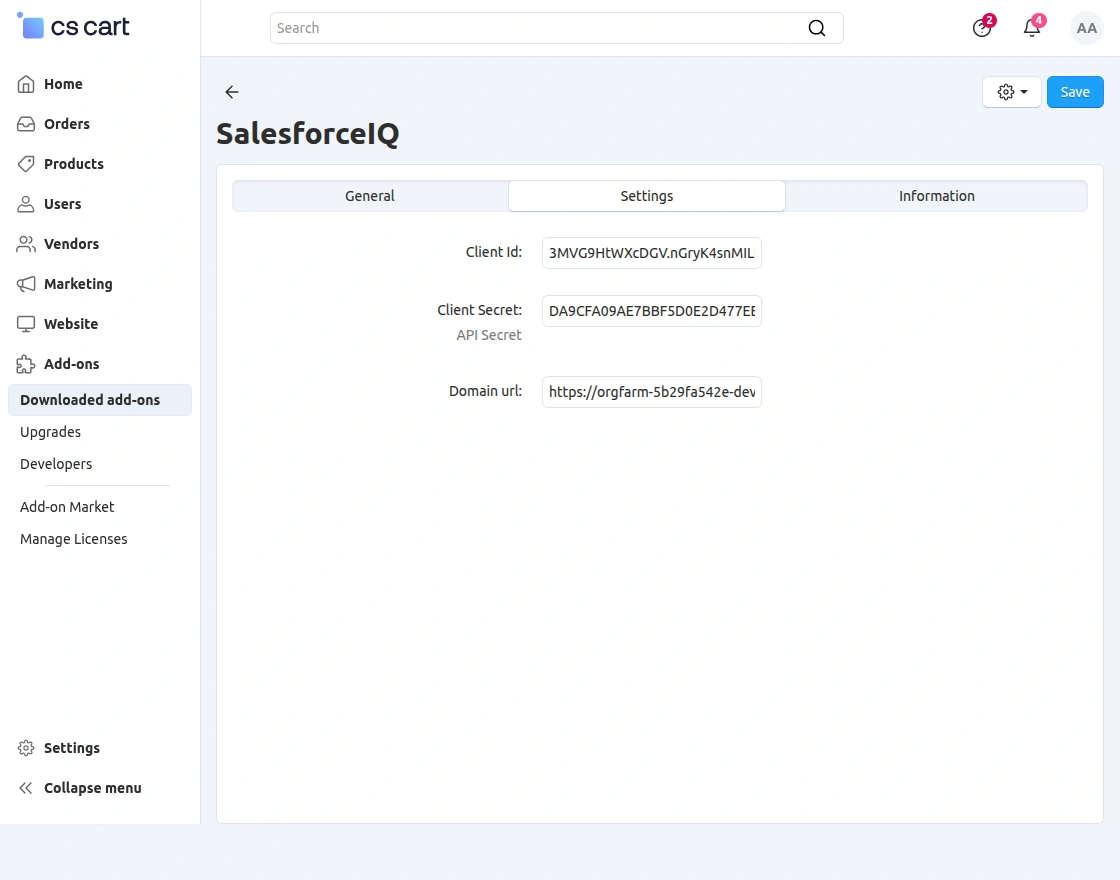
Under the Settings tab, the admin can configure the SalesforceIQ connection details required to connect the CS-Cart store with SalesforceIQ.
The available configuration options include:
- Client ID – Enter the Client ID provided by Salesforce for the application.
- Client Secret – Enter the Client Secret associated with the Salesforce application.
- Domain URL – Enter the Salesforce Domain URL used to establish the connection with SalesforceIQ.
- To know How To Create Custom Integration In SalesforceIQ please follow the steps as explained here http://webkul.com/blog/how-to-create-new-custom-integration-in-salesforceiq/
After configuring these settings, click the Save button to save the configuration.
These settings allow the admin to establish a secure connection between CS-Cart and SalesforceIQ and synchronize customer information with Salesforce Contacts.
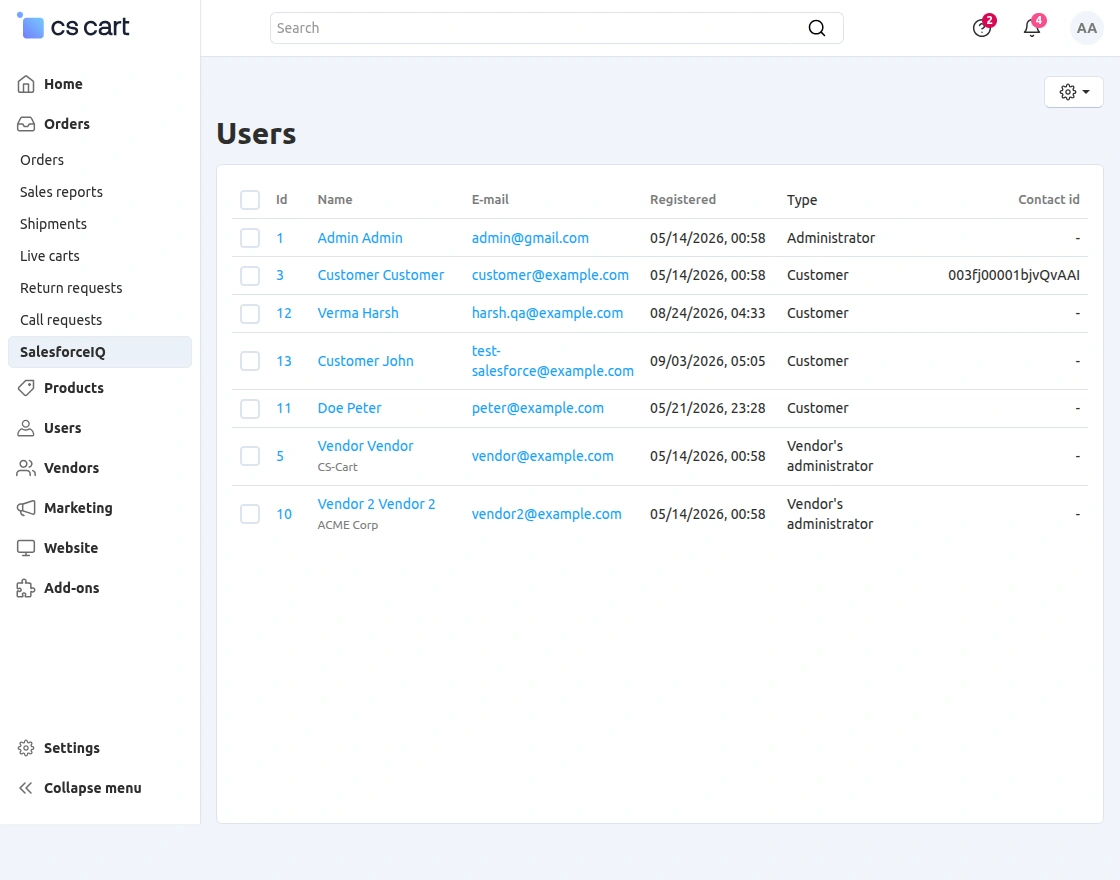
After configuring the SalesforceIQ connection settings, the admin can manage and synchronize the CS-Cart users with SalesforceIQ from the SalesforceIQ section.
The Users section displays the available users along with their basic details and Salesforce Contact ID.
The admin can view the user name, email address, registration date, user type, and the corresponding Salesforce Contact ID.
Export Contacts / Reset Mapping
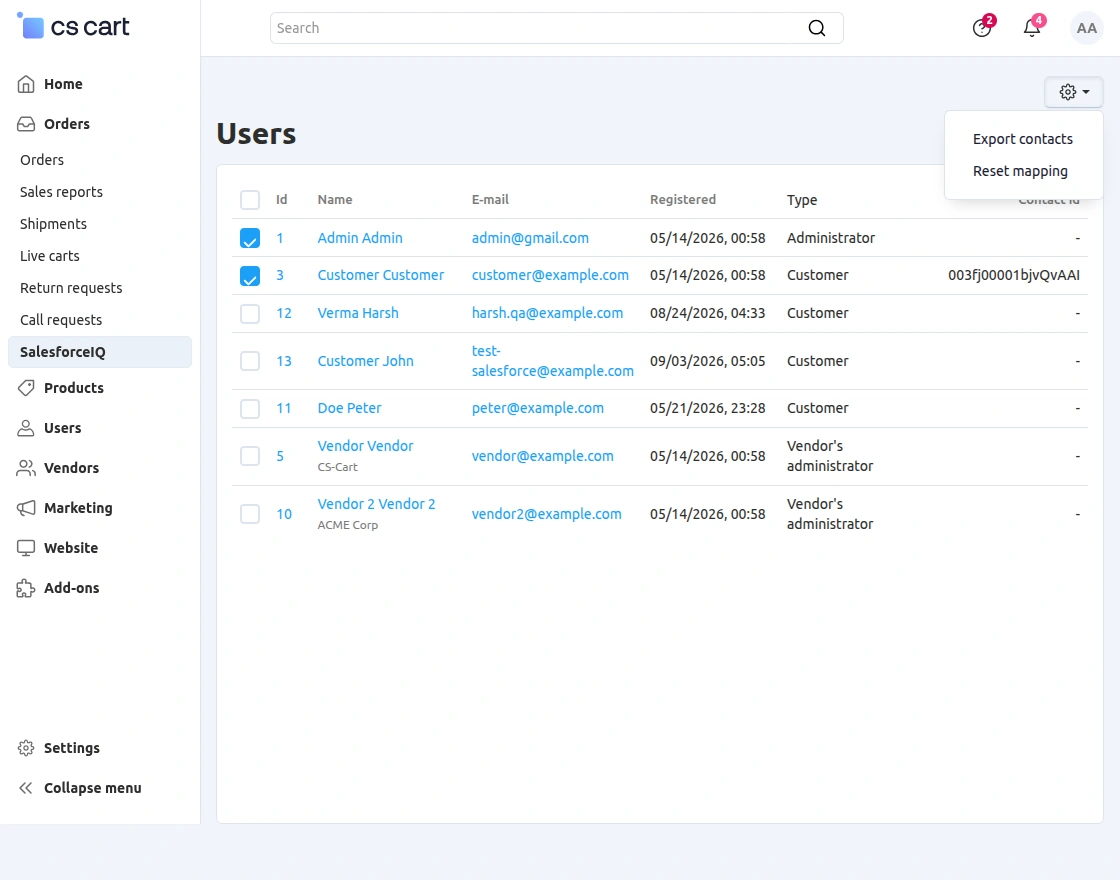
The admin can use the action menu available at the top-right corner to manage the selected users.
The available options include:
- Export Contacts – Export the selected CS-Cart users to SalesforceIQ as Contacts.
- Reset Mapping – Reset the Salesforce Contact mapping associated with the selected users.
Salesforce Contacts
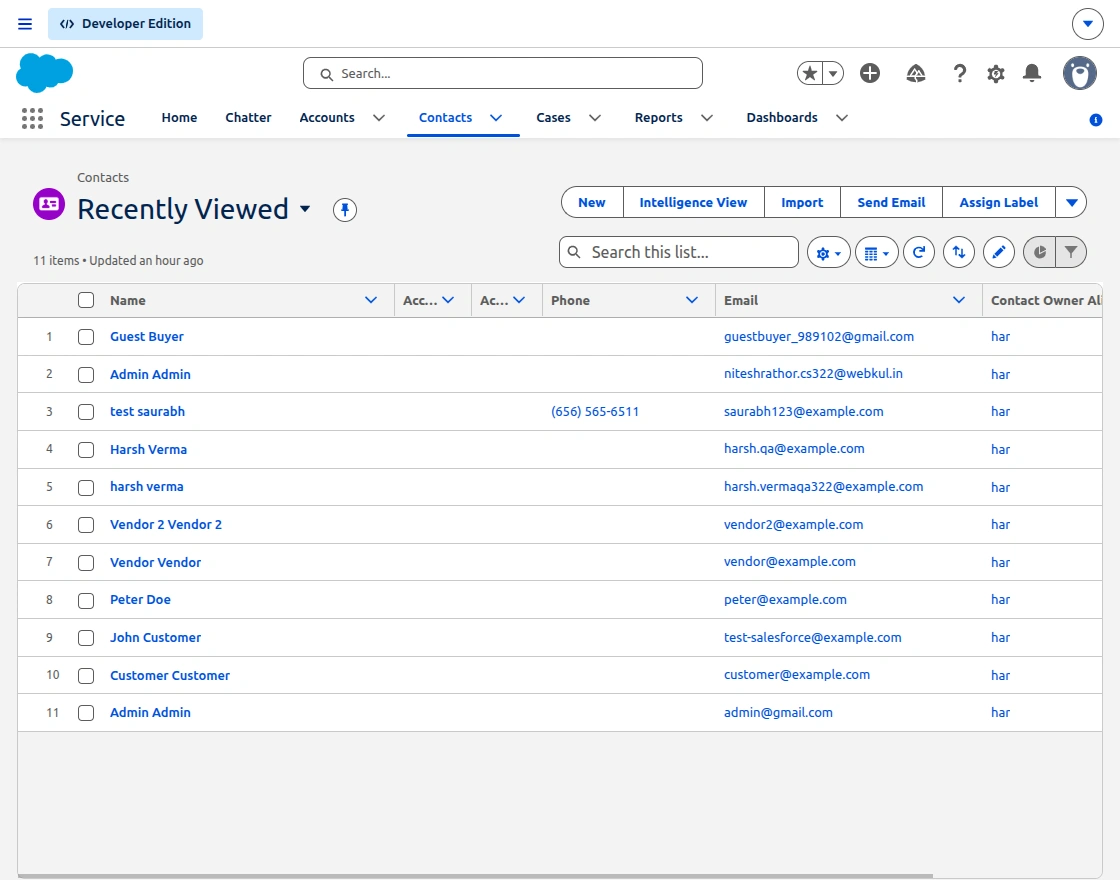
After exporting the contacts, the selected CS-Cart users are synchronized with SalesforceIQ as Contacts. The admin can view the synchronized contacts from the Contacts section at the Salesforce end.
The synchronized contacts display the customer information, including Name, Phone, E-mail, and Contact Owner.
This allows the admin to easily synchronize and manage CS-Cart customer information with SalesforceIQ.
Support
If you have any questions, suggestions, or customization requests, feel free to contact us at support@webkul.com or submit a ticket at webkul.uvdesk.com.
Explore our premium-quality CS Cart Extensions to enhance your store functionality.
You can also explore our CS-Cart Development Services and Quality CS-Cart add-ons.