CS-Cart Product Video Gallery
- Install the add-on.
- Enter the license key.
- Follow the license activation steps.
Features of CS-Cart Product Video Gallery
- Fully compatible with CS-Cart, CS-Cart Multi-Vendor, CS-Cart Multi-Vendor Plus, and CS-Cart Multi-Vendor Ultimate.
- Display product videos directly in the product gallery.
- Adds a dedicated Product Video tab on the product details page.
- Add product videos using YouTube or Vimeo by entering the video ID.
- Display related videos using a YouTube Video List ID.
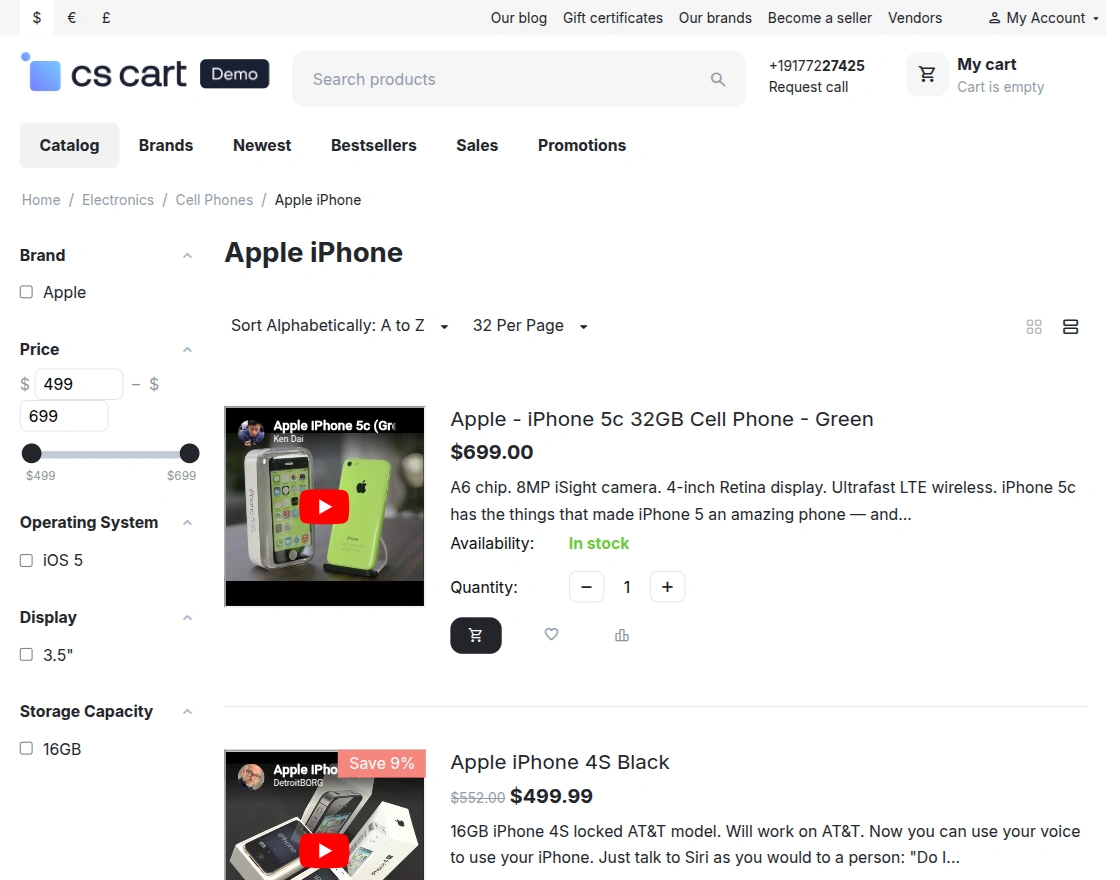
- Display video thumbnails on the Grid View and List View of the category page.
- Customize video playback settings from the admin panel.
- Allow vendors to add and manage product videos for their products.
- Easy to configure and manage from the CS-Cart admin panel.
- Enhance product presentation with engaging video demonstrations.
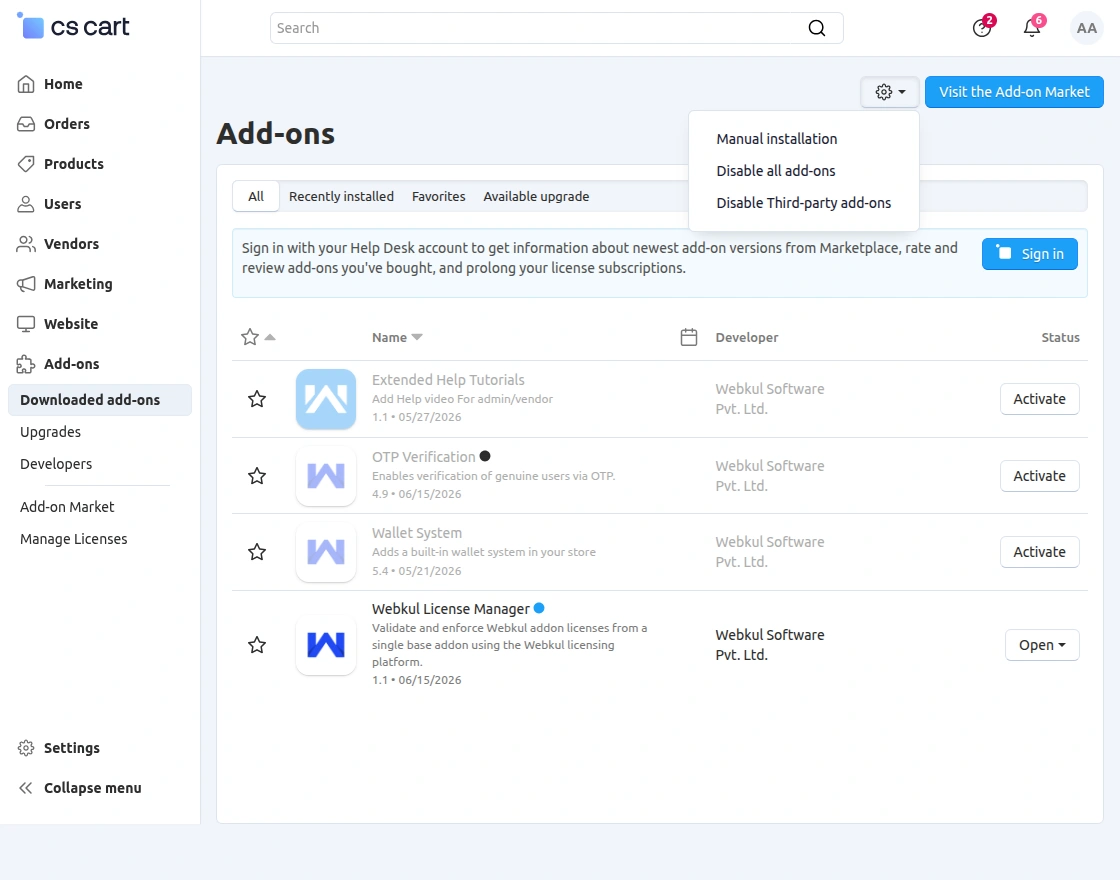
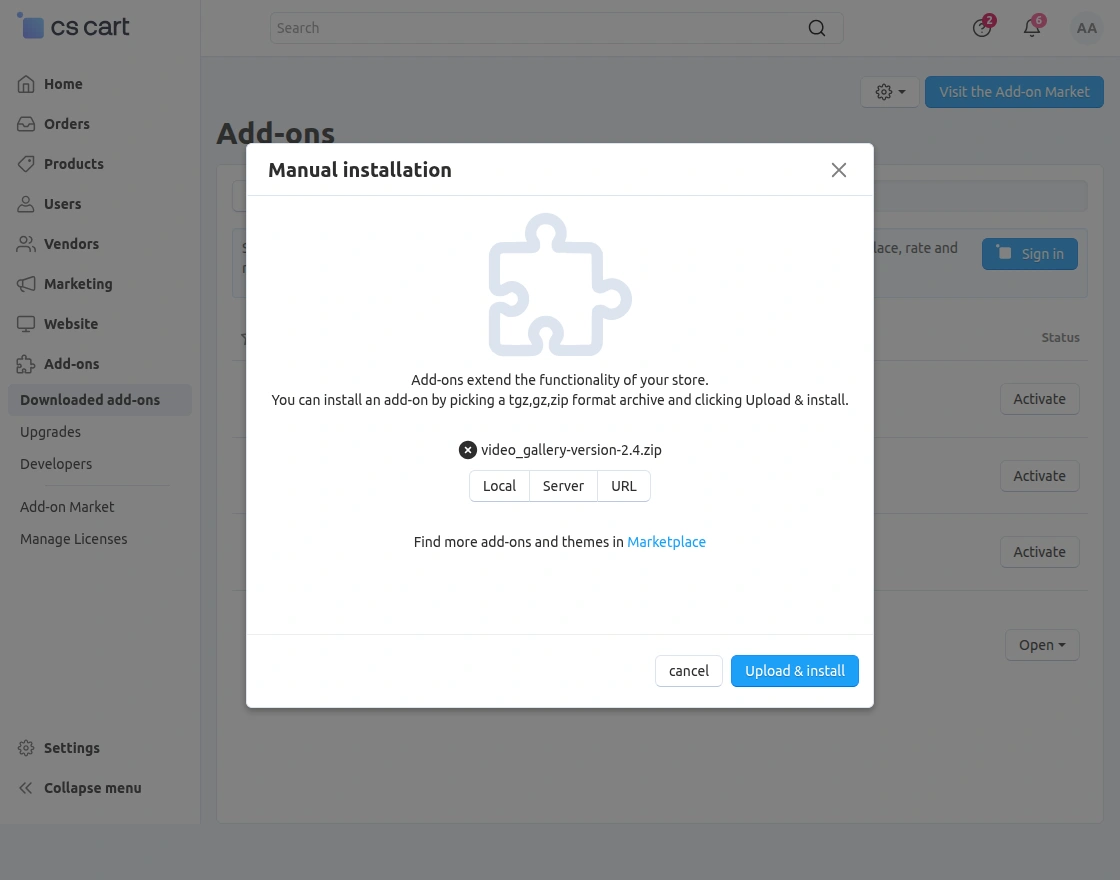
Installation

Add-on Configuration
Module Configuration | Admin End
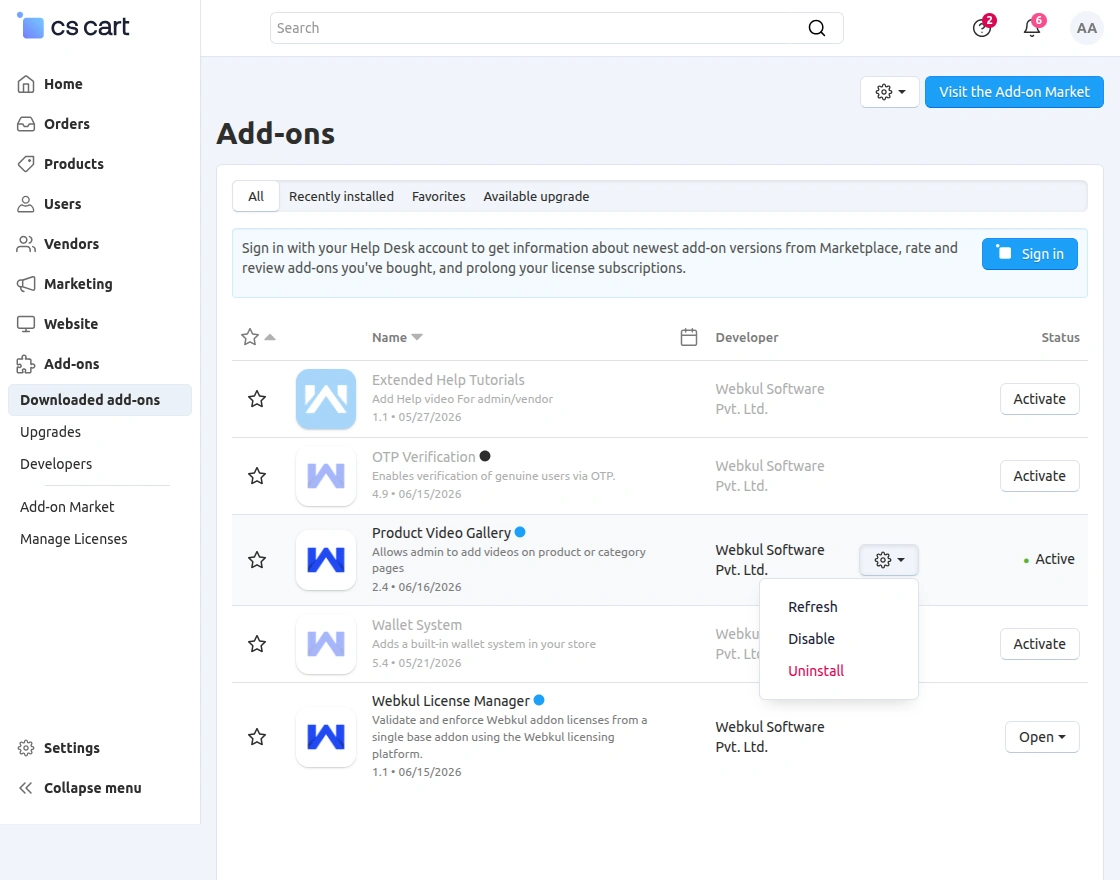
After successfully installing the add-on, the admin can configure the CS-Cart Product Video Gallery module from the CS-Cart admin panel.
To configure the module, navigate to:
Add-ons > Downloaded Add-ons > Product Video Gallery > Settings
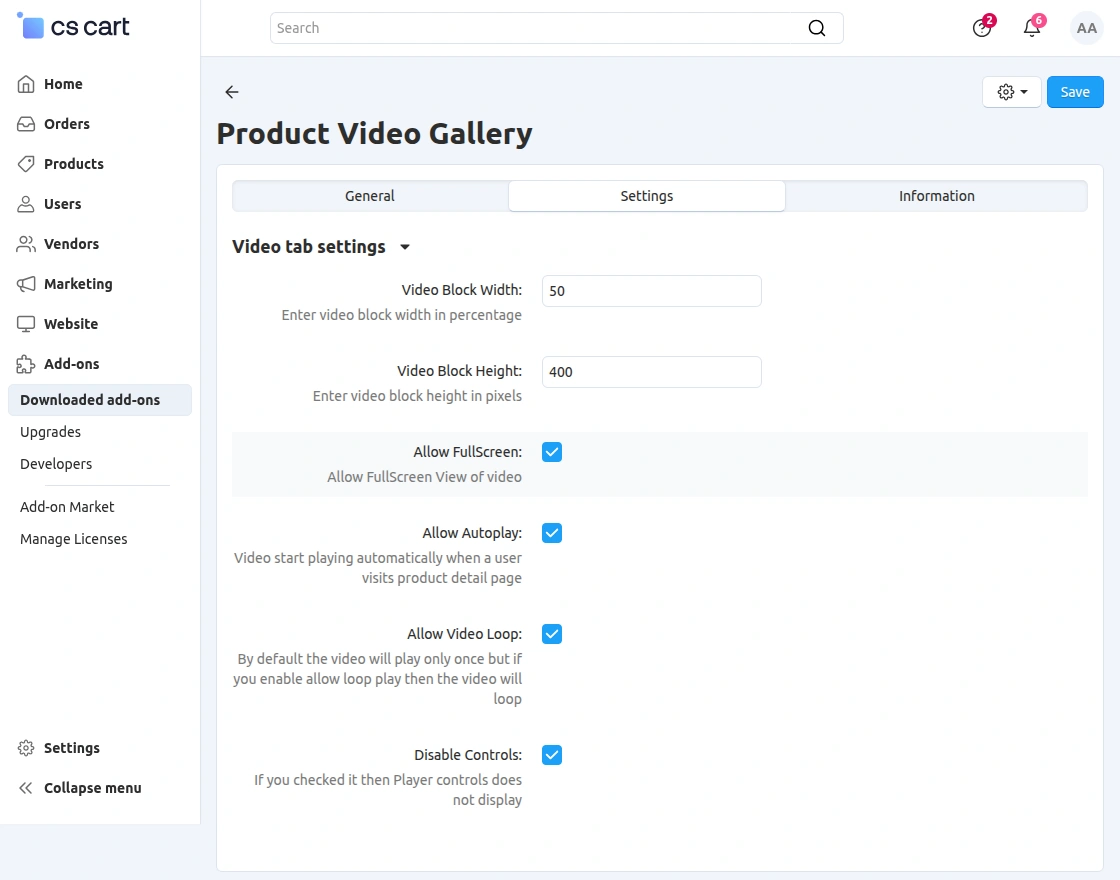
Under the Settings tab, the admin can customize the appearance and playback behavior of product videos displayed on the storefront.
The available configuration options include:
- Video Block Width – Specify the width of the video player in percentage.
- Video Block Height – Define the height of the video player in pixels.
- Allow FullScreen – Enable customers to watch videos in fullscreen mode.
- Allow Autoplay – Automatically play the video when the product page loads.
- Allow Video Loop – Replay the video continuously after it ends.
- Disable Controls – Hide the default video player controls from customers.
After configuring these settings, click the Save button to apply the changes.
These settings allow the admin to customize the overall video viewing experience for customers.
Create Product Video Tab
After installing and enabling the CS-Cart Product Video Gallery add-on, the system automatically creates a Product Video tab for products.
To verify this, navigate to:
Website > Themes > Product Tabs
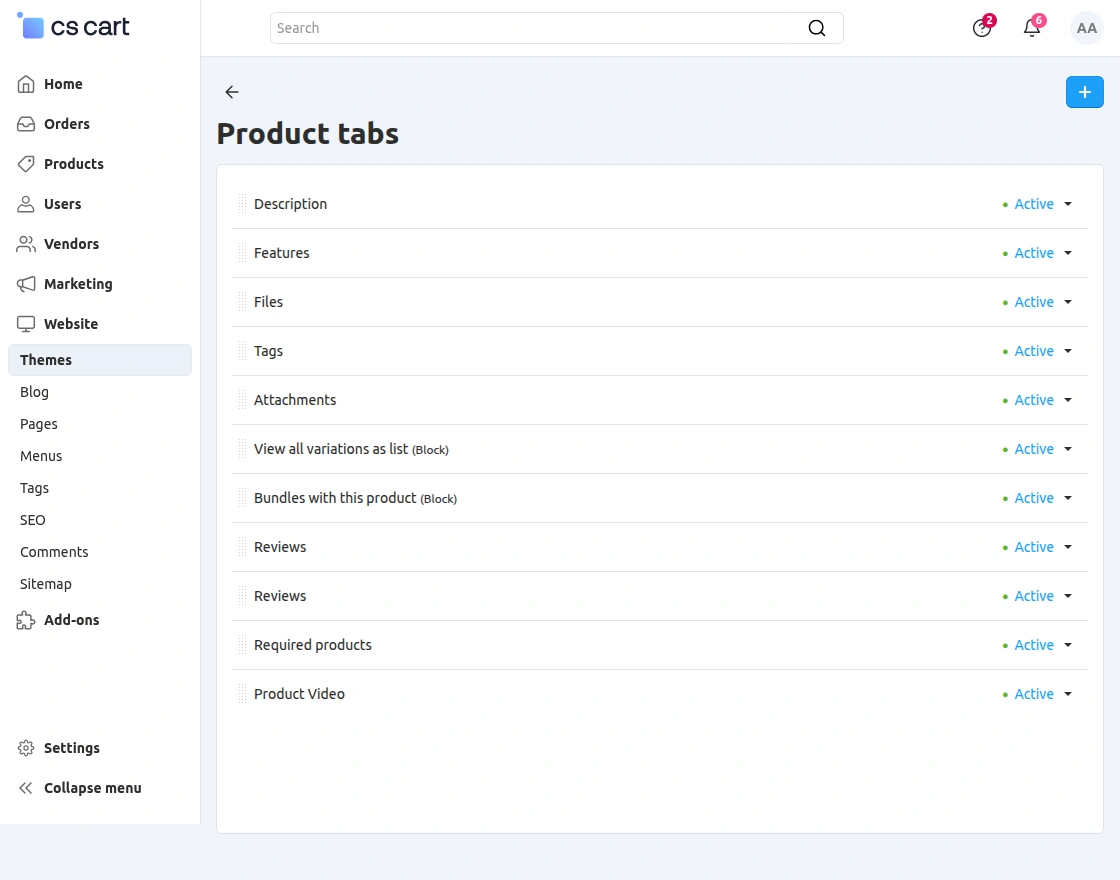
Here, the admin can find the newly created Product Video tab in the list of available product tabs. This tab is enabled by default and is responsible for displaying the product video on the product details page.
The admin can manage the status of this tab or customize it further according to the store requirements.
Configure Product Video
Once the add-on settings have been configured, the admin can assign videos to individual products.
Navigate to:
Products > Products > Select a Product > Video Gallery
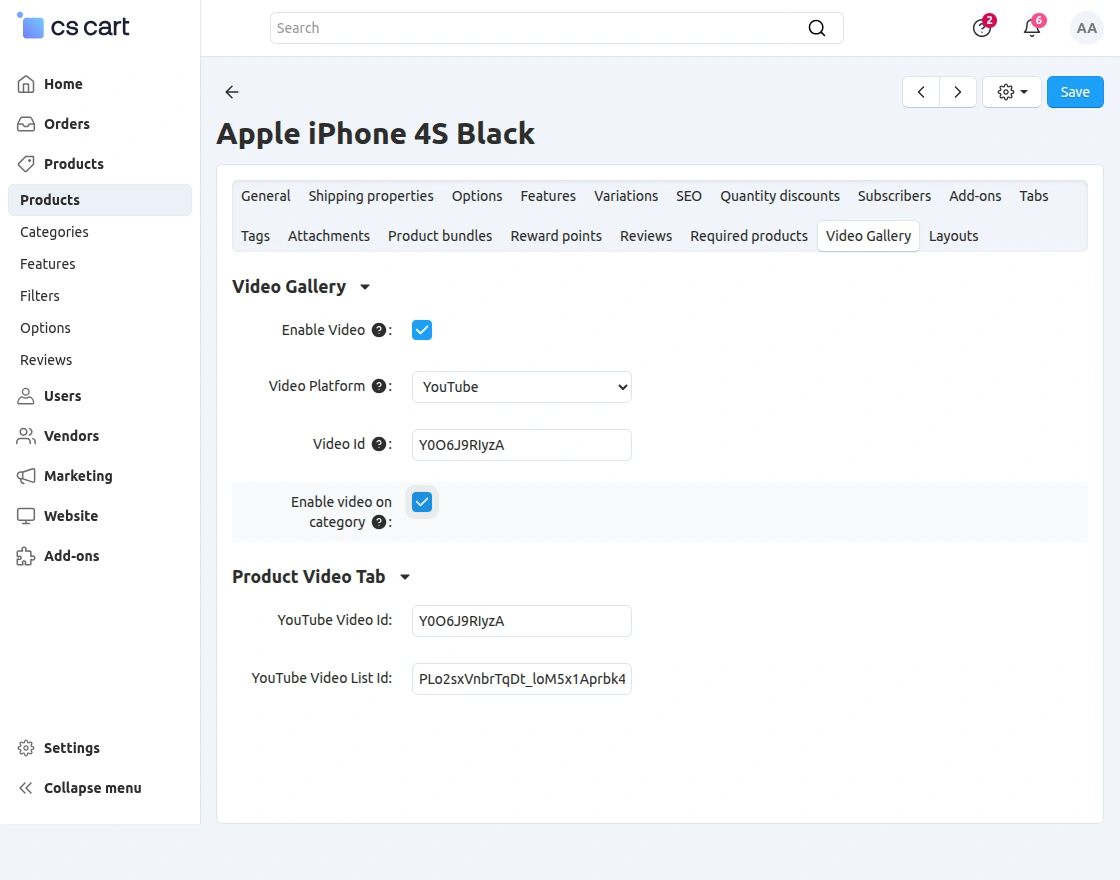
Within the Video Gallery section, the admin can configure the following options:
- Enable Video – Enable or disable video for the selected product.
- Video Platform – Select the supported video platform such as YouTube.
- Video ID – Enter the YouTube video ID that will be displayed on the product page.
- Enable Video on Category – Display the product video thumbnail on the category listing page.
The Product Video Tab section includes:
- YouTube Video ID – Enter the YouTube video ID to display inside the Product Video tab.
- YouTube Video List ID – Enter the YouTube playlist ID to display multiple related videos.
Once all the required details have been entered, click the Save button.
CS-Cart Product Video Gallery | Frontend
After completing the module configuration, customers can view product videos directly from the storefront.
When a customer opens a product details page, the configured product video appears alongside the product images in the product gallery.
Customers can play the video directly from the gallery to get a better understanding of the product before making a purchase.
The snapshot below shows the product video displayed on the product details page.
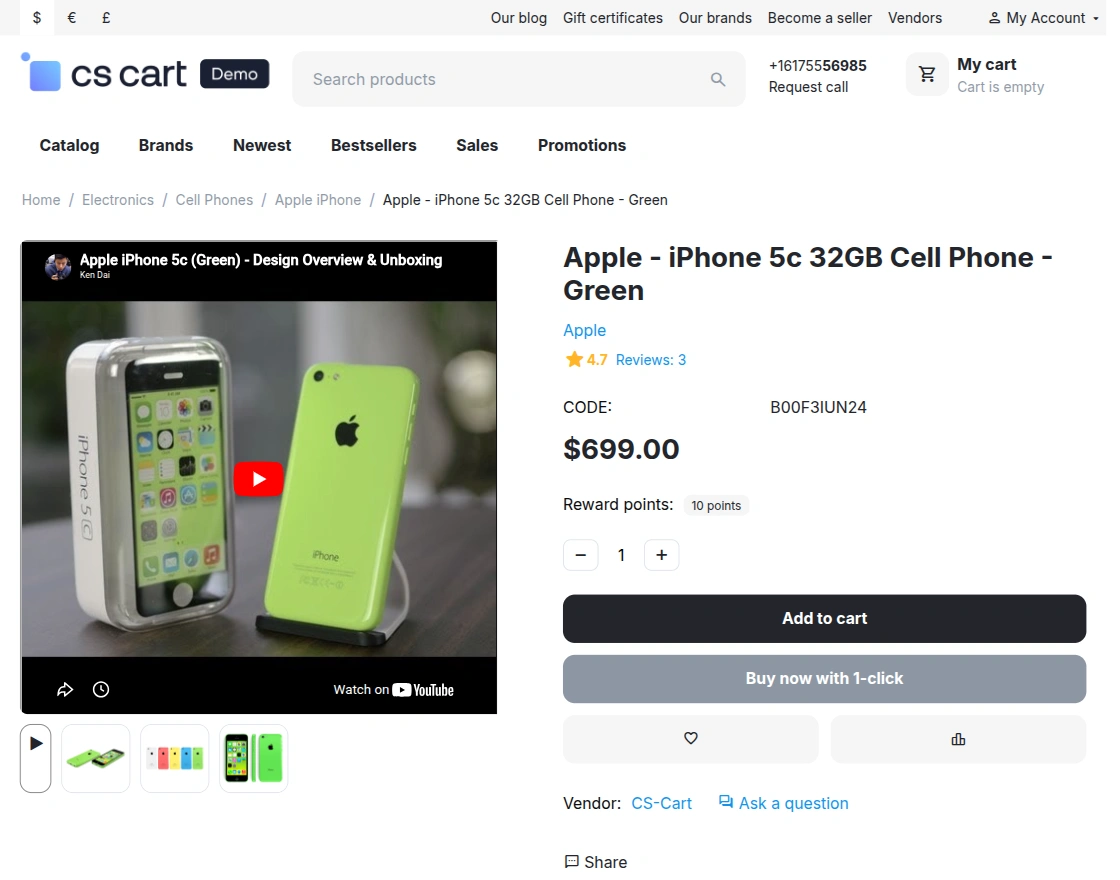
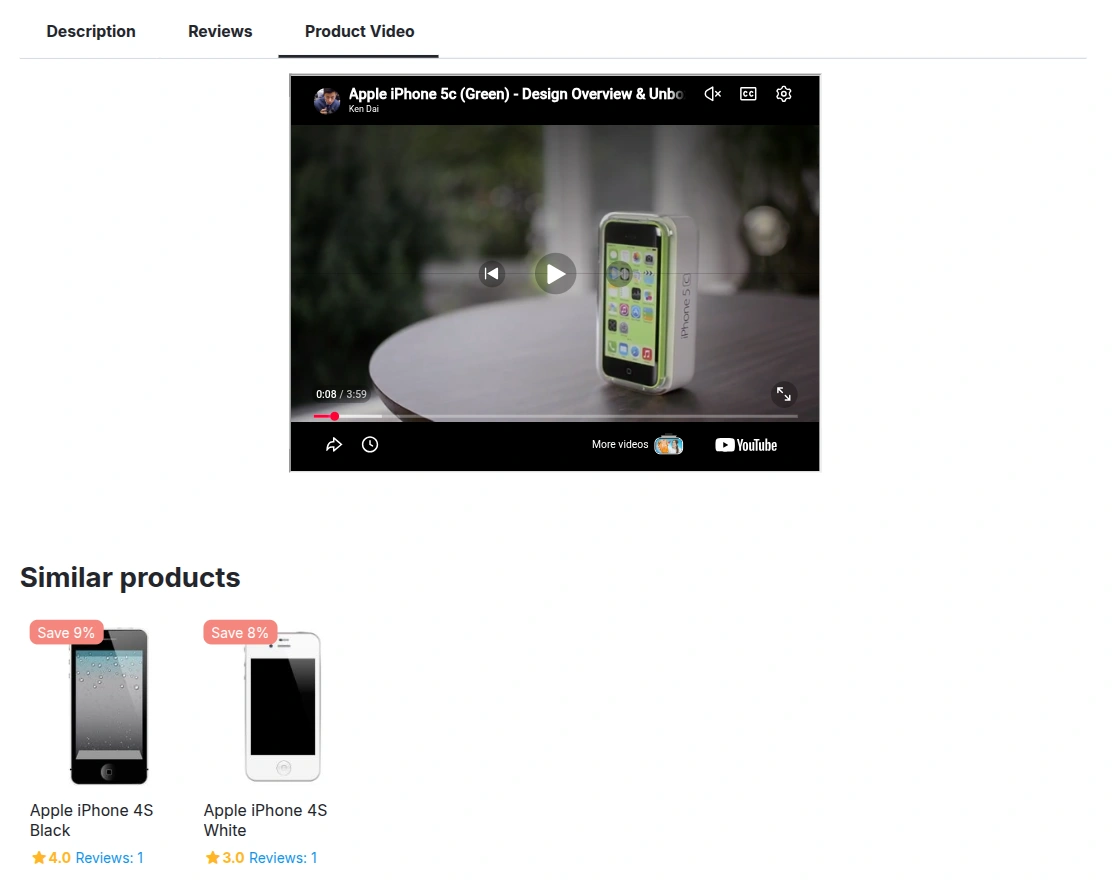
The add-on also creates a dedicated Product Video tab on the product details page.
Customers can open this tab to watch the product video in a separate section without affecting the product information displayed on the page.
The snapshot below shows the Product Video tab on the storefront.
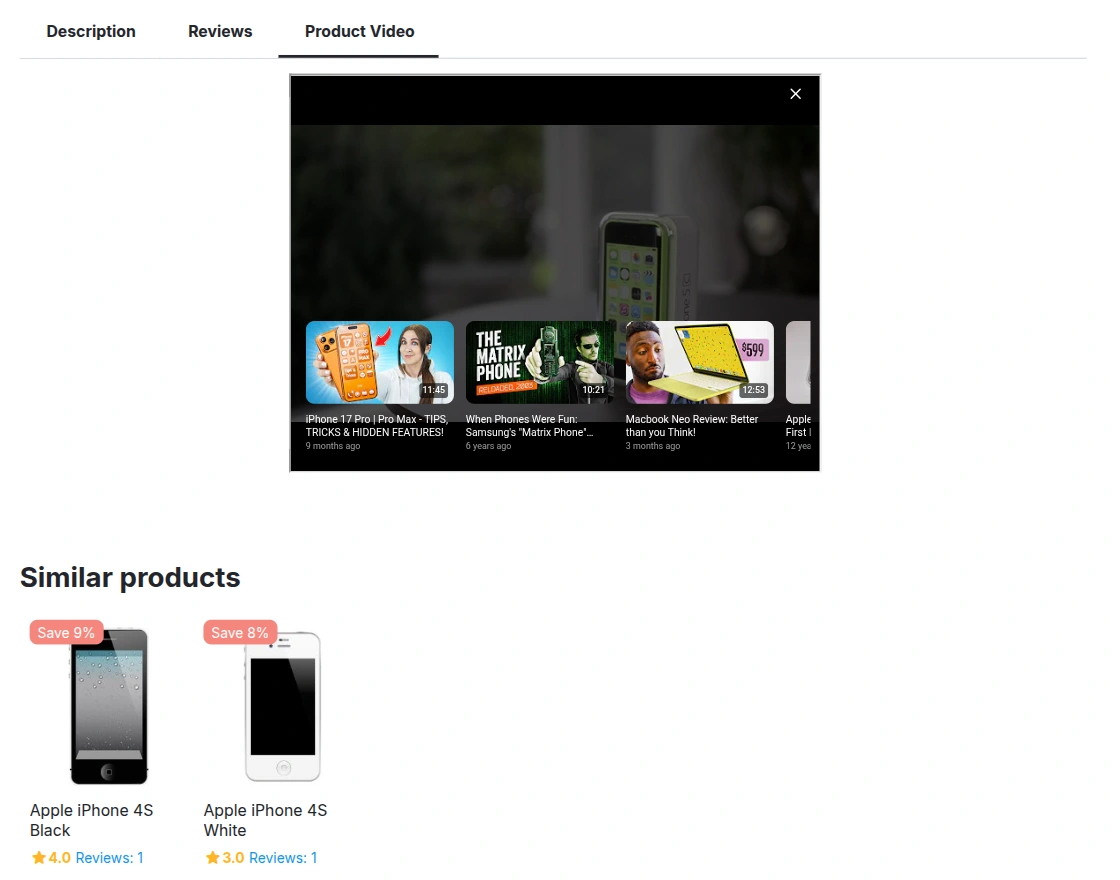
If the admin has configured a YouTube Video List ID, the Product Video tab also displays videos from the selected playlist.
Customers can browse and watch multiple related videos from the same playlist without leaving the product page.
The snapshot below shows the YouTube video playlist displayed in the Product Video tab.
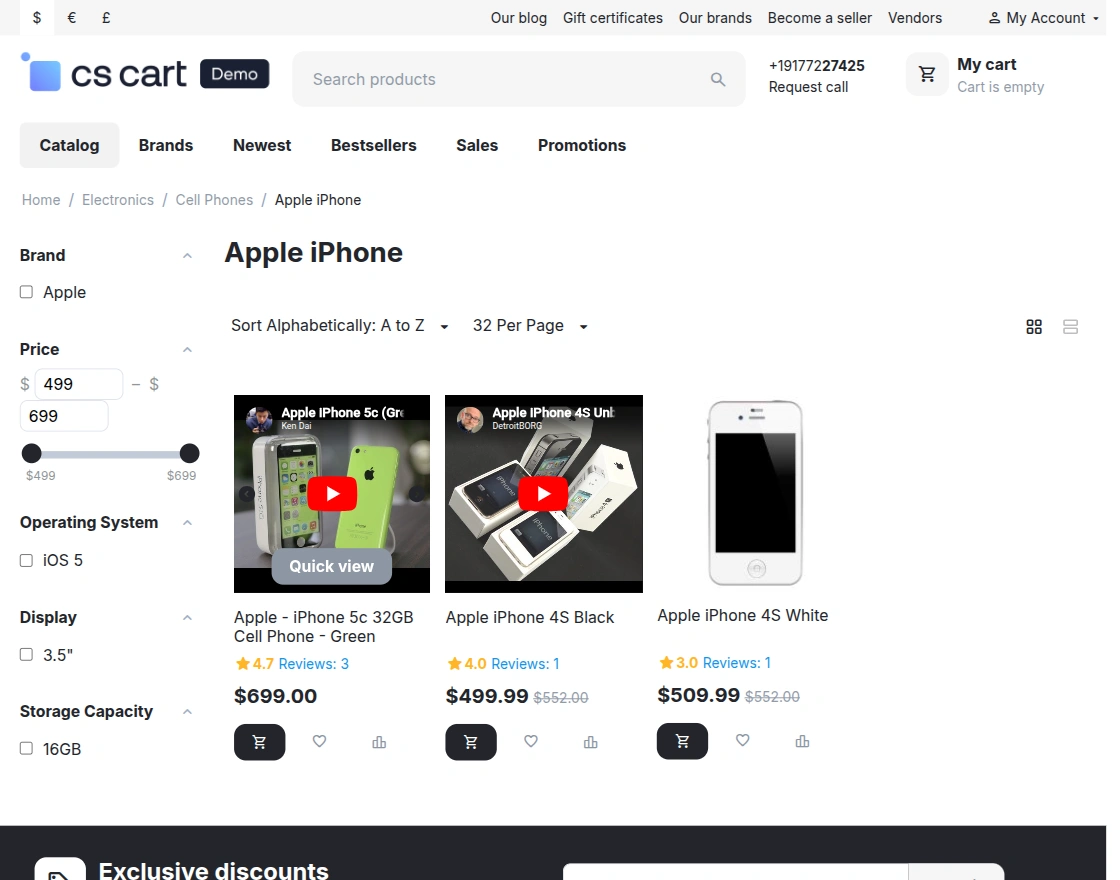
The add-on also displays product videos on the category page. Customers can preview videos directly while browsing products in the Grid View.
The snapshot below shows the product video in Grid View.
Similarly, the product video is also available in the List View, allowing customers to preview videos while browsing products.
The snapshot below shows the product video in List View.