User guide for CS-Cart Plan Modification
This Add-on allows the admin to create multiple options based on the number of products and commission as a “plan type” for a single Plan.
So, a vendor can select any of the available “plan type” for the respective plan as per his choice.
When a vendor wants to have an online store to sell his products, he must choose a vendor plan. Admin will create the vendor plans and offers a different kind of services to the vendor.
Vendor plans are the membership plans that a vendor will select to start selling his products on an online store.
Check a brief overview of the plugin –
Features – CS-Cart Plan Modification
- An admin can set multiple commission for a single Plan.
- Admin can assign any plan type to the vendor from the back end.
- A vendor can also change the commission for the current Plan.
- The Vendor can change the selected Commission in the Registration Form.
Additionally, to add signed terms and conditions as a contract for any seller plan, you can use the CS-Cart Seller Plan Contract add-on.
Installation
After downloading the CS-Cart Plan Modification add-on, you’ll get one zip file, one install.txt file, and a relevant User Guide manual doc.
Please read it carefully for proper configuration.
Go to Manage Add-ons, and click on “Manual Installation” as shown below in the snapshot.
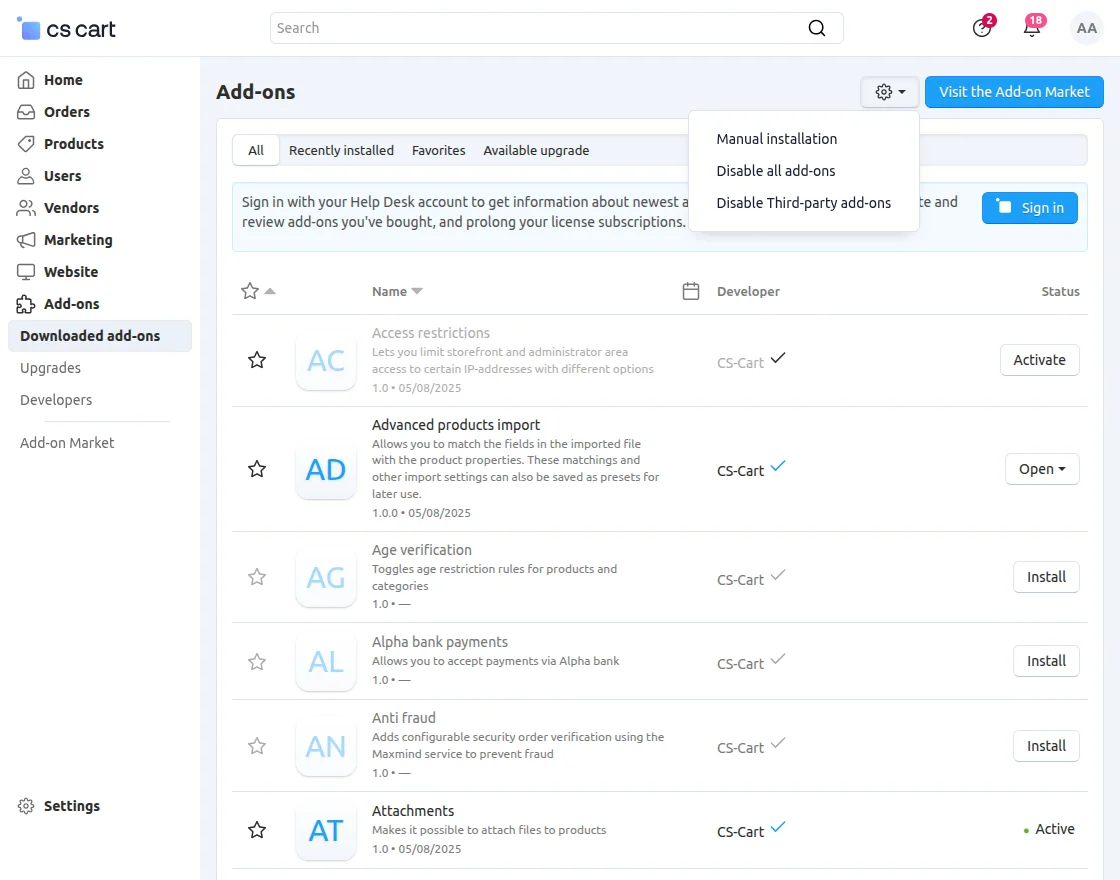

Click on “Local” to browse the zip file, and then click on “Upload & Install” as shown below in the snapshot.
Configuration – CS-Cart Plan Modification
Navigate to Vendors >> Vendor Plans to create and manage plans for vendors.
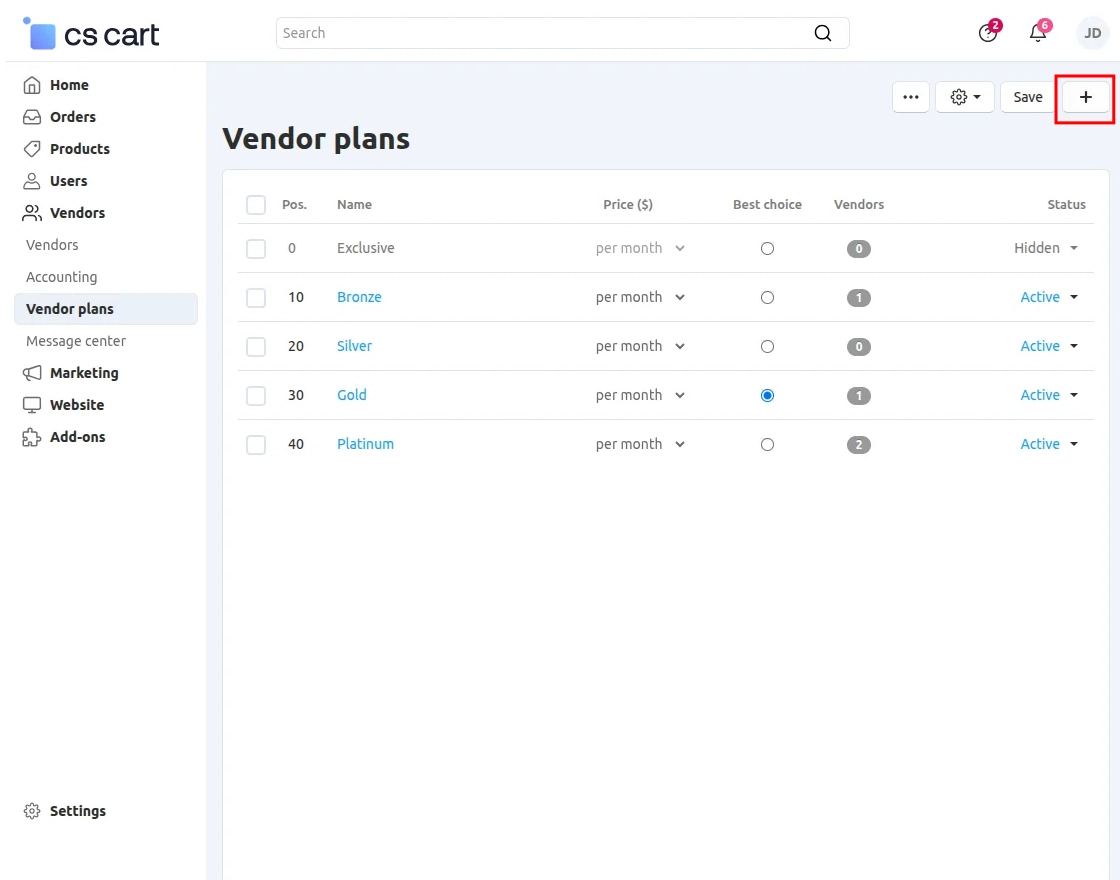
Here in the vendor plans section, click on the icon (+) to create a new vendor plan.
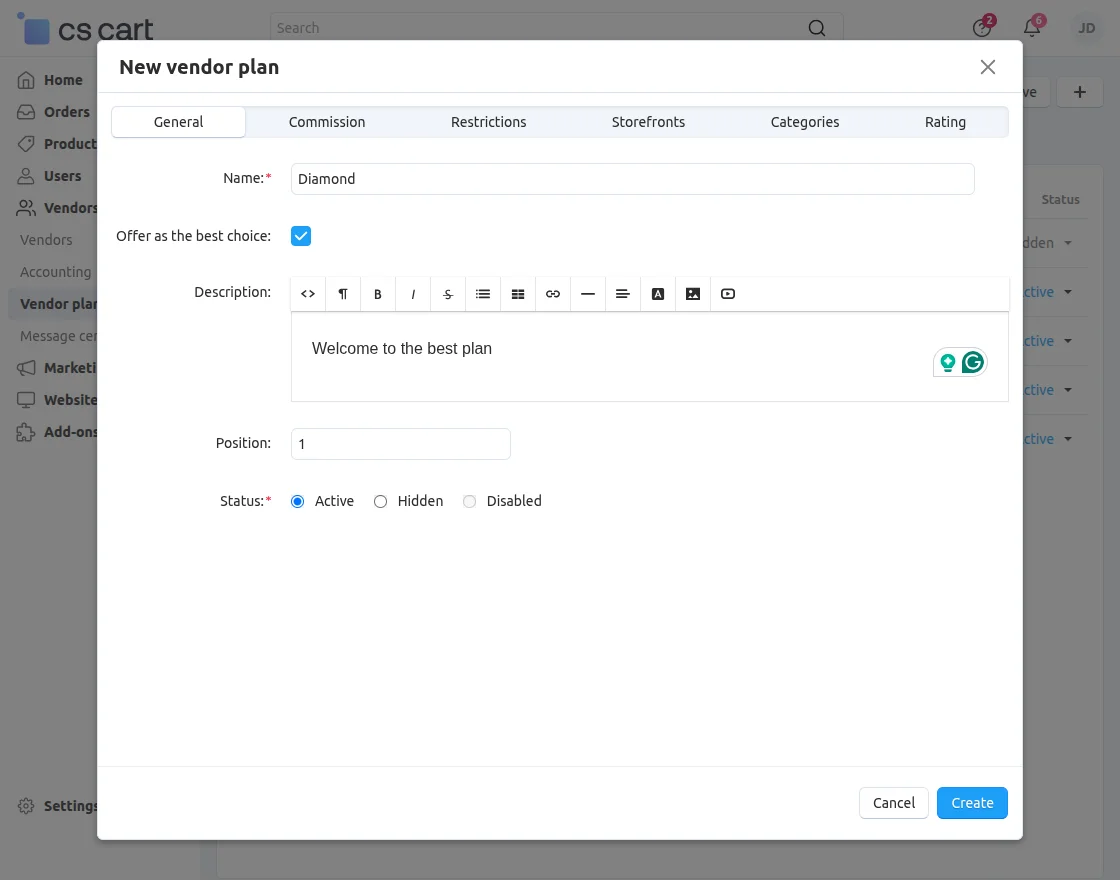
-
Name: Enter the name of the vendor plan.
-
Offer as the Best Choice: Enable this option to highlight the plan as the best choice.
-
Description: Add a clear description of the plan and its benefits.
-
Status: Update the plan status as required.
Commission
After that, under the “Commission” tab, the admin can modify that particular plan.
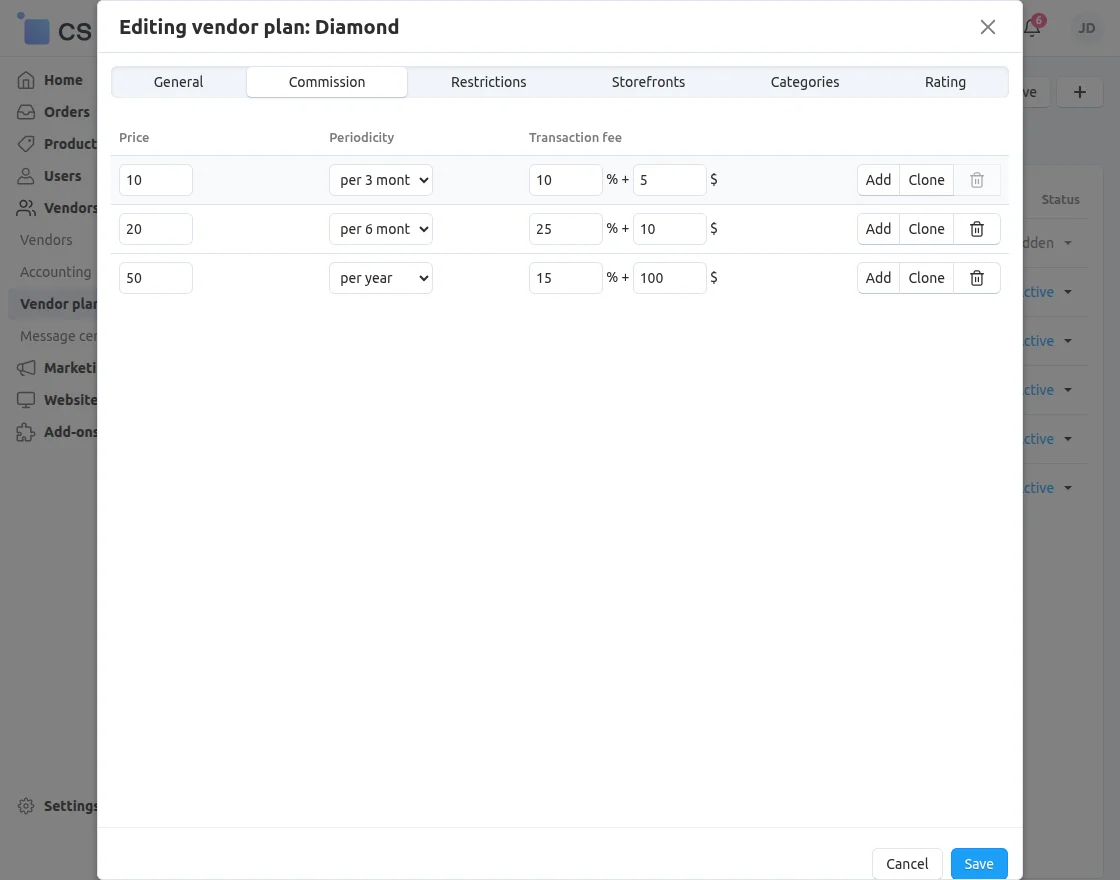
The admin can add and edit the following details for a vendor plan:
-
Price: Set or update the plan price.
-
Periodicity: Define the billing cycle (monthly, yearly, etc.).
-
Transaction Fee: Configure the commission or transaction charges for the plan.
Restrictions
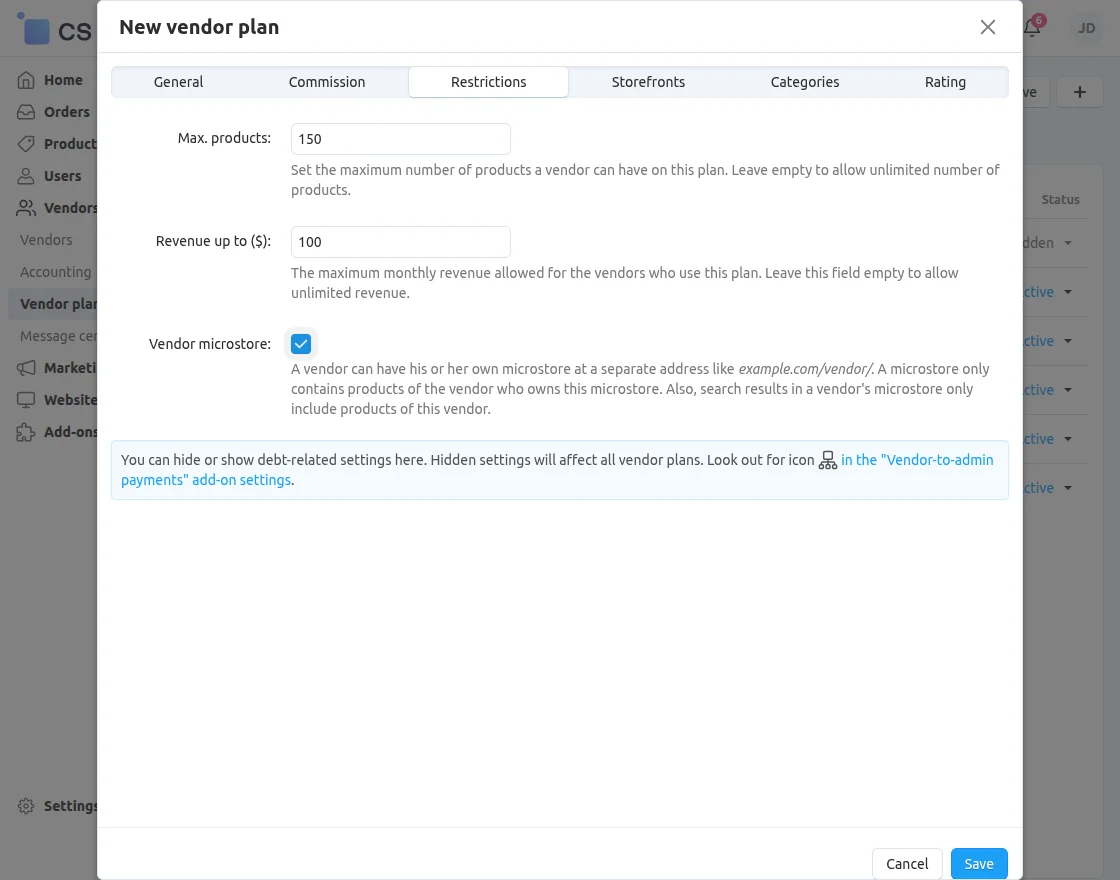
-
Maximum Products: Set the maximum number of products a vendor can list under this plan. Leave this field empty to allow unlimited products.
-
Revenue Limit: Define the maximum monthly revenue allowed for vendors using this plan. Leave this field empty to allow unlimited revenue.
-
Vendor Microstore: Enable this option to allow vendors to have a microstore. A microstore displays only the products of the vendor who owns it.
Vendor Plan Selection
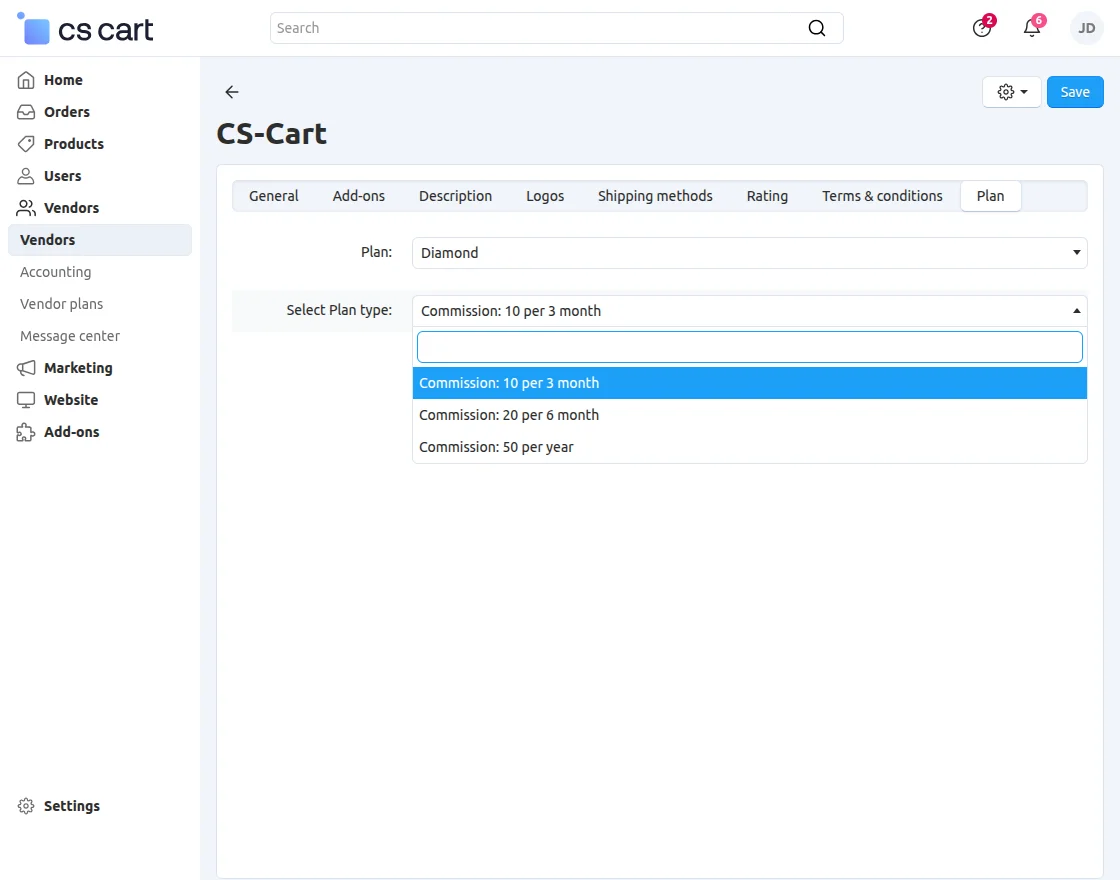
Now, the admin can assign the plan to the vendor and configure the commission accordingly.
Store Front Workflow – CS-Cart Plan Modification
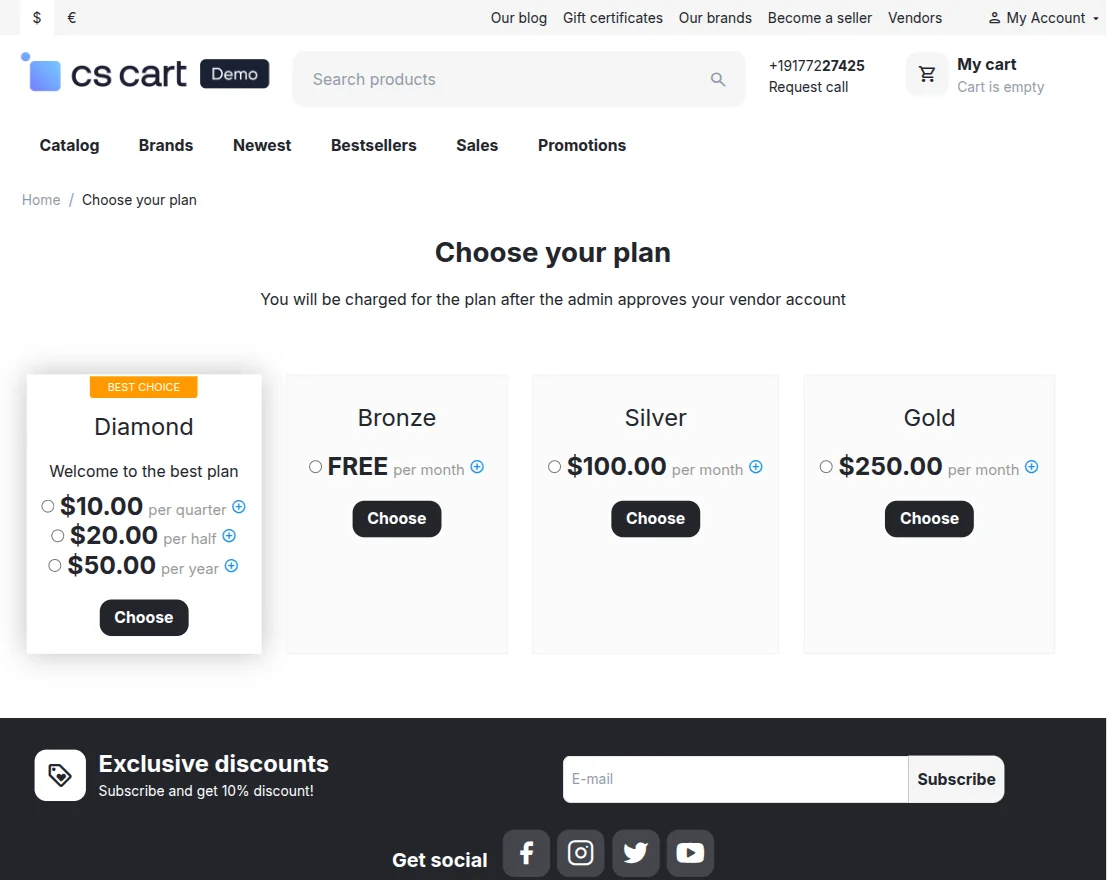
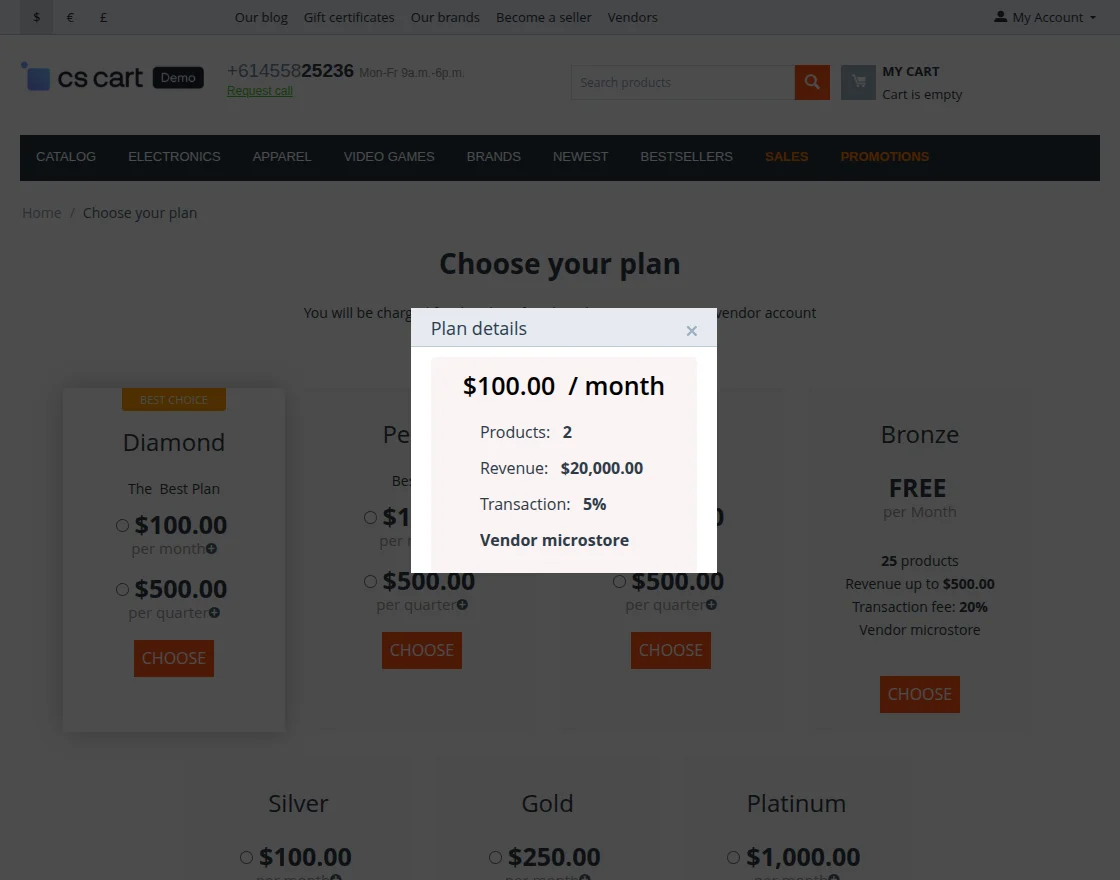
Before selecting a plan, the vendor can view the plan details by clicking the “+” icon displayed on the right side of the plan price.
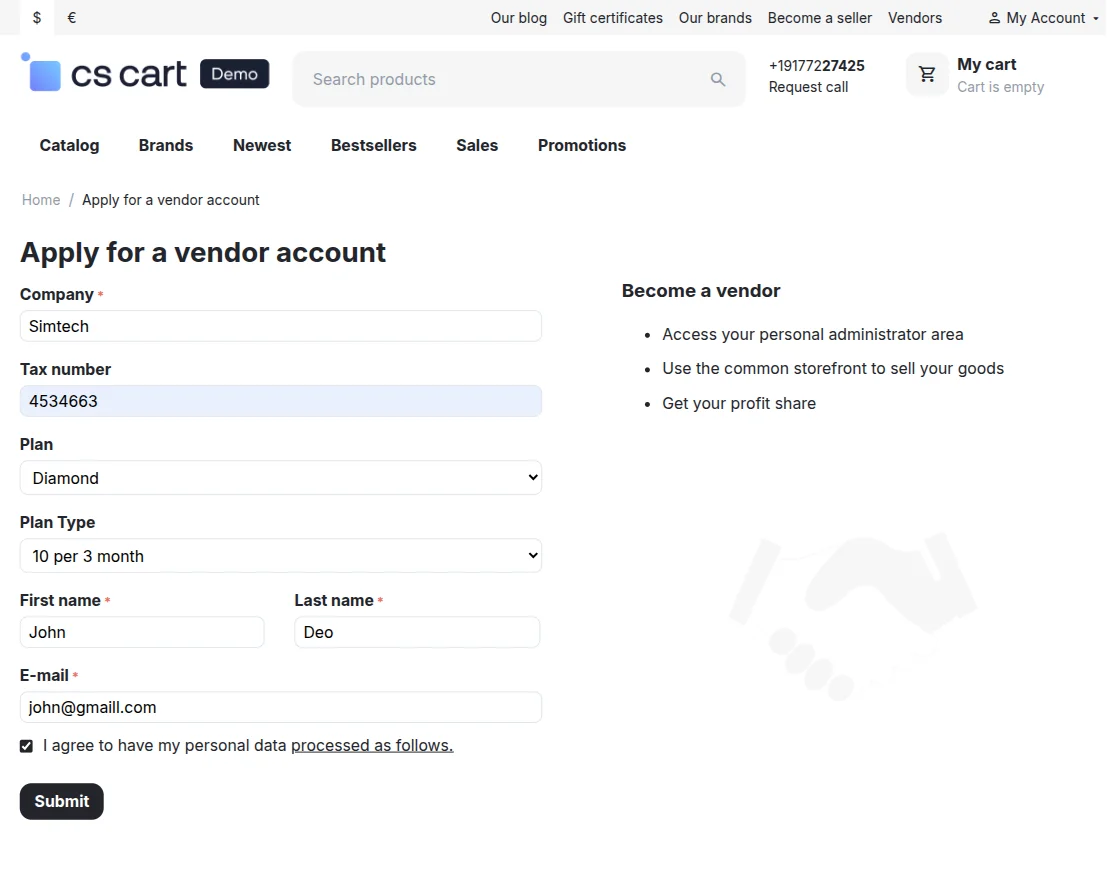
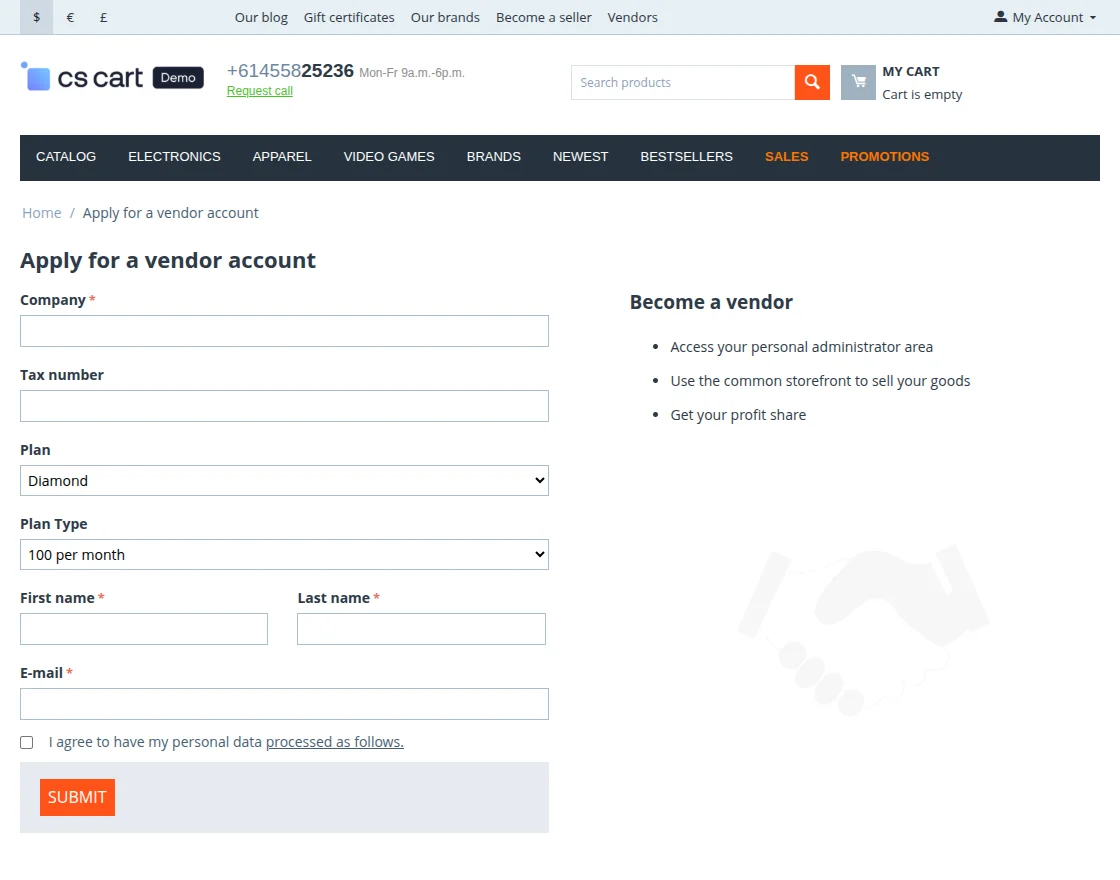
Vendor Panel
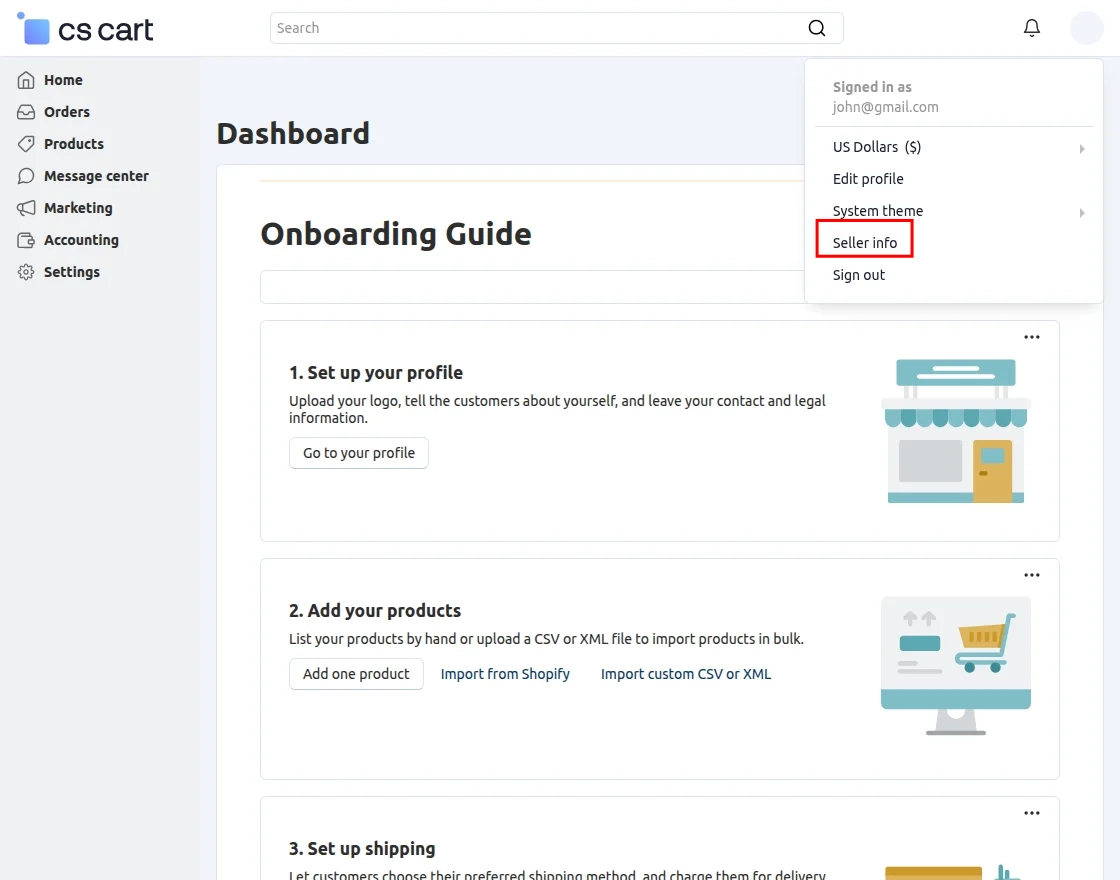
Go to the Plan Section to check the plan and select the plan type. Then click on the Save Button.
Support
If you have any questions, suggestions, or customization requests, feel free to contact us. at support@webkul.com or submit a ticket at webkul.uvdesk.com.
Explore our premium-quality CS Cart Extensions to enhance your store functionality.
You can also explore our CS-Cart Development Services and Quality CS-Cart add-ons.