User Guide For CS-Cart PayUbiz Payment Gateway
By integrating PayUbiz, merchants can accept secure online payments through multiple payment channels, providing customers with a smooth and reliable checkout experience.
PayUbiz is a trusted payment gateway solution for Indian merchants, offering secure payment processing services through its partnerships with leading banks and financial institutions.
This integration helps businesses manage online transactions efficiently while enhancing customer convenience and payment security.
Note:
- Install the add-on.
- Enter the license key.
- Follow the license activation steps.
Check a brief overview of the plugin –
Features
- Seamlessly integrated with CS-Cart and CS-Cart Multi-Vendor stores.
- Supports multiple payment methods, including Credit Cards, Debit Cards, Net Banking, EMI, Cash on Delivery (COD), Wallets, PayUmoney, and American Express (Amex).
- Allows administrators to view and manage all payment response information received from PayUbiz directly from the backend.
- Ensures secure and reliable payment processing with enhanced security measures.
- Includes an automatic currency conversion feature based on the currency configured by the store administrator.
- Enables administrators to create orders and process payments through PayUbiz from the backend.
- Supports both Test and Live modes, making it easy to test transactions before going live.
- Stores detailed PayUbiz transaction responses, including Transaction Details, Card Information, Bank Details, and Customer Information for future reference and record management.

Flow Of Installation And Configuration:
When you download the “CS-Cart PayUbiz Payment Gateway”, you’ll get one zip file and the install.txt file. Read it carefully and follow it. After that, install the zip file.
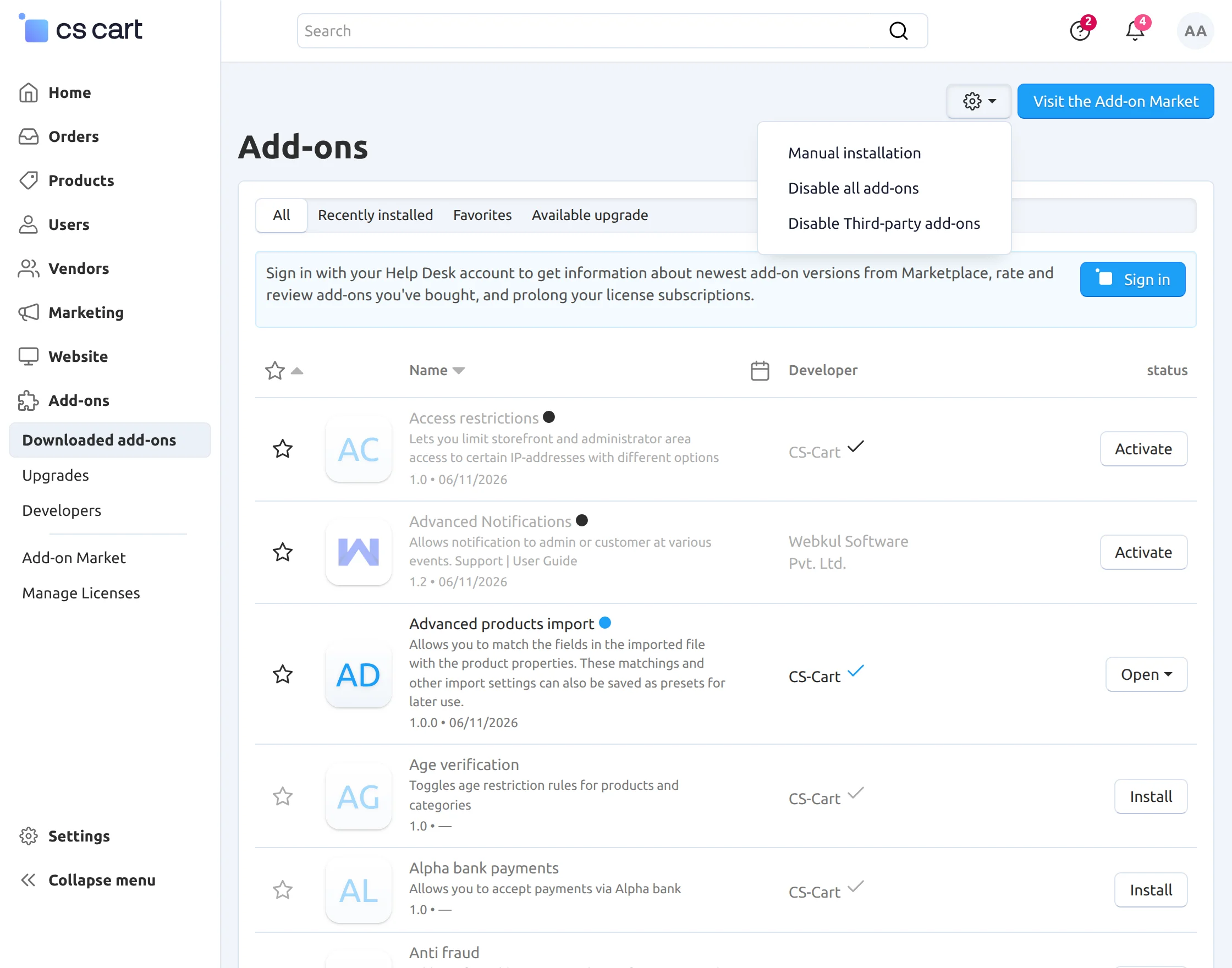
Navigate to Add-ons > Downloaded add-ons and click on the settings icon. You can manually install the zip file as shown below:
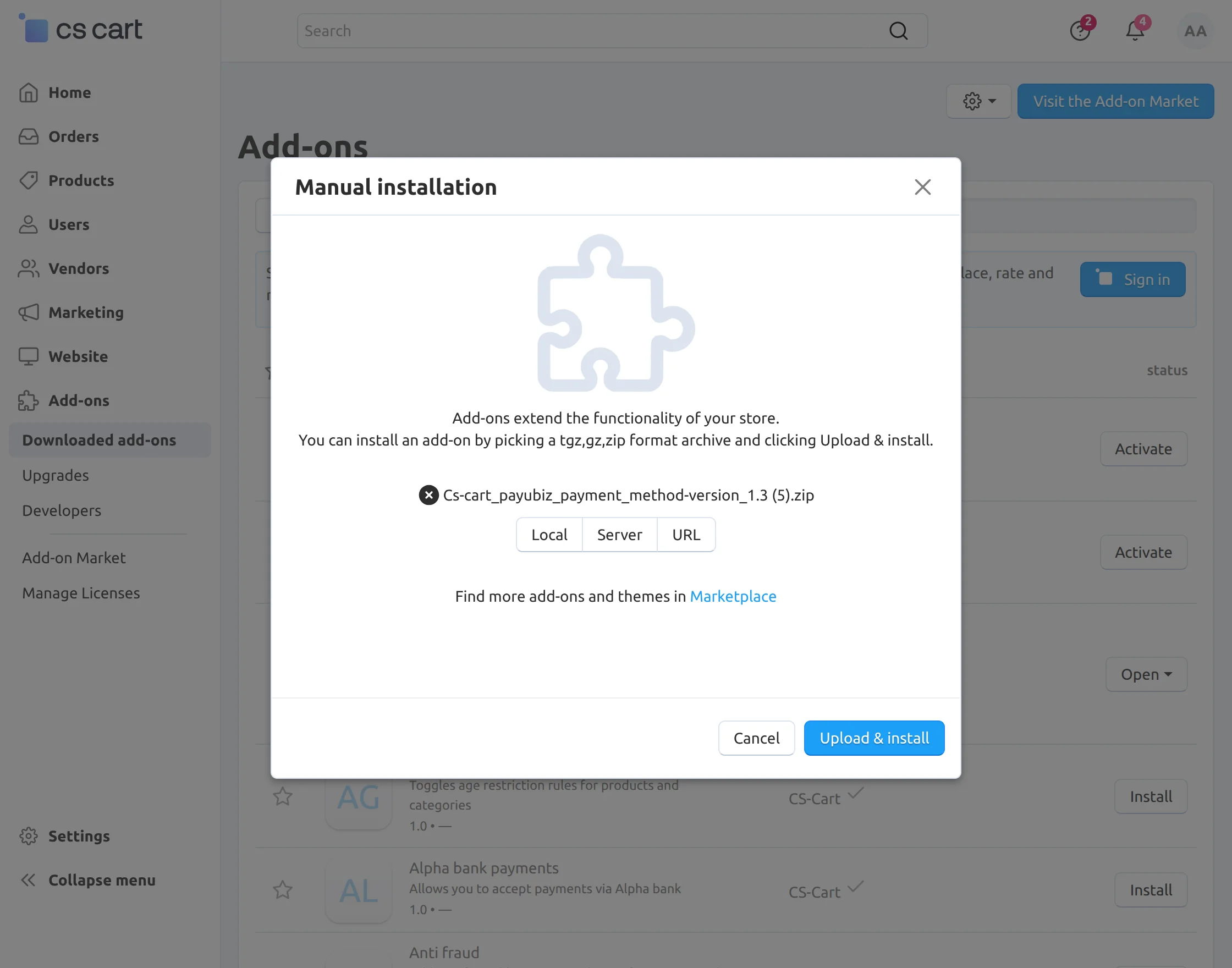
Click on “Local” to browse the zip file and then click on “Upload & Install” as shown below in the snapshot.

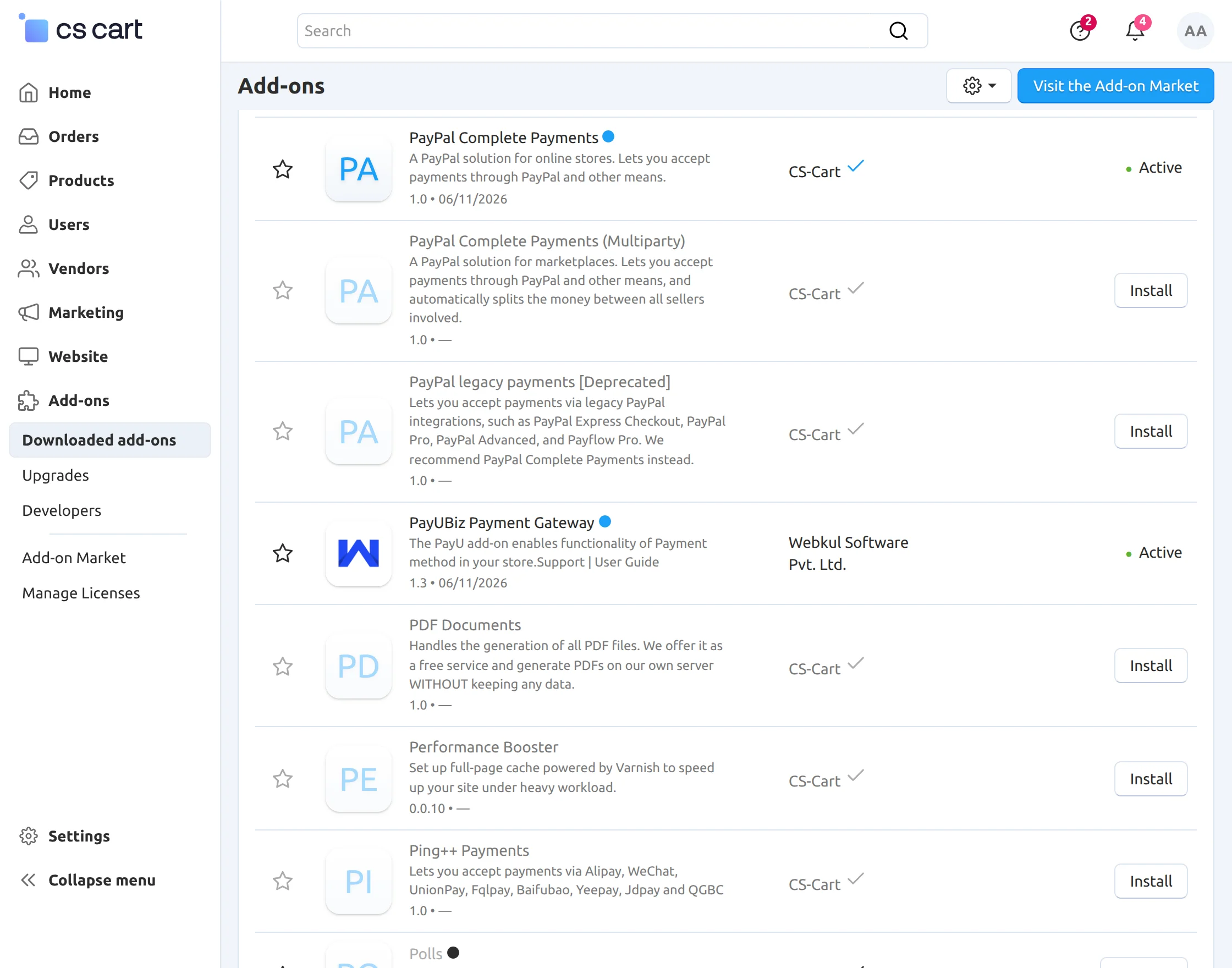
Activate Add-on
Once you install and activate the CS-Cart PayUbiz Payment Gateway add-on, you can begin configuring its settings.
Configuration for Payment Methods
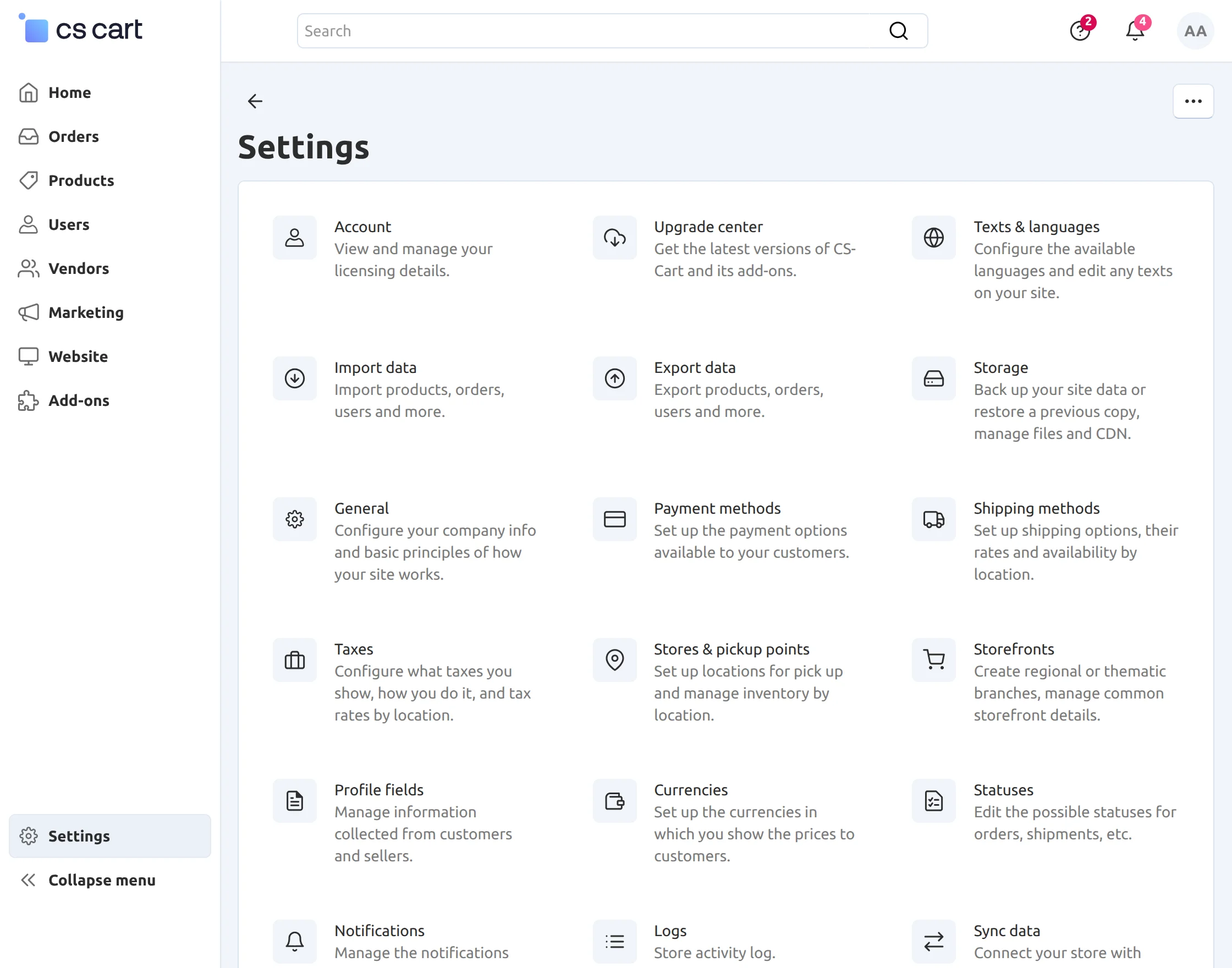
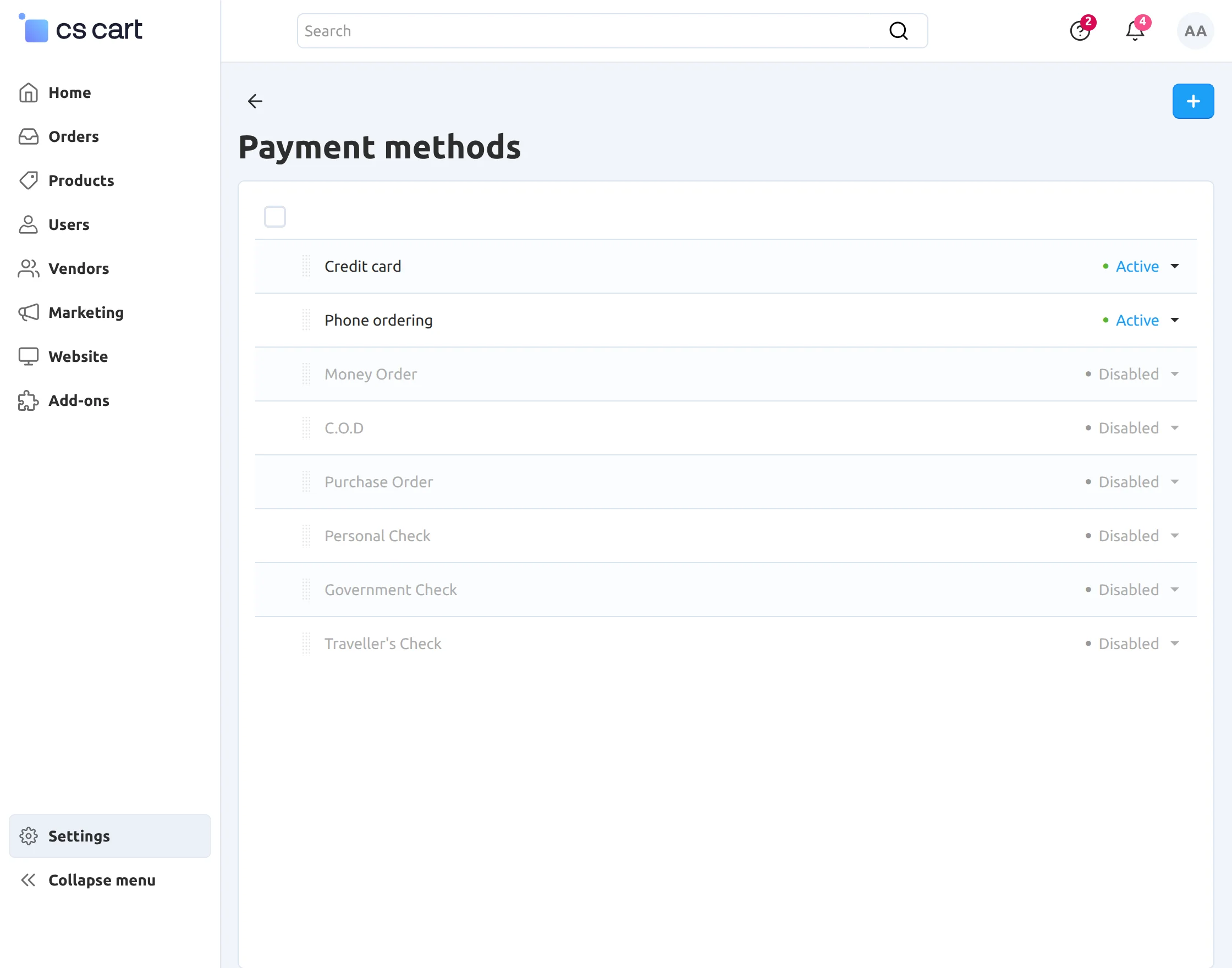
- First, go to Settings > Payment Methods from the admin panel.
- Navigate to Settings, then click Payment Methods to begin configuring the payment gateway.
Click on “+” to create a new payment method.
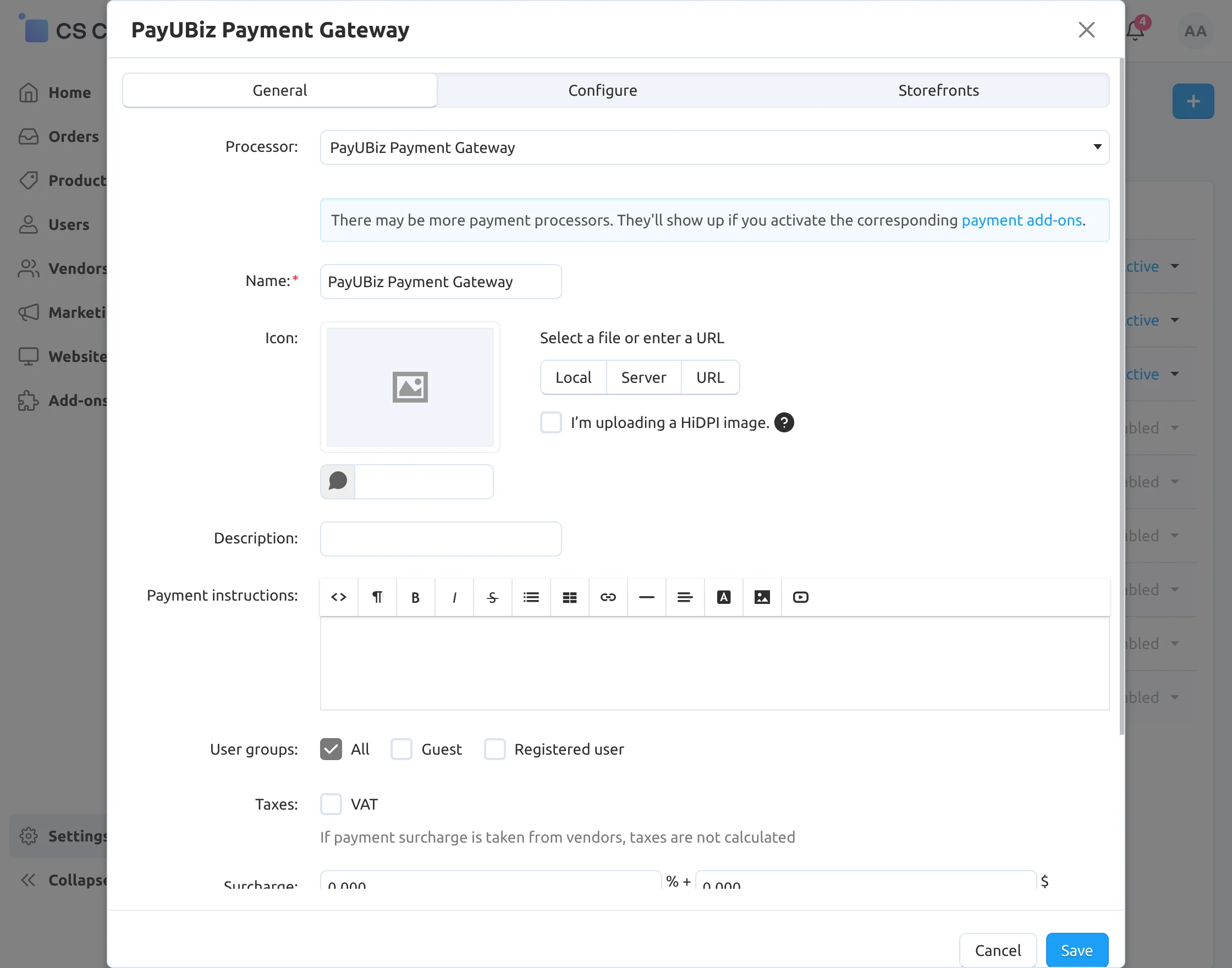
- Select PayUbiz as the Payment Processor.
- Enter a suitable name for the payment method.
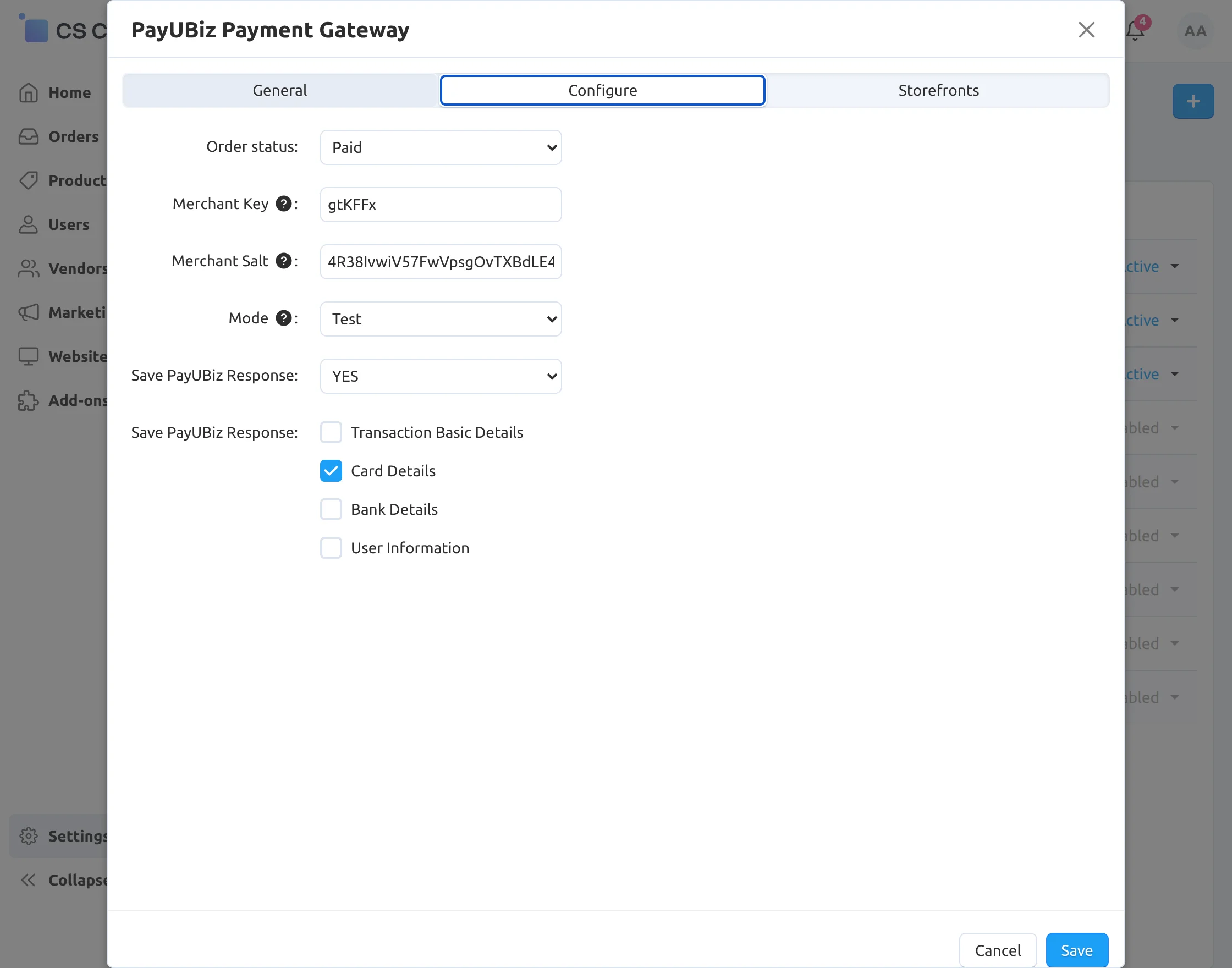
Click on the Configure tab and enter the required details as shown in the screenshot below.
- Select the desired Order Status for successful transactions.
- Enter the PayUbiz credentials, including the Merchant ID and Salt Key.
- Choose the appropriate gateway mode, either Test or Live, based on your requirements.
- Enable the Save Payment Response option to store transaction details and payment responses for future reference.
Front End View
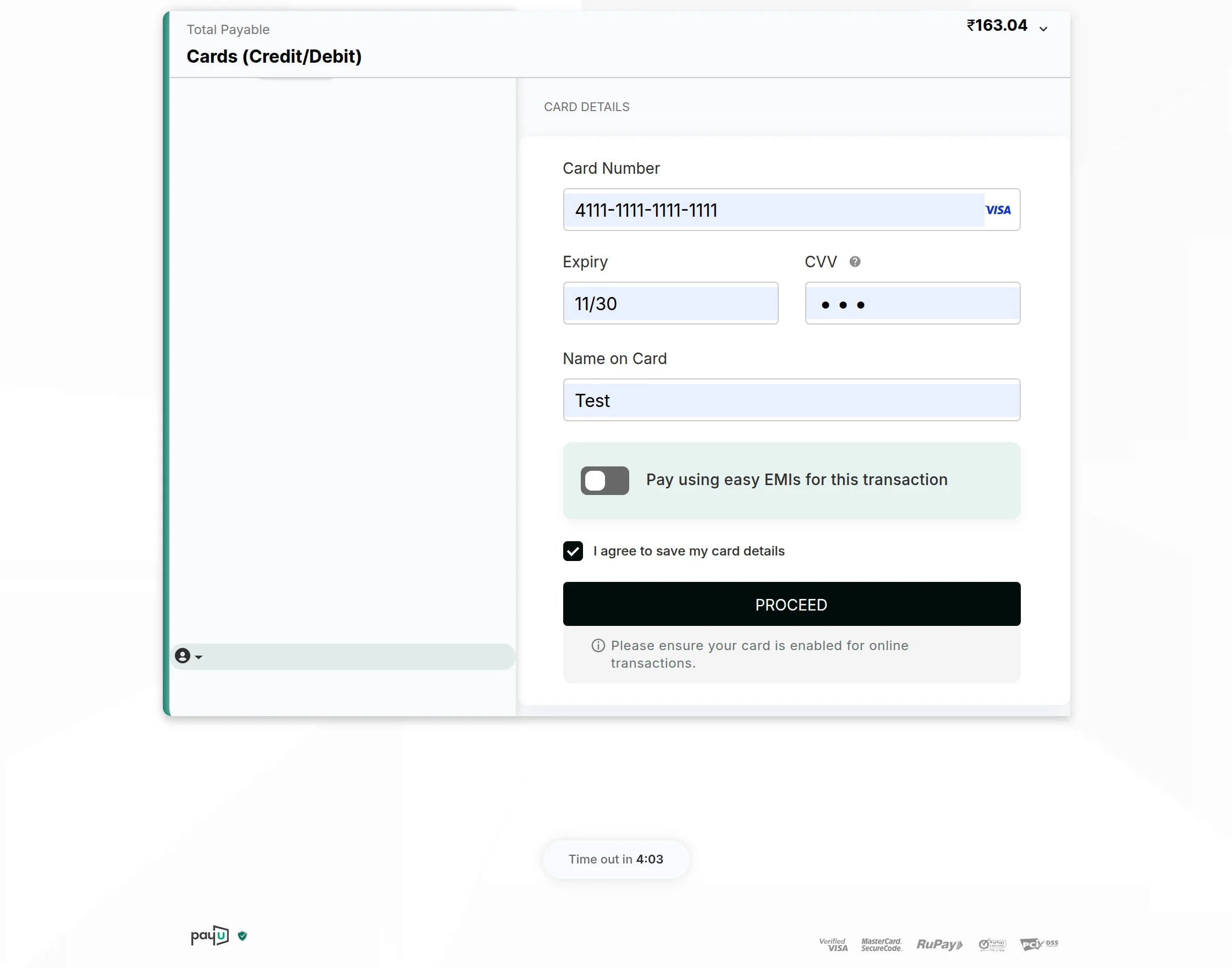
For payment via “PayUbiz Payment Gateway” select the option as shown below in the snapshot.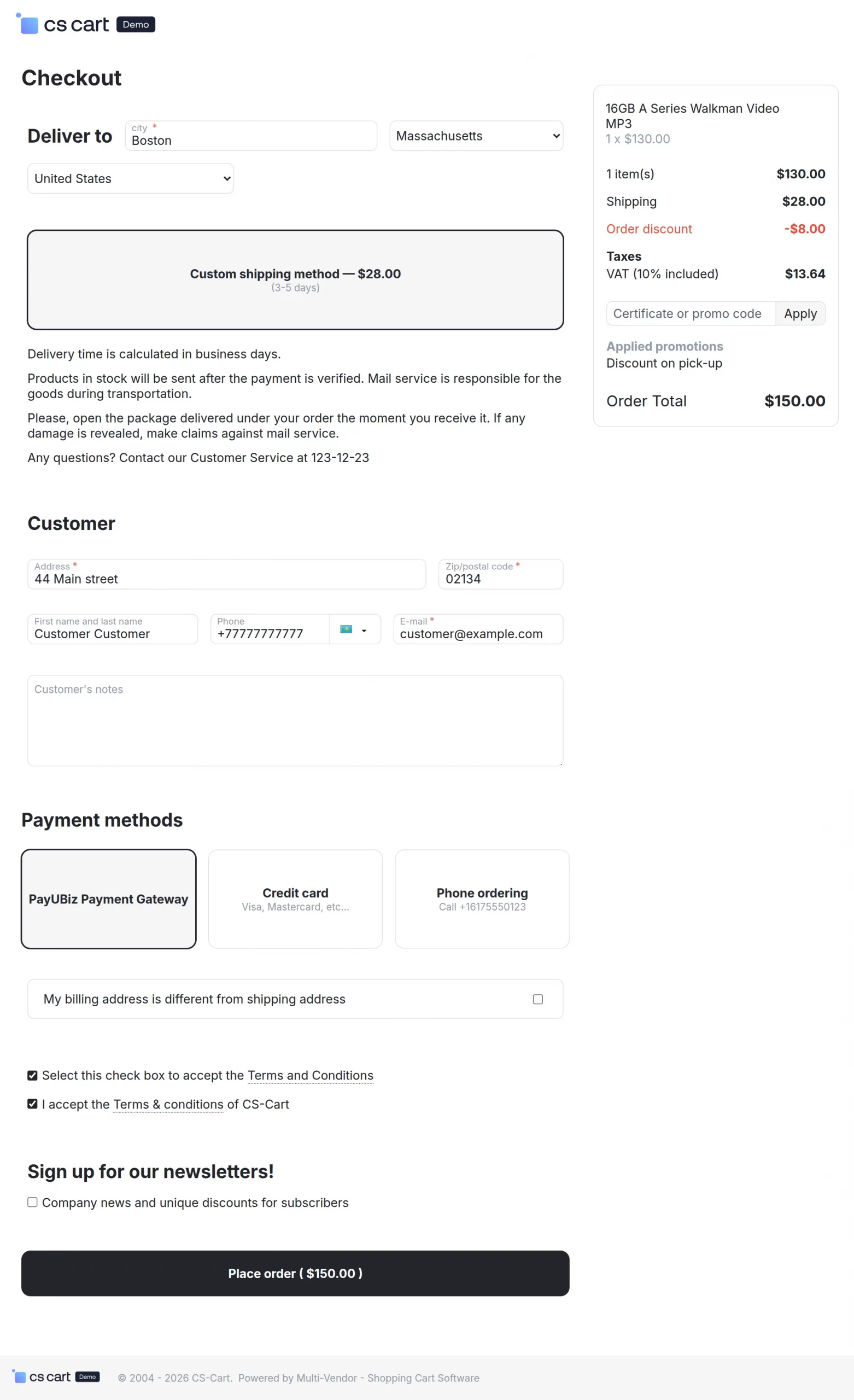

Select the desired payment method and enter the required payment details. Once all the information has been provided, click on the Proceed button to continue and place the order.
Payment Response View at the admin end
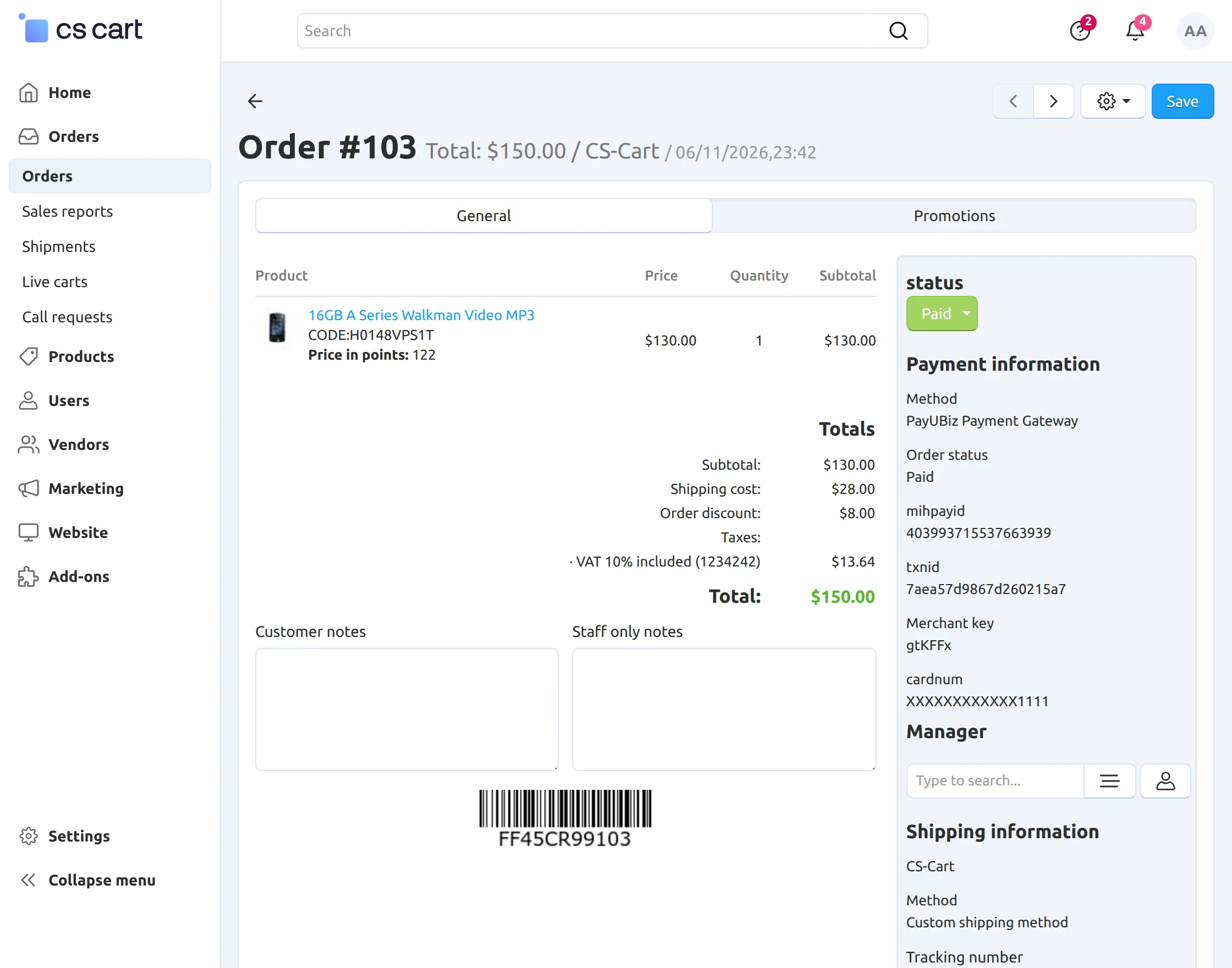
First, go to Orders and select the order for which you want to view the payment details.
Open the order by clicking on its Order ID. The PayUbiz payment response will be displayed in the Payment Information section of the order details page.
Support:
If you have any questions, suggestions, or customization requests, feel free to contact us at support@webkul.com or submit a ticket at webkul.uvdesk.com.
Explore our premium-quality CS Cart Extensions to enhance your store functionality.
You can also explore our CS-Cart Development Services and Quality CS-Cart add-ons.